


Five Must Try Flipgrid Hidden Gems Teachers and Students
One of our favorite things about Flipgrid is the fact that anyone can use it. It doesn’t matter if you’re just starting school, finishing school, teaching in school, or just using it to be COOL - Flipgrid is for you. The app is constantly changing, and often times gems are hidden right under our nose - or mouse pointer!

One of our favorite things about Flipgrid is the fact that anyone can use it. It doesn’t matter if you’re just starting school, finishing school, teaching in school, or just using it to be COOL - Flipgrid is for you. The app is constantly changing, and often times gems are hidden right under our nose - or mouse pointer! In this blog post, you’ll learn about five MUST TRY Flipgrid hacks that both you and your students can try. Click on any button below to jump to that section, or check them all out!


Editing and Arranging Flipgrid Photo Stickers
Our students love adding photo stickers to their videos. Sometimes it’s a book cover, other times it’s their own work. You may not realize this, but you can add more than one photo sticker on a video. But, figuring out where to position the photo sticker is important and sometimes it requires a little bit of precision. Which leads us to the first hack - guaranteed to blow your mind!
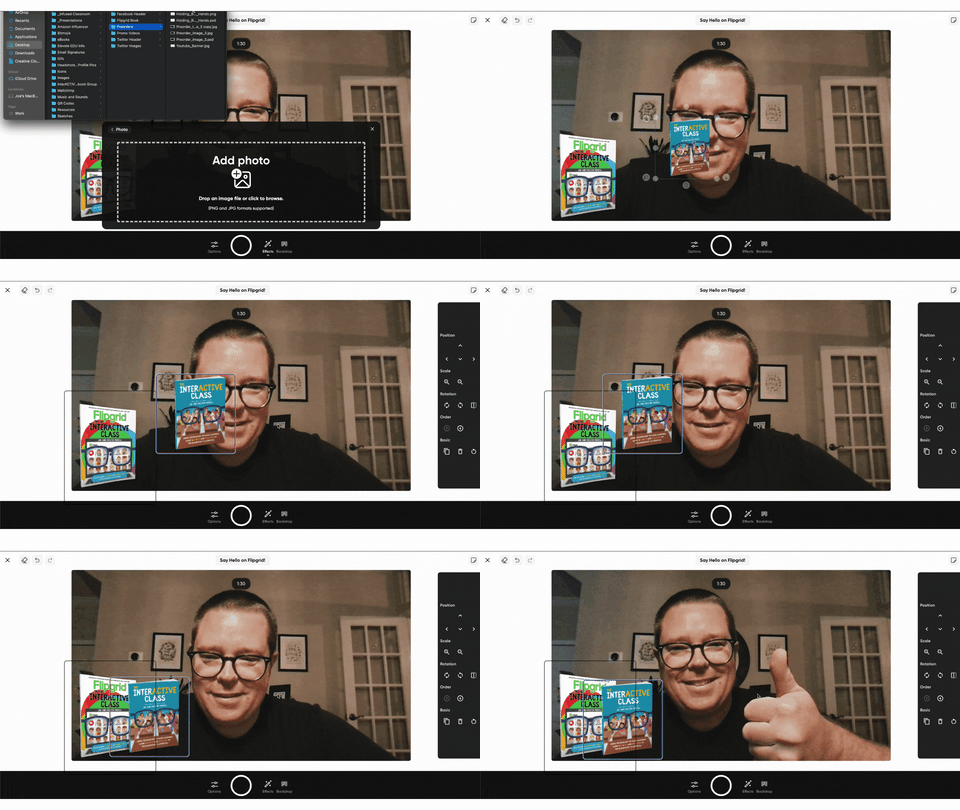
Launch the Flipgrid Shorts Camera and prepare to record your video.
Add a photo stickers of your choice.
After you have added the second photo sticker, press one of the arrow keys on your keyboard. A new sidebar will appear on the right side of your screen!
This will allow you to position, scale, reorder, duplicate, trash or even undo the previous step. To remove the sidebar, simply click on the screen again and it will disappear. To make it reappear, just click the arrows on your keyboard again!

Sticky Notes on Flipgrid
A well hidden (pun intended) Flipgrid Feature is the ability to use Sticky Notes when creating your video. Adding sticky notes helps students keep focused and on task with what your prompt is. These notes aren’t visible to anyone else other than the student, and they will not appear in the final product of the video. But, hold on…It get’s better! You can add multiple sticky notes and move them around your screen as you please! Here’s how:

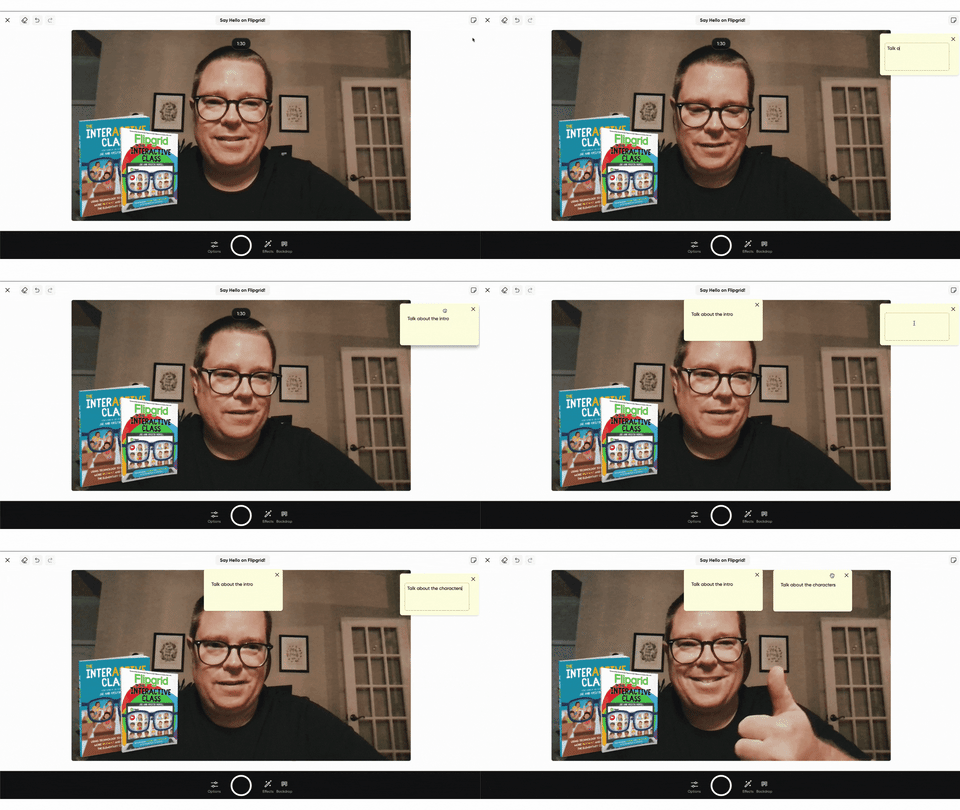
Launch the Flipgrid Shorts Camera and prepare to record a video.
Locate the Sticky Notes button on the outside of the recording area, located in the top right hand corner.
Click the button to open a Sticky Note. This can be moved anywhere on the screen and it will not appear in the final product. (TIP: Place the sticky note in the top-middle part of you screen. This will make it look like you’re still looking at the camera)
Repeat this process as many times as needed!
Mirroring the Flipgrid Shorts Camera
Often times, our students share work they have completed on a whiteboard or piece of paper right into their Flipgrid video. But, most students are using devices that utilize a front-facing camera. The end result is a backwards image / video. But, this hack will fix that in just two clicks!
Launch the Flipgrid Shorts Camera and prepare to record a video.
When the camera opens, click the Options button.
To mirror your video, click “Mirror Video.”


Go Live in a Flipgrid Topic with YouTube
this hack is definitely a level up and you’ll need both a Flipgrid and YouTube account. You’ll need the ability to go “Live” on YouTube - if you’re using a new YouTube account, this requires the use of a desktop computer and a 24 hour activation. Basically, you will need to wait 24 hours before you gain the ability to go live.
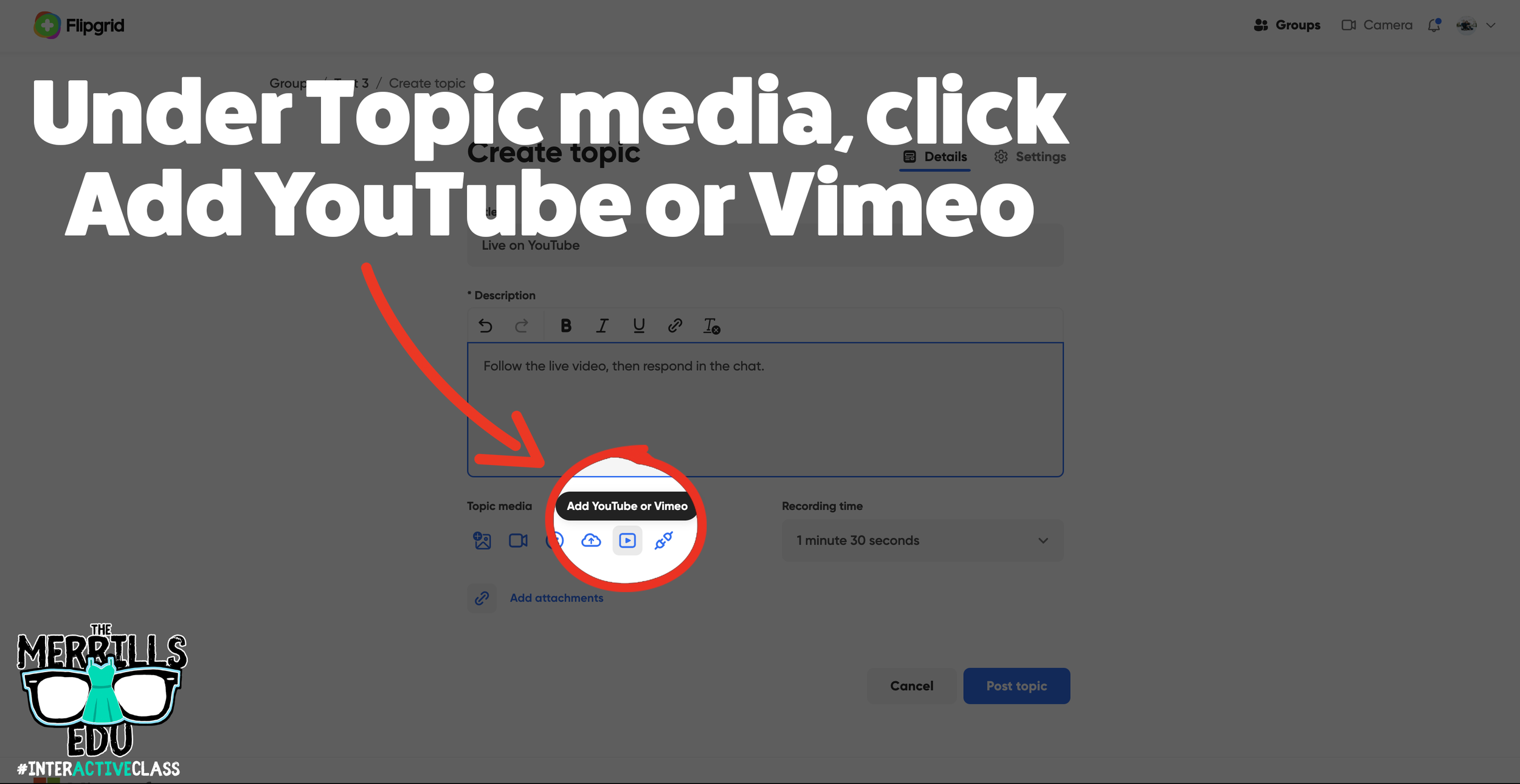
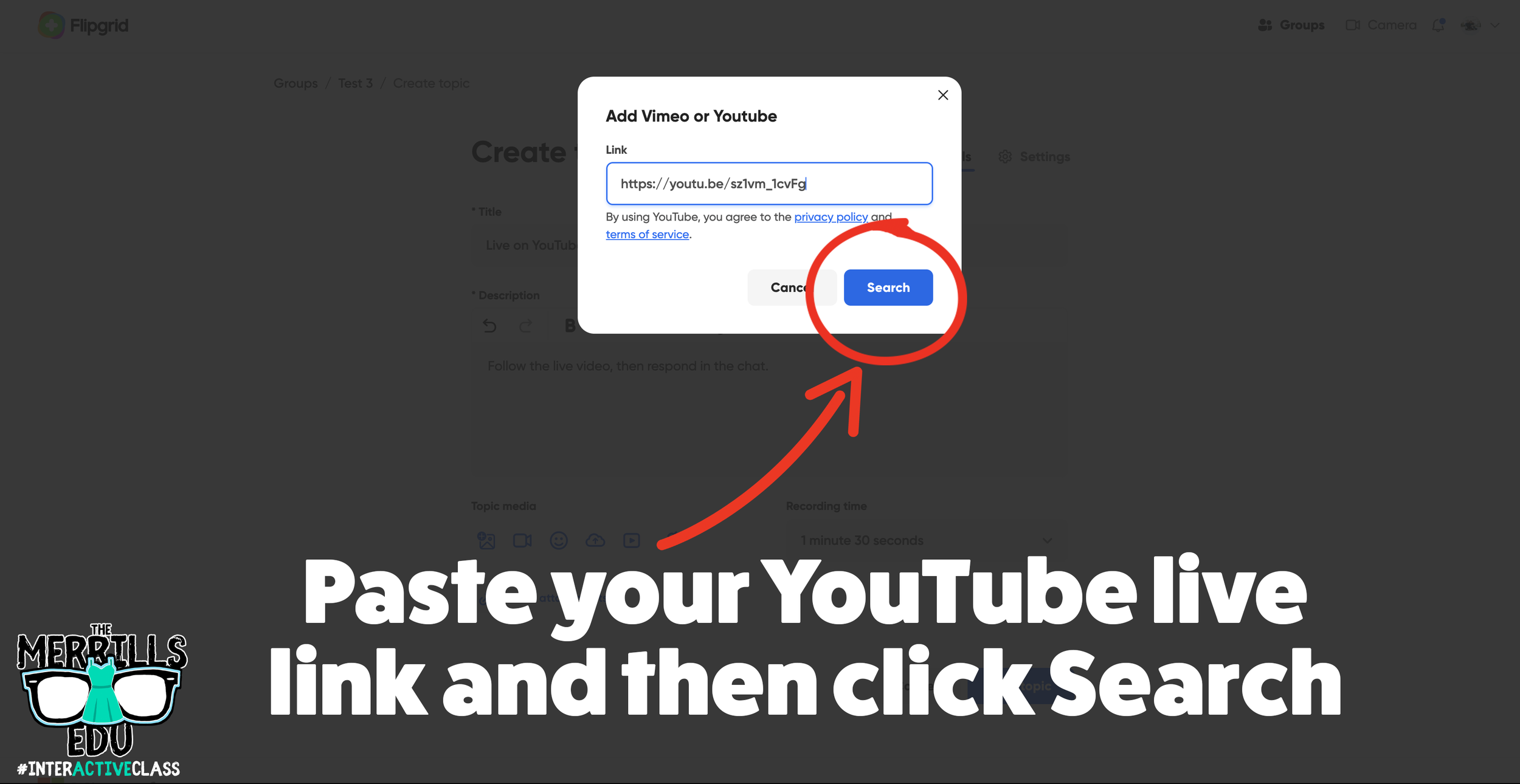
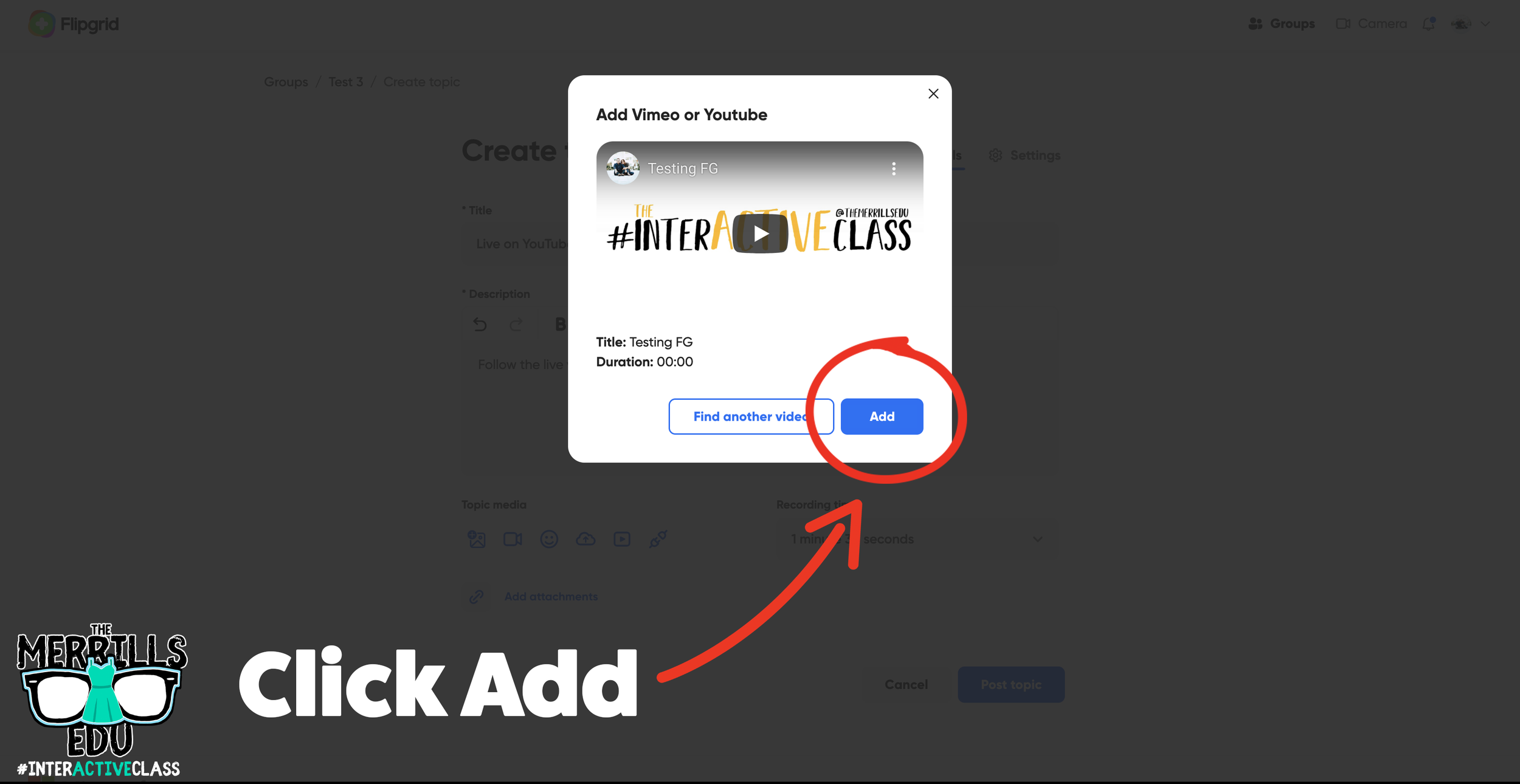
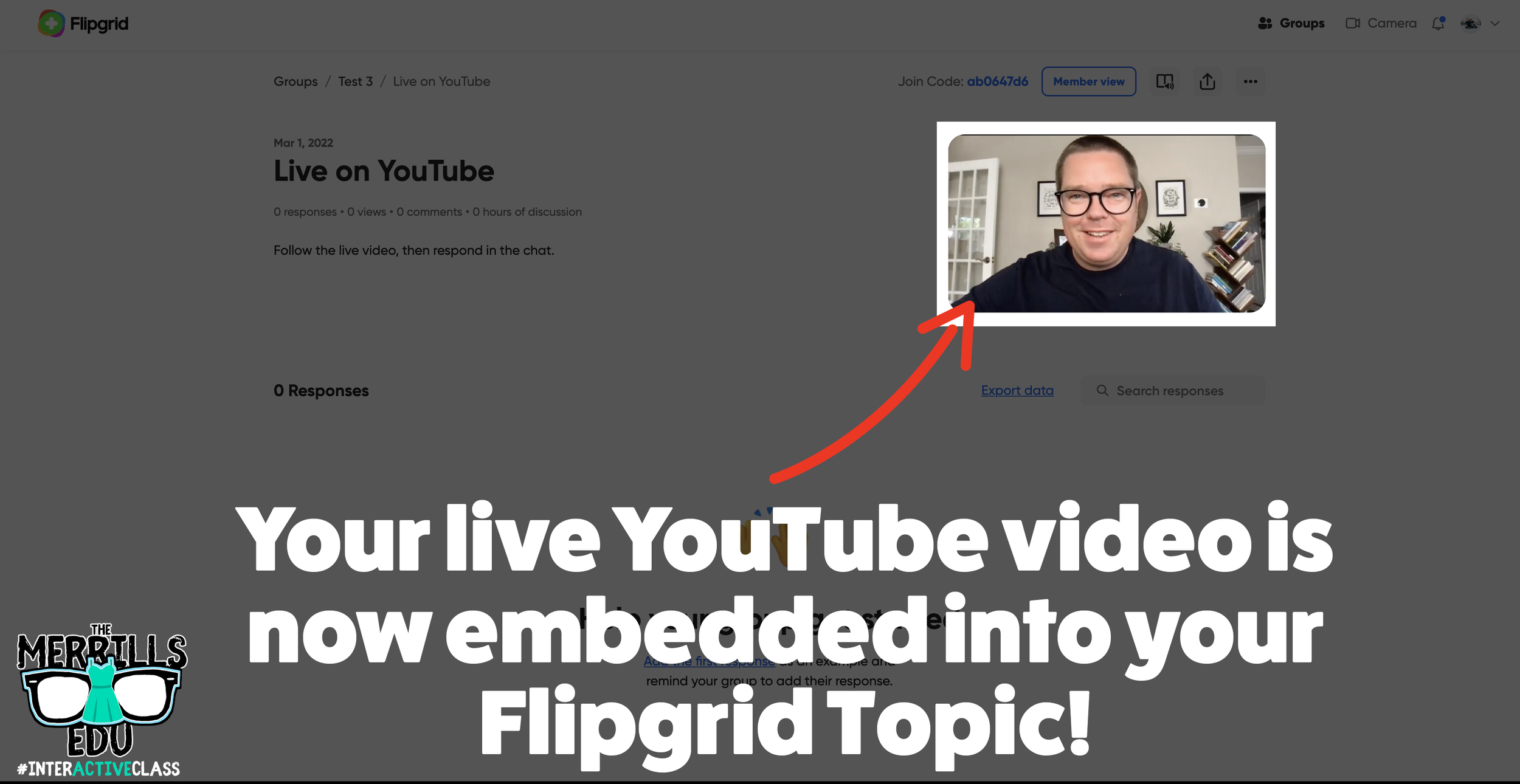
On the Flipgrid side, the steps are actually very easy. Here’s how it all works:
Create a new Flipgrid Topic.
Fill out the Topic’s Title and Description.
Under the Topic Media, click on “Add YouTube or Vimeo.”
Paste the link of your Live YouTube video in the pop up, then click “Search.” (note: you will need to set the YouTube video to either “Public” or “Unlisted” for this hack to work)
Once Flipgrid finds your live stream, click on “Add” to add it to the Topic.
Need to see it all from the beginning? We’ve got you covered. Here are all the steps from start to finish! Check it out below.
Creating a Breakout Game Using Flipgrid
Creating a breakout game using Flipgrid is a great way to engage your students. In order to make this happen, you’ll need to “hack” Flipgrid a bit. Here’s how to set up your own breakout game:
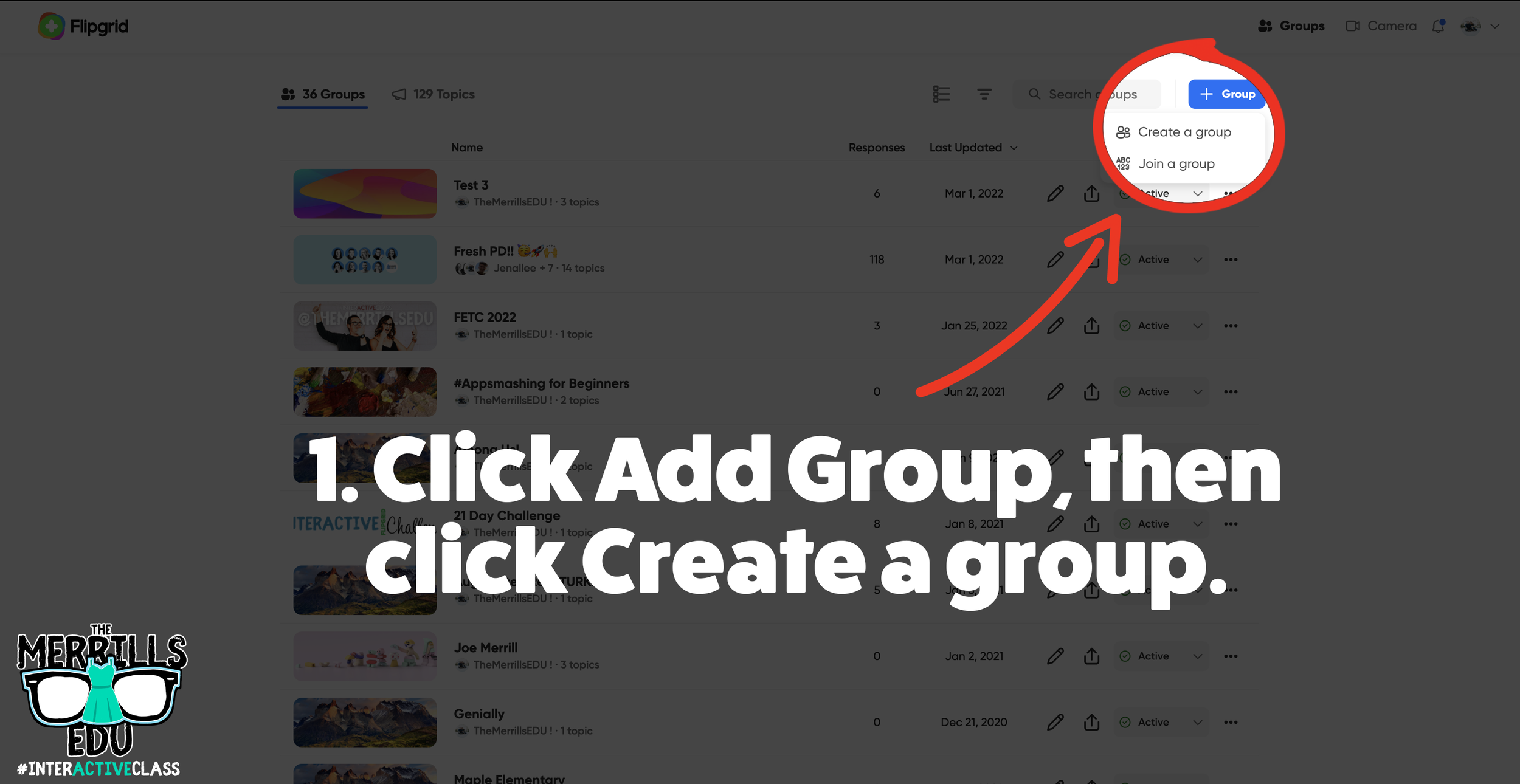
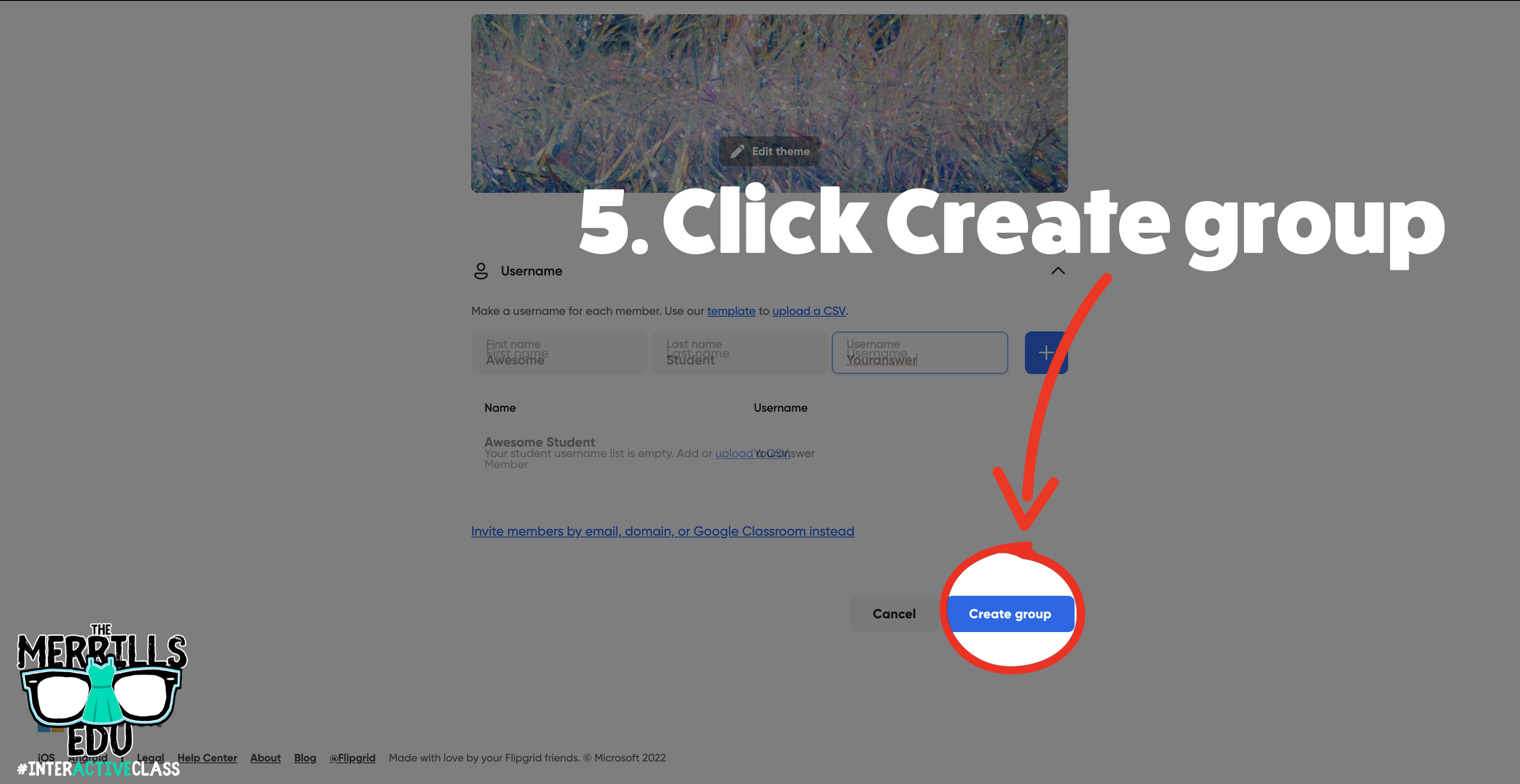
Log onto Flipgrid and click the “+Group” button at the top, then click “Create a group.”
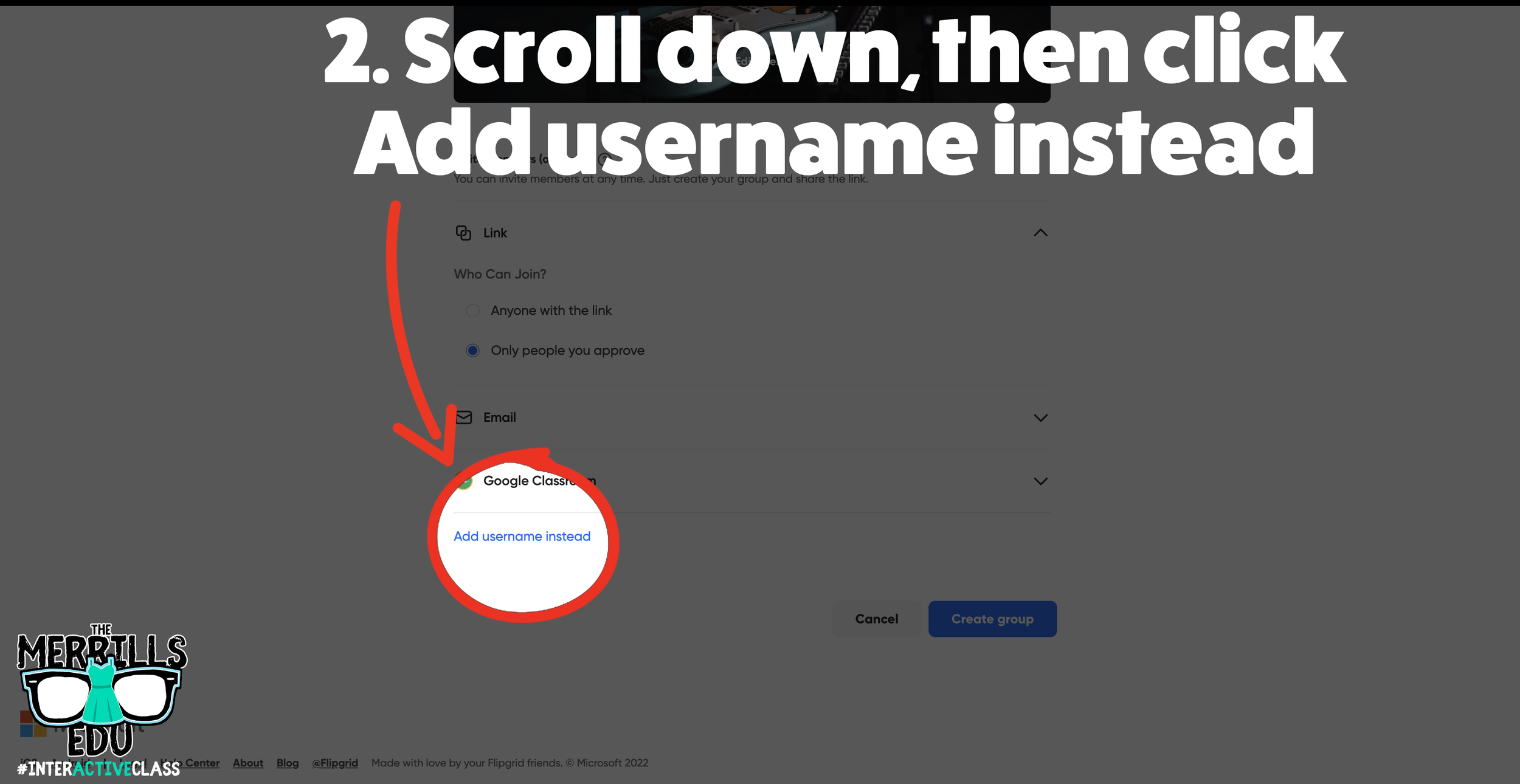
Fill out the information on the next page, then scroll down to the bottom and click on “Add username instead.”
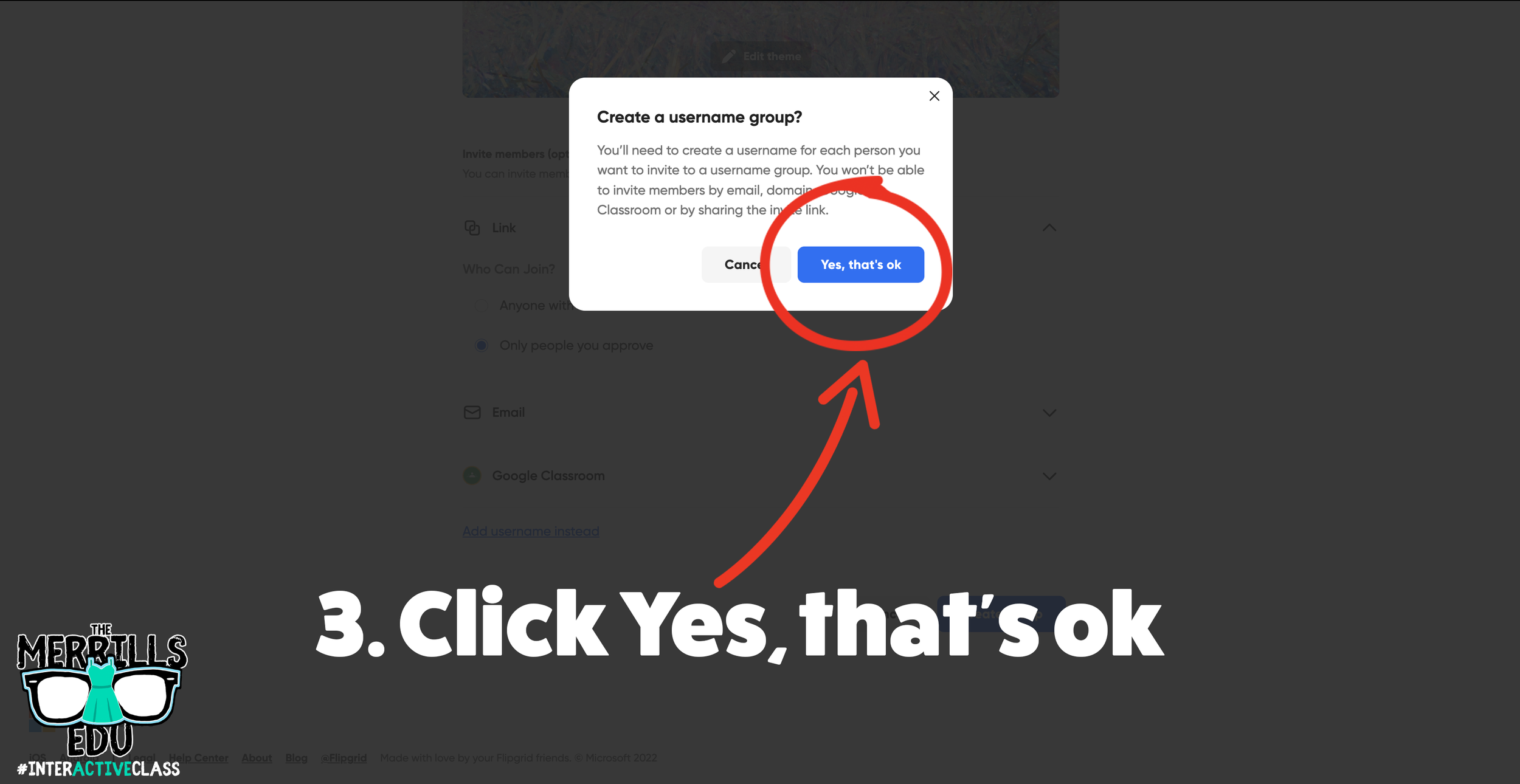
On the next window, click “Yes, that’s okay.”
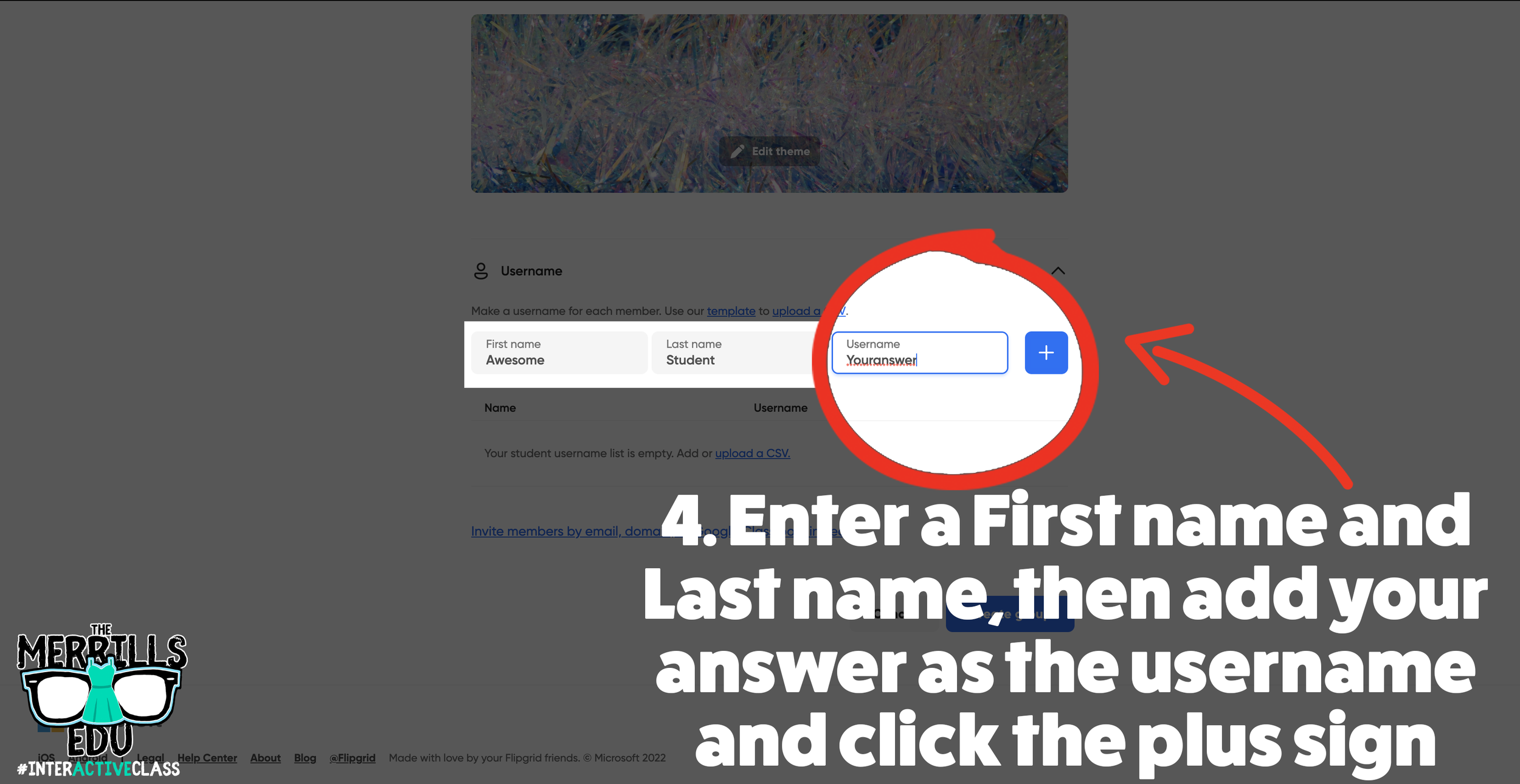
Enter a pseudo name (for example, “Awesome Student”) for First and Last name.
Under username, enter whatever it is you want the answer to be. Keep in mind - you will not be permitted to use spaces (so this may work best for a math assignment).
Then click, “Create group.”
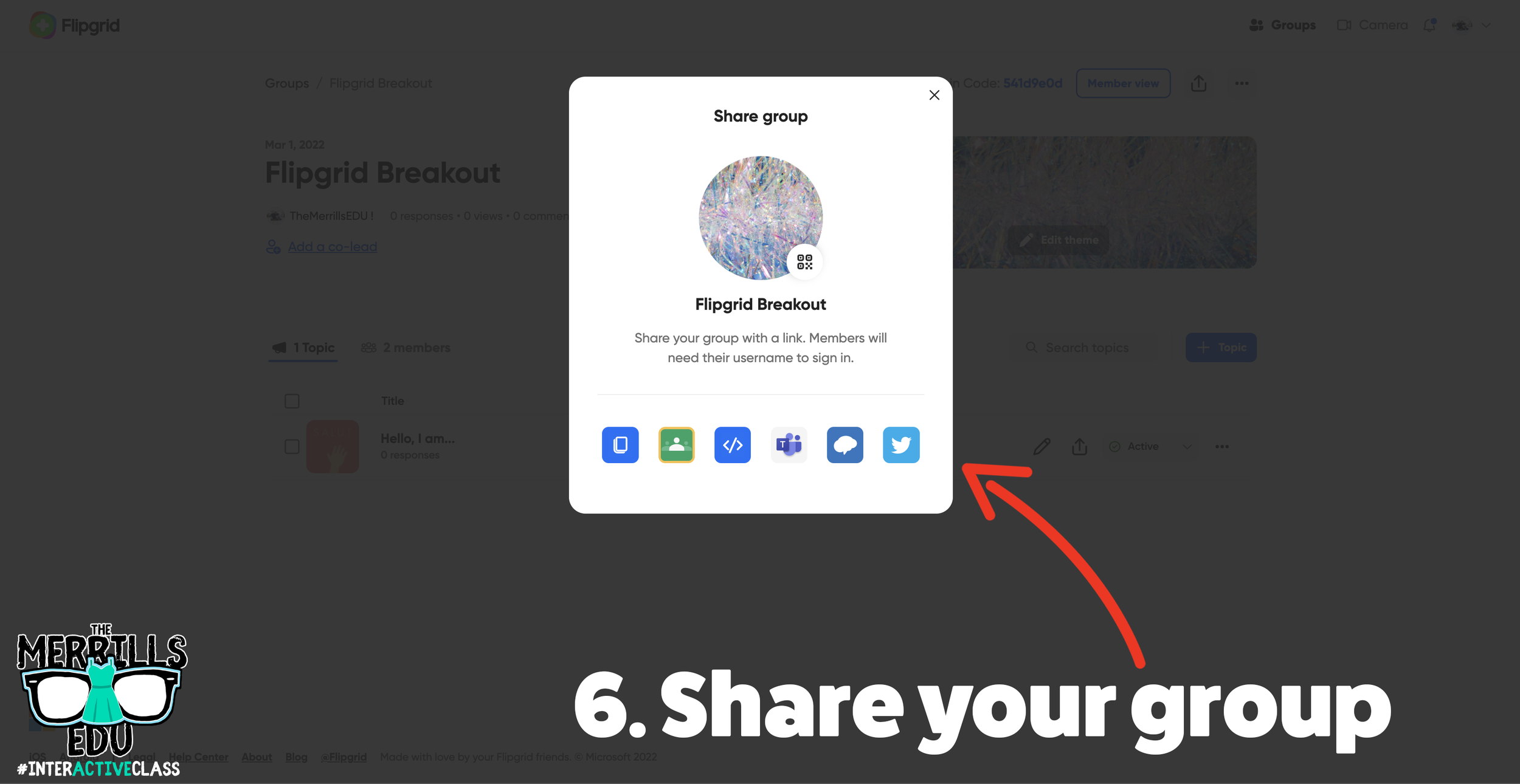
Share the group on your LMS, Teams, or Google Classroom.
Explain to the students that they will need to answer your question to be able to “break into” the Flipgrid Group. Once they think they have the answer to your question, they can attempt to use the answer to log into the Flipgrid Group.
We recommend creating a topic within your new group that the students will land on once they’ve broken in. For example, maybe it’s something fun like, “Record a victory dance now that you have arrived here!”
A Collection of Flipgrid Ideas
Let’s keep the awesomeness going! Here are a few of our favorite Flipgrid ideas. Feel free to add your own!
-- Let us know what your favorite Flipgrid hacks are! Be sure to follow us on social media (@TheMerrillsEDU everywhere) and tag us! 👓👗
For more tips, tricks and lesson ideas for making learning more interACTIVE, check out our books The InterACTIVE Class and Flipgrid in the InterACTIVE Class on Amazon!




20 Ways for Students to Use Canva in the Classroom
Canva for education is 100% free for students and educators. It’s a great place for students to get creative with their thinking. But, if you’re not sure where to start, here are 20 different ways students can use Canva!
(updated: 10/15/25)
Canva for Education is a powerful design tool, allowing you and your students to create visually stunning designs for any subject or age level. You and your students can create your own designs from scratch, or choose from our library of over 60,000 high quality, educational templates. The best part of all, it’s absolutely FREE! So, how does this translate into the classroom? Here are 20 different ways that your students can use Canva in the classroom.
(Click on any image to jump to that section. This is NOT a paid post.)










Creating Videos in Canva
Students can quickly and easily create videos in Canva that can be shared out beyond the platform. There are tons of templates that allow you to drag and drop media right into the video. Students can use elements right from Canva or upload their own.
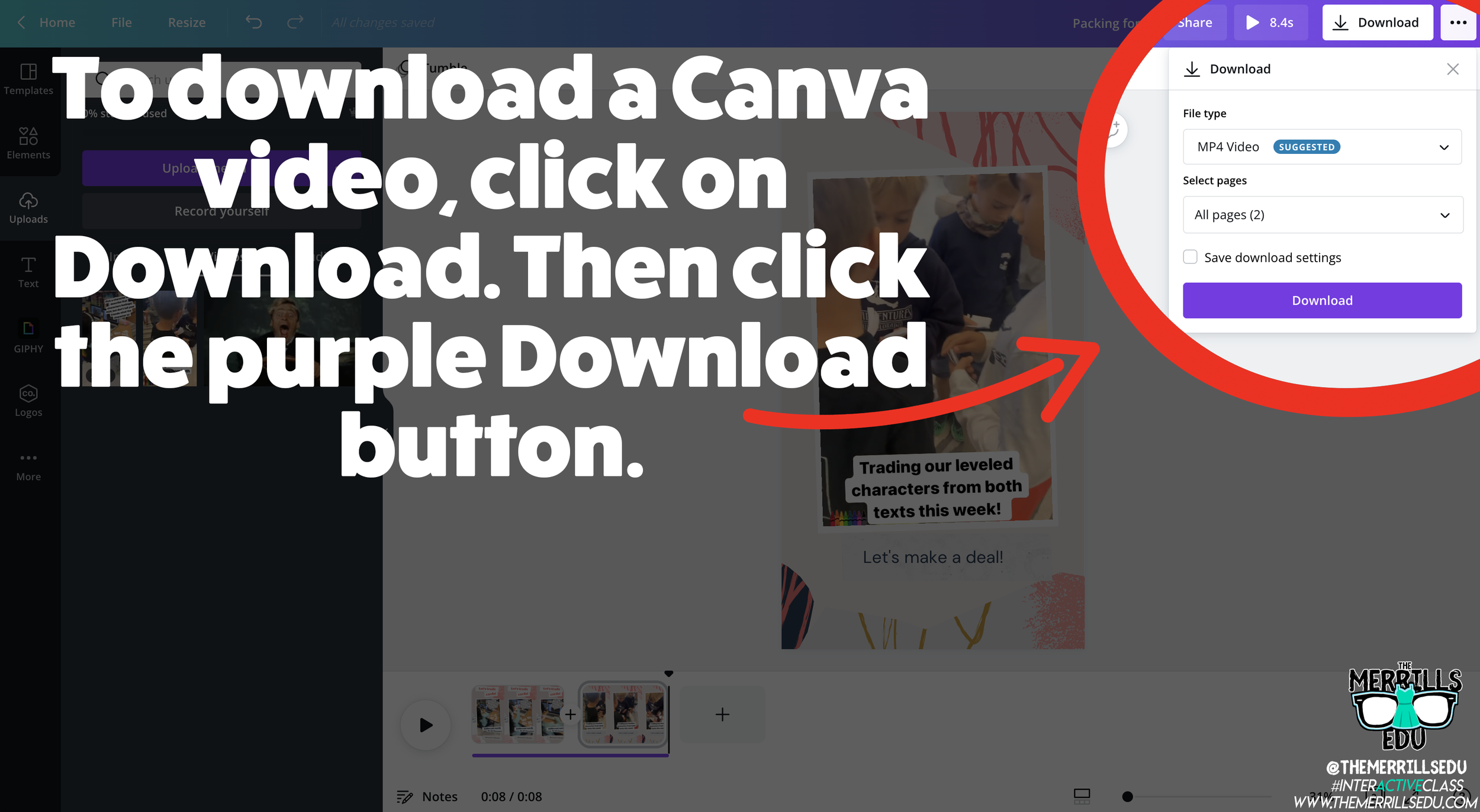
Saving and sharing can be done is several clicks. To save a video, click on the Download button, then click “Download.” This will download the video into your Downloads folder or camera roll (if on a mobile device).

To share the video, click on the three dots. Then, click “Share Link” and then “Copy.” This will allow students to share the video beyond the platform and into apps like Seesaw, Google Classroom, Microsoft Teams and more.
Removing a Background in Canva
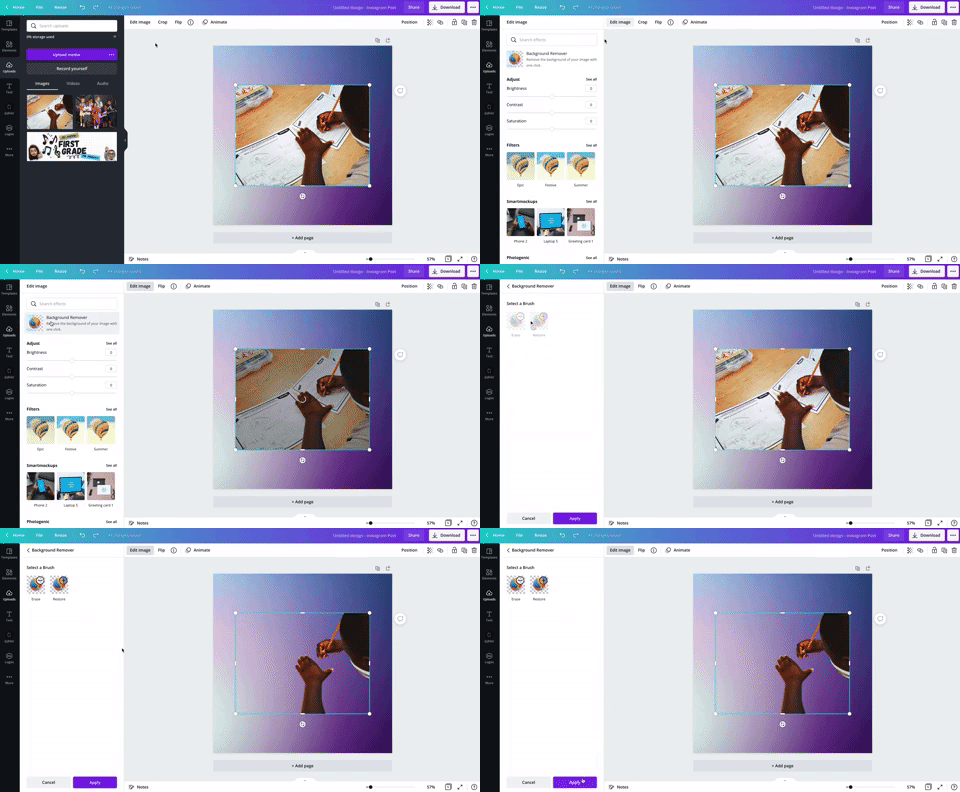
Canva has made removing the background of an image simple. To do so, students will need to click on the image. Then, click on “Remove Background.” This process may take a few seconds. Once it has completed, students now have the background removed!

How to Create a Flipgrid Backdrop in Canva
Canva images can be downloaded, then uploaded into other platforms such as Flipgrid. This means students can create and design their own backdrop on Flipgrid! Backdrops act as virtual wallpaper. When students upload a backdrop on their Flipgrid video, they place themselves on top of the image. Students can move themselves around the video to place them in the proper spot. The recorded outcome will be them in front of the backdrop explaining their thinking!

So, how can this be done on Canva? It’s actually easier than you think! Once students have designed their image on Canva, they click on “Download” to download the image to their device. This will save the backdrop onto their device. Next, have them log onto Flipgrid. Once they have the Flipgrid Shorts Camera open, click on “Backdrops.” With Backdrops open, click on the “+” icon. This will allow up to upload your downloaded Canva file onto Flipgrid. Find your file then upload it. This will generate the Flipgrid Backdrop. Now students can move themselves around to properly keep the focus on their content. Fun tip: Backdrops can also be in the form of a video!

How to Present a Presentation on Canva and then Share it on Flipgrid

A great way for students to show their thinking is by explaining their work. Have your students create a presentation that covers what your class is learning. Once they have their presentation ready to share, have them click on “Present and Record,” located on the top right, then click “Go to recording studio.” They will need to provide permission to use the device’s camera and microphone. Now, click “Start recording!” This will give students a three second countdown before the recording process begins. Your students can now work through their presentation. One thing to note: while recording, Canva remains in presentation mode. This means the person presenting can see what slides come next, notes attached to the slides and more. The recording will only capture the Canva slides and a circle shaped webcam video of the presenter.

Once the student is ready to stop the recording, all they need to do is click “Stop Recording” from the top right side of the screen. One thing to note, students can always pause the recordings by clicking “Pause” next to the “End recording” button. Now that the student has clicked “Stop recording,” the video will be uploaded to Canva’s servers. Once it has been processed, students can either share the direct video link, save it for later or download the video to their device. In order to get the video over to Flipgrid, we will select “Download.” The download may take a few minutes and will be saved to your downloads folder. You can find it in your downloads folder under the name of the presentation. Now it’s time to head over to Flipgrid!

Log onto the Flipgrid Topic, then launch the Flipgrid Shorts Camera. Once the camera opens, click “Options” to the left of the record button. Now, click “Upload clip.” Upload your downloaded Canva presentation and then click “Next,” followed by “Confirm.” This will share your Canva presentation on Flipgrid for others to see and comment on!

How to Create Flipgrid Photo Stickers / Media on Canva
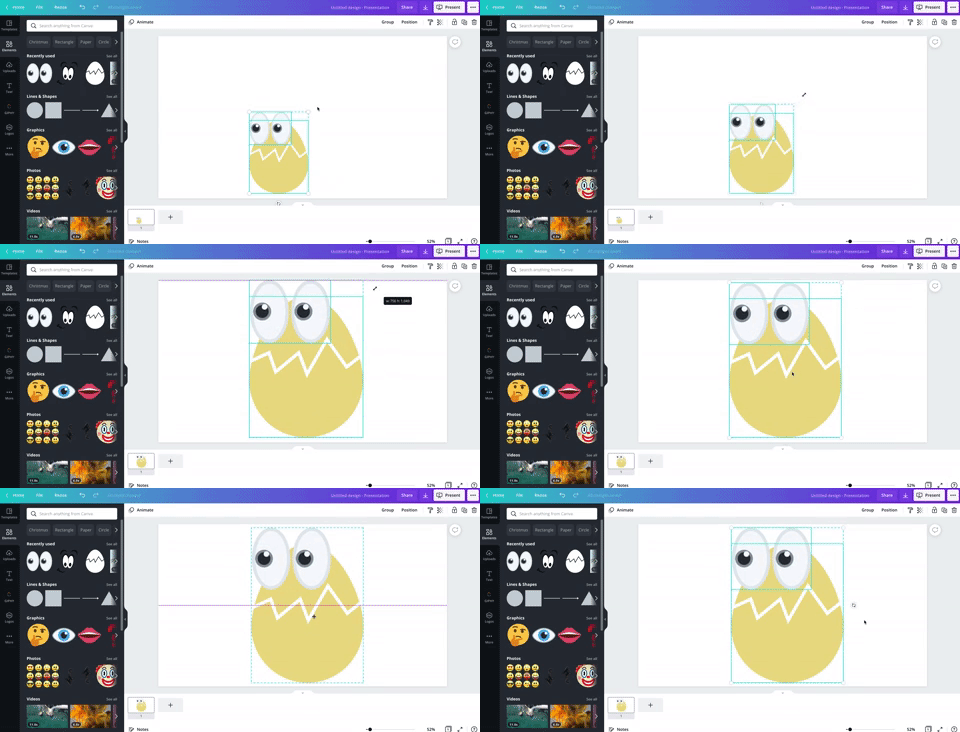
Adding different elements into Flipgrid videos results in instant student engagement. But, with Canva your students can design their own Photo Stickers / Media for their Flipgrid videos. To do so, have them create the sticker on Canva. It’s best to use a presentation sized template and we also recommend trying to make the sticker as large as possible within the template.
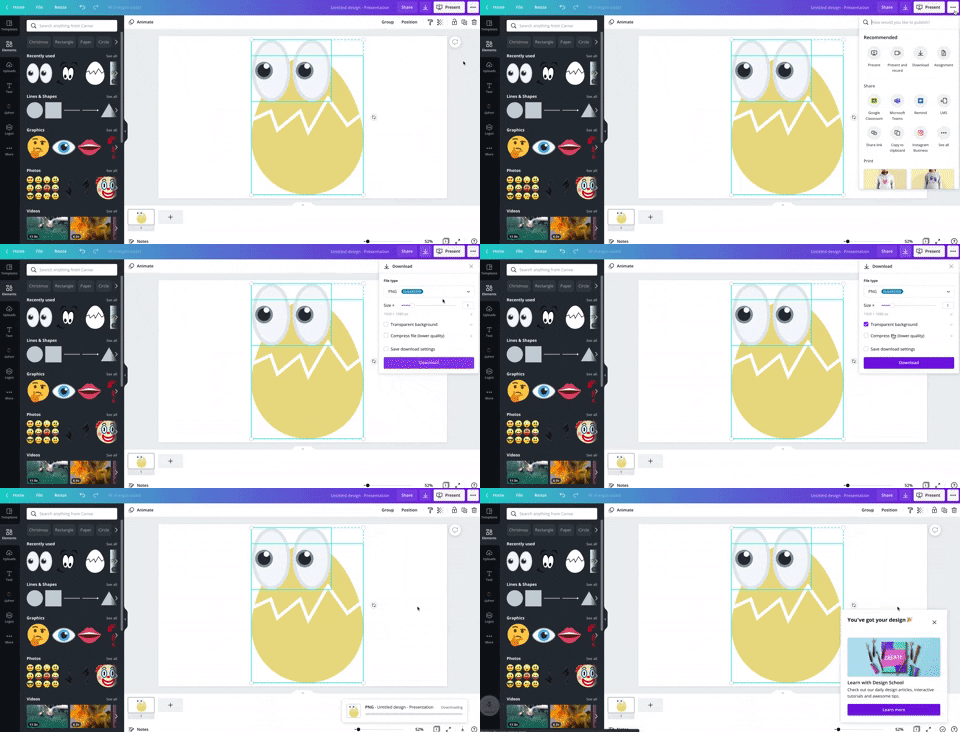
When finished, students will want to save their work as a PNG file. This will give the sticker the ability to have a transparent background. To save their work as a PNG file, click on the three dots located at the top right, then click “Download.” Be sure to check “Transparent background,” then, click “Download” to save the image to the students’ device.

Now, on the Flipgrid topic, open the Flipgrid Shorts Camera. Click on “Effects,” then click on “Media” (on laptop / PC) or “Photo Sticker” (mobile devices). From here, upload your Canva file. Once the file appears, you can move and resize it as you see fit! Fun fact: this process can be repeated as many times as you would like!

Using Inferencing on Canva

Inferencing skills require complex and critical thinking. These tasks can be daunting for students, but with the help of Canva this can be turned into a highly engaging and fun task! To help take inferencing to the next level, we created “Character Bulletin Boards.” This template was designed to look like a bulletin board where characters from a story might post things that happened from a story, or memories from a chapter that the character recalled. Students use the template to add elements, text, or photos that represent what happened in the story. You can even create a template that has multiple slides for multiple characters.

When your students are ready to share their work with you, they can do so in just several clicks. First, they will need to click “Send to teacher.” Next, your student(s) will need to select you (or they can select multiple teachers if you co-teach), and then click “Send.” This will share the work right into your teacher dashboard.
Interested in giving this activity a try? Click here or the image to download and copy the template!



Student Learning Portfolios on Canva
Canva is a well-known creation tool, but it can also help your students become more accountable. Student Learning Portfolios allow your students to maintain academic goals and curate learning artifacts that can be shared with their families and friends. To get started with Student Learning Portfolios on Canva, have your students select a template (like the one below). We recommend building the portfolios by months or subjects. Your first slide in the portfolio should resemble a table-of-contents. Students can hyperlink the text to different slides within the Canva presentation. This will allow them to maintain a running log of their work, but more importantly – share with others!


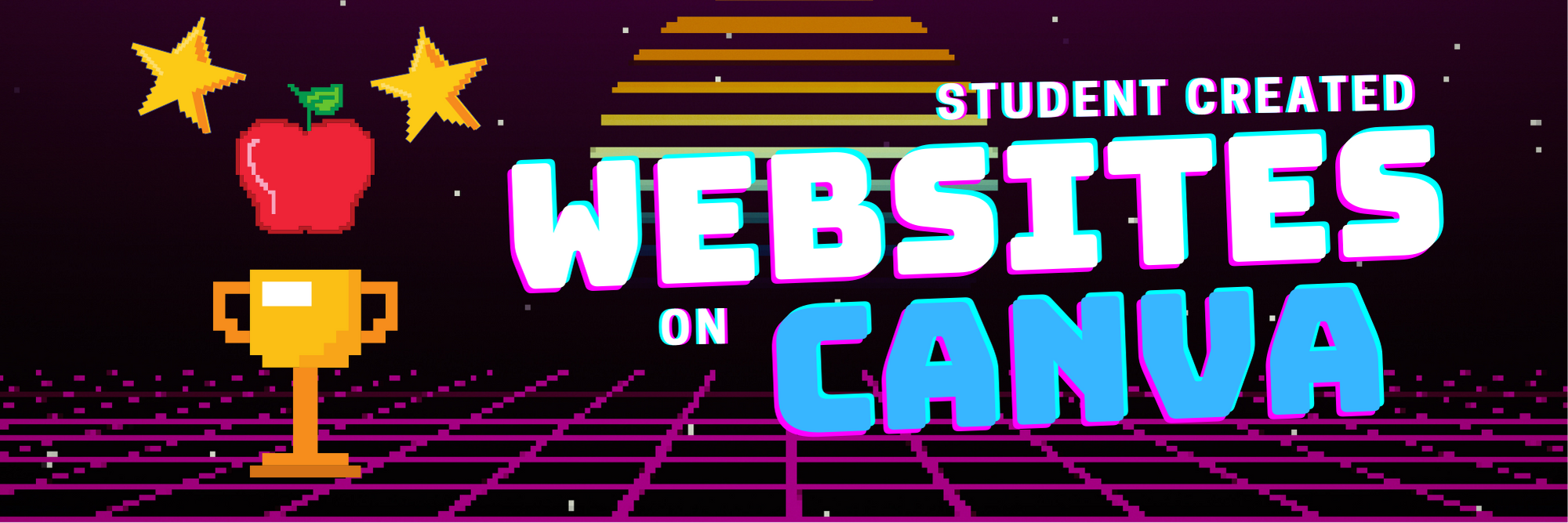
Student Created Websites on Canva
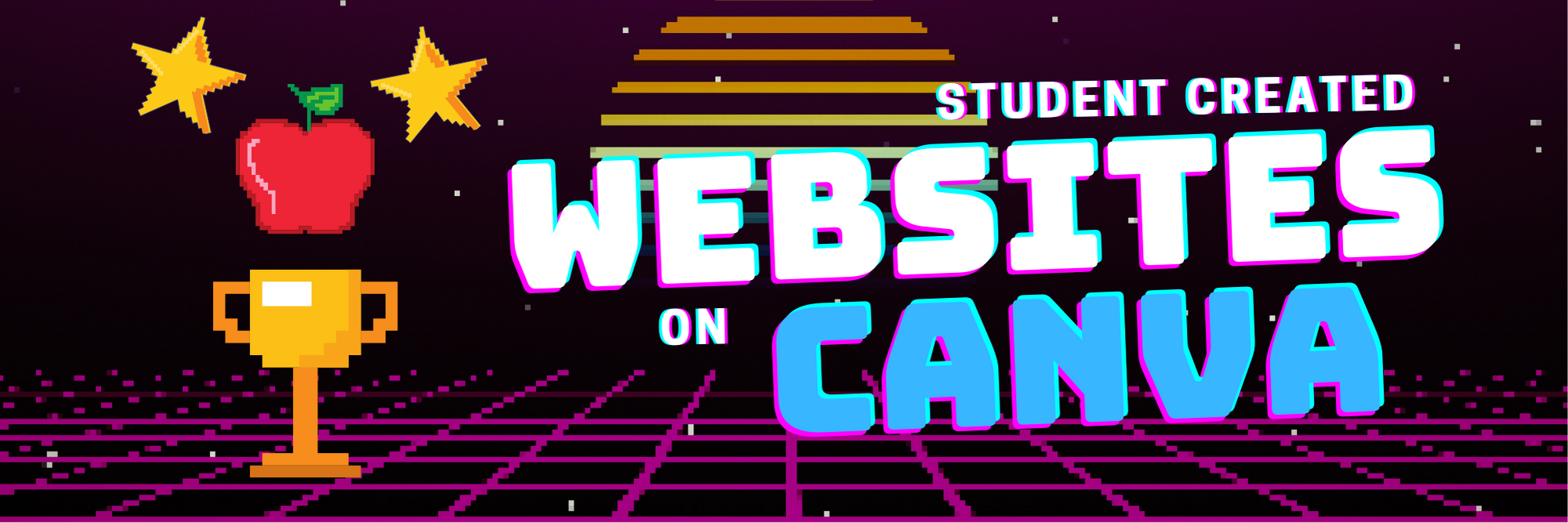
Similar to Student Learning Portfolios, student created websites are an easy way for your students to share (and show off!) their hard work. Have your students pick from the website templates on Canva. When they’re ready to publish the site, click on “Publish as Website.” This will provide the student with a shareable link. Fun fact: this URL will never change, even if your student(s) decide to edit it. If you’re looking to take things to the next level, you can have several students collaborate on the same Canva file. Then, the duo / team will have a published website for the group. Want a fast / easy start to this? Use our template below! Click here or the image to get started building your own student website today!


Virtual Science Fair Projects on Canva
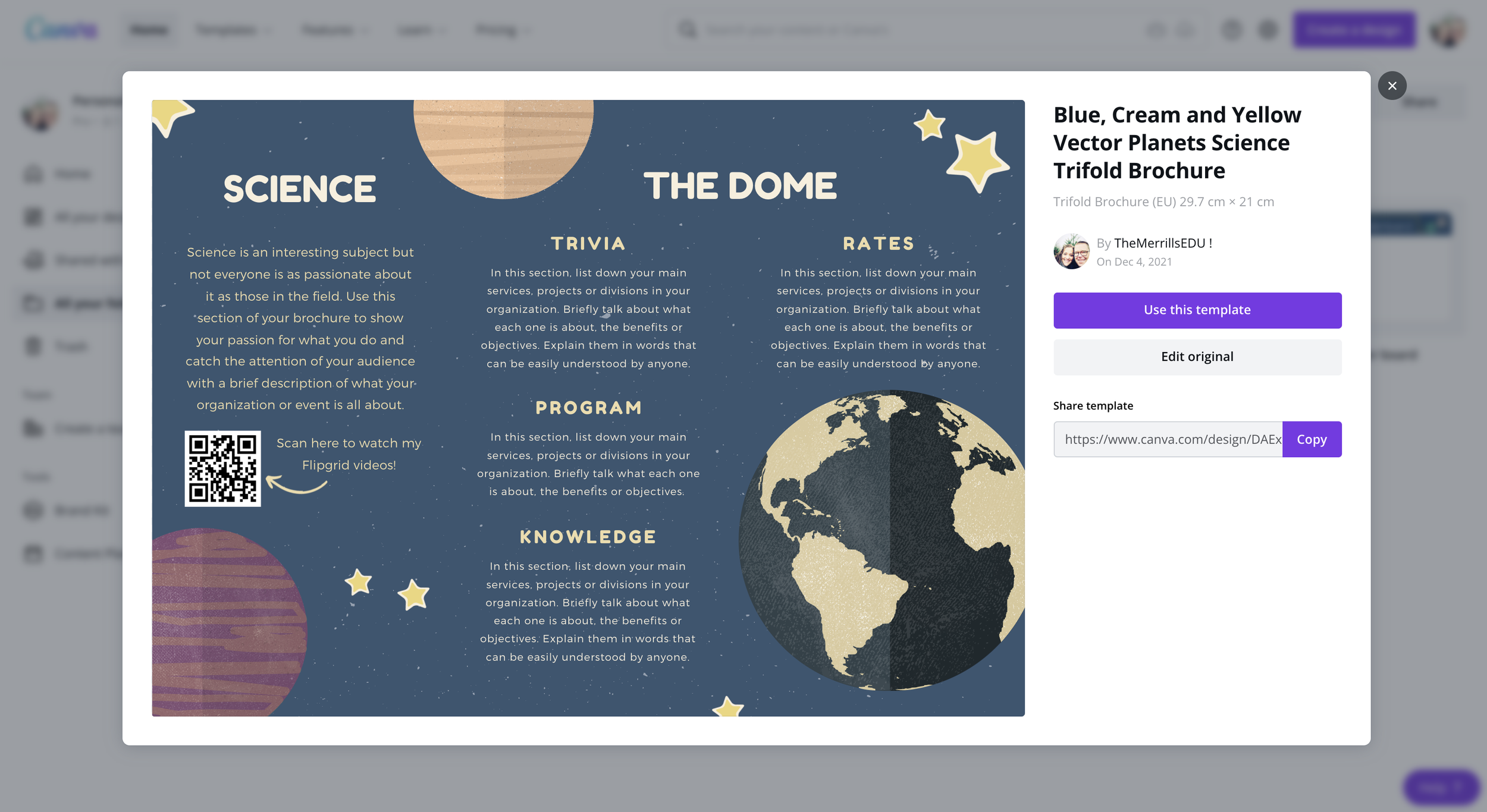
Science Fair Projects are always exciting, but Canva can put a “new school” spin on them. Your students can design a trifold, add elements, text and even QR codes right into their Science Fair Projects. These can be shared publicly or right to the teacher. To generate a public share link, click on the three dots on the top right, then click “Share Link.” Click on “Copy” to share your URL. Now students can share this link with others! Tip: you can take this link into a URL shortener (like Bit.ly) and paste it to generate a shorter URL address (which will still point to the original link). To share directly with the teacher, click “Share,” then select the teacher(s) you wish to share with. This will send the Canva file to the teacher for review! Need some easy inspiration? Check out our template below! Click here or the image to get started!

Book Bumper Stickers on Canva
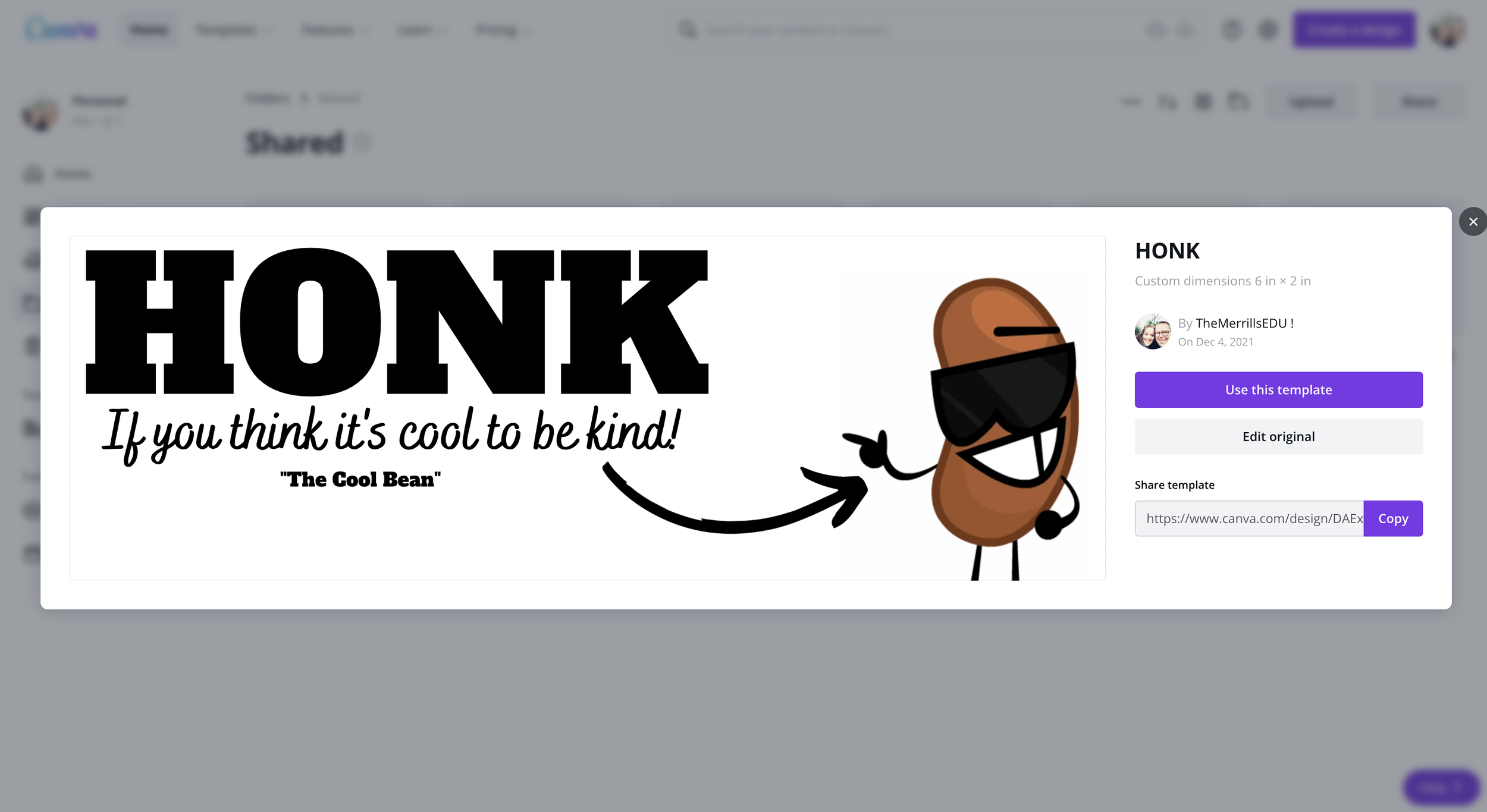
One of our favorite Canva activities is “Book Bumper Stickers!” For this activity, students design a bumper sticker based on the book, character / individual, subject, etc. The design can even be downloaded and shared onto places like Flipgrid or Seesaw. Check out our template below! Click here or the image below to download it and get started!

Character Trading Cards on Canva
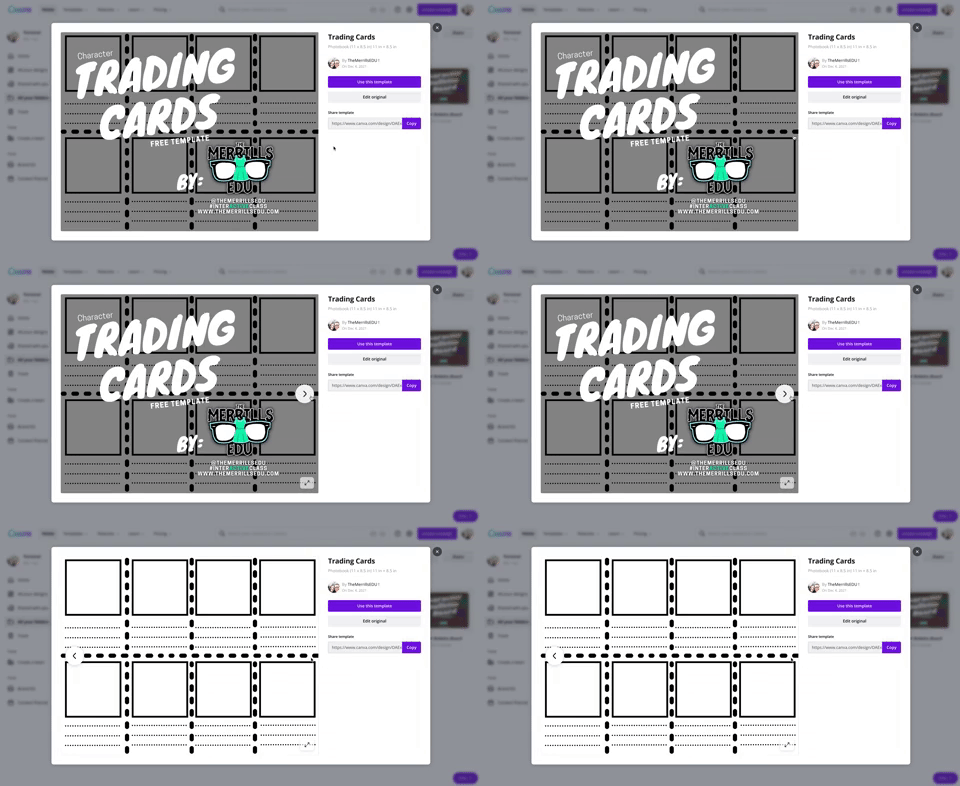
Describing characters, their feelings and emotions is an important piece of comprehension. With Canva, we can make this process fun and engaging! Students use the template below to add characters from the story. This can be done by adding photos, uploading their own artwork or adding elements. Then, students can add text to describe the character. Teachers can print the designs and have students cut them out with scissors to trade with friends! How do your friends describe other characters? Did they use similar adjectives as you? Download our template by clicking here or the image above!

Create a Timeline on Canva

Whether you’re explaining historical events, the sequential order of a story, or important character accomplishments, timelines are a great way to show thinking. Canva has easy-to-use timelines that are simple to edit to fit your next assignment. To view Canva’s timeline templates, just search: “Timelines” in the search box.

Design Thinking / infographics on Canva

Design thinking provides students with a creative outlet where they can tie in their learning. Infographics are a great way to show this level of thinking and Canva makes it easy! There are many Canva infographic templates that students can choose from. These templates are fully editable – everything from the text to the colors. To find infographic templates on Canva, just type “infographic” into the search bar. Here’s a template that we found to help you get started! Click here or the image above to download it and get started!

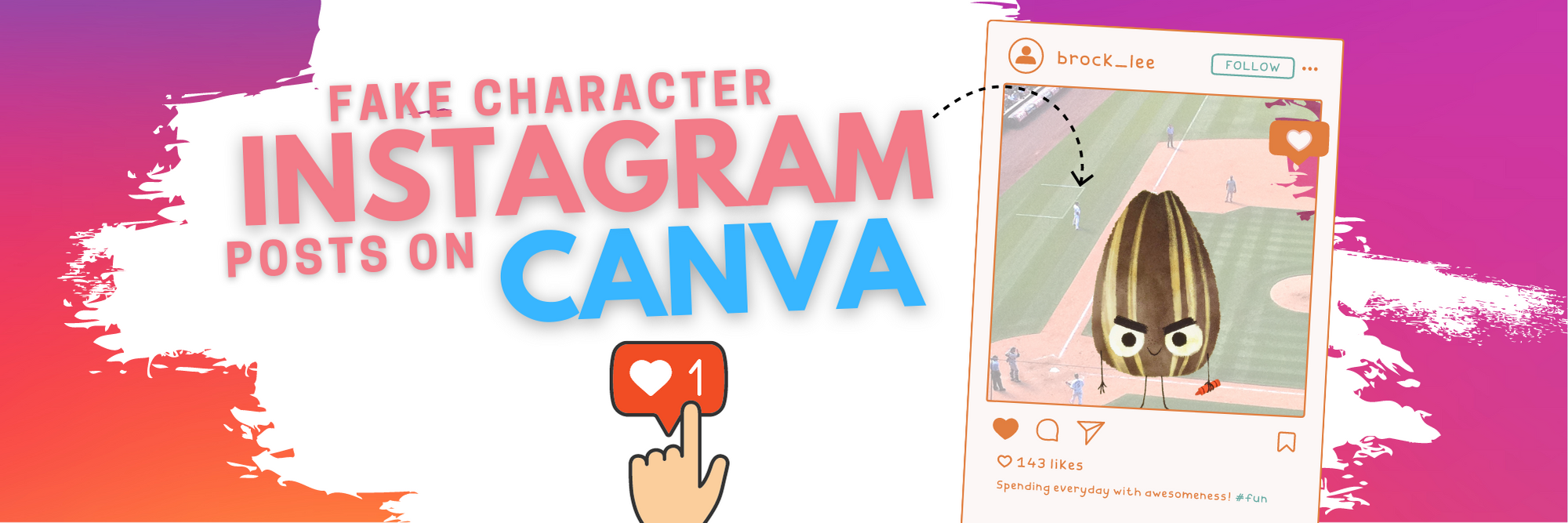
Fake Instagram Character Posts on Canva
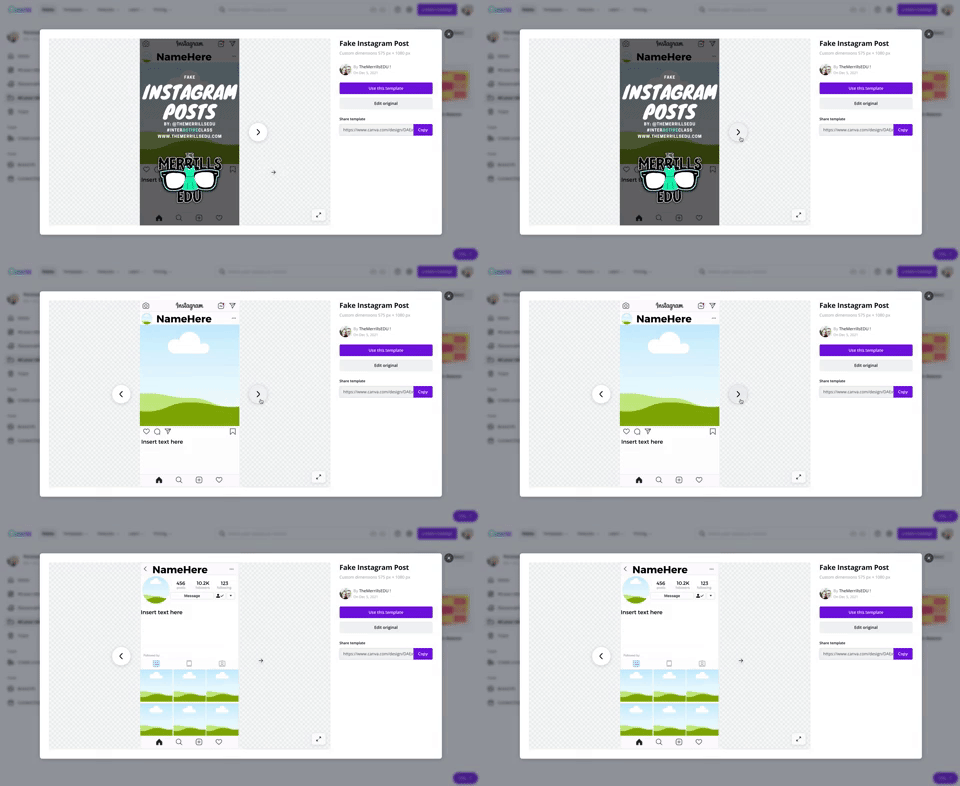
Have your students create a fake Instagram post describing the thoughts of a character from a book or historical figure. Check out our Instagram inspired Canva template here! Students can add the proper content in the template and even add a photo or drawing. This can be downloaded and shared on places like Flipgrid and Seesaw! To download our template, click here or the image above!

Student Created Classroom Badges on Canva
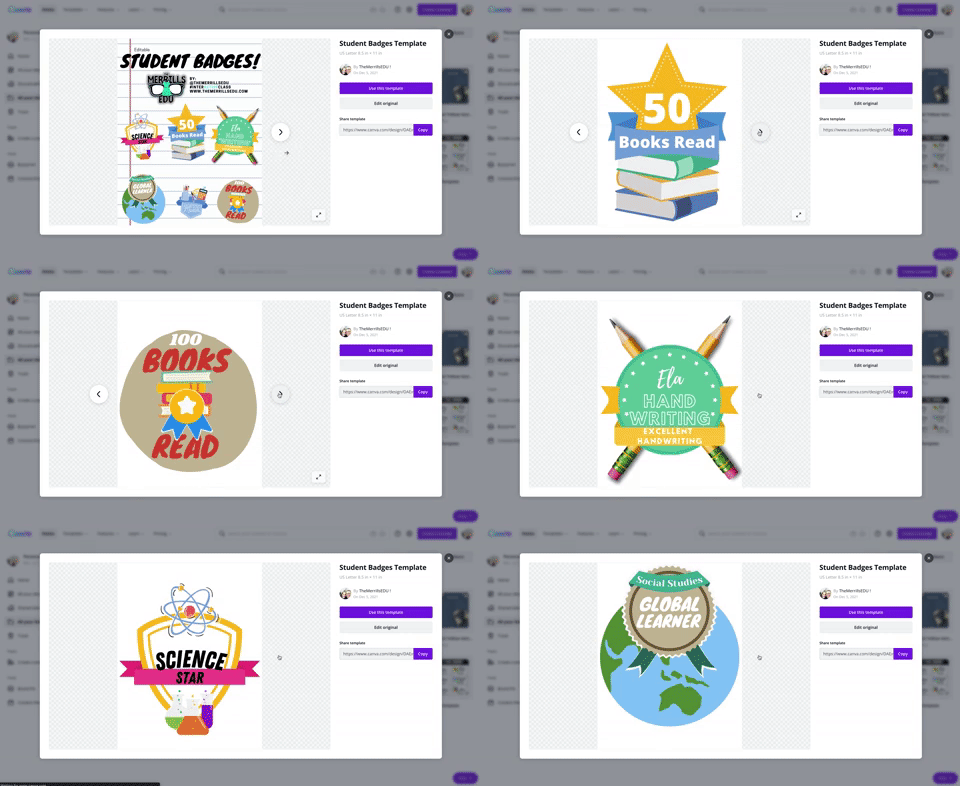
This is a great way to kick off the new school year or returning from a break. Plus, it teaches your students how to use all of Canva’s features! Student created classroom badges can be designed for any types of rewards that your students feel as though should be given out throughout the year. Have students use Canva’s features to design their badge. Remind them that it needs to have text / what the badge is for. Some good examples include: “Tech Trainer or “CANva” (students who can teach others about Canva). Check out our template by clicking here or the image! Looking for some easy inspiration? We’ve got you covered! You can download our template for free! Click here or the image above to download it!

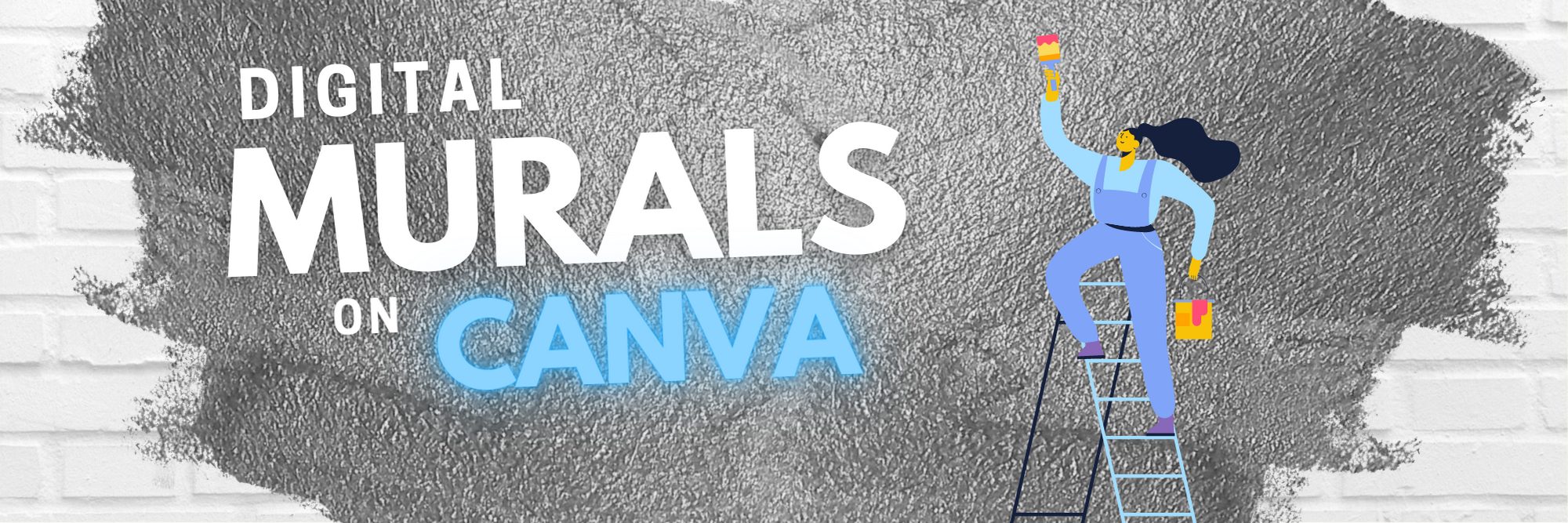
Digital Murals on Canva

Digital murals are an engaging way to get your students thinking outside of the box. In Canva, students add a background image, elements, photos, text or anything else that they think should go on their digital mural. The murals might describe characters, feature vocabulary terms, describe the students themselves and much more. Need help getting started? You can download our template by clicking here or the image above!
Student Choice Boards on Canva

Student Choice boards give your students the chance to complete a task using multiple options. For example, some students might enjoy creating a video that answers the prompt while others might design a slide that goes into detail. Leaving it up to your students will guarantee engagement with an invested interest in their work. Check out our pre-designed template to help you get started. Click here or the image above to download and edit!

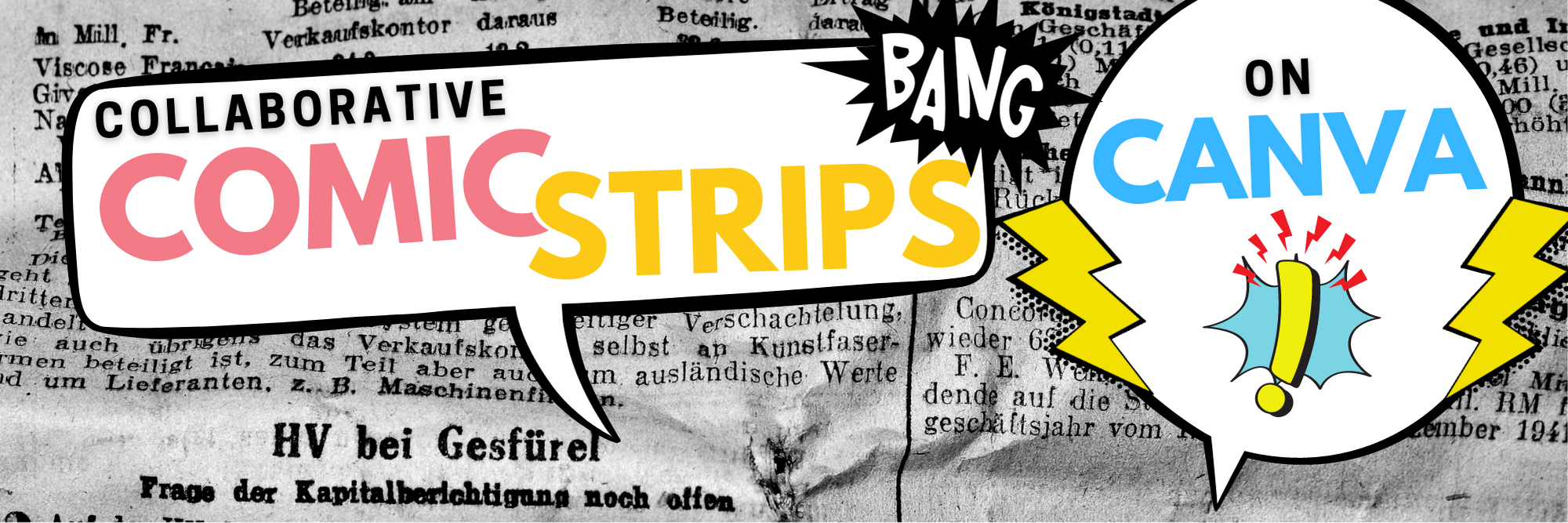
Collaborative Comic Strips

Canva makes collaboration easy and familiar (especially if you’ve collaborated on a Google Doc or Slide). You can share a link with others and even see who is on the file. These Collaborative Comic Strips can be completed in small groups. Students can keep work organized and even assign roles. The Comic Strips can retell a sequence of events, retell a timeline in history, or act as illustrations for a science journal log. Check out the template we found, which you can use right away! Click here or the image above to download and get started!

Collaborative Change of Scenery:
Change the Setting of a Story

Changing the setting of a story is a powerful way to monitor for comprehension. Level that up with collaboration, now you have a small group of students working together and thinking at a high level. With this template, your students can do just that! Work together and be creative! Check out the template we found! You can click here or the image above to download and get started!

Drawing on Canva
Canva users now have the ability to draw on their slides. To start drawing, follow these steps:

Click on “More” from the left side panel
In the search bar, type “Draw”. Or, you can scroll down to the bottom where you will see the Draw icon. Click it to open the next window.
One the next window, click “Use” to launch the draw feature.
Select a brush and color to start drawing!
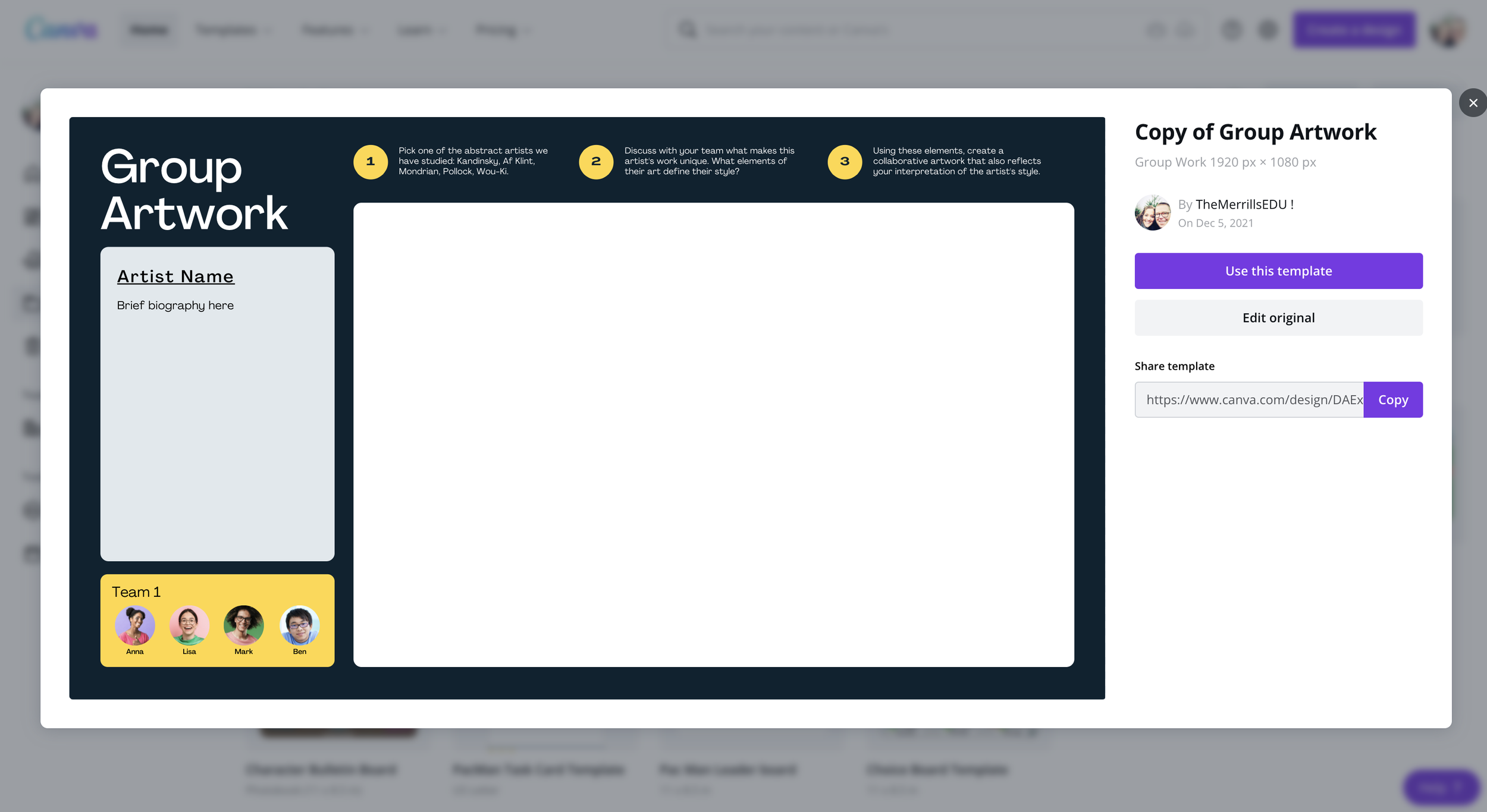
We love this template that we found, which includes the drawing tool and collaboration! Students can work together to create a piece of art. Perhaps they’re redesigning the cover of a book or “painting a picture” of their understanding. Check it out by clicking here or the image below!
-- Let us know if you’re using any of these ideas in your classroom! Be sure to follow us on social media (@TheMerrillsEDU everywhere) and tag us! 👓👗
For more tips, tricks and lesson ideas for making learning more interACTIVE, check out our books The InterACTIVE Class and Flipgrid in the InterACTIVE Class on Amazon!




Flipgrid LIVE 2021: What are the New Flipgrid Updates?
@TheMerrillsEDU share the all new Fligrid updates coming in 2021! Learn what’s coming, what’s new and what is changing!
Flipgrid LIVE revealed many new and incredible updates that educators can get excited about. Learn about them all here!
(Click on any subheading to jump to that section)
Backdrops in Flipgrid

For the first time ever, you will be able to swap out your background in a Flipgrid video! Choose from a default library or upload your own! You can even move yourself around to the bottom of the screen - similar to Dynamic View in Microsoft Teams.
Music in Flipgrid

Now, you’ll be able to add music right into your Flipgrid videos! Choose from a wide variety of moods to add to your video’s background. There’s a song for every story and every vibe!
Lenses in Flipgrid

Lenses are coming to the Flipgrid camera! AI will automatically place you into a scene, add a transparent image over your face or turn you into a new character!
Flipgrid Assignments in
Microsoft Teams

Coming soon, you’ll be able to assign a Flipgrid Topic to your students right through Microsoft Teams. Now, connecting your students to Flipgrid through Teams has never been easier!
New Look to Flipgrid Groups

Flipgrid Groups are getting a facelift! Now you’ll be able to see all the topics of your group easily!
Mobile App Updates

Android and iPhone apps have an all new design! Do more within a group! Within a Group, create a topic on any device.
Watch Flipgrid LIVE on demand!
Didn’t catch Flipgrid LIVE? No worries! You can watch all the fun and excitement back on demand below!
-- Stay tuned for more on how to use the all new Flipgrid in your classroom! Be sure to follow us on social media (@TheMerrillsEDU everywhere) for more! 👓👗
For more tips, tricks and lesson ideas for making learning more interACTIVE, check out our books The InterACTIVE Class and Flipgrid in the InterACTIVE Class on Amazon!


InterACTIVE Activities for Parker Looks Up!
Parker Looks Up is quickly becoming a classroom favorite! Here are some 💥FREE💥 interACTIVE activities to tie into the book and quickly engage your students!
Parker Looks Up is quickly becoming a classroom favorite picture book. The book, about a visit to Washington, DC’s National Portrait Gallery changes Parker Curry’s life when she views First Lady Michelle Obama’s portrait.
From Amazon.com:
When Parker Curry came face-to-face with Amy Sherald’s transcendent portrait of First Lady Michelle Obama at the National Portrait Gallery, she didn’t just see the First Lady of the United States. She saw a queen—one with dynamic self-assurance, regality, beauty, and truth who captured this young girl’s imagination. When a nearby museum-goer snapped a photo of a mesmerized Parker, it became an internet sensation.
If this book is in your plans, here are some of our favorite interACTIVE activities to go along with it. In this blog post, you’ll learn:
(click on any subheading to jump to that section)
Epic & Flipgrid Sticker Activity for Parker Looks Up

In this activity, we compared Michelle Obama with Parker from Parker Looks Up. First, you’ll want to make sure that you’ve created an Epic account. Think of Epic as the Netflix for books. It’s free for educators and is an incredible resource. Start your account by clicking here.
A quick search on Epic for Michelle Obama will return lots of options - including “Read to me” (where the book is automatically read aloud). Here’s a link to the entire collection!
We researched Michelle Obama, learning about her life and work. Then we went on to read Parker Looks Up. You can purchase a copy by clicking right here. After reading the book, we used Flipgrid to describe both individuals. You can add some fun into the mix by having your students use the Flipgrid stickers. Have them search for “hat” and “sunglasses.” They will find a similar pirate’s hat and sunglasses as what is in the story. Students can use these to become Parker! Check out our tweet below to see an example from our class and download the free worksheet from our TPT Store by clicking here or the image!


VR Museum Visit to View Michelle Obama’s Portrait at The National Portrait Gallery
To take things to the next level, why not provide your students with the chance to visit The National Portrait Gallery exhibit featuring Michelle Obama’s portrait? Check it out below or click here to visit it yourself and share with your students.
To provide access to this exhibit via Microsoft Teams, Canvas, Google Classroom and more - share this link with them: https://goo.gl/maps/e9WGCBY9wVu6L1fK8 or click below!
Selfie Portraits: A Flipgrid Portrait Activity for Parker Looks Up
In this activity, our students learned about Michelle Obama prior to reading Parker Looks Up. Then, we took the VR Field trip (above) to visit The National Portrait Museum to view the painting for ourselves. We also took time to learn about the artist. You can find detailed information at this link:

Then, for some added fun, we created portraits of ourselves. Students can snap a photo of themselves, then add it to the instapainting generator. Click here to check it out! Once they have generated their instapainting, they can compare their portrait to their picture using Flipgrid. Have the students upload both versions, using the Flipgrid Shorts camera’s effects (click photo sticker) and use the pause feature to toggle back and forth between the two. Students can then comment on their classmates videos to generate discussion.
Want to try this activity? Grab the Flipgrid Topic from the discovery lab by clicking the button below!
-- Please follow us on social media and tag us with how you’re using Parker Looks Up into your classroom! 👓👗
For more tips, tricks and lesson ideas for making learning more interACTIVE, check out our books The InterACTIVE Class and Flipgrid in the InterACTIVE Class on Amazon!




From Desk to Digital: Examining the Similarities and Difference Between Characters
From Desk to Digital is a series of mini blog posts where @TheMerrillsEDU share ways to transform your students education into an interACTIVE experience. Whether substituting a worksheet or trying something new, these activities are easy and can be implemented into your classroom tomorrow! In this post, learn how your students can become characters from your story using the Flipgrid Shorts camera!

This blog post is from a series of ideas where we take normal, everyday tasks and make them interACTIVE! For more tips and tricks, be sure to search “From Desk to Digital” on our blog!
A key foundational piece in building comprehension in early years is for students to be able to successfully compare the similarities and differences between characters. Often times, students are led to a writing prompt that asks them to decipher the characteristics. But, there’s a more engaging way that will capture your students attention and lead to a higher level of critical thinking. Here’s how you can take this lesson to the next level!

Flipgrid
Flipgrid is a free video based social learning platform. Educators pose a question, then students respond in the form of a video. Classmates are able to view each other’s responses and can leave comments back and forth to one another, creating a web of discussion and ultimately elevating the academic level of the classroom discussion.

Get Started
After reading the story, share the Flipgrid Topic code with your students. Explain that they are going to explain the similarities and differences between the different characters, but to do so….they must BECOME the characters. They can do this by adding emojis to their video. Flipgrid has things like wigs, beards, glasses, etc. These act as stickers and will float on top of the video. So, now your students have to actually think and speak like the character!
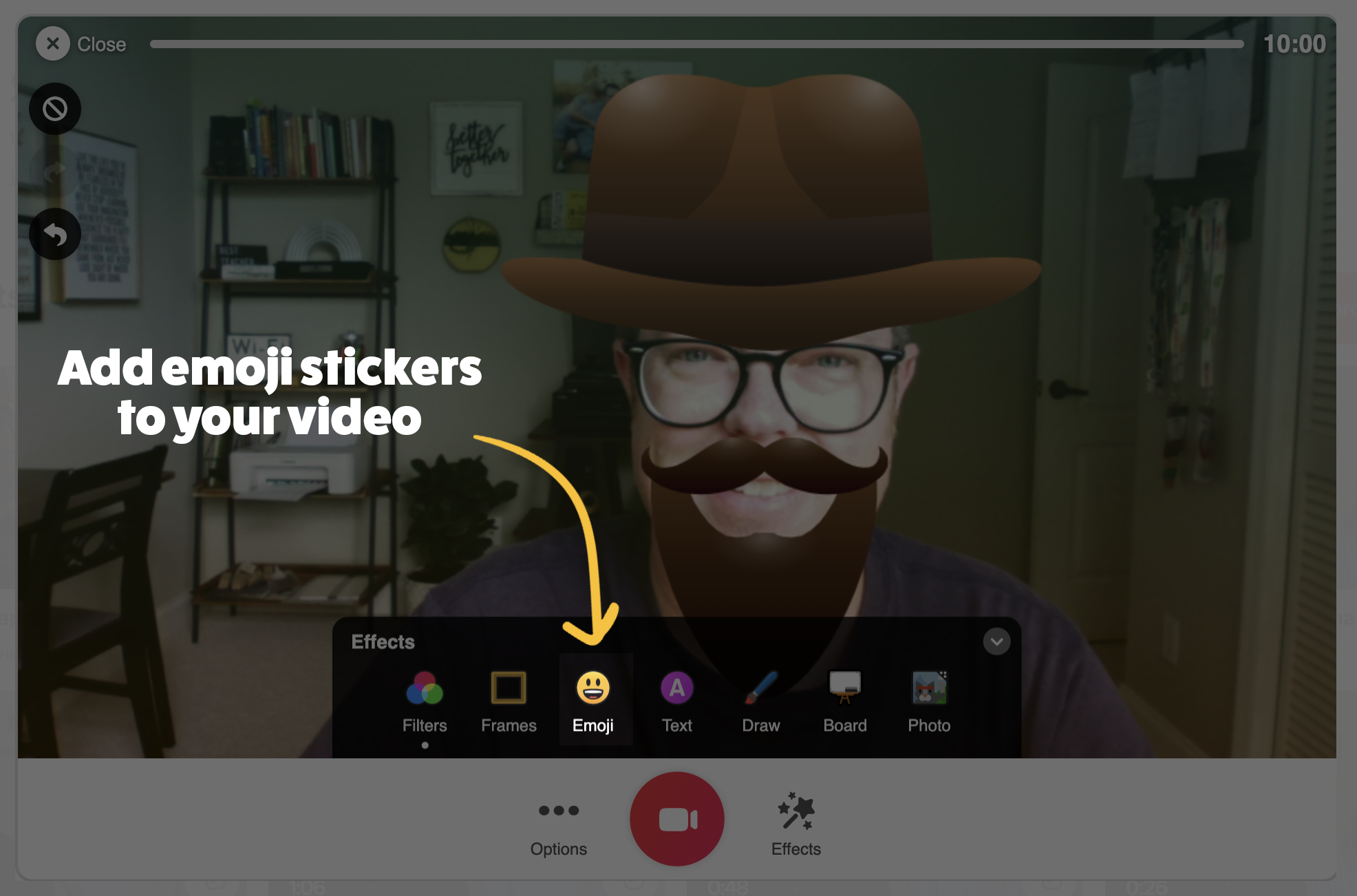
Once your students are ready to record, they can access emoji stickers through the Emoji feature right within the Flipgrid Shorts Camera. It helps to teach them to take advantage of the Pause feature, too. In other words, students start off by taking the role of one character, then press pause and become the next character before clicking record again. This process can be easily done back and forth, and now your students are completely emerged in their learning. Not to mention the fact that other students will want to watch and learn from their classmates because the videos are so engaging!
See It In Action
Check out our tweet below to see this in action!
-- Stay tuned for more on how you transform your classroom into a more interACTIVE experience! 👓👗
For more tips, tricks and lesson ideas for making learning more interACTIVE, check out our books The InterACTIVE Class and Flipgrid in the InterACTIVE Class on Amazon!


InterACTIVE May the 4th Activities!
@TheMerrillsEDU share interACTIVE activities for May the 4th, aka Star Wars Day. Check out recommended books, a Star Wars video production app, Seesaw activities, Flipgrid Photo Stickers and resources from @Erintegration!

Star Wars Day, May 4, celebrates George Lucas's Star Wars media franchise. The date was chosen for the pun on the catchphrase "May the Force be with you" as "May the Fourth be with you." Both educators and students can get in on the fun, here. In this blog post, you’ll learn about some of our favorite books and activities!
(Click on any subheading to jump to that section)
May the 4th Books
Here are some of our favorite books to tie into May the 4th!

Are You Scarred Darth Vader is our personal favorite May the 4th book. Written and illustrated by Adam Rex (Illustrator of The Legend of Rock, Paper, Scissors), this kid friendly book proves that Darth Vader is in fact afraid of something!
From Amazon.com:
It's midnight and the moon is full, but Darth Vader isn't scared. OF COURSE I AM NOT SCARED. Nothing can scare Lord Vader! CORRECT. Not monsters or witches or ghosts, and especially not the dark. So what is Darth Vader scared of? Read on in Adam Rex's hilarious and spooky Star Wars tale to find out! YOU WILL LEARN NOTHING.

Star Wars Series from Jeffrey Brown


Darth Vader and Friends is a clever and kid friendly graphic novel styled book that explains the importance of friendships in short adventures. Something to note: This book is relatively small in size / dimension (approx. 6x6).
From Amazon.com: In this funny and sweet new book in the bestselling Darth Vader™ series, Eisner Award–winning author Jeffrey Brown offers an intimate look at the friendships between best pals in the Star Wars universe, from Darth Vader and the Emperor to Leia and her Ewok pals, Han and Chewie, C-3PO and R2-D2, the bounty hunters, and other favorite characters. Jealousy, birthday parties, lightsaber battles, sharing, intergalactic rebellion and more all come into play as Brown's charming illustrations and humor irresistibly combine the adventures of our friends in a galaxy far, far away with everyday events closer to home.


Darth Vader and Son is a graphic novel styled book that shares the (humorous) struggle of parenting Darth Vader experiences while trying to raise Luke Skywalker. Something to note: This book is relatively small in size / dimension (approx. 6x6).
From Amazon.com: What if Darth Vader took an active role in raising his son? What if "Luke, I am your father" was just a stern admonishment from an annoyed dad? In this hilarious and sweet Star Wars® comics reimagining, Darth Vader is a dad like any other—except with all the baggage of being the Dark Lord of the Sith. Celebrated artist Jeffrey Brown's delightful illustrations give classic Star Wars® moments a fresh parenting books twist, presenting the trials and joys of parenting through the lens of a galaxy far, far away. Life lessons include lightsaber batting practice, using the Force to raid the cookie jar, Take Your Child to Work Day on the Death Star ("Er, he looks just like you, Lord Vader!"), and the special bond shared between any father and son. It's a great option for baby shower gifts, especially for the expectant father. Darth Vader and Son is a Star Wars® book that makes a great gift or a just because purchase for yourself!


Goodnight, Darth Vader is a graphic novel styled book that (humorously) explains Darth Vader’s struggle with trying to get Luke and Leia to bed. There always appears to be something that comes up! Something to note: This book is relatively small in size / dimension (approx. 6x6).
From Amazon.com: It's time for a Star Wars bedtime story in a galaxy far, far away, and Darth Vader's parenting skills are tested anew in this delightful follow-up to the breakout New York Times Star Wars books bestsellers Darth Vader™ and Son and Vader's™ Little Princess. In this Episode, the Sith Lord must soothe his rambunctious twins, Luke and Leia—who are not ready to sleep and who insist on a story. As Vader reads, the book looks in on favorite creatures, droids, and characters, such as Yoda, R2-D2, Han Solo, Chewbacca, Darth Maul, Admiral Ackbar, Boba Fett, and many others as they tuck in, yawn, and settle down to dream. As ever, Jeffrey Brown's charming illustrations and humor glow throughout, playing on children's book conventions to enchant adults and kids alike. This Star Wars makes a fun, unique pregnancy gift, a new Dad gift, or funny new parent gift!
May the 4th Action Movie FX App (iOS Only)
Action Movie FX uses your surroundings and adds in video FX. There are several Star Wars effects - all of which are a ton of fun! The app itself is free to download, but requires additional purchases. At the time of writing this post (4/29/21), the developers offered a sale: SAVE nearly 80% on the MEGA FX PACK and get 20 BLOCKBUSTER FX for $1.99 USD. We obviously think it’s worth it! We use this app to launch May the 4th activities. Record the video(s), then upload to Flipgrid for student responses. The files can also be saved as Gif’s, too! Here are some of the video FX included and a link to download the app:


Take on a Sith or Jedi! Can your students help save you from doom?


Run away from Darth Vader!
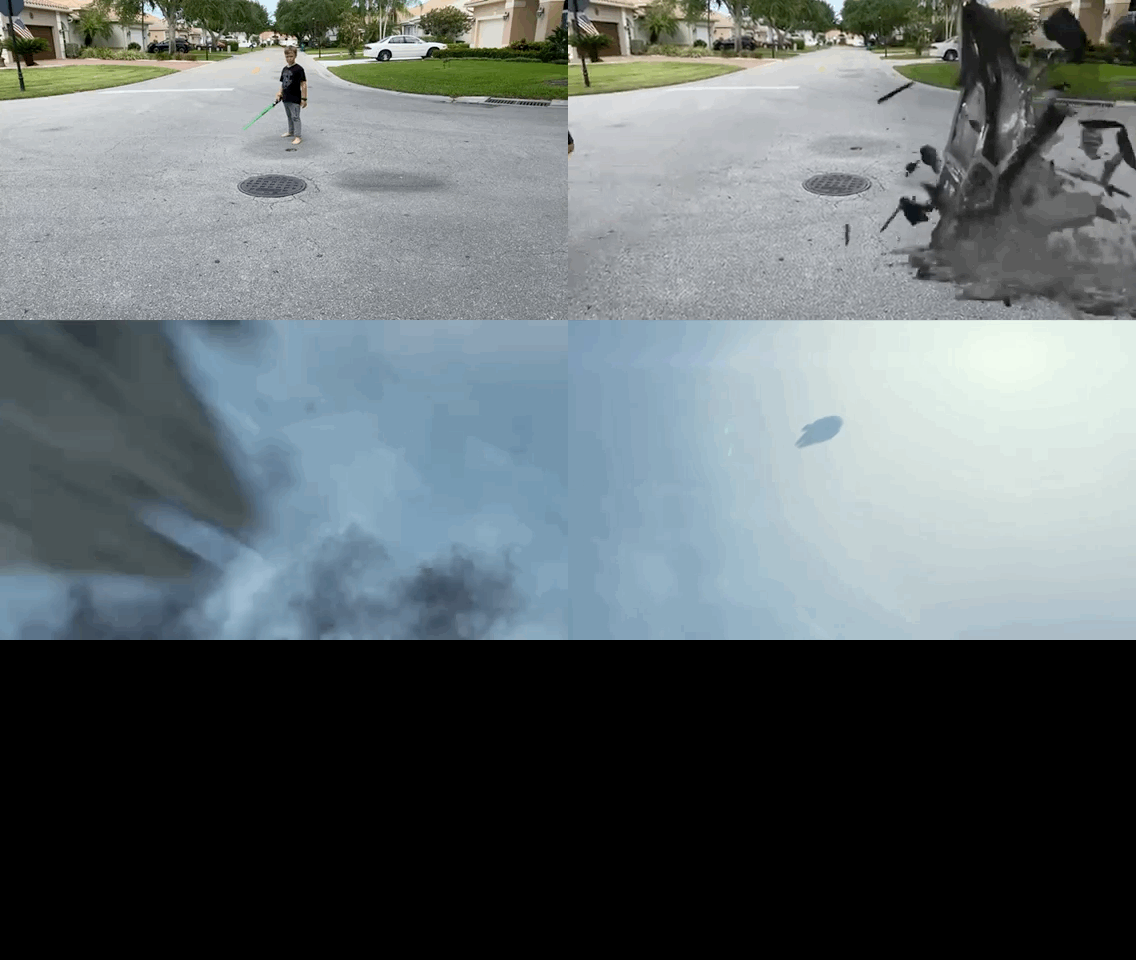

Put yourself right into the middle of an epic battle!


Run away from an incoming AT-AT!


Have BB-8 get in on the fun!
May the 4th Flipgrid Photo Sticker Activity
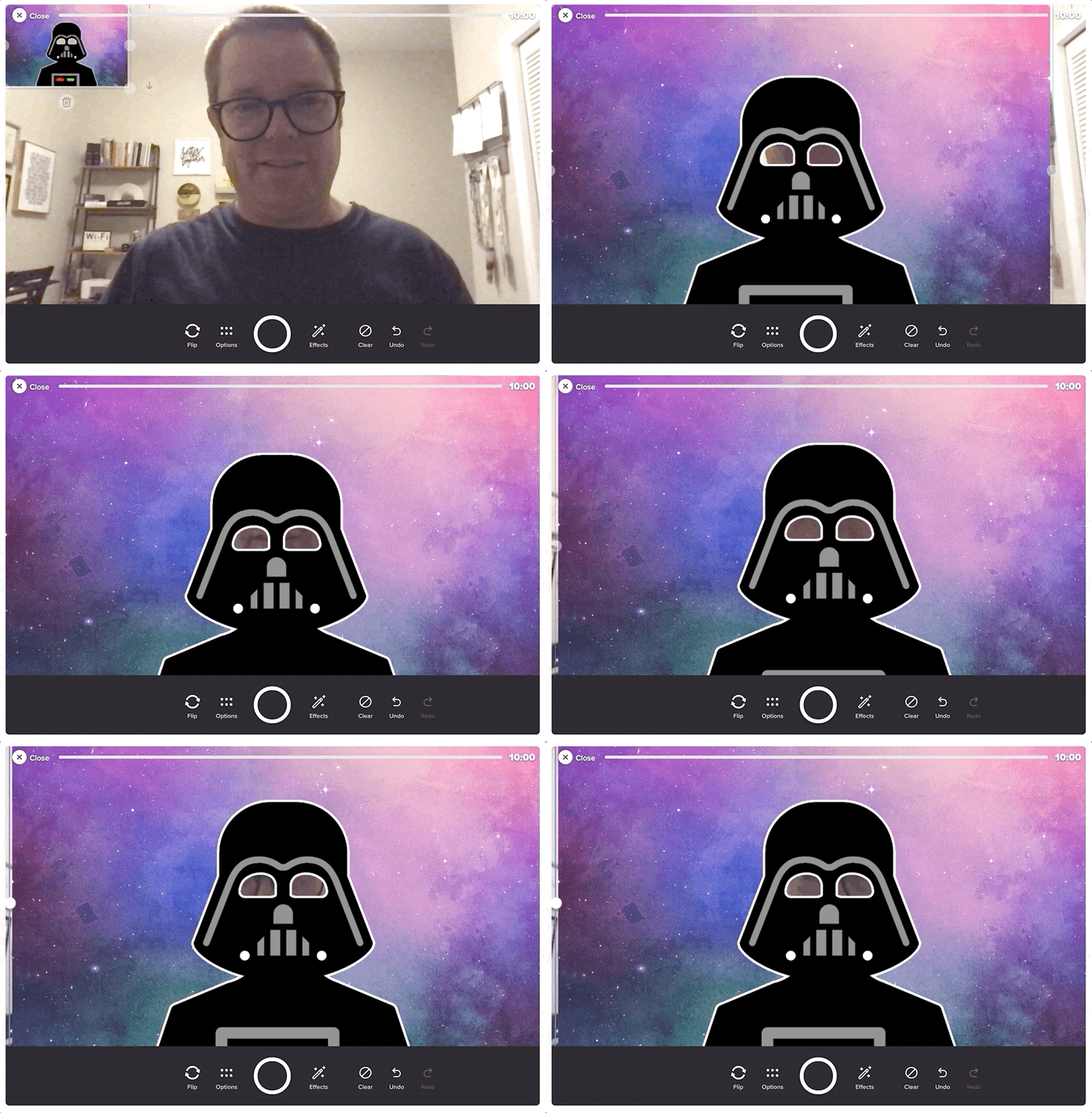


Customizable Flipgrid Photo Stickers are all the rage right now. With our frame (linked above), you can easily become Darth Vader in a Flipgrid video! After you’ve downloaded the file linked above, follow these steps to use the Photo Sticker:
Open up your Flipgrid Topic (or Shorts Camera).
Once the camera opens, click “Effects.” This opens several options.
Click “Photo.”
Upload your Spark file that you created.
Once it appears in the Flipgrid Shorts camera, resize it appropriately. Now you’re ready to record!
We use this as an extension for the books listed above!
May the 4th Build a Droid Seesaw Activity
Here’s a fun activity for littles! Use the built in shapes in Seesaw to design your own droid! Download the activity by clicking below and check out a student example!

To add this into your Seesaw Library, click the download button below!

May the 4th: Caption This Activity!
Here’s a fun activity where your students become screen writers! Have your students add the captions to the slide deck below. Click the button to download a copy for yourself!

May the 4th: Pixel Art Activity
Our friend Erin Flanagan has been creating quality resources for many years. Her May the 4th activities don’t disappoint! Students can use either Google Sheets or Microsoft Excel to create May the 4th inspired pixel art. There’s an option for addition & subtraction or multiplcation. There’s also a Google Slides activity where your students can create characters using shapes. Check out Erin’s TPT store and be sure to follow her on social media!


-- Please follow us on social media and tag us with how you’re using May the 4th activities in your classroom! 👓👗
For more tips, tricks and lesson ideas for making learning more interACTIVE, check out our books The InterACTIVE Class and Flipgrid in the InterACTIVE Class on Amazon!


How to Use Flipgrid During Remote Learning
Remote learning is challenging, but infusing technology can help make tasks easier. Flipgrid gives both educators and students opportunities to share content in creative and unique ways. In this blog post you’ll learn about some of our favorite ways to use Flipgrid throughout remote learning.

Remote learning is challenging, but infusing technology can help make tasks easier. Flipgrid gives both educators and students opportunities to share content in creative and unique ways. In this blog post you’ll learn about some of our favorite ways to use Flipgrid throughout remote learning.
Click on any subheading to jump to that section:


Educator Ideas
Here are some ways that educators can use Flipgrid throughout remote learning (and beyond!)

Use the Shorts Camera!
From the Flipgrid educators dashboard, locate the “Shorts” tab from the top. Clicking on it will give you access to the Flipgrid Shorts camera. Use the Flipgrid Shorts camera to record lessons, launch lessons, or simply teach to a specific target. Educators have a maximum of ten minutes of recording time.
Embed a Flipgrid Topic / Group into your LMS
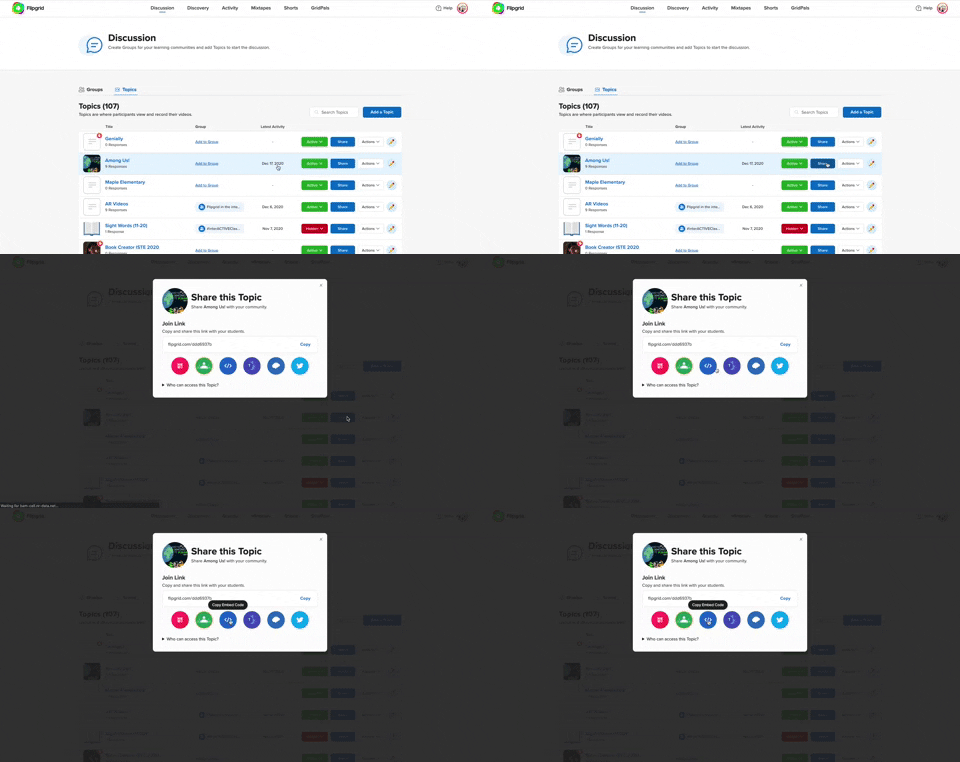
If you’re currently using an LMS (Learning Management Software), you can easily embed a Flipgrid Topic or Group right into it. From a Flipgrid Topic or Group, click the blue “Share” button. Then click the embed icon (</>). It will appear as though nothing happens, but your device has just copied the embed code. Simply paste it into your LMS’s embed editor. Now, your Topic / Group will appear right in the LMS.
Flipgrid and YouTube LIVE Hack
Educators can launch a live YouTube lesson right within a Flipgrid Topic! To do so, launch a live YouTube video and then create a new Topic. Next, click on YouTube in the Topic’s media section. Paste the link to your YouTube live video. You are now live in the Flipgrid Topic!
Virtual Office for Parents / Video Voicemail
Allow parents (or students) to reach out with questions any time and respond when its convenient for you! Set up a Topic and share the Join Code or QR Code with families.
Fluency Checks
Set up a Topic for your students to monitor their fluency. Assign a reading passage in the Topic (or attach a link) and select a recording time for your students. Students open the passage and hit record!
Anchor Charts
Use the Flipgrid Shorts Camera to create digital anchor charts. Add resources as Photo Stickers, then resize / move as needed.
For a full tutorial on how this works, click here.

Send Home Messages with the AR (Augmented Reality) Feature
Use the Flipgrid Shorts Camera to record a message for your students. Share the message by downloading the Flipgrid AR QR code. Send out the QR code and then have your students open the message using the Flipgrid app. Doing so will open the video up in augmented reality.
Modeled Science Experiments
Use the Flipgrid Shorts Camera to record the guided steps of a Science experiment. This will allow students to start / stop the video to follow along.

Virtual Field Trips
The pandemic has eliominated any changes of taking your class on a “real” field trip, but that doesn’t mean that you can’t give them a similar experience a virtual field trip! Record a video of yourself at a preferred destination. Then, set up a Flipgrid Topic and upload the video. Have your students log onto the Flipgrid Topic and then either answer questions, or leave questions!
Click here or the image to visit The Met on Flipgrid’s Discovery Library
Student Ideas
Here are some recommended activities for using Flipgrid throughout remote learning - and even in-person!
Share Critical Thinking Skills
One of the easiest ways to use Flipgrid is to have your students explain their work. For example, after working out a math problem on a whiteboard, have your students explain their thinking in a Flipgrid video. This strategy then is seen by all the other students in the class - who theoretically are acting as young teachers themselves. Even the incorrect responses can teach us!


Whiteboard
Flipgrid’s Whiteboard feature is built directly into the Shorts camera. Have your students quickly turn their screen into a digital whiteboard where they can annotate over it.
Mic Only Mode
Mic Only Mode is a friendly way for camera shy students to share their voice. In Mic Only Mode, the students voice is recorded, but not the video. There are many creative uses for Mic Only Mode, but this Tweet from Ann Kozma (@annkozma723) is one of our favorites!

Text Comments
Like Mic Only Mode, this feature is ideal for students with low-bandwidth. Adding a text comment allows students to comment on videos without having to upload lots of data.
Opinion Writing
Working on Writing throughout remote learning is difficult. But, using Flipgrid to help students organize their thinking can improve their results. For example, students can use Flipgrid to debate the pros and cons of a topic prior to writing to generate their thinking.


Book Clubs
Educators can easily differentiate reading instruction on Flipgrid. By assigning students reading tasks, students can participate in Book Clubs where they exchange thoughts about what they are reading. This could also be an activity associated with Literature Circles.
Three Truths and a Lie
(with Non-Fiction Texts)
After reading a non-fiction text, have your students complete a Three Truths and a Lie video. This is where students give three facts about what they learned, and one lie. Other students watch the video to see if they can pinpoint which one isn’t true.


Main Idea Summarization
Have your students use the built in Flipgrid Frames feature to add the “breaking news” frame around their video response. Then, students explain what they believe the main idea of the text was.
Character Illustrations
Use the built in emoji stickers in the Flipgrid Shorts Camera to have your students retell the beginning, middle and ending of the story. Check out our example Tweet!

Emoji Math
Have students use the built in Flipgrid emoji stickers as math manipulatives when working with the digital whiteboard. Or, as an educator, make a math challenge that substitutes the numbers with emojis. Then, your students must guess what numbers the emojis represent.
Math Collaboration
Have your students design their own math challenges by recording a prompt on Flipgrid, then sharing it with their classmates. Their classmates must attempt to solve, and the creator checks their work!

Stay #interACTIVE!
-👗➕🕶️
For more tips, tricks and lesson ideas for making learning more interACTIVE, check out our book The InterACTIVE Class and Flipgrid in the InterACTIVE Class on Amazon!


20 Apps that Work with Flipgrid
There’s no question that Flipgrid is one of our favorite Ed Tech tools. One of the best parts about Flipgrid is just how well it integrates with other apps. Whether you’re app smashing, embedding, or just simply adding a link, here are 20 apps that work well with Flipgrid.
There’s no question that Flipgrid is one of our favorite Ed Tech tools. One of the best parts about Flipgrid is just how well it integrates with other apps. Whether you’re app smashing, embedding, or just simply adding a link, here are 20 apps that work well with Flipgrid.
Click on any image to jump to that section, or start reading below!





1. Adobe Spark
Create images, video, and webpages
Link 👉 https://spark.adobe.com/
Ways to Use with Flipgrid:
Design a podcast cover in Spark, then save it and upload it to Flipgrid. Record your podcast in Flipgrid!
Create a Spark page, then copy the link. Share the link in a Flipgrid response
Create a Spark video and download it. Then, upload it to Flipgrid!



2. BreakoutEDU
Engaging gamification for the classroom
Link 👉 https://www.breakoutedu.com/
Ways to Use with Flipgrid:
Have your students complete a Breakout challenge, then have them answer follow-up questions on Flipgrid
Use different videos for different puzzles, then have students respond to the appropriate puzzle’s video

3. Book Creator
A simple way to create digital books online
Link 👉 https://bookcreator.com/
Ways to Use with Flipgrid:
Create a collaborative class book, then embed a Flipgrid topic into the book. As your students read the book, they can add their thoughts into the topic.
Create a book on Book Creator, then share the link in a Flipgrid video.

4. Buncee
Create and share engaging content
Link 👉 https://app.edu.buncee.com/
Ways to Use with Flipgrid:
Create a Buncee that ties into a text, then have your students answer several follow-up questions on Flipgrid.
Create a Bitmoji classroom, then share the Buncee as a Topic Resource. This will add your Buncee Bitmoji classroom to the top of the Flipgrid Topic
Create a Flipgrid Topic and record a video as a student in that topic. Ask your students to solve some type of challenge. Then, from the Flipgrid educators dashboard, add a Buncee that hyperlinks to another Buncee. This Buncee should somehow tie into your video challenge, and can be used as a breakout or a way to access different “rooms.”
5. Canvas
Learning management system
Link 👉 https://www.instructure.com/canvas/
Ways to Use with Flipgrid:
From the Flipgrid Educator’s Dashboard, select a Topic or Group. Click the blue “Share” button, then click on the blue brackets symbol (</>) to copy the embed code. On a Canvas page, click on the “Edit/Insert Media” button. Next, click on “Embed,” and then paste the copied Flipgrid code. Click “Ok” to embed your Flipgrid content directly into the Canvas page!


6. Chatterpix Kids
Easily animate still images
Link 👉 https://apps.apple.com/us/app/chatterpix-kids/id734046126
Ways to Use with Flipgrid:
In the Chatterpix Kids app, animate a character from a story by explaining the characters’ feelings, or experience. Export your Chatterpix video, then upload it into Flipgrid as a clip.
Bring historical figures to life by animating them in Chatterpix Kids and exporting the video to your device’s camera roll. Then, upload it to Flipgrid and have your students watch their classmates videos and respond accordingly.
7. (Apple) Clips
Simple and easy video editor
Link 👉 https://www.apple.com/clips/
Ways to Use with Flipgrid:
Record a video in Clips to launch an exciting lesson. Download the Clips video to your camera roll, then upload it to a Flipgrid topic to share with your students.
In Clips, camera shy students can add a Memoji and place it over their face while they record. Once their video is ready, have them export the video to their camera roll. Then, upload it to Flipgrid to share!


8. Do Ink Green Screen
Primary friendly green screen app
Link 👉 https://apps.apple.com/us/app/green-screen-by-do-ink/id730091131
Ways to Use with Flipgrid:
Buy several green plastic table cloths from the Dollar Store, then hang them around your classroom. In the Do Ink app, have your students place themselves into a text. Add an image to the middle layer in Do Ink, then on the top layer have them use the live video camera (while they stand in front of the green screen). Export the video, then upload it to Flipgrid to share with other classmates!
9. Epic Reading App
The Netflix of books for kids
Link 👉 https://www.getepic.com/
Ways to Use with Flipgrid:
Create a class in Epic, then assign differentiated texts to your students. In the Flipgrid Educator’s Dashboard, create a Flipgrid Topic where the students can retell the story that they read. Add the links to the assigned Epic books into the Topic.
Have your students use Flipgrid’s screen record to share important parts of a book from Epic that they learned from. This could include a scavenger hunt for: text features, phonograms, compound words, etc.

10. Genially
Create interactive content
Link 👉 https://www.genial.ly/en
Ways to Use with Flipgrid:
Embed a Genially project as a Flipgrid resource, then have your students maneuver their way through the project. Have them answer questions in a Flipgrid video.
Have your students design their own projects on Genially, then share their links in a Flipgrid video. Fellow classmates can view their classmates Genially projects, then leave feedback on Flipgrid.


11. Herstory
Bring forgotten stories of women to life
Link 👉 https://www.lessonsinherstory.com/
Ways to Use with Flipgrid:
From the Herstory app, have your students save an image to their camera roll. Then on Flipgrid, have them upload the image as a sticker in the Flipgrid camera. Students can move the image appropriately, then explain what they learned in a video.
12. Nearpod
Classroom management and presentation
Link 👉 http://www.nearpod.com
Ways to Use with Flipgrid:
Embed a Flipgrid Topic or Group right into your Nearpod presentations
Add a Nearpod link to your Flipgrid Topics


13. Newsela
School-aged articles appropriate for all levels
Link 👉 https://newsela.com/
Ways to Use with Flipgrid:
Assign an article to your students in Newsela, then have them answer several questions on a Flipgrid Topic.
Create a Flipgrid Topic and attach a Newsela link. Have your students read the article, then respond accordingly.
14. Seesaw
Digital Portfolios and Family Communication
Link 👉 https://web.seesaw.me/
Ways to Use with Flipgrid:
From the Flipgrid Educator’s Dashboard, select a student’s video response. Click on the share button to copy the video’s URL. On the Seesaw Educator’s Dashboard, add the video as a link to share with families.
Have students create a video in Flipgrid, then download the video to their device. Upload it to Seesaw to share with their teacher and family.


15. Microsoft’s Sway
Simple and Efficient Web Pages
Link 👉 https://sway.office.com/
Ways to Use with Flipgrid:
Use Flipgrid to document the writing process. Type out the writing into a Word Document, then transform it to a Sway. Share final Sway product on Flipgrid so that classmates can see.
Use Flipgrid as a collaborative tool for students to discuss how to create / design their group Sway. Once the product is finalized, share it back on Flipgrid for the world to see!
16. Microsoft’s Teams
The “House” for All of Your Content
Link 👉 https://www.microsoft.com/en-ww/microsoft-365/microsoft-teams/group-chat-software
Ways to Use with Flipgrid:
Add Flipgrid as a tab in a Teams channel
Add Flipgrid in a Teams conversation


17. TextingStory
Create Fake Texting Threads
Link 👉 https://textingstory.com/
Ways to Use with Flipgrid:
Launch the TextingStory app, then re-create a conversation between two characters from a text. Export the video, then upload it to Flipgrid to share.
Alter a section of a story by recreating a conversation between two characters. Export the video, then upload it to Flipgrid to share.
18. ThingLink
Add Video and Text to Images
Link 👉 https://www.thinglink.com/app/
Ways to Use with Flipgrid:
Create a ThingLink project and add it as a Flipgrid Topic’s resource.
Use Flipgrid’s built-in screen recorder to record a ThingLink project.


19. Wakelet
Save, Organize and Share Content
Link 👉 https://wakelet.com/
Ways to Use with Flipgrid:
From a Wakelet collection, record a Flipgrid video. Then, share the Wakelet collection with your students.
Create a collaborative Wakelet collection and hyperlink a Flipgrid topic. Students can collaborate, then share their final answers on Flipgrid.
20. Wonderopolis
Higher Level Questioning
Link 👉 https://wonderopolis.org/
Ways to Use with Flipgrid:
Add a Wonderopolis article to a Flipgrid Topic’s resource or directly into the prompt.
Have students discuss their opinions after reading a Wonderopolis article.
Stay #interACTIVE!
-👗➕🕶️
For more tips, tricks and lesson ideas for making learning more interACTIVE, check out our books The InterACTIVE Class and Flipgrid in the InterACTIVE Class on Amazon!


How to Play "Among Us" on Flipgrid!
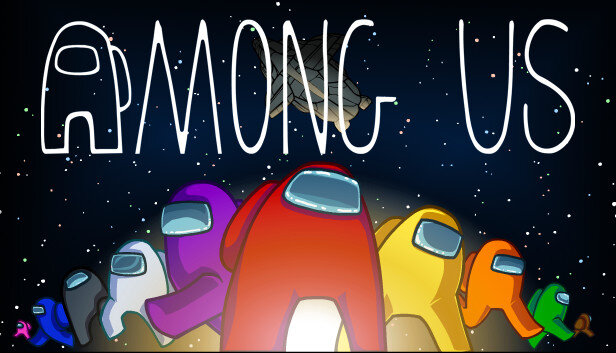
Your students LOVE the game Among Us, but how can we integrate this in an educational way? We’ve got you covered! In this post, you’ll learn how to set up and play Among Us on Flipgrid!
“Among Us” is a trending game that is popular with students. In this blog post, you’ll learn (Click on a subheading to jump to that section):
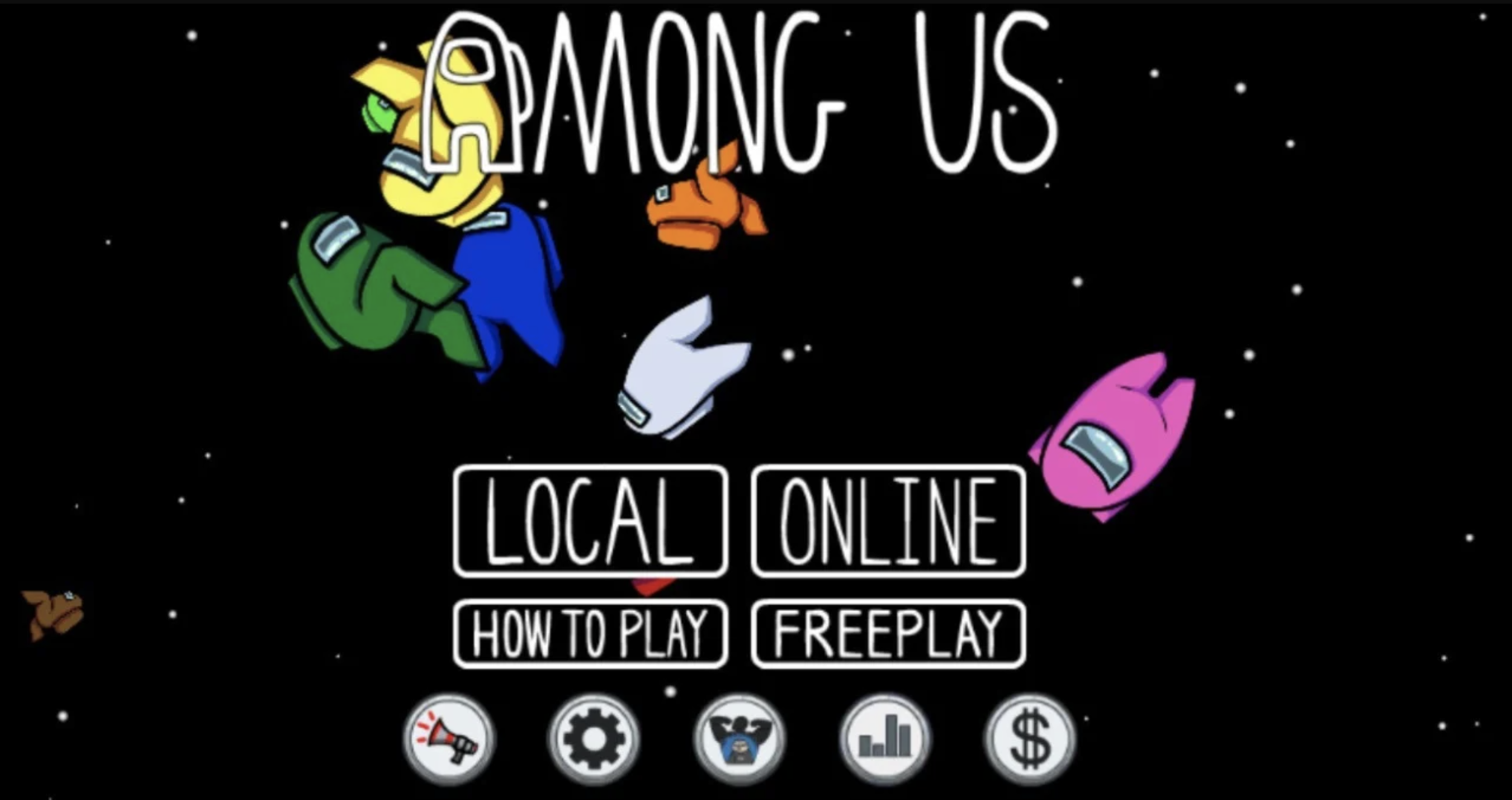
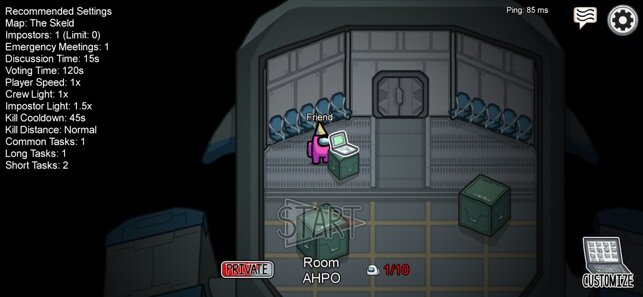
What is the Game Among Us and where do you play it?
From the New York Times: Among Us is a multiplayer game where between four and 10 players are dropped onto an alien spaceship. Each player is designated a role as a “crewmate” or “impostor.” Crewmates must run around the ship and try to complete a set of tasks while trying to identify and avoid becoming sabotaged by the one or several impostors. Players can be voted off the ship, so each game becomes one of survival: Successfully vote off the impostors, or complete all your tasks to win. The game is available on all mobile devices.
How to Play Among Us in the Classroom
Here are a few ideas for bringing the game Among Us into your classroom.
Integrate your math lessons into the game! Have students solve and share their thinking using Flipgrid. Then, allow the “imposters” to have an opportunity to eliminate the “crewmates,” and you can even include a class meeting!
Tie in a detective-related text, then have the students discuss who they think the suspect (or imposter) might be. Vote out the suspect / imposters as you read.
Assign a few students to be the “imposters.” Then, have your students complete a set of tasks. When solving the tasks, the “imposters” have to all use either a symbol, keyword, or clue. Crewmates must work together to figure out who the imposters are. If they suspect a classmate of using one of the symbols / keywords / clues, they can cast votes to vote them off the ship.
LEVEL UP: If your students are learning virtually and have access to breakout rooms, you can use the breakout rooms as the different “parts of the ship.” The students can use the breakout rooms to create a meeting where they discuss who the “imposters” are. Then, meet in the main meeting to cast their votes.
How to Play Among Us on Flipgrid
Ready to bring Among Us Flipgrid-style to your classroom? Follow these steps:
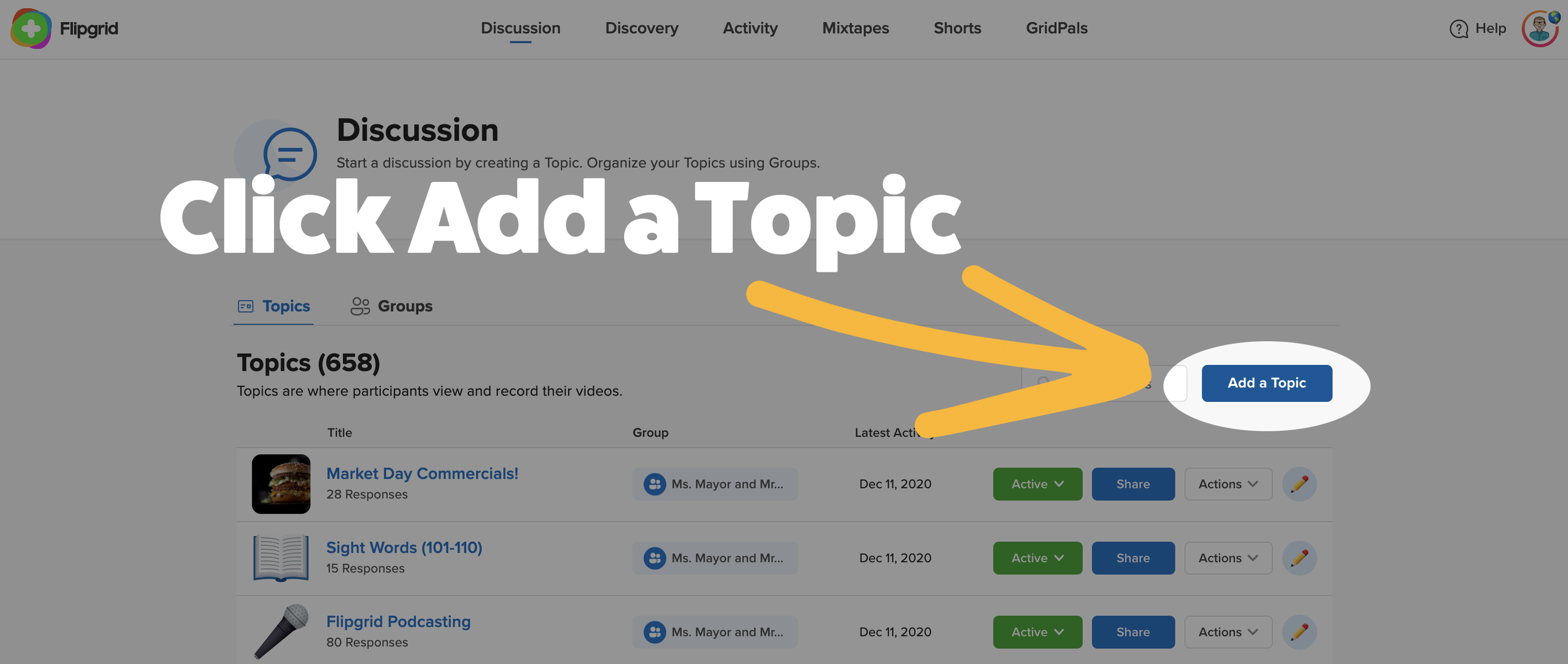
Step #1: Create a new topic
Log into the Flipgrid Educators dashboard, then click the blue “Add Topic” button. Then, add a topic title and prompt.
Step #2: For added engagement, pre-record two videos.
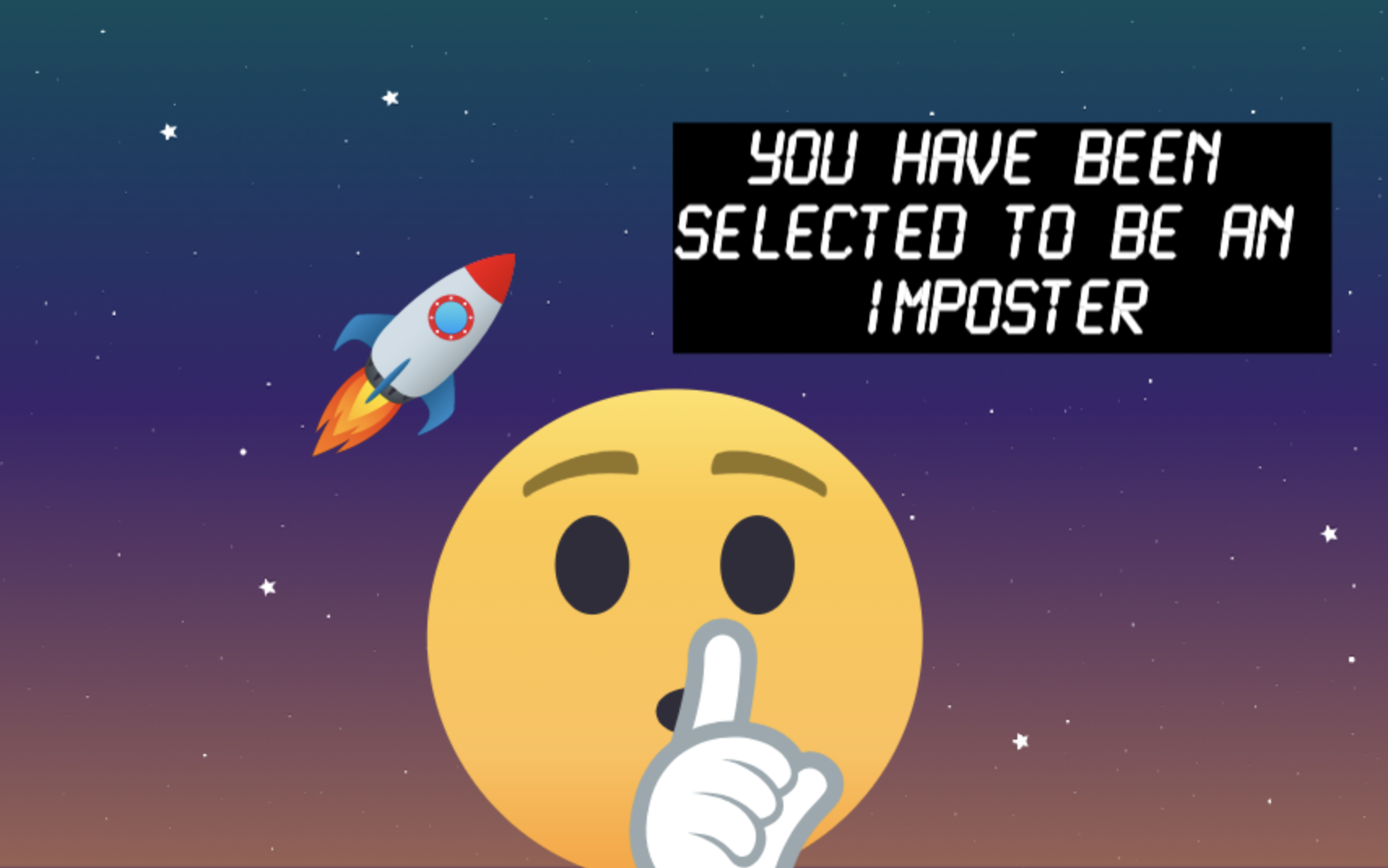
After a class meeting, one person will be voted off. This doesn’t mean that the game is completely over for that person, it just means that they are no longer able to cast votes. To build suspense, we recommend downloading our videos below. One video indicates that the student was an imposter, and the second indicates that the student was not the imposter. You can add these to your Flipgrid topic by posting them as a student. See the examples below, and click on the links to download them.
“Not an Imposter”
“An Imposter”
Step #3: Pin and “Hide” both the pre-recorded videos.
This way your students can’t see them, and you can easily access them from the educators dashboard. When it comes time to reveal who has been voted off, you can open both videos in different tabs to play, or just toggle from “Hide” to “Active.”

Step #4: Tip off the Imposters
Pick 2-4 students to be the “imposters” (Note: the imposters do not know who the other imposters are. This is important, because if they are “voted off,” they can still participate). Give them some type of keyword, have them use a symbol, or another type of clue that they are to use when recording their response. The other “crewmates” will attempt to identify which classmates are using the keyword / symbol / clue.
If you would like the imposter to have the ability to eliminate other crewmates, instruct them to be the first one to respond to a classmate’s video. After the round is over, if they successfully do so, announce to the classmate that they have been eliminated. Those eliminated may continue to play, but may not cast votes for who to eliminate next.
Step #5: Launch the Game
Launch the game and let the students complete the first task. The imposters will use the keyword / symbol / clue in their Flipgrid video response. Once the students have recorded how to solve the task, they can watch their classmates videos. After a given amount of time, call a class meeting. Ask the class to vote for who they think the imposters are (they vote only once at a time). Whomever receives the most votes is voted “off the ship.” Regardless of whether they were an imposter or not, they may still participate in the game.
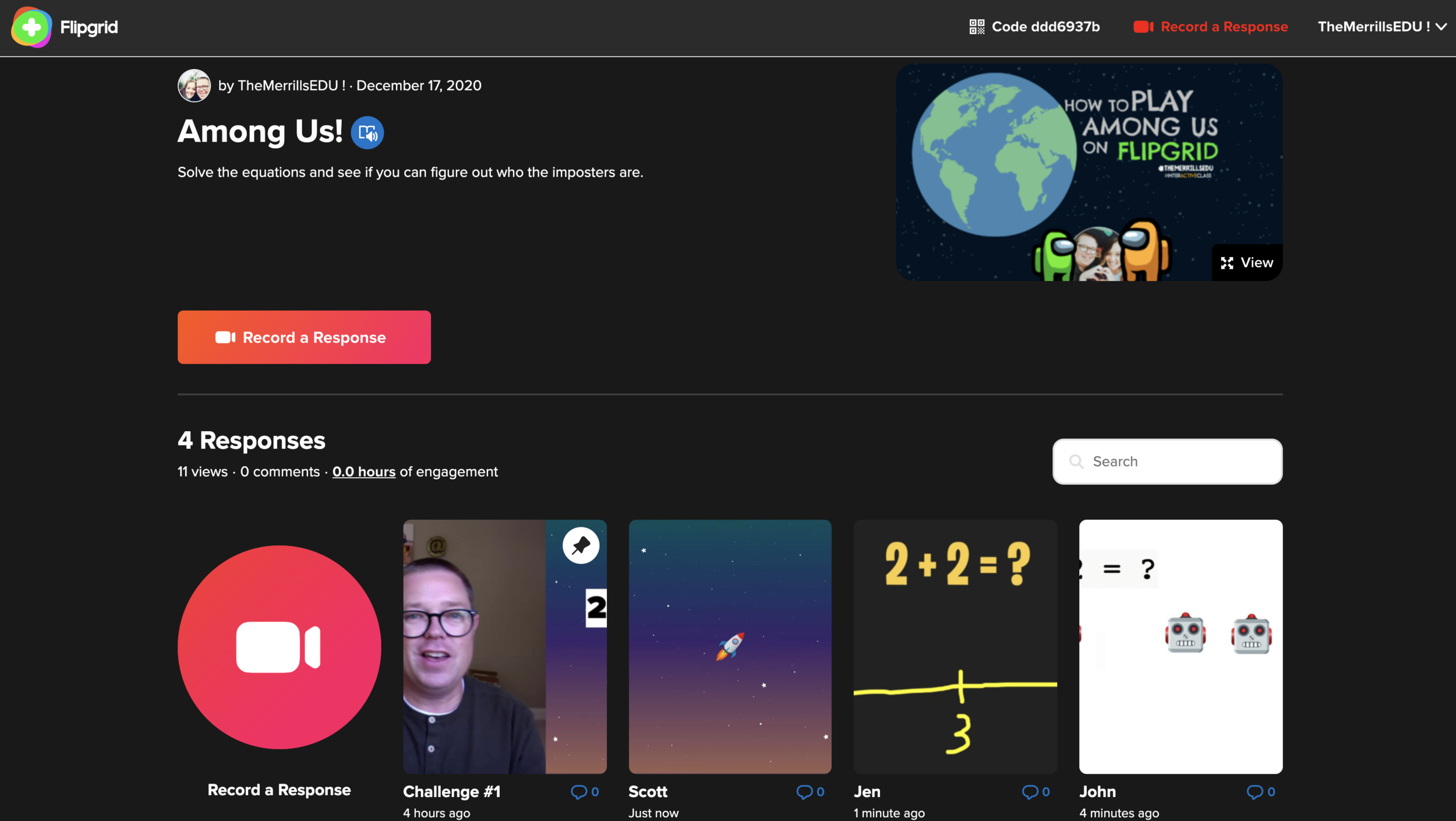
Imposters who are voted off may continue to play and attempt to guess who the other imposters are - but they may not participate in the class meetings / voting.
Crewmates who are mistaken for imposters may be tipped off on what the special keyword / symbol / clue is. As a result, they are NOT allowed to spoil the fun - so they are not allowed to participate in class meetings or voting. But, they can still participate in the game by continuing to solve the challenges and see if they can narrow down the suspected remaining imposters. Reminder, they are NOT permitted to cast a vote.
Step #6: Repeat as needed
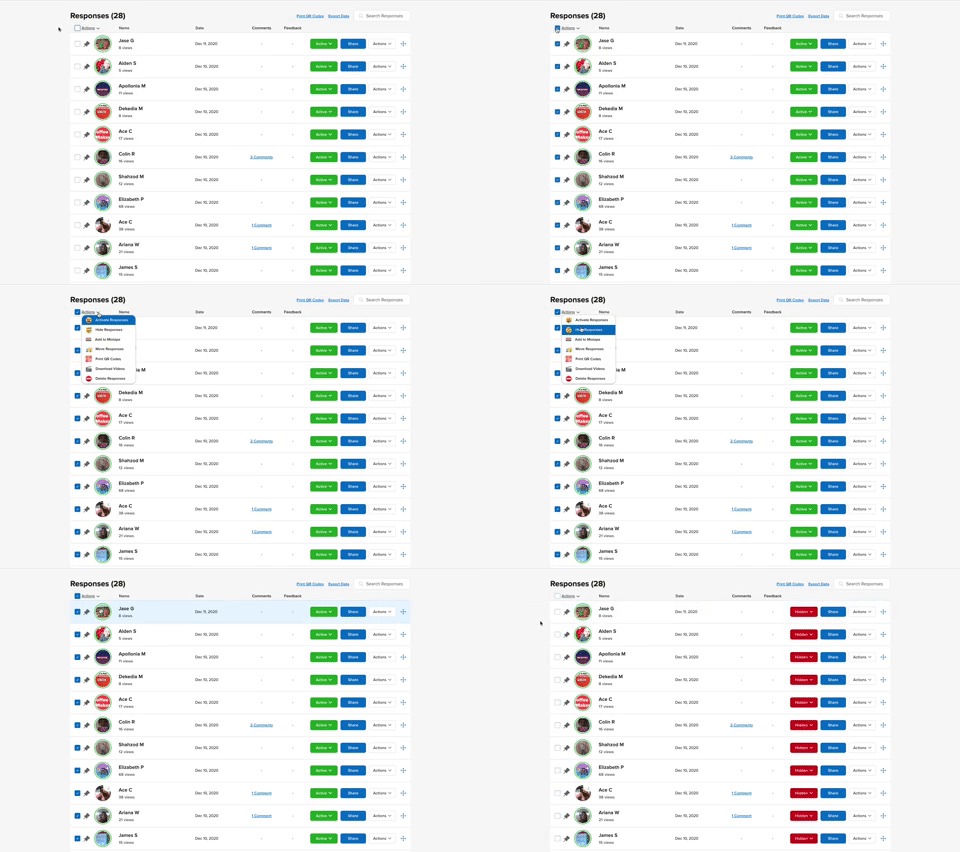
Once the first round has been completed, launch a new round. You can quickly clear the Flipgrid responses in your grid by clicking:
From your topic in the educators dashboard, click on the box under “Responses” and to the left of “Actions.”
With the box checked, click on “Actions,” then click “Hide Responses.” The videos will not be deleted, but they will not appear when students view the topic. This is a quick way to “reset” the game.
Watch our Video Tutorial!
Here’s a quick reference guide on how to set everything up!
See a Classroom Example
Click below to see this activity in action!
Stay #interACTIVE!
-👗➕🕶️
For more tips, tricks and lesson ideas for making learning more interACTIVE, check out our books The InterACTIVE Class and Flipgrid in the InterACTIVE Class on Amazon!


Using Wonderopolis for Remote Learning
Remote learning has definitely posed some. new challenges for teachers looking to finish the year virtually. One of these is the ability to monitor, differentiate and provide scaffolding for student learners. Wonderopolis is a great resource for teachers looking to provide meaningful content to students to use for learning, while also being sensitive to the various learning situations student have at home.

Remote learning has definitely posed some. new challenges for teachers looking to finish the year virtually. One of these is the ability to monitor, differentiate and provide scaffolding for student learners. Wonderopolis is a great resource for teachers looking to provide meaningful content to students to use for learning, while also being sensitive to the various learning situations student have at home.
How Can Wonderopolis Be Used in Remote Learning?
Wonderopolis is a great resource to use during remote learning because it is founded on children’s’ innate curiosity and during this time of distance learning it is more important than ever to keep our instruction and content as relevant and responsive as possible. Learning, discovery, and curiosity, as well as the concept of sharing the experience with family members, are strongly encouraged throughout the site and with students learning while at home the more involved the family can be the better.
Remote Learning Features of Wonderopolis
There are many features already built in to Wonderopolis that are very useful for teachers and students to take advantage of during remote learning. These are features that have always been a part of the Wonderopolis platform, but now with teachers having to teach the remainder of the year remotely, they are great to add to distance learning lessons.
Wonder Lengths
The articles, referred to as “wonders” remind me of the fairy tale Goldilocks and the 3 Bears—they aren’t too long, they aren’t too short—they are just right! Every Wonder is numbered making them easy to find, and they are a reasonable length for students who may be working independently.
Immersive Reader
Speaking of working independently, another feature found in every Wonder article is Microsoft’s Immersive Reader. Immersive Reader is an embedded tool that will benefit students in two ways. First, it will read aloud all the text found on the page. This is great for primary students who may be more accustomed to having text read aloud to them, benefits students who may be doing more of their work independently without adult help available, and for students who may read below the reading level of the selected text. The second benefit of Immersive Reader is its ability to translate the text on the page. Students can choose over 50+ different languages to have the Wonder article translated to. This can be a great advantage for our learners of other languages.
Vocabulary Assistance
When reading through the Wonder article, students will find various words highlighted. These are words pre-identified as words the readers may not know, and when you hover over them, a short kid-friendly definition will pop up. Wonderopolis doesn’t offer Wonder articles in various reading levels, so a feature like this, paired with Immersive Reader, helps students who may be reading at a lower level than that of the Wonder article.
Try it Out
At the end of each Wonder article is the Try It Out section. This is a great resources for teachers and often lists various activities or projects to try related to the Wonder. These suggestions range from discussion questions, STEM activities, creative writing prompts and much more!
Flipgrid Partnership
In addition to all the features Wonderopolis offers on its website, it has an amazing partnership with Flipgrid. Wonderopolis is one of the many featured partners that can be found in the Disco Library. The Flipgrid Disco Library is full of already made Flipgrid topics that educators can take and use right away with their students.

Simply click on the Wonderopolis icon and search through the already created Flipgrid topics. Students will be able to read the article on Wonderopolis and then participate in a class discussion with one another on Flipgrid.


New Flipgrid Features and Updates from Flipgrid LIVE!
Flipgrid recently announced a new set of updates during “Flipgrid LIVE.” Here’s what’s new, how it will all work, and what to expect!
Flipgrid recently announced a new set of updates. Here’s what’s new!
(Click on any subheading below to jump to that section)
Flipgrid Camera Updates
The Flipgrid Shorts Camera is getting a facelift, and there’s a lot to talk about!

New Features: More fonts, filters, boards, frames, stickers, and GIFs!
Now, while recording, the video’s timeline can be found at the top of the video. Options such as: emojis, white/black boards, text, filters, gradients, gifs, and frames to wrap your video (gallery walk, breaking news, MIE edu, Minecraft coming) will all roll out August 1st.
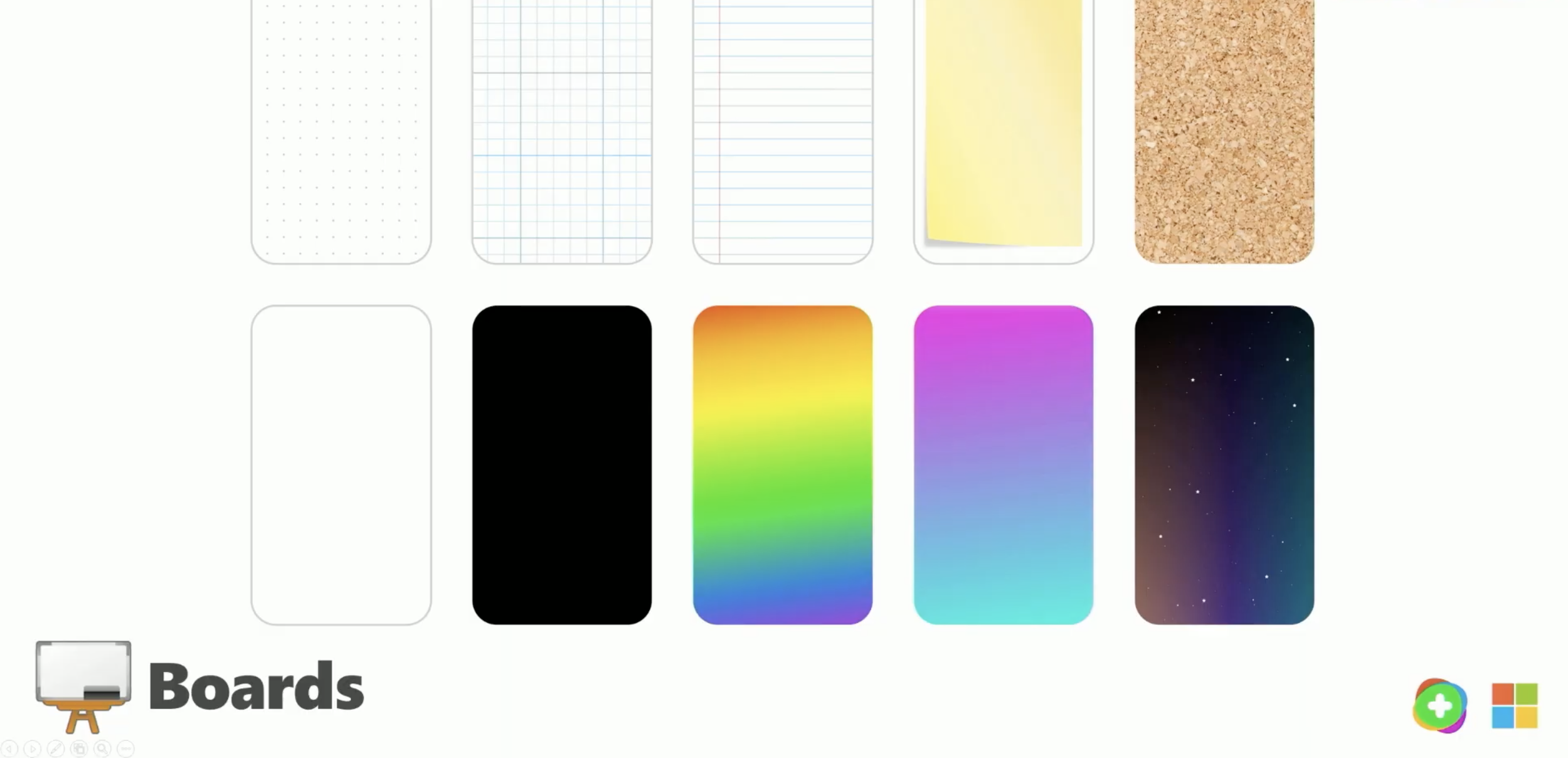
The Boards in Flipgrid will now feature graph, dotted line, and cork board backgrounds. In addition, now students will have the capability to use a video board, or a split screen with the student’s camera video and Board displayed at the same time.

Layering in Flipgrid’s Shorts Camera just got a whole lot easier, too. Now, users can add Gifs, Emojis, text, and Stickers by stacking and layering - adding even more creativity at the hands of students without ever having to leave the app. Sharing content is also becoming easier with a streamlined review process, which allows students to split clips, mirror, and rotate.
The Learner Experience in Flipgrid
The way your students view content in Flipgrid is changing, and is now more
powerful than ever.
When your students log onto Flipgrid, they will access a more modern and convenient look. Students have the ability to quickly view videos, but most impressively, see what videos are coming up next with an all new panel that displays your topic’s responses along the right side.
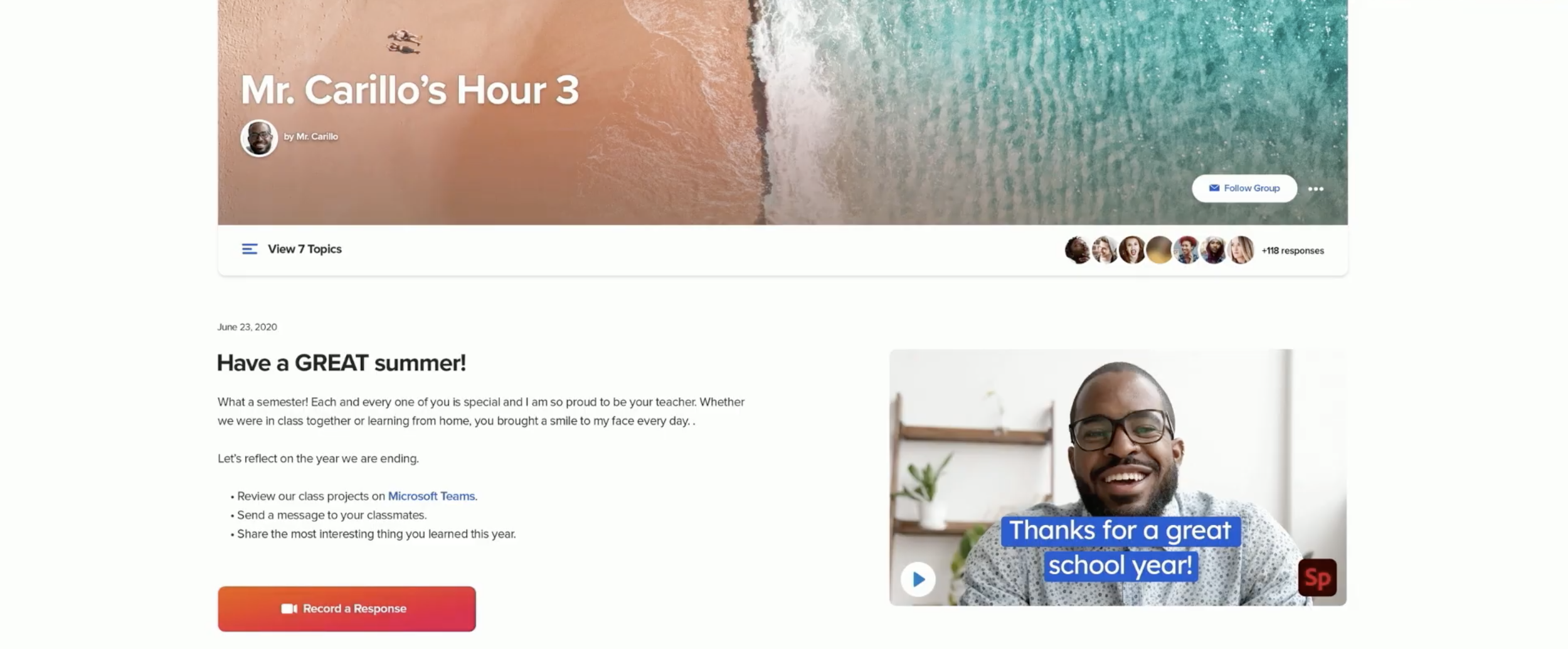
Text and video comments and also coming, allowing educators to provide private and public feedback to student responses. As always, the educator has complete control and can toggle comments on/off. Flipgrid has also added Microsoft’s AI Azure which will scan every comment, moderating for things like language or bullying.

Updates to the Discovery Library
Flipgrid’s Disco Library is more than just a hub for sharing and downloading content. The Disco Library is where you can find integrations from other partners like The National WWI Museum, Langston League, BBC, and more.

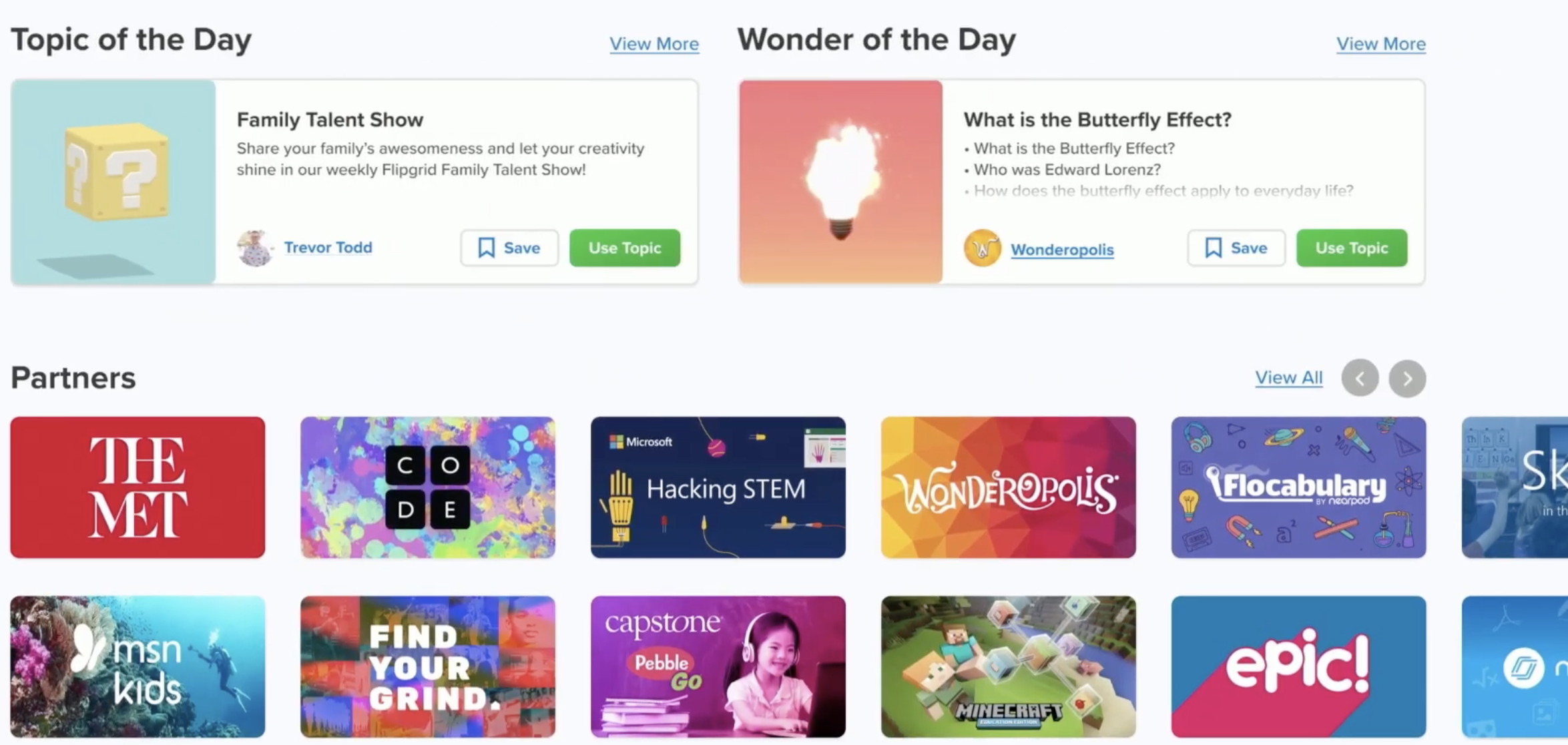
Discovery Library Partners are constantly being added, but expect new content from: Minecraft, Langston League, and Wonderopolis (including a “Wonder of the Day”). Expect partner profile pages to roll out providing an independent, shareable space that allows educators to connect with them easier.
Educators now have access to showcase trending topics, published collections-- including conversations about race, equity and justice. This is also where you’ll also be able to find learning from home topics, and content from inspiring creators.
Updates to the Educator Dashboard
Creating and sharing your topics is now easier than ever using Flipgrid’s topic launch technique. Grid’s now have a new name = Groups, and communicating with your students gets a new look!
Launching a discussion on Flipgrid just became a whole lot easier. The steps to launch a topic have been simplified: just add the topic and share! If you’d like to add your topic to a “Group” (formally referred to as “Grid”), you can always do that by clicking: Add → share → group. Interacting with your students’ videos has been revamped. Now, educators can reply with text and videos for comments. There is also the ability to edit close captions.

Previously in the Flipgrid Dashboard, Adobe Spark content could be added as static thumbnails, but users would have to leave the Flipgrid app to view the content. Now, you can play full videos right inside of the Flipgrid Focus area and students will never have to leave the app.
Safety is clearly a high expectation with Flipgrid, and now educators have even more control of who can gain access to their content. From the Educators Dashboard, you can now add specific email addresses, providing the necessary access to Topics for your guests to join.
Inclusion and Accessibility Updates
Closed captions, Microsoft’s Immersive Reader, Xbox’s Controller, and “Powered by Dyslexia” extend inclusion and accessibility in Flipgrid.
There is no doubt that the team at Flipgrid places inclusion and accessibility at the forefront of their updates. The Flipgrid Shorts Camera provides closed captions, and the team has leveraged immersive reader as much as possible throughout the entire platform. One of the “coolest” announcements gives students the ability to control the Flipgrid Shorts Camera with an Xbox controller (coming in August). New partnerships with “Powered by Dyslexia” are aimed at providing even more accessibility all within Flipgrid.

What to Expect from Flipgrid in the Upcoming Year
A new logo, more focus on student safety, leadership boards, and what to expect
with fall updates.
Flipgrid is getting a brand new logo! The new look is focused on diversity, inclusion, energy, engagement, and togetherness.
Safety is a top priority for team Flipgrid. A great deal of focus is being placed on: Access, Control, and Protect. For example, Groups, Topics, and videos can’t be searched. Videos and comments are scanned using Microsoft’s Azure to provide the upmost safety for students.


Flipgrid announced Leaderships Boards, designed to focus on diversity and inclusion, and accessibility and equity. More information will be rolling out within the next few weeks.

Flipgrid AR now delivers even more accessibility with fully transcribed videos. As users continue moving their device, they will be able to transition between AR codes while the thumbnail of the previous video is displayed.

There are lots of additions to the Shorts Camera, including effects such as: new filters, text options, frames, and gifs. Last year, the Shorts Camera was integrated into Wakelet. You can expect the same with the Shorts Camera coming into Yammer and other Microsoft applications. For example, along with live meetings in Microsoft Teams, Flipgrid discussions can now be created within your Teams conversations.
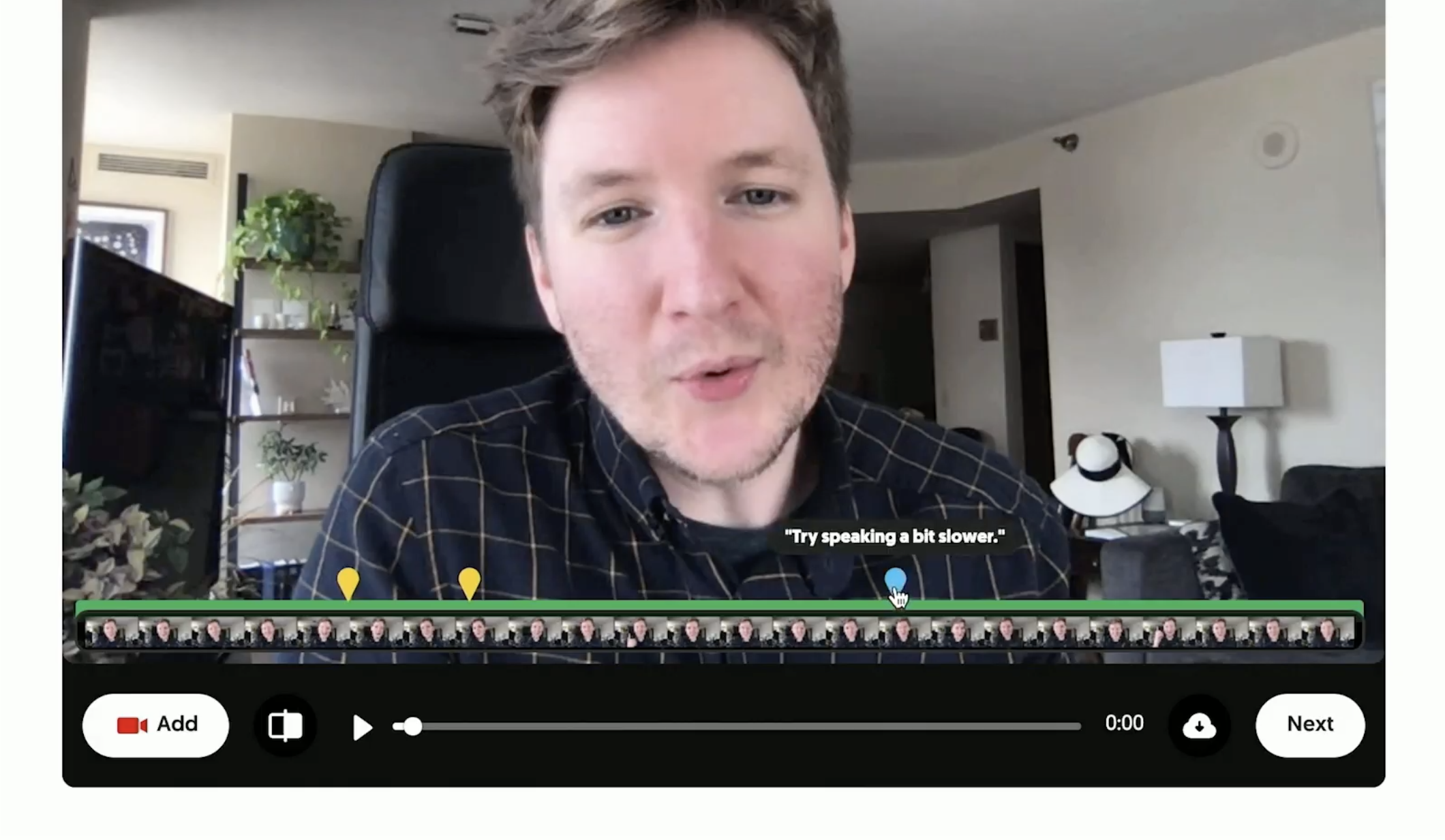
Flipgrid Coach, a new partnership with PowerPoint, provides real-time feedback to users. It will encourage users to talk slower and alert them about filler words (such as “uhm”). When going through the editing process, hints will appear on top of the video’s timeline, giving it a “report card.” This will show you where mistakes are, and allow you to go back and trim / fix as needed. This feature is easily toggled on and off from the educator’s dashboard.

Auto Selfies is a huge time saver. When enabled, this feature will automatically generate a bouncing selfie from the video being submitted. Not happy with the automatic capture? No worries, you can review and edit from the submission frame, or take a photo--just as in the past. The best part about Auto Selfies: it makes grids come alive, animating the view.
Screen recording was a huge addition to educators throughout #RemoteLearning. Now, this capability is coming to mobile users - right within the “Capture” option built into the Shorts Camera.
Last, but certainly not least, Mic Mode provides access to students experiencing lower bandwidth or if they have devices where the camera isn’t enabled. To launch Mic Mode, open the Flipgrid Shorts Camera app, tap “Options,” then tap “Mic Only.” This will record audio from the user.

Stay tuned for ways to use all of these new features in the classroom soon! 🙌🏻
Stay interACTIVE!
~👗➕👓
For more interACTIVE ideas to use when integrating technology into the classroom, check out our book, The InterACTIVE Class.


Creating Flipgrid Book Talks During Remote Learning
I was determined to find a way for us to share this time together even though we are apart and Flipgrid was the perfect platform to do this in. The multiple features and tools within the Flipgrid platform make read aloud possible and still give us a space for discussions during this time of asynchronous learning.
Reading aloud to my kids was something I enjoyed doing every day. We would sit together, read through a story together and talk. We would journey through the various stories together, each taking away different things, sharing as we went. When we moved to virtual teaching online, the path of remote learning looked like it would take away this time.
I was determined to find a way for us to share this time together even though we are apart and Flipgrid was the perfect platform to do this in. The multiple features and tools within the Flipgrid platform make read aloud possible and still give us a space for discussions during this time of asynchronous learning.
We continue our reading daily so after dividing the book up into daily sections, I recorded myself reading. Now there are two ways to do this. 1) Record directly into Flipgrid and then put the video as your Topic focus. This will house the read aloud portion in the thumbnail of the topic. You can record up to 10 minutes in one video which makes it much easier to read a nice portion of your story. 2) The other option is to record the reading video in another platform and then attach to the Topic. This is what I did. I chose not to use the Topic focus for my actual read aloud because I like to use my Topic focus as a place to start the actual discussion.
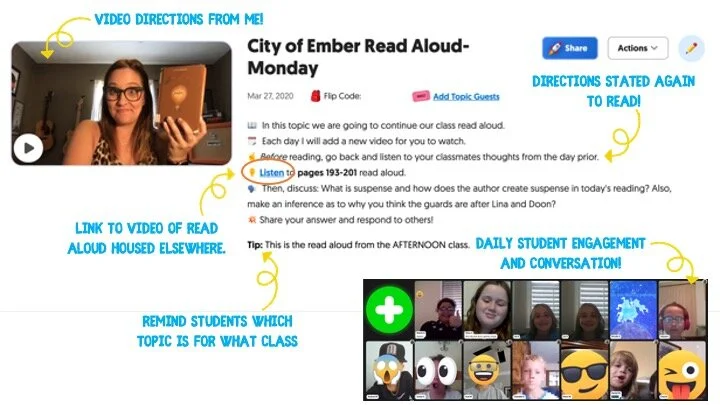
In addition to starting the discussion within my Topic video, I also wrote them out in the prompt portion of the Topic. I like to use emojis to make the different steps stand out. Emojicopy.com is a great place to find, copy and paste emojis for this. The Tip feature is also great to help my different classes know which read aloud was for them, but you can use this to give recording hints, a reminder for discussion and much more!
Finally, many miss the link feature within the Topic prompt. This is where I linked my read aloud. The students would click there, be taken to a safe search window where they would watch me read the book, and then they would participate in our discussion back on Flipgrid. You can also link the read aloud as one of the 9 Topic attachments you can have. For more information on how to attach links as Topic attachments check out this YouTube tutorial.
You can choose to moderate videos before they appear, but I chose to just participate with the students’ discussions rather than moderating beforehand. Finally, once I had the first day’s Topic created, I used the Duplicate Topic feature to duplicate the entire Topic.

I then went in and changed out the link for listening, rerecorded a new direction video and changed out the prompt in the directions. This was a HUGE time saver since I had 5 to do each week for both classes. I could keep the same emoji decorations, list of directions etc. and just change out the parts that were different each day. (read aloud video, discussion prompt)
Our read aloud ended last week and I thought the kids would be happy to have one less thing to do. Completely the opposite! They are asking when the next book will be started and what we will be reading! I can’t wait to continue this time of reading and discussion while we are #remotelearning and I am thankful to have a platform like Flipgrid to facilitate this time with my students.
-K 👗
For more #interACTIVE lesson ideas using Flipgrid, check out our book The InterACTIVE Class on Amazon!


Flipgrid Integration in Nearpod
Flipgrid is at it once again, and during this time of remote learning the ability to integrate a Flipgrid Topic directly into a Nearpod presentation is so useful! Now in addition to creating Nearpod lessons filled with collaborative slides, 3D explorations and embedded activities, students can now share their voice on Flipgrid!
Flipgrid is at it once again, and during this time of remote learning the ability to integrate a Flipgrid Topic directly into a Nearpod presentation is so useful! Now in addition to creating Nearpod lessons filled with collaborative slides, 3D explorations and embedded activities, students can now share their voice on Flipgrid!
Getting Started
To get started you will need to have already created both a Flipgrid account and a Nearpod account. Assuming you have already started creating your Nearpod presentation, when you are ready to embed your Flipgrid Topic you will want to open up both applications in side-by-side tabs or windows.
Start by creating a new slide in Nearpod, and when choosing the type of slide go with an activity slide. You will then see the Flipgrid icon appear directly beneath it for you to click on.
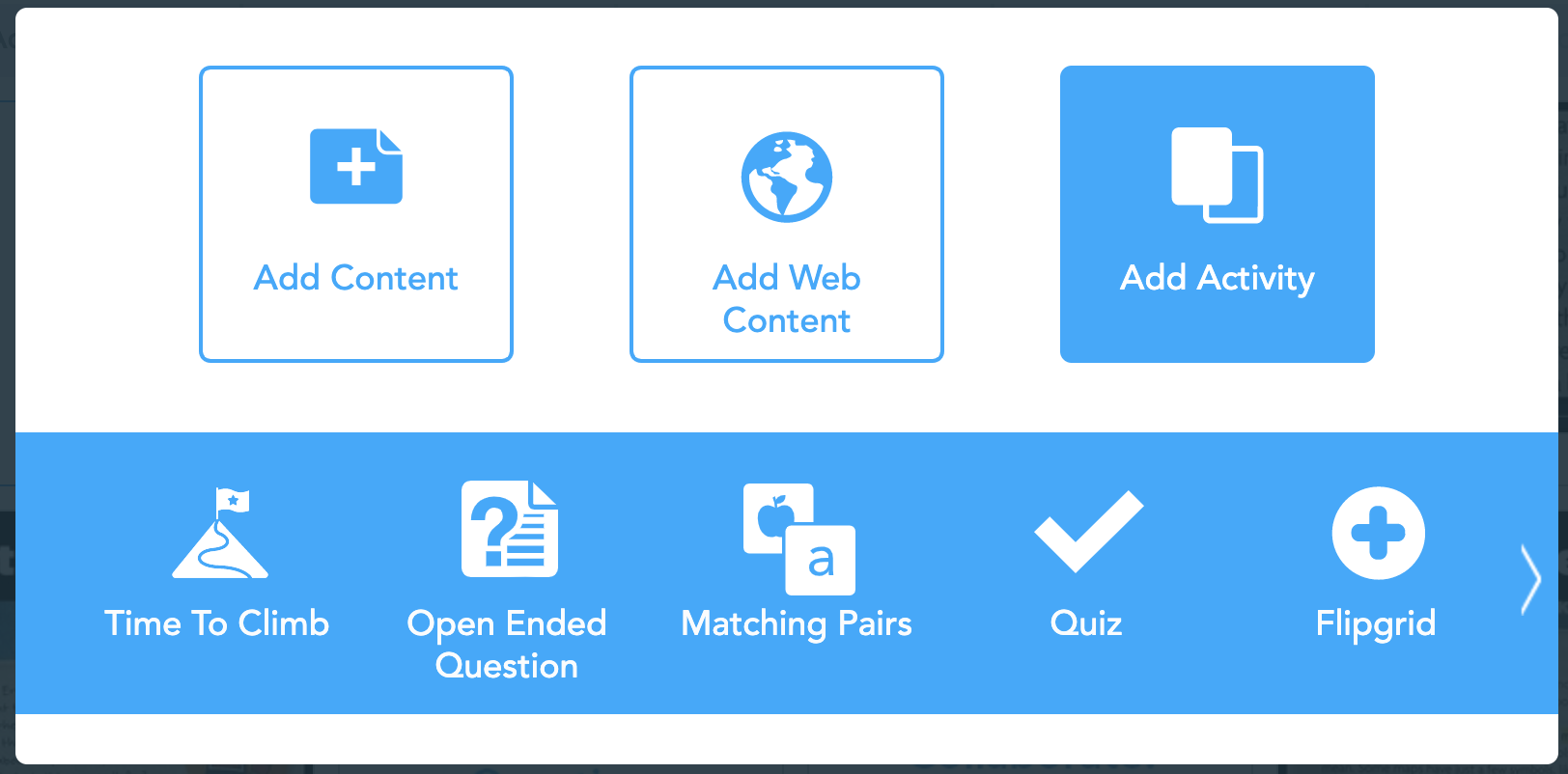
Once you click on the Flipgrid icon, you will be taken to a new screen. This is where you will embed the links to the Topic.

The first line is where you will paste the Flipgrid Teacher URL. This is the web address you see when you have your topic open on your desktop.

The second link is where you will paste the Flipgrid Student URL. From the Topic, click ‘Share’ and then click to copy the link into Nearpod.

Once the links are pasted and submitted, the slide will appear in the Nearpod deck ready for students to use.

For additional help with this integration, check out our tutorial video below, or on the Flipgrid YouTube channel.
- 👗➕👓
For more #interACTIVE lesson ideas using Flipgrid, check out our book The InterACTIVE Class on Amazon!


Using the Draw Tool in Flipgrid
Part of what makes the Shorts camera so powerful are the features available to students to use when sharing their voice and ideas. Digital inking can take ideas and explanations to a whole new level.
Creative Features in Flipgrid
Part of what makes the Shorts camera so powerful are the features available to students to use when sharing their voice and ideas. Digital inking can take ideas and explanations to a whole new level.
The digital inking tool is symbolized on the Shorts camera dock with a pencil. From the moment you click on it your entire screen becomes a live digital board ready to be written on. Students can write directly on the video screen both when the video is paused and while recording live. The digital inking tool can used in combination with the whiteboard/blackboard feature to create more focus on the writing, or used alongside the photo sticker tool for annotation directly on top of images.
Creative Ways to Use Digital Inking While Recording in Flipgrid
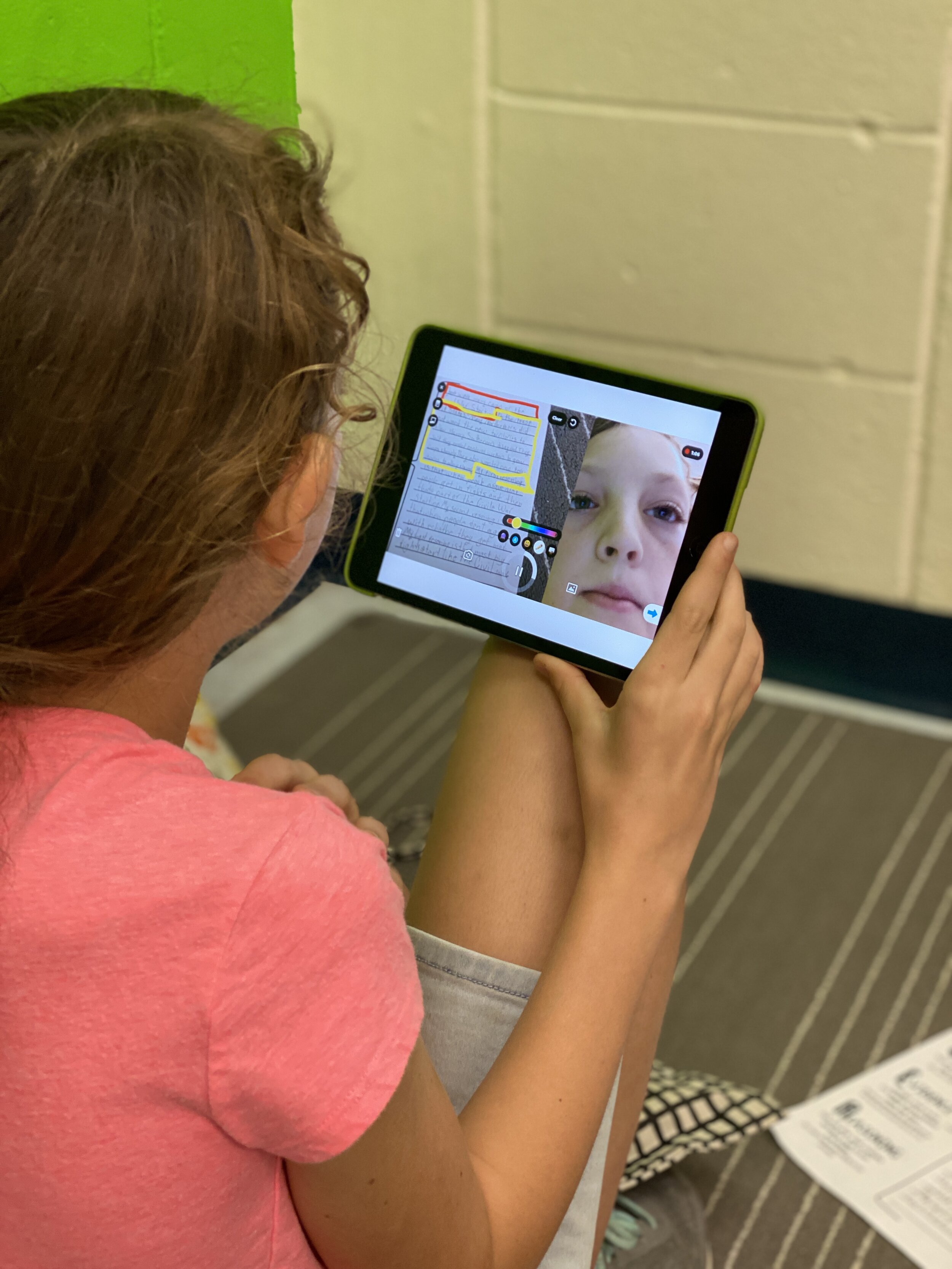
Book Snaps- Using the photo sticker tool along with the draw tool, students can live ink right on top of the pages of a book. They quickly take a photo of the paragraph or page, and then can ink, highlight, or draw, to identify parts of speech, find text evidence to support an inference or simply to draw attention to a character’s thoughts, dialogue or actions.
Math Hunt- Have students hunt for different shapes or identify angles in their video circling with the live inking draw tool as they record. They can pause as they go for a more edited video, or live record and draw as they go.

Science Scavenger Hunts- Demonstrating knowledge of subject matter doesn’t need to just be in math! Have students use the draw tool to identify living vs. non-living things in the backyard, constellations in the sky (real or student created!), or to show length and measurement.
Math Explanations/Number Talks- Students can have a unique place to share their math thinking and explanations. Using the whiteboard/blackboard feature along with the live inking (and even the sticker emojis!), students can explain their thinking and show their work for various types of math problems. Take it a step further and combine the live inking with the pause feature in Flipgrid, and students can share multiple ways to solve the same problem all in one video.

Creative Costumes- Flipgrid developers have spent so much time designing and developing a large set of of creative stickers and emojis, but sometimes the exact sticker just can’t be found. Use the draw tool to create the perfect Dr. Seuss hat, , or to transform yourself into the president you are researching in class.
For more information on how to use the draw tool, check out our tutorial on the Flipgrid YouTube channel.
To read more about Flipgrid check out these posts:
Using Flipgrid to Critical Thinking
- 👗➕👓
For more #interACTIVE lesson ideas using Flipgrid, check out our book The InterACTIVE Class on Amazon!


Going ⚡LIVE ⚡on Flipgrid with YouTube!
Did you know that you can use YouTube LIVE to launch a live stream discussion into Flipgrid? Check out this hack that’s perfect for #RemoteLearning!
#RemoteLearning just got a whole lot easier with this Flipgrid hack!
We’ve been embedding YouTube videos into some of our remote learning Flipgrid lessons. The easy integration is a simple cut and paste. So, that got us thinking…Could you embed a YouTube Live stream?
The short answer is yes! When you launch a YouTube Live stream, you are provided a URL that can be shared. By copying and pasting this code into the Flipgrid integration, you YouTube Live stream will allow you to deliver content in real time to you students while watching their replies. For example, let’s say that you are teaching a math strategy. The educator can model what that might look like, then in real-time ask the class to solve a problem on their own. As the class submits responses, the educator can view the responses and provide real-time feedback. Mr. Merrill finds this extremely beneficial with K-2 students.
“If you’re hosting a live video conferencing “event,” you have to teach the digital citizenship of what is appropriate and what is not. That means you have to teach your students how to do things like mute themselves. For a K-2 student, this could be challenging. This provides an opportunity to deliver the same content in an efficient manner.”
Interested in learning more? See the video above, or follow the steps below.
Requirements: You’ll need a Google and Flipgrid account
Steps:

Start on YouTube.com and make sure that you’re signed into your Google account. Locate the camera with the “+” sign (on the top right side of the window), located just to the left of your profile pic. Click it!

A drop down menu will show up once you click the camera. From here, click “Go live.” Don’t worry - you won’t be live on air just yet. 😜

On the following screen, change your video’s title to match your lesson. Then, click the down arrow to change your video from “Public” to “Unlisted.”
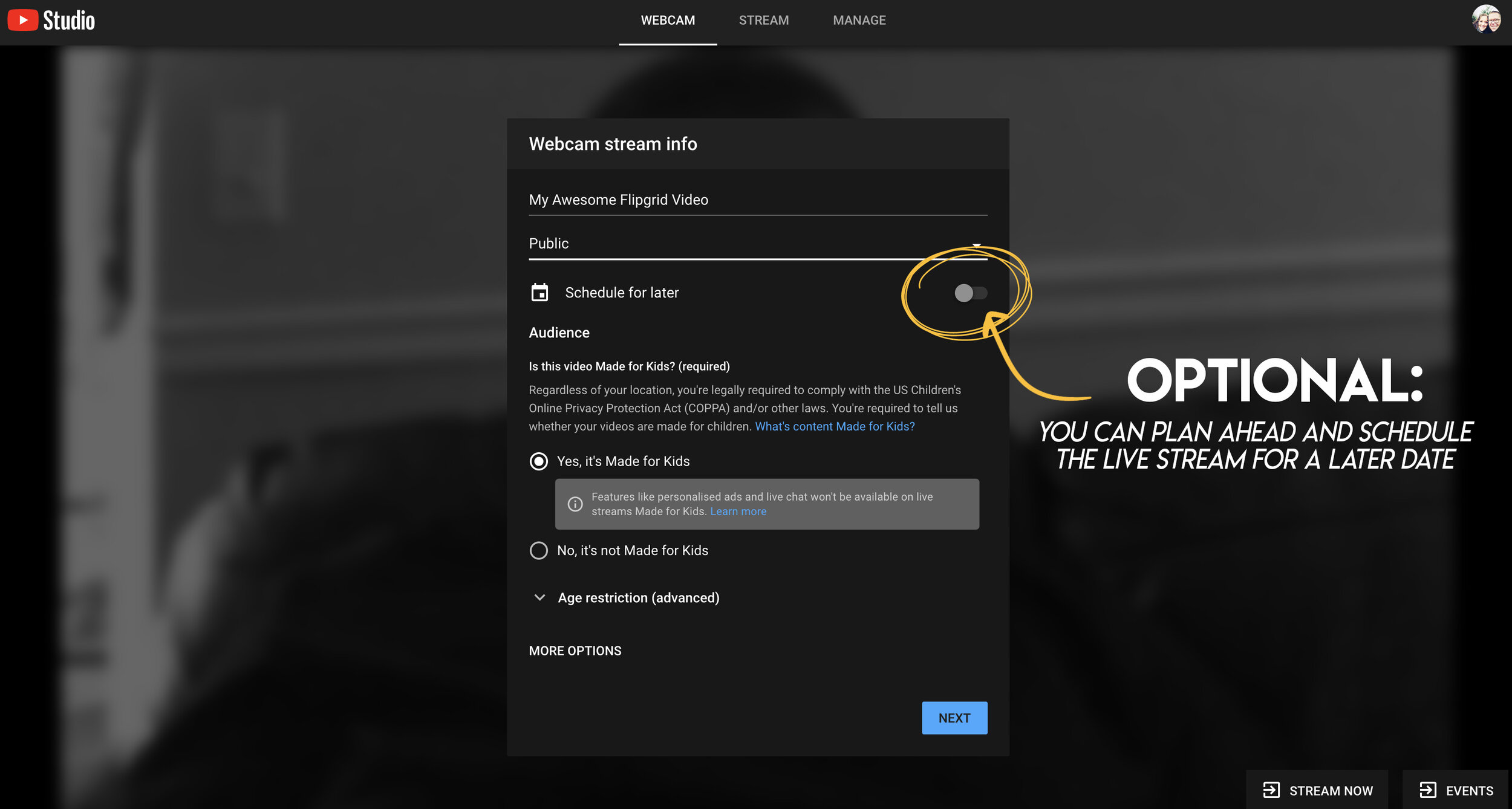
Optional step: You can schedule your live video ahead of time - that way it will be ready to go when you arrange a time to meet with your students.

We recommend saying “yes, it’s made for kids.” This will prohibit inappropriate ads from displaying.

Once you have all info filled out, click next. Note: You will be quickly prompted to take a selfie that will be used for the video’s thumbnail!

Take your selfie for the video’s thumbnail!
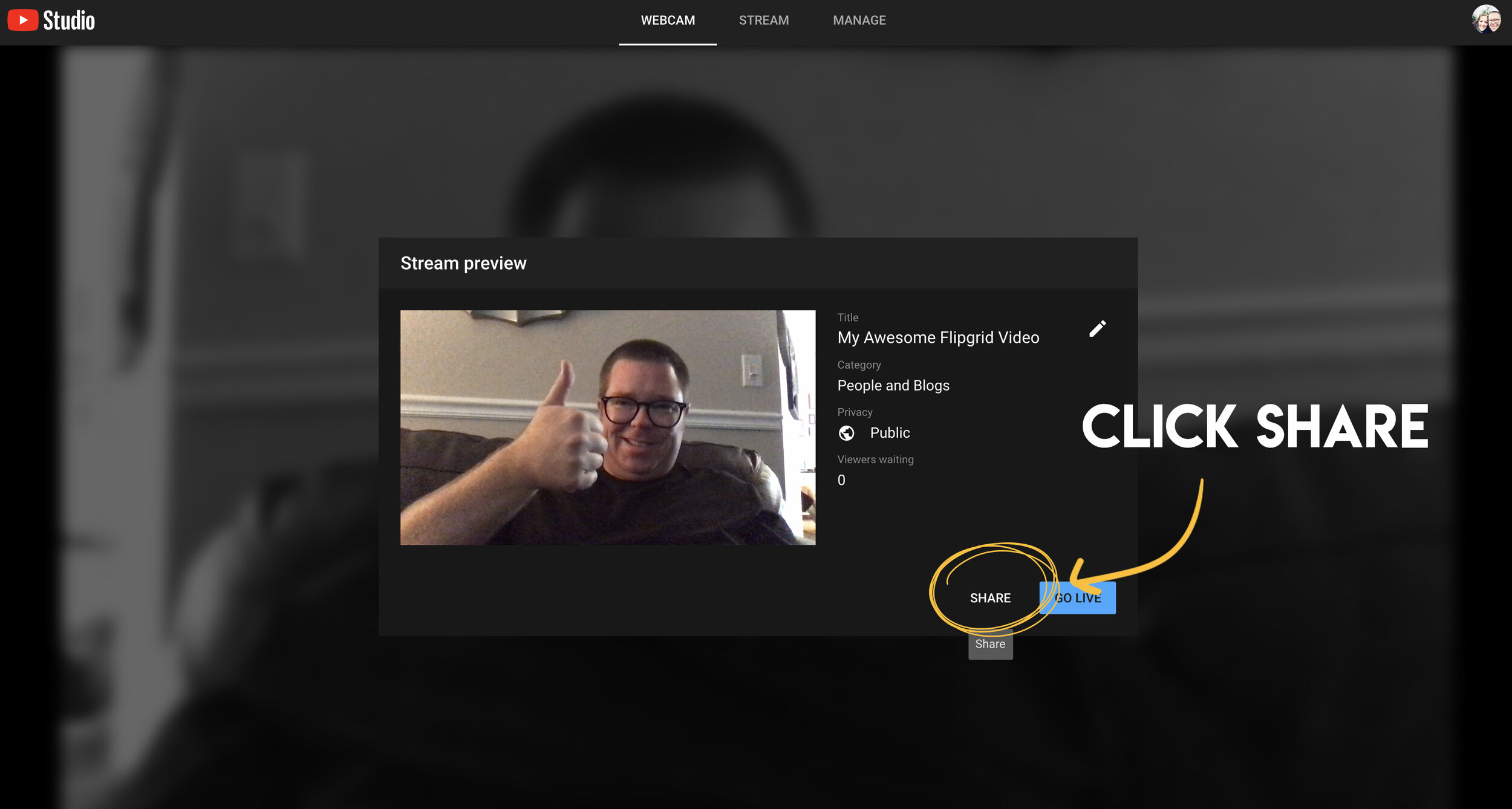
The next step is to click “share.” This will generate your live video stream’s URL.

Once the URL is generated, click “copy” to copy the URL to your computer’s clipboard.

Now you’re ready to head to Flipgrid. Open a new tab and log into your Flipgrid account. Then click on your preferred grid. From there, click on “Add New Topic.”

In your new topic, add a lesson title. You’ll also want to explain the task that you’ll be discussing with the students in the prompt. Lastly, click on the YouTube / Vimeo resource button.

This will open a pop up that asks you for your YouTube URL. Here’s where you will paste the URL code you copied from YouTube. Once you paste it, click “next.”

Your YouTube live stream will appear (although nothing is playing yet, because you haven’t started the live stream - that’s coming up). Just click “add” to embed the video into your Flipgrid topic.

Now you can see your YouTube video embedded on Flipgrid. Click “create topic” to launch the topic on Flipgrid.

This is your confirmation screen. If this pops up, you have done everything correctly! Click “all set” to move on!

When you’re in your newly created topic, your screen should look like this. Notice, the YouTube Live video says it’s “Waiting…”That’s because we haven’t started it yet. You’ll want to make sure your students are logged on and ready to go before your proceed to the next step.
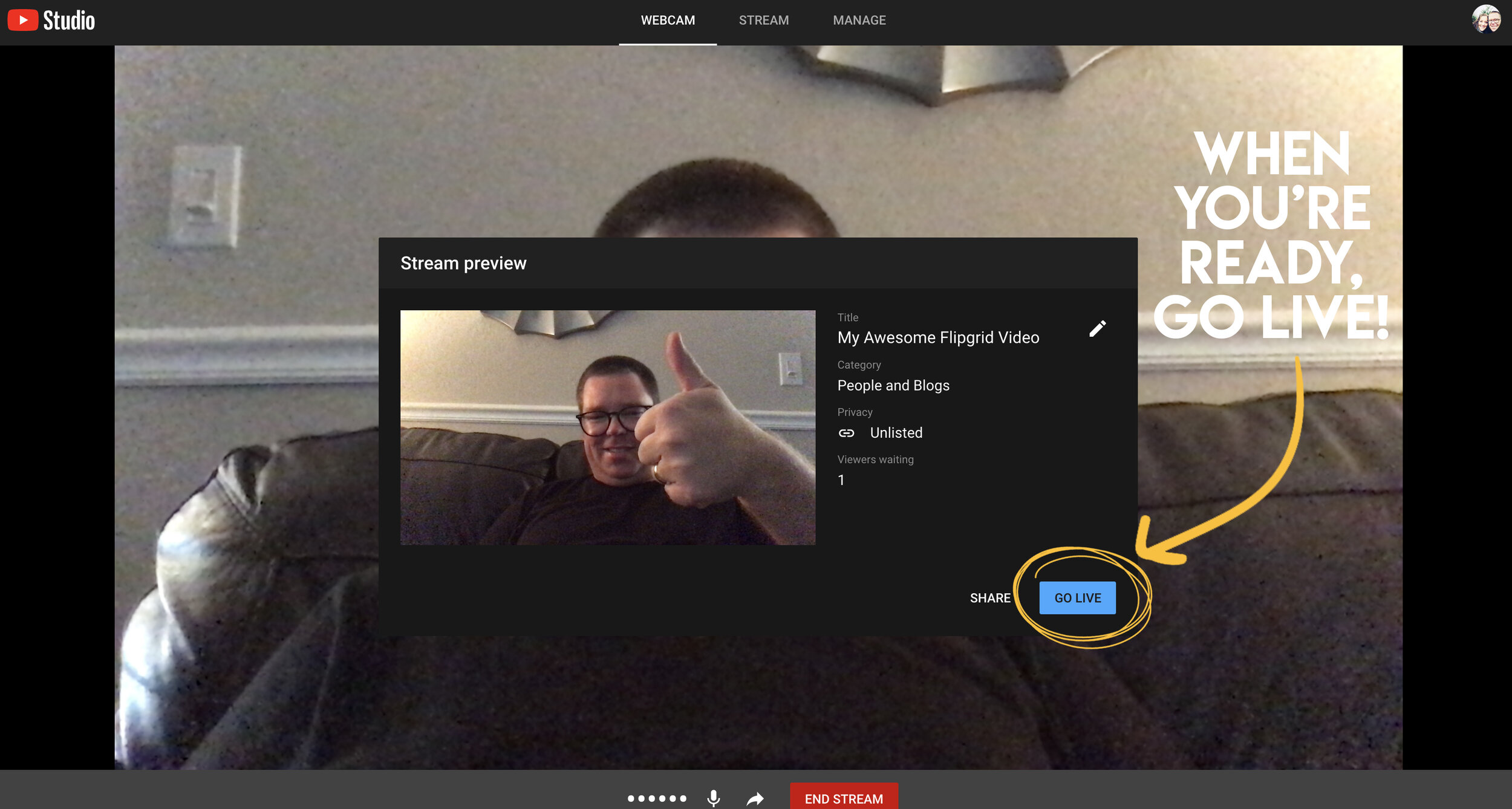
Click on the tab that you left open for YouTube. Click on the blue “Go Live” button to launch your live stream. Now, when your students are on Flipgrid, they can click the play button to watch you live - in real time. Note: if you have students leave responses during your live stream, they will need to click on the YouTube video again to restart the playback (it won’t automatically start again).

Once you are finished with your instruction, click “end stream” on YouTube. You’ll be asked if you are sure that you want to end it. Click “end.” Your live stream has now concluded - but if students were unable to log in during your presentation time, they can always go back and watch the replay of the video!
We hope this hack comes in handy and that you are able to remotely connect with your students! If you have any questions, please don’t hesitate to reach out!
👓 & 👗
💚💚💚
For more #interACTIVE lesson ideas using Flipgrid, check out our book The InterACTIVE Class on Amazon!
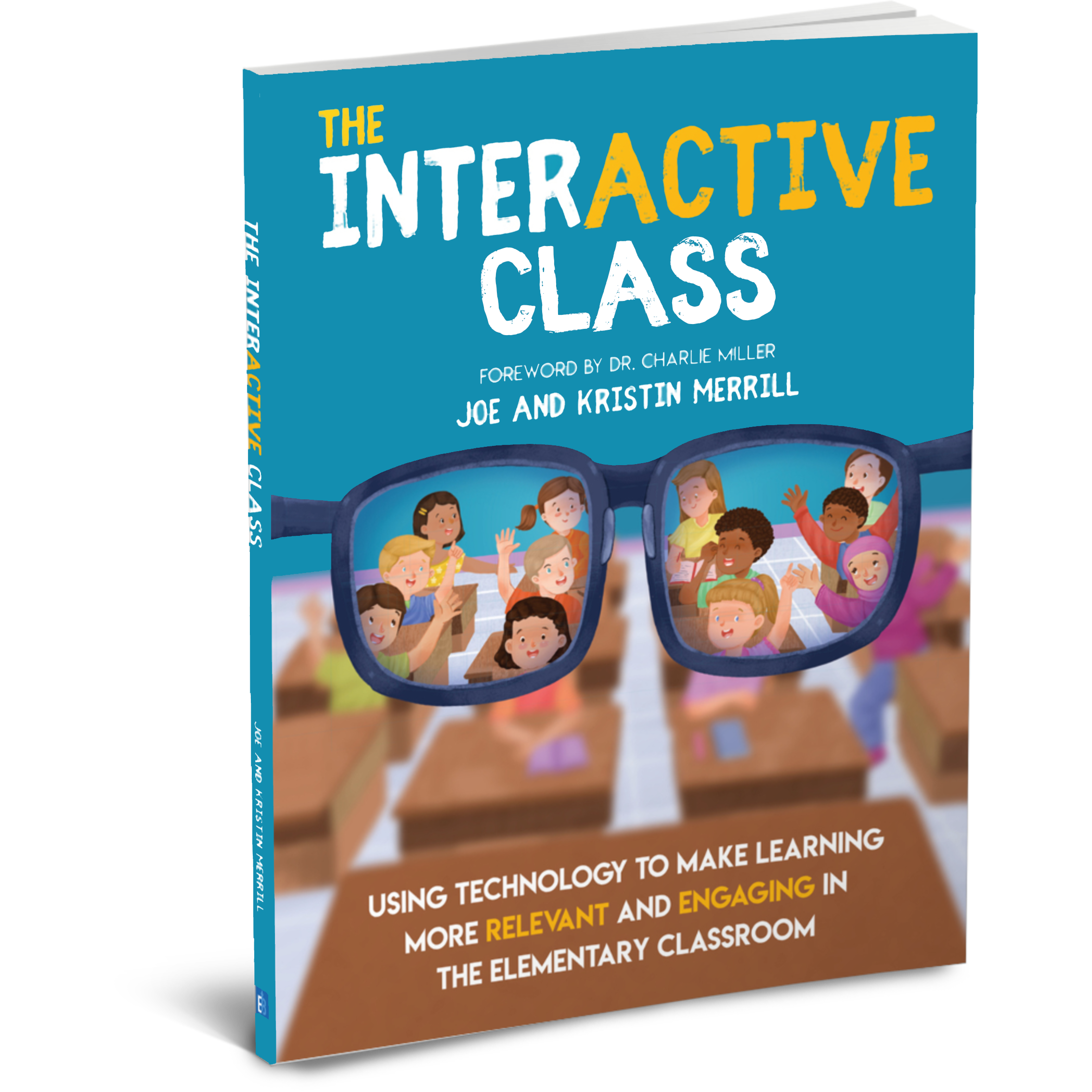


Remote Learning 101: Presented by The InterACTIVE Class
As more and more schools look towards the possibility of Remote Learning, we understand that you probably have lots of questions. We’re here for you.
As more and more schools look towards the possibility of Remote Learning, we understand that you probably have lots of questions. We’re here for you.
What is remote learning?
Remote Learning occurs when the learner and instructor, or source of information, are separated by time and distance and therefore cannot meet in a traditional classroom setting. This is also being referred to as “distant learning.”
I don’t know much about educational technology. How will I learn fast enough to teach remotely?
Remote learning will undoubtedly push many teachers into the realm of digital teaching and learning faster than they may have on their own. If you are one of those teachers who hasn’t used classroom specific applications, we would recommend starting with our book The InterACTIVE Class. It was not written specifically for remote learning, but it couldn’t be out at a more relevant time.

In it you you find two page explanations for applications like Flipgrid, Seesaw, Book Creator, Buncee and many more, followed by pages of lesson ideas that you can take and immediately implement into your remote learning environments. In addition to the book, you can join our InterACTIVE Class Community on Facebook where educators from around the world share and help each other in regards to integrating technology in meaningful and relevant ways.
Where do I start?
If you are tasked with teaching remotely, our advice is to keep it simple and routine. Do not use the event of remote learning to try something new or to introduce a new platform. That is stressful enough when in the classroom with your students. Deliver content through platforms or programs that your students have already used, and if you have not used much (or any) technology before, choose 1 platform and walk your parents and students through it as you go. This is where the importance of being routine comes in. If you have the opportunity or choice to decide how to deliver content and monitor learning while teaching remotely, do it using the same program(s) while out of the classroom. Also, if you can structure the format of how you deliver content it will help parents and students navigate the unknown world of remote learning. We suggest explaining content through teacher direct lessons or online material, giving the students time to explore and create baed on their new learning, and possible assess after if necessary. If you can do this in the same way through the same program(s) repeatedly it will help students and families efficiently get acclimated with remote learning.
Not all of my students have internet access. How can I reach them during this challenging time?
One way to help students with limited internet access is to think about how you are delivering content while out of the classroom. Is there a way you can front-load assignments—maybe give the week’s worth of assignments out at one time rather than going day by day. That way, students with limited access can see more at one time if their access is limited. Also, possibly reach out and look into how local community centers, libraries and other community outreach places could help families with limited access to resources. Finally, try to use applications that are smart phone friendly in addition to being web-based. This way, in the case that a student doesn’t have a computer at home or internet, they could still possibly access information through a parent’s smart phone.
Comcast has recently announced that new customers are able to receive 60 days of complimentary Internet Essentials service, which is normally available to all qualified low-income households for $9.95/month. They are also increasing Internet speeds for the Internet Essentials service from 15/2 Mbps to 25/3 Mbps for all new and existing customers, which will be the speed of the service going forward. For more information on this, please visit the website below and feel free to share with families and colleagues.

Comcast Internet Access
Click the button below to learn more about Comcast’s internet access.
Where do I get started as I prepare for remote learning?
When getting started, it is important to settle on the platform or programs you are going to utilize while out of the classroom. As mentioned before, we highly recommend choosing ones you have already used this year, but if you have not used much or are unsure if the programs you have used will work best, here are some tools we suggest considering for creating “learning hubs”, keeping students engage, allowing real-time collaboration and much more!
How can I create a safe and cohesive learning environment for students while away from the classroom?

Seesaw
Seesaw is a platform for empowering students to demonstrate and share their learning. Students use powerful tools in the Seesaw app to create, reflect and demonstrate learning. When students share their learning in their Seesaw portfolio, teachers and families gain valuable insights into what their students know and can better support their development. Think of it as a digital portfolio.
Pros: Available anywhere, on any device.

Microsoft Teams
Microsoft Teams is your hub for teamwork in Office 365. All your team conversations, files, meetings, and apps live together in a single shared workspace, and you can take it with you on your favorite mobile device.
Pros: Available anywhere on any device (with a free Office 365 account - sign up here).
I want my students to maintain the collaboration that they would normally have within the walls of the classroom. Which tool should we use?
Educators can pose questions / tasks and generate collaboration by using Flipgrid. Flipgrid is a social learning / web-based platform where educators ask a question (called “topics” in Flipgrid), and then students respond to the question in the form of a video. Students can get creative and add external links, drawings, music, and more to their responses. The video responses appear in a grid style display, where other students can then view and respond to. This generates a web of discussion, similar to that of a video message board. With Flipgrid, your students will still be able to support one another and share their thinking. They will also be able to critique and respectfully generate positive discussions based on your topic.

Flipgrid
Flipgrid is simple. Educators spark discussions by posting Topics to a classroom, school, professional learning community, or public Grid. Students record, upload, view, react, and respond to each other through short videos. Flipgrid is video the way students use video ... social, engaging and fun!
Where can I access high quality, digital materials for my students to use while learning online?
Taking print material and converting it to digital platforms can be time consuming and overwhelming. There are many companies stepping up to provide teachers with high quality, interest provoking content while you are out learning remotely.

Newsela
Newsela is committed to bringing authentic, engaging, diverse and accessible content to all learners. They believe the best lessons start with the best content. All teachers can now access Newsela ELA, Newsela Social Studies, Newsela Science, and the SEL Collection for free for the rest of the year.

Scholastic News
Scholastic known for publishing, selling, and distributing books and educational materials for schools, teachers, parents, and children. Their classroom magazines are found in many classrooms. Scholastic is creating 15 lessons for various age groups of students ranging from Pre-K to high school filled with quality nonfiction articles similar to the ones found in their magazines. Check out the curated articles for grades 3-5 here!
Pebble Go
PebbleGo is a curricular content hub specifically designed for K-3 students. Packed with informational articles, ready-made activities, and literacy supports for students of all abilities, it boosts engagement and fosters independent learning in core subject areas. To learn how you can gain free access during school closures, click on the learn more button below.
Compatibility: Web based only
What tools can my students use to keep the creativity going?
Just because your students are away from the classroom, doesn’t mean that they have to lose their creativity. The list of apps below are highly recommended platforms that will have your students creating rich and authentic content that you can tie directly to your standards. If you have any questions on how to implement these, please don’t hesitate to reach out to us.

Buncee
With Buncee’s assortment of media options, creating a virtual lesson is quick and easy. Teachers can include text, video, audio, or even links to additional resources. Record your lesson using the video feature, or create an activity template for your student to complete at home. The classroom dashboard can then be utilized to share and track assignments. Teachers could also create a Buncee Board, so students can access materials, share their work, interact with their classmates, and participate in class discussions no matter where they are. Students can also create and submit Buncees back to their teachers. For more information, click the learn more button below.
Compatibility: all devices

Adobe Creative Cloud
Adobe has announced that they are giving their higher education and K-12 institutional customers globally — who currently make Creative Cloud apps available to students who login through on-campus labs — the ability to request temporary “at-home” access for their students and educators. This will be granted through May 31, 2020 at no additional cost. To learn more, click the learn more button below.
Compatibility: all devices

Minecraft: Education Edition
To help teachers and students stay connected to the classroom, Minecraft: Education Edition is now available through June 2020 for all educators and learners who have a valid Office 365 Education account. Click on the learn more button below for more information.

Book Creator
Book Creator is a simple tool for creating awesome digital books. You can create your own teaching resources or have your students take the reins. Combine text, images, audio and video to create stories, portfolios, journals, comic adventures, science journals and much more! Book Creator is offering everyone the ability to collaborate together on books in real-time. This is a premium feature that is usually only available with a paid subscription, but they’re offering 90 days free use of this tool, to help keep students and teachers connected.
How can I make learning engaging and interACTIVE during remote learning?
Distance learning doesn’t need to equal dull learning. There are many apps that not only allow students to learn alongside one another in real time, but they also help the teacher facilitate information in unique and different ways.

GimKit
GimKit is a live gameshow for the classroom. Students answer questions on their own device at their own pace. Throughout a Kit, each student will get exposure to the questions multiple times to ensure mastery.
Compatibility: all devices

Nearpod
What if we told you that you could have your students log onto your presentations, and literally switch slides to all devices logged on at the same time. With Nearpod, you can do just that. Students log onto your presentation with a code. Educators can also add slides for collaboration, drawing, 360 images, and more. Check out the learn more button below fore more information.
Compatibility: all devices

Hyperdocs
HyperDocs are free digital lessons that are easy to edit for your eLearning students. They are all about hyperlinking your docs for amazing learning experiences for kids! With one shortened link, students can access a lesson that contains instructions, links, tasks, and many clever ways to get thinking. Hyperdocs focus on creating opportunities for choice, exploration, and ways for kids to apply their knowledge. Explore these docs plus more by clicking the learn more button below.
Compatibility: all devices

Brain Pop
From the very beginning, BrainPOP was built on the belief that curiosity through short animated movies can make complicated ideas simple and clear. Today, BrainPOP’s rigorous learning experiences go far beyond a movie and quiz, offering a rich array of resources and tools that meet each student’s interests and needs while developing their critical, computational, and creative thinking skills across the curriculum.
For more information on how to make learning more engaging and relevant by using technology, check out our book The InterACTIVE Class.


Here is a Wakelet of other platforms that we are updating daily as we come across new resources and offers.
We are happy to connect and discuss which tool would work best for your particular remote learning experience. This is an unprecedented situation, and leaning on one another is more important now than ever before. Please don’t hesitate to reach out.
👓👗💚
#BetterTogether #interACTIVEclass #remotelearning

Using Flipgrid For Inquiry
Many try to incorporate Genius Hour, 20% time, Passion Projects, or other named activities all dedicated to student inquiry. For those with limited time or resources, try using Flipgrid! Combine the tool designed for student voice with basic inquiry to create a simple step toward student inquiry.
Giving students time for inquiry can be challenging for many teachers. It can be tough to find time to give students to learn about things they are interested in when you already have a long list of required texts or expected standards to cover. Many try to incorporate Genius Hour, 20% time, Passion Projects, or other named activities all dedicated to student inquiry. For those with limited time or resources, try using Flipgrid! Combine the tool designed for student voice with basic inquiry to create a simple step toward student inquiry.
First you begin by giving students a chance to share something they are interested in. Give students a chance to speak and share what they want to learn more about simply by having them reply to the topic. You could organize topics by week or month or just keep one long topic running all year. When the student records, have them also put their topic of interest in the title line before uploading so that their inquiry will appear on their thumbnail along with their selfie picture.
Then the teacher goes in and adds a vibe to student video showing what topic the student chose. This way other students interested in the same topics could view multiple.

Then the teacher responds and during the response adds an attachment to their reply. This attachment can be anything that can be share with a link. When the teacher responds, the attached link will appear in the top right corner and the student can easily click on it while watching the response video.

Students then can go and learn more using what the teacher provided. The teacher could leave more than one response with various links if they wished. The student can also “report back” with new information learned, or even a project they created attached. Some great programs that integrate with Flipgrid via links are Buncee, Adobe Spark, Microsoft PowerPoint, and Google Slides. Students could also create using something like PicCollage and share back what they have learned through images as stickers.
Are you familiar with adding links? Many are surprised to hear about this simple, yet powerful Flipgrid feature. Links can be attached to a topic video, in addition to being attached to a video response or video reply. When attaching a link to a topic, you would do it when you create the topic as seen below.

If you wish to add a link to a video response or reply, you do this on the LAST screen before submitting the video. As shown below, you can also add a title for the video and change the name of the user on this screen as well.

With all of the new updates being released the ways to use Flipgrid in the classroom really are limitless. The ability to add links and share attachments makes this a really powerful tool to continue the empowerment of student voice and promote student choice in the classroom.
For a visual tutorial on how to create enriching lessons by attaching links, check out our video tutorial here on the Flipgrid YouTube channel.
If you are looking for other lesson ideas using Flipgrid, make sure to check out our book The InterACTIVE Class! You can read more about it here!
Stay #interACTIVE!
-K 👗
Using Flipgrid to Promote Critical Thinking 💭
Part of developing an #interACTIVE lesson is finding a way to engage students in their own learning. Sometimes this comes by integrating new apps or programs, but it doesn’t always have to be through something new. Often, using a program students are already familiar with in a new way can be just as effective.
Part of developing an #interACTIVE lesson is finding a way to engage students in their own learning. Sometimes this comes by integrating new apps or programs, but it doesn’t always have to be through something new. Often, using a program students are already familiar with in a new way can be just as effective. It’s also great for being efficient because you don’t have to teach students a new platform before diving in to the learning.
Features That Promote Critical Thinking
All the new features make Flipgrid is a perfect platform for this. You can use it in one way for one type of activity and then change up the way it is used completely for another lesson. Pausing and clipping videos and using stickers are some of the features used on a daily basis in my classroom, so to switch it up I used the sticker and type tool feature for this lesson.
For this lesson, I as the teacher used these tools to create a lesson for students to work on independently throughout the week. For this lesson I wanted students to reflect on various images from our unit if study and I used Flipgrid as the platform. I could have easily given them the photos, had them reflect and write their ideas down in a packet to be turned in at the end of the week. Instead, I took the photos and put them up as individual responses.

Uploading Photos to a Topic
Each photo was uploaded using the custom sticker feature and enlarged to fit almost the entirety of the screen. Then, using the text tool I typed out the captions that accompanied the photo. Following the caption, using the text tool with the white background, I scaffolded the conversation by putting in questions or stems for the students to use when responding to the photos. Once the entire screen was prepared, I turned the audio off so when recording it would just appear that the screen was standing still.

Recording Responses in Flipgrid
Once all the photos were uploaded, the students were given the task of reviewing them and responding to the 3 of their choice. Thus the idea of the “think tank”. The goal of this lesson is not to memorize a specific amount of facts or to summarize an idea using a specific amount of words, but rather the goal of this assignment was to get students thinking, inquiring, talking and connecting to the people and events in the images.

If you are interested in replicating this lesson you can find these images, along with many more here from Buzzfeed’s 50 Powerful Pictures From Black History That Speak for Themselves.
Stay #interACTIVE!
-👗➕👓
For more creative ideas on how to use Flipgrid in the classroom, check out our book The InterACTIVE Class on Amazon!


Creating Podcasts Using Flipgrid
Podcasting in Flipgrid? YES! It’s possible! Check out our step-by-step tutorial to help you get started with your very own #interactivePODclass! ✌🏻😉
What a whirlwind of a day we have had here at FETC! We are so thankful to have such an amazing PLN and we have continued to grow it through all of the amazing connections we continue to make. We had one big hit during our presentation this afternoon and we thought we’d post it up here on the blog to share with everyone who is #notatFETC.
Flipgrid Podcasts
One idea shared this afternoon during out InterACTIVE Class presentation was the idea of having students share their voice through podcasts. Now, with the new Flipgrid sticker feature this is easier than ever. Let’s share how easy it is for students to create their own podcasts.
1.) Choose a topic. This is where students decide what their podcast is going to be on. Maybe you guide the subject a bit to match up with a unit of study you are currently working on, or possibly students can have more freedom with their podcast topic and choose something that they are personally interested in.
2.) Develop branding and create a graphic. This can be as simple or as detailed as you make it. You can simply give students time to design in one of many creations tools—Canva, Adobe Spark, Google Sides—and allow them to design their own unique podcast image. If you choose to take a bit more time on this step, you could do some smaller lessons on branding with students and dig deep into the thought process put behind a logos, colors, fonts, etc. Either way, students leave with a branded image that they can save as a .jpeg image on to their device.
3.) Set up your space in Flipgrid. This is yet another way to differentiate according to your specific class make up and personal preferences. You could have a weekly topic where each student posts their most current “Episode” for classmates to enjoy. Or, maybe you create a class Podcasting Grid where every student gets their own Topic. Each time they create a new “episode” they could add it as a response on their own personal Topic thread.
4.) Record an episode. When students log in to record their episode, they will open up the recording window and using the sticker feature, choose their saved podcast image from file.

Students will then stretch the image until it is enlarged enough to cover the entire screen.

When they begin recording viewers will only see the still image just like we do when we listen to our own real podcasts!

Benefits of Podcasting
Through Flipgrid, giving students a platform to write, create, record and share their voice with classmates and those around them is truly exciting. They are SO many additional ways to take this simple activity and spark even more creativity and collaboration. Possibly try:
-allowing students to “interview” each other and get a chance to not only produce but also guest on a classmate’s podcast
-Create AR or QR codes and share various episodes around campus, in class newsletters or through a school email.
-Merge a class grid pal or Skype class with podcasts and give students a chance to share their podcasts with others outside the room. Enable the ability to reply to responses so listeners can leave their thoughts on the topic or ideas for a new episode.
InterACTIVE learning doesn’t have to be time consuming or require a lot of planning prior, but with the help of Flipgrid, sharing every student's’ voice is just one click away! If you try this with your students we’d love to hear their “episodes!” Tag @themerrillsEDU or #interACTIVE class so we can see the creativity firsthand!
For a quick tutorial on how make podcasts using Flipgrid, check out on of our TECHnically Speaking tutorials here!
Stay interACTIVE!
👓 + 👗
For more #interACTIVE lesson ideas using Flipgrid, check out our book The InterACTIVE Class on Amazon!


"The #interACTIVE Class - A Flipgrid Feature!"
ICYMI: Back in October, our sat down with our friends over at Flipgrid to share some of our successes for the world premier of the first “Flipgrid Feature.” Now, you can see the entire webinar!
ICYMI: Back in October, we sat down with our friends over at Flipgrid to share some of our successes for the world premier of the first “Flipgrid Feature.” Now, you can see the entire webinar below! Here’s some info from Flipgrid:
“For the world premier of our first Flipgrid Feature, join Student Voice Ambassadors Kristin and Joe Merrill as they share their creative blueprint for infusing your classroom with mind-boggling, jaw-dropping, double-take activities that spark your students' joy, laughter, and curiosity!
From "Flipgrid TV" to "Teacher Caught in a Video Game" to "Choose Your Own Adventure," Joe and Kristin are constantly upping the game when it comes to #StudentVoice!”