


20 Activities for International Dot Day!
@TheMerrillsEDU share 20 different activities to celebrate International Dot Day, the day dedicated to the book “The Dot” by Peter Reynolds.

UPDATED: Septmeber 2026
Please note: This blog post was hand-crafted and does not include the use of AI.
Peter Reynolds’ “The Dot” has become an instant classic in classrooms around the globe. Students need to feel self confidence now more than ever, and “The Dot” does a perfect job fulfilling that feeling. Traditionally, “Dot Day” is around September 15th(ish). Below are some of our favorite “Dot Day” activities!
(click on any subheading to jump to that section)










Celebrate International Dot Day with Peter Reynolds!
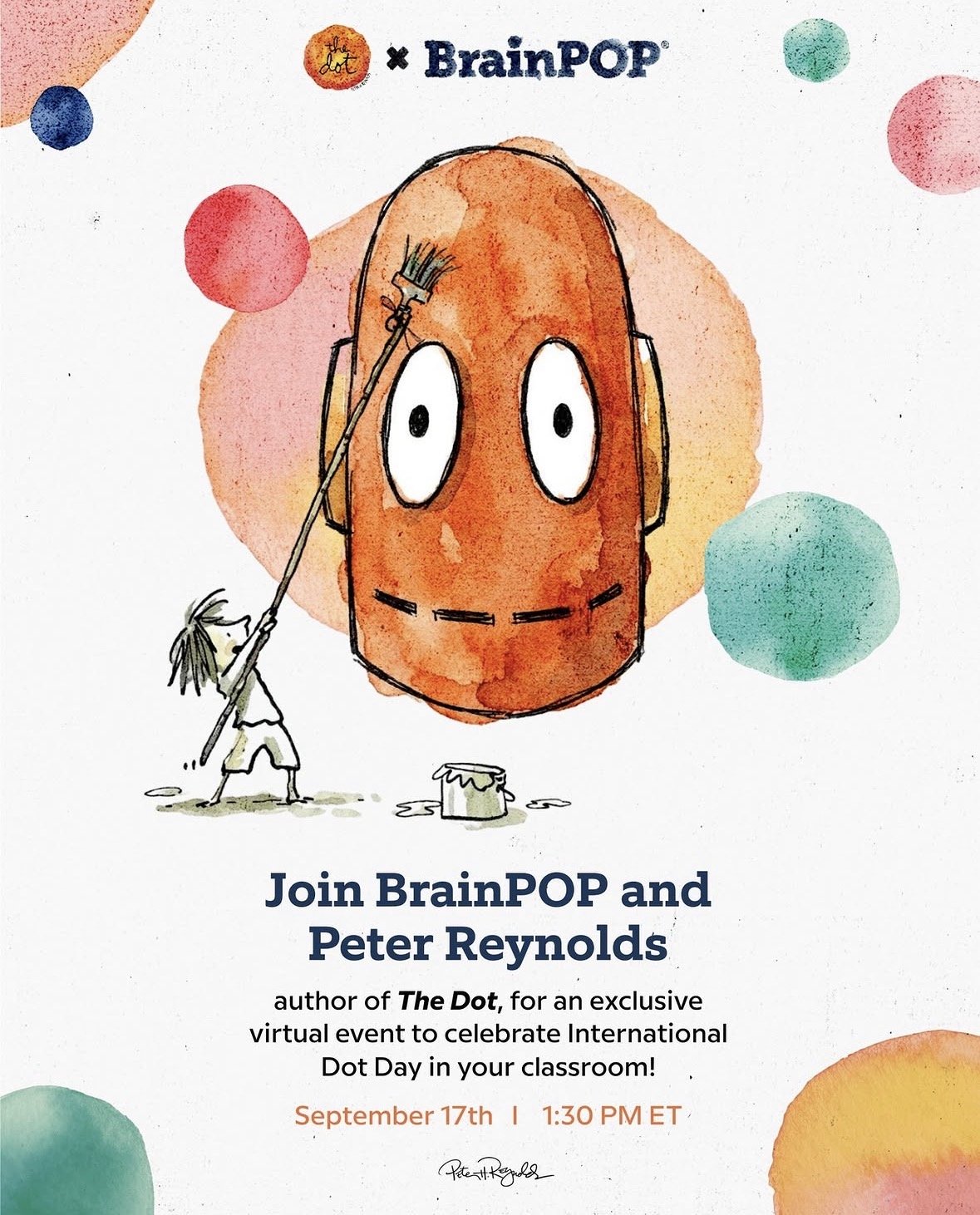
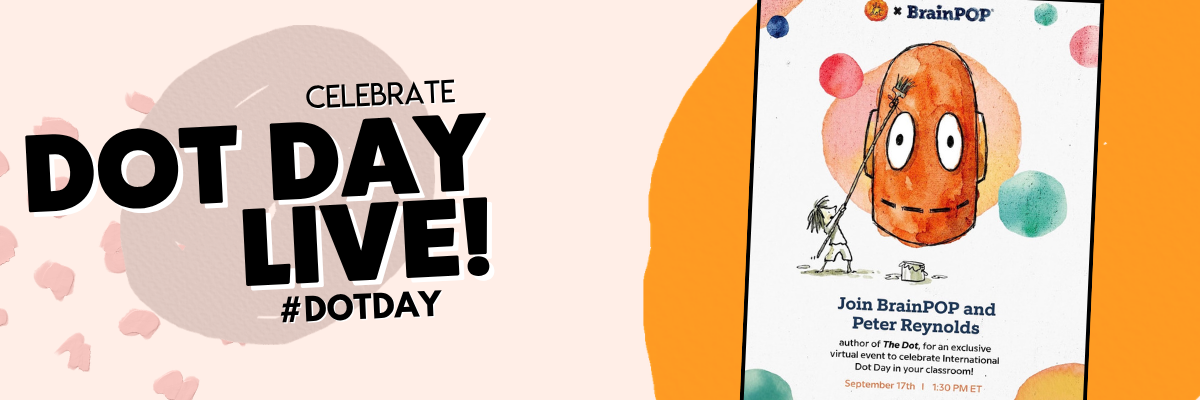
Celebrate International Dot Day with your students and special guest Peter H. Reynolds, author of The Dot!
Stream this live 30 minute event directly into your classroom to hear Peter share how a single mark can spark lifelong creative confidence.
Your students will join a BrainPOP animator for a step-by-step Moby draw-along and ask their questions live. It’s a fast, zero-prep way to build creative confidence and kick off the school year.
Dot Day with Adobe Aqua!
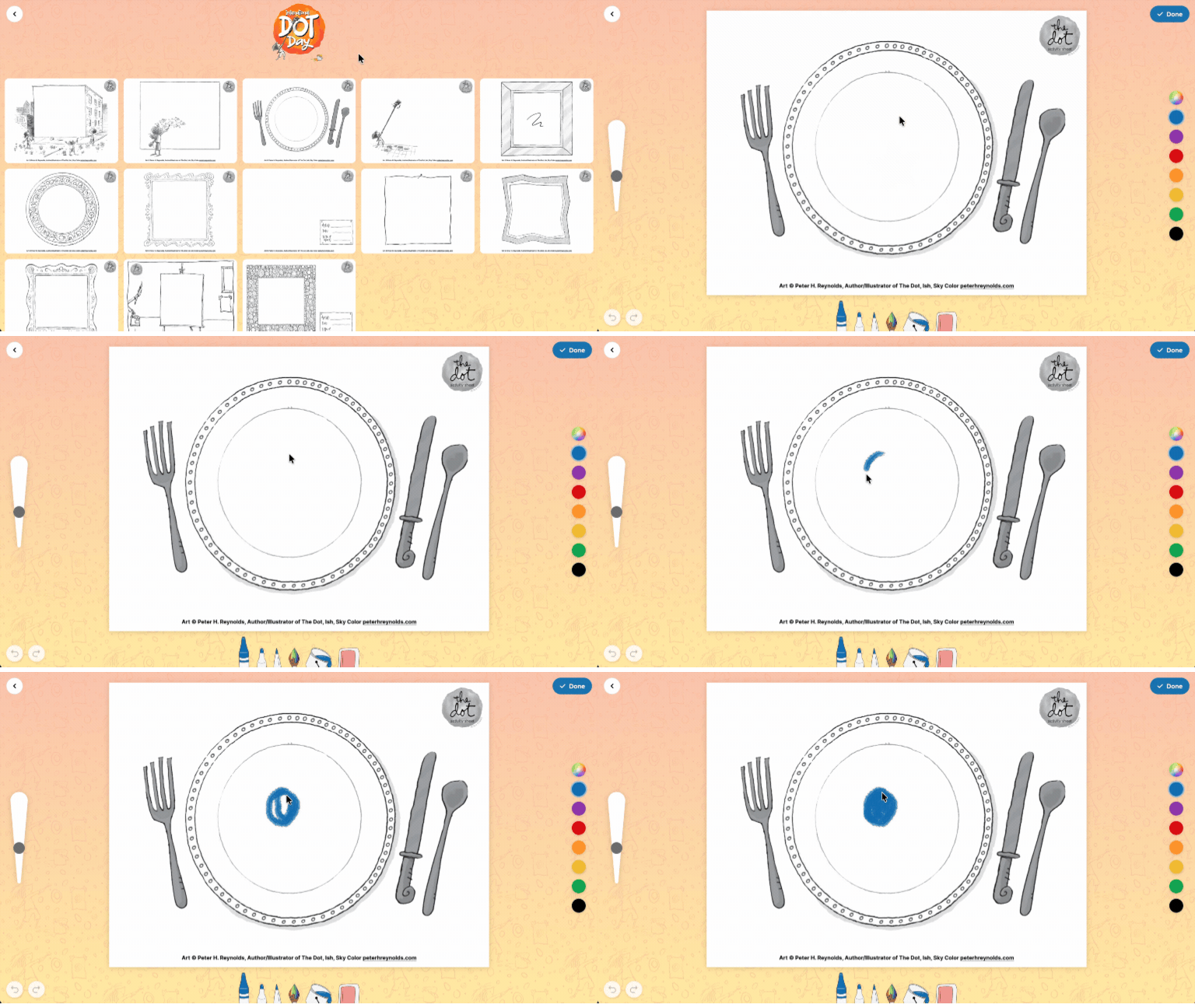
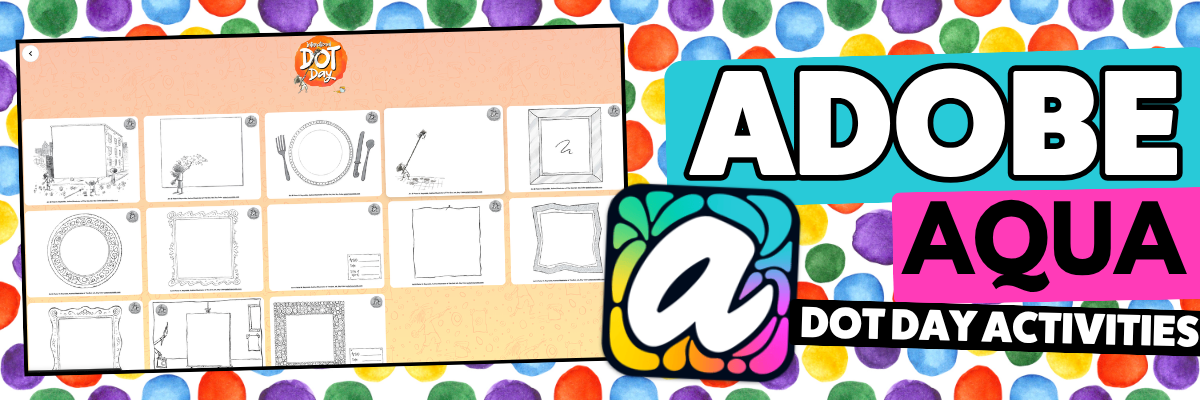
Adobe Aqua has some amazing free templates just in time for International Dot Day! Share the link below with your students and they can pick and choose the template they want - then start creating!
Dot Day Buttons!
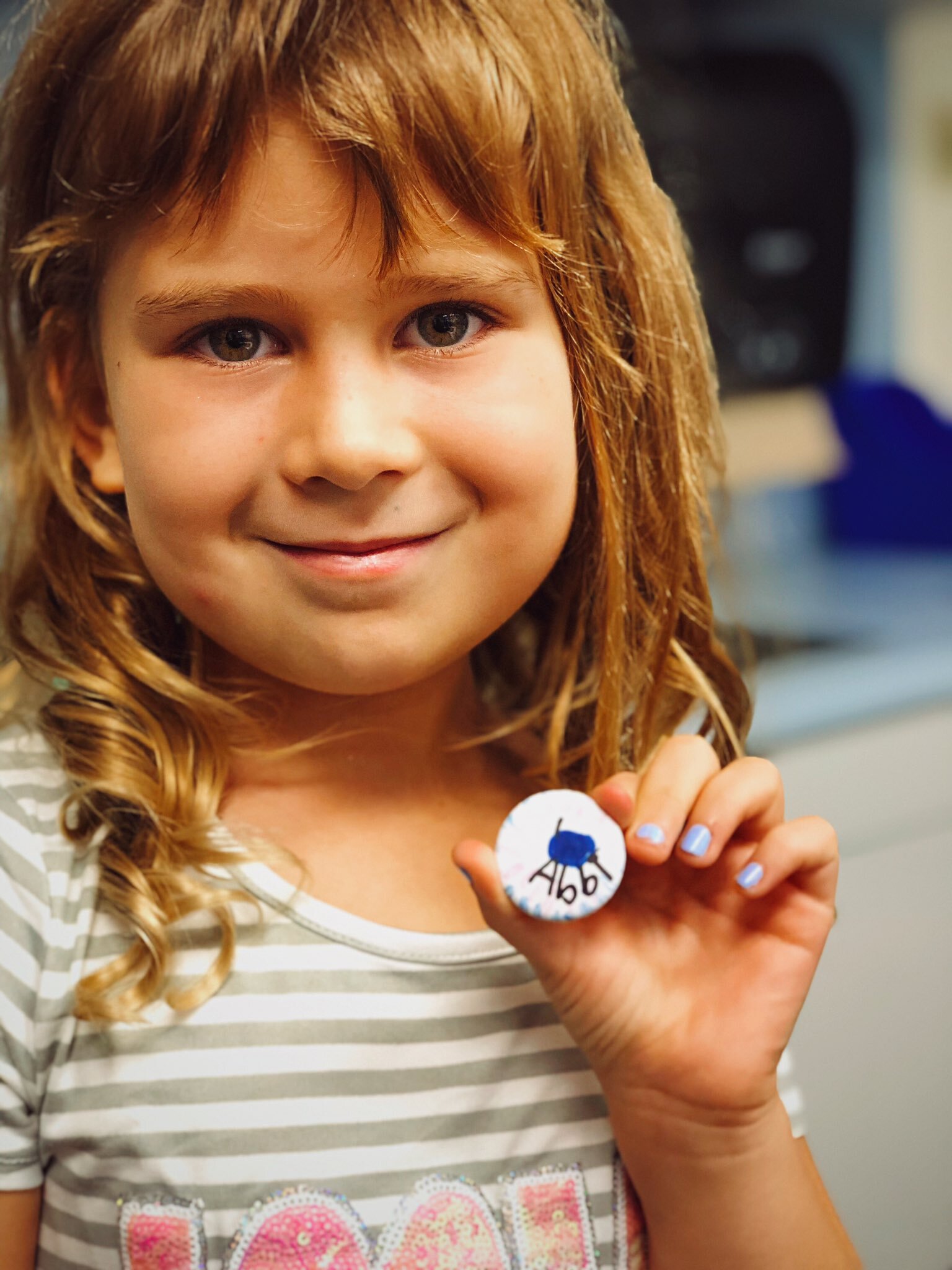
A few years ago we purchased a button maker. Now, every year we use it on Dot Day! The kids can use dots to design their buttons (a large dot!). If you don’t have a button maker - no worries! You can find relatively cheap craft buttons on Amazon. Click here for the link!

Augmented Reality Dots with Quiver!
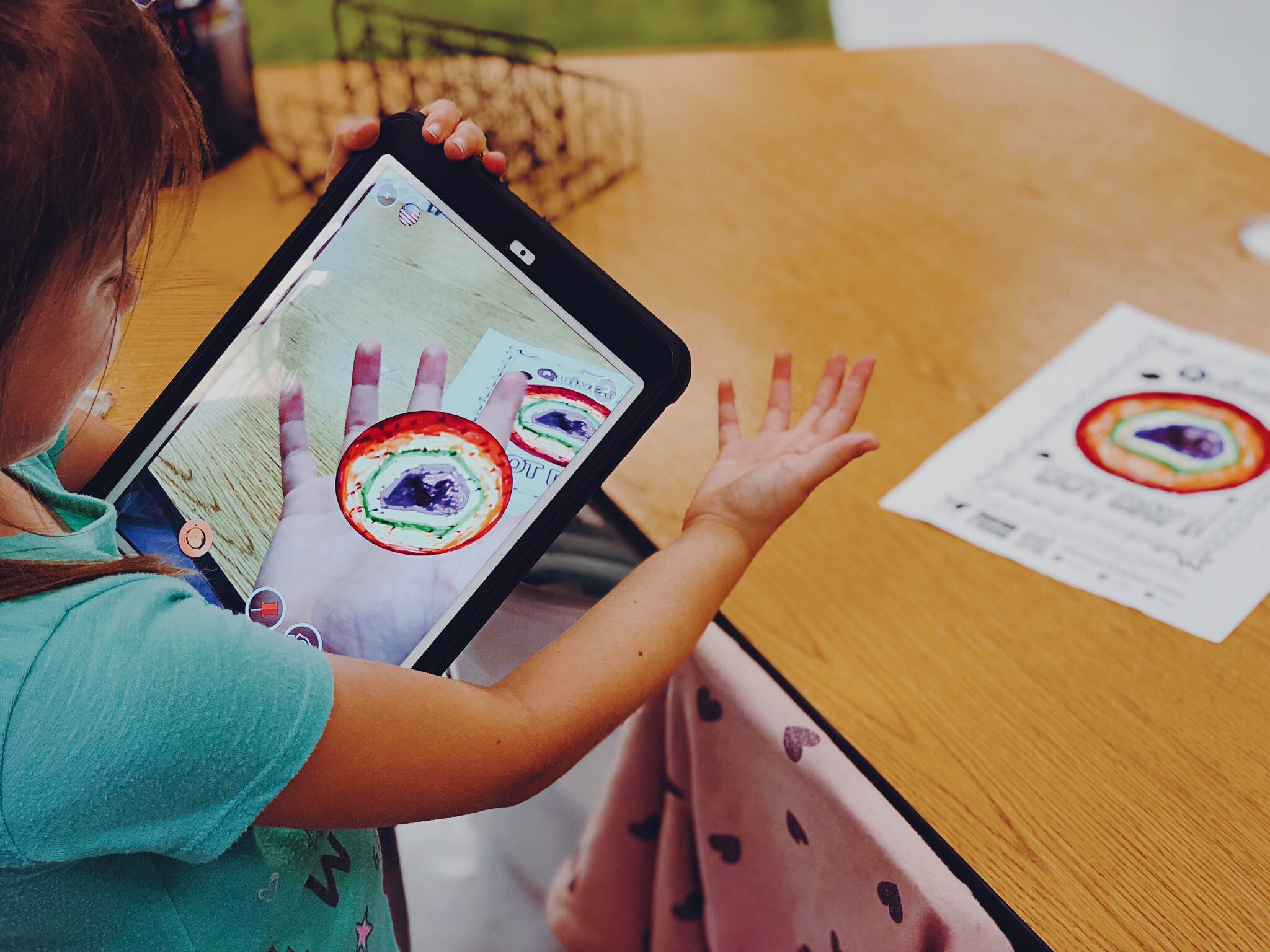
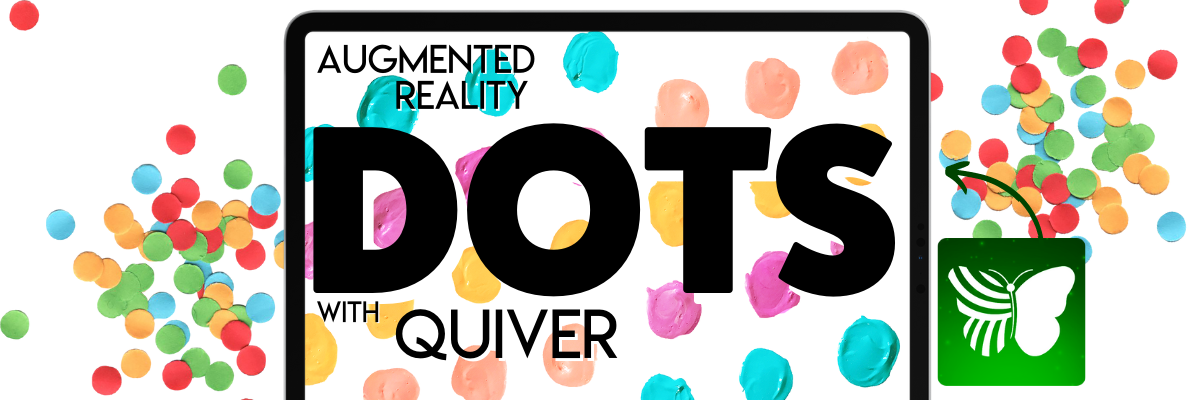
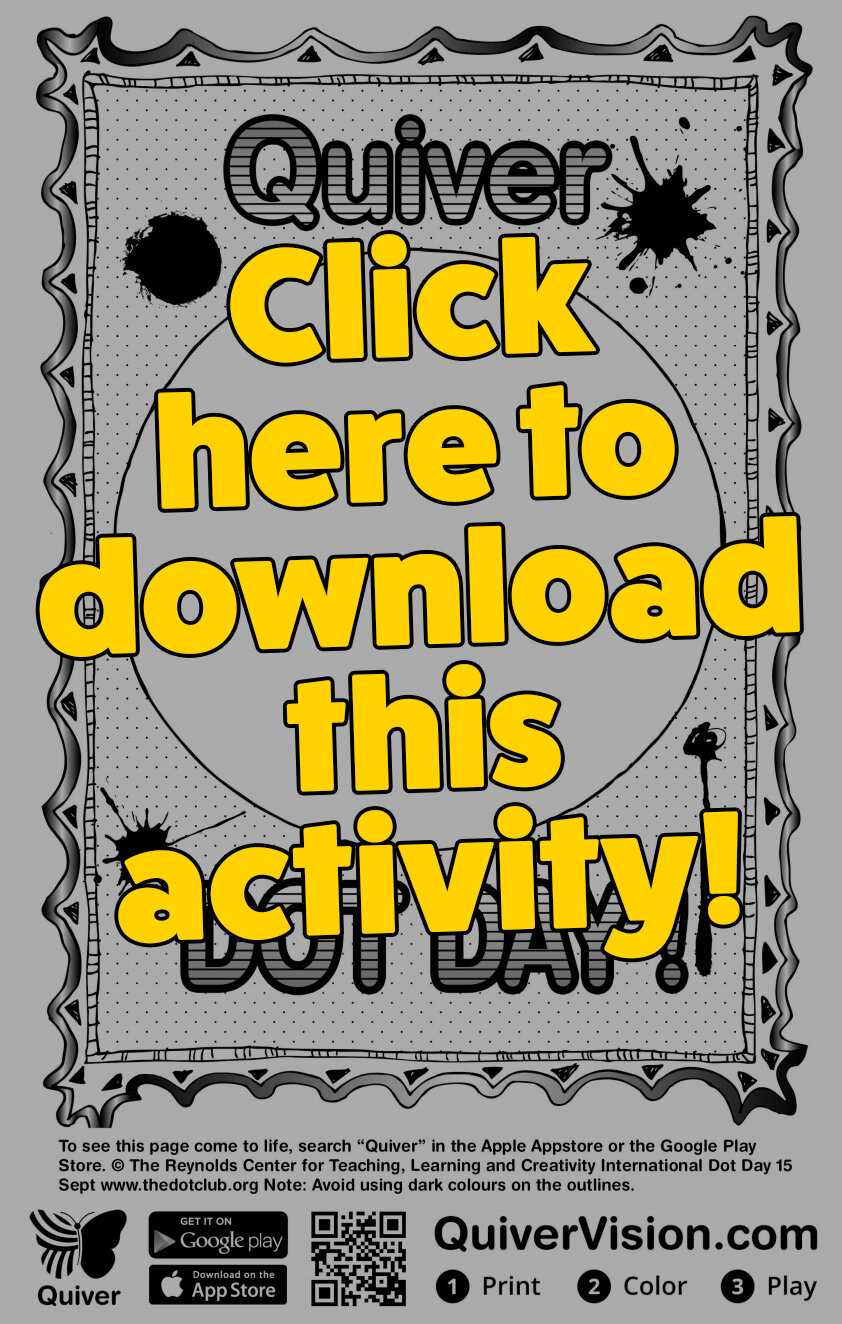
Quiver is an awesome (and easy to use) Augmented Reality app that is available through the iOS App Store and Google Play. For this activity, you’ll need to download and print the worksheet linked here (or click on the picture). Once printed, have your students draw their dot design on the sheet. When they’re finished, have them launch the Quiver app and scan the paper. When Quiver recognizes the sheet, it will automatically create an AR version of the dot. The kids can even “hold it in their hands!” Check it out below!
Dot Day Science Experiment
Tie Dot Day into your science lessons! This Steve Spangler “Sharpie Pen Color” science experiment is great for Observable Properties and the Practice of Science. Check out the “how to” below! For a complete set of instructions, click here.

Dot Day Wormhole (Green Screen) Activity
A few years ago, our friend Erin Flanagan shared this creative way to celebrate Dot Day: A Wormhole! It looks more complicated than it actually is. The trick…Create layers with an illustration and a green circle. For a step-by-step tutorial, watch below! Be sure to check out Erin’s website here and follow her on social media @Erintegration!
Dot Day BreakoutEDU Activity
Get your student’s thinking with this BreakoutEDU activity! Click here (or the image) to learn more and read what it’s all about below:
“It’s time to make your mark! You have the talent, you are something special, and the world wants to see what only you can do! The only problem is the Eraser was in the classroom last night and thinks he locked all of our creativity and inspiration in the Breakout EDU box. He believes without it, we will not be able to make our mark! Work together to figure out the combinations and break out our Creativity!”
Create a Dot for Dot Day on Seesaw (Activity Included)!
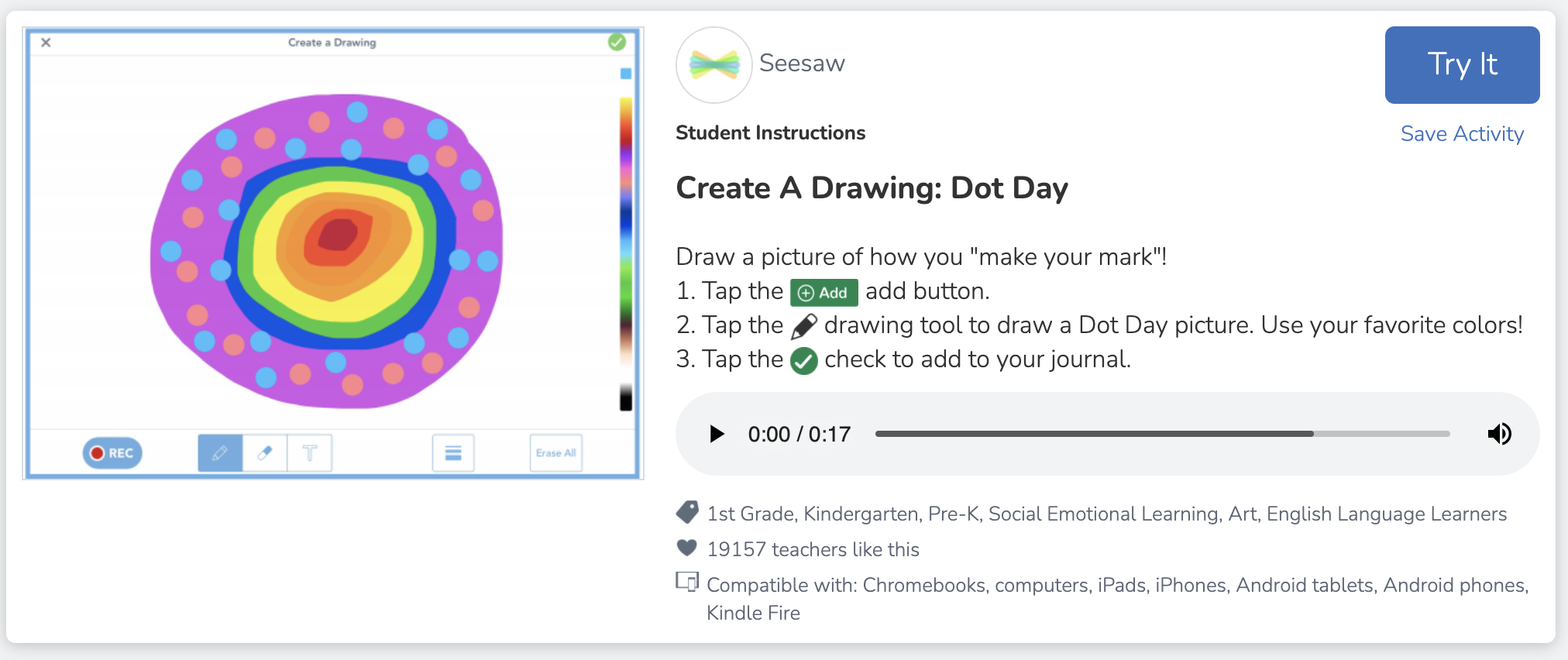
Seesaw users can get in on the fun of Dot Day with this activity! Use the Seesaw tools to design a dot, then record an explanation sharing why you used the colors that you did. Teachers can share out the responses as a whole group for the class to share! Click here (or the image) to access the activity! (note: this requires a free Seesaw account)
Dot Day STEM Challenge
Looking to build up some collaboration and team work within your class? This STEM challenge will make that happen! Using only notecards and circle (dot!) stickers, students must work together to create a tower. Give the class a set amount of time and then start the timer. The tallest tower still standing after the time runs out wins!
You’ll see how students quickly realize that they must work together to make the tower stand and collaborate on how to keep the structure going!

(image taken pre-COVID)
Animate a Dot for Dot Day!

What if we told you that you could take your dot creations for Dot Day and animate them? It’s possible and actually not that complicated at all! We recommend using an app like Chatterpix Kids on iOS or Google Play. Create your dot art, then launch Chatterpix Kids. Snap a photo of your art, then add a talking mouth. You now have 30 seconds of recording time to talk about your dot!
Level up - option #1: Save the Chatterpix Kids video onto your camera roll, then upload it to a Flipgrid Topic for the entire class to see!
Level up - option #2: Save the Chatterpix Kids video onto your camera roll, then upload it to Seesaw so that families at home can see!
Dot Day Twister Activity (Wormhole)!
This activity is similar to the wormhole activity above, only this time you need a Twister mat! The green dots on the twister mat will eventually reveal a secret background once you upload it into iMovie (and go through a bit of editing). Check out how it works from Beverly Babbage below and be sure to follow her on Twitter by clicking here!

Carly & Adam’s 12 Circle Challenge
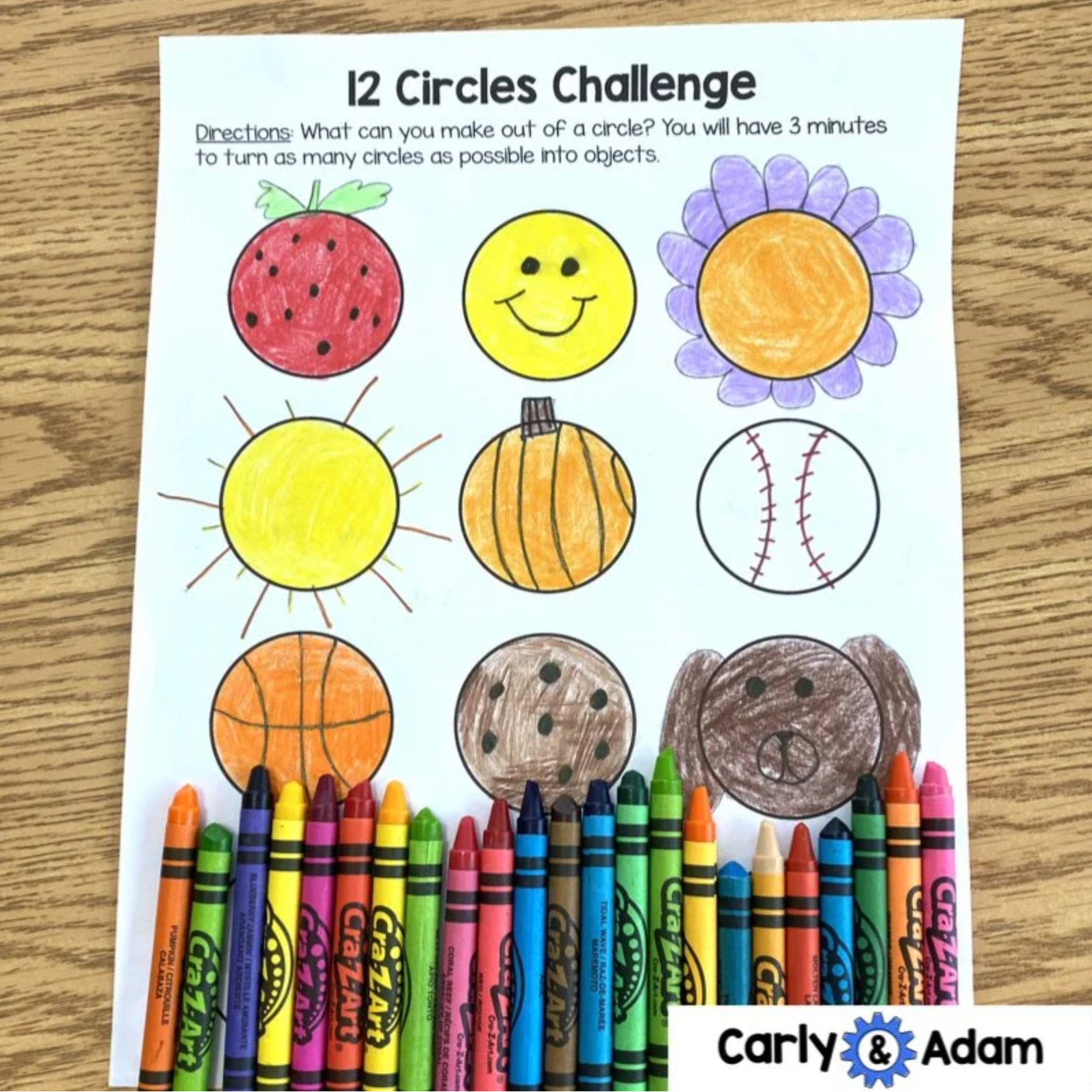
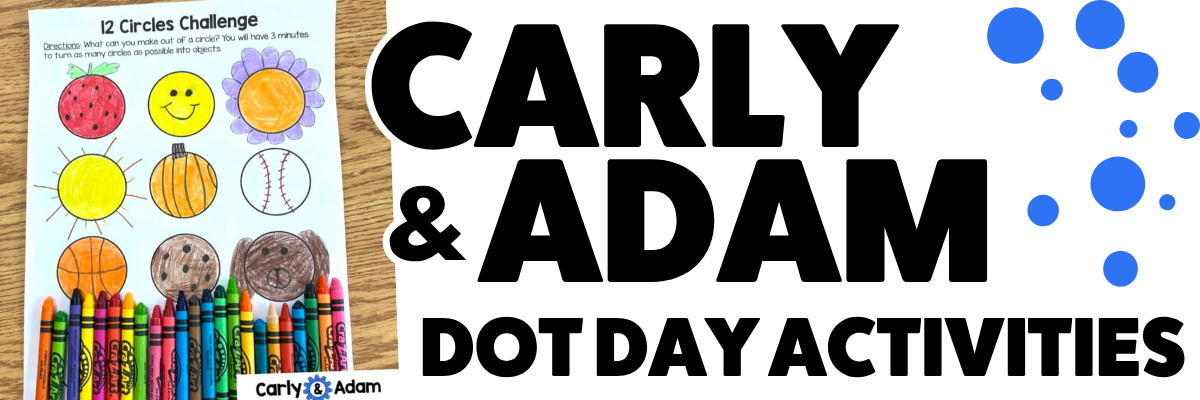
Need something quick and simple? Our dear friends Carly & Adam have you covered! Check our their free Dot Day activities and templates below.
International Dot Day Song
(with movements)
Emily Arrow and Peter Reynolds teamed up to make this video that features a Dot Day song and dance moves. The video goes through each motion and would be a great challenge to integrate with Flipgrid. “Show me the Dot Day dance!” and turn your classroom into a dance challenge! Check out the video for more!
Dot Day Sewing Craft
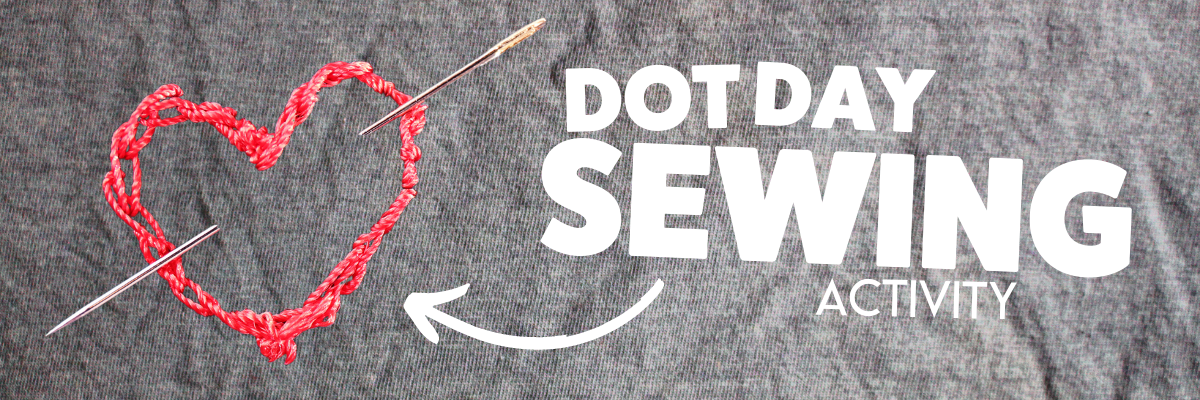
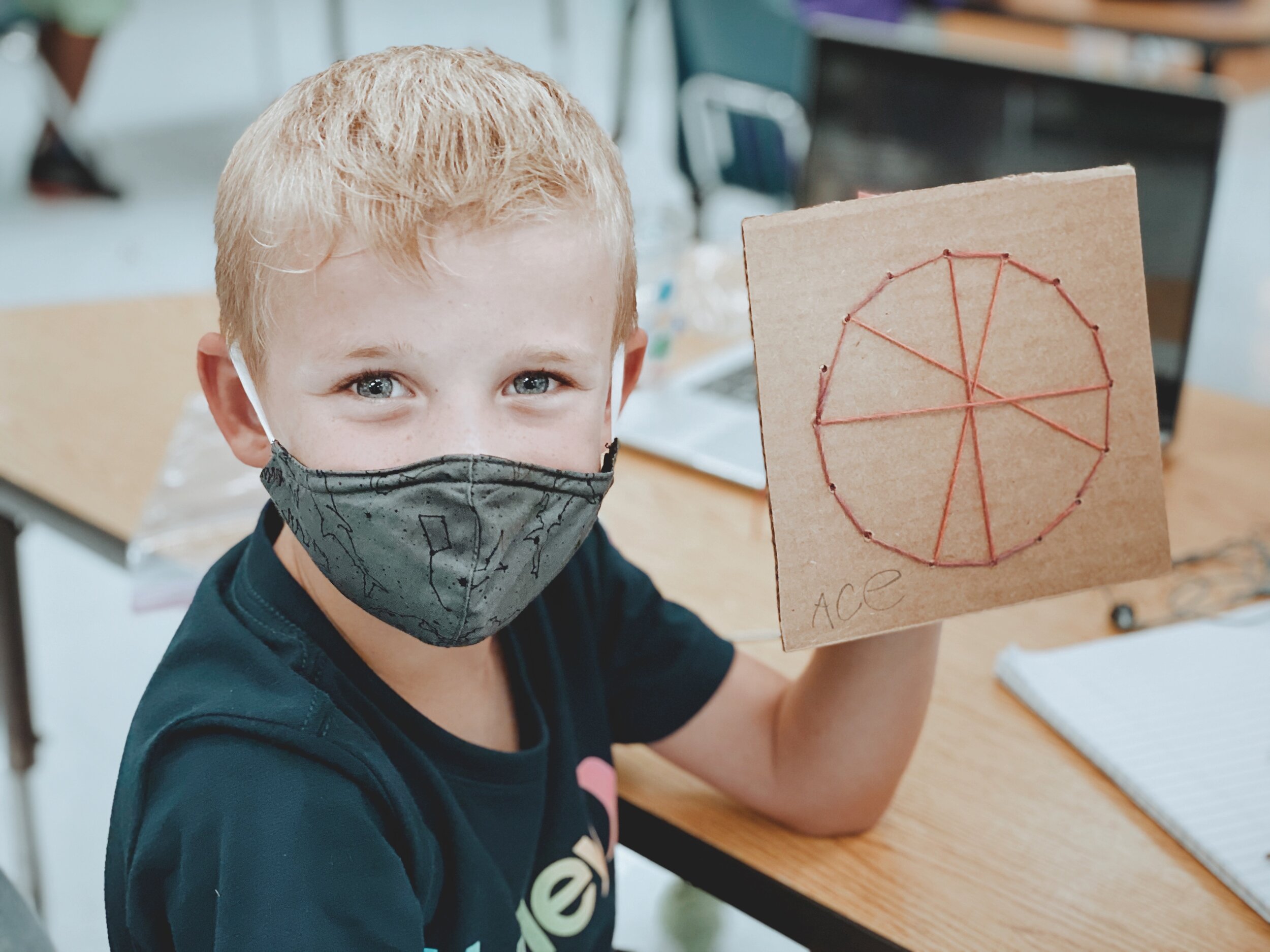
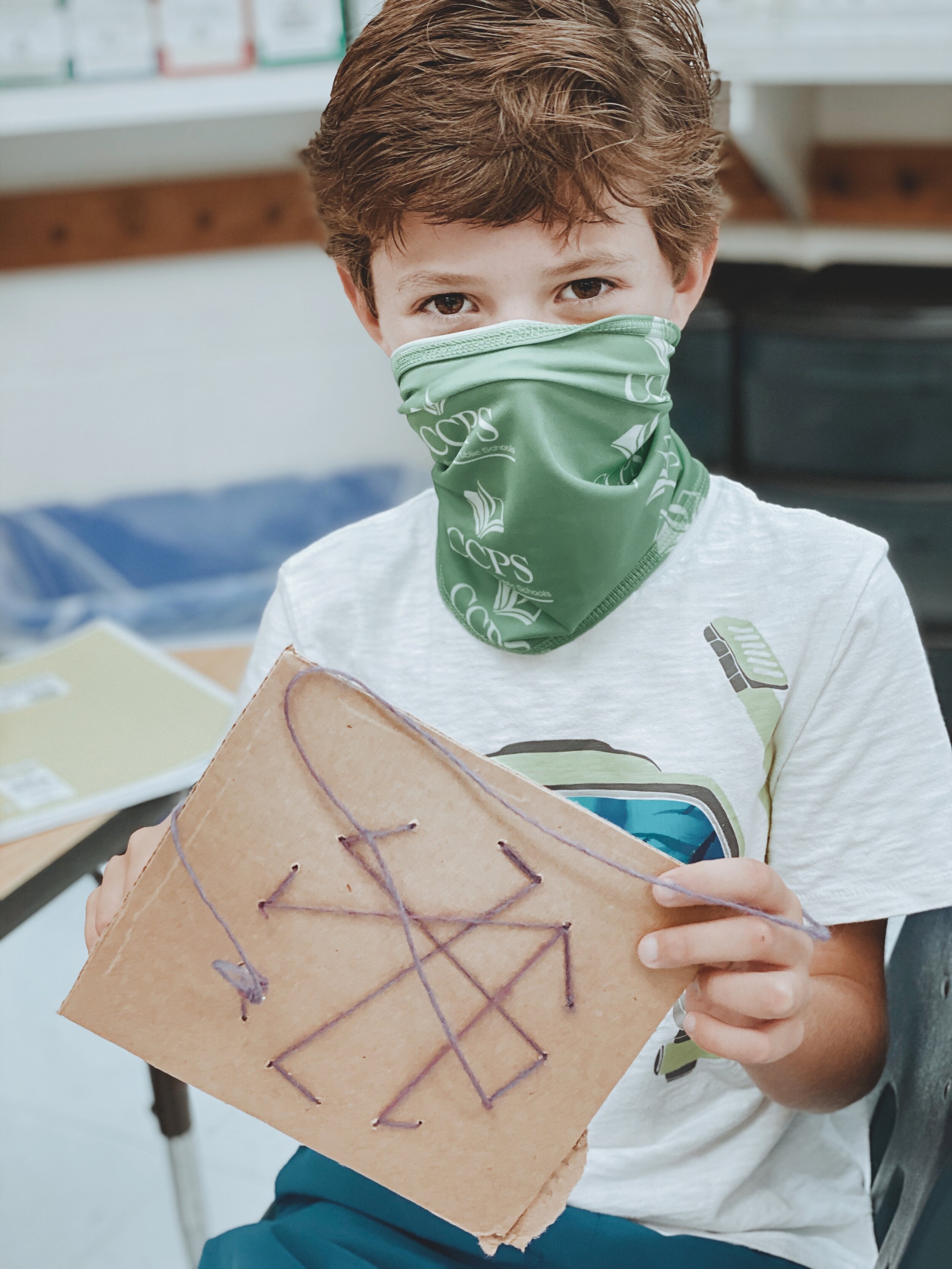
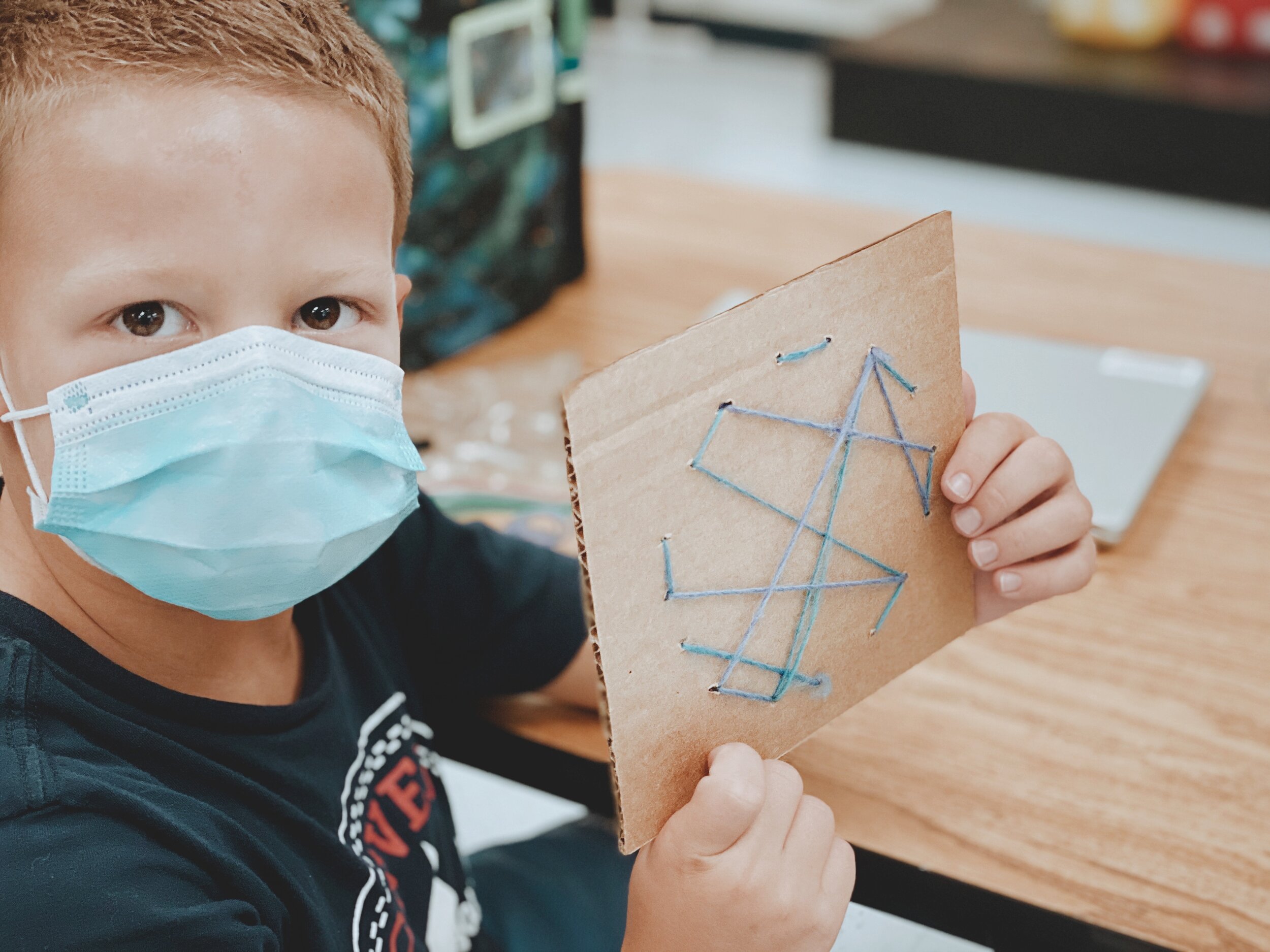
This one takes a bit more patience and skill…Prepare a class set of cardboard and then outline a circle. Using a skewer, puncture holes (dots!) around the outline of the circle. Then, use yard and large sewing needles to start weaving around the cardboard circle. This will create a unique design…that all started with a dot!
Dot Day Twins
(Dress up for Dot Day)!
This one is easy! Just tell your students to wear something with polka dots on it for Dot Day! You an also purchase a set of blank T-shirts and use permanent marker to create a unique design. This can be done on Dot Day and then students can wear their shirts. It’s a great way to boost classroom community!

(image taken pre-COVID)
Dot Day Missions of Kindness (Community Building)
Dot Day is all about making your mark and what better way to do that than to spread a little bit of kindness? We shared special messages (with a little treat - see below for info) around our campus to leave our mark on our related arts teachers, media specialists and more!
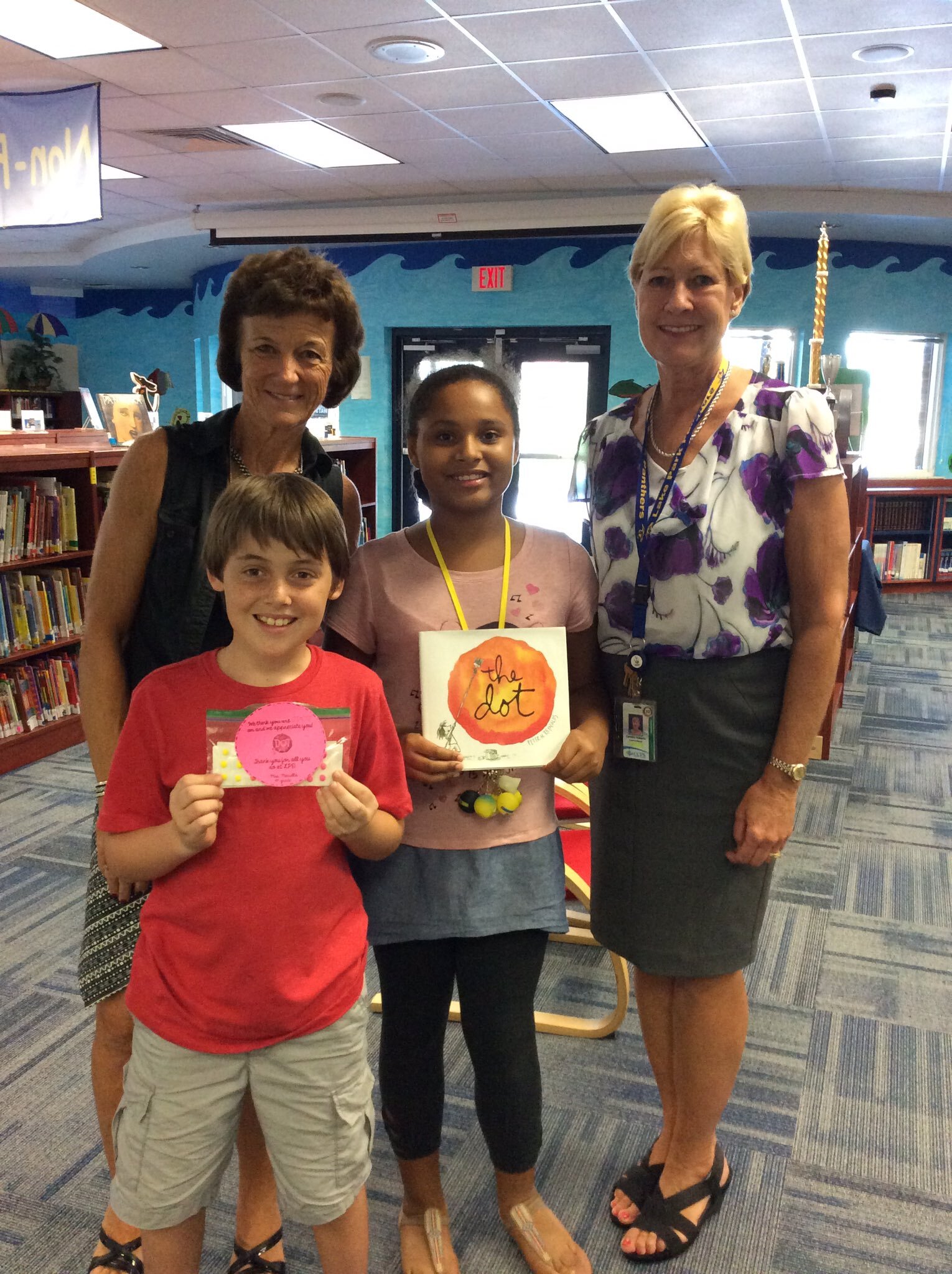
(image taken pre-COVID)
Dot Day Treats (Dot Candy)
This is definitely one of Kristin’s favorite things to do on Dot Day…Dot candy! You ay remember these treats from your youth. You know, the dots attached to the paper that you have to bite off? What kid wouldn’t love that? You can find them in bulk by clicking right here on Amazon. You can also use the “Dots” candy. Click here or the image below to buy those!

This pairs well with the activity above (Dot Day Missions). Attach a sheet or two of these onto a message and leave them around your campus for others!


Dot Day Read Aloud with Novel Effect!

We all know how great the book “The Dot” is, but have you tried pairing this book up with the app Novel Effect? Novel Effect uses your devices microphone to bring stories to life! As you read, various sound effects and background music will be played. The coolest part is that you don’t have to feel pressured to speed read through the book. Novel Effect intelligently changes as you read, recognizing the words and phrases of the book. Click here to view this app on iOS and Google Play.
The Perfect Dot (For Littles)!
This activity from @zosia_majstruje on Instagram is the perfect activity for all of your perfectionist littles (or all ages)! Use paper towel or toilet paper rolls with paint. Have the students place the paint brushes into the roll(s) to paint the “perfect” shaped dot! Be sure to follow @zosia_majstruje on Instagram by clicking here!

Dot Day for Reluctant Learners
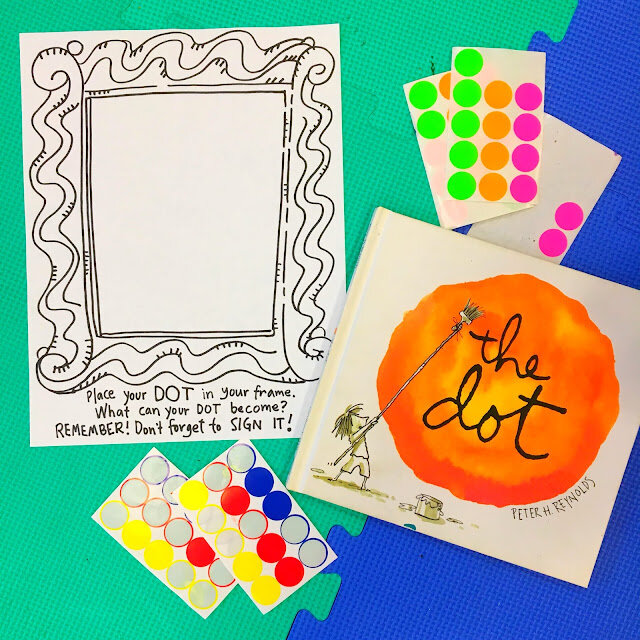
Not everyone knows where to start with Dot Day. In fact, many students feel just like Vashti. Sometimes we need a little inspiration to get the creative juices flowing. This activity from Cassie Stephens is the perfect way to keep everyone engaged. Use dot/circle stickers with Cassie’s PDF template. Have the students place a dot/circle sticker anywhere inside the frame. Then, let them use any art tools that they would like to continue their illustration!
Click here to view Cassie’s blog post
Click here to download Cassie’s template
Click here to follow Cassie on Instagram
-- Stay tuned for more Dot Day ideas that you can use in your classroom! Be sure to follow us on social media (@TheMerrillsEDU everywhere) for more! 👓👗
For more tips, tricks and lesson ideas for making learning more interACTIVE, check out our books The InterACTIVE Class and Flipgrid in the InterACTIVE Class on Amazon!



Create Your Own Breakout Game Using Wakelet, Buncee and Flipgrid!
Bring the engagement of breakout games into your classroom with this Wakelet, Buncee and Flipgrid idea! This post walks you through the process of setting up the breakout OR simply downloading our Wakelet collection templates for yourself!

What does Wakelet, Flipgrid and Buncee all have to do with each other? The answer is alot! But, in this post, you’ll learn how to connect all of these tools to create a truly unique experience for your students: A Breakout!
In this blog post you’ll learn:
(Click on any subheading to jump to that section)
How to Set Up Wakelet for Branching
The key to setting up your Wakelet / Buncee / Flipgrid challenge is using branching, which allows you to send users to different questions depending on their previous answers. For example, if you have a multiple choice question, the correct answer will take you on a different path then the incorrect answers. This is how the Wakelet collections need to be set up.

Start off by mapping out how you want your branching to work. Where will your students go when they answer correctly? Where will they end up if they answer incorrectly? Here’s an example of the beginning stages of what ours looked like (this obviously evolves as you go on).
Once you have your branching and mapping figured out, it’s time to start building the Wakelet collections. Start off by building your first collection by calling it, “Challenge 1.” On Challenge 1, students are given a question and four different answer choices. We recommend keeping the first challenge relatively easy, this was your students feel confident and remain engaged early on.
Before you save everything, be sure to click on the settings icon located on the top left. Make sure you have toggled the Collaboration feature on. Doing so will allow your students to leave work for others to see. This is handy if you have students that might struggle and could use a helping hand from their friends.

When we toggle this feature on, we ask that our students share their strategies - but do NOT share their final answers (for example, they work out that 2+2 = a mystery number - never giving away the answer). This step is completely optional, and you may decide that you don’t want this feature enabled. It’s totally up to you!


Now that you have your first challenge created, you will need to create two additional Wakelet collections - one for the correct answer and one for the incorrect answer. When creating the incorrect collection, be sure to provide a link back to the previous challenge (so that your students can try again). When setting up the correct response, you will want to include the next challenge below the “correct” answer. This is also where your students can be tipped off on what is to come (the first letter of the term “Flipgrid” changes color - indicating that they will need to answer the challenges correctly in order to change the color of each letter in the word. Now they are ready to move onto the next challenge. Repeat the steps above as needed!
How to Add Buncee into Your Wakelet Collection

One of the best integrations with Wakelet is with Buncee. Educators (or students) can post a “live” Buncee into a Wakelet collection. So, in this example we have placed a Buncee project right into Wakelet (copy the share link from Buncee clicking “code”). The students use the hyperlinked items from Buncee to click and find the correct answer. In our example, we chose the books as the correct answer. But, we made the challenge a little more interesting…most students thought the correct answer was “books,” but it was actually the number 8. So, when the students got to the final step, they weren’t able to get in unless they figured out that there was 8 books and needed to use the number 8 instead of the term “books.” This may not have been obvious to them at first, because clicking on the books lead them to the next challenge - indicating that they had the correct response. It was just a fun little twist to throw at them! See if you can figure it out below! 😜
Someone has come into the classroom and left a mess! There are clues everywhere! See if you can solve this puzzle:
I have letters and numbers but I’m not a computer keyboard
I’m sometimes stored in a case but I’m not a cellphone
I contain paper but I’m not a ring binder
I have a cover but I’m not a pillow
Lunch? No thanks. We already eight.
Click on the image that you think is the correct answer. Be careful!
Setting Up Flipgrid for a Wakelet Student Breakout Game
Once you have all of your Wakelet collections / challenges set up, you’ll need to set up a new Group on Flipgrid. From the educators dashboard, slide the toggle button onto Groups. Then, click the blue “Create a Group” button. Enter the information accordingly, then under permissions select Student Username. For the first and last name use something generic like Winner Winner. The next step is important! For the username, enter all of the numbers of the Wakelet challenges. So, if you used 2+2 for challenge 1, 3+3 for challenge 2 and 4+4 for challenge 3, you would enter: 468 (and so on). Set your preferred notifications, then click the blue “Create Group” button.


In your new group, create a new Topic by clicking on the blue “Create a Topic” button. This will be where your students will end up once they crack the code. In our example, we had the students do something fun - show us a victory dance! It was a fun way for us to see who was able to successfully complete the challenge and add some more engagement.

Another tip: you will want to either delete or hide the auto generated Flipgrid Topic that gets created when you start a new Group. Deleting or hiding this topic will guarantee that your students land on the appropriate Topic (since there will only be one Topic in the group). Once you have this set up, you are ready to share your challenge with your students!
Download the 🔥FREE🔥 Wakelet Collections
A bit confused about the above? Short on time? We’ve got you! You can download ALL of the Wakelet collections by clicking here or the image below! Tip: You will need to edit the link to the final Flipgrid challenge with the link to your own Flipgrid Group.
Also, this is a live collection. Please do not add any content, as it could mess up the experience for others.

See it in Action: Classroom images and video from the Wakelet, Buncee and Flipgrid Breakout Challenge


-- Stay tuned for more on how to use Wakelet breakout activities in your classroom! Planning on trying this out? We’d love to see how you’re using it! 👓👗
For more tips, tricks and lesson ideas for making learning more interACTIVE, check out our books The InterACTIVE Class and Flipgrid in the InterACTIVE Class on Amazon!


Virtual Snow Globes in Buncee
A traditional classroom favorite activity is to place your students into a snow globe. In the past this has been done by capturing a photo of your students, then shrinking down the photo’s size, and possibly even cutting out the background. But, now there’s an easier way - just in time for the virtual learning holiday season.
This post was inspired from the amazing Shannon Miller’s blog post on this topic.

A traditional classroom favorite activity is to place your students into a snow globe. In the past this has been done by capturing a photo of your students, then shrinking down the photo’s size, and possibly even cutting out the background. But, now there’s an easier way - just in time for the virtual learning holiday season.
In this blog post, you’ll learn (click on any subheading to jump to that section):
How To Remove the Background from a Picture
Removing the background from your images is easier now than ever before. This can be done on apps like PowerPoint or Adobe Spark. But, a simple and efficient method is through the website Remove.bg. Follow these simple steps:


Visit the website Remove.bg by clicking here
Upload the photo of your student by clicking the blue “Upload Image” button
Select your file, then download the download the new file with a transparent background!
How to Create Virtual Student Snow Globes
Now that you have your student images with transparent backgrounds, you’re ready to add them into a snow globe. Start by creating a Buncee slide and having students build their own snow globe. Search Buncee to find several created ones (try searching for the term “snowglobe”), or have students piece one together using the selection of image stickers.

In addition to the globe itself, students can also spend time adding in items to create their own winter wonderland scene within the globe.
Once their snow globe design is set, it’s time to add the student’s selfie that was created in Remove.bg. Follow these steps to add the photo:
Click the “+” sign to add a new item on Buncee
Click “Upload",” then select your file
Then, click the green “Upload” button to add it onto your Buncee

Students can add additional items such as snowfall, snowflakes, or even trees. If you’d like to keep it simple, just make a copy of our template for yourself! To do so, follow these steps:
Make sure that you’re logged onto your Buncee account (or create one ahead of time)
Click “Copy” to place it into your Buncee library
Here’s a link to our template:
How to Integrate into Lessons
There are many ways to get students creating in Buncee right within other subject areas and lessons. Below are a few ways you could integrate this project into your classroom to use with students of any age.
Ornament: Print out your Buncee (maybe even laminate it), punch a hole at the top, then tie a string on it to send home!
Virtual Class “craft”: Just because you don’t have the ability to send home craft materials doesn’t mean you can’t make them! Use Buncee to create virtual class “crafts” and then share them on a Buncee Board or Wakelet collection!
Connect to Literature: Tie this activity in with books (see below for a list of recommended titles)
Family Holiday Card: After creating their own snow globe in class, students could go home and create their own family holiday card
Books About Snow Globes
(and Other Winter Themed Titles)
Here are a list of books that you can tie into this activity:

Snow Globe Wishes
A little girl makes a wish on a snow globe and, in the morning, the sun rises on a winter wonderland--beckoning all outside. And what if, on this snow-filled day, families shake their busy lives and everyone goes out to play?

The Great Santa Stakeout
He has Santa posters, Santa action figures, and even Santa underwear. But there is one prize Freddy desperately wants: A photograph taken with Santa, fresh out of the chimney.
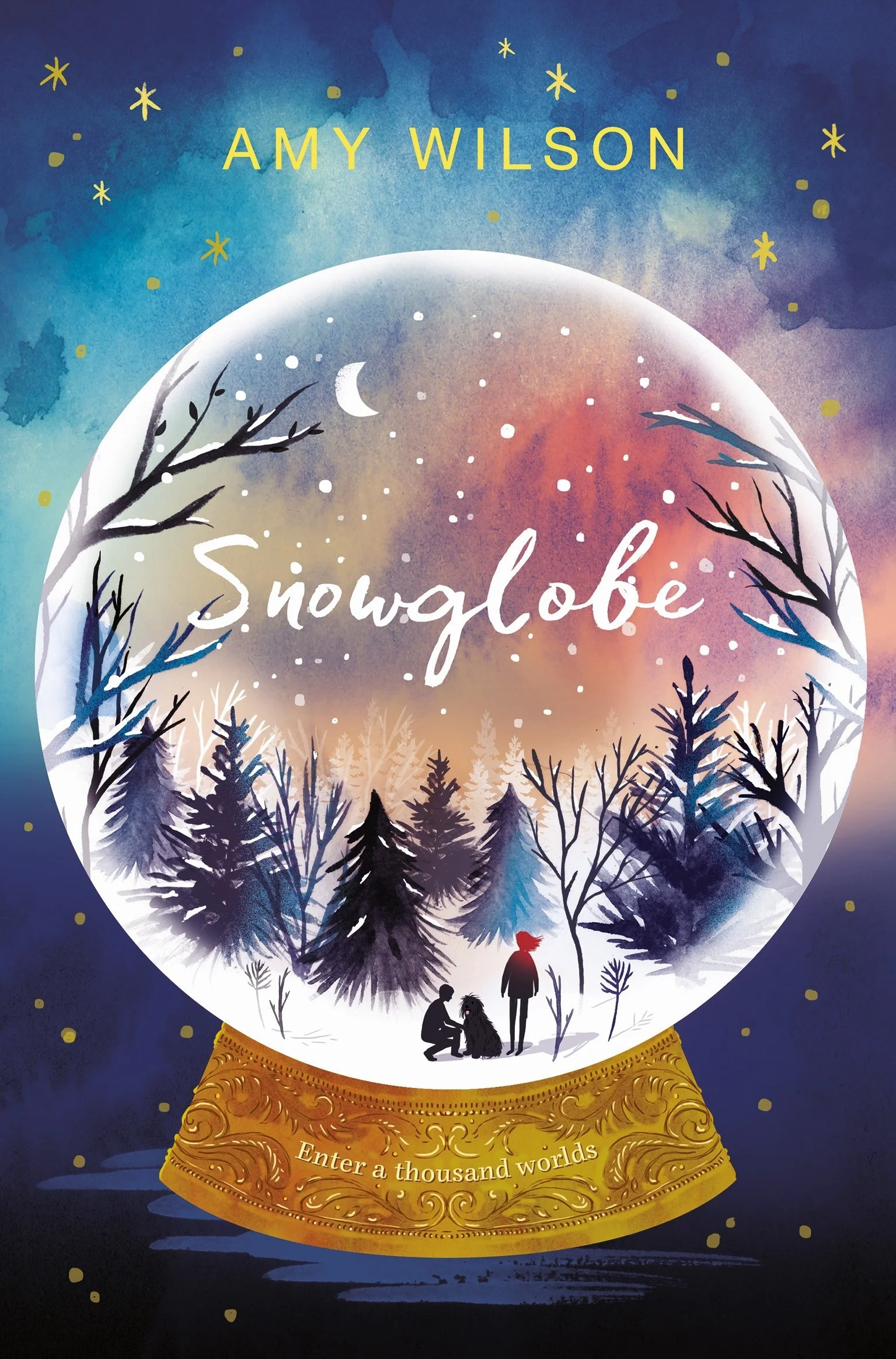
Snowglobe
When daydreamer Clementine discovers a mysterious house standing in the middle of town that was never there before, she is pulled towards it by the powerful sense of a mother she never knew. The place is full of snowglobes, swirling with stars and snow and each containing a trapped magician, watched over by Gan, the bitter keeper of the house. One of these is Dylan, a boy who teases her in the real world but who is now desperate for her help.
Stay #interACTIVE!
-👗➕🕶️
For more tips, tricks and lesson ideas for making learning more interACTIVE, check out our book The InterACTIVE Class on Amazon!


How to Make a Custom Microsoft Teams Background
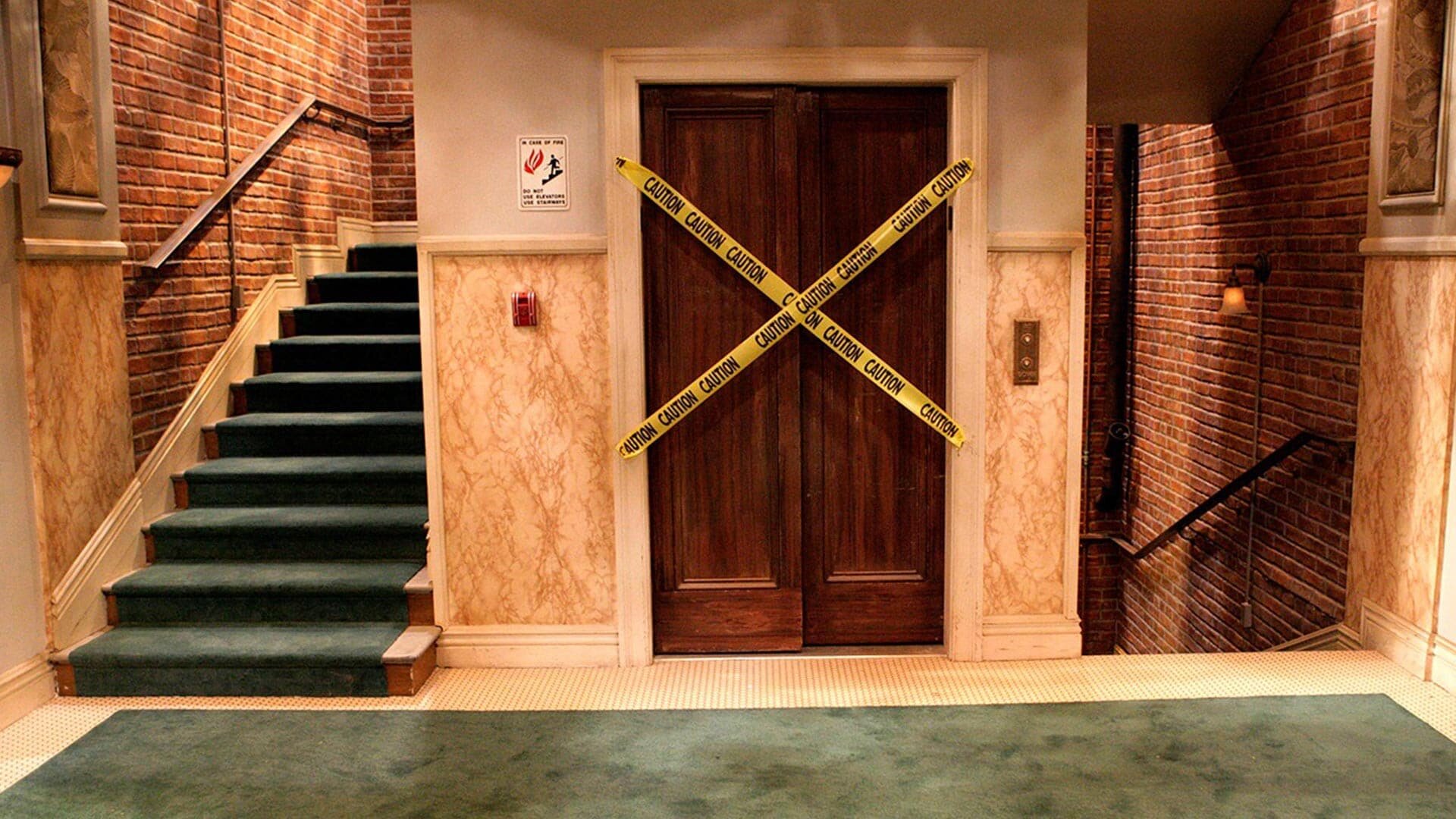
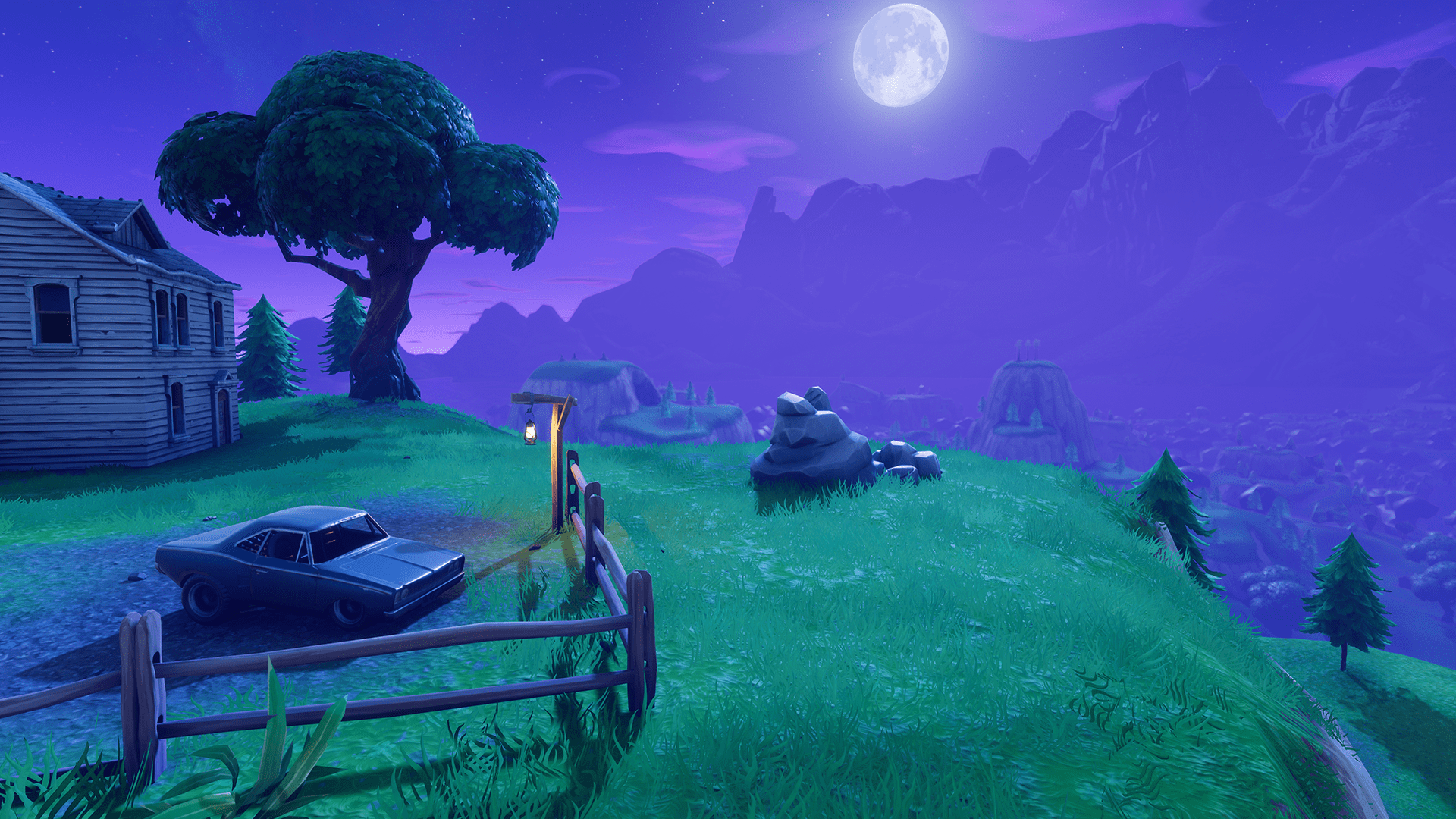
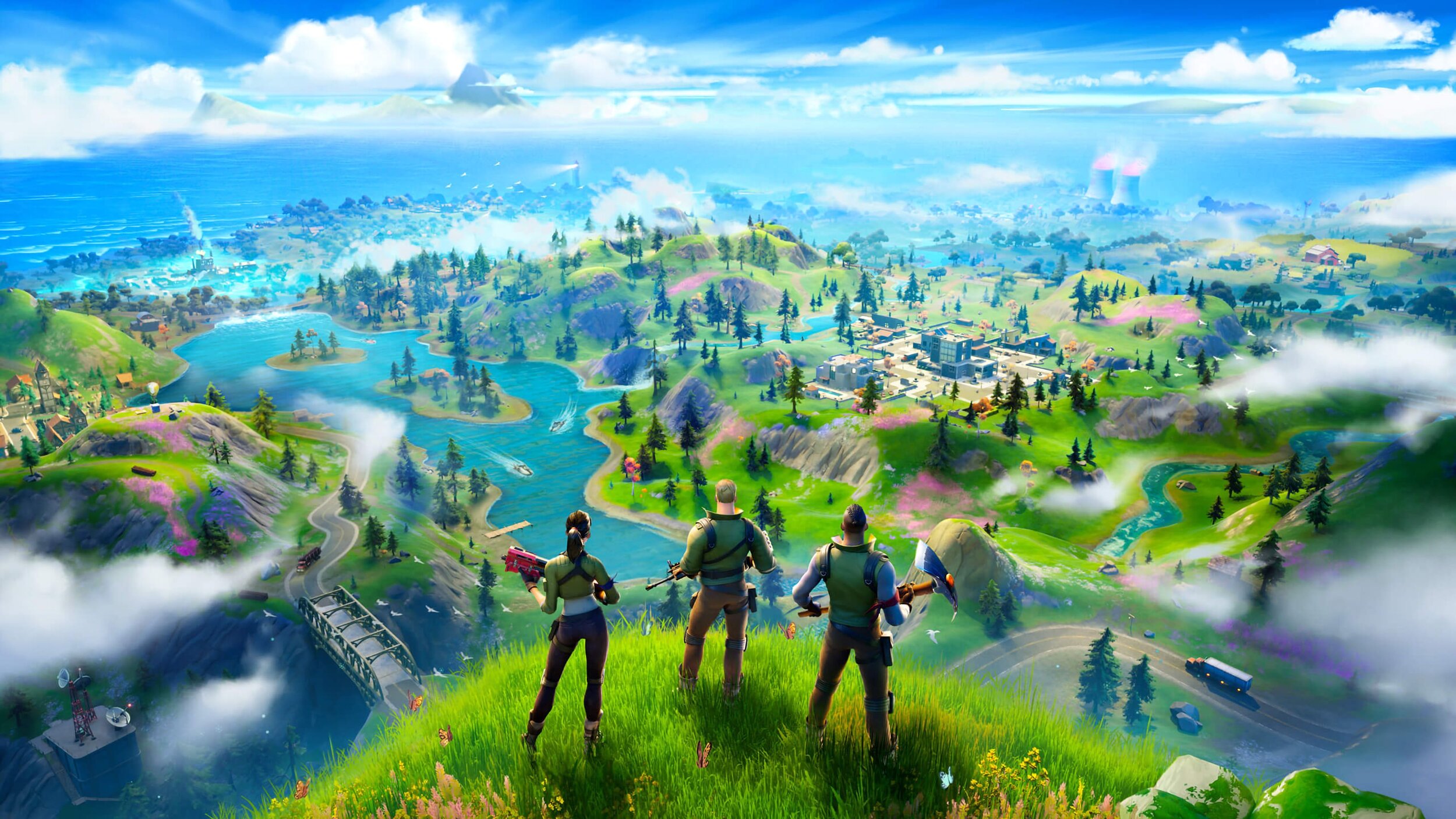
Microsoft Teams is constantly providing updates to its platform, but the latest is one that users have been begging for: the ability to upload your own backgrounds. Now, you can create a personalized scene and Teams will virtually place you directly into your image.
Microsoft Teams is constantly providing updates to its platform, but the latest is one that users have been begging for: the ability to upload your own backgrounds. Now, you can create a personalized scene and Teams will virtually place you directly into your image. In this blog post, you’ll learn:
What are some suggested apps you can use to design a custom Microsoft Teams background
How to upload your custom background to Microsoft Teams
Find free backgrounds to download and then upload to Microsoft Teams
Something to keep in mind when designing is that the resolution of your canvas should be 1920 x 1080, and the best format to save as are PNG files.
IMPORTANT: If you have text in your background, it will appear mirrored (or flipped) after you click “apply” in the final step below. But, it will not appear this way to others joining your meeting. It will display properly.
What are some suggested apps you can use to design a custom Microsoft Teams background?
There are a few different options when creating your background. Let’s look over a few of the most popular!

Adobe Spark:
Click here to access the Adobe Spark website
Cost: Free for educators (your IT department will have to set it up, though!)
Why use Spark?
Adobe Spark is easy to use and provides simple options when branding content. You can easily search for royalty free stock images - all safe for EDU environments, and even “remix” ideas from other users.

Buncee:
Click here to access the Buncee website
Cost: Free for the “Lite” version, additional options available
Why use Buncee?
Buncee is a user-friendly platform that’s a one stop shop. You can find everything that you’ll need to create without ever having to leave the app, including safe search / royalty free images.


PowerPoint:
Click here to access the Office 365 website
Cost: Free for the “A1” version (includes Word, PowerPoint, Excel, and more), additional options available
Why use PowerPoint?
PowerPoint is familiar for most, making it easy and comfortable to design in. You can also easily duplicate slides to design several backgrounds at once.

How to upload your custom background to Microsoft Teams
Now that you have your custom background created, follow these steps to upload it to Teams:
From your channel or chat, click the camera icon to start a new meeting.
After the new window opens, click on “Meet Now” to launch the meeting.
Once the meeting has started, click on “Show Background Effects.”
A window will open on the right side of the screen. Click on “Add New” on the top right .
Upload your file, then scroll down to find the image. Select the image, then click “Apply.”


(Note: If you have text in your background, it will appear mirrored (or backwards) on your side of the screen - but, Teams displays the background correctly to others who have joined your meeting)

Free Backgrounds to Download
Looking to save some time? We hear you. Here’s a few neat backgrounds that we found that you are free to download / upload on your own. To do so, simply right click then select save (remember to watch where you are saving the file so that you can find it later on!).
Please note: We did not create any of these, just found them being shared online. All of these images have been labeled for reuse.
Animal Crossing:
Source: Nintendo

The Big Bang Theory:
Source: TBS

Blue’s Clues:
Source: Nickelodeon

Fortnite:
Source: Epic Games

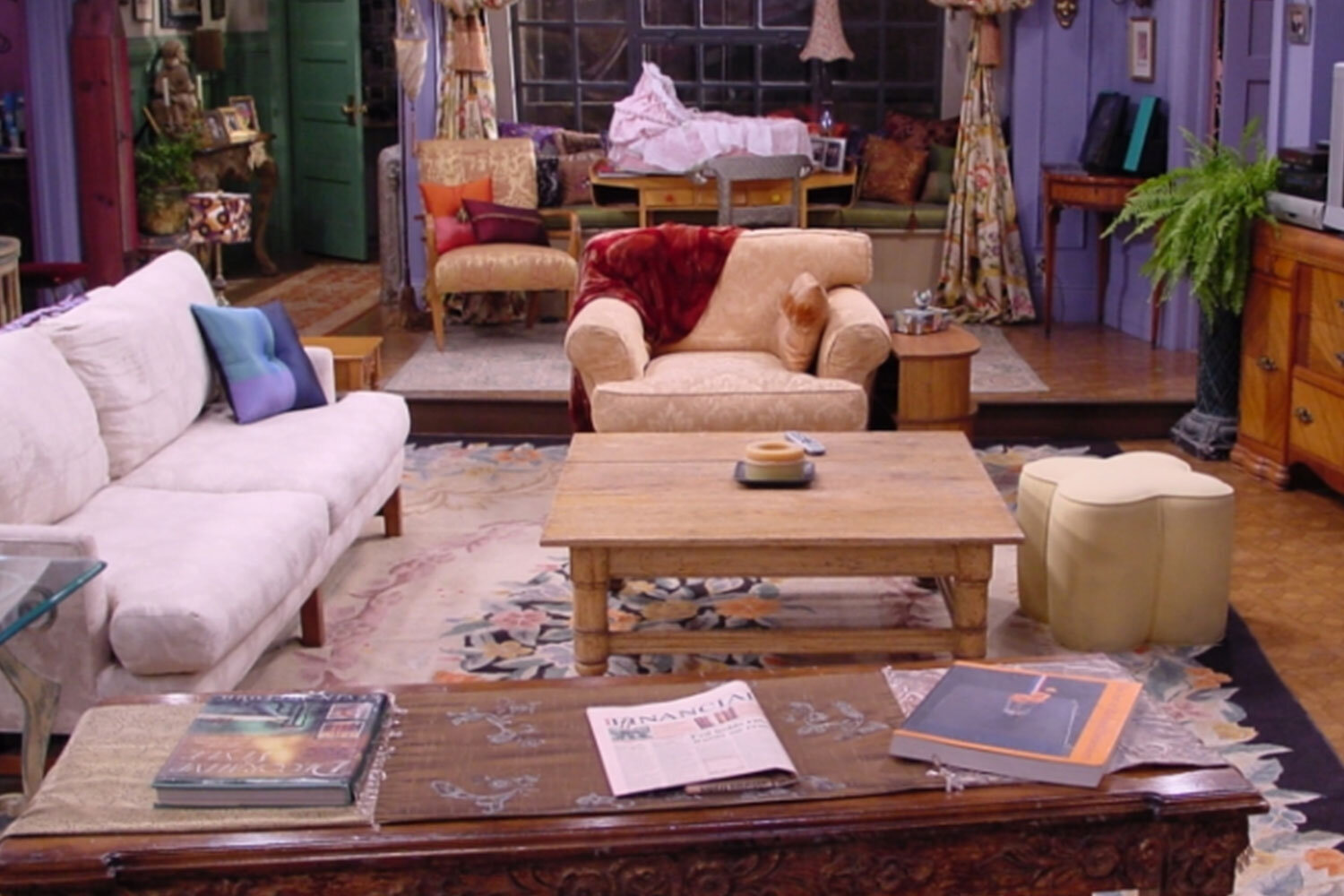
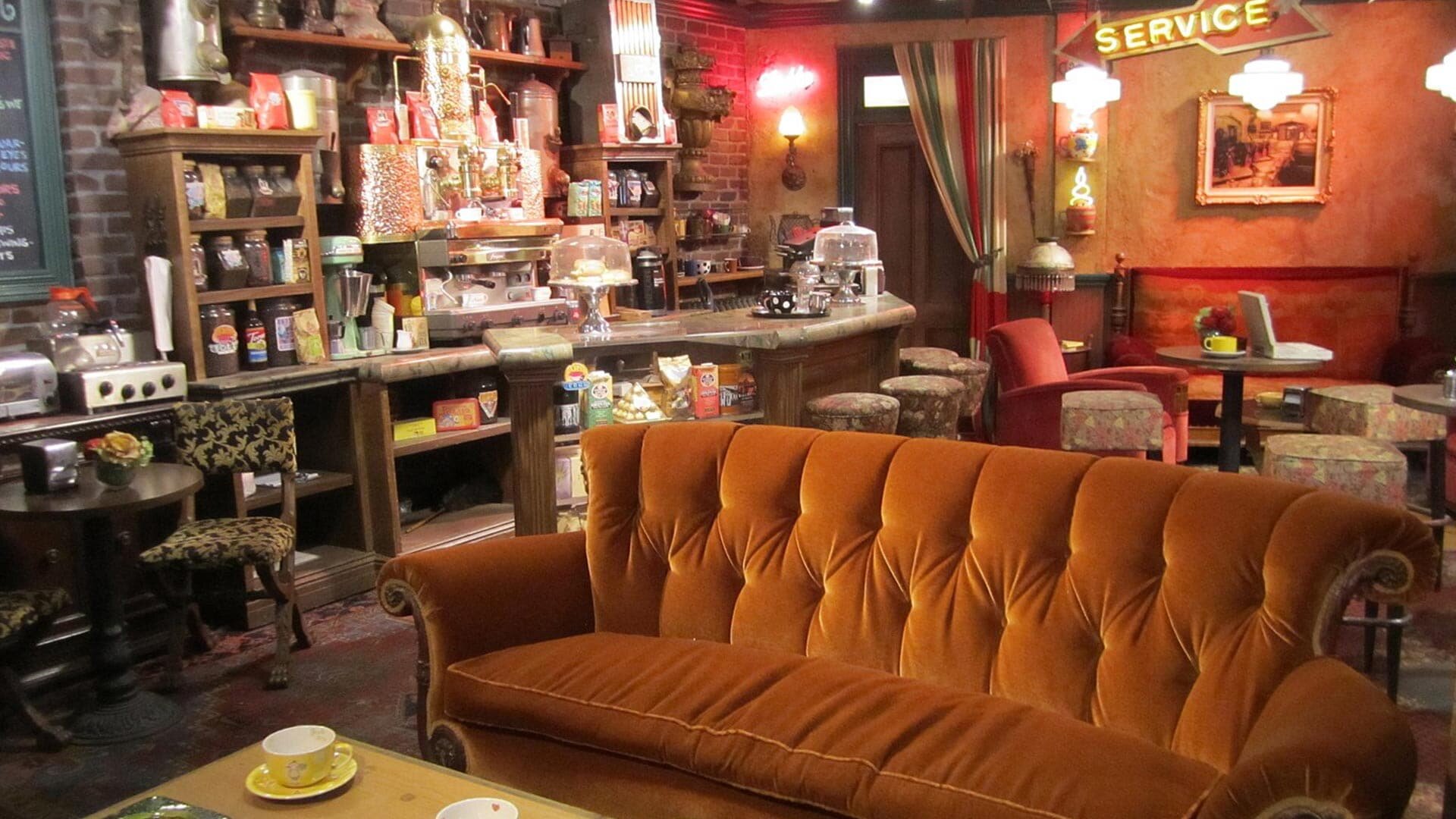
Friends:
Source: FOX
Game of Thrones:
Source: HBO

Jeopardy:
Source: NBC

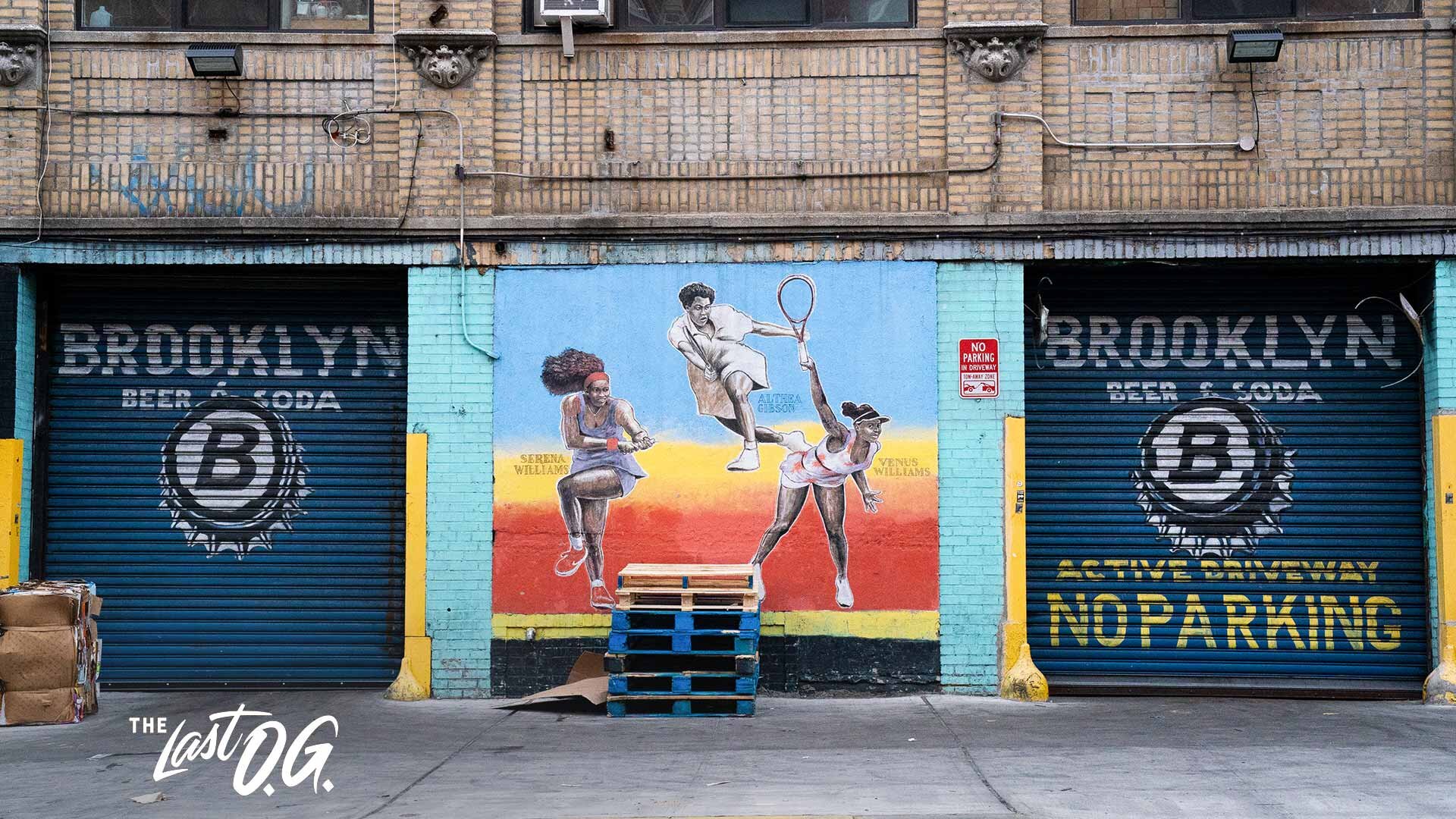
The Last O.G.:
Source: TBS
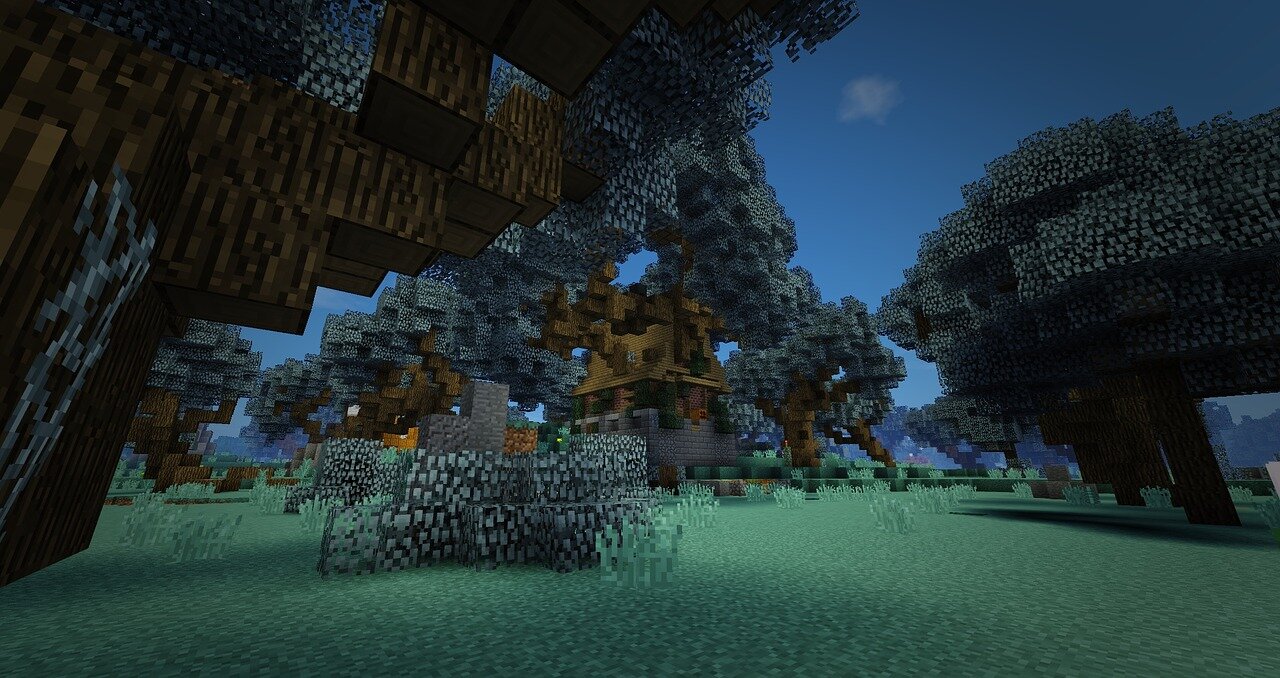
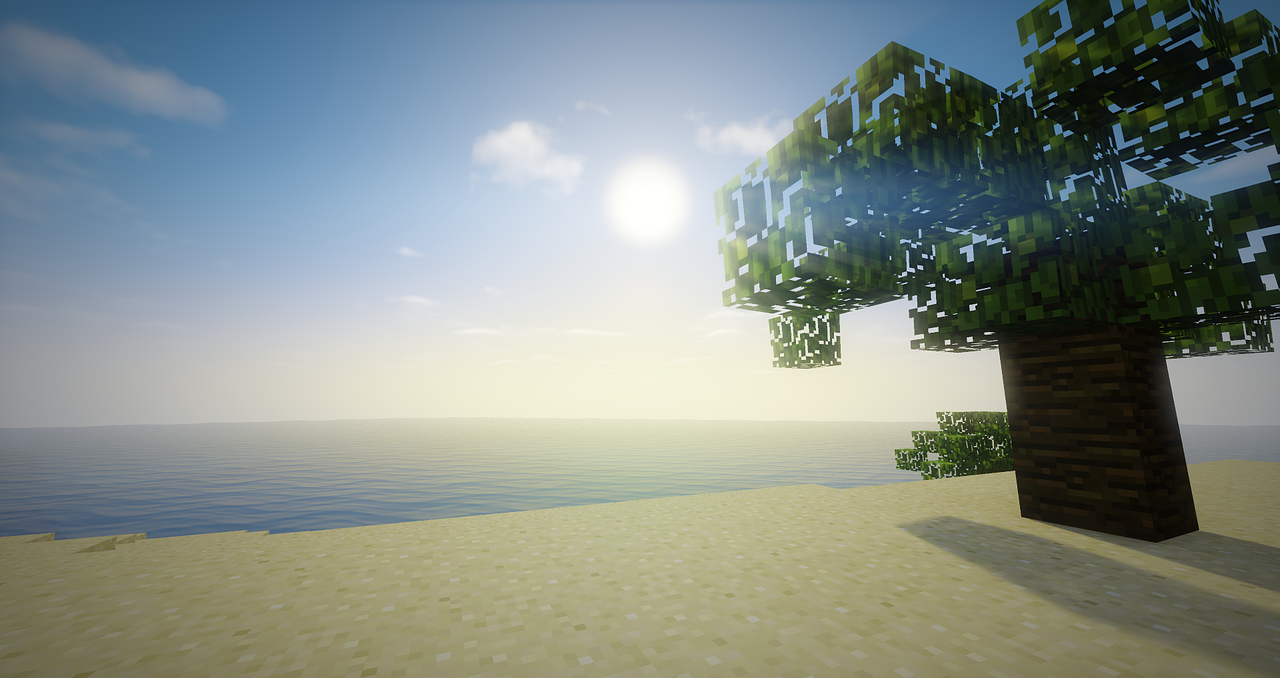
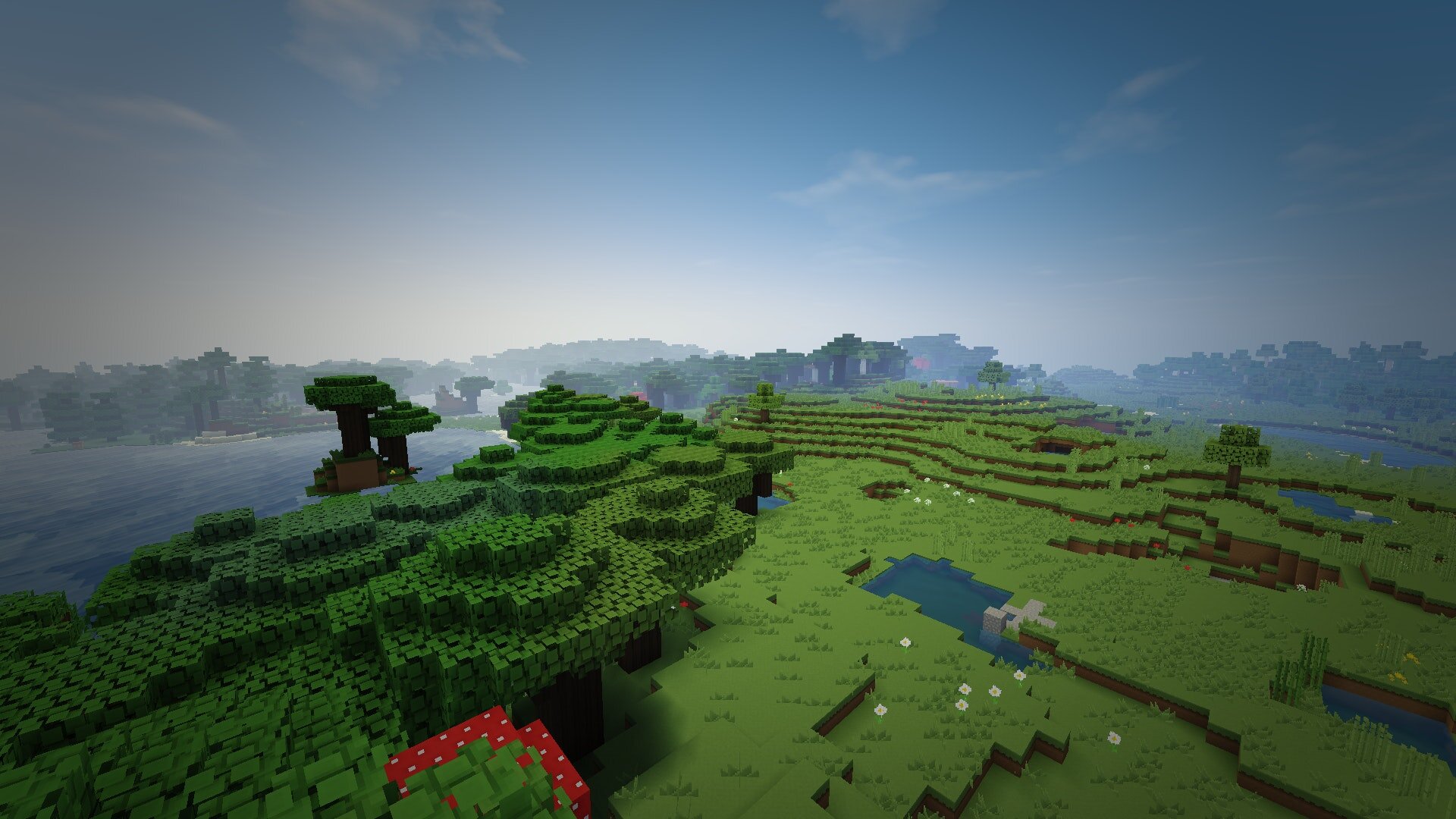
Minecraft:
Source: Microsoft
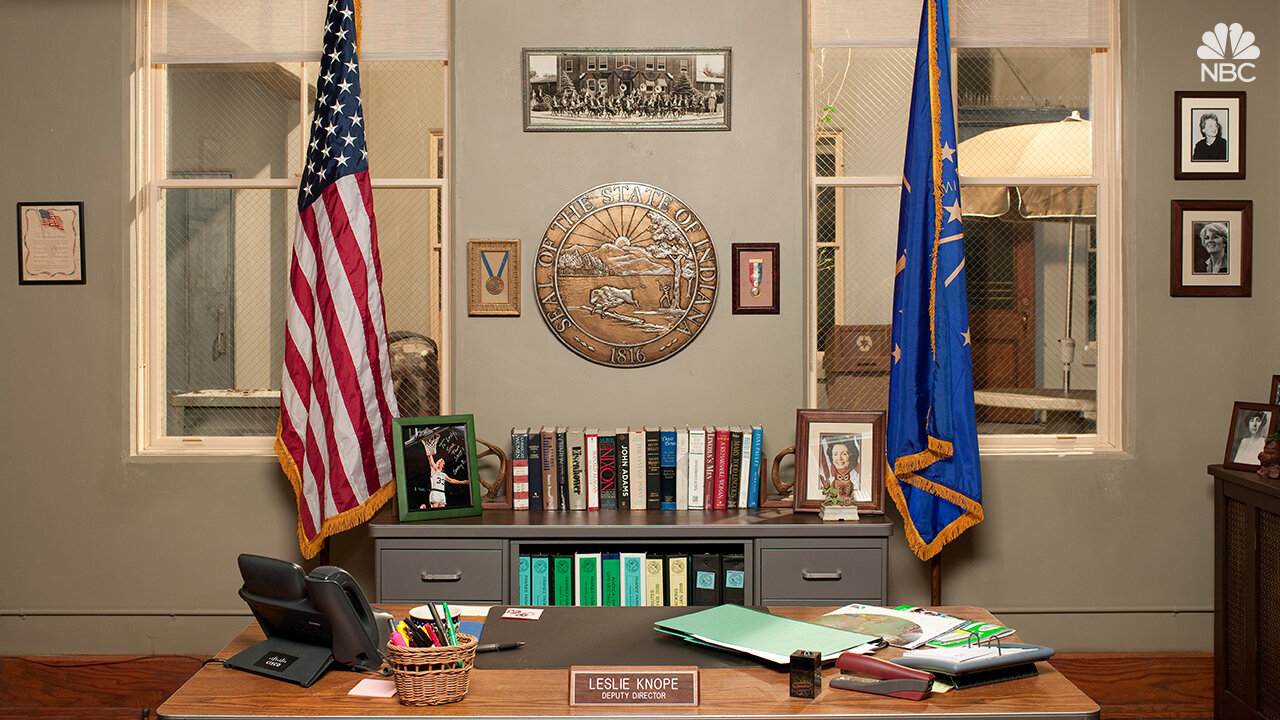
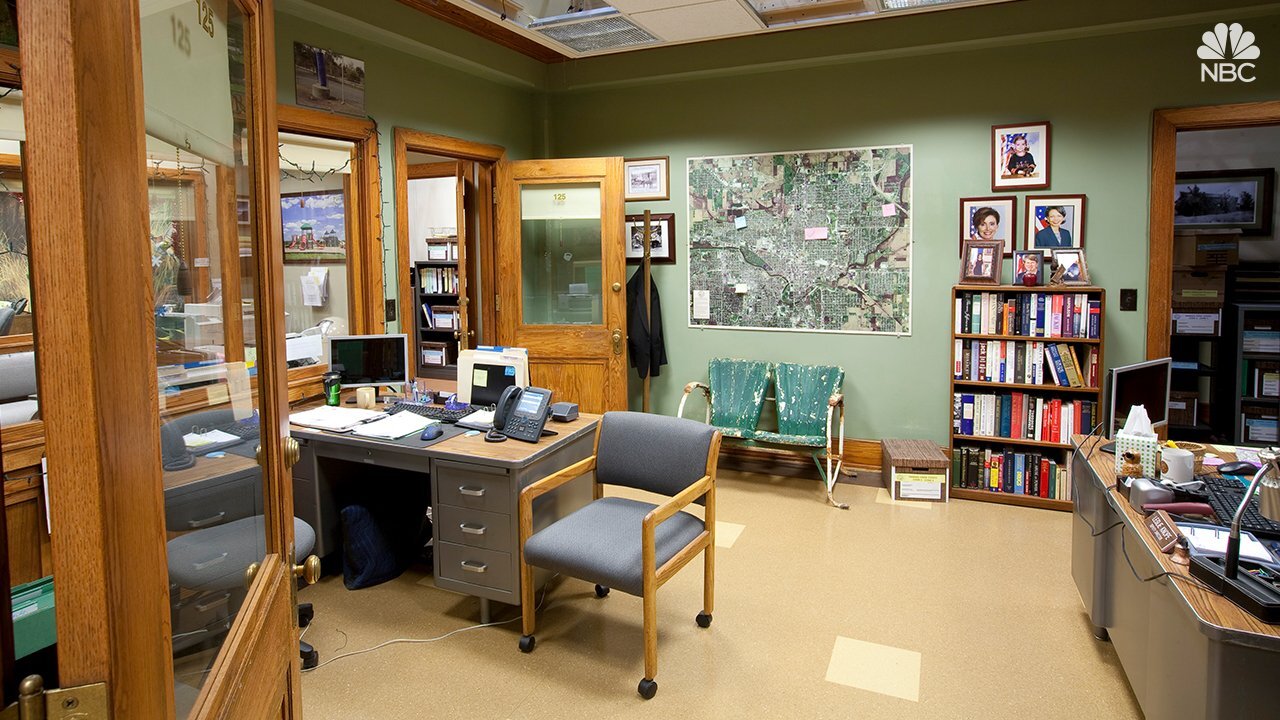
Parks and Recreation:
Source: NBC
Schitt’s Creek:
Source: Netflix
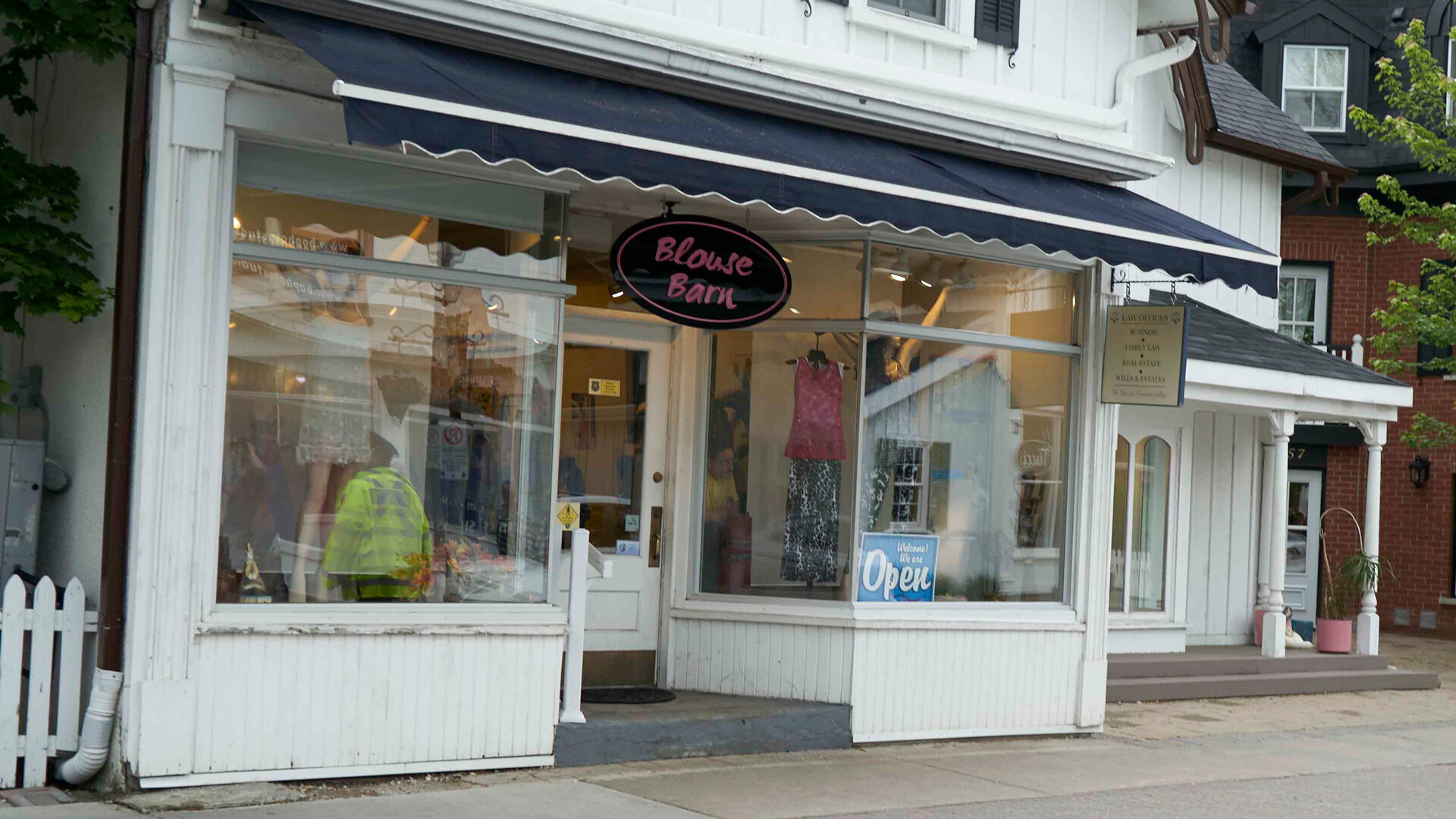
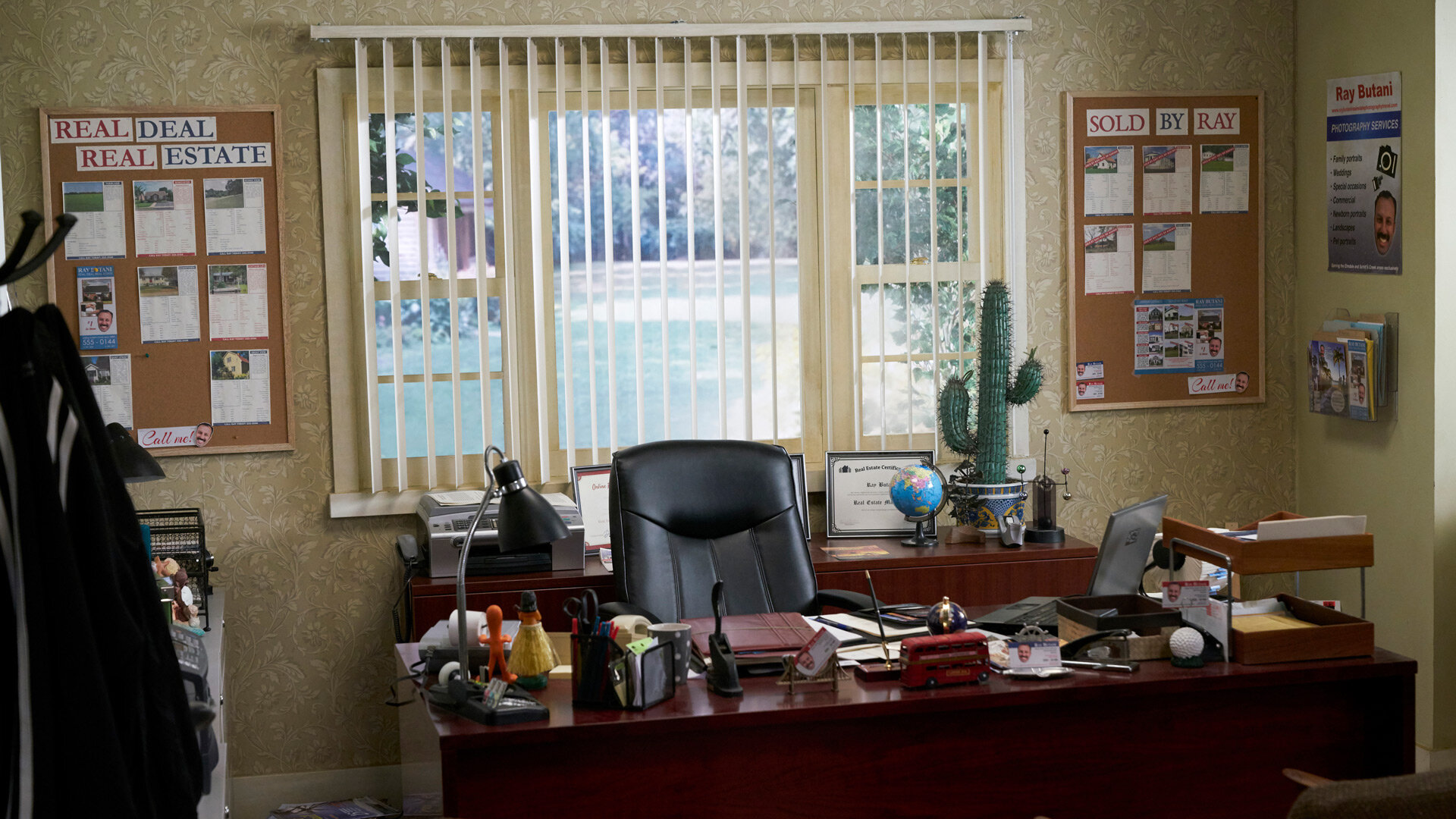
The Simpsons:
Source: Fox

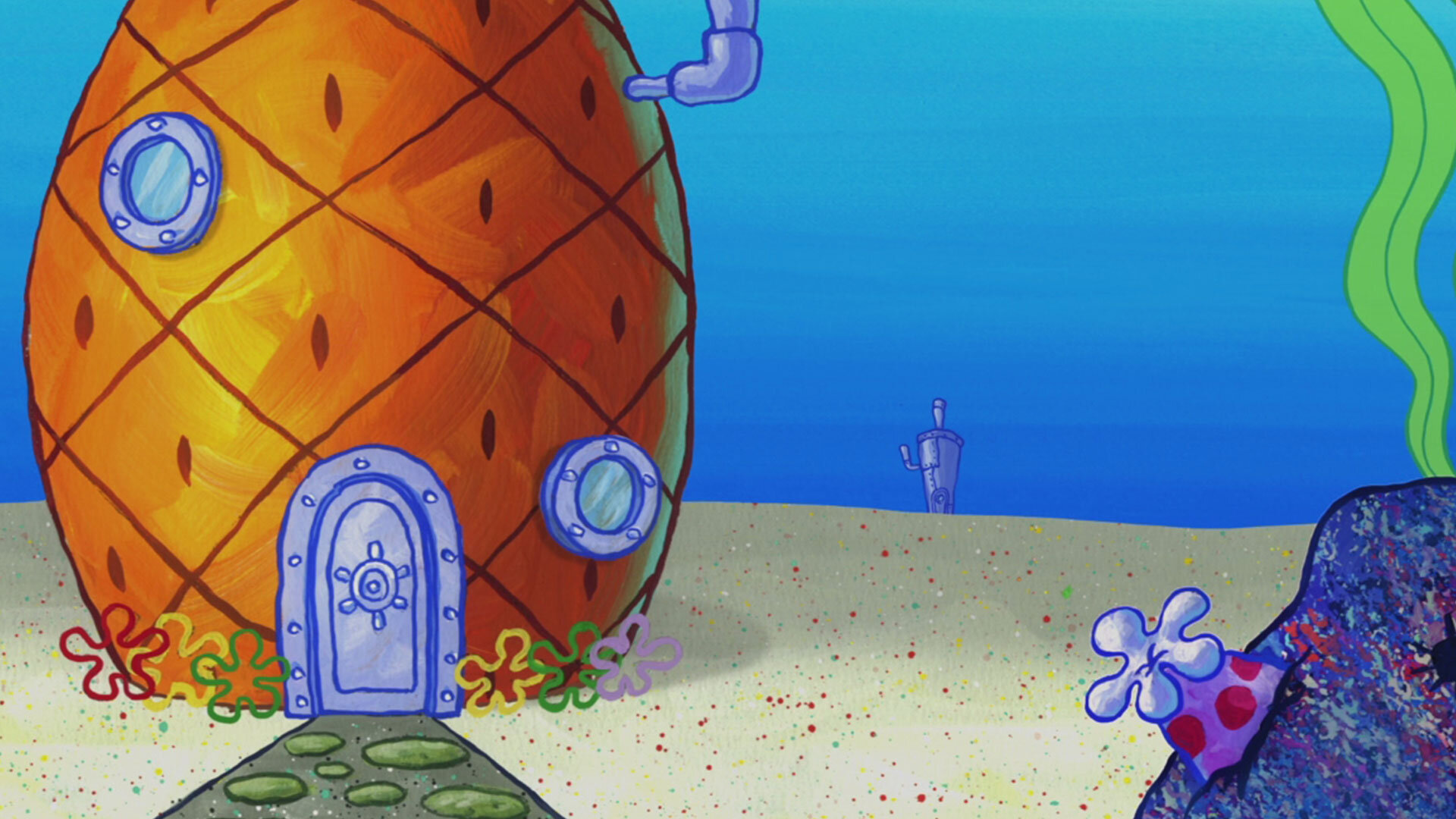
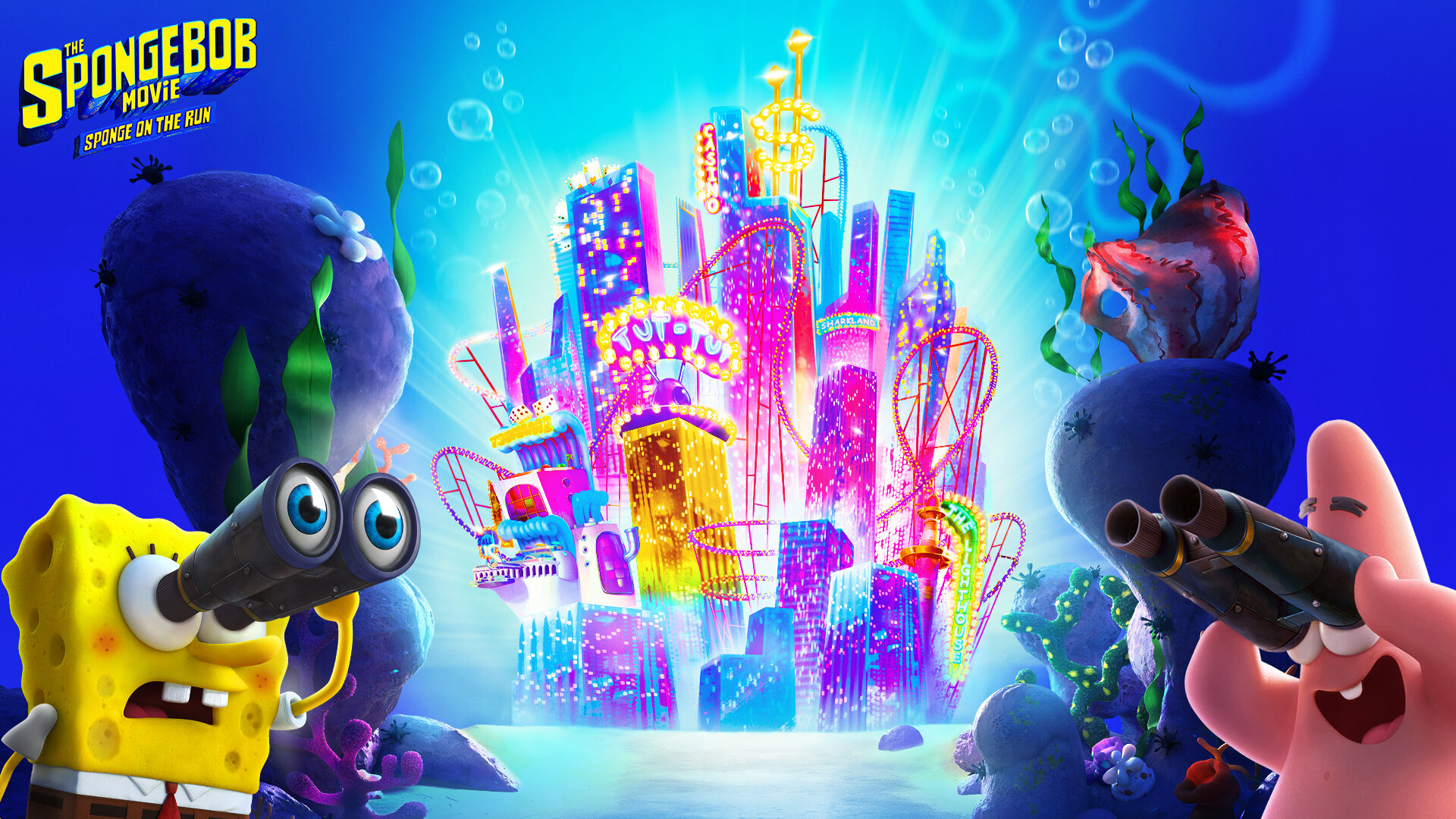
Spongebob Squarepants:
Source: Nickelodeon
Star Wars:
Source: Star Wars / Disney


The Office:
Source: NBC

Today Show:
Source: NBC

Top Gun:
Source: Paramount


Toy Story:
Source: Pixar / Disney
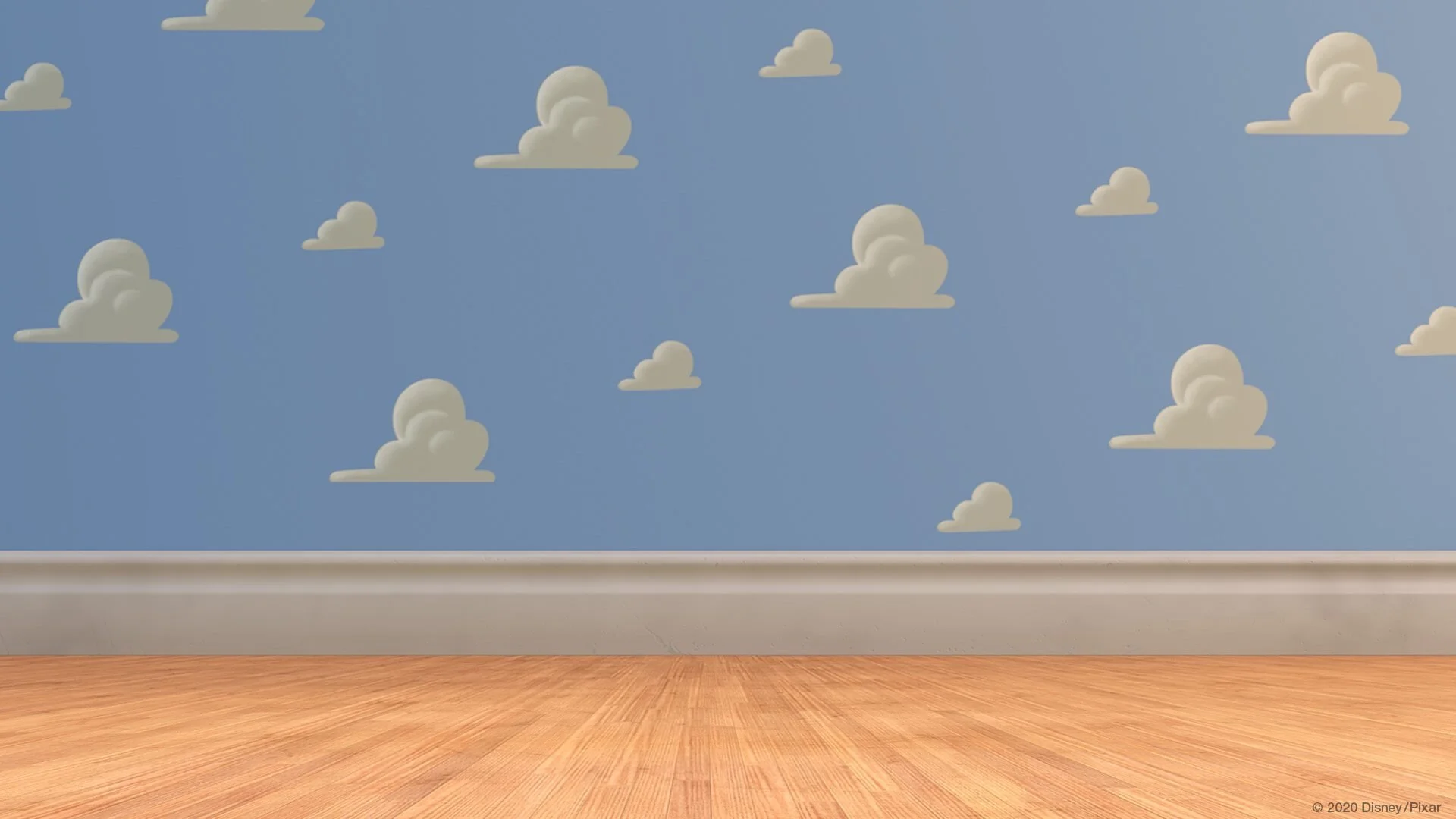
Stay interACTIVE!
~👗➕👓
For more information on how you can make learning in the classroom more #interACTIVE, check out our books The InterACTIVE Class and Flipgrid in the InterACTIVE Class!


How to Create a Virtual Classroom with Your Bitmoji in Buncee!
Virtual Classrooms are a great way for educators to deliver content to students in a fun and engaging way. Buncee makes creating one easy! You’ll learn how to create and share your virtual classroom to your students!
Virtual Classrooms are a great way for educators to deliver content to students in a fun and engaging way. Educators can add a Bitmoji into a virtual classroom to create an animated experience for students. You can even organize the images in your “classroom” so that they hyperlink out to external sources! Our preferred tool to create virtual classrooms is Buncee. You can sign up for an account by clicking here!
In this tutorial, you learn:
💥 HOW TO ADD A VIRTUAL CLASSROOM BACKGROUND
💥 HOW TO ADD IMAGES TO YOUR VIRTUAL CLASSROOM
💥 HOW TO ADD TEXT IN YOUR VIRTUAL CLASSROOM
💥 HOW TO ADD HYPERLINKS IN YOUR VIRTUAL CLASSROOM
💥 HOW TO SHARE YOUR VIRTUAL CLASSROOM
💥 HOW TO ADD A VIRTUAL CLASSROOM BACKGROUND 💥
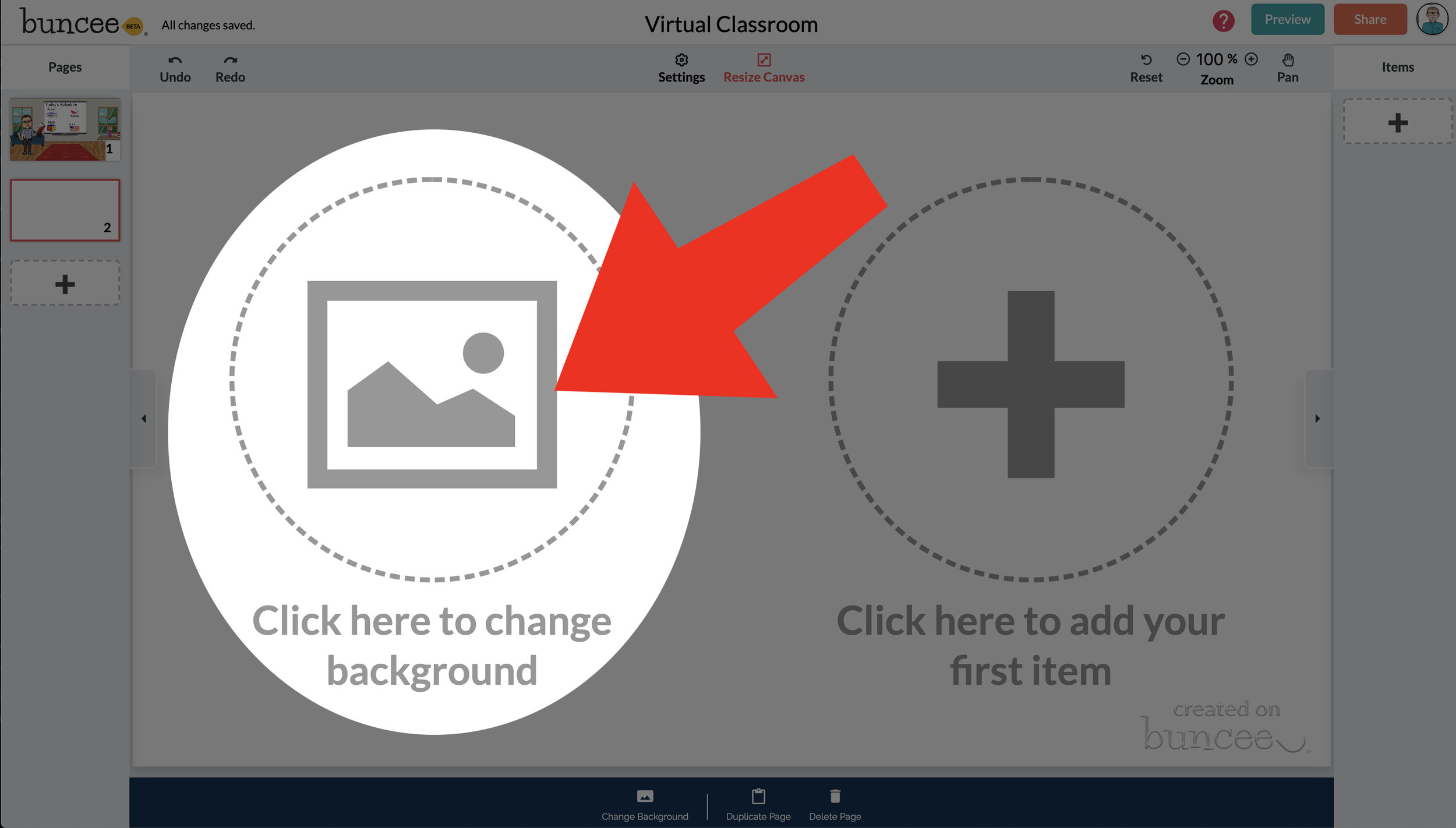

To get started, log into your Buncee account and create a new Buncee. Open the new Buncee and the first thing you’ll want to do is add a background. Follow these steps:
Tap the "click here to change background” option, then search for “class.”
Scroll through and find one that is right for you. There’s lots to choose from! You can find background images with smart boards, chalkboards, and more.
Once you find a background image that works for you, click it. Then, click the blue “add” button just to the right of the search bar. Now, your background is set and locked!
💥 HOW TO ADD IMAGES TO YOUR VIRTUAL CLASSROOM 💥
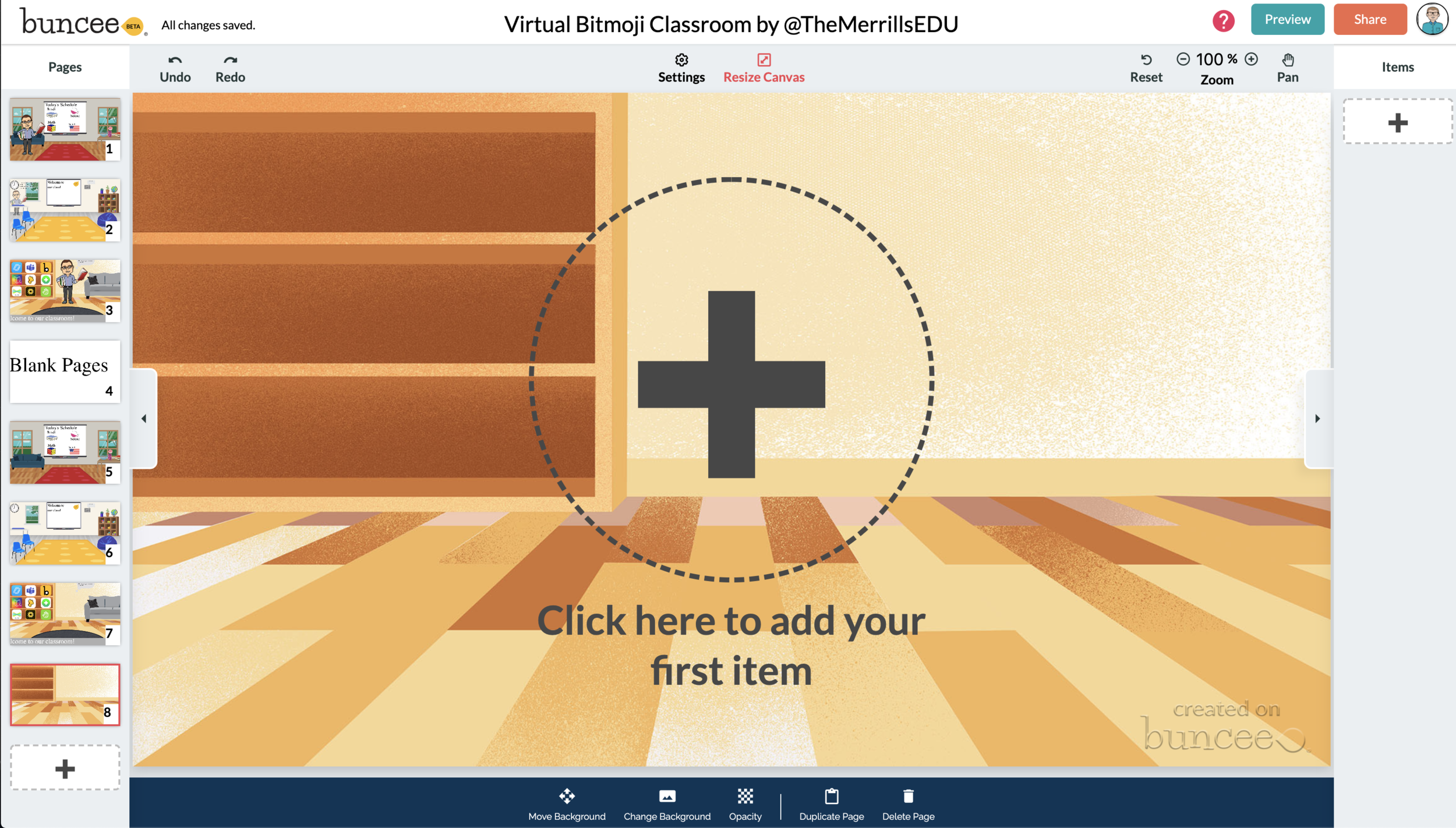

Now comes the fun part…Design your virtual classroom with some images! Click on the “+” sign to add an item. Use Buncee’s search tools to find items that you’d like to add to your classroom. Some fun things to search for include:
Smart Boards
Desks
Books
Clock
Computer
Bookshelf
Chair (you can even find a bean bag chair!)
Window
Couch
Speech (for a speech bubble)
If you’re having a hard time finding items to add, try typing “school” into the search bar. There are tons of item results that will pop up and you can use. You’ll find stickers, still images and moving gif images.
💥 HOW TO ADD TEXT TO YOUR VIRTUAL CLASSROOM 💥
After you’ve added all the items to you virtual classroom, you may want to add text. You can add text on top of items, like your smart board. This is a great way to deliver instructions for your students. To add text in Buncee:
Click on the “+” sign
After the Buncee features window will opens, click on the “text” icon (located to the left of the window)
Double click the new item to enter your text.
Once you have your text ready, you can change the font or font size by clicking the font options located on the bottom of the screen.
Move and place your text accordingly.

💥 HOW TO ADD HYPERLINKS IN YOUR VIRTUAL CLASSROOM 💥


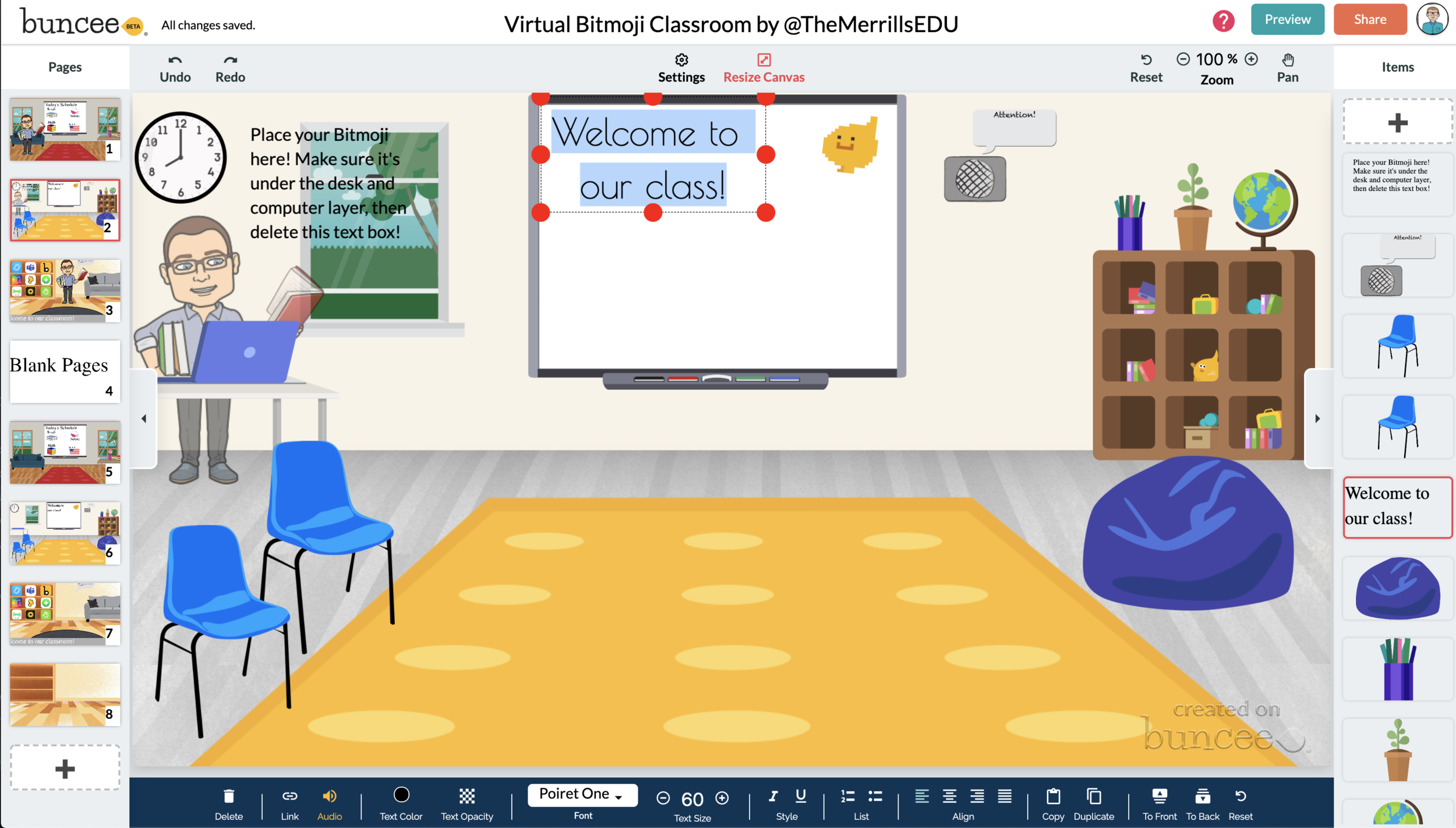
After you have your items and text in place, now it’s time to start hyperlinking. When you hyperlink, your students will be able to click on the items (or text) that you have entered and it will take them to an external source. For example, if you use the Buncee logo, you can hyperlink it so that when it’s clicked, it will take you right to the Buncee login screen. Hyperlinks can be added to any item or text that you have added on Buncee. To add a hyperlink:
Click on the item or text that you want to hyperlink
Click on the “link” option on the bottom of the Buncee features toolbar
Enter the URL into the box
Press enter to “update” the item
💥 HOW TO SHARE YOUR VIRTUAL CLASSROOM 💥
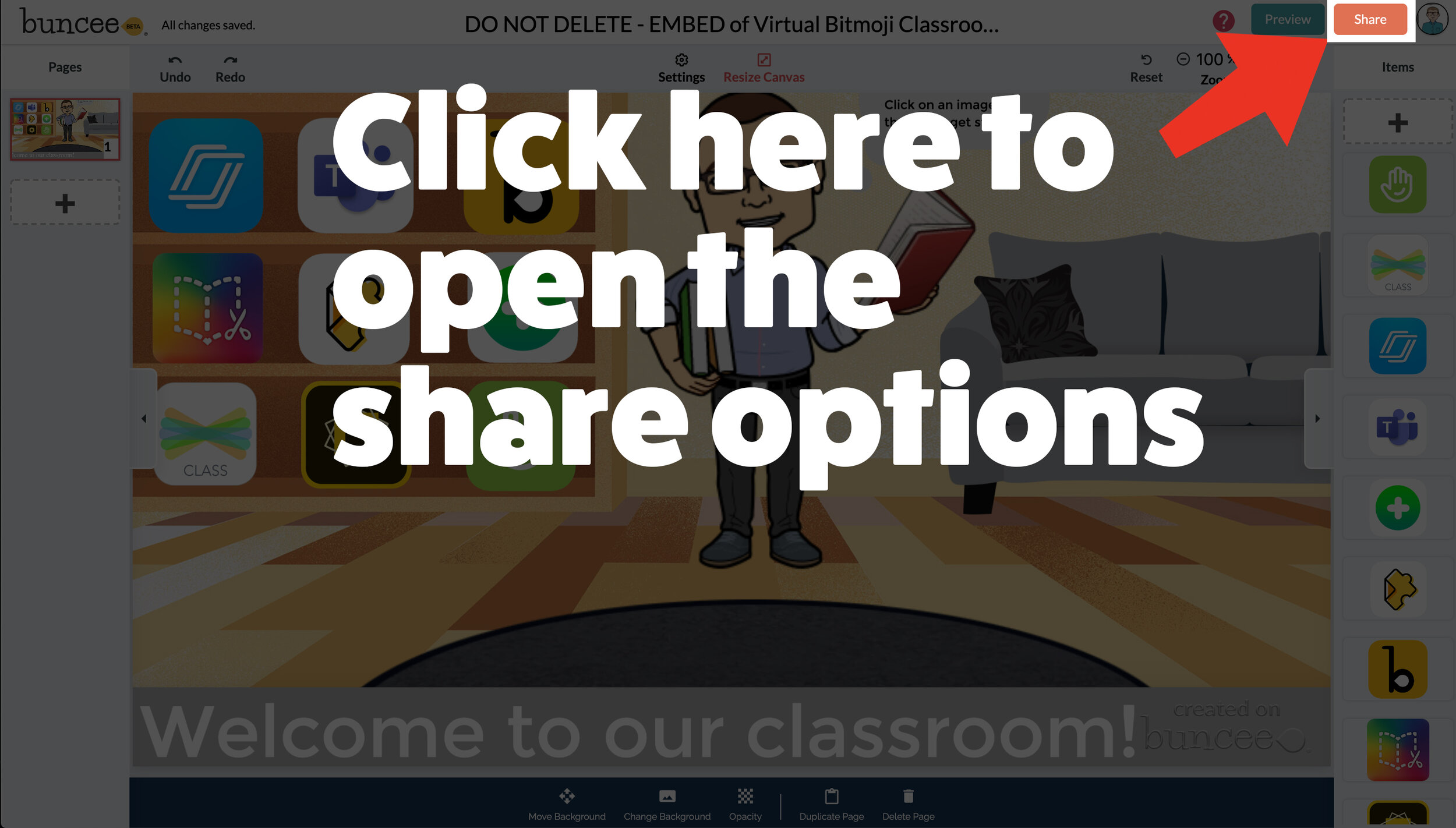

Now that your virtual classroom is ready, it’s time to share it with your students! There are several options to share in Buncee:
Share the Buncee slide deck link
Embed the Buncee slide deck into your LMS (Canvas, Schoology, Microsoft Teams, Google Classroom)
To share the Buncee slide deck link:
Click the red “Share” button
A new window will open. Click “Code” (second option from the top)
Next to the link box, click “Copy.” This will copy the URL to your Buncee.
Share the URL with your students
To embed the Buncee slide deck:
Click the red “Share” button
A new window will open. Click “Code” (second option from the top)
Next to the Embed Code box, click “Copy.” This will copy the embed code to your Buncee. (Tip: you can also click on “Show Options” to change the size of the embed)
Open your LMS (Canvas, Schoology, or anywhere you can embed) and click on the embed option. Paste the embed code from your Buncee, then hit save. Your Buncee will now be embedded into your page.
To share to Microsoft Teams, Google Classroom, or other social outlets:
Click the red “Share” button
A new window will open. Click “Social” (sixth option from the top)
Select the app that you are trying to share to, then follow the instructions

💥 FREE Templates! 💥
We’ve created several templates that you can download, copy, and edit. You can scroll through the different pages by clicking the arrow on the right. If you would like to download these, click here or the image below.

To view the templates, check out the embed of them below!
💥 YouTube Tutorial! 💥
Still not sure how it all works? We’ve got you covered! Check out this walkthrough!
For more #interACTIVE lesson ideas using Flipgrid, check out our book The InterACTIVE Class on Amazon!


Lesson Resources for Remote Learning: Spy Transformations
Transforming the classroom has always been one of our favorite ways to engage students. They walk in intrigued, curious as to what the day of learning would hold for them. This heightened interest would help them persevere through difficult tasks they might otherwise give up on. Plan a week of spy themed activities or turn your students into learning detectives. Dress the part, play some music and infuse this theme into any content you are teaching.

Transforming the classroom has always been one of our favorite ways to engage students. They walk in intrigued, curious as to what the day of learning would hold for them. This heightened interest would help them persevere through difficult tasks they might otherwise give up on. It created an atmosphere of challenge balanced with fun and interaction. Well why not do this virtually?! Plan a week of spy themed activities or turn your students into learning detectives. Dress the part, play some music and infuse this theme into whatever content you plan on teaching.
Spy Themed Resources
To help you with your content creation, we have curate various resources available for you to take and use. We spread the resources across platforms in an attempt to find things that everyone can use regardless of how their distance learning lessons are structured and set up. Please feel free to share with colleagues and other teachers in your PLN who may benefit too!

Spy-themed Slides
Slides Mania is an awesome resource for teachers with slide decks for all occasions. Check out this set of slides perfectly suited for problem solving and detective work. Slide decks are available for both Google Slides and Powerpoint.
Seesaw Mystery Slides
This idea was shared with us awhile ago by an educator named Kris Szajner and we think it is a perfect #interACTIVE activity for a week of remote learning lessons themed around spies or detectives. Simply have students search for hidden text within the slide. This is done by changing the color of the text to black after formatting & “hiding” it in place. Then, using the “magnifying glass” (which is just an enlarged text box window), students hunt for the hidden text. It could be multiples of a number, the words matched with definitions, the main idea of paragraphs—easy to adapt to any content and standard. Grab the mystery template here!


Secret Spy-Themed Soundtrack
Add some flair and suspense throughout the week with some music! You can use this free soundtrack on YouTube as a background soundtrack for your live Zoom or Google Meet calls or for any recorded teaching material you make for your distance learners.
Spy and Detective Background Images
Use this slide deck for fun, detective themed images you can use while recording lessons for students or during live calls in the various platforms. Snag the slides here!


Digital Break Out
We love doing break out games with our kids in the classroom, so while out during remote learning why not bring it to your students. This STEM themed digital breakout is one of the many on the Breakout EDU website and does require platform access. But, check out free digital games in the Flipgrid Disco Library. A few of our favorites include, Around the World in 30 Days, Design Decisions, and GPS Mess.
Spy Themed Stories
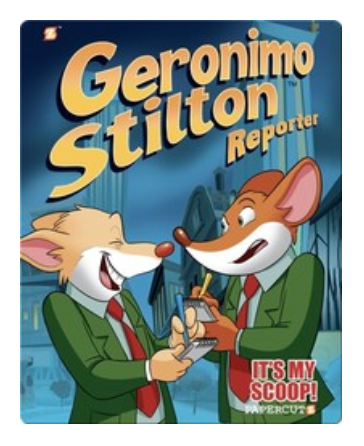
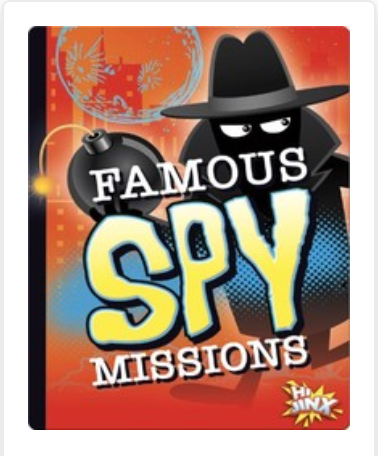
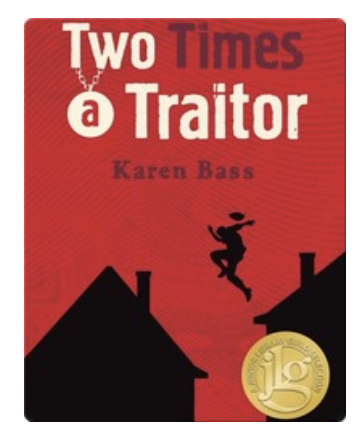
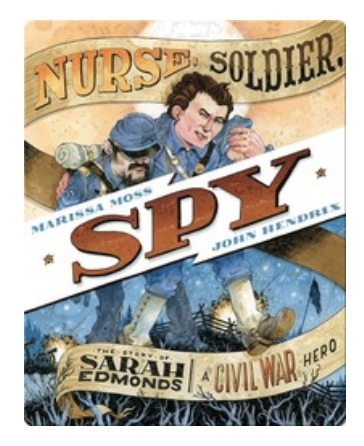
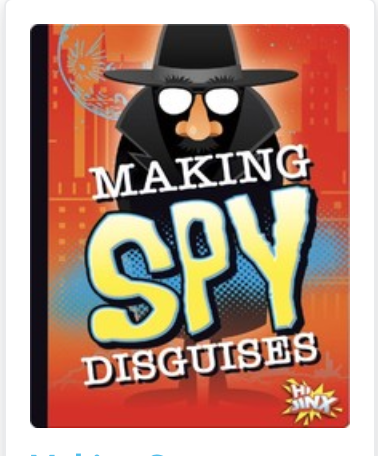
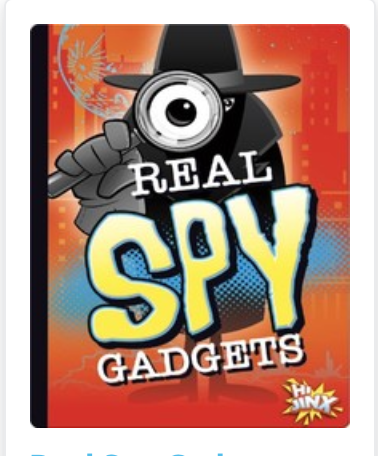
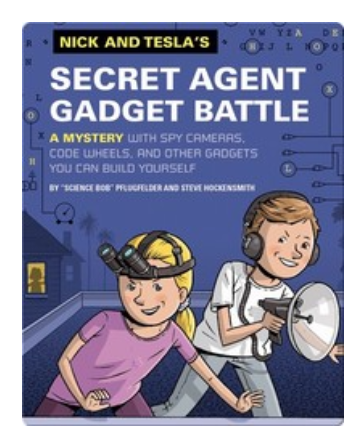
During remote learning there are many platforms offering free resources for students to read while working from home. Epic! is one of these platforms worth checking out. When searching “spy” a combination of over 60 fiction and nonfiction titles came up ranging from Geronimo Stilton, to WWII Spies and much more. For more info on using Epic click here.
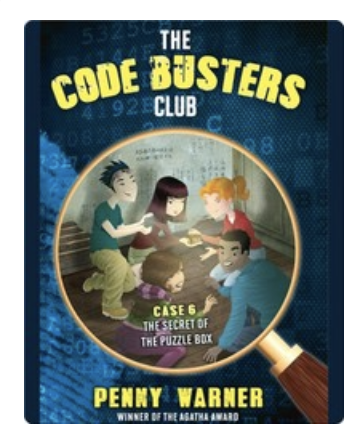

Spy Scavenger Hunt (Live!)
Have you tried playing a game live with your student while on a call. Whether you use Zoom, Microsoft Teams, Google Meet—the principal of the game is the same. Take the general “scavenger hunt” and turn it into a live “spy hunt.” Have students race through the house to find items various themed items like a flashlight, a magnifying glass, a hat and more. For the complete list click here!
Remote Learning Read Alouds
Storylineonline.com is a great reading resource during remote learin. The Case of the Missing Carrot Cake is just one of the many books available for free use. Narrated by Wanda Sykes, students read to learn about what happens to Miss Rabbit’s cake goes missing and what the detectives do to track down the thieves. Read it here! Another great title offered is Private I. Guana read by Esai Morales and The Coal Thief read by Christian Slater. All books come with activity guides for teachers and for parents.


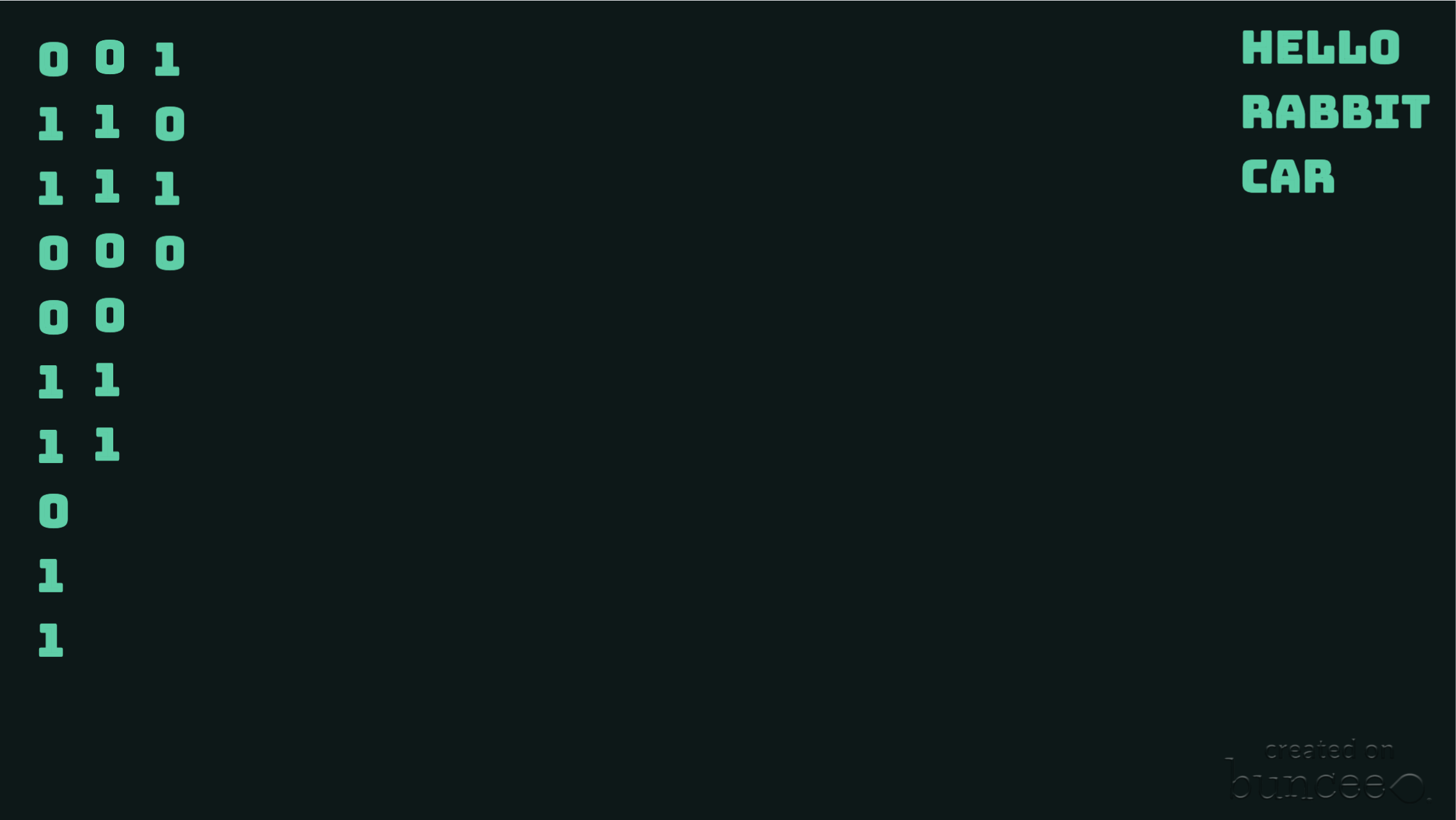
Buncee Backgrounds and Images
Student creation is always important so why not assign your tasks within a Spy Themed Buncee! Check out their newly designed backgrounds and animations or have students design from scratch on their own! Or, try using a playlist where students can work on tasks in a specific order!
Costume Changes
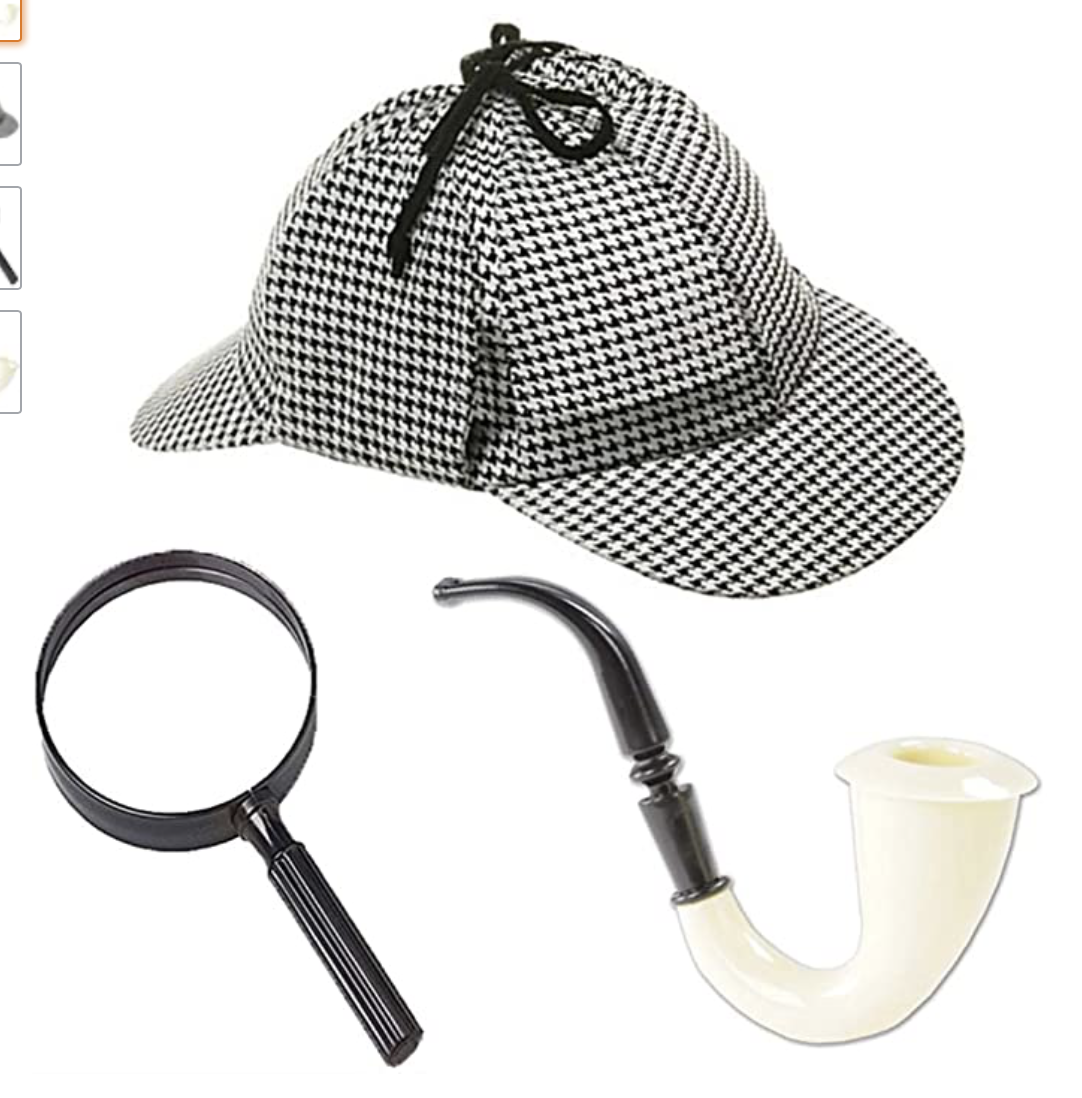
If you are looking for an additional way to add engagement, try dressing the part! Wear a fun hat or costume while delivering lessons or during live video calls. Send students a fun surprise “stach” in the mail ahead of time so they can get in on the fun too! Check out a few ideas here.
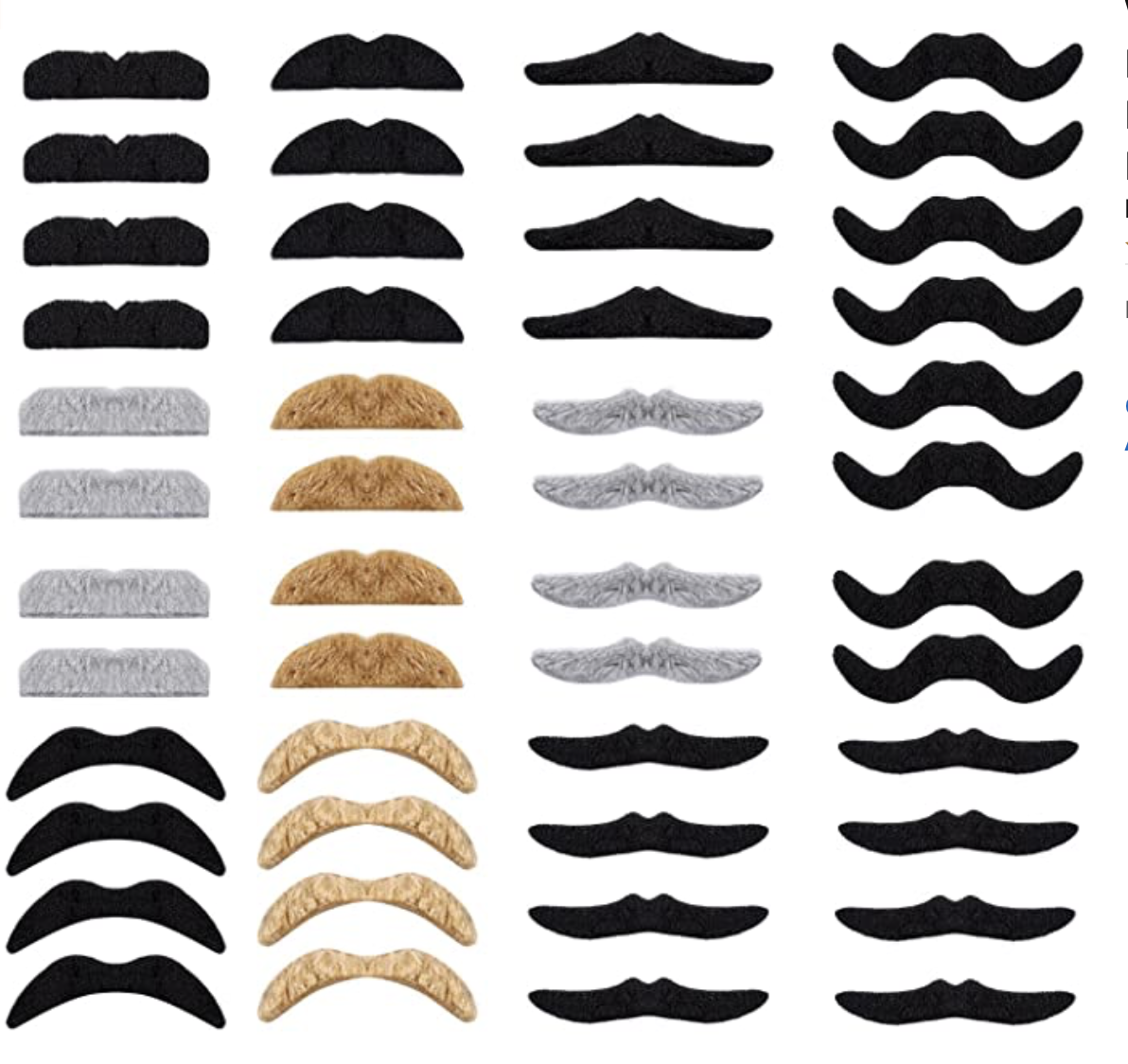
We hope you take these Spy themed resources and create #interACTIVE and engaging lessons for your students during this time of distance learning. Tag us on all social media platforms @TheMerrillsEDU and share will use the creative ways you make learning come alive with your spies and detectives!
Stay #interACTIVE!
-👗➕👓
For more #interACTIVE lesson ideas to use during remote learning, check out our book The InterACTIVE Class on Amazon!


Learning about map features with Buncee!
You’ve heard of “Where in the World is Carmen Sandiego,” but have you heard of “Where on the map is Mr. Merrill?” Buncee is the perfect tool for such a game! Check out how we used it to create a unique #RemoteLearning experience!
You’ve heard of “Where in the World is Carmen Sandiego,” but have you heard of “Where on the map is Mr. Merrill?” Buncee is the perfect tool for such a game! Check out how we used it to create a unique #RemoteLearning (but it could also be done in a normal classroom setting!) experience!
💥 Design a map in Buncee
💥 Add street names
💥 Create aN “INcorrect” and “correct” Buncee (seperate presentation slides)
💥 Hyperlink the images in the original map to the “correct” and “incorrect” Buncees
💥 Record a video that guides students to the destination!
💥 Copyable buncee slide deck included at the bottom!

💥 DESIGN A MAP IN BUNCEE
The first step (and most time consuming - if you’re picky) is to design a map in Buncee. The good news is that Buncee’s embedded features make it a one stop shop. You can easily add animated graphics, images, videos, and much more - all without having to leave the app. Everything that you see in the image below was found within the Buncee search tool. Simply find what you want to use, then drag it to the proper place.
💥 ADD STREET NAMES
After you have the layout and design of your map created, start adding street names using the text tool. Give each street it’s own unique name - which you’ll later referred to in your video. This step is important, because it helps younger students to be sure they are on the right road. You can even add a school bus and an animated taxi cab, just for fun!


💥 CREATE “INCORRECT” AND “CORRECT” BUNCEE SLIDES
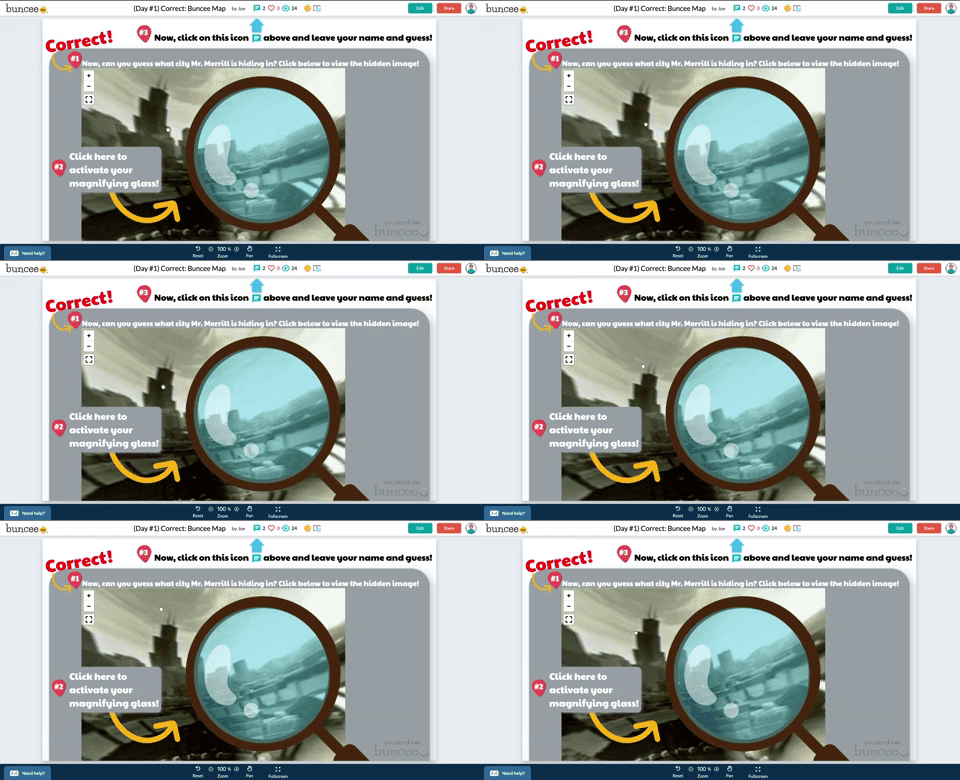
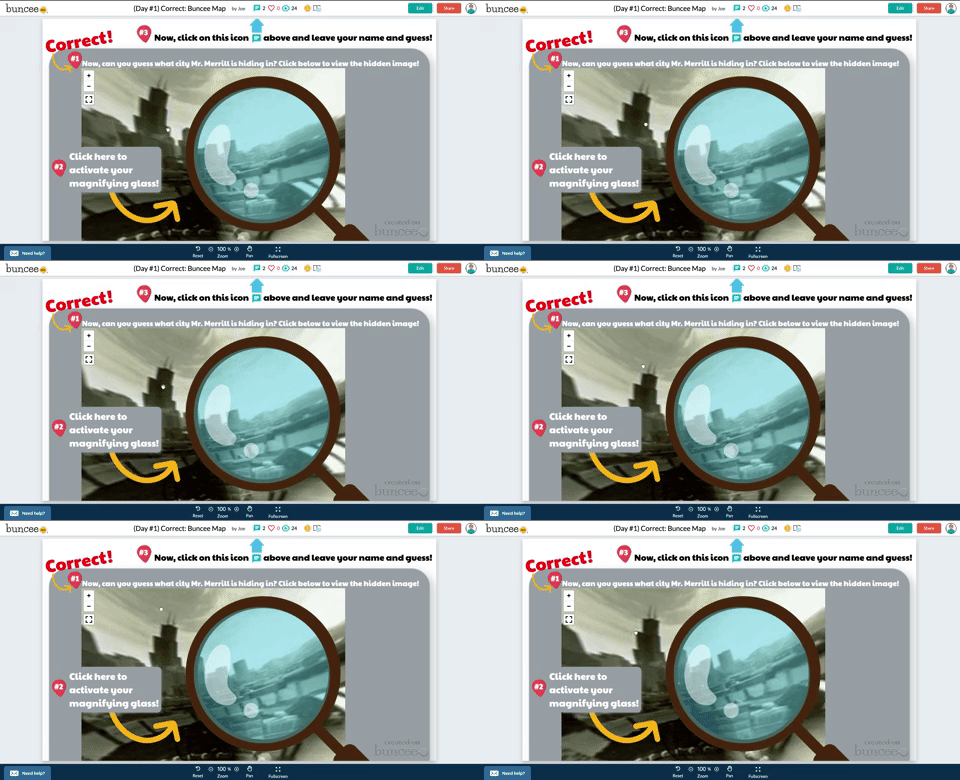
After you have saved what you have worked on, go back to the Buncee dashboard and created a seperate - new Buncee. Design the new Buncee slide to indicate that the selection my students made was incorrect (see image to the left). Now that this slide is complete, design a “correct” slide. When I did this with my class, I added a bit more fun here…I included a 360 image of the city of Chicago, then added a magnifying glass over the top to give it that “detective feel.”
With both slides now ready to go, start hyperlinking them back to my original Map. To do so, open your “incorrect” Buncee slide. Then, click on the orange “Share” button (located in the upper right). This opens a new window, with a few options. If you click on “Code,” you will be able to find the shareable URL to this particular Buncee slide. You’ll need this Link, so click the blue “copy” button to the right of the URL. You’ll take this link and use it on the Map you previously created.

💥 HYPERLINK THE IMAGES IN THE MAP
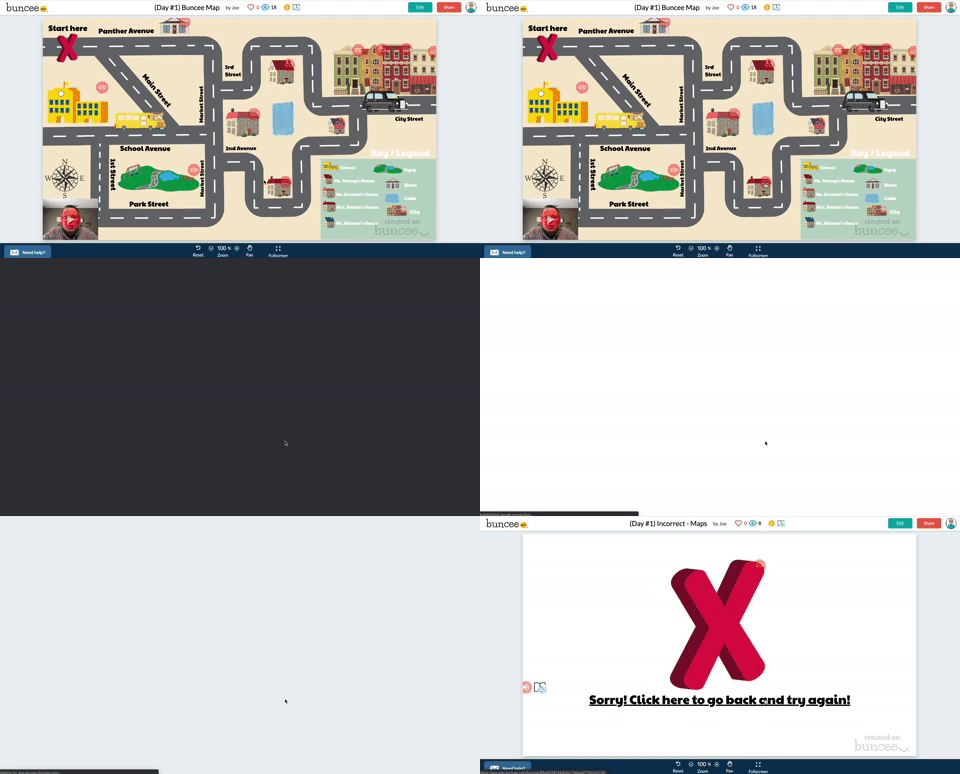
With the “incorrect” Buncee slide’s URL code copied, open up your original Map Buncee slide. Figure out where you would like to “hide” on the map. After you have picked out your hiding spot, now it’s time to start hyperlinking all of the incorrect places to the “incorrect” Buncee slide. To do, click on one of the images that you added on your map. A crop box will surround the image (this way you know that you have the right item selected). Next click on the “Link” located on the bottom tool bar. When you do, you’ll be given the option to type a URL. Simply paste the URL from the “incorrect” Buncee slide. This way, when a student clicks on that image - it will take them to the “incorrect” slide, indicating that their answer was wrong. Repeat this process for all incorrect images. You’ll notice that all images will have the little red link icon next to them. Be sure that you have added the “incorrect” Buncee slide to all of the images that need to be hyperlinked.
Now it’s time to hyperlink your “correct” spot on the map. This first step is optional, but I recommend it. Open the “Correct” Buncee slide, and click on “Share,” then “Settings.” Toggle on where it says, “Commentable.” This will allow your students to leave a comment once they arrive on the correct answer slide. In the same window, click on “Code” and then click “copy.” This will copy the URL to the “correct” Buncee slide, which you will hyperlink back to the original “map” Buncee slide. Once in the original “map” Buncee slide, click on the “correct” image (tip: you may need to click “edit” from the top right you get logged out), then click “Link” from the bottom menu bar. Paste the URL to the “correct” Buncee slide. This way, when your students click on the image, it will take them to the correct slide.

💥 RECORD VIDEO DIRECTIONS!
The last step is to record a video giving your students clues about where you are hiding. Go through each clue, and remind them to follow along the map from place to place. It also helps to remind the students that they can pause / rewatch the video if need be. When they think they know where you are, tell them to click on the link icon above where they believe you are hiding (if they click on the actual image, the picture will come up instead - they need to click on the link icon). Remind them that they should also leave a comment in the comment box at the end of the map to let you know that they found their way through!

Buncee + Immersive Reader! 💛
It’s also important to note that Microsoft’s Immersive Reader is embedded into Buncee. This means that all text on the Buncee slide can be read aloud to students. It also means that the text can be translated into different languages. All students need to do is click on the Immersive Reader icon!
Check out the real thing! Feel free to play along below!
To make this even easier, we’re happy to share our Buncee with you! Just click on the image to the right!


For more information on Buncee, check out their website and their Twitter account hyperlinked below:
💛 Buncee Website
💛 Buncee Twitter
- 👓
For more #interACTIVE lesson ideas using Buncee, check out our book The InterACTIVE Class on Amazon!


Remote Learning 101: Presented by The InterACTIVE Class
As more and more schools look towards the possibility of Remote Learning, we understand that you probably have lots of questions. We’re here for you.
As more and more schools look towards the possibility of Remote Learning, we understand that you probably have lots of questions. We’re here for you.
What is remote learning?
Remote Learning occurs when the learner and instructor, or source of information, are separated by time and distance and therefore cannot meet in a traditional classroom setting. This is also being referred to as “distant learning.”
I don’t know much about educational technology. How will I learn fast enough to teach remotely?
Remote learning will undoubtedly push many teachers into the realm of digital teaching and learning faster than they may have on their own. If you are one of those teachers who hasn’t used classroom specific applications, we would recommend starting with our book The InterACTIVE Class. It was not written specifically for remote learning, but it couldn’t be out at a more relevant time.

In it you you find two page explanations for applications like Flipgrid, Seesaw, Book Creator, Buncee and many more, followed by pages of lesson ideas that you can take and immediately implement into your remote learning environments. In addition to the book, you can join our InterACTIVE Class Community on Facebook where educators from around the world share and help each other in regards to integrating technology in meaningful and relevant ways.
Where do I start?
If you are tasked with teaching remotely, our advice is to keep it simple and routine. Do not use the event of remote learning to try something new or to introduce a new platform. That is stressful enough when in the classroom with your students. Deliver content through platforms or programs that your students have already used, and if you have not used much (or any) technology before, choose 1 platform and walk your parents and students through it as you go. This is where the importance of being routine comes in. If you have the opportunity or choice to decide how to deliver content and monitor learning while teaching remotely, do it using the same program(s) while out of the classroom. Also, if you can structure the format of how you deliver content it will help parents and students navigate the unknown world of remote learning. We suggest explaining content through teacher direct lessons or online material, giving the students time to explore and create baed on their new learning, and possible assess after if necessary. If you can do this in the same way through the same program(s) repeatedly it will help students and families efficiently get acclimated with remote learning.
Not all of my students have internet access. How can I reach them during this challenging time?
One way to help students with limited internet access is to think about how you are delivering content while out of the classroom. Is there a way you can front-load assignments—maybe give the week’s worth of assignments out at one time rather than going day by day. That way, students with limited access can see more at one time if their access is limited. Also, possibly reach out and look into how local community centers, libraries and other community outreach places could help families with limited access to resources. Finally, try to use applications that are smart phone friendly in addition to being web-based. This way, in the case that a student doesn’t have a computer at home or internet, they could still possibly access information through a parent’s smart phone.
Comcast has recently announced that new customers are able to receive 60 days of complimentary Internet Essentials service, which is normally available to all qualified low-income households for $9.95/month. They are also increasing Internet speeds for the Internet Essentials service from 15/2 Mbps to 25/3 Mbps for all new and existing customers, which will be the speed of the service going forward. For more information on this, please visit the website below and feel free to share with families and colleagues.

Comcast Internet Access
Click the button below to learn more about Comcast’s internet access.
Where do I get started as I prepare for remote learning?
When getting started, it is important to settle on the platform or programs you are going to utilize while out of the classroom. As mentioned before, we highly recommend choosing ones you have already used this year, but if you have not used much or are unsure if the programs you have used will work best, here are some tools we suggest considering for creating “learning hubs”, keeping students engage, allowing real-time collaboration and much more!
How can I create a safe and cohesive learning environment for students while away from the classroom?

Seesaw
Seesaw is a platform for empowering students to demonstrate and share their learning. Students use powerful tools in the Seesaw app to create, reflect and demonstrate learning. When students share their learning in their Seesaw portfolio, teachers and families gain valuable insights into what their students know and can better support their development. Think of it as a digital portfolio.
Pros: Available anywhere, on any device.

Microsoft Teams
Microsoft Teams is your hub for teamwork in Office 365. All your team conversations, files, meetings, and apps live together in a single shared workspace, and you can take it with you on your favorite mobile device.
Pros: Available anywhere on any device (with a free Office 365 account - sign up here).
I want my students to maintain the collaboration that they would normally have within the walls of the classroom. Which tool should we use?
Educators can pose questions / tasks and generate collaboration by using Flipgrid. Flipgrid is a social learning / web-based platform where educators ask a question (called “topics” in Flipgrid), and then students respond to the question in the form of a video. Students can get creative and add external links, drawings, music, and more to their responses. The video responses appear in a grid style display, where other students can then view and respond to. This generates a web of discussion, similar to that of a video message board. With Flipgrid, your students will still be able to support one another and share their thinking. They will also be able to critique and respectfully generate positive discussions based on your topic.

Flipgrid
Flipgrid is simple. Educators spark discussions by posting Topics to a classroom, school, professional learning community, or public Grid. Students record, upload, view, react, and respond to each other through short videos. Flipgrid is video the way students use video ... social, engaging and fun!
Where can I access high quality, digital materials for my students to use while learning online?
Taking print material and converting it to digital platforms can be time consuming and overwhelming. There are many companies stepping up to provide teachers with high quality, interest provoking content while you are out learning remotely.

Newsela
Newsela is committed to bringing authentic, engaging, diverse and accessible content to all learners. They believe the best lessons start with the best content. All teachers can now access Newsela ELA, Newsela Social Studies, Newsela Science, and the SEL Collection for free for the rest of the year.

Scholastic News
Scholastic known for publishing, selling, and distributing books and educational materials for schools, teachers, parents, and children. Their classroom magazines are found in many classrooms. Scholastic is creating 15 lessons for various age groups of students ranging from Pre-K to high school filled with quality nonfiction articles similar to the ones found in their magazines. Check out the curated articles for grades 3-5 here!
Pebble Go
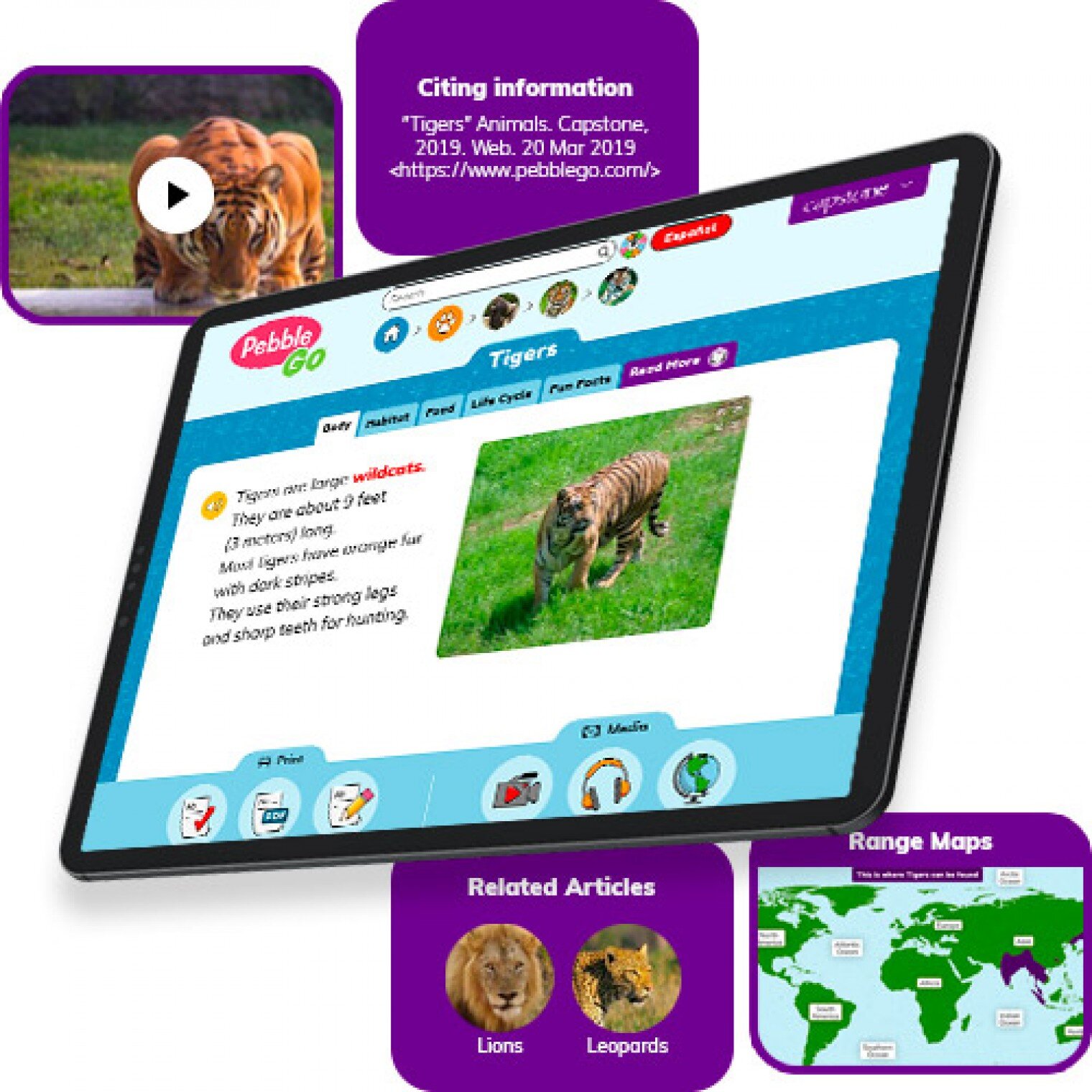
PebbleGo is a curricular content hub specifically designed for K-3 students. Packed with informational articles, ready-made activities, and literacy supports for students of all abilities, it boosts engagement and fosters independent learning in core subject areas. To learn how you can gain free access during school closures, click on the learn more button below.
Compatibility: Web based only
What tools can my students use to keep the creativity going?
Just because your students are away from the classroom, doesn’t mean that they have to lose their creativity. The list of apps below are highly recommended platforms that will have your students creating rich and authentic content that you can tie directly to your standards. If you have any questions on how to implement these, please don’t hesitate to reach out to us.

Buncee
With Buncee’s assortment of media options, creating a virtual lesson is quick and easy. Teachers can include text, video, audio, or even links to additional resources. Record your lesson using the video feature, or create an activity template for your student to complete at home. The classroom dashboard can then be utilized to share and track assignments. Teachers could also create a Buncee Board, so students can access materials, share their work, interact with their classmates, and participate in class discussions no matter where they are. Students can also create and submit Buncees back to their teachers. For more information, click the learn more button below.
Compatibility: all devices

Adobe Creative Cloud
Adobe has announced that they are giving their higher education and K-12 institutional customers globally — who currently make Creative Cloud apps available to students who login through on-campus labs — the ability to request temporary “at-home” access for their students and educators. This will be granted through May 31, 2020 at no additional cost. To learn more, click the learn more button below.
Compatibility: all devices

Minecraft: Education Edition
To help teachers and students stay connected to the classroom, Minecraft: Education Edition is now available through June 2020 for all educators and learners who have a valid Office 365 Education account. Click on the learn more button below for more information.

Book Creator
Book Creator is a simple tool for creating awesome digital books. You can create your own teaching resources or have your students take the reins. Combine text, images, audio and video to create stories, portfolios, journals, comic adventures, science journals and much more! Book Creator is offering everyone the ability to collaborate together on books in real-time. This is a premium feature that is usually only available with a paid subscription, but they’re offering 90 days free use of this tool, to help keep students and teachers connected.
How can I make learning engaging and interACTIVE during remote learning?
Distance learning doesn’t need to equal dull learning. There are many apps that not only allow students to learn alongside one another in real time, but they also help the teacher facilitate information in unique and different ways.

GimKit
GimKit is a live gameshow for the classroom. Students answer questions on their own device at their own pace. Throughout a Kit, each student will get exposure to the questions multiple times to ensure mastery.
Compatibility: all devices

Nearpod
What if we told you that you could have your students log onto your presentations, and literally switch slides to all devices logged on at the same time. With Nearpod, you can do just that. Students log onto your presentation with a code. Educators can also add slides for collaboration, drawing, 360 images, and more. Check out the learn more button below fore more information.
Compatibility: all devices

Hyperdocs
HyperDocs are free digital lessons that are easy to edit for your eLearning students. They are all about hyperlinking your docs for amazing learning experiences for kids! With one shortened link, students can access a lesson that contains instructions, links, tasks, and many clever ways to get thinking. Hyperdocs focus on creating opportunities for choice, exploration, and ways for kids to apply their knowledge. Explore these docs plus more by clicking the learn more button below.
Compatibility: all devices

Brain Pop
From the very beginning, BrainPOP was built on the belief that curiosity through short animated movies can make complicated ideas simple and clear. Today, BrainPOP’s rigorous learning experiences go far beyond a movie and quiz, offering a rich array of resources and tools that meet each student’s interests and needs while developing their critical, computational, and creative thinking skills across the curriculum.
For more information on how to make learning more engaging and relevant by using technology, check out our book The InterACTIVE Class.


Here is a Wakelet of other platforms that we are updating daily as we come across new resources and offers.
We are happy to connect and discuss which tool would work best for your particular remote learning experience. This is an unprecedented situation, and leaning on one another is more important now than ever before. Please don’t hesitate to reach out.
👓👗💚