

15 Things to Embed to Make Content Easier to Access!
Embedding apps is a great way to keep your content organized, but more importantly, it can help keep your students focused when working on tasks. The option to embed from apps is becoming increasingly more popular, and you may even be able to embed some of the apps you’re using right now! Here are 15 different ways we love to embed!

Embedding apps is a great way to keep your content organized, but more importantly, it can help keep your students focused when working on tasks. The option to embed from apps is becoming increasingly more popular, and you may even be able to embed some of the apps you’re using right now! Here are 15 different ways we love to embed!
Please note: This blog post was hand-crafted and was not created using AI.
(click on any subheading to jump to that section)





What does it mean to embed something?
According to BigCommerce.com, Embedding refers to the integration of links, images, videos, gifs and other content into social media posts or other web media. Embedded content appears as part of a post and supplies a visual element that encourages increased click through and engagement. The key takeaway here is that your embedded content appears to be a part where you are posting it. In other words, it’s being housed by wherever you are placing it.
Embedding & Hyperlinking
So why embed over hyperlink? By embedding your content, your students will not have to leave one app to visit another to complete a task. Everything is organized and in one place. Hyperlinking your content is not a bad thing, it just adds another step for students. Embedding creates a streamlined experience. So, let’s take a look at what some of our favorite embedding combos look like!

Padlet Embedded into Canvas
Take your Padlet boards and place them right into a Canvas page! Here’s how:


Create or find the Padlet board that you’d like to share, then click on the share icon.
Click on Embed in your blog or website.
Click Copy Padlet embed code.
4. In the Canvas page, click the cloud icon (if you don’t see a cloud icon, click the three dots to expand the toolbar).

5. In the pop up window, paste the copied embed code from Padlet then click the blue “Submit” button.
6. Your Padlet board is now embedded into your Canvas page! Click “Save” to keep the changes.

Padlet Embedded into Book Creator
Adding your Padlet boards into Book Creator can help keep track of student work. Here’s how!


Create or find the Padlet board that you’d like to share, then click on the share icon.
Click on Embed in your blog or website.
Click Copy Padlet embed code.
4. Log into Book Creator, then open or start a new book. In the book, click on the + icon, followed by “More.” Scroll down until you see “Embed,” then click it.
5. Paste the copied embed code from Padlet, then click “Confirm.”
6. The Padlet board is now embedded into the book.
This embed is only a hyperlink out to the Padlet board. While it will not allow students to interact with the Padlet content directly in the book, it will provide an organized way to revisit your Padlet boards.

Padlet Embedded into Classroom Screen
What is Classroom Screen?
Classroom Screen is a free tool (with a paid option) that educators can use to project in front of the class. Users can pick a background to be projected from a collection of images, animated gifs, or upload their own image. Classroom Screen provides many options to add to your background such as: a timer, random name generator, sound level alarms, and our personal favorite - embedding.
With Classroom Screen, you can set a class timer to give students time to create, then give them additional time to respond. This alleviates stress that students may face when trying to finish their work. With Classroom Screen’s embed feature, you can add a Padlet board right into your Classroom Screen. Here’s how it works:


Open the Padlet board that you want to embed, then click the share icon.
Click on Embed in your blog or website.
Click Copy Padlet embed code.
Launch Classroomscreen, then click More located on the bottom toolbar. Then, click Embed.
Paste the embed code, then click Run Code.
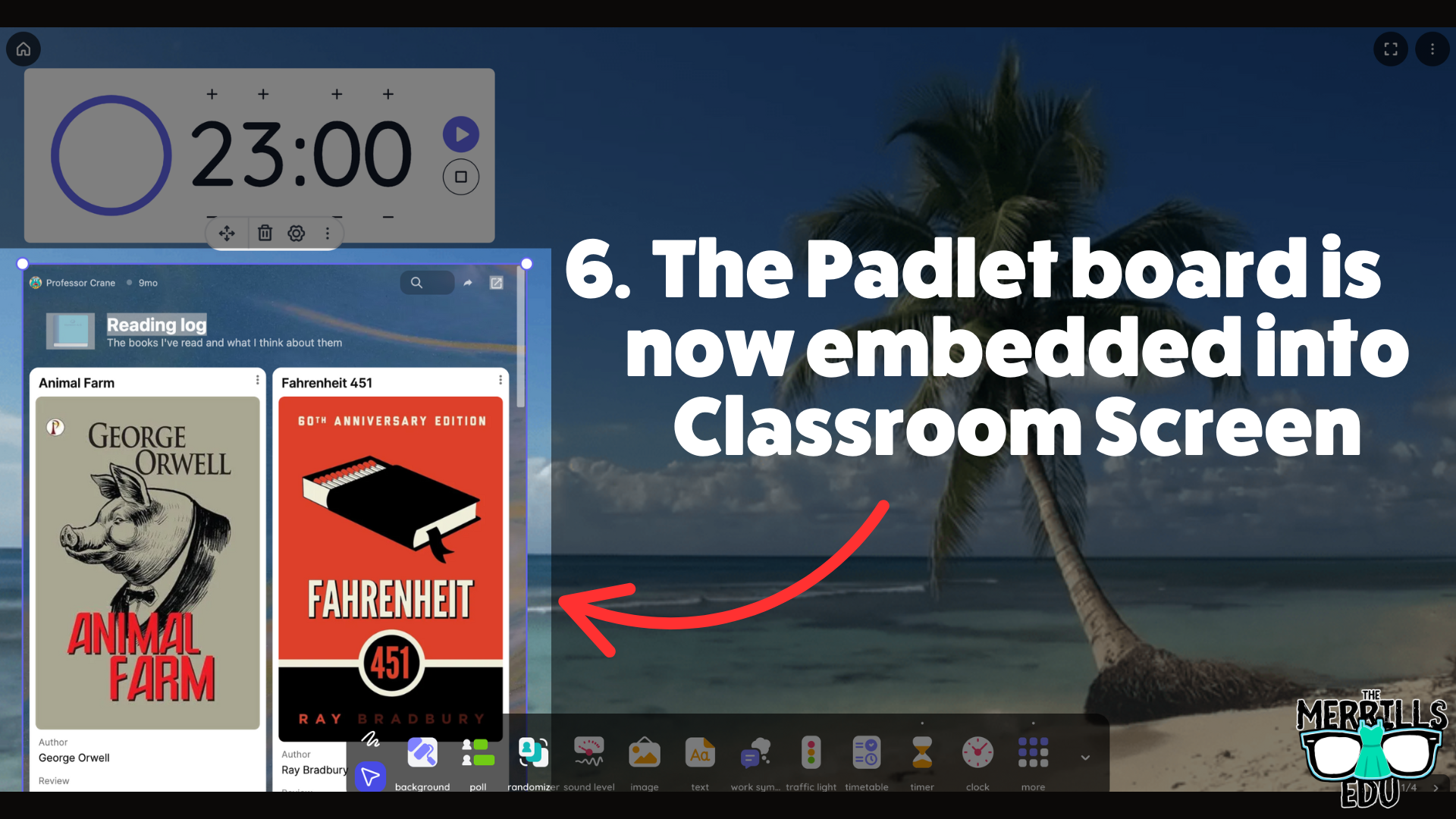
Now, the Padlet board is embedded into the Classroomscreen workspace.
This is a true embed - meaning users can interact with it in real time. So, educators can embed this into a Classroomscreen workspace, start a timer, and then the embed will refresh itself so that every time new content gets added, it appears on the screen.

Nearpod Embedded into Canvas
(Note: this requires a paid Nearpod account and the use of Student Paced lessons. It will not work with “Live participation” lessons)
Nearpod users can now expedite the login procedure for their students by embedding lessons right into Canvas. Doing so will eliminate the need for a join code. Here’s how it all works:
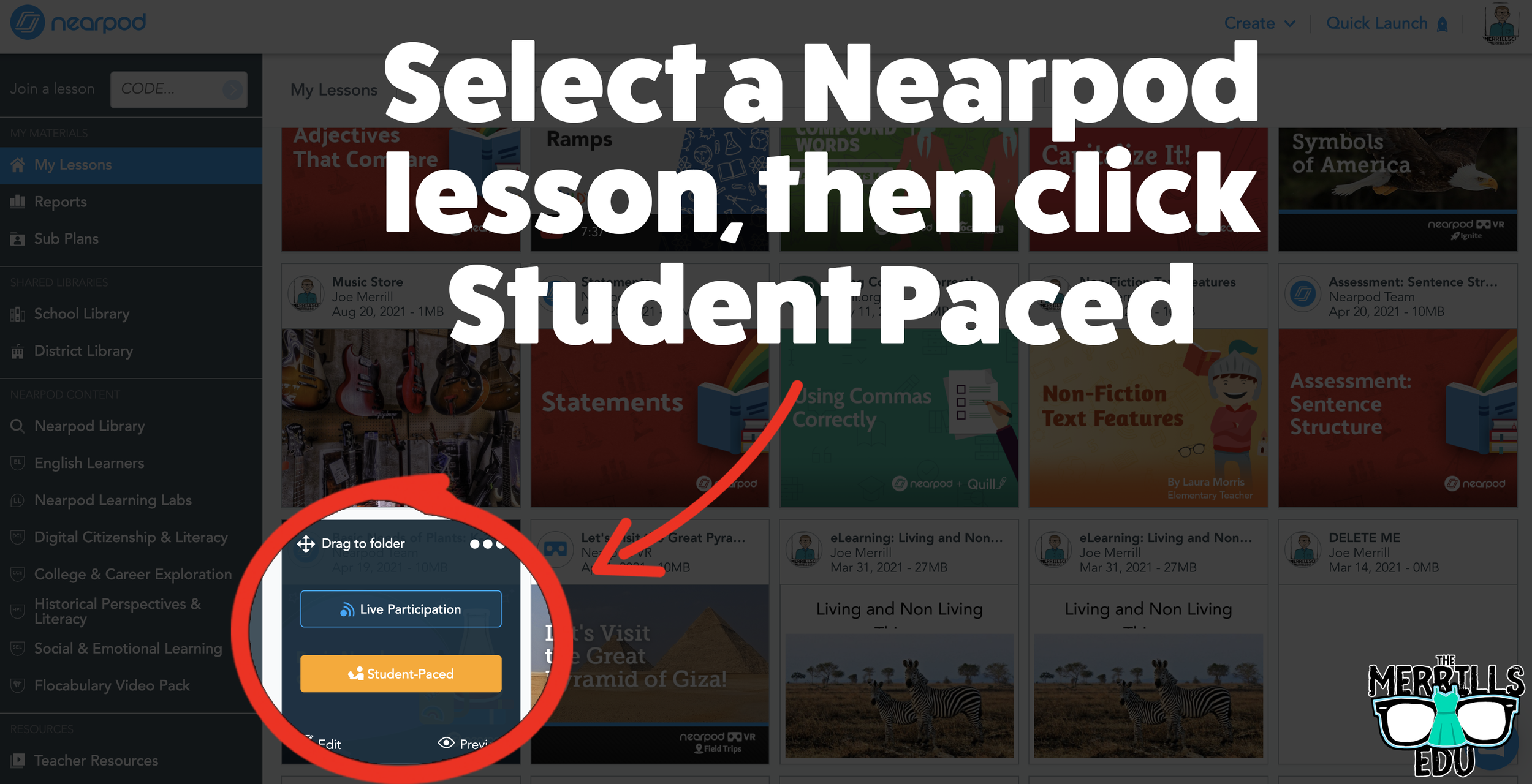
Open the desired Nearpod lesson that you would like to embed into Canvas.
Click on “Student-Paced.”
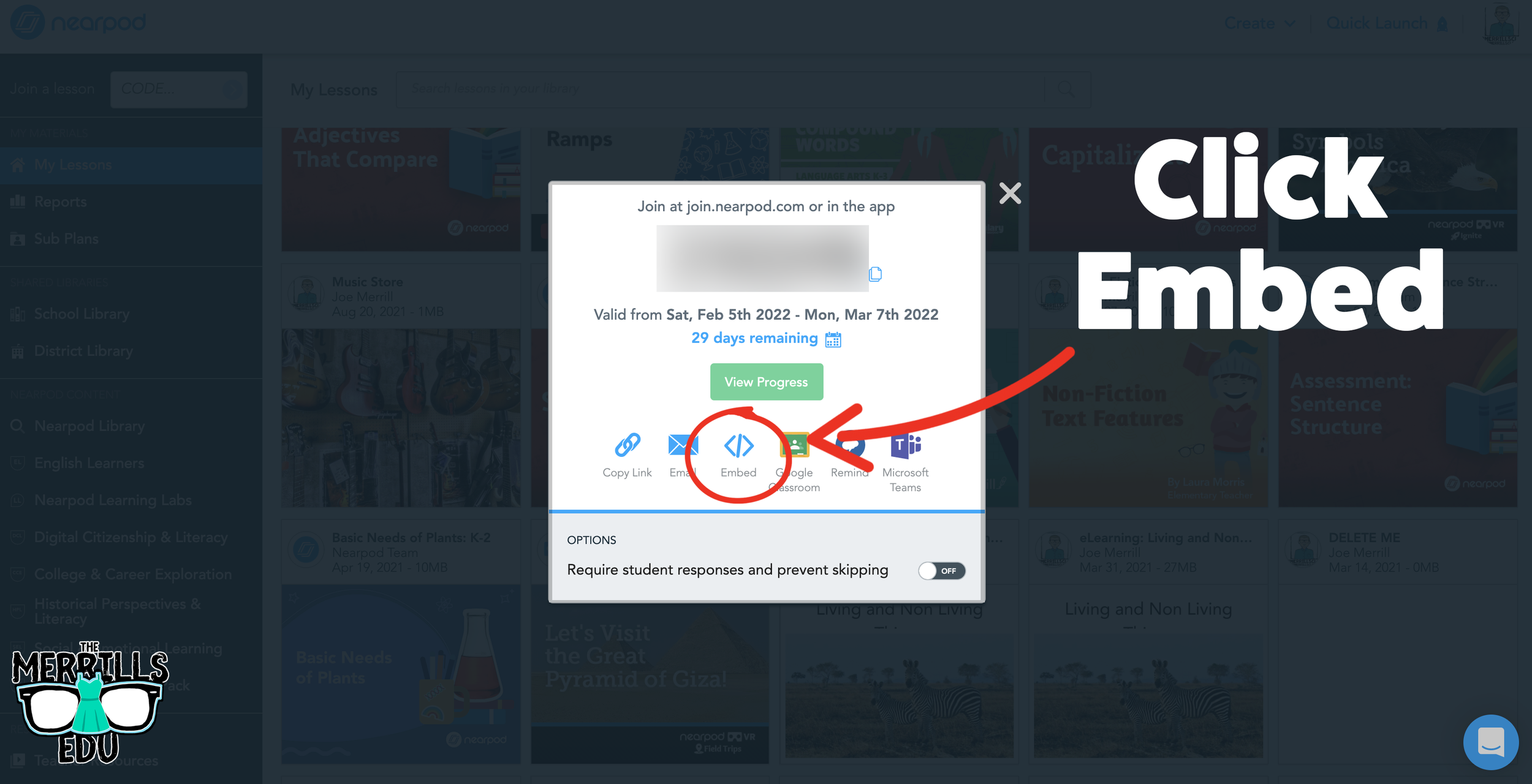
On the next window, click the Embed icon.
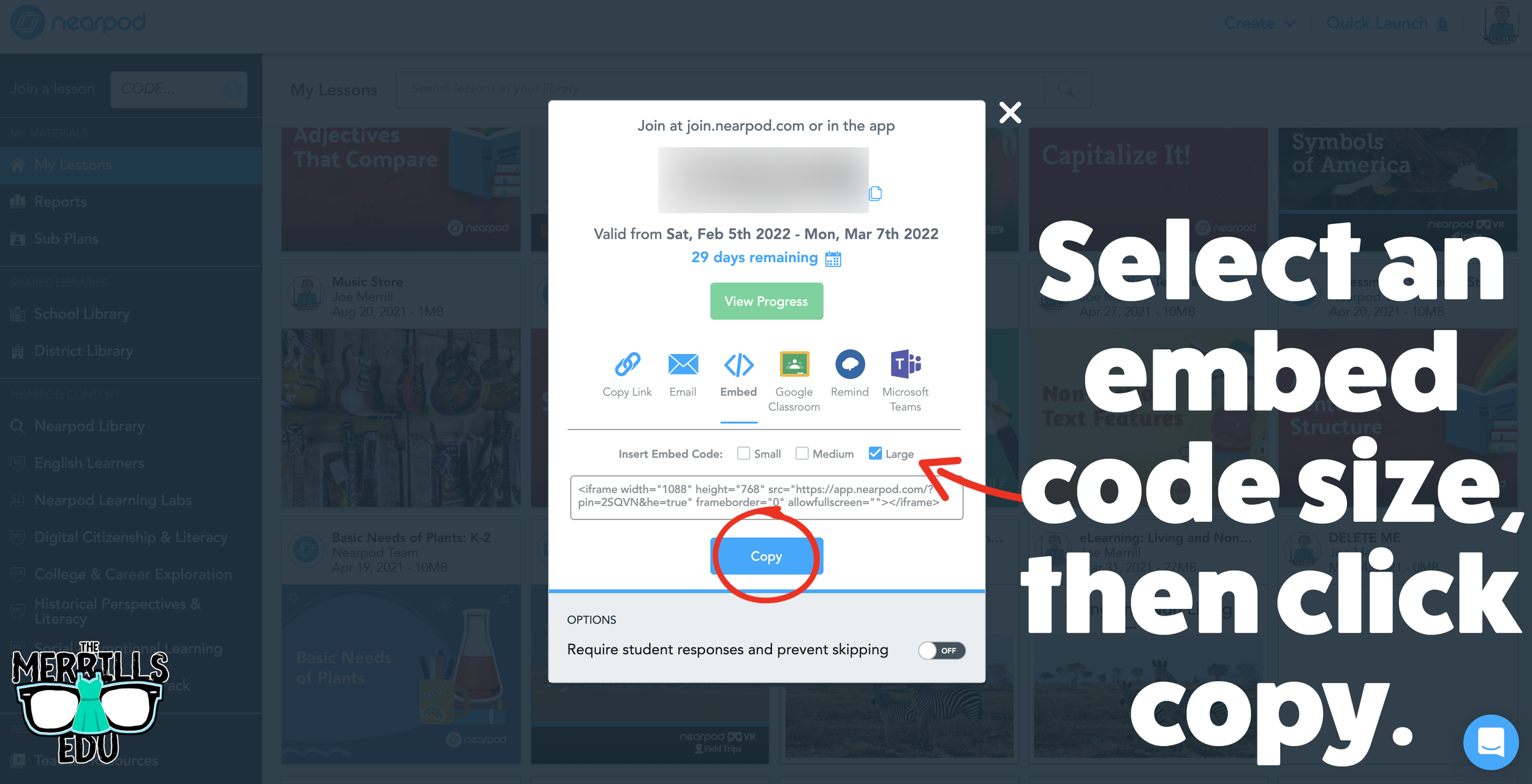
In the Embed window, select a preferred embed code size. We recommend large. Then, click copy.
In a separate tab, open the Canvas page that you would like to embed the Nearpod lesson into.
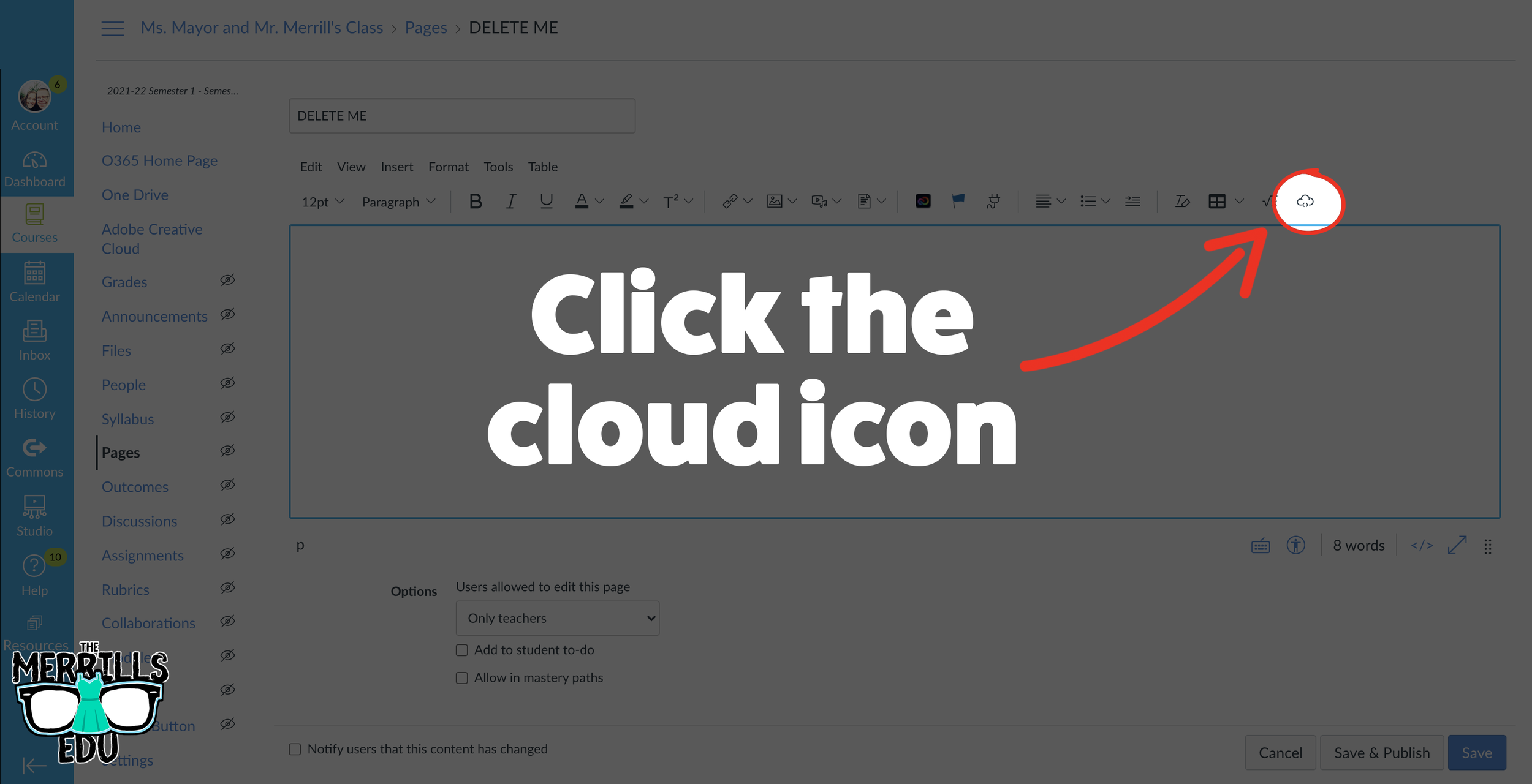
Click on the cloud icon which will open the embed menu (if you don’t see the cloud icon, click on the three dots to the right of the menu bar).
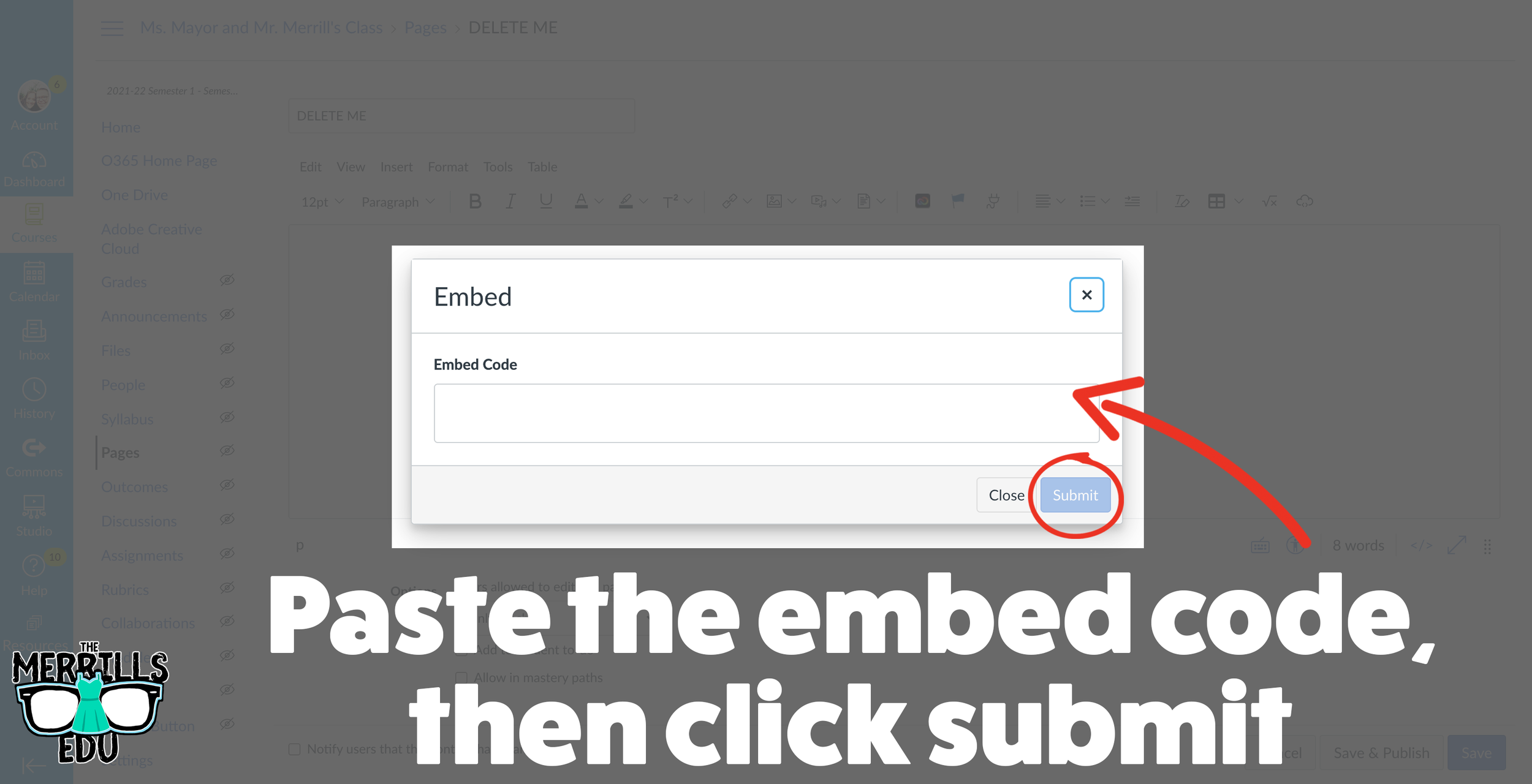
Paste your copied embed code into the box, then click “Submit.”
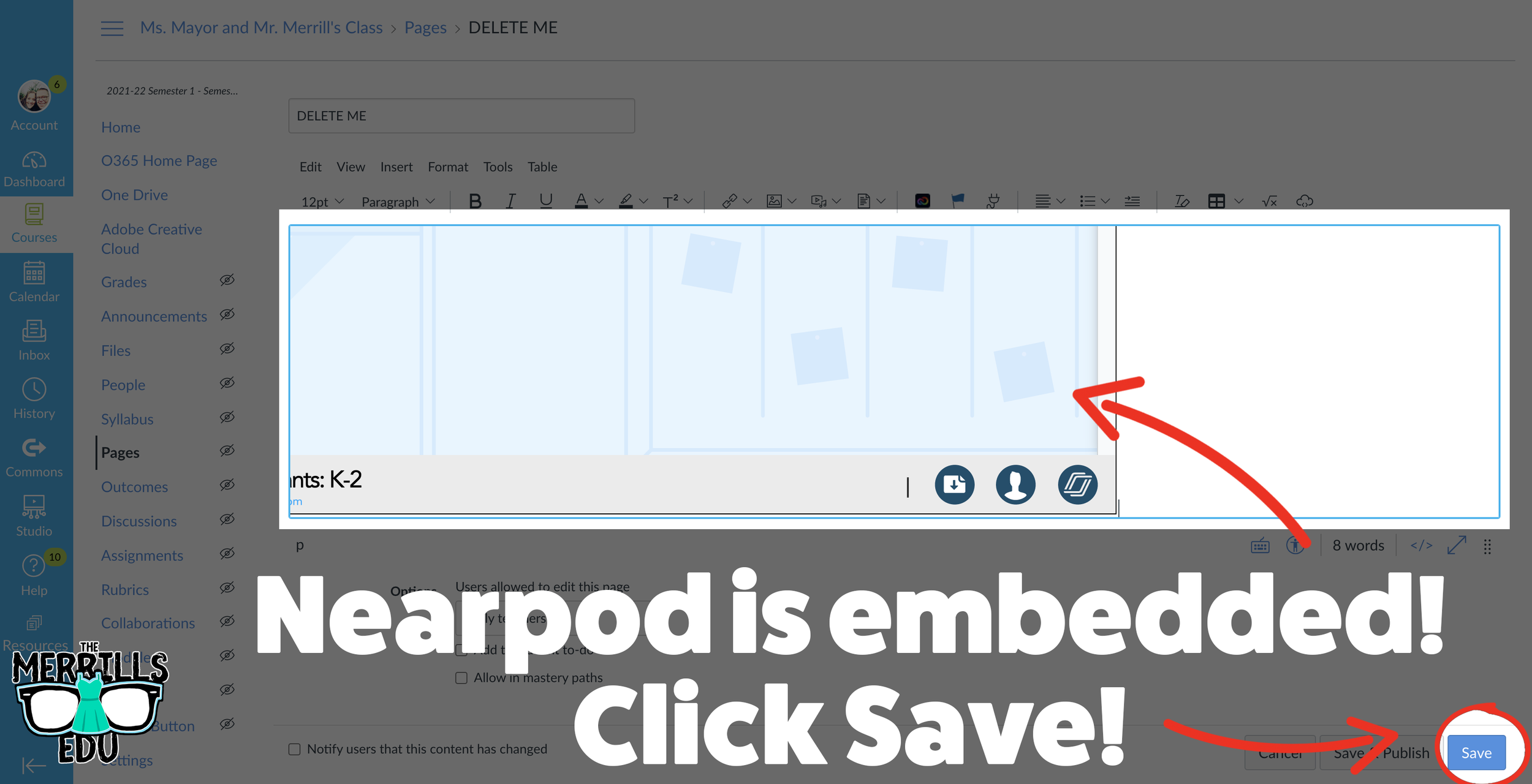
Your Nearpod lesson will now be embedded into Canvas. Click “Save” to update the changes.
Now, the lesson will be available for your students via Canvas!
Wakelet Embedded into Canvas
Share your Wakelet Collections right within Canvas! This live embed will allow students to make changes to the Wakelet collection without having to re-embed it afterwards. In other words, changes will be available as they are made - without having to go through this process again. Here’s how it all works:
(Note: Your Wakelet Collection must be set to “Public” in order for you to embed it)
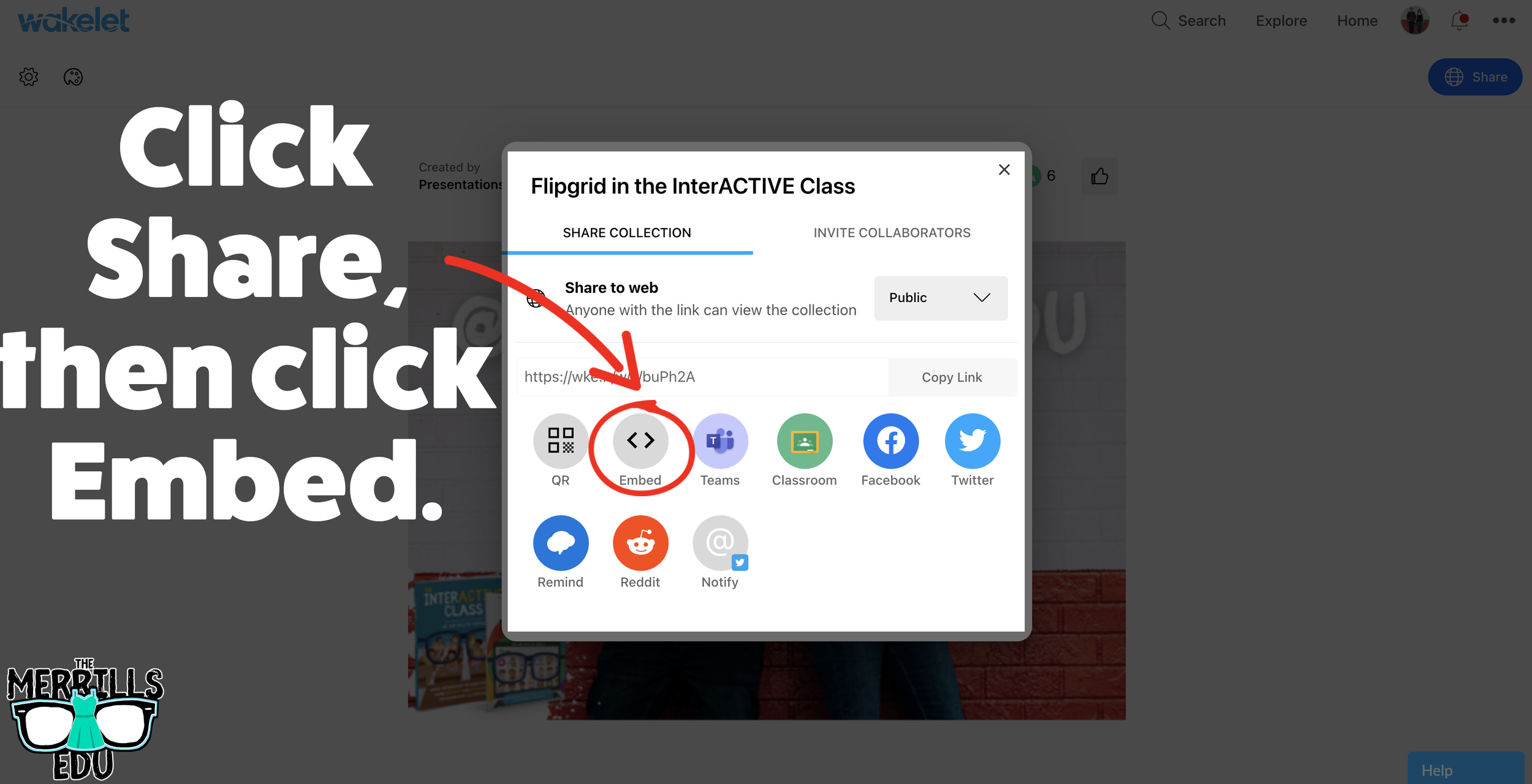
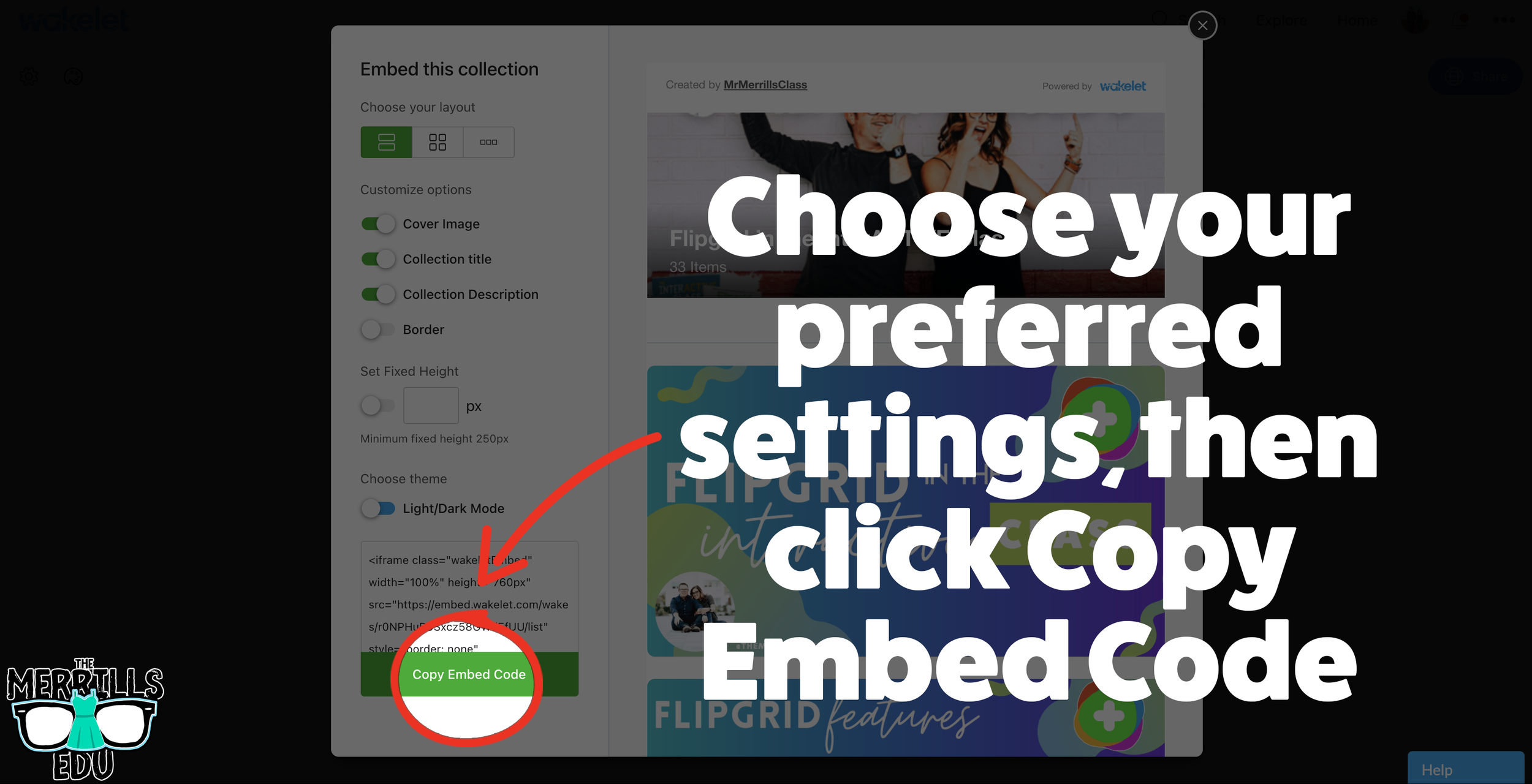
In a Wakelet Collection, click the “Share” button, then click “Embed.”
Chose your preferred settings, then click “Copy Embed Code.”
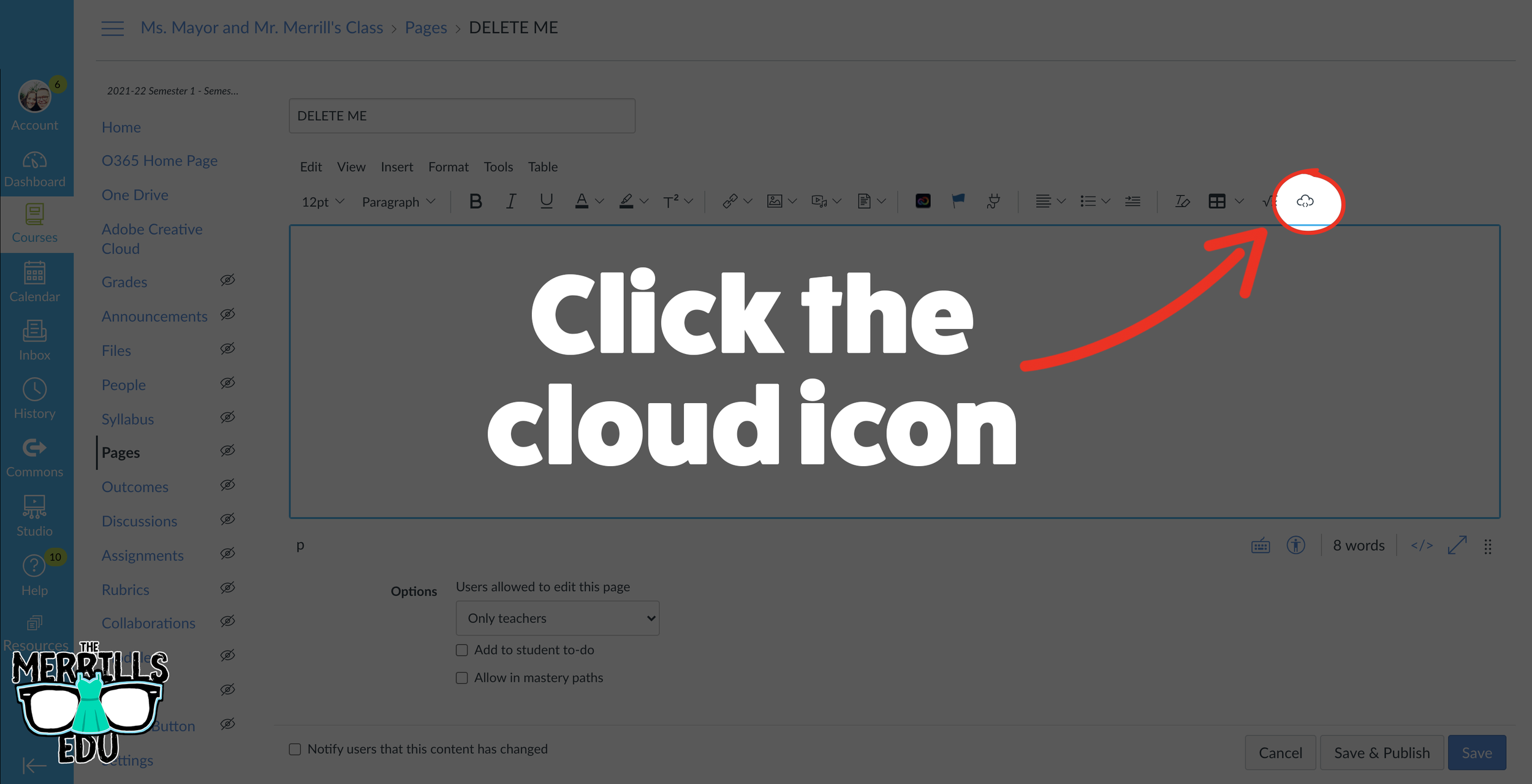
In a separate tab, open the Canvas page that you would like to add the Wakelet Collection to. Then, click on the cloud icon.
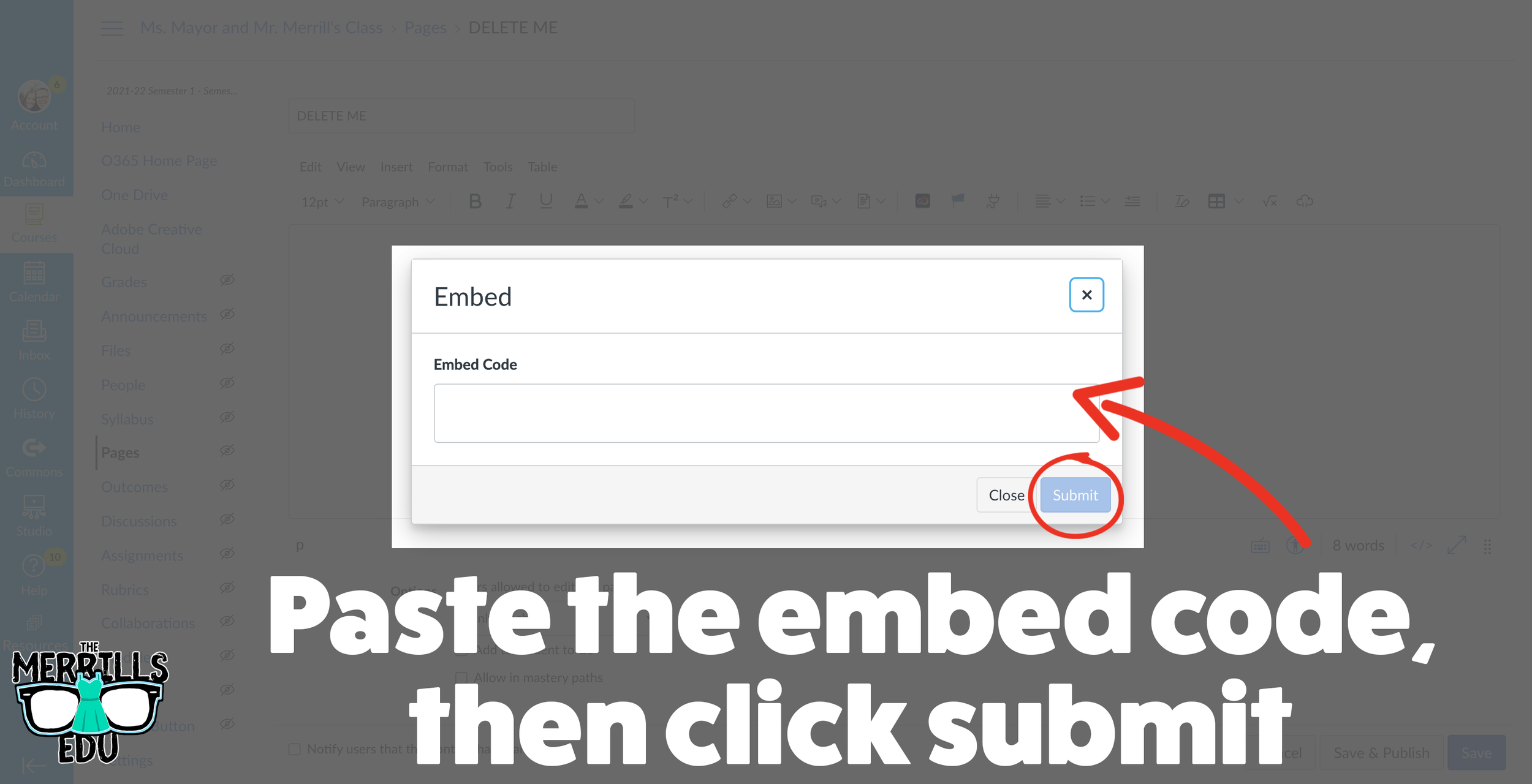
In the embed window, paste your copied code from Wakelet. Then, click submit.
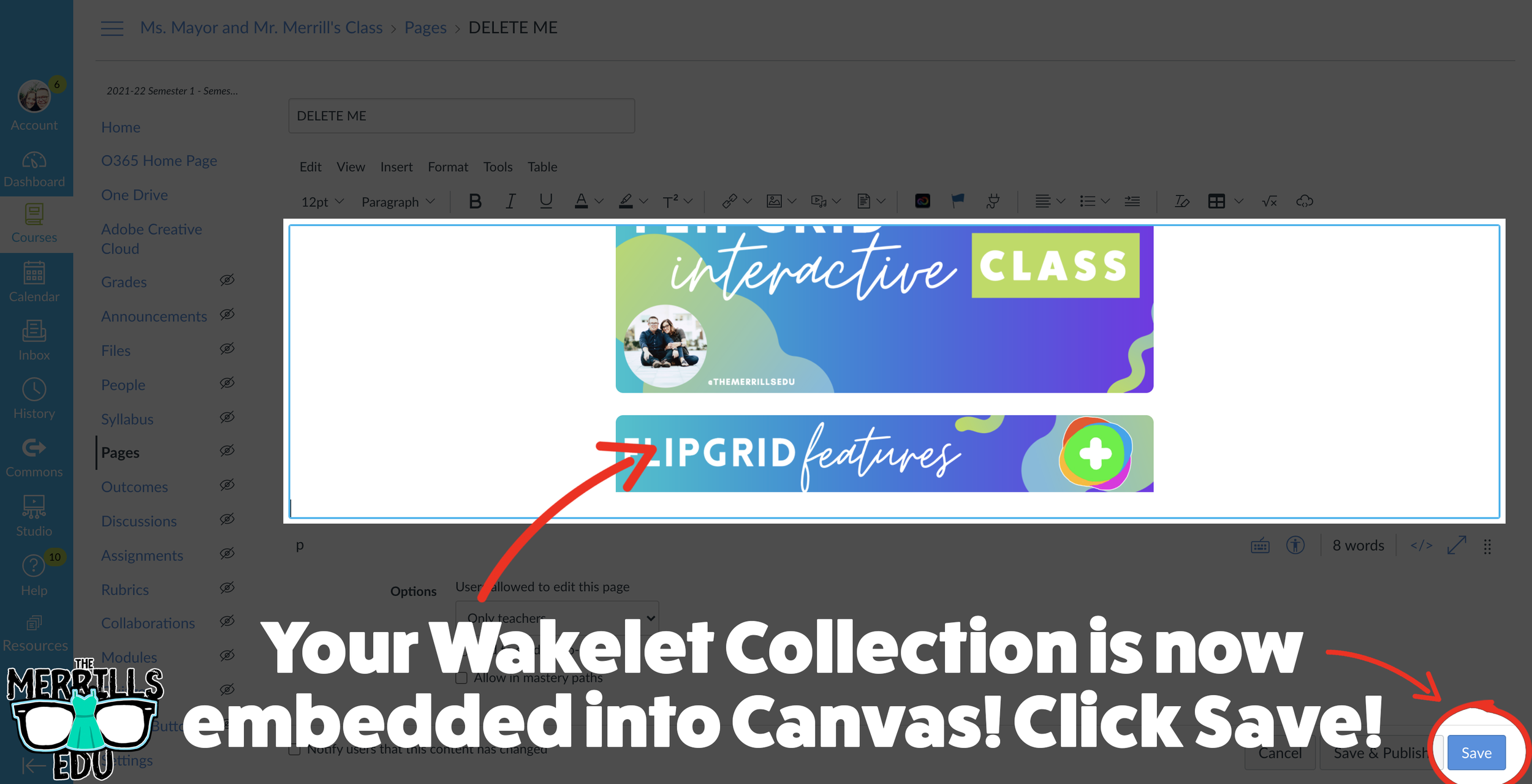
Your Wakelet collection is now embedded into the Canvas page! Click on “Save” to update the changes.

Canva Embedded into Canvas
Embedding Canva into Canvas will take your Canva creations live on any Canvas page! This live embed means that anything that you update on the Canva end will automatically update on the Canvas end. So, if you make changes to the Canva creation, you won’t have to worry about re-embedding it! Here’s how it all works:
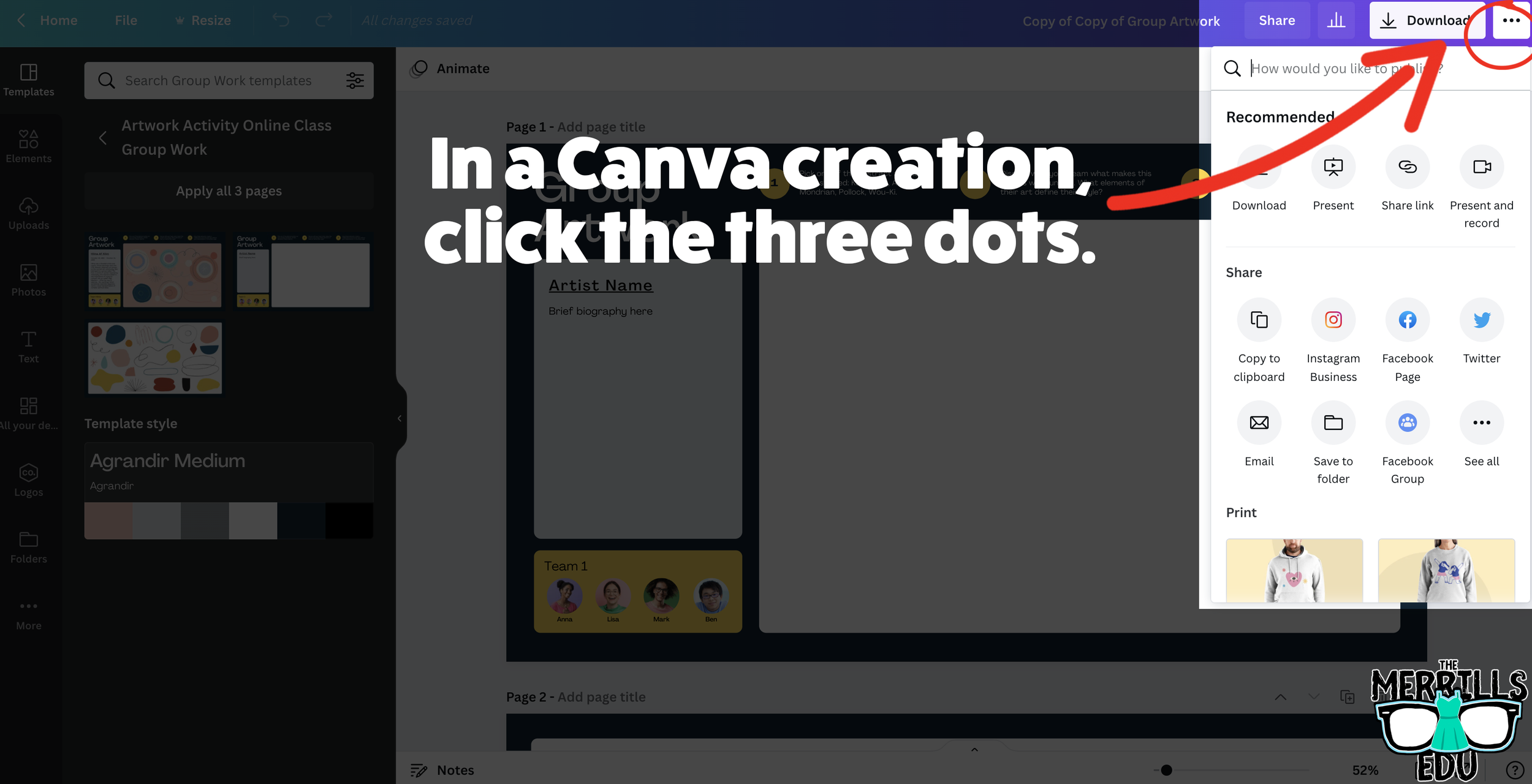
Open a Canva creation, then click on the three dots located on the top right side of the screen.
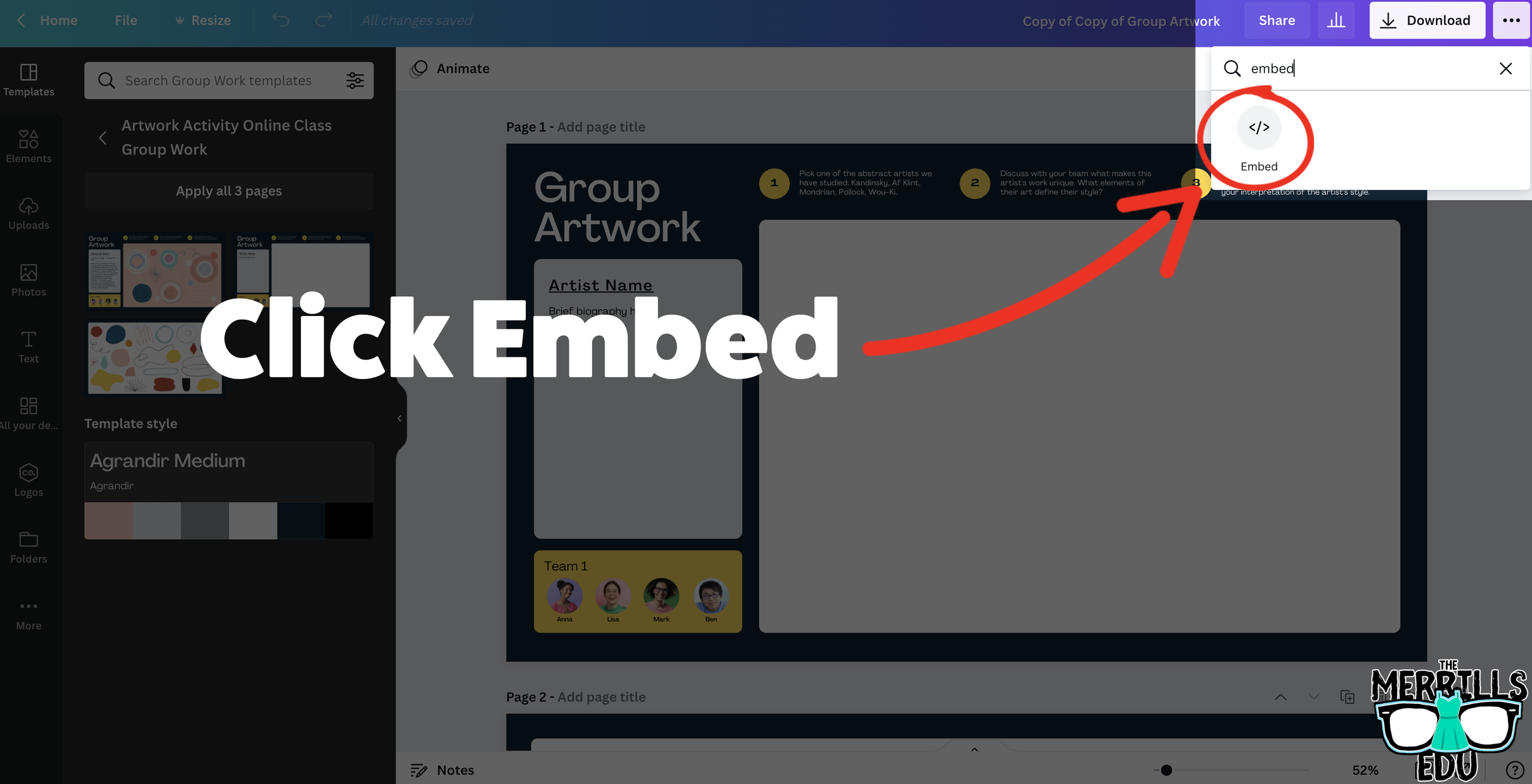
In the search bar, type “embed,” then click the embed icon.
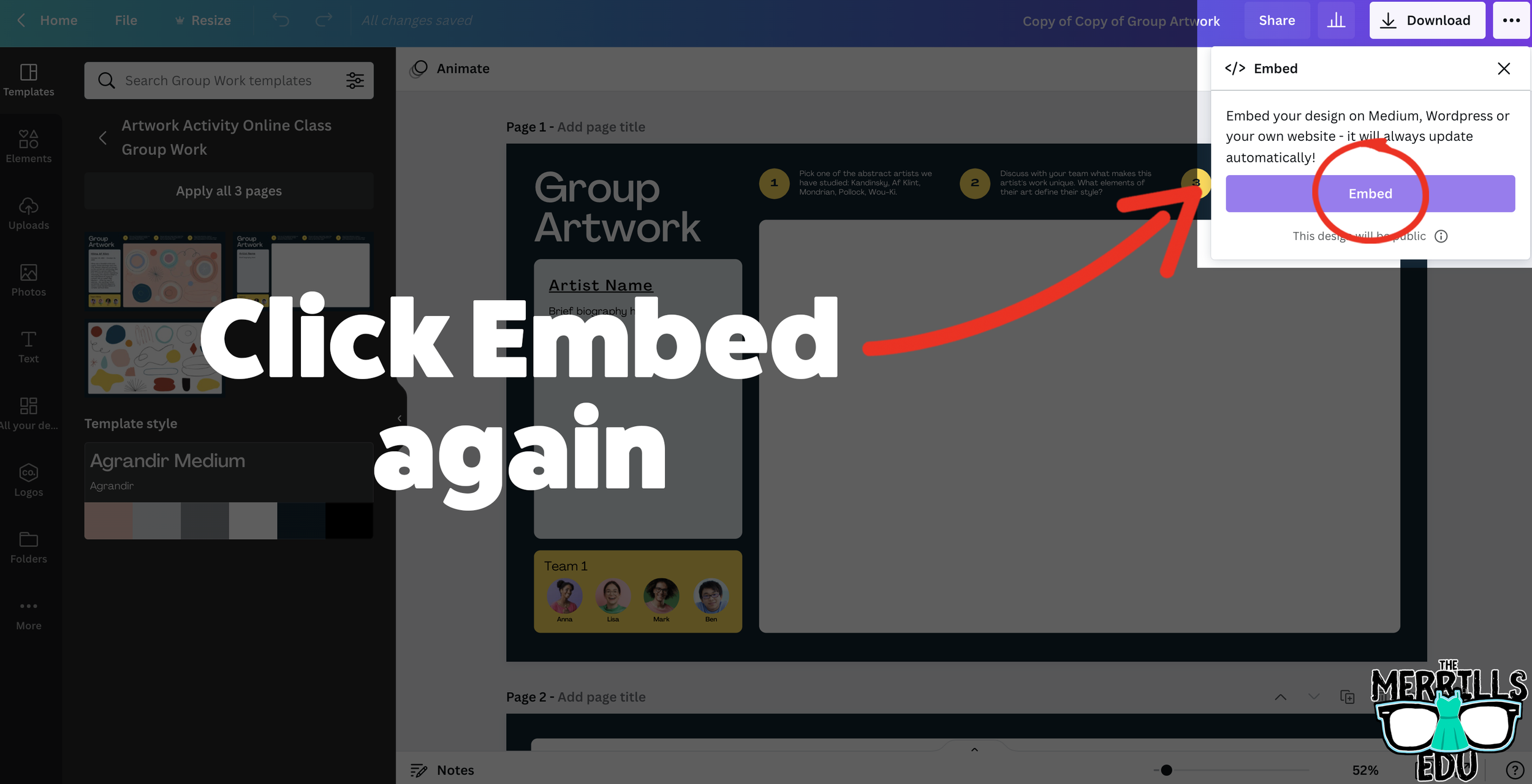
In the next window, click “Embed” to take the creation live.
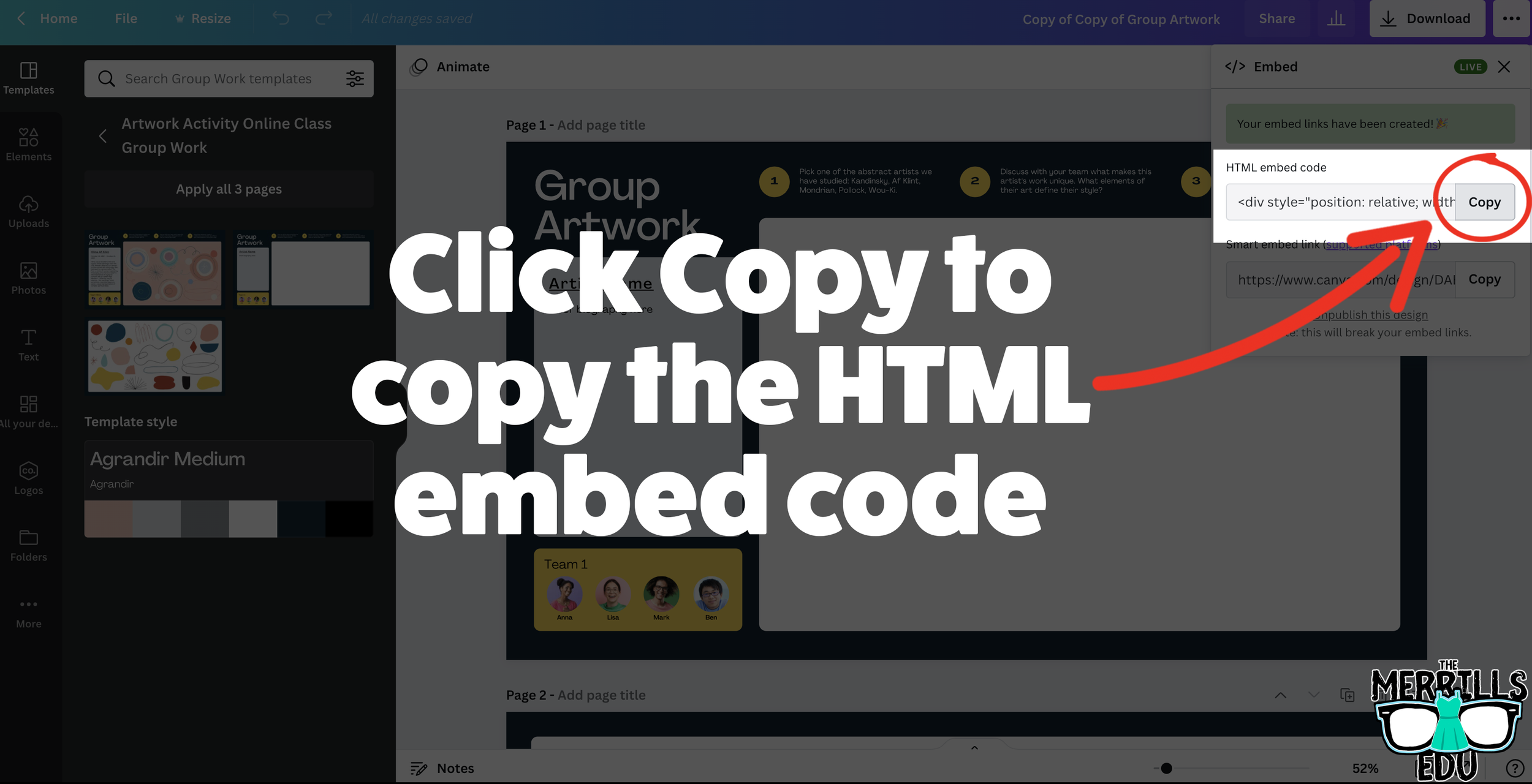
A few options will open up on the next window. Click and copy the HTML embed code (the smart embed will only work on selected platforms, so the HTML code is a safer route).
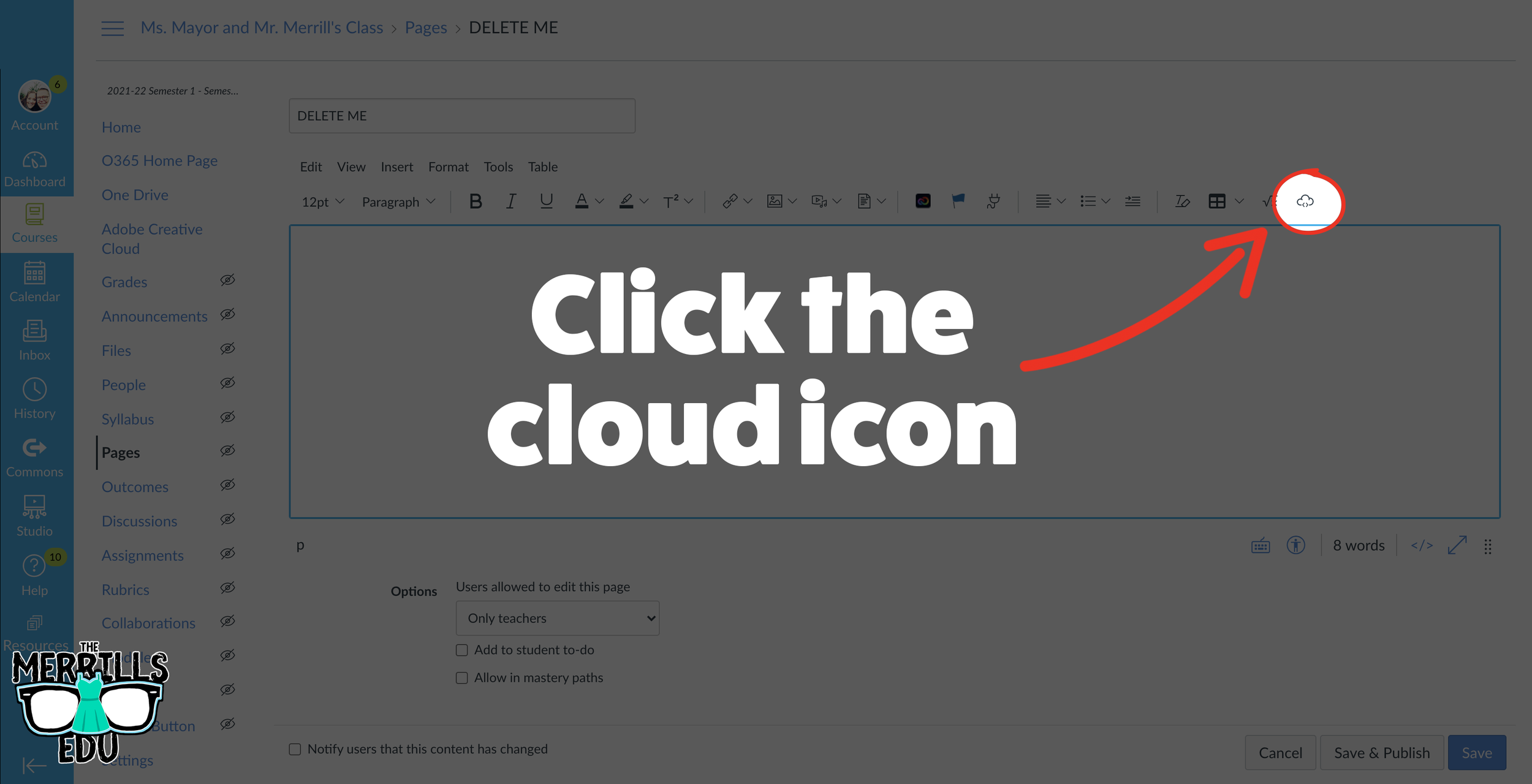
In a separate tab, open the Canvas page that you would like to add the Canva creation to. Then, click on the cloud icon (if you don’t see the Cloud icon, click the three dots to expand the menu bar).
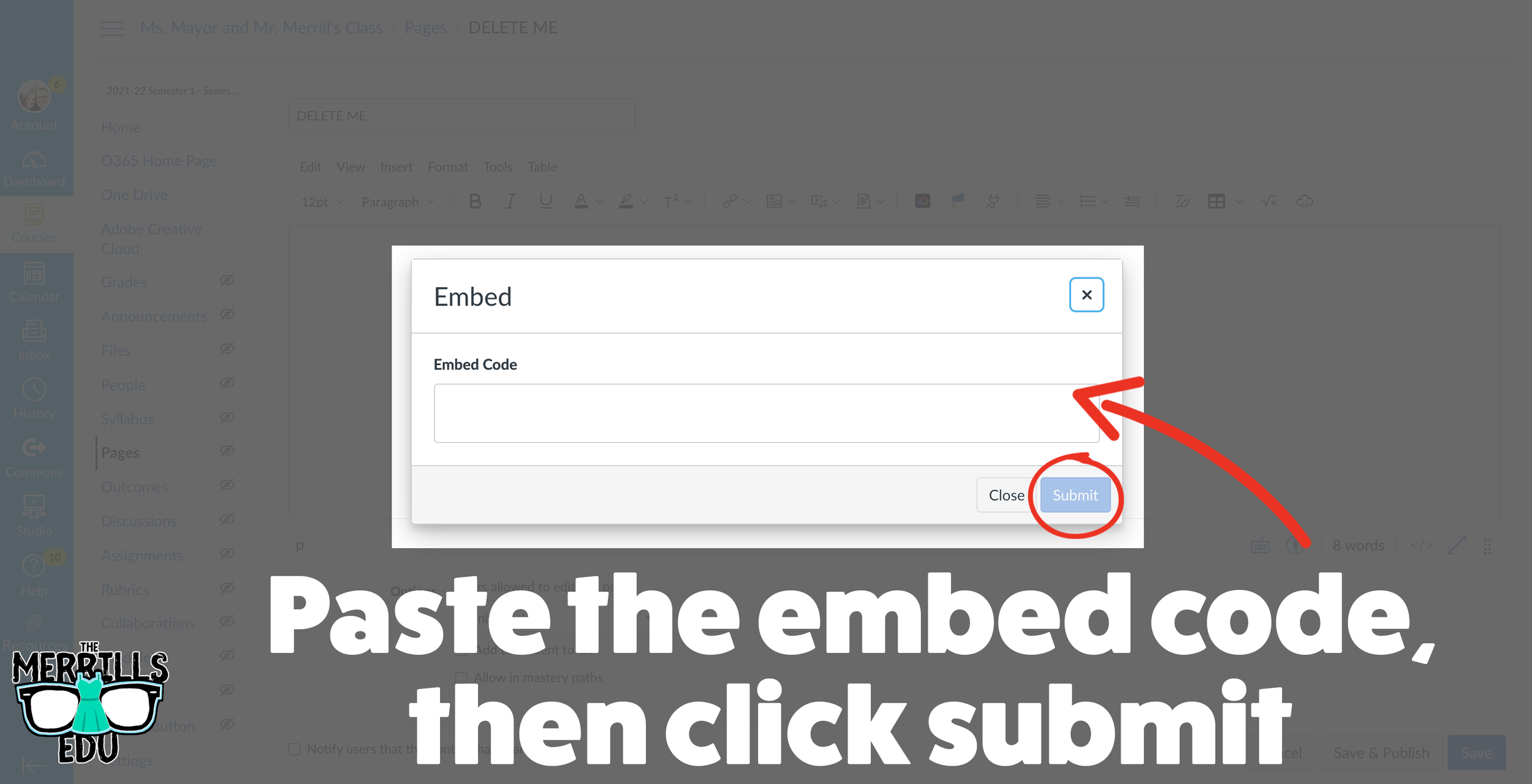
In the embed window, paste your copied code from Canva. Then, click submit.
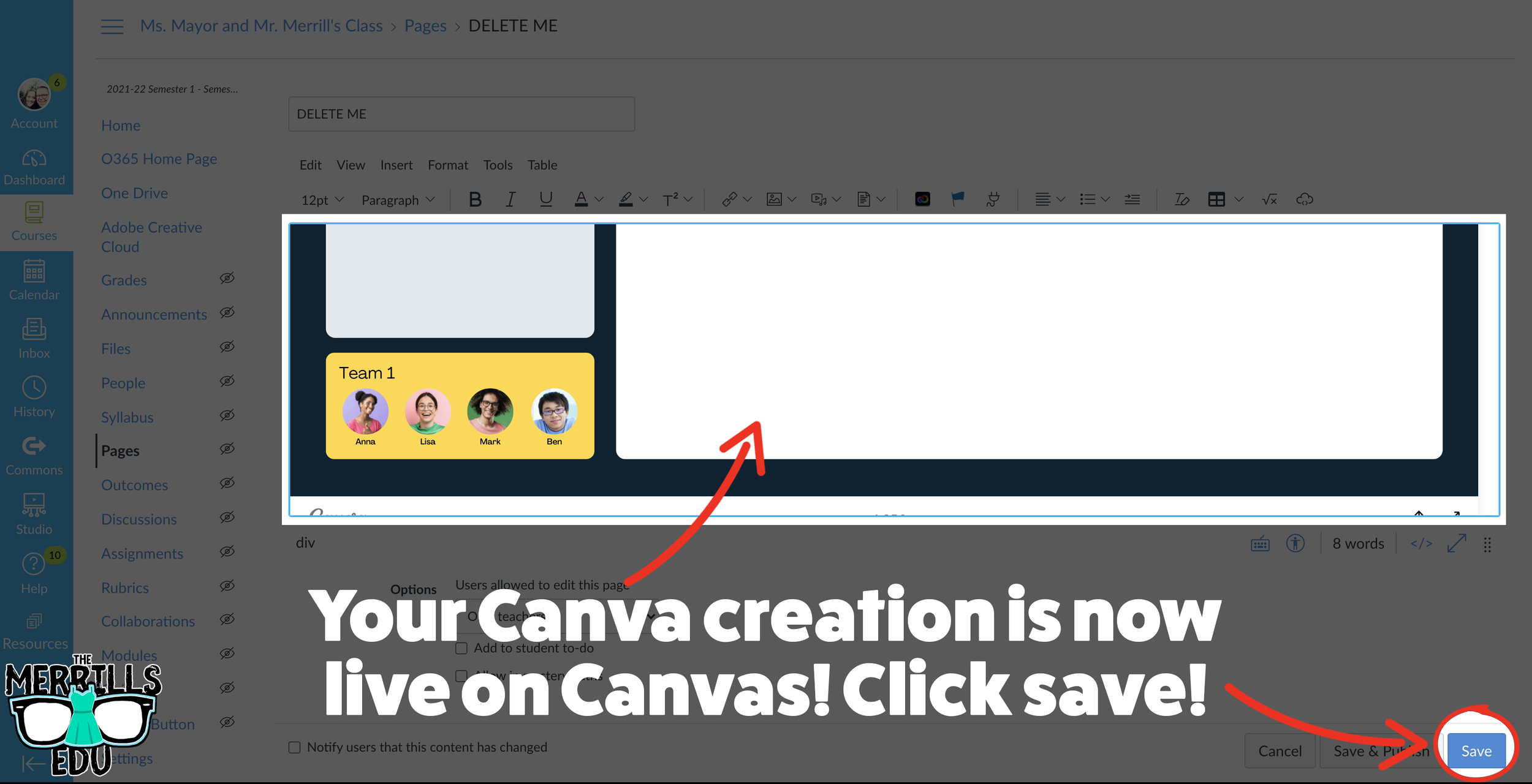
Your Canva creation is now embedded into the Canvas page! Click on “Save” to update the changes.

Buncee Embedded into Canvas
Buncee creations can be added to Canvas, too! There’s a lot of embed options (which we love!), so you have complete control of how things look and work. Options include autoplay and dimensions of the embed. Here’s how it all works:
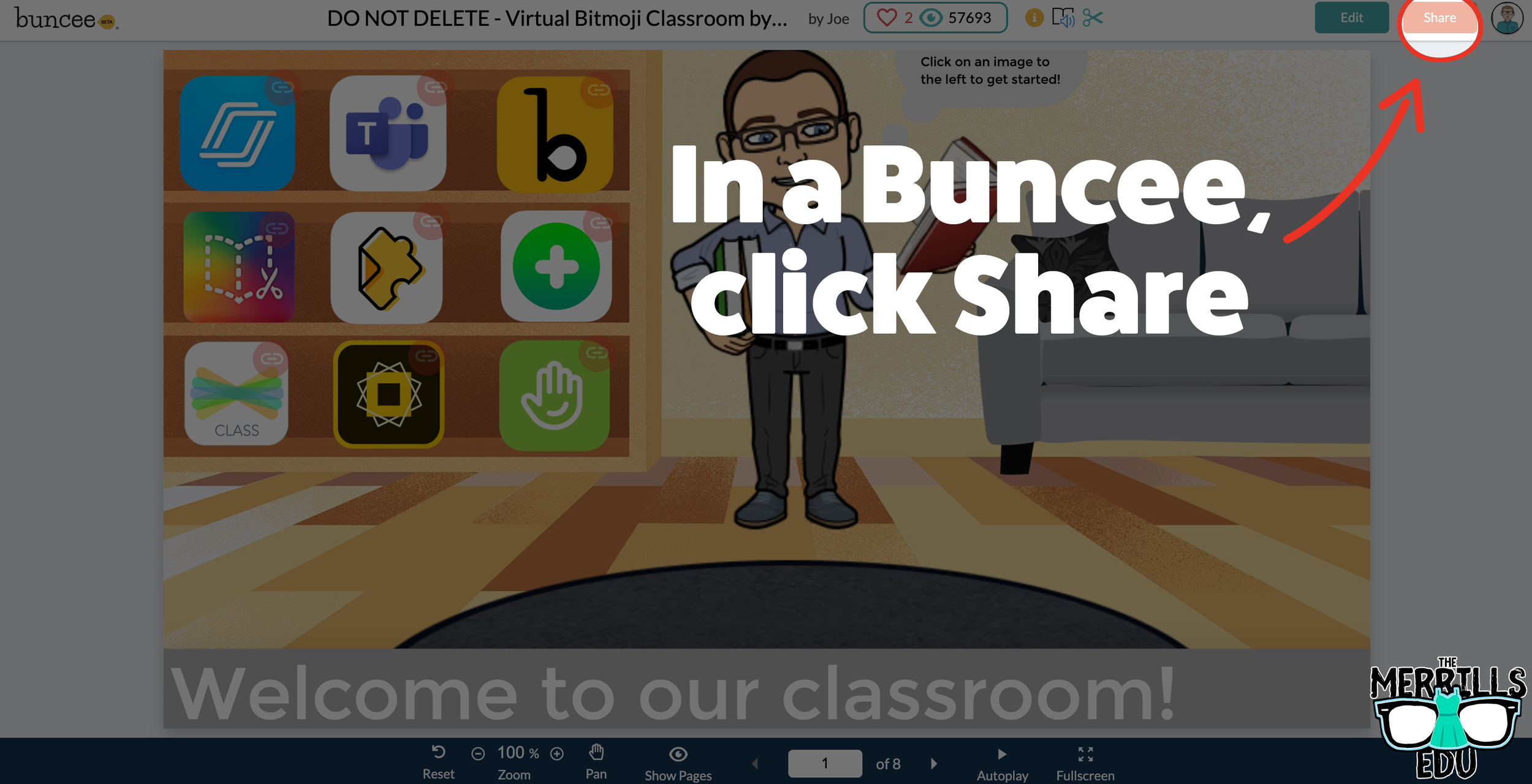
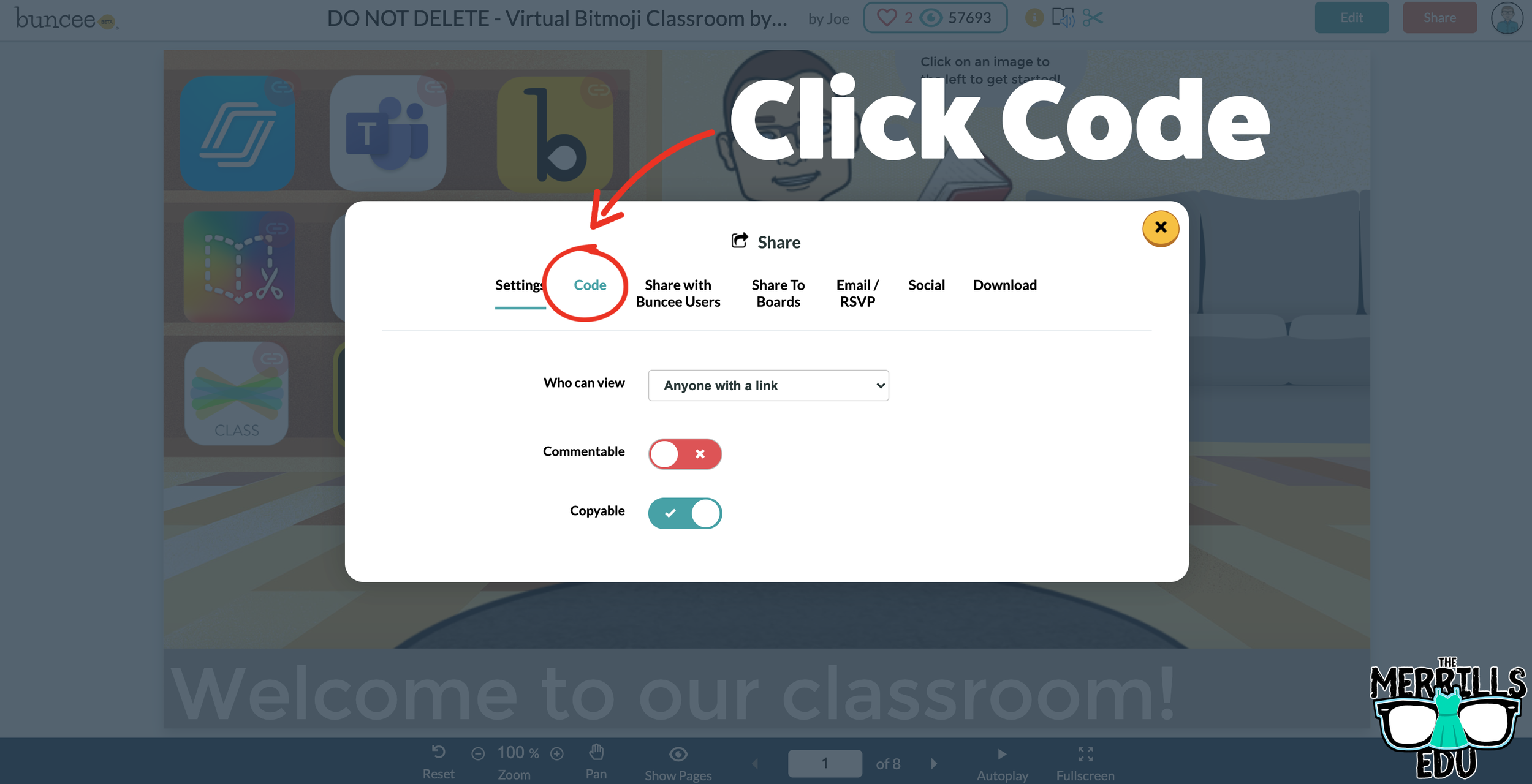
Open a Buncee, then click the “Share” button located in the upper right side of the screen.
A new window will pop up. Click on “Code.”
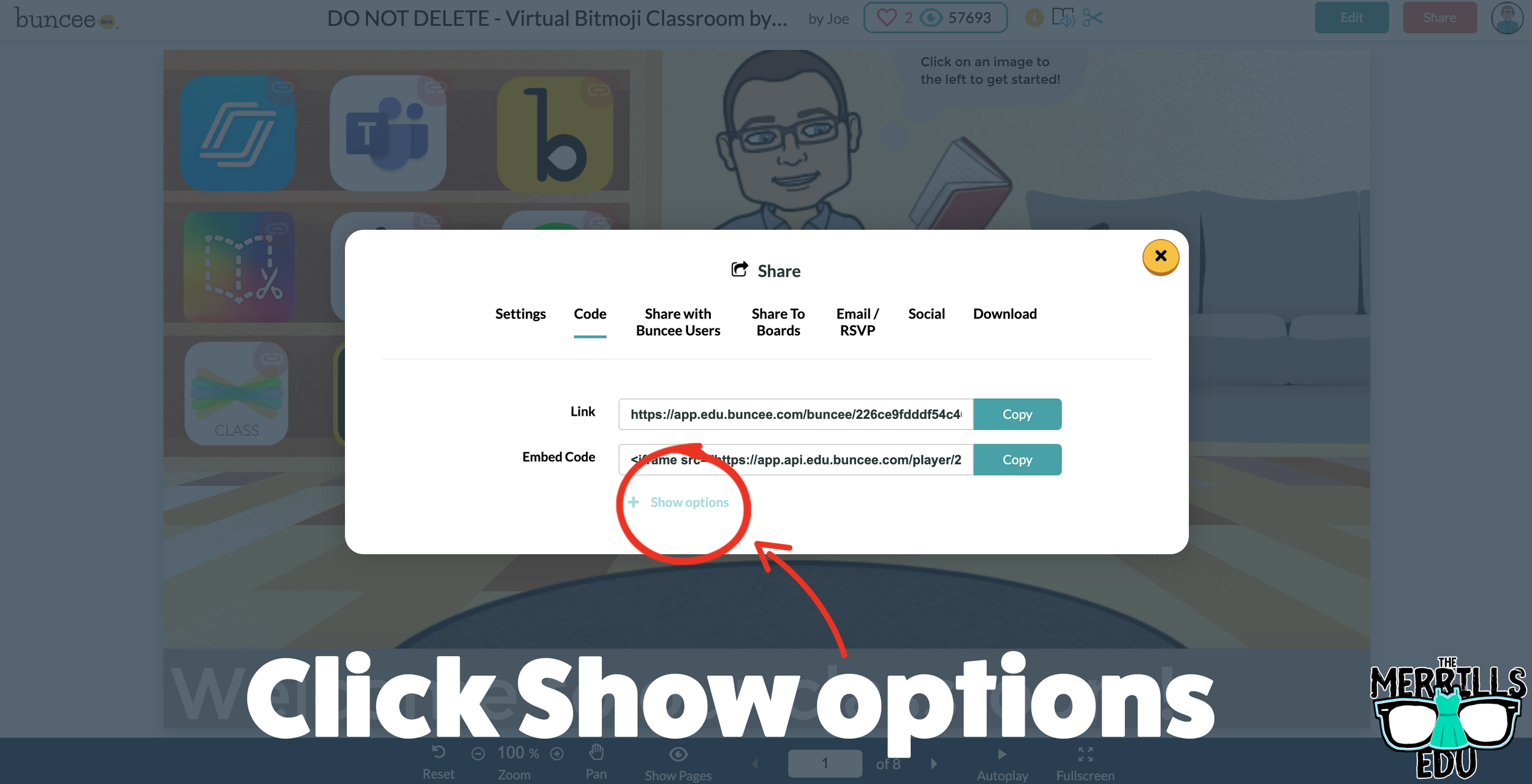
Under “Code” click “+ Show Options.”
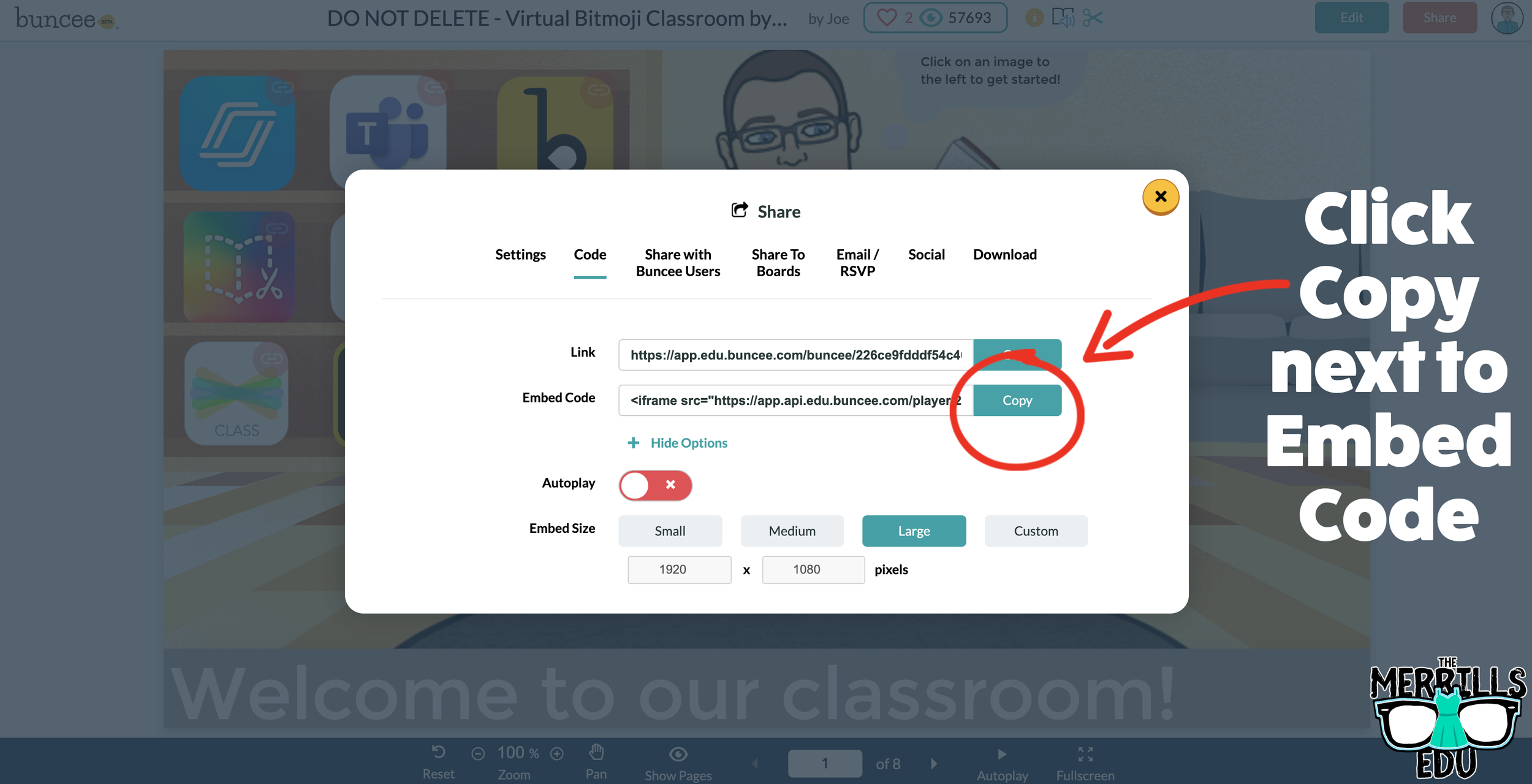
Select your preferred embed size (there are also options to autoplay the Buncee).
Then, in the same window, click “Copy” next to the Embed Code bar.
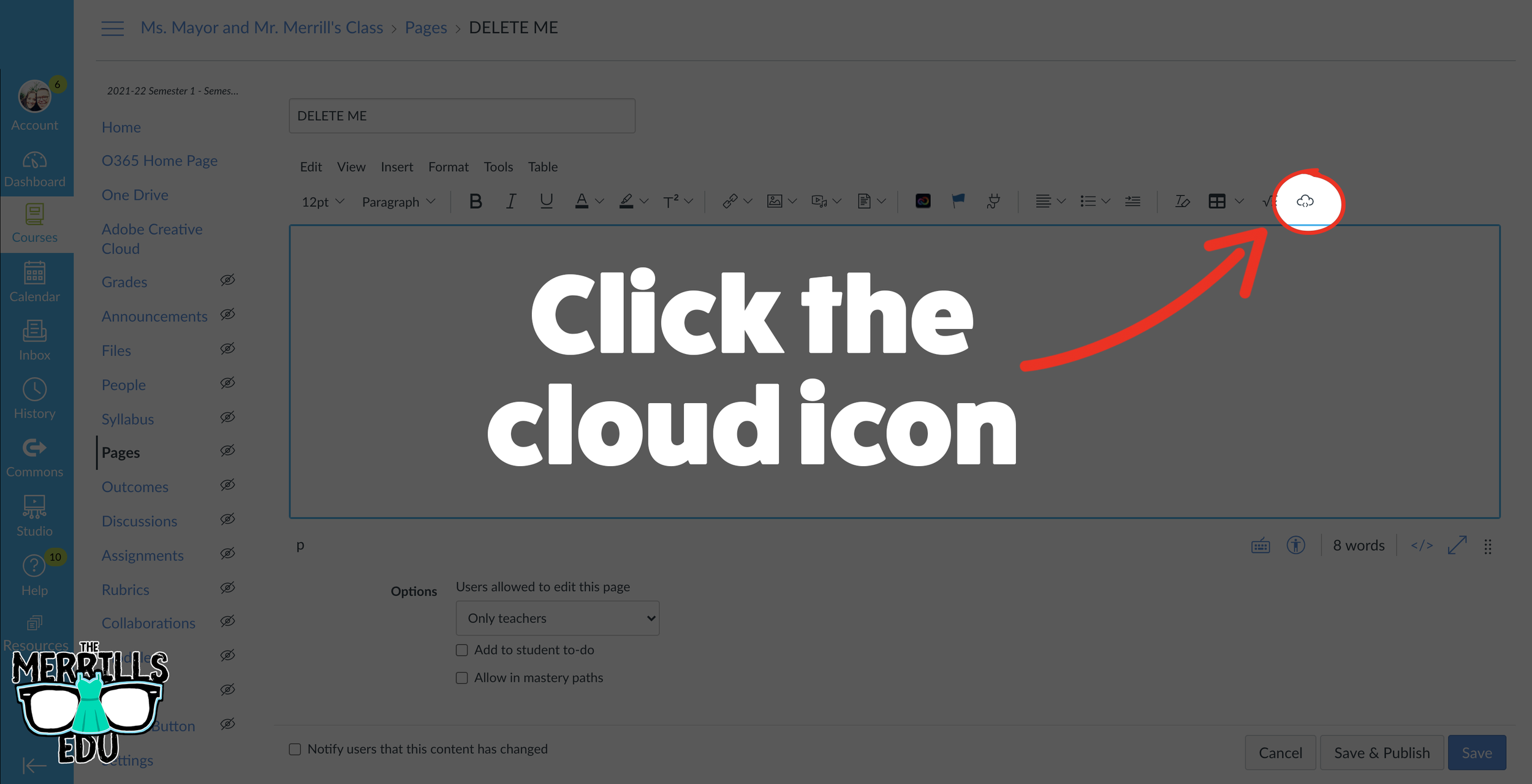
In a separate tab, open the Canvas page that you would like to add the Buncee creation to. Then, click on the cloud icon (if you don’t see the Cloud icon, click the three dots to expand the menu bar).
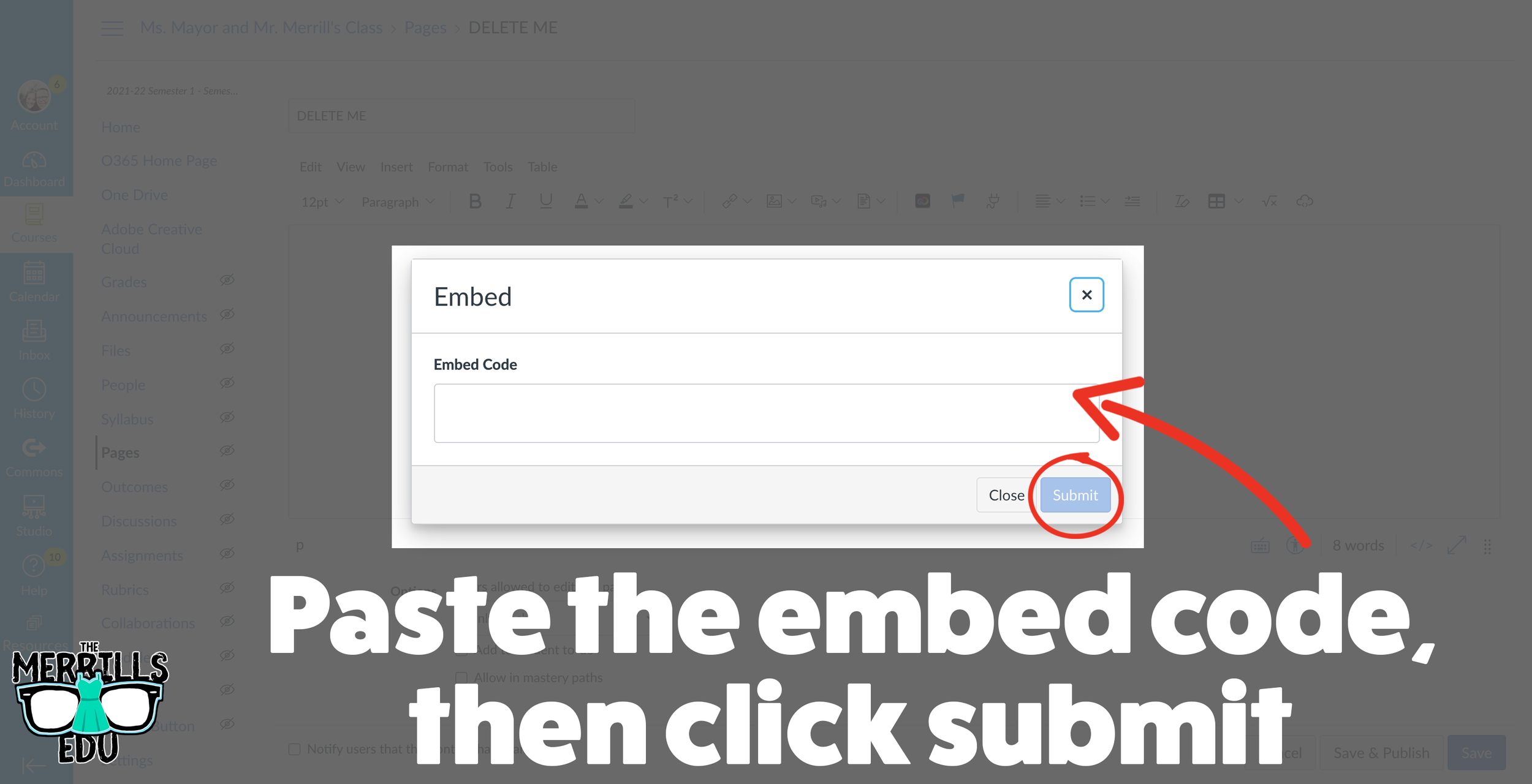
In the embed window, paste your copied code from Buncee. Then, click submit.
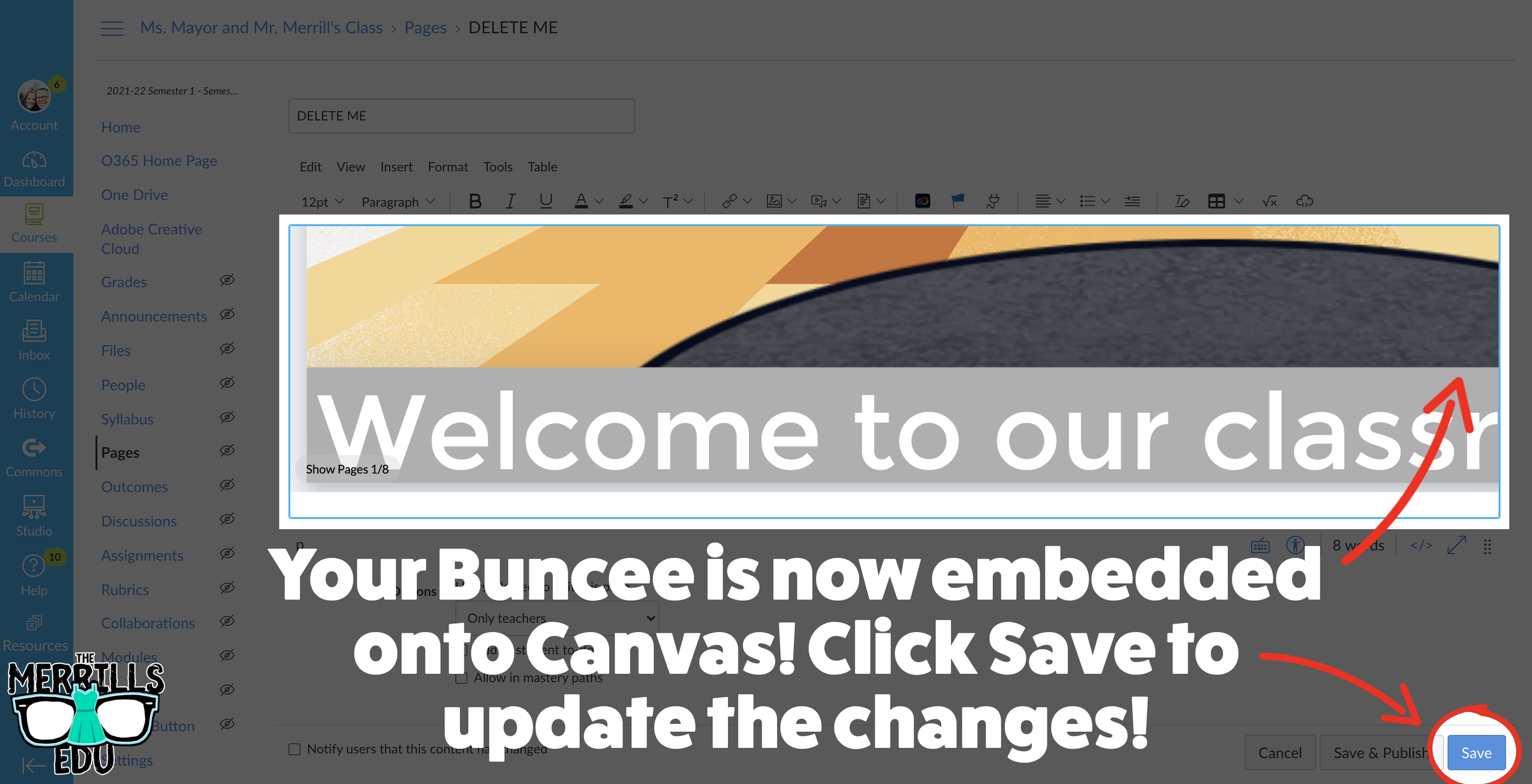
Your Buncee creation is now embedded into the Canvas page! Click on “Save” to update the changes.

Ed Puzzle Embedded into Canvas
Ed Puzzle is a video assessment platform tool that allows teachers to find or create videos and then generate questions that go along with the video. The result is an engaging formative assessment that your students will actually like! Keeping Ed Puzzle embedded into Canvas will help keep everything organized in the same place. Here’s how it all works:
(note: You will need to set up a class in Ed Puzzle prior to the steps below)
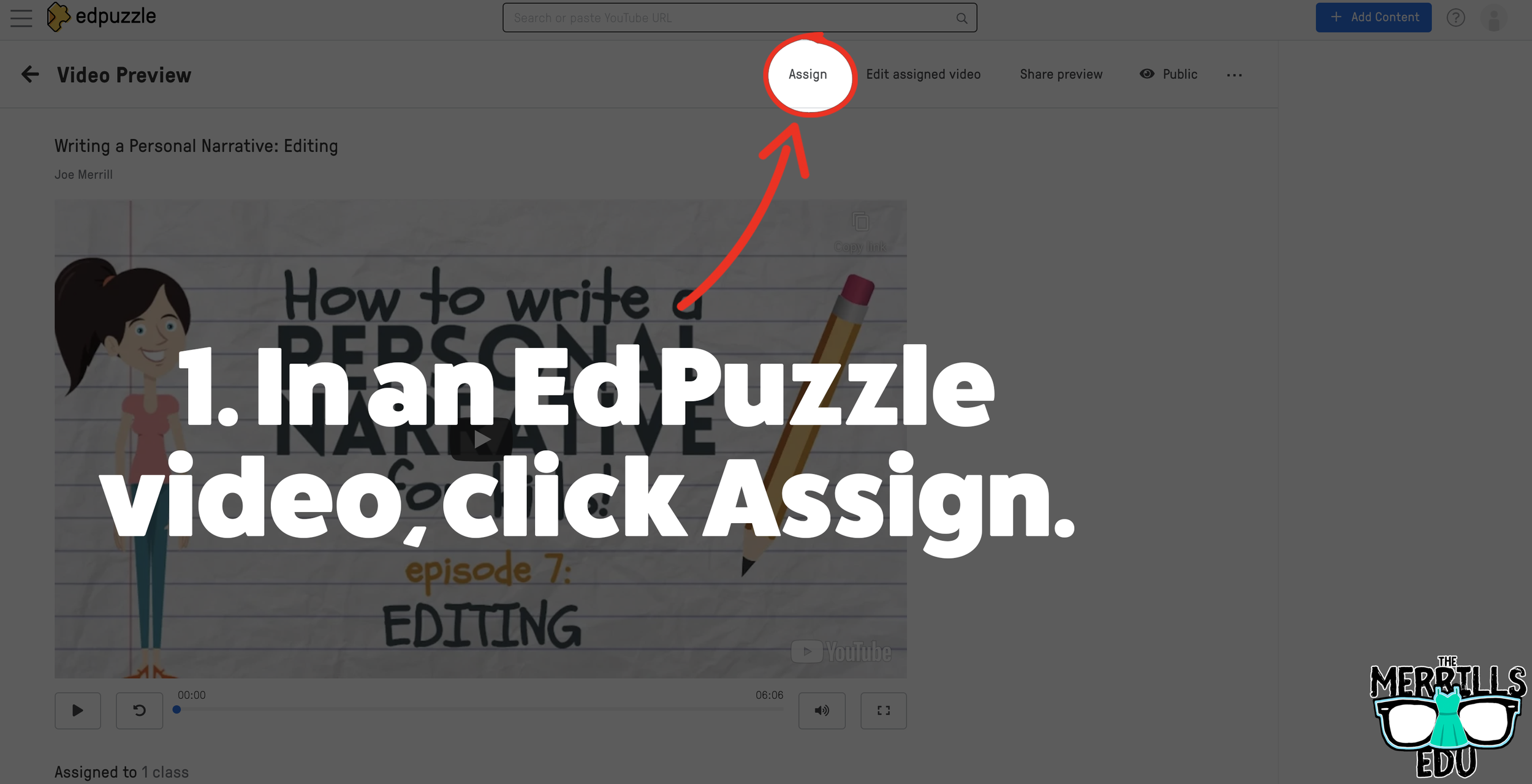
Select. the video that you would like to embed from Ed Puzzle.
Click “Assign”
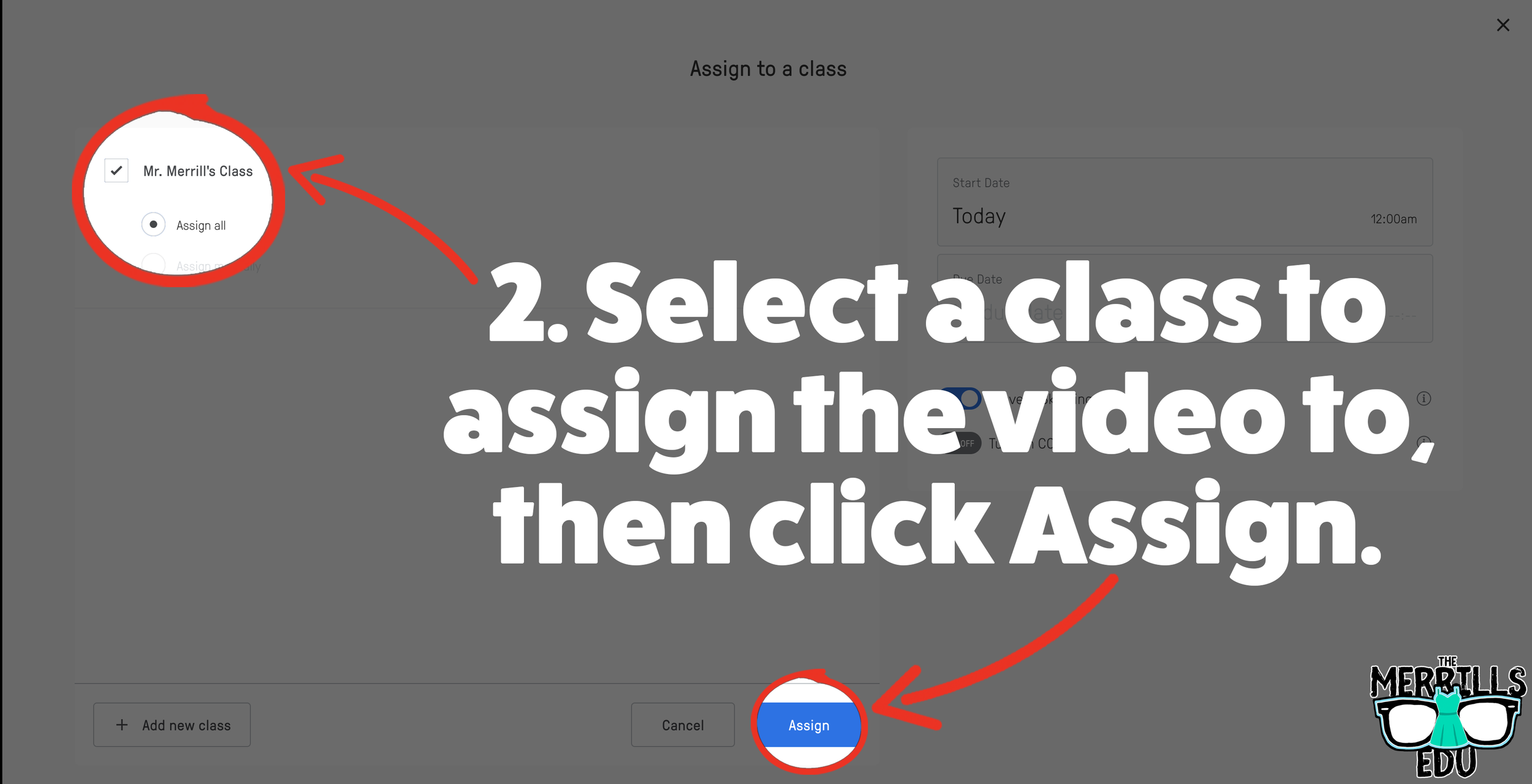
Select the class that you would like to assign the video to, then click “Assign.”
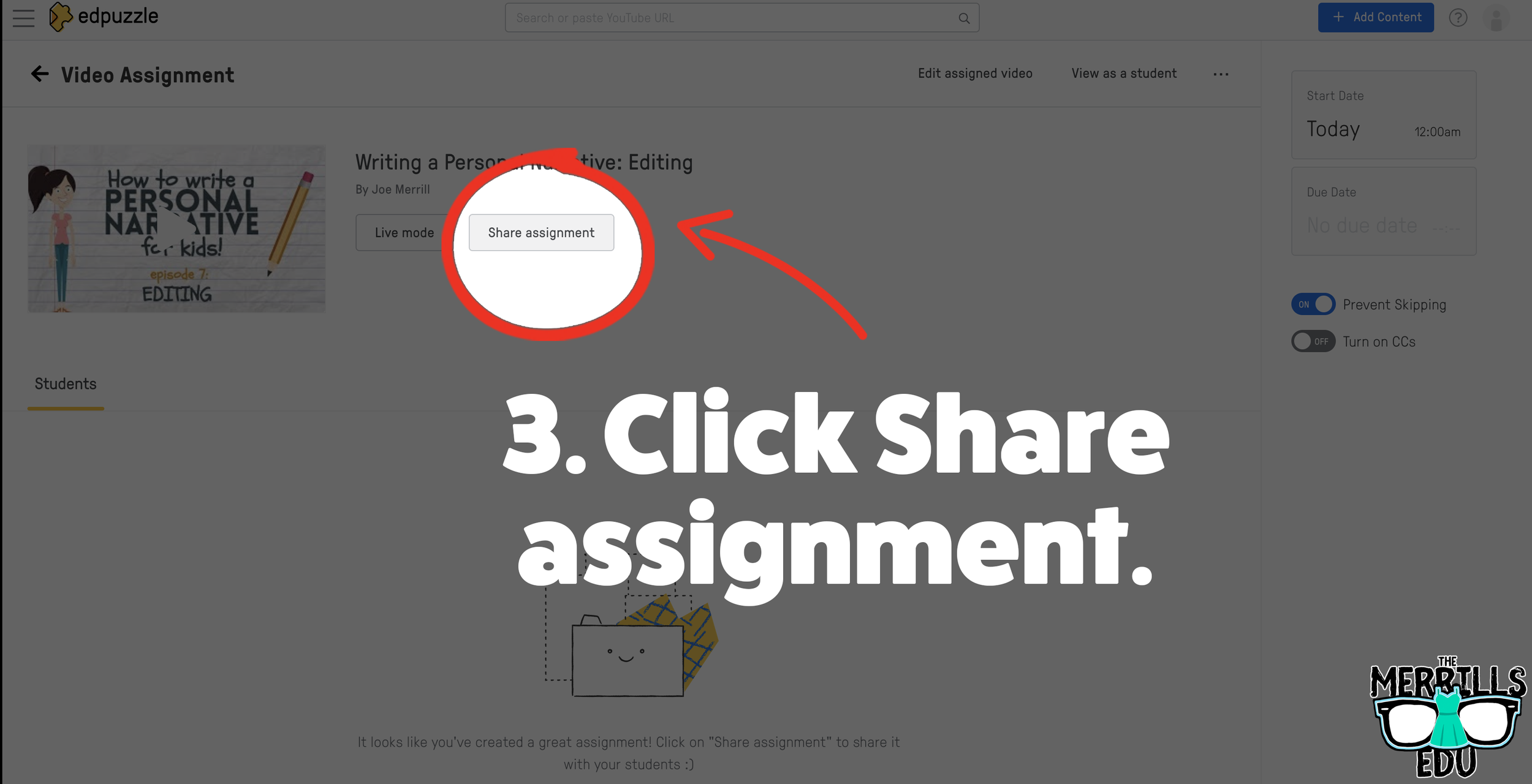
On the next screen, click “Share assignment.”
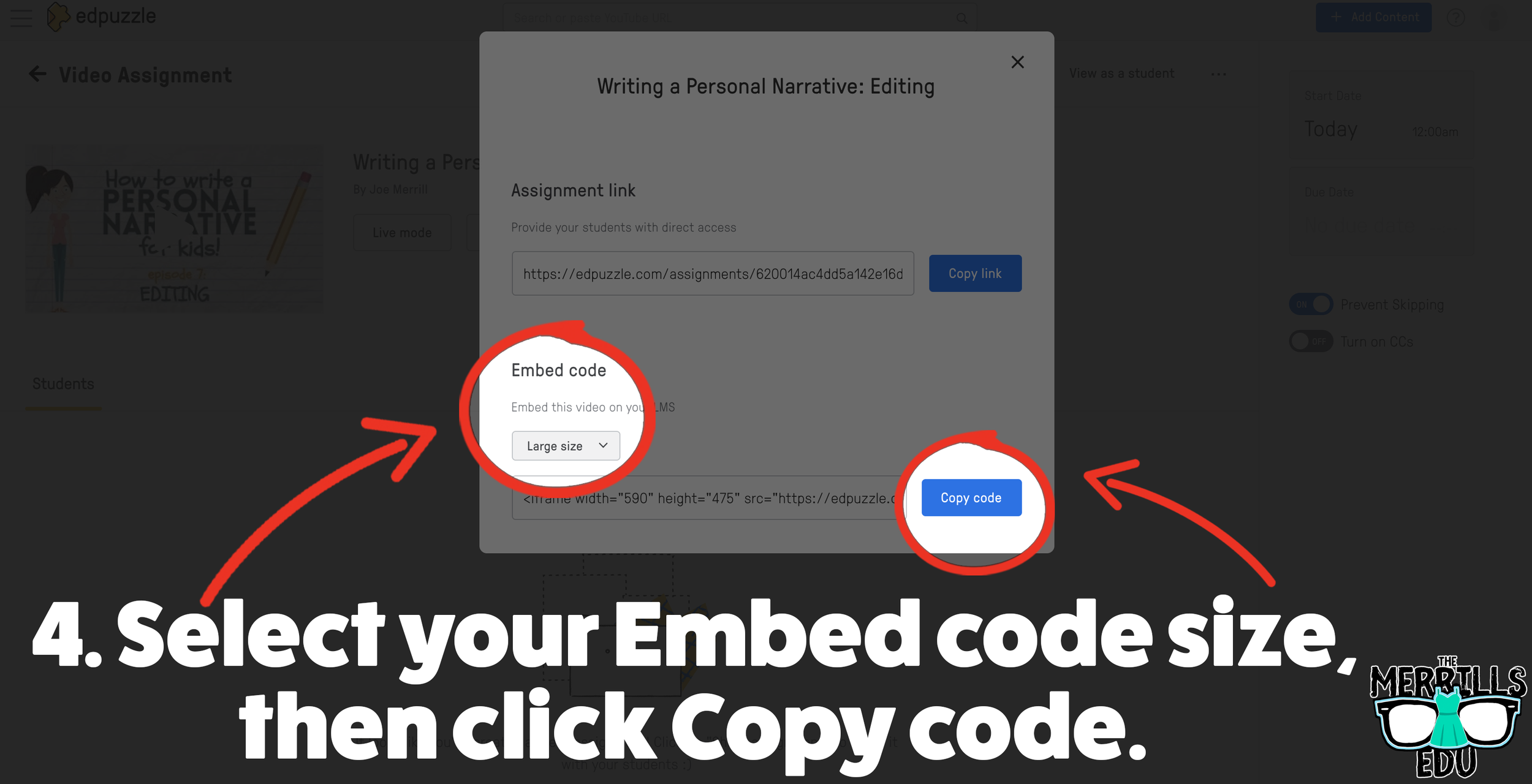
(Optional: We recommend changing the embed code size to large) Under Embed Code, click “Copy code.”
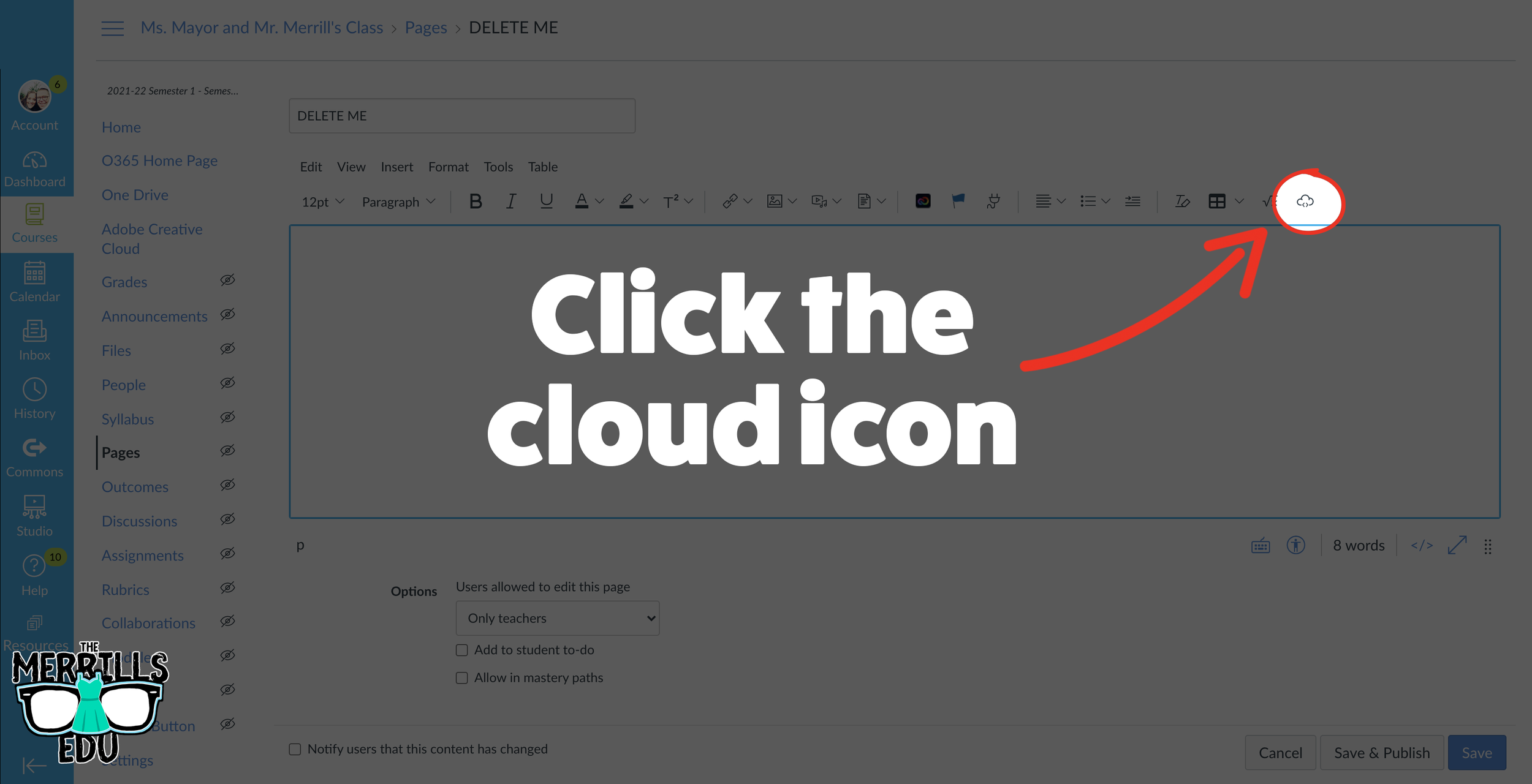
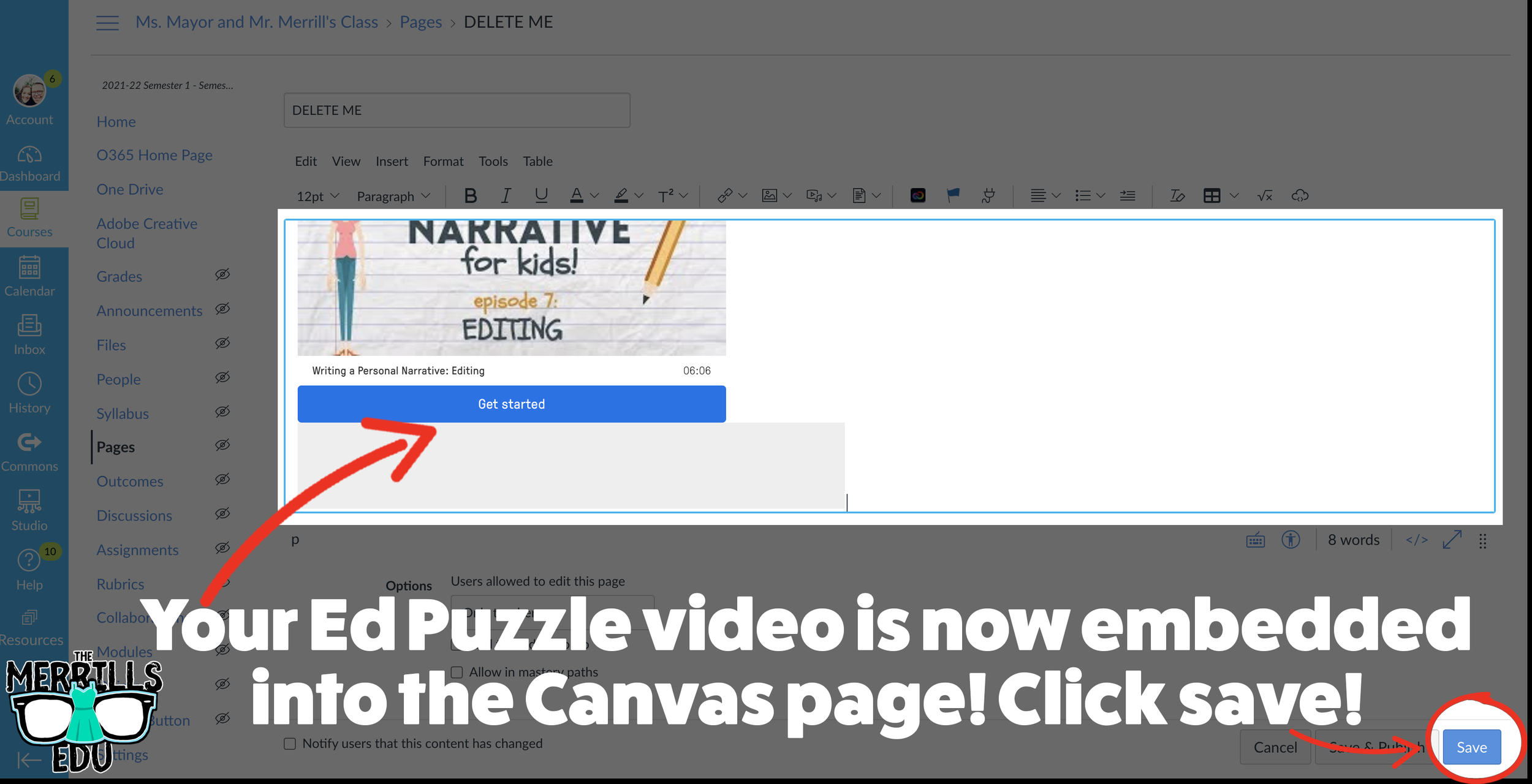
In a separate tab, open the Canvas page that you would like to add the EdPuzzle video to. Then, click on the cloud icon (if you don’t see the Cloud icon, click the three dots to expand the menu bar).
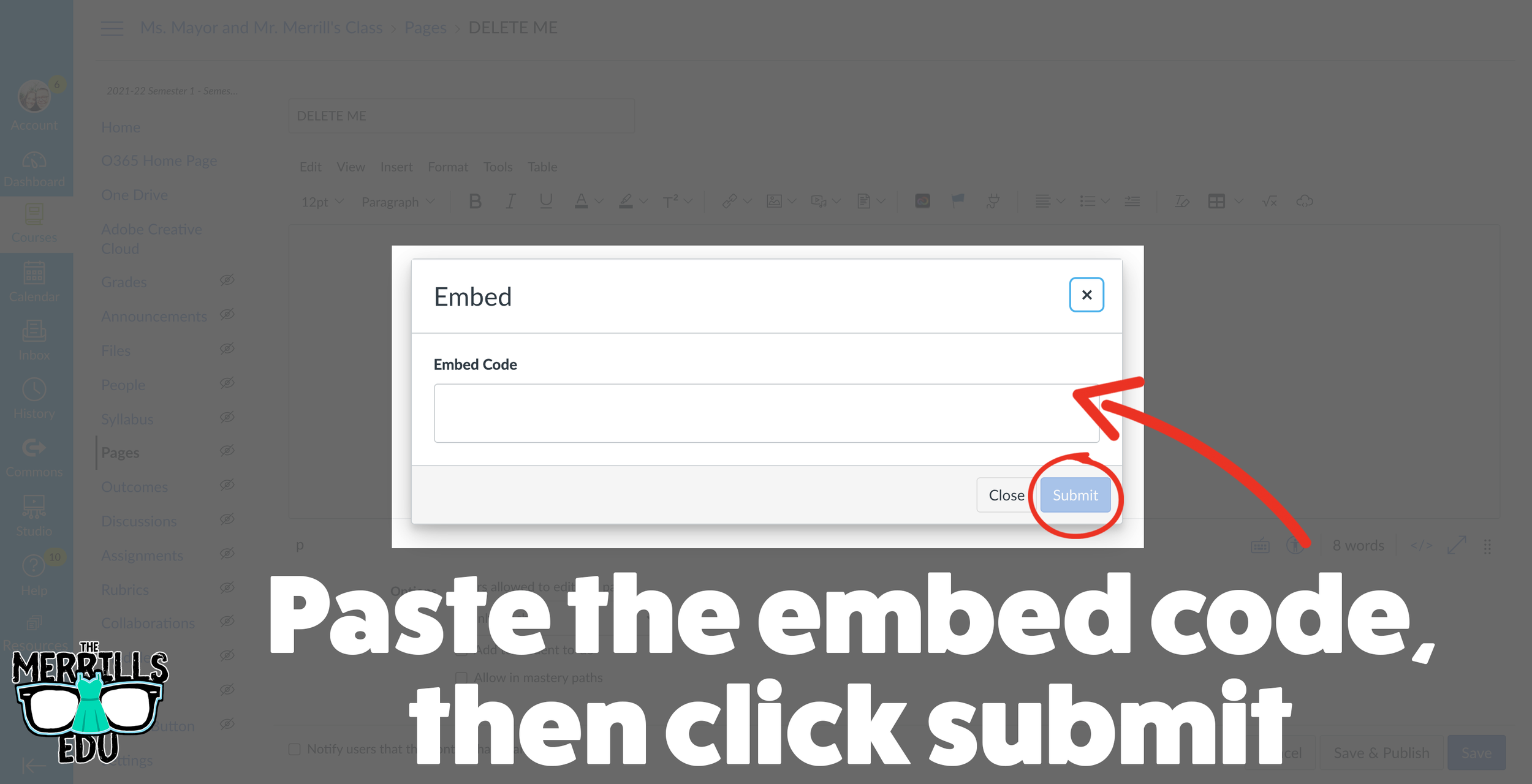
In the embed window, paste your copied code from Ed Puzzle. Then, click submit.
Your Ed Puzzle video is now embedded into the Canvas page! Click on “Save” to update the changes.

PowerPoint Embedded into Canvas
Do you have a PowerPoint deck that you’d like to give your students so that they can follow along? Embedding it into your LMS is the perfect way to deliver that content while keeping everything organized. Here’s how to embed PowerPoint decks into Canvas:
(Note: You will need to use PowerPoint Online (a Microsoft 365 account) to use this embed. You may also need to adjust your share settings for this to work correctly)
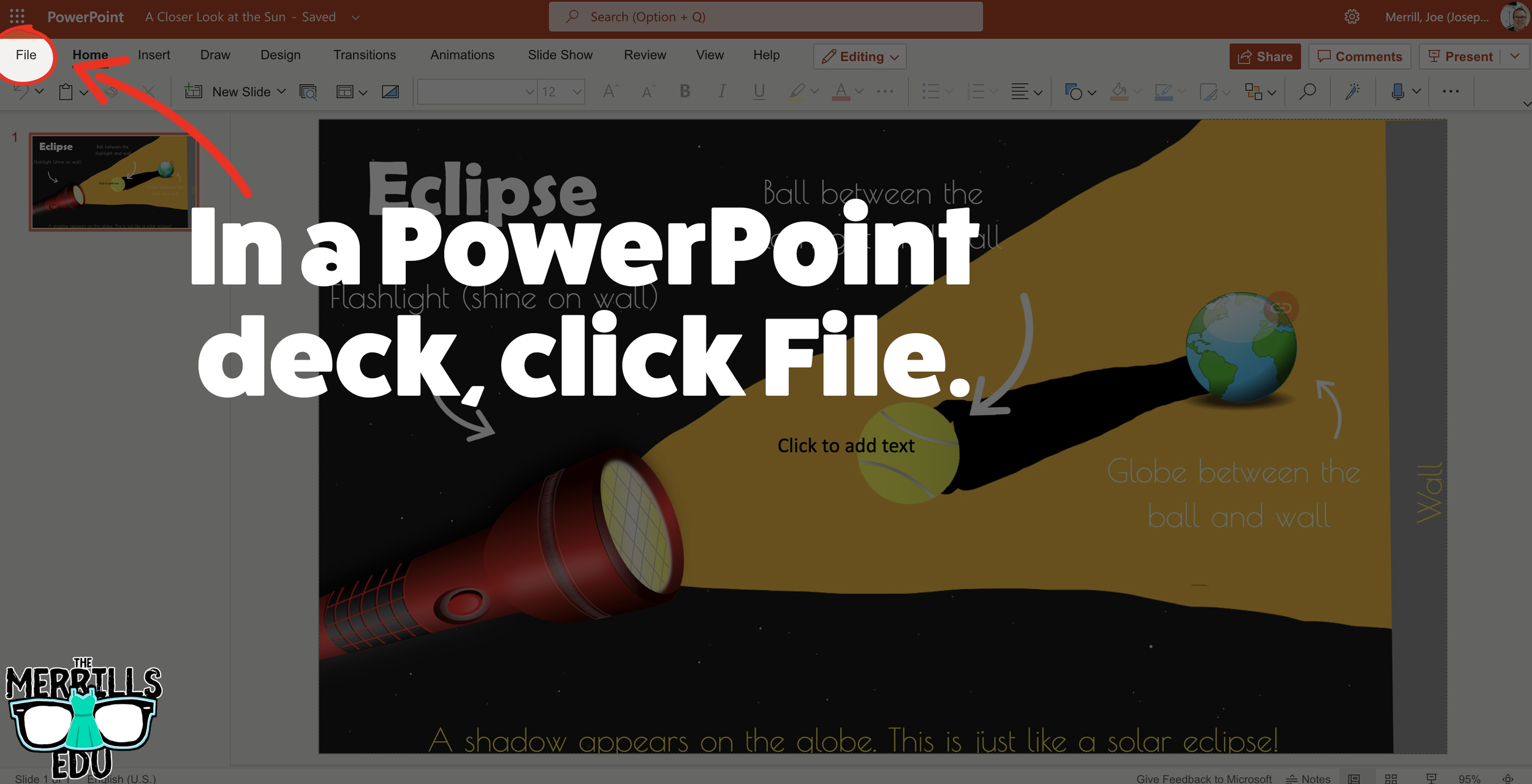
In your PowerPoint online deck, click File.
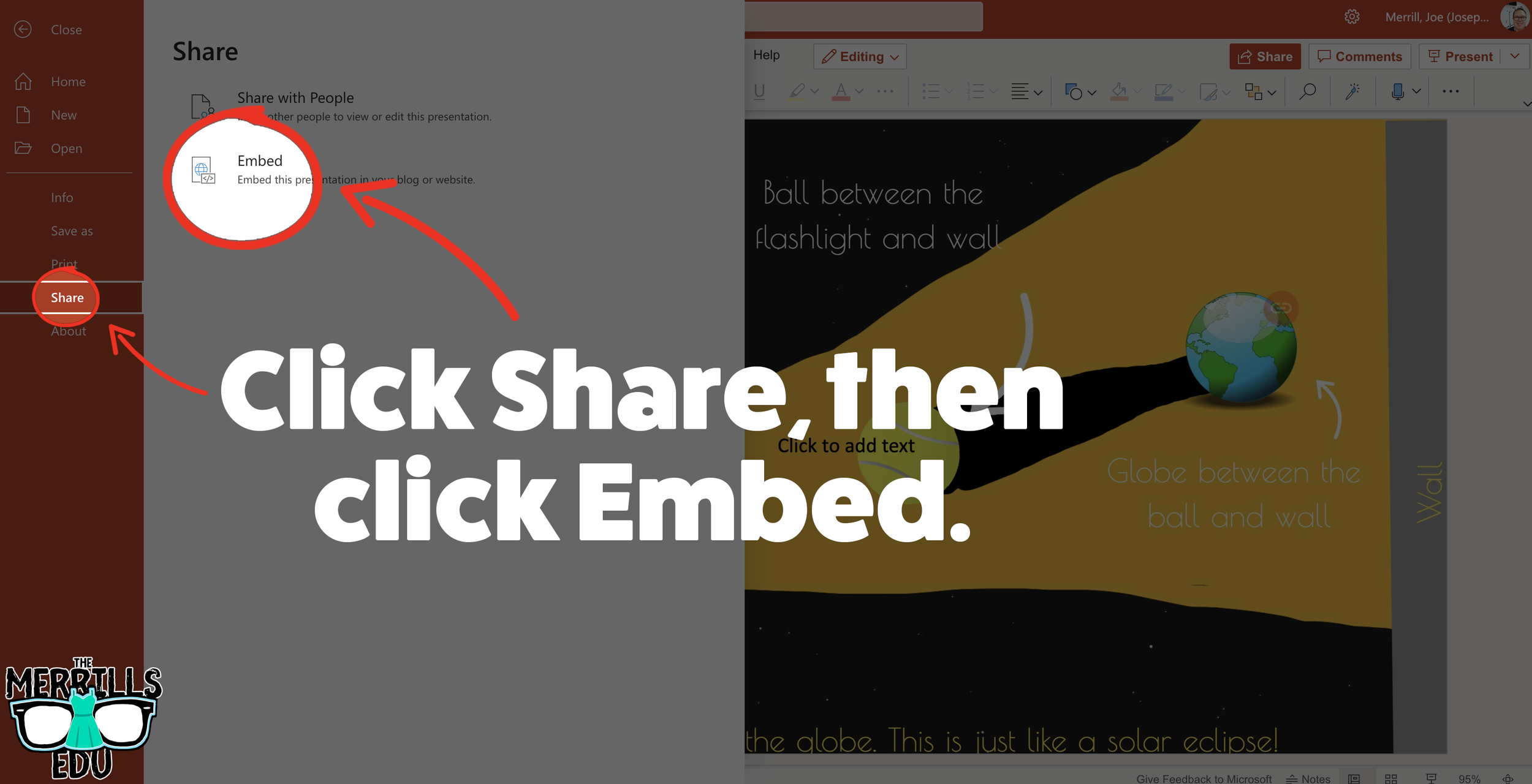
Next, click “Share” then click “Embed.”
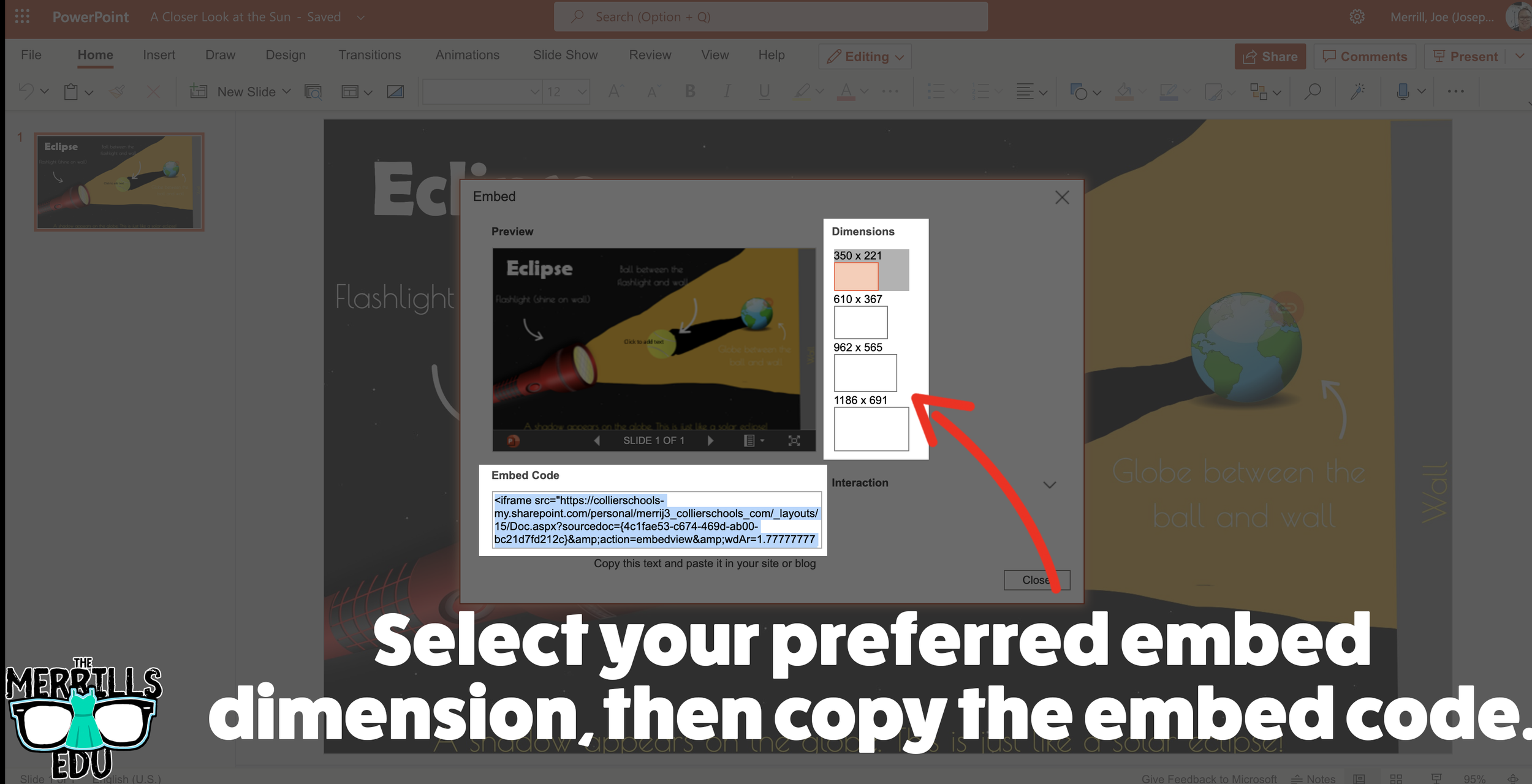
On the next screen, select your preferred embed size. Then, copy the Embed code.
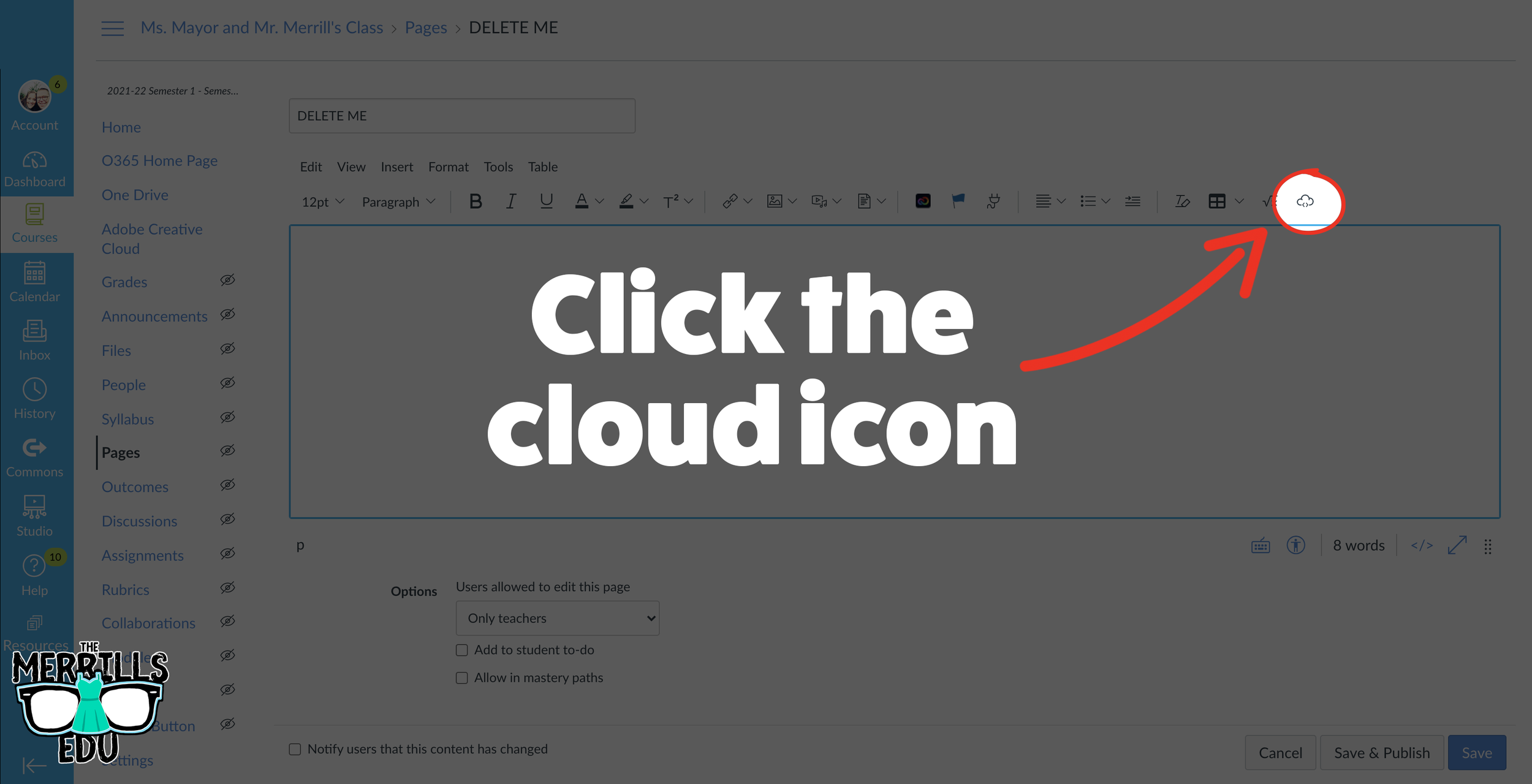
In a separate tab, open the Canvas page that you would like to add the PowerPoint deck to. Then, click on the cloud icon (if you don’t see the Cloud icon, click the three dots to expand the menu bar).
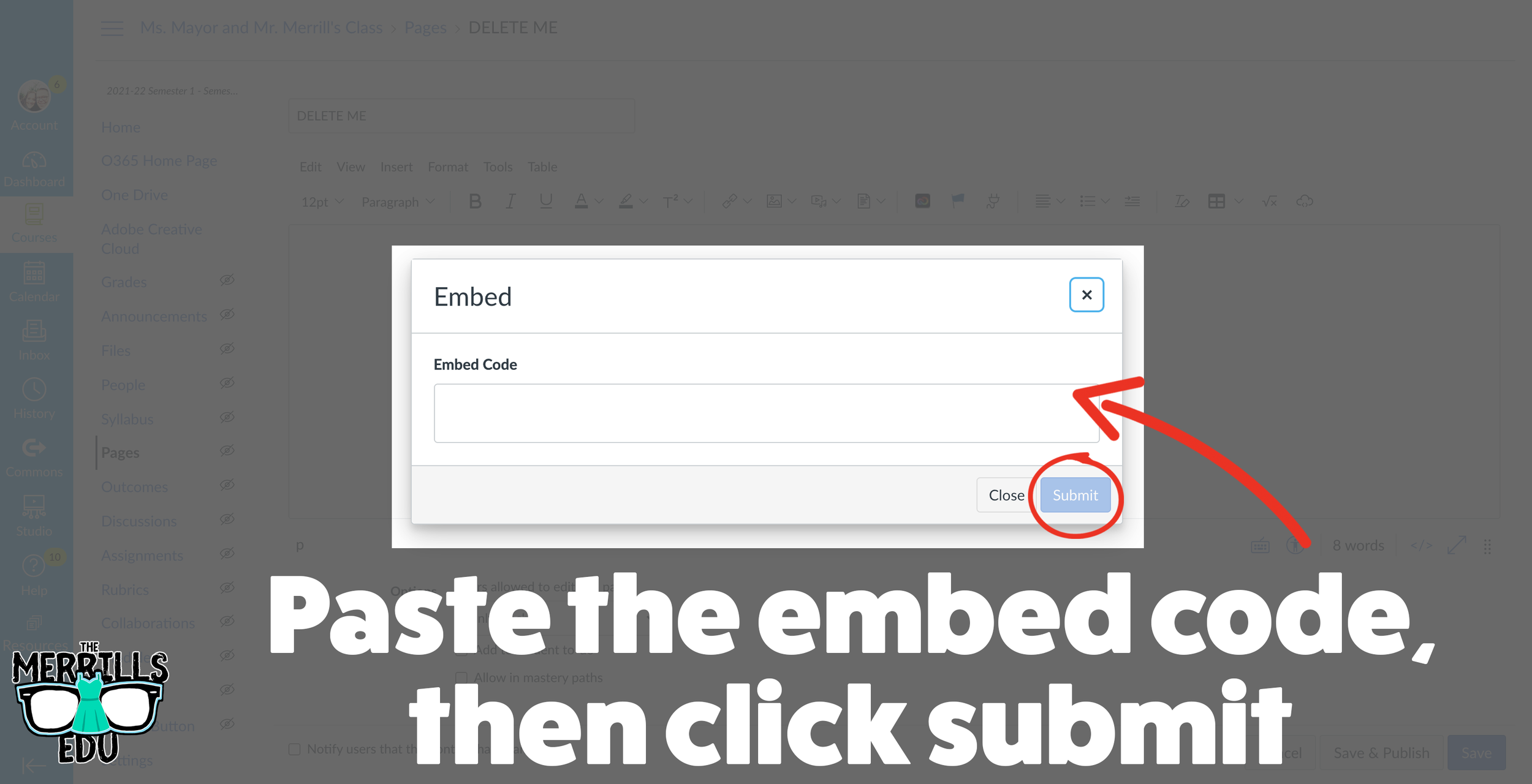
In the embed window, paste your copied code from PowerPoint Online. Then, click submit.
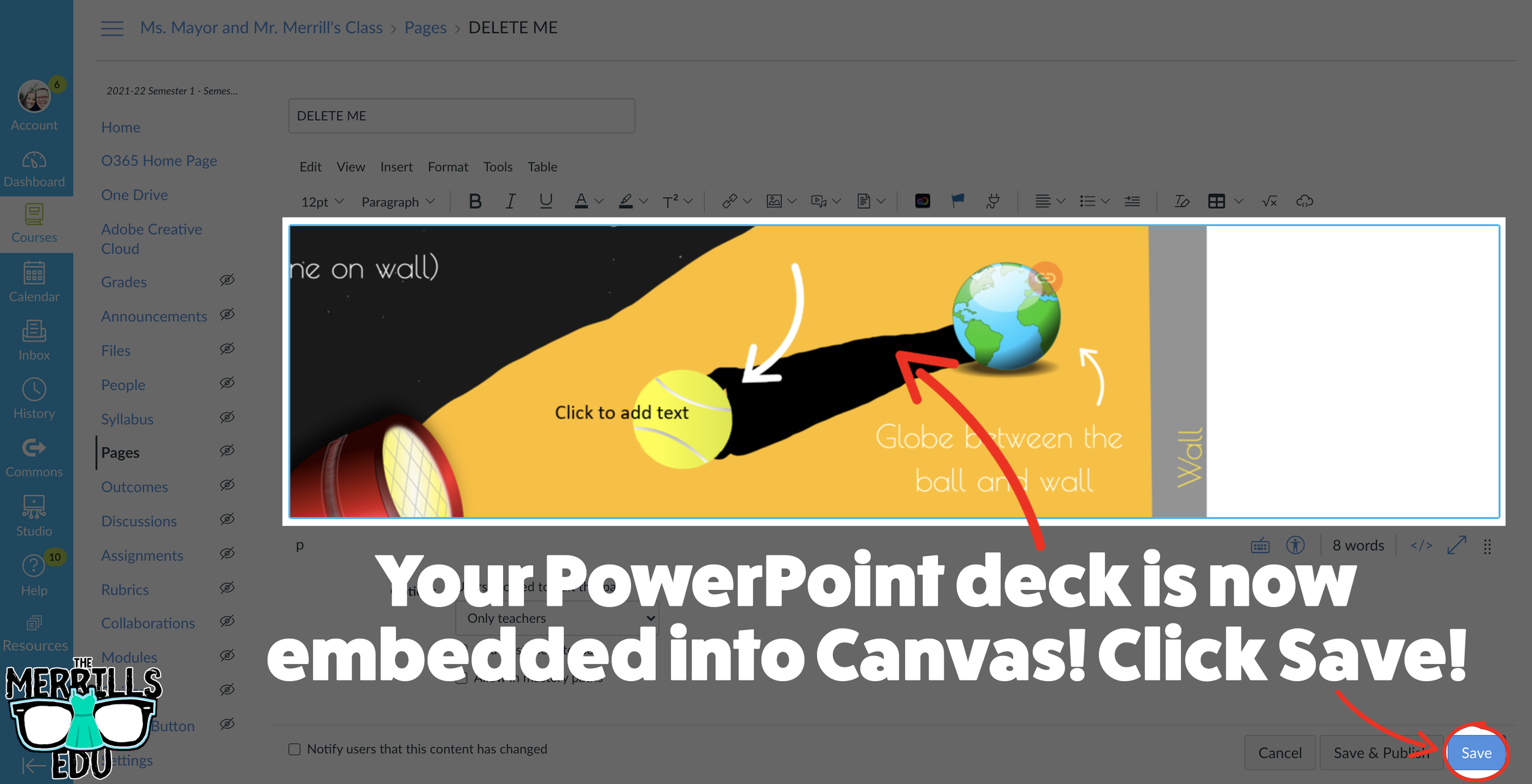
Your PowerPoint deck is now embedded into the Canvas page! Click on “Save” to update the changes.

Google Slides Embedded into Canvas
Google Slides users can get in on the embedding fun, too! In just several clicks, you can take your Google Slides deck and embed them into Canvas. Here’s how:
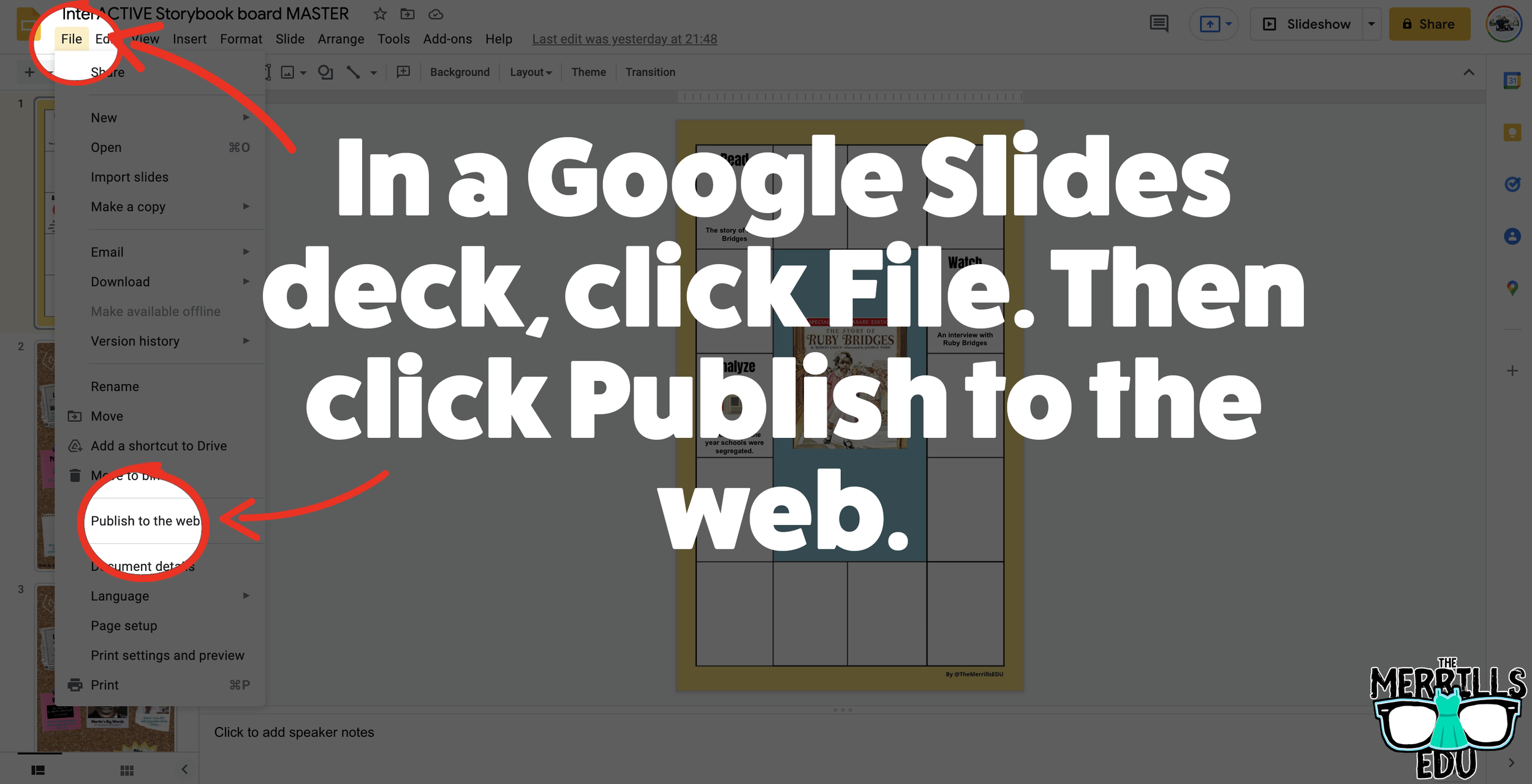
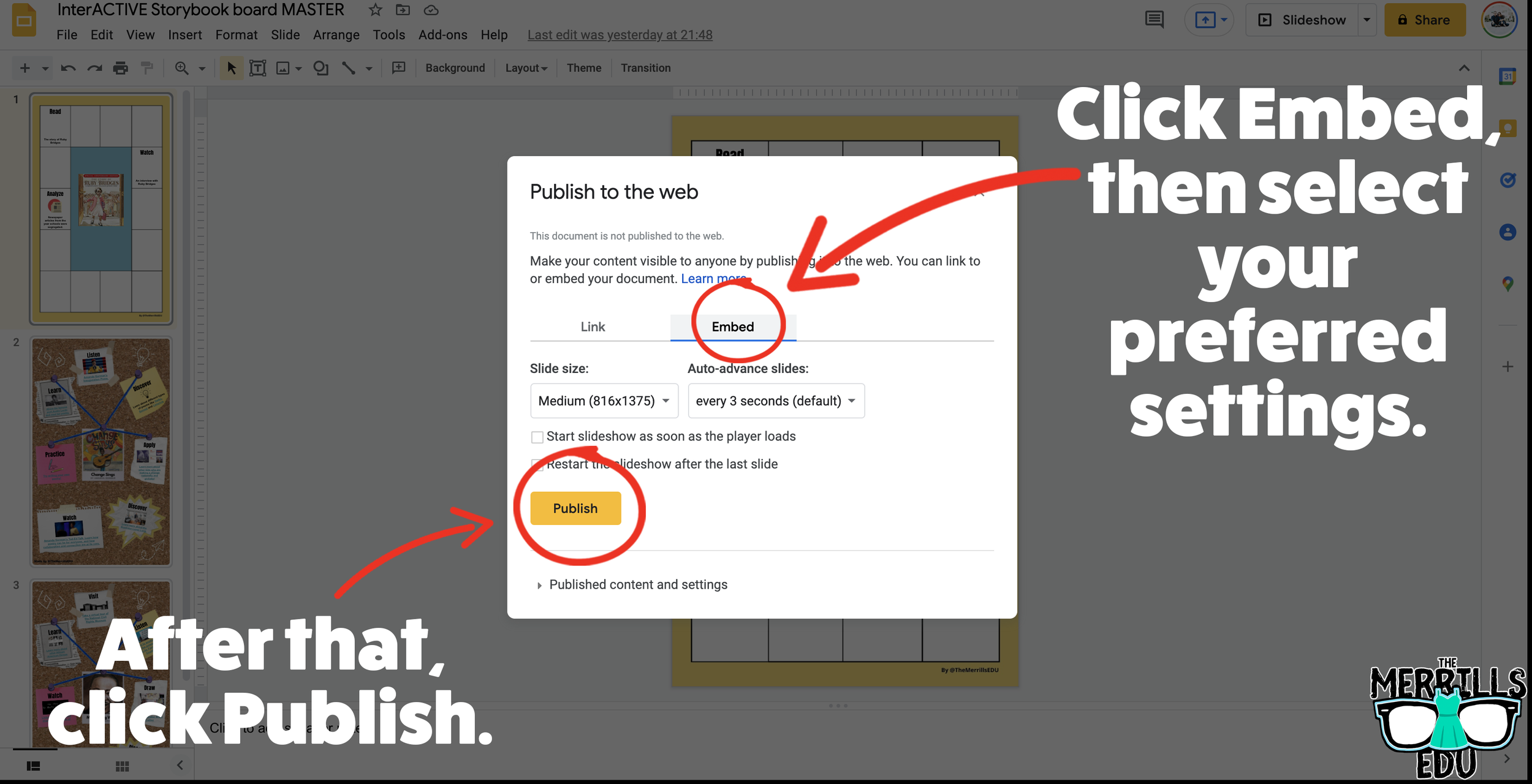
In your Google Slide deck, click “File,” then click “Publish to the web.’
Click on Embed, then select your preferred settings. Once you have everything set, click “Publish.” (If you’re asked if you are sure you want to publish, say “yes or ok.”)
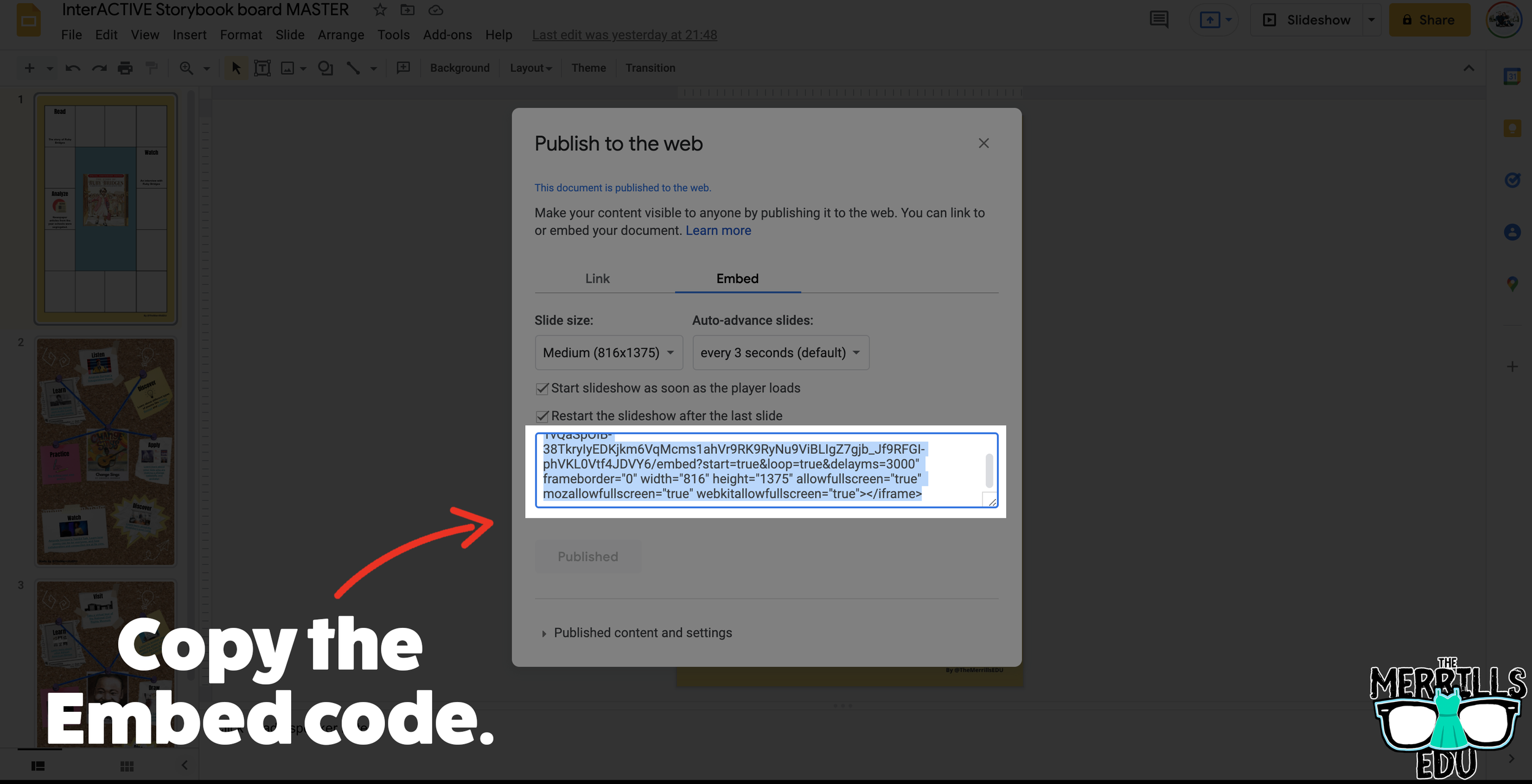
On the next screen, copy your embed code.
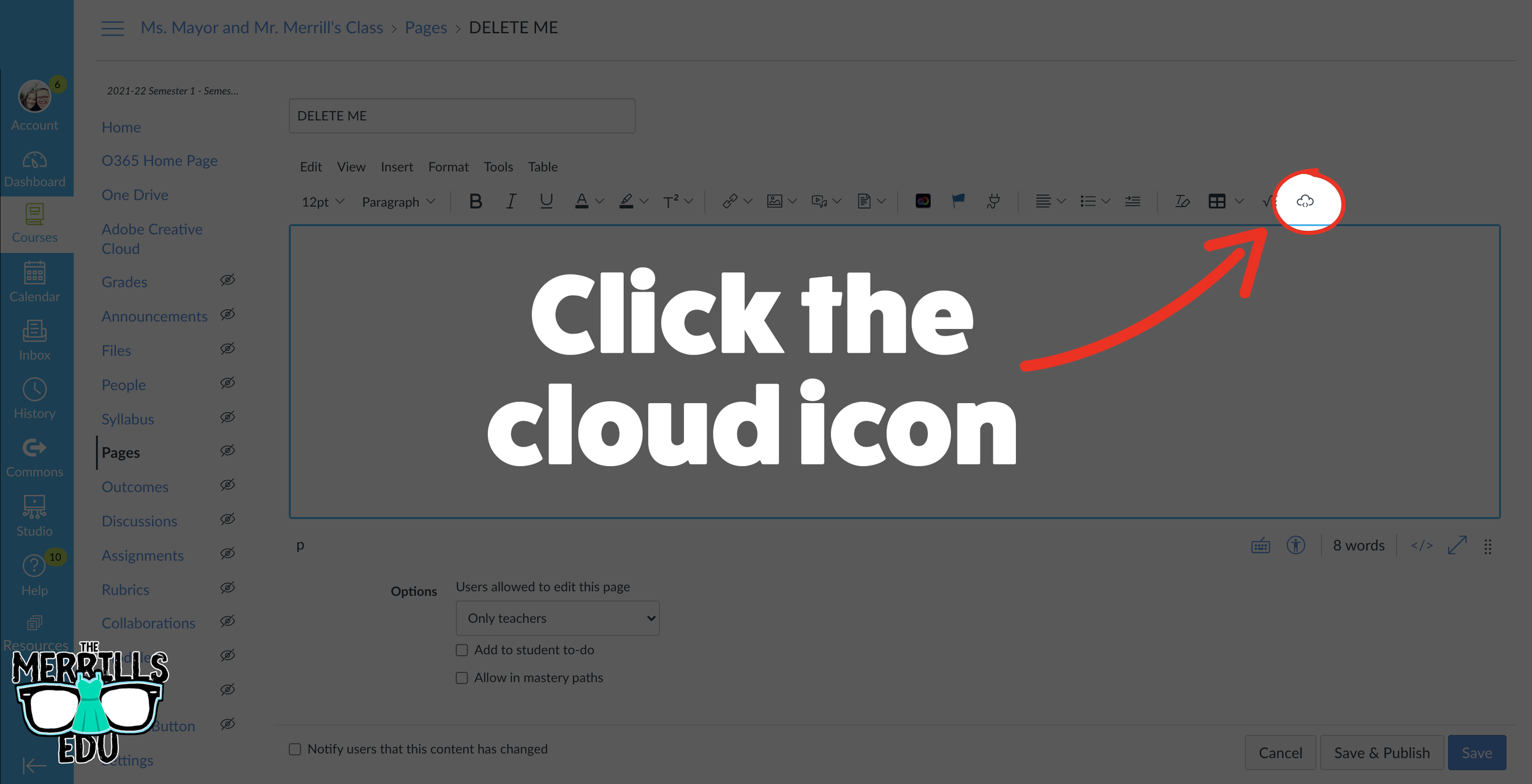
In a separate tab, open the Canvas page that you would like to add the Google Slides deck to. Then, click on the cloud icon (if you don’t see the Cloud icon, click the three dots to expand the menu bar).
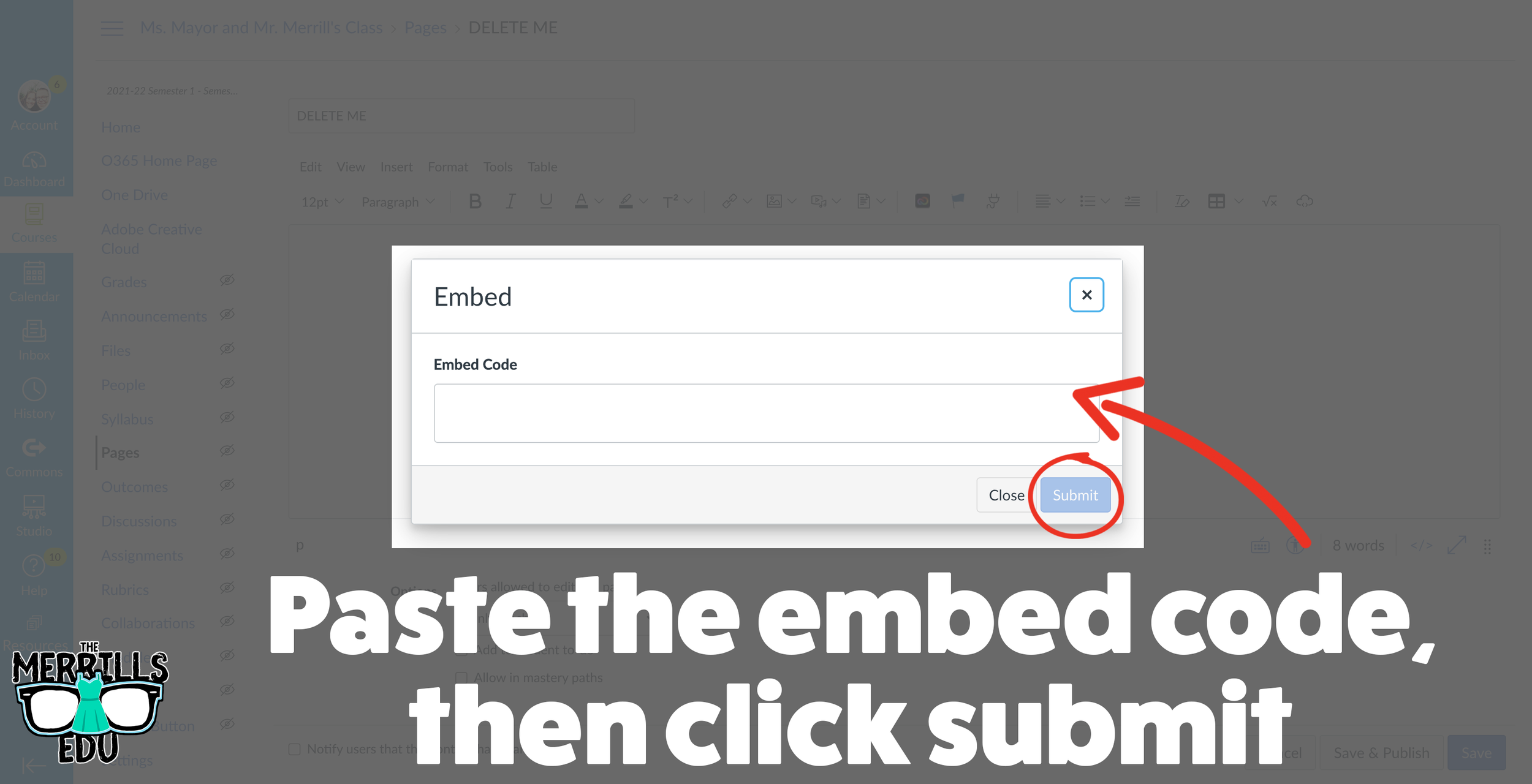
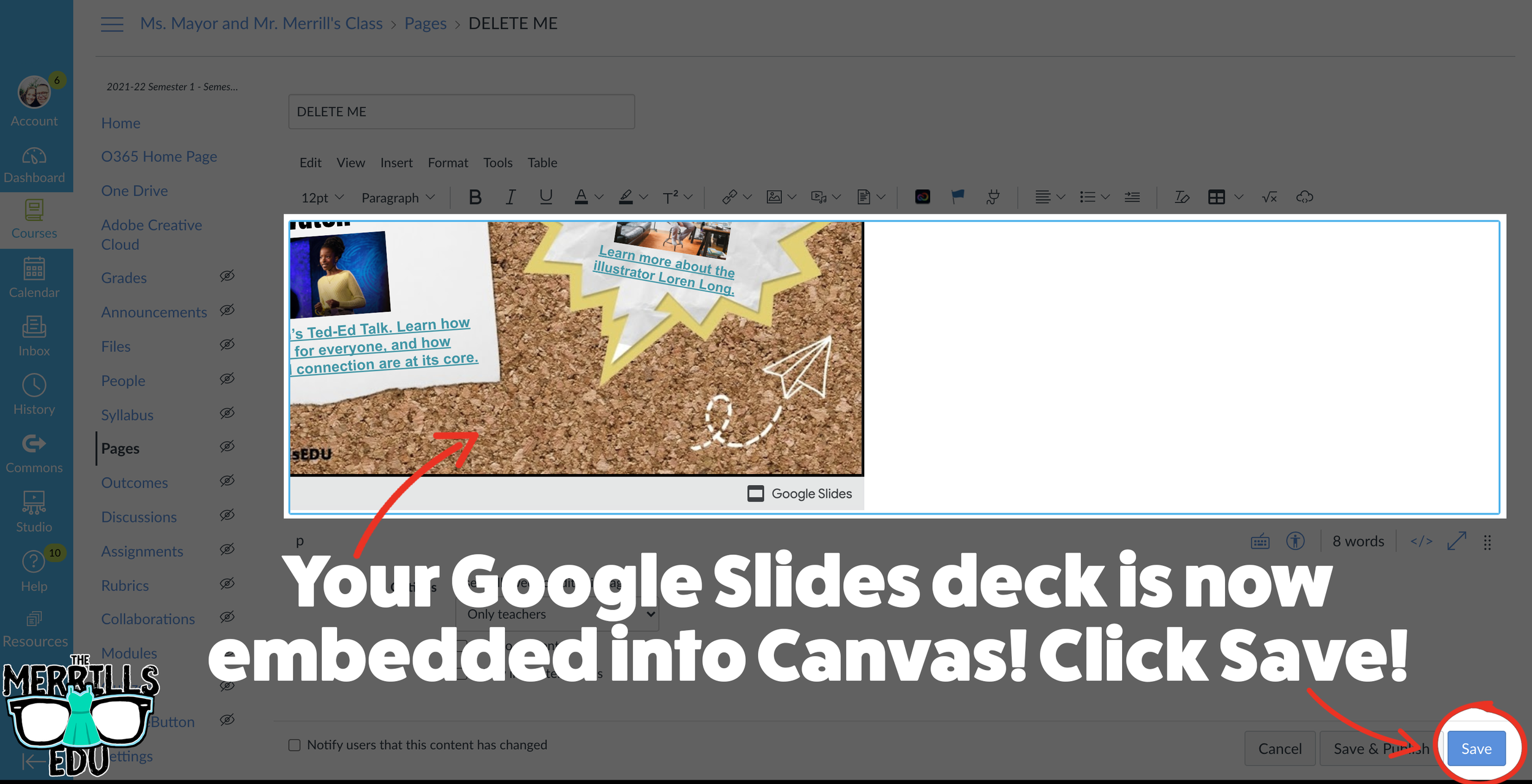
In the embed window, paste your copied code from Google Slides. Then, click submit.
Your Google Slides deck is now embedded into the Canvas page! Click on “Save” to update the changes.

Wakelet Embedded into OneNote
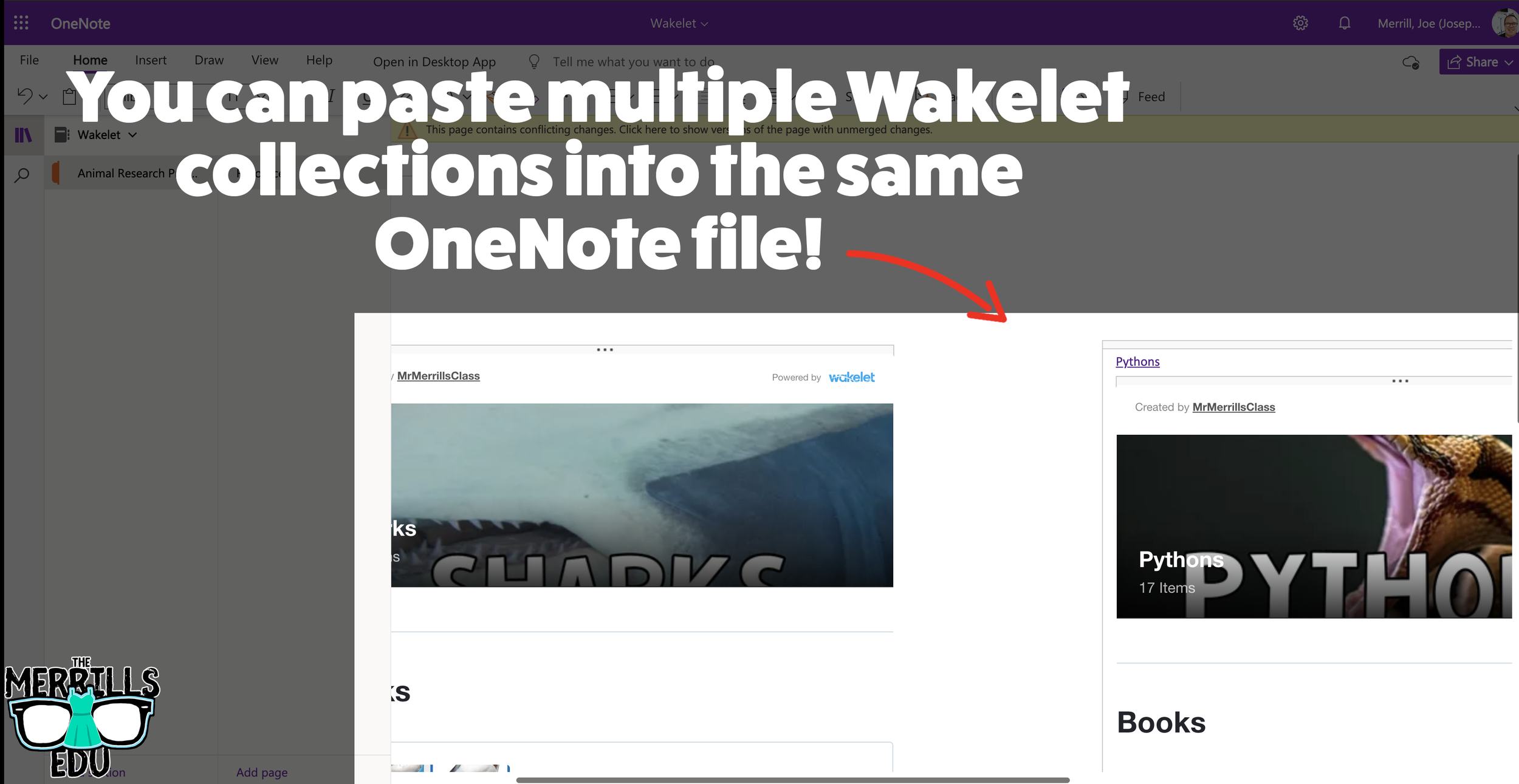
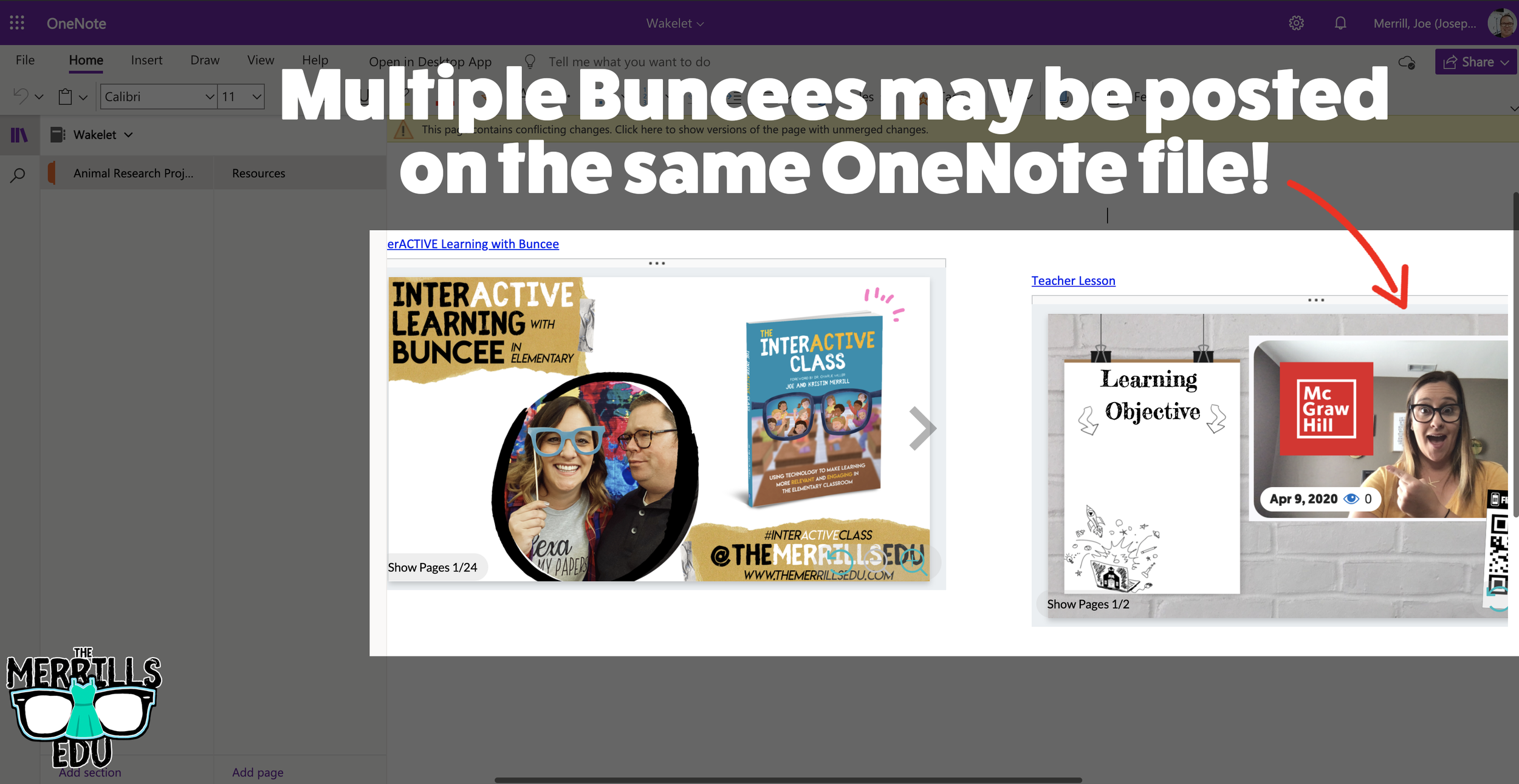
You don’t need an LMS (learning management system) to embed apps. If you’re a Microsoft user, you can embed Wakelet collections right into a OneNote file. The best part of all - this is a ⚡️LIVE⚡️ embed, meaning that any changes made to the Wakelet collection will automatically change in the OneNote file. Additionally, you can embed multiple Wakelet collections into one - OneNote file. Here’s how it all works:
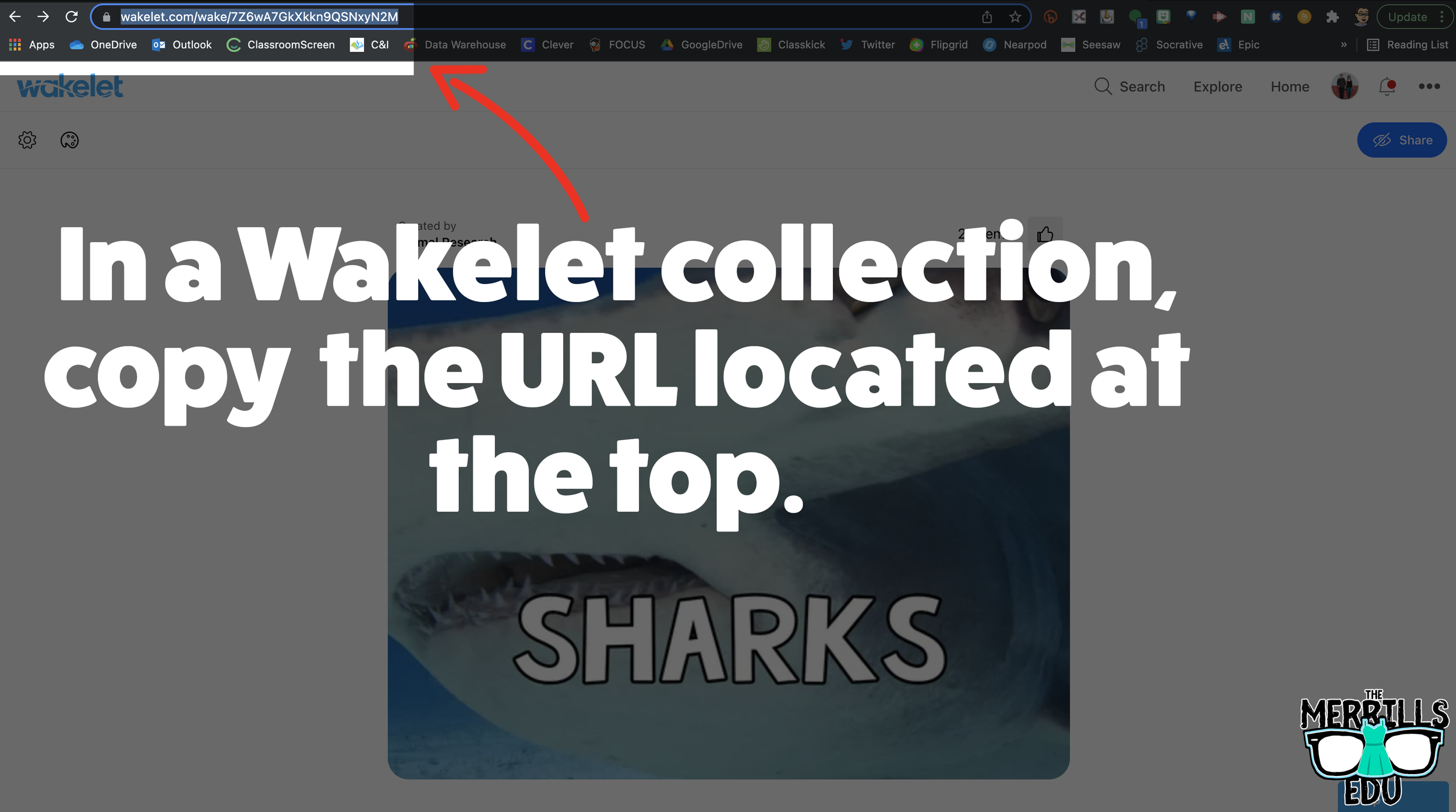
In a Wakelet Collection, copy the URL located at the top.
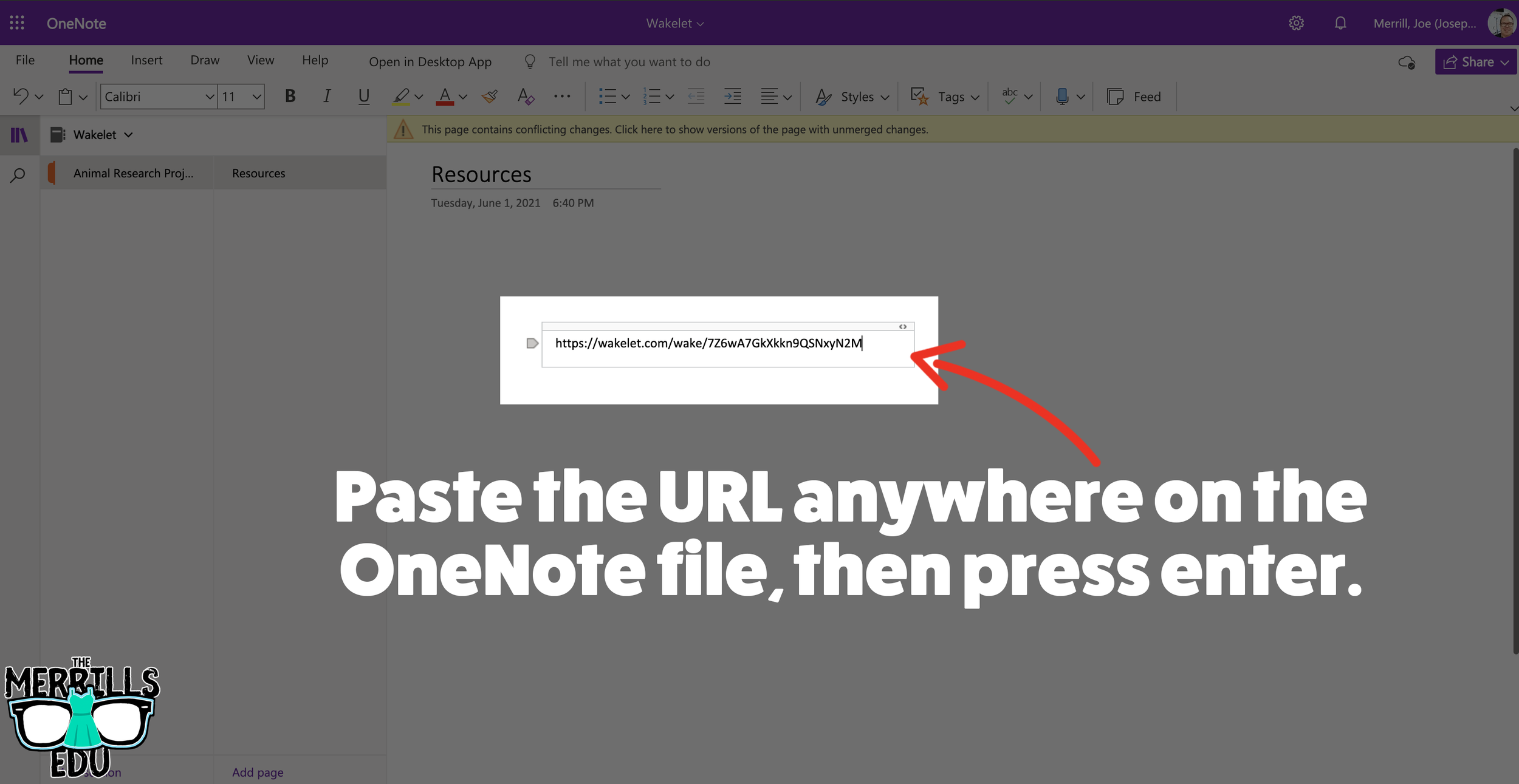
In a separate tab, open the OneNote file that you would like to add the Wakelet Collection to. Then, paste the URL anywhere on the OneNote file.
Press enter to start the live embed.
Repeat this process to add additional collections to the OneNote file.

Buncee Embedded into OneNote
This embed takes the cake as the most creative! Most embedding is done on the educators end, but not this one (although educators can definitely do it, too). With the Buncee and OneNote embed, students have the ability to take their Buncee creations and share them in one central location for others to see. Here’s how it all works:
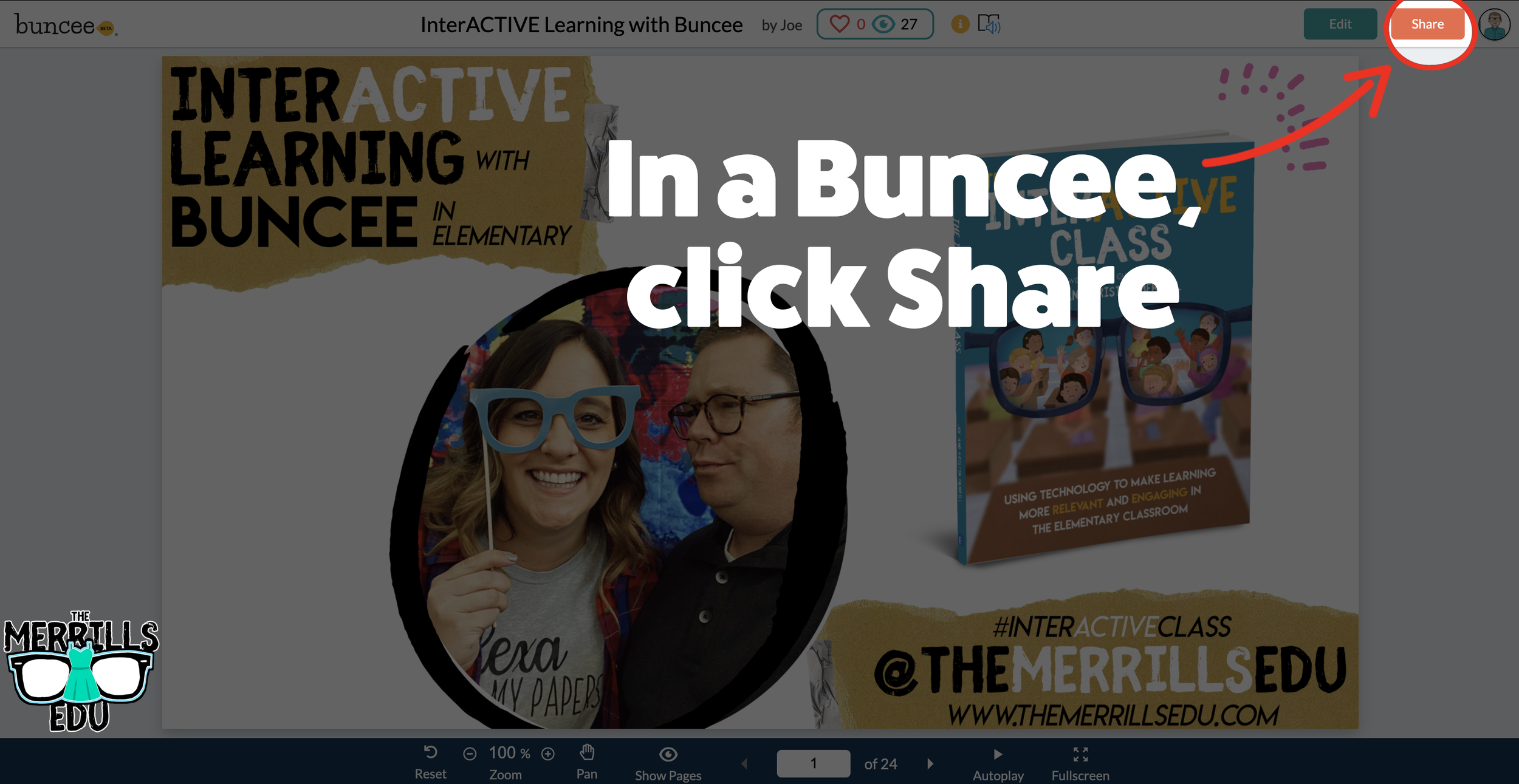
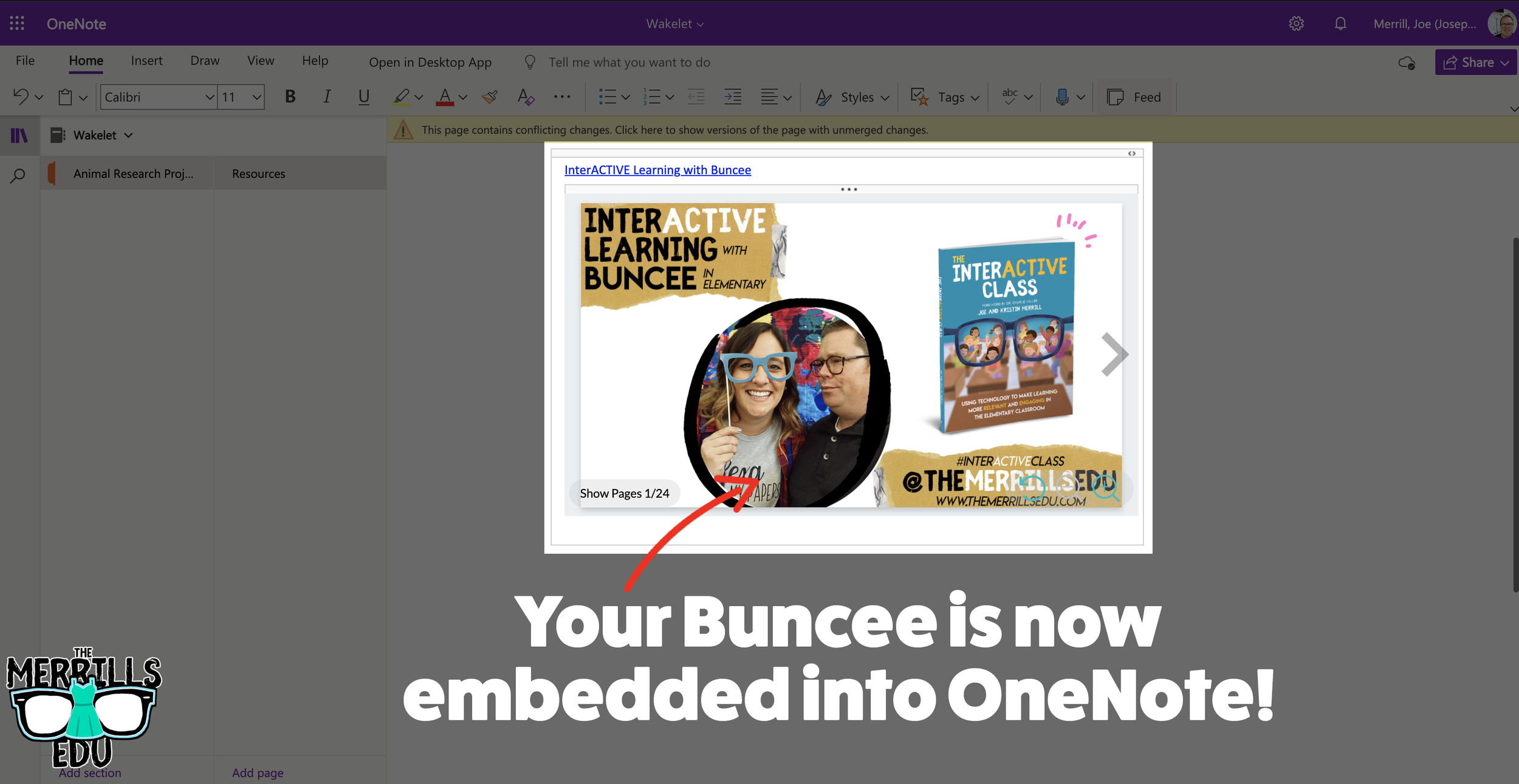
Open a Buncee, then click the “Share” button located in the upper right side of the screen.
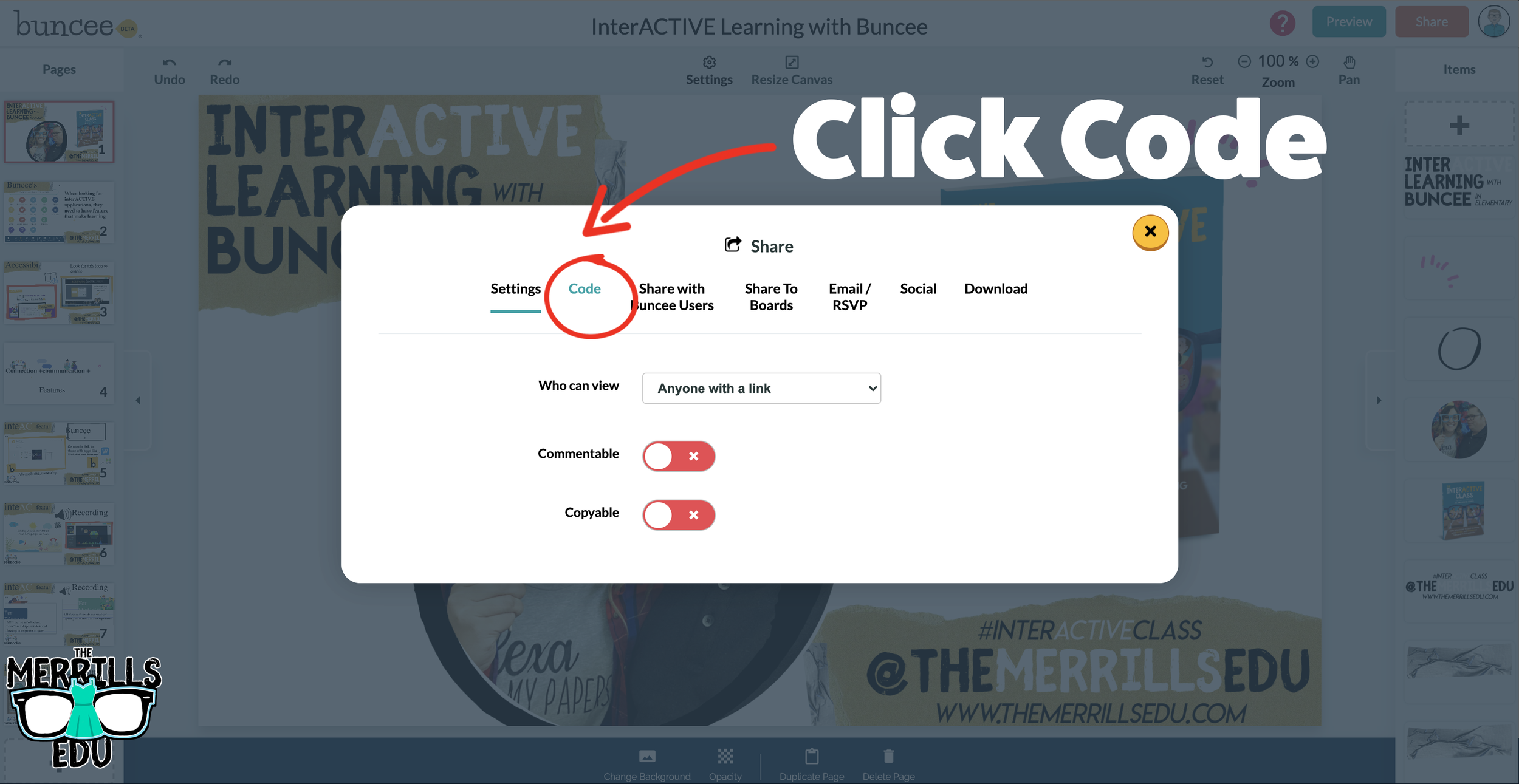
A new window will pop up. Click on “Code.”
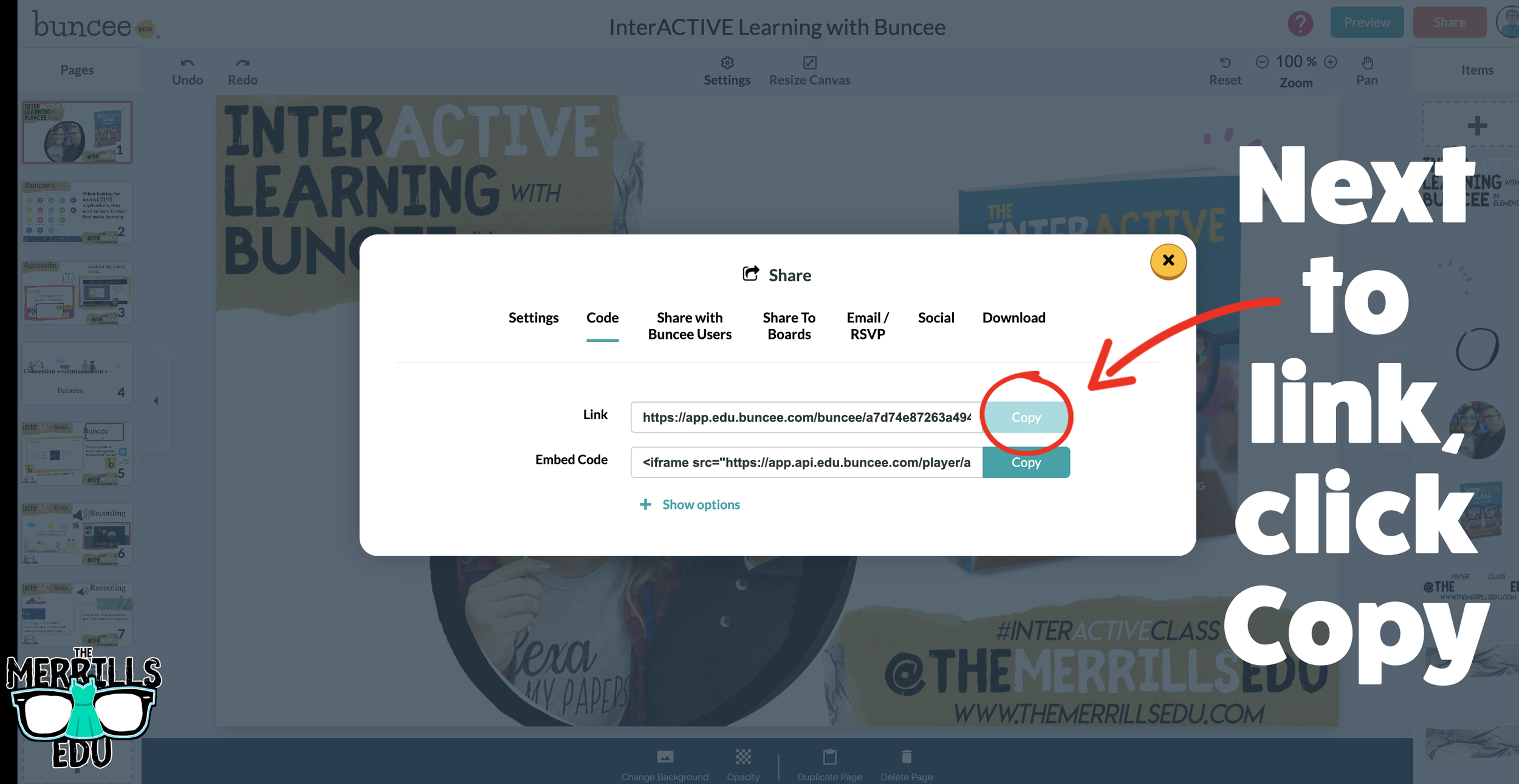
Under “Code” and next to Link, click “Copy.”
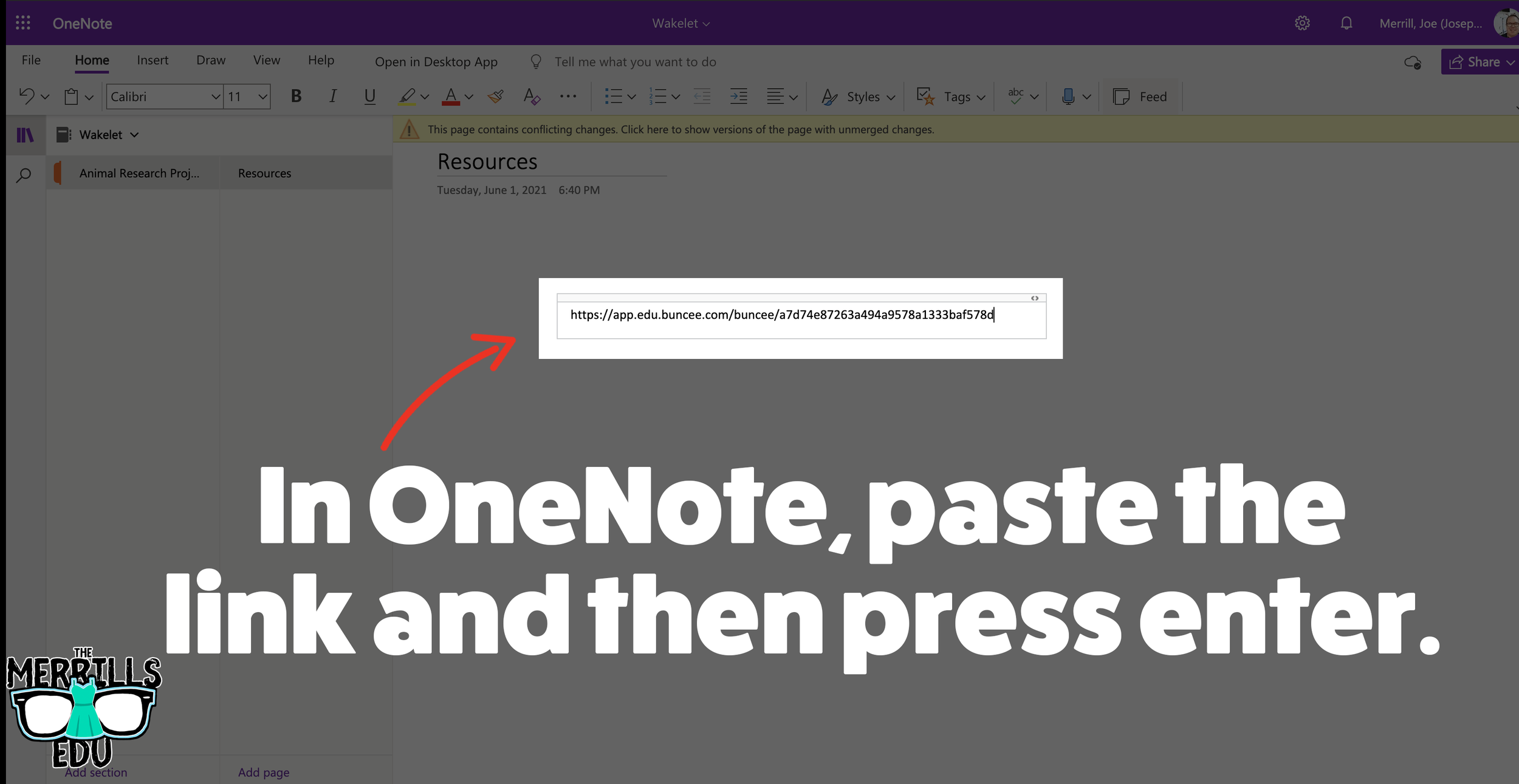
In a separate tab, open the OneNote file that you would like to add the Buncee creation to. Then, paste the URL anywhere on the OneNote file.
Press enter to start the live embed.
Repeat this process to add additional Buncees to the OneNote file.

Canva Embedded into Classroom Screen
Need to post your directions on the board? Perhaps you need a timer to go along with it? This embed will be your saving grace! Embed your Canva creations right into Classroom Screen. Here’s how:
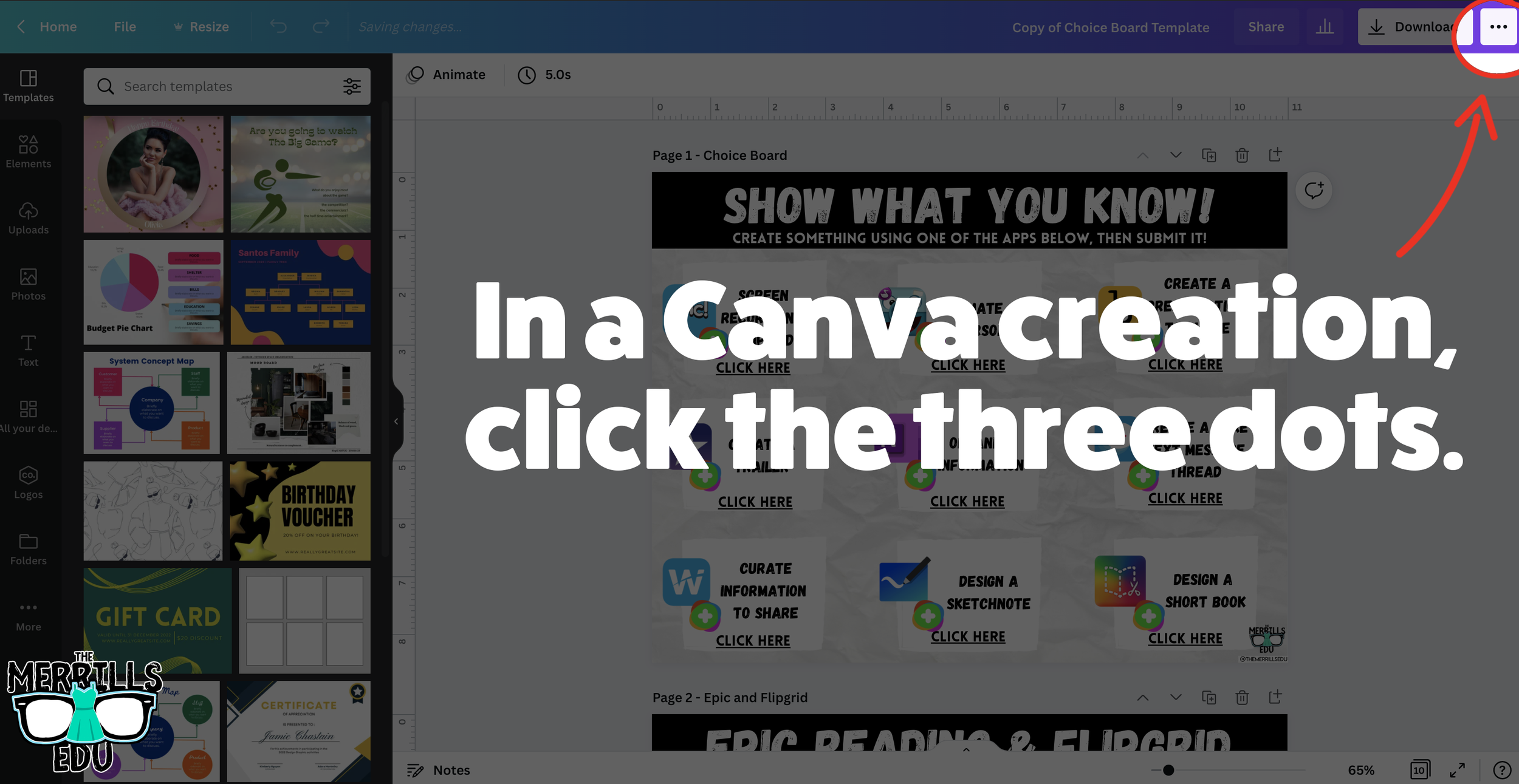
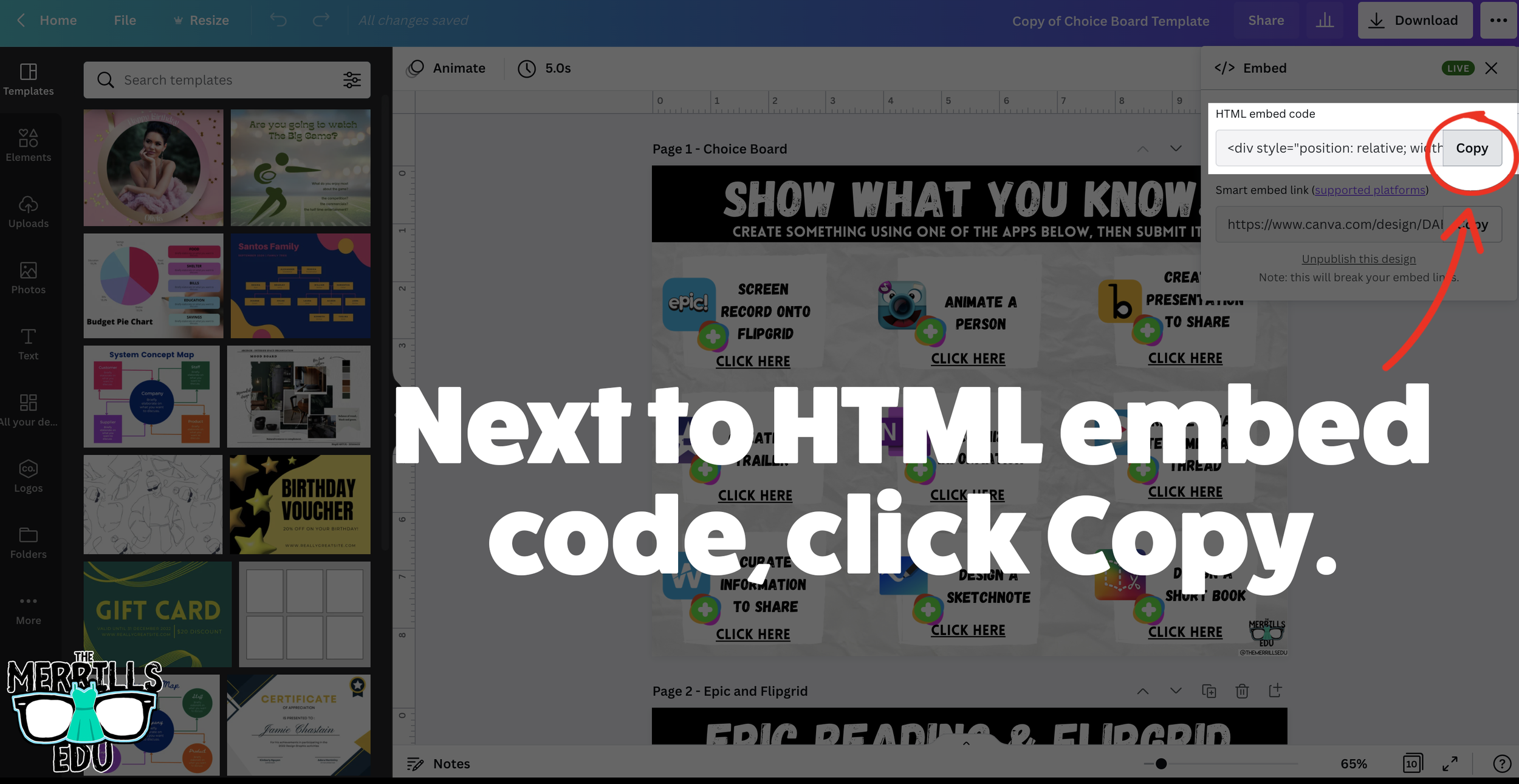
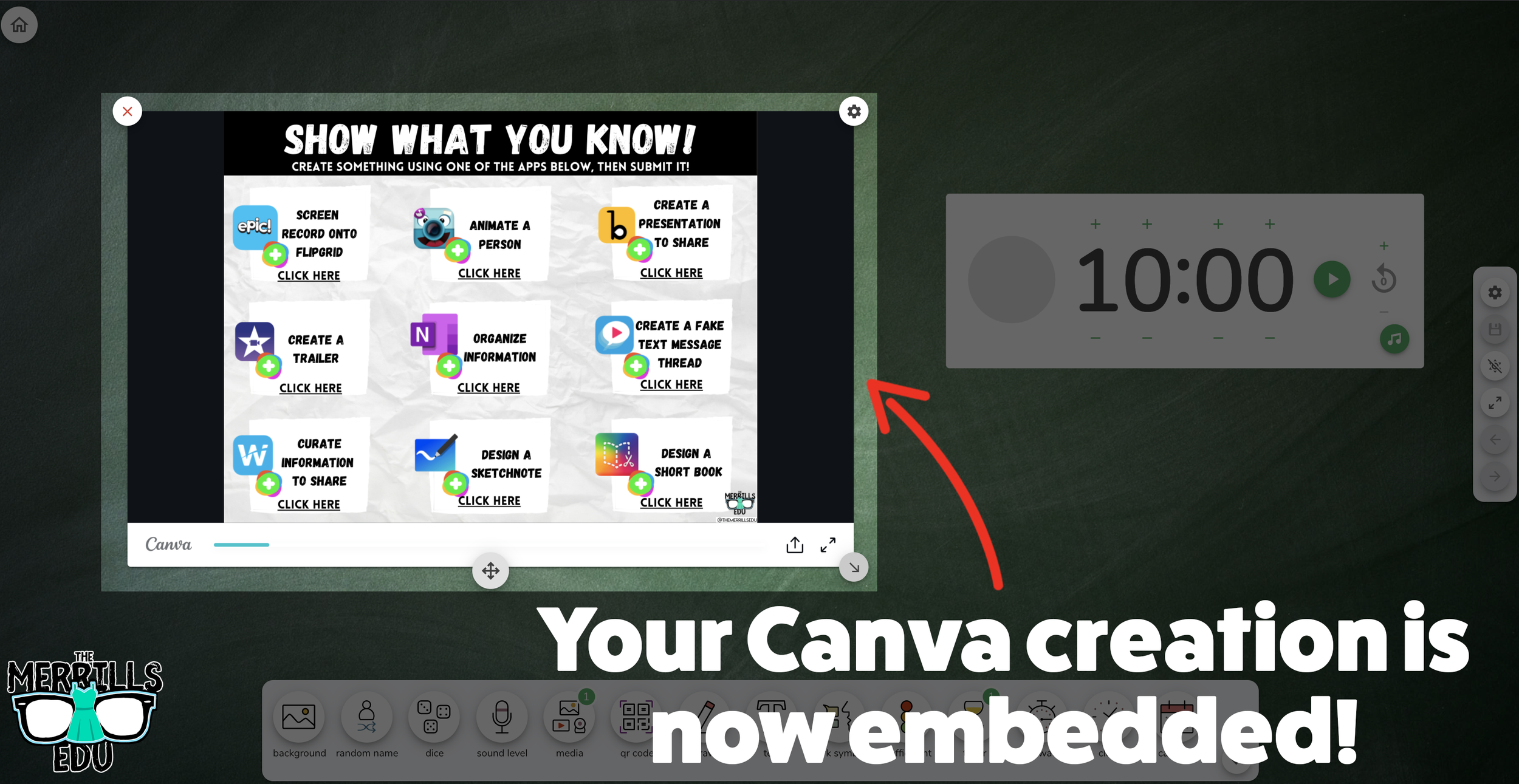
Open a Canva creation, then click the three dots.
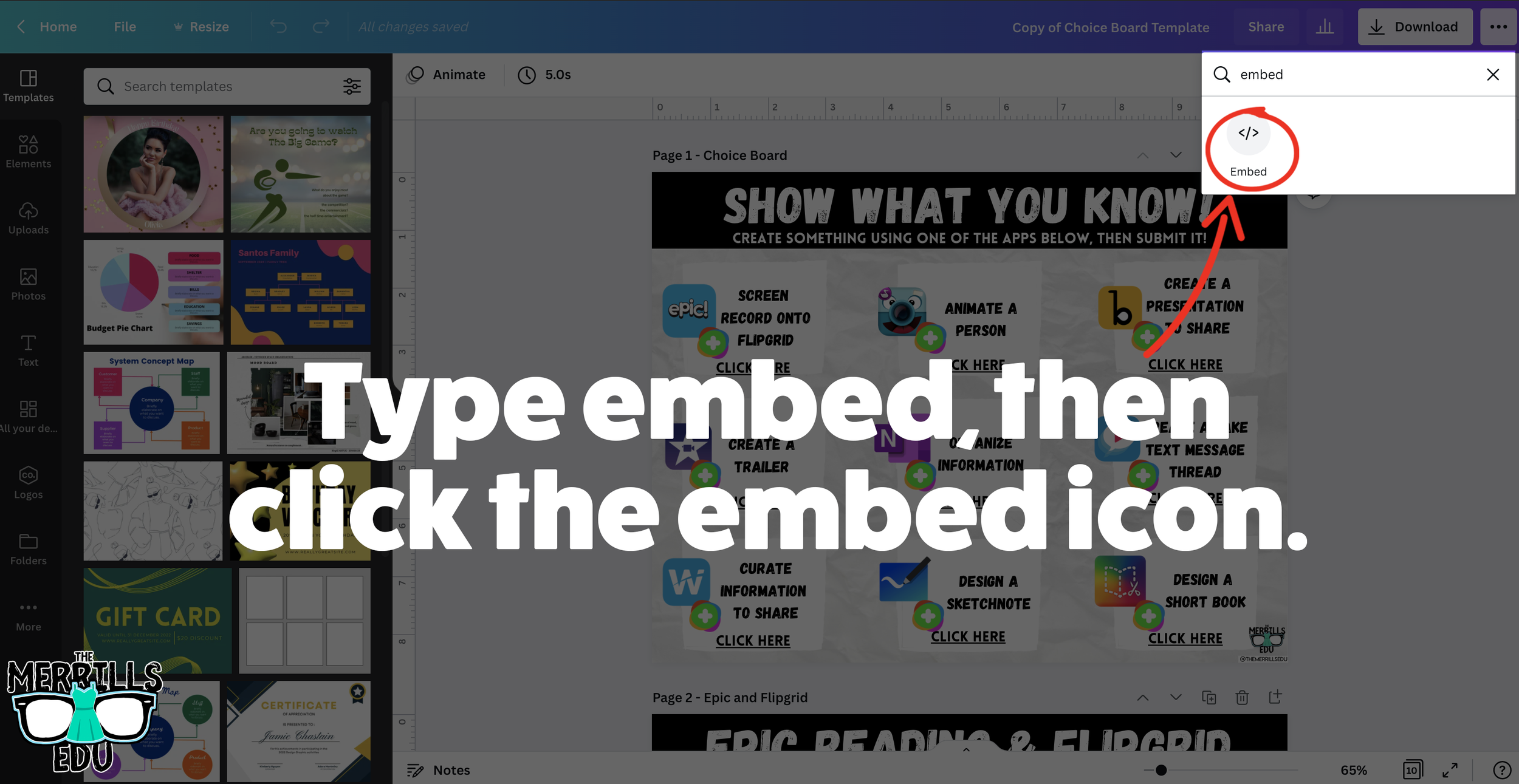
In the drop down, type “embed.”
Click the “Embed” icon.
On the next frame, click the “Embed” button. This will take your creation “live.”
Now, next to HTML Embed Code, click “Copy.”
In a separate tab, head over to ClassroomScreen.com and start a new screen (or open an old one).
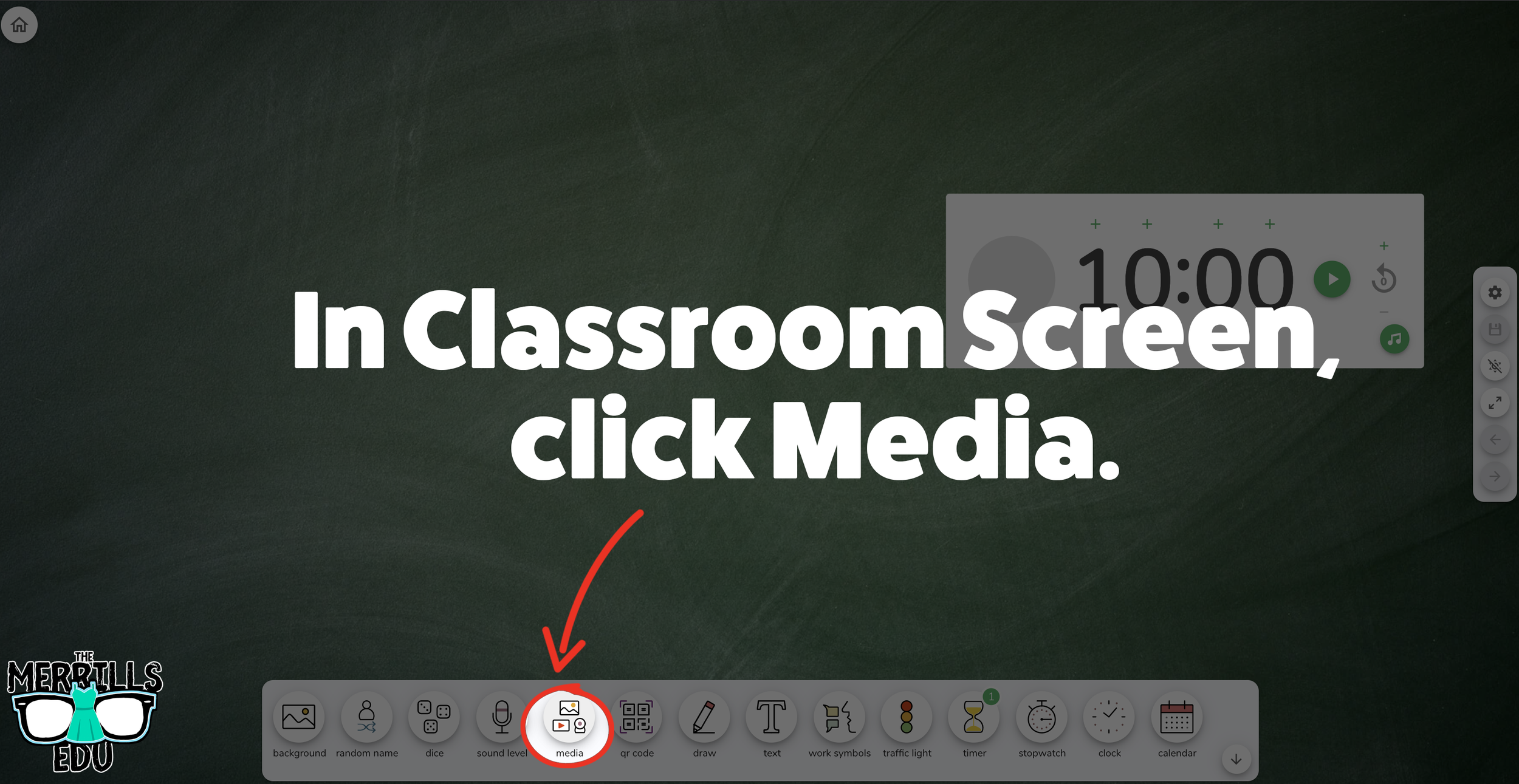
With your Classroom Screen open, click on “Media” from the menu options running along the bottom of the screen.
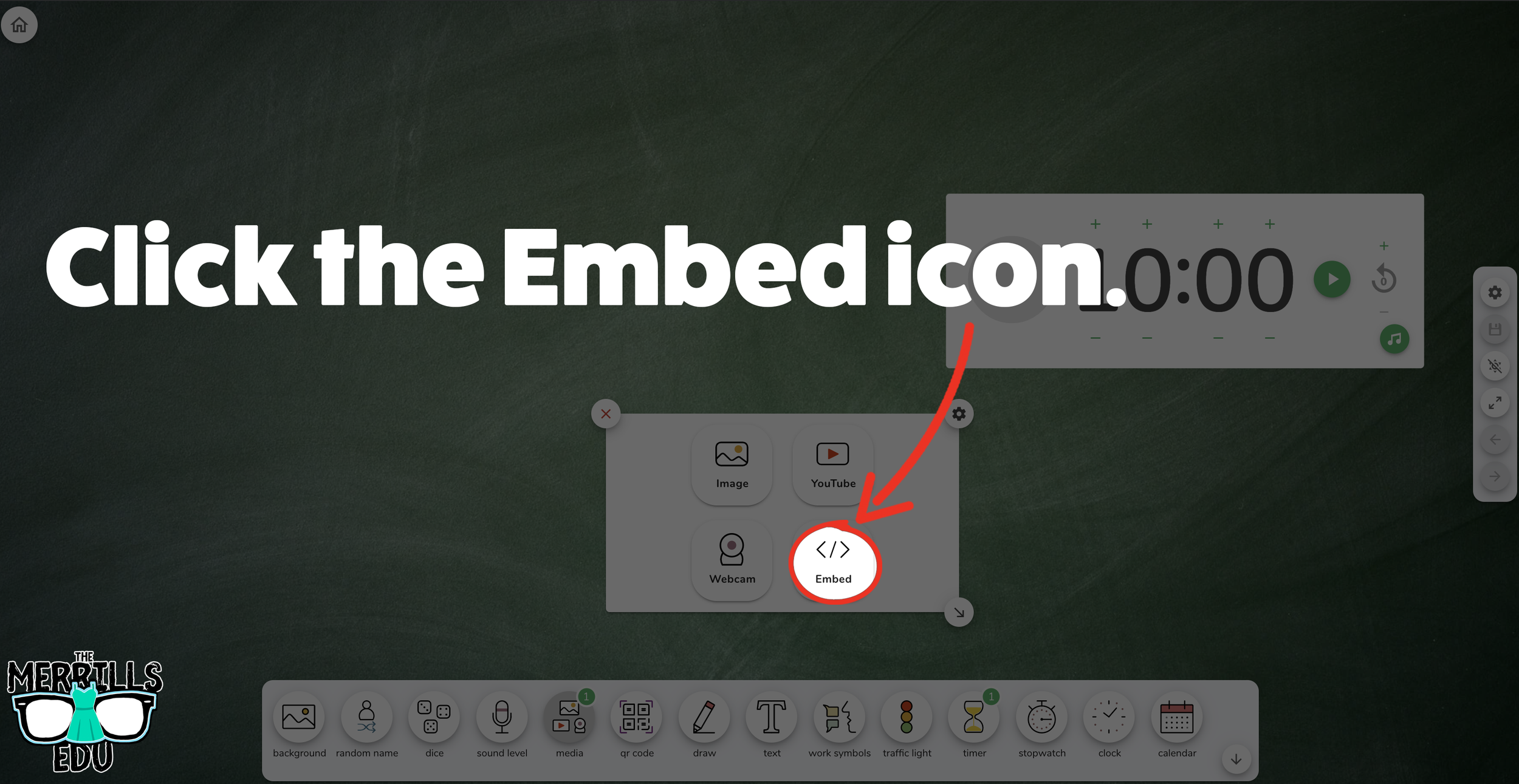
A new window will open. Click “Embed.”
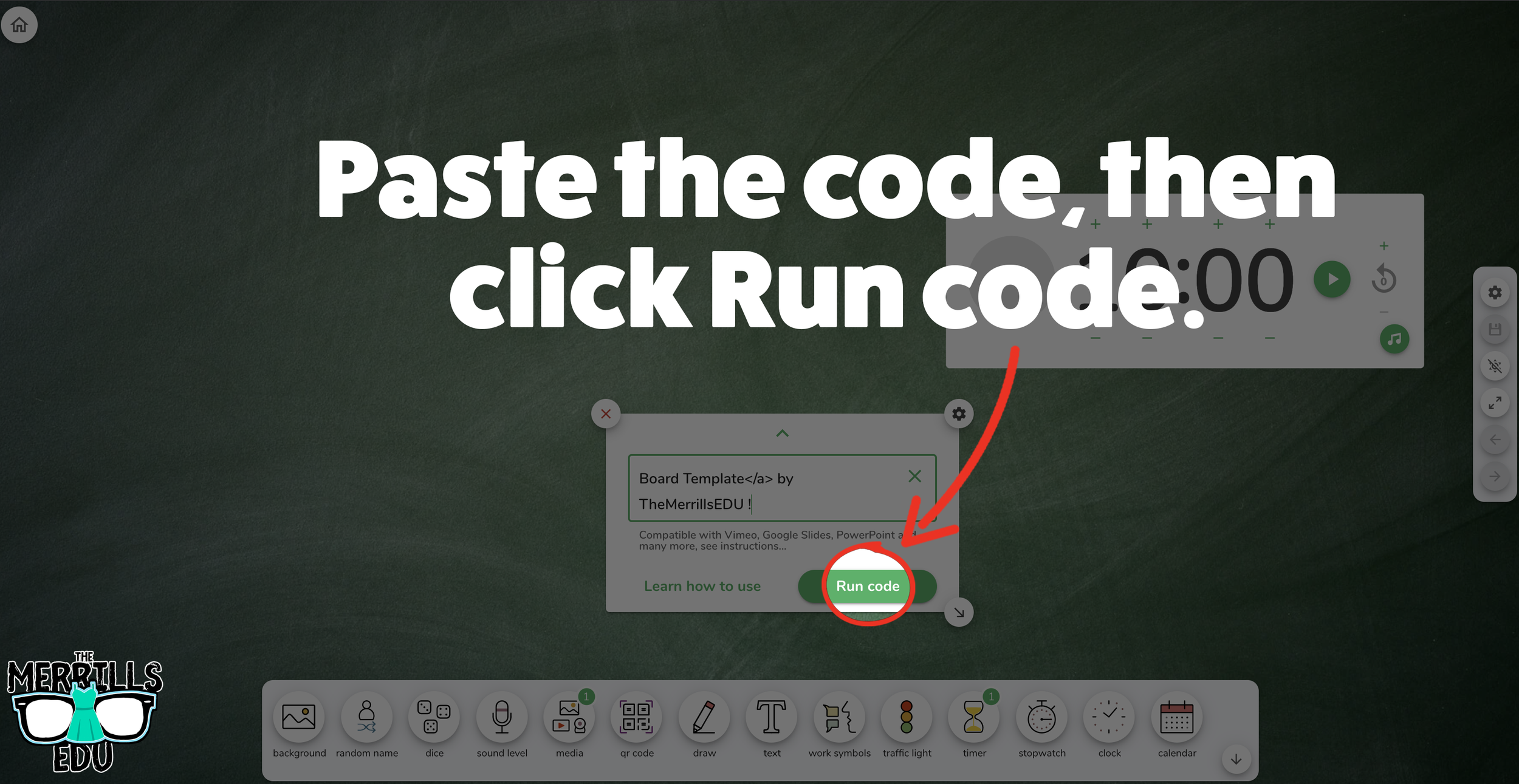
Click inside the embed area and paste your Canva code.
With the code pasted, click on “Run code.”
Your Canva creation will now appear! You can move the Canva creation around by clicking on the arrows (located at the bottom), or stretch the creation out by clicking the arrow on the bottom right - then dragging it to the desired location.
Now, Canva is embedded into Classroom Screen!

Buncee Embedded into Classroom Screen
Buncee creations can also be embedded into Classroom Screen! This is great if you have different tasks that you share for your student to perform daily. For example, if you have different tasks for multiple groups, you can create a Buncee and then share it on the Classroom Screen background. Here’s how it all works:
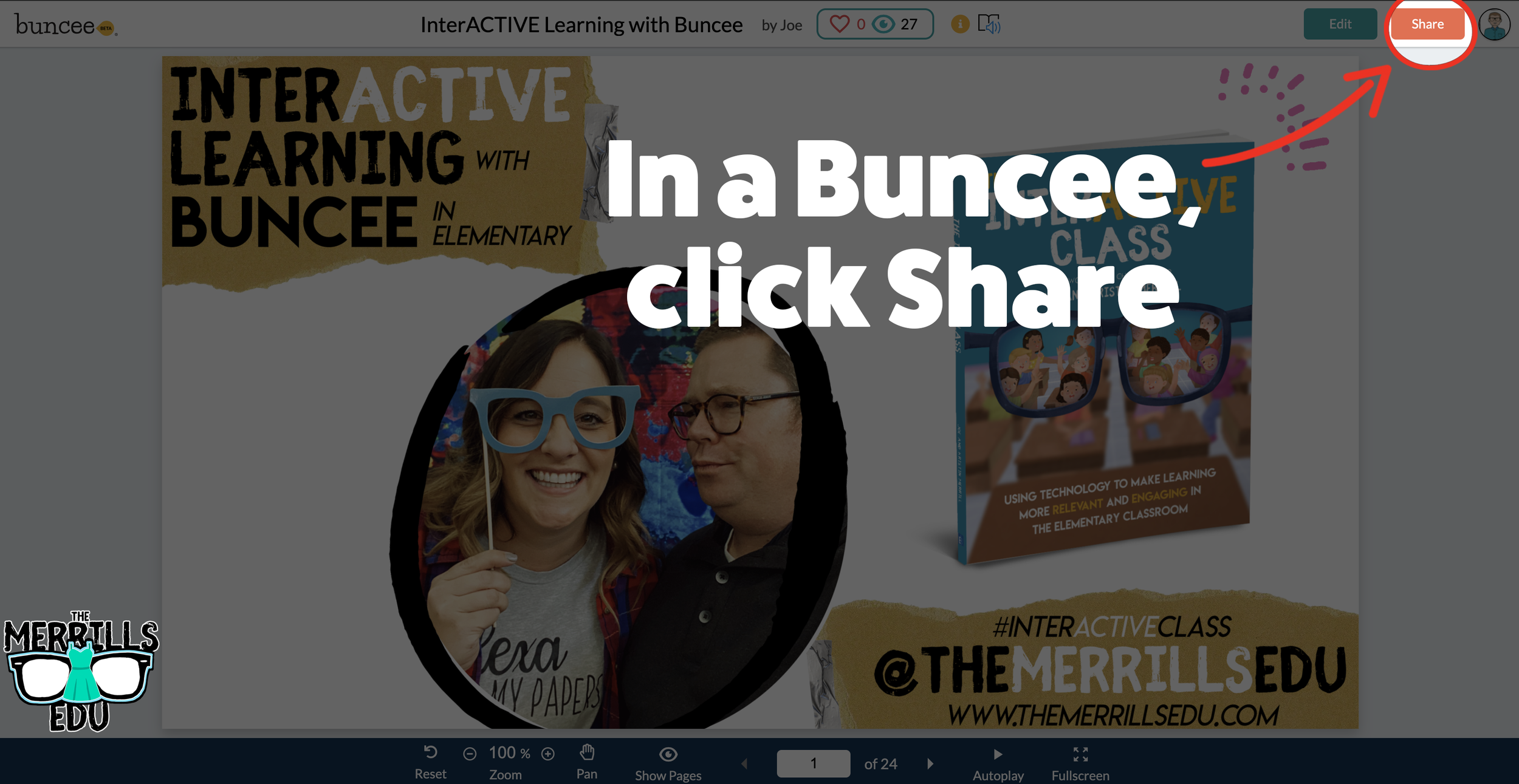
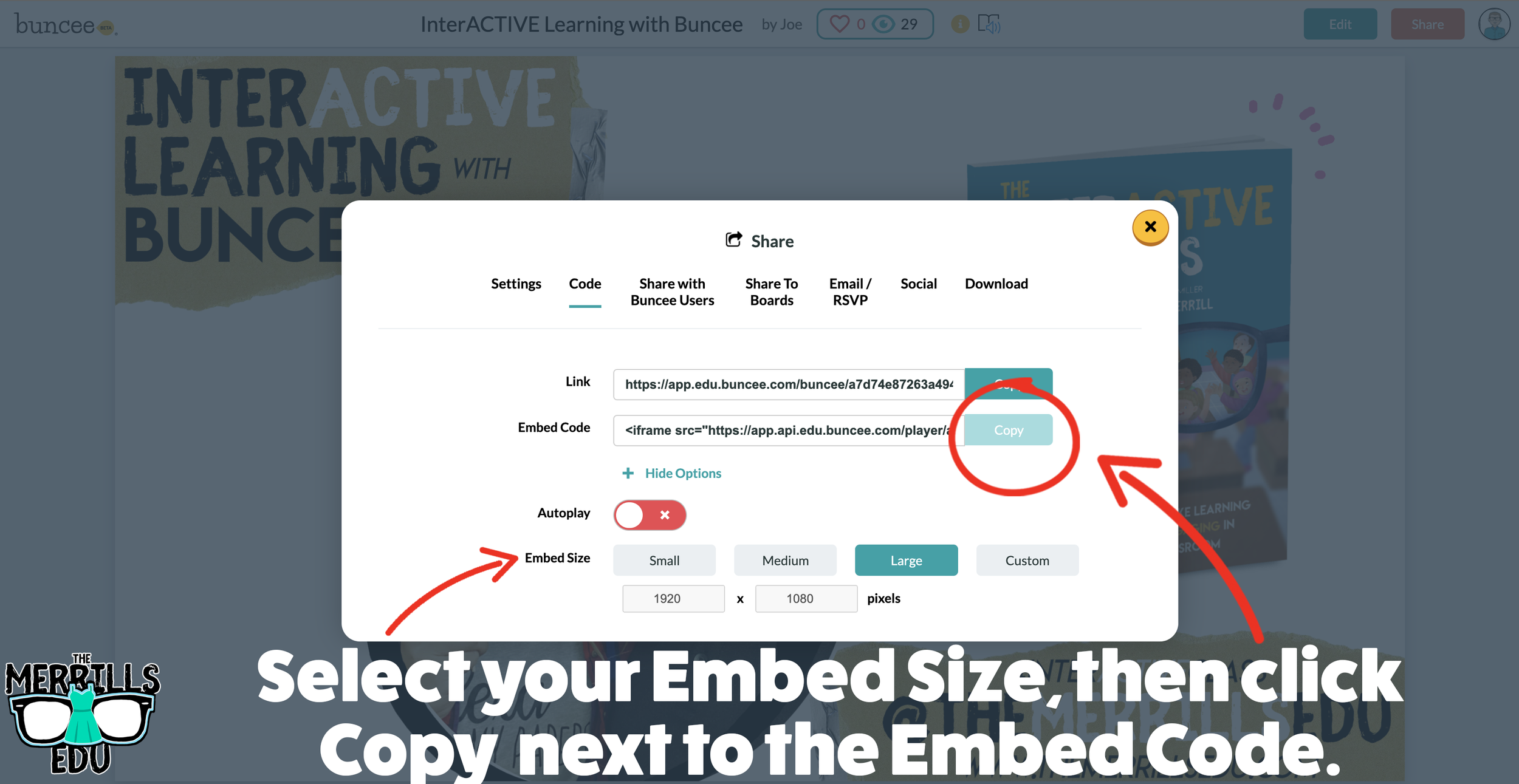
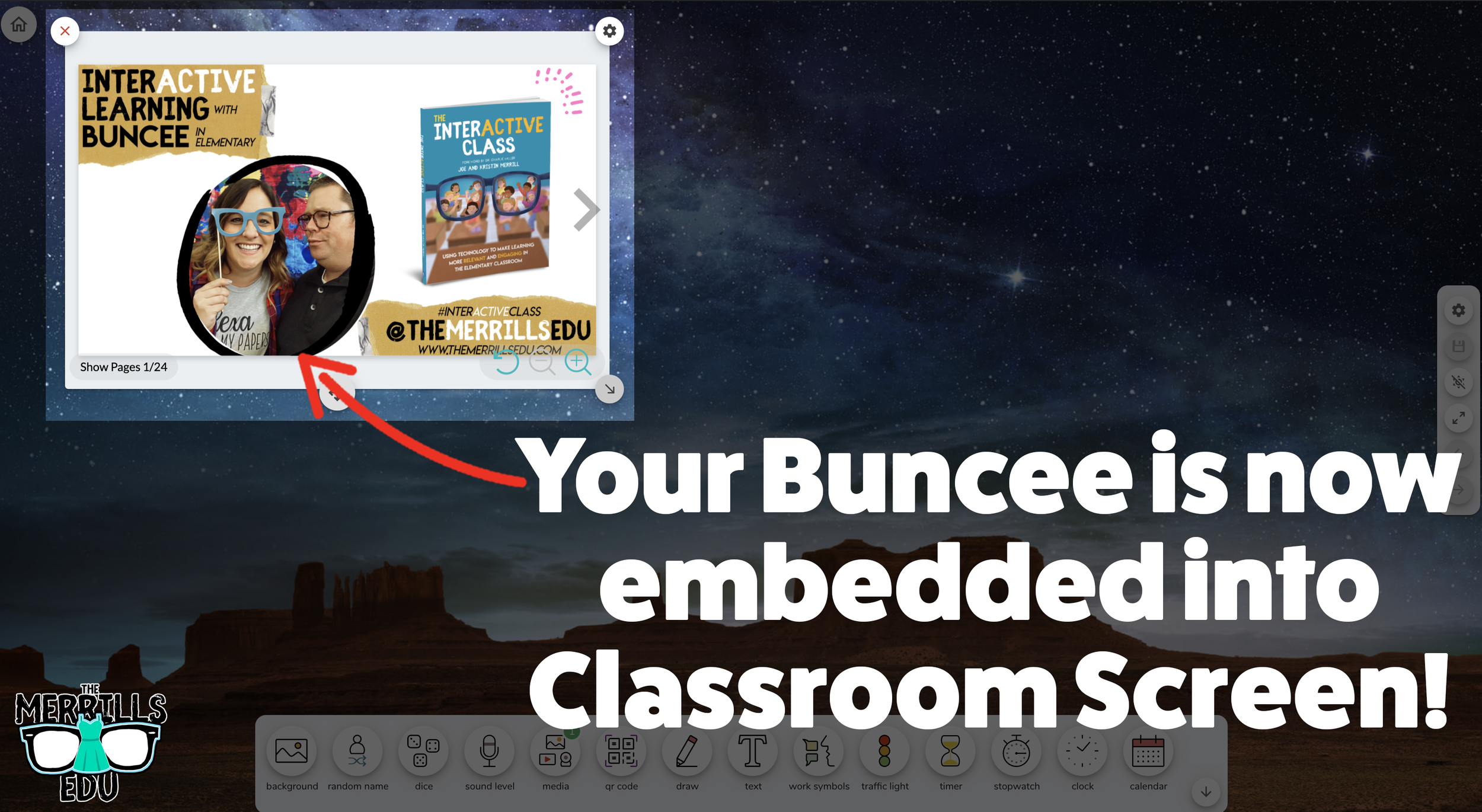
Open the Buncee creation that you want to embed, then click “Share.”
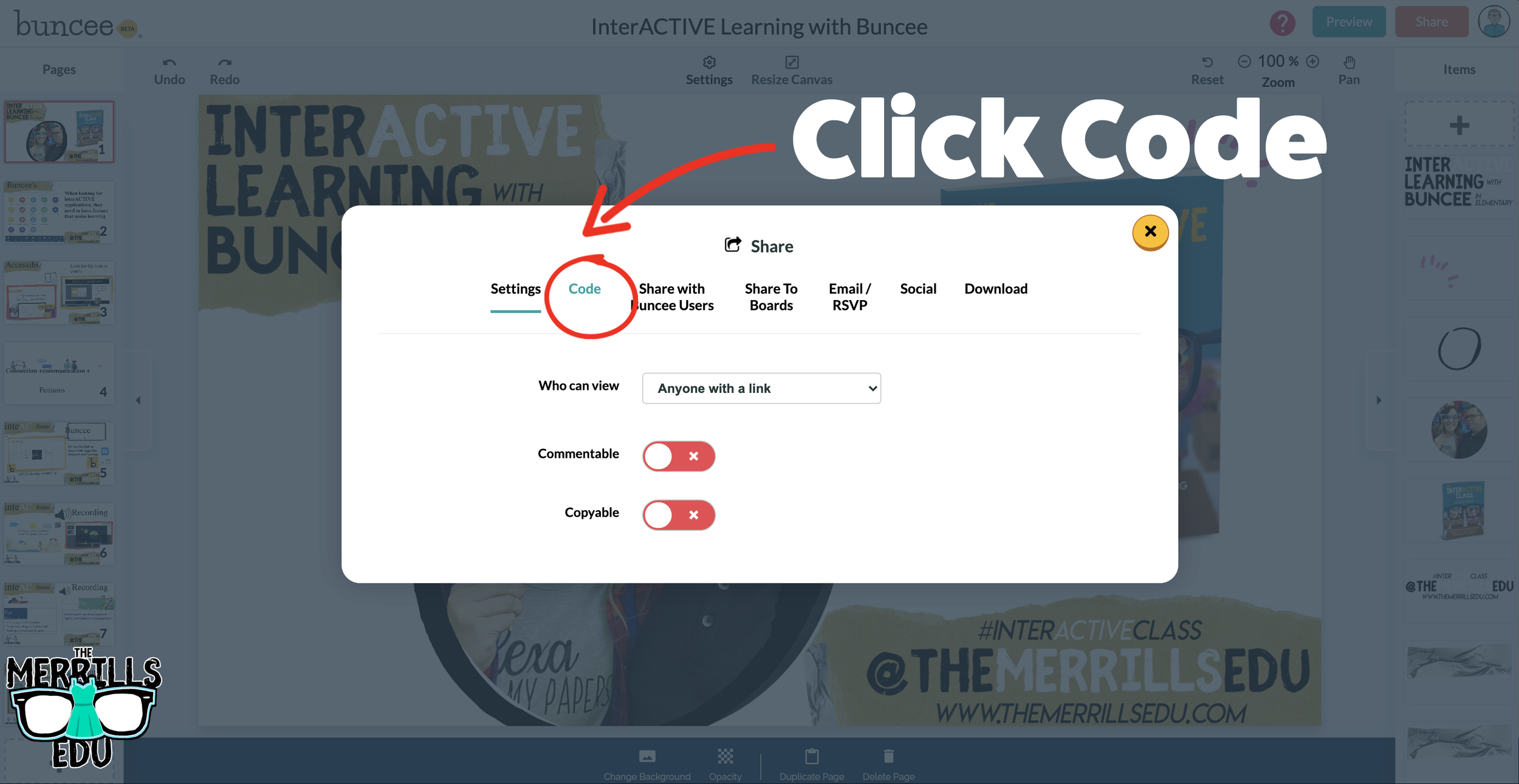
In the pop-up, click “Code.”
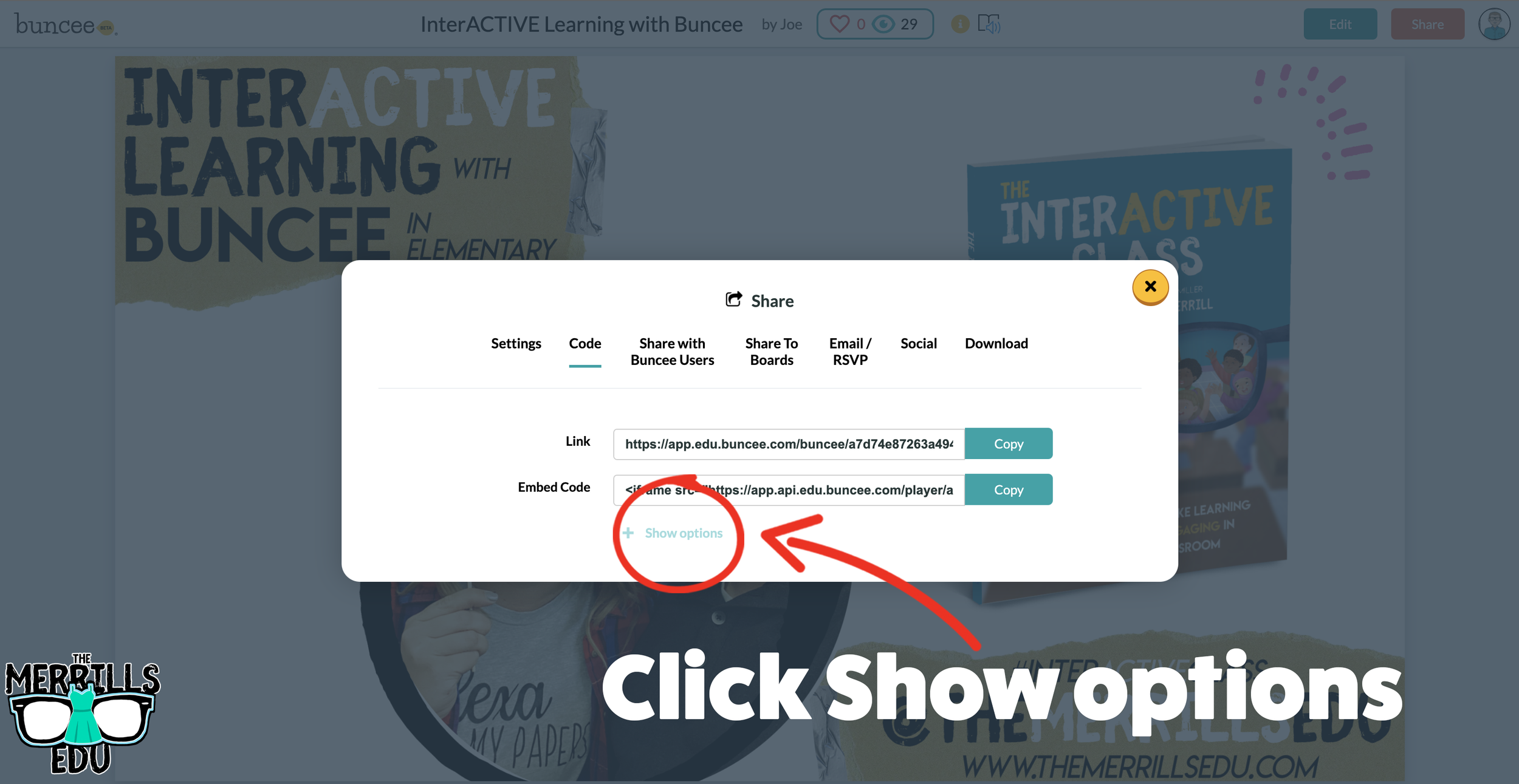
Click “+Show Options” and then select your preferred size.
Once you have selected your size, click “Copy” next to the Embed Code bar.
In a separate tab, head over to ClassroomScreen.com and start a new screen (or open an old one).
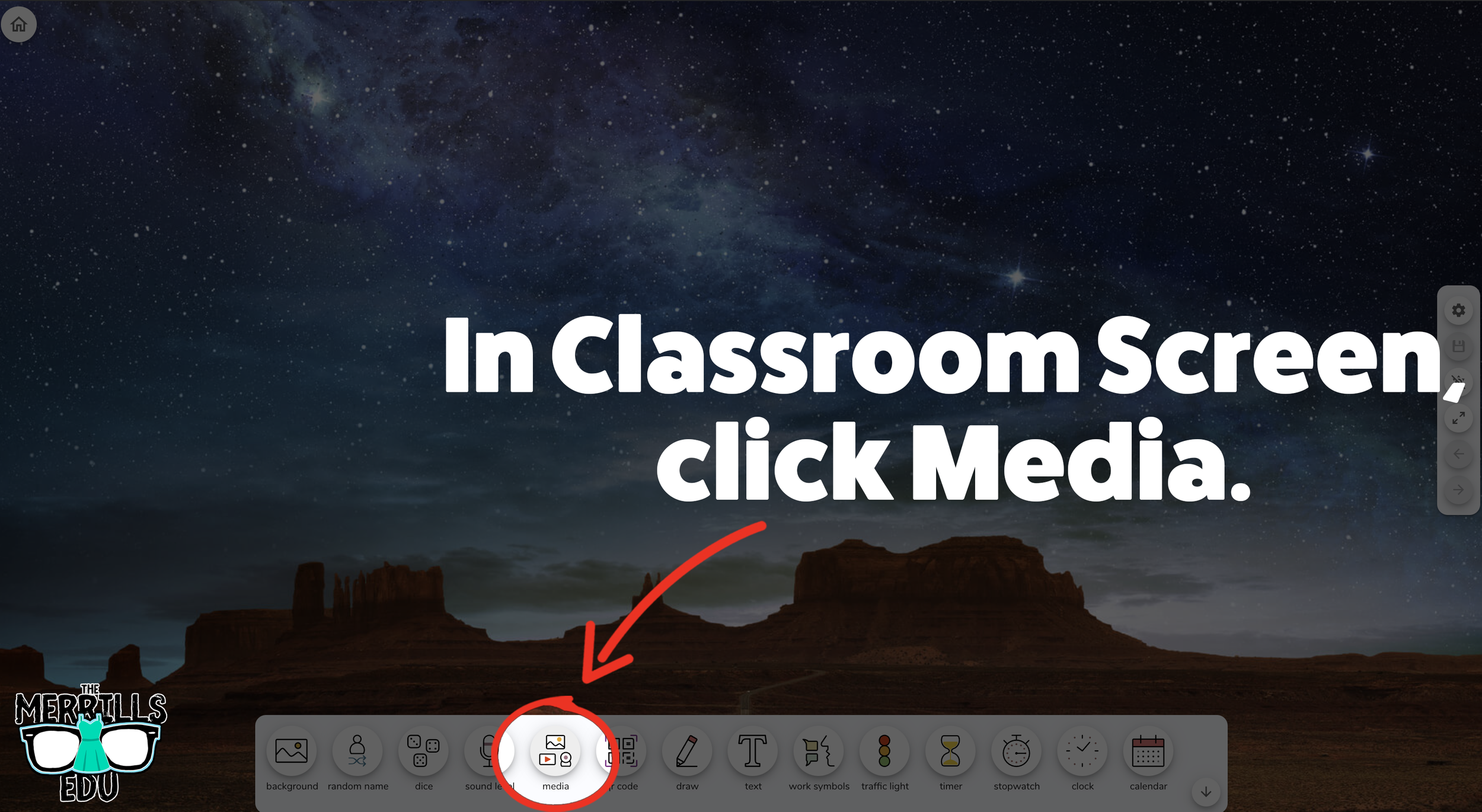
With your Classroom Screen open, click on “Media” from the menu options running along the bottom of the screen.
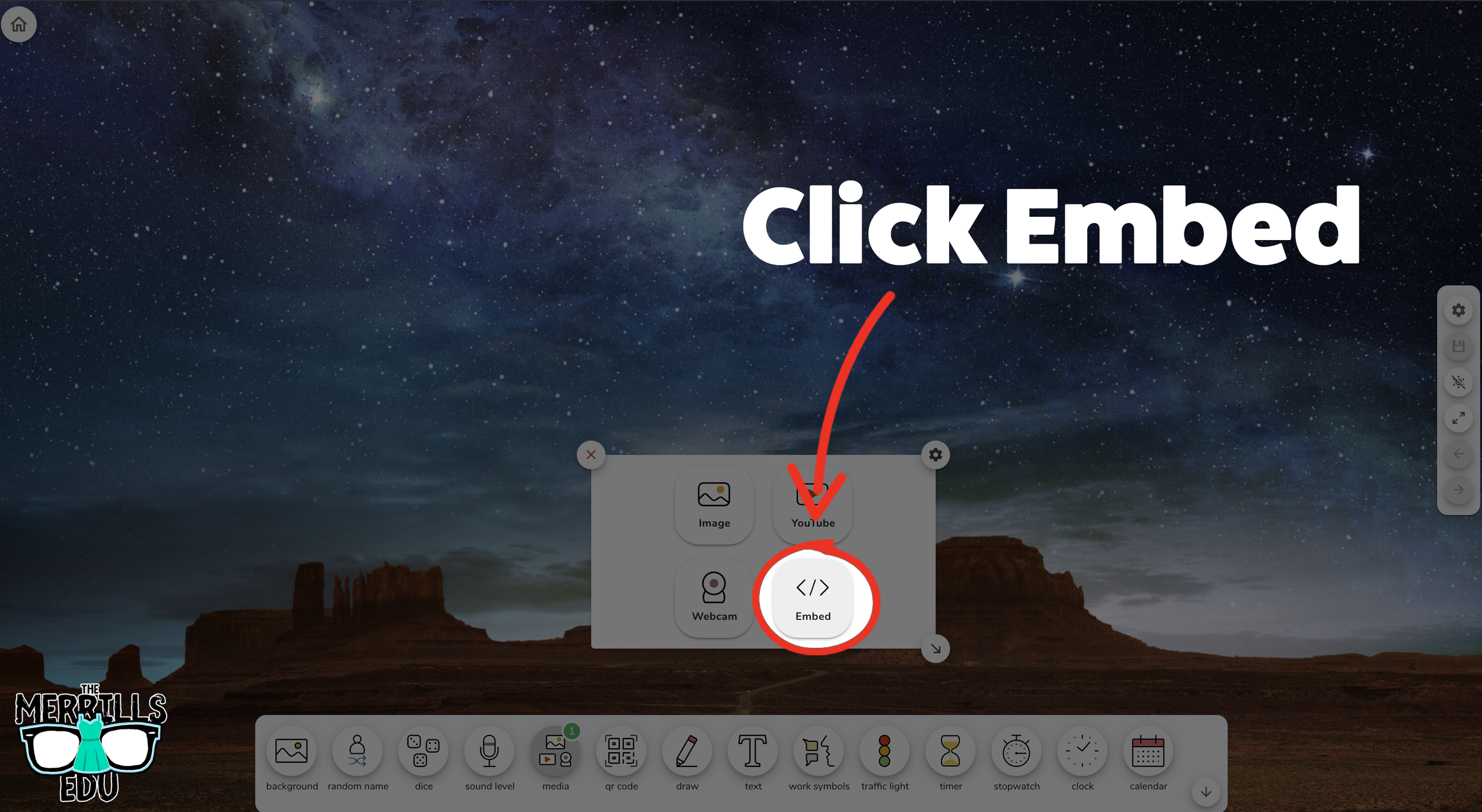
A new window will open. Click “Embed.”
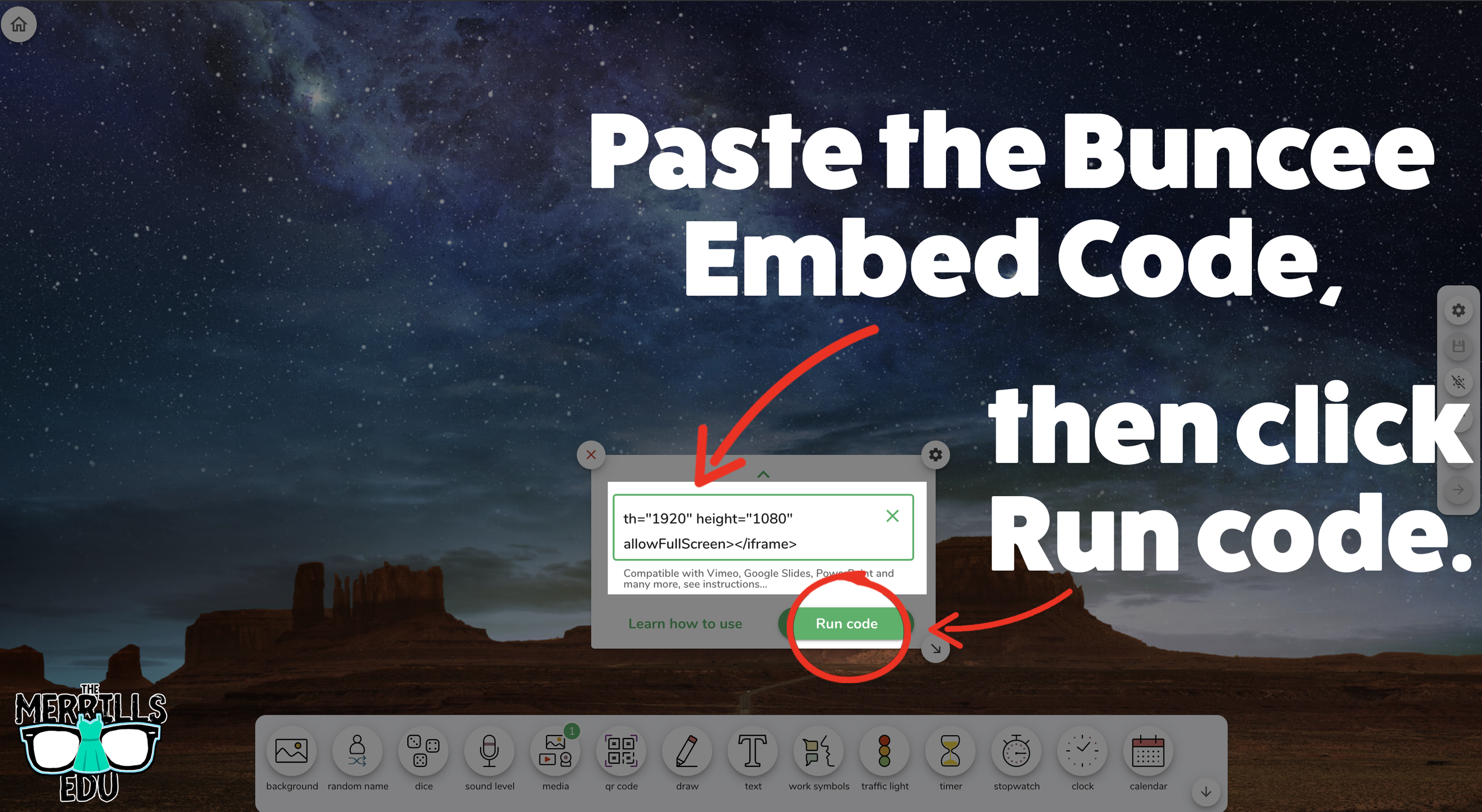
Click inside the embed area and paste your Buncee code.
With the code pasted, click on “Run code.”
Your Canva creation will now appear! You can move the Buncee creation around by clicking on the arrows (located at the bottom), or stretch the creation out by clicking the arrow on the bottom right - then dragging it to the desired location.
Now, Buncee is embedded into Classroom Screen!

Wakelet Embedded into Classroom Screen
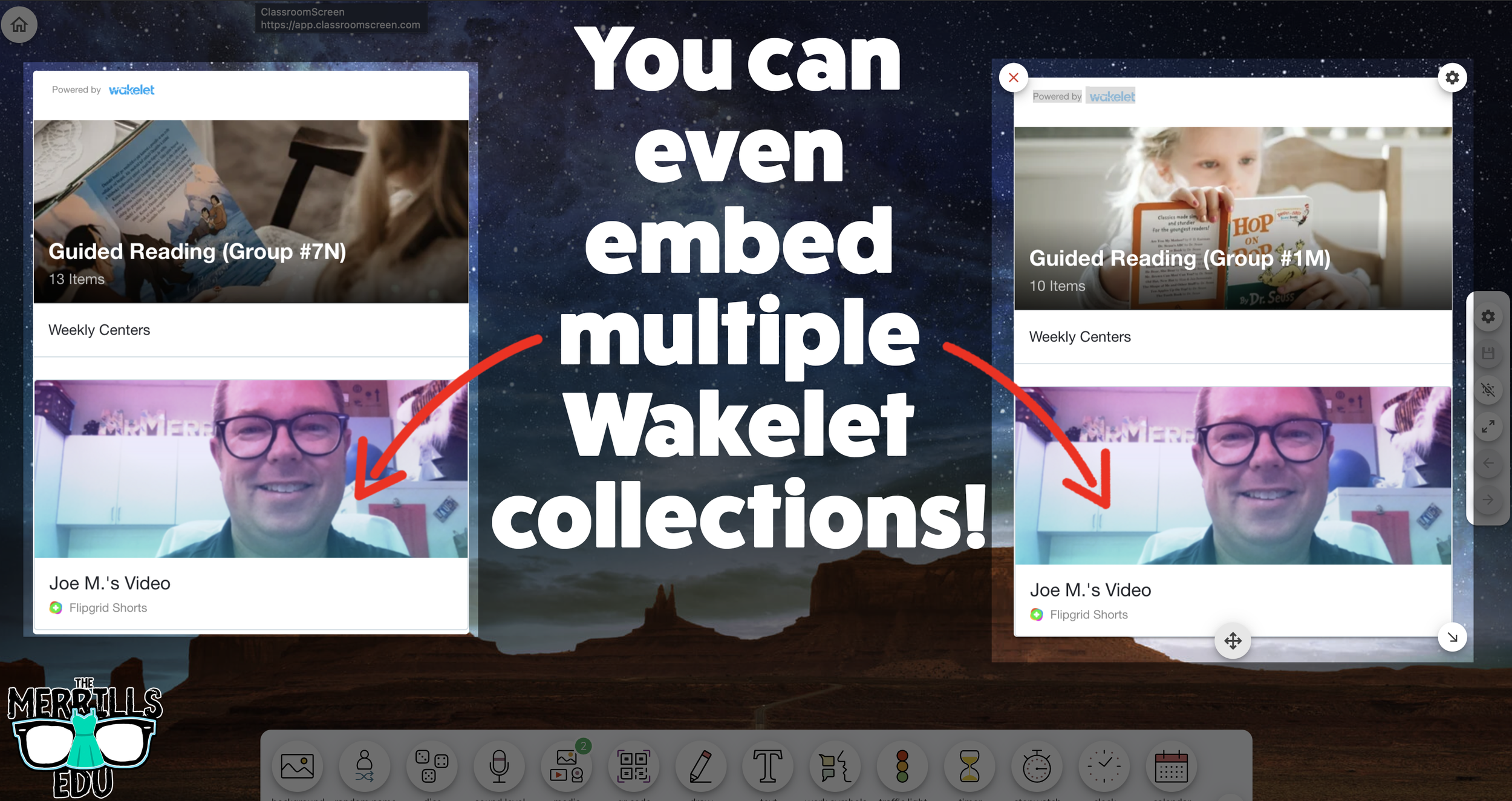
This embed is great if you need to post several different Wakelet collections in the same place. For example, you could group your students and then provide differentiated tasks on Wakelet - all of which are embedded onto Classroom Screen. Here’s how it all works:
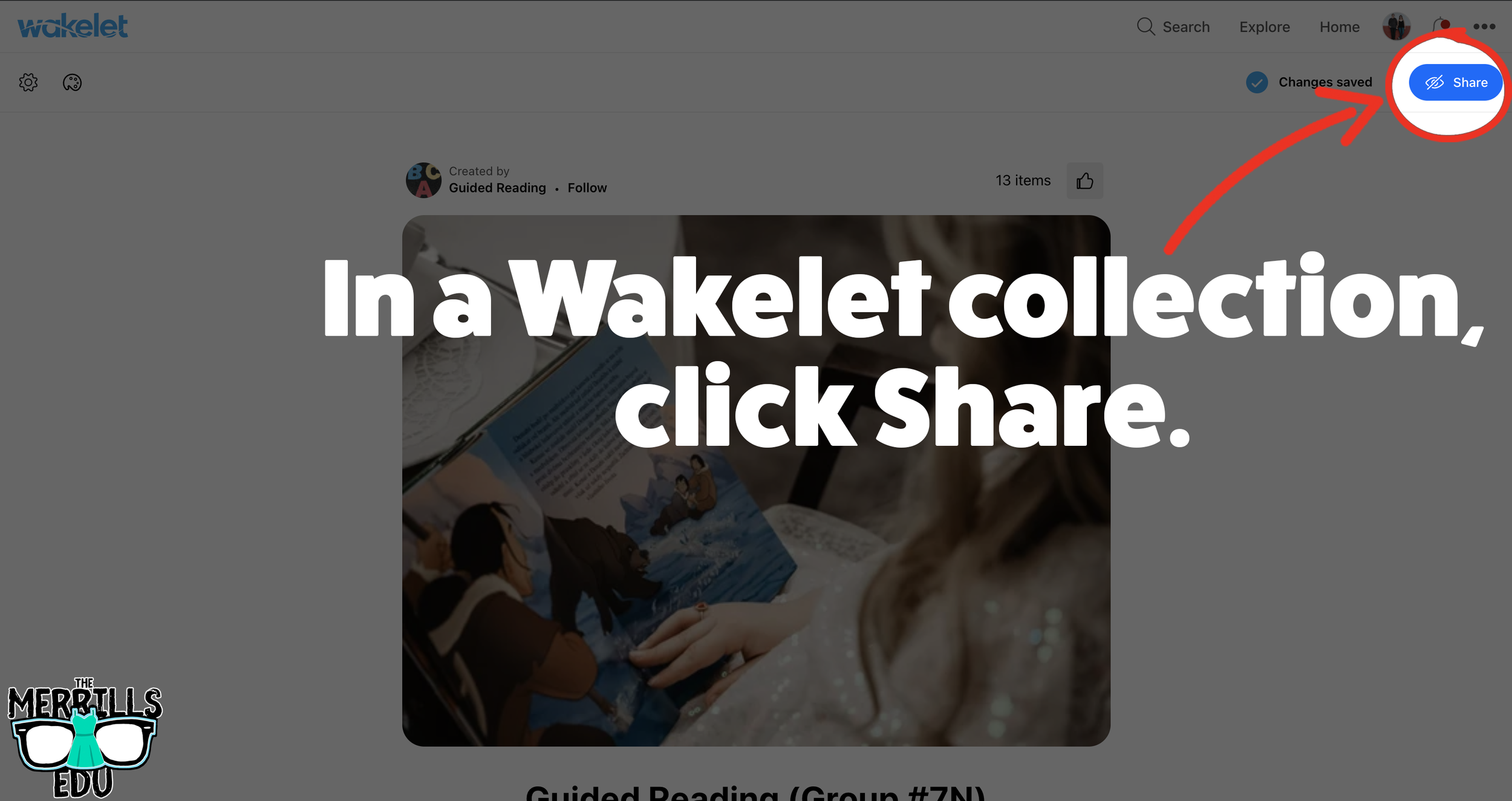
(Note: you will need to make your Wakelet collection either Public or Unlisted for this to work)
In a Wakelet collection, click the “Share” button.
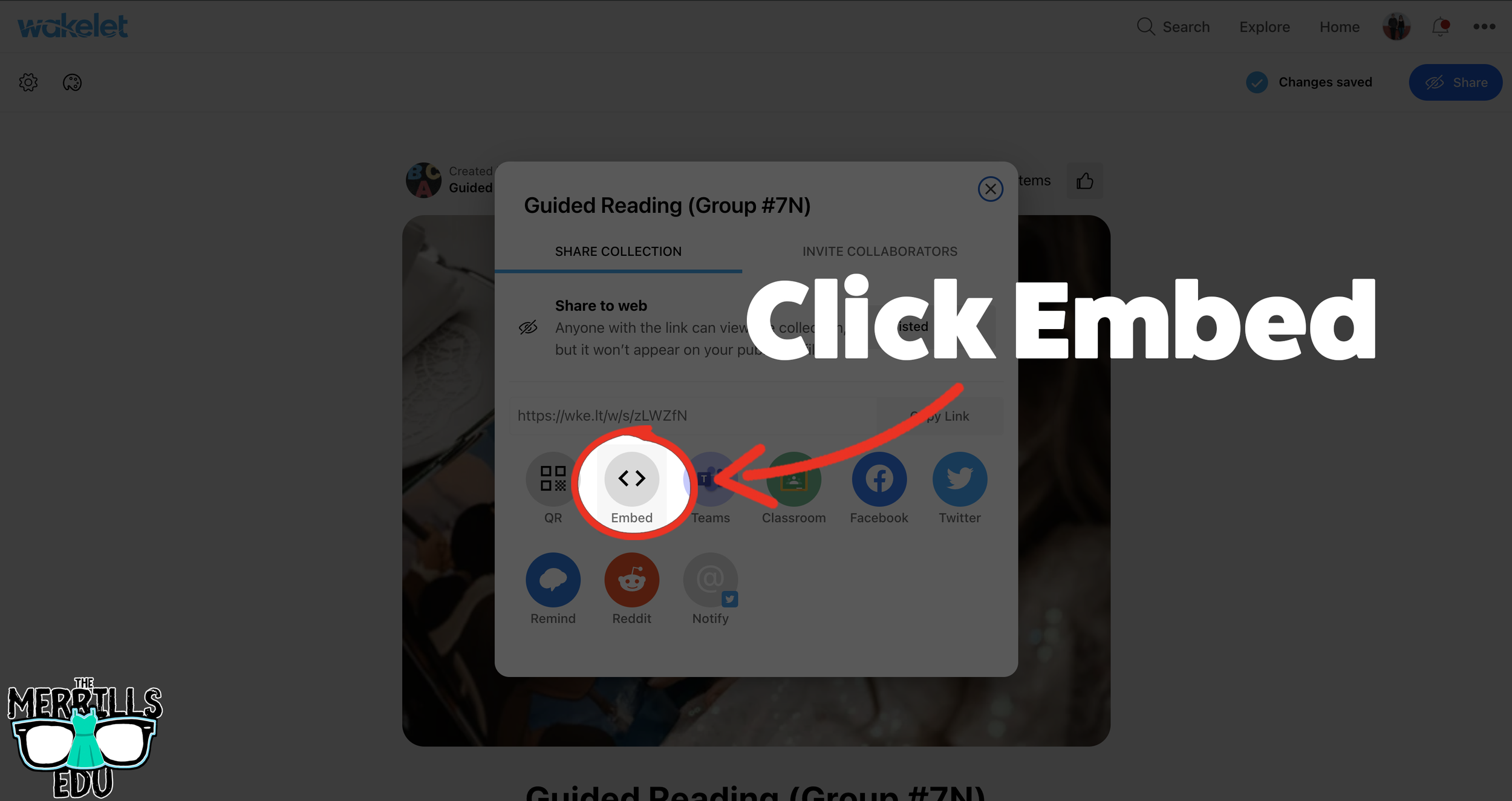
In the pop-up window, click “Embed.”
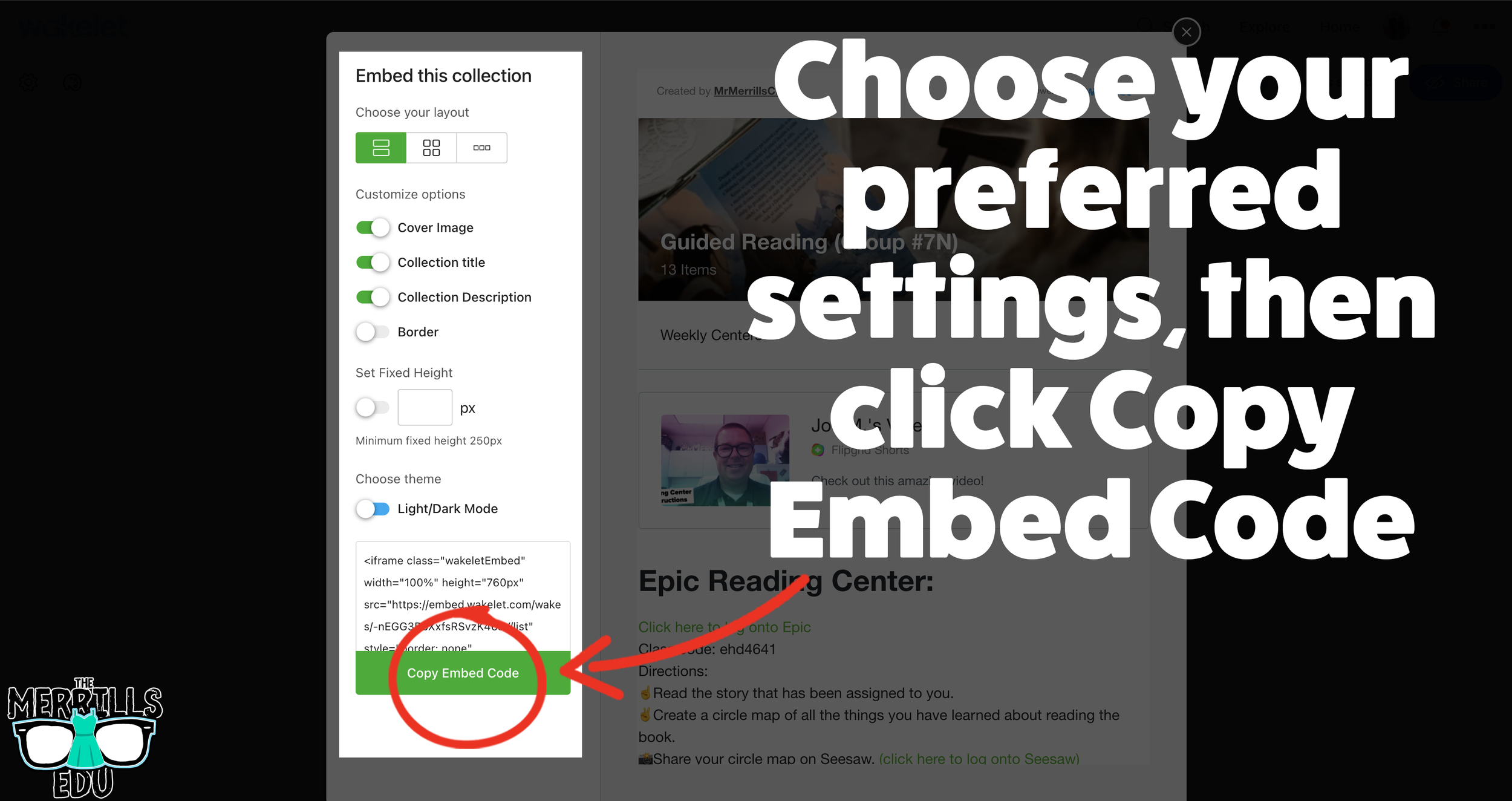
Select your preferred settings, then click “Copy Embed Code.”
In a separate tab, head over to ClassroomScreen.com and start a new screen (or open an old one).
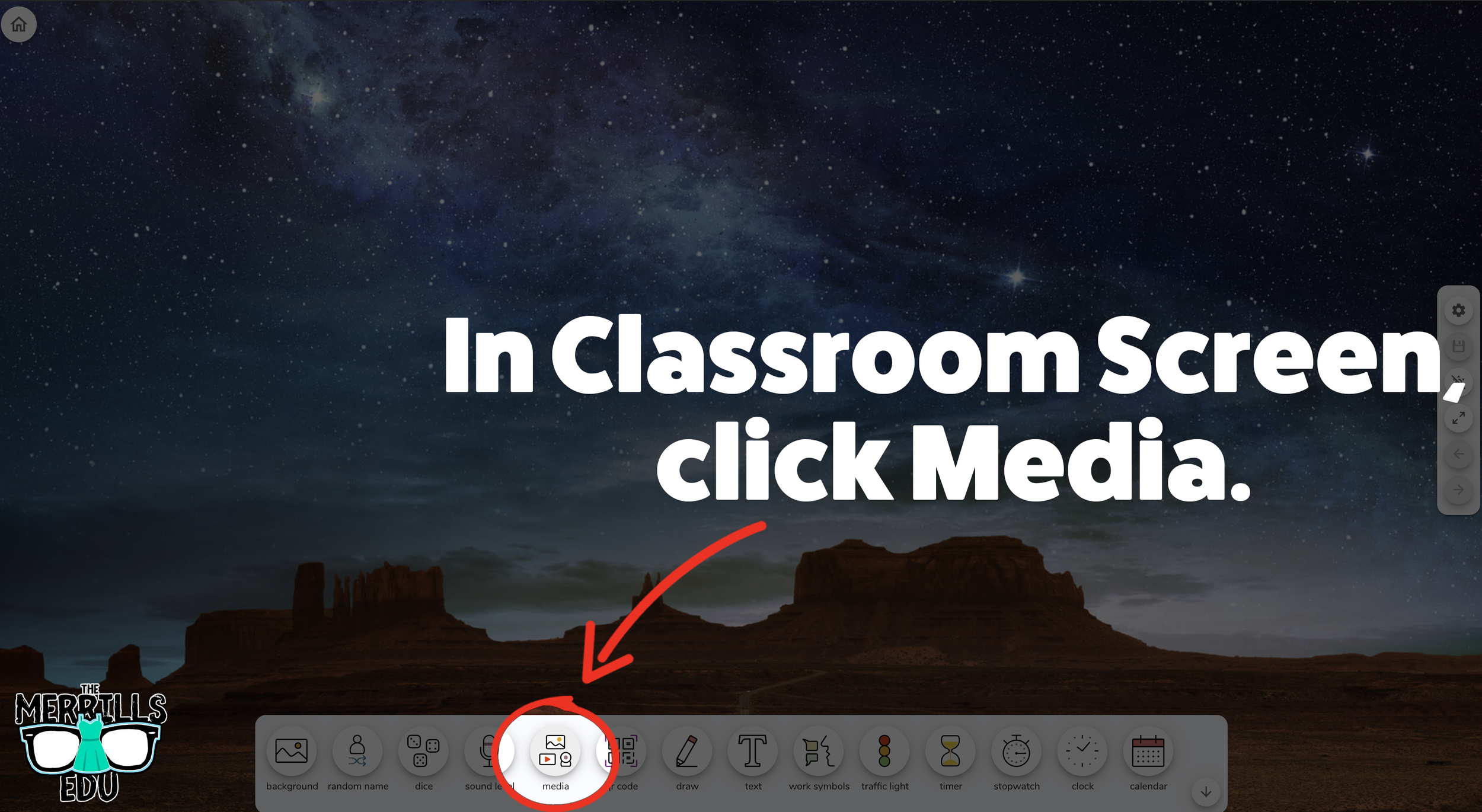
With your Classroom Screen open, click on “Media” from the menu options running along the bottom of the screen.
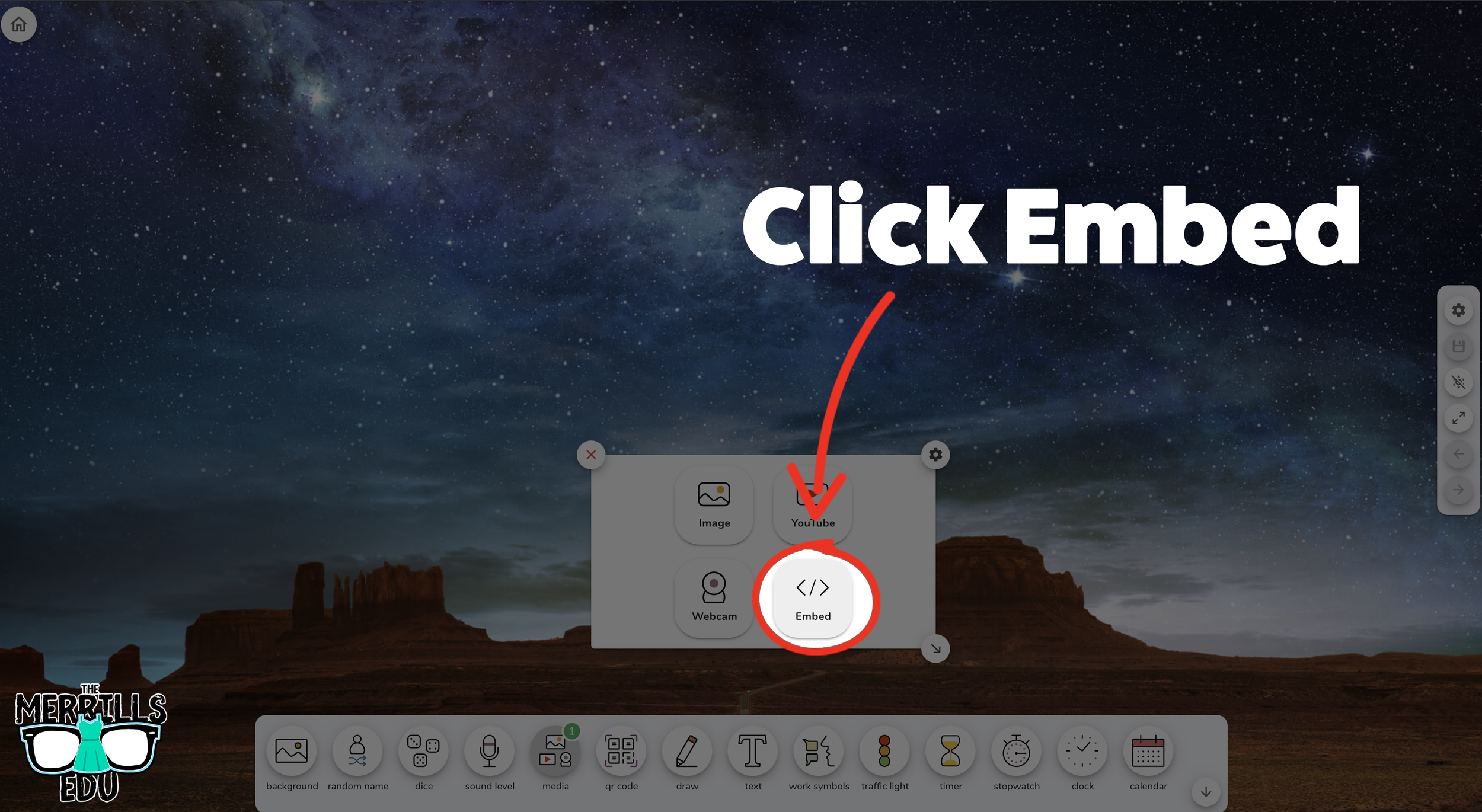
A new window will open. Click “Embed.”
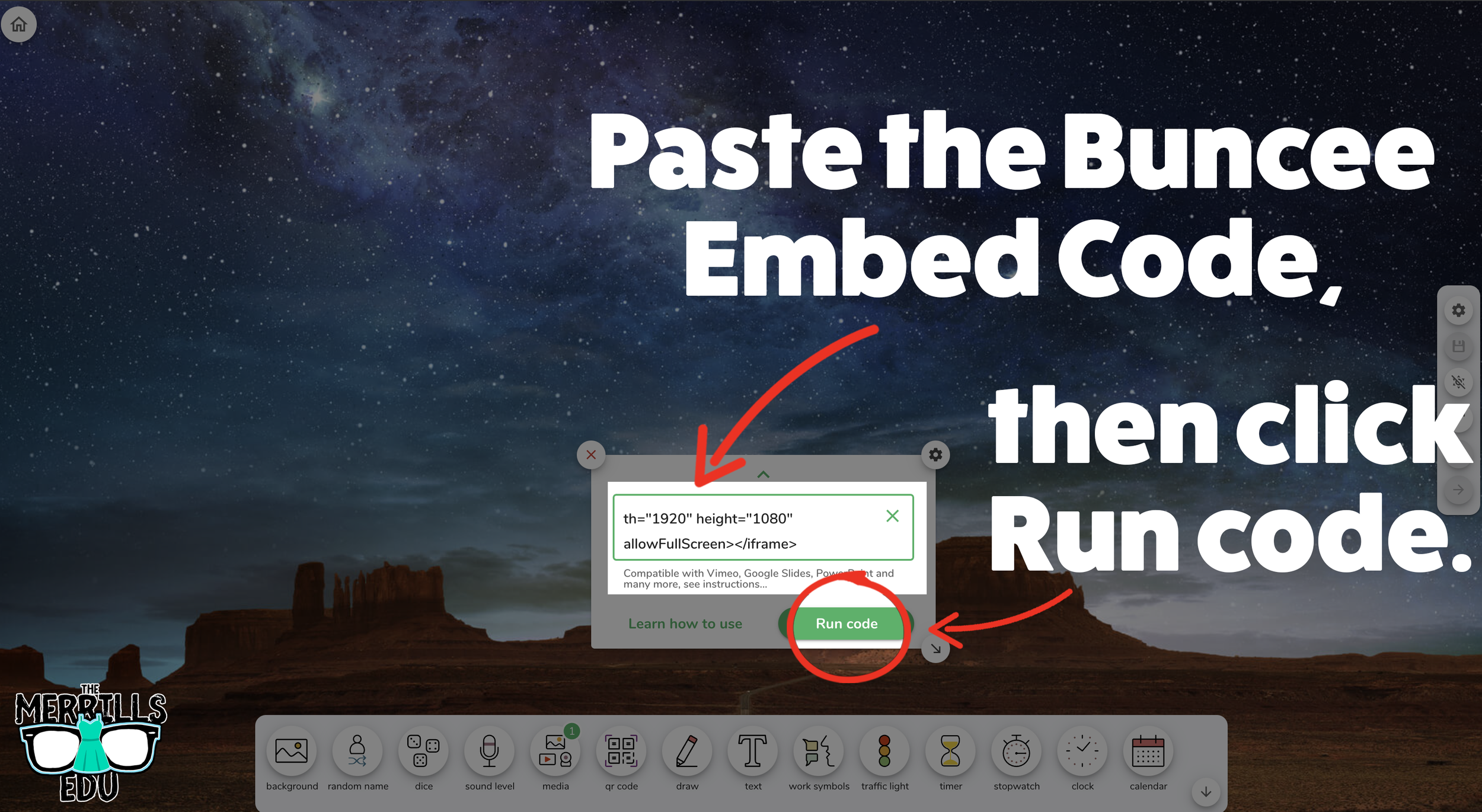
Click inside the embed area and paste your Wakelet code.
With the code pasted, click on “Run code.”
Your Wakelet collection will now appear! You can move the Wakelet collection around by clicking on the arrows (located at the bottom), or stretch the collection out by clicking the arrow on the bottom right - then dragging it to the desired location.
Now, Wakelet is embedded into Classroom Screen!
BONUS: You can add multiple Wakelet embeds onto the same Classroom Screen!
-- Let us know if you’re using any of these ideas in your classroom! Be sure to follow us on social media (@TheMerrillsEDU everywhere) and tag us! 👓👗
For more tips, tricks and lesson ideas for making learning more interACTIVE, check out our books The InterACTIVE Class and Flipgrid in the InterACTIVE Class on Amazon!


20 Apps that Work with Flipgrid
There’s no question that Flipgrid is one of our favorite Ed Tech tools. One of the best parts about Flipgrid is just how well it integrates with other apps. Whether you’re app smashing, embedding, or just simply adding a link, here are 20 apps that work well with Flipgrid.
There’s no question that Flipgrid is one of our favorite Ed Tech tools. One of the best parts about Flipgrid is just how well it integrates with other apps. Whether you’re app smashing, embedding, or just simply adding a link, here are 20 apps that work well with Flipgrid.
Click on any image to jump to that section, or start reading below!





1. Adobe Spark
Create images, video, and webpages
Link 👉 https://spark.adobe.com/
Ways to Use with Flipgrid:
Design a podcast cover in Spark, then save it and upload it to Flipgrid. Record your podcast in Flipgrid!
Create a Spark page, then copy the link. Share the link in a Flipgrid response
Create a Spark video and download it. Then, upload it to Flipgrid!



2. BreakoutEDU
Engaging gamification for the classroom
Link 👉 https://www.breakoutedu.com/
Ways to Use with Flipgrid:
Have your students complete a Breakout challenge, then have them answer follow-up questions on Flipgrid
Use different videos for different puzzles, then have students respond to the appropriate puzzle’s video

3. Book Creator
A simple way to create digital books online
Link 👉 https://bookcreator.com/
Ways to Use with Flipgrid:
Create a collaborative class book, then embed a Flipgrid topic into the book. As your students read the book, they can add their thoughts into the topic.
Create a book on Book Creator, then share the link in a Flipgrid video.

4. Buncee
Create and share engaging content
Link 👉 https://app.edu.buncee.com/
Ways to Use with Flipgrid:
Create a Buncee that ties into a text, then have your students answer several follow-up questions on Flipgrid.
Create a Bitmoji classroom, then share the Buncee as a Topic Resource. This will add your Buncee Bitmoji classroom to the top of the Flipgrid Topic
Create a Flipgrid Topic and record a video as a student in that topic. Ask your students to solve some type of challenge. Then, from the Flipgrid educators dashboard, add a Buncee that hyperlinks to another Buncee. This Buncee should somehow tie into your video challenge, and can be used as a breakout or a way to access different “rooms.”
5. Canvas
Learning management system
Link 👉 https://www.instructure.com/canvas/
Ways to Use with Flipgrid:
From the Flipgrid Educator’s Dashboard, select a Topic or Group. Click the blue “Share” button, then click on the blue brackets symbol (</>) to copy the embed code. On a Canvas page, click on the “Edit/Insert Media” button. Next, click on “Embed,” and then paste the copied Flipgrid code. Click “Ok” to embed your Flipgrid content directly into the Canvas page!


6. Chatterpix Kids
Easily animate still images
Link 👉 https://apps.apple.com/us/app/chatterpix-kids/id734046126
Ways to Use with Flipgrid:
In the Chatterpix Kids app, animate a character from a story by explaining the characters’ feelings, or experience. Export your Chatterpix video, then upload it into Flipgrid as a clip.
Bring historical figures to life by animating them in Chatterpix Kids and exporting the video to your device’s camera roll. Then, upload it to Flipgrid and have your students watch their classmates videos and respond accordingly.
7. (Apple) Clips
Simple and easy video editor
Link 👉 https://www.apple.com/clips/
Ways to Use with Flipgrid:
Record a video in Clips to launch an exciting lesson. Download the Clips video to your camera roll, then upload it to a Flipgrid topic to share with your students.
In Clips, camera shy students can add a Memoji and place it over their face while they record. Once their video is ready, have them export the video to their camera roll. Then, upload it to Flipgrid to share!


8. Do Ink Green Screen
Primary friendly green screen app
Link 👉 https://apps.apple.com/us/app/green-screen-by-do-ink/id730091131
Ways to Use with Flipgrid:
Buy several green plastic table cloths from the Dollar Store, then hang them around your classroom. In the Do Ink app, have your students place themselves into a text. Add an image to the middle layer in Do Ink, then on the top layer have them use the live video camera (while they stand in front of the green screen). Export the video, then upload it to Flipgrid to share with other classmates!
9. Epic Reading App
The Netflix of books for kids
Link 👉 https://www.getepic.com/
Ways to Use with Flipgrid:
Create a class in Epic, then assign differentiated texts to your students. In the Flipgrid Educator’s Dashboard, create a Flipgrid Topic where the students can retell the story that they read. Add the links to the assigned Epic books into the Topic.
Have your students use Flipgrid’s screen record to share important parts of a book from Epic that they learned from. This could include a scavenger hunt for: text features, phonograms, compound words, etc.

10. Genially
Create interactive content
Link 👉 https://www.genial.ly/en
Ways to Use with Flipgrid:
Embed a Genially project as a Flipgrid resource, then have your students maneuver their way through the project. Have them answer questions in a Flipgrid video.
Have your students design their own projects on Genially, then share their links in a Flipgrid video. Fellow classmates can view their classmates Genially projects, then leave feedback on Flipgrid.


11. Herstory
Bring forgotten stories of women to life
Link 👉 https://www.lessonsinherstory.com/
Ways to Use with Flipgrid:
From the Herstory app, have your students save an image to their camera roll. Then on Flipgrid, have them upload the image as a sticker in the Flipgrid camera. Students can move the image appropriately, then explain what they learned in a video.
12. Nearpod
Classroom management and presentation
Link 👉 http://www.nearpod.com
Ways to Use with Flipgrid:
Embed a Flipgrid Topic or Group right into your Nearpod presentations
Add a Nearpod link to your Flipgrid Topics


13. Newsela
School-aged articles appropriate for all levels
Link 👉 https://newsela.com/
Ways to Use with Flipgrid:
Assign an article to your students in Newsela, then have them answer several questions on a Flipgrid Topic.
Create a Flipgrid Topic and attach a Newsela link. Have your students read the article, then respond accordingly.
14. Seesaw
Digital Portfolios and Family Communication
Link 👉 https://web.seesaw.me/
Ways to Use with Flipgrid:
From the Flipgrid Educator’s Dashboard, select a student’s video response. Click on the share button to copy the video’s URL. On the Seesaw Educator’s Dashboard, add the video as a link to share with families.
Have students create a video in Flipgrid, then download the video to their device. Upload it to Seesaw to share with their teacher and family.


15. Microsoft’s Sway
Simple and Efficient Web Pages
Link 👉 https://sway.office.com/
Ways to Use with Flipgrid:
Use Flipgrid to document the writing process. Type out the writing into a Word Document, then transform it to a Sway. Share final Sway product on Flipgrid so that classmates can see.
Use Flipgrid as a collaborative tool for students to discuss how to create / design their group Sway. Once the product is finalized, share it back on Flipgrid for the world to see!
16. Microsoft’s Teams
The “House” for All of Your Content
Link 👉 https://www.microsoft.com/en-ww/microsoft-365/microsoft-teams/group-chat-software
Ways to Use with Flipgrid:
Add Flipgrid as a tab in a Teams channel
Add Flipgrid in a Teams conversation


17. TextingStory
Create Fake Texting Threads
Link 👉 https://textingstory.com/
Ways to Use with Flipgrid:
Launch the TextingStory app, then re-create a conversation between two characters from a text. Export the video, then upload it to Flipgrid to share.
Alter a section of a story by recreating a conversation between two characters. Export the video, then upload it to Flipgrid to share.
18. ThingLink
Add Video and Text to Images
Link 👉 https://www.thinglink.com/app/
Ways to Use with Flipgrid:
Create a ThingLink project and add it as a Flipgrid Topic’s resource.
Use Flipgrid’s built-in screen recorder to record a ThingLink project.


19. Wakelet
Save, Organize and Share Content
Link 👉 https://wakelet.com/
Ways to Use with Flipgrid:
From a Wakelet collection, record a Flipgrid video. Then, share the Wakelet collection with your students.
Create a collaborative Wakelet collection and hyperlink a Flipgrid topic. Students can collaborate, then share their final answers on Flipgrid.
20. Wonderopolis
Higher Level Questioning
Link 👉 https://wonderopolis.org/
Ways to Use with Flipgrid:
Add a Wonderopolis article to a Flipgrid Topic’s resource or directly into the prompt.
Have students discuss their opinions after reading a Wonderopolis article.
Stay #interACTIVE!
-👗➕🕶️
For more tips, tricks and lesson ideas for making learning more interACTIVE, check out our books The InterACTIVE Class and Flipgrid in the InterACTIVE Class on Amazon!


Using Teacher View in Student Paced Mode with Nearpod
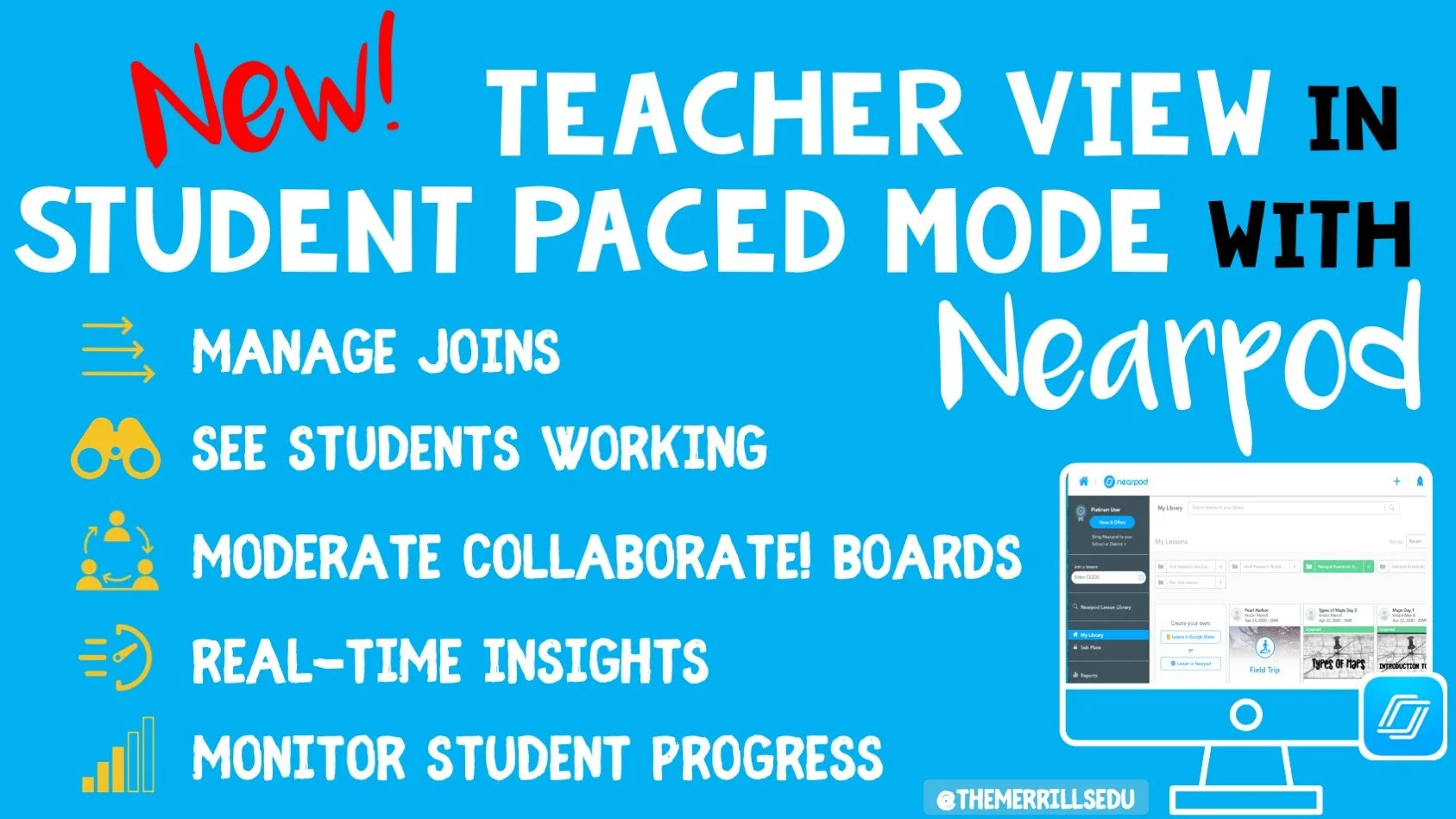
With teachers all over the world ending the school year with remote learning, Nearpod has come through with a helpful update to their already robust platform—teacher view during student pace mode!
With teachers all over the world ending the school year with remote learning, Nearpod has come through with a helpful update to their already robust platform—teacher view during student pace mode! Teachers were used to having specific control during teacher-led mode, and now many of these same features are available when lessons are set to student paced. This gives teachers the opportunity to create asynchronous lessons for students to complete when their schedule permits, while still giving teachers the ability to monitor and moderate over that extended time.
Using Teacher View to Monitor and Manage
Teachers are using Nearpod’s self-paced mode more than ever during remote learning, and these new features released will help teachers be even more efficient while monitoring and managing student work.
Manage Students as They Join
Teacher view allows you to quickly see who has joined your student-paced lesson. It can be helpful to know who is working on what lesson when, but this features also makes it easier when giving feedback to students. Now you can give feedback faster since you know they are are on and working.
Moderate Collaborate! Boards
Monitoring student work is a foundation of good teacher and it has become one of the hardest things to do during remote learning. Now teachers can moderate student responses when using the collaborate feature. They can delete posts from Student-Paced collaborate boards by viewing the board in their reports. Read more on how to enable collaborate boards in student paced mode here!
Monitor Student Progress
One of the great features of Nearpod is it’s ability for teaches to see in real time how their students are comprehending and taking in new information. Now this can be done in self-paced mode too. Teachers can go in and see a student’s collaborate response, their quiz report or other activities in real time for immediate feedback and updates just like when using live!
Stay #interACTIVE!
-👗➕🕶️
For more tips, tricks and lesson ideas for making learning more interACTIVE, check out our books The InterACTIVE Class and Flipgrid in the InterACTIVE Class on Amazon!


How to Embed Nearpod Presentations Into Microsoft Teams
Nearpod and Microsoft Teams have partnered up to provide a complete game changer - especially when it comes to remote learning. Now, you can “go live” with your Nearpod Lessons in Microsoft Teams!
Nearpod and Microsoft Teams have partnered up to provide a complete game changer - especially when it comes to remote learning. Now, you can “go live” with your Nearpod Lessons in Microsoft Teams! You’ll learn:
💥 How to embed a Nearpod presentation into Teams
💥 How to start a meeting in Teams
💥 How to launch your Nearpod presentation while you’re LIVE in a TEAMS meeting!
💥 HOW TO EMBED A NEARPOD PRESENTATION INTO TEAMS 💥

You’ll need to make sure that you are logged into your Microsoft Teams account, and that you have already created an account on Nearpod. From your preferred Teams “General” channel, click the “+” sign on the top right of the tabs bar.
Once you click on the “+” sign, you’ll be asked what type of tab you would like to add. If Nearpod doesn’t show up in the first few images, you can do a quick search for it. Once it pops up, go ahead and click the Nearpod image.


Now you’ll be asked to log into your Nearpod educators account. Enter your username and password, then click the blue “Log In” button. Tip: At first glance, it looks like you won’t have any options to log in. Make sure you scroll down a bit (the window is small), and you should see the required fields.
Once you’re logged into your Nearpod account, you’ll have the option to select the (predesigned) presentation that you would like the class to complete. Pick out the presentation, then you’ll be asked which type of lesson you prefer: Live Lesson (where students complete the presentation together in real time), or Student Paced (where students complete the presentation on their own time). For our example today, we’ll pick “Live Lesson.”
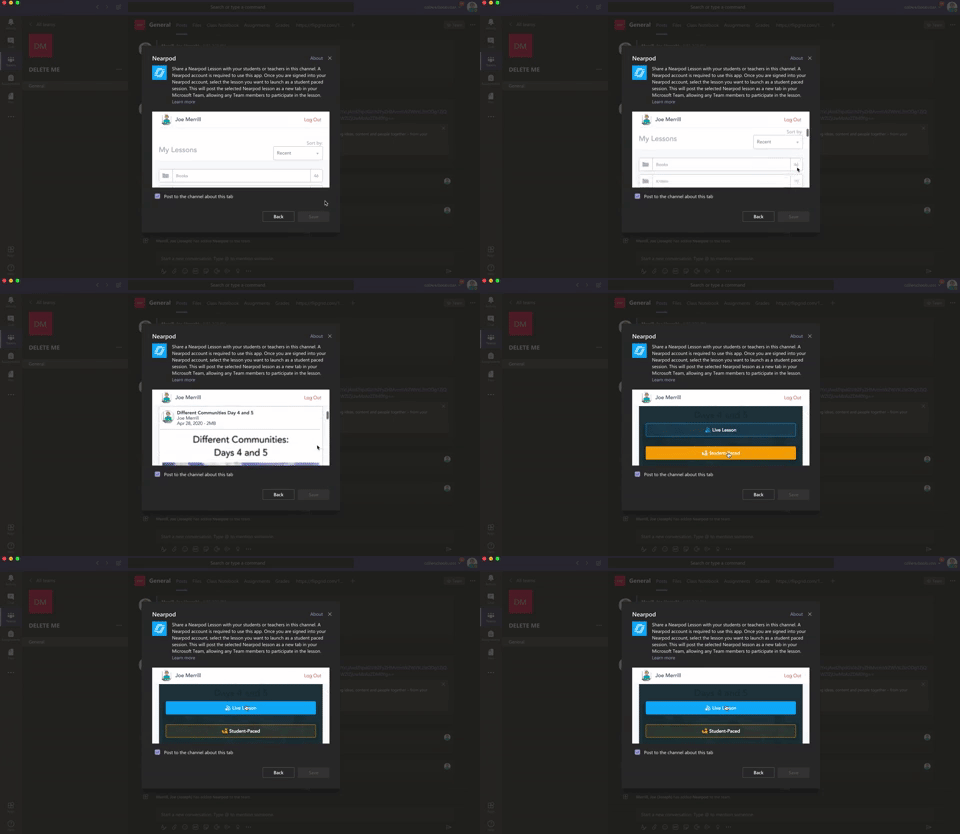

Once you’ve selected your preferred lesson type, the presentation will automatically embed directly into your Teams channel. It will appear in the conversation, and also at on the top tab bar. Congratulations! You’ve successfully embedded your Nearpod presentation into Teams!
💥 HOW TO START A LIVE CLASS MEET IN MICROSOFT TEAMS! 💥
To start a live class meet in Microsoft Teams, click on the “camera” icon located in the bottom of the tools bar. If you’re unsure if which icon to click, try hovering over them until you find the one that says “Meet Now.” Click it, then click the purple “Meet Now” button. Once you do, you’re LIVE!

💥 HOW TO LAUNCH YOUR NEARPOD PRESENTATION WHILE YOU’RE LIVE IN A TEAMS MEETING!💥


Now that you’re LIVE, you’ll need to wait for your students to log on to the meeting. You can check a meeting’s attendance by clicking on the “Participants” icon (that looks like two people). Once everyone has arrived, explain to your students that you will work on a Nearpod presentation together. Reveal that they will need to click the back button on their Teams Meet window to return to the conversation tab. Explain that they can access the Nearpod presentation from either the post in the chat, or from the tab located at the top. Once they select Nearpod, they will be asked to log in using their name. This is all they will need to enter the presentation. Once everyone has logged in, you may begin your live instruction!
Check out this video for a step-by-step explanation, and a side-by-side comparison of what educators see and what students see.


Flipgrid Integration in Nearpod
Flipgrid is at it once again, and during this time of remote learning the ability to integrate a Flipgrid Topic directly into a Nearpod presentation is so useful! Now in addition to creating Nearpod lessons filled with collaborative slides, 3D explorations and embedded activities, students can now share their voice on Flipgrid!
Flipgrid is at it once again, and during this time of remote learning the ability to integrate a Flipgrid Topic directly into a Nearpod presentation is so useful! Now in addition to creating Nearpod lessons filled with collaborative slides, 3D explorations and embedded activities, students can now share their voice on Flipgrid!
Getting Started
To get started you will need to have already created both a Flipgrid account and a Nearpod account. Assuming you have already started creating your Nearpod presentation, when you are ready to embed your Flipgrid Topic you will want to open up both applications in side-by-side tabs or windows.
Start by creating a new slide in Nearpod, and when choosing the type of slide go with an activity slide. You will then see the Flipgrid icon appear directly beneath it for you to click on.
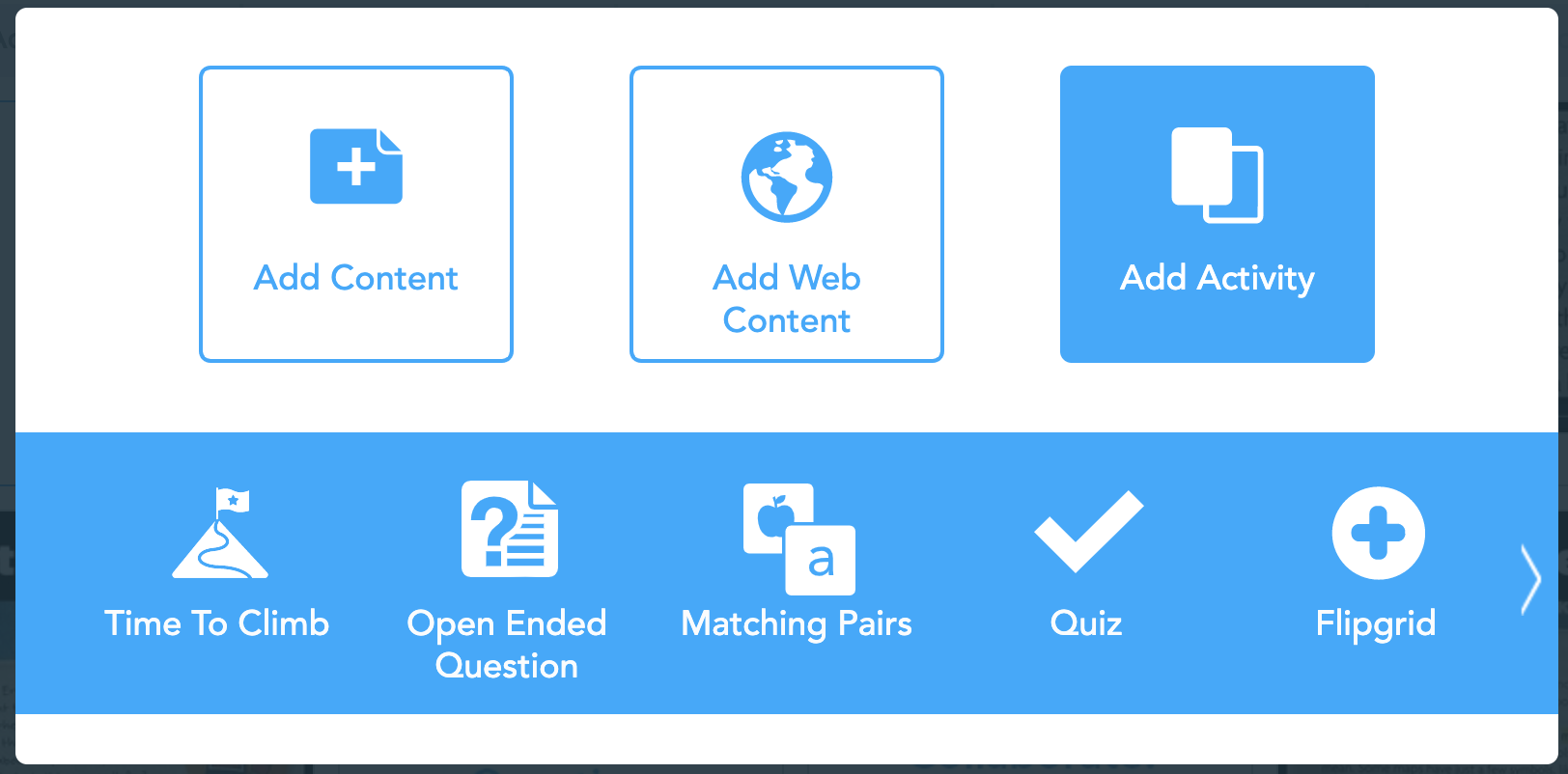
Once you click on the Flipgrid icon, you will be taken to a new screen. This is where you will embed the links to the Topic.

The first line is where you will paste the Flipgrid Teacher URL. This is the web address you see when you have your topic open on your desktop.

The second link is where you will paste the Flipgrid Student URL. From the Topic, click ‘Share’ and then click to copy the link into Nearpod.

Once the links are pasted and submitted, the slide will appear in the Nearpod deck ready for students to use.

For additional help with this integration, check out our tutorial video below, or on the Flipgrid YouTube channel.
- 👗➕👓
For more #interACTIVE lesson ideas using Flipgrid, check out our book The InterACTIVE Class on Amazon!


Piecing Together Tech Tools for Tip Top Lessons
Programs and applications often try to market themselves as THE one to try and we often get steered into the idea that we need to use this one particular program for everything. Or we begin to think that one program is just plain better to use than another. Rather than looking for the “one size fits all” tool, educators will be more successful piecing together various tools into the same lesson.
When creating lessons as educators we are often looking for that new tech tool or piece of technology that will will be the perfect “fit” for our lesson. We all too often create our lessons around the technology we want to use, molding our lesson components around in order to compliment the tool. I propose that rather than doing this, that we start with the lesson we want to teach, the objectives we want to touch on, the standards we want to cover and the methods and methodologies we want to use to deliver content. THEN comes the technology.
See, when we build our plans with the content first, the technology seems harder to fit in. Or is it? Programs and applications often try to market themselves as THE one to try and we often get steered into the idea that we need to use this one particular program for everything. Or we begin to think that one program is just plain better to use than another. Rather than looking for the “one size fits all” tool, educators will be more successful piecing together various tools into the same lesson.
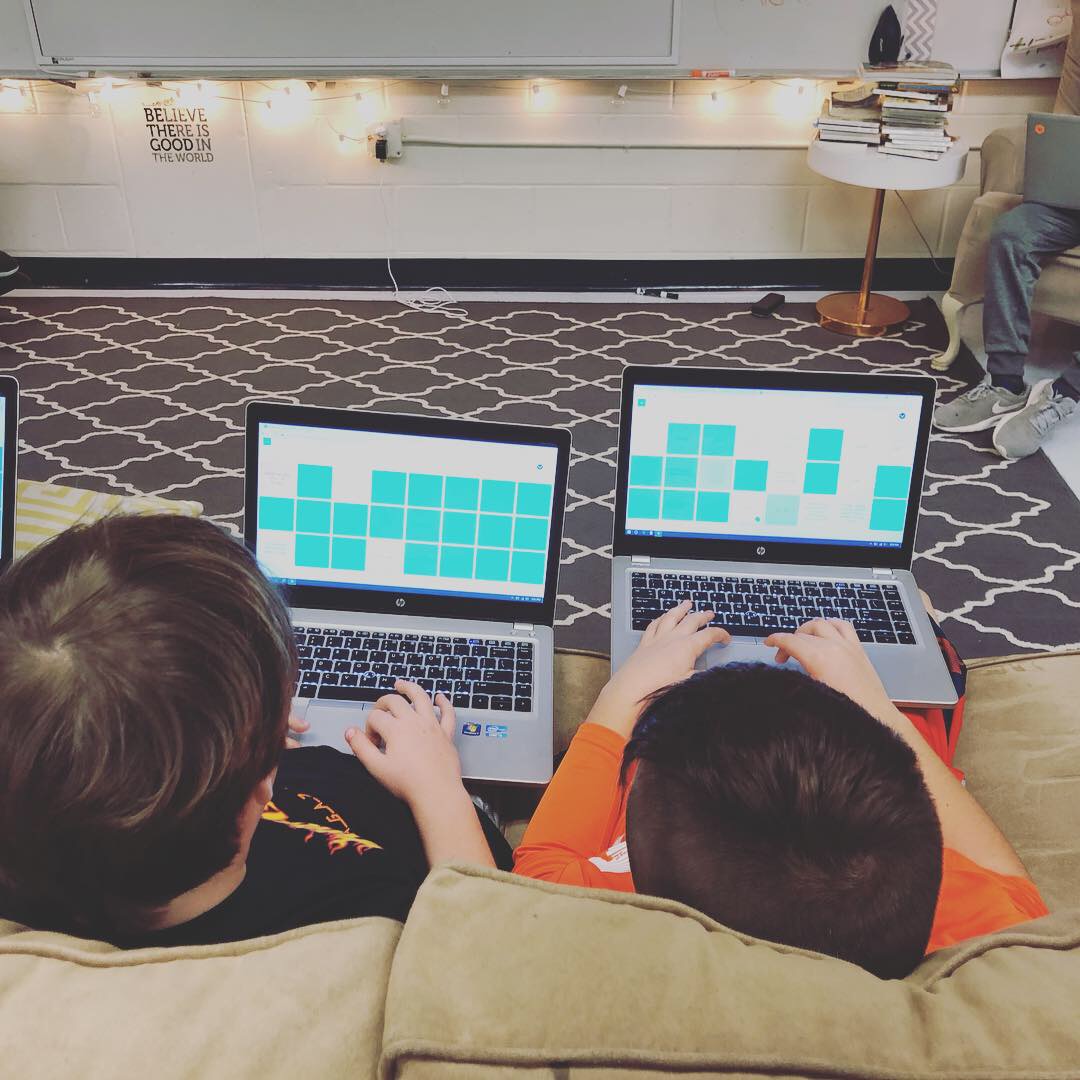
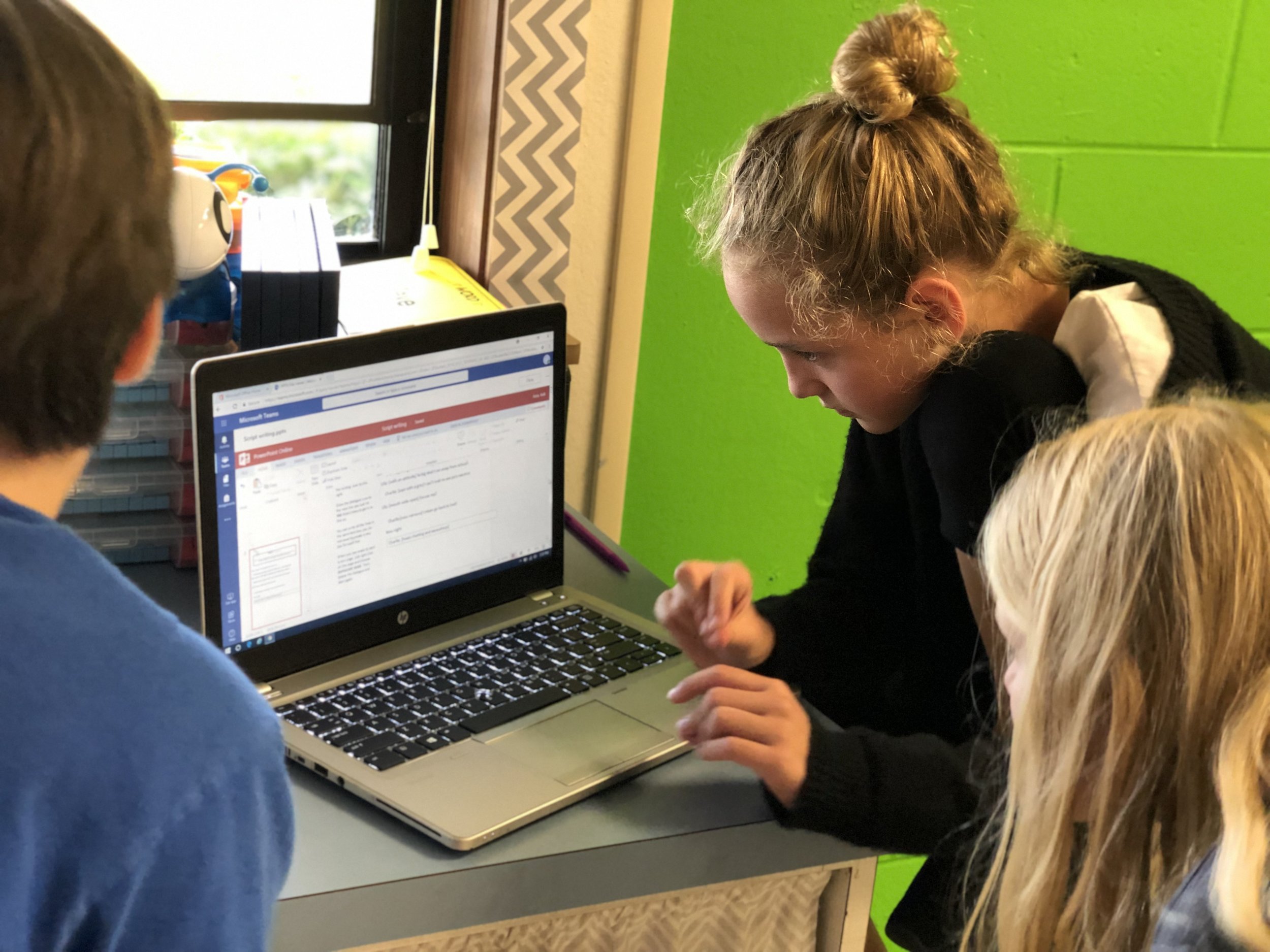
There are several tools I like to use when “piecing” together a lesson. Each platform offers different things and depending on the task you can choose accordingly. Now, before sharing, please note that many of the platforms being mentioned share some of the same features and you may tend you use them interchangeably depending on your comfort level with and accessibility to them.
Nearpod: This platform has a lot of features that can be used in many different ways. One of my favorite features of their is the collaboration feature. I use this often in the beginning of a lesson to get students talking about a topic and to help me gauge their level of knowledge before starting. The collaboration feature can also be used mid-lesson, whether you are doing the entire lesson on Nearpod, or just using it for the collaboration. I like to use it to stop during read alouds or even as a form of back channel while I read giving the students a place to leave their thoughts to an overarching questions while I am reading.
360 degree videos are another way to engage students on Nearpod. They have a library full of places you can “drop” your students into. This is a great way to start of a history lesson, or an easy way to get students’ creativity going before a writing assignment. Each place you take them to has several slides or views to explore and being it’s on Nearpod, the teacher has full control over how long students linger in each place.
Matching content is also available through Nearpod and can be used for any type of basic review. In this format, none of the matching pairs are turned over, but rather all sides are turned up and students work to find the one part with its matching counterpart. Recently used in my classroom to review the elements of a play or drama, this feature could also be used to replace your traditional multiplication timed test or vocabulary quiz. When students are finished it gives you information such as how many students completed the assignment successfully, how many matches they were able to get and how many tries it took them to make matches correctly.
Kahoot or Quizizz: Both platforms are great ways to get students interacting with information by infusing a little bit of friendly competition into the lesson. Whether you would like to access prior knowledge, or use as an exit ticket both of these platforms allow you to quickly ask questions and give answers back to students in real time. Specific features such as student pacing, embedded images/videos, scoring etc. varies between the two platforms and once you explore you may find one being a better fit for a particular lesson.
Another awesome way to use quizzing platforms like this is rather than using them to assess comprehension after a lesson, rather use them to teach the lesson! Matt Miller, author and blogger has an awesome technique called “Blind Kahoot” where he talks about using the art of questioning and students desire to be right to help drive the day’s lesson beyond basic review. Check out his original blog here for more specific directions.
Flipgrid: This video platform is perfect for piecing together a lesson! The teacher poses a question, a reflection topic, task, etc. for students to answer or complete in a video response. There are numerous settings a features available to both the teacher and the students and it can be customized to fit your room. These video responses can be used for students to share writing ideas, leave predictions while reading a story, share details to support a main idea, give evidence of what they’ve learned as an exit ticket and so much more.
So this week take this challenge to heart—what platforms can you infuse into your lesson to create a more interactive and engaging experience for students? Don’t be afraid to mix and match up some of your favorite programs and platforms to create the ultimate lesson and learning experience for your students!
Stay creative! 👗-K