


Brisk Teaching: The Complete Guide to Features, Privacy, and Creative Classroom Lessons
Discover how Brisk Teaching can transform your classroom with time saving tools, top-tier privacy standards, and creative, student-centered lesson ideas. In Brisk Teaching: The Complete Guide to Features, Privacy, and Creative Classroom Lessons, you’ll explore everything from batch grading and real-time insights to innovative ways to engage learners with AI-powered activities. Plus, grab a free 3-month Premium offer to try it all for yourself!

In a world where AI tools seem to pop up daily, Brisk Teaching stands out as a teacher’s true sidekick. Brisk helps educators save time, streamline workflow, and bring fresh creativity into the classroom. Whether you’re looking to differentiate reading passages, grade writing in bulk, or craft engaging, standards-aligned activities in seconds, Brisk does it all with a few clicks. In this post, we’ll explore everything you need to know: how Brisk works, what it does (and doesn’t) do when it comes to student data, and how its latest features can power up your instruction. Plus, we’ll got 12 creative, classroom-tested lesson ideas that turn Brisk from just a Chrome extension into a true learning companion!
Please note: This blog post was hand-crafted and was not created using AI.
(click on any subheading to jump to that section)




Safety and Privacy: What Brisk Does (and Doesn’t Do)

Let’s talk privacy….Not every AI tool is built with classrooms in mind. Brisk Teaching exceeds the highest standards for student safety. It’s fully FERPA and COPPA compliant, which means no student accounts, no student data collection, and nothing sketchy happening behind the scenes. Brisk never stores student responses or personal information. It’s designed to empower teachers, not track kids. The bottom line is that you (the educator) stay in control and your students stay protected. To learn more about Brisk’s terms of use, click here or the image.


How to Use Brisk Teaching
We’ll be honest…when we first started using Brisk, it took us a second to really get it. We kept looking for the website or the dashboard. But Brisk is (but not limited to) a Chrome extension. Edge users can also get in on the fun, as it’s compatible with multiple browsers. That means it lives right inside the tools you’re already using. And once you wrap your head around that, it clicks!
You’re not jumping to a new tab. You’re not copying and pasting content into another AI platform. Brisk comes to you…right inside what you’re already using: Google Docs, Slides, YouTube, articles, Microsoft Word, PDFs, and more. It just pops up quietly in the bottom corner of your screen, ready when you are. Here’s a step-by-step guide:
How to Install Brisk

First, you’ll need to install the extension. To simply the process, we’ve narrowed it down to just a few steps for you. To get started using Brisk Teaching, follow these steps:
Click here and pop in your email.
You’ll get quick directions and be sent right to the spot to add Brisk to Chrome or Edge.
How to Use Brisk
To use Brisk, all you have to do is open a resource. This could be anything: an Online article, curriculum platform, and more. Once you have the resource open, follow these steps to use Brisk:
Click on the Brisk extension (click here if you need to install the extension).
You’ll see a Brisk button appear in the bottom right corner of your screen (look carefully - sometimes it easy to miss!).
Click the icon to launch Brisk!

Things to Know

If you’re using Brisk through your district or have a premium account, you’ll notice little 🏫 icons. Those mark premium features, and if you have either of those types of accounts, these features will be unlocked for you. If not, you can still use Brisk with a free account. Or, if you’re interested, you can click here to unlock premium features for 3 months.
Why we recommend it: Brisk works with what we’re already using. You can create quizzes, level text, translate passages, leave feedback, and more - all without leaving the doc or page you’re on. It’s honestly one of the easiest AI tools to get started with once you know where to look. So if you’re like us and spent the first five minutes trying to “log in,” don’t worry. Just open a doc, look for Brisk in the corner, and start creating!


Brisk Next: Create Multiple Resources in One Go

Brisk Next helps you plan smarter by giving you real-time, personalized suggestions based on your teaching. Just click the Brisk home button in the main menu to open it up. Whether you’re planning a lesson on figurative language or diving into a new unit, Brisk Next looks at your recent activity, student progress, and standards to recommend exactly what you need. You can start by uploading a document, typing in your topic, or selecting a standard. If you need to make adjustments, just use the built-in chat to refine your results. Everything you create or assign is automatically saved in your My Activities tab, keeping your workflow organized and easy to revisit. Check it out below!


Brisk Bundles

Brisk Bundles (coming in the Fall of 2025) make planning feel effortless. With just one prompt, you can generate an entire set of aligned instructional materials. For example, think: a lesson, a quiz, discussion questions, and more - all created instantly and tied to your standards. It’s a huge time-saver when you need high quality content fast. Once your Bundle is ready, you can save it, assign it to students, or come back to it later in your My Activities tab. It’s everything you need, all in one place - keeping your content organized, too!

Brisk & Microsoft Integration
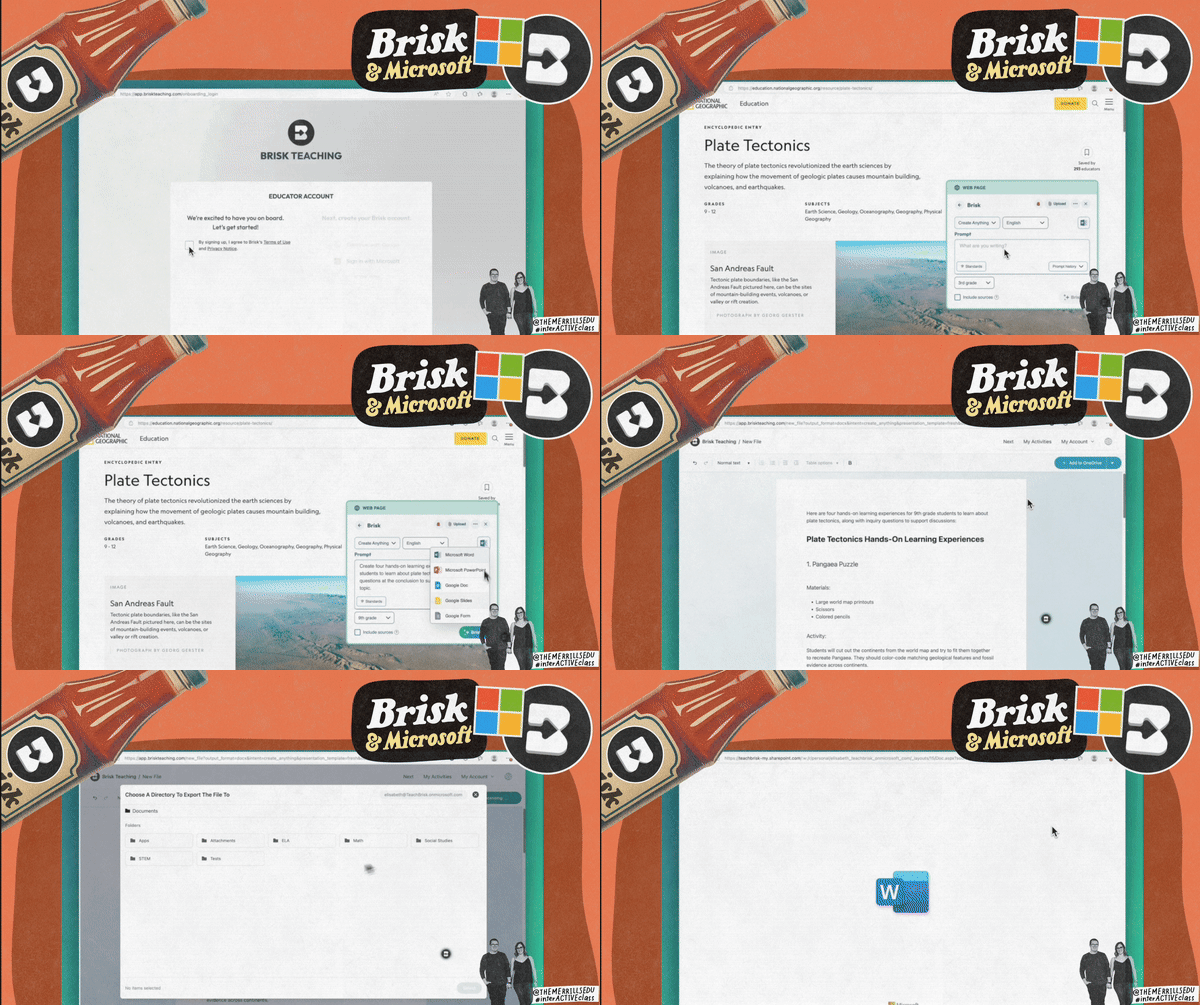
If you’re a Microsoft user, we have some amazing news! Brisk now fully integrates with Microsoft, making your workflow smoother than ever. You can sign in with your Microsoft account, create and save content directly to your OneDrive, and even upload Word documents straight into Brisk for grading, feedback, or instructional use. Whether you’re working in Word or PowerPoint, Brisk fits right in. You can export your materials in multiple formats: Word, PowerPoint, or PDF, depending on what works best for your students or platform. It’s intuitive, efficient, and a huge time-saver for anyone working in a Microsoft based environment. This update makes Brisk even more versatile for schools using a variety of tools.


Brisk Batch Grading: Review Multiple Student Submissions at Once


Brisk’s Batch Grading feature (coming in the Fall of 2025) makes it easy to review multiple student submissions at once, without sacrificing the quality of your feedback. You can select from four feedback styles: Glows & Grows, Next Steps, Rubric Criteria, or limited Rubric Scoring. Simply upload your students’ work, choose the relevant standards and grade level, and Brisk helps you deliver focused, consistent feedback quickly. Educators will be able to access Batch Grading from the top page of Brisk’s new web experience in Brisk Next (coming in the Fall of 2025). It’s a time-saver that still keeps the teacher’s voice and instructional priorities front and center. Check it out below!



Brisk Insights: Get a Real-Time Look at Student Progress
Brisk Insights (also coming in the Fall of 2025) gives you a real-time window into student progress. As students work on Brisk’s Boost activities, you can instantly see who’s started, who’s meeting the learning objectives, and where support might be needed. It highlights both strengths and areas for growth, all in a clean, easy-to-read format. Insights update automatically (or with one quick click), so you’re always working from the most up-to-date information when planning your next steps.



Brisk Sources: View the Sources Being Used by Brisk
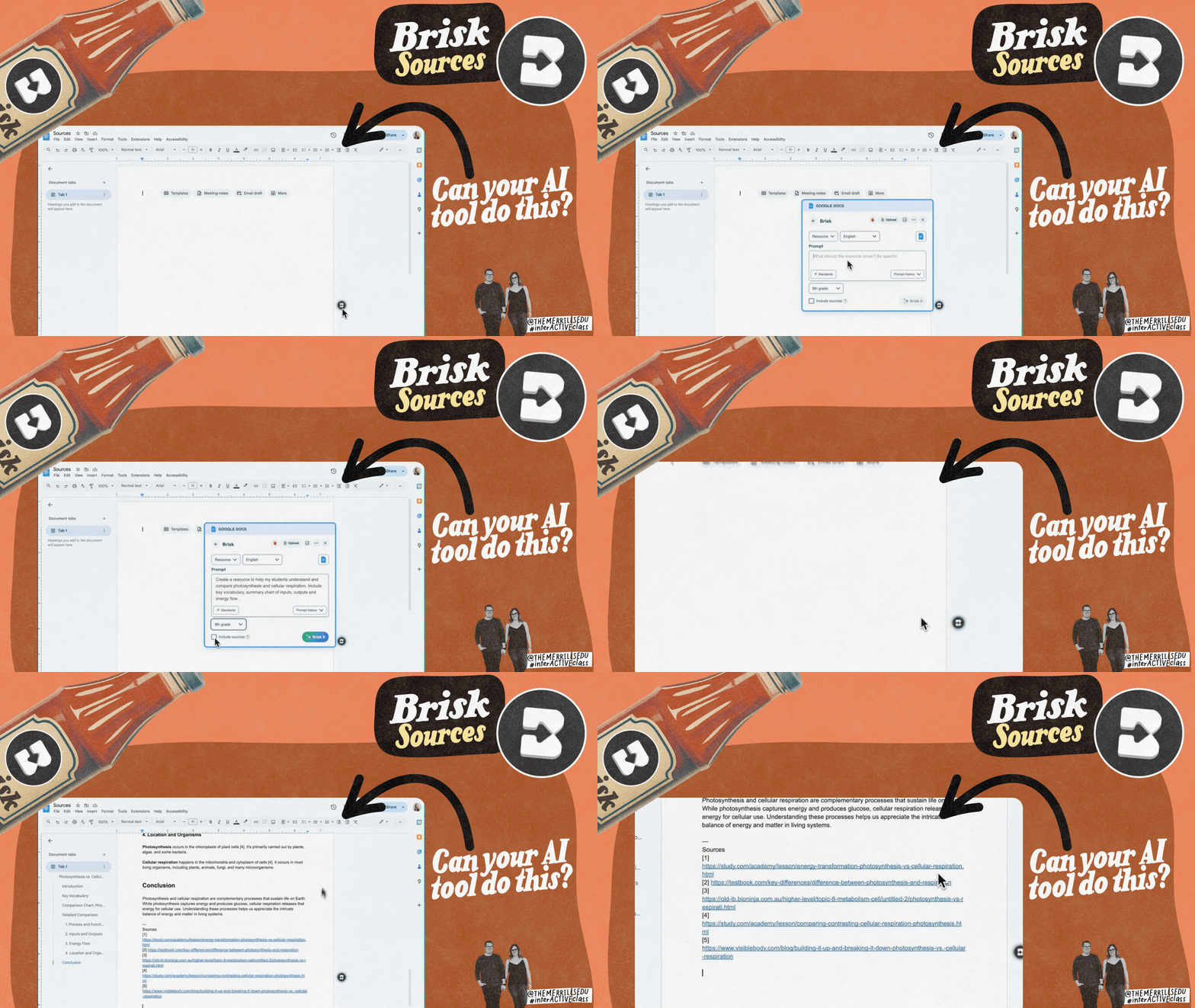
One of our favorite things about Brisk is how transparent it is with where its information comes from. When Brisk generates content, you’ll see numbered citations at the end of each sentence, with a full list of sources linked at the bottom. Every source is live and clickable, so you can quickly check where the information originated. It’s a simple feature, but it goes a long way in building trust, especially when you’re using AI to support instruction and working with students.


Brisk Lesson Ideas

Turn Any Content into a Brisk Presentation
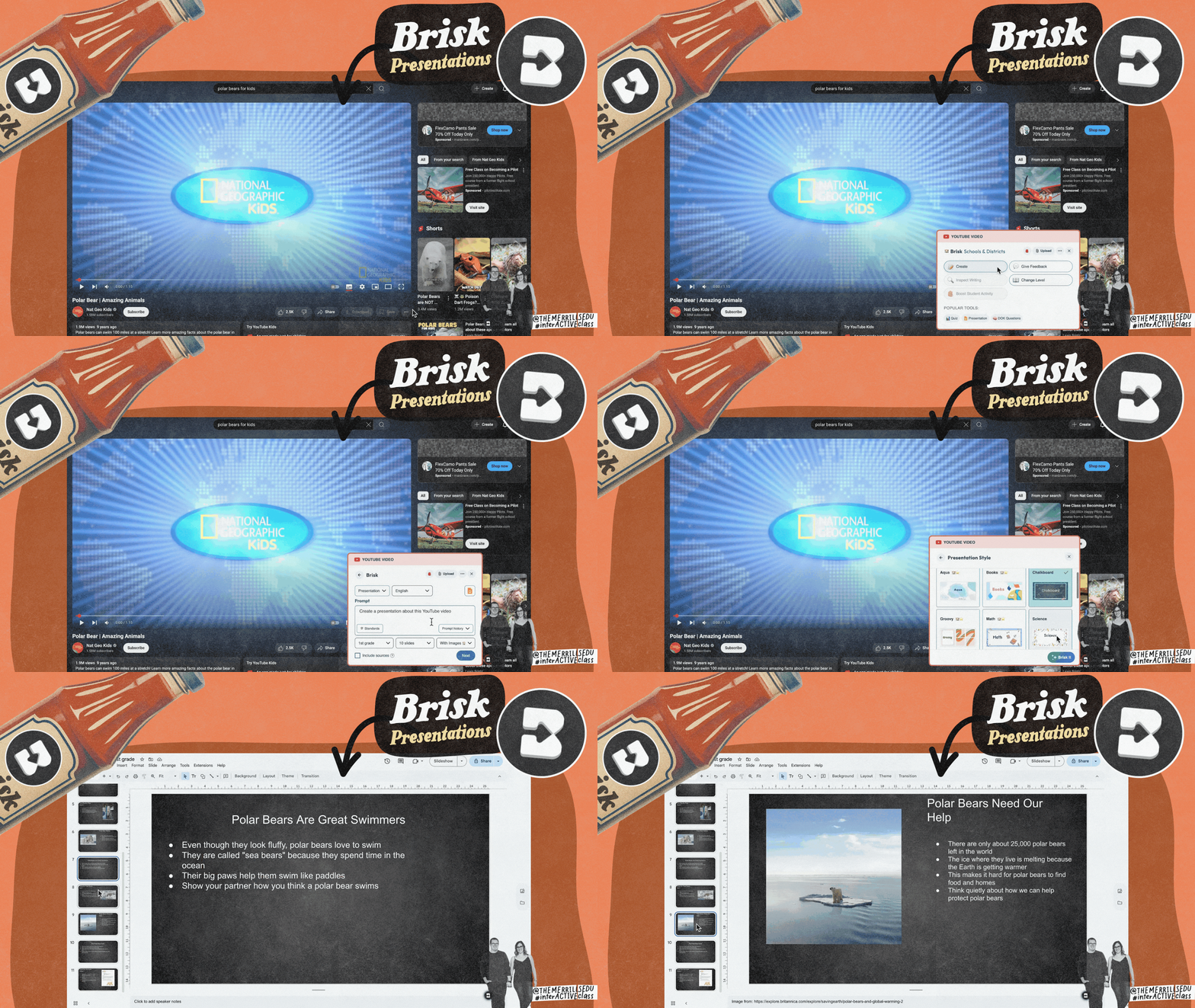
One of the easiest ways to start using Brisk is by turning existing content (like a YouTube video, article, or webpage) into a ready-to-use presentation. All you have to do is open the content in your browser and click the Brisk icon in the bottom right corner. Select “Create Presentation,” and Brisk will instantly generate a slide deck complete with key points, questions, and visuals. You can edit, download, or share it however you’d like.
💡Lesson Idea Example:
Use Brisk to turn a YouTube science video or a current events article into an interactive presentation. Students can follow along, answer questions as you go, or even remix the slides to create their own version.


Translate in Brisk: Translate into 50+ Languages
Brisk’s Translate tool makes it incredibly easy to support multilingual learners. With just one click, you can translate any article, assignment, or student writing into over 50+ languages, right from the page you’re already on. It’s perfect for creating accessible materials or helping families stay informed. Whether you’re translating a science passage for a student or a class newsletter for home, Brisk takes care of it in seconds. You can learn more about how it works by watching the video or by clicking right here.


Sub Plans in Brisk
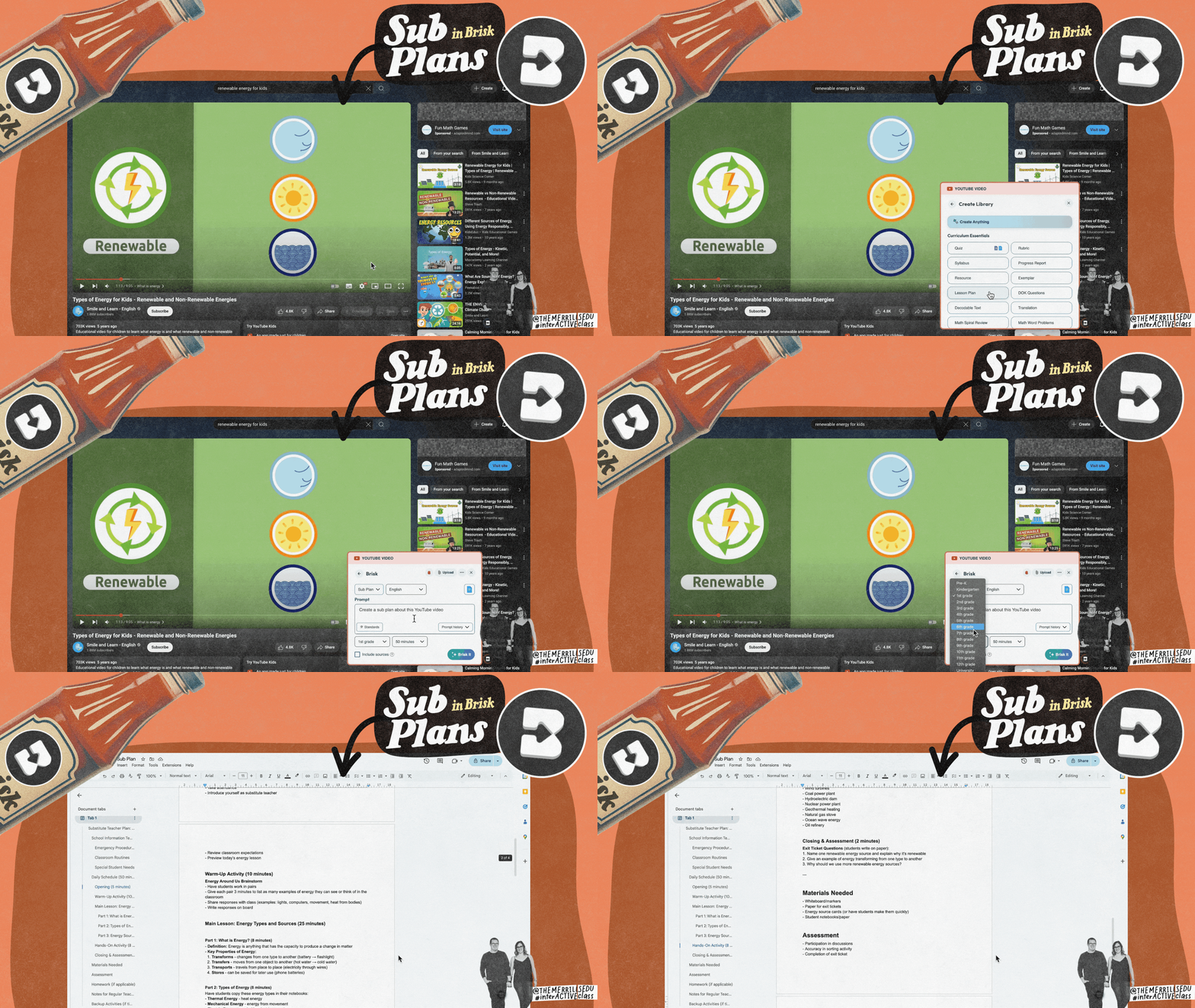
Planning for a sub doesn’t have to be a last-minute scramble. With Brisk, you can quickly generate an engaging, standards-aligned activity from any article, video, or lesson resource and package it all into a clear plan a sub can run with. Just open your content, click the Brisk icon, and select the type of activity you want (quiz, worksheet, presentation, etc.). For example, a 6th grade teacher could use a nonfiction article on renewable energy and have Brisk create a comprehension quiz, discussion questions, and a short writing prompt…all ready to share in one doc. It’s simple, flexible, and a huge time saver when you’re out of the classroom. Plus, let’s face it…When we’re sick enough for sub plans and our brain is scrambled, Brisk has it over easy!


Podcasts in Brisk
Brisk can instantly turn any text, whether it’s a webpage, a set of student responses, or an article, into a short AI-generated podcast. Just highlight the content or open the resource you want to use, click the Brisk icon, and select “Create Podcast.” Brisk will generate a narrated audio summary with clear explanations, making it perfect for listening centers, review activities, or even student reflection.
💡Lesson Idea Example:
We love doing Number Talks with our students. For this one, the class was challenged to find as many different ways as possible to make the number 22. Students submitted their thinking in a collaborative Wakelet collection (Padlet works great, too!). The rule: no repeats. If someone already posted an equation they had in mind, students “liked” the post instead to show shared thinking. Once everyone had contributed, we launched Brisk and asked it to turn the collection into a podcast. After listening, students went back and identified any errors or misconceptions that snuck into the summary. It was such a fun way to combine math thinking, tech integration, and student accountability!



Reading Responses: Read and Respond with Personalized Assistance
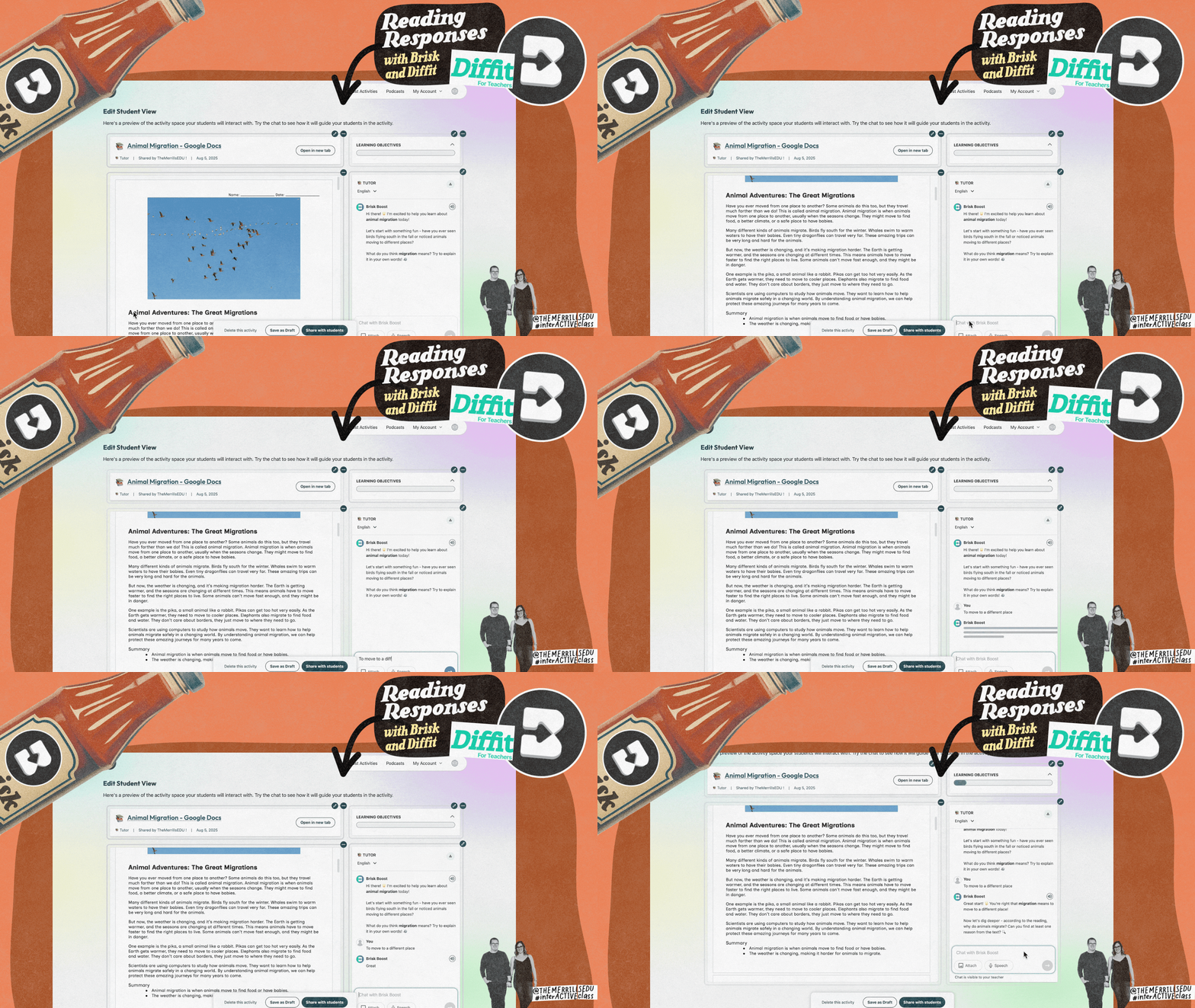
Brisk can be a great tool for helping students strengthen their reading responses. After students read an article, whether it’s from Diffit, an online source, or your curriculum, you can use Brisk to guide their next steps. Here’s how it works:
Assign an article for your students to read (we used one from Diffit - another free platform).
With the article open, launch Brisk.
With Brisk open, click Boost Student Activity.
Next, click Tutor.
Adjust the prompt, grade level, and standards to your liking. Then click Brisk It!
Share the Brisk URL with your students for them to complete.
Once students respond to a prompt, Brisk provides immediate feedback. As students progress through the expectations you set, the progress bar will fill (located at the top of the assignment). And the best part: you as the educator can see everything on your end.


Brisk Character Chats: Bring Characters to Life!
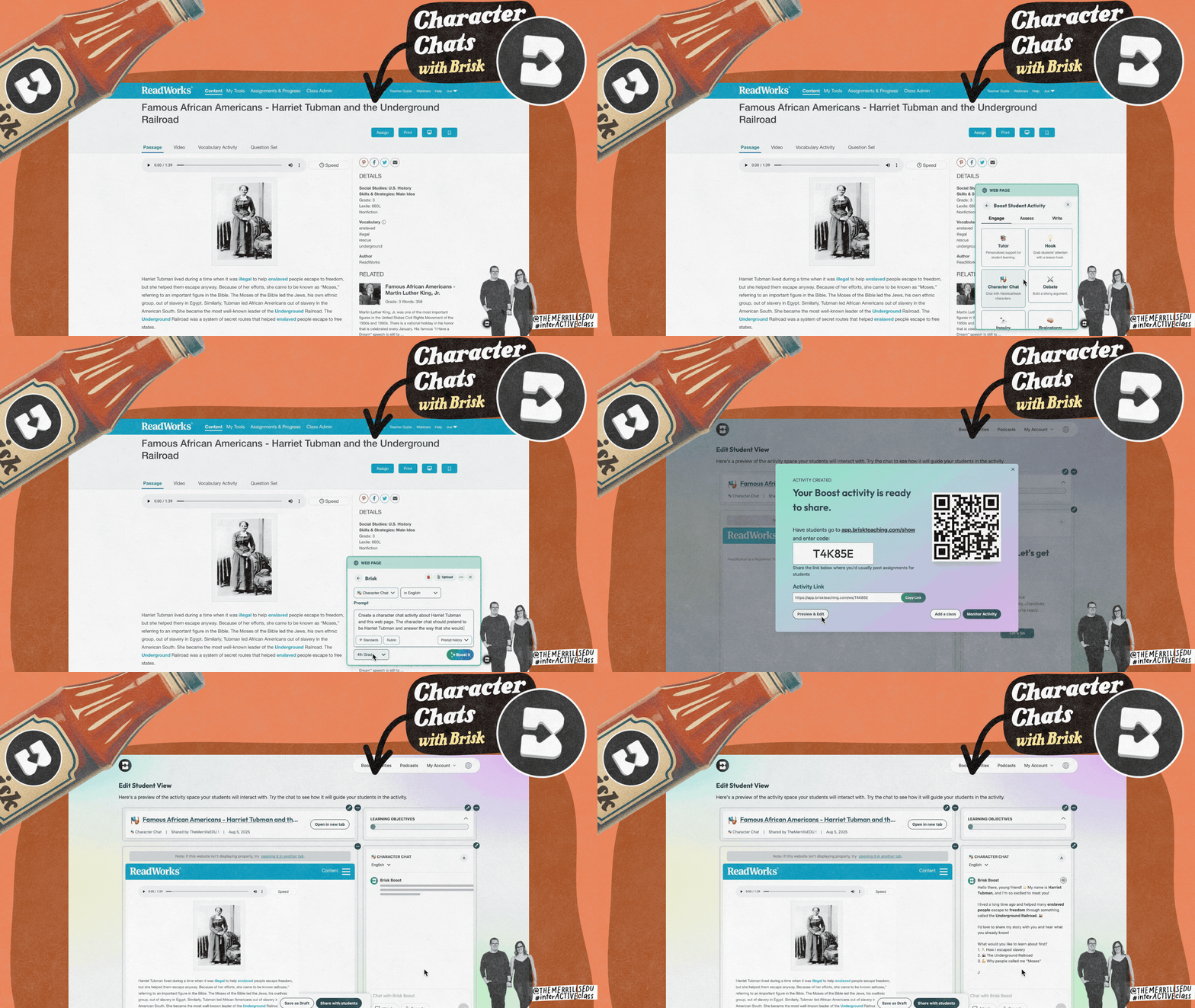
One of the most engaging features in Brisk is the ability to create character chats, or AI-powered conversations that let students “talk” to characters from a book or historical figures they’re learning about. Whether it’s Charlotte from Charlotte’s Web or Harriet Tubman, Brisk generates a chatbot version of that character that responds in real time, based on the character’s background and context. It’s a powerful way to deepen comprehension, encourage inquiry, and make learning feel more personal. That said, it’s important to explain to students that this isn’t the real person or character and that it’s an AI simulation designed for learning. Framing it that way helps students enjoy the creativity while keeping expectations grounded. Check out our example below!


Brisk & Book Creator: Bring the Characters in Your Students’ Books to Life!

You can level up the previous activity if your class is using Book Creator. Since students create the books in Book Creator, now they aren’t just reading about characters, they’re creating them! After writing their own stories in Book Creator, teachers can use Brisk’s Character Chat feature to bring one of their student’s characters to life. Brisk generates an AI chatbot based on the details students include in their books, allowing them (or classmates) to ask that character questions and see how it would respond. This shifts students from being the creators of the content - not just the consumers, helping them think more deeply about character development, voice, and point of view. It’s a powerful way to blend storytelling, creativity, and technology in a meaningful, student-driven way.

Pulse Checks with Brisk and Book Creator
When students publish their work in Book Creator, Brisk’s Pulse Check feature lets teachers quickly assess how well that content is understood by them. Simply open the student-created book, launch Brisk, and run a Pulse Check to generate comprehension questions based on the content. We especially like using this after a research project where students create a book. It adds another assessment for you to monitor comprehension. It turns Book Creator projects into dynamic learning tools, not just final products!



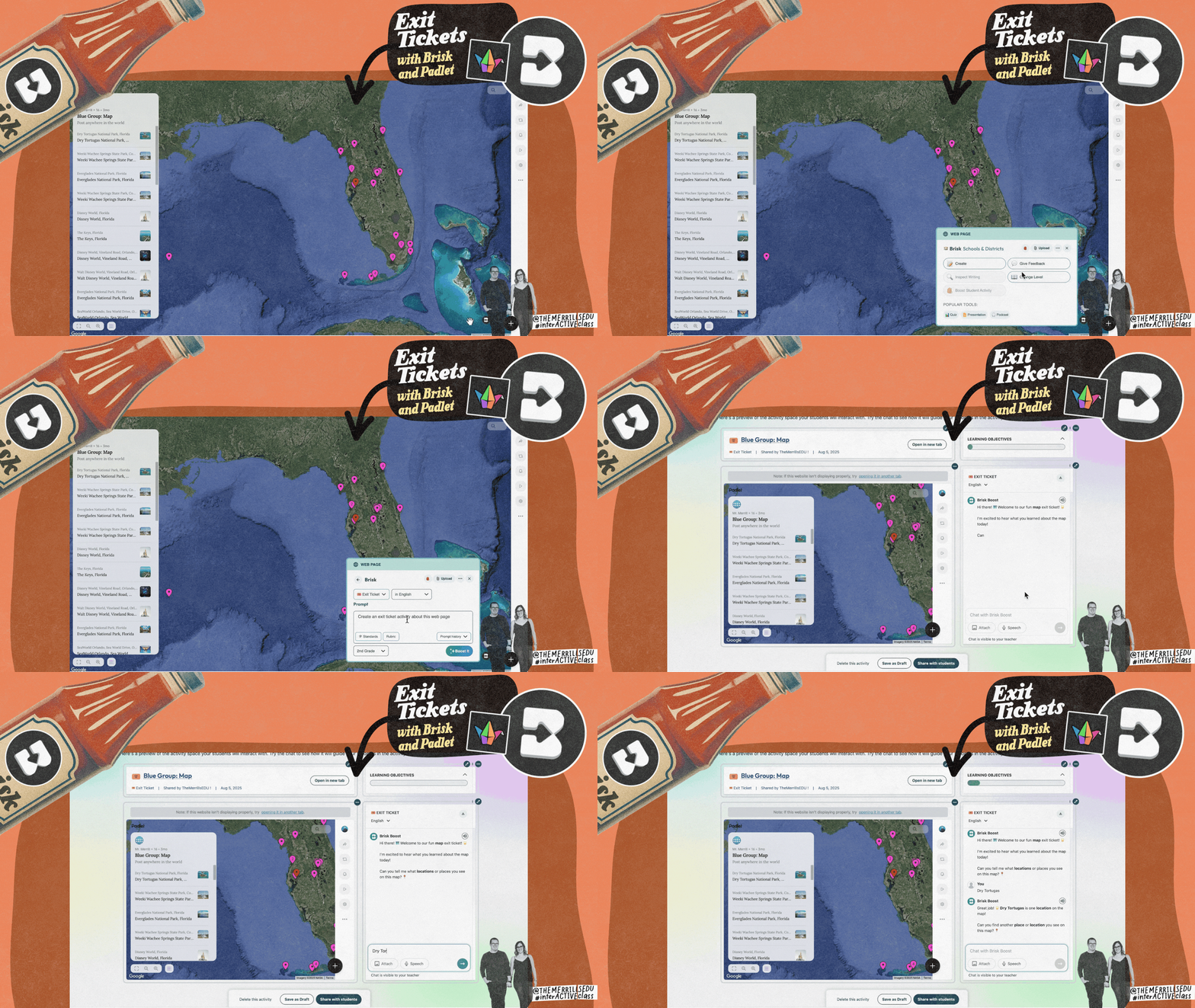
Exit Tickets with Brisk & Padlet
In this collaborative activity, students are adding content onto a Padlet board (for example, facts that they learned). Then, we launch Brisk so that it can take that shared board and instantly generate an exit ticket to check for understanding. With one click, you can turn their collective input into a quick assessment that highlights what stuck and what still needs review. It’s a simple way to close a lesson with meaningful data, without prepping anything ahead of time. Plus, it gives students a chance to reflect on what they learned by engaging with their peers’ contributions in a new way.


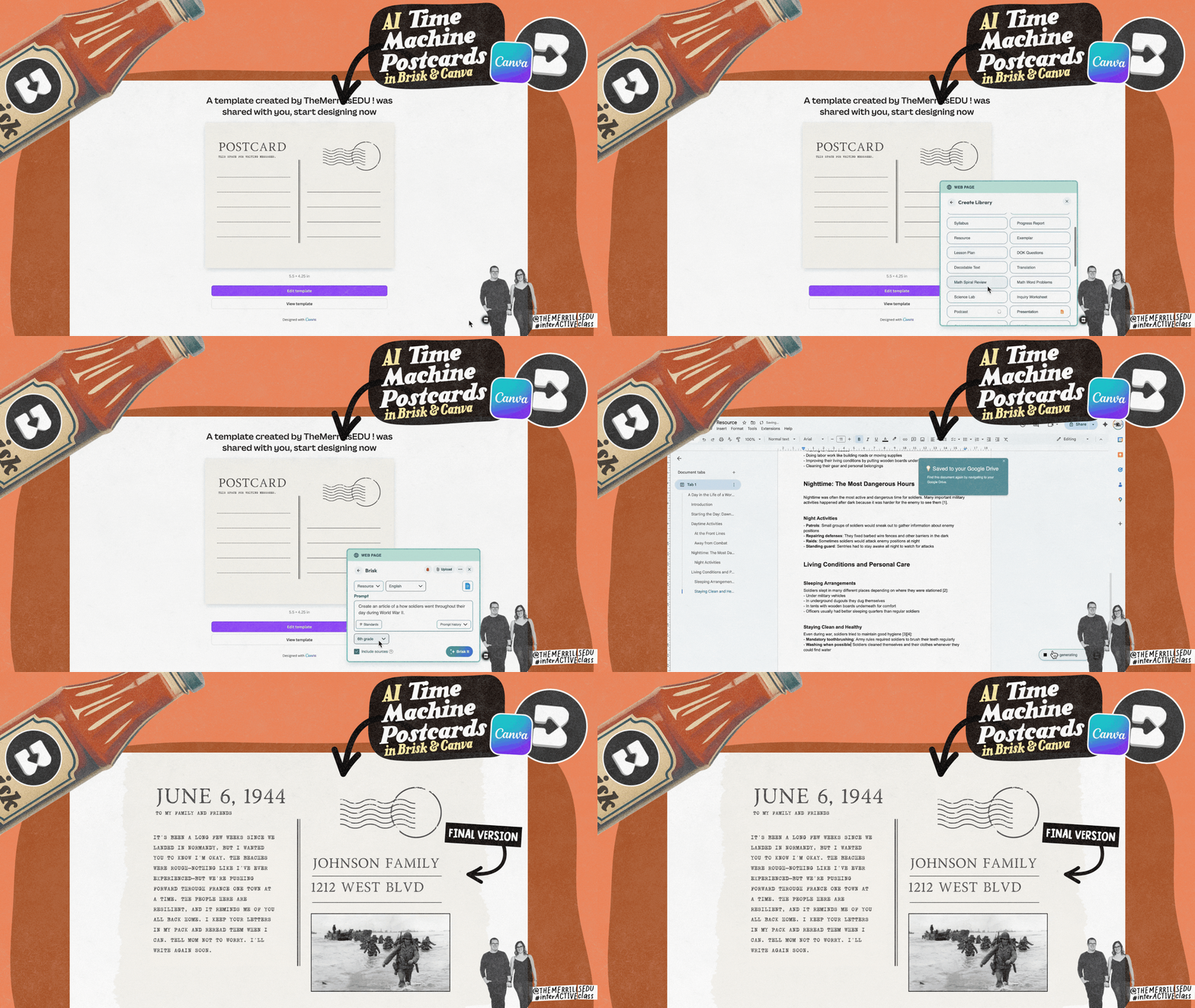
AI Time Machine Postcards with Brisk and Canva
After reading a historical article or Brisk-generated text, students create a “time machine postcard” from the perspective of someone living in that time period. Brisk helps by summarizing key information, generating time-specific vocabulary, and even suggesting details to include based on the topic. Students can then design their postcards in Canva (or Adobe Express) adding images, stamps, and short messages that reflect what life was like during that era. Whether they’re writing from ancient Egypt, the American Revolution, or a futuristic world, this activity blends historical understanding, creative writing, and design into one powerful learning moment.
Click here if you’d like to download the Canva postcard template!

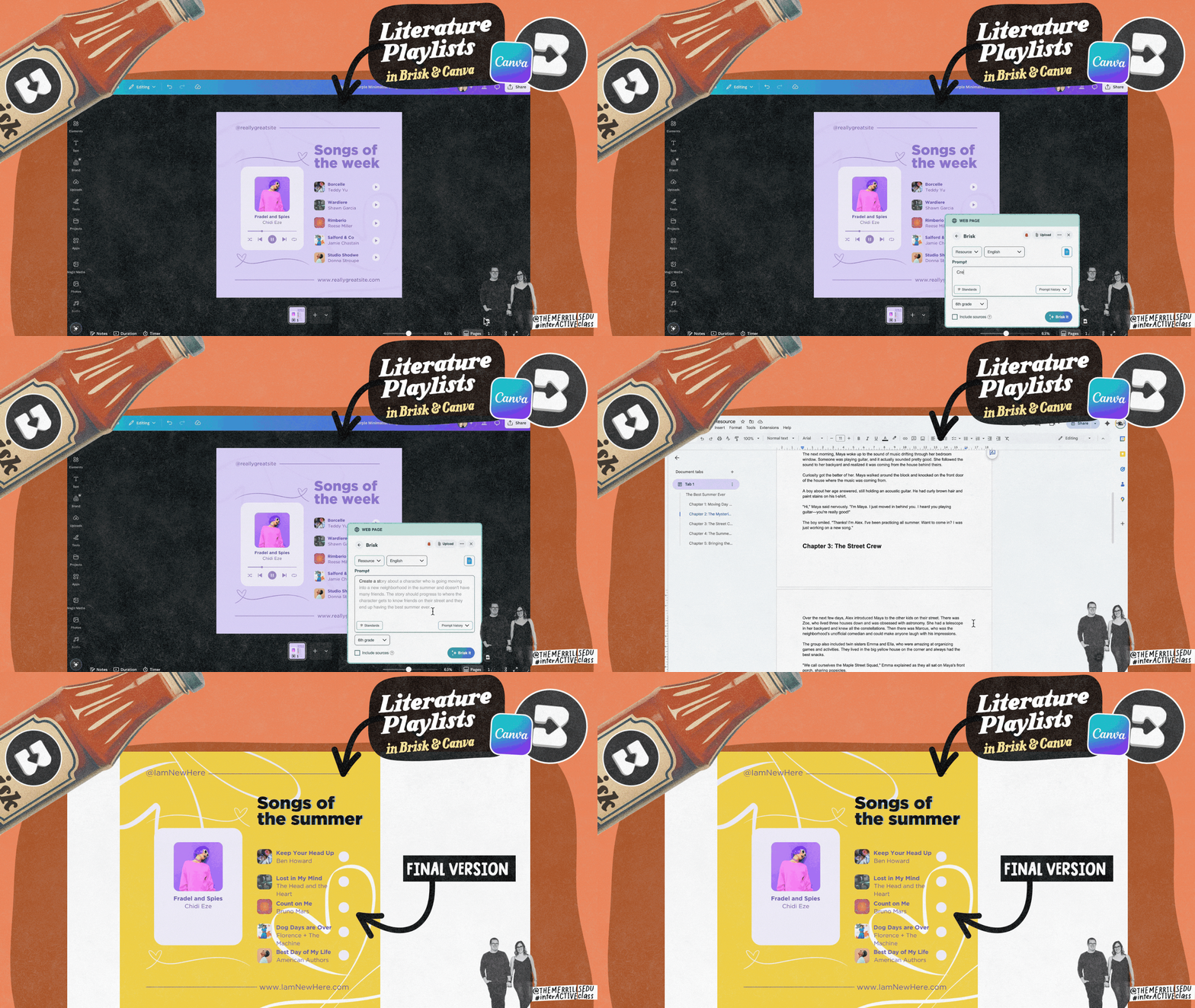
Literature Playlists with Brisk and Canva
This activity blends reading comprehension with creative expression. Start by using Brisk to generate a reading passage or chapter summary (perfect for when you want something leveled or ready to go in a pinch). After reading, students reflect on the emotional journey of the main character and then head to Canva to design a playlist cover that represents those emotions. They can choose colors, fonts, imagery, and even create song titles that match the character’s feelings throughout the chapter. It’s a fresh way to explore mood, tone, and character development—all through a design lens students love.


The Brisk Blockbuster Project:
The Ultimate Brisk Lesson!
This idea has students turn their learning into a movie-style showcase powered entirely by Brisk. Start by using Brisk to summarize the core content (for example: a novel, article, or unit topic). Then, students launch a Character Chat to “interview” a key figure from the story or lesson, deepening their understanding through conversation. From there, Brisk can generate a podcast so students can explore tone, delivery, and key takeaways. Last, use Pulse Check to create quick comprehension questions for review. It’s creative, reflective, and ties all of Brisk’s most powerful tools into one lesson. We recommend giving this a try with your sub plans!


Get a Brisk Upgrade!

If you’re ready to try Brisk in your own classroom, here’s some great news! Since you made it this far, Brisk has kindly offered us a gift for YOU. They are offering 3 months of free access to Premium for FREE! You can use this link (or click on the image) to get claim your upgrade. It’s the perfect way to explore how Brisk can save you time, support your students, and bring a fresh spark to your teaching! We hope you love it as much as we do!
- Please follow us on social media and tag us with your Brisk ideas! 👓👗
For more tips, tricks and lesson ideas for making learning more interACTIVE, check out our books The InterACTIVE Class series on Amazon!


Ways to Use Wayground in Your Classroom: AI, Differentiation, and Real-World Lesson Ideas
Wayground (formerly Quizizz) is more than a name change…it’s a full teaching toolkit powered by AI, creativity, and year-round engagement. Here’s how to make the most of it in your classroom.

No matter where you are in the school year: starting a new unit, refreshing your routines, or just trying to survive a random Wednesday, you need tools that actually work. That’s why we’re excited about one of our favorite platforms getting a serious upgrade! Say hello to Wayground (formerly known as Quizizz). But here’s the thing: this isn’t just a rebrand. It’s a full-on reimagining of what learning tools can do. Wayground has AI that saves time, it has built-in differentiation, and student-centered features that support your classroom all year long.
In this post, we’re breaking down what the name change means, what’s new under the hood, and how you can use Wayground for way more than quizzes. Plus, we’re sharing 10 creative lesson ideas you can plug in right away, whether it’s the first week of school or the last.
(click on any subheading to jump to that section)
Please note: This blog post was hand-crafted and was not created using AI.
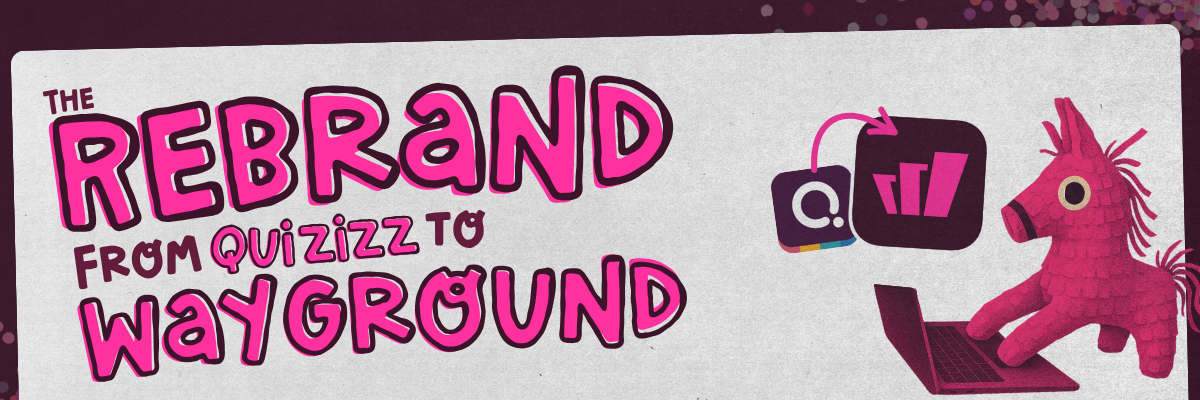




The Rebrand: From Quizizz to Wayground
Let’s address the biggest question first: Why the name change?
You’ve probably known Quizizz as the go-to for quick quizzes, gamified reviews, and that familiar leaderboard energy. But as teachers pushed the boundaries of how they used it: from full lesson plans to student-created content, it became clear: this platform had outgrown its name.
Enter Wayground: a name that reflects a much bigger purpose. In our opinion, “Way” speaks to student pathways like personalized, adaptive, and flexible. “Ground” refers to a solid foundation for learning and something teachers can build on. But this isn’t just a vibe shift. Here’s what’s actually changed.

Under the Hood of the All New Wayground:
Here’s what teachers can expect in Wayground.
AI-Powered Lesson Building
Wayground uses AI to help you:
Generate standards-aligned questions from any text or topic
Create differentiated versions of activities in just a few clicks
Turn PDFs, websites, and even classroom handouts into interactive content
Build full lesson sequences with a mix of question types, all auto-generated
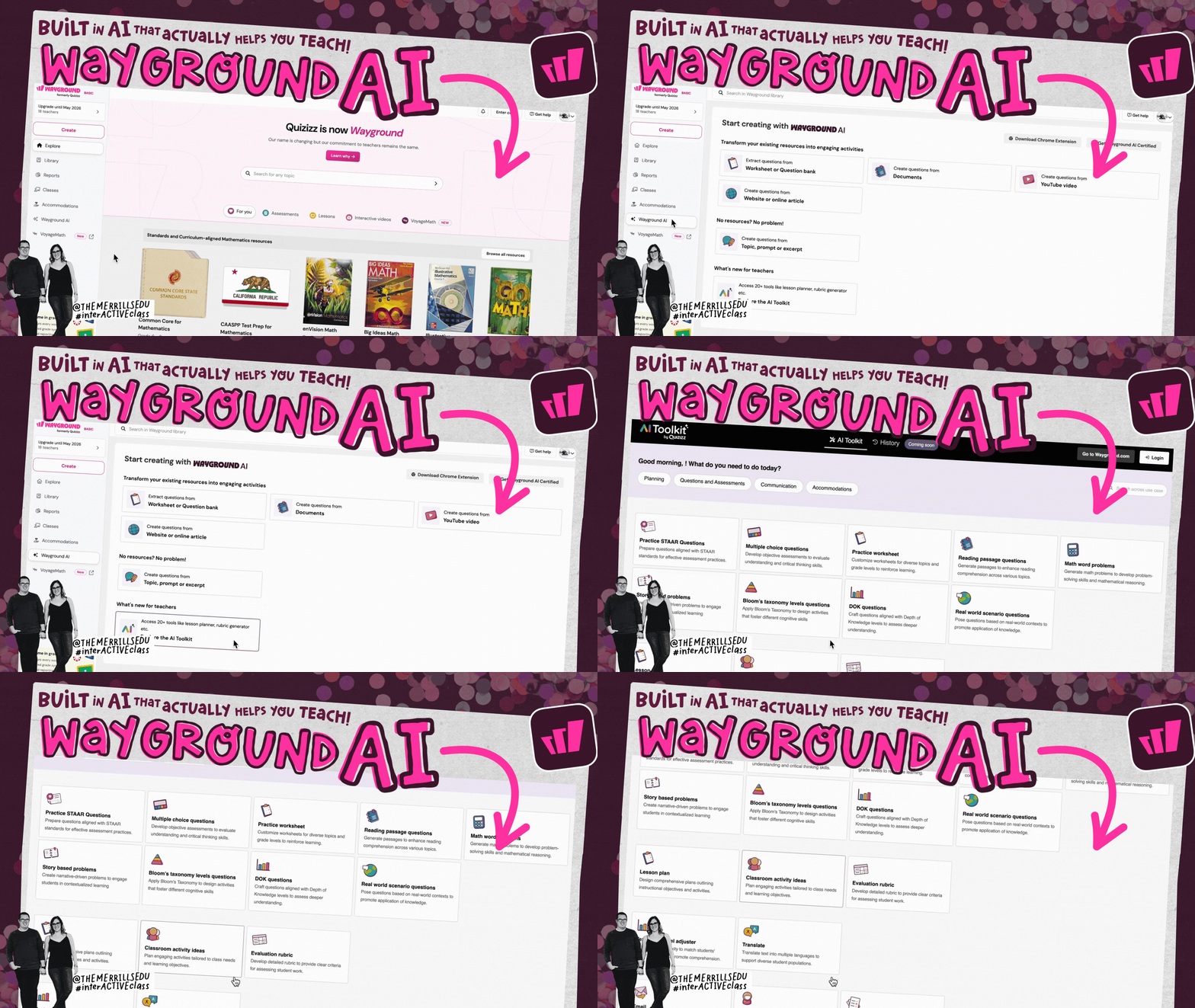
Translation: You spend less time building, more time teaching. For a closer look, log onto the Wayground dashboard, then click Wayground AI on the left hand side to see it in action.


Smarter Differentiation Tools
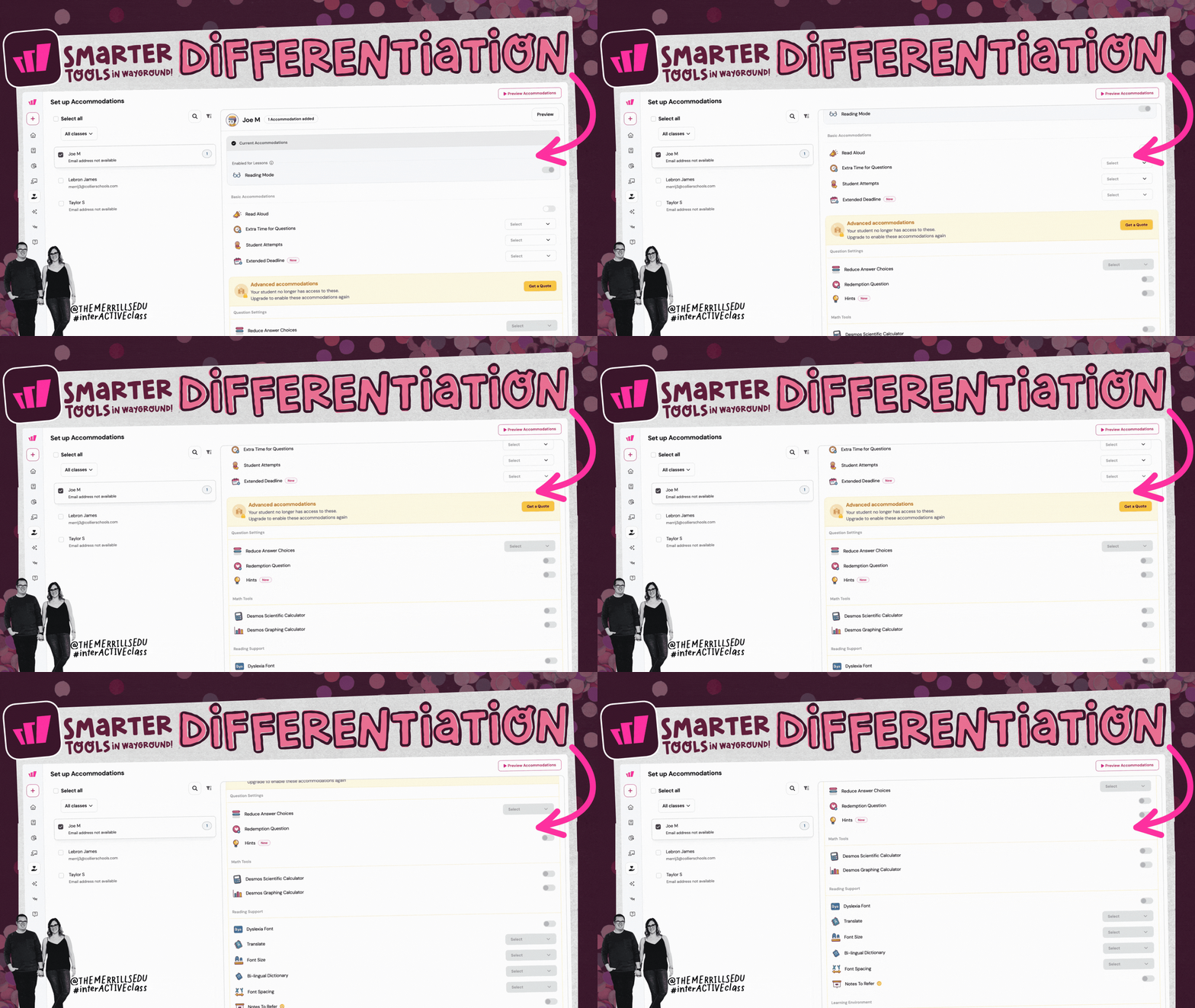
Wayground now supports smarter differentiation tools, allowing educators to assign individual accommodations so that students can move through content at their own pace. For example, you can:
Assign different levels of a quiz based on readiness or IEP needs
Add Read Aloud, Translation, Dyslexia Font, and more
Allow an extended deadline or multiple attempts on an assignment and more.
Differentiation doesn’t have to mean more prep. Now, thanks to tools like Wayground, it’s finally manageable! Check out the image to see some of the accommodations now available in Wayground.
Hello, World!


Teacher Resource Hub
Wayground isn’t just about assessments anymore. It’s a storage and sharing space for:
• Bell ringers & Exit tickets
• Anchor charts
• Flashcard decks
• Spiral review banks
• Seasonal and thematic mini-units
Educators can also organize, label, and reassign them with as needed. This means you can build up a digital teaching toolkit over time.


Built-In AI That Actually Helps You Teach
Wayground can transform your existing resources into engaging activities. Educators can create activities from questions in a worksheet, a document, YouTube video, websites and more. If starting from scratch, teachers can also create questions from a topic, prompt, or excerpt. Wayground also has a built in AI Toolkit that can help with things like practicing STAAR questions, text level adjustments, and much more. Check it out by clicking here!
Easy Differentiation, Without the Overwhelm
With Wayground, differentiation is no longer complicated. As teachers, we know that learning looks different for everyone. If you use an activity one year, the students in your class may interact completely differently with that activity the next year. They may struggle with it, or perhaps even find it too easy. That’s where Wayground comes in. As the educator, you can differentiate that activity and assign different expectations to any and all of your students. Wayground also allows teachers to go in and assign individual, group, or even whole class accommodations. These include things like: read aloud, dyslexic font, translate, font size, and so much more.
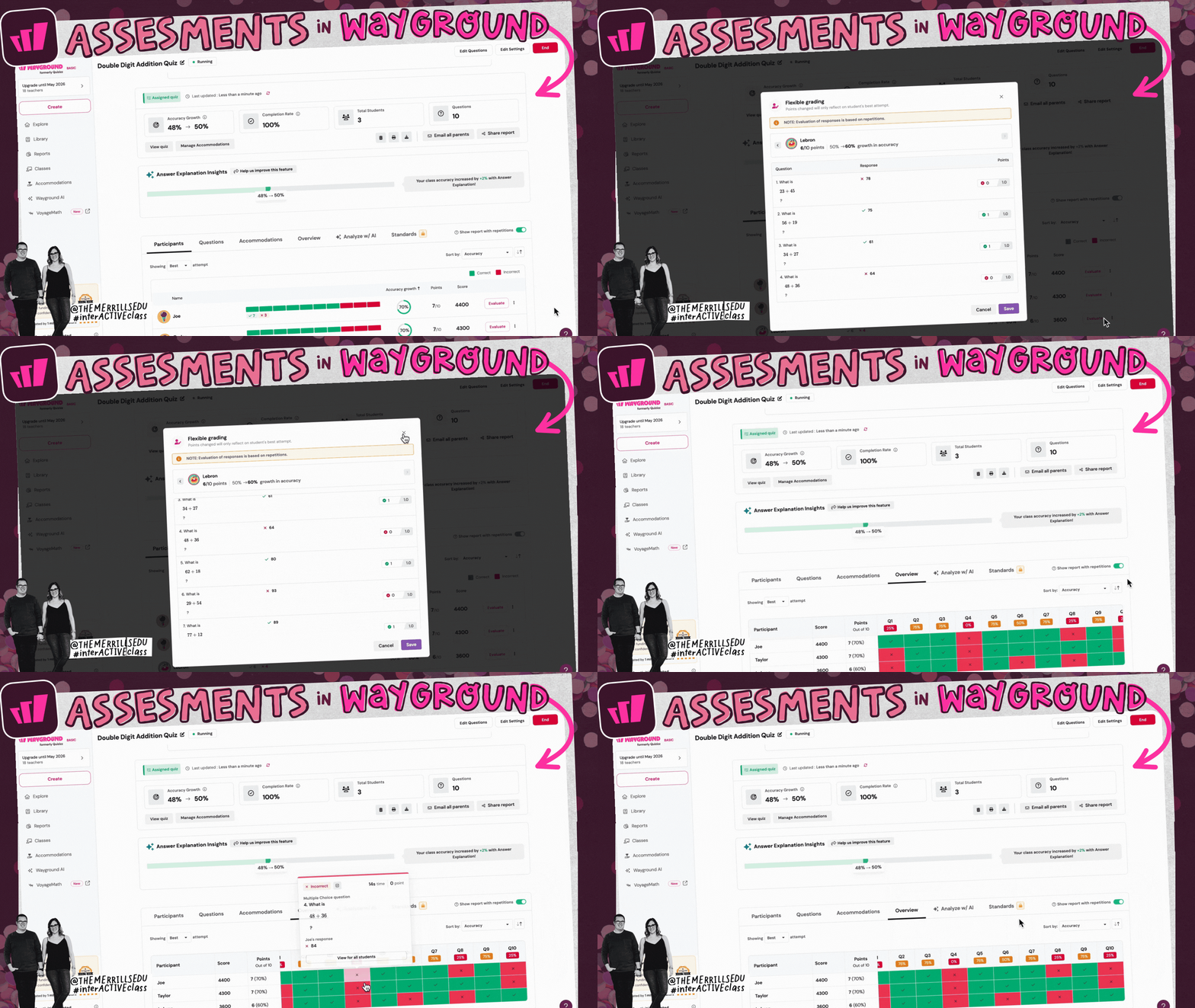
As powerful as the accommodations are, the ability to dive into the data on the teacher’s end is incredibly impressive. Educators can glance at one individual student, or they can view the entire class. Wayground is also capable of providing tight insights where the teacher can then use Wayground’s AI to assign practice content for students. Check it out in action below!

Wayground’s Resource Hub
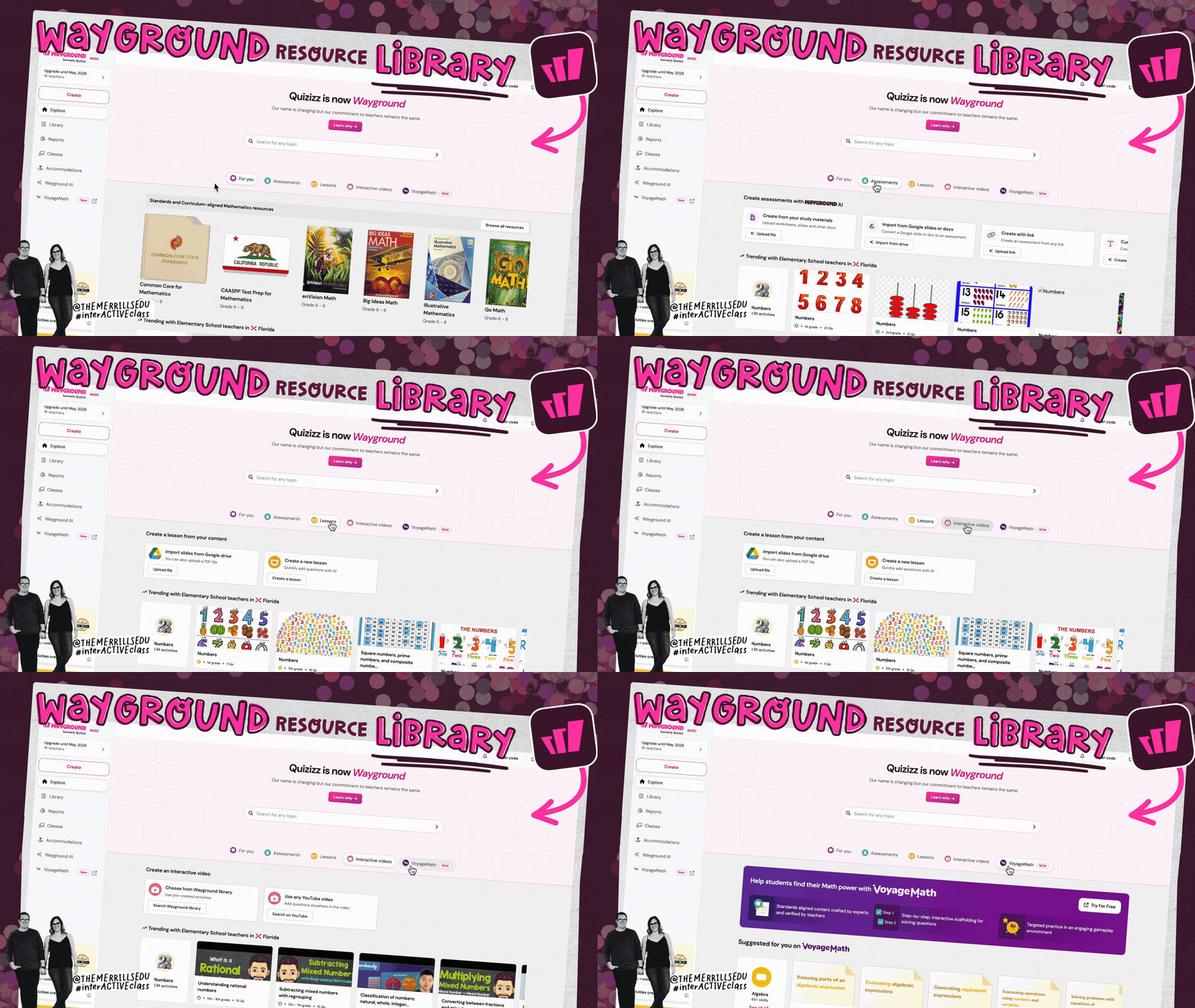
Wayground’s resource hub is a great place to check out if you’re logging on for the first time, or looking for a specific standards-aligned activity. Log onto the educator’s dashboard and from there, you’ll see the option to narrow down your search. You can filter for: Assessments, Lessons, Interactive videos, and VoyageMath. Teachers can also type in. a specific topic, or use Wayground’s built-in AI to generate a brand new activity. Pro-tip: If you’re trying to build an assessment or lesson and you have slides uploaded to your Google Drive, you can upload the PDF of the slides to Wayground. Then, Wayground will generate the questions for you. You can always go in and edit these afterwards, too. There are tons of options here, so you’ll definitely want to check them out!
Lesson Ideas: Try out these Wayground Activities!
Interactive Videos in Wayground
Turn any video into an interactive learning experience
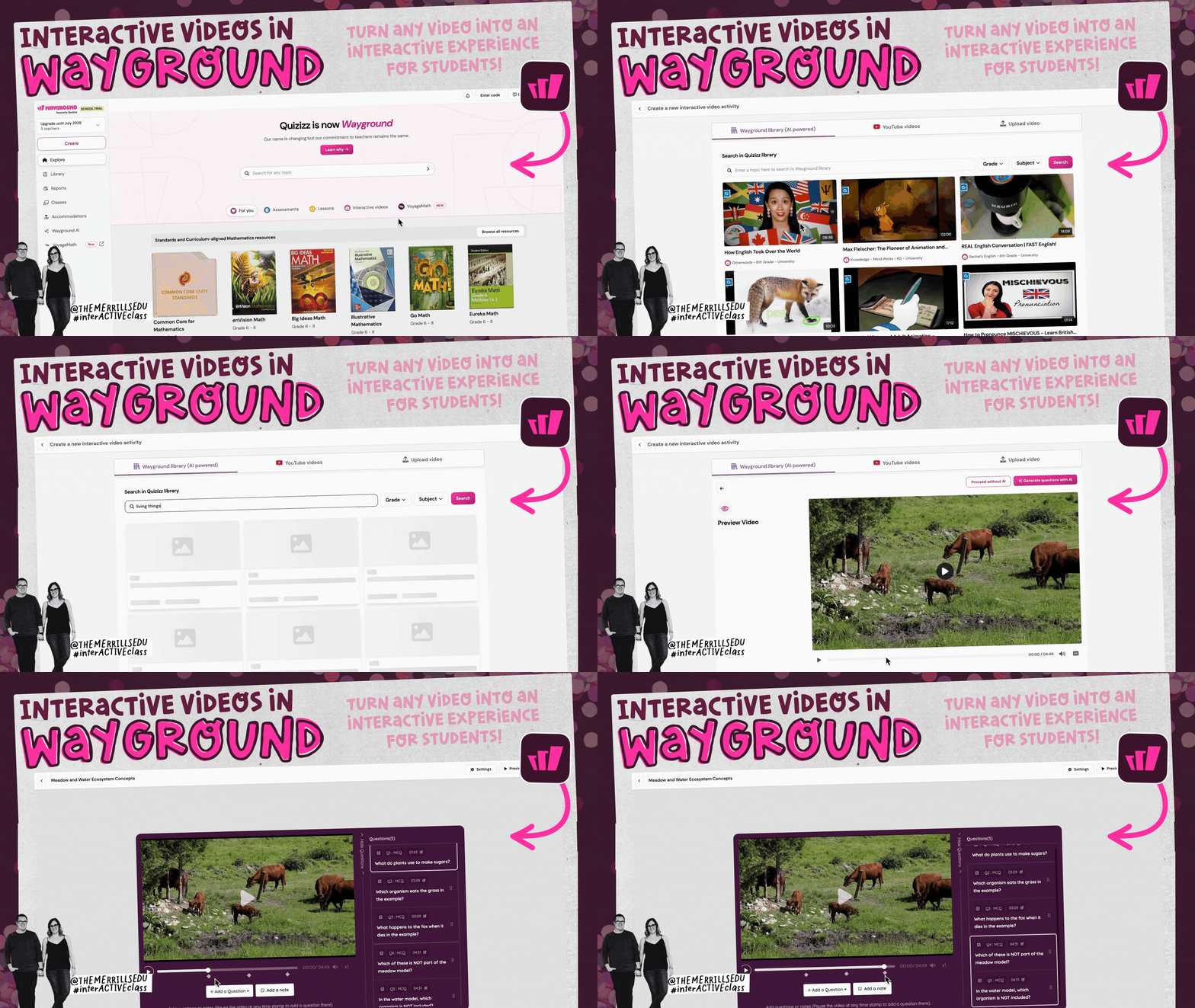
With Wayground’s interactive video feature, you can turn any video into an engaging learning experience. Educators can assign questions at various points in the video, or they can generate the questions automatically using AI. The students watch the video and then answer questions as they appear.
✅ Teachers can search for videos in the Wayground library, Youtube, and more!

VoyageMath & Wayground
Use VoyageMath lessons in Wayground
VoyageMath is a middle school math practice platform that helps students learn at their own pace, transforming mistakes into learning opportunities. Now, educators have access to VoyageMath lessons right within Wayground. Note - these require a premium account, but you can start a trial version by clicking on any of the lessons.
✅ VoyageMath provides step-by-step lessons to help guide the students through the solving process.




Reading Passages in Wayground
Quickly create assessments from reading passages in Wayground
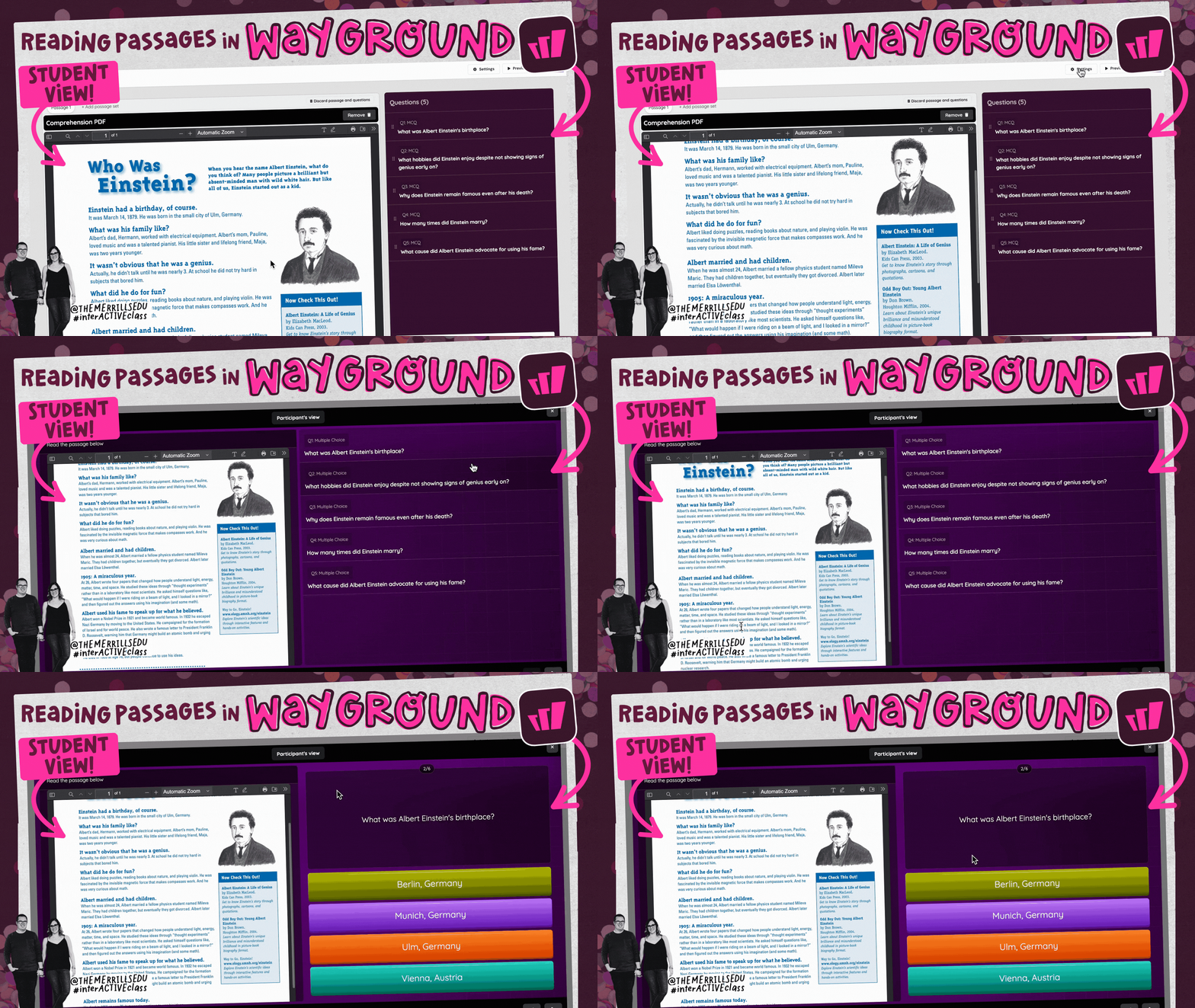
Wayground is now capable of producing assessments from reading passages. This can be done by searching their library, using AI, or with a passage that you already have access to. We love how this looks from the student side (see below)!
✅ Edit the filter to narrow down the search for grade level specific content.

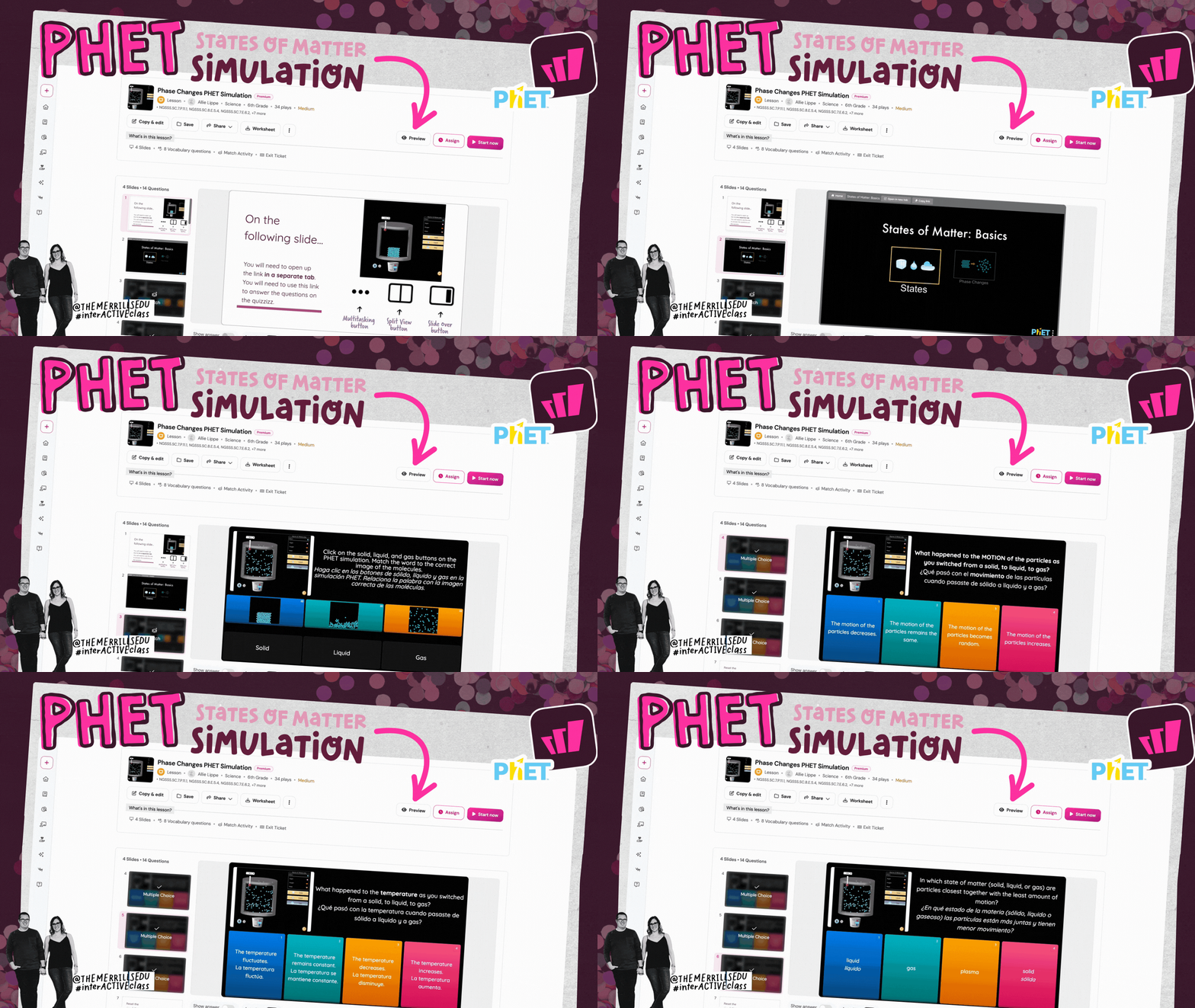
PHET & Wayground
Use PHET’s simulations in your Wayground activities and lessons
PhET Interactive Simulations is a project that provides free, interactive, research-based simulations for science and mathematics. These simulations are designed to help students engage in inquiry-based learning by providing interactive and visual representations of scientific concepts. Now, you can find these simulations in Wayground!
✅ Log onto the Wayground educators dashboard, then search for PHET in the search bar to view more!



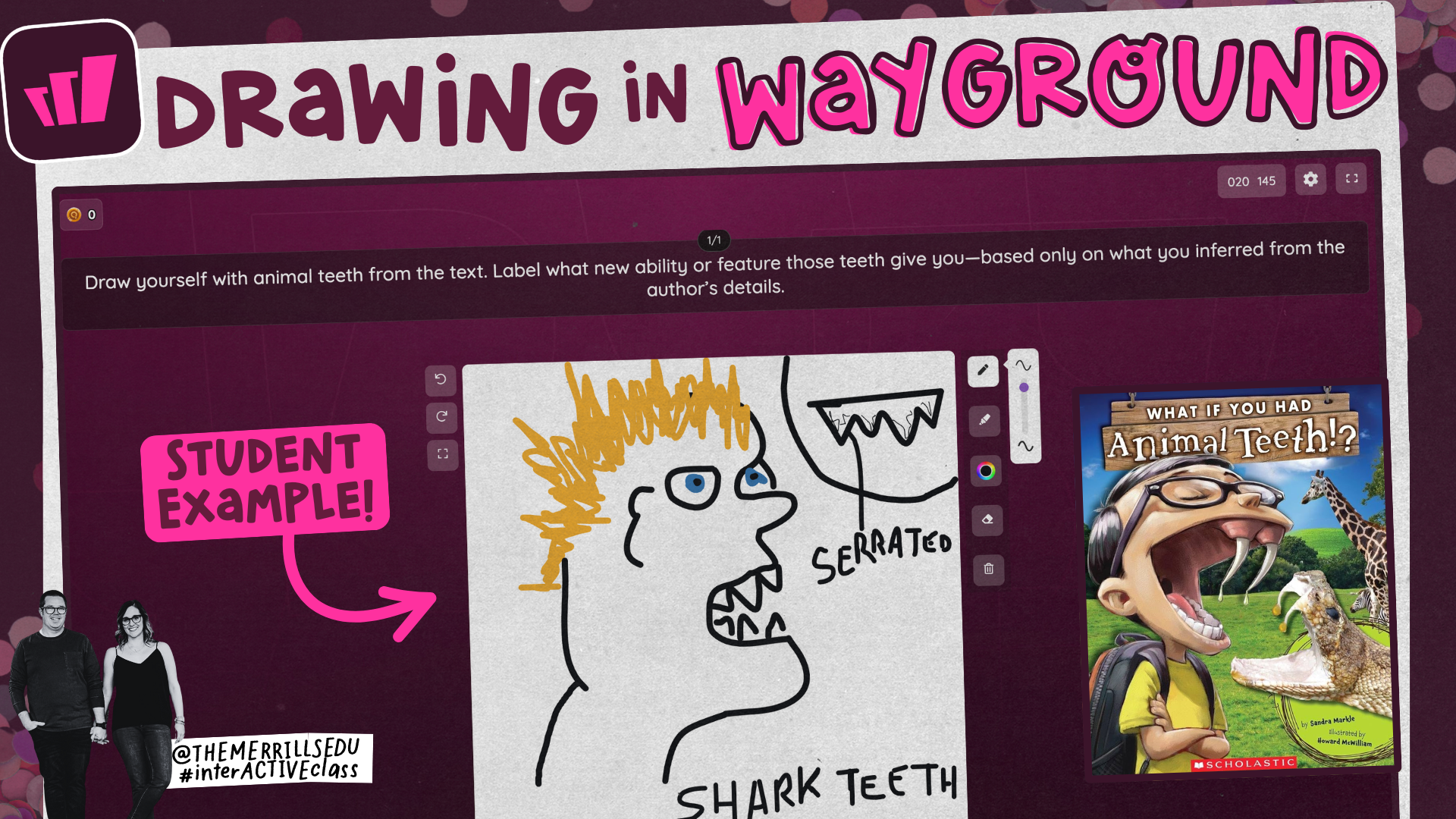
What If You Had Animal Teeth?
Use Wayground’s drawing feature to show and explain thinking
After reading Sandra Markle’s, “What If You Had Animal Teeth,” students create an illustration that where they draw themselves with animal teeth. Then, they label what new ability or feature those teeth give you, based only on what they inferred from the author’s details.
✅ Edit this for any of the “What If You Had Animal…” series!

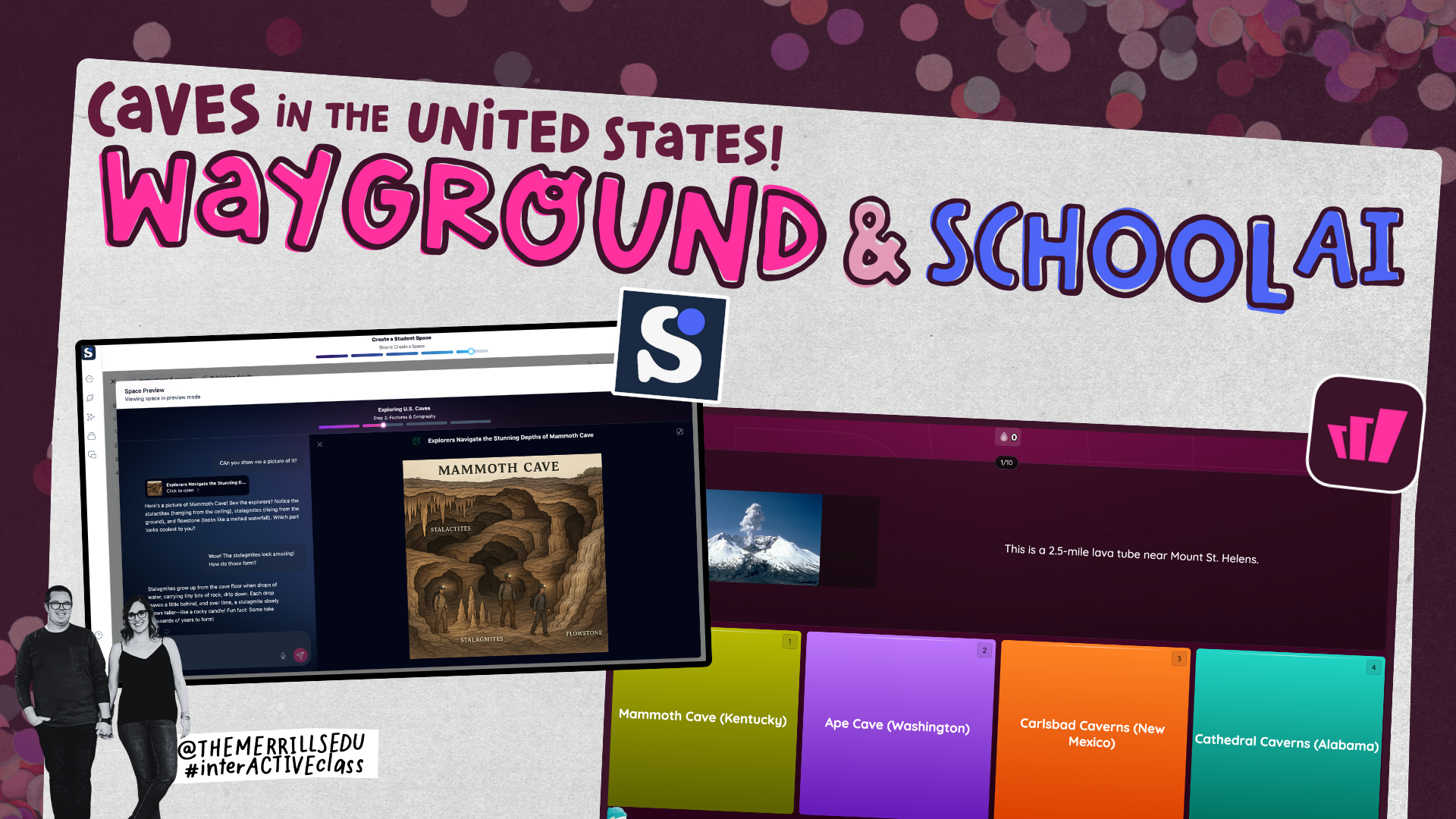
Caves in the United states
Use School AI to build background knowledge, then use Wayground to assess their learning!
Download our United States Caves space on School AI by clicking here. This will teach the students about the caves around the United States (it will even show them images of caves!). Then, once they have shown understanding, students can take this quiz to assess their learning.
✅ Edit this for grade level and tie your standards in!



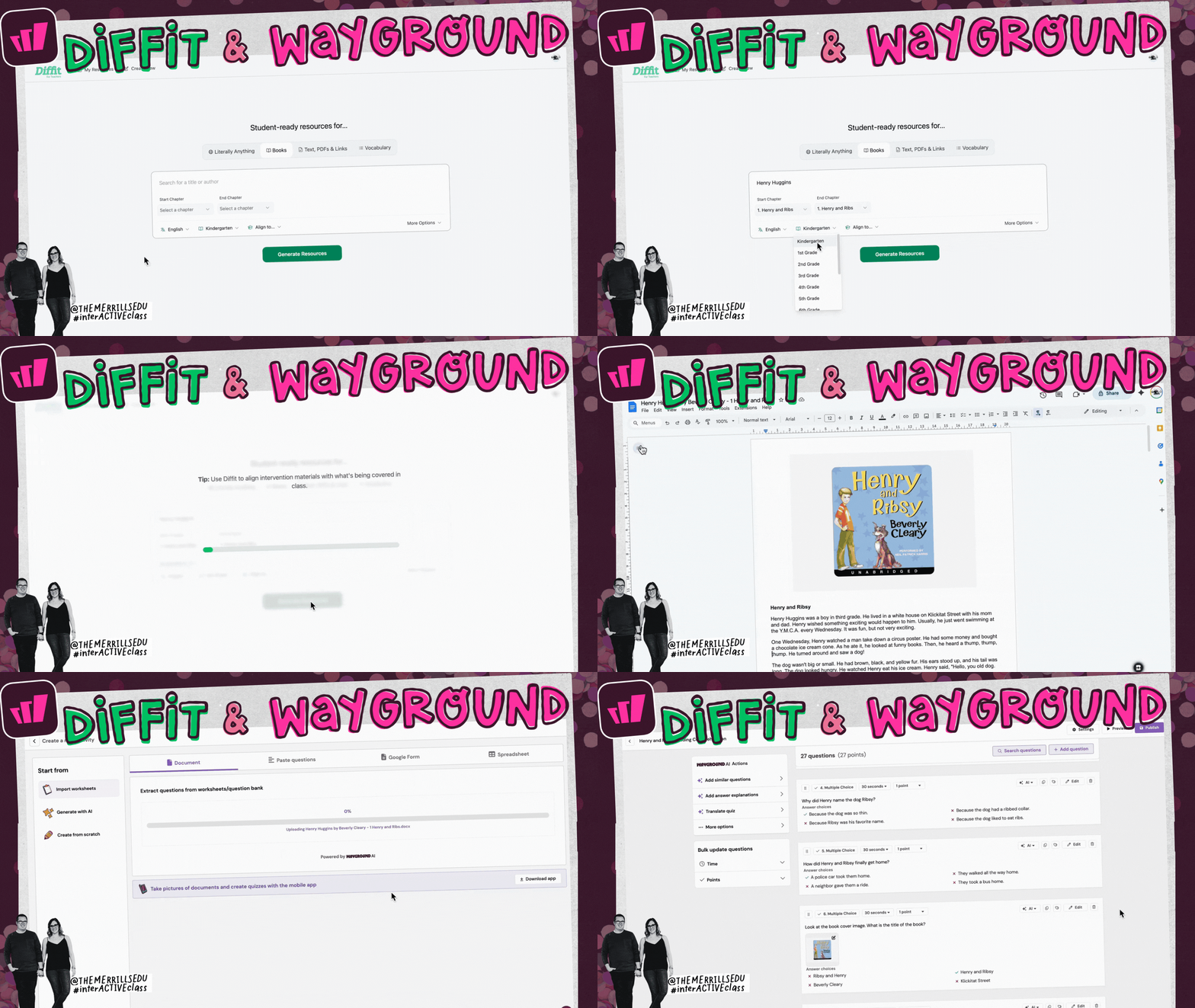
Diffit & Wayground
Use Diffit to differentiate reading materials, then use Wayground (and it’s accommodations) to transform student learning
Use Diffit to differentiate any topic, article, or piece of text. Then, upload the file into Wayground. Enable the proper accommodations for each student and then let them work to complete the task.
✅ Click here to learn how to add accommodations to for your students.

Book Creator & Wayground
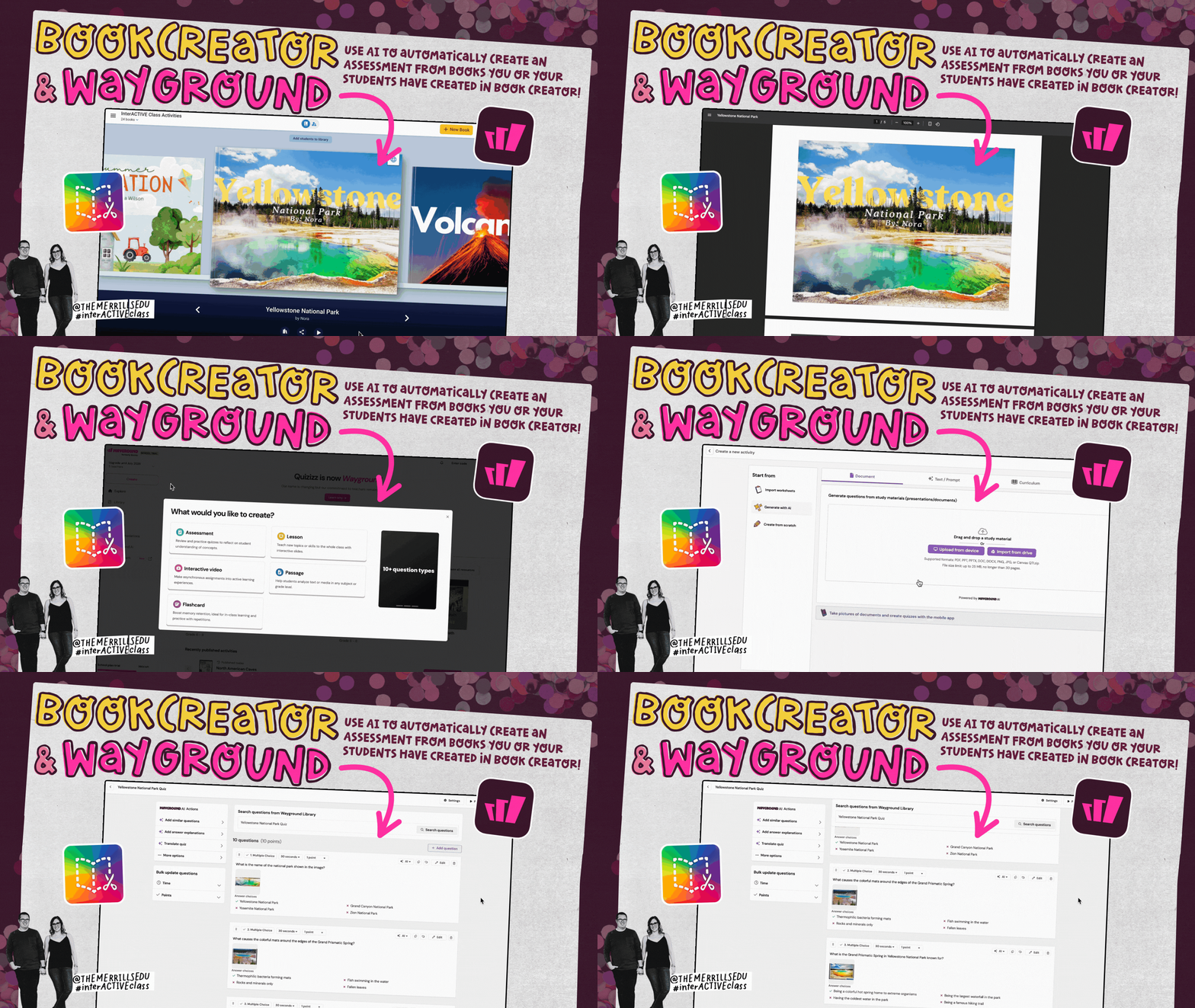
Use books created in Book Creator on Wayground
Try uploading the books you (or your students!) have created on Book Creator directly onto Wayground. This adds an additional assessment piece to the creativity behind. the project.
✅ To download books in Book Creator, click: Share > Print > then click the download icon (rather than printing)

Padlet & Wayground
Use student curated content in Padlet to produce flashcards in Wayground
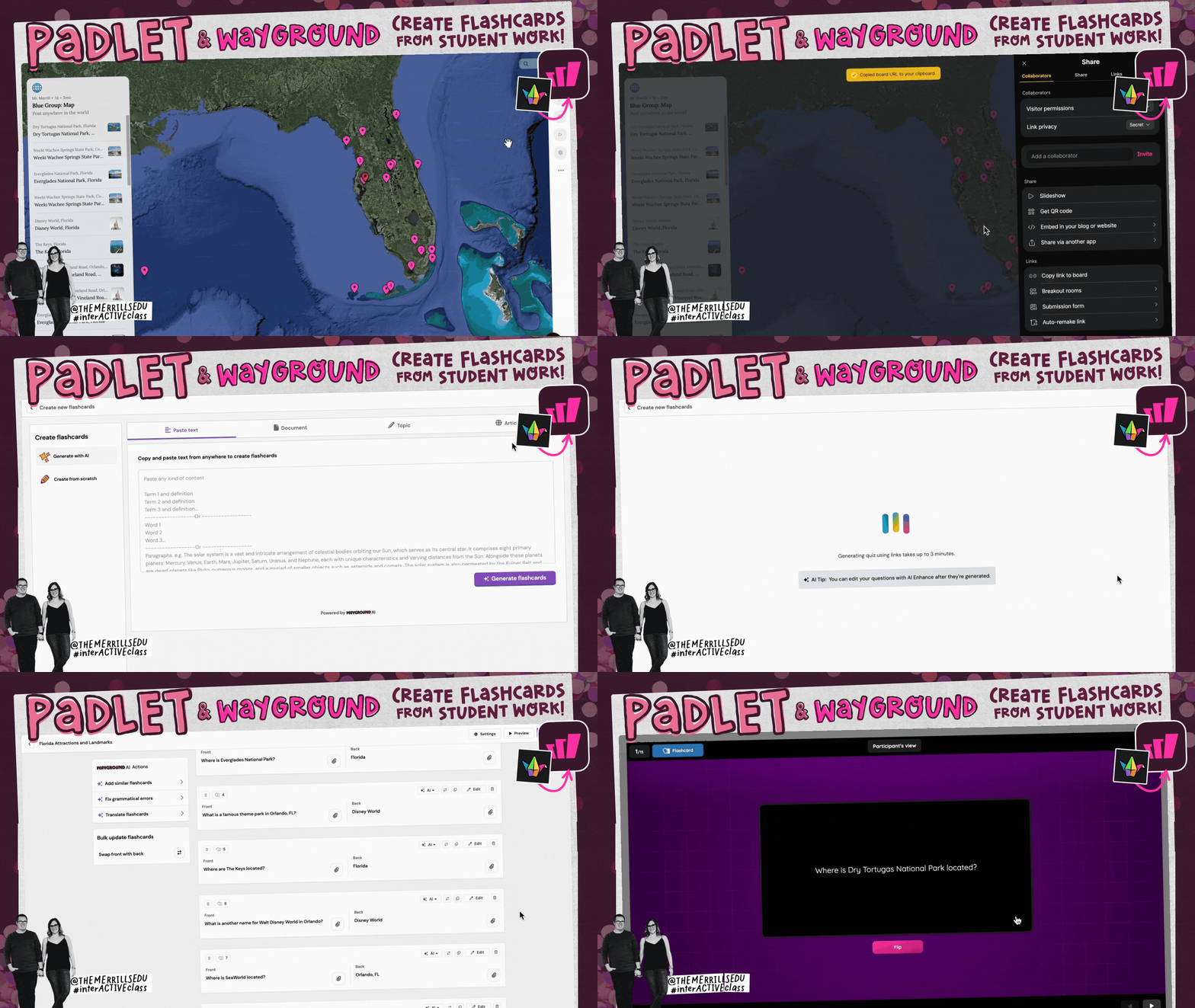
We love it when students are the creators of the content, so this idea is one of our favorite. Have students collaborate on a topic by adding content to a shared Padlet wall. Then, copy the URL to the Padlet wall into Wayground to turn the student work into practice flashcards (or even an assessment).
✅ To share a Padlet wall, click on the Share icon, then click “Copy link to board.” Paste this link on Wayground.

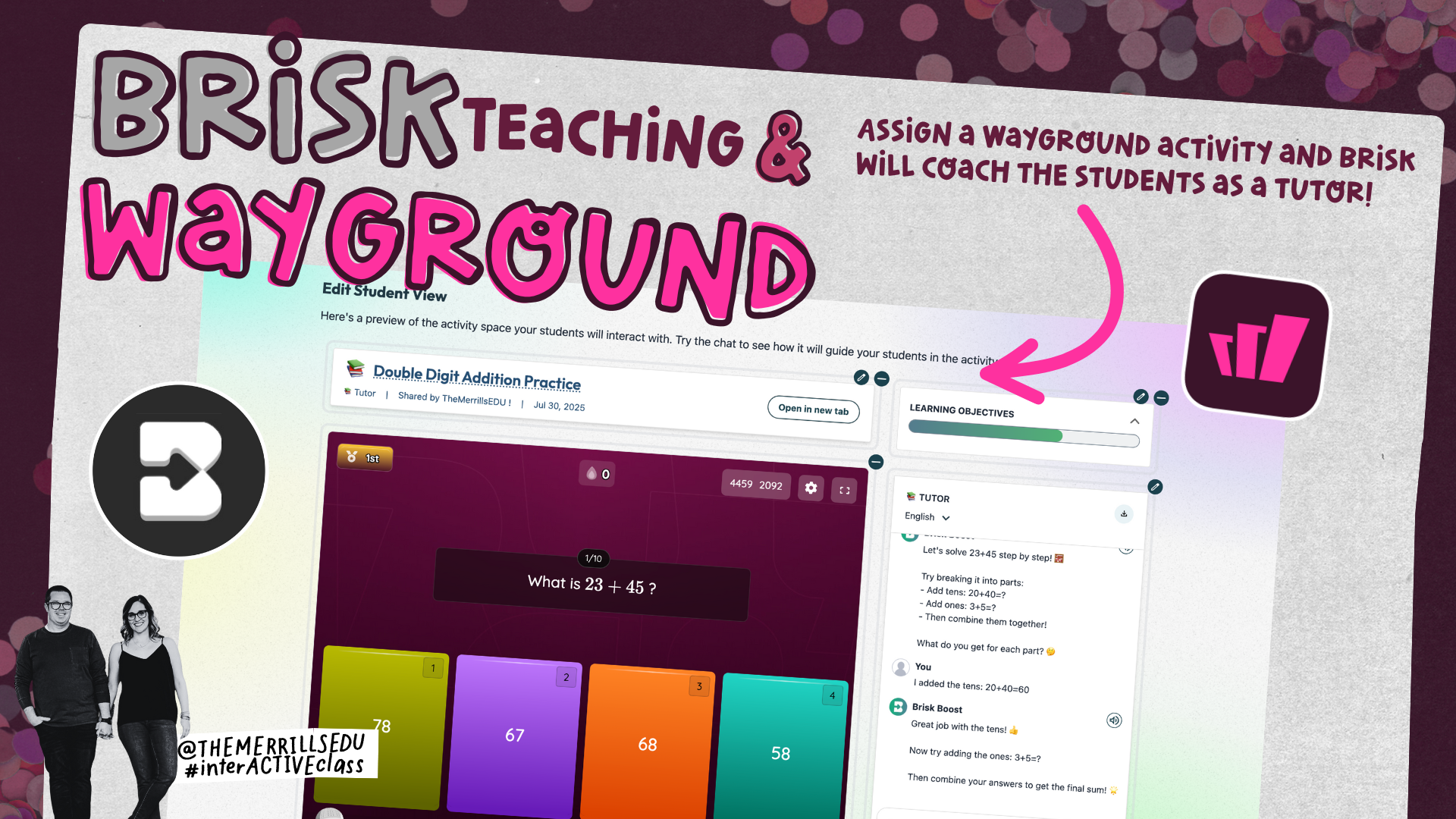
Brisk Teaching & Wayground
Assign practice on Wayground, use Brisk as an AI tutor to help coach students
Brisk Teaching can help coach students working on Wayground activities, providing quick assistance for all students. For this to work, you will need to Assign the Wayground activity, then launch a new Boost Student Brisk activity that uses the AI tutor.
✅ This won’t work if you are doing a live Wayground game. The Wayground activity needs to be assigned.


-- Please follow us on social media and tag us with your Wayground ideas! 👓👗
For more tips, tricks and lesson ideas for making learning more interACTIVE, check out our books The InterACTIVE Class series on Amazon!




Snorkl: How to Use AI in the Classroom to Support Student Voice
Learn how we’re using Snorkl to spark deeper student thinking through creative, image-based prompts and reflections. From AI-powered conversations to vintage theme park posters and historical what-ifs, we’re sharing classroom-tested ideas that make learning visible and fun!

We’re always on the lookout for tools that make student thinking visible—and that’s exactly what caught our attention with Snorkl. It’s a newer platform, but one we’ve already tried and tested in our own classrooms, and we’re excited about the potential it brings. From scaffolding deeper reflection to giving students a space to explain their thinking creatively, Snorkl is quickly becoming one of our new favorite ways to amplify student voice. In this blog post, we’ll walk you through how the platform works, share real examples, creative integrations, and fresh ideas you can try immediately!
Please note: This blog post was hand-crafted and was not created using AI.
(click on any subheading to jump to that section)


What is Snorkl?
If you were a fan of Microsoft Flip (like we were 🙋♂️), you know how powerful it was for amplifying student voice and making thinking visible. So when Flip was sunsetted, many of us were left wondering and searching for something to fill the gap. That’s where Snorkl steps in!
Snorkl is an AI-powered platform that feels familiar with tools like drawing, adding text, and uploading images (just check out the toolbar!). But what really sets it apart is how it uses image-based prompts to scaffold student thinking in thoughtful, intentional ways. Plus, it checks the all-important safety boxes—it’s both FERPA and COPPA compliant, which is always one of the first things we look for when exploring any new classroom tool.
Instead of simply asking students to “respond,” Snorkl guides them step by step through deeper reflection, stronger explanations, and more intentional critical thinking. It’s not just a replacement—it’s an opportunity to rethink how we help students process and express their learning in a way that truly sticks.

Creating Your First Snorkl Activity
Once you’re inside your Snorkl teacher dashboard, the first thing that you will want to do is create a class. You’ll be able to set up your class in just a few clicks. Here’s how:
Log onto the Snorkl educator dashboard
On the top toolbar, click Classes.
To create a new class, click on the purple Create Class button.
Give your class a name and select a color can represent the class.

Now you’re ready to assign your first activity, and you’ve got a few options. First, you can create a new activity using a blank template where you build everything from scratch. Next, you can pull from your own activity library, which is super helpful if you’re reusing a lesson or teaching multiple classes. Since you created it, you can easily assign it to different groups with just a few clicks. Finally, you can browse the Snorkl library, which is constantly growing and packed with standards aligned activities for a variety of grade levels and subjects. It’s definitely worth checking out, as you might just find exactly what you need, already done for you. The process of selecting an activity from the Snorkl library is pretty straightforward, so let’s walk you through how to create an assignment from scratch:


Log into the Snorkl educator dashboard, then click on Classes on the top toolbar.
Click on the class that you wish to create the assignment for.
Click on the purple Assign Activity button,
Now, click Create New.
Add a title, then select your student response type.
We recommend including instructions on your activities. The instructions will appear at the top of activity.
After that, under the AI feedback settings, click Generate from Question. This will tell Snorkl’s AI how to give feedback on student responses. As the educator, you can also edit this after it generates.
Last, click the purple Assign button located on the top right. Your activity will now be ready to be shared with your students.

With all of the steps completed above, you’re now ready to have students join in on the fun. To get your students logged onto Snorkl, you can choose to have them log into the class using their Google or Microsoft account. Or, if you prefer (or if you’re working with littles), you can share a direct link to the activity. This will allow students to log on with either their Google or Microsoft account, or log in as a guest. Logging on as a guest will require them to enter their name - that is all. The benefit to having students log on using their email account is that their videos will appear on their profile. They can easily go back and revisit content that they have created within the platform. Using the guest login will allow them to participate in the activity, but they will not be able to go back and view their previous work. Here’s how to get students logged onto an assignment using the guest login option:
Log onto the Snorkl educator dashboard, then click on the class that you wish to assign the assignment to.
If you haven’t already created a new activity or selected one from Snorkl’s library, you will want to do this now. If you have, skip to step #8.
Click on the purple Assign Activity button, then click Create New.
Add a title, then add your question. Think of the question area as a digital whiteboard template for the students to work on or in. Each student will be able to use Snorkl’s tools on top of whatever content appears on the question board.
We recommend including instructions on your activities. The instructions will appear at the top of activity.
After that, under the AI feedback settings, click Generate from Question. This will tell Snorkl’s AI how to give feedback on student responses.
Last, click the purple Assign button located on the top right. Your activity will now be ready to be shared with your students.
Log onto the Classes section, then find the assignment that you want to share with your students.
Click the share icon (right side). This will provide you with a unique URL that you can copy & paste to share, or students can enter the provided code by visiting join.snorkl.app.
Your students are now ready to complete their first Snorkl assignment!


Student Experience Explained
Regardless of how students log in, the view for them will look the same. When the students log into the activity, they will need to click Start Response to begin. This will bring them into the assignment where they can access all of Snorkl’s tools. Students may use the tools prior to recording a voice over, add / pause recording, or record while using the tools in real-time. The space is an infinite canvas, so they will never run out of room. Once they have finished, they click on End / Review to watch their recording back.

Once students submit their work, Snorkl’s AI automatically reviews it and provides targeted feedback. The feedback is marked with red dots on the timeline, showing exactly where the AI is offering input. Students can even skip directly to those moments in their video to see precisely what the feedback is referring to, making the revision process clear and actionable. Educators always have the final say, and can edit any of the AI generated feedback.

If enabled by the educator, students have the option to take the feedback and resubmit their work. If they decide to do so, they may reuse the entire whiteboard again, or start from scratch.
Accessibility & Collaboration
One of the things we love most about Snorkl are the built-in accessibility tools. Students can have prompts read aloud (huge for early readers or anyone who needs a little extra support), and they’re not locked into just one response type. They can draw, type, or record themselves. The tools are strategically placed to help them show what they know best. Students can even upload their own images to customize things even more. Snorkl also offers the option to download various parts of the student’s work. For example, students can download just the whiteboard, the entire video, or even a transcript. It’s all about removing barriers and giving every student a way to engage and succeed.

But let’s face it, our students learn best from one another. So, with Snorkl’s collaboration feature, students can leave comments or a voice over their friend’s boards. For example, a student could watch one of their peer’s videos, identify a mistake, and then use the mistaken students board to help explain where the error is occurring. Now, we know what you’re thinking…My students are just going to watch their friends videos and not pay attention to the others. Snorkl intelligently removes all names from student responses. So, students can tell who’s video they’re clicking on until they actually click on it and can listen to the voice. This anonymity helps inspire and boosts ALL the voices in the class - not just the student who is always calling out the answers.

Teacher Dashboard Tools

When students are actively engaged in a Snorkl assignment, teachers also can get in on the fun. With live student response tracking, educators are able to see what students are working on and when they are finished. Responses can be grouped and sorted at the discretion of the teacher, too. So, if you have students who are working on the same assignment, but at different times, you can sort the assignment to Latest in order to view the current work.

If students have made multiple attempts, you can also view each of these attempts and the progression of learning from start to finish. Just below the student response, there will be a number, for example: 3/3. If the educator clicks on these numbers, a drop down menu will appear. This will allow you to toggle back and forth between the attempts.

For a quick glance at what the student(s) shared in their video, you can scrub, or scroll through the student response to view where the AI provided feedback. For example, move your mouse pointer over different parts of the rectangle. Subtitles of the feedback will appear at the various points where it was provided.

Insights are an extremely powerful way for educators to monitor student progress. While in an assignment, click on Insights located on the top left side. This will provide a scope of how students have performed. For example, the AI will share top exemplars, responses with missing content or details, etc. This comes in handy when you’re trying to grab a quick assessment of how students are performing.

Snorkl for Math
Snorkl can be used for anything and it can transform activities that you’re already doing in the classroom. For example, students can use Snorkl to share how they worked through a challenging math problem. They can use the tools within the platform to build their explanation, or they can capture a photo using their devices camera and upload it. So, if your students use whiteboards to work through math problems, they could take a photo of their whiteboard, then explain it in a Snorkl video. Whether they submit the work using the tools or through a photo, the AI will work to provide feedback and help coach the students in the proper direction. Click here to check out the expanding Snorkl Math activity library and try one out tomorrow!

Snorkl for Writing
Hopefully you’re seeing the pattern by now…Snorkl can be easily integrated into almost anything that you’re already doing in the classroom. When students finish working on a writing assignment, they can capture a photo of their work and then record themselves reading the writing. Snorkl’s AI will assess the work, according to the educators standards, and then provide feedback. This is perfect for rough draft versions, or a writers workshop. Snorkl also has a new writing tool that will help coach student writing. We used Diffit to generate the article titled, “Persuasive Writing: Should we have homework?” This article can be shared directly into the assignment (see our image below), and then students can respond on Snorkl. The AI will automatically assess and coach the students, offering the educator insights - including when students have pasted and how much they have pasted. Check it out below!


Exit Tickets with Snorkl (and School AI!)
Exit tickets aren’t anything new…You’ve just taught a pretty complicated lesson and you’re not exactly sure where your students land on the scale of learning. So, you ask students to provide a quick response to assess their overall understanding. But, with Snorkl, the assessing is instant and can be revisited.
Let’s put it into action: Have students use SchoolAI to explore and learn all about Alexander the Great—his conquests, leadership style, and why he earned the title “Great” in the first place. As they gather key facts, they can head over to Snorkl to record a video capturing what they learned. The scaffolded prompt helps them organize their thoughts and explain why those details matter (remember, they can pause/record at any time). Then comes the best part: students can watch each other’s videos, picking up new insights and perspectives they might have missed. It turns individual learning into a collaborative experience—and makes history way more engaging than a worksheet or traditional exit ticket ever could. Download the School AI Alexander The Great space by clicking here, and download the Alexander The Great Snorkl activity by clicking here!


Snorkl for Science
One of our favorite features to share is: “The Power of Pause!” Students watch YouTube videos and (most) think that they are recorded in one shot. But, once students learn the importance of pausing, the quality of their videos will dramatically increase. The ability to stop, recollect thought, and then continue is a powerful soft skill that needs to be taught. But, there’s no better way to do that then during a science experiment. Students can start off recording data, taking photos, or illustrating. Then, they can pause, conduct the next part of the experiment and record again. This will create a seamless video without the long gaps (just like those beloved YouTube videos).


Level Up Activities

We (and our students) love using Canva to create. But, if the content just sits in Canva, that’s no better than working in a closed notebook. Our students need to be able to share to a broader audience. This is where Snorkl comes in! Try having your students downloading their work in Canva as a PNG or JPEG, then uploading it into their Snorkl assignment. They can explain their thinking, and then learn from others, too. Here are some examples of how we have used both together:

In our “I Was There” activity, the students read a historical non-fiction piece (e.g., civil rights events, natural disasters, or space missions), and then they created a fake journal page, letter, or ID badge from that moment in history. We even included things like a headshot, and quotes. Then, the students downloaded their work and created a Snorkl response from a first-person perspective of someone involved. You can download our Canva templates by clicking right here, and download the Snorkl template by clicking right here!


Forget simple cause and effect! In our “Parallel Realities” activity looks into what could’ve been. Students start by designing a split-screen image in Canva, but here’s the twist: one side shows what actually happened (based on a text, event, or character decision), while the other side explores an alternate reality, or what would’ve happened if something had gone differently. Grab the Canva template by clicking right here, then drop it into your next Snorkl assignment. Just don’t forget to bring your imagination.


In this activity, called “Snapshot Stories,” students analyze a moment from nonfiction text in Snorkl. After reading and learning, students recreate a moment in the form of a still-frame scene. They can do this by using our Adobe Express template. You can download the template by clicking right here. Students then upload their image into Snorkl and explain their thinking behind the snapshot.

In our “Evidence Lockers” activity, students reflect on a central idea, claim, or perhaps even a mystery from a text. Then, using our Adobe Express template, they create a locker image filled with symbolic clues and artifacts from the text. For example, they can include photos / images, notes, or objects all relevant to what they read. This is then saved as an image, uploaded and then they can explain what each clue reveals on Snorkl. You can grab the template link right here!


This activity, titled “Chimp Chats & Forest Facts: A Jane Goodall Exploration",” students use School AI to chat with an AI version of Jane Goodall. In this part of the lesson, students learn about Jane’s life and work. The AI also challenges the students to think critically about how Jane's impact can still be felt today. After they have built the background knowledge, students head over to Snorkl to create an illustration or diagram that explains what they learned about Jane. Then, explain what they created in a video. You can download the School AI space by clicking right here and the Snorkl activity by clicking right here!

We’re huge Caitlyn Clark fans, and so are our students! So, we created “From the Logo: Big Shots, Bigger Thinking,” which uses a School AI space / chatbot to build background knowledge. The students explore her mindset, shooting range, and training goals. They also focus on understanding what it takes to confidently shoot “from the logo.” Students ask questions like: “How far is your average 3-point shot?” “How many points did you score in college?” or “What’s your deepest shot in a game?” (the questions should revolve around math). From here, we have the students break it down using real-world math. They solve or create problems around: Distance & angles (geometry), Shooting percentage & probability, Improvement over time (slope/rate), Volume of shots taken vs. made (ratios/percent), and more. For example: “Caitlin shoots from 30 feet at 40% accuracy. If she takes 10 logo shots per game, how many does she make in a 5-game series?” These questions get answered using Snorkl, but we love how students can explain their thinking. So often we see that students may have different ways of thinking, and the ability to explain their thoughts is incredibly powerful - especially when others can view and comment on it! You can download the School AI space by clicking here!


In our “What I thought I Knew…” activity, students ask School AI a question about a common misconception (e.g., “Is Pluto still a planet?” or “Did George Washington really have wooden teeth?”). Then, they create a poster that shares either the truth or false information about what they learned about. This image gets uploaded to Snorkl, where other students are able to comment on the work - discussing why they believe it to be true or false. We like to give students the time to chat (10-15 min), create (10-15 min), create a Snorkl video (5-10 min), collaborate (10-15 min), and then give the students to respond to comments on their own work (5-10 min). The original creator of the work always gets the final say. You can grab the Snorkl activity by clicking right here!

Students love all things Disney, so the inspiration for our next activity comes straight from them! Our “Design Your Own Disney Dream” has students using School AI to chat with an AI chatbot version of Walt Disney. After building some background knowledge, the students launch either Adobe Express or Canva to create an original Disney inspired concept that reflects Walt’s legacy of imagination and innovation. For example, this could be: a “Lost Park” concept poster for a Disney park that was never built, a ride blueprint or attraction pitch based on an under appreciated story, or a modernized logo for Disney’s mission today, using symbols that reflect innovation, courage, and storytelling. After they have created this, they download the image and then upload it to Snorkl. Here, the students can explain their thinking and walk viewers through why they created what they did. We also recommend leaving collaboration on, so that students can view each others work. As we mentioned in the previous activity, here’s our breakdown of time: We like to give students the time to chat on School AI (10-15 min), create on Canva/Adobe Express (10-15 min), create a Snorkl video (5-10 min), collaborate (10-15 min). You can grab the Snorkl activity by clicking right here and the Walt Disney School AI chatbot right here.

-- Please follow us on social media and tag us with your Snorkl ideas! 👓👗
For more tips, tricks and lesson ideas for making learning more interACTIVE, check out our books The InterACTIVE Class series on Amazon!


How to Use AI to Personalize and Differentiate Learning Without Losing the Human Touch
AI can’t replace great teachers—but it can help us be even grader! Check out this blog post to learn how AI can transform your classroom immediately!

AI is shaking things up in classrooms, making personalized learning and creative expression more accessible than ever. But with so many tools out there, it’s easy to wonder: How do we keep the human connection at the center of it all? Our dear friend and illustrator, Manuel Herrera said it best, “AI still needs a human’s touch.” In this post, we’ll dive into classroom-tested AI tools that spark creativity, boost critical thinking, and support student growth—without losing the magic of great teaching. (Note: we have tried to limit the tools mentioned in this post to those that are both COPPA and FERPA compliant)
Please note: This blog post was hand-crafted and was not created using AI.
(click on any subheading to jump to that section)


AI for Differentiation & Support

AI is a game-changer when it comes to meeting students where they are. Whether it’s offering real-time coaching or providing instant feedback, it can help personalize learning without piling more onto your plate. By using AI for differentiation, you can focus on deeper instruction while students get the support they need, right when they need it. It's like having a full time assistant right alongside you. Let’s dive into some classroom-tested tools and creative ways to use them effectively.

Microsoft’s
Reading Coach
Platform: Web, Login / email is recommended
Price: Free
https://coach.microsoft.com/
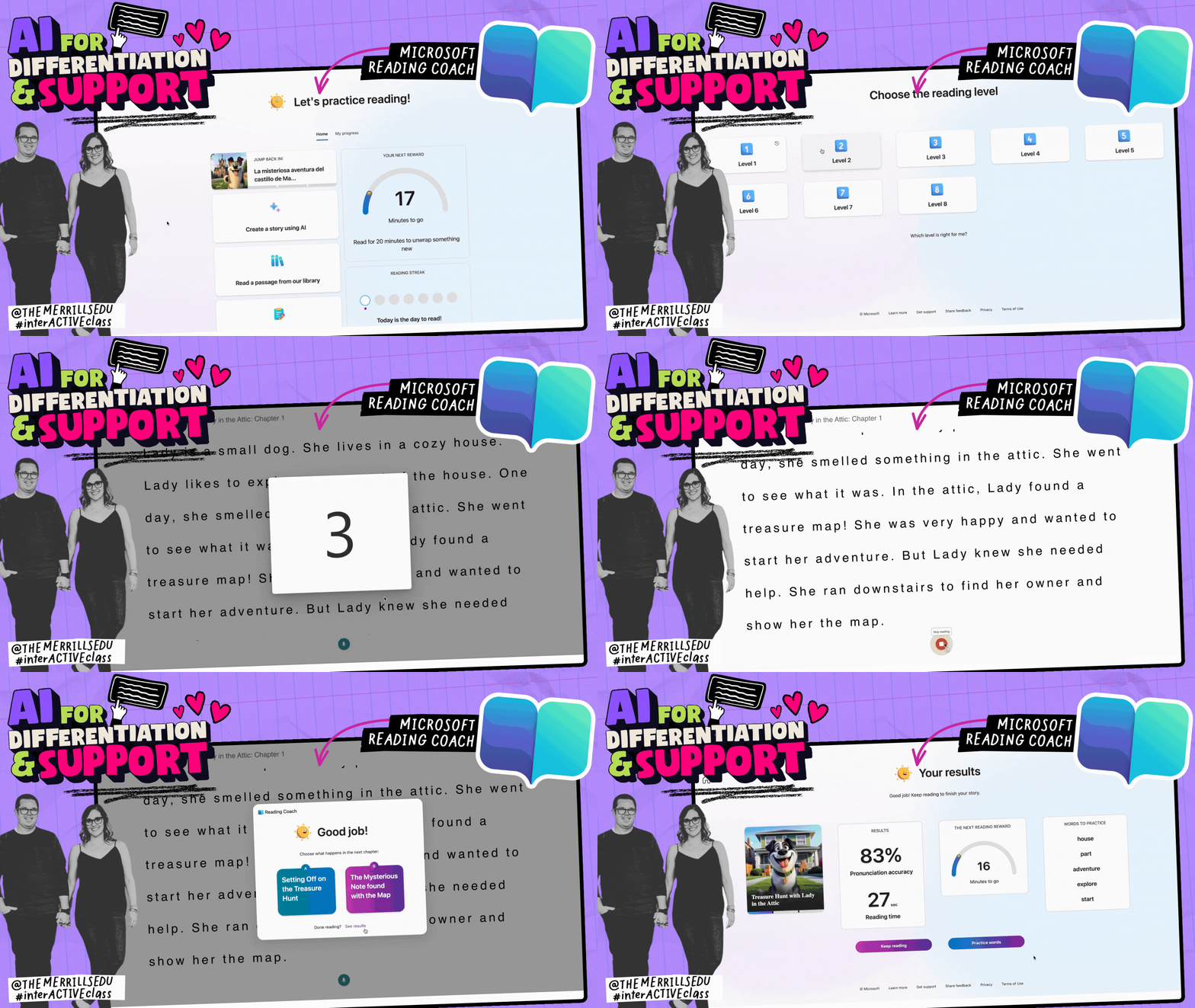
Microsoft Reading Coach helps students improve their reading fluency by offering immediate, personalized feedback. It listens as students read aloud, providing insights on pacing, pronunciation, and accuracy. Because it adapts to each student’s needs, it becomes a supportive tool in your classroom, allowing you to focus on higher-level instruction. The best part? Students select the content they read. Using school-safe AI, Reading Coach creates stories based on their choices of character, setting, and reading level, ensuring immediate engagement.


School AI
Platform: Web
Price: Free & paid options
https://schoolai.com/
School AI is a powerful tool for differentiation, offering educators the ability to create personalized learning experiences. Through Sidekick, you can design content tailored to specific learning standards, ensuring alignment with your curriculum. This allows for content that’s targeted to individual student needs. On top of that, School AI is packed with accessibility features like dictation, translation, and read-aloud, which support all students, including English Language Learners (ELLs) and those with diverse learning needs. These features help keep students engaged and ensure everyone has the resources they need to succeed.


Class Companion
Platform: Web
Price: Free & paid options
https://classcompanion.com/
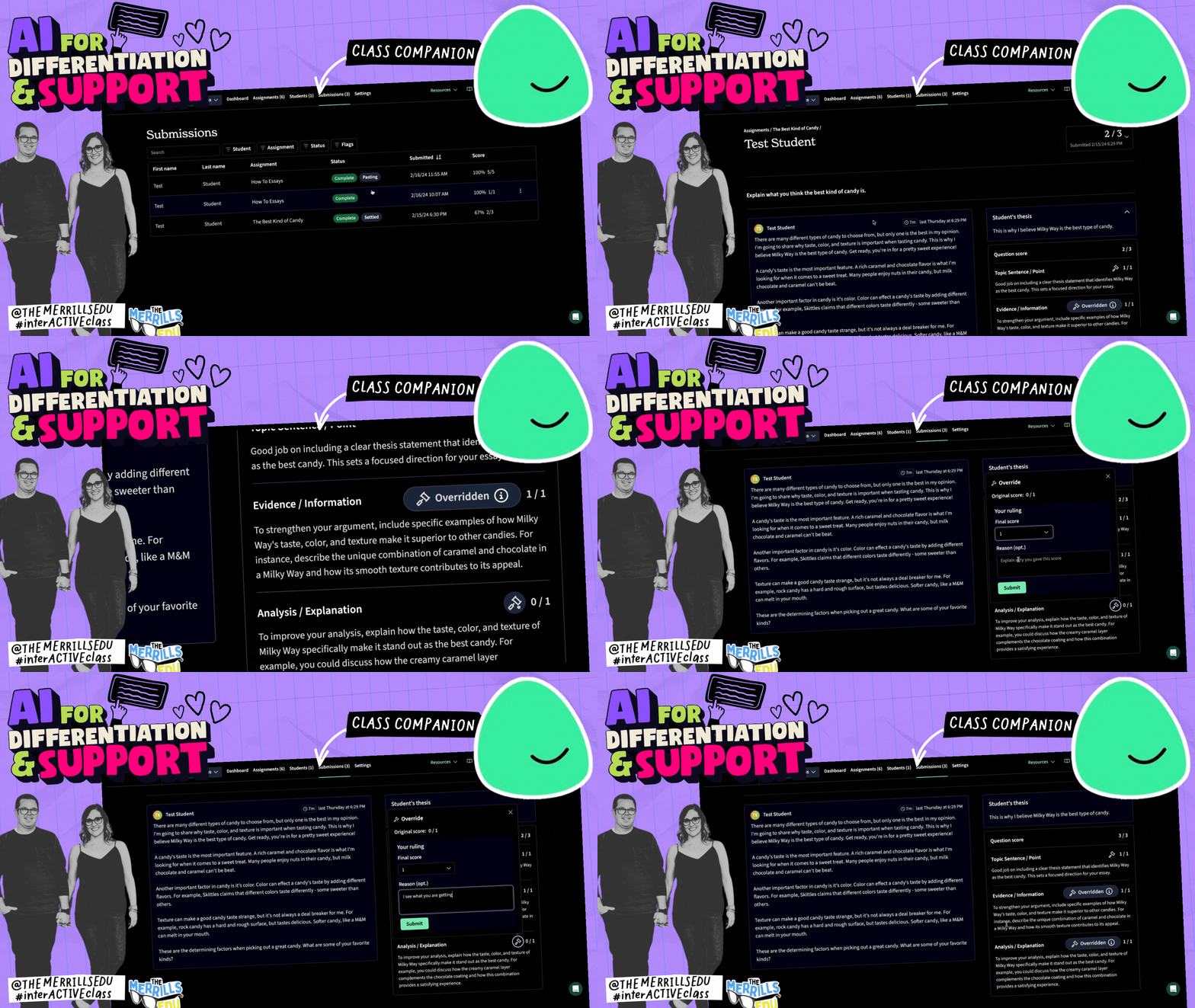
Class Companion is a powerful tool for differentiation that provides students with immediate writing feedback, helping them improve their writing skills in real-time. This allows you to focus on higher-level instruction while the AI handles the more foundational aspects of feedback, like grammar and structure. It not only saves you time but also ensures that each student receives tailored support, making it easier to address individual learning needs and foster independent growth.


Diffit for Teachers
Platform: Web & Mobile
Price: Free & paid options
DIFFIT.COM
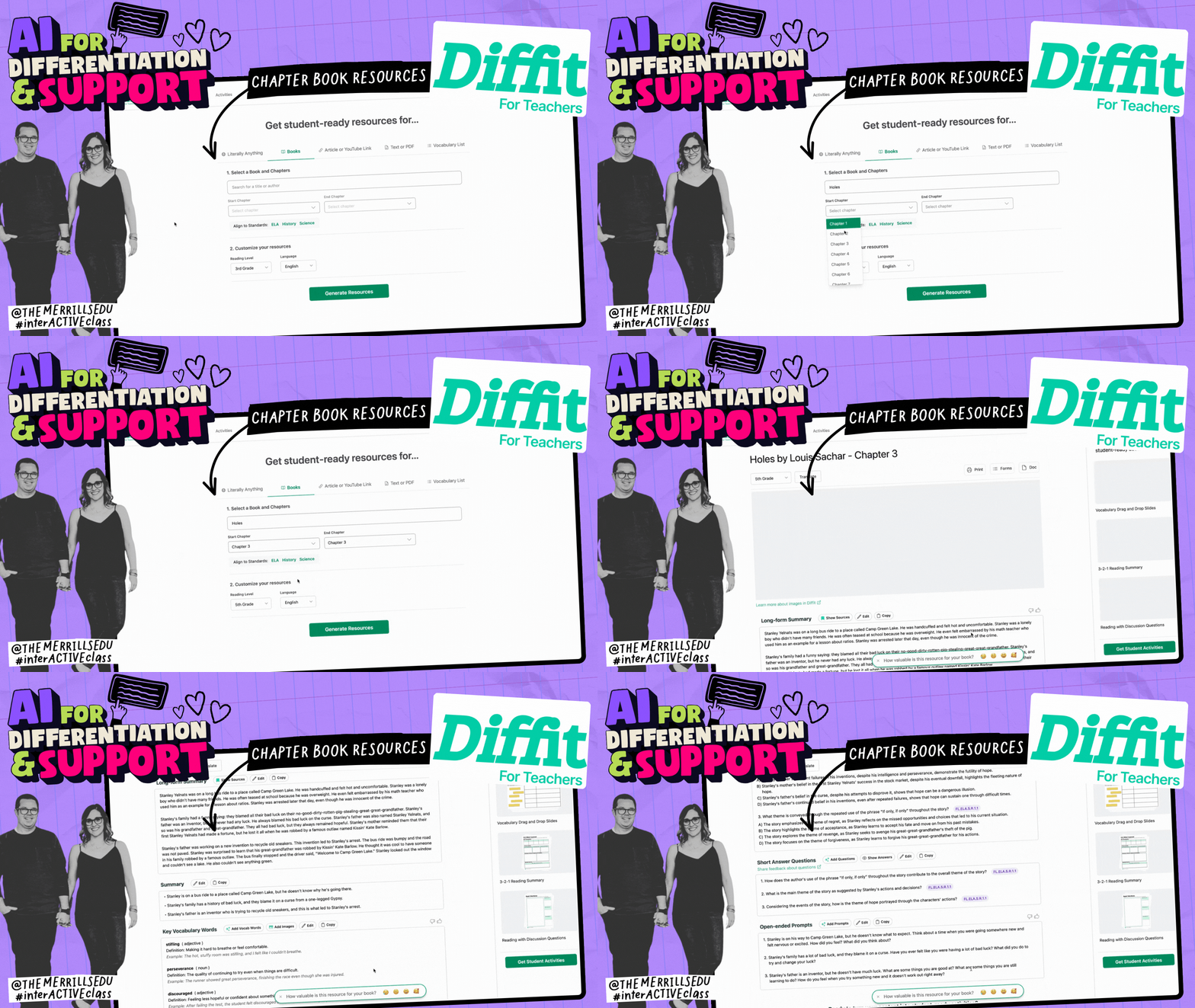
Diffit for Teachers makes differentiating content quick and effortless. With just a few clicks, you can instantly adjust the reading level of any article, passage, or text—making it accessible for all learners. Whether you need simplified versions for emerging readers or more complex versions for advanced students, Diffit does the heavy lifting while you focus on guiding comprehension and deeper thinking. Plus, it can generate leveled questions, vocabulary lists, and summaries, saving you time on prep while giving every student a version of the content they can engage with. It’s an incredibly effective way to ensure all students have access to meaningful, appropriately challenging material.


Seesaw
Platform: Web & Mobile
Price: These features require a paid plan
https://seesaw.com/
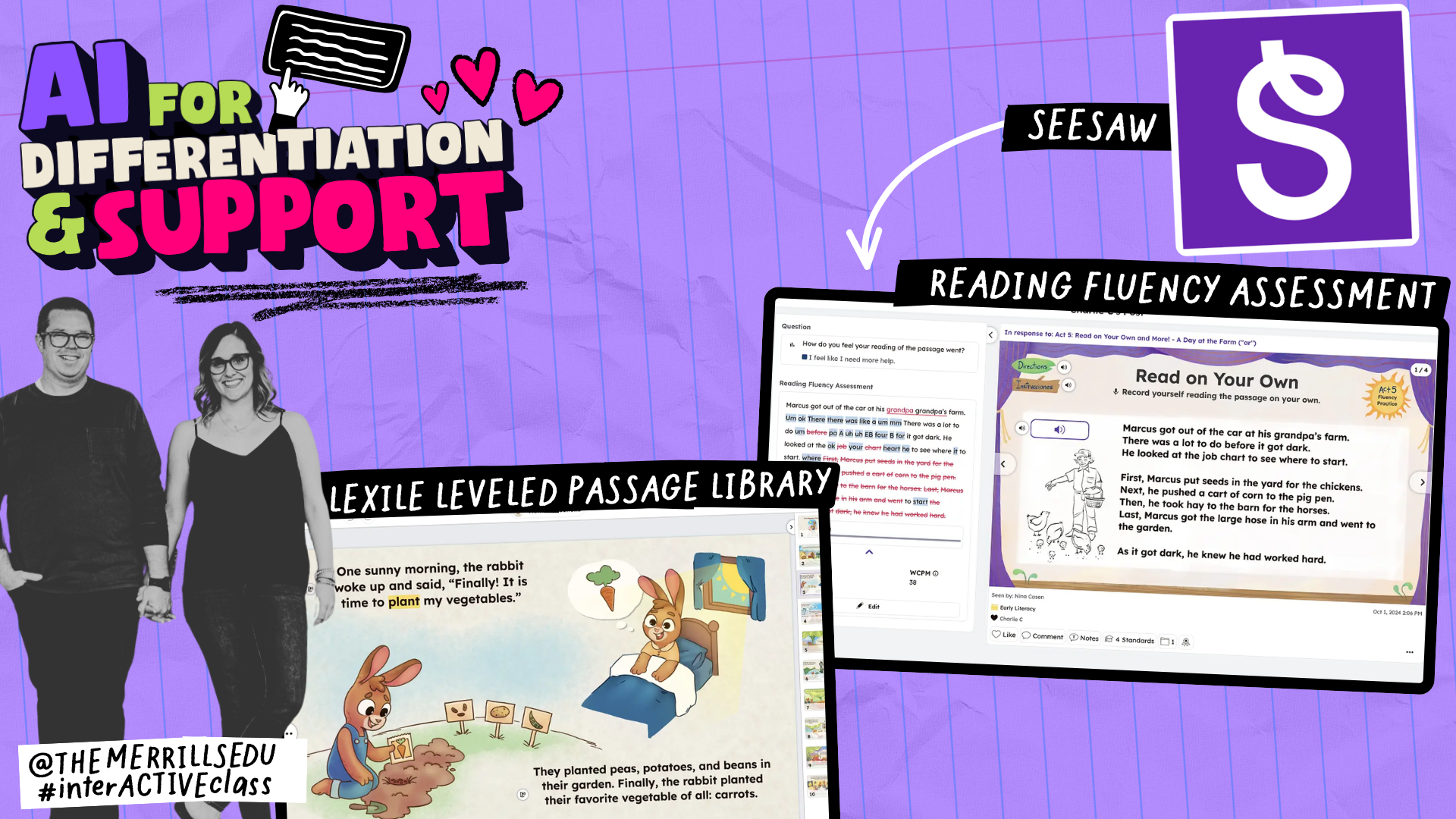
Seesaw’s AI-enhanced instruction tools take personalized learning to the next level. Teachers can automate assessments, track progress, and get real-time insights on student performance, making it easier to differentiate instruction. With AI-driven recommendations, students get tasks that match their learning needs. While Seesaw offers a free version, these AI features are part of their premium plan, which is perfect for schools looking for more advanced capabilities. Check out more details here.


Padlet
Platform: Web & Mobile
Price: Free and Paid versions available
PADLET.COM
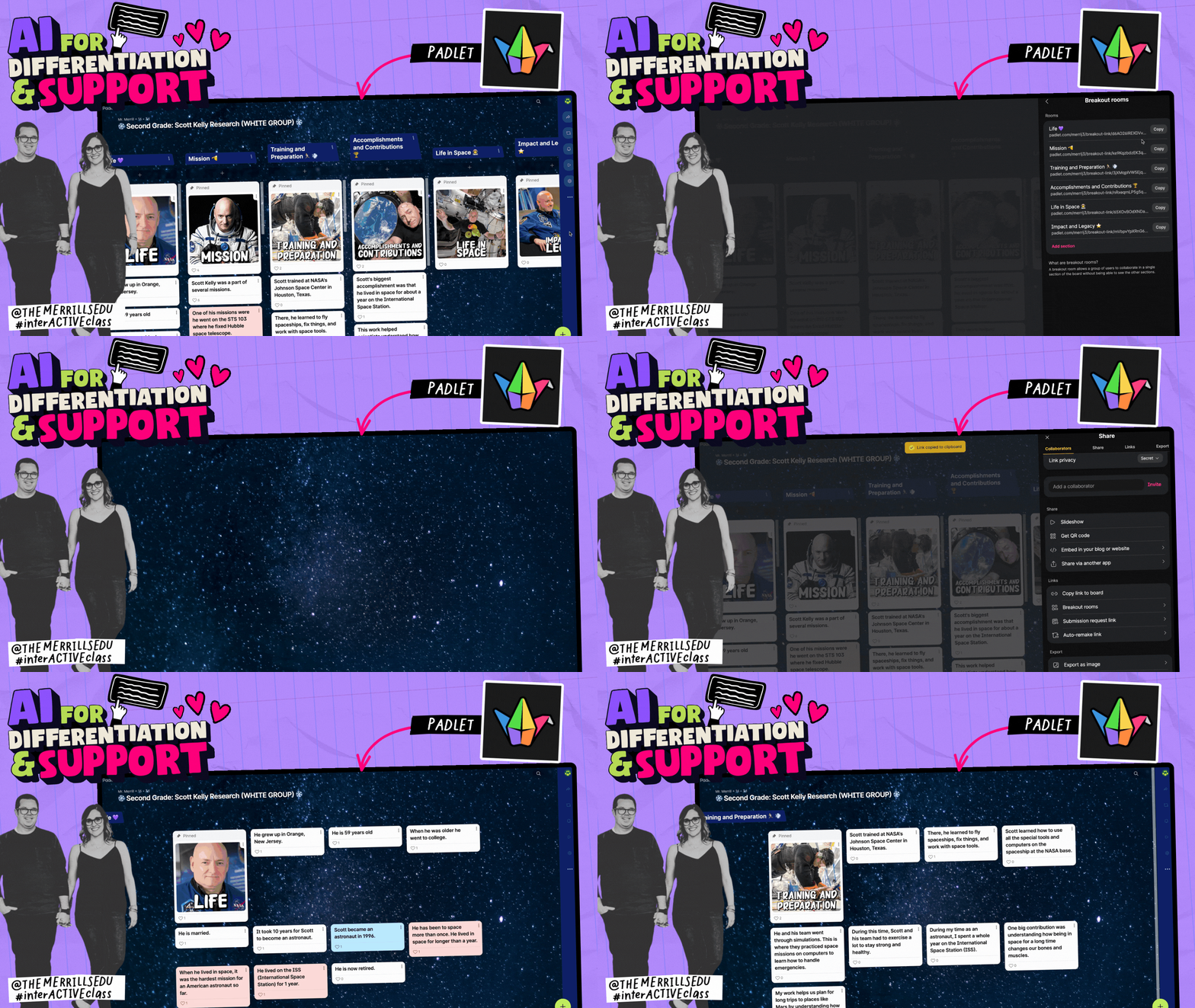
Padlet’s AI makes it easy for educators to create unique, collaborative boards tailored to their lesson content. With AI-generated images and video effects, students can visually express their learning in creative ways. Plus, Padlet’s Breakout Rooms feature allows you to differentiate activities by grouping students based on their needs or skill levels. This makes it simple to offer targeted support or extend learning for advanced students, all while fostering collaboration and creativity. It’s a flexible tool that adapts to fit any classroom!


Wakelet
Platform: Web & Mobile
Price: Free and Paid versions available
WAKELET.COM
Wakelet is an incredible tool for differentiation and support because it makes curating and sharing personalized content easy. With its AI-powered features, you can quickly generate collections of resources tailored to individual student needs, whether it’s articles, videos, or interactive activities. This makes it easy to create differentiated learning pathways that students can explore at their own pace. Plus, Wakelet’s Immersive Reader is a game-changer for accessibility. It offers text-to-speech, translation, and customizable reading settings, ensuring that all students can engage with the content in a way that works best for them. It’s a simple but powerful way to provide personalized support and make learning more accessible for everyone.


AI for Creative Student Expression

AI offers a wide range of ways for students to express their creativity, turning their ideas into reality. Whether it's through digital art, music, storytelling, or video production, AI tools help students bring their imaginations to life while developing valuable skills along the way. Let’s check out some AI-powered tools that can inspire students to express themselves in innovative and exciting ways!

Canva
Platform: Web & Mobile
Price: Free for educators and students
canva.com/education/
With Canva, students can bring their creative ideas to life by integrating AI-generated content into a variety of learning projects. Whether for videos, presentations, graphics, or infographics, Canva allows students to easily design engaging visuals that enhance their work. The AI tools assist by generating backgrounds, text effects, and illustrations, making it easier for students to focus on their creativity rather than the technical details. Additionally, students can use the AI in Canva's whiteboards to organize brainstorming sessions by topic, name, color, or reactions. This allows them to collaborate, and design in real time, further encouraging creativity and critical thinking in the classroom. Check out some of our classroom examples where students used AI below!



Adobe Express
Platform: Web & Mobile
Price: Free for educators and students
adobe.com/education
Adobe Express really sets itself apart with its AI-powered image generation. Unlike other tools, Adobe’s AI can take more complex prompts and turn them into high-quality, realistic visuals that align closely with what students envision. Whether it's for creating backgrounds, characters, or entire scenes, Adobe’s AI produces results that are richer and more accurate than many other platforms, making it an ideal tool for students looking to express their ideas at a higher level. It’s truly next-level creativity!


Suno
Platform: Web & Mobile
Price: Free (READ Below carefully - coppa and ferpa COMPLIANCE isn’t clear)
SUNO.COM
As musicians ourselves, we have a bit of a love/hate relationship with AI-generated music. It’s wild to see an app like Suno instantly create a full song with lyrics and melody. But at the same time, it challenges creatives to step up their game. With AI handling the basics, it levels the playing field—making music creation accessible to all students, regardless of their musical background. However, it’s worth noting that Suno is not explicitly COPPA or FERPA compliant, so educators should use caution when considering it for classroom use. That said, it’s still a fun and engaging way for students to represent concepts, summarize stories, and turn their ideas into original music—pushing them to be even more creative.

AI to Boost Critical Thinking

AI isn’t just about making things easier—it’s about pushing students to think deeper and more critically. The right AI tools challenge their problem-solving skills and spark creative solutions. They encourage students to step outside the box, explore new ideas, and sharpen their analytical thinking. Let’s take a look at some AI tools that can help your students level up their critical thinking in the classroom!

Snorkl
Platform: Web
Price: Free and paid options available
snorkl.app
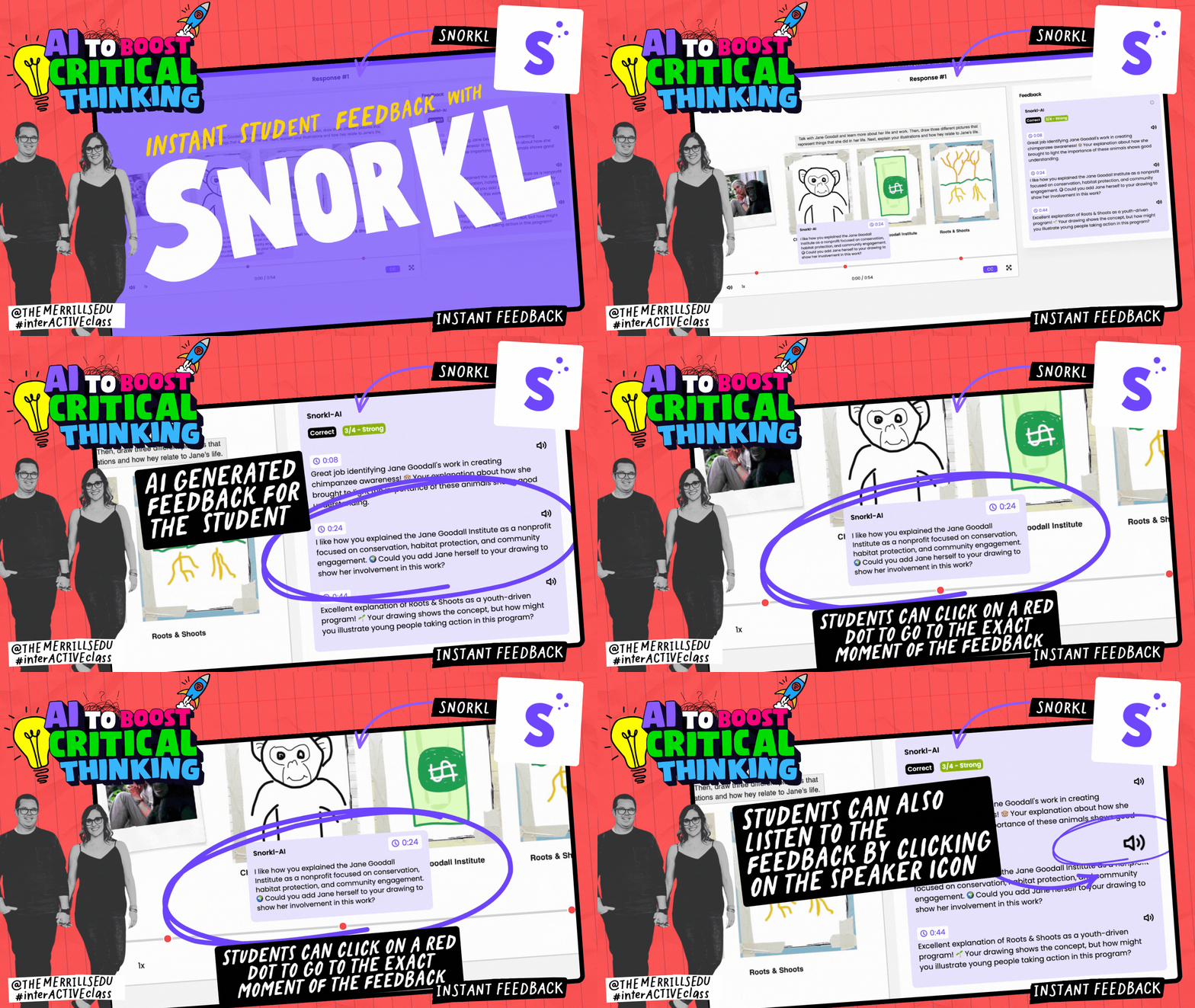
With Snorkl AI, students can really let their creativity shine while reflecting on their choices. It’s not just about creating something visually cool—it’s about thinking through their decisions and justifying why they went in a certain direction. This tool gives students the freedom to explore their ideas while encouraging them to stop and analyze how those ideas come together. What’s even better? They can re-submit their work after getting feedback from the AI, which helps them think critically and refine their ideas. It’s a fantastic way to keep pushing students to improve and dive even deeper into their creative thinking.


Book Creator & Adobe’s AI Image Generator
Platform: Web
Requirements: Students must log into their Adobe Express account before launching it in book creator
bookcreator.com
With Book Creator, students can craft their own stories, adding in text, images, and interactive elements to bring their narratives to life. While Book Creator offers minimal AI features, combining it with Adobe Express AI opens up new possibilities. Students can now use Adobe’s AI Image Generator to create visuals that align perfectly with their stories—whether it’s a character, setting, or a key moment in the plot. This gives students even more freedom to express their creativity and connect with their stories, allowing them to visualize their ideas in exciting ways.


Book Creator & Canva
Platform: Web
Requirements: Students must log into their Canva account before launching it in book creator
With the Canva integration in Book Creator, students can really level up their storytelling. Canva gives them access to a huge library of templates, graphics, and design elements, making it easy to create visuals that perfectly match their written work. Whether it’s designing custom covers, creating character illustrations, or adding interactive elements, the possibilities are endless. Combining Canva’s design tools with Book Creator’s interactive platform lets students take full control of how their stories come to life, making their creations more engaging and visually impactful. It’s a great way for them to express their creativity while building essential design skills.


Brisk
Platform: Web
Price: Free and paid options available
www.briskteaching.com/
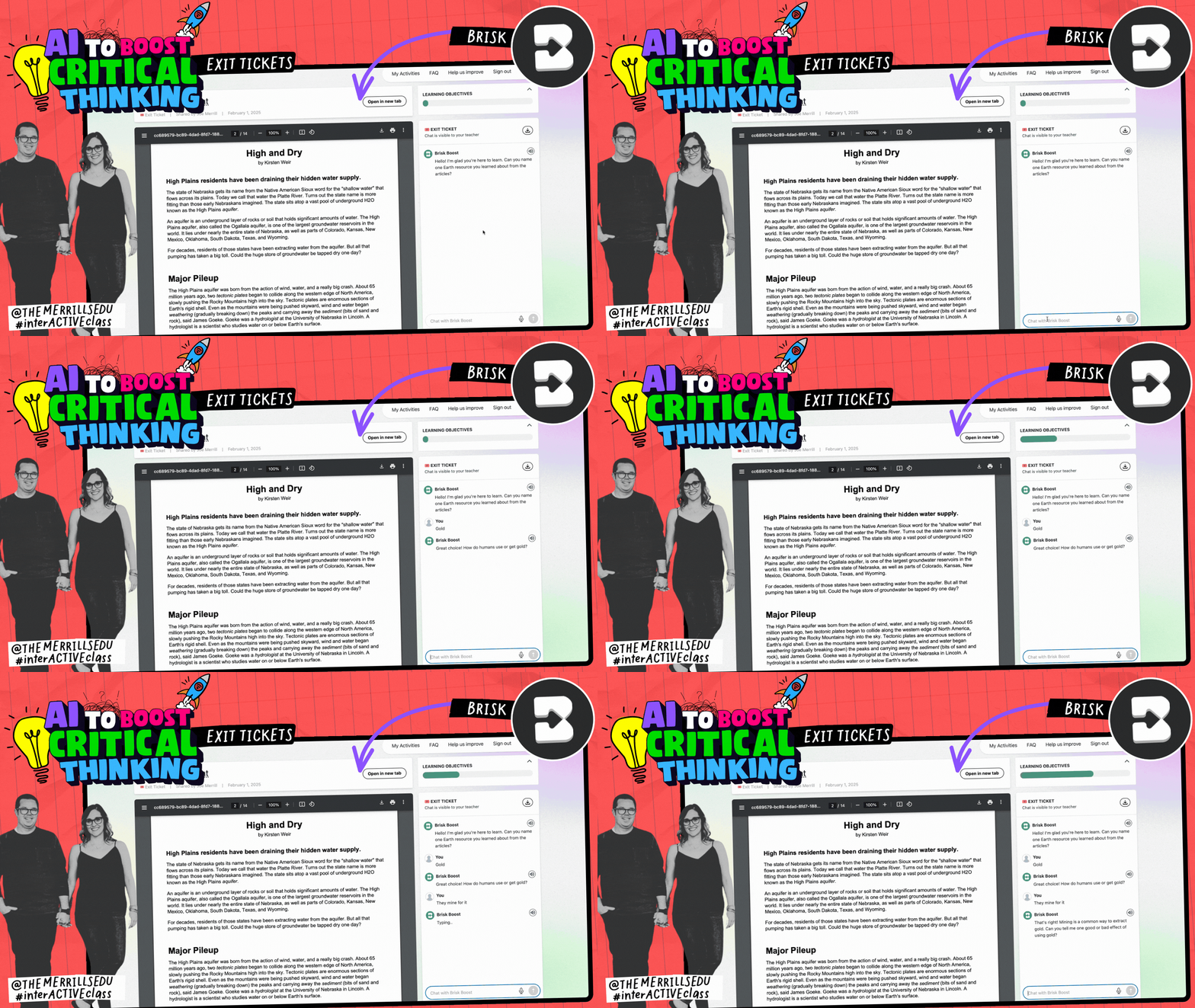
Brisk isn’t just about analyzing, it’s about creating a dynamic, interactive experience. This tool gives personalized feedback on everything from grammar to structure, pointing out areas for improvement in real-time and helping students fine-tune their work. But what really sets Brisk apart is how it can generate activities like debates or brainstorming sessions, pushing students to engage more deeply with the material. It’s all about reflection, revision, and critical thinking. Whether it’s helping students refine their writing or challenging them with new ideas, Brisk empowers students to take ownership of their learning and grow with each activity.


MirrorTalk
Platform: All
Price: Free and paid options available
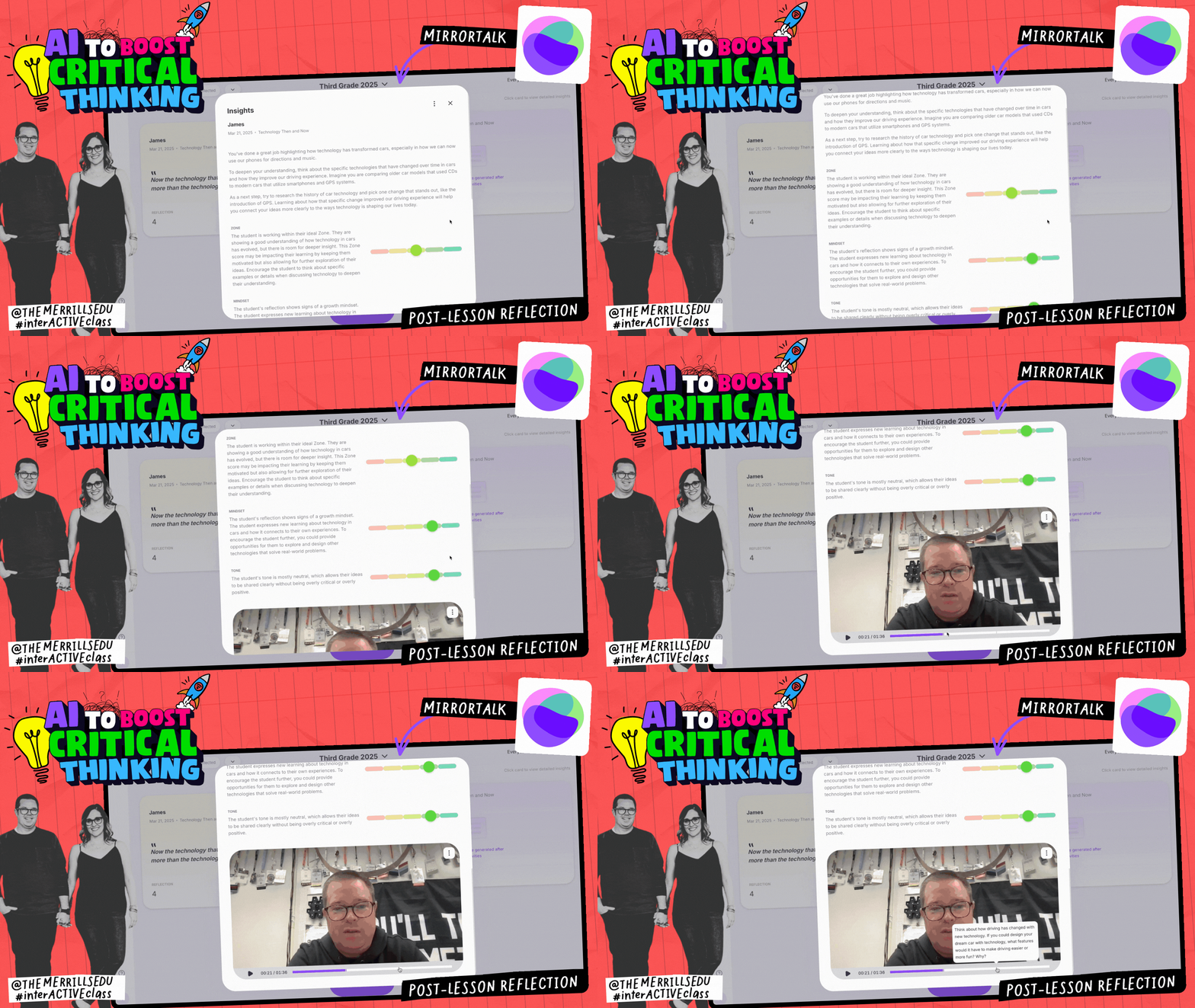
MirrorTalk is a fantastic tool for boosting critical thinking through speaking and self-reflection. It gives students the chance to practice their pronunciation, fluency, and presentation skills by speaking aloud and receiving instant AI-powered feedback. But it’s more than just a speech coach—it pushes students to analyze their own responses, reflect on their delivery, and make adjustments in real time. This constant feedback loop challenges them to think critically about their word choice, tone, and clarity, helping them grow as confident communicators. Plus, by giving students the opportunity to review and improve their own speaking skills, MirrorTalk encourages self-awareness and deeper metacognition—skills that are essential for lifelong learning.

Balancing AI with Teacher Insight

AI is an amazing tool that can really boost teaching, but it’s just one piece of the puzzle. While AI can provide instant feedback, personalize learning, and even automate some tasks, it’s the teacher’s insight and connection with students that truly make the difference. As teachers, we know our students—their strengths, struggles, and personalities—better than any tool ever could. AI can’t replace that human touch. The magic happens when we strike the right balance: using AI to support and enhance our instruction while still bringing in our experience, creativity, and empathy to guide students where they need to go. When we combine the power of AI with our own teacher insight, we create a learning environment that’s truly dynamic and impactful.

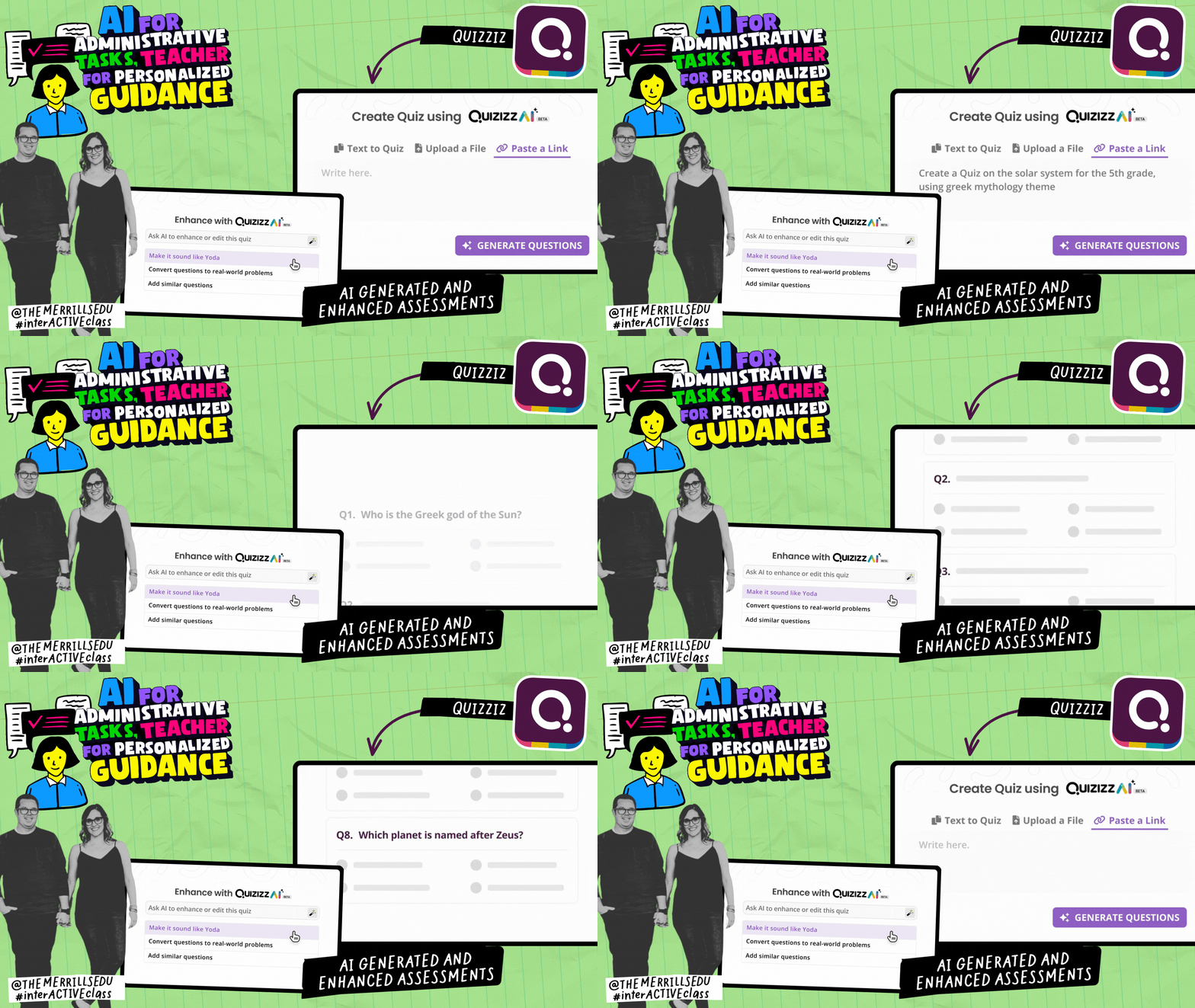
AI for Administrative Tasks, Teacher for Personalized Guidance
You can let AI handle the repetitive stuff, like grading or data analysis, so you can spend more time on what really matters. For example, AI can give instant feedback on writing assignments, which frees you up to offer more personalized, meaningful support to each student. That way, you get to focus on what you do best: building relationships and addressing the unique needs of your students. Here are some apps that can help!
Wayground (Quizziz)
Platform: Web
Price: Free and paid options available
quizizz.com
Quizizz is a game-changer when it comes to managing assessments and saving you time. With AI-powered grading, it instantly scores multiple-choice, short-answer, and true/false questions, giving students immediate feedback. That means less time spent on grading and more time for you to focus on what matters most—meeting individual student needs. The automatic reports make it easy to spot trends and identify gaps, so you can make smarter, data-driven decisions for the next lesson. And with its game-like format, Quizizz keeps students engaged while helping them actively participate in their learning.

Empowering Student Voice
AI can help create opportunities for all students to express themselves. Tools like Snorkl and Canva, for example, can support creative expression and give students platforms to share their voices. However, the role of the teacher is crucial in helping students reflect on their work, making sure that their creative output aligns with their understanding of the lesson or concept. Here are some platforms with integrated AI that encourage student voice.


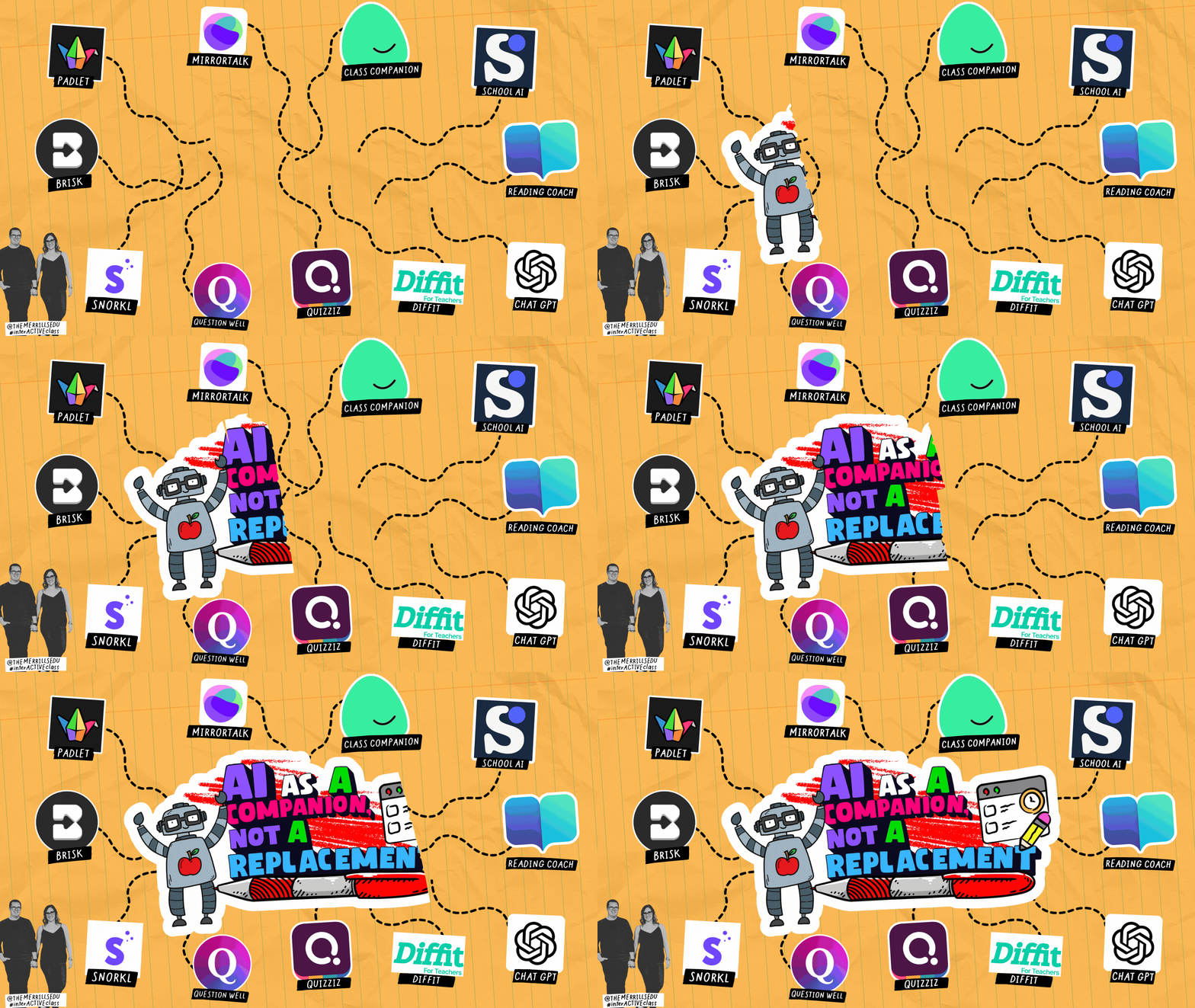
AI as a Companion, Not a Replacement
AI is an incredible teaching companion, but it’ll never replace the heart of the classroom—you. While AI can handle repetitive tasks, offer instant feedback, and personalize learning, it still needs your expertise to guide, inspire, and connect with students. The key is using AI to enhance your impact, not overshadow it. When paired with your insight, tools like Class Companion, School AI, and Microsoft Reading Coach become powerful allies, helping you support students more effectively while keeping the human touch at the center of learning.

AI in Collaboration and Critical Thinking
AI isn’t just a solo act—it’s a powerful tool for boosting collaboration and critical thinking. Whether students are co-creating content, analyzing their choices, or building on each other’s ideas, AI helps spark deeper engagement. Tools like Canva, Snorkl, MirrorTalk, and Adobe Express encourage students to think creatively, justify their decisions, and collaborate in meaningful ways, turning learning into an interactive, thought-provoking experience. Here’s a list of our favorite tools to encourage collaboration and promote critical thinking in the classroom!

Building Relationships with Students
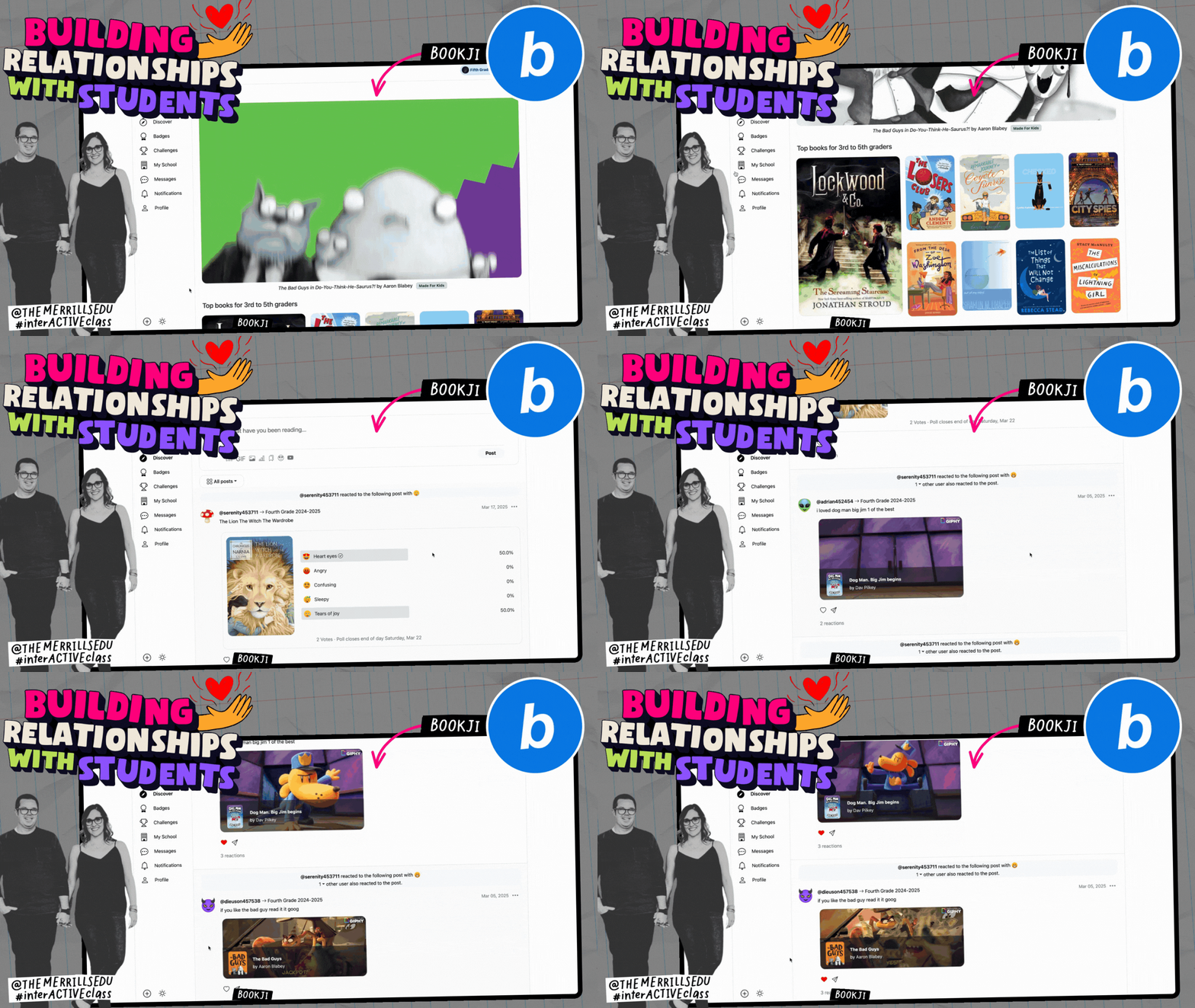
You might be wondering, why is there a section on building relationships in an AI blog post? Well, while AI can’t replace authentic connections, it can help create safe, meaningful spaces for them to grow. One of our favorite apps for this is Bookji. It’s a social media-style reading platform where students can create profiles, share book reviews, and interact with each other’s posts—all while teachers join in the conversation. This book-based community gives you insight into students’ interests, personalities, and even their sense of humor through their reviews. Plus, Bookji’s AI safeguards keep everything focused on books and literacy, making it a safe and relevant space for students to express themselves. It’s an awesome way to build relationships through literacy and make reading a shared, social experience in your classroom.
-- Please follow us on social media and tag us with your AI in EDU ideas! 👓👗
For more tips, tricks and lesson ideas for making learning more interACTIVE, check out our books The InterACTIVE Class series on Amazon!


Become an Author with Book Creator!
With March being Become an Author month, it’s the perfect time to give your students an outlet to share their voice. So, if you’re ready to turn your students into authors, here’s how to make it happen with Book Creator!

Book Creator has been one of our go-to tools for years, and for good reason! We’re often asked, “What do your students use Book Creator for?” But honestly, the better question is, “What can’t it do?!” From traditional stories to interactive digital scrapbooks, the possibilities are endless. And let’s be real—there’s nothing cooler than seeing a student beam with excitement as they share their published work. With March being Become an Author month, it’s the perfect time to give your students an outlet to share their voice. So, if you’re ready to turn your students into authors, here’s how to make it happen with Book Creator!
Please note: This blog post was hand-crafted and was not created using AI.
(click on any subheading to jump to that section)


How to Sign Up for Book Creator

Getting started with Book Creator is easy! Educators can sign up for a free account, which includes 1 library and storage for up to 40 books, making it perfect for introducing students to digital publishing. For $13 / month, you can also level up with a Premium plan, which unlocks unlimited libraries, 1,000 books, real-time collaboration, translation tools and more. If you’re seeing this before the end of March 2025, you can click here or the image for a discount!
What is Be An Author Month?

March is all about celebrating literacy! With National Reading Month, Listening Awareness Month, and March into Literacy Month all happening, it’s the perfect time to spark creativity and empower students to share their stories. And what better way to do that than with Book Creator?
Book Creator makes it easy for students of all ages to become published authors, turning their ideas into interactive digital books. Whether they’re writing personal narratives, creating a class chapter book, or designing informative texts, this tool gives them the freedom to combine writing, images, audio, and even video. Plus, with features like voice recording and read-aloud options, Book Creator ensures that every student, no matter their learning style, has a way to express themselves. Click here or the image to learn more about Be An Author month!
How to Get Involved in Be An Author Month

Getting involved in Be An Author Month is all about celebrating authenticity! Kids love creating books because it makes their ideas feel real, and when they know their work will be seen beyond the classroom, they take even more pride in it. Providing our students with this creative outlet builds excitement and turns your students (and maybe even educators) into published authors through reading, writing, speaking, and listening activities across all subjects.
This year’s theme, Telling Your Story, is all about empowering students to explore their unique perspectives and share their voices with the world. And storytelling isn’t just about writing, students can bring their stories to life through drawing, coding, video creation, or even audio recordings. The key here is to be creative, think outside the box, and make this month an unforgettable celebration of student voice! Click here or the image to learn more about the Tell Your Story competition!
Why We Love Be An Author Month

We love Be An Author Month because it’s all about giving students the power to create, share, and celebrate their voices! HAve your ever handed a toddler a piece of paper and asked them to draw on it? You may have absolutely NO idea what the final product is, but the child can give you the EXACT story behind each color stroke. There’s something magical about watching kids light up when they realize they have a story worth telling. Whether they’re writing, illustrating, recording audio, or even coding their narratives, this month is a chance to show them that their ideas matter.
Plus, creating books isn’t just an ELA activity, it’s a way to bring learning to life across all subjects. From documenting science experiments to crafting historical narratives, students get to take ownership of their learning in a meaningful and creative way. And with Book Creator, it’s easy to share student work with families. When they see their work published, the confidence boost is priceless!
How to Take Part in Be An Author Month
Getting involved in Be An Author Month is easy and packed with fun ways to spark creativity! Just head over to the Book Creator website, where you’ll find everything you need to get started:


✨ Ready-to-use templates to guide students through reading and writing.
📖 An Activity Journal filled with daily prompts to keep the creativity flowing all month long.
🎤 Inspiring webinars featuring expert authors and educators sharing their best storytelling tips.
🏆 A global competition—because every student’s story deserves to be heard!
Ideas for Using Book Creator in the Classroom
You may be thinking, “All of this sounds great, but how can I use it in my classroom?” If you’re looking for ideas on how to get started, we recommend checking out Book Creator’s examples page. This has quick start templates for all ages. You can find the link by clicking on the image or right here.
Another one of the reasons why we love Book Creator so much is because it plays well with our other favorite classroom apps. Check out how we’re using it with our students below!


If your students are new to creating books in Book Creator, they made need a template to help them visualize the final product. We recommend using Book Creator’s remixable books, but if you’re looking for a paper and pencil option, we have you covered! Students can use our template as a start, then build their books on Book Creator to look just like what they have planned out. Check out a quick glimpse of our template and download it for free by clicking here or the image below!


Did you know that you can add hyperlinks into books on Book Creator? This means that any text can be linked to an external website. Tthe trouble with is that it removes the reader from the book. However, in Book Creator, students can hyperlink to a different page right within their book. So, with the simple click of a button, they can jump to another page. This makes creating “choose your own adventure” type books easy!
To add a hyperlink to text in a book, follow these steps:
Open or start a book, then type or select the text that you want to hyperlink.
With the text selected, click on Edit Text and then highlight all the text.
Now, click on the link icon and enter the page number or external website that you would like to hyperlink.
To add a hyperlink to an image in a book, follow these steps:
Open or start a book, then select the image that you want to hyperlink.
With the image selected, click on the “i,” or Inspector icon (located on the top right).
Under hyperlink, add the page number or external website that you would like the reader to go to.
See our visual example below!


For younger students, sometimes it’s hard to imagine how they can go about becoming legitimate authors. But, to help our students in reaching this goal, we love to use Padlet to help them curate content. In the pictured example, students are working collaboratively to find facts about their selected dinosaur. We encourage the students to find as many facts as they can - making the selection for their books easier. Once they have collected enough facts, the students can then choose which ones make it into their books. The best part about it all - with Book Creator’s premium plan, the students can continue to collaborate on the creation of their books. You can see what the final products look like in the image. Additionally, books from Book Creator can be published online and then shared back to a new Padlet board to act like a classroom library!


Sketchfab is a website that lets you explore 3D and AR models of animals, architecture, places, gadgets, and more. In Book Creator, students can easily add Sketchfab files right from the apps menu. This means they can embed interactive 3D images into their books, allowing readers to click and explore them in 3D. It’s a great way to help younger students build background knowledge and deepen their understanding of a topic.
Important: Before your students can use this feature, you need to enable the app. Here’s how:
Click the hamburger (three lines) icon in the top left corner.
Select Apps from the top menu bar.
Click the + icon next to the 3D Models app.
Click Enable App.
If you have multiple libraries, you can click Settings to choose which libraries have access (or select all).
That’s it! Now your students are ready to bring their books to life with interactive 3D models!


We love using School AI to create unique learning activities for our students. But, these activities always lead to a creative opportunity. So, we like to have our students start out in School AI to build their knowledge on the particular topic. Then, the students can use what they have learned to write a book in Book Creator. In the example below, the students used School AI to learn more about an astronaut. Then, they used this knowledge to create their books. Quick tip: School AI has embedded accessibility features like dictation and automatic read aloud - so even the youngest learners can use it!


If your students are self-conscious about using their writing in a book, the integration of Class Companion and book creator may help build the necessary confidence that they need. Class Companion is an AI powered writing coach that will assist students throughout the writing process. Educators create an assignment and rubric, then the students work within the platform. Once the students have worked through revising their work, they can copy and paste it right into their books on Book Creator. For more information on Class Companion, check out our blog post by clicking here, and check out how it all works below!


If your students are already using Canva, they can also use it with Book Creator. This integration is one of the best we have seen! After logging into Canva, and then Book Creator, students can launch Canva right from Book Creator. You read that right - Canva launches out from Book Creator without having to go to another tab or webpage. Here’s how it works:
Log into Canva first, then into Book Creator. (Note: you must be logged into Canva to use this integration)
Create a new book, or edit a current book.
Click on the + icon on the top right side.
Then, click on Apps from the dropdown menu.
From here, click Canva to launch it.
Important: Before your students can use this feature, you need to enable the app. Here’s how:
Click the hamburger (three lines) icon in the top left corner.
Select Apps from the top menu bar.
Click the + icon next to the Canva app.
Click Enable App.
If you have multiple libraries, you can click Settings to choose which libraries have access (or select all).

-- Please follow us on social media and tag us with your Be An Author and Book Creator ideas! 👓👗
For more tips, tricks and lesson ideas for making learning more interACTIVE, check out our books The InterACTIVE Class series on Amazon!




20 Ways for Students to Use Adobe Express in the Classroom
Discover 20 creative and engaging ways students can use Adobe Express in the classroom! From animating book characters to designing logos, crafting timelines, and inventing gadgets, this post highlights versatile projects that enhance learning across subjects. Perfect for fostering creativity, collaboration, and critical thinking, these ideas bring lessons to life with Adobe Express!

Adobe Express is a game-changer for classrooms! It’s packed with tools to help teachers and students create stunning designs, from videos to posters, all while making learning interactive, creative, and fun. This tool is 100% free for all teachers and students. To sign up for your free account, click here. Now, let’s check out some ways that students can use it in the classroom.
Please note: This blog post was hand-crafted and was not created using AI.
(click on any subheading to jump to that section)


Animate Characters in Adobe Express
Remember the app Chatterpix? Well, now Adobe has integrated similar technology right within their platform. Students select a character and then record their voice. Adobe uses the recording to animate the mouth of the character, making it look like the character is doing the speaking. Here’s how it works:
Log onto Adobe Express.
Click on the + button on the top right, then select Video.
Under Media, click Animate characters.
Select your character, background, and size.
Click Record to start capturing your voice (Tip: if you are in a noisy environment, try toggling the Enhance Speech feature on).
Once the video processes, you can download and share it on your preferred platform.


From Page to Stage: Animate Any Character or Figure in Adobe Express
If you enjoyed the activity above, but wish that you could use the feature on a custom figure - this idea is for you! In this lesson, students will animate a figure by adding a mouth over the top of an image. Check out our video tutorial or below to see how it all works:
Log onto Adobe Express.
Click on the + button on the top right, then select Video.
Under Media, click Animate characters.
Under the Character tab, find a mouth that you think will work best.
Next, under the Background tab, click transparent (this removes the background)
Under Size, select your preferred size.
Now, click Record to start capturing your voice (Tip: if you are in a noisy environment, try toggling the Enhance Speech feature on).
Once the video processes, it will appear in the video editor.
Upload a custom image of the character or figure you are trying to animate.
Make sure that your mouth is layered on top of the uploaded image. Your layers can be found on the top right side (the squares). If necessary, rearrange them so that the mouth is on top.
Resize the mouth to make it look as real as possible.
When you’re finished, download and save the file to share on your preferred platform.

Action Figures in Adobe Express
Action figures may seem like they are a thing of the past, but these AI generated models are sure to engage today’s learners. This activity can be used to describe characters or figures, express their strengths, or share their accomplishments. The best part of all - Adobe Express has this activity in their Guided Activities library. So, students can watch a tutorial demonstrating each step of the way. Here’s how it all works:
Log oto Adobe Express, then click here to launch the template.
With the template open, click on the text layers to edit them as needed. Colors can also be changed.
Click on the original action figure image and move it to the trash.
Click on Generate image, and then choose Square for the size.
Enter the prompt of what you are trying to create. Tip, if you have an original image, upload this as the Composition. Doing so, will generate an image that uses the composition of the original image.
Generate the image and then resize and crop it as needed.
When you’re finished, download the image and share it on your preferred platform.


AI Generated Hidden Story Creatures
These AI generated creatures can be used as a hidden creature in a story. The creature can can act as an invisible character who is always watching what is happening. The lessons learned from the test / story can be featured in the project. See our example below, and find this lesson in the Guided Activity library by clicking here. Let’s check out how it all works:
Log onto Adobe Express, then click here to launch the template.
With the template open, click on the text layers to edit them as needed. Colors can also be changed.
With the text and colors now edited, click on the creature and then click on the Generate image icon.
Edit the prompt with the details you prefer, and then click Generate.
When you’re finished, download the image and share it on your preferred platform.


Solar System Selfies
This lesson is out of this world! Here, students use Adobe’s AI to generate an image of an astronaut standing on a planet or the moon. Then, the students use the Insert Object tool to add planets behind the astronaut. The planets can be labeled and used as an assessment piece. Here’s how it all works:
Log onto Adobe Express and click on the + symbol.
Click on Landscape 16:9 to launch a new project.
With the new project open, click on Media.
Now, click on Generate image and then click Widescreen 16:9.
Enter your prompt (the one we used in the example was: An astronaut standing on the moon taking a selfie), and then change the Content Type to Photo.
Click Generate, and then select your preferred image. If necessary, resize your generated image to take up the entire screen.
Click the X in the Generate image window (left side panel) to close the sidebar.
Next, click on Insert object and enter the information in the prompt (we used the planet names for ours). Use the brush to draw over the area where you would like the object to be inserted.
Click Generate to create the object, then click Keep to add it to your design. Repeat this for the other planets.
Now, click on the Text tool (located on the left hand side) and add a text box to label each planet.
When you’re finished, download the image and share it on your preferred platform.


Hidden Text: Finding the Theme in Adobe Express
In this project, we’re going to use Text Effects to explore the theme of a story. Students first read or create a short story, and then identify its theme – the main idea or message. Once they know what the theme is, they’ll use Adobe Express to choose an image that represents the setting of the story. Then, they can add the theme to the image using text effects. The goal is for the text to blend seamlessly into the scene, so it feels like a natural part of the setting. This will help students connect the theme with the visual elements of the story, making it easier to see how they work together! Check out the steps below:
Log onto Adobe Express and click on the + symbol.
Click on Landscape 16:9 to launch a new project.
With the new project open, click on Media.
Now, click on Generate image and then click Widescreen 16:9.
Enter a prompt that best describes the setting, then click Generate.
Select an image, then make sure that it is resized to fill the background.
Next, click on Text (on the left side panel) followed by Generate text effects (located at the bottom of that same panel).
Select one of the styles (it doesn’t matter which one you choose - we’ll change it on the next step), and then enter the prompt of what you are looking for (in our example, we used the prompt: red wood).
Now, click on the text in the text box to edit it. Resize and reposition the text box so that it blends in with the setting’s environment.
When you’re finished, download the image and share it on your preferred platform.


Logo Maker in Adobe Express
With Logo Maker, students can create custom branded logos for individuals, businesses, and more. In our example, our middle school students were learning about Katherine Johnson, one of many African American women who performed critical calculations for NASA in the 1960s. The students were tasked to create a logo for her using Adobe Express. Here’s how they did it and be sure to check out an example below!
Log onto Adobe Express and scroll down until you see Suggested quick actions.
Scroll to the right until you see Logo Maker. Click on Logo Maker so that it launches.
Enter the information and then click Next.
Next, select a style and click Next.
On the next screen, click a logo to customize and then add an icon. Click next to move on.
The AI will generate the logo automatically. If needed, you can always select Edit more to add on finishing touches (like in our example below).
When you’re finished, download the image and share it on your preferred platform.


Character Alter Egos in Adobe Express
Creating a figure’s alter-ego is definitely a higher level thinking skill. The thought that goes into the process is naturally creative, and Adobe Express now has a way for students to show their thinking. Alter Egos can be found as a Guided Lesson in the activity library by clicking here. Let’s check out an example below.
Log onto Adobe Express, then click here to launch the template.
With the template open, click on the text layers to edit them as needed. Colors can also be changed.
With the text and colors now edited, click on the main image and then click on the Generate image icon.
Edit the prompt with the details you prefer, and then click Generate.
When you’re finished, download the image and share it on your preferred platform.


All About Me Projects in Adobe Express
All About Me activities don’t always need to be about a person. We’ve used this idea a bit more broadly when learning about different types of habitats. Students can list key components of a habitat including plants and animals that live there, temperatures, and how it may impact life on Earth. Check out our second grade example below! If you’d like to give it a try, this Guided Activity can be found in the Adobe Express Library by clicking here.
Log onto Adobe Express, then click here to launch the template.
You can change out the main image by clicking on it and deleting it.
Click Media and search for an image that relates to the project.
Add your selected image to the design and resize it so that it takes up the entire background.
Now, click on the text layers to edit them as needed. Colors can also be changed.
When you’re finished, download the image and share it on your preferred platform.


AI Generated Book Covers in Adobe Express
This activity can be used as an extension of the writing process, a way to summarize a chapter, or create a potential book about a particular figure. Using the AI in Adobe Express, students can generate images and construct what looks like a book cover. This activity can be found in the Guided Activities library by clicking here, but there also plenty of templates available by searching for “Book Cover.” Here are the steps, and be sure to check out our first grade example below!
Log onto Adobe Express, then click here if you wish to use the guided activity template. For our example, we’ll start from scratch.
Search for Book Cover in the search bar at the top of the login screen.
Click on a template that you think will work best, and then click Customize template in the pop-up window.
You can edit the background by removing it and searching for a new image. Click on Media to search for a new image or generate one using AI.
If your image is blocking out your text boxes, check to make sure that it’s layered behind all of your other elements - or add the image as a background by clicking on it and then clicking on Set image as background (located on the image panel on the left side of the screen). This will make sure that all other elements are placed on top of the image.
Edit the text layers with the necessary information.
When you’re finished, download the image and share it on your preferred platform.


AI Generated Animated Characters in Adobe Express
This lesson idea is perfect for describing characters, or creating characters in a narrative writing piece. Here, the students create a graphic and learn how to refine generative AI prompts using Generate image. What we love about this activity is that it teaches the importance of AI prompting. There’s even a section to share the prompt that the students use. This is valuable, as even the slightest changes and edits can generate totally different outcomes. Check out the activity in the Guided Activities library by clicking here, and see how it works below!
Log onto Adobe Express, then click here to launch the template.
With the template open, click on the text layers to edit them as needed. Colors can also be changed.
With the text and colors now edited, click on the main image and then click on the Generate image icon.
Edit the prompt with the details you prefer, and then click Generate.
Select an image that you think represents your thinking.
Once you have an image picked, be sure to copy the prompt that you used. Paste the text into the bottom right corner to share what you used to generate the image.
When you’re finished, download the image and share it on your preferred platform.

Retro Reels: AI Vintage Videos in Adobe Express
This activity can be used to retell historical events, recall events from a story that happened in the past, or even a historical figure’s history. Students can add a vintage feel to the project, and use text boxes to do all the talking. We especially love this for our students who may be shy or reluctant to record a video of themselves or using their voice. This provides a comfortable creative outlet for them, capturing their thinking. We’ve created a free template which you can grab by clicking here, and see how it works below! (Tip: we recommend modeling how to use layers in Adobe Express before introducing this idea!)

Log onto Adobe Express, then click here to open the template.
Click Remix on the top right corner.
The first two scenes of the video can be left alone and act as an introduction bumper. Click on the third scene.
Locate the layer squares on the right side of the screen. Move the image layer on top of the rectangle. With the image now on the top layer, click Generate image (alternatively, you can also find images in the Media section).
Type in what you are looking for to generate the image. Then, select an image to add to the scene (you can delete the original image from the template).
Be sure to resize the image to take up the entire size of the canvas, or set it as the background.
Next, reorganize the layers so that the image you generated is now on the bottom layer (this preserves the “vintage” effect we used in the template - it must be on the top layer to work).
Move onto the fourth scene (the first scene with a text box). Rearrange the layers so that the text layer is now on the top. This will allow you to edit and see the text box.
Add your text in the box, then rearrange the layers back so that the text layer is on the bottom.
Repeat these steps as needed. Note: the image and text layers can be duplicated, so if you have more than three images or text slides, you can easily add them.
Lastly, add your name to the final credit scene. Move the text layer to the top, edit it, and then move it back to the bottom.
When you’re finished, download the image and share it on your preferred platform.


Dreams to Devices: Create an Invention in
Adobe Express
Students better get the creative juices flowing for this idea! Here, they have to create an invention and also think of how to prompt the AI to create the look of their invention. This involves thinking critically about the prompt being entered, and most likely revising it in order to arrive at the proper outcome. Check out the activity in the Guided Activities library by clicking here, and see how it works below!
Log onto Adobe Express, then click here to launch the template.
With the template open, click on the text layers to edit them as needed. Colors can also be changed.
With the text and colors now edited, click on the main image and then click on the Generate image icon.
Edit the prompt with the details you prefer, and then click Generate.
Select an image that you think represents your thinking.
Once you have an image picked, be sure to copy the prompt that you used. Paste the text on the bottom to share what you used to generate the image.
Click Media, then click Audio.
Click Record voiceover, and record your thinking. This will add your voice as a voiceover to the work.
When you’re finished, download the image and share it on your preferred platform.


AI Generated Geometry Gardens in Adobe Express
Geometry may not come naturally to younger students. But, when you have them pause and take a look at their surroundings, they notice that their environment iis surrounded by shapes. This idea takes AI generated images and creates scenes full of shapes for students to locate. These images can be shared with the rest of the class, and students can challenge each other to hunt down every shape. Check out the activity in the Guided Activities library by clicking here, and see how it works below!
Log onto Adobe Express, then click here to launch the template.
With the template open, click on the text layers to edit them as needed. Colors can also be changed.
With the text and colors now edited, click on the main image and then click on the Generate image icon.
Edit the prompt with the details you prefer, and then click Generate.
When you’re finished, download the image and share it on your preferred platform.


Fortunes in a Fold: Where Writing Takes Shape
(Digital Fortune Tellers in Adobe Express)
Paper fortune tellers were one of those hyped trends that never really died. From time-to-time, we still see students cheerfully playing with them in the hallways. So, that got us thinking…How can we find an academic way to integrate these into the classroom? After a bit of brainstorming, we came up with this idea: Fortunes in a Fold: Where Writing Takes Shape! Students develop 4 characters, 8 adjectives (2 adjectives to describe each character), and 8 different settings or plot twists. Students can use our template to edit the text, or start with the blank version (on page 2 of our template). Iif you’re thinking to yourself…I have no ideea how to fold one of those things! Weell, we have you covered! Check out the tutorial above. You can also download our template by clicking here, and learn more about how this activity works below.
Download our template by clicking here. Students can edit the text version (Page 1), or start with a blank version to add images (Page 2).
If students are using page 1, they can edit the text with the appropriate content. If they’re using page 2, they can use images from Media, or generate their own.
After the students have created the four characters, they need to come up with two adjectives to describe each character (8 in total). These adjectives get places right underneath the character slots.
Next, students need to create 2 settings or plot twists for each character (8 in total). These will be placed directly underneath the adjective slots.
When the fortune teller is completed, they may be printed and then used in the writing process to help create a narrative piece.


Redact and React: What's the Big Idea?
This activity features an editable template where you can add an article or brief passage and redact information. For example, perhaps the main idea is redacted and the article just lists the supporting details. We have also used it with author’s purpose to have the students try and understand the relationship between purpose and structure. This template is fully editable. Just drop your own passage onto it and move / duplicate / delete the redaction marks as necessary. We’ve included the steps and template below!
Log onto Adobe Express, then click here to launch the template.
Delete / edit the text that is already on the template by pasting your own text.
Move / resize the black redation lines to fit your own passage.
Download the design by clicking on the Download button, then selecting PDF or PNG (this will flatten all the layers so that when the students gain access, they cannot move the redactions out of the way to see the answer(s).
Start a new Adobe Express project by clicking on the + sign.
Type Worksheet in the search bar, then select Worksheet.
Upload your downloaded file by dragging it into the new Worksheet design.
Share the new Worksheet design as a template by clicking on Share.
Under the Share menu, Click View only link under Posts.
Toggle on Allow others to use this. This generate a new hyperlink that can be shared with your students to access the assignment.
Paste the hyperlink on your LMS and now your students will be able to voiceover the design.


Reel Lives, Real Stories
This lesson takes a bio about a figure and transforms it into a video in Adobe Express. We highly recommend using School AI to launch the lesson, and then have your students create the video in Adobe Express with the information they have curated. There’s even a Guided Activity for this lesson in Adobe library. Click here to launch the template and check out our example below!


Websites in Adobe for Education
Creating a website sounds like a difficult task. But, with Adobe Express, even your youngest learners can get in on the fun. Whether it’s a website documenting the steps of a science experiment, recalling an era of time, or acting as a student portfolio, Adobe’s website templates can get students creating quickly. There are lots of templates to help you get started, but check out a few of our favorites below and click on them to remix them for yourself!


Timeline Tales: Charting Your Story in Style
Adobe has an awesome selection of infographics and timelines available right within their templates. We love using these for history projects, sequencing the events of a story, and detailing the lifetime of a figure or character. Check out our example below, and be sure to search for Timeline in the templates.


Book Bumper Stickers
This activity sounds easier than it actually is…Have your students consider the theme of a story and then challenge them to think about how to relay the message in just one sentence. But, the one sentence has to be catchy and maybe even a bit humorous. Check out our student example below, and if you need a bumper sticker-sized template, click here!

-- Please follow us on social media and tag us with how you’re using these Padlet ideas in your classroom! 👓👗
For more tips, tricks and lesson ideas for making learning more interACTIVE, check out our books The InterACTIVE Class on Amazon!


20 Ways for Students to Use Padlet in the Classroom
Unlock endless creativity and collaboration in your classroom with these 20 exciting ways to use Padlet! From sharing and collaborating on engaging videos and interactive maps to creating drawings and using Padlet's collaborative whiteboard, watch your students connect and get excited about their learning!

Padlet has recently put a lot of effort and focus into education. The tool that we all loved many years ago has stepped up after apps like Microsoft Flip and Google’s Jamboard have closed their doors. Now, Padlet has similar features within the platform to help fill the loss of these apps. But, the fun just starts there. In this blog post, we’ll share 20 ways for students to use Padlet in the classroom.
Please note: This blog post was hand-crafted and was not created using AI.
(click on any subheading to jump to that section)




Video Recording and Commenting in Padlet
When Microsoft Flip announced that it was closing down, it left educators looking for a substitute to help fill the gap. While nothing can replace our beloved Microsoft Flip, Padlet has stepped up providing familiar features that students have grown to love. To enable video recording and comments, follow these steps:
Log onto Padlet as a teacher and create the board.
In the settings, under Engagement, be sure to toggle on comments (you can also turn on reactions, such as “likes” here).
Click the share icon to copy the link to your clipboard, or click Embed in your blog or website to copy / paste the board into your LMS (like Canvas or Schoology).
From here, students click + sign on the Padlet board to start a new post.
Below the Subject, students will need to click on More attachment types (all the way to the right).
A new menu will open up. In the new menu, students click Video Recorder.
After allowing the camera and microphone, the camera will launch and students can begin to record. They have 2 minutes of recording time (with the free plan), or 15 minutes of recording time (with a paid plan).
After recording, it’s important to remind students to use the Subject area to enter their name. Now, students click Publish to post their video onto the Padlet board.
Students can watch their friends’ videos back and comment on their responses. Similar to Flip, they can reply with (but are not limited to) a video, text, or audio recording. To add a comment, we recommend teaching the students to click on the original video, which will open it in a new window.
After watching the original video, students can click on the Comments icon located at the top right. This will open a sidebar to the right.
Next to Add Comment, students click the plus sign. Then they select Video Recorder (or they can just enter a text comment).
Students can follow the prompts to record their video. One important note here: just like in Flip, when a student adds to reply to the original post, they will need to also click on the pink “Comment” button. Failure to do so will lose the reply.
Now that the reply has been posted, Padlet will provide an organized and threaded conversation, making it easy for students to communicate with one another.


Audio Recording in Padlet
Student voice is important in an interACTIVE class, so we seek to provide as many creative outlets for our students as we can. However, sometimes students are shy or reluctant to be on camera. Don’t mistake their uncomfortableness with the desire to be noncompliant. These types of students still want to be heard, and this Padlet feature can help. Here’s how students can add an Audio Recording onto a Padlet board.

In a Padlet board, students click the + sign to add a response.
Below the Subject, students will need to click on More attachment types (all the way to the right).
A new menu will open up. In the new menu, students click Audio Recorder.
The Audio Recorder will launch. Student have 5 minutes of recording time on a free plan, or 30 minutes on a paid plan.
After recording, it’s important to remind students to use the Subject area to enter their name. Now, students click Publish to post their audio recordings onto the Padlet board.
Audio recordings can be added as a new post or as a comment to other posts.


The Draw Tool in Padlet
Padlet’s Draw Tool can be used to create a new post or as a comment to other posts. In the beginning of the year, we like to assign this activity to get the students familiar with using the trackpad. If they have a mouse or touchscreen, it will be even easier for them to create better illustrations. However, the focus here is not on creating a perfect drawing, but rather the soft skills of how to appropriately use the mouse. Here’s how to launch the Draw Tool.
In a Padlet board, students click the + sign to add a response.
Below the Subject, students will need to click on More attachment types (all the way to the right).
A new menu will open up. In the new menu, students click Draw. This will launch a canvas where the students can illustrate. They can enable the eraser by clicking on it in the lower right, or click Undo to correct mistakes. (Note: if students click on the eraser, they will need to click on the pen tool to draw again).
After drawing, it’s important to remind students to use the Subject area to enter their name. Now, students click Publish to post their drawings onto the Padlet board.
Drawings can be added as a new post or as a comment to other posts.


I Can’t Draw
Sometimes, an idea hits you and you know exactly what it should look like. But, some of us are artistically-challenged 😂. Maybe your students are shy about their artwork, or too picky and spend too long creating it. Padlet’s I Can’t Draw tool can help! This is an AI feature built into the platform, and uses written prompts to generate an image. Here’s how it works:

In a Padlet board, students click the + sign to add a response.
Below the Subject, students will need to click on More attachment types (all the way to the right).
A new menu will open up. In the new menu, students click I Can’t Draw. This will launch new window where students can enter what they would like the AI to draw.
After the image has generated, it’s important to remind students to use the Subject area to enter their name. Now, students click Publish to post their image onto the Padlet board.
I Can’t Draw images can be added as a new post or as a comment to other posts.


The Padlet Camera
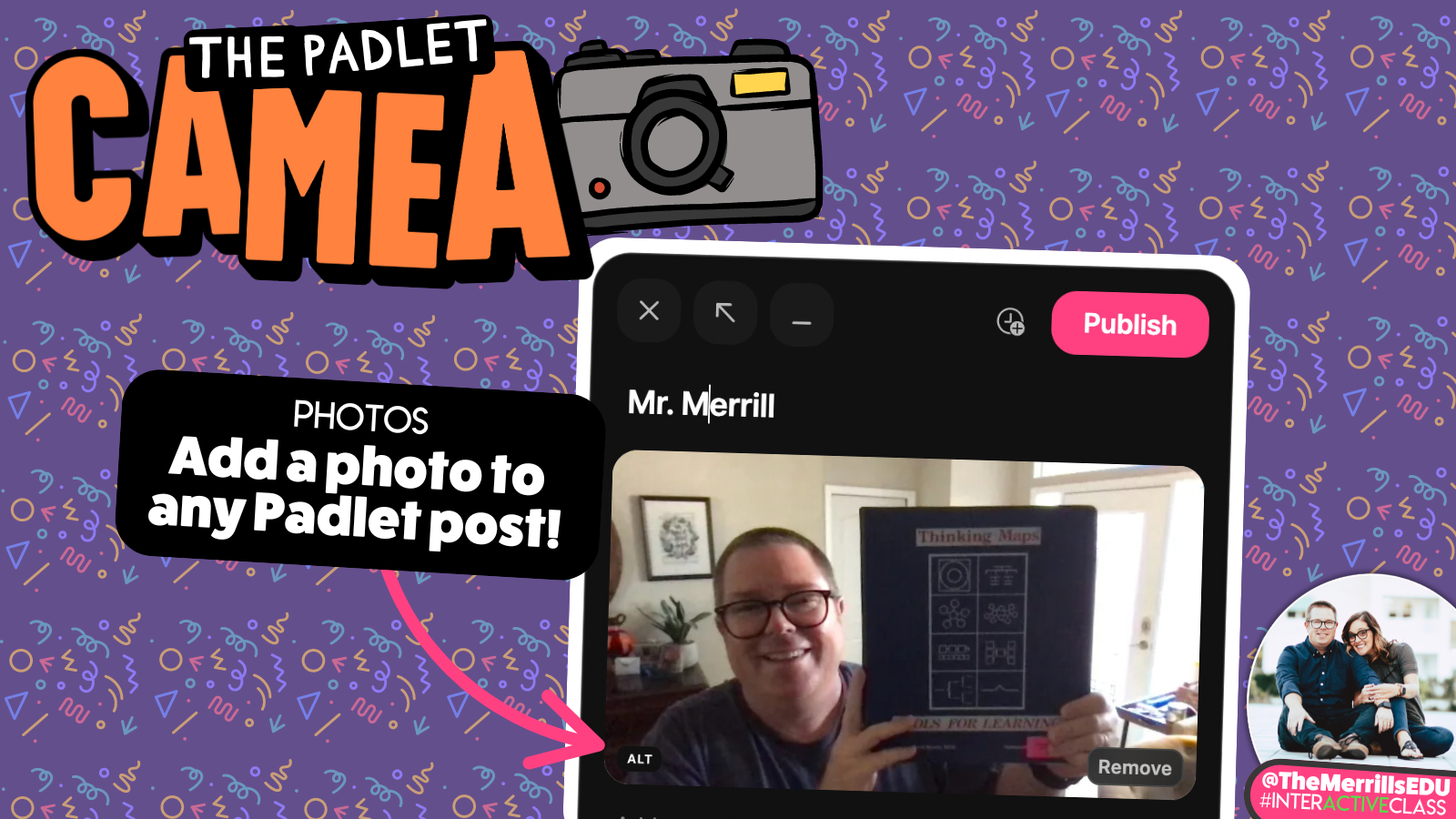
Padlet’s camera is a quick and efficient way to share student work. With a few clicks, students can capture a photo of their whiteboard, writing, and more. Sharing it with the class helps elevate the critical thinking level, especially when the educator has enabled comments. Here’s how students can launch Padlet’s camera:
In a Padlet board, students click the + sign to add a response.
Below the Subject, students will need to click on the Camera icon.
The Camera will ask the students for permission, then launch and will be ready for use.
After snapping their photo, the students can add a black & white or sepia filter., or just keep it normal. Click Save to add the photo to the Padlet post.
Remind students to enter their name in the Subject, then click Publish to share the photo.

Uploading Files to Padlet
There’s a lot users can do right within Padlet, but there are also times that it’s useful to havee the ability to upload files from external platforms. Our favorite way to use this feature is with Adobe Express or Canva. Students can download their creations, then upload them to Padlet for the rest of the class to see. Here’s how users can upload onto Padlet:
Students will need to download the file or files that they would like to add to the Padlet board.
Once they’re in the Padlet board, students click the + sign to add a response.
There are two ways to upload files: Method #1 - Below the Subject, students will need to click on the Upload icon, or Method #2 - they can click on Downloads in their web browser and drag the file(s) in.
This will add the file(s) to the post. Remind students to enter their name in the Subject, then click Publish to share the file(s).

Screen Recording in Padlet
The Screen Recording feature in Padlet requires users to install the Padlet Chrome Browser. Once installed, it allows users to capture what their doing on their screen, producing a video recording of what is viewed and said. This can come in handy when explaining a strategy, explaining what they learned, or focusing on a particular topic. Here’s how to launch the Padlet Screen Recorder:
Students will need to install the Padlet Chrome browser extension to use Screen Recording in Padlet.
Once they’re in the Padlet board, students click the + sign to add a response.
Click on More attachment types, then click Screen Recorder.
Students can click on the red record button to start recording.
This will add the file to the post. Remind students to enter their name in the Subject, then click Publish to share the file(s).


Talk for Me
If students are nervous about recording video or audio, Padlet’s Talk for Me is their solution. With this feature, students enter text that they would like Padlet to dictate. Using AI, padlet will take the text and create a spoken version. There’s a lot of opportunity for level ups, here. For example, try using this feature as a narrator in a story, and then attach audio recordings of other characters (or students) playing different roles. Here’s how to launch the Talk for Me feature:
In a Padlet board, students click the + sign to add a response.
Below the Subject, students will need to click on More attachment types (all the way to the right).
A new menu will open up. In the new menu, students click Talk for Me. This will launch new window where students can enter what they would like the AI to say. Now click Next.
After the audio has generated, it’s important to remind students to use the Subject area to enter their name. Now, students click Publish to post their image onto the Padlet board.
The audio file is now added as a new post. Students can also use this feature when adding a comment to other posts.


Hyperlinking in Padlet
Hyperlinking in Padlet is an easy-to-use feature, but a powerful one. Students can use this feature when sharing a website, or even a link to a Canva project. You can level up this feature by having students create their own website on Adobe Express, or they can share a template for their classmates to edit. We also love this feature for sharing books created in Book Creator. Here’s how to use Padlet’s hyperlinking feature:
Students will need to copy the URL of the hyperlink they are looking to share.
Once they’re in the Padlet board, students click the + sign to add a response.
In the pop up window, students click on the Link icon.
In the next window, students can paste the copied URL into the top bar, then press enter.
This will add the hjyperlink to the post. Remind students to enter their name in the Subject, then click Publish to share the link.


Reactions & Commenting in Padlet
Commenting in Padlet provides ways for students to interact with each others content. Most times, students learn best from each other’s feedback. So, it’s important to provide outlets where students can use these skills. Reactions in Padlet include (but are not limited to) likes and ratings. One thing to note here, students can only “like” or “rate” a response once. So, they can’t spam the likes to try and get a higher number. Clicking the “like” will add a like, but when the same user clicks it again, it takes the like away. To enable commenting and reactions, follow these steps:
Educators log onto Padlet and click on the board that they want to enable for comments and / or reactions.
On the right hand side, click on the Settings, or gear, icon.
In the pop-up window, click on Engagement at the top.
Then toggle on comments, and / or enable reactions.
Now, students will be able to add a comment or reaction to a Padlet post.


Padlet’s Sandbox
Padlet’s Sandbox is a collaborative digital canvas / whiteboard with tools for drawing, writing and adding media. Unlike most digital whiteboards, a Sandbox is NOT an infinite canvas. Instead, users have the area of the rectangle to work in, but they CAN add additional pages to the Sandbox project. This is the perfect option for Google’s Jamboard users who are looking for a new tool to use.
Within a Sandbox project, students can work collaboratively to drag-and-drop content onto the canvas. Students can include hyperlinks, sticky notes, text, images, videos, links, documents, and more. These elements can be easily resized and turned to fit onto the canvas. When all the content has been added, the Sandbox can be shared by clicking on “Play” located on the top of the screen. One thing to note here is that other Padlet boards can be added in and out of the Sandbox. So, with a little bit of clever hyperlinking, you could have differentiated groups working together and then bring the Sandbox content back into another Padlet board. Here’s how to launch a Sandbox project in Padlet:
Log onto Padlet, then click on +Make.
Locate Sandbox, then click on it.
This will launch the Sandbox for your students to access. Share the URL with them to begin!
Check out a math example of how students can use Sandbox below!


Padlet’s Blog Board
Padlet's "Blog" activity is an interACTIVE tool designed to facilitate collaborative blogging within a shared online space. This activity allows users to create and share posts that appear in a blog-style format, making it ideal for creating a character blog, historical figure blog, or group projects. This activity has already been set up as a template within Padlet, but you can find it by clicking here. To find it on your own, follow this path:
Log onto Padlet, then click on Gallery.
Scroll down until you find Blog, then click on it.
In the new window, click Create. This will launch the template for your students to access. Share the URL with them to begin!
Check out an example of a Padlet blog below!


Collaborative Storytelling in Padlet
Padlet’s Collaborative Storytelling template can be used to help groups (or the entire class) create stories. Students can build upon each part of the story to reflect what happens first, next and last. The key is to encourage the students to read the previous post to maintain coherence in the story line. You can also level this activity up by allowing students to add audio recordings, posts with higher ratings (click here to revisit how to enable reactions), or by using I Can’t Draw to generate visuals for the story. Here’s how to launch a Collaborative Storytelling project on Padlet:
Log onto Padlet, then click on Gallery.
Scroll down until you find Collaborative Storytelling, then click on it.
In the new window, click Create. This will launch the template for your students to access. Share the URL with them to begin!


Cause and Effect Chains on Padlet
Padlet’s Cause and Effect Chains template allows students to visualize the relationship between events by connecting posts with arrows. Students can post the cause, then link the posts by clicking the three-dots icon on the post and then selecting "Connect to a post". This will form an arrow from the original post to the second one. This can be leveled up by using this template for collaborative storytelling (as opposed to the one above). For example, students post parts of the story and then rate each post. The post with the highest rating can be selected to become the next part of the story by connecting the posts. Repeat these steps as necessary! Here’s how to launch the Padlet Cause and Effect Chain template:
Log onto Padlet, then click on Gallery.
Scroll down until you find Cause and Effect Chains, then click on it.
In the new window, click Create. This will launch the template for your students to access. Share the URL with them to begin!


Concept Maps on Padlet
Similar to the Cause and Effect Chain template, the Concept Map template allows students to imagine and then connect ideas in a structured diagram. Teachers can use the Concept Map template to help students understand complex subjects by breaking them down into smaller, interconnected ideas. Collaborative groups can use the concept map to brainstorm ideas for projects or problem-solving solutions. Or, students can use this template as the foundation for building a story. Here’s how to launch Padlet’s Concept Map template:
Log onto Padlet, then click on Gallery.
Scroll down until you find Concept Map, then click on it.
In the new window, click Create. This will launch the template for your students to access. Share the URL with them to begin!


Four Corners on Padlet
This template falls under Padlet’s Sandbox (or digital whiteboard) category. In Four Corners, students are posed with a question. After thinking about the question, the students respond by placing content onto the area of the four corners that their opinion aligns with. Students can respond using (but not limited to) a sticky note, text box, shapes and more. This is great activity provoke higher levels of thinking where there could be multiple correct answers. Think of the old “In or Out” game frequently used to launch math lessons! Here’s how to launch Padlet’s Four Corners template:
Log onto Padlet, then click on Gallery.
Scroll down until you find Four Corners, then click on it.
In the new window, click Create. This will launch the template for your students to access. Share the URL with them to begin!


Maps on Padlet
Padlet's Map template is a specialized tool designed to help students visually organize and share information with geographical context. It allows students to pin content to specific locations on an interactive map, making it ideal for activities related to geography, travel, history, and more. These highlighted points of interest can include images, video, text and more. We love using this activity when teaching social studies and reviewing where events occurred. Here’s how to launch a map on Padlet:
Log onto Padlet, then click on Gallery.
Scroll down until you find Map, then click on it.
In the new window, click Create. This will launch the template for your students to access. Share the URL with them to begin!


Storyboards on Padlet
Padlet’s Storyboard template allows students to post individual moments from a storyline with image, video, or text attachments. The students can drag and drop the content to rearrange it and fit the perfect the narrative. We like using this activity after reading chapters from a book and then have the students use Padlet’s I Can’t Draw (AI image generator) as a way to describe what has either happened in the text or the tone of the story. Here’s how to launch the Storyboard template:
Log onto Padlet, then click on Gallery.
Scroll down until you find Storyboard, then click on it.
In the new window, click Create. This will launch the template for your students to access. Share the URL with them to begin!


Read and Respond in Padlet
In this activity, the educator assigns a reading assignment and then gives the students a space to discuss their thoughts. The question remains pinned at the top of the board, while the responses curate below the question. Students can add (but are not limited to) text-based content, making it ideal for a class discussion, analysis, or a comprehension check. Here’s how to launch the Read and Respond template in Padlet:
Log onto Padlet, then click on Gallery.
Scroll down until you find Read and Respond, then click on it.
In the new window, click Create. This will launch the template for your students to access. Share the URL with them to begin!


Photo Gallery in Padlet
Padlet’s Photo Gallery template allows students to share images or photos in a collaborative gallery. We love using this activity to predict what the setting of the story might be before reading it. You can also level up this template by having students share images or photos relevant to certain geographical locations, or by using Padlet’s I Can’t Draw (AI image generator) to add images of what places might look like in the future. Here’s how to launch Padlet’s Photo Gallery:
Log onto Padlet, then click on Gallery.
Scroll down until you find Photo Gallery, then click on it.
In the new window, click Create. This will launch the template for your students to access. Share the URL with them to begin!

-- Please follow us on social media and tag us with how you’re using these Padlet ideas in your classroom! 👓👗
For more tips, tricks and lesson ideas for making learning more interACTIVE, check out our books The InterACTIVE Class on Amazon!


Top Tools to Use Now That Flip is Gone
Discover top alternatives to Microsoft Flip for creating engaging video content in education. Explore tools like Adobe Express, Canva, and other innovative platforms that enhance student learning, creativity, collaboration and critical thinking. Find the perfect tool for your classroom today!

Over the summer of 2024, Microsoft announced that it would be shutting down beloved ed tech app, Flip (aka Flipgrid). The absence of such an innovative app leaves a hole in many of our classrooms. So, now that Flip is no more, where do we go from here? We want to be very clear, these apps and suggestions are NOT a replacement for Flip. These platforms contain similar features or integrations that may be used as a way to replicate what you were doing with Microsoft Flip.
THIS BLOG POST IS HAND CRAFTED AND WAS NOT GENERATED USING AI.
IT HAS BEEN UPDATED ON: November 2025
(click on any subheading to jump to that section)


Video Creation Platforms


Adobe Express
Price: Free for both students and educators
Compatibility: Web based, iOS, Android
Similarities to Flip: Students can create and download videos
Differences from Flip: Students do not have a collected space to share their videos, but they can collaborate on the creation of a video.
Sign up: https://www.adobeforeducation.com/k-12/express-for-education/
Adobe Express, formerly known as Adobe Spark, is an excellent tool that can help students create and edit videos easily. Although Adobe Express is more focused on graphic design, it does have features that can be utilized for video creation and editing. Check out what it offers for students in terms of recording and editing videos in the image below.


Canva
Price: Free for both students and educators
Compatibility: Web based, iOS, Android
Similarities to Flip: Students can create and download videos
Differences from Flip: Students do not have a collected space to share their videos, but they can collaborate on the creation of a video.
Sign up: https://www.canva.com/education/
Canva offers a range of features that can help students with recording and editing videos, making it a valuable tool for various educational purposes. Canva also places an emphasis on graphic design, and many of it’s features can be utilized while creating videos. Check out the image below for a breakdown of some of our favorites!


Seesaw
Price: Free and paid options
Compatibility: Web based, iOS, Android
Similarities to Flip: Students can create and download videos and use the screen as a white board.
Differences from Flip: Educators are able to enable the ability for students to view each other’s work, but students do not have a way to comment (with a video) back-and-forth.
Sign up: https://seesaw.com/
Seesaw is an educational platform designed to engage students in learning by allowing them to create, reflect, share, and collaborate on various types of content. When it comes to recording videos, Seesaw offers several features that can be beneficial for students. The image below shares a few of our favorites!

Any of these apps can be used to create videos, and all of them do it exceptionally well. However, if you’ve ever seen us speak, or read our books, you know that we have a passion for providing students with an outlet to share their creativity to broader audiences. While the apps above will permit students to create content, they do not provide a space for students to be able to view and provide feedback to their classmates (as we mentioned above - Seesaw does have a feature where students can view each other’s work, but it doesn’t have the same feel as Flip did). So, let’s take a look at some other apps that might provide a way for students to both record, share, and comment back and forth.

Platforms That Allow for Video Creation, Sharing, Reflection and Commenting


Snorkl
Price: Free and paid options
Compatibility: Web based
Similarities to Flip: Students can record whiteboard-styled annotated videos and submit them for other student’s to view and comment on.
Differences from Flip: Videos are whiteboard-style only. AI is integrated within the platform, which will assess the student work and provide feedback.
Sign up: https://snorkl.app/
Snorkl is an educational app designed to help students record and explain their thinking visually and verbally. It provides tools for students to record their voice while using a digital whiteboard to represent their ideas. The app’s AI offers instant feedback on these recordings, helping students deepen their understanding and improve their explanations. This is a step above where Flip left off - providing a way for students to receive instant coaching on their submissions. On the educator side, teachers can use AI-powered analytics to monitor student progress and gain insights into their thinking. Check out some of our favorite features below!

Let’s take a look at Snorkl’s platform. On the educator side, teachers create a class. Then, you can add assignments to the class (or classes). When assigning an activity, you can choose from Snorkl’s library (Grades 3 and up), or create your own. If you’re starting your own activity, you can use the Snorkl whiteboard to provide a template for your students to work on top of. Setting up the AI feedback is optional, but can be easily generated with Snorkl’s autofill. Educator’s have full control, and can choose to auto-approve or teacher-approve the AI feedback. Check out our walkthrough below!


On the student side, students log on with an email address. Assigned activities will appear when they log in. The whiteboard is the same as the one on the educator side (where you can add your own template for students to work on top of). Check out our deep dive of the tools the students have access to within the app below.


MirrorTalk
Price: Free and paid options
Compatibility: Web based, iOS and Google Play
Similarities to Flip: Students reflect on the assignment, sharing their thinking.
Differences from Flip: Videos are not seen by classmates, but are visible to the educator.
Sign up: https://mirrortalk.ai/
MirrorTalk is an educational app designed to help students and teachers build reflective thinking skills. Educators create a class, then set up a topic that they would like the students to reflect on. MirrorTalk provides several options for how students log in. If the educator selects “Login,” the students will need to enter an email address which will create an account for them. The benefit here is that with a student account, students have access to the entire dashboard: start a new reflection, view past reflections, and access AI-driven insights. If the educator selects “Session” under the Access menu, this will provide a unique link where students will only need to enter their name to add a reflection. They will not see the dashboard, and only be able to respond to the prompted question. This method is highly recommended if you are a K-2 educator, as the reflections can be hyperlinked on your LMS for quick and easy access. In “Open” access, students do not need to enter a name. After clicking on the reflection link, they are immediately prompted with the question.


When a student launches a reflection, they are prompted to answer questions. Their responses are recorded and then analyzed using AI. The AI then prompts the students to explain in more detail, analyzing the response. The app then provides educators with AI-driven insights to identify learning gaps, develop understanding, and manage mindsets. Here’s what we love about MirrorTalk!


Book Creator
Price: Free and paid options (collaboration requires a paid version)
Compatibility: Web based, iOS and Google Play
Similarities to Flip: Students can record videos and comment on classmates work with either text or video.
Differences from Flip: The camera does not contain additional add-ons and is strictly meant to capture raw video (no filters, effects, etc.) and comments appear off to the right side of the book.
Sign up: https://bookcreator.com/
Don’t let the name fool you! Book Creator is an amazing tool to create books, but it’s capabilities go far beyond what the name suggests. With a paid version of Book Creator, a teacher can turn collaboration on, providing ways for students to work together on the same assignment. As cool as this is, one of our favorite features in Book Creator is the commenting feature (and it comes with the free version). Clicking on the comment icon in the lower right panel opens up an area for students to record a video, audio message, or leave a GIF / emoji. We like to encourage the student who’s project is being viewed to record a video explaining their thinking alongside their book. Then, their classmates can read the book and add comments below the original message. We love how the comments stay in a thread, making it easy and accessible.


This feature can be used similarly to Flip by allowing students to comment on each other’s work. This builds constructive and critical thinking, all while providing a creative outlet for your students. The best part of all: books can be shared with families in just several clicks! Check out what we love about Book Creator below!


Padlet
Price: Free and paid options
Compatibility: Web based, iOS and Google Play
Similarities to Flip: Students can record videos and comment on classmates work with either text or video.
Differences from Flip: The camera does not contain additional add-ons and is strictly meant to capture raw video (no filters, effects, etc.).
Sign up: https://padlet.com/
For those who have been around ed tech for some time, you most likely have used Padlet at some point in your career. While nothing can fully replace Flip, Padlet’s work into video integration within their platform definitely feels familiar for Flip users. Educators create a Padlet board and share the link with the students. The students click on the + symbol, followed by “More attachment types.” In the pop up menu, students click “Video Recorder” to launch the camera. Unlike Flip’s camera, there are no flashy add-ons, filters, or effects. We actually prefer this to the last version of Flip’s camera. This keeps the attention on the objective, but Padlet also offers the option to upload video (so you can always use a different app to create the video and then smash it with Padlet). Students have up to 2 minutes of recording time, and the recording can be paused at any time during the process. Also like Flip, students have the ability to watch their videos back before submitting their response.

After submitting a video response, the video thumbnail will appear on the Padlet board. Clicking on a video’s thumbnail will open a familiar view to Flip users. Here, the students can view the original video and all other comments made to the video. Just like on Flip, the content is threaded and organized, making it easy for students to interact with.

Padlet also stepped up and created a Flip importer tool to bring all previous content in Flip into Padlet. Click this link to learn more and transfer your videos. The attention to detail is impressive, and as we have mentioned before - nothing will replace the Flip(grid) that we all knew and loved. But, Padlet’s efforts are definitely recognized and appreciated. This gives it our highly recommended rating, and if you are desperately looking for a replacement option, start with Padlet.

-- Please follow us on social media and tag us with how you’re using these apps in your classroom! 👓👗
For more tips, tricks and lesson ideas for making learning more interACTIVE, check out our books The InterACTIVE Class and Flipgrid in the InterACTIVE Class on Amazon!


How to Use School AI with Students
@TheMerrillsEDU share how the app School AI can be used with students. Learn how School AI works, how to use AI to chat with a historical figure or book character, how to customize your own AI chatbot, and much more!

(Edited: Nov. 27, 2025)
School AI, an innovative AI educational app, has become a popular choice for students in our classrooms. Its intelligent features empower students to enhance their learning experience and streamline their academic journey. In this blog post, we’ll explore five creative ways students can use School AI in the classroom.
Please note: This blog post was hand-crafted and was not created using AI.
(click on any subheading to jump to that section)



What is School AI?
AI isn’t just about answers; it’s about unlocking curiosity, fostering critical thinking, and shaping lifelong learners. There are many tools out there, but only a handful are truly dedicating themselves to providing opportunities for student learning. If you’re looking for an innovative approach for your students to learn, meet School AI. School AI is an all-in-one AI-powered educational platform designed for K-12 students. Teachers can create custom Spaces, or chatbots, where students can interact with specific areas of content. For example, they can initiate a conversation with a character from a book, historical figure, and much more. But what makes School AI stand out from other AI platforms? We love it’s accessibility features. School AI has deliberately placed features like Speak, which allows students to listen back to what has been generated, along with a microphone enabled for dictation. This gives the youngest learners equal access to the tool.

Another great feature is on the educator side. Teachers always have the ability to check in on the conversations between the students and AI. Additionally, educators have the ability to pause conversations and even end a conversation for one or more students.
Chat With a Historical Figure in School AI
Let’s face it…history can sometimes be hard to relate to, especially with today’s modern learners. Without a feeling of relevancy, students have a hard time connecting with those from our past. School AI is where these two meet. We appreciate how School AI uses the similar look and feel as a text message to generate discussions between users and the historical figures. This connects with today’s learners immediately, and provides them with an outlet to hear and learn of the history in a whole new light. There are chatbots already created (you can find them by clicking here or the images to the right), but if you can’t find the historical figure that you’re looking for - you have the ability to create a new chatbot to represent that figure. Click here to learn how that process works!


Career Exploration in School AI
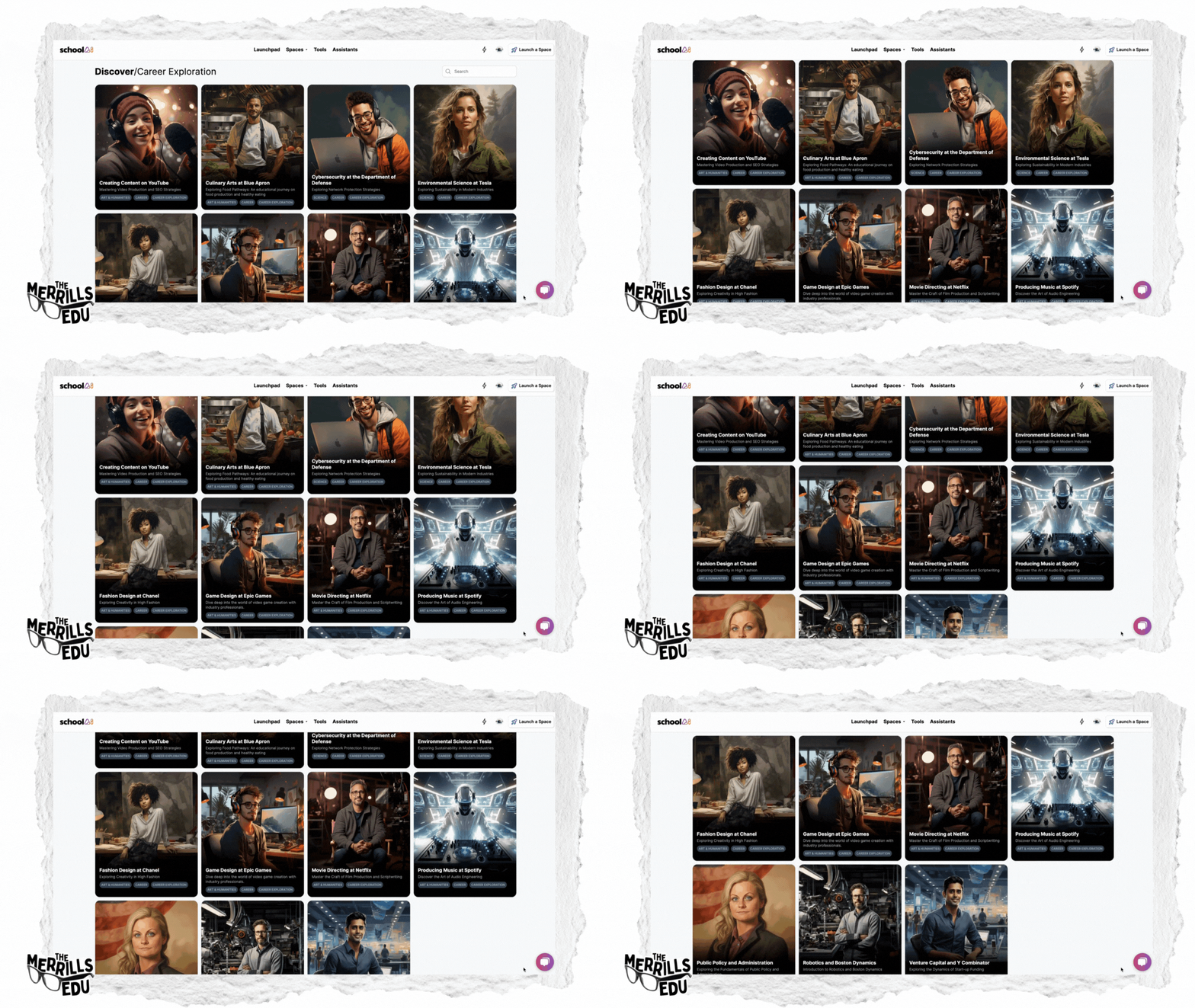
As teachers, we’re preparing our students for jobs that haven’t even been developed as of yet. But, that doesn’t mean that our students aren’t interested in what’s already going on in the workplace. School AI provides an opportunity to use AI as a chatbot to learn more from jobs such as: a Netflix Film Director, Creating Content on YouTube, Video Game Design at Epic Games, Producing Music at Spotify and more. Students can use these chatbots to learn more about those particular job fields. Click here to find the Career Exploration spaces.
One of our favorite activities to do with this is for our students to log onto their preferred job / character and begin a conversation with them. The students then take notes on the things that they learned from the conversation. Next, they use Canva to create a fake job resume that uses the information learned from the School AI conversation. The students complete the job resume in a way where they would try to be hired for the same job that they learned about. Check out our example below and be sure to download the template for free!


Chat With a Character From a Book With School AI
Imagine this with us: Your students just finished reading a book and they’re left asking some great questions. Usually this generates a creative classroom conversation, but then we’re left to use our imagination to connect the dots. But, with School AI’s Book Explorer, your students can use AI to take their imagination to a whole new level. School AI will use AI to generate a conversation where students can talk directly to the characters from a book. You can find books from School AI’s Book Explorer library by clicking here, but if you can’t find the book you’re reading, click here to learn how to create your own.


One of our favorite activities to do with this is to have students create a text message thread between themselves and the story book character. The kids complete the template above, then explain what they learned from the discussion in a Microsoft Flip video. Check out our example above and download our template for free!

How to Create a Customized Chatbot in School AI
So you’ve checked out what School AI has to offer and you’re excited to get started, only to find that the content you’re looking for isn’t there (yet). It’s all good! School AI allows you to create your own customized chatbot, called Spaces, that can be shared with your students. A Space refers to an exciting realm of AI-powered learning activities designed specifically for K-12 students. These Spaces captivate young minds, making education engaging and personalized. Here’s how to create one:
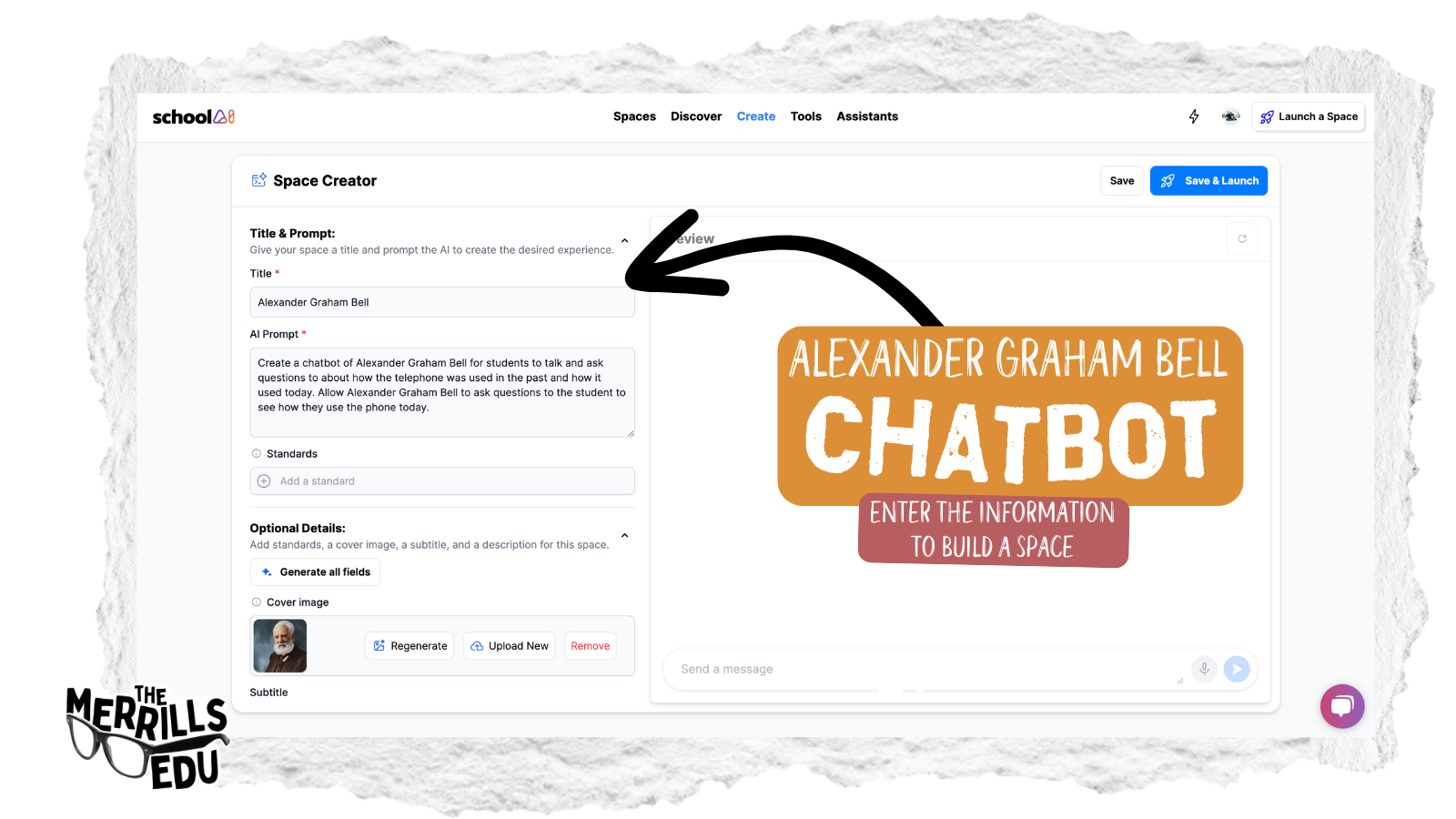
Log onto School AI, then click “Create” along the top toolbar.
Click “Create” to start a new Space.
Fill out the information on the left side with your desired content.
Click Save, or click Save and Launch to star the conversation immediately.
Check out our custom Alexander Graham Bell chatbot where students discuss life in the past and now. The kids use the AI to learn how the telephone has changed throughout history.

You can find this Space and our other custom created Spaces below. We’ve created a Taylor Swift inspired narrative writing assistant, an Alexander Graham Bell / Life in the Past and Life Now space, a Yoda inspired grammar and writing assistant, a Jake from State Farm chatbot that “insures” you’re thinking critically, and a MrBeast inspired chatbot that challenges student thinking by asking “Who? What? When?” etc. Click here or below to add them to your collection and launch them for your own students!

What Else Can School AI Do for My Students?
Here are some other ways that School AI can help benefit your students:
Personalized Study Plans: School AI analyzes individual learning patterns and tailors study plans accordingly. Whether it’s adaptive quizzes, targeted practice exercises, or customized content recommendations, students can optimize their study time effectively.
Instant Assistance: Stuck on a math problem or need clarification on a historical event? School AI provides real-time answers and explanations. Simply snap a photo of the question, and let the app guide you through the solution.
Language Learning Made Fun: School AI offers interactive language modules. From pronunciation practice to vocabulary building, students can immerse themselves in a new language with engaging exercises and quizzes.
Automated Essay Feedback: Writing assignments can be daunting, but School AI simplifies the process. Upload your essay, and the app provides constructive feedback on grammar, coherence, and style. It’s like having a virtual writing tutor!
Study Group Collaboration: School AI facilitates collaborative learning. Students can create virtual study groups, share notes, and discuss topics. The app even schedules group study sessions based on everyone’s availability.

Download our Spaces for School AI
We love creating unique Spaces for our students to interact with on School AI. But, we’d also love to share them with you! Here’s a list of a few that we have used:

Taylor Swift Writing Assistant: Storytelling Blank Spaces: Crafting Your Narrative Journey
The purpose of this space is to help inspire students with a Taylor Swift influence when working on their narrative writing.


YODA Master of Grammar and Writing
The purpose of this space is to assist students in learning grammar and sentence structure by rephrasing their sentences in the style of Yoda's unique speech pattern.


Jake from State Farm: Like a Good Neighbor, Jake is There!
Question the Answer: Jake doesn’t settle for surface-level explanations. When he provides an answer, he follows it up with a thought-provoking question. Brace yourself for inquiries like, “Why do you think that’s true?” or “What if there’s another angle?” Just like a good neighbor, he's looking out for your and your thinking!


MrBeast: Get BeastED!
BeastED challenges student thinking with thought-provoking questions. For every answer, it asks, “Why? How? What if?”


Alexander Graham Bell: Life in the Past and Now with Alexander Graham Bell
BeastED challenges student thinking with thought-provoking questions. For every answer, it asks, “Why? How? What if?”


Duke Kahanamoku: The Father of Modern Surfing
Talk to an AI version of Duke Kahanamoku, known as the father of surfing! Duke was a native Hawaiian and also a competition swimmer!


-- Please follow us on social media and tag us with how you’re using School AI in your classroom! 👓👗
For more tips, tricks and lesson ideas for making learning more interACTIVE, check out our books The InterACTIVE Class and Flipgrid in the InterACTIVE Class on Amazon!


How to Use AI in Canva (for Teachers and Students)!
In this post, we’ll share where to find AI apps in Canva, how students can use the AI in Canva, and how Teachers can use the AI in Canva - all while maintaining an innovative level of creativity!
When we think of AI in Canva, we imagine a place where artistry meets innovation. In this blog post, we're diving headfirst into the magical realm of Canva's AI features, tailored to empower both educators and students alike. From spicing up lesson plans to adding flair to presentations, Canva's AI tools are here to sprinkle a touch of magic on your design endeavors.
(click on any subheading or button to jump to that section)













What are the Different Types of AI That Can
Be Found in Canva?
There are lots of different types of AI that can be found in Canva. These Apps can be found on the left side of the main screen in your dashboard by clicking Apps. To enable them, all you have to do is grant permission by opening the desired app and choosing to use it in an existing design or new design. Below are some of our favorite apps, along with descriptions for each. Check out our video to see how some of these work. To find a complete list of AI powered apps within Canva, click here or the image.

Magic Media: Generate
images & video
Canva’s Magic Media app turns creative ideas into images or video. Enter a few words or a sentence about what you would like to generate and then sit back and let the AI do the work! (This app is for ages 13+, unless supervised.)
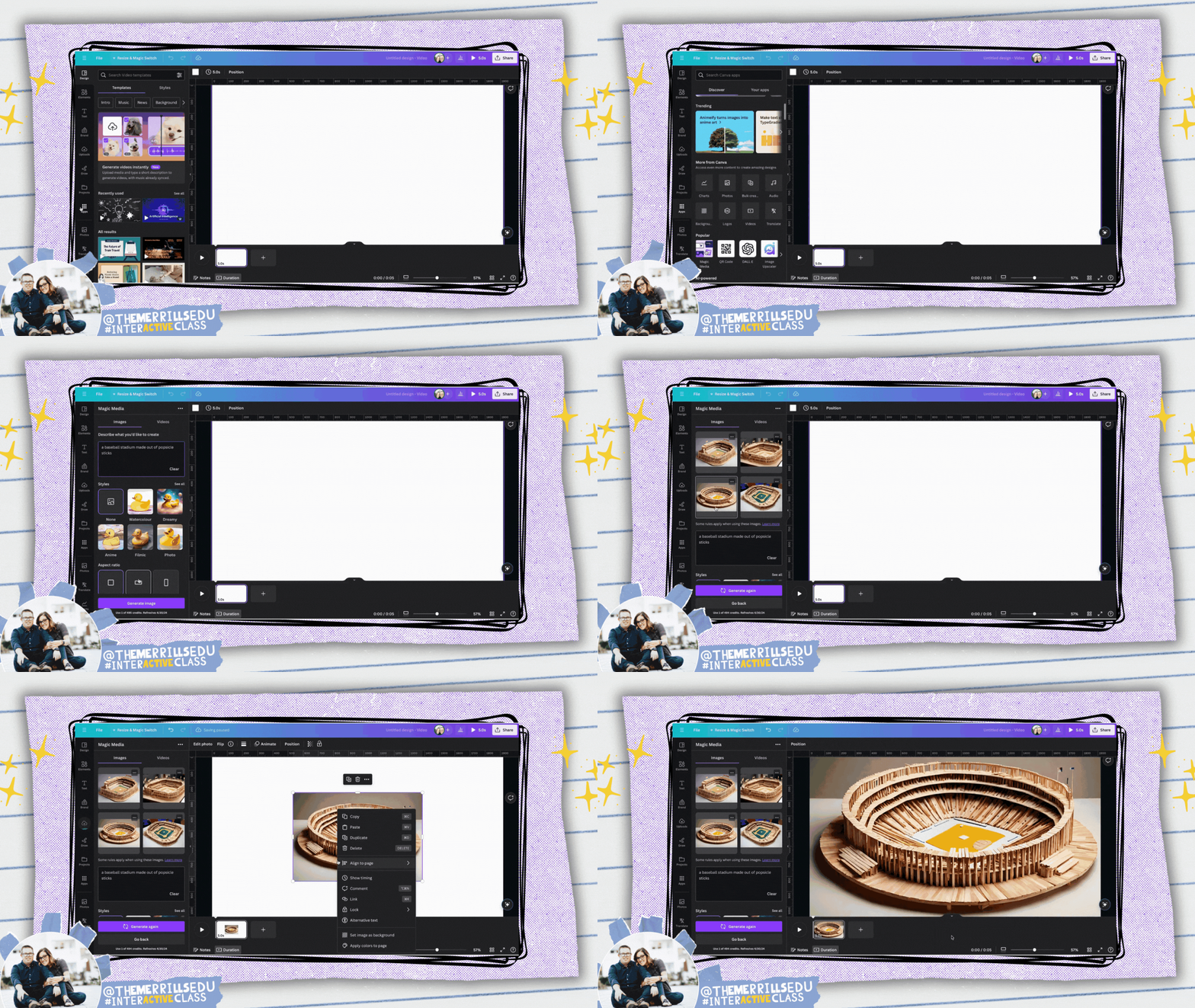


Dall*E: Generate Realistic Images
Dall*E allows users to quickly generate realistic images or art using AI. Users enter in a few words to describe what they want to generate and then the AI creates it! (This app is for ages 13+, unless supervised.)

Image Upscaler: Elevate Picture Resolution
a1d.ai’s Image Upscaler takes blurry or old photos and applies AI to sharpen them. This allows users to refine their images, ensuring that they stand out in your Canva designs.
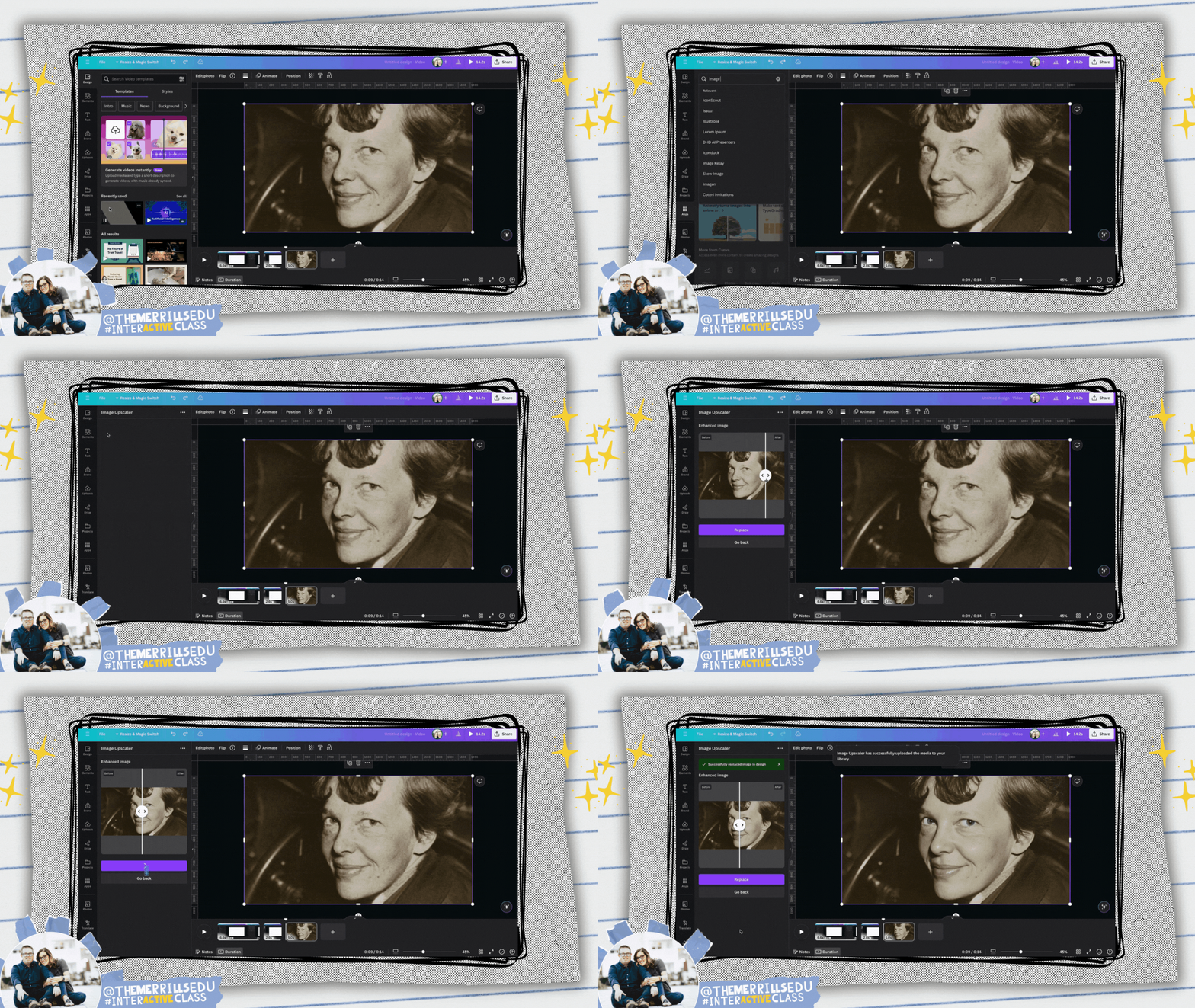


Magic Morph: Turn Elements Into Something Extraordinary
Canva’s Magic Morph allows users to transform words and shapes with a simple prompt. It can be used to enhance text or shapes, quickly create graphics or textures, and much more.

Murf AI: Add Audio
Voices to Designs
Murf.AI allows users to add natural sounding voices to designs. Just type out the script and Murf.AI will create the audio to embed into your design.


Soundraw: AI Music Generator
Soundraw takes the time out of searching for the perfect song. Now, with Soundraw, simply choose the mood, theme and length of song you want. The AI will generate the track for you to embed into your design! Note: This app requires a Soundraw account to use. There is a fee to use this app, but the first 14 days are a trial.

Translate Text: Translate Any Text to Another Language
Canva’s built in translator tool can translate text in your designs to 1,000’s of different languages. To access it, right click a text box and then scroll down to Translate Text. Complete the prompts to translate the text!


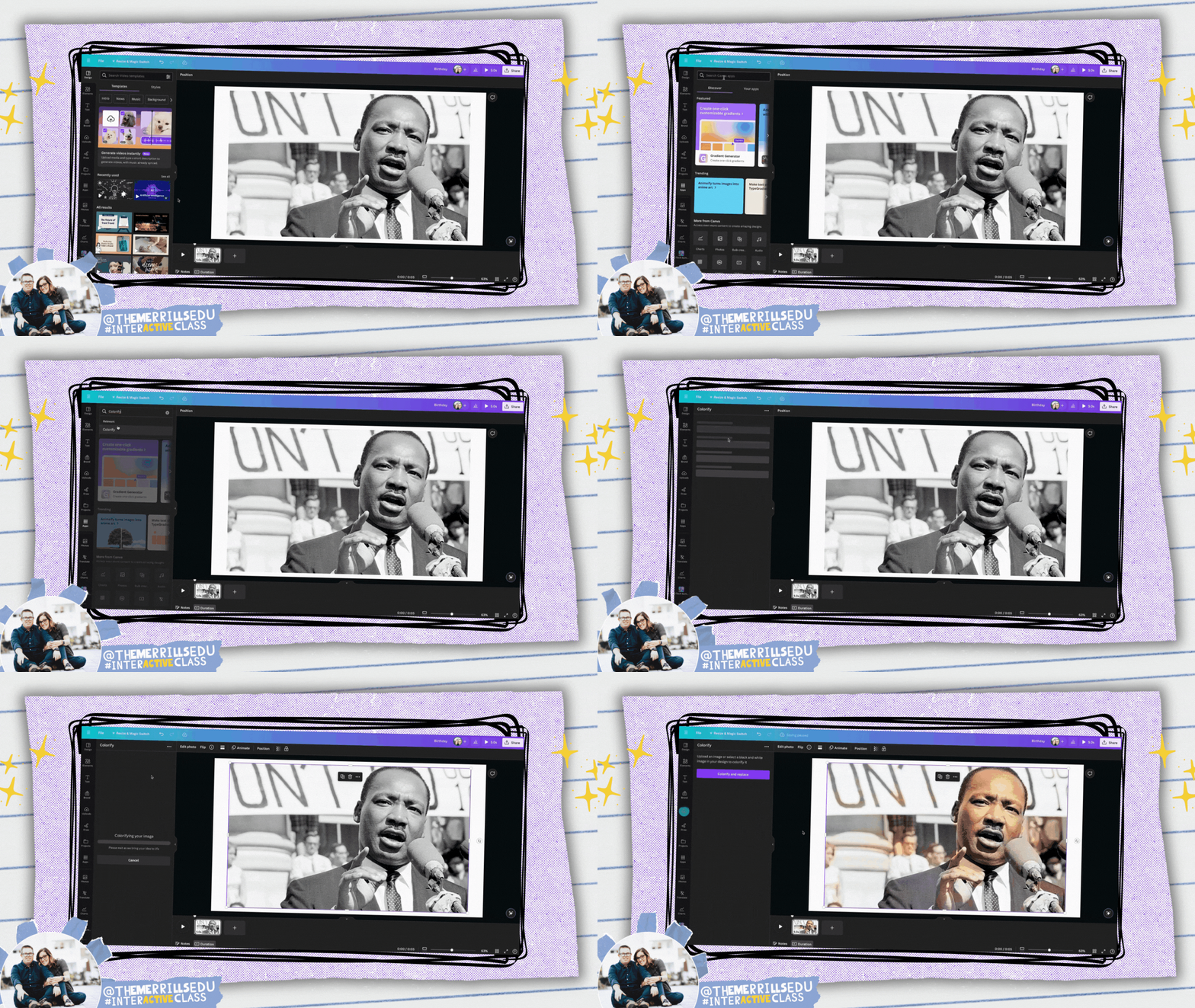
Colorify: Add Color to
Black & White Photos
Colorify is an app that restores color to black & white photos, making them look vibrant and lively again. This is great for researching historical figures from the past!

Transcribe Audio: Add
Captions to your Designs
SRB’s Transcribe Audio app allows users to generate a transcription text from an uploaded audio file. This is perfect for subtitles or captions! You can transcribe from these file types: mp3, wav, m4a, and ogg files.


SecretInk: Artistic Text
Hidden in Plain Sight
SecretInk allows users to blend text into any image background, creating an artistic illusion. If it’s unclear, try zooming in or out to see the magic! But be on the lookout! You might see things in unexpected places!
How Can Students Use the AI in Canva?
As creatives, we believe that there is a fine line between using AI to generate ideas and generate inspiration. Teachers and students can use AI to generate content - and there is definitely a place for that. However, as innovative educators we believe that the AI should be used to inspire ideas. For example, students can get creative with the prompt they use to generate the content. So, let’s look over some ways that students from our own classrooms have used the AI in Canva.

Templates: Find Inspiration Quickly
Canva has tons of ready-to-use templates in it’s library. These are a great starting point for students to ignite their creativity. In the example below, students were breaking down the chapters of a book by creating a magazine cover for each chapter. What started off as a template was quickly edited and altered to include the specific details from the book. To view the magazine cover templates on Canva, click here.


Magic Media: Book Covers and Writing
with a Video Game Twist!
Canva’s Magic Media is one of our favorite apps simply because it can deliver images based on creative prompts. We encourage our students to stop and think about what they want the image to look like before generating any images. The more creative the prompt, the more creative the image generated will be.
This idea can be used with either Canva’s templates and Magic Media. We asked our students to recreate the cover of a book by changing the setting or characters. The students found a book cover template or generated their own using Magic Media. They added additional elements, text, and details to their covers before finishing up. See it in action below!


Who says writing has to be dreadful for kids? This project gave students an opportunity to take a narrative writing piece and turn it into a video game! Students still completed all of the traditional writing on paper and pencil, but when it came time for a final project, we had the kids design the video game covers on Canva using Magic Media to generate the backgrounds. We also gave the kids a change to create a video game video trailer, where they used Magic Media files to compile into a video. Check them out below!

BG Remover: Automatic Background Remover

Canva’s BG Remover, or background remover, makes automatic background removal effortless. Simply drag and drop your photo to instantly upload and open a new design project in the online editor. Select your photo, then click BG Remover to work the magic of removing whatever is behind the image. Students love this feature, and we are obsessed with these examples. Below, the students used the BG Remover to place characters from the story in a different setting, and then explain how that would change the entire story. Can you guess the story below?

Magic Eraser: Remove
Unwanted Objects
Canva’s Magic Eraser instantly cleans up pictures online. It's easy to remove unwanted objects or erase people from photos. This allows students to brush over distractions to instantly remove them with Canva Pro's Magic Eraser. In the example below, students


Magic Edit: Swap out Objects in a Photo

Similar to the Magic Eraser, Canva’s Magic Edit allows users to easily remove distractions or add new things to your photos with a few clicks. Simply brush over the areas you'd like to modify and then describing what you want to add. The students have used this tool to replace a face on Mount Rushmore. Who would you add to the mountain if there was an available spot? The kids have also used this to add historical figures from the past onto Martin Luther King Jr’s "I Have a Dream” speech. For example, how do you think Abraham Lincoln would have responded if he was there at the speech? Check out the examples below!

SecretInk: Artistic Text
Hidden in Plain Sight
SecretInk blends text into any image background to create an optical illusion. Sometimes you have to zoom in or out to see it, but we love how this app puts the text in unexpected places. Our students used this app to provide a one word summary of the theme of the books they were reading. Can you guess which book this was for?


How Can Teachers Use the AI in Canva?
Students can’t have all the fun! There’s plenty of ways that educators can use the AI tools located in Canva. These timesavers and tools will help even the most organized classroom teachers. Here are a few of our favorites!

Upload a PDF: PDF’s Transformed Into
A Different File Type
Have you ever found a great PDF resource that you wish was just slightly different? Maybe you wish you could have edited the PDF to better fit your learners? Well, with Canva’s PDF uploader, now you can! Just upload the PDF from the main dashboard, and then you can edit and save the file as whatever you would like. Here’s how it all works:
Log onto Canva
Locate and click the Upload button on the top right side
Select your file(s) to upload. Canva automatically uploads the file to your projects.
Open the project from your Recent Designs section on the main dashboard.


Magic Design: Education
Resources for Your Classroom
Fumbling through templates is SO 2022! Now, with Canva’s Magic Design, educators can use AI to produce a project design that directly aligns with their topics. There’s a couple of ways that you can find and produce these resources. Here’s how:

Templates
Log onto Canva
Search for your topic in the search bar and hit enter (tip: be sure your search is set to Templates and not Projects)
Select a template then click Customize this template to add it to your own projects.


Automatically Add Your Media to Templates
Canva now allows users to add uploaded media into template searches so that users can preview what the designs would look like with the uploaded media inserted. Here’s how it works:
Log onto Canva
Search for your topic in the search bar and hit enter (tip: be sure your search is set to Templates and not Projects)
Next to All Filters and Category, click on Media.
Select the files that you would like to include, and then click See results.
Canva will embed your imported media / images into the designs and you may select from the generated selections.


Magic Design: AI generated content
Canva’s Magic Design is an AI-powered design generation tool that lets you input any media or prompt, and transforms it into customizable designs that match the content and context you need. We appreciate how the platform automatically generates examples to view, giving you a choice to select from. To access Magic Media, follow these steps:
Log onto Canva
Click the Create a design button located on the top right side
Choose your desired file size. The project will open in a new tab.
Make sure that you are on the Design tab located on the left side panel.
Directly to the right Design tab (at the top), type what you would like the AI to generate in five or more words.
Magic Design will suggest different files for you. Select the one you like!


Magic Switch: Automatically Resize Your Content
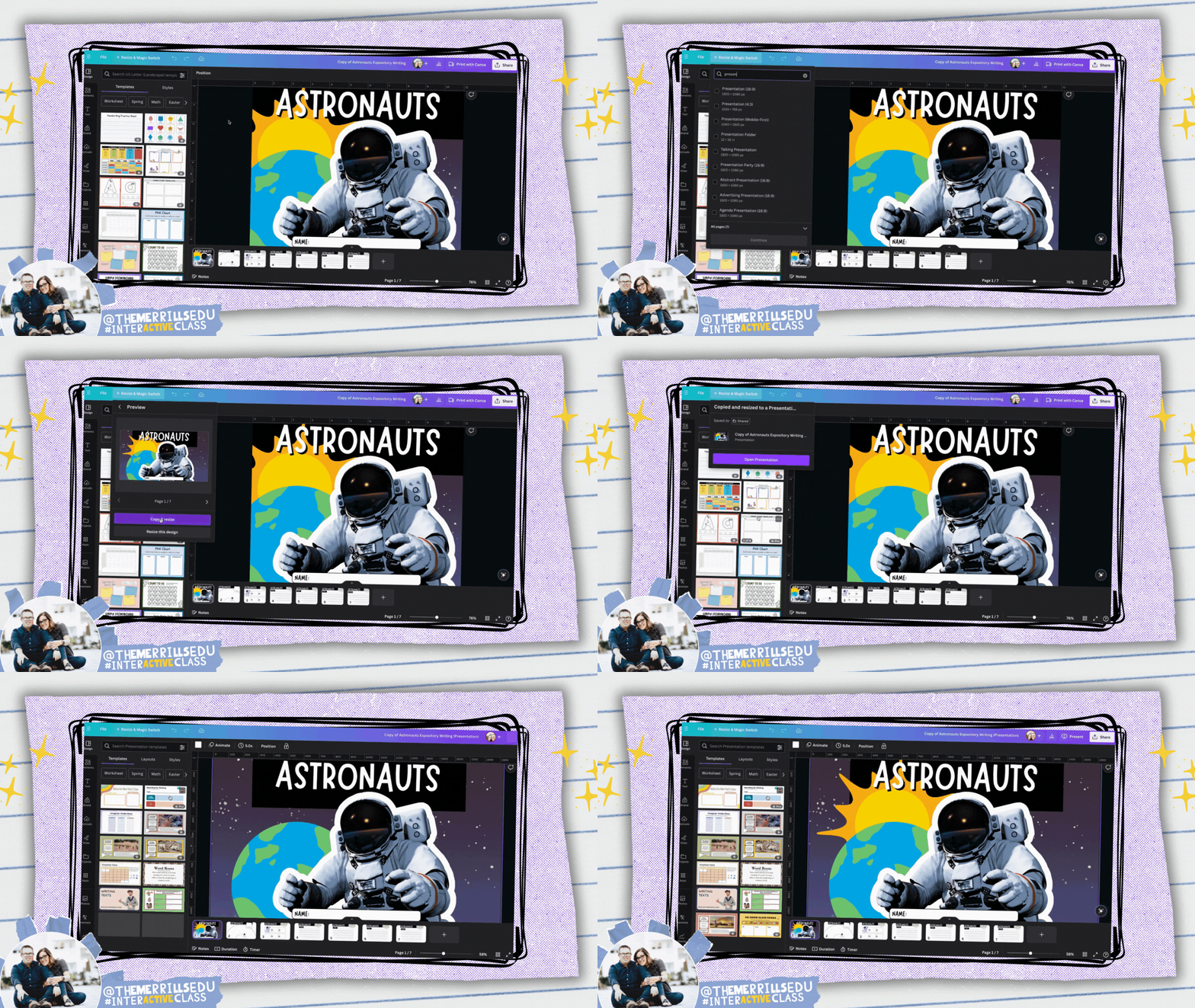
Canva’s Magic Switch uses AI change the format of your file or transform it into something entirely new. With Magic Switch you can: Transform your design into any type of Doc like a blog post, summary, email or even a poem. Resize one design into many for all channels, all with just a few clicks. Here’s how it all works:
Log onto Canva
Open a design that you wish to resize or transform.
Locate and click Resize & Magic Switch on the top left side of the screen.
Search for a resize option (for example: type worksheet). Tip: You can select more than one size.
Click Continue, then click either Copy & resize or resize this design.
Your new size(s) will be automatically generated. You may need to move elements around a bit, but it saves a lot of time!

Translate: Instantly Translate Your Content

Canva’s built in translator tool can translate text in your designs to 1,000’s of different languages. In just a few clicks, you can translate your content instantly. Finding it is a bit tricky, though. To access it, follow these steps:
Launch a Canva project
Right click a text box and then scroll down to Translate Text.
Complete the prompts to translate the text!
Canva also has a free document translator standalone website where anyone can upload a document and it will translate the content for you automatically. To check it out, click here or the image below!

Magic Write: Generate Text and Content Easily

Canva’s Magic Write is an AI-powered tool that helps users generate text and content ideas quickly and easily. It allows users to create a wide range of graphic design projects such as social media posts, presentations, flyers, and more. We appreciate the ability to quickly add clear directions to a resource, or narrow down a learning goal into a language that students can understand. Here’s how to access Magic Write:
Launch a Canva project
Click on any text box
Click Magic Write
Select your preference!
-- Please follow us on social media and tag us with how you’re using the AI in Canva in your classroom! 👓👗
For more tips, tricks and lesson ideas for making learning more interACTIVE, check out our books The InterACTIVE Class and Flipgrid in the InterACTIVE Class on Amazon!


How to Use AI Tools for Teachers to Save Time, Boost Engagement, and Personalize Learning
@TheMerrillsEDU share how teachers can use AI tools to save time, boost engagement, and personalize learning. You’ll learn about ten different tools to use in your classroom immediately and efficiently!
As a teacher, you know how challenging it can be to plan, prepare, and deliver effective and engaging lessons for your students. You also know how important it is to personalize learning for each student, according to their needs, interests, and goals. But how can you do all this without spending hours of your precious time and energy?
The answer is AI tools for teachers. AI, or artificial intelligence, is the technology that enables machines to perform tasks that normally require human intelligence, such as understanding language, recognizing images, and solving problems. AI tools for teachers are applications that use AI to help you with various aspects of teaching and learning, such as creating content, assessing students, providing feedback, and more.
In this blog post, we will show you how to use AI tools for teachers to save time, boost engagement, and personalize learning for your students. We will show how you can get started with them, and by the end of this post, you will have a better understanding of how AI tools for teachers can transform your classroom and enhance your teaching experience.
Please note: This blog post was hand-crafted and was not created using AI.
(click on any subheading to jump to that section)




How to Prompt AI as a Teacher
There doesn’t sound like there’s much to launching an AI tool, entering a prompt and seeing the results. But, prompting AI is a work of art that takes us beyond our world of immediate ask and receive. As we learn more about AI, we’ve come to realize that it’s important to be specific, thorough, and challenging.

A teacher using AI to generate content needs to be specific. Try entering in a grade level, targeted standards, learning goals, and even rubrics. If you’re looking to clarify directions, try adding, “make these directions clear for students age 10.” We find it helpful to use natural language that’s easy to understand and follow. Try to use keywords or phrases that match the topic and level of your students. Teachers can also use filters or modifiers to narrow down or expand search results.

Remember, AI responses can contain biases and out-dated information, so it’s important to think and challenge what is being generated. If a generated response doesn’t look right - challenge it. For example, if you use the prompt: “Generate a lesson plan on _______,” and the lesson plan doesn’t look grade-level appropriate, respond to your current prompt with, “now make it appropriate for ______ grade.” This can help the AI narrow down the content.
Diffit
Cost: Free and paid versions available
Compatibility: web based
Diffit is an AI-based platform that helps teachers customize their teaching methods to suit students’ reading levels and needs. Diffit can help teachers differentiate their content and instruction by:
Instantly creating leveled resources for any topic, lesson, or student
Providing vocabulary words, multiple choice questions, and other features to enhance comprehension and retention
Converting any content to all reading levels from 2nd to 11th grade (and higher), and in over 30 languages
Click here to sign up for a free account and watch and learn how it all works below!


Magic School AI
Cost: free and paid versions available
Compatibility: web based
Magic School AI is an AI platform for educators that offers 60+ tools to help with translation, differentiation, assessment, communication, and more. It can help teachers save time, fight burnout, promote sustainability, and build AI competencies and skills. Some of our favorite features of Magic School include their Text Leveler, Clear Directions, Custom Chatbox, Math Story Problems, and more. There’s a lot to love about Magic School AI, but another feature that has us excited is MagicStudent. MagicStudent is an AI platform designed to build AI literacy for students. It not only teaches students to use AI responsibly, it also unlocks learning opportunities not possible without generative AI. This feature is coming, so be sure to stay tuned for updates. Sign up for a Magic School AI account by clicking here and check out what it has to offer below!
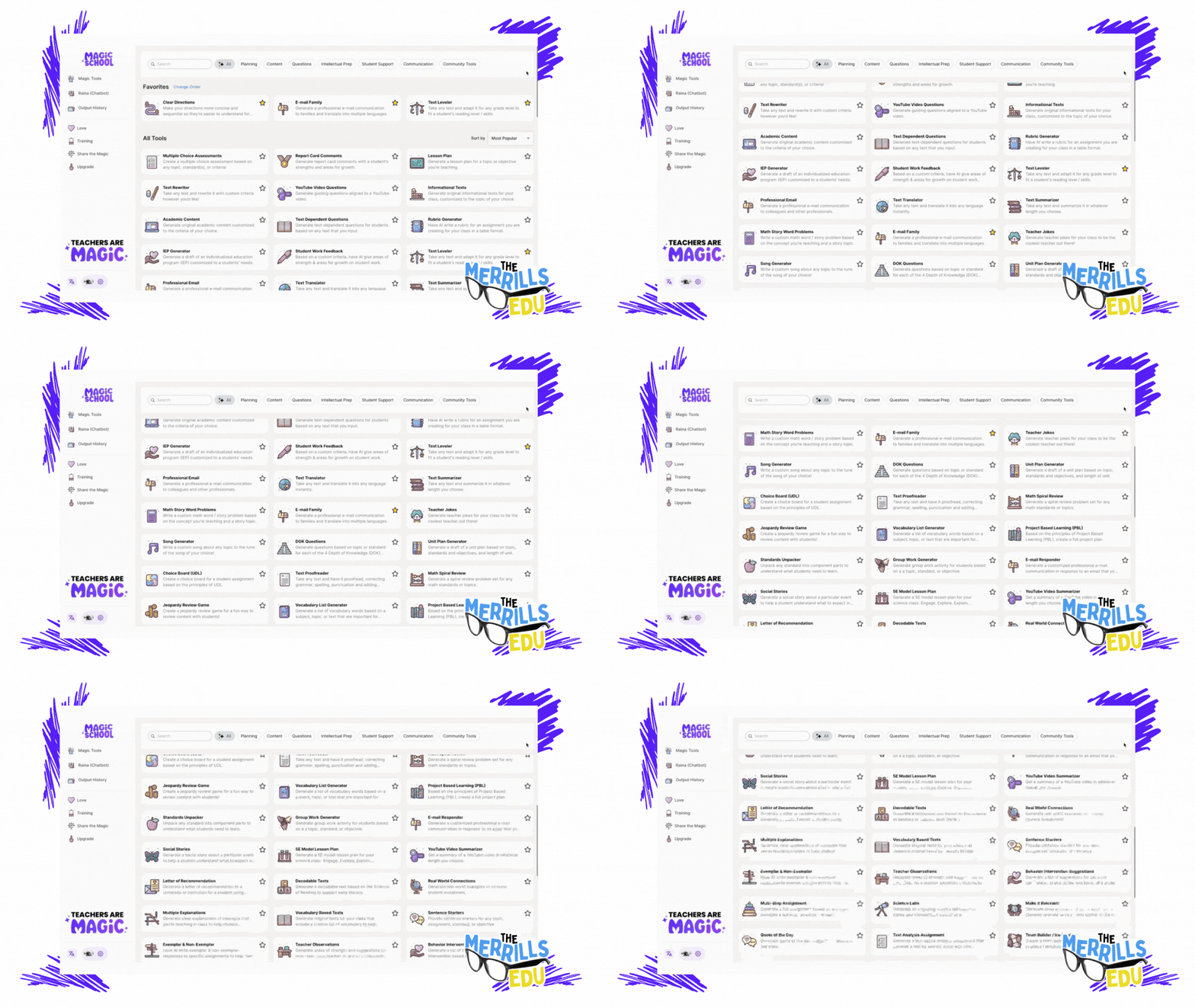

School AI
Cost: free
Compatibility: web based
School AI is an AI platform that helps teachers create, personalize, and engage their students with adaptive and interactive learning experiences. It also helps students learn at their own pace, level, and style, and get instant feedback and guidance from the AI. School AI is designed for K12 students and has built-in monitoring and controls for teachers.
School AI can help both teachers and students be successful by:
Saving teachers time and effort in planning, preparing, and delivering lessons
Providing teachers with data and insights on student performance and progress
Offering teachers various tools to customize and differentiate their instruction
Enhancing student motivation, engagement, and retention with gamified and immersive content
Supporting student autonomy, self-regulation, and metacognition with AI feedback and scaffolding
Catering to student diversity, inclusivity, and accessibility with multilingual and multimodal options
One of our favorite parts of SchoolAI is Spaces. With Spaces, users (both students and teachers) can use AI powered chatbots in creative ways. For example, you can set up a chatbot to act as a historical figure, taking questions from the student(s). It all feels very familiar to the kids - resembling a text message thread.
You can sign up for free and start using School AI today by clicking here, and check out what it has to offer below!


Class Companion
Cost: free
Compatibility: web based
We’re not going to lie….Class Companion is one of the tools that we’re most excited about. Class Companion is a website that uses AI to help teachers give instant, personalized feedback on written assignments. It can help teachers save time, monitor student progress, and differentiate instruction. It can also help students practice their writing skills, get immediate guidance, and improve their learning outcomes. Here’s how it works:
Teachers start by uploading an assignment and rubric. (TIP: When creating the assignment, we HIGHLY recommend setting the maximum number of attempts to more than 1. Doing so provides an opportunity to edit their work after the AI provides feedback.)
This gets shared to students (student accounts are required) via a shared link or an email.
Students complete their writing by typing out their essay in Class Companion, then submit for AI review / grade.
If you’ve chosen more than one attempt for your students, the AI will coach them through the teacher’s rubric, explaining whether or not the student has met the expectations. The student then has the opportunity to edit their work and try to improve.
When an assignment is submitted, the teacher has the ability to edit the AI’s score to provide a final grade.
To sign up for your FREE account, click here and check out our video below. You can also check out ouf full blog post on Class Companion by clicking here!

Curipod
Cost: free and paid versions available
Compatibility: web based
Curipod is a website that helps teachers create and deliver interactive lessons on any topic, with the help of artificial intelligence. Teachers can use Curipod to:
Generate lessons with AI: Curipod can suggest content, questions, and activities based on the topic and learning objectives that the teacher inputs. The teacher can then customize the lesson according to their preferences and needs.
Engage students with curiosity: Curipod’s lessons are designed to spark students’ curiosity and interest in learning, by using multimedia, gamification, and social learning features. Students can share their voices, opinions, and creations with their classmates and teachers.
Save time and resources: Curipod reduces the workload and stress of lesson planning and delivery, by providing ready-to-play lessons from verified educators and authors, as well as a user-friendly interface and seamless integration with other platforms.
To sign up for a free account, click here. Check out our video for more information below!

Eduaide.AI
Cost: free and paid versions available
Compatibility: web based
Eduaide.AI is a website that helps teachers create lesson plans, teaching resources, and assessments using artificial intelligence. Teachers can use Eduaide.AI in the classroom in the following ways:
Generate teaching resources: Teachers can choose from over 100 resource types and learning objects, such as worksheets, quizzes, slides, videos, etc. and use AI to generate content based on their topics and objectives.
Personalize instruction: Teachers can use the “transform” tool to modify the generated content to suit their students’ needs and preferences. They can also use the “feedback bot” to provide instant and customized feedback to students.
Collaborate with AI and other teachers: Teachers can use the “Eduaide chat” to ask questions and brainstorm ideas with the AI model. They can also share their resources with other teachers and access a community of practice.
To sign up for your account, click here and check out our video below!


CoPilot
Cost: free
Compatibility: web and mobile
Microsoft CoPilot is an AI companion that can help teachers and students with various tasks and projects, such as:
Writing and editing: CoPilot can assist with writing essays, reports, summaries, poems, stories, and more. It can also help with editing, proofreading, and improving the quality and clarity of the text.
Researching and learning: CoPilot can provide information, facts, definitions, examples, and explanations on any topic. It can also help with finding and citing sources, creating bibliographies, and checking plagiarism.
Coding and creating: CoPilot can help with coding in different languages, such as Python, Java, C#, etc. It can also help with creating apps, games, websites, graphics, and more.
Teaching and assessing: CoPilot can help teachers with creating lesson plans, teaching resources, and assessments. It can also help with providing feedback, grading, and tracking student progress.
Generating images: CoPilot paired with Microsoft Designer is able to produce images that may be used for presentations, lessons, etc.
To use CoPilot in the classroom, teachers and students need to sign in to their Microsoft account or Entra ID account and access CoPilot through the Microsoft Edge or Chrome browser, on Windows or Mac OS. They can also use CoPilot in select Microsoft 365 apps, such as Word, Excel, PowerPoint, Outlook, OneNote, and Teams. They can chat with CoPilot by typing or speaking their requests, and CoPilot will respond with relevant and useful information, suggestions, or content. They can also ask CoPilot to show examples, explain how it works, or give feedback. Check out our video below for more info!


Gemini (formely Bard)
Cost: free
Compatibility: web and mobile
Google's Gemini (formerly Bard) is a tool designed that can assist teachers in various ways, primarily by providing them with access to educational resources, streamlining administrative tasks, and facilitating communication and collaboration among teachers, students, and parents. Here are several ways Gemini can help teachers:
Resource Access: Gemini provides teachers with access to a wide range of educational resources, including lesson plans, teaching materials, videos, and interactive activities. These resources can help teachers enhance their lessons and engage students more effectively.
Curriculum Planning: Gemini offers tools for curriculum planning, allowing teachers to create, organize, and share lesson plans, unit outlines, and assessments. This helps teachers align their curriculum with educational standards and goals.
Assessment and Feedback: Gemini enables teachers to create and administer assessments, quizzes, and assignments digitally. Teachers can track student progress, provide timely feedback, and analyze assessment data to inform instruction and support student learning.
Teachers are able to access Gemini by clicking right here and accepting the terms. Educators can find Gemini in Google apps such as: Google Classroom, Google Docs, Google Sheets, Google Drive, and more.


Canva Magic Suite
Cost: free
Compatibility: web and mobile
Canva's Magic suite tools are a set of features designed to enhance the design process and make it easier for users to create visually appealing graphics and designs. These tools leverage artificial intelligence (AI) and automation to assist users in various aspects of design, including layout, color selection, and image editing. Here are some of the key features included in Canva's Magic suite:
Background Remover: This tool automatically removes the background from images, allowing users to create transparent or custom backgrounds for their designs. It simplifies the process of isolating subjects from their backgrounds, which is useful for creating product images, profile pictures, and design elements.
Color Palette Generator: Canva's Color Palette Generator analyzes an image and generates a complementary color palette based on the colors present in the image. This tool helps users create cohesive and visually appealing designs by providing color inspiration and ensuring color harmony.
Font Pairing: Font Pairing suggests font combinations that work well together, helping users choose complementary fonts for their designs. It takes into account factors such as font style, weight, and contrast to ensure readability and aesthetic appeal.
Layout Suggestions: Canva's Layout Suggestions feature analyzes the content of a design and provides suggestions for layout options. It helps users quickly explore different layout possibilities and find the best arrangement for their content, saving time and effort in the design process.
Smart Resize: Smart Resize automatically adjusts the dimensions of a design to fit different aspect ratios and sizes, making it easy to create variations of the same design for different platforms and devices. This feature saves time by eliminating the need to manually resize and reformat designs for different purposes.
Image Cropping: Canva's Image Cropping tool provides intelligent cropping suggestions based on the composition of the image and the aspect ratio of the design. It helps users crop images to fit specific dimensions or aspect ratios while preserving the most important parts of the image.
Overall, Canva's Magic suite tools leverage AI and automation to simplify the design process, provide creative inspiration, and assist users in creating professional-looking designs with ease. These features are valuable for students and teachers looking to create high-quality graphics and visual content for academic purposes. To learn more about how Canva can be used in the classroom, check out our blog posts and video tutorials below:
-- Please follow us on social media and tag us with how you’re using AI tools in your classroom! 👓👗
For more tips, tricks and lesson ideas for making learning more interACTIVE, check out our books The InterACTIVE Class and Flipgrid in the InterACTIVE Class on Amazon!



How to Use AI to Automatically Grade Writing Assignments with Class Companion
Learn how AI can automatically grade your student’s writing assignments using the FREE app, Class Companion! We’ll walk you through how to sign up, how it works, and what it looks like for students!

What if we told you that you could use AI to automatically grade your student’s writing assignments? What seemed like a dream is now reality thanks to Class Companion! Class Companion is a website that uses AI to help teachers give instant, personalized feedback on written assignments. It also provides engaged practice for students, time savings and insights for teachers. Teachers can use built-in assignments or add their own. In this blog post, we’ll show you where to sign up for your account, how to create a rubric and assignment, how to get students on (and what that looks like), and how educators have the final say in the grading process.
Please note: This blog post was hand-crafted and was not created using AI.
(click on any subheading to jump to that section)


What is Class Companion and how does it work?
With Class Companion, teachers can cheer on their students with immediate feedback and tailor their learning to their individual needs. Teachers can also use the AI platform to design fun and challenging assignments, spark students' curiosity, share helpful tips, and track their growth over time. Check out our brief overview of the platform in the video!

Where to Sign Up for a Class Companion Account
You heard, “automatically graded writing assignments,” and you were sold! Now what? Class Companion is free for educators and students. However, both teachers and students will need accounts to use the platform. Educator accounts can be created by clicking on the link here. Heads up, students are required to use an email address. Students are able to create accounts by being invited by their teacher(s) via shared link. To create student accounts and invite them to your class, follow these steps:
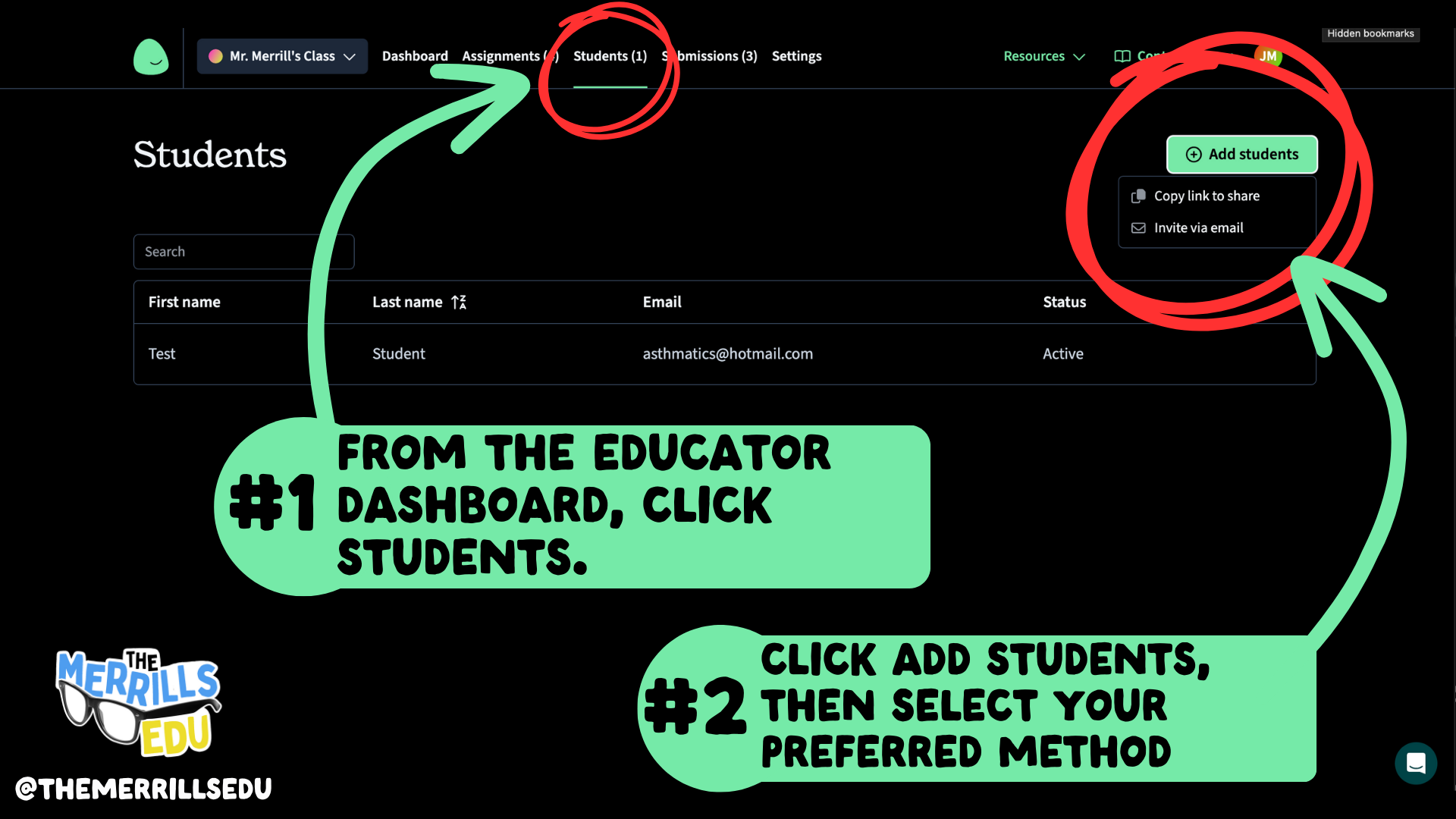
Log into Class Companion as a teacher. Locate the Students tab on the top, then click it.
Click the +Add students button located on the top right.
Now, select your preferred method: Copy link to share or Invite via email. The Copy link to share option will generate a private link that may be shared to students. Students will use this link to enter their email address and a password to create their accounts. The Invite via email works similarly, only the link is shared via email.
After using either method, your students will automatically appear in your class.

How to Create a Rubric and Assignment
in Class Companion
Now that you have your accounts ready, it’s time to create your first rubric and assignment. Here’s how to create an assignment in Class Companion:
On the top toolbar, click on Assignments.
Now click on “+Add Assignment,” then select either: Duplicate from Content Library, Generate with AI, Import, or Create From Scratch.
Then, complete the steps filling out the information. (TIP: When creating the assignment, we HIGHLY recommend setting the maximum number of attempts to more than 1. Doing so provides an opportunity to edit their work after the AI provides feedback.)
Now, let’s add a rubric to our assignment.
Under Rubric, click Add rubric.
When creating a rubric, you have a choice of the type of format you’d like to use: Paragraph or list, and Table. Select your preferred format, then enter your information in the text boxes. When you’ve finished, click the Create rubric button on the top right.
Your rubric will now be added to the writing assignment. Once everything looks good, click on Save located on the top right. Your assignment will now appear on the student’s dashboard when they log in.
This gets shared to students (student accounts are required) via a shared link or an email.
Students complete their writing by typing out their essay in Class Companion, then submit for AI review / grade.
If you’ve chosen more than one attempt for your students, the AI will coach them through the teacher’s rubric, explaining whether or not the student has met the expectations. The student then has the opportunity to edit their work and try to improve.
When an assignment is submitted, the teacher has the ability to edit the AI’s score to provide a final grade.

How to Get Students Logged Onto Class Companion (and What That Looks Like)
Now that you’ve created a class, rubric, and assignment, it’s time to get your students logged on and working. Have your students follow these steps to find their assignments (note: students must have their accounts created prior to these steps):

Direct students to this link, and have them log in using their credentials.
Once students log in, they will see their assignment(s). They may click on the assignment to get started.
Now that the student has logged in and opened the assignment, they will be prompted according to the directions that you gave when creating the assignment. The students will complete the assignment and turn it in for AI feedback / grading by clicking the Submit assignment button located at the bottom of the screen. Once they submit their work, the AI will produce feedback / grade their work. If you have selected multiple attempts when creating the assignment, the students will have the opportunity to read over the feedback from the AI and make changes to their work. They may repeat this as many times as you have allowed (when selecting multiple attempts). So, if you gave them 8 multiple attempts, they can submit it up to 8 times for feedback.

How to Override the AI’s Grade in Class Companion
Once they’ve turned the essay in, they will be able to see how they performed according to your rubric / the AI. Something worth noting, is that when a student submits their work, you also have the ability to see if they copied & pasted their work. You will see, “pasting” listed next to the student’s assignment status. As the educator, you have full control and are able to edit any scores as you see fit. Here’s how to edit student scores:
Log onto the Class Companion dashboard, then click on Submissions located at the top of the page.
Click on the student / assignment and review how the AI graded the student’s work.
If you disagree with how the work was graded, you can easily edit the score(s). To do so, click on the Override icon (that looks like a hammer or paint roller).
Then, edit the final score. You also have the option to leave feedback or a comment. Once you have entered the information, click on the save button.
The new score will now be reflected!
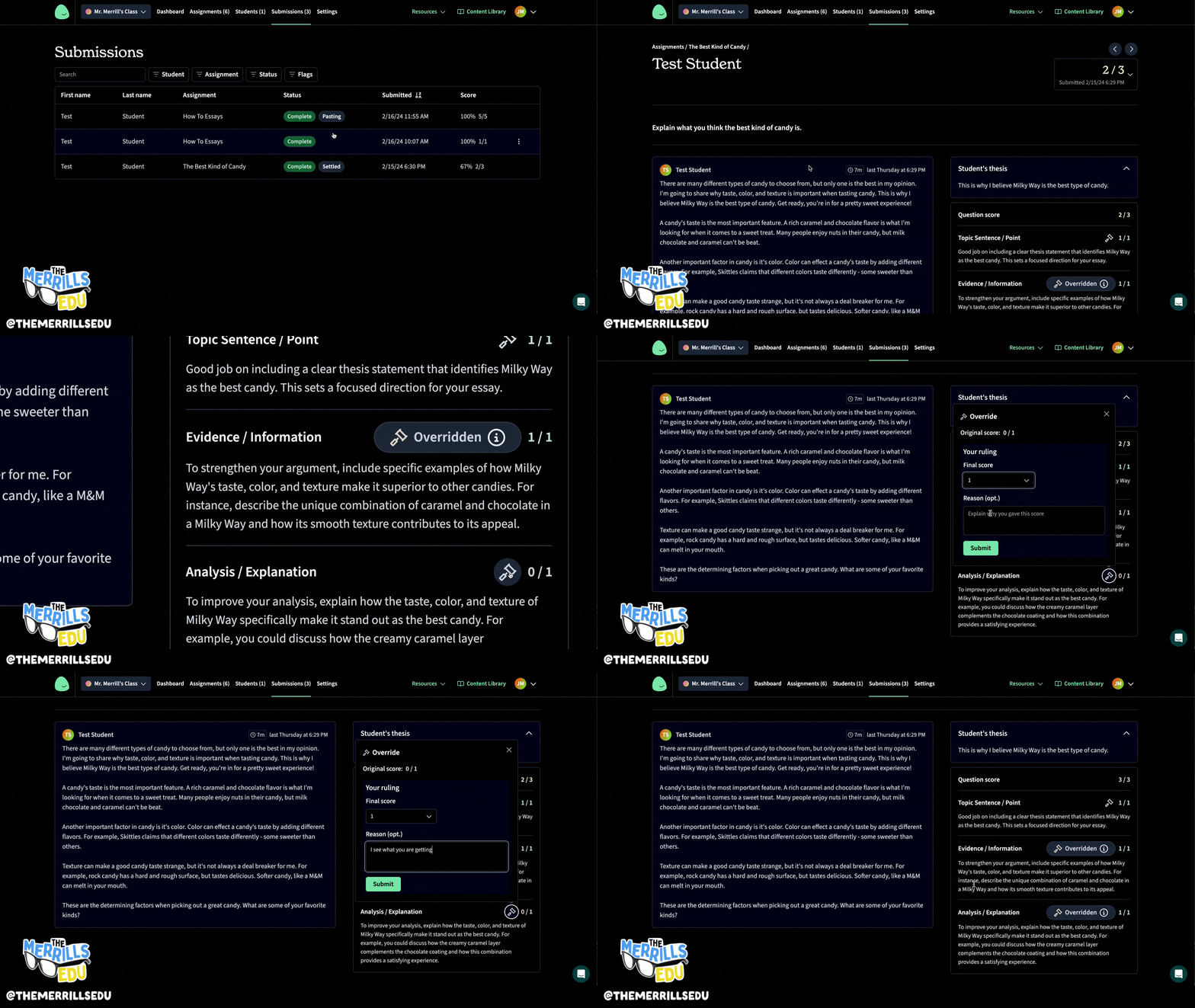
-- Please follow us on social media and tag us with how you’re using Class Companion activities in your classroom! 👓👗
For more tips, tricks and lesson ideas for making learning more interACTIVE, check out our books The InterACTIVE Class and Flipgrid in the InterACTIVE Class on Amazon!



How to Import Jamboard Files into Lucidspark (So They're Editable)
Are you nervous that you might lose all of your Jamboard files? We’ve got you covered! Check out this blog post to learn how to import Google’s Jamboard files into Lucidspark. Users who import these files will maintain the ability to edit their files!

Google’s Jamboard is sunsetting as of Dec. 31st, 2024. But, Lucidspark has stepped in to save teachers time and resources. As of February 1st, 2024, teachers will now have the ability to import their Jamboard files directly into Lucidspark, preserving the ability to edit them. In this blog post, we’ll walk you through the steps and share how you can keep jamming in Lucidspark!
(click any subheading below to jump to that section)


How to Sign Up For Lucidspark
Lucidspark is free for both teachers and students. Signing up for an account is easy and can be done so by clicking here, or the image below. Once you click on the link, you will see a pop-up that appears asking how you plan to use Lucid. Select Educator (or Student if you’re a student). NOTE: You must use the email address assigned to you by your educational institution to qualify for a free Lucid educational account.

How to Save Jamboard Files for Lucidspark
You won’t need to prepare anything to move your Jamboard files into Lucidspark. The Jamboard file types will be recognized as .json files, or Jamboard files. When the .json files are uploaded into Lucidspark, it will recognize them and you will maintain editing abilities. HUGE shoutout to Lucidspark for making this as easy as possible!

How to Import Jamboard Files for Lucidspark
Now that you’ve saved your Jamboard files, let’s walk through how you can import them into Lucidspark. Follow these steps:
From the Lucid dashboard, click on the +New button on the top left.
Hover over Lucidspark, then hover over Board Import, then click on Jamboard.
You may be prompted to authenticate your Google account and it’s permissions.
Select the board (or boards) that you wish to import. To select multiple boards, hold down the shift key when selecting.
Click Select followed by Import
Your Jamboard files will now be available to edit and use in Lucidspark!


How to Share Lucidspark Files with Students
Now that you have your Jamboard files imported into Lucidspark, it’s time to share them with your students to get them logged on. In order to do so, you will need to set up your class on Lucidspark. Click here for assistance on setting up your class and adding students.
To share your new Lucidspark files with students, you have several options. You may do so by sending a email message, creating a sharable link, or having students use a join ID.
Sharing with a link provides easy access to your Lucidspark documents, especially if you’re using an LMS (Learning Management System) such as Canvas, Schoology, Google Classroom, or Microsoft Teams. Here’s how to share using a link:


If your students have email addresses, you can email them the Lucidspark file(s) directly to them. To do so, follow these steps:
Click on the Share button located on the top right of your Lucidspark document / file.
Click Email in the pop up window.
Enter the email addresses of the students you wish to share with. (Tip: You can share the document with the entire class by typing your class name.)
Click Invite. Your Lucidspark document will now be shared with your students!

Sharing with a link provides easy access to your Lucidspark documents, especially if you’re using an LMS (Learning Management System) such as Canvas, Schoology, Google Classroom, or Microsoft Teams. Here’s how to share using a link:
Click on the Share button located on the top right of your Lucidspark document / file.
Click Link in the pop up window.
Toggle on the sharable link option. This will generate a hyperlink.
Choose your preferred settings.
Click Copy link to copy your Lucidspark document’s hyperlink, then paste it wherever you share with your students. The students will be able to click this link and then gain access.


Enabling a Join ID will allow students to log onto the Lucid app and then enter a six character code for easy access. Here’s how to enable a Join ID:
Click on the Share button located on the top right of your Lucidspark document / file.
Click Join ID in the pop up window.
Toggle on the Share a Join ID for easy access button.
Share this link with your students: https://lucid.app/join
When students head to the link, they will need to enter the six character code that Lucidspark generated.
Students will be able to gain access to the Lucidspark document after entering the six character code.

-- Please follow us on social media and tag us with how you’re using Lucidspark activities in your classroom! 👓👗
For more tips, tricks and lesson ideas for making learning more interACTIVE, check out our books The InterACTIVE Class and Flipgrid in the InterACTIVE Class on Amazon!


10 Education Apps to Use in 2024
We’ve picked ten must see applications that we believe will be handy in 2024! Everything from AI helping teachers and students, to coding and creation. You have to see them to believe them!

With the rise of AI in 2024, the landscape of education is evolving rapidly. With a myriad of education apps revolutionizing how we acquire knowledge and skills. Whether you're a student looking to enhance your academic performance or creeativity, an educator aiming to upskill in your field, or a lifelong learner thirsty for new information, there's a new app for you. In this blog post, we'll explore the top ten ed tech apps of 2024, curated to cater to various learning styles, subjects, and levels of expertise. Check them out below!
(click on any subheading to jump to that section)


Magic School AI
Cost: Free and Premium ($100 per year) Options available
Platform: Mobile and PC
Magic School AI is an AI-powered platform that helps teachers with various tasks such as lesson planning, differentiation, writing assessments, writing IEPs, and communicating clearly. It is designed to save time, fight burnout, and promote sustainability for educators. It also helps teachers build AI competencies and skills by using and learning about AI in the process. To learn more and sign up for an account, click here or the image below.


Diffit for Teachers
Cost: Free and Premium ($14.99 per month) Options available
Platform: Mobile and PC
Diffit for teachers (we believe could be short for “Differentiation for Teachers”) is an AI-powered tool that helps teachers create leveled resources for any topic, lesson, or text. It can analyze, modify, and generate texts that are tailored to each student’s reading level and needs, providing a natural way for teachers to differentiate. It can also provide vocabulary words, multiple choice questions, and other features to enhance learning. Diffit for teachers can save time, support differentiation, and foster literacy skills for teachers and students alike. To learn more or sign up for an account, click here or the image below.


Moov
Cost: TBD (Demo version available)
Platform: Mobile and PC
Moov is a startup from young CEO Kevin Camson. Kevin learned how to code and created a groundbreaking way to communicate to students. Moov is a one-stop-shop that will take attendance, track school busses, promote school events, meetings, school groups and so much more. Think of it as a secure and safe “social media” type feeling to an internal way of connecting with your students. Moov also has the coolest looking website that we have seen in a long time! Check it out and sign up for a demo by clicking here or the image below!


Class Companion
Cost: FREE FOR TEACHERS AND STUDENTS
Platform: Mobile and PC
Class Companion is an AI-powered platform that helps high school social studies teachers assess written assignments. It can provide instant, personalized feedback to students, as well as generate and modify texts for different reading levels. It can also help teachers create assignments, track student progress, and learn about AI themselves. Class Companion is a great option for teachers to save time, support differentiation, and foster literacy skills. To sign up for an account or learn more, click here or the image below.
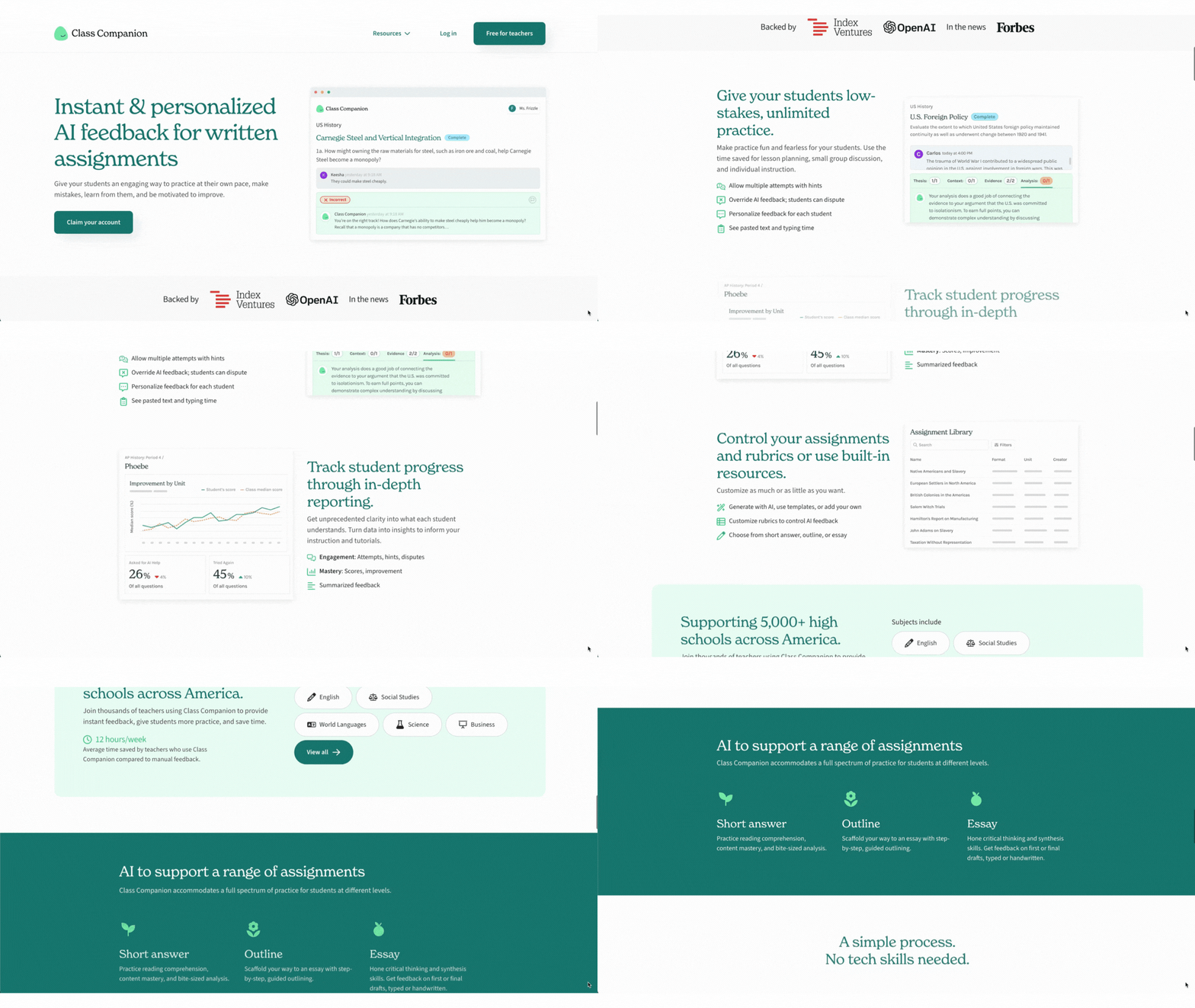

Book Creator
Cost: FREE and premium ($13 per month) options available
Platform: Mobile and PC
If you’ve followed us, then you know our love for Book Creator runs deep. But, this platform does so much more than it’s name suggests. Book Creator has added an integration with Canva which allows students to design their books using Canva without having to leave Book Creator (you read that right - click here to learn more). Book Creator also has added HUGE updates to their collaboration features including: commenting, video, audio recordings, emojis, and more. But students aren’t the only ones excited about Book Creator. Now, there are LMS (Learning Management Software) integrations with Canvas and Schoology. So, teachers can Book Creator assignments right within their LMS. These books can be submitted by students, read / graded by teachers, and even shared within a district. Book Creator has also just announced that central libraries are coming to it’s platform, This will soon be the starting place for educator’s to build and share resources that your whole district can use. To sign up for an account or learn more, click here or the image below.
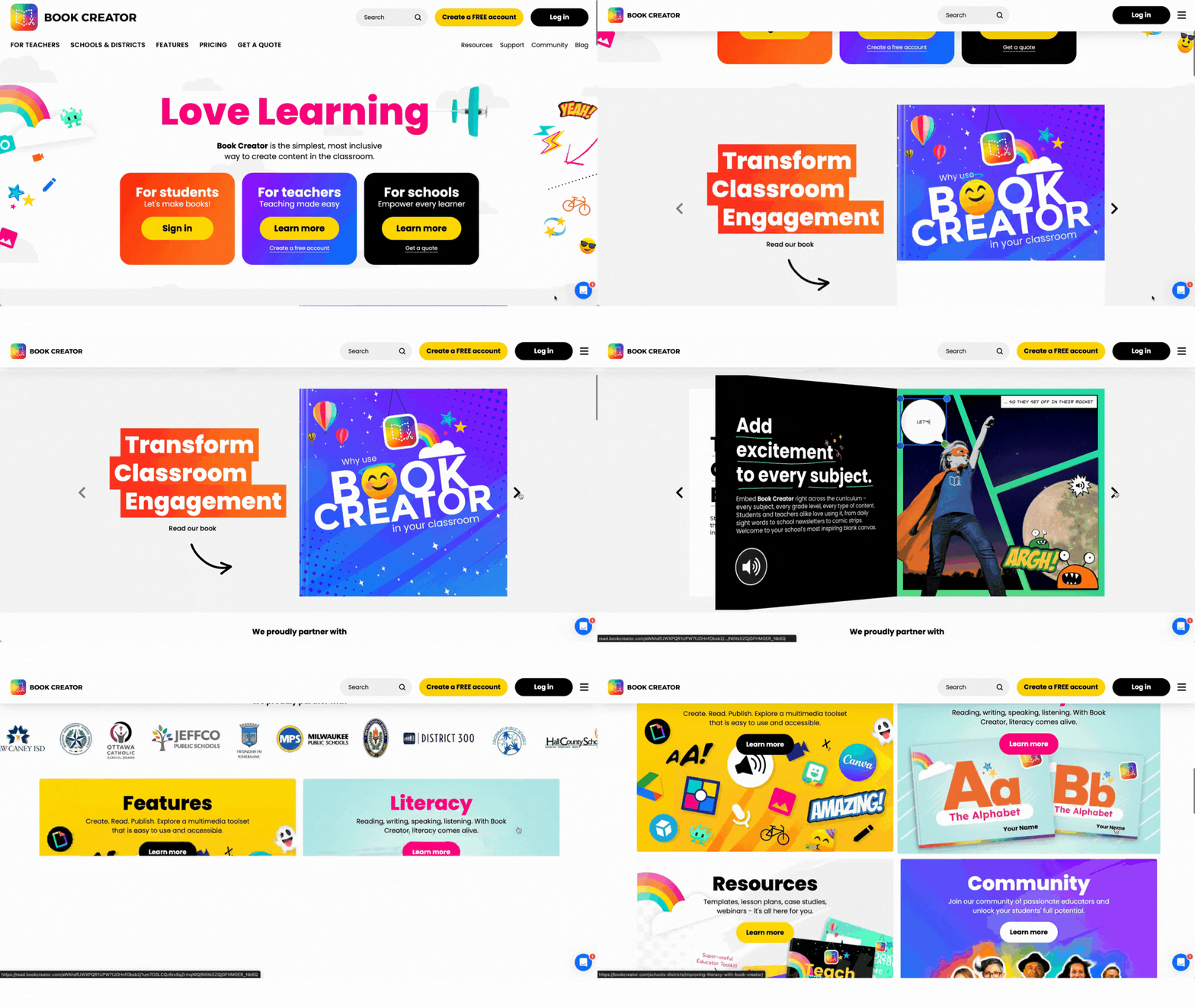

Canva for Education
Cost: FREE
Platform: Mobile and PC
If you’re reading this and think, “Canva? That’s not a new tool!” You’re right, but what has been sticking out lately is Canva’s updates and integrations. There are a TON of AI options, including Canva’s Magic Suite (click here to learn more about them here). There are new apps being loaded into it’s integrations all the time, but some of our favorite include SecretInk, Murf AI, Type Gradient and more. To learn more and sign up for a free account, click here or the image below!


Kami
Cost: FREE and premium ($99 / year) options available
Platform: Mobile and PC
Kami is an online platform that allows teachers and students to annotate, collaborate, and interact with digital documents. It can be integrated with popular learning management systems such as Google Classroom, Canvas, and Schoology. Kami can also be used as a digital whiteboard, a PDF editor, and an accessibility tool. The app aims to make learning more engaging, flexible, and inclusive for all. To sign up for an account, click here or the image above. (NOTE: Microsoft Innovative Educator Experts, Google Certified Trainers / Innovators / Coaches can all receive a free Kami premium license for one year by singing up here.)
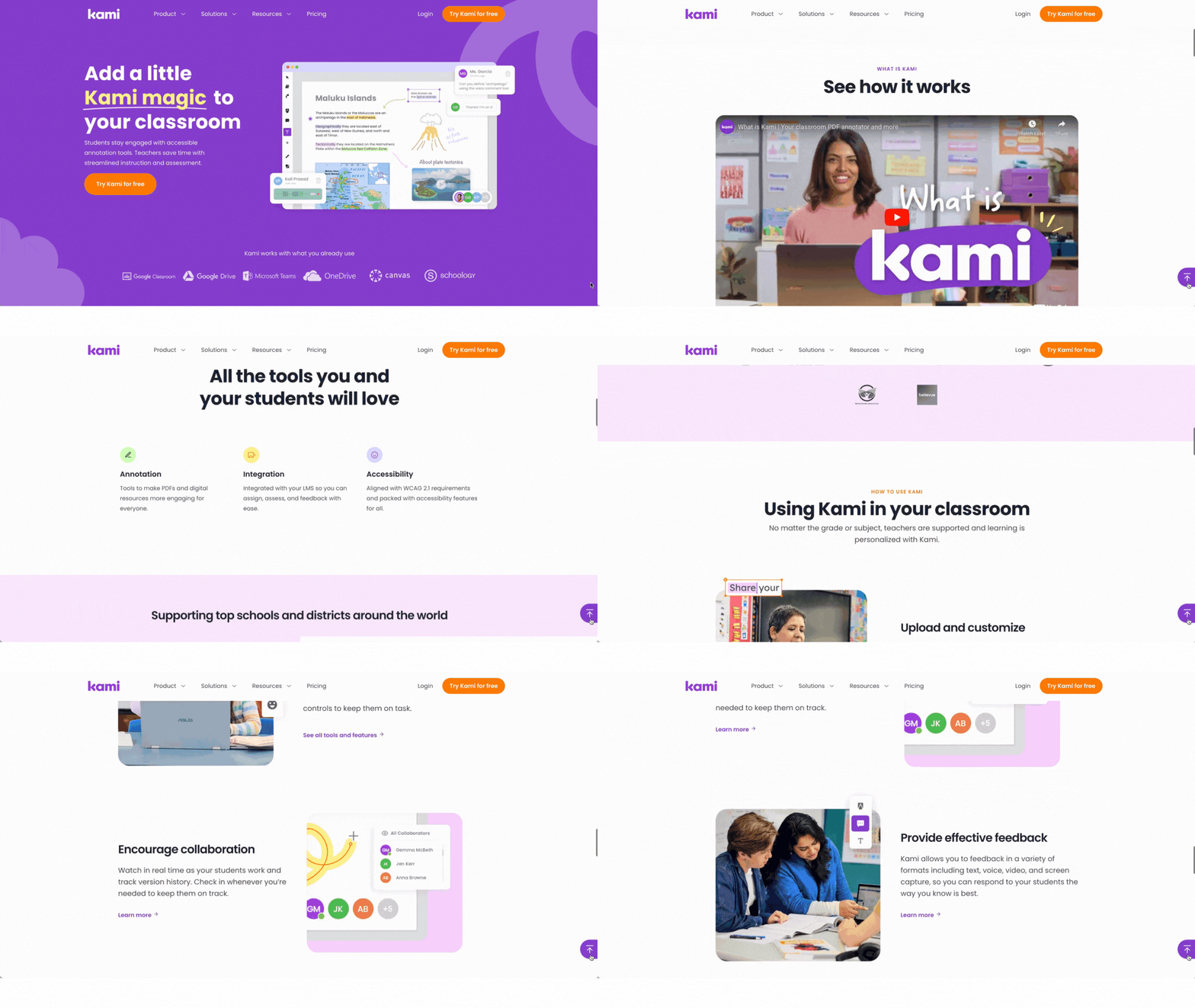

Lucidspark
Cost: FREE
Platform: Mobile and PC
Lucidspark is a virtual whiteboard app that allows you to brainstorm, collaborate, and interact with digital documents in real time. You can use it to capture and share your ideas, make connections, and plan and track projects visually. Lucidspark can also be integrated with Lucidchart, a diagramming and data visualization app, to create more polished and professional documents. Jamboard users will want to familiarize themselves with Lucidspark, because Lucidspark has created a way for Jamboard users to upload their Jamboard files and maintain the ability to edit them. To learn more and sign up for an account, click here or the image.
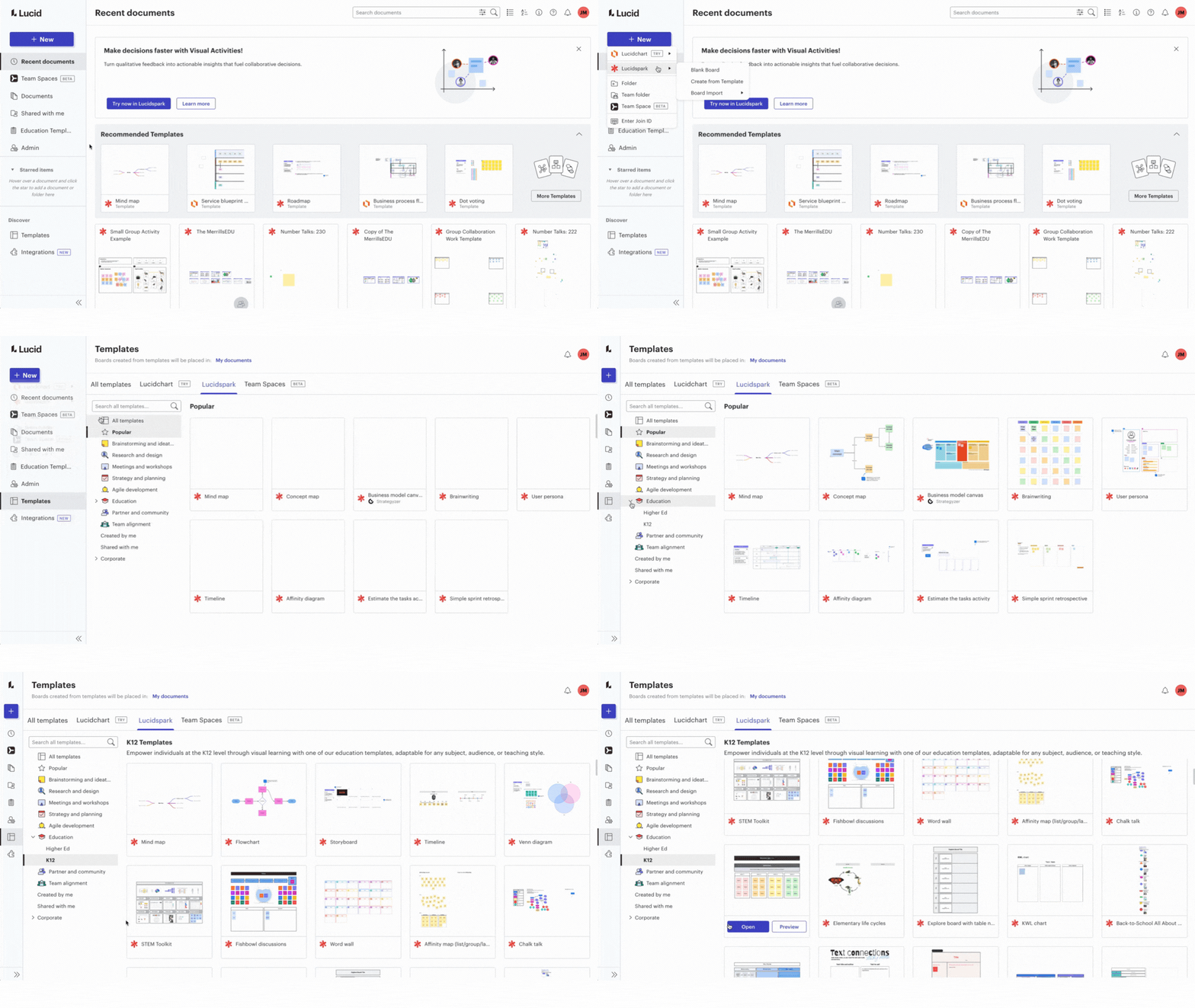

Beanstack
Cost: Contact for pricing
Platform: Mobile and PC
Beanstack is an online platform that helps schools, libraries, and families read more with fun reading challenges, easy tracking, and insightful data. You can use Beanstack to join reading programs, log your reading sessions, earn badges and rewards, and discover new books. It can also help you raise money for your organization with reading fundraisers. To learn more, click here or the image!


imagi
Cost: Contact for pricing
Platform: Mobile and PC
imagi is a coding education platform that teaches Python, a real programming language, through creative and social activities. It consists of two main components: imagiCharms and imagi Edu. imagiCharms are colorful and customizable accessories that you can program with the imagi app. imagi Edu is a learning platform that provides interactive and inclusive coding lessons and tools for educators and students. imagi aims to make coding fun, accessible, and empowering for everyone. To learn more, click here or the image below!
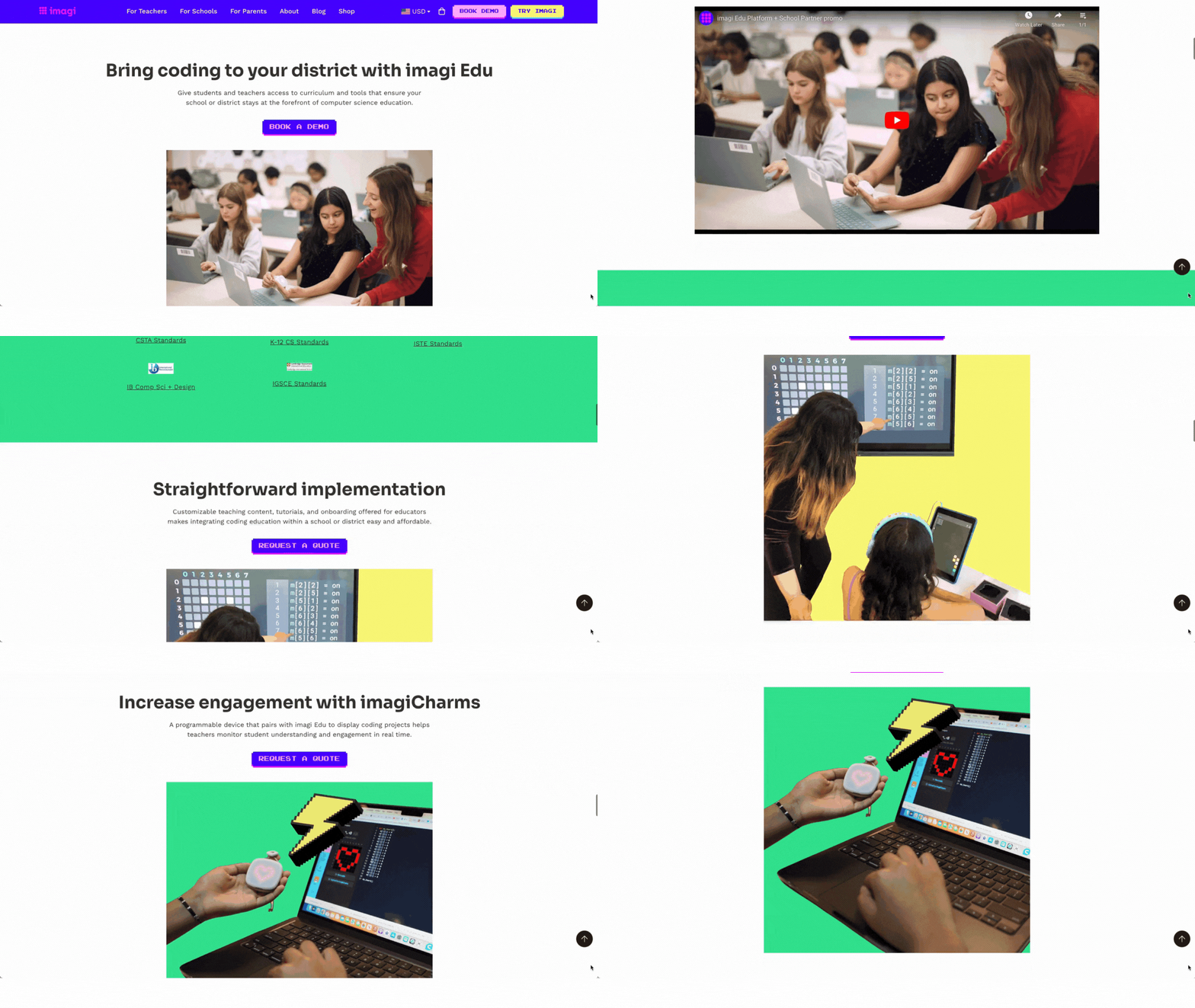
-- Please follow us on social media and tag us with how you’re using these platforms in your classroom! 👓👗
For more tips, tricks and lesson ideas for making learning more interACTIVE, check out our books The InterACTIVE Class and Flipgrid in the InterACTIVE Class on Amazon!




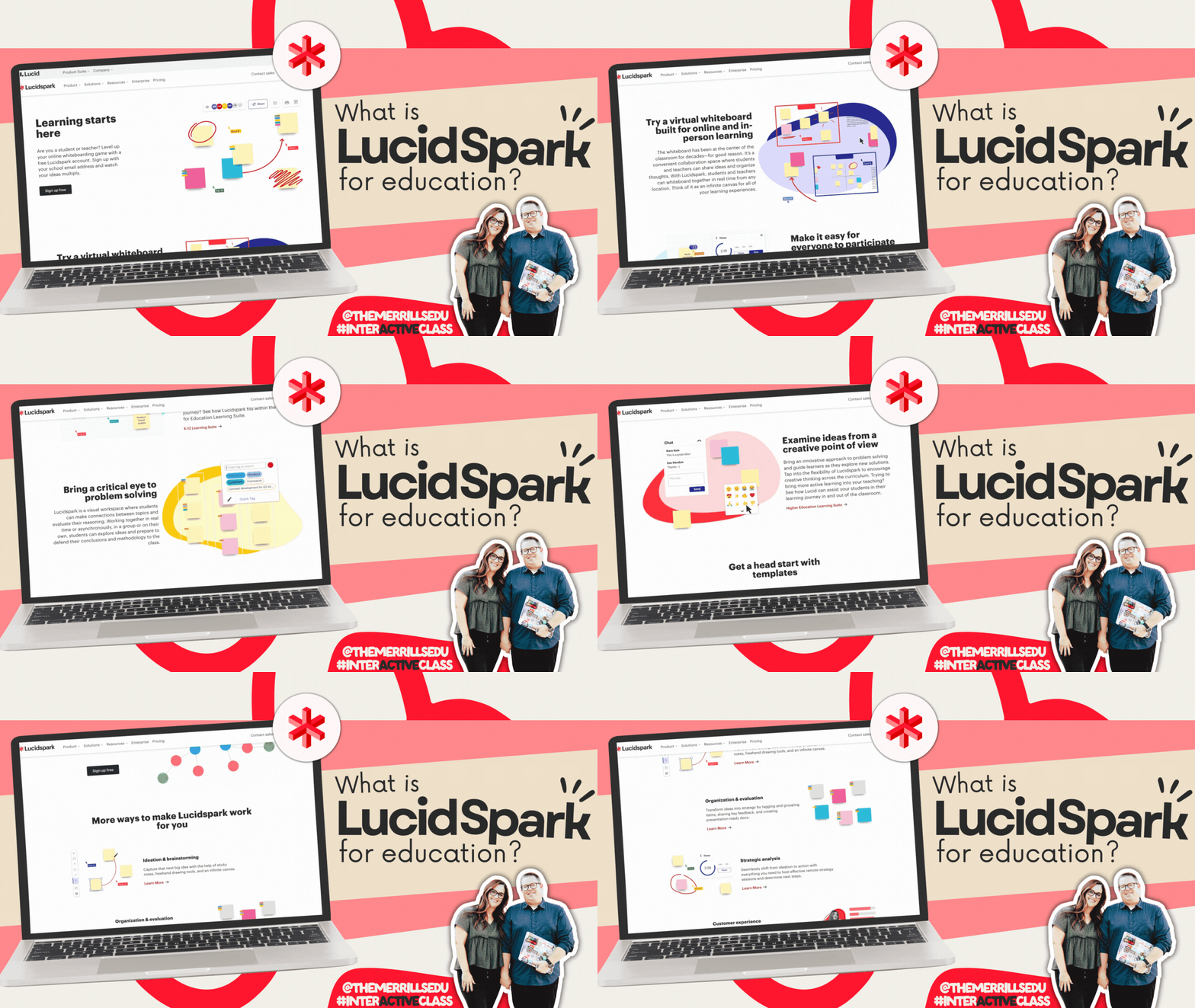
What is Lucidspark?
@TheMerrillsEDU explain the all-new Jamboard alternative, Lucidspark. Learn how this free for educators tool can enhance collaboration, promote creativity, and provide outlets for multimedia.

Recently, Google announced that it’s sunsetting Jamboard as of December 2024. Google has partnered with third-party providers to offer alternative solutions for digital whiteboarding, and one of them is Lucidspark. Lucidspark is a virtual whiteboard that fosters collaboration in the classroom, while empowering students to bring their best ideas to life. It has many features never offered in Jamboard, such as integrations with other apps, live voting, timers, templates, and collaborative AI. In this blog post, we’ll explain what Lucidspark is, compare it to Jamboard, how to get students logged on and show you where to create your own free acount.
(click on any subheading to jump to that section)


What is Lucidspark for Education?

Jamboard users loved the platform for it’s digital whiteboard features, but Lucidspark takes learning to the next level, giving students and teachers a smarter way to diagram. Lucid brings your ideas to life with easy-to-use features, unmatched intelligence, and end-to-end visual collaboration for everyone. The Lucid for Education Learning Suite is the perfect next step for anyone using Jamboard in education—from kindergarten to college. It has hundreds of customizable templates and gives educators controls for managing student interactions. The best part of all, it’s completely free!

One of our favorite features of Lucidspark is it’s ability to bring collaboration easily into the classroom. Educators can seamlessly guide, moderate, and evaluate collaborative discussions while maintaining students' focus on the board and locking elements of the template that shouldn't change. But the power of Lucidspark gets even better: Educators can easily increase the equality of student participation by selecting from a bank of ready-to-use activities. Your students complete them independently, eliminating peer bias. Then, Lucid instantly synthesizes the responses and generates a visual report of the combined results, along with each student's individual work. Lucid does the calculating for you so you can assess student comprehension immediately.
Lucidspark is compatible with multiple platforms, including Google and Microsoft. Educators and students can gain access to Lucidspark from the tools like Google Classroom or Canvas, streamlining your experience and eliminating the need for multiple sign-ins. Lucidspark is COPPA, FERPA, and GDPR compliant. It can be used by students of all ages, in all countries. Students under 13 use Lucid as directed by their schools.

How Does Lucidspark Compare to Jamboard?
Lucidspark has all of the features you’ve come to know and love in Jamboard, and so much more. Just like in Jamboard, you can place sticky notes, add text, add drawing, insert shapes and images, and add GIFs with your document. Lucidspark also has many additional tools that educators have been asking for like facilitator controls for the teacher, student names on sticky notes, voting, timers, emojis, and more. Check out our breakdown below for more details!


Embedding in Lucidspark is as easy as copying and pasting! Users can copy a hyperlink, then paste it anywhere on a board. These can be moved anywhere that you’d like. Users can also add media such as playable videos, images, GiFs, emojis, icons, or search the web right within the platform.


Collaborative AI is built directly into the Lucidspark toolbar. Users can launch this feature by clicking on the diamond icon, and then type out a prompt. This will allow users to generate ideas, extend brainstorming sessions, uncover key themes, and rapidly summarize the latest working session.
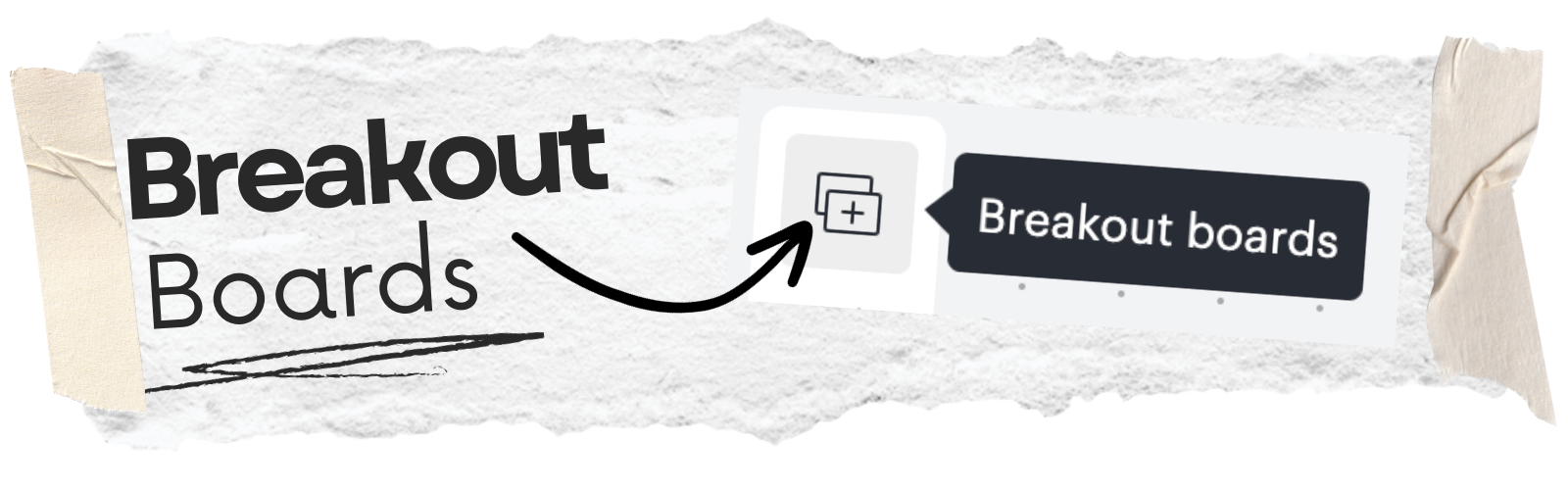
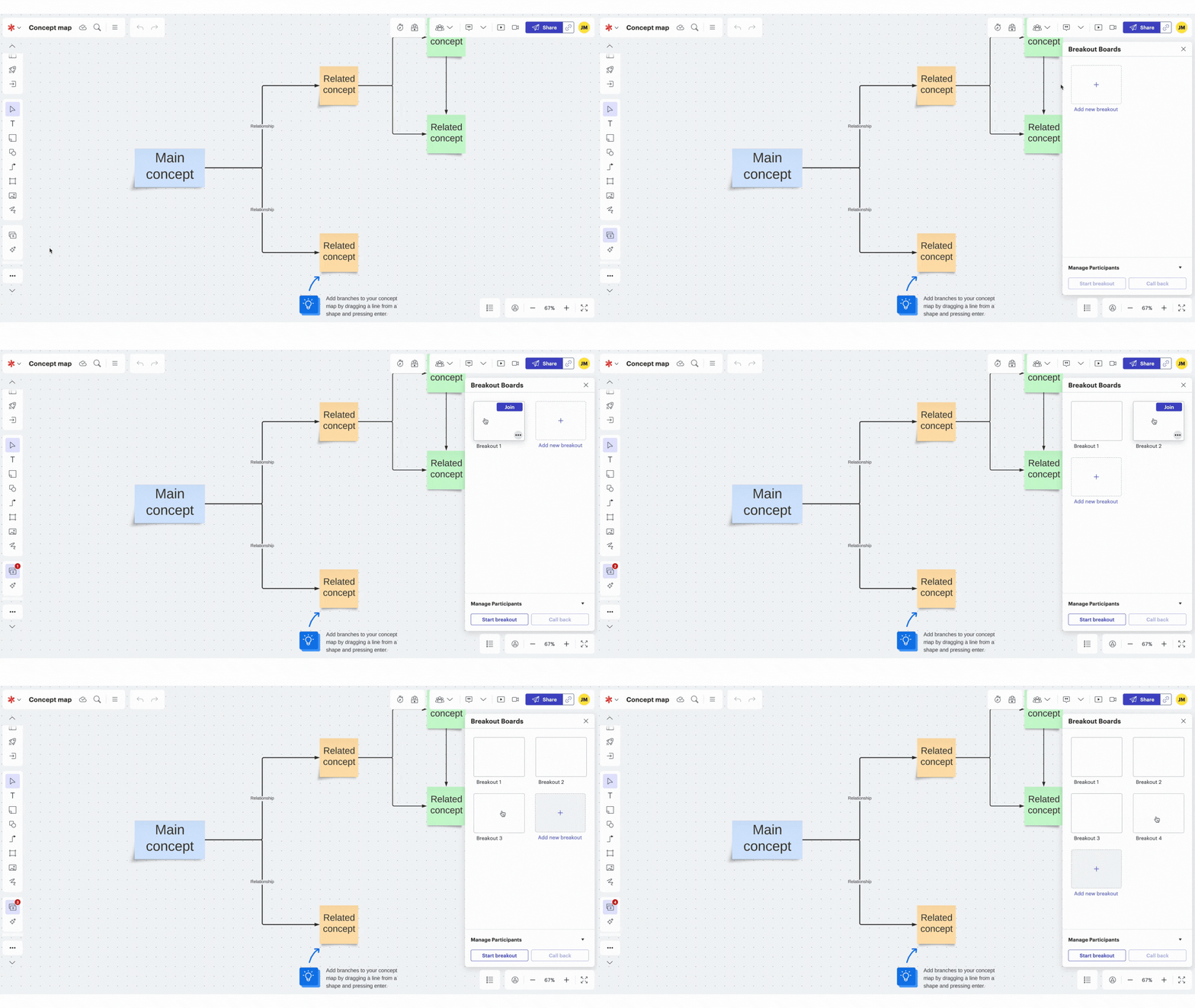
One of our favorite features of Lucidspark is it’s ability to generate Breakout Boards. Similar to breakout rooms, Breakout Boards are initiated when a collaboration session begins. To start the breakout session, select Start Breakout from the bottom of the Breakout Board panel. The Breakout Boards panel will become visible to all participants and they'll be able to select a board to join, which will send them to a separate Lucidspark board.
You can also share a direct link to a Breakout Board. You can do this by selecting Copy direct link from the three-dot menu in the Breakout Board panel and from within a Breakout Board by selecting Copy link in the upper-right corner. When the session is over, select Call Back to bring everyone back to the Main Board. Participants can also navigate back to the main board themselves at any time by clicking Main Board in the upper-left corner.


Timers will help keep your students on track and focused during activities. The built-in timer shows the countdown on everyone’s screens so educators can keep things moving. Launch a timer at the top of a Lucidspark document, then click on the clock icon.
Immediately next to the Timer is the Voting feature. In the voting feature, educators can create a voting session, set a timer for voting, provide instructions and much more. Launch the voting session by clicking on the blue start voting button.

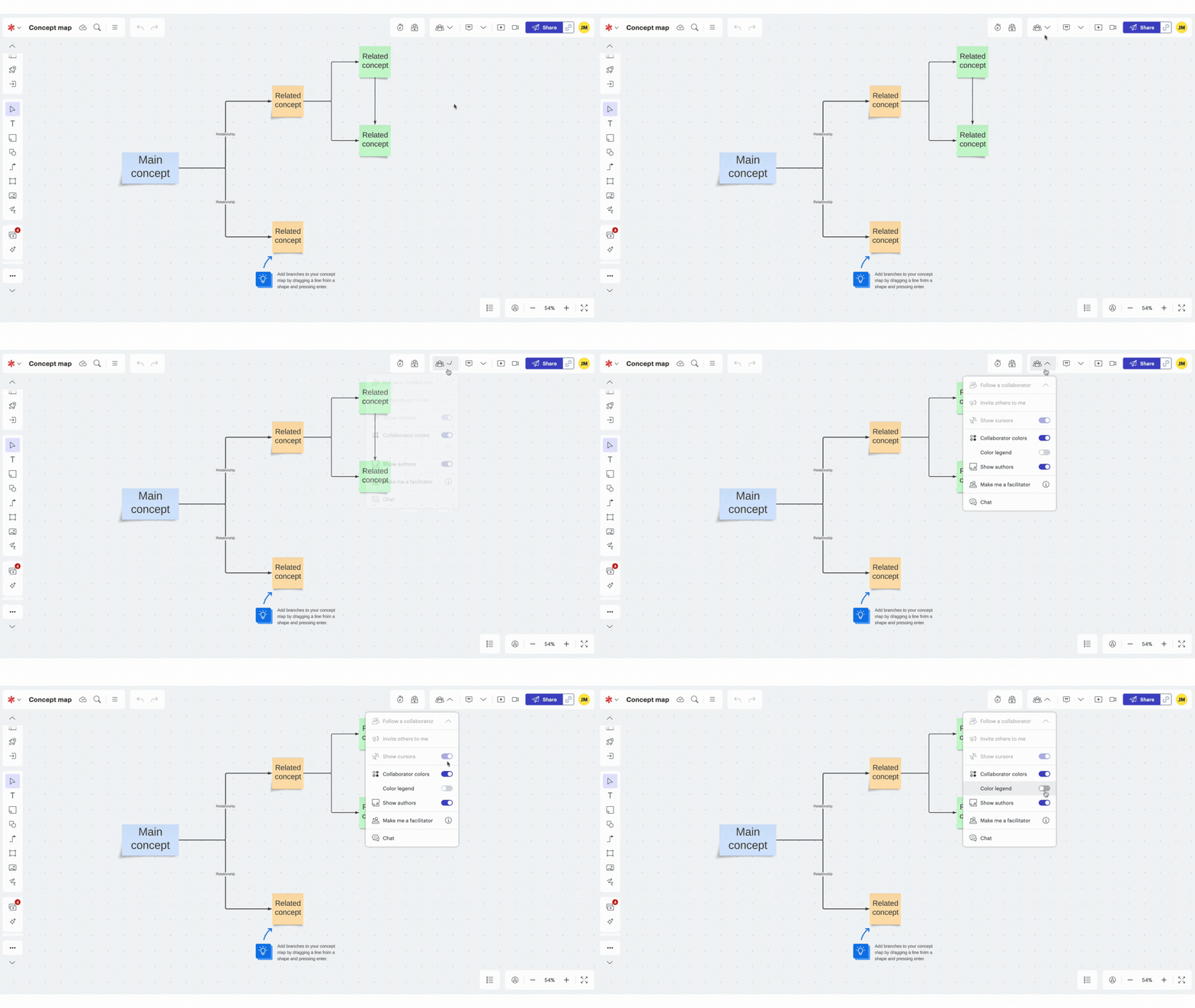
Let’s face it…digital whiteboards can be a classroom management challenge. But, with Lucidspark’s collaboration features, students can see authors, have different colored cursors, launch a chat and follow a collaborator. These features can be found at the top of a Lucidspark document, by clicking on the collaboration icon.

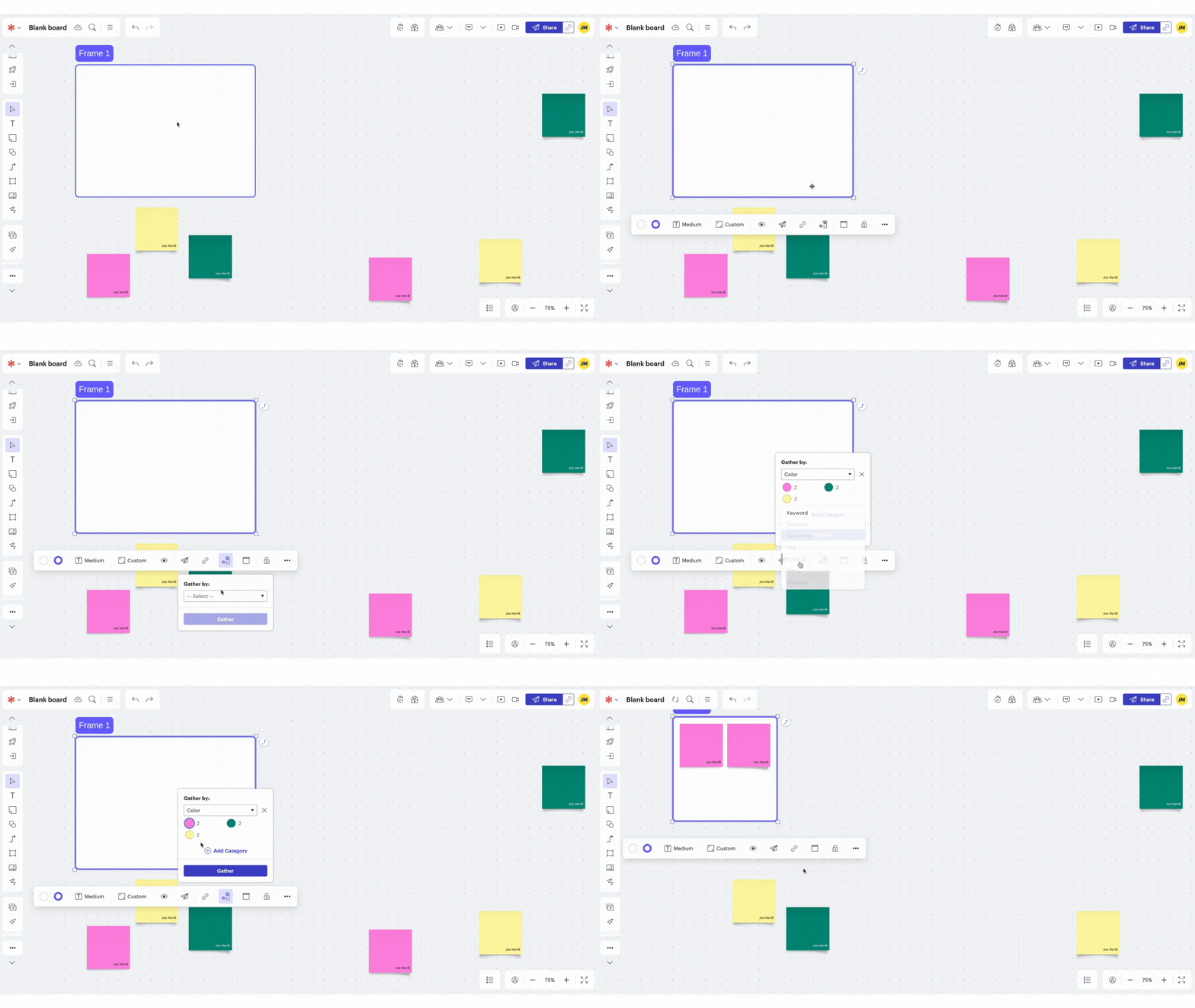
Another powerful feature is Lucidspark’s Gather and Sort. With this feature, educators and students can quickly organize the board’s content. For example, if each student or group uses a different color of sticky note, the educator can use the Gather and Sort feature to place similar colors together on the board.

How to sign up for a Lucidspark Educator Account

Lucidspark is available at no cost for individual educators and students. Click here or the image to the right to create an account and get started! K-12 schools and districts are eligible to receive a complimentary, centrally-managed account. Complete this interest form and a member of the Lucid for Education team will email you to complete the account set up process. Higher Education professors, instructors, and students can also receive a free Lucid for Education upgrade. To sign up, create a free Lucid account using your school email address. When asked to select the role that best fits you, just select Student or Educator.
How to Get Students to log Onto Lucidspark
Now that you’ve created your EDU account, let’s talk about how you can get your students logged onto your board. There are several integrations that are available directly through Lucidspark, including: Canvas and Google Classroom. You can learn more about how to use these integrations by clicking here for Canvas and here for Google Classroom.
However, there are simple and efficient ways to get your students on-board without using the aforementioned integrations. One way is to just simply share the link to the board. To do so, follow these steps:

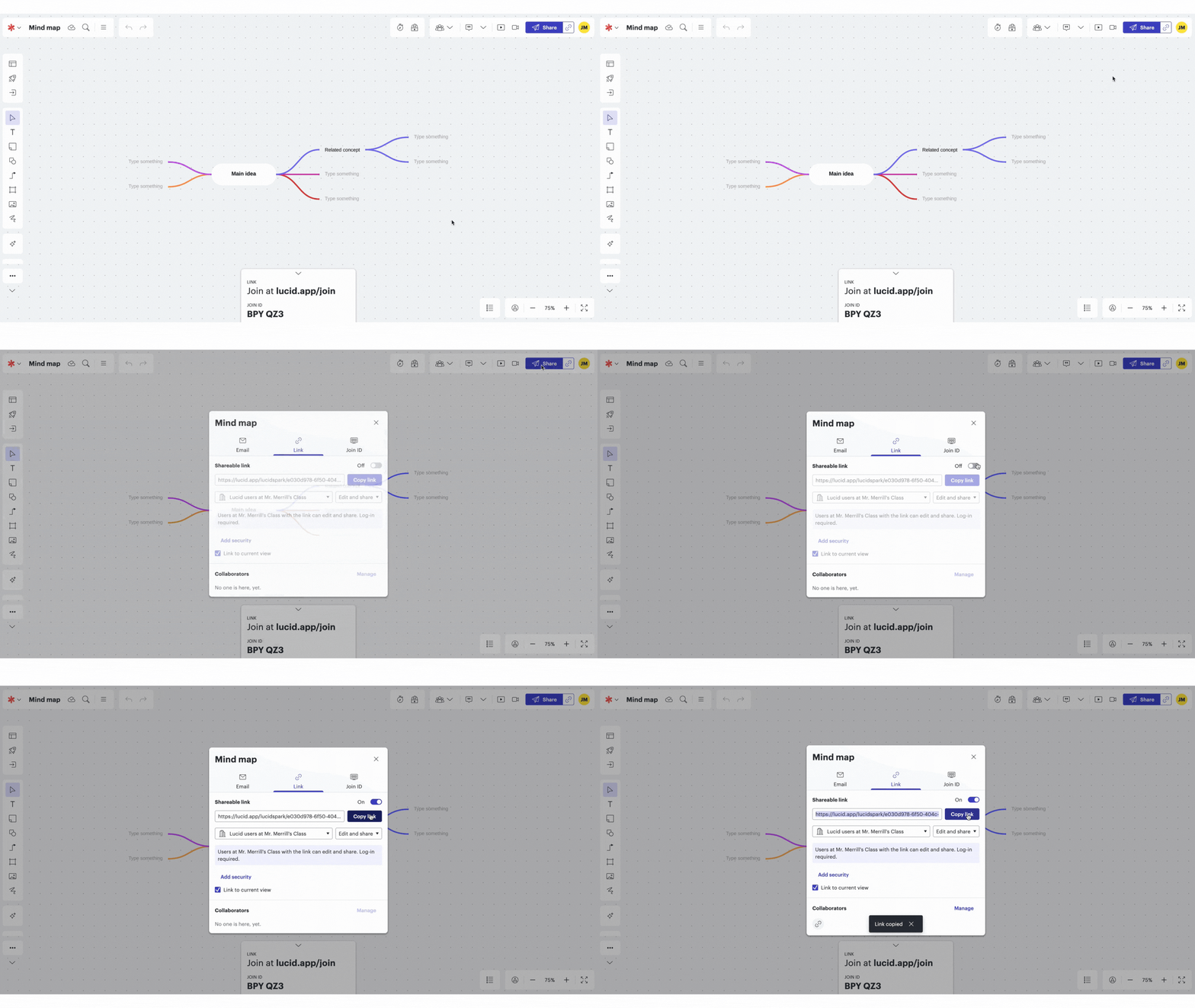
Open the Lucidspark board that you’re attempting to share.
Click on the “Share” button located on the top right.
A pop up will open. Select Link in the pop up window.
Toggle on the Shareable link.
Select your preferences, then click Copy link.
Paste this link onto wherever your students have access.

Another method is to use Lucidspark’s Join ID. This option uses a six digit code that can be entered to gain access. When students log onto https://lucid.app/join, they can enter the ID to the Lucidspark board. Follow these steps to use this method:

Open the Lucidspark board that you’re attempting to share.
Click on the “Share” button located on the top right.
A pop up will open. Select Join ID in the pop up window.
Toggle on the Share a join ID for easy access.
Click Copy invitation
Direct students to https://lucid.app/join and when prompted, have them enter the six digit ID generated for your board.
-- Please follow us on social media and tag us with how you’re using Lucidspark activities in your classroom! 👓👗
For more tips, tricks and lesson ideas for making learning more interACTIVE, check out our books The InterACTIVE Class and Flipgrid in the InterACTIVE Class on Amazon!


How to Use Canva's Magic Tools in the Classroom
Now, generating content for your classroom is even easier thanks to Canva’s new Magic features. Whether you’re trying to find resources for lessons, create engaging activities, promote accessibility, or adding some glitter to your creations - Canva’s Magic tools can help. In this post, we’ll take a dive into each of the features and how they can help you in your classroom.

Now, generating content for your classroom is even easier thanks to Canva’s new Magic features. Whether you’re trying to find resources for lessons, create engaging activities, promote accessibility, or adding some glitter to your creations - Canva’s Magic tools can help. In this post, we’ll take a dive into each of the features and how they can help you in your classroom.
Please note: This blog post was hand-crafted and was not created using AI.
(click on any subheading to jump to that section)




EDU Library in Canva
Canva’s EDU Library is full of teaching resources broken down by subject areas, grade levels, and more. These lessons are free and ready-to-teach. At the time of this original post, there were over 1,000 K-12 lessons designed by teachers, for teachers.
To access the EDU Library, click here or on the video. Then, you can narrow down your search by selecting the appropriate grade level and subject. Click on a lesson to view a preview of the contents, along with the design. Then, click Use this lesson to add it to your own Canva account. These lessons are fully editable, so if you’d like to change anything, you can. Additionally, you can share the lesson with other teammates by clicking on the “sharrow” or share icon.
You can check out our step-by-step video tutorial up on our Youtube channel (click here) or watch it to the left!


Creating Courses in Canva
Once you’ve added the content from above to your Canva account, Canva will automatically break down the content - essentially creating a course. From here, you can choose the type of experience for users. For example, you have the option to grant students to download the lesson(s) as a template file, giving them their own copy to edit and submit. Or, students can just use the design as a resource - which will not let them edit the design. Click on the play icon (or “Open course”) to launch the entire project. Now your class will have access to the course.
You are always able to remove or add content the course by returning to it and selecting “Add the next activity to your course.” You can even edit the description at the top of the page by clicking on the pencil icon. All of the contents within this course get saved into a Folder located in your Canva account. If you need to revisit the content, just click on the file from your dashboard.

Ready to Teach Lessons in Canva
We’ve shared how to find the EDU Library, and now you know how to design a course - but we though we would share some of our favorite lessons that we found in the library. For convenience, we’ve broken them down by grade level. Check them out below!













How to Use Magic Animate in Canva
Canva’s Magic Animate instantly applies perfectly suited animations and transitions to your schoolwork. To try Magic Animate, open a project and then click on Animate. A new panel will open on the left hand side. Click on Magic Animate, then select your desired effect. Now, the animations and transitions will be automatically applied. If you’re saving the design, it’s important to remember that animations and transitions will not be saved if the file is downloaded as a JPEG or PNG. In order to preserve the animations and transitions, the file will need to be saved as a video/movie or GIF. Check out how it works below!

How to Use the Design Accessibility Tool in Canva

Canva’s Design Accessibility Tool ensures that educational resource you share is effortlessly designed with accessibility in mind. The tool will check for potential accessibility issues, create inclusive lessons and activities, and improve the accessibility of your designs without having to leave Canva. Here’s how it all works:
Open a Canva project, then click on File on the top left.
Then, select “View Settings.” A list of options will appear.
Now select, “Check design accessibility.” This will coach you through any potential issues with your design.
For a video tutorial, check out our YouTube channel here, or click on the video below!
How to Use Canva’s Magic Grab

Canva’s Magic Grab allows you to easily transform images. Using Magic Grab, you can make any image editable, even the text within it. Here’s how it works:
Start by uploading a photo or screenshot of an activity
Grab a part of the photo to edit, reposition, or resize.
This allows you to transform the look of the design.
This feature pairs well with other Magic Studio features like Text to Image. Give it a try!
For a video tutorial, check out our YouTube channel here, or click on the video below!

How to Use Canva’s Magic Write AI in the Classroom
Canva’s Magic Write is a handy teaching assistant. This tool will save you time, utilizing Canva’s AI-powered generators to create content. Simply type a promopt and watch Magic Write generate the teaching content. Or, try streamlining tasks like creating lesson plans or activities. As with all AI generated content, educators will need to review the material to make sure it aligns with learning standards. So, all of Magic Write is fully editable. To try it out, click on a piece of text, then select Magic Write to generate a different description.

How to Use Canva’s Magic Switch
If you’ve ever been working on a Canva design, only to stop and wish you had sized the project for something else - then this is for you! Magic Switch will resize schoolwork into multiple formats all at once. So, now you can transform your presentations into a doc or a whiteboard. Previously, users would have to copy the design and then rearrage all the elements so that they appeared correctly on the design. Now, with Magic Switch, the AI does the work for you. Check it out below!
Open the Canva design that you wish to resize
Click on Magic Switch located on the top left
Select or search for your preferred size
Choose to either copy and resize into a new document (which will duplicate the document into the new size), or resize the current document (which will change the size of the current document that is open).
Let the AI do the work, and then open the template or design!
For a video tutorial, check out our YouTube channel here, or click on the video below!
-- Please follow us on social media and tag us with how you’re using these Canva activities in your classroom! 👓👗
For more tips, tricks and lesson ideas for making learning more interACTIVE, check out our books The InterACTIVE Class and Flipgrid in the InterACTIVE Class on Amazon!



How to Use Figjam in the Classroom
Figjam is a FREE, cross platform infinite canvas and digital white board that has powerful tools embedded right within the program. Whether your students are brainstorming on their next writing assignment, collaborating on math strategies, or taking a deep dive into a novel - Figjam is the right tool for you! Learn how it all works, grab some templates, and get started today!

Figjam is a FREE, cross platform infinite canvas and digital white board that has powerful tools embedded right within the program. Whether your students are brainstorming on their next writing assignment, collaborating on math strategies, or taking a deep dive into a novel - Figjam is the right tool for you! If you haven’t signed up for your free account, click here to do so! After that, check out some ways that we have used it, along with some helpful tips and tricks!
(click on any subheading to jump to that section)


Figjam’s Toolbar
Figjam’s tool bar is loaded with powerful tools for students (and educators). The first visible features are impressive, but it’s what’s hidden that truly brings out the magic of Figjam. Here’s a break down of the toolbar’s capabilities:

Stickies

Stickies can be placed anywhere on the canvas. Users can change the color of the stickies, and even type directly onto it. These can be placed from the stickies on the toolbar, or the shortcut is to type “s” on the canvas. One impressive feature to highlight is that educators have the ability to “show the authors” name. The defaults keeps this on, so when a student adds a sticky along with content, it will display their name on the sticky note. However, some times we don’t want students to know who is posting what. So, educators can hide the author.
Voice Memos / Recordings

This feature is hidden within the power of Figjam’s toolbar. Voice Memos allows users to add audio recordings to the Figjam file. This can be done by students or teachers (no more repeating directions!), and here’s how:
From the tool bar, click “More.” A new window will open. Click on “Widgets,” then search for “voice memo.” This will add a microphone icon onto the canvas (tip: you may need to zoom in to see if if you’re too far out). Click the microphone icon to begin recording. You’ll have 30 seconds to add your voice. Once you’re finished, stop the recording and then it will be automatically embedded into the canvas. From here, you can add a title, name, or even what is being discussed.
Emotes and Stamps

Figma’s emotes and stamps can be launched by clicking on the wheel located on the toolbar, or by typing the “e” key. This is a great way for students to show that they agree or disagree with a particular idea. Users can toggle between emotes and stamps by typing “e.” One area of particular interest for us was that students also have the ability to use their profile pic as a stamp. This would allow them to add their own face to a particular thought without having to upload a picture.

Chat Cursor
When the classroom conversation is going well, you don’t want to interrupt the flow of learning with side comments. For example, when a student is explaining their thinking, others can explain that perhaps they also had the same thought in mind without distracting the pace of the conversation. To launch the chat cursor, type the “/” character, then start typing. Your message will only appear where your cursor is pointing - so be sure you have it in the right place. The message will only be visible for a few seconds before it disappears.

Connectors and Lines

Connectors connect sections in a Figjam file. To use connectors, make sure you have at least two sections that you want to connect. Then, click on the connector icon located on the toolbar, or use the shortcut of typing “x.’ Then, hover over one of the sections. Figjam will intelligently give you centered points of where to click. Find your starting point, then click and drag to the next section that you want to connect to. Let go once you find the center point on the second section. Now, the two sections will be connected. The same process works for lines. To access lines, click on the carrot (or ^) to toggle between both. You can also use the shortcut of typing “L” to quickly launch lines.
Timers and Background Music

With Figjam’s built-in timers and background music, you won’t need to worry about opening a YouTube tab to start them. Simply click on the upper left hand side of the screen, set your length and click play! One important feature to point out - sometimes your students are working diligently on their work and you may want to provide them with a few extra minutes. You don’t have to start a whole new timer, just click “+1 minute” to add the time. If you’d like to add background music, you can do that here as well. There’s a few options to choose from including “Acoustic Ambient, Lo-Fi Hiphop,” and our favorite - “It’s Friday!”
Hyperlinks

The ability for us to add content, specifically hyperlinks, is very important when using a tool. Figjam goes a step beyond and beautifully embeds your hyperlinks in a slick way. To add a hyperlink, simply copy the URL to the site that you’d like to add. Then, be sure to click on the canvas and then paste the url. Doing so will add a thumbnail of the hyperlink right to the canvas. This means links to places like Microsoft Flip, Wakelet, Canva, and more!
Voting
Figjam’s Voting tool allows users to cast votes on either the entire board / canvas, or just select items. To insert a voting session, click “More” on the toolbar. Then, click “Widgets,” and search for “Voting Session.” This inserts the voting session into the canvas. Click the purple “Start voting session” to begin editing. There are several options when launching a voting session, including naming what you are voting on, objects to vote on, votes per person and a duration of time that others can vote. Tip: If you want students to vote on certain items, you’ll need to select them before starting the voting session. Once you have everything set, click on ‘Start voting session.” This will embed the voting session onto the canvas. When the duration is over (or if you stop it), you will receive the feedback and totals of the responses!

Figjam Templates
If you’re looking for ideas, be sure to check out the ones found in Figjam’s community. There’s tons of pre-designed templates that you can add to your own library in just a few clicks. To preview Figjam’s community library, click here! Once you find a template that you like, click on it. In the next window, click “Open in Figjam.” This will copy the file into your own, so now you have a copy for yourself. Here are a few of our favorite templates:
Figjam and Draw

Figjam and Draw allows users to drawing boards for a collaborative drawing activity. Educators simply add in a prompt, then have students add their names and use the marker, highlighter, and shape tools to unleash their creativity! To download this template, click on the image or right here!
All About Me Figjam Activity

Figjam’s All About Me activity is a classroom activity where you have students introduce themselves and share more about what they like to do and their favorite things. However, we love putting a spin on this activity and asking students to use it when describing a character from a book, historical figure, etc. To download this template, click on the image or right here!
Vertical Graphic Organizer

The Vertical Graphic Organizer template is great when students are working to organize and plan their writing. This template is ideal for sequencing, constructing paragraphs planning, or story planning. Tip: Encourage the students to add stickies along side of the template for ideas, vocabulary terms, or even adjectives that fit the writing that they’re constructing. To download this template, click on the image or right here!
Exit Ticket: Bumper Sticker Activity

Quickly assess your students understanding with this highly engaging exit ticket! With Figjam’s Check for Understanding, students design a bumper sticker to represent what they are learning about. This could be something that they believe a character would say, or perhaps recreate the story’s theme. To download this template, click on the image or right here!

Figjam Classroom Examples
Using Coins (Math)

This template gives students coins that they can manipulate to make a number. The key here is to promote multiple ways of solving. So, when a student shows a strategy, we explain to the other students that they may not use that same strategy again. Instead, the can break apart the coins to show a similar, but different method. To download this template, click the image or right here!
Tracing Character Emotions

This template provides students with the opportunity to explain how they think the main character of the story is feeling. Students draw an emoji that they feel best describes the character at that point in the story. Then, they can use the Voice Recording tool to explain using their words. To download this template, click the image or right here!
Stay tuned for more templates coming soon!

Figjam Videos
-- Please follow us on social media and tag us with how you’re using these Figjam and Figma activities in your classroom! 👓👗
For more tips, tricks and lesson ideas for making learning more interACTIVE, check out our books The InterACTIVE Class and Flipgrid in the InterACTIVE Class on Amazon!




10 End of the Year Activities for Elementary Students
@TheMerrillsEDU share 10 end of the year activities for elementary students! this blog post includes actvities from Epic For Kids, Microsoft Flip, Canva, Metademolab, Adobe Express, Wakelet, WeVideo, Do Ink’s Green Screen, Wonderopolis and more! There are also FREE packets! Just print, copy and you’re read to go!

(Edited: May 15th, 2026)
The end of the year is a challenging time for everyone. Whether you’re shuffling state mandated assessments, preparing to move into a new room, or just clinging onto whatever focus your students have left - it’s important to remember one thing: Don’t count down the days. Make them count! We reserve these activities for the last ten days of school. Our students love them, and we hope that yours will too!
Please note: This blog post was hand-crafted and was not created using AI.
(Click on any subheading to jump to that section)




Virtual Reality Field Trip Day
Activity length: All Day

All that’s required to participate in our VR Field Trip Day is a computer / device and a wifi connection - no bus necessary! We wanted to make the experience unique, so the first stop our students make is the airport. They must “check in” before proceeding through “security.” Once they get through, they’ll see a departure sign indicating that all flights are now boarding. Time to head to the gate! Once the student arrive at the “gate” they will choose which destination they would like to visit. To head to that destination, students just click the image at the “gate” which will automatically take them there. Students can easily “hop on another flight” to a different destination (or go back to the tab that has the “gate” opened) at any time.

While they’re at their destinations, they can complete this packet. These activities may be done on paper/pencil/crayons or digitally. The students can add a picture of each destination in the polaroid frames (there are two pages: two pages with 5 frames, and one page with ten - just pick which one you want to use and delete the other), and include the location on the label. Students can also design a sticker to put on their suitcase for each destination. The sticker should describe the destination and should reflect what they saw on their trip. Next up is a pair of binoculars, where the student will illustrate or design an image of their favorite destination. It wouldn’t be a trip without a souvenir, so now they’ll have to design a t-shirt from one of the destinations they visited. Last but not least, double check to make sure that you have visited all ten locations!

Artist Day
Activity length: All Day

Artist Day is the day where we build the confidence of our artistic abilities. First up, we read about what artists do. There are several books available for free on Epic For Kids. We enjoyed reading: “Artist Studio,” and “A Squiggly Story.” Once we’ve read these, it’s time to put our skills to the test. We’ve curated some of our favorite drawing tutorials from YouTubers, “Art For Kids Hub.” The students can pick and choose which videos they would like to watch. Then, they illustrate these on blank pieces of paper. Check out one of the videos below, and be sure to find their other content on their YouTube page here.
The fun is only just beginning, though! Students can upload their illustrations to MetaDemoLab. This will scan their illustrations and create an animation of their work. But, let’s level up! Download the video file and then upload it to Canva as a video file. once it’s uploaded in Canva, remove the background. Then, add a different background of your choice. Now your illustration is wandering in a far away place! Check out the tutorial below to see how it all works!

Wild Life Day
Activity length: All Day
Wild Life Day is dedicated to learning about two related animals: Elephants and Manatees! We kick things off by watching back a previously recorded Flip (RIP!) Live event on Manatees from the Mote Aquarium. You can check out both events to the left and below! .
After watching, students use Canva, Google Slides, Powerpoint, Adobe Express, or paper to create an ideal manatee habitat. After that, we watch the second Flip event. This time the topic is Elephants brought to us by The Elephant Sanctuary. Afterwards, repeat the same activity, designing an ideal habitat for Elephants. Now, with both habitats in hand, share your designs on a Wakelet or Padlet board. Students can use the comments to explain what both animals need in the habitats and why it’s critical for their survival. Check out some of our student examples made in Canva below!


Dance Day
Activity length: 1-2 Hours

Q: What kind of music do rabbits like to dance to? A: Hip-hop! Dance Day is a day dedicated to self expression for all students. We start off by reading several books. We liked these from Epic for Kids: “Artist Studio Dance” and “Dance, Dance, Dance!” After reading through these, students create their own dance moves. They can practice their moves by using their device’s camera on Padlet. Then, when they’e ready, they can create a video tutorial on Padlet of how to do their dance, along with how it should look. After that, they can watch each other’s videos and learn one another’s dances!

Weather Day
Activity length: All Day
Weather Day is dedicated to all the types of weather that the summer months bring. We’ll focus on: Thunder & Lightning, Wild Fires, Tornadoes and Hurricanes. Epic for Kids has a TON of content on each of these categories, but to save you some time, we’ve curated collections of each below. Click on an image to download the collection.


We like to have the students work in groups for these activities. Give each student a copy of the packet found here. Students pick one type of weather and then they’ll take turns reading through the books on Epic. When they find important details, they can screen shot them and add them into a collaborative Wakelet collection (see below). Using the content they have collected, they can choose important details about their weather type. These can be recorded on the circle map. We encourage the students to narrow down their facts to 6 key details. These six details can then be recorded onto the flow map. The next page has the students providing a five day forecast. Students can draw images on each day, and predict a high and low temperature. The last two pages are called the “teleprompter” pages. This is where students can create a script to read as if they were a meteorologist providing a forecast. This script can be used to create a weather video.


To find your local weather radar, type “_____(my state)____ weather radar gif” on google. Then, click on images to generate GIF files of your local radar. Right click and save the image of your choice, but remember to provide credit from the original source. To create a meteorologist video, students can use Canva, WeVideo, Adobe Express or Do Ink’s Green Screen. Simply upload the GIF file as the background, then add a green screen video of your student as the foreground layer. If you’re using Canva, remove the background of the student, and now they will appear in the weather radar. If you’re using WeVideo or Do Ink, just set the chroma key to the appropriate green color.
Once students have created their video, they can share their work on a Padlet or Wakelet board. Doing so will allow them to view each other’s work and easily provide an opportunity for you to share student work with families.

Water Day
Activity length: 2-3 hours

Water day is the day that we learn about some of the ocean’s most endearing creatures: Sea Turtles! We’ll start off the day by reading some books on Sea Turtles. You can download an entire collection of books from Epic by clicking here.
After we’ve built up some background knowledge, we’ll watch this Flip (RIP!) Live Event from The Mote Aquarium on Sea Turtles. Click here for the event!

After the event, we have our students design Sea Turtle hatching warning posters on Canva. There are lots of inspiring templates to help get the creative juices flowing. Just search for “turtle poster.” These can be shared around school to raise awareness and encourage students to be respectful while visiting beaches over the summer months.

To top everything off, we enjoy spending some time on this website. The Deep Sea starts at the surface of the ocean and plunges deep below, giving facts about different depths in the water. You can check it out by clicking on the image to the right, or right here!

Create Day
Activity length: 2-3 hours

Create Day is best paired with the book, “I Need My Own Country,” by Rick Walton. In this book, the readers are encouraged to create a very special place of their own, by you guessed it - creating their own country! You can get a preview of the book by clicking here, and purchase the book by clicking here.
After reading the book, students can complete the “I Need My Own Country” packet. This may be done digitally or on paper. First, students will design a flag for their country. Then, they’ll illustrate what their currency will look like. Last, they’ll assign jobs to their family / friends. After they’ve developed their country, it’s time to invite tourists! Create a commercial on Canva that encourages people to visit your country. Download your video, then share it on either Wakelet or Padlet. This will allow students to share each other’s country and even vote for “the most desired vacation spot!”


We know that some students will finish an activity like this before others, so here’s an idea for those who do…Let them design the next iPhone! Check out this website, “Design the Next iPhone,” and your students will become the creators of tomorrow’s technology! Check it out by clicking here or the image below!

Career Day
Activity length: Two Hours
In this activity, students use School AI chatbots to explore different careers. If your students have specific interests, you can search in the Discover Library, or learn create your own. Here are some of our favorites (click any image below to open it on School AI).

After the students have build background knowledge and gathered enough information, we have them use Canva to create a job resume for themselves. Since they have learned all about their career choice, they should know what qualifications are required for the job. Have the students create the resume (we always explain that this is a learning activity and NOT a real resume) on either Canva and Adobe Express. Then, students share their resume on Padlet for others in the class to view. We like to add in an element of fun with Padlet by enabling reactions. A thumbs up from someone means you’re hired! Check out our Canva resume template by clicking the image or right here!

NASA Day
Activity length: All Day
How do you go about hosting NASA Day? You “planet!” Get ready for an out-of-this-world day! NASA Day is the day is dedicated to all things space. We kick things off by reading some books about NASA astronauts. Check out our collections by clicking on the images below, or here (Mae Jemison), here (Buzz Aldrin), and here (Neil Armstrong).


After we gain some knowledge about these astronauts, we read two space-themed books: “Earthrise” by James Gladstone, and “Eight Days Gone” by Linda McReynolds. “Earthrise” highlights the Apollo 8 mission which captured the iconic photo of Earth rising from the rear of the moon. “Eight Days Gone” is about the Apollo 11 mission to the moon. You can preview “Earthrise” by clicking here, and purchase it by clicking here. You can preview “Eight Days Gone” by clicking here, and purchase it by clicking here.

After reading both books, students can re-create the Apollo 11 moon landing on Canva. They can take things to the next level by animating the astronauts, gear, or maybe even a passing comet or two! Have them explain what occurred, then they can download the project as a video. Next, save the video and then share it to Microsoft Flip. Students will be able to view each other’s work and share their thinking.


Now that they have some background knowledge, invite them to blast off on a mission to the International Space Station! All that you need is a computer / device and wifi. This website will take them on a VR tour throughout the entire space station. It also includes hotspots, or areas where additional information may be accessed. Click here to access the VR Reality Tour!

Another fun activity for learning all about launching into outer space is this website from Neal.fun. “Space Elevator” takes you from ground zero, all thee way into outer space - explaining sharing facts along the way. Click here or the image to the right to check it out! Lastly, if you students are having a hard time grasping
the size of space, or objects in space, let them check out this website. “The Size of Space” sequentially places all things space related. Check it out by clicking on the image to the left, or right here!

Adventure Day
Activity length: 2 hours

Adventure Day is the day where students get to travel around the world being tourists! The Adventure Day menu features tourist attractions like The Georgia Aquarium, Eiffel Tower, Boston’s Children Museum, National Portrait Gallery and more! Click here or the image to the left to access the Adventure Day page!

While visiting these destinations, students can complete the packed either digitally or on paper. The packet features tickets where students can explain where they visited, picture frames for students to illustrate photos, a coffee cup souvenir, and a fanny pack where they can design commemorative buttons for each location. To download the pack, click here!
-- Please follow us on social media and tag us with how you’re using these end-of-the-year activities in your classroom! 👓👗
For more tips, tricks and lesson ideas for making learning more interACTIVE, check out our books The InterACTIVE Class and Flipgrid in the InterACTIVE Class on Amazon!


Canva Features To Use in the Elementary Classroom
@TheMerrillsEDU share some of the best Canva features to use in the Elementary Classroom! We’ll even provide some student examples for inspiration!

We’ve curated 5 of our favorite Canva features that we love to use. These are both teacher and student friendly! Check out how they work, along with some student examples below!
(Click on any subheading to jump to that section)


How to Animate Elements and Images in Canva
The ability to animate in Canva has been around for a while, but now users can create custom animations to any element or image. Enabling the animation allows the user to create a path, or custom movement, which the element or image will follow. There are options to fine tune how this looks, including stability and speed. Check out our video tutorial or read below to see how it all works:
Open a Canva project
Select the image or element that you would like to animate
With the image or element selected, click Animate
Click “Create an Animation”
Select and drag the image or element around the screen
The image or element will now be animated!
Student Examples and Ideas of Ways to Use Canva Animation
Here are some ways that our students have been using animation in Canva. We hope these inspire you, too!

Canva Animation: Animating the Apollo 11 mission
Students read the book: “Eight Days Gone”
Students animated the astronauts and recreated the events of the Apollo 11 mission

Canva Animation: Animating the items recovered in a lost and found box
Students read the book, “Lost and Found” (by: Bill Harley)
Students explained the sequence of events by animating items recovered
Canva Animation: Animating characters

Students read the book, “How to Catch a Star” (by: Oliver Jeffers)
Students animated the characters and retold the story

Using Layers in Canva
Have you ever been working on a project with lots of elements in Canva? Sometimes you’ll need to select a layer that’s in the back, but in order to do so - you have to move all the other elements out of the way. Well, now you don’t have to! Layers are the order of everything (text, images, elements, videos, etc) in your design. Enabling layers will allow you to select the specific item you wish to edit. Check out our video tutorial or read below to see how it all works:
Open a Canva project
Select any item on your design
Click the three dots
Scroll down to “Layers",” then click “Show Layers”
All of the items on that design / project will now be visible on the left
Click and drag and item to move the Layer to a new position!
How to Translate Text in Canva
The ability to translate text in Canva is now live - and can be done in just 3 clicks! Translate is an online AI-powered machine translation tool built into Canva that automatically translates the text in your existing designs into your chosen language(s). You can access this tool for free to translate designs with a lifetime cap of 50 pages. With a Canva Pro or Teams subscription, you can increase this limit to 500 pages per user, per month. Check out our video tutorial or read below to see how it all works:
Open a Canva project
Click on “Apps” from the left panel
Search for: “Translate”
With the Translate app open, select the language you would like the text to be translated to.
Select the page you would like to apply the translation to
Click on “Translate!”

How to Use Canva’s Magic Edit
Canva’s Magic Edit allows you to easily remove distractions or add new things to your photos with a few clicks. Magically transform your photos by brushing over the areas you'd like to modify and then describing what you want to add. A few things to note here:
Magic Edit is currently not available in Canva for Education
It can't be used with Background Remover, Magic Eraser, or Autofocus on the same image.
Check out our video tutorial or read below to see how it all works:
Launch a new design project
Add an image
Select the image, then click “Edit Photo”
Click on “Magic Edit” (tip: if Magic Edit does not appear, you’ll need to switch to the new Canva editor)
Adjust the brush size and then highlight the area you would like to edit.
Now describe what you want to generate inside of the highlighted area.
Say abracadabra and wait for the results! Now you’re a Canva magician!

How to Use Canva’s Magic Eraser
Canva’s Magic Eraser provides an easy way to remove unwanted objects or erase people / things from photos. It’s as simple as highlighting what you want removed, and then let Canva do all the work! Check out our video tutorial or read below to see how it all works:
Launch a design project
Select an image
With the image selected, click “Edit Photo”
Click on “Magic Eraser” (tip: if Magic Eraser does not appear, you’ll need to switch to the new Canva editor)
Adjust the brush size and then highlight the area you would like to edit.
Sit back and wait for the results! The best part, you don’t even have to blow away all of eraser bits!
-- Please follow us on social media and tag us with how you’re using these Canva features in your classroom! 👓👗
For more tips, tricks and lesson ideas for making learning more interACTIVE, check out our books The InterACTIVE Class and Flipgrid in the InterACTIVE Class on Amazon!


How to Use AI in the Classroom
Artificial Intelligence (AI) has become a hot topic in education in recent years. It has the potential to transform the way teachers teach and students learn in the classroom. Here are six AI tools that you can use in your classroom immediately!
Artificial Intelligence (AI) has become a hot topic in education in recent years. It has the potential to transform the way teachers teach and students learn in the classroom. By using AI, teachers can create a more personalized learning experience for each student, and help them to achieve their full potential. Here are five AI tools that can be easily integrated into our classrooms.
(Click on any subheading to jump to that section)




CoPilot:
Generate Lesson Plans & Other Educational Materials in Seconds
Education CoPilot streamlines your planning and prep with AI generated templates for lesson plans, writing prompts, educational handouts, student reports, project outlines and lots more.
This is an incredibly efficient way to gather content for those pesky units where you’re scrambling to find resources for. In our example, we were working on a unit covering this standard: SC.1.E.6.2 Describe the need for water and how to be safe around water. After entering some information (including the standard), we were provided five lessons all covering the content!
There are also workshop tools that can help generate educational handouts, writing prompts, parent emails, and quiz builder. All are easy to use and require just a few clicks to generate! Check out how it all works below!

Curipod:
Make interactive lessons filled with creativity, reflection and critical thinking.
Curipod is an interactive presentations software for education, meetings and workshops, sparking curiosity and engaging everyone. Create your own presentations, or find premade templates and inspiration.
Enter the topic of your lesson, followed by learning objectives and standards. Give it a few seconds and Curipod will generate an interactive presentation that is fully editable! In our example, we were looking to create content on this standard: ELA.1.R.1.1: Identify and describe the main story elements in a story.
Curipod also features a Discovery library where users can access content created by other educators. The content can be narrowed down by subject, or by searching for what you’re looking for! Check out the video below to see how it all works!
Canva: Text to Image:
Automatically Create the Images You’re Looking For
Now, whenever you can't find the perfect images, you only need to find the right words instead – then watch them magically come to life. Once you’ve entered your words, rather than combining existing images, Text to Image creates entirely new ones from scratch. From practical descriptions to whimsical concepts, Text to Image can create one-of-a-kind images, with the click of a button.
Canva is free for all educators, and “Text to Speech” is available in all Canva accounts now! Here’s a quick overview / tutorial!

Deep Nostalgia:
Video reenactment technology to animate
the faces in still photos
Deep Nostalgia is a video reenactment tool that will animate the faces in still photos. This feature uses deep learning technology to create animated, lifelike movements in static images, bringing old family photos to life.
Deep Nostalgia uses an artificial neural network to apply pre-recorded facial movements to a still photo. When a user uploads a photo, the AI analyzes the face in the photo and applies movements based on a library of pre-recorded facial expressions. These expressions are created by actors and used to simulate realistic movements such as blinking, smiling, and head tilting.
The result is a short video of a still image, where the subject's face appears to be moving and reacting to the environment around them. The effect can be striking, as it creates the impression of bringing a historical figure back to life. Check out the video below to see it in action!

Murf.ai:
Turn Text into Speech
Murf is a tool that allows users to turn typed text into speech. It offers a selection of 100% natural sounding AI voices in 20 languages to make professional voice over for your videos and presentations. Users can easily toggle the different voices to select a voice that is appropriate for the content.
Check out the video below to see how it all works!

Synthesia:
AI video creation platform
Synthesia AI is a video production software that uses artificial intelligence (AI) to create lifelike videos of people speaking in different languages or using different gestures, facial expressions, and body language. This technology allows users to create videos that appear to feature real people speaking and moving, even if those people never actually appeared on camera.
Synthesia AI works by analyzing a script, recording a voiceover, and then mapping the speech to a 3D model of a person's face and body. The AI algorithms then use this information to generate a video of the person speaking, complete with realistic facial expressions and body movements. The resulting videos can be customized in a variety of ways, including adding different backgrounds, changing the clothing or hairstyles of the virtual person, and altering the tone and speed of the voiceover. See it in action below!
-- Please follow us on social media and tag us with how you’re using these ideas in your classroom! 👓👗
For more tips, tricks and lesson ideas for making learning more interACTIVE, check out our books The InterACTIVE Class and Flipgrid in the InterACTIVE Class on Amazon!


