


How to Use Flipgrid During Remote Learning
Remote learning is challenging, but infusing technology can help make tasks easier. Flipgrid gives both educators and students opportunities to share content in creative and unique ways. In this blog post you’ll learn about some of our favorite ways to use Flipgrid throughout remote learning.

Remote learning is challenging, but infusing technology can help make tasks easier. Flipgrid gives both educators and students opportunities to share content in creative and unique ways. In this blog post you’ll learn about some of our favorite ways to use Flipgrid throughout remote learning.
Click on any subheading to jump to that section:


Educator Ideas
Here are some ways that educators can use Flipgrid throughout remote learning (and beyond!)

Use the Shorts Camera!
From the Flipgrid educators dashboard, locate the “Shorts” tab from the top. Clicking on it will give you access to the Flipgrid Shorts camera. Use the Flipgrid Shorts camera to record lessons, launch lessons, or simply teach to a specific target. Educators have a maximum of ten minutes of recording time.
Embed a Flipgrid Topic / Group into your LMS
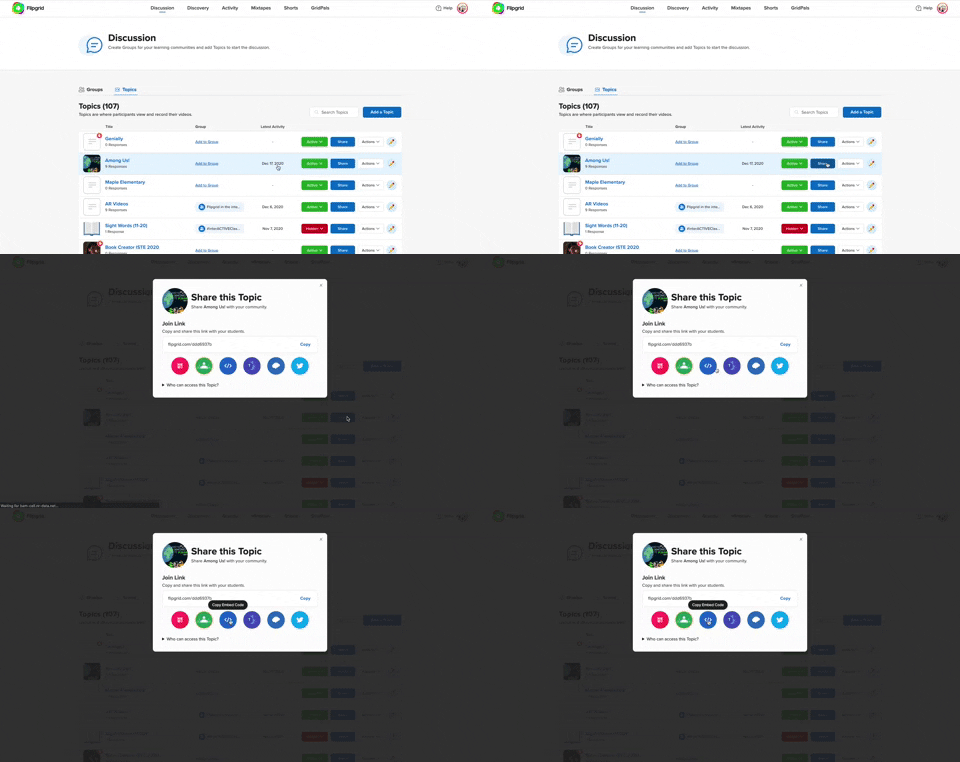
If you’re currently using an LMS (Learning Management Software), you can easily embed a Flipgrid Topic or Group right into it. From a Flipgrid Topic or Group, click the blue “Share” button. Then click the embed icon (</>). It will appear as though nothing happens, but your device has just copied the embed code. Simply paste it into your LMS’s embed editor. Now, your Topic / Group will appear right in the LMS.
Flipgrid and YouTube LIVE Hack
Educators can launch a live YouTube lesson right within a Flipgrid Topic! To do so, launch a live YouTube video and then create a new Topic. Next, click on YouTube in the Topic’s media section. Paste the link to your YouTube live video. You are now live in the Flipgrid Topic!
Virtual Office for Parents / Video Voicemail
Allow parents (or students) to reach out with questions any time and respond when its convenient for you! Set up a Topic and share the Join Code or QR Code with families.
Fluency Checks
Set up a Topic for your students to monitor their fluency. Assign a reading passage in the Topic (or attach a link) and select a recording time for your students. Students open the passage and hit record!
Anchor Charts
Use the Flipgrid Shorts Camera to create digital anchor charts. Add resources as Photo Stickers, then resize / move as needed.
For a full tutorial on how this works, click here.

Send Home Messages with the AR (Augmented Reality) Feature
Use the Flipgrid Shorts Camera to record a message for your students. Share the message by downloading the Flipgrid AR QR code. Send out the QR code and then have your students open the message using the Flipgrid app. Doing so will open the video up in augmented reality.
Modeled Science Experiments
Use the Flipgrid Shorts Camera to record the guided steps of a Science experiment. This will allow students to start / stop the video to follow along.

Virtual Field Trips
The pandemic has eliominated any changes of taking your class on a “real” field trip, but that doesn’t mean that you can’t give them a similar experience a virtual field trip! Record a video of yourself at a preferred destination. Then, set up a Flipgrid Topic and upload the video. Have your students log onto the Flipgrid Topic and then either answer questions, or leave questions!
Click here or the image to visit The Met on Flipgrid’s Discovery Library
Student Ideas
Here are some recommended activities for using Flipgrid throughout remote learning - and even in-person!
Share Critical Thinking Skills
One of the easiest ways to use Flipgrid is to have your students explain their work. For example, after working out a math problem on a whiteboard, have your students explain their thinking in a Flipgrid video. This strategy then is seen by all the other students in the class - who theoretically are acting as young teachers themselves. Even the incorrect responses can teach us!


Whiteboard
Flipgrid’s Whiteboard feature is built directly into the Shorts camera. Have your students quickly turn their screen into a digital whiteboard where they can annotate over it.
Mic Only Mode
Mic Only Mode is a friendly way for camera shy students to share their voice. In Mic Only Mode, the students voice is recorded, but not the video. There are many creative uses for Mic Only Mode, but this Tweet from Ann Kozma (@annkozma723) is one of our favorites!

Text Comments
Like Mic Only Mode, this feature is ideal for students with low-bandwidth. Adding a text comment allows students to comment on videos without having to upload lots of data.
Opinion Writing
Working on Writing throughout remote learning is difficult. But, using Flipgrid to help students organize their thinking can improve their results. For example, students can use Flipgrid to debate the pros and cons of a topic prior to writing to generate their thinking.


Book Clubs
Educators can easily differentiate reading instruction on Flipgrid. By assigning students reading tasks, students can participate in Book Clubs where they exchange thoughts about what they are reading. This could also be an activity associated with Literature Circles.
Three Truths and a Lie
(with Non-Fiction Texts)
After reading a non-fiction text, have your students complete a Three Truths and a Lie video. This is where students give three facts about what they learned, and one lie. Other students watch the video to see if they can pinpoint which one isn’t true.


Main Idea Summarization
Have your students use the built in Flipgrid Frames feature to add the “breaking news” frame around their video response. Then, students explain what they believe the main idea of the text was.
Character Illustrations
Use the built in emoji stickers in the Flipgrid Shorts Camera to have your students retell the beginning, middle and ending of the story. Check out our example Tweet!

Emoji Math
Have students use the built in Flipgrid emoji stickers as math manipulatives when working with the digital whiteboard. Or, as an educator, make a math challenge that substitutes the numbers with emojis. Then, your students must guess what numbers the emojis represent.
Math Collaboration
Have your students design their own math challenges by recording a prompt on Flipgrid, then sharing it with their classmates. Their classmates must attempt to solve, and the creator checks their work!

Stay #interACTIVE!
-👗➕🕶️
For more tips, tricks and lesson ideas for making learning more interACTIVE, check out our book The InterACTIVE Class and Flipgrid in the InterACTIVE Class on Amazon!


New Flipgrid Features and Updates from Flipgrid LIVE!
Flipgrid recently announced a new set of updates during “Flipgrid LIVE.” Here’s what’s new, how it will all work, and what to expect!
Flipgrid recently announced a new set of updates. Here’s what’s new!
(Click on any subheading below to jump to that section)
Flipgrid Camera Updates
The Flipgrid Shorts Camera is getting a facelift, and there’s a lot to talk about!

New Features: More fonts, filters, boards, frames, stickers, and GIFs!
Now, while recording, the video’s timeline can be found at the top of the video. Options such as: emojis, white/black boards, text, filters, gradients, gifs, and frames to wrap your video (gallery walk, breaking news, MIE edu, Minecraft coming) will all roll out August 1st.
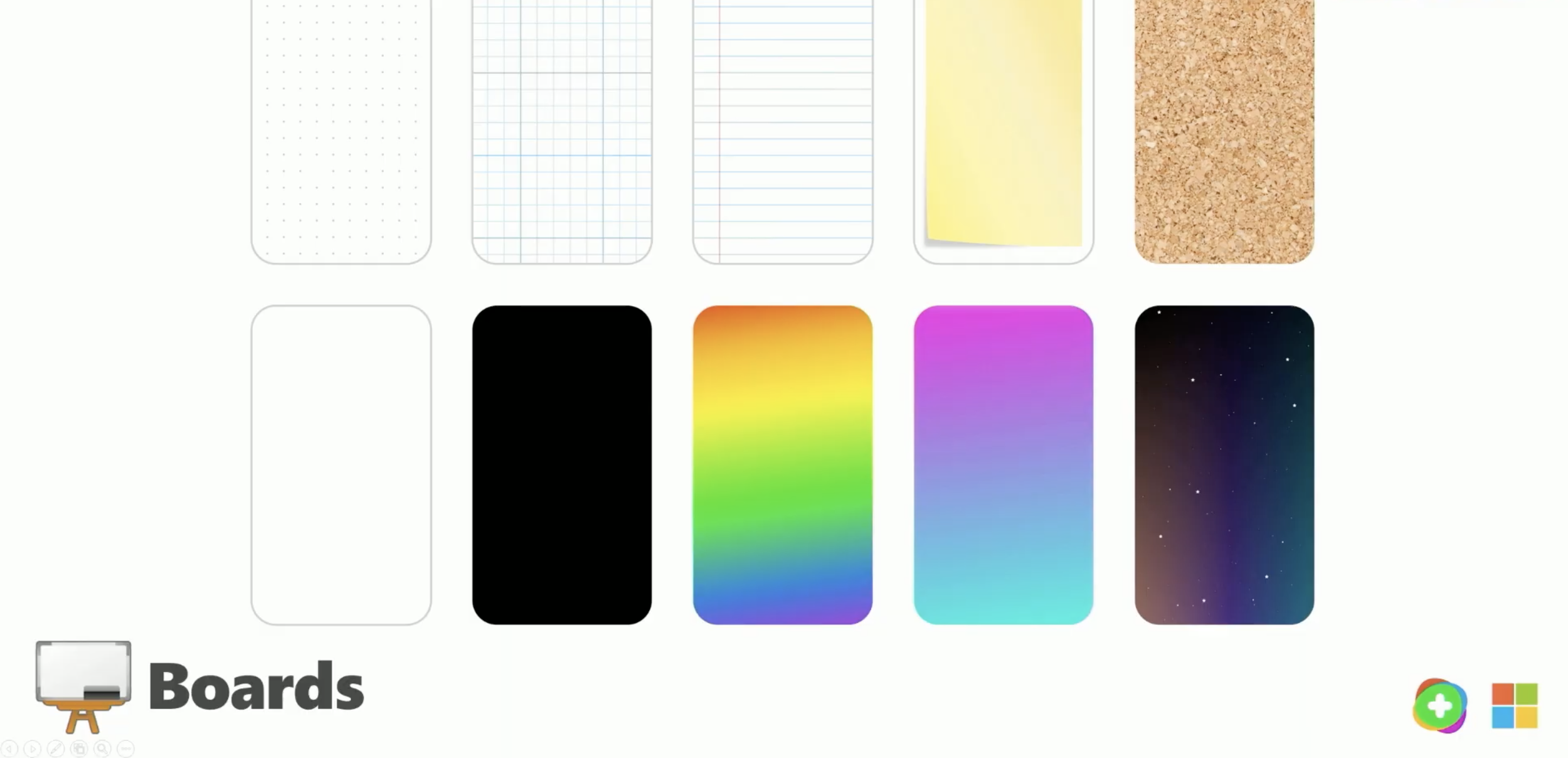
The Boards in Flipgrid will now feature graph, dotted line, and cork board backgrounds. In addition, now students will have the capability to use a video board, or a split screen with the student’s camera video and Board displayed at the same time.

Layering in Flipgrid’s Shorts Camera just got a whole lot easier, too. Now, users can add Gifs, Emojis, text, and Stickers by stacking and layering - adding even more creativity at the hands of students without ever having to leave the app. Sharing content is also becoming easier with a streamlined review process, which allows students to split clips, mirror, and rotate.
The Learner Experience in Flipgrid
The way your students view content in Flipgrid is changing, and is now more
powerful than ever.
When your students log onto Flipgrid, they will access a more modern and convenient look. Students have the ability to quickly view videos, but most impressively, see what videos are coming up next with an all new panel that displays your topic’s responses along the right side.
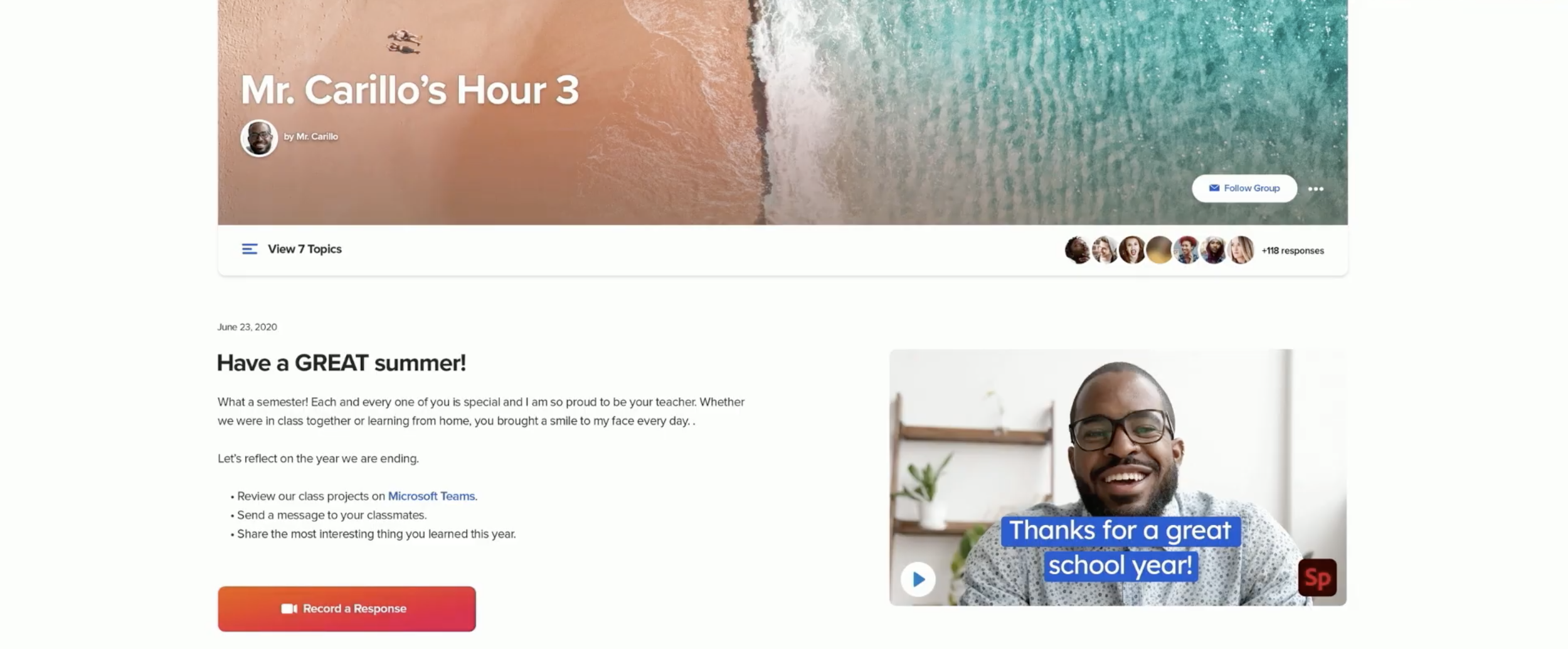
Text and video comments and also coming, allowing educators to provide private and public feedback to student responses. As always, the educator has complete control and can toggle comments on/off. Flipgrid has also added Microsoft’s AI Azure which will scan every comment, moderating for things like language or bullying.

Updates to the Discovery Library
Flipgrid’s Disco Library is more than just a hub for sharing and downloading content. The Disco Library is where you can find integrations from other partners like The National WWI Museum, Langston League, BBC, and more.

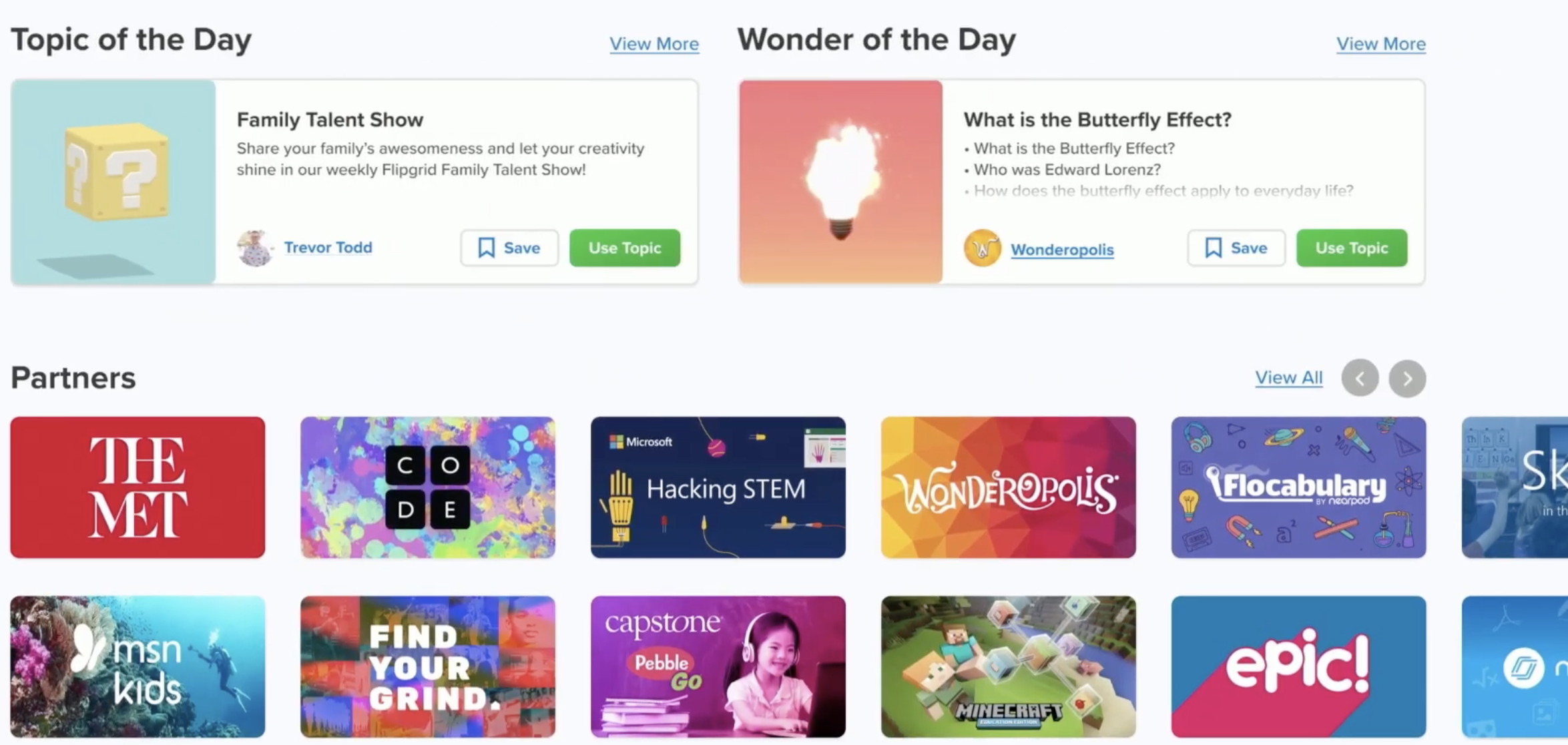
Discovery Library Partners are constantly being added, but expect new content from: Minecraft, Langston League, and Wonderopolis (including a “Wonder of the Day”). Expect partner profile pages to roll out providing an independent, shareable space that allows educators to connect with them easier.
Educators now have access to showcase trending topics, published collections-- including conversations about race, equity and justice. This is also where you’ll also be able to find learning from home topics, and content from inspiring creators.
Updates to the Educator Dashboard
Creating and sharing your topics is now easier than ever using Flipgrid’s topic launch technique. Grid’s now have a new name = Groups, and communicating with your students gets a new look!
Launching a discussion on Flipgrid just became a whole lot easier. The steps to launch a topic have been simplified: just add the topic and share! If you’d like to add your topic to a “Group” (formally referred to as “Grid”), you can always do that by clicking: Add → share → group. Interacting with your students’ videos has been revamped. Now, educators can reply with text and videos for comments. There is also the ability to edit close captions.

Previously in the Flipgrid Dashboard, Adobe Spark content could be added as static thumbnails, but users would have to leave the Flipgrid app to view the content. Now, you can play full videos right inside of the Flipgrid Focus area and students will never have to leave the app.
Safety is clearly a high expectation with Flipgrid, and now educators have even more control of who can gain access to their content. From the Educators Dashboard, you can now add specific email addresses, providing the necessary access to Topics for your guests to join.
Inclusion and Accessibility Updates
Closed captions, Microsoft’s Immersive Reader, Xbox’s Controller, and “Powered by Dyslexia” extend inclusion and accessibility in Flipgrid.
There is no doubt that the team at Flipgrid places inclusion and accessibility at the forefront of their updates. The Flipgrid Shorts Camera provides closed captions, and the team has leveraged immersive reader as much as possible throughout the entire platform. One of the “coolest” announcements gives students the ability to control the Flipgrid Shorts Camera with an Xbox controller (coming in August). New partnerships with “Powered by Dyslexia” are aimed at providing even more accessibility all within Flipgrid.

What to Expect from Flipgrid in the Upcoming Year
A new logo, more focus on student safety, leadership boards, and what to expect
with fall updates.
Flipgrid is getting a brand new logo! The new look is focused on diversity, inclusion, energy, engagement, and togetherness.
Safety is a top priority for team Flipgrid. A great deal of focus is being placed on: Access, Control, and Protect. For example, Groups, Topics, and videos can’t be searched. Videos and comments are scanned using Microsoft’s Azure to provide the upmost safety for students.


Flipgrid announced Leaderships Boards, designed to focus on diversity and inclusion, and accessibility and equity. More information will be rolling out within the next few weeks.

Flipgrid AR now delivers even more accessibility with fully transcribed videos. As users continue moving their device, they will be able to transition between AR codes while the thumbnail of the previous video is displayed.

There are lots of additions to the Shorts Camera, including effects such as: new filters, text options, frames, and gifs. Last year, the Shorts Camera was integrated into Wakelet. You can expect the same with the Shorts Camera coming into Yammer and other Microsoft applications. For example, along with live meetings in Microsoft Teams, Flipgrid discussions can now be created within your Teams conversations.
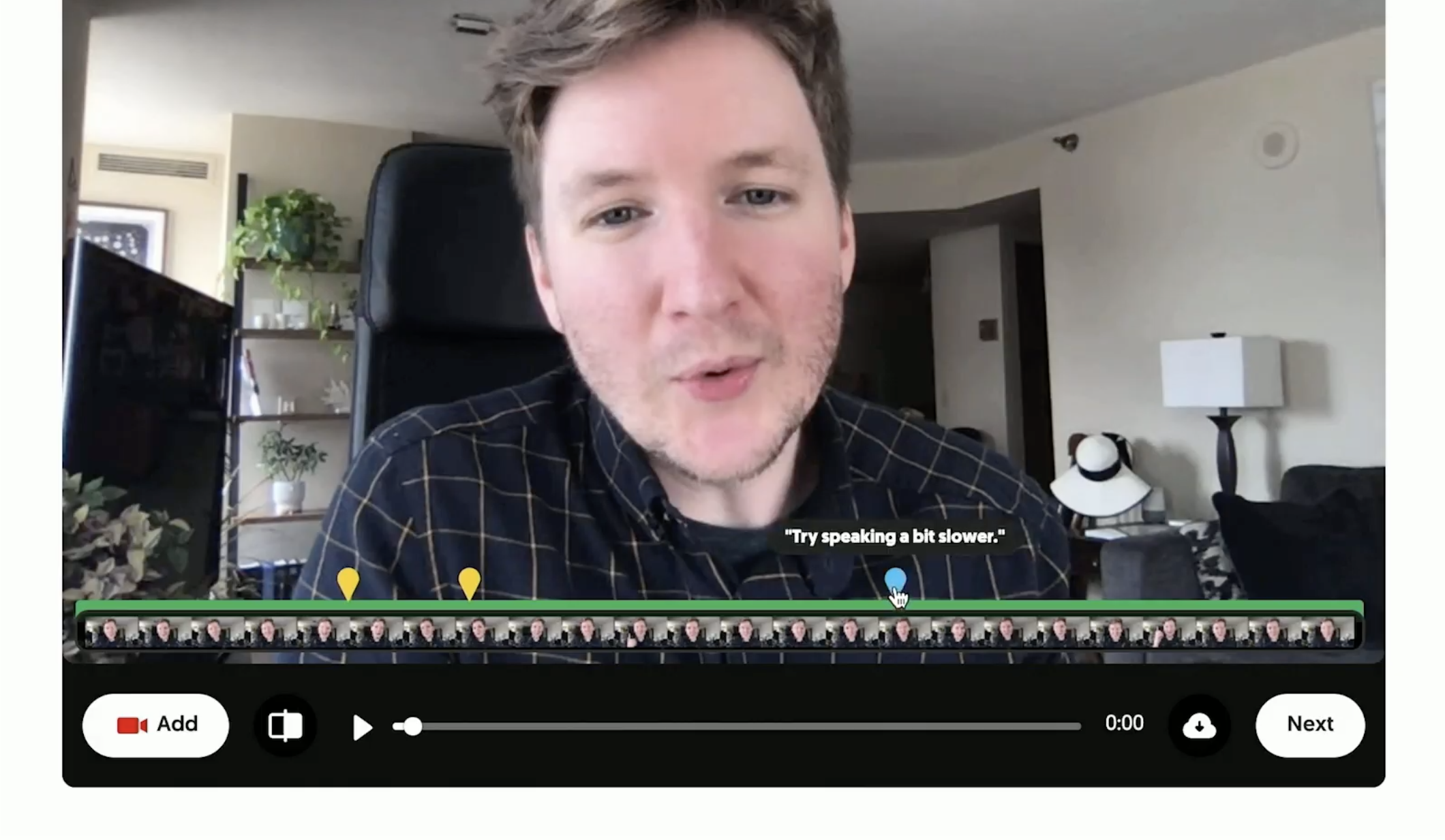
Flipgrid Coach, a new partnership with PowerPoint, provides real-time feedback to users. It will encourage users to talk slower and alert them about filler words (such as “uhm”). When going through the editing process, hints will appear on top of the video’s timeline, giving it a “report card.” This will show you where mistakes are, and allow you to go back and trim / fix as needed. This feature is easily toggled on and off from the educator’s dashboard.

Auto Selfies is a huge time saver. When enabled, this feature will automatically generate a bouncing selfie from the video being submitted. Not happy with the automatic capture? No worries, you can review and edit from the submission frame, or take a photo--just as in the past. The best part about Auto Selfies: it makes grids come alive, animating the view.
Screen recording was a huge addition to educators throughout #RemoteLearning. Now, this capability is coming to mobile users - right within the “Capture” option built into the Shorts Camera.
Last, but certainly not least, Mic Mode provides access to students experiencing lower bandwidth or if they have devices where the camera isn’t enabled. To launch Mic Mode, open the Flipgrid Shorts Camera app, tap “Options,” then tap “Mic Only.” This will record audio from the user.

Stay tuned for ways to use all of these new features in the classroom soon! 🙌🏻
Stay interACTIVE!
~👗➕👓
For more interACTIVE ideas to use when integrating technology into the classroom, check out our book, The InterACTIVE Class.


Using the Draw Tool in Flipgrid
Part of what makes the Shorts camera so powerful are the features available to students to use when sharing their voice and ideas. Digital inking can take ideas and explanations to a whole new level.
Creative Features in Flipgrid
Part of what makes the Shorts camera so powerful are the features available to students to use when sharing their voice and ideas. Digital inking can take ideas and explanations to a whole new level.
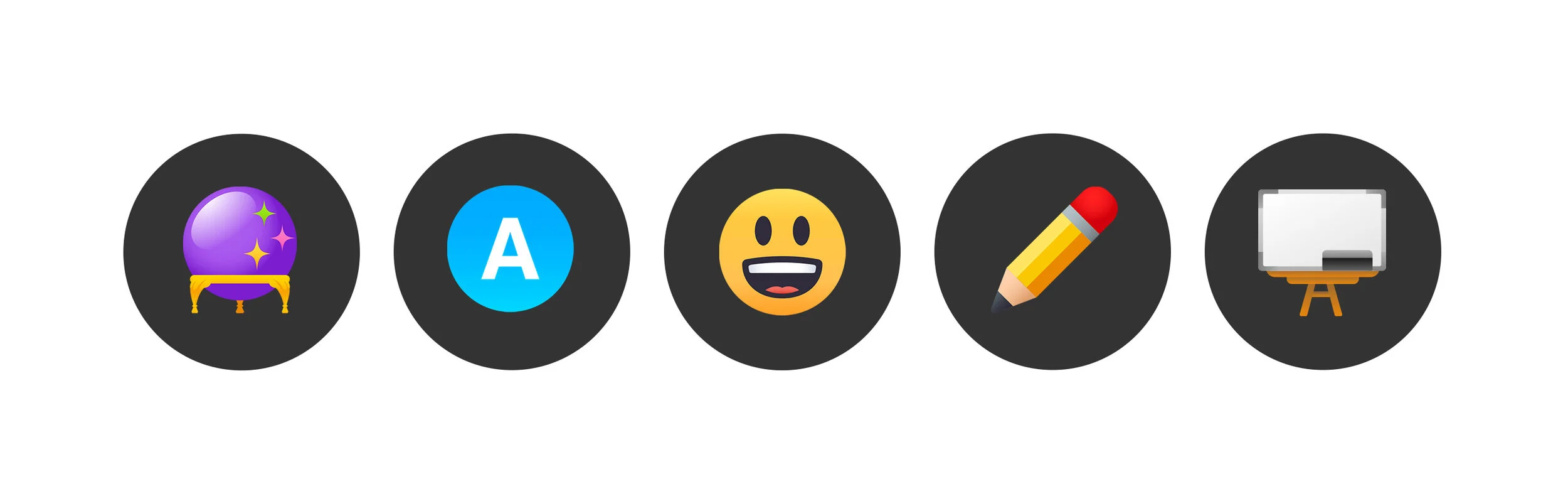
The digital inking tool is symbolized on the Shorts camera dock with a pencil. From the moment you click on it your entire screen becomes a live digital board ready to be written on. Students can write directly on the video screen both when the video is paused and while recording live. The digital inking tool can used in combination with the whiteboard/blackboard feature to create more focus on the writing, or used alongside the photo sticker tool for annotation directly on top of images.
Creative Ways to Use Digital Inking While Recording in Flipgrid
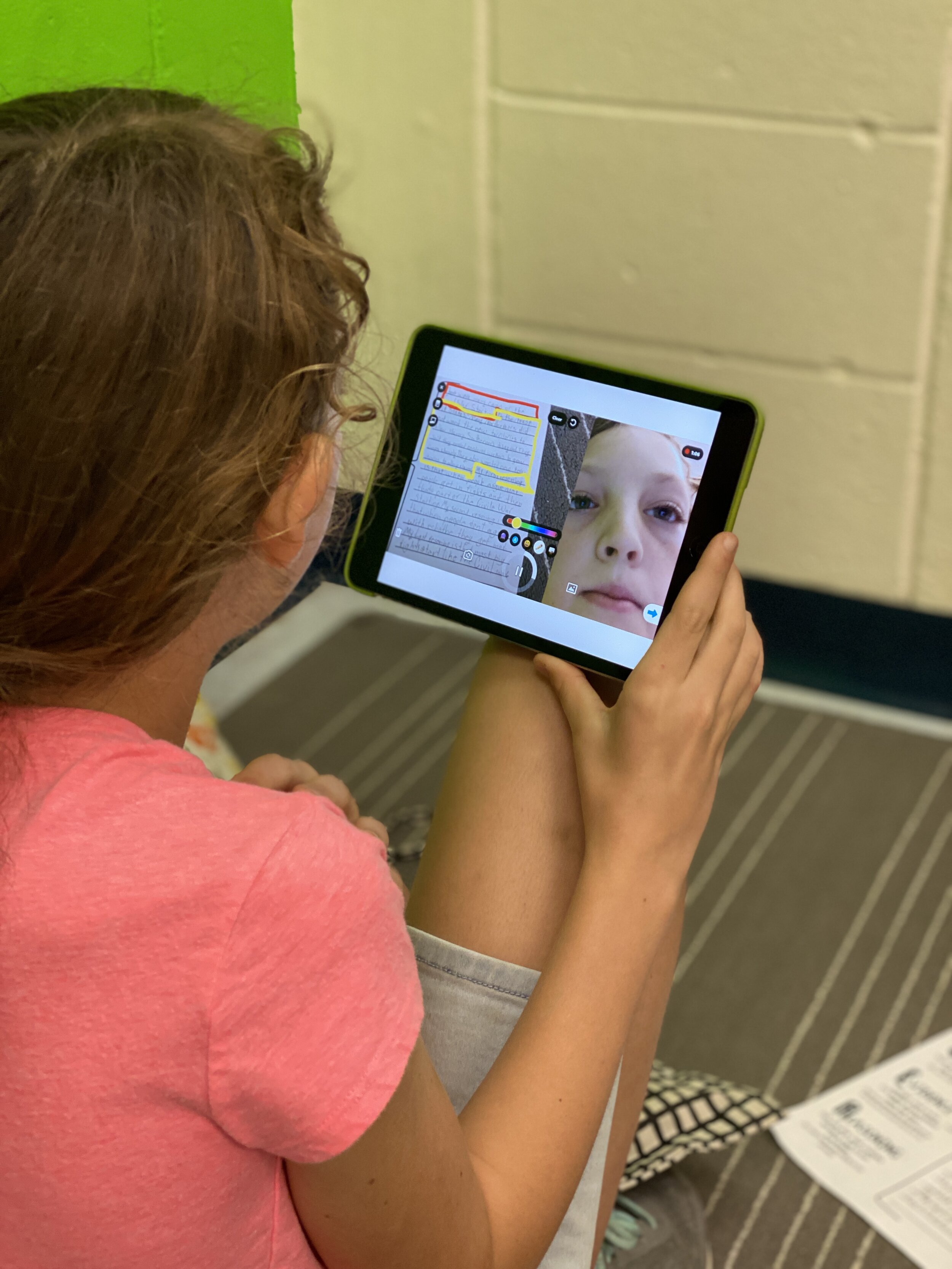
Book Snaps- Using the photo sticker tool along with the draw tool, students can live ink right on top of the pages of a book. They quickly take a photo of the paragraph or page, and then can ink, highlight, or draw, to identify parts of speech, find text evidence to support an inference or simply to draw attention to a character’s thoughts, dialogue or actions.
Math Hunt- Have students hunt for different shapes or identify angles in their video circling with the live inking draw tool as they record. They can pause as they go for a more edited video, or live record and draw as they go.

Science Scavenger Hunts- Demonstrating knowledge of subject matter doesn’t need to just be in math! Have students use the draw tool to identify living vs. non-living things in the backyard, constellations in the sky (real or student created!), or to show length and measurement.
Math Explanations/Number Talks- Students can have a unique place to share their math thinking and explanations. Using the whiteboard/blackboard feature along with the live inking (and even the sticker emojis!), students can explain their thinking and show their work for various types of math problems. Take it a step further and combine the live inking with the pause feature in Flipgrid, and students can share multiple ways to solve the same problem all in one video.

Creative Costumes- Flipgrid developers have spent so much time designing and developing a large set of of creative stickers and emojis, but sometimes the exact sticker just can’t be found. Use the draw tool to create the perfect Dr. Seuss hat, , or to transform yourself into the president you are researching in class.
For more information on how to use the draw tool, check out our tutorial on the Flipgrid YouTube channel.
To read more about Flipgrid check out these posts:
Using Flipgrid to Critical Thinking
- 👗➕👓
For more #interACTIVE lesson ideas using Flipgrid, check out our book The InterACTIVE Class on Amazon!


Using Flipgrid to Promote Critical Thinking 💭
Part of developing an #interACTIVE lesson is finding a way to engage students in their own learning. Sometimes this comes by integrating new apps or programs, but it doesn’t always have to be through something new. Often, using a program students are already familiar with in a new way can be just as effective.
Part of developing an #interACTIVE lesson is finding a way to engage students in their own learning. Sometimes this comes by integrating new apps or programs, but it doesn’t always have to be through something new. Often, using a program students are already familiar with in a new way can be just as effective. It’s also great for being efficient because you don’t have to teach students a new platform before diving in to the learning.
Features That Promote Critical Thinking
All the new features make Flipgrid is a perfect platform for this. You can use it in one way for one type of activity and then change up the way it is used completely for another lesson. Pausing and clipping videos and using stickers are some of the features used on a daily basis in my classroom, so to switch it up I used the sticker and type tool feature for this lesson.
For this lesson, I as the teacher used these tools to create a lesson for students to work on independently throughout the week. For this lesson I wanted students to reflect on various images from our unit if study and I used Flipgrid as the platform. I could have easily given them the photos, had them reflect and write their ideas down in a packet to be turned in at the end of the week. Instead, I took the photos and put them up as individual responses.

Uploading Photos to a Topic
Each photo was uploaded using the custom sticker feature and enlarged to fit almost the entirety of the screen. Then, using the text tool I typed out the captions that accompanied the photo. Following the caption, using the text tool with the white background, I scaffolded the conversation by putting in questions or stems for the students to use when responding to the photos. Once the entire screen was prepared, I turned the audio off so when recording it would just appear that the screen was standing still.

Recording Responses in Flipgrid
Once all the photos were uploaded, the students were given the task of reviewing them and responding to the 3 of their choice. Thus the idea of the “think tank”. The goal of this lesson is not to memorize a specific amount of facts or to summarize an idea using a specific amount of words, but rather the goal of this assignment was to get students thinking, inquiring, talking and connecting to the people and events in the images.

If you are interested in replicating this lesson you can find these images, along with many more here from Buzzfeed’s 50 Powerful Pictures From Black History That Speak for Themselves.
Stay #interACTIVE!
-👗➕👓
For more creative ideas on how to use Flipgrid in the classroom, check out our book The InterACTIVE Class on Amazon!


Creating Podcasts Using Flipgrid
Podcasting in Flipgrid? YES! It’s possible! Check out our step-by-step tutorial to help you get started with your very own #interactivePODclass! ✌🏻😉
What a whirlwind of a day we have had here at FETC! We are so thankful to have such an amazing PLN and we have continued to grow it through all of the amazing connections we continue to make. We had one big hit during our presentation this afternoon and we thought we’d post it up here on the blog to share with everyone who is #notatFETC.
Flipgrid Podcasts
One idea shared this afternoon during out InterACTIVE Class presentation was the idea of having students share their voice through podcasts. Now, with the new Flipgrid sticker feature this is easier than ever. Let’s share how easy it is for students to create their own podcasts.
1.) Choose a topic. This is where students decide what their podcast is going to be on. Maybe you guide the subject a bit to match up with a unit of study you are currently working on, or possibly students can have more freedom with their podcast topic and choose something that they are personally interested in.
2.) Develop branding and create a graphic. This can be as simple or as detailed as you make it. You can simply give students time to design in one of many creations tools—Canva, Adobe Spark, Google Sides—and allow them to design their own unique podcast image. If you choose to take a bit more time on this step, you could do some smaller lessons on branding with students and dig deep into the thought process put behind a logos, colors, fonts, etc. Either way, students leave with a branded image that they can save as a .jpeg image on to their device.
3.) Set up your space in Flipgrid. This is yet another way to differentiate according to your specific class make up and personal preferences. You could have a weekly topic where each student posts their most current “Episode” for classmates to enjoy. Or, maybe you create a class Podcasting Grid where every student gets their own Topic. Each time they create a new “episode” they could add it as a response on their own personal Topic thread.
4.) Record an episode. When students log in to record their episode, they will open up the recording window and using the sticker feature, choose their saved podcast image from file.

Students will then stretch the image until it is enlarged enough to cover the entire screen.

When they begin recording viewers will only see the still image just like we do when we listen to our own real podcasts!

Benefits of Podcasting
Through Flipgrid, giving students a platform to write, create, record and share their voice with classmates and those around them is truly exciting. They are SO many additional ways to take this simple activity and spark even more creativity and collaboration. Possibly try:
-allowing students to “interview” each other and get a chance to not only produce but also guest on a classmate’s podcast
-Create AR or QR codes and share various episodes around campus, in class newsletters or through a school email.
-Merge a class grid pal or Skype class with podcasts and give students a chance to share their podcasts with others outside the room. Enable the ability to reply to responses so listeners can leave their thoughts on the topic or ideas for a new episode.
InterACTIVE learning doesn’t have to be time consuming or require a lot of planning prior, but with the help of Flipgrid, sharing every student's’ voice is just one click away! If you try this with your students we’d love to hear their “episodes!” Tag @themerrillsEDU or #interACTIVE class so we can see the creativity firsthand!
For a quick tutorial on how make podcasts using Flipgrid, check out on of our TECHnically Speaking tutorials here!
Stay interACTIVE!
👓 + 👗
For more #interACTIVE lesson ideas using Flipgrid, check out our book The InterACTIVE Class on Amazon!

