20 Activities for Halloween!
@TheMerrillsEDU share 20 different activities to celebrate Halloween! Try turning yourself into a ghost that visits your classroom, become a character from the text and much more. We’ve included a list of our top 20 favorite Halloween themed books!
Halloween is a “spooktacular” time of the year, but it can be “frightful” for educators! Trying to keep students motivated during such exciting times can be challenging, but check out these 20 “thrilling” activities to keep the engagement “creeping” around your classroom!
Please note: This blog post was hand-crafted and was not created using AI.
(click on any subheading to jump to that section)
Updated: Sept. 2025


20 Halloween Themed Books for Elementary Students!


“Creepy Carrots”
Jasper Rabbit loves carrots—especially Crackenhopper Field carrots. He eats them on the way to school. He eats them going to Little League. He eats them walking home. Until the day the carrots start following him...or are they?
“Creepy Pair of Underwear”
Jasper Rabbit is NOT a little bunny anymore. He’s not afraid of the dark, and he’s definitely not afraid of something as silly as underwear. But when the lights go out, suddenly his new big rabbit underwear glows in the dark. A ghoulish, greenish glow. If Jasper didn’t know any better he’d say his undies were a little, well, creepy. Jasper’s not scared obviously, he’s just done with creepy underwear. But after trying everything to get rid of them, they keep coming back!


“The Bad Seed: The Good,
The Bad and The Spooky”
Halloween is the Bad Seed’s favorite holiday of the year. But what’s a seed to do when he can’t find a show-stopping costume for the big night? Postpone trick-or-treating for everyone, of course! Can he get a costume together in time? Or will this seed return to his baaaaaaaaad ways?

“The Adventures of Beekle:
The Unimaginary Friend”
This magical story begins on an island far away where an imaginary friend is born. He patiently waits his turn to be chosen by a real child, but when he is overlooked time and again, he sets off on an incredible journey to the bustling city, where he finally meets his perfect match and--at long last--is given his special name: Beekle.


“Bonaparte Falls Apart”
Bonaparte is having a tough time. It’s hard for this young skeleton to just hang loose when he can’t keep hold of himself. When he plays catch, his throwing arm literally takes a flyer. Eating lunch can be a real jaw-dropping occasion. How can he start school when he has so many screws loose? Luckily, Bonaparte hit the bone-anza when it came to his friends. Franky Stein, Blacky Widow, and Mummicula all have some bonehead ideas to help pull him together. But will it be enough to boost his confidence and get him ready for the first day of school?
“Crankenstein”
BEWARE OF CRANKENSTEIN! He's a little monster of crankiness that no one can destroy! MEHHRRRR!!! He may look like any ordinary boy, but when faced with a rainy day, a melting popsicle, or an early bedtime, one little boy transforms into a mumbling, grumbling Crankenstein. When Crankenstein meets his match in a fellow Crankenstein, the results could be catastrophic--or they could be just what he needs to brighten his day! This hilarious and relatable tale of grumpiness gone awry will turn toddler tantrums to giggles in no time.


“Ghost Afraid of the Dark”
Follow Boo the Ghost as he celebrates his first Halloween with all his Monster friends! He is a shy little ghost and quickly realizes he is afraid of many things. Read as Boo discovers to be brave in this adorable, spooky story! With charming illustrations and a glow-in-the-dark cover, makes this the perfect bedtime read
“The Hallo-Wiener”
Oscar is a little dog with a big problem -- he gets more tricks than treats because other dogs tease him all the time. But one brave act on Halloween makes Oscar a Grade-A hero, proving that a little wiener can be a real winner!


“Leo: A Ghost Story”
You would like being friends with Leo. He likes to draw, he makes delicious snacks, and most people can't even see him. Because Leo is also a ghost. When a new family moves into his home and Leo's efforts to welcome them are misunderstood, Leo decides it is time to leave and see the world. That is how he meets Jane, a kid with a tremendous imagination and an open position for a worthy knight. That is how Leo and Jane become friends. And that is when their adventures begin.
“How to Make Friends With a Ghost”
What do you do when you meet a ghost? One: Provide the ghost with some of its favorite snacks, like mud tarts and earwax truffles. Two: Tell your ghost bedtime stories (ghosts love to be read to). Three: Make sure no one mistakes your ghost for whipped cream or a marshmallow when you aren't looking! If you follow these few simple steps and the rest of the essential tips in How to Make Friends with a Ghost, you'll see how a ghost friend will lovingly grow up and grow old with you.


“Even Monsters Need Haircuts”
Just before midnight, on the night of a full moon, a young barber stays out past his bedtime to go to work. Although his customers are mostly regulars, they are anything but normal - after all, even monsters need haircuts. Business is steady all night, and this barber is prepared for anything with his scissors, rotting tonic, horn polish, and stink wax. It's a tough job, but someone's got to help these creatures maintain their ghoulish good looks.
“Room on the Broom”
The witch and her cat are happily flying through the sky on a broomstick when the wind picks up and blows away the witch's hat, then her bow, and then her wand! Luckily, three helpful animals find the missing items, and all they want in return is a ride on the broom. But is there room on the broom for so many friends? And when disaster strikes, will they be able to save the witch from a hungry dragon?


“Stumpkin”
Stumpkin is the most handsome pumpkin on the block. He’s as orange as a traffic cone! Twice as round as a basketball! He has no bad side! He’s perfect choice for a Halloween jack-o-lantern. There’s just one problem—Stumpkin has a stump, not a stem. And no one seems to want a stemless jack-o-lantern for their window.
“The Dark”
Laszlo is afraid of the dark. The dark lives in the same house as Laszlo. Mostly, though, the dark stays in the basement and doesn't come into Lazslo's room. But one night, it does. This is the story of how Laszlo stops being afraid of the dark.


“The Little Ghost Who was a Quilt”
When you're a quilt instead of a sheet, being a ghost is hard! Ghosts are supposed to be sheets, light as air and able to whirl and twirl and float and soar. But the little ghost who is a quilt can't whirl or twirl at all, and when he flies, he gets very hot. He doesn't know why he's a quilt. His parents are both sheets, and so are all of his friends. (His great-grandmother was a lace curtain, but that doesn't really help cheer him up.) He feels sad and left out when his friends are zooming around and he can't keep up.
But one Halloween, everything changes. The little ghost who was a quilt has an experience that no other ghost could have, an experience that only happens because he's a quilt . . . and he realizes that it's OK to be different.
“Stellaluna”
Knocked from her mother’s safe embrace by an attacking owl, Stellaluna lands headfirst in a bird’s nest. This adorable baby fruit bat’s world is literally turned upside down when she is adopted by the occupants of the nest and adapts to their peculiar bird habits.


“Snowmen at Halloween”
After an early snowfall, a few kids build some snowmen before going trick-or-treating. And when the kids go off to bed, the snowmen have their own Halloween festival! There's candy and apple-bobbing and costume contests and all sorts of autumn activities. When the kids wake up the next morning, the snowmen are gone... but they've left a very special message behind.
“The Little Kitten”
Ollie and her cat Pumpkin are out frolicking on a beautiful fall day when they come upon a tiny kitten shivering in a pile of fallen leaves. Ollie warms the kitten up and the three become fast friends, but when Ollie sees “Lost Kitten” posters hanging on the trees in the forest, she knows she has to help her new friend get home. As Halloween draws nearer, magic is afoot, and Ollie’s good deed is rewarded in an unexpected way.


“Gustavo - The Shy Ghost”
Gustavo is good at doing all sorts of ghostly things: walking through walls, making objects fly, and glowing in the dark. And he loves almost nothing more than playing beautiful music on his violin. But Gustavo is shy, and some things are harder for him to do, like getting in a line to buy eye scream or making friends with other monsters. Whenever he tries getting close to them, he realizes they just can’t see him. Now that the Day of the Dead is fast approaching, what can he do to make them notice him and to share with them something he loves?
“Ghosts in the House!”
At the edge of town lives a clever girl with a spooky problem: Her house is haunted! Luckily, she happens to be a witch and knows a little something about taking care of ghosts. She catches them, puts them in the washing machine, airs them out to dry, and gives them new lives as sofa covers, table cloths, and, of course, bed sheets to cozy up under. Fresh and charming illustrations in dynamic orange, black and white bring this resourceful heroine and these spooky ghosts to life.


Turn yourself into a Ghost
That Visits Your Classroom!
Here’s a “spooktacular” way to keep your students engaged during the Halloween season! Try “ghosting” yourself into your classroom! Here’s how:
Take a picture of your empty classroom.
Hang a green table cloth on a wall.
Use a green shirt and wrap it around your head (of just don’t put your head all the way through).
Put sunglasses or glasses (even a hair bun through the top of the shirt) and wear them over the shirt.
Record yourself in the app Do Ink Green Screen.
Export the video and save!
For a step-by-step tutorial of how this works, check out our book, “The InterACTIVE Class!” Click here or below to purchase!


Creepy Carrots: Become a Ghost and
Place Yourself in the Text!
In this activity, your students will become ghosts that appear right in the text! We used the text Creepy Carrots and had the students trace the main character Jasper’s emotions throughout the text. Then, we put ourselves “in” the text using Do Ink’s Green Screen app! Here’s How:
Take a photo of a page from the book
Hang a green table cloth on a wall and stand in front of it
Open Do Ink’s Green Screen app and insert the photo from the book on the bottom layer
Add a video to the top layer - which will be you! (tip: for a more “ghostly” effect, drop the opacity of your video)

Creepy Pair of Underwear
(Design a Pair of Underwear!)
Aaron Reynolds & Peter Brown’s “Creepy Pair of Underwear” is a classroom favorite! For this activity, students can design their own creepy pair of underwear, then share why they think Jasper would be afraid of them on Microsoft Flip! Follow these steps:

Download the Creepy Pair of Underwear Template by clicking here (or the image)
Print / copy for your class
Students design a creepy pair of underwear using crayons or markers
Students hold up the creepy pair of underwear and share their designs in a video, explaining why they think Jasper would be afraid of them.
Level up: Upload the template into Canva or Adobe Express and then save th creation as a PNG. Students can then use the file to create a video!


The Bad Seed Presents:
The Good, The Bad and the Spooky
(Design a Costume for the Bad Seed)
The Bad Seed is back and right in time for Halloween! When we last left The Bad Seed, he was committed to doing acts of kindness. But what’s a seed to do when he can’t find a show-stopping costume for the big night? Postpone trick-or-treating for everyone, of course! In this activity, your students can use Canva or Adobe Express to help design a costume to save both The Bad Seed and Halloween! Act quickly, though, or will this seed return to his baaaaaaaaad ways! Here’s how:

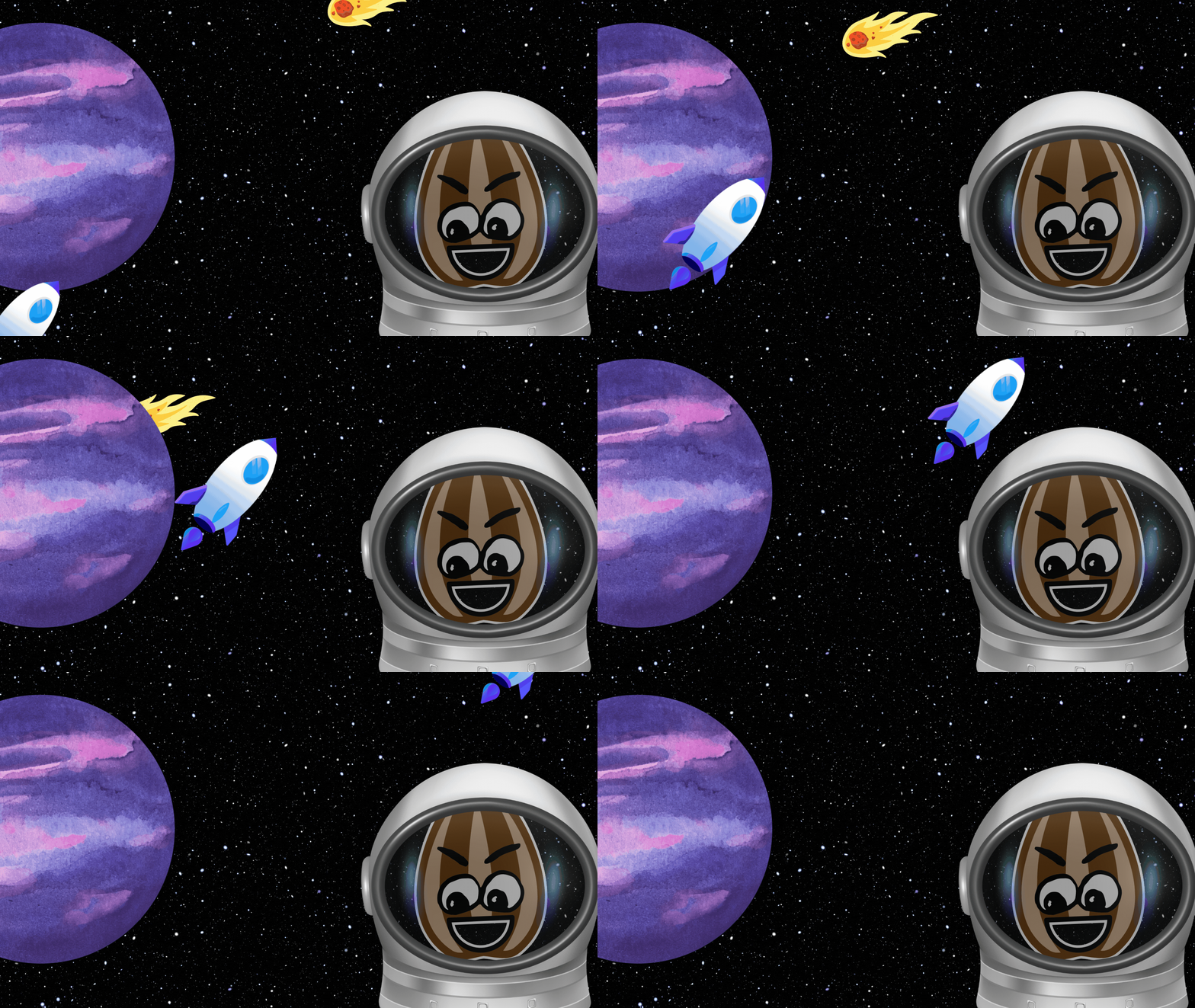
Download the Bad Seed sticker (click here or the image)
Open a blank presentation template in Canva or Adobe Express and upload the Bad Seed sticker.
Use elements to decorate the Bad Seed’s costume.
Download the file as a PNG to share it, or create a video with a voice over explaining thinking.

Hallo-wiener: Design a Costume for Oscar
Similar to the activity above, Oscar has a problem. He desperately needs a costume for Halloween! All the other dogs tease him, so it’s your (students) job to create another costume that will work for him (other than the hot dog costume)! Here’s how:


Download the Oscar media sticker by clicking here or the image above.
Open a blank presentation template in Canva or Adobe Express and upload the Oscar sticker.
Use elements to decorate Oscar’s costume.
Download the file as a PNG to share it, or create a video with a voice over explaining thinking.

Room on the Broom:
Retell the Story using Canva or Adobe Express
Room on the Broom is a classroom favorite and being able to retell the story is an important skill for all students to have. With Canva or Adobe Express, students can easily retell the entire story without ever having to leave the app. Here’s how:
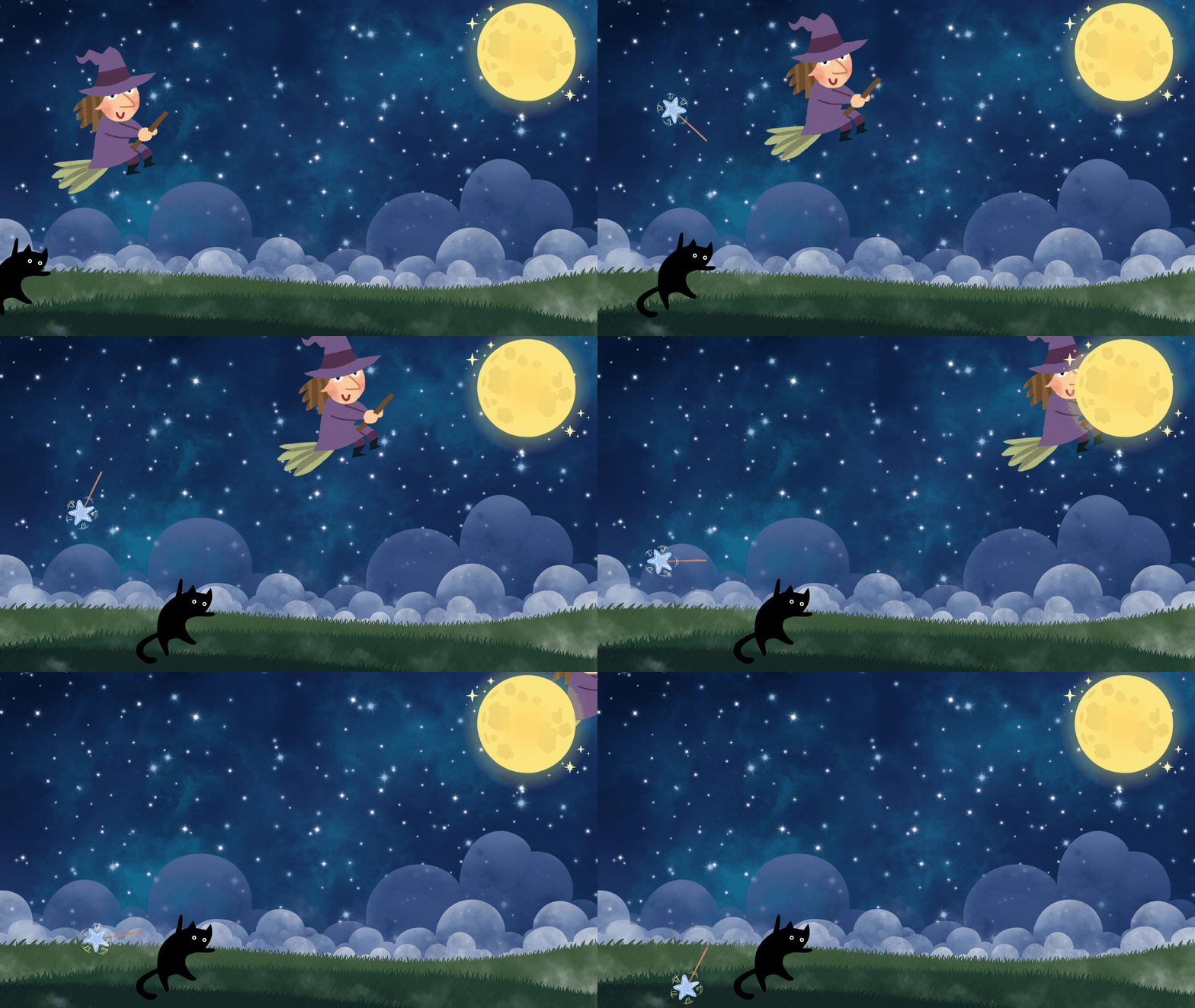
Read Room on the Broom
We recommend pausing as you read to have students maintain some type of flow map (click here to see an example) so that they are able to recall the events of the story.
After you have read the story, have the students use Canva or Adobe Express to create a blank video template. Students can use Elements to retell the story, but we also recommend animating the elements for more engagement.
Once finished, students may download and share their videos on Padlet or Wakelet, where they can watch each other’s videos to see if they sequenced everything correctly.

Stellaluna: Retelling the Story
Here’s another interACTIVE way to get your students retelling the story Stellaluna! After reading, have your students use Canva or Adobe Express elements to retell the events. Our example below used Flipgrid (RIP), but this activity can be easily completed in other platforms. Check it out below!

Stumpkin: Halloween from Stumpkin’s Point of View
In the book Stumpkin, Stumpkin is the most handsome pumpkin on the block. He’s as orange as a traffic cone! Twice as round as a basketball! He has no bad side! He’s perfect choice for a Halloween jack-o-lantern. There’s just one problem—Stumpkin has a stump, not a stem. And no one seems to want a stemless jack-o-lantern for their window. In this activity, your students will put themselves into Stumpkin’s perspective by becoming Stumpkin and explaining his point-of-view. Why is Stumpkin feeling the way that he does? How does he feel throughout the story? What about the end? Here’s how it all works:


Read Stumpkin and download the Stumpkin stickers to the left.
Launch a blank video template in Adobe Express or Canva and then upload the city building. Stretch it across the screen to make it become a background.
Next, add jack-o-lanterns in the city building’s windows.
After that, upload the Stumpkin sticker to the left. Resize the image so that it goes well beyond the frame of the screen (make it really big, trust us! It helps to zoom WAY out).
Animate the Stumpkin POV sticker around the screen to see the city building through Stumpkin’s eyes.
Duplicate the page and repeat as necessary! To add more or less jack-o-lanterns, just move the Stumpkin POV sticker off the view of the screen (but not all the way - otherwise you’ll have to add it again).

Crankenstein: InterACTIVE Read
Aloud with Novel Effect
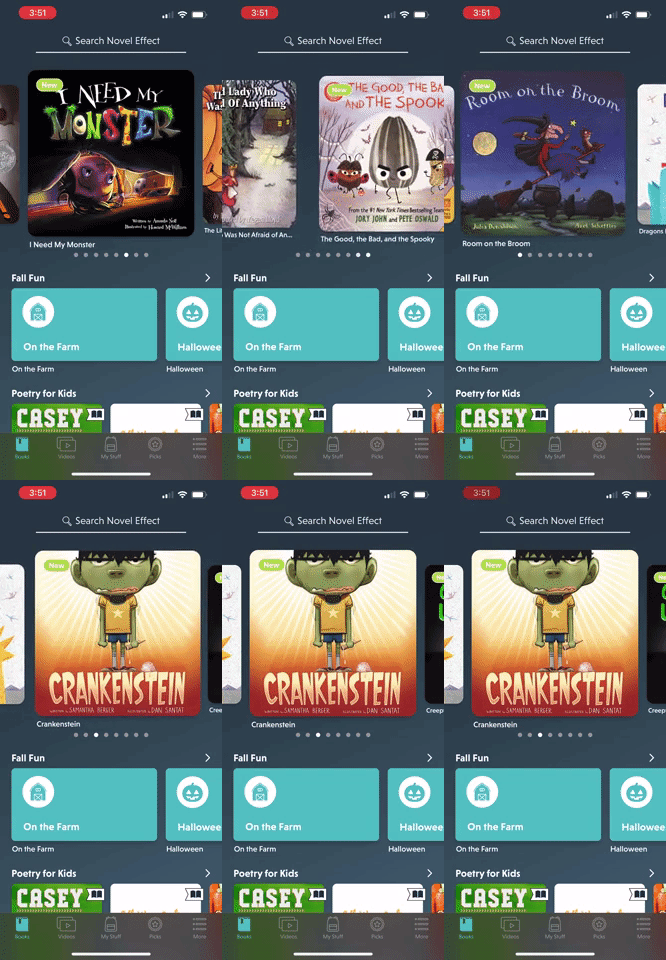
Crankenstein's favorite day of all—Halloween—has gone rotten! With problem after problem, today is bound to go down as the worst Halloween in history!
Kids love this book, but they’ll love it even more if you read it while using the app Novel Effect. Novel Effect uses your devices’ microphone to detect when and where you are reading in the book. It will then add sound effects as you read - all of which match the mood of the story! Novel Effect offers both free and premium versions, and you can find Crankenstein in the library now!

Even Monsters Need Haircuts: Design
a Monster’s Haircut
In Even Monsters Need Haircuts, the main character’s father owns a barber shop. At night, the main character volunteers to cut monsters hair, because no one else would. In this activity, your students can give a monster a haircut and use evidence from the text (rotting tonic, horn polish, stink wax, etc.) to explain what they used to “style” their monster’s hair. Here’s how:
Download the Even Monsters Canva template by clicking here or the image below.
Share the template with your students.
Students can use Canva’s drawing tools or elements to give the monster a haircut.
Have the students download their work as a PNG file.
Students can share their work with their classmates on Wakelet or Padlet.


Bonaparte: Read aloud & STEM Project
Bonaparte Falls Apart is a humorous story of a skeleton who “just can’t keep it together.” Luckily for him, his friends help him out. That’s exactly what your students will do in this activity!
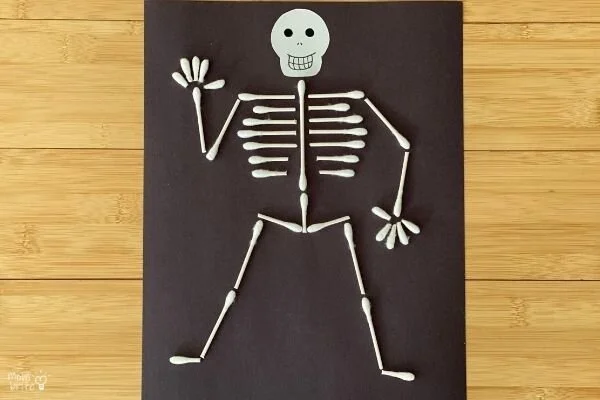
Image courtesy of: Mombrite.com
After reading Bonaparte Falls Apart, Give group students into pairs (this can also be done individually)
Give each group / student a black piece of construction paper and a handful of q-tips.
Have the students use glue to make Bonaparte’s skeleton. Groups / Students may cut the q-tips to better fit their skeleton if they see fit.
Last, give each student a half-piece of white printer paper. Students will use this to make the Bonaparte’s skull.
For a detailed step-by-step tutorial on this, check out this post from Betty!

How to Make Friends With a Ghost: A How-to Guide

In How to Make Friends with a Ghost, you’ll learn the basics of what to do in order to befriend a ghost For example, you’ll need to provide the ghost with some of its favorite snacks, like mud tarts and earwax truffles. In this activity, your students will add a ghost to a video and explain what they would do in order to become friends with a ghost. Here’s how:

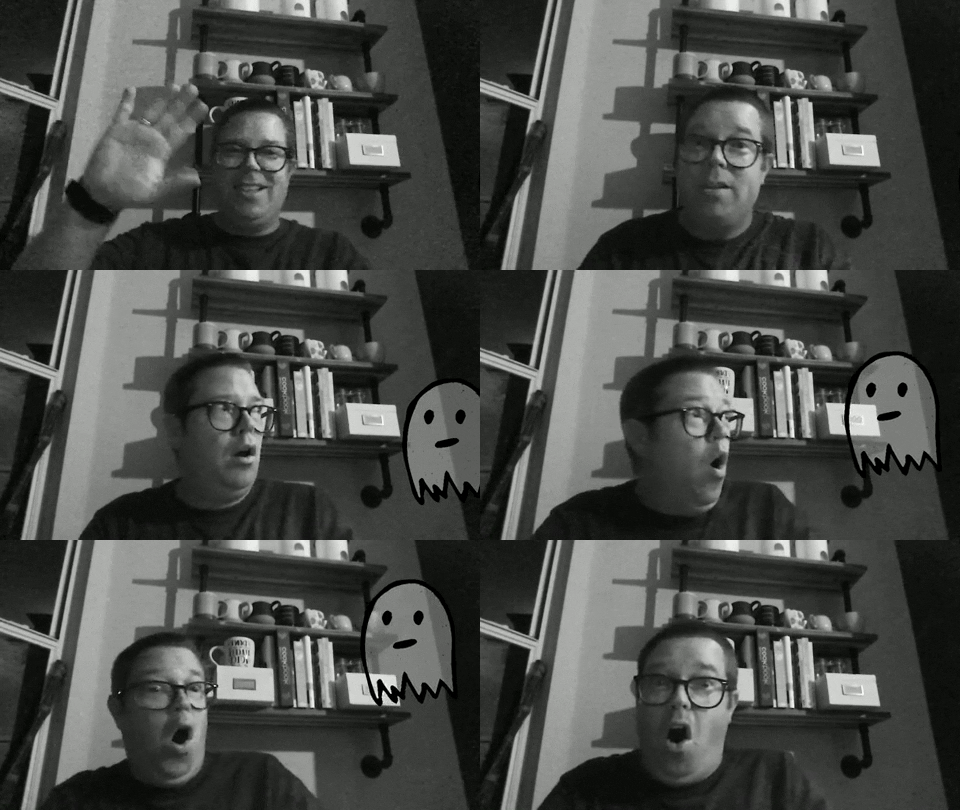
Download the Ghost sticker by clicking here or the image above.
Open a blank video template in Canva or Adobe Express.
Students record the video of themselves and explain how they can be friends with a ghost.
Then, students can upload the Ghost sticker to their video and then animate it to appear while watching the video (see our example above).
Students can then download their videos and share them on either Wakelet or Padlet.

Ghost Afraid of the Dark: Read Aloud on
Vooks & Guide to Being Brave
Boo the ghost is getting ready for his first Halloween with all his monster friends. There’s just one problem…He’s a little shy and is afraid of many things. But have no fear, your students will bravely be able to fly through this activity! Here’s how:
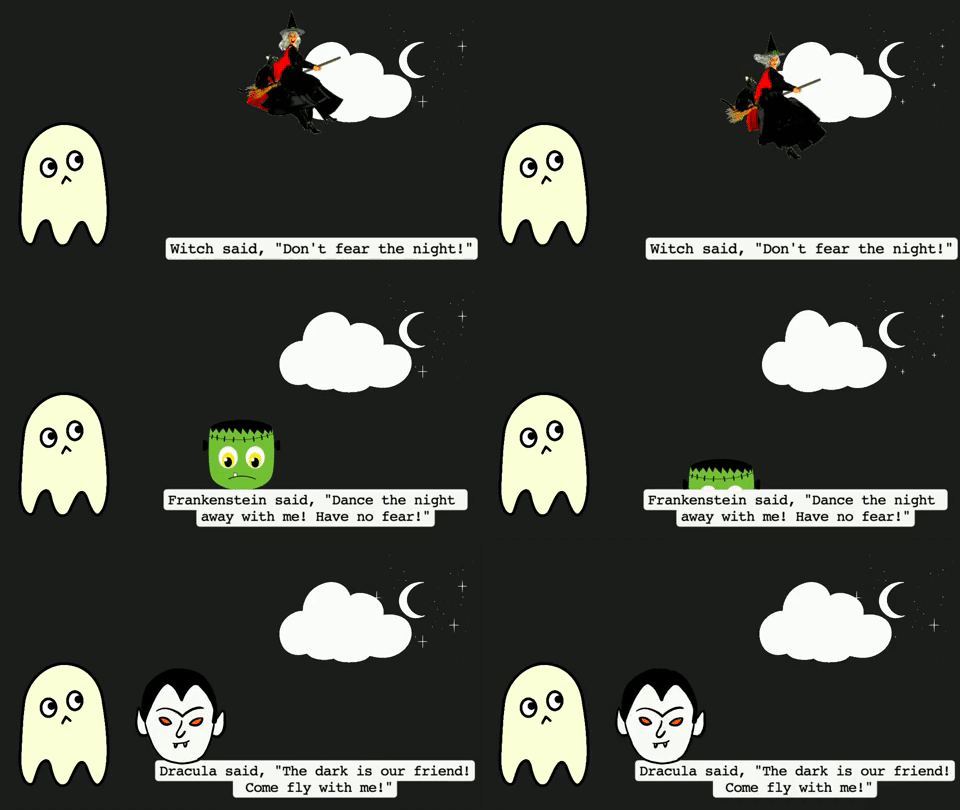

Read or watch Ghost Afraid of the Dark using the book or the app Vooks (click here to download) - or do both!
Think about how Boo needed to be brave as he went through the story. What did he do to show bravery?
Download the Boo sticker here (or click the image).
Open Canva or Adobe Express and launch a blank video template.
Add a background and then upload the Boo sticker.
Add some other elements and text.
Click on the different elements and animate them so that they move around.
Download the video and then share it to Wakelet or Padlet.

The Dark: InterACTIVE Read Aloud
& Add “The Dark” to Your Video
The Dark is a book that all kids (and let’s face it, some adults, too) can relate to. In The Dark, the main character, Laszlo is afraid of the dark. “The dark” lives in the same house as Laszlo. Mostly, though, the dark stays in the basement and doesn't come into Lazslo's room. But one night, it does…
This is a great book to pair with Ghost Afraid of the Dark, as both deal with being a little nervous at night. For this activity, your students can download a sticker of “The Dark” and add it to a Flip video. Check it out:


Read The Dark using Novel Effect. This will create an interACTIVE read aloud!
Download The Dark sticker here (or click the image).
Open Canva or Adobe Express and launch a blank video template.
Record upload a video explaining what areas make you nervous. Why? How are you brave?
Now, upload The Dark sticker and resize it so that it goes beyond the screen to make sure that itt covers the entire area (see our video example above)
Download the video and share it to Wakelet or Padlet so that others can see.

Steve Spangler Halloween Science Kits!
Steve Spangler always brings the fun and his Halloween Science kits do not disappoint. If your students are into things like Vampire Slime, Ghost eggs, Invisible paper and much more. Check out the experiments and products to purchase below!


Halloween BreakoutEDU Kits
BreakoutEDU kits always keep students thinking. Luckily for educators, BreakoutEDU has uploaded 43 different games to help us get through the Halloween holiday. Everything from a pumpkin design party to tricks and treats. Check them all out by clicking here or the image below!


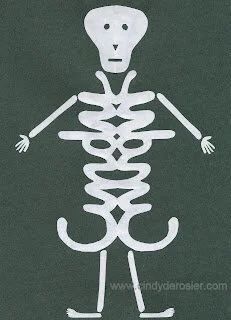
Name Skeletons: Create a Skeleton Our of Your Name
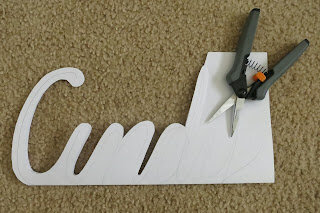
This fabulous idea comes from Cindy deRosier. Create a skeleton body using your name! Learn how to do it on Cindy’s blog post by clicking here or the images below!

Halloween on Wonderopolis
Do your students have big questions when it comes to Halloween? For example, maybe they’re wondering if other countries celebrate Halloween? Perhaps they’re curious about when candy was invented? Wonderopolis has you covered! Check out the entire Halloween themed list of topics by clicking here or the image below!


Halloween on Nearpod
The Nearpod Library is a great place to find resources. Educators can find plenty of content on Halloween here, too! Everything from stories to the actual history of Halloween. Check out the collection by searching “Halloween” in the Nearpod library, or click here or the image below!

-- Let us know if you’re using any of these ideas in your classroom! Be sure to follow us on social media (@TheMerrillsEDU everywhere) and tag us! 👓👗
For more tips, tricks and lesson ideas for making learning more interACTIVE, check out our books The InterACTIVE Class and Flipgrid in the InterACTIVE Class on Amazon!




20 Activities for International Dot Day!
@TheMerrillsEDU share 20 different activities to celebrate International Dot Day, the day dedicated to the book “The Dot” by Peter Reynolds.

UPDATED: Septmeber 2026
Please note: This blog post was hand-crafted and does not include the use of AI.
Peter Reynolds’ “The Dot” has become an instant classic in classrooms around the globe. Students need to feel self confidence now more than ever, and “The Dot” does a perfect job fulfilling that feeling. Traditionally, “Dot Day” is around September 15th(ish). Below are some of our favorite “Dot Day” activities!
(click on any subheading to jump to that section)










Celebrate International Dot Day with Peter Reynolds!
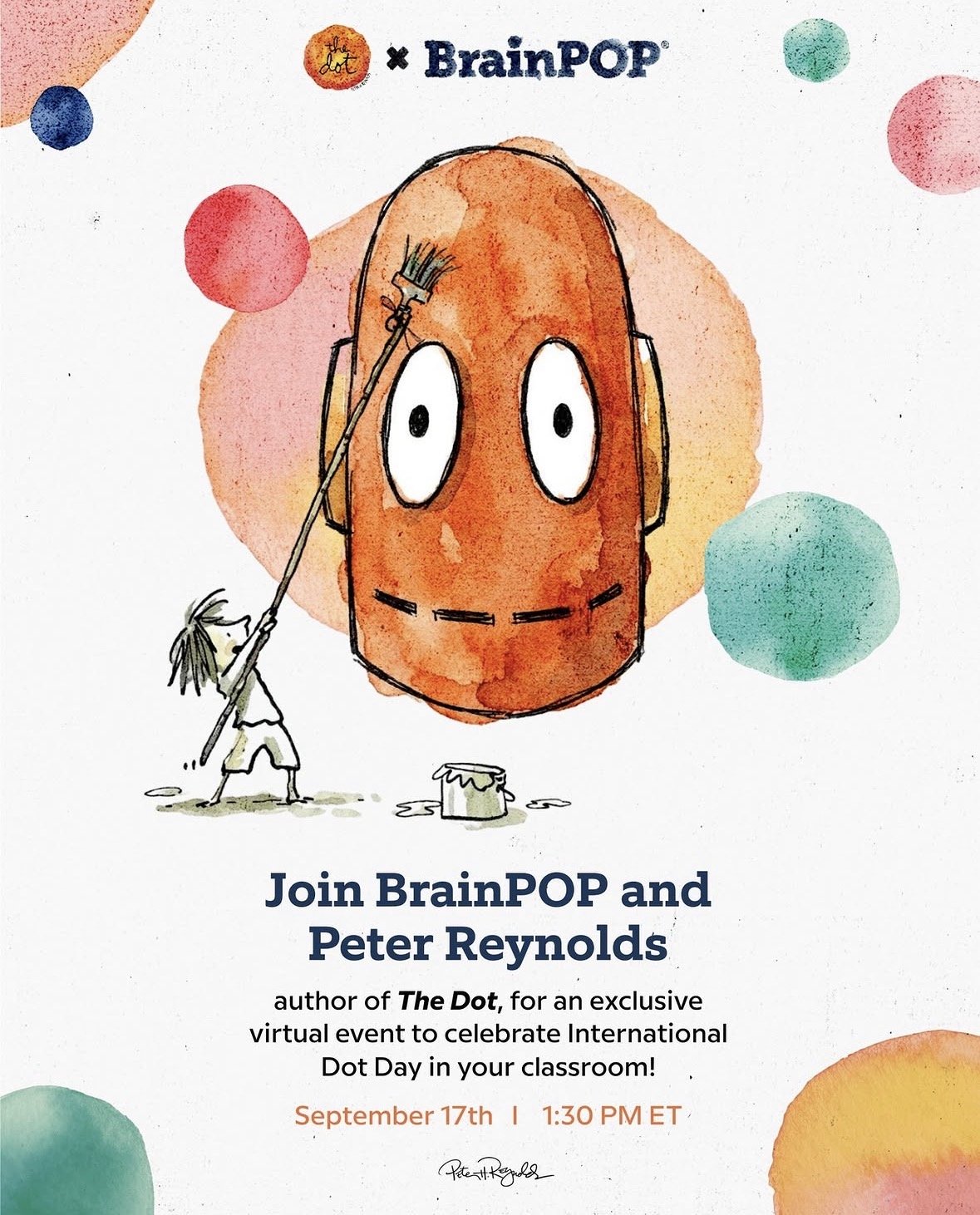
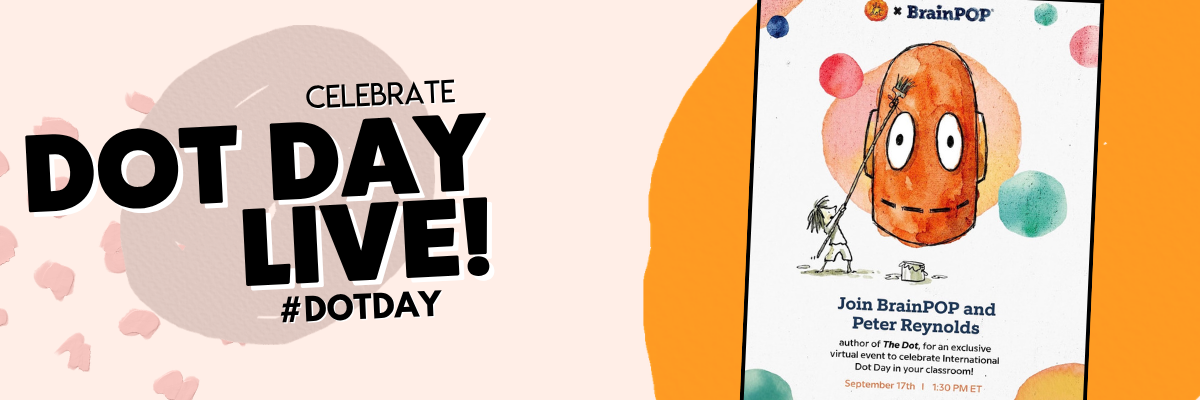
Celebrate International Dot Day with your students and special guest Peter H. Reynolds, author of The Dot!
Stream this live 30 minute event directly into your classroom to hear Peter share how a single mark can spark lifelong creative confidence.
Your students will join a BrainPOP animator for a step-by-step Moby draw-along and ask their questions live. It’s a fast, zero-prep way to build creative confidence and kick off the school year.
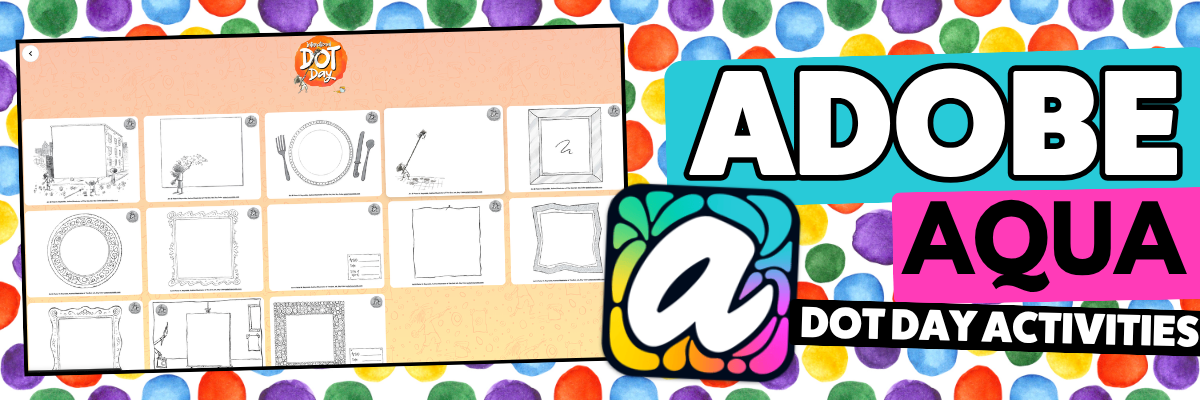
Dot Day with Adobe Aqua!
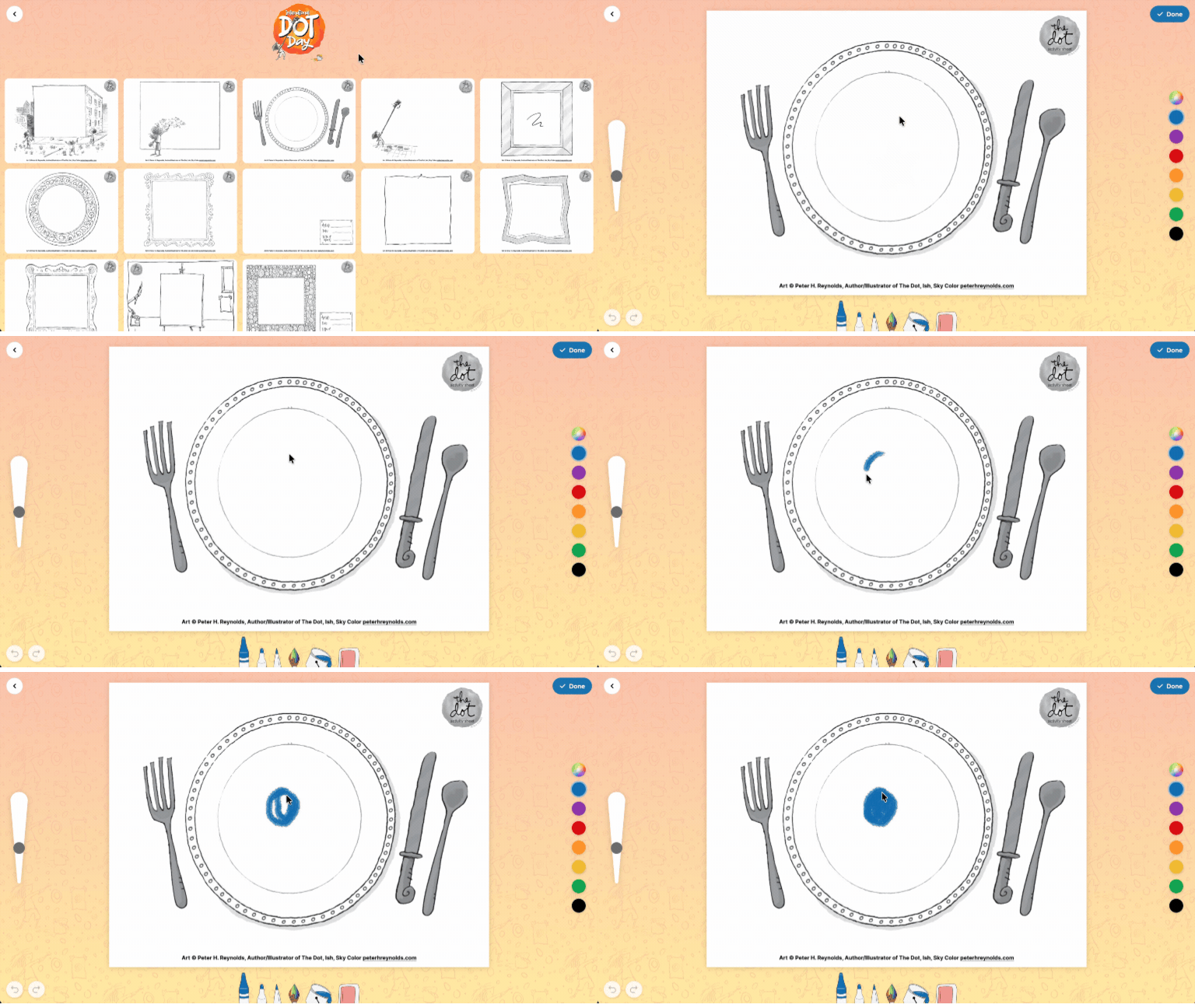
Adobe Aqua has some amazing free templates just in time for International Dot Day! Share the link below with your students and they can pick and choose the template they want - then start creating!
Dot Day Buttons!
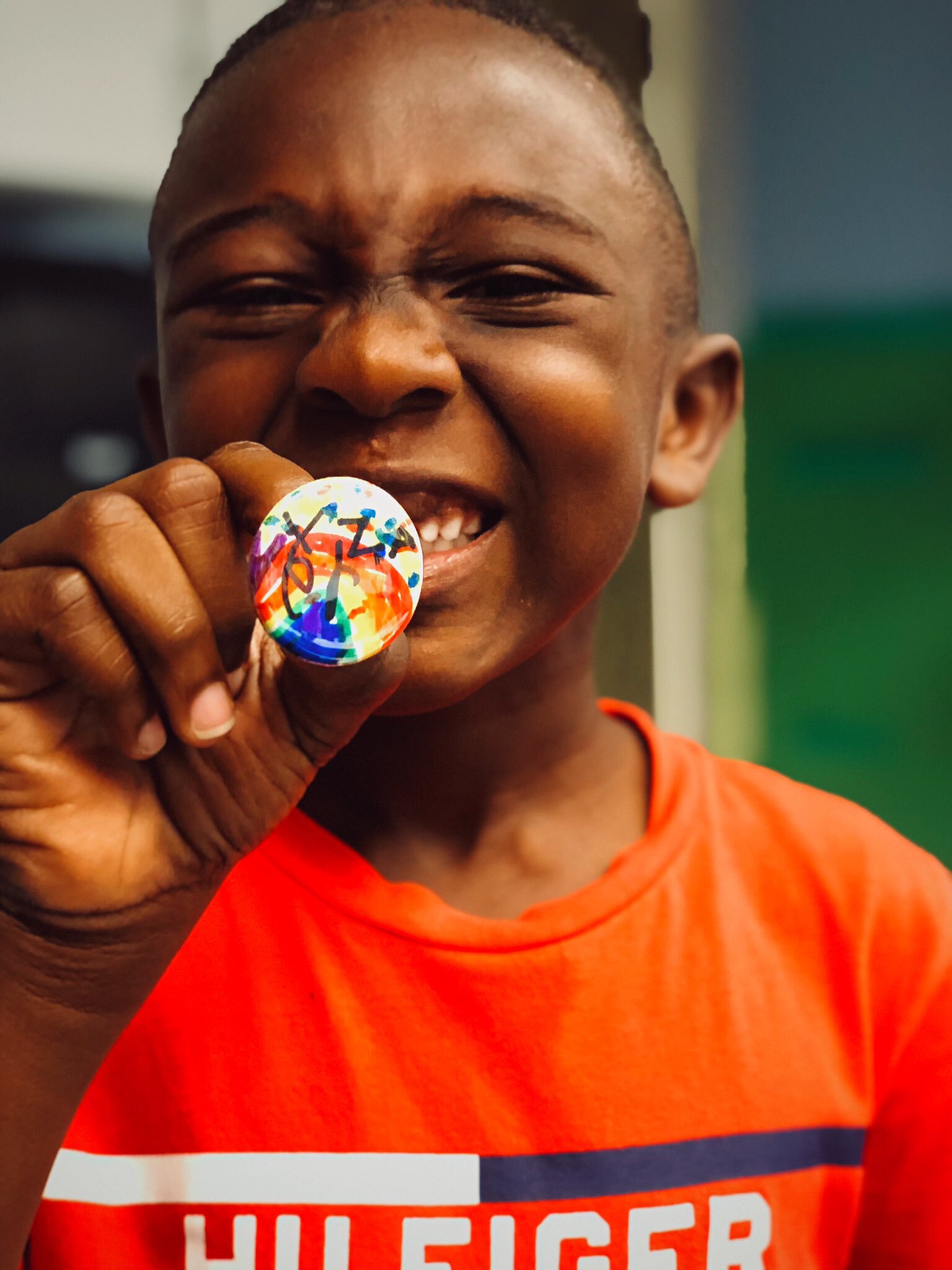
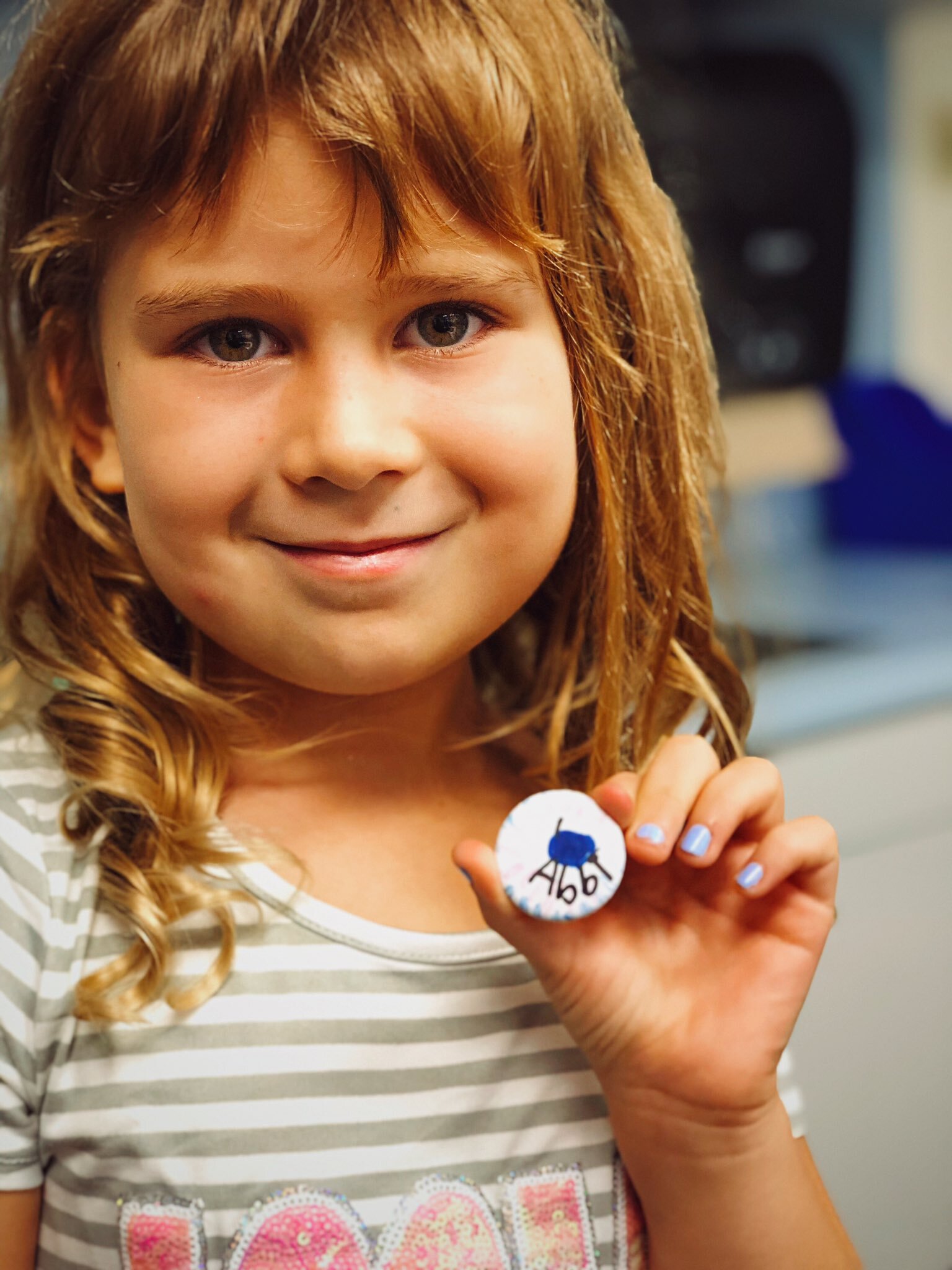
A few years ago we purchased a button maker. Now, every year we use it on Dot Day! The kids can use dots to design their buttons (a large dot!). If you don’t have a button maker - no worries! You can find relatively cheap craft buttons on Amazon. Click here for the link!
Augmented Reality Dots with Quiver!
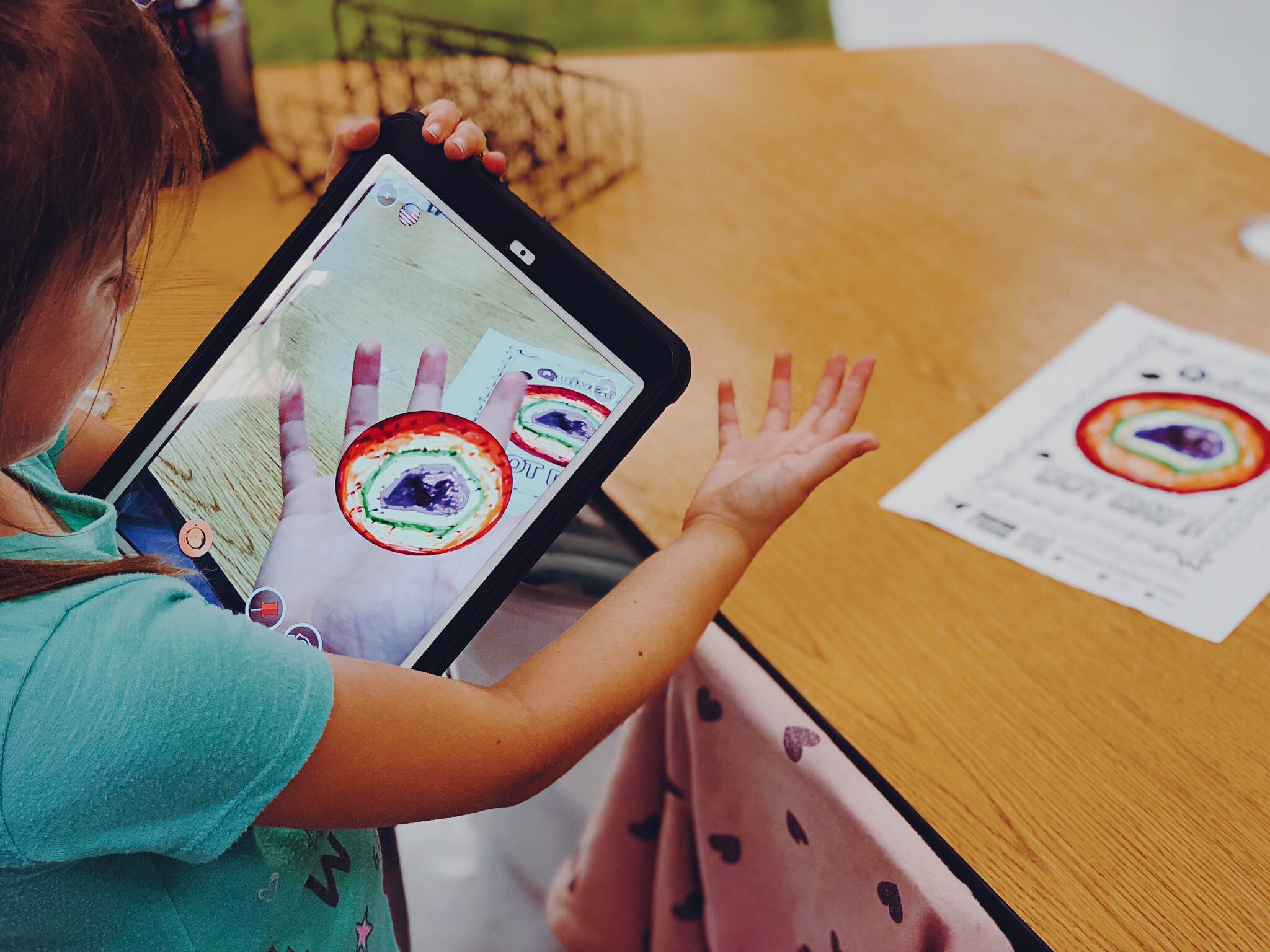
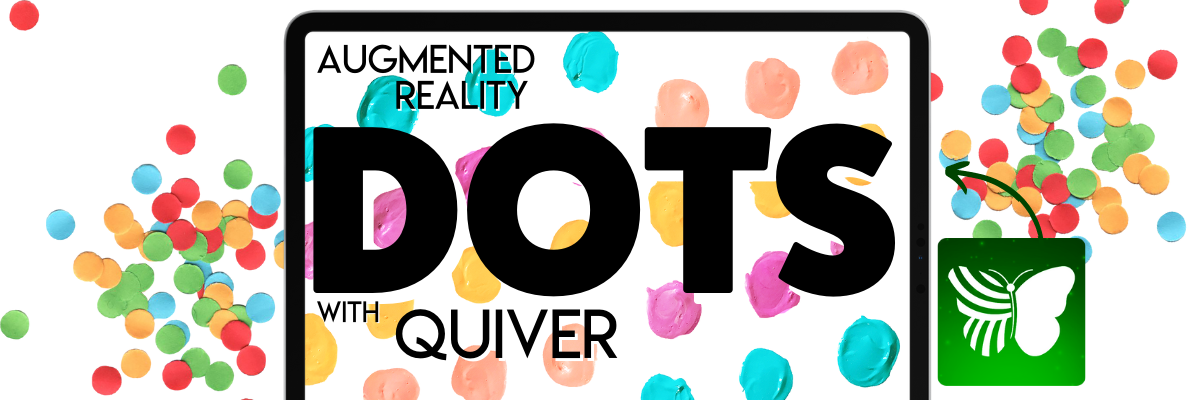
Quiver is an awesome (and easy to use) Augmented Reality app that is available through the iOS App Store and Google Play. For this activity, you’ll need to download and print the worksheet linked here (or click on the picture). Once printed, have your students draw their dot design on the sheet. When they’re finished, have them launch the Quiver app and scan the paper. When Quiver recognizes the sheet, it will automatically create an AR version of the dot. The kids can even “hold it in their hands!” Check it out below!
Dot Day Science Experiment
Tie Dot Day into your science lessons! This Steve Spangler “Sharpie Pen Color” science experiment is great for Observable Properties and the Practice of Science. Check out the “how to” below! For a complete set of instructions, click here.

Dot Day Wormhole (Green Screen) Activity
A few years ago, our friend Erin Flanagan shared this creative way to celebrate Dot Day: A Wormhole! It looks more complicated than it actually is. The trick…Create layers with an illustration and a green circle. For a step-by-step tutorial, watch below! Be sure to check out Erin’s website here and follow her on social media @Erintegration!
Dot Day BreakoutEDU Activity
Get your student’s thinking with this BreakoutEDU activity! Click here (or the image) to learn more and read what it’s all about below:
“It’s time to make your mark! You have the talent, you are something special, and the world wants to see what only you can do! The only problem is the Eraser was in the classroom last night and thinks he locked all of our creativity and inspiration in the Breakout EDU box. He believes without it, we will not be able to make our mark! Work together to figure out the combinations and break out our Creativity!”
Create a Dot for Dot Day on Seesaw (Activity Included)!
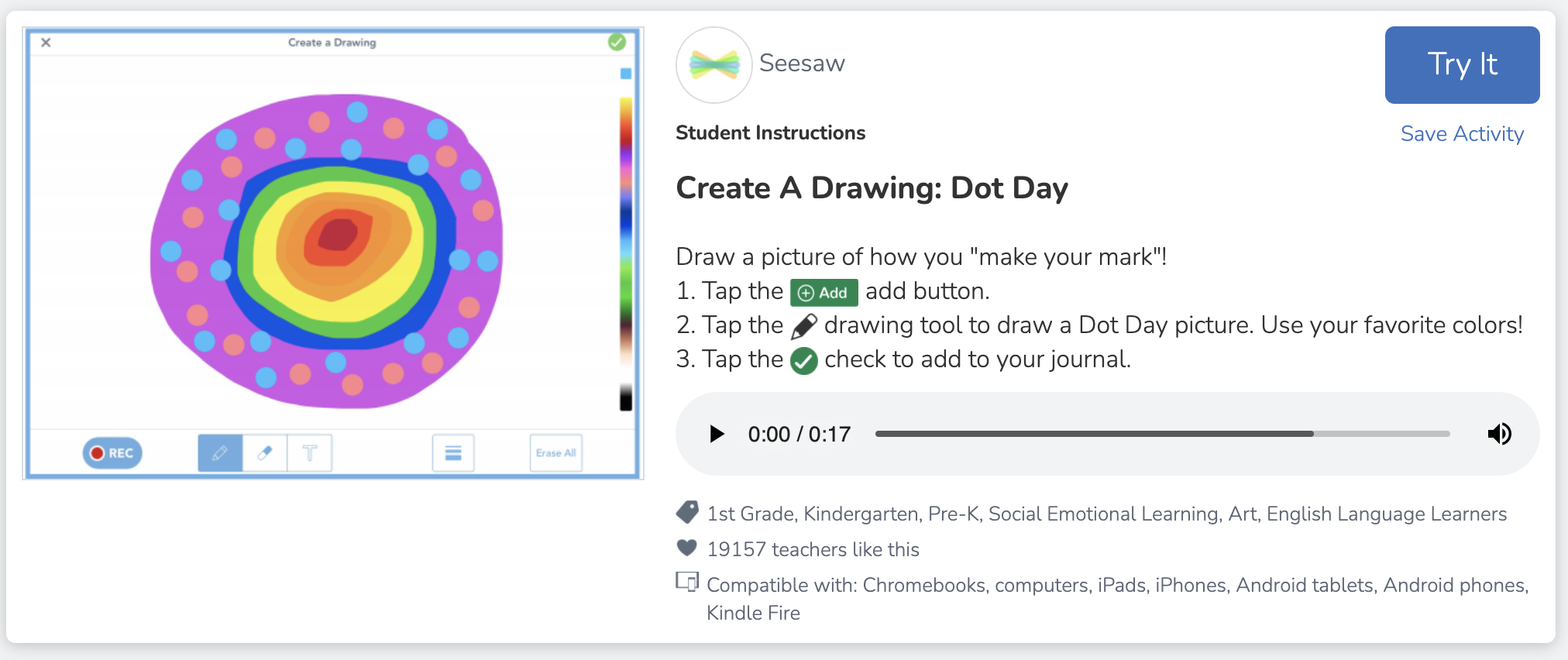
Seesaw users can get in on the fun of Dot Day with this activity! Use the Seesaw tools to design a dot, then record an explanation sharing why you used the colors that you did. Teachers can share out the responses as a whole group for the class to share! Click here (or the image) to access the activity! (note: this requires a free Seesaw account)
Dot Day STEM Challenge
Looking to build up some collaboration and team work within your class? This STEM challenge will make that happen! Using only notecards and circle (dot!) stickers, students must work together to create a tower. Give the class a set amount of time and then start the timer. The tallest tower still standing after the time runs out wins!
You’ll see how students quickly realize that they must work together to make the tower stand and collaborate on how to keep the structure going!

(image taken pre-COVID)
Animate a Dot for Dot Day!

What if we told you that you could take your dot creations for Dot Day and animate them? It’s possible and actually not that complicated at all! We recommend using an app like Chatterpix Kids on iOS or Google Play. Create your dot art, then launch Chatterpix Kids. Snap a photo of your art, then add a talking mouth. You now have 30 seconds of recording time to talk about your dot!
Level up - option #1: Save the Chatterpix Kids video onto your camera roll, then upload it to a Flipgrid Topic for the entire class to see!
Level up - option #2: Save the Chatterpix Kids video onto your camera roll, then upload it to Seesaw so that families at home can see!
Dot Day Twister Activity (Wormhole)!
This activity is similar to the wormhole activity above, only this time you need a Twister mat! The green dots on the twister mat will eventually reveal a secret background once you upload it into iMovie (and go through a bit of editing). Check out how it works from Beverly Babbage below and be sure to follow her on Twitter by clicking here!

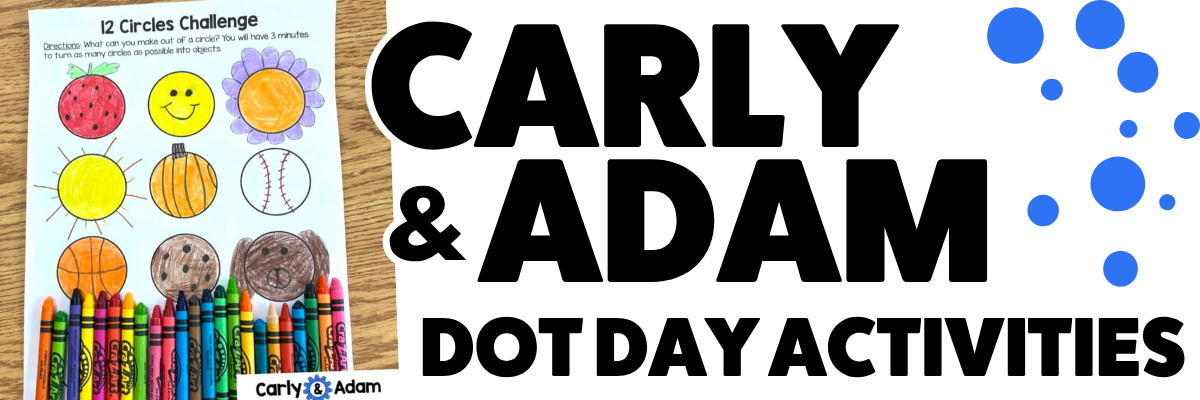
Carly & Adam’s 12 Circle Challenge
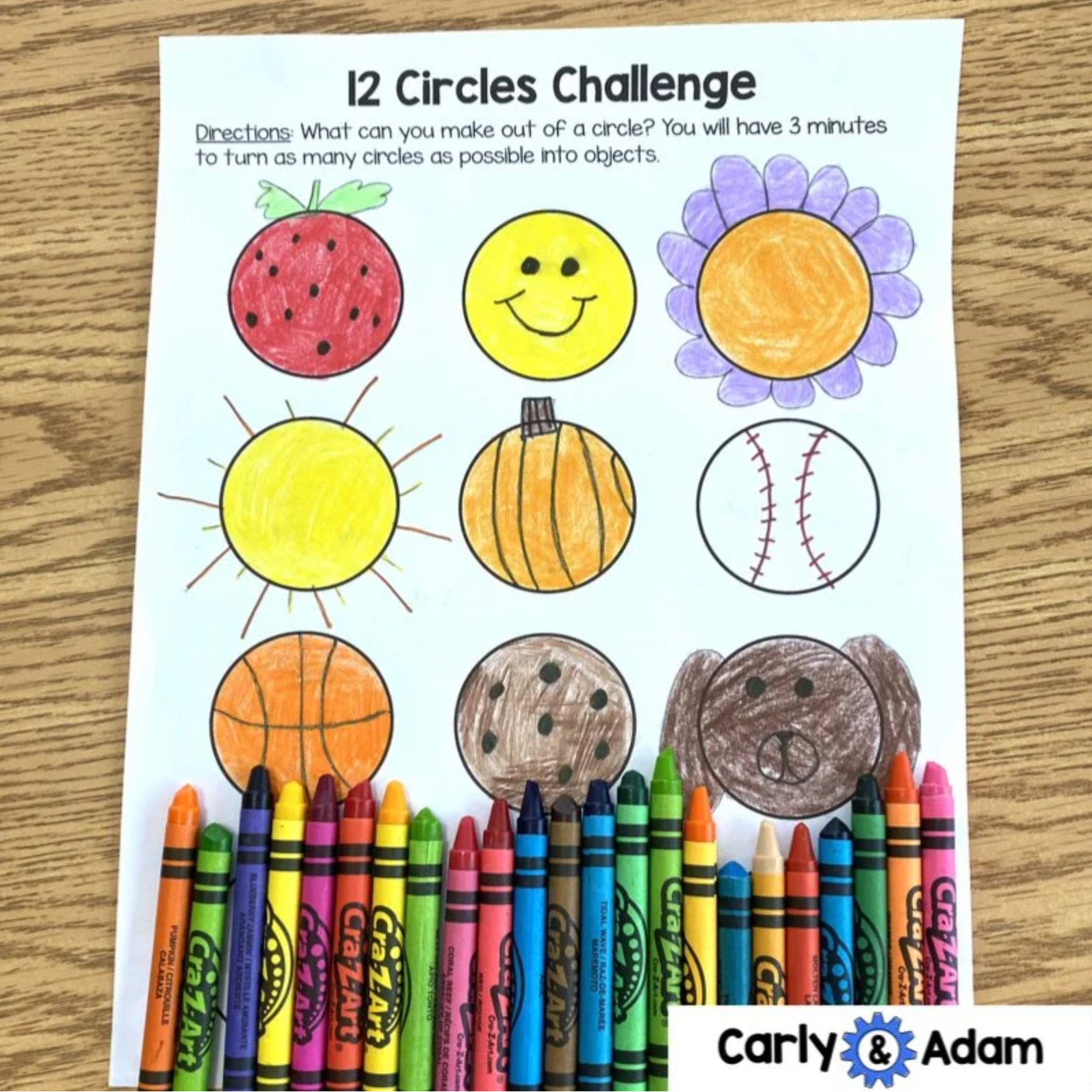
Need something quick and simple? Our dear friends Carly & Adam have you covered! Check our their free Dot Day activities and templates below.
International Dot Day Song
(with movements)
Emily Arrow and Peter Reynolds teamed up to make this video that features a Dot Day song and dance moves. The video goes through each motion and would be a great challenge to integrate with Flipgrid. “Show me the Dot Day dance!” and turn your classroom into a dance challenge! Check out the video for more!
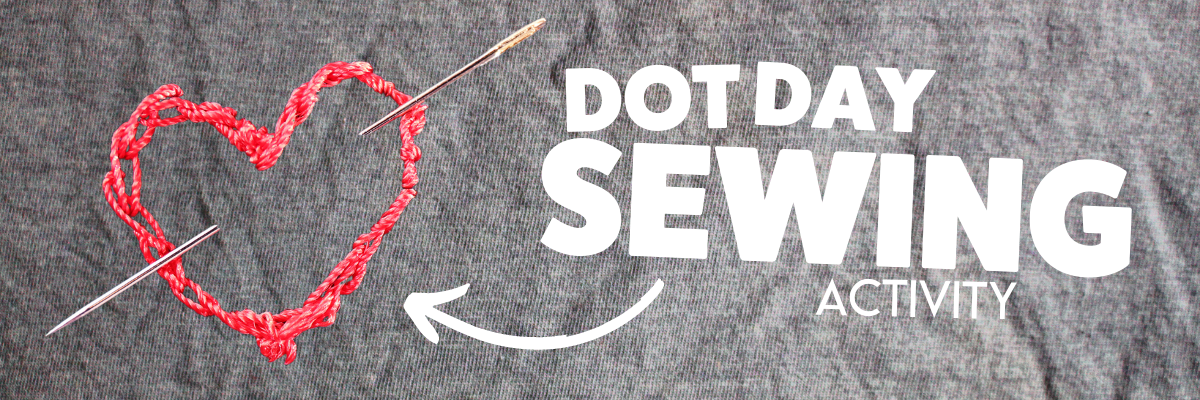
Dot Day Sewing Craft
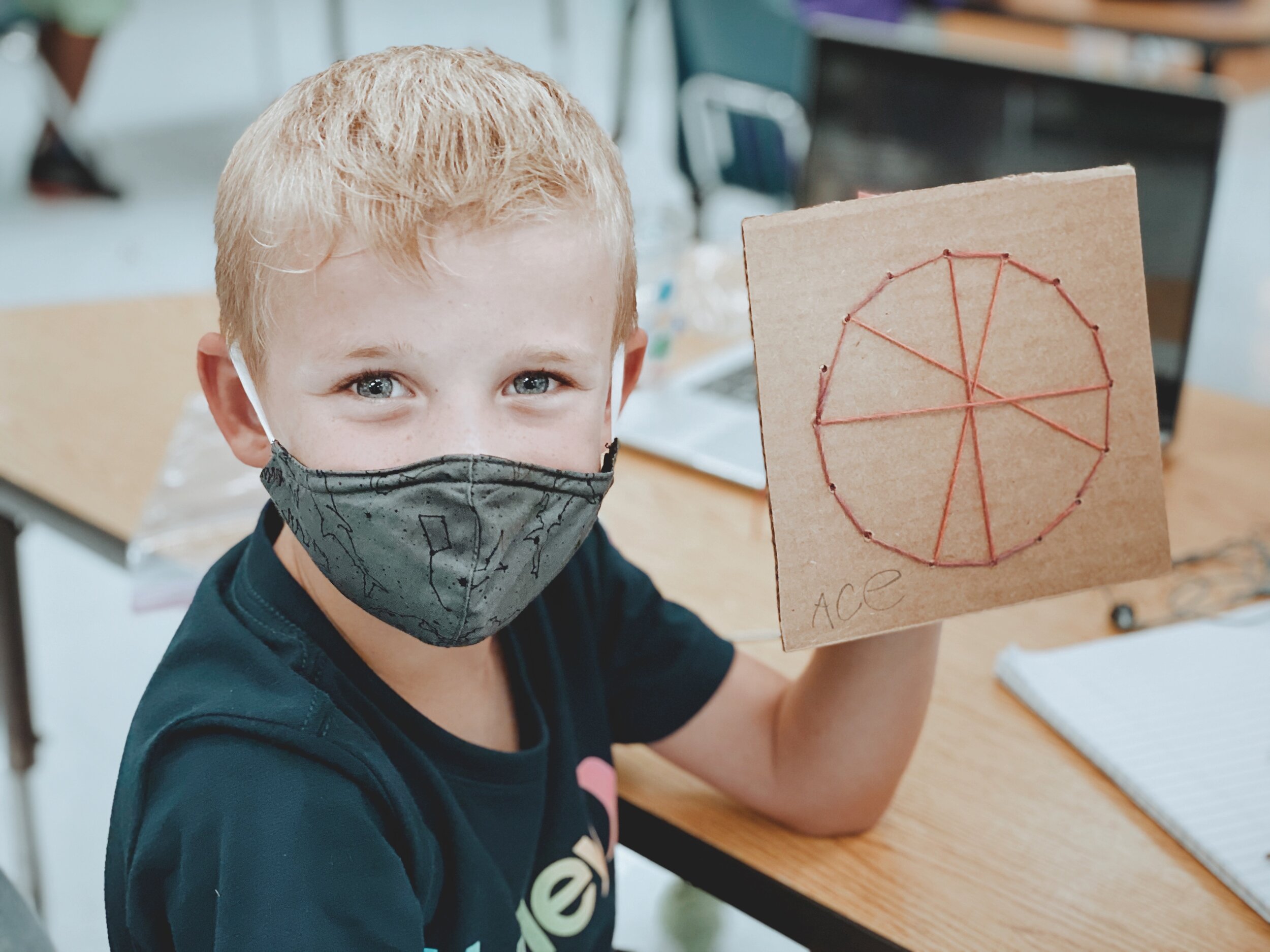
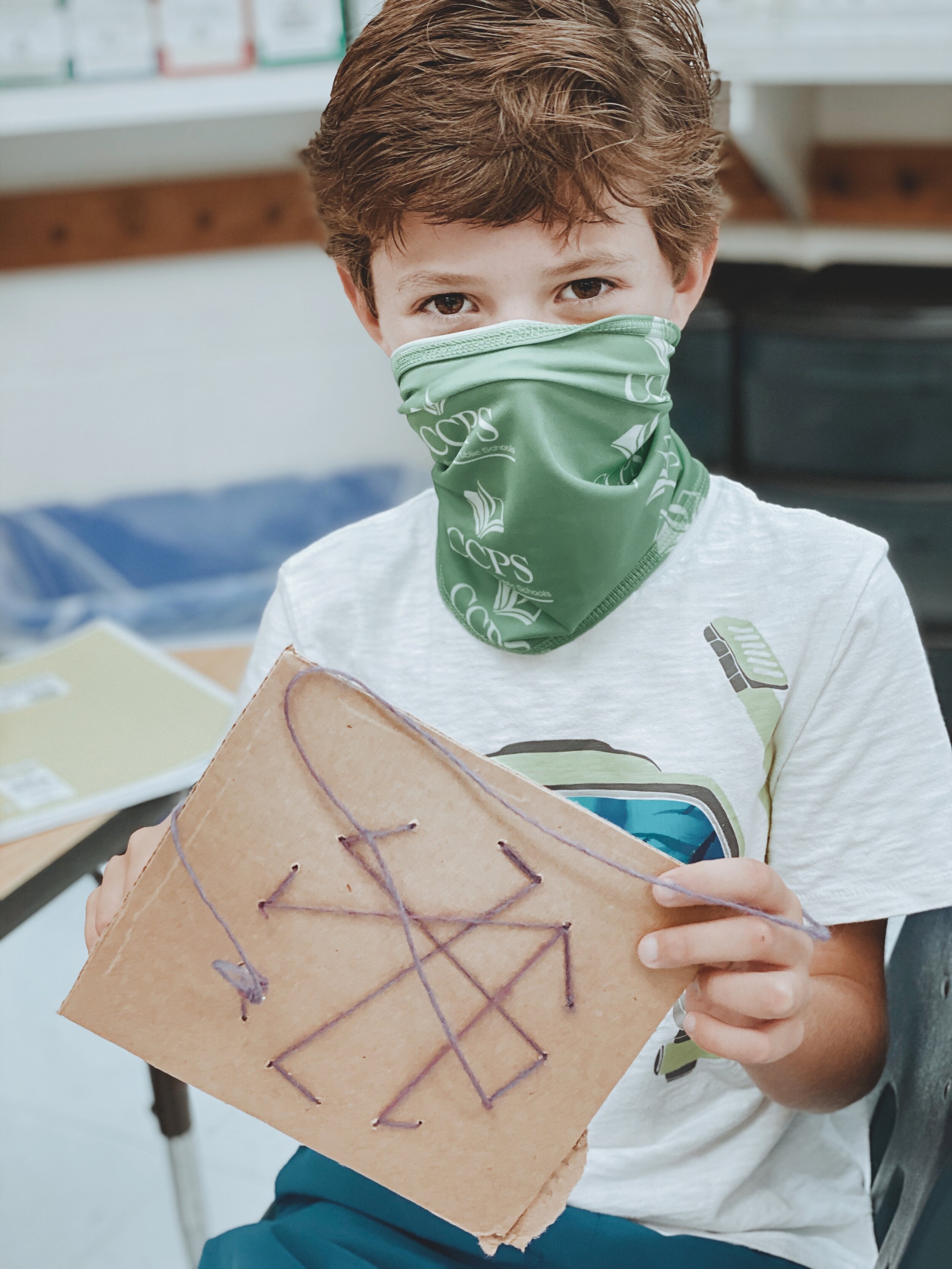
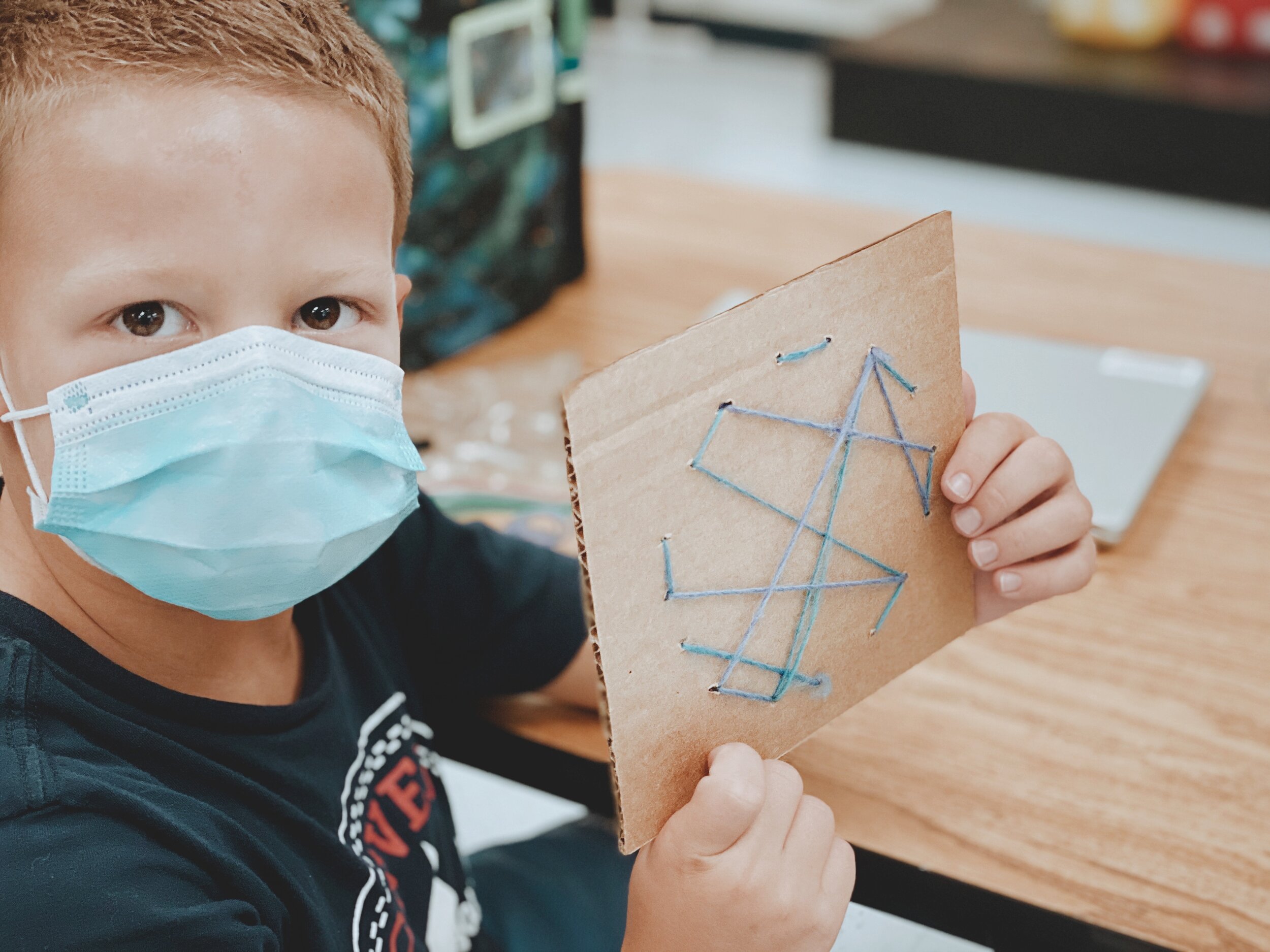
This one takes a bit more patience and skill…Prepare a class set of cardboard and then outline a circle. Using a skewer, puncture holes (dots!) around the outline of the circle. Then, use yard and large sewing needles to start weaving around the cardboard circle. This will create a unique design…that all started with a dot!
Dot Day Twins
(Dress up for Dot Day)!
This one is easy! Just tell your students to wear something with polka dots on it for Dot Day! You an also purchase a set of blank T-shirts and use permanent marker to create a unique design. This can be done on Dot Day and then students can wear their shirts. It’s a great way to boost classroom community!

(image taken pre-COVID)
Dot Day Missions of Kindness (Community Building)
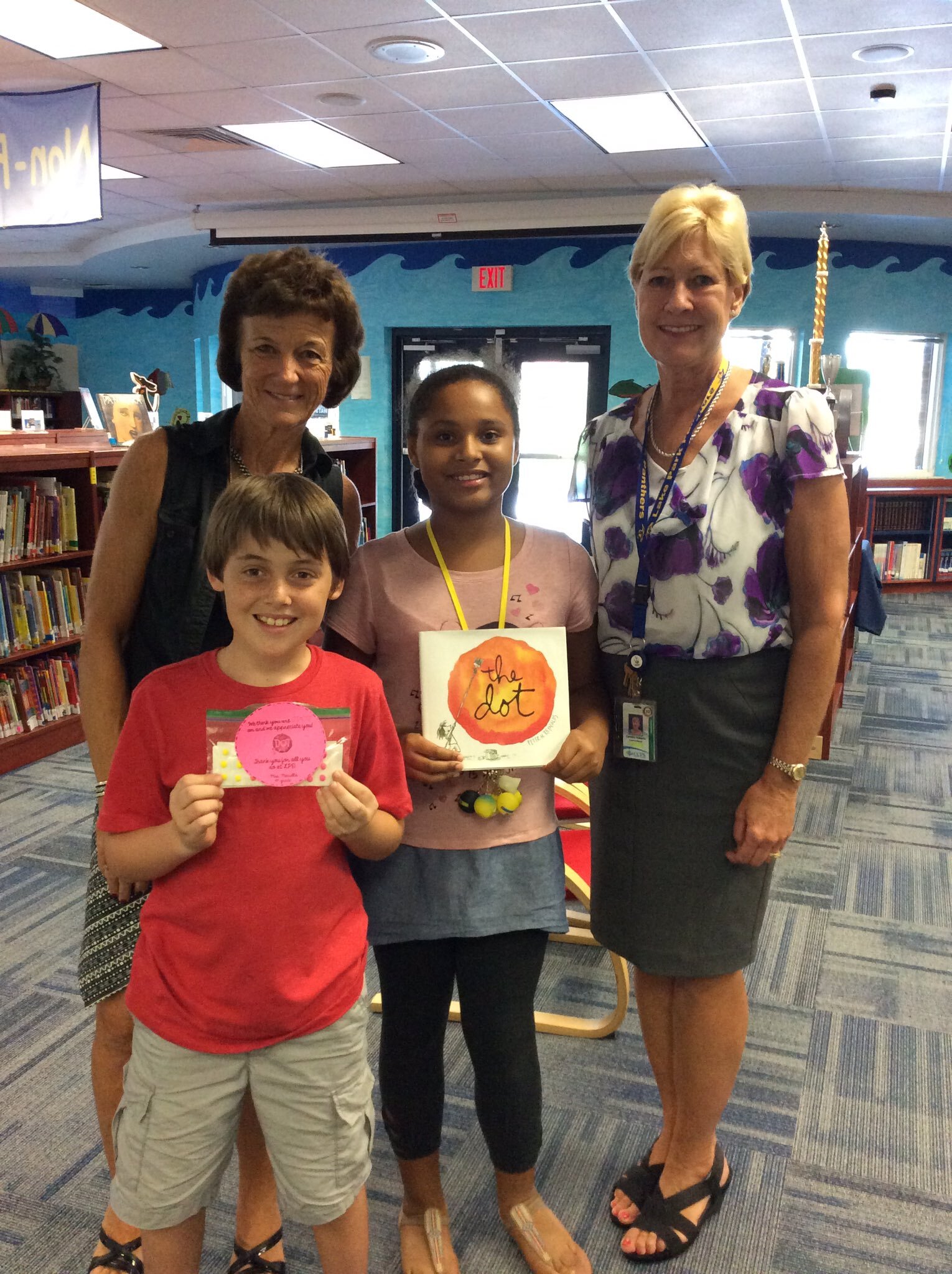
Dot Day is all about making your mark and what better way to do that than to spread a little bit of kindness? We shared special messages (with a little treat - see below for info) around our campus to leave our mark on our related arts teachers, media specialists and more!
(image taken pre-COVID)
Dot Day Treats (Dot Candy)
This is definitely one of Kristin’s favorite things to do on Dot Day…Dot candy! You ay remember these treats from your youth. You know, the dots attached to the paper that you have to bite off? What kid wouldn’t love that? You can find them in bulk by clicking right here on Amazon. You can also use the “Dots” candy. Click here or the image below to buy those!

This pairs well with the activity above (Dot Day Missions). Attach a sheet or two of these onto a message and leave them around your campus for others!


Dot Day Read Aloud with Novel Effect!

We all know how great the book “The Dot” is, but have you tried pairing this book up with the app Novel Effect? Novel Effect uses your devices microphone to bring stories to life! As you read, various sound effects and background music will be played. The coolest part is that you don’t have to feel pressured to speed read through the book. Novel Effect intelligently changes as you read, recognizing the words and phrases of the book. Click here to view this app on iOS and Google Play.
The Perfect Dot (For Littles)!
This activity from @zosia_majstruje on Instagram is the perfect activity for all of your perfectionist littles (or all ages)! Use paper towel or toilet paper rolls with paint. Have the students place the paint brushes into the roll(s) to paint the “perfect” shaped dot! Be sure to follow @zosia_majstruje on Instagram by clicking here!

Dot Day for Reluctant Learners
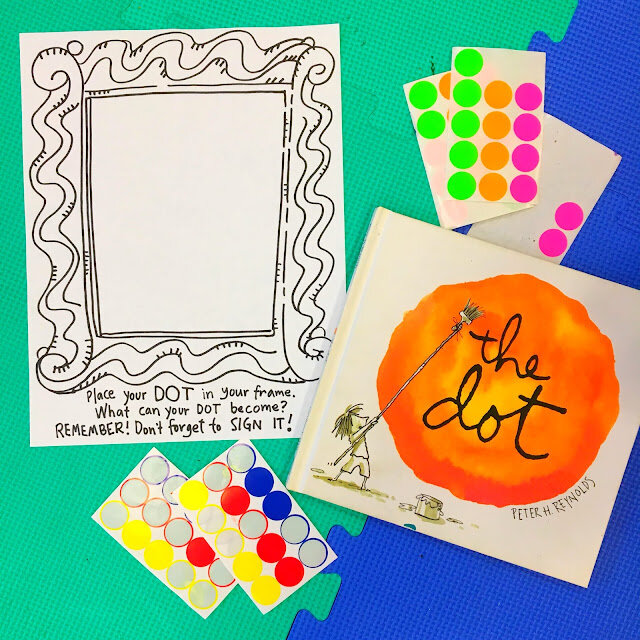
Not everyone knows where to start with Dot Day. In fact, many students feel just like Vashti. Sometimes we need a little inspiration to get the creative juices flowing. This activity from Cassie Stephens is the perfect way to keep everyone engaged. Use dot/circle stickers with Cassie’s PDF template. Have the students place a dot/circle sticker anywhere inside the frame. Then, let them use any art tools that they would like to continue their illustration!
Click here to view Cassie’s blog post
Click here to download Cassie’s template
Click here to follow Cassie on Instagram
-- Stay tuned for more Dot Day ideas that you can use in your classroom! Be sure to follow us on social media (@TheMerrillsEDU everywhere) for more! 👓👗
For more tips, tricks and lesson ideas for making learning more interACTIVE, check out our books The InterACTIVE Class and Flipgrid in the InterACTIVE Class on Amazon!

Top Five (FREE) Apps of 2020!
2020 was a wild year - especially for educators. We experienced the world’s greatest PD event, but which apps / websites proved to be the most resourceful? We’ll walk you through five of the ones that we find ourselves using the most in our own classrooms.
Teaching in 2020 was like brushing your teeth while eating Oreos. It was like shoveling snow while it’s still snowing. Or maybe it was like being a chameleon stuck inside a bag of skittles. But educators are resilient and before we threw up our hands and said that it’s “forget this o’clock,” we tapered down for the world’s largest PD event. We became familiar with websites and apps that we had never heard of. We quickly realized the importance of the “mute” button, and that most of our “staff meetings” really could be sent out in an email. But, now that we’ve had almost a year of this under our belt, we can confidently say that some apps have proven to be essential throughout remote learning and our gradual return back into the classroom. So, without further-ado, these are our top five (FREE) most commonly used apps of 2020. These apps are compatible on any device. Click on any subheading to learn more about the app and how we have been using it in our classrooms.
5. Gimkit (Gamification in the Classroom)
4. Classkick (Instant Feedback / Monitoring)
3. Nearpod (Classroom Management / Content Delivery)
2. Seesaw (Student Portfolios / Where Everything “Lives”)
1. Flipgrid (Student Creation / Social Learning)

5. Gimkit
Gamification in the classroom
Link 👉 http://www.gimkit.com
Gimkit is a live quiz learning platform where students answer questions and can earn “money” for power-ups. It was developed by a high school student who built a game that he wanted to play in class. The free version allows educators to create and edit content as much as they need. However, games can only be hosted with 5 players or fewer and new assignments cannot be created while on Gimkit Basic. We highly recommend upgrading!
How To Use it in the Classroom:
Have your students develop their own questions in the “Collab” mode. Then launch the kit and see how they perform!
Math fluency review
Use Gimkit as a way for students to go back into a text and find the answers to the questions
TIP: The more questions that you have in each “kit,” the better!

4. Classkick
Instant Feedback and Monitoring
Link 👉 https://classkick.com/
Classkick is a free app that students work on and get help instantly from their teacher and peers. Students may receive assistance from teachers (and peers) instantly. Teachers create assignments, see all their students’ work in real-time, and give LOTS of student feedback. Best of all, students can help each other anonymously.


How to Use Classkick in the Classroom:
Create assignments that students can work home regardless of where they are
Save your Powerpoint files as JPEG’s, then upload them to a new Classkick assignment
Use Classkick for Number Talks / Number of the Day
TIP: Create an assignment titled, “White Boards,” and use them as daily digital white boards. Students can erase the white boards after daily use, and return to the same link / code the next day.

3. Nearpod
Classroom Management and Content Delivery
Link 👉 http://www.nearpod.com
Nearpod is a student engagement platform built to make teaching with technology easy. With Nearpod you can control what your students see and get feedback in real-time. With a free account, you have the ability to share assignments with your students and then transition what they see from slide-to-slide. For example, if you upload an assignment from Google Slides or PowerPoint, Nearpod will convert it into an assignment. Teachers have control of the assignment, and when they move to the next slide, it will automatically change on all devices logged onto that presentation.
How to Use Nearpod in the Classroom:
Upload an assignment from Google Slides or PowerPoint, then add a virtual reality field trip! (Click: Add slide > Virtual Field Trip)
Add an activity for your students to complete while in the lesson. Activities include: Draw It, Quiz, Poll, Collaboration Board, and more!
Differentiate by duplicating assignments and adjusting as necessary. Share the appropriate login codes with the assigned students.
You may also like:
How to Integrate Flipgrid into Nearpod
How to Embed Nearpod Presentations into Microsoft Teams

2. Seesaw
Student Portfolios and Where all of Your Content Can “Live”
Link 👉 http://seesaw.me
Seesaw is a platform where students share their learning in their Seesaw portfolio, giving teachers and families valuable insights into what the students know. Assignments can be easily created, differentiated, and shared - think of it as a “house” for all of your content. The best part of all: every time a student adds an artifact to their portfolio, it notifies their connected family member(s) so that they may be kept in the loop with their child’s learning.


How to Use Seesaw in the Classroom:
Create assignments and select the students that you would like to complete them (easy differentiation)
Allow students to add content on their own (let them take a photo, then annotate over the photo)
Keep families at home in the loop with what is happening in class
You may also like:
What’s New in Seesaw (2020)

Flipgrid
Student Creation and Social Learning Platform
Link 👉 http://www.flipgrid.comFlipgrid is a video based social learning platform. Educators pose a question or assignment, then students respond in the form of a video. Once the conversation starts, other classmates may view their friends’ videos and respond to them. This creates a web of discussion, which automatically elevates the overall curricular level of the classroom.
How to Use Flipgrid in the Classroom:
Allow students to explain their thinking by holding up a whiteboard or their writing
Sequence the events of a text or historical time period
Use the Flipgrid Camera to record your own lessons - even create digital anchor charts
You may also like:
How to Play Among Us on Flipgrid
Using the Draw Tool on Flipgrid
Creating Student Podcasts on Flipgrid

Stay #interACTIVE!
-👗➕🕶️
For more tips, tricks and lesson ideas for making learning more interACTIVE, check out our book The InterACTIVE Class on Amazon!


Remote Learning 101: Presented by The InterACTIVE Class
As more and more schools look towards the possibility of Remote Learning, we understand that you probably have lots of questions. We’re here for you.
As more and more schools look towards the possibility of Remote Learning, we understand that you probably have lots of questions. We’re here for you.
What is remote learning?
Remote Learning occurs when the learner and instructor, or source of information, are separated by time and distance and therefore cannot meet in a traditional classroom setting. This is also being referred to as “distant learning.”
I don’t know much about educational technology. How will I learn fast enough to teach remotely?
Remote learning will undoubtedly push many teachers into the realm of digital teaching and learning faster than they may have on their own. If you are one of those teachers who hasn’t used classroom specific applications, we would recommend starting with our book The InterACTIVE Class. It was not written specifically for remote learning, but it couldn’t be out at a more relevant time.

In it you you find two page explanations for applications like Flipgrid, Seesaw, Book Creator, Buncee and many more, followed by pages of lesson ideas that you can take and immediately implement into your remote learning environments. In addition to the book, you can join our InterACTIVE Class Community on Facebook where educators from around the world share and help each other in regards to integrating technology in meaningful and relevant ways.
Where do I start?
If you are tasked with teaching remotely, our advice is to keep it simple and routine. Do not use the event of remote learning to try something new or to introduce a new platform. That is stressful enough when in the classroom with your students. Deliver content through platforms or programs that your students have already used, and if you have not used much (or any) technology before, choose 1 platform and walk your parents and students through it as you go. This is where the importance of being routine comes in. If you have the opportunity or choice to decide how to deliver content and monitor learning while teaching remotely, do it using the same program(s) while out of the classroom. Also, if you can structure the format of how you deliver content it will help parents and students navigate the unknown world of remote learning. We suggest explaining content through teacher direct lessons or online material, giving the students time to explore and create baed on their new learning, and possible assess after if necessary. If you can do this in the same way through the same program(s) repeatedly it will help students and families efficiently get acclimated with remote learning.
Not all of my students have internet access. How can I reach them during this challenging time?
One way to help students with limited internet access is to think about how you are delivering content while out of the classroom. Is there a way you can front-load assignments—maybe give the week’s worth of assignments out at one time rather than going day by day. That way, students with limited access can see more at one time if their access is limited. Also, possibly reach out and look into how local community centers, libraries and other community outreach places could help families with limited access to resources. Finally, try to use applications that are smart phone friendly in addition to being web-based. This way, in the case that a student doesn’t have a computer at home or internet, they could still possibly access information through a parent’s smart phone.
Comcast has recently announced that new customers are able to receive 60 days of complimentary Internet Essentials service, which is normally available to all qualified low-income households for $9.95/month. They are also increasing Internet speeds for the Internet Essentials service from 15/2 Mbps to 25/3 Mbps for all new and existing customers, which will be the speed of the service going forward. For more information on this, please visit the website below and feel free to share with families and colleagues.

Comcast Internet Access
Click the button below to learn more about Comcast’s internet access.
Where do I get started as I prepare for remote learning?
When getting started, it is important to settle on the platform or programs you are going to utilize while out of the classroom. As mentioned before, we highly recommend choosing ones you have already used this year, but if you have not used much or are unsure if the programs you have used will work best, here are some tools we suggest considering for creating “learning hubs”, keeping students engage, allowing real-time collaboration and much more!
How can I create a safe and cohesive learning environment for students while away from the classroom?

Seesaw
Seesaw is a platform for empowering students to demonstrate and share their learning. Students use powerful tools in the Seesaw app to create, reflect and demonstrate learning. When students share their learning in their Seesaw portfolio, teachers and families gain valuable insights into what their students know and can better support their development. Think of it as a digital portfolio.
Pros: Available anywhere, on any device.

Microsoft Teams
Microsoft Teams is your hub for teamwork in Office 365. All your team conversations, files, meetings, and apps live together in a single shared workspace, and you can take it with you on your favorite mobile device.
Pros: Available anywhere on any device (with a free Office 365 account - sign up here).
I want my students to maintain the collaboration that they would normally have within the walls of the classroom. Which tool should we use?
Educators can pose questions / tasks and generate collaboration by using Flipgrid. Flipgrid is a social learning / web-based platform where educators ask a question (called “topics” in Flipgrid), and then students respond to the question in the form of a video. Students can get creative and add external links, drawings, music, and more to their responses. The video responses appear in a grid style display, where other students can then view and respond to. This generates a web of discussion, similar to that of a video message board. With Flipgrid, your students will still be able to support one another and share their thinking. They will also be able to critique and respectfully generate positive discussions based on your topic.

Flipgrid
Flipgrid is simple. Educators spark discussions by posting Topics to a classroom, school, professional learning community, or public Grid. Students record, upload, view, react, and respond to each other through short videos. Flipgrid is video the way students use video ... social, engaging and fun!
Where can I access high quality, digital materials for my students to use while learning online?
Taking print material and converting it to digital platforms can be time consuming and overwhelming. There are many companies stepping up to provide teachers with high quality, interest provoking content while you are out learning remotely.

Newsela
Newsela is committed to bringing authentic, engaging, diverse and accessible content to all learners. They believe the best lessons start with the best content. All teachers can now access Newsela ELA, Newsela Social Studies, Newsela Science, and the SEL Collection for free for the rest of the year.

Scholastic News
Scholastic known for publishing, selling, and distributing books and educational materials for schools, teachers, parents, and children. Their classroom magazines are found in many classrooms. Scholastic is creating 15 lessons for various age groups of students ranging from Pre-K to high school filled with quality nonfiction articles similar to the ones found in their magazines. Check out the curated articles for grades 3-5 here!
Pebble Go
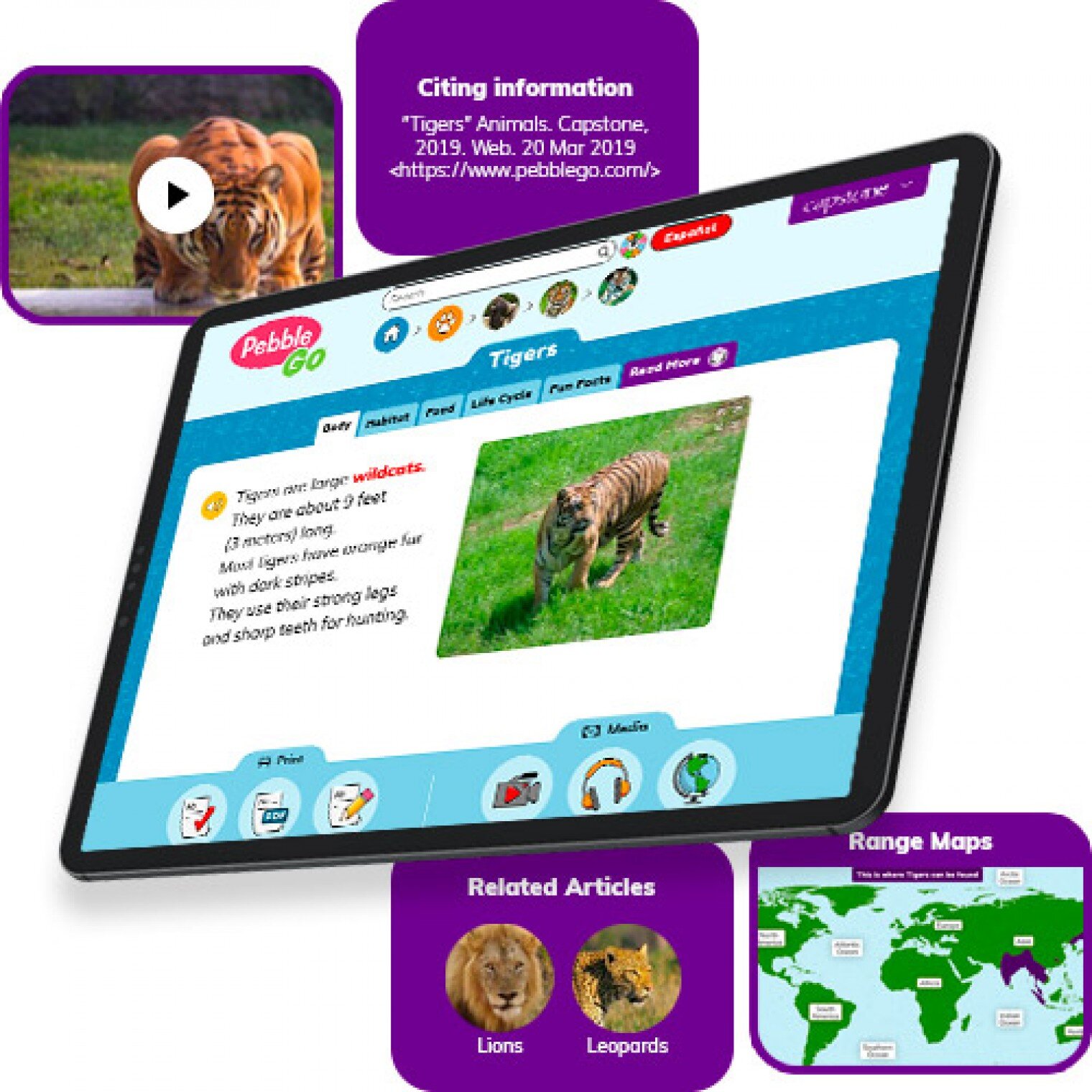
PebbleGo is a curricular content hub specifically designed for K-3 students. Packed with informational articles, ready-made activities, and literacy supports for students of all abilities, it boosts engagement and fosters independent learning in core subject areas. To learn how you can gain free access during school closures, click on the learn more button below.
Compatibility: Web based only
What tools can my students use to keep the creativity going?
Just because your students are away from the classroom, doesn’t mean that they have to lose their creativity. The list of apps below are highly recommended platforms that will have your students creating rich and authentic content that you can tie directly to your standards. If you have any questions on how to implement these, please don’t hesitate to reach out to us.

Buncee
With Buncee’s assortment of media options, creating a virtual lesson is quick and easy. Teachers can include text, video, audio, or even links to additional resources. Record your lesson using the video feature, or create an activity template for your student to complete at home. The classroom dashboard can then be utilized to share and track assignments. Teachers could also create a Buncee Board, so students can access materials, share their work, interact with their classmates, and participate in class discussions no matter where they are. Students can also create and submit Buncees back to their teachers. For more information, click the learn more button below.
Compatibility: all devices

Adobe Creative Cloud
Adobe has announced that they are giving their higher education and K-12 institutional customers globally — who currently make Creative Cloud apps available to students who login through on-campus labs — the ability to request temporary “at-home” access for their students and educators. This will be granted through May 31, 2020 at no additional cost. To learn more, click the learn more button below.
Compatibility: all devices

Minecraft: Education Edition
To help teachers and students stay connected to the classroom, Minecraft: Education Edition is now available through June 2020 for all educators and learners who have a valid Office 365 Education account. Click on the learn more button below for more information.

Book Creator
Book Creator is a simple tool for creating awesome digital books. You can create your own teaching resources or have your students take the reins. Combine text, images, audio and video to create stories, portfolios, journals, comic adventures, science journals and much more! Book Creator is offering everyone the ability to collaborate together on books in real-time. This is a premium feature that is usually only available with a paid subscription, but they’re offering 90 days free use of this tool, to help keep students and teachers connected.
How can I make learning engaging and interACTIVE during remote learning?
Distance learning doesn’t need to equal dull learning. There are many apps that not only allow students to learn alongside one another in real time, but they also help the teacher facilitate information in unique and different ways.

GimKit
GimKit is a live gameshow for the classroom. Students answer questions on their own device at their own pace. Throughout a Kit, each student will get exposure to the questions multiple times to ensure mastery.
Compatibility: all devices

Nearpod
What if we told you that you could have your students log onto your presentations, and literally switch slides to all devices logged on at the same time. With Nearpod, you can do just that. Students log onto your presentation with a code. Educators can also add slides for collaboration, drawing, 360 images, and more. Check out the learn more button below fore more information.
Compatibility: all devices

Hyperdocs
HyperDocs are free digital lessons that are easy to edit for your eLearning students. They are all about hyperlinking your docs for amazing learning experiences for kids! With one shortened link, students can access a lesson that contains instructions, links, tasks, and many clever ways to get thinking. Hyperdocs focus on creating opportunities for choice, exploration, and ways for kids to apply their knowledge. Explore these docs plus more by clicking the learn more button below.
Compatibility: all devices

Brain Pop
From the very beginning, BrainPOP was built on the belief that curiosity through short animated movies can make complicated ideas simple and clear. Today, BrainPOP’s rigorous learning experiences go far beyond a movie and quiz, offering a rich array of resources and tools that meet each student’s interests and needs while developing their critical, computational, and creative thinking skills across the curriculum.
For more information on how to make learning more engaging and relevant by using technology, check out our book The InterACTIVE Class.


Here is a Wakelet of other platforms that we are updating daily as we come across new resources and offers.
We are happy to connect and discuss which tool would work best for your particular remote learning experience. This is an unprecedented situation, and leaning on one another is more important now than ever before. Please don’t hesitate to reach out.
👓👗💚
#BetterTogether #interACTIVEclass #remotelearning
Social Media Sharing
Parents. Legal guardians. They are (or should be!) our partners in education but there are so many factors that often complicate this idea. Time. Work. Family dynamics. Regardless, we as teachers should be making an effort to open up the window to our classroom to those who want to see in.
Parents. Legal guardians. They are (or should be!) our partners in education but there are so many factors that often complicate this idea. Time. Work. Family dynamics. Regardless, we as teachers should be making an effort to open up the window to our classroom to those who want to see in. Social media is a great way to do this as long as you do it in a way that is safe and protected.
Before sharing, make sure you know what your school/district’s policy is regarding student sharing. Some may send home waivers for students or you may have to create one. If you need to write your own, maybe start with something like this.
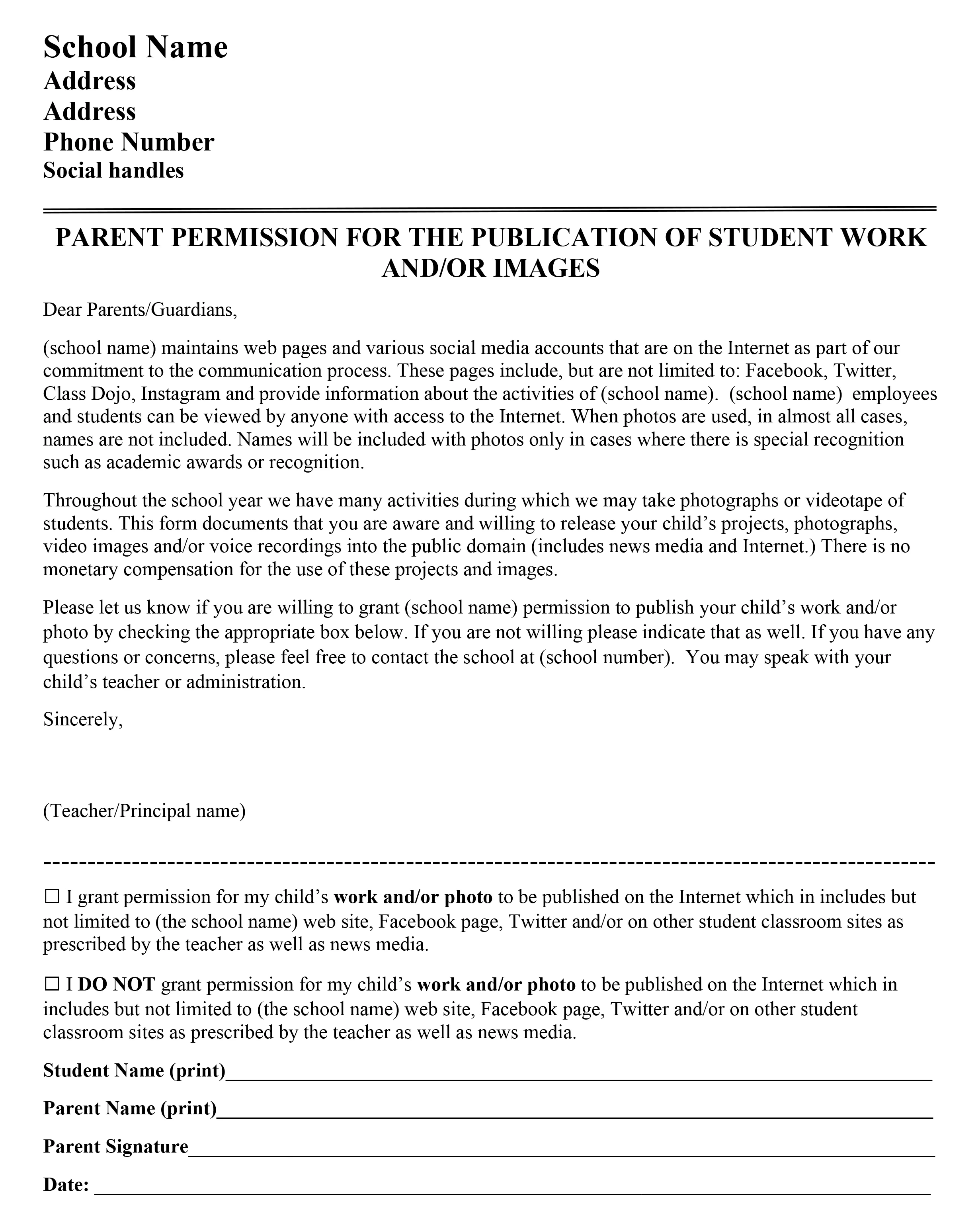
There are so many different ways to share content—teacher made highlight clips, student work, school trips—but always make sure to keep certain information out of your posts. Its best to never include school name, or address and if possible, we try not to ever include student names as well.
We also recommend creating a brand new account for your classroom which helps keep it separate from your personal life. Sharing where you go on the weekend, or what you cooked for dinner isn’t necessarily bad, but if your prime purpose for using social media is to share what takes place in the classroom, it’s usually best to just toggle between two accounts as needed.
If you are unsure of which platform to use, try polling your parents or getting input from them. As the years have passed and our millennial students slowly become parents, we have seen a shift from platforms like Facebook to ones like Instagram and Twitter. Meeting parents where they already are is the easiest ways to gain added participation.

In addition to social media sites like Instagram and Twitter, we love using the student application/learning platform Seesaw. If you are worried about privacy, this is the place for you to go and explore. Seesaw is very similar to Class Dojo, but it allows student participation in addition to the teacher features. This was a game changer for us and we have been using it alongside our social media for years. If you would like to learn more about Seesaw start here.
If you are interested in incorporating social media sharing into your classroom we have some free handouts to use when introducing the idea to parents. Share with them “your why” and include your personal class handle and get started today!