


How to Use Canva in Book Creator
Book Creator has always been one of our favorite go-to apps in the classroom. But now, with the ability to bring you Canva creations into Book Creator, things just way better! In this post, you’ll learn how to use Canva in Book Creator.
Book Creator has always been one of our favorite go-to apps in the classroom. But now, with the ability to bring you Canva creations into Book Creator, things just way better! In this post, you’ll learn how to use Canva in Book Creator.
(Click any subheading below to jump to that section! This is NOT a paid post.)
How to connect Canva to Book Creator

How to add Canva creations into Book Creator
How to Connect Canva
to Book Creator
Before we get started there is something to note…Both a Canva and Book Creator account are required. Both are free and you can sign up for a Canva (for educators) account here, and a Book Creator account here.
To connect Canva to Book Creator, follow these steps:
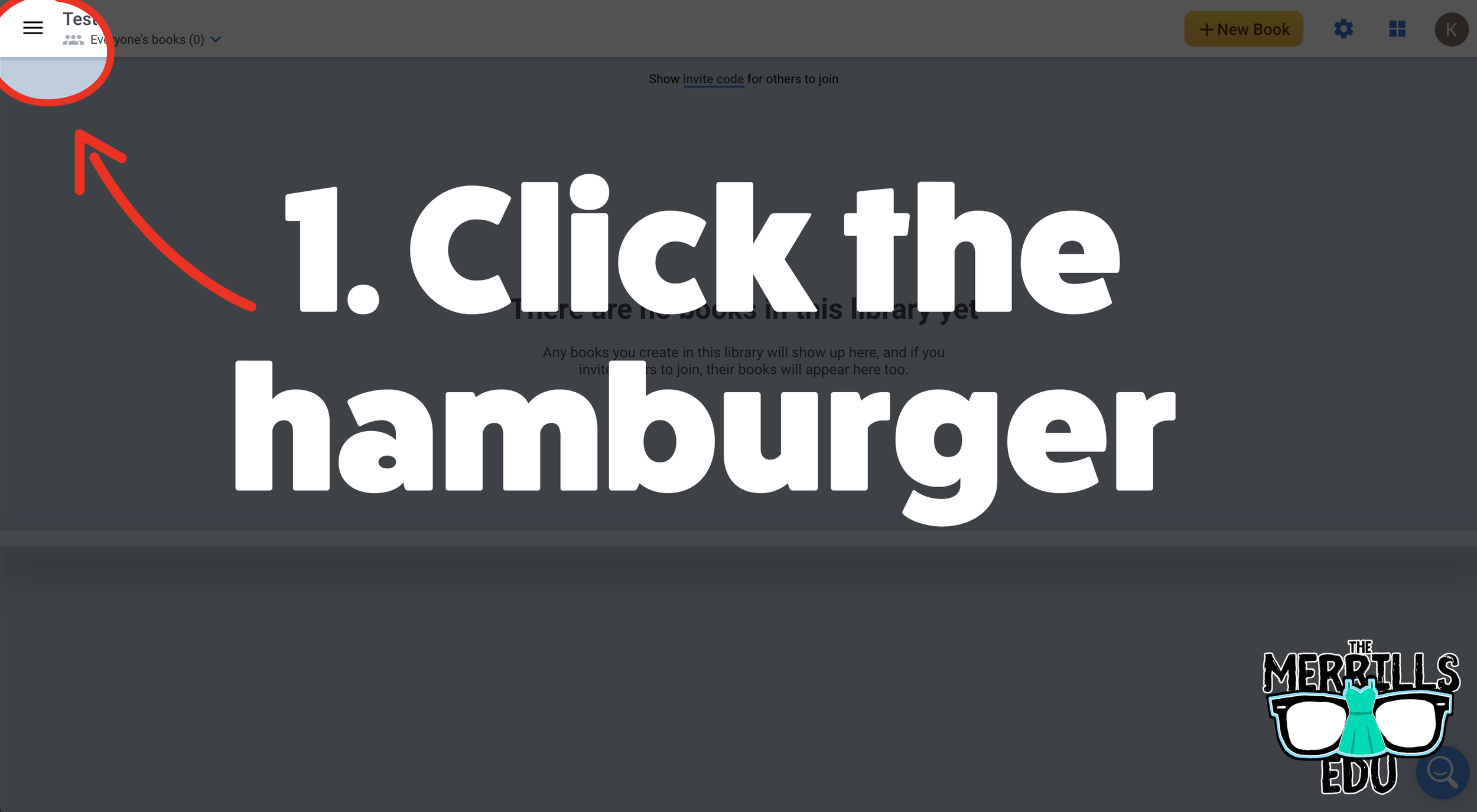
Log into Book Creator, then click on the hamburger / three lines located on the top left.
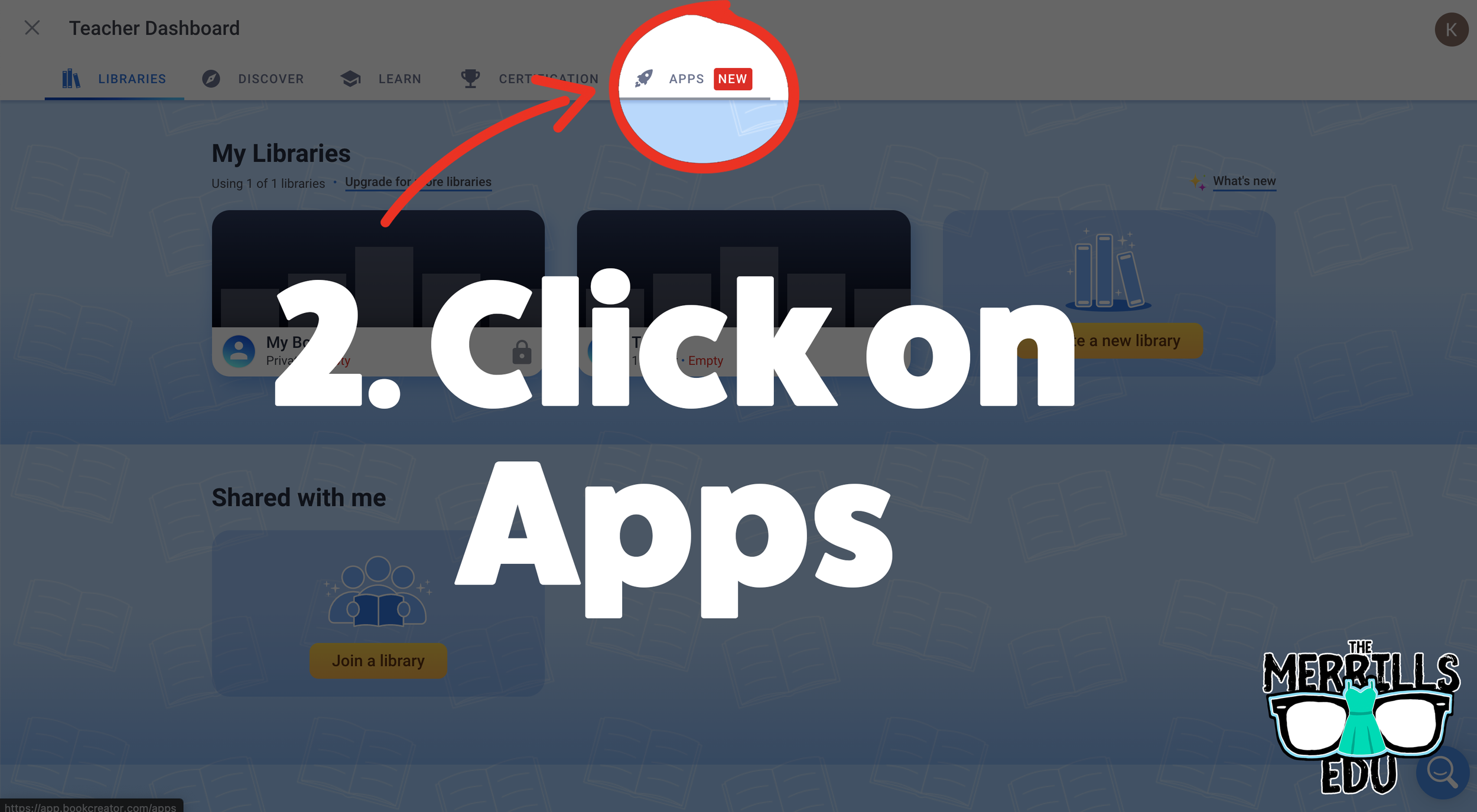
In the next window, click “Apps.”
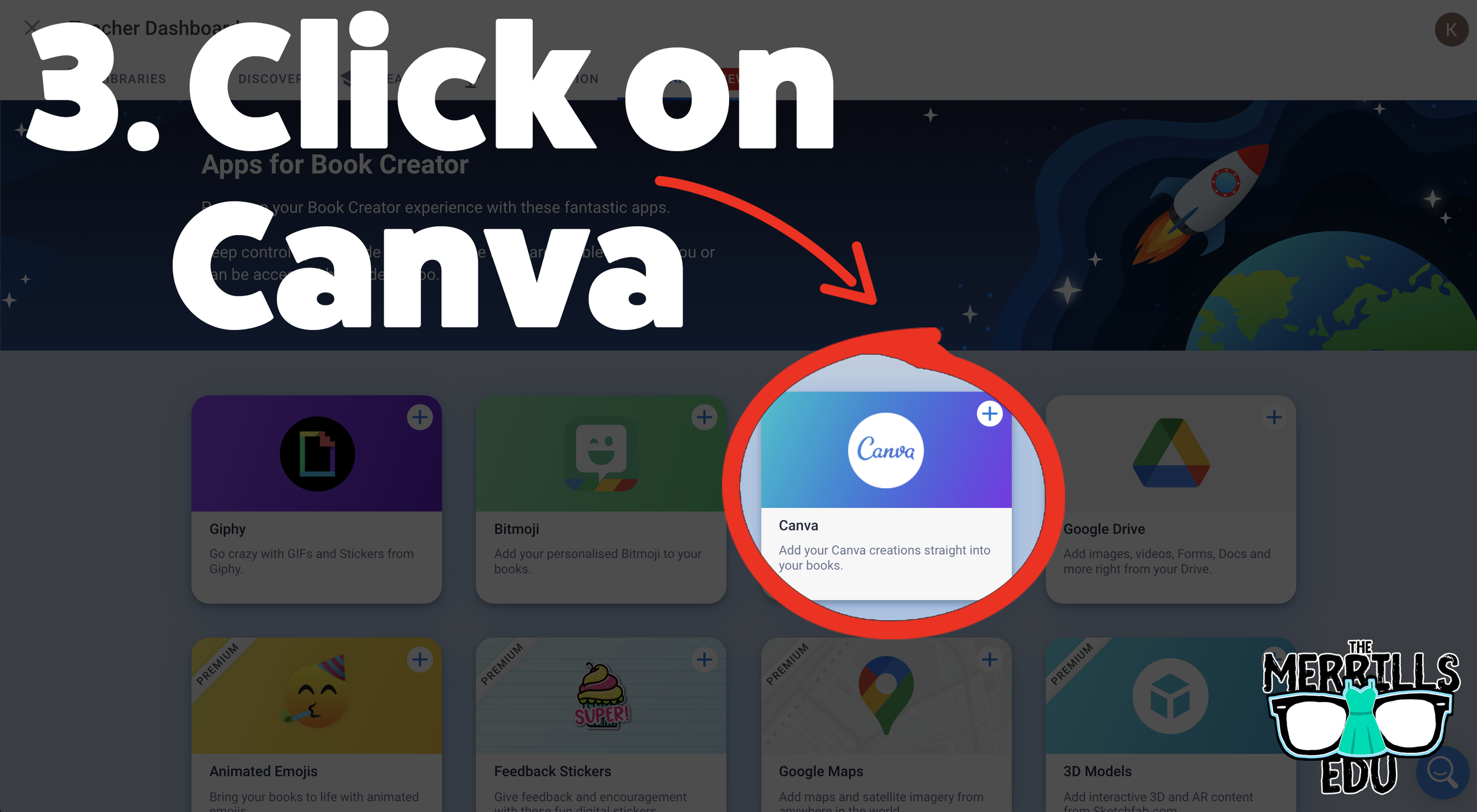
Locate the Canva app section, and then click the “+” sign.
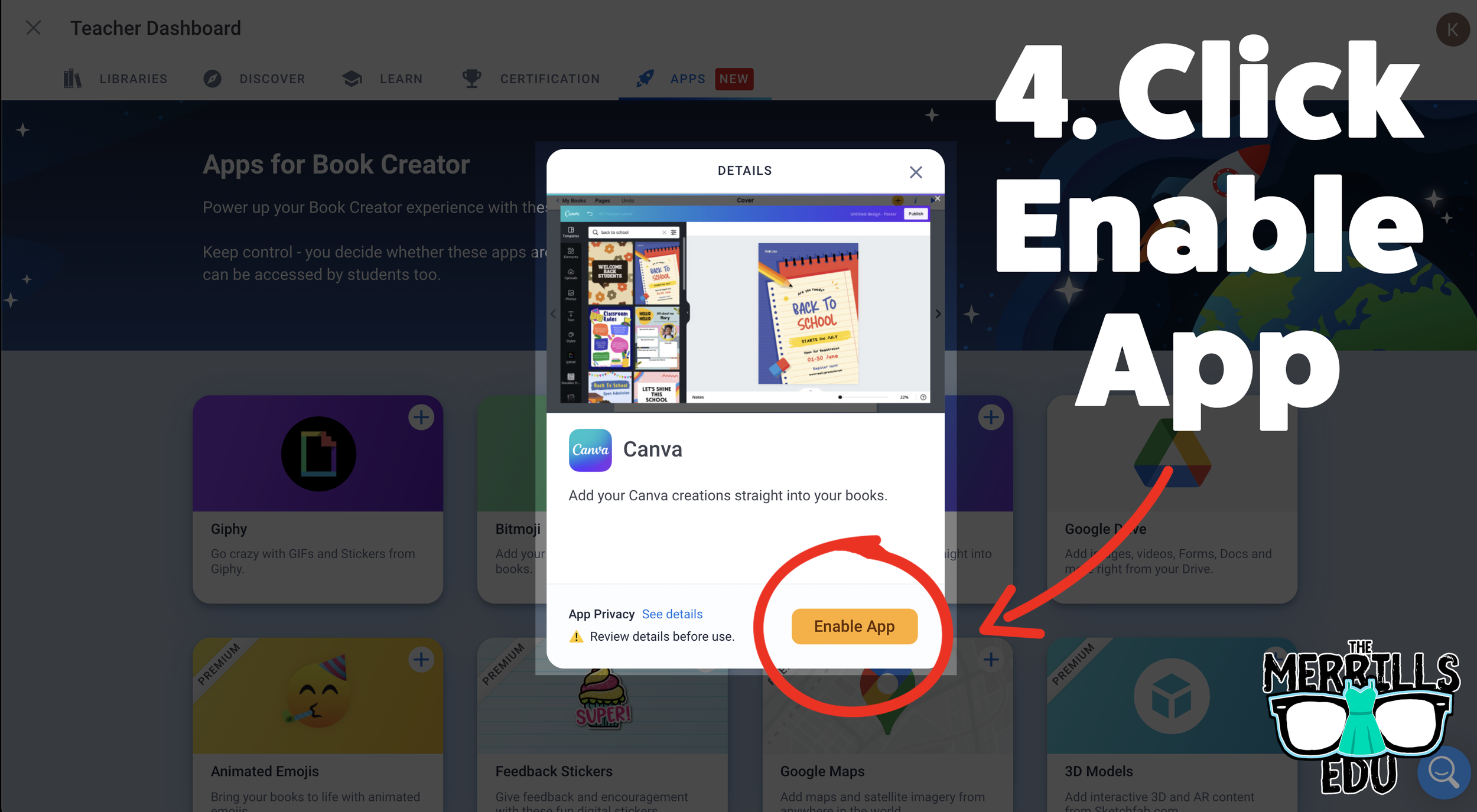
A new window will pop up. Click enable app.
Then, choose the appropriate class or classes and click done.
Now you and your students can use Canva right from Book Creator! Students will not need to toggle back and forth between the two. Canva will open right from within Book Creator. Check it out below!
How to add Canva Creations into Book Creator
Now that you have connected your student’s Canva accounts with Book Creator, here’s how they can start using the two together. Students will not need to toggle back-and-forth to use both apps. Instead, Canva will open right within Book Creator. To add a Canva creation in Book Creator, follow these steps:
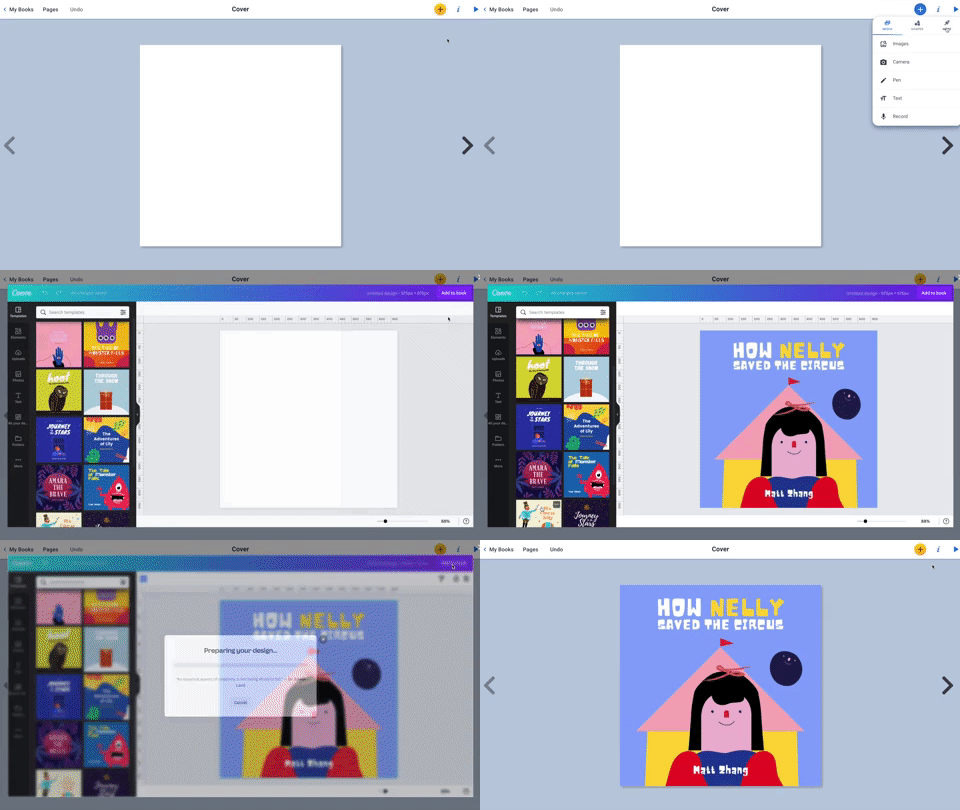
In a book, click on the “+” symbol on the top right.
Click “More” from the menu (with the Rocket Ship icon).
Click Canva (you may be prompted to log into your Canva account)
Canva will pop out from Book Creator! Design as you would in Canva.
When you’re finished and ready to add it to your book, click “Add to Book.”
Now, your Canva design is placed into your Book Creator book!
It’s that easy! Something to note - if you have previous designs that you would like to use, you can click on the icon that says, “All of Your Designs.” This will allow you to use anything that you have already created in Canva. Don’t forget, there are also additional options for design by clicking the three dots / “More” icon. This will open up features like Drawing, QR Codes, Building Your Own Character and more!
-- Let us know if you’re using any of these ideas in your classroom! Be sure to follow us on social media (@TheMerrillsEDU everywhere) and tag us! 👓👗
For more tips, tricks and lesson ideas for making learning more interACTIVE, check out our books The InterACTIVE Class and Flipgrid in the InterACTIVE Class on Amazon!



Book Creator Summer Updates!
Book Creator has just announced ⭐️HUGE⭐️ updates to their platform! Learn about what’s new and how to use it here!

Book Creator’s name says exactly what it does and it does it quite well! However, now it is easier than ever to create books and with analytics, educators can see who is viewing what. Learn all about the updates below!
(click on any subheading to jump to that section)
How to Remix a Book in Book Creator

Sharing books from Book Creator has always been easy, but one of the things missing from the publishing process was the capability to “remix” or download and then edit a book to your liking. Perhaps you were working on a team and wanted to share your book with the rest of the educators in your building. Now, Book Creator can make that happen - all all with a simple click! Just look for the “Remix” button and click it to edit the book!
But what if you want to share a book for someone else to remix? That’s easy, too! When you’re ready to publish, be sure to fill out all the necessary info and then under “Who can find this book,” select “Public.” Then, under “Allow Remixes?” select “on.” Last, click the blue “Publish online” button. Now, you’re ready to share your remix-able book!


So now that you have your remix-able book published, how can you get into the hands of other educators? The answer is simple! From the Book Details (publishing) window, click “Copy link.” Then, share this link with the educators who you would like to have access to it. Those who open the link will see the “Remix” option at the top and will be able to edit it as they see fit!
Where can I Find Remix-able Book Creator Templates?
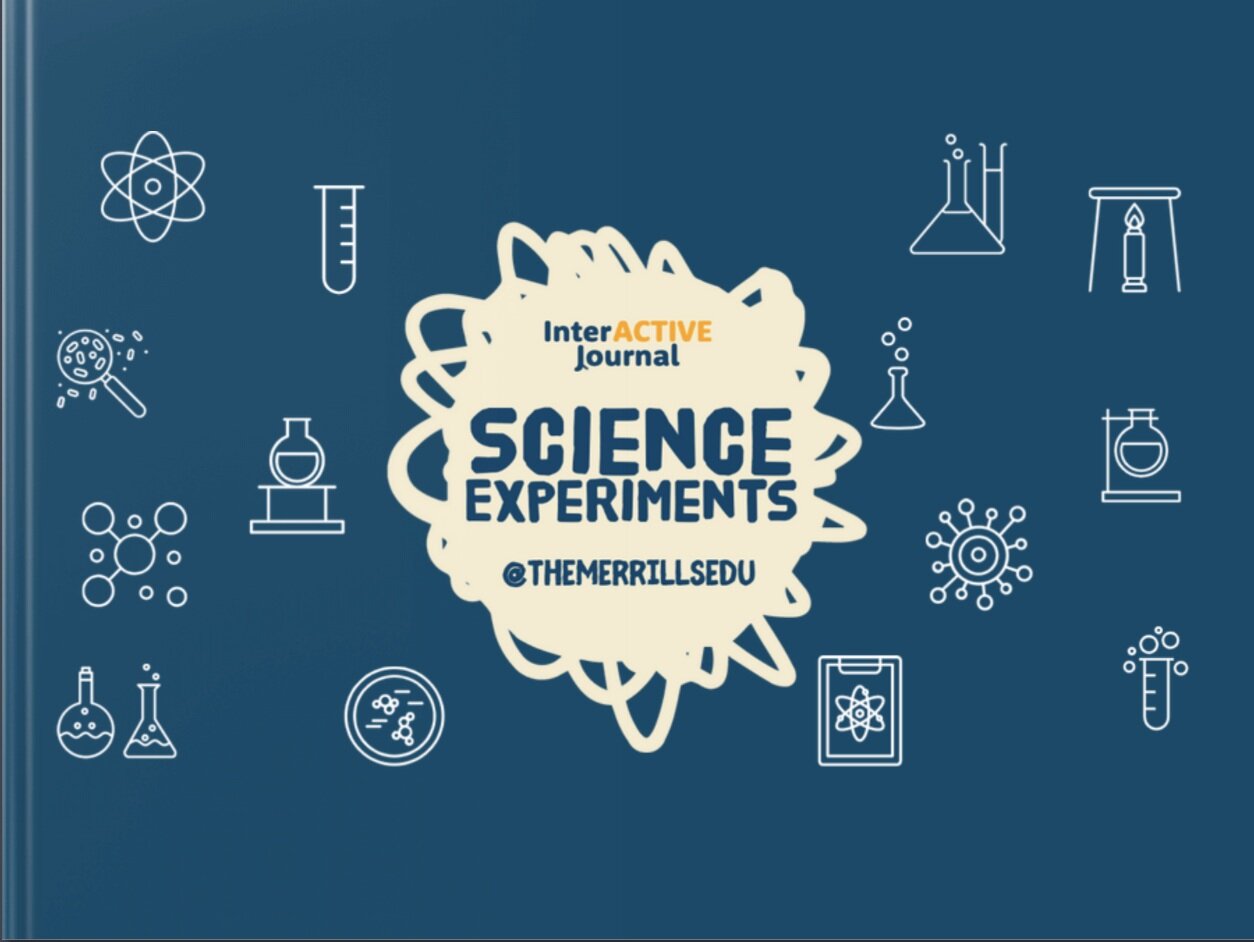
Book Creator has curated lots of remix-able options. You can find everything on their Resources page, or click here (or the image to the right). If you scroll down the page a bit, you can also find a special section of remix-able templates from us! Check everything out below! You can click on the books and they will open up as a remix-able file!

What are Analytics in Book Creator?

Analytics in Book Creator gives the author the number of times the book has been read. This is a great way to encourage and engage students. Not only will you see how many times the book has been read, but you can also see a map of readers across the globe! Users can zoom in and out of a global map to see who has been checking out their awesome work!
Using Dictation to Search for Images in Book Creator
Now, it’s even easier for your students to find images for their books. Book Creator now has dictation enabled in both image and map searches. With this feature, Book Creator becomes even more accessible (especially to younger kids or ELL students who aren’t super confident with their spelling by introducing a voice search). To use dictation in an image search, follow these steps:

From the editing panel in Book Creator, click on “+” sign, then click “Import.”
A new window with a search bar will open. Click the microphone and grant the necessary permissions for Book Creator to use your device’s microphone. Then, say a word.
You do not need to hit enter. Book Creator will automatically load the image responses for you! Just select an image that is right for you!
New Icons in Book Creator

Back in December, Book Creator announced that now paid users can search and select icons from Noun Project. This website is full of icons created from users around the globe. A license to Noun Project costs $19.99 per year for access to all their icons royalty and attribution free. Multiply this by the number of students you teach and it can get expensive. But, now those with a paid Book Creator subscription have access to these - including your students! To use icons from Noun Project, follow these steps:
From the editing panel in a book, click on the “+” sign.
Click on Shapes, then search for a Shape or icon (tip: you can now rotate images!)
Select your shape or icon to insert into your book!
Safe Search in Book Creator
Book Creator has partnered with Pixabay, providing over 2 million high quality professional images and, most importantly, every one of these images is humanly reviewed to ensure it’s a great image, is free to use, and is not offensive. Worried about certain images popping up? You can now instantly block an image from appearing in any of your libraries, including for the students working in them. This will also flag the image to the Book Creator team. We will review it and potentially provide a system wide block so that all teachers can benefit. You can instantly block an image by clicking on the flag next to the image. It will be removed from any future search results your students perform in that library.

Additional Book Creator
Updates Out Now!
The fun doesn’t stop with everything above! Users can also expect the following updates from Book Creator:
12 new fonts added
Add image attribution
New shapes

-- Stay tuned for more on how to use the all new Book Creator updates in your classroom! Be sure to follow us on social media (@TheMerrillsEDU everywhere) for more! 👓👗
For more tips, tricks and lesson ideas for making learning more interACTIVE, check out our books The InterACTIVE Class and Flipgrid in the InterACTIVE Class on Amazon!


12 Days of Reading
The weeks after Thanksgiving that lead up to Christmas are always the hardest for teachers. Students are out of the normal routine after the extended fall break and are now excited and eager for Christmas to follow in the weeks to come. It can be hard to keep students focused and get all the planned curriculum and lessons in efficiently.

The weeks after Thanksgiving that lead up to Christmas are always the hardest for teachers. Students are out of the normal routine after the extended fall break and are now excited and eager for Christmas to follow in the weeks to come. It can be hard to keep students focused and get all the planned curriculum and lessons in efficiently.
In our own classrooms we do not overtly promote Christmas, although it is the holiday we personally celebrate in our own homes. We do not have elves that visit, or trees lit up all month long. There is not enough time in the month to adequately cover all the different holidays equitably, and it can be dicey trying to determine the personal beliefs and religions of each and every individual student. But nevertheless, Christmas is always the predominant holiday students anticipate, and that excitement spills over with each new day that nears.
As educators we know that student excitement is the key to engagement, and that when students are engaged they are more likely to try new things or stick with hard tasks. Using this excitement and incorporating it into the normal and routine academic activities is an easy way to keep learning alive throughout the holiday season. Thus the 12 Days of Reading was created with one simple goal in mind—keep reading lessons exciting while balancing all that comes along with the holiday sprit. The name is a spin off of the well-known song “12 Days of Christmas” and it is meant to compliment the reading already being done each day. Whether this is reading that must be done from a textbook, or independent reading that students have free choice over.
Day 1- Graffiti Wall

For this activity, students create a word splash to illustrate the book or selection of text they are reading. The words can summarize an event, convey an emotion, describe a character or person, etc. Students can either doodle, draw or sketch these words and phrases on paper or create their painted wall digitally on Flipgrid. If working to create on Flipgrid, you can grab the digital activity and brick wall images right from the Discovery library.
Day 2- Social Media Post

Taking on the persona of someone else and creating a social media page is a fun way for students to summarize, story tell, and take on a different perspective. Teachers can be creative with what students create profiles for—famous historical people, book characters, an inanimate object or even something outside of the box like an element from the periodic table!
The following templates are some of our favorites that we have found over time created by fellow designers, educators and colleagues.
Pinterest Template Created by TEachingTechnix

YouTube Template created by Paula Martinez

Netflix Created by Nick LaFave

Facebook by Ryan O’Donnell

Instagram by TechingTechNix

Twitter by TeachingTechNix

Day 3- Comic Cartoon

Creating Comics are a fun way to review plot, practice summarization and practice matching visuals with text in a story. If working in person, have students draw out a specific part or memorable event in the story, or have students work digitally through Book Creator. Students can either collaborate together in one book, or each create their own comic independently.
Day 4- Lego Character

Some of the most engaging lessons for students aren’t because they are elaborate or even because they use technology, but often because they are targeted around the students’ interests. Legos are a classic toy that students often related to so why not incorporate them into a reading lesson? Have students take the basic blank lego character outline and then design an outfit fitting for the person they are describing. This again could be a person from a book, a famous historical person or maybe to represent the main idea of a selection of text read. Students can decorate on paper with basic art supplies, or you can take the image and embed it into other programs like PowerPoint, Adobe Post and many other to design digitally. When finished, regardless of how they design, students can always share their work on Flipgrid.
Day 5- Draw a Scene

Illustrating a scene is a simple, yet powerful way for students to show what they comprehend while reading. By giving them the freedom to draw, they can then structure their drawing into what they envision. A great platform to take this idea and turn it digital is Buncee. Students can create slides representing different scenes in their books, add in characters, background settings, live animations and more!
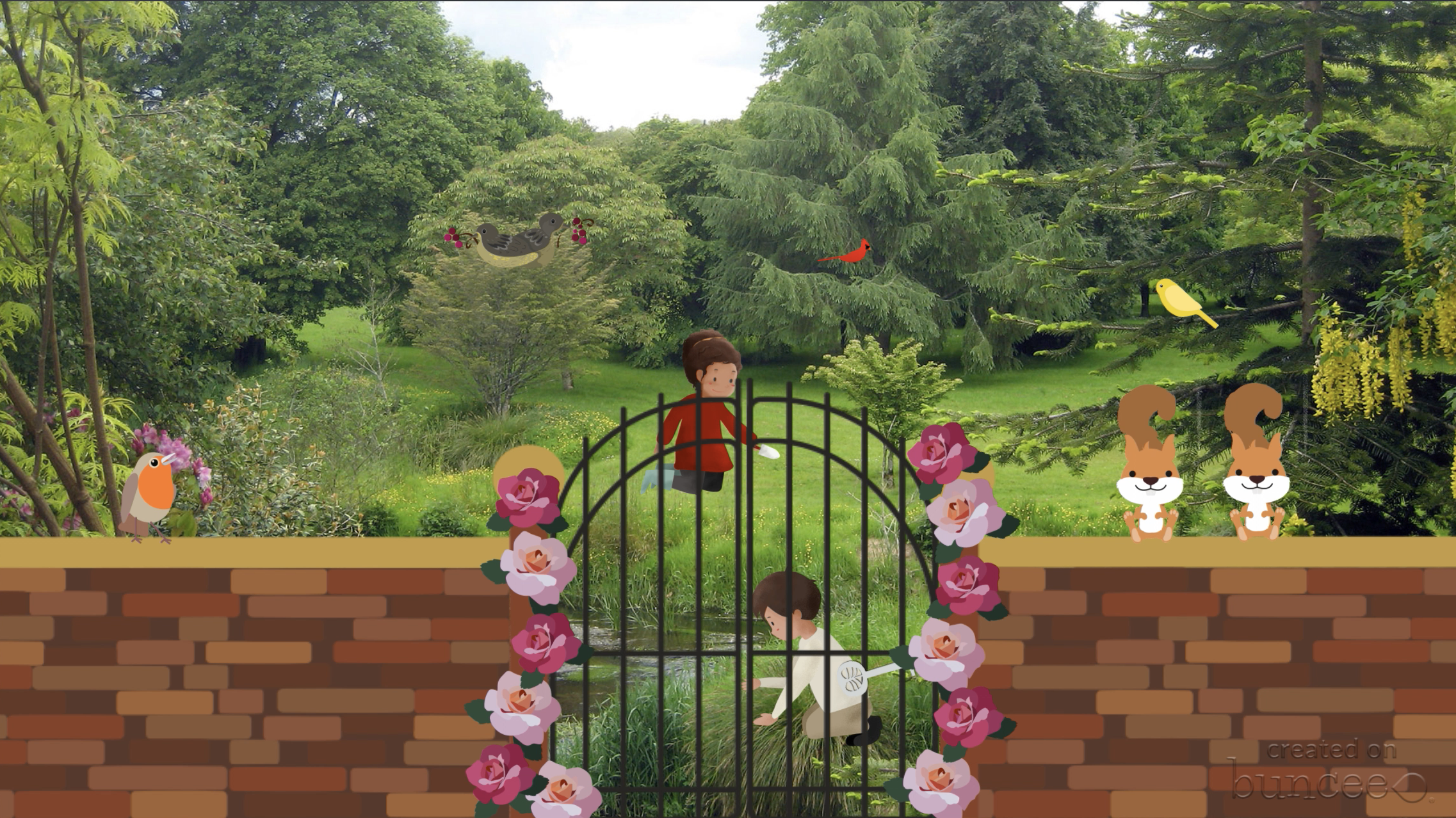
The garden from the well known novel The Secret Garden brought to life in Buncee!
Day 7- Alpha Boxes

This activity is a great way to get students talking about text while brainstorming words associated with a story or article. Each box is filled with a word, emoji or picture that starts with the letter and explains some part, feeling, characteristic, etc. of the story. Level up this activity by creating a book on Book Creator for students to collaborate on. They could all share their various words and images together in the same place and create one giant, collaged page for each letter.

Grab the template to use today!
Day 8- Character Award

This activity is fun and lets students be creative with how they would describe the main person or character from their reading. After brainstorming a list of character traits, they then can infer what type of award their main character would most likely received. These awards can be realistic—for example, one might be awarded “most courageous” for fighting peer pressure, another awarded “wisest” for the guidance given to another character—or they can be silly, creative and made up.

Grab the template to use!
Day 9- Dream Vacation
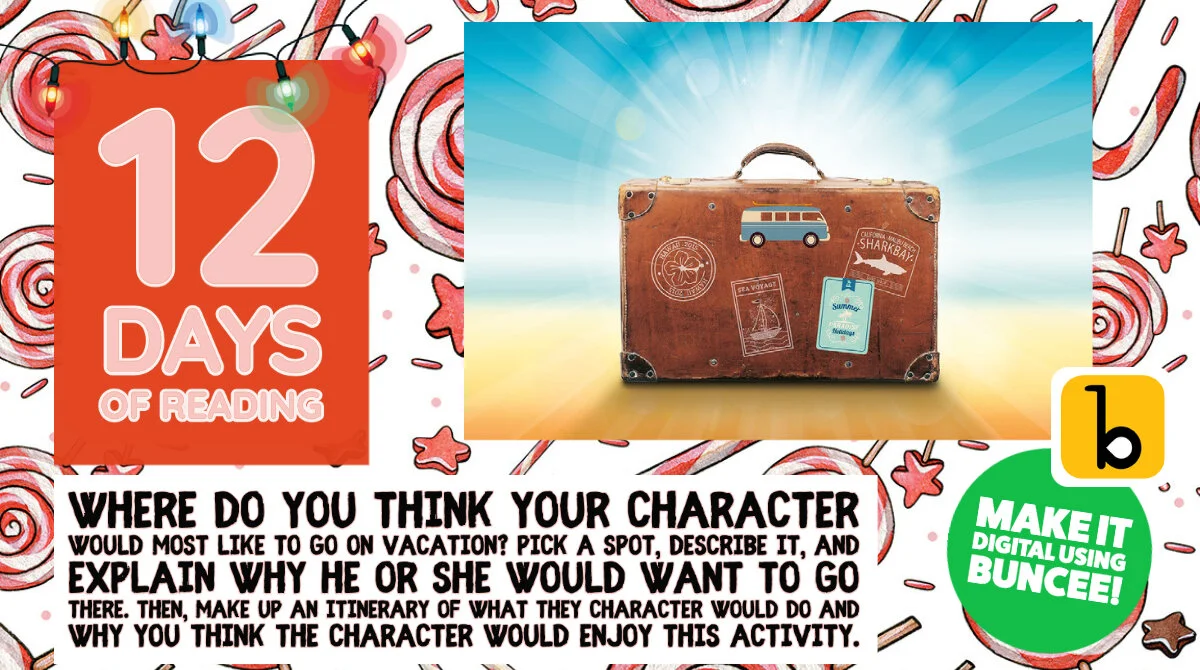
It’s five o’clock somewhere, right? Everyone can relate to the idea of getting away and going on vacation, but the destination is where opinions may vary. With this activity, students take on the persona of a person in their reading and plan a dream vacation based on the interests, likes and personality of that person. They pick a spot, describe it, and explain why he or she would want to go there. Depending on the amount of time you have and the age of the learners, you could even take it a step further and have them make up an itinerary of what they would do and when based on the length of the vacation.
Level Up: This would be fun to use Buncee to create. Students would not only create their itinerary of where to go while on vacation, but also illustrate it using animations, photographs sticker and much more!
Day 10- Letter to Santa

Write a letter from the point of view of one character explaining what they want for Christmas. This is a great review for our digital learners and gives them a chance to practice formal writing other than a text, tweet or tok.

Level Up: Infuse some math into this lesson by giving students time to browse through store circular ads and calculate the total amount it would cost to buy all the items on their list.
Day 11- Character Scrapbook
Image your character were to journal or keep track of important events and memories from their life in a scrapbook. Have students create and design the scrapbook using programs like Buncee and have them share their project link with classmates using Flipgrid, Wakelet or Seesaw.

Download this template to get students started!
Level Up: Instead of creating a scrapbook, have students use Adobe Spark Video to create a video or “home movie” of the character’s memories.
Day 12- Adobe Creative Bundle!
Adobe has curated the most amazing activities for teachers to use over the holiday season and we were honored to help create some of the templates for teachers! Check out the many awesome ideas here!
Check back in tomorrow for the last new reading activity!

Remote Learning 101: Presented by The InterACTIVE Class
As more and more schools look towards the possibility of Remote Learning, we understand that you probably have lots of questions. We’re here for you.
As more and more schools look towards the possibility of Remote Learning, we understand that you probably have lots of questions. We’re here for you.
What is remote learning?
Remote Learning occurs when the learner and instructor, or source of information, are separated by time and distance and therefore cannot meet in a traditional classroom setting. This is also being referred to as “distant learning.”
I don’t know much about educational technology. How will I learn fast enough to teach remotely?
Remote learning will undoubtedly push many teachers into the realm of digital teaching and learning faster than they may have on their own. If you are one of those teachers who hasn’t used classroom specific applications, we would recommend starting with our book The InterACTIVE Class. It was not written specifically for remote learning, but it couldn’t be out at a more relevant time.

In it you you find two page explanations for applications like Flipgrid, Seesaw, Book Creator, Buncee and many more, followed by pages of lesson ideas that you can take and immediately implement into your remote learning environments. In addition to the book, you can join our InterACTIVE Class Community on Facebook where educators from around the world share and help each other in regards to integrating technology in meaningful and relevant ways.
Where do I start?
If you are tasked with teaching remotely, our advice is to keep it simple and routine. Do not use the event of remote learning to try something new or to introduce a new platform. That is stressful enough when in the classroom with your students. Deliver content through platforms or programs that your students have already used, and if you have not used much (or any) technology before, choose 1 platform and walk your parents and students through it as you go. This is where the importance of being routine comes in. If you have the opportunity or choice to decide how to deliver content and monitor learning while teaching remotely, do it using the same program(s) while out of the classroom. Also, if you can structure the format of how you deliver content it will help parents and students navigate the unknown world of remote learning. We suggest explaining content through teacher direct lessons or online material, giving the students time to explore and create baed on their new learning, and possible assess after if necessary. If you can do this in the same way through the same program(s) repeatedly it will help students and families efficiently get acclimated with remote learning.
Not all of my students have internet access. How can I reach them during this challenging time?
One way to help students with limited internet access is to think about how you are delivering content while out of the classroom. Is there a way you can front-load assignments—maybe give the week’s worth of assignments out at one time rather than going day by day. That way, students with limited access can see more at one time if their access is limited. Also, possibly reach out and look into how local community centers, libraries and other community outreach places could help families with limited access to resources. Finally, try to use applications that are smart phone friendly in addition to being web-based. This way, in the case that a student doesn’t have a computer at home or internet, they could still possibly access information through a parent’s smart phone.
Comcast has recently announced that new customers are able to receive 60 days of complimentary Internet Essentials service, which is normally available to all qualified low-income households for $9.95/month. They are also increasing Internet speeds for the Internet Essentials service from 15/2 Mbps to 25/3 Mbps for all new and existing customers, which will be the speed of the service going forward. For more information on this, please visit the website below and feel free to share with families and colleagues.

Comcast Internet Access
Click the button below to learn more about Comcast’s internet access.
Where do I get started as I prepare for remote learning?
When getting started, it is important to settle on the platform or programs you are going to utilize while out of the classroom. As mentioned before, we highly recommend choosing ones you have already used this year, but if you have not used much or are unsure if the programs you have used will work best, here are some tools we suggest considering for creating “learning hubs”, keeping students engage, allowing real-time collaboration and much more!
How can I create a safe and cohesive learning environment for students while away from the classroom?

Seesaw
Seesaw is a platform for empowering students to demonstrate and share their learning. Students use powerful tools in the Seesaw app to create, reflect and demonstrate learning. When students share their learning in their Seesaw portfolio, teachers and families gain valuable insights into what their students know and can better support their development. Think of it as a digital portfolio.
Pros: Available anywhere, on any device.

Microsoft Teams
Microsoft Teams is your hub for teamwork in Office 365. All your team conversations, files, meetings, and apps live together in a single shared workspace, and you can take it with you on your favorite mobile device.
Pros: Available anywhere on any device (with a free Office 365 account - sign up here).
I want my students to maintain the collaboration that they would normally have within the walls of the classroom. Which tool should we use?
Educators can pose questions / tasks and generate collaboration by using Flipgrid. Flipgrid is a social learning / web-based platform where educators ask a question (called “topics” in Flipgrid), and then students respond to the question in the form of a video. Students can get creative and add external links, drawings, music, and more to their responses. The video responses appear in a grid style display, where other students can then view and respond to. This generates a web of discussion, similar to that of a video message board. With Flipgrid, your students will still be able to support one another and share their thinking. They will also be able to critique and respectfully generate positive discussions based on your topic.

Flipgrid
Flipgrid is simple. Educators spark discussions by posting Topics to a classroom, school, professional learning community, or public Grid. Students record, upload, view, react, and respond to each other through short videos. Flipgrid is video the way students use video ... social, engaging and fun!
Where can I access high quality, digital materials for my students to use while learning online?
Taking print material and converting it to digital platforms can be time consuming and overwhelming. There are many companies stepping up to provide teachers with high quality, interest provoking content while you are out learning remotely.

Newsela
Newsela is committed to bringing authentic, engaging, diverse and accessible content to all learners. They believe the best lessons start with the best content. All teachers can now access Newsela ELA, Newsela Social Studies, Newsela Science, and the SEL Collection for free for the rest of the year.

Scholastic News
Scholastic known for publishing, selling, and distributing books and educational materials for schools, teachers, parents, and children. Their classroom magazines are found in many classrooms. Scholastic is creating 15 lessons for various age groups of students ranging from Pre-K to high school filled with quality nonfiction articles similar to the ones found in their magazines. Check out the curated articles for grades 3-5 here!
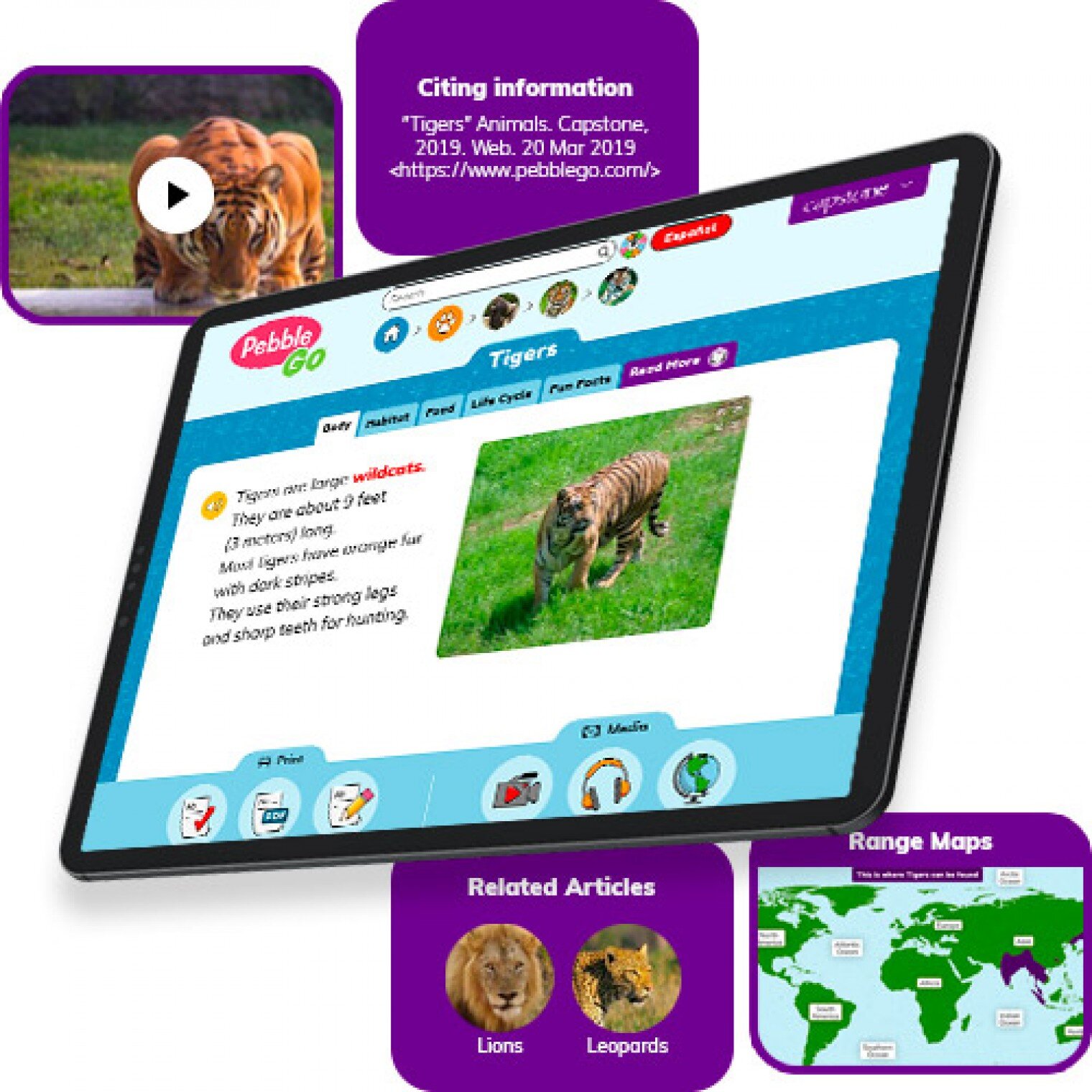
Pebble Go
PebbleGo is a curricular content hub specifically designed for K-3 students. Packed with informational articles, ready-made activities, and literacy supports for students of all abilities, it boosts engagement and fosters independent learning in core subject areas. To learn how you can gain free access during school closures, click on the learn more button below.
Compatibility: Web based only
What tools can my students use to keep the creativity going?
Just because your students are away from the classroom, doesn’t mean that they have to lose their creativity. The list of apps below are highly recommended platforms that will have your students creating rich and authentic content that you can tie directly to your standards. If you have any questions on how to implement these, please don’t hesitate to reach out to us.

Buncee
With Buncee’s assortment of media options, creating a virtual lesson is quick and easy. Teachers can include text, video, audio, or even links to additional resources. Record your lesson using the video feature, or create an activity template for your student to complete at home. The classroom dashboard can then be utilized to share and track assignments. Teachers could also create a Buncee Board, so students can access materials, share their work, interact with their classmates, and participate in class discussions no matter where they are. Students can also create and submit Buncees back to their teachers. For more information, click the learn more button below.
Compatibility: all devices

Adobe Creative Cloud
Adobe has announced that they are giving their higher education and K-12 institutional customers globally — who currently make Creative Cloud apps available to students who login through on-campus labs — the ability to request temporary “at-home” access for their students and educators. This will be granted through May 31, 2020 at no additional cost. To learn more, click the learn more button below.
Compatibility: all devices

Minecraft: Education Edition
To help teachers and students stay connected to the classroom, Minecraft: Education Edition is now available through June 2020 for all educators and learners who have a valid Office 365 Education account. Click on the learn more button below for more information.

Book Creator
Book Creator is a simple tool for creating awesome digital books. You can create your own teaching resources or have your students take the reins. Combine text, images, audio and video to create stories, portfolios, journals, comic adventures, science journals and much more! Book Creator is offering everyone the ability to collaborate together on books in real-time. This is a premium feature that is usually only available with a paid subscription, but they’re offering 90 days free use of this tool, to help keep students and teachers connected.
How can I make learning engaging and interACTIVE during remote learning?
Distance learning doesn’t need to equal dull learning. There are many apps that not only allow students to learn alongside one another in real time, but they also help the teacher facilitate information in unique and different ways.

GimKit
GimKit is a live gameshow for the classroom. Students answer questions on their own device at their own pace. Throughout a Kit, each student will get exposure to the questions multiple times to ensure mastery.
Compatibility: all devices

Nearpod
What if we told you that you could have your students log onto your presentations, and literally switch slides to all devices logged on at the same time. With Nearpod, you can do just that. Students log onto your presentation with a code. Educators can also add slides for collaboration, drawing, 360 images, and more. Check out the learn more button below fore more information.
Compatibility: all devices

Hyperdocs
HyperDocs are free digital lessons that are easy to edit for your eLearning students. They are all about hyperlinking your docs for amazing learning experiences for kids! With one shortened link, students can access a lesson that contains instructions, links, tasks, and many clever ways to get thinking. Hyperdocs focus on creating opportunities for choice, exploration, and ways for kids to apply their knowledge. Explore these docs plus more by clicking the learn more button below.
Compatibility: all devices

Brain Pop
From the very beginning, BrainPOP was built on the belief that curiosity through short animated movies can make complicated ideas simple and clear. Today, BrainPOP’s rigorous learning experiences go far beyond a movie and quiz, offering a rich array of resources and tools that meet each student’s interests and needs while developing their critical, computational, and creative thinking skills across the curriculum.
For more information on how to make learning more engaging and relevant by using technology, check out our book The InterACTIVE Class.


Here is a Wakelet of other platforms that we are updating daily as we come across new resources and offers.
We are happy to connect and discuss which tool would work best for your particular remote learning experience. This is an unprecedented situation, and leaning on one another is more important now than ever before. Please don’t hesitate to reach out.
👓👗💚