


Top Five (FREE) Apps of 2020!
2020 was a wild year - especially for educators. We experienced the world’s greatest PD event, but which apps / websites proved to be the most resourceful? We’ll walk you through five of the ones that we find ourselves using the most in our own classrooms.
Teaching in 2020 was like brushing your teeth while eating Oreos. It was like shoveling snow while it’s still snowing. Or maybe it was like being a chameleon stuck inside a bag of skittles. But educators are resilient and before we threw up our hands and said that it’s “forget this o’clock,” we tapered down for the world’s largest PD event. We became familiar with websites and apps that we had never heard of. We quickly realized the importance of the “mute” button, and that most of our “staff meetings” really could be sent out in an email. But, now that we’ve had almost a year of this under our belt, we can confidently say that some apps have proven to be essential throughout remote learning and our gradual return back into the classroom. So, without further-ado, these are our top five (FREE) most commonly used apps of 2020. These apps are compatible on any device. Click on any subheading to learn more about the app and how we have been using it in our classrooms.
5. Gimkit (Gamification in the Classroom)
4. Classkick (Instant Feedback / Monitoring)
3. Nearpod (Classroom Management / Content Delivery)
2. Seesaw (Student Portfolios / Where Everything “Lives”)
1. Flipgrid (Student Creation / Social Learning)

5. Gimkit
Gamification in the classroom
Link 👉 http://www.gimkit.com
Gimkit is a live quiz learning platform where students answer questions and can earn “money” for power-ups. It was developed by a high school student who built a game that he wanted to play in class. The free version allows educators to create and edit content as much as they need. However, games can only be hosted with 5 players or fewer and new assignments cannot be created while on Gimkit Basic. We highly recommend upgrading!
How To Use it in the Classroom:
Have your students develop their own questions in the “Collab” mode. Then launch the kit and see how they perform!
Math fluency review
Use Gimkit as a way for students to go back into a text and find the answers to the questions
TIP: The more questions that you have in each “kit,” the better!

4. Classkick
Instant Feedback and Monitoring
Link 👉 https://classkick.com/
Classkick is a free app that students work on and get help instantly from their teacher and peers. Students may receive assistance from teachers (and peers) instantly. Teachers create assignments, see all their students’ work in real-time, and give LOTS of student feedback. Best of all, students can help each other anonymously.


How to Use Classkick in the Classroom:
Create assignments that students can work home regardless of where they are
Save your Powerpoint files as JPEG’s, then upload them to a new Classkick assignment
Use Classkick for Number Talks / Number of the Day
TIP: Create an assignment titled, “White Boards,” and use them as daily digital white boards. Students can erase the white boards after daily use, and return to the same link / code the next day.

3. Nearpod
Classroom Management and Content Delivery
Link 👉 http://www.nearpod.com
Nearpod is a student engagement platform built to make teaching with technology easy. With Nearpod you can control what your students see and get feedback in real-time. With a free account, you have the ability to share assignments with your students and then transition what they see from slide-to-slide. For example, if you upload an assignment from Google Slides or PowerPoint, Nearpod will convert it into an assignment. Teachers have control of the assignment, and when they move to the next slide, it will automatically change on all devices logged onto that presentation.
How to Use Nearpod in the Classroom:
Upload an assignment from Google Slides or PowerPoint, then add a virtual reality field trip! (Click: Add slide > Virtual Field Trip)
Add an activity for your students to complete while in the lesson. Activities include: Draw It, Quiz, Poll, Collaboration Board, and more!
Differentiate by duplicating assignments and adjusting as necessary. Share the appropriate login codes with the assigned students.
You may also like:
How to Integrate Flipgrid into Nearpod
How to Embed Nearpod Presentations into Microsoft Teams

2. Seesaw
Student Portfolios and Where all of Your Content Can “Live”
Link 👉 http://seesaw.me
Seesaw is a platform where students share their learning in their Seesaw portfolio, giving teachers and families valuable insights into what the students know. Assignments can be easily created, differentiated, and shared - think of it as a “house” for all of your content. The best part of all: every time a student adds an artifact to their portfolio, it notifies their connected family member(s) so that they may be kept in the loop with their child’s learning.


How to Use Seesaw in the Classroom:
Create assignments and select the students that you would like to complete them (easy differentiation)
Allow students to add content on their own (let them take a photo, then annotate over the photo)
Keep families at home in the loop with what is happening in class
You may also like:
What’s New in Seesaw (2020)

Flipgrid
Student Creation and Social Learning Platform
Link 👉 http://www.flipgrid.comFlipgrid is a video based social learning platform. Educators pose a question or assignment, then students respond in the form of a video. Once the conversation starts, other classmates may view their friends’ videos and respond to them. This creates a web of discussion, which automatically elevates the overall curricular level of the classroom.
How to Use Flipgrid in the Classroom:
Allow students to explain their thinking by holding up a whiteboard or their writing
Sequence the events of a text or historical time period
Use the Flipgrid Camera to record your own lessons - even create digital anchor charts
You may also like:
How to Play Among Us on Flipgrid
Using the Draw Tool on Flipgrid
Creating Student Podcasts on Flipgrid

Stay #interACTIVE!
-👗➕🕶️
For more tips, tricks and lesson ideas for making learning more interACTIVE, check out our book The InterACTIVE Class on Amazon!


Updates in Nearpod - Videos, Expanded Library, and Zoom Integration!
Nearpod has just announced what updates users can expect for this coming year - and there is a lot to talk about!

Nearpod has just announced what updates users can expect for this coming year - and there is a lot to talk about! Here’s a list of what you can expect (note: click on any subheading to skip to that section):
Interactive Videos in Nearpod
Now, educators will have the ability to bring the interactivity of Nearpod beyond a lesson - and now into a video! This feature can be used to create video embeds directly into new lessons, or it can be added into your previous lessons.
From inside any Nearpod lesson, click the “Add Slide” icon. Then, under “Content,” select “Video.” This opens a few options. You can select a video from the Nearpod library, a Youtube link, or upload your own video.


If you’re selecting a video from the Nearpod library, you can narrow down the results by selecting a subject or grade level. The Nearpod videos have activities (open ended and multiple choice questions) embedded directly into them, so when students are watching, the video will pause once an activity comes up. Educators can add their own activities on any time stamp. Once you have the activities embedded into the video, click “Save” to add the video into your Nearpod presentation.


This new feature will work with YouTube videos and your own uploaded videos. Just use the same steps listed above to add activities! It’s also important to note that educators can receive both a real time and post session report from the students who have completed the video activity!
Expanded Content into the
Nearpod Library
Nearpod is expanding its content in the Library. Currently, educators can find over 7,500 editable standard-aligned lessons. Nearpod plans to continue to add additional resources such as “Draw It” and SEL lessons. These lessons can be used for either remote learning or in-person learning.

Zoom Integration
With many districts returning to remote learning, Nearpod has announced an integration with Zoom. Using this integration, educators will be able to launch Nearpod lessons and Zoom meetings together at the same time using just one click.
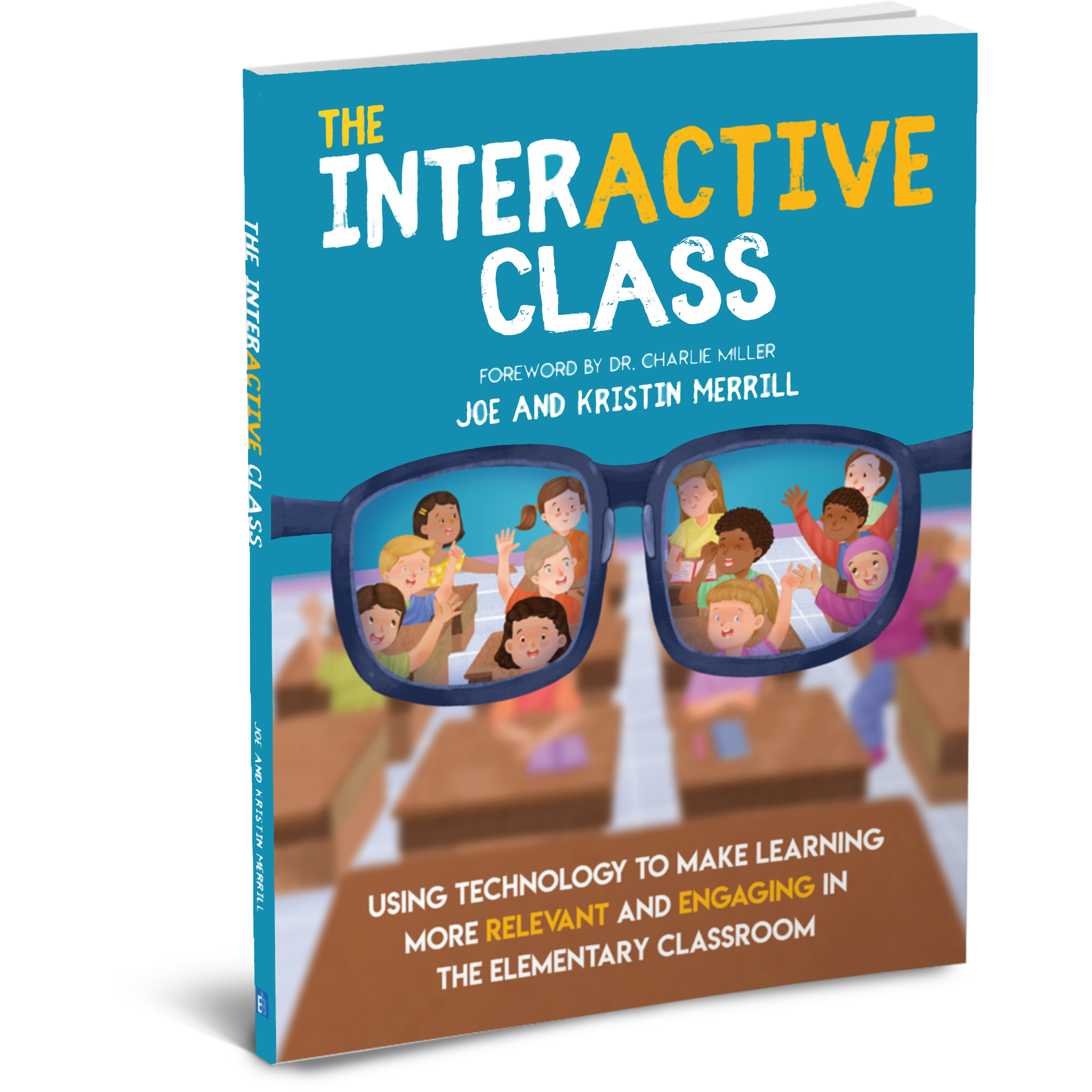
To launch a Zoom and Nearpod lesson, hover over a lesson in your library. Then, click the blue “Live Participation & Zoom” button. After your lesson opens, click the blue “Create Your Zoom Meeting” button to launch it!
(Note: this requires both a Zoom and Nearpod account)

Stay #interACTIVE!
-👗➕👓
If you’d like to learn more about interACTIVE teaching and learning, check out our book The InterACTIVE Class today!


Remote Learning 101: Presented by The InterACTIVE Class
As more and more schools look towards the possibility of Remote Learning, we understand that you probably have lots of questions. We’re here for you.
As more and more schools look towards the possibility of Remote Learning, we understand that you probably have lots of questions. We’re here for you.
What is remote learning?
Remote Learning occurs when the learner and instructor, or source of information, are separated by time and distance and therefore cannot meet in a traditional classroom setting. This is also being referred to as “distant learning.”
I don’t know much about educational technology. How will I learn fast enough to teach remotely?
Remote learning will undoubtedly push many teachers into the realm of digital teaching and learning faster than they may have on their own. If you are one of those teachers who hasn’t used classroom specific applications, we would recommend starting with our book The InterACTIVE Class. It was not written specifically for remote learning, but it couldn’t be out at a more relevant time.

In it you you find two page explanations for applications like Flipgrid, Seesaw, Book Creator, Buncee and many more, followed by pages of lesson ideas that you can take and immediately implement into your remote learning environments. In addition to the book, you can join our InterACTIVE Class Community on Facebook where educators from around the world share and help each other in regards to integrating technology in meaningful and relevant ways.
Where do I start?
If you are tasked with teaching remotely, our advice is to keep it simple and routine. Do not use the event of remote learning to try something new or to introduce a new platform. That is stressful enough when in the classroom with your students. Deliver content through platforms or programs that your students have already used, and if you have not used much (or any) technology before, choose 1 platform and walk your parents and students through it as you go. This is where the importance of being routine comes in. If you have the opportunity or choice to decide how to deliver content and monitor learning while teaching remotely, do it using the same program(s) while out of the classroom. Also, if you can structure the format of how you deliver content it will help parents and students navigate the unknown world of remote learning. We suggest explaining content through teacher direct lessons or online material, giving the students time to explore and create baed on their new learning, and possible assess after if necessary. If you can do this in the same way through the same program(s) repeatedly it will help students and families efficiently get acclimated with remote learning.
Not all of my students have internet access. How can I reach them during this challenging time?
One way to help students with limited internet access is to think about how you are delivering content while out of the classroom. Is there a way you can front-load assignments—maybe give the week’s worth of assignments out at one time rather than going day by day. That way, students with limited access can see more at one time if their access is limited. Also, possibly reach out and look into how local community centers, libraries and other community outreach places could help families with limited access to resources. Finally, try to use applications that are smart phone friendly in addition to being web-based. This way, in the case that a student doesn’t have a computer at home or internet, they could still possibly access information through a parent’s smart phone.
Comcast has recently announced that new customers are able to receive 60 days of complimentary Internet Essentials service, which is normally available to all qualified low-income households for $9.95/month. They are also increasing Internet speeds for the Internet Essentials service from 15/2 Mbps to 25/3 Mbps for all new and existing customers, which will be the speed of the service going forward. For more information on this, please visit the website below and feel free to share with families and colleagues.

Comcast Internet Access
Click the button below to learn more about Comcast’s internet access.
Where do I get started as I prepare for remote learning?
When getting started, it is important to settle on the platform or programs you are going to utilize while out of the classroom. As mentioned before, we highly recommend choosing ones you have already used this year, but if you have not used much or are unsure if the programs you have used will work best, here are some tools we suggest considering for creating “learning hubs”, keeping students engage, allowing real-time collaboration and much more!
How can I create a safe and cohesive learning environment for students while away from the classroom?

Seesaw
Seesaw is a platform for empowering students to demonstrate and share their learning. Students use powerful tools in the Seesaw app to create, reflect and demonstrate learning. When students share their learning in their Seesaw portfolio, teachers and families gain valuable insights into what their students know and can better support their development. Think of it as a digital portfolio.
Pros: Available anywhere, on any device.

Microsoft Teams
Microsoft Teams is your hub for teamwork in Office 365. All your team conversations, files, meetings, and apps live together in a single shared workspace, and you can take it with you on your favorite mobile device.
Pros: Available anywhere on any device (with a free Office 365 account - sign up here).
I want my students to maintain the collaboration that they would normally have within the walls of the classroom. Which tool should we use?
Educators can pose questions / tasks and generate collaboration by using Flipgrid. Flipgrid is a social learning / web-based platform where educators ask a question (called “topics” in Flipgrid), and then students respond to the question in the form of a video. Students can get creative and add external links, drawings, music, and more to their responses. The video responses appear in a grid style display, where other students can then view and respond to. This generates a web of discussion, similar to that of a video message board. With Flipgrid, your students will still be able to support one another and share their thinking. They will also be able to critique and respectfully generate positive discussions based on your topic.

Flipgrid
Flipgrid is simple. Educators spark discussions by posting Topics to a classroom, school, professional learning community, or public Grid. Students record, upload, view, react, and respond to each other through short videos. Flipgrid is video the way students use video ... social, engaging and fun!
Where can I access high quality, digital materials for my students to use while learning online?
Taking print material and converting it to digital platforms can be time consuming and overwhelming. There are many companies stepping up to provide teachers with high quality, interest provoking content while you are out learning remotely.

Newsela
Newsela is committed to bringing authentic, engaging, diverse and accessible content to all learners. They believe the best lessons start with the best content. All teachers can now access Newsela ELA, Newsela Social Studies, Newsela Science, and the SEL Collection for free for the rest of the year.

Scholastic News
Scholastic known for publishing, selling, and distributing books and educational materials for schools, teachers, parents, and children. Their classroom magazines are found in many classrooms. Scholastic is creating 15 lessons for various age groups of students ranging from Pre-K to high school filled with quality nonfiction articles similar to the ones found in their magazines. Check out the curated articles for grades 3-5 here!
Pebble Go
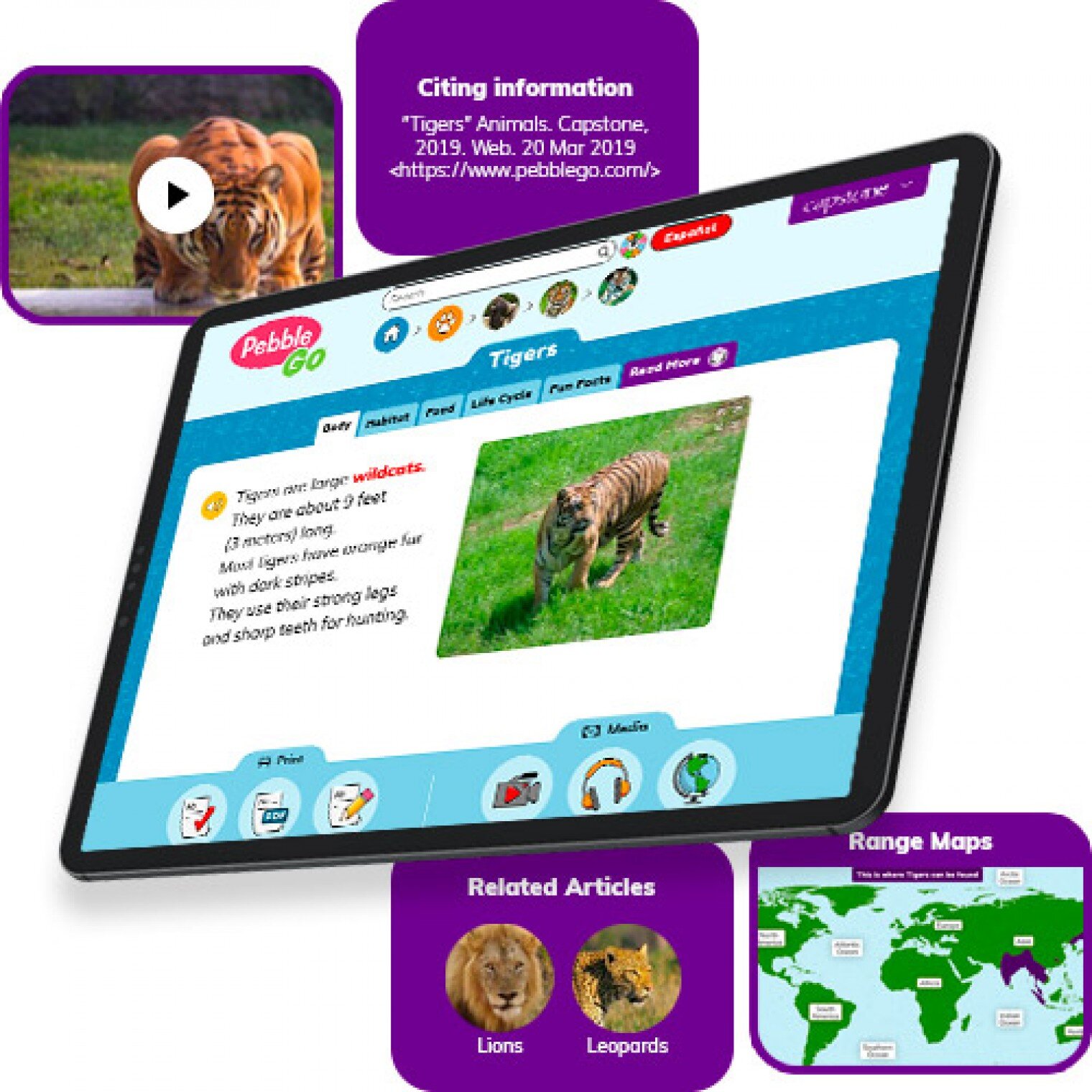
PebbleGo is a curricular content hub specifically designed for K-3 students. Packed with informational articles, ready-made activities, and literacy supports for students of all abilities, it boosts engagement and fosters independent learning in core subject areas. To learn how you can gain free access during school closures, click on the learn more button below.
Compatibility: Web based only
What tools can my students use to keep the creativity going?
Just because your students are away from the classroom, doesn’t mean that they have to lose their creativity. The list of apps below are highly recommended platforms that will have your students creating rich and authentic content that you can tie directly to your standards. If you have any questions on how to implement these, please don’t hesitate to reach out to us.

Buncee
With Buncee’s assortment of media options, creating a virtual lesson is quick and easy. Teachers can include text, video, audio, or even links to additional resources. Record your lesson using the video feature, or create an activity template for your student to complete at home. The classroom dashboard can then be utilized to share and track assignments. Teachers could also create a Buncee Board, so students can access materials, share their work, interact with their classmates, and participate in class discussions no matter where they are. Students can also create and submit Buncees back to their teachers. For more information, click the learn more button below.
Compatibility: all devices

Adobe Creative Cloud
Adobe has announced that they are giving their higher education and K-12 institutional customers globally — who currently make Creative Cloud apps available to students who login through on-campus labs — the ability to request temporary “at-home” access for their students and educators. This will be granted through May 31, 2020 at no additional cost. To learn more, click the learn more button below.
Compatibility: all devices

Minecraft: Education Edition
To help teachers and students stay connected to the classroom, Minecraft: Education Edition is now available through June 2020 for all educators and learners who have a valid Office 365 Education account. Click on the learn more button below for more information.

Book Creator
Book Creator is a simple tool for creating awesome digital books. You can create your own teaching resources or have your students take the reins. Combine text, images, audio and video to create stories, portfolios, journals, comic adventures, science journals and much more! Book Creator is offering everyone the ability to collaborate together on books in real-time. This is a premium feature that is usually only available with a paid subscription, but they’re offering 90 days free use of this tool, to help keep students and teachers connected.
How can I make learning engaging and interACTIVE during remote learning?
Distance learning doesn’t need to equal dull learning. There are many apps that not only allow students to learn alongside one another in real time, but they also help the teacher facilitate information in unique and different ways.

GimKit
GimKit is a live gameshow for the classroom. Students answer questions on their own device at their own pace. Throughout a Kit, each student will get exposure to the questions multiple times to ensure mastery.
Compatibility: all devices

Nearpod
What if we told you that you could have your students log onto your presentations, and literally switch slides to all devices logged on at the same time. With Nearpod, you can do just that. Students log onto your presentation with a code. Educators can also add slides for collaboration, drawing, 360 images, and more. Check out the learn more button below fore more information.
Compatibility: all devices

Hyperdocs
HyperDocs are free digital lessons that are easy to edit for your eLearning students. They are all about hyperlinking your docs for amazing learning experiences for kids! With one shortened link, students can access a lesson that contains instructions, links, tasks, and many clever ways to get thinking. Hyperdocs focus on creating opportunities for choice, exploration, and ways for kids to apply their knowledge. Explore these docs plus more by clicking the learn more button below.
Compatibility: all devices

Brain Pop
From the very beginning, BrainPOP was built on the belief that curiosity through short animated movies can make complicated ideas simple and clear. Today, BrainPOP’s rigorous learning experiences go far beyond a movie and quiz, offering a rich array of resources and tools that meet each student’s interests and needs while developing their critical, computational, and creative thinking skills across the curriculum.
For more information on how to make learning more engaging and relevant by using technology, check out our book The InterACTIVE Class.


Here is a Wakelet of other platforms that we are updating daily as we come across new resources and offers.
We are happy to connect and discuss which tool would work best for your particular remote learning experience. This is an unprecedented situation, and leaning on one another is more important now than ever before. Please don’t hesitate to reach out.
👓👗💚