


Tips, Tricks and Templates to Use with Microsoft this Fall!
@TheMerrillsEDU share ways on how to use Microsoft tools in a post-pandemic classroom. Learn how students can use dictation, convert word files to powerpoint presentations, how to use Microsoft's collaborative whiteboard and so much more! These quick tips and tricks are delivered in less than 90 seconds!

Teaching throughout the pandemic was the world’s greatest PD event for educators. But, now that most of us are gearing up to return to in-person learning next year, how can we continue to use some of the technology and tools that we learned about throughout remote learning? How do tools like Microsoft Teams, Word and PowerPoint still fit into every day use in a “normal” classroom setting? It’s something that is on all of our minds entering next year. So, to help, we’ve created a video series dedicated to helping! We’ll share two new tips, tricks and/or templates per week from now until the end of July - just in-time for the new school year. Check everything out below!
(click on any subheading to jump to that section)
Also, check out our recommended blog posts and tutorials:
How to Convert a Word Document into a PowerPoint
Teaching writing throughout the pandemic was probably one of the hardest subjects for us both. With students both in-person and virtual, we had to rely on Microsoft Word to produce student artifacts that could be transferred digitally (and edited if need be). This trick helped take our students writing and “publish” it into something that they could edit, create and share. The result was something that everyone could be proud of! Learn how it all works below!
Using Dictation in Microsoft Tools
Dictation can now be found in many of Microsoft’s tools. Learn where to find it and how your students can take advantage of this feature below!
Ways to Use Microsoft’s Whiteboard in the Classroom
Microsoft’s Whiteboard is perfect for collaboration and real-time creative thinking. Learn how you can integrate this into your classroom immediately!
Monitoring Social and Emotional Learning with Microsoft EDU
Learn how this Microsoft tool can help you monitor your students’ feelings in just a few clicks! Reflect will help both you and your students returning back to school this fall!
Using Immersive Reader in PowerPoint
Immersive Reader can now be found in PowerPoint! This impressive technology can read out loud any text on the slides and can even translate it into different languages, making your content accessible to all! Learn how it all works in PowerPoint below!
Recommended Blog Posts
and Tutorials:
How to Embed Nearpod Presentations into Microsoft Teams
Organization in any classroom is key and with this tip, you’ll be able to keep your Nearpod presentations embedded right into Microsoft Teams. Check out our blog post and tutorial below for more info!
How to Make a Custom Microsoft Teams Background
Microsoft Teams is constantly providing updates to its platform, but the latest is one that users have been begging for: the ability to upload your own backgrounds. Now, you can create a personalized scene and Teams will virtually place you directly into your image. Learn how it all works and find a free background from our curated list!

6 InterACTIVE Ways to Use Microsoft Forms
There are many hidden gems within Microsoft EDU, and Microsoft Forms is one of them! Here are six interACTIVE ways you can use them!
How to Use Reading Progress
Learn how Microsoft is revolutionizing how educators administer running records and assess their students reading skills. NO MORE RUNNING RECORDS!


Creating a Virtual Classroom with Microsoft Teams
With the help of Microsoft Teams we can expand our classroom walls and bring our students into a different type of interACTIVE learning environment. Learn how to do more with Microsoft Teams!
Number Talks in Microsoft Teams
Are you looking for ways to improve mental math and fact fluency with your students? Then, Number Talks may be the perfect exercise for your class! Pair this activity with Microsoft Teams for full-on engagement!


Check out the entire video series below!
Check back soon for more updates and be sure to follow us on social media or join our mailing list to be the first to know when new content is posted!
-- Stay tuned for more on how to use Microsoft tools in your classroom! Be sure to follow us on social media (@TheMerrillsEDU everywhere) for more! 👓👗
For more tips, tricks and lesson ideas for making learning more interACTIVE, check out our books The InterACTIVE Class and Flipgrid in the InterACTIVE Class on Amazon!


20 Apps that Work with Flipgrid
There’s no question that Flipgrid is one of our favorite Ed Tech tools. One of the best parts about Flipgrid is just how well it integrates with other apps. Whether you’re app smashing, embedding, or just simply adding a link, here are 20 apps that work well with Flipgrid.
There’s no question that Flipgrid is one of our favorite Ed Tech tools. One of the best parts about Flipgrid is just how well it integrates with other apps. Whether you’re app smashing, embedding, or just simply adding a link, here are 20 apps that work well with Flipgrid.
Click on any image to jump to that section, or start reading below!








1. Adobe Spark
Create images, video, and webpages
Link 👉 https://spark.adobe.com/
Ways to Use with Flipgrid:
Design a podcast cover in Spark, then save it and upload it to Flipgrid. Record your podcast in Flipgrid!
Create a Spark page, then copy the link. Share the link in a Flipgrid response
Create a Spark video and download it. Then, upload it to Flipgrid!



2. BreakoutEDU
Engaging gamification for the classroom
Link 👉 https://www.breakoutedu.com/
Ways to Use with Flipgrid:
Have your students complete a Breakout challenge, then have them answer follow-up questions on Flipgrid
Use different videos for different puzzles, then have students respond to the appropriate puzzle’s video

3. Book Creator
A simple way to create digital books online
Link 👉 https://bookcreator.com/
Ways to Use with Flipgrid:
Create a collaborative class book, then embed a Flipgrid topic into the book. As your students read the book, they can add their thoughts into the topic.
Create a book on Book Creator, then share the link in a Flipgrid video.

4. Buncee
Create and share engaging content
Link 👉 https://app.edu.buncee.com/
Ways to Use with Flipgrid:
Create a Buncee that ties into a text, then have your students answer several follow-up questions on Flipgrid.
Create a Bitmoji classroom, then share the Buncee as a Topic Resource. This will add your Buncee Bitmoji classroom to the top of the Flipgrid Topic
Create a Flipgrid Topic and record a video as a student in that topic. Ask your students to solve some type of challenge. Then, from the Flipgrid educators dashboard, add a Buncee that hyperlinks to another Buncee. This Buncee should somehow tie into your video challenge, and can be used as a breakout or a way to access different “rooms.”
5. Canvas
Learning management system
Link 👉 https://www.instructure.com/canvas/
Ways to Use with Flipgrid:
From the Flipgrid Educator’s Dashboard, select a Topic or Group. Click the blue “Share” button, then click on the blue brackets symbol (</>) to copy the embed code. On a Canvas page, click on the “Edit/Insert Media” button. Next, click on “Embed,” and then paste the copied Flipgrid code. Click “Ok” to embed your Flipgrid content directly into the Canvas page!


6. Chatterpix Kids
Easily animate still images
Link 👉 https://apps.apple.com/us/app/chatterpix-kids/id734046126
Ways to Use with Flipgrid:
In the Chatterpix Kids app, animate a character from a story by explaining the characters’ feelings, or experience. Export your Chatterpix video, then upload it into Flipgrid as a clip.
Bring historical figures to life by animating them in Chatterpix Kids and exporting the video to your device’s camera roll. Then, upload it to Flipgrid and have your students watch their classmates videos and respond accordingly.
7. (Apple) Clips
Simple and easy video editor
Link 👉 https://www.apple.com/clips/
Ways to Use with Flipgrid:
Record a video in Clips to launch an exciting lesson. Download the Clips video to your camera roll, then upload it to a Flipgrid topic to share with your students.
In Clips, camera shy students can add a Memoji and place it over their face while they record. Once their video is ready, have them export the video to their camera roll. Then, upload it to Flipgrid to share!


8. Do Ink Green Screen
Primary friendly green screen app
Link 👉 https://apps.apple.com/us/app/green-screen-by-do-ink/id730091131
Ways to Use with Flipgrid:
Buy several green plastic table cloths from the Dollar Store, then hang them around your classroom. In the Do Ink app, have your students place themselves into a text. Add an image to the middle layer in Do Ink, then on the top layer have them use the live video camera (while they stand in front of the green screen). Export the video, then upload it to Flipgrid to share with other classmates!
9. Epic Reading App
The Netflix of books for kids
Link 👉 https://www.getepic.com/
Ways to Use with Flipgrid:
Create a class in Epic, then assign differentiated texts to your students. In the Flipgrid Educator’s Dashboard, create a Flipgrid Topic where the students can retell the story that they read. Add the links to the assigned Epic books into the Topic.
Have your students use Flipgrid’s screen record to share important parts of a book from Epic that they learned from. This could include a scavenger hunt for: text features, phonograms, compound words, etc.

10. Genially
Create interactive content
Link 👉 https://www.genial.ly/en
Ways to Use with Flipgrid:
Embed a Genially project as a Flipgrid resource, then have your students maneuver their way through the project. Have them answer questions in a Flipgrid video.
Have your students design their own projects on Genially, then share their links in a Flipgrid video. Fellow classmates can view their classmates Genially projects, then leave feedback on Flipgrid.


11. Herstory
Bring forgotten stories of women to life
Link 👉 https://www.lessonsinherstory.com/
Ways to Use with Flipgrid:
From the Herstory app, have your students save an image to their camera roll. Then on Flipgrid, have them upload the image as a sticker in the Flipgrid camera. Students can move the image appropriately, then explain what they learned in a video.
12. Nearpod
Classroom management and presentation
Link 👉 http://www.nearpod.com
Ways to Use with Flipgrid:
Embed a Flipgrid Topic or Group right into your Nearpod presentations
Add a Nearpod link to your Flipgrid Topics


13. Newsela
School-aged articles appropriate for all levels
Link 👉 https://newsela.com/
Ways to Use with Flipgrid:
Assign an article to your students in Newsela, then have them answer several questions on a Flipgrid Topic.
Create a Flipgrid Topic and attach a Newsela link. Have your students read the article, then respond accordingly.
14. Seesaw
Digital Portfolios and Family Communication
Link 👉 https://web.seesaw.me/
Ways to Use with Flipgrid:
From the Flipgrid Educator’s Dashboard, select a student’s video response. Click on the share button to copy the video’s URL. On the Seesaw Educator’s Dashboard, add the video as a link to share with families.
Have students create a video in Flipgrid, then download the video to their device. Upload it to Seesaw to share with their teacher and family.


15. Microsoft’s Sway
Simple and Efficient Web Pages
Link 👉 https://sway.office.com/
Ways to Use with Flipgrid:
Use Flipgrid to document the writing process. Type out the writing into a Word Document, then transform it to a Sway. Share final Sway product on Flipgrid so that classmates can see.
Use Flipgrid as a collaborative tool for students to discuss how to create / design their group Sway. Once the product is finalized, share it back on Flipgrid for the world to see!
16. Microsoft’s Teams
The “House” for All of Your Content
Link 👉 https://www.microsoft.com/en-ww/microsoft-365/microsoft-teams/group-chat-software
Ways to Use with Flipgrid:
Add Flipgrid as a tab in a Teams channel
Add Flipgrid in a Teams conversation


17. TextingStory
Create Fake Texting Threads
Link 👉 https://textingstory.com/
Ways to Use with Flipgrid:
Launch the TextingStory app, then re-create a conversation between two characters from a text. Export the video, then upload it to Flipgrid to share.
Alter a section of a story by recreating a conversation between two characters. Export the video, then upload it to Flipgrid to share.
18. ThingLink
Add Video and Text to Images
Link 👉 https://www.thinglink.com/app/
Ways to Use with Flipgrid:
Create a ThingLink project and add it as a Flipgrid Topic’s resource.
Use Flipgrid’s built-in screen recorder to record a ThingLink project.


19. Wakelet
Save, Organize and Share Content
Link 👉 https://wakelet.com/
Ways to Use with Flipgrid:
From a Wakelet collection, record a Flipgrid video. Then, share the Wakelet collection with your students.
Create a collaborative Wakelet collection and hyperlink a Flipgrid topic. Students can collaborate, then share their final answers on Flipgrid.
20. Wonderopolis
Higher Level Questioning
Link 👉 https://wonderopolis.org/
Ways to Use with Flipgrid:
Add a Wonderopolis article to a Flipgrid Topic’s resource or directly into the prompt.
Have students discuss their opinions after reading a Wonderopolis article.
Stay #interACTIVE!
-👗➕🕶️
For more tips, tricks and lesson ideas for making learning more interACTIVE, check out our books The InterACTIVE Class and Flipgrid in the InterACTIVE Class on Amazon!


12 Days of Reading
The weeks after Thanksgiving that lead up to Christmas are always the hardest for teachers. Students are out of the normal routine after the extended fall break and are now excited and eager for Christmas to follow in the weeks to come. It can be hard to keep students focused and get all the planned curriculum and lessons in efficiently.

The weeks after Thanksgiving that lead up to Christmas are always the hardest for teachers. Students are out of the normal routine after the extended fall break and are now excited and eager for Christmas to follow in the weeks to come. It can be hard to keep students focused and get all the planned curriculum and lessons in efficiently.
In our own classrooms we do not overtly promote Christmas, although it is the holiday we personally celebrate in our own homes. We do not have elves that visit, or trees lit up all month long. There is not enough time in the month to adequately cover all the different holidays equitably, and it can be dicey trying to determine the personal beliefs and religions of each and every individual student. But nevertheless, Christmas is always the predominant holiday students anticipate, and that excitement spills over with each new day that nears.
As educators we know that student excitement is the key to engagement, and that when students are engaged they are more likely to try new things or stick with hard tasks. Using this excitement and incorporating it into the normal and routine academic activities is an easy way to keep learning alive throughout the holiday season. Thus the 12 Days of Reading was created with one simple goal in mind—keep reading lessons exciting while balancing all that comes along with the holiday sprit. The name is a spin off of the well-known song “12 Days of Christmas” and it is meant to compliment the reading already being done each day. Whether this is reading that must be done from a textbook, or independent reading that students have free choice over.
Day 1- Graffiti Wall

For this activity, students create a word splash to illustrate the book or selection of text they are reading. The words can summarize an event, convey an emotion, describe a character or person, etc. Students can either doodle, draw or sketch these words and phrases on paper or create their painted wall digitally on Flipgrid. If working to create on Flipgrid, you can grab the digital activity and brick wall images right from the Discovery library.
Day 2- Social Media Post

Taking on the persona of someone else and creating a social media page is a fun way for students to summarize, story tell, and take on a different perspective. Teachers can be creative with what students create profiles for—famous historical people, book characters, an inanimate object or even something outside of the box like an element from the periodic table!
The following templates are some of our favorites that we have found over time created by fellow designers, educators and colleagues.
Pinterest Template Created by TEachingTechnix

YouTube Template created by Paula Martinez

Netflix Created by Nick LaFave

Facebook by Ryan O’Donnell

Instagram by TechingTechNix

Twitter by TeachingTechNix

Day 3- Comic Cartoon

Creating Comics are a fun way to review plot, practice summarization and practice matching visuals with text in a story. If working in person, have students draw out a specific part or memorable event in the story, or have students work digitally through Book Creator. Students can either collaborate together in one book, or each create their own comic independently.
Day 4- Lego Character

Some of the most engaging lessons for students aren’t because they are elaborate or even because they use technology, but often because they are targeted around the students’ interests. Legos are a classic toy that students often related to so why not incorporate them into a reading lesson? Have students take the basic blank lego character outline and then design an outfit fitting for the person they are describing. This again could be a person from a book, a famous historical person or maybe to represent the main idea of a selection of text read. Students can decorate on paper with basic art supplies, or you can take the image and embed it into other programs like PowerPoint, Adobe Post and many other to design digitally. When finished, regardless of how they design, students can always share their work on Flipgrid.
Day 5- Draw a Scene

Illustrating a scene is a simple, yet powerful way for students to show what they comprehend while reading. By giving them the freedom to draw, they can then structure their drawing into what they envision. A great platform to take this idea and turn it digital is Buncee. Students can create slides representing different scenes in their books, add in characters, background settings, live animations and more!
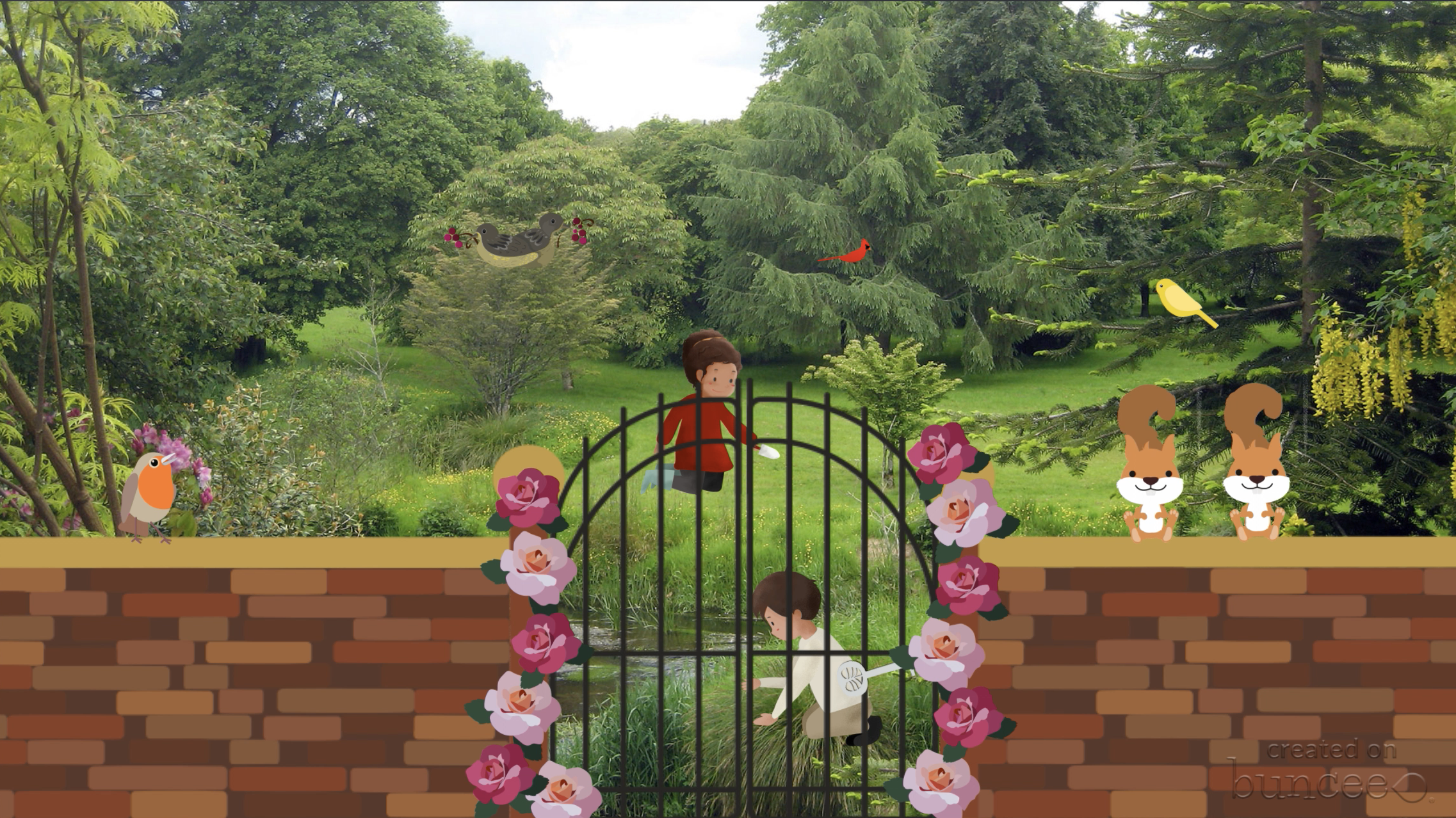
The garden from the well known novel The Secret Garden brought to life in Buncee!
Day 7- Alpha Boxes

This activity is a great way to get students talking about text while brainstorming words associated with a story or article. Each box is filled with a word, emoji or picture that starts with the letter and explains some part, feeling, characteristic, etc. of the story. Level up this activity by creating a book on Book Creator for students to collaborate on. They could all share their various words and images together in the same place and create one giant, collaged page for each letter.

Grab the template to use today!
Day 8- Character Award

This activity is fun and lets students be creative with how they would describe the main person or character from their reading. After brainstorming a list of character traits, they then can infer what type of award their main character would most likely received. These awards can be realistic—for example, one might be awarded “most courageous” for fighting peer pressure, another awarded “wisest” for the guidance given to another character—or they can be silly, creative and made up.

Grab the template to use!
Day 9- Dream Vacation
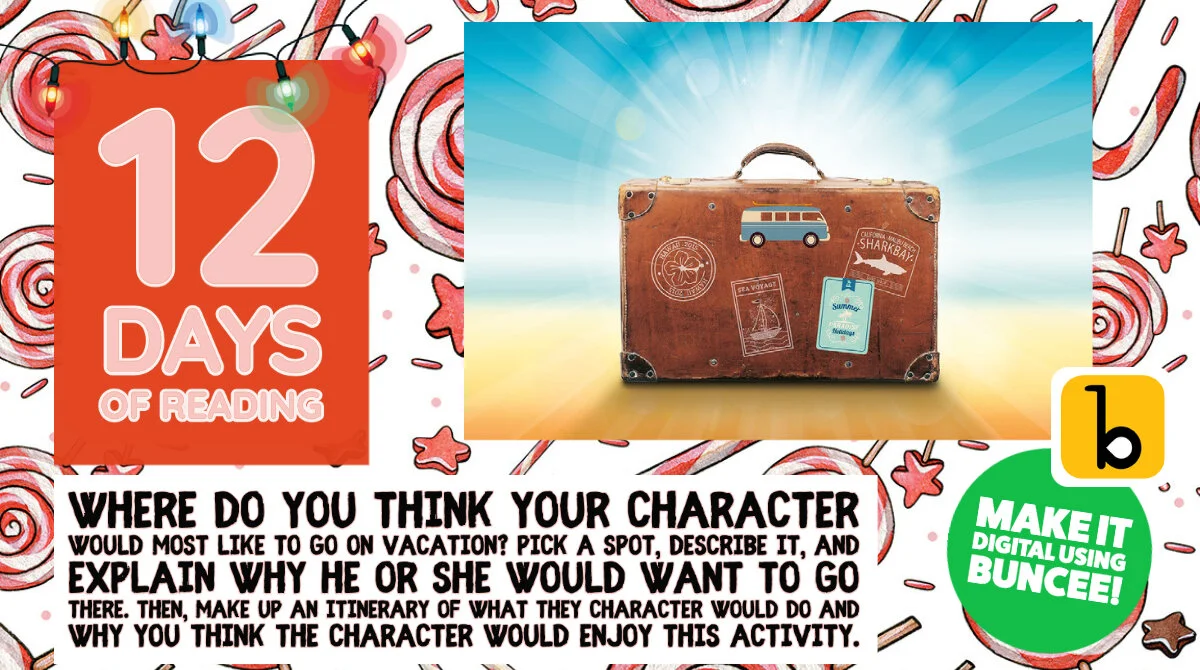
It’s five o’clock somewhere, right? Everyone can relate to the idea of getting away and going on vacation, but the destination is where opinions may vary. With this activity, students take on the persona of a person in their reading and plan a dream vacation based on the interests, likes and personality of that person. They pick a spot, describe it, and explain why he or she would want to go there. Depending on the amount of time you have and the age of the learners, you could even take it a step further and have them make up an itinerary of what they would do and when based on the length of the vacation.
Level Up: This would be fun to use Buncee to create. Students would not only create their itinerary of where to go while on vacation, but also illustrate it using animations, photographs sticker and much more!
Day 10- Letter to Santa

Write a letter from the point of view of one character explaining what they want for Christmas. This is a great review for our digital learners and gives them a chance to practice formal writing other than a text, tweet or tok.

Level Up: Infuse some math into this lesson by giving students time to browse through store circular ads and calculate the total amount it would cost to buy all the items on their list.
Day 11- Character Scrapbook
Image your character were to journal or keep track of important events and memories from their life in a scrapbook. Have students create and design the scrapbook using programs like Buncee and have them share their project link with classmates using Flipgrid, Wakelet or Seesaw.

Download this template to get students started!
Level Up: Instead of creating a scrapbook, have students use Adobe Spark Video to create a video or “home movie” of the character’s memories.
Day 12- Adobe Creative Bundle!
Adobe has curated the most amazing activities for teachers to use over the holiday season and we were honored to help create some of the templates for teachers! Check out the many awesome ideas here!
Check back in tomorrow for the last new reading activity!

Preventing Summer Slide with Buncee
Creating a Buncee doesn’t need to take all week, be part of a long research project or contain different sections etc. Rather, think of Buncee as a quick, one-stop tool where students can go in to keep skills fresh, stay engaged over summer while creating and designing. This is why we think it is a great app to use to prevent “summer slide”.
Buncee is an amazing creation tool, and one of our favorite Ed Tech tools. We highlight it in our book The InterACTIVE Class and it is often the subject of webinars and tutorials that we take part in. Besides being an amazing presentation tool, many educators miss that it is simply a creation tool. Creating a Buncee doesn’t need to take all week, be part of a long research project or contain different sections etc. Rather, think of Buncee as a quick, one-stop tool where students can go in to keep skills fresh, stay engaged over summer while creating and designing. This is why we think it is a great app to use to prevent “summer slide”.
Using Buncee to Prevent the “Summer Slide”
One of the top reasons that makes Buncee such a great platform is that it listens to the educators who use it and they are alway working on adding in new content or adjusting based on feedback. The Buncee team always works very hard to help create and prepare content for educators so getting started with an idea or project is simpler. They have already created a great Buncee to get ideas flowing for summer and it is easily sharable, which means you can push it out to students in a few short clicks.
One Slide Ideas and Activities
Many educators forget that students can create unlimited Buncees and that using Buncee doesn’t have to be for something long and intricate. We love the idea of creating small, bite sized, challenges for students and families to complete together, with the goal behind them being interaction and engagement. The activities could be educational and around subjects and standards specific to that age of student, as well as being fun, interactive activities that get students engaged with the people and places around them. We’ve curated a few ideas here in partnership with the Buncee team for you to copy, share and use right away!

Shopping list math challenge: Have your child keep those math skill alive with a simple “trip” to the grocery store. You could keep the problem as is or make it age appropriate for your own child or class.

Journal writing: Giving kids a place to journal or write is important, especially during a time time like this. Try with one slide and if students like it they can keep adding in slides or create a new Buncee journal each day designed to mirror their mood.

Monster read aloud: Enjoy a read aloud with your child and then have them creatively build based off of that story. Build a perfect monster, or maybe even write a creative story about them. You could even print out the monster for a Flat Stanley-like project!

Recipe Swap: Mix, blend, bake and then share! Whip together a favorite recipe, write it down and share with others! You can even print and save to create a collection of new things to try.

Daily moment of gratitude: Getting kids to stop and think about things they are thankful for is a great way to boost mood and help with positive thinking.

Summer postcard: Have student write to classmates, family members and friends. Send the postcard electronically or print out and mail!

Book Snaps: Have students share favorite quotes, lines, and illustrations in a book but taking a photo of the page and uploading it to Buncee. There they can mark it up, add animations and even include audio of why they connected with that particular part of the story or article.
Backyard scavenger hunt: Get kids outside and searching for fun things they may find while exploring!

Virtual classroom or library: Give students a place to go where you can update reading lists, fun family challenges or school specific activities. This would work for an individual teacher or a media specialist.

Buncee Summer Sharing
When thinking of how to integrate Buncee into the summer, we feel like the possibilities are endless. Maybe you send out challenges to a groups of students sitting in a “virtual” summer school class. You could continue weekly check ins with your current class and send a short activity their way for something to do while away from the classroom. Try embedding a Buncee board into your schools webpage with summer resources or on your media center section. You could create challenges based on school theme, integrate summer reading programs or make a few grade level specific activities. Buncee challenges are also perfect for you own children at home or to share with grandchildren, nieces and nephews, etc. We’ve included a few ideas on how to easily integrate Buncee for simple sharing and communication.
Buncee Boards: Create a Buncee board full of challenges and share the link with parents, family members, friends—you name it! All the challenges could then be copied and used by each individual giving them the choice of which to do in what order. If you would like more information on what a Buncee board is, or how to create one, click here.
Wakelet: Buncee integrates beautifully within Wakelet. Send a link to parents at the end of the year, and just embed each challenge as you wish. Students and families can check the link on their time to find your list of curated challenges. Add them all at once or add them as you go.
Flipgrid: Many don’t realize that Buncee is one of the many things you can add as a Topic Focus on Flipgrid. We love this integration because not only will students get to complete the Buncee challenges, but they could then discuss and share on Flipgrid while also linking their Buncee for others to see.
Microsoft: Buncee is also fully integrated into Teams and OneNote which makes it easier to share with students and families over the summer if you can just embed or link it as a tab to a place students are already familiar with logging in to.
Preparing for the Fall
As educators we want our students to enjoy their summer and be refreshed coming back to school in the fall. But with all that has taken place over the past few months, we really do think there is an importance to keeping kids connected to one another, creating content and staying creative until the next school year.
For more information on Buncee, check out our post on how easy it is to create Bitmoji classrooms! They are a great way to keep all assignments, tasks, challenges in one place, and you can even link different Buncees together to create multiple “rooms” or learning spaces within the virtual space. Read more here!
For more ideas and lessons using Buncee, check out our book The InterACTIVE Class!


Stay #interACTIVE!
-👗➕👓