

Create Your Own Breakout Game Using Wakelet, Buncee and Flipgrid!
Bring the engagement of breakout games into your classroom with this Wakelet, Buncee and Flipgrid idea! This post walks you through the process of setting up the breakout OR simply downloading our Wakelet collection templates for yourself!

What does Wakelet, Flipgrid and Buncee all have to do with each other? The answer is alot! But, in this post, you’ll learn how to connect all of these tools to create a truly unique experience for your students: A Breakout!
In this blog post you’ll learn:
(Click on any subheading to jump to that section)
How to Set Up Wakelet for Branching
The key to setting up your Wakelet / Buncee / Flipgrid challenge is using branching, which allows you to send users to different questions depending on their previous answers. For example, if you have a multiple choice question, the correct answer will take you on a different path then the incorrect answers. This is how the Wakelet collections need to be set up.

Start off by mapping out how you want your branching to work. Where will your students go when they answer correctly? Where will they end up if they answer incorrectly? Here’s an example of the beginning stages of what ours looked like (this obviously evolves as you go on).
Once you have your branching and mapping figured out, it’s time to start building the Wakelet collections. Start off by building your first collection by calling it, “Challenge 1.” On Challenge 1, students are given a question and four different answer choices. We recommend keeping the first challenge relatively easy, this was your students feel confident and remain engaged early on.
Before you save everything, be sure to click on the settings icon located on the top left. Make sure you have toggled the Collaboration feature on. Doing so will allow your students to leave work for others to see. This is handy if you have students that might struggle and could use a helping hand from their friends.

When we toggle this feature on, we ask that our students share their strategies - but do NOT share their final answers (for example, they work out that 2+2 = a mystery number - never giving away the answer). This step is completely optional, and you may decide that you don’t want this feature enabled. It’s totally up to you!


Now that you have your first challenge created, you will need to create two additional Wakelet collections - one for the correct answer and one for the incorrect answer. When creating the incorrect collection, be sure to provide a link back to the previous challenge (so that your students can try again). When setting up the correct response, you will want to include the next challenge below the “correct” answer. This is also where your students can be tipped off on what is to come (the first letter of the term “Flipgrid” changes color - indicating that they will need to answer the challenges correctly in order to change the color of each letter in the word. Now they are ready to move onto the next challenge. Repeat the steps above as needed!
How to Add Buncee into Your Wakelet Collection

One of the best integrations with Wakelet is with Buncee. Educators (or students) can post a “live” Buncee into a Wakelet collection. So, in this example we have placed a Buncee project right into Wakelet (copy the share link from Buncee clicking “code”). The students use the hyperlinked items from Buncee to click and find the correct answer. In our example, we chose the books as the correct answer. But, we made the challenge a little more interesting…most students thought the correct answer was “books,” but it was actually the number 8. So, when the students got to the final step, they weren’t able to get in unless they figured out that there was 8 books and needed to use the number 8 instead of the term “books.” This may not have been obvious to them at first, because clicking on the books lead them to the next challenge - indicating that they had the correct response. It was just a fun little twist to throw at them! See if you can figure it out below! 😜
Someone has come into the classroom and left a mess! There are clues everywhere! See if you can solve this puzzle:
I have letters and numbers but I’m not a computer keyboard
I’m sometimes stored in a case but I’m not a cellphone
I contain paper but I’m not a ring binder
I have a cover but I’m not a pillow
Lunch? No thanks. We already eight.
Click on the image that you think is the correct answer. Be careful!
Setting Up Flipgrid for a Wakelet Student Breakout Game
Once you have all of your Wakelet collections / challenges set up, you’ll need to set up a new Group on Flipgrid. From the educators dashboard, slide the toggle button onto Groups. Then, click the blue “Create a Group” button. Enter the information accordingly, then under permissions select Student Username. For the first and last name use something generic like Winner Winner. The next step is important! For the username, enter all of the numbers of the Wakelet challenges. So, if you used 2+2 for challenge 1, 3+3 for challenge 2 and 4+4 for challenge 3, you would enter: 468 (and so on). Set your preferred notifications, then click the blue “Create Group” button.


In your new group, create a new Topic by clicking on the blue “Create a Topic” button. This will be where your students will end up once they crack the code. In our example, we had the students do something fun - show us a victory dance! It was a fun way for us to see who was able to successfully complete the challenge and add some more engagement.

Another tip: you will want to either delete or hide the auto generated Flipgrid Topic that gets created when you start a new Group. Deleting or hiding this topic will guarantee that your students land on the appropriate Topic (since there will only be one Topic in the group). Once you have this set up, you are ready to share your challenge with your students!
Download the 🔥FREE🔥 Wakelet Collections
A bit confused about the above? Short on time? We’ve got you! You can download ALL of the Wakelet collections by clicking here or the image below! Tip: You will need to edit the link to the final Flipgrid challenge with the link to your own Flipgrid Group.
Also, this is a live collection. Please do not add any content, as it could mess up the experience for others.

See it in Action: Classroom images and video from the Wakelet, Buncee and Flipgrid Breakout Challenge


-- Stay tuned for more on how to use Wakelet breakout activities in your classroom! Planning on trying this out? We’d love to see how you’re using it! 👓👗
For more tips, tricks and lesson ideas for making learning more interACTIVE, check out our books The InterACTIVE Class and Flipgrid in the InterACTIVE Class on Amazon!


Creating Digital Breakouts with Flipgrid
The thrill of escaping from a level and breaking out of a lesson is appealing to many students and teaching and learning through games is just one of the many ways you can create #interACTIVE learning environments and lessons—especially when teaching digitally through remote learning.

Being as versatile as it is, it should come as no surprise that Flipgrid can be used to “gamify” the classroom. One of our most asked about lessons from our book, The InterACTIVE Class, continues to be “My Teacher Stuck in a Video Game.” The thrill of escaping from a level and breaking out of a lesson is appealing to many students and teaching and learning through games is just one of the many ways you can create #interACTIVE learning environments and lessons—especially when teaching digitally through remote learning.
Creating a BreakOut Game with Flipgrid
Before creating your breakout grid, you need to plan ahead and create the problems your students will be working through. You will need the answers to input into your Flipgrid portion of the breakout as they will become the codes students enter as they try to unlock the Grid and Topic.
To begin, start by creating a new Grid. This can be done by clicking the Add New Grid button in the upper lefthand corner of your Educator Dashboard. When creating your new grid, you are going to choose the Student ID option. Normally this option is used for schools where students are without emails, but for the purpose of our breakout lesson this type of grid will allow you to “lock” your grid with an answer.

Make sure to give your grid a name familiar to the lesson so students can easily find it. At the bottom of the grid creation window you will be asked if you want to customize your Flipcode. This is the code that students use to access the grid. The Flipcode is the answer you would like to have for your breakout and this should be thought out before creating your grid. You need to know what you want the answer to be for students to use to unlock the grid and what problem you want them to work through in order to get that answer. Flipcodes can only be numbers or letters so your answer needs to be one or the other or a combination of both. You may have to play around until you find an unused Flipcode, so be patient and creative with your combinations.
Once your grid is created and “locked” with your custom Flipcode answer, the next thing to do is set up the student ID portion of the grid. Normally, this is where you would enter in all students from the class and assign them their own unique passcode to gain entry to the Grid. But when creating a Brekaout Grid, you don’t need to enter in all the students. You are only going to have one student entered—and this entry will be the answer or code to unlock the grid.

You cannot leave the field for student name blank, so you can put a period in both boxes, or create a fun entry like Awesome Student. (We like this second option because once students break into the Grid and go to record an answer to the topic(s) this is the identifier that will appear in the box for their name. Students can then change their name when recording, but it adds a personalized, fun touch. Regardless of how you fill in the name boxes, the student ID box is the important box because this is where your second answer is put to unlock the grid. Again, this ID can be number, or letters so your answer can be made up of either.
Preparing the Topic
Once students have solved and completed 2 problems they will now be logged into your Grid and ready to record a Topic. You can make this topic related to the subject and concept being taught or something fun and reflective. You can extend the game and add various topics with challenges for students to complete. Maybe incorporate a Fliphunt. You can even make it more advanced by linking another grid to the topic by embedding the link in the Topic Essentials. (ie directions window)

Flipgrid Disco Library
In addition to creating your own BreakOut activities in Flipgrid, BreakoutEDU (one of our favorites!) is a partner in the Flipgrid Disco Library. You can find dozens of digital breakout games straight from the BreakoutEDU platform free to use. You can just click and copy the activities right into your own personal Grid.
Read more about using Flipgrid to create #interACTIVE lessons for students:
For more #interACTIVE lesson plans and ideas using Flipgrid, check out our book The InterACTIVE Class on Amazon!


Lesson Resources for Remote Learning: Spy Transformations
Transforming the classroom has always been one of our favorite ways to engage students. They walk in intrigued, curious as to what the day of learning would hold for them. This heightened interest would help them persevere through difficult tasks they might otherwise give up on. Plan a week of spy themed activities or turn your students into learning detectives. Dress the part, play some music and infuse this theme into any content you are teaching.

Transforming the classroom has always been one of our favorite ways to engage students. They walk in intrigued, curious as to what the day of learning would hold for them. This heightened interest would help them persevere through difficult tasks they might otherwise give up on. It created an atmosphere of challenge balanced with fun and interaction. Well why not do this virtually?! Plan a week of spy themed activities or turn your students into learning detectives. Dress the part, play some music and infuse this theme into whatever content you plan on teaching.
Spy Themed Resources
To help you with your content creation, we have curate various resources available for you to take and use. We spread the resources across platforms in an attempt to find things that everyone can use regardless of how their distance learning lessons are structured and set up. Please feel free to share with colleagues and other teachers in your PLN who may benefit too!

Spy-themed Slides
Slides Mania is an awesome resource for teachers with slide decks for all occasions. Check out this set of slides perfectly suited for problem solving and detective work. Slide decks are available for both Google Slides and Powerpoint.
Seesaw Mystery Slides
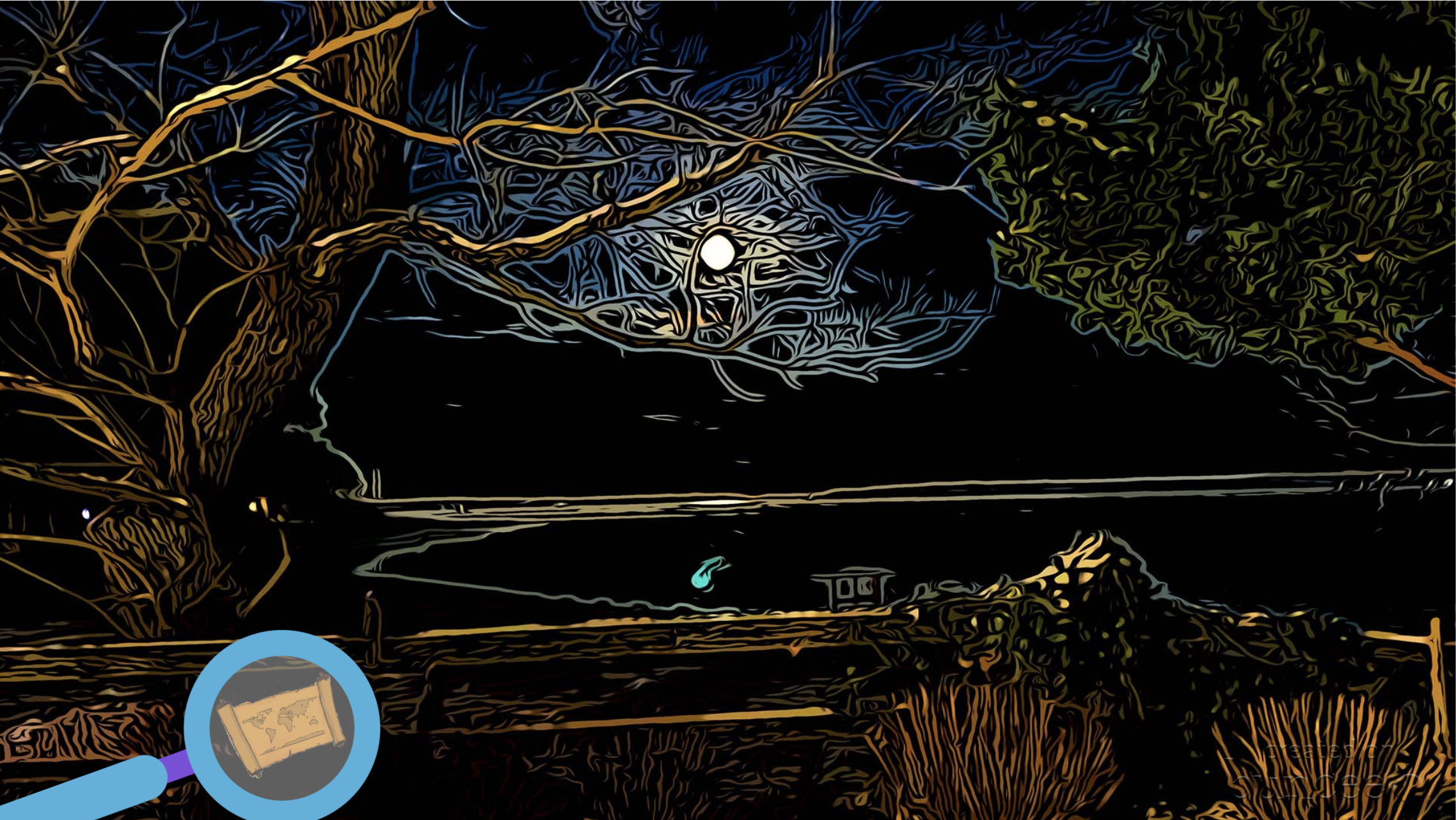
This idea was shared with us awhile ago by an educator named Kris Szajner and we think it is a perfect #interACTIVE activity for a week of remote learning lessons themed around spies or detectives. Simply have students search for hidden text within the slide. This is done by changing the color of the text to black after formatting & “hiding” it in place. Then, using the “magnifying glass” (which is just an enlarged text box window), students hunt for the hidden text. It could be multiples of a number, the words matched with definitions, the main idea of paragraphs—easy to adapt to any content and standard. Grab the mystery template here!


Secret Spy-Themed Soundtrack
Add some flair and suspense throughout the week with some music! You can use this free soundtrack on YouTube as a background soundtrack for your live Zoom or Google Meet calls or for any recorded teaching material you make for your distance learners.
Spy and Detective Background Images
Use this slide deck for fun, detective themed images you can use while recording lessons for students or during live calls in the various platforms. Snag the slides here!


Digital Break Out
We love doing break out games with our kids in the classroom, so while out during remote learning why not bring it to your students. This STEM themed digital breakout is one of the many on the Breakout EDU website and does require platform access. But, check out free digital games in the Flipgrid Disco Library. A few of our favorites include, Around the World in 30 Days, Design Decisions, and GPS Mess.
Spy Themed Stories
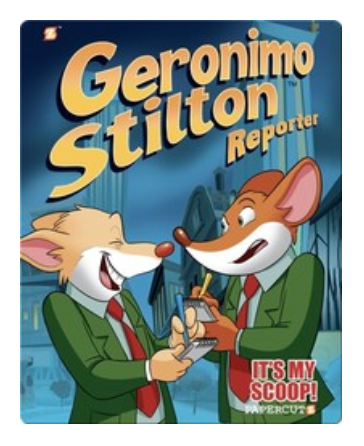
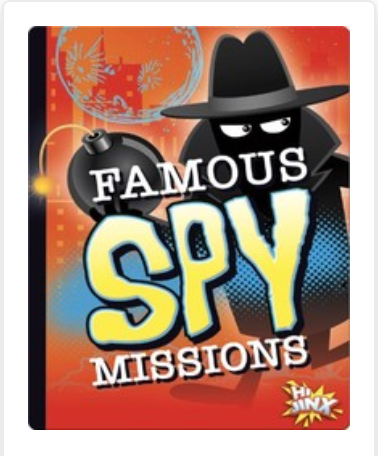
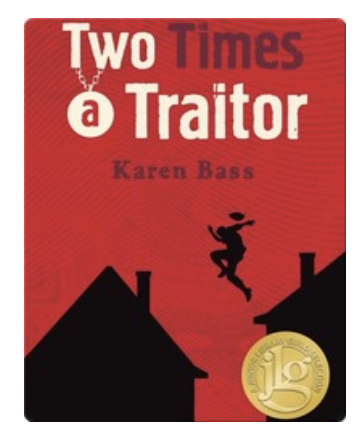
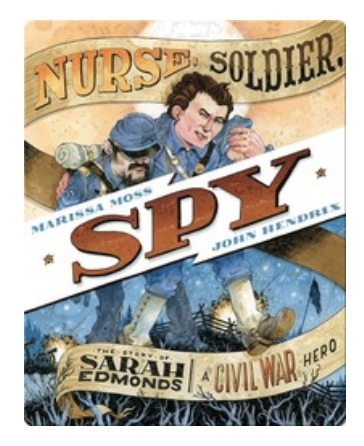
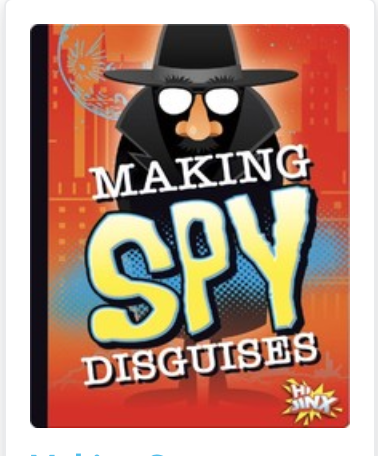
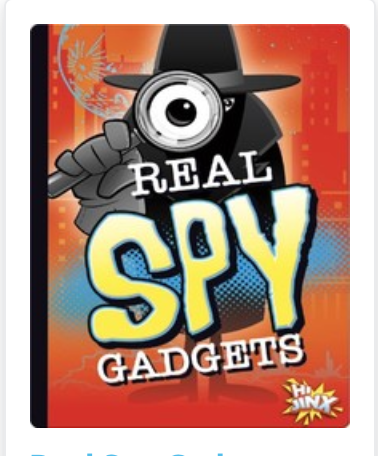
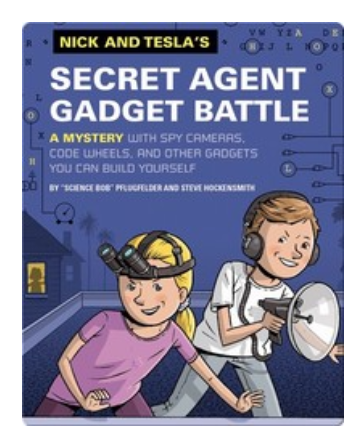
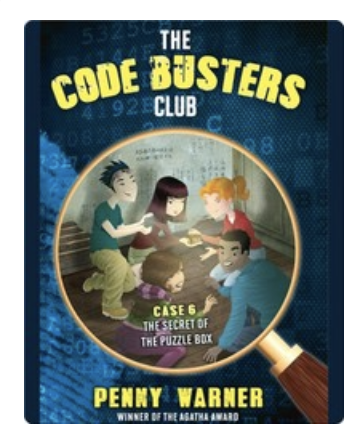
During remote learning there are many platforms offering free resources for students to read while working from home. Epic! is one of these platforms worth checking out. When searching “spy” a combination of over 60 fiction and nonfiction titles came up ranging from Geronimo Stilton, to WWII Spies and much more. For more info on using Epic click here.

Spy Scavenger Hunt (Live!)
Have you tried playing a game live with your student while on a call. Whether you use Zoom, Microsoft Teams, Google Meet—the principal of the game is the same. Take the general “scavenger hunt” and turn it into a live “spy hunt.” Have students race through the house to find items various themed items like a flashlight, a magnifying glass, a hat and more. For the complete list click here!
Remote Learning Read Alouds
Storylineonline.com is a great reading resource during remote learin. The Case of the Missing Carrot Cake is just one of the many books available for free use. Narrated by Wanda Sykes, students read to learn about what happens to Miss Rabbit’s cake goes missing and what the detectives do to track down the thieves. Read it here! Another great title offered is Private I. Guana read by Esai Morales and The Coal Thief read by Christian Slater. All books come with activity guides for teachers and for parents.



Buncee Backgrounds and Images
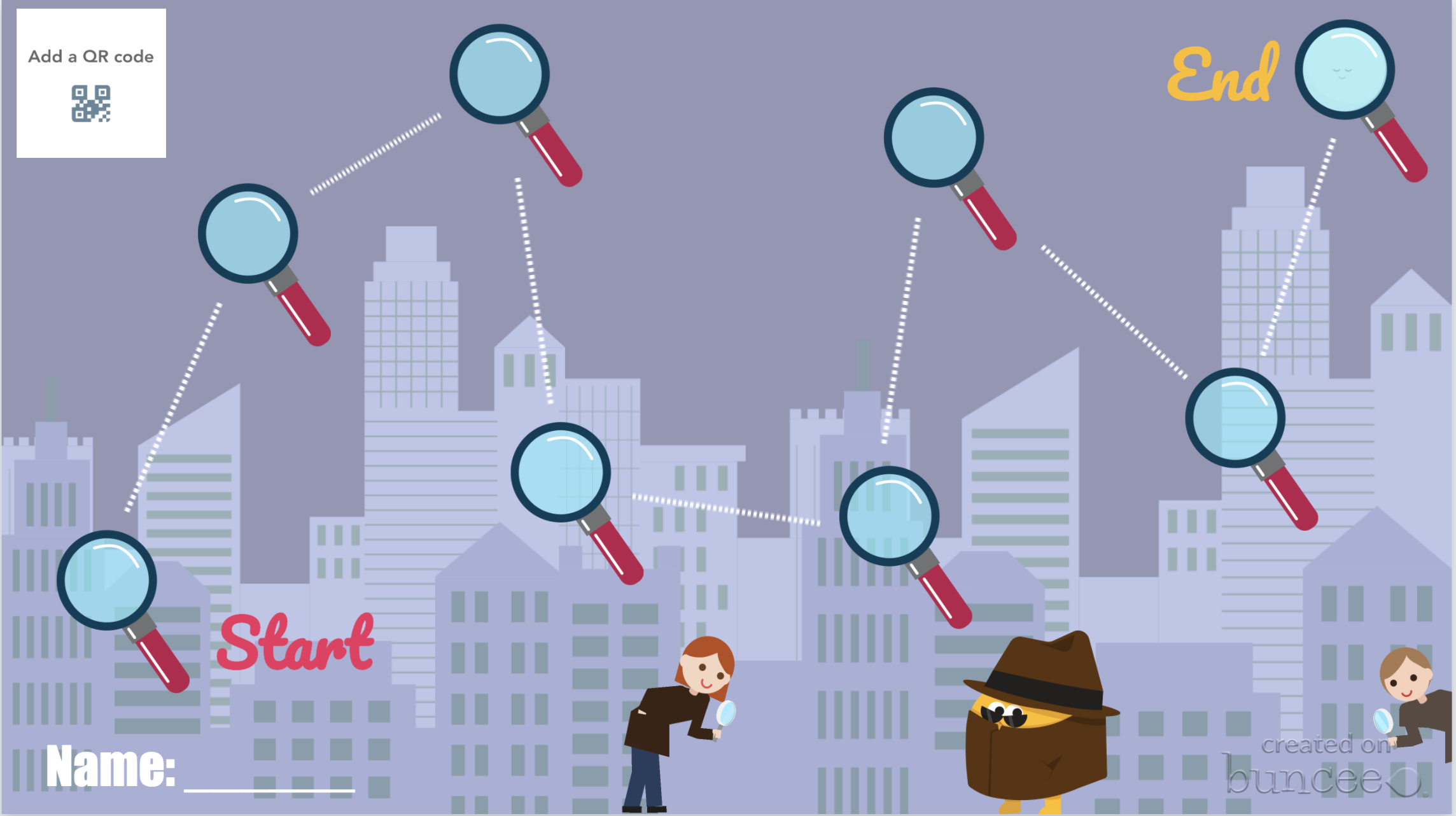
Student creation is always important so why not assign your tasks within a Spy Themed Buncee! Check out their newly designed backgrounds and animations or have students design from scratch on their own! Or, try using a playlist where students can work on tasks in a specific order!
Costume Changes
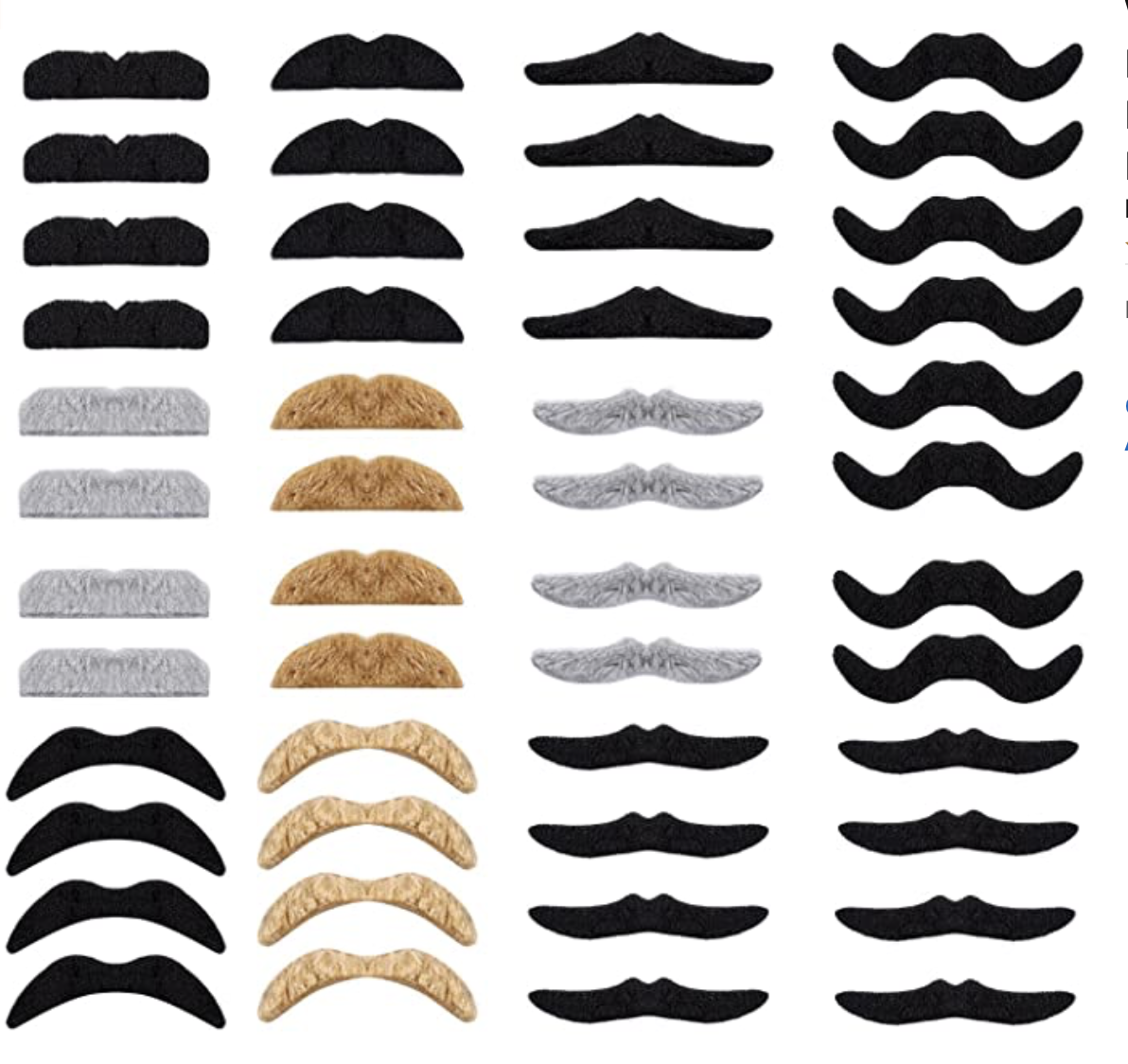
If you are looking for an additional way to add engagement, try dressing the part! Wear a fun hat or costume while delivering lessons or during live video calls. Send students a fun surprise “stach” in the mail ahead of time so they can get in on the fun too! Check out a few ideas here.
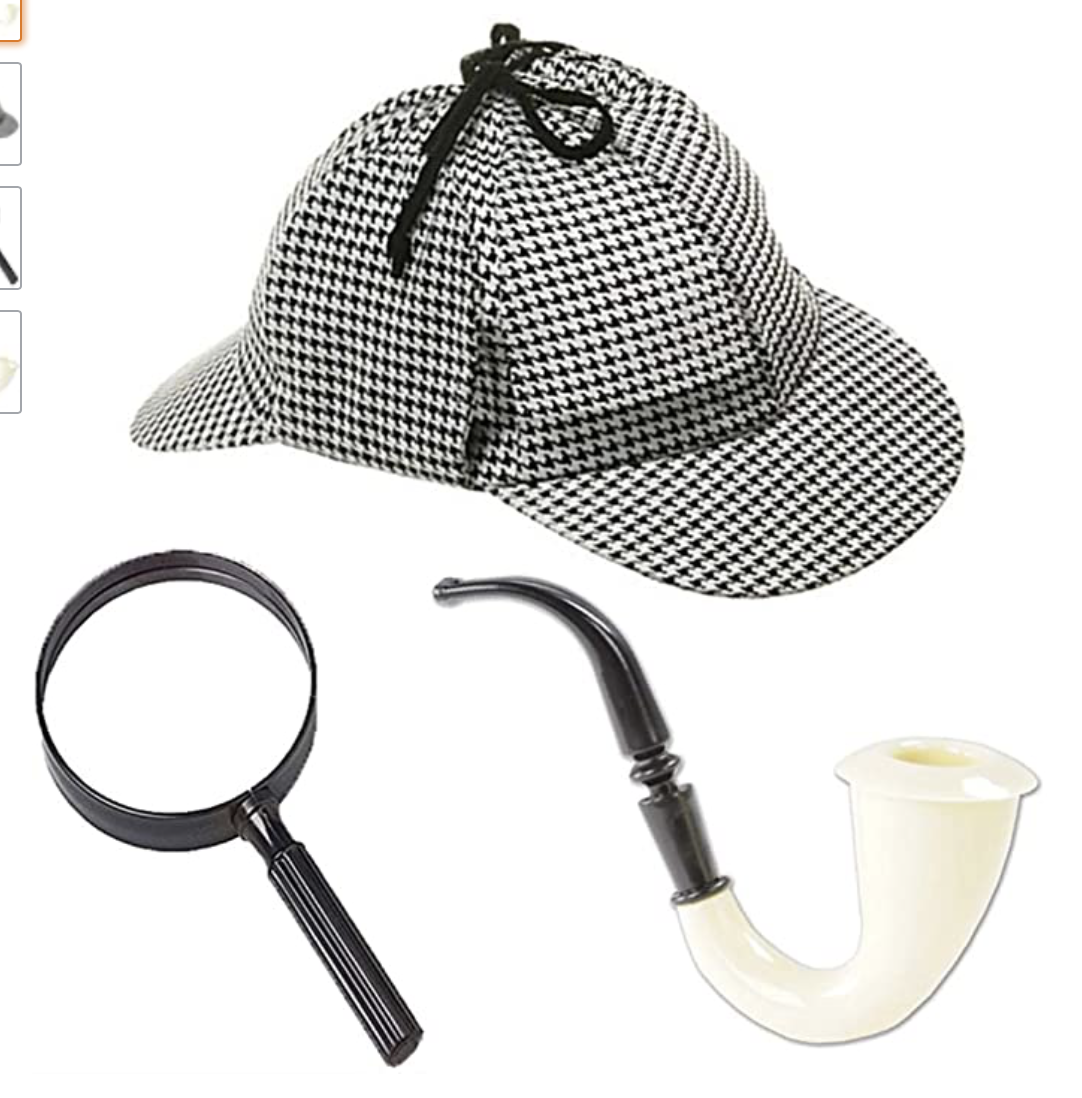
We hope you take these Spy themed resources and create #interACTIVE and engaging lessons for your students during this time of distance learning. Tag us on all social media platforms @TheMerrillsEDU and share will use the creative ways you make learning come alive with your spies and detectives!
Stay #interACTIVE!
-👗➕👓
For more #interACTIVE lesson ideas to use during remote learning, check out our book The InterACTIVE Class on Amazon!

