


Tips, Tricks and Templates to Use with Microsoft this Fall!
@TheMerrillsEDU share ways on how to use Microsoft tools in a post-pandemic classroom. Learn how students can use dictation, convert word files to powerpoint presentations, how to use Microsoft's collaborative whiteboard and so much more! These quick tips and tricks are delivered in less than 90 seconds!

Teaching throughout the pandemic was the world’s greatest PD event for educators. But, now that most of us are gearing up to return to in-person learning next year, how can we continue to use some of the technology and tools that we learned about throughout remote learning? How do tools like Microsoft Teams, Word and PowerPoint still fit into every day use in a “normal” classroom setting? It’s something that is on all of our minds entering next year. So, to help, we’ve created a video series dedicated to helping! We’ll share two new tips, tricks and/or templates per week from now until the end of July - just in-time for the new school year. Check everything out below!
(click on any subheading to jump to that section)
Also, check out our recommended blog posts and tutorials:
How to Convert a Word Document into a PowerPoint
Teaching writing throughout the pandemic was probably one of the hardest subjects for us both. With students both in-person and virtual, we had to rely on Microsoft Word to produce student artifacts that could be transferred digitally (and edited if need be). This trick helped take our students writing and “publish” it into something that they could edit, create and share. The result was something that everyone could be proud of! Learn how it all works below!
Using Dictation in Microsoft Tools
Dictation can now be found in many of Microsoft’s tools. Learn where to find it and how your students can take advantage of this feature below!
Ways to Use Microsoft’s Whiteboard in the Classroom
Microsoft’s Whiteboard is perfect for collaboration and real-time creative thinking. Learn how you can integrate this into your classroom immediately!
Monitoring Social and Emotional Learning with Microsoft EDU
Learn how this Microsoft tool can help you monitor your students’ feelings in just a few clicks! Reflect will help both you and your students returning back to school this fall!
Using Immersive Reader in PowerPoint
Immersive Reader can now be found in PowerPoint! This impressive technology can read out loud any text on the slides and can even translate it into different languages, making your content accessible to all! Learn how it all works in PowerPoint below!
Recommended Blog Posts
and Tutorials:
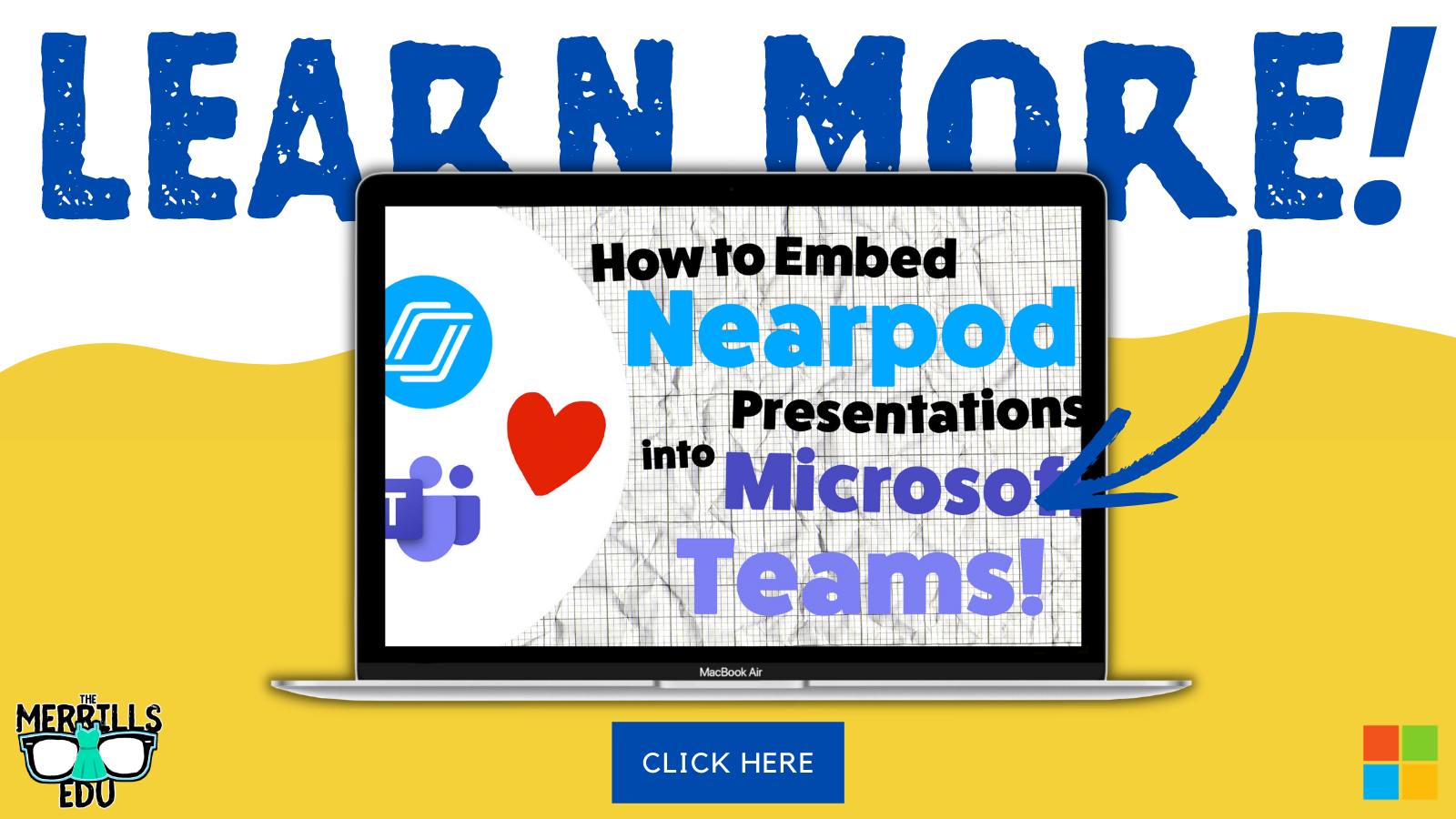
How to Embed Nearpod Presentations into Microsoft Teams
Organization in any classroom is key and with this tip, you’ll be able to keep your Nearpod presentations embedded right into Microsoft Teams. Check out our blog post and tutorial below for more info!
How to Make a Custom Microsoft Teams Background
Microsoft Teams is constantly providing updates to its platform, but the latest is one that users have been begging for: the ability to upload your own backgrounds. Now, you can create a personalized scene and Teams will virtually place you directly into your image. Learn how it all works and find a free background from our curated list!

6 InterACTIVE Ways to Use Microsoft Forms
There are many hidden gems within Microsoft EDU, and Microsoft Forms is one of them! Here are six interACTIVE ways you can use them!
How to Use Reading Progress
Learn how Microsoft is revolutionizing how educators administer running records and assess their students reading skills. NO MORE RUNNING RECORDS!


Creating a Virtual Classroom with Microsoft Teams
With the help of Microsoft Teams we can expand our classroom walls and bring our students into a different type of interACTIVE learning environment. Learn how to do more with Microsoft Teams!
Number Talks in Microsoft Teams
Are you looking for ways to improve mental math and fact fluency with your students? Then, Number Talks may be the perfect exercise for your class! Pair this activity with Microsoft Teams for full-on engagement!


Check out the entire video series below!
Check back soon for more updates and be sure to follow us on social media or join our mailing list to be the first to know when new content is posted!
-- Stay tuned for more on how to use Microsoft tools in your classroom! Be sure to follow us on social media (@TheMerrillsEDU everywhere) for more! 👓👗
For more tips, tricks and lesson ideas for making learning more interACTIVE, check out our books The InterACTIVE Class and Flipgrid in the InterACTIVE Class on Amazon!


Learning about map features with Buncee!
You’ve heard of “Where in the World is Carmen Sandiego,” but have you heard of “Where on the map is Mr. Merrill?” Buncee is the perfect tool for such a game! Check out how we used it to create a unique #RemoteLearning experience!

You’ve heard of “Where in the World is Carmen Sandiego,” but have you heard of “Where on the map is Mr. Merrill?” Buncee is the perfect tool for such a game! Check out how we used it to create a unique #RemoteLearning (but it could also be done in a normal classroom setting!) experience!
💥 Design a map in Buncee
💥 Add street names
💥 Create aN “INcorrect” and “correct” Buncee (seperate presentation slides)
💥 Hyperlink the images in the original map to the “correct” and “incorrect” Buncees
💥 Record a video that guides students to the destination!
💥 Copyable buncee slide deck included at the bottom!

💥 DESIGN A MAP IN BUNCEE
The first step (and most time consuming - if you’re picky) is to design a map in Buncee. The good news is that Buncee’s embedded features make it a one stop shop. You can easily add animated graphics, images, videos, and much more - all without having to leave the app. Everything that you see in the image below was found within the Buncee search tool. Simply find what you want to use, then drag it to the proper place.
💥 ADD STREET NAMES
After you have the layout and design of your map created, start adding street names using the text tool. Give each street it’s own unique name - which you’ll later referred to in your video. This step is important, because it helps younger students to be sure they are on the right road. You can even add a school bus and an animated taxi cab, just for fun!


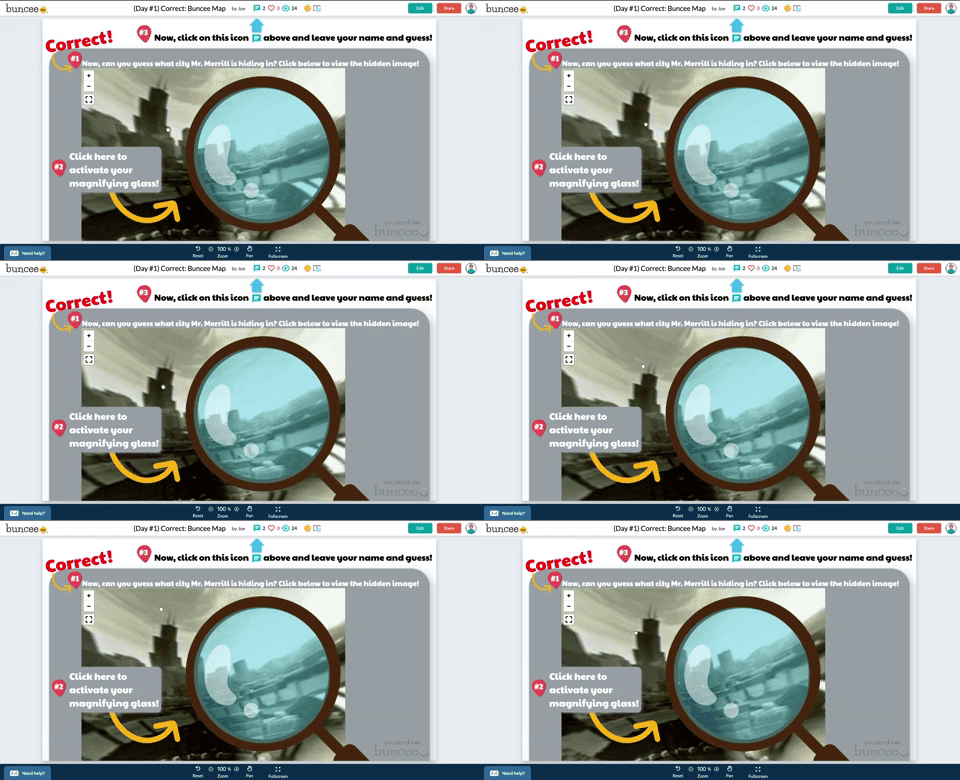
💥 CREATE “INCORRECT” AND “CORRECT” BUNCEE SLIDES
After you have saved what you have worked on, go back to the Buncee dashboard and created a seperate - new Buncee. Design the new Buncee slide to indicate that the selection my students made was incorrect (see image to the left). Now that this slide is complete, design a “correct” slide. When I did this with my class, I added a bit more fun here…I included a 360 image of the city of Chicago, then added a magnifying glass over the top to give it that “detective feel.”
With both slides now ready to go, start hyperlinking them back to my original Map. To do so, open your “incorrect” Buncee slide. Then, click on the orange “Share” button (located in the upper right). This opens a new window, with a few options. If you click on “Code,” you will be able to find the shareable URL to this particular Buncee slide. You’ll need this Link, so click the blue “copy” button to the right of the URL. You’ll take this link and use it on the Map you previously created.

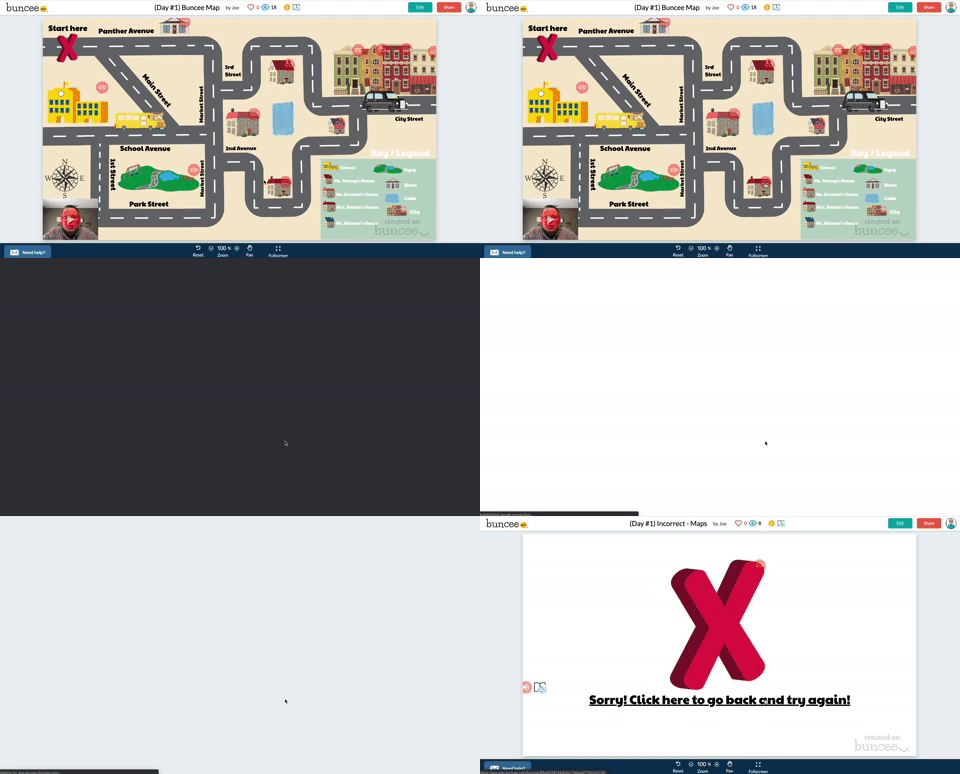
💥 HYPERLINK THE IMAGES IN THE MAP
With the “incorrect” Buncee slide’s URL code copied, open up your original Map Buncee slide. Figure out where you would like to “hide” on the map. After you have picked out your hiding spot, now it’s time to start hyperlinking all of the incorrect places to the “incorrect” Buncee slide. To do, click on one of the images that you added on your map. A crop box will surround the image (this way you know that you have the right item selected). Next click on the “Link” located on the bottom tool bar. When you do, you’ll be given the option to type a URL. Simply paste the URL from the “incorrect” Buncee slide. This way, when a student clicks on that image - it will take them to the “incorrect” slide, indicating that their answer was wrong. Repeat this process for all incorrect images. You’ll notice that all images will have the little red link icon next to them. Be sure that you have added the “incorrect” Buncee slide to all of the images that need to be hyperlinked.
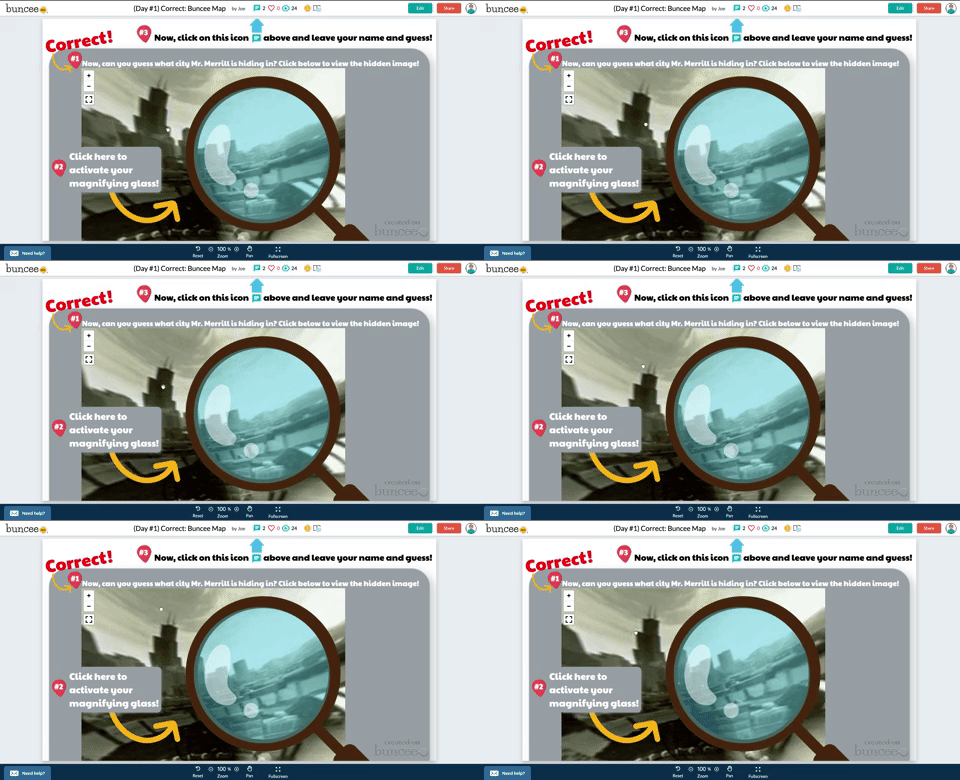
Now it’s time to hyperlink your “correct” spot on the map. This first step is optional, but I recommend it. Open the “Correct” Buncee slide, and click on “Share,” then “Settings.” Toggle on where it says, “Commentable.” This will allow your students to leave a comment once they arrive on the correct answer slide. In the same window, click on “Code” and then click “copy.” This will copy the URL to the “correct” Buncee slide, which you will hyperlink back to the original “map” Buncee slide. Once in the original “map” Buncee slide, click on the “correct” image (tip: you may need to click “edit” from the top right you get logged out), then click “Link” from the bottom menu bar. Paste the URL to the “correct” Buncee slide. This way, when your students click on the image, it will take them to the correct slide.

💥 RECORD VIDEO DIRECTIONS!
The last step is to record a video giving your students clues about where you are hiding. Go through each clue, and remind them to follow along the map from place to place. It also helps to remind the students that they can pause / rewatch the video if need be. When they think they know where you are, tell them to click on the link icon above where they believe you are hiding (if they click on the actual image, the picture will come up instead - they need to click on the link icon). Remind them that they should also leave a comment in the comment box at the end of the map to let you know that they found their way through!

Buncee + Immersive Reader! 💛
It’s also important to note that Microsoft’s Immersive Reader is embedded into Buncee. This means that all text on the Buncee slide can be read aloud to students. It also means that the text can be translated into different languages. All students need to do is click on the Immersive Reader icon!
Check out the real thing! Feel free to play along below!
To make this even easier, we’re happy to share our Buncee with you! Just click on the image to the right!


For more information on Buncee, check out their website and their Twitter account hyperlinked below:
💛 Buncee Website
💛 Buncee Twitter
- 👓
For more #interACTIVE lesson ideas using Buncee, check out our book The InterACTIVE Class on Amazon!


Immersive Reader in a Primary Classroom (part 2)
The power and possibilities from Microsoft’s Immersive Reader are endless. So where do you start? How can we get this into the hands of “littles,” who will definitely benefit from it?
The power and possibilities from Microsoft’s Immersive Reader are endless. So where do you start? How can we get this into the hands of “littles,” who will definitely benefit from it?
Teaching writing in primary grades is a tough job. Every student is in a different place, and more often than not, the first student done hasn’t used complete sentences. It’s times like this that we wish we could clone ourselves. If you’ve ever had to deal with this, then you know the feeling. So, during one our recent writing assignments, I had the students take their rough draft, and then type it into Word Online. I didn’t check the drafts, I didn’t ask anyone to show me ahead of time, I just explained that they were to type it once they finished. This was a pretty edgy idea, and I was nervous watching it all go down. Once the kids had everything typed out, I taught them how to open Immersive Reader. This allowed them to hear back exactly what they wrote. If there were mistakes, they could hear them being read. Then I showed them how to go back and make edits. Here’s an example of how it looked:
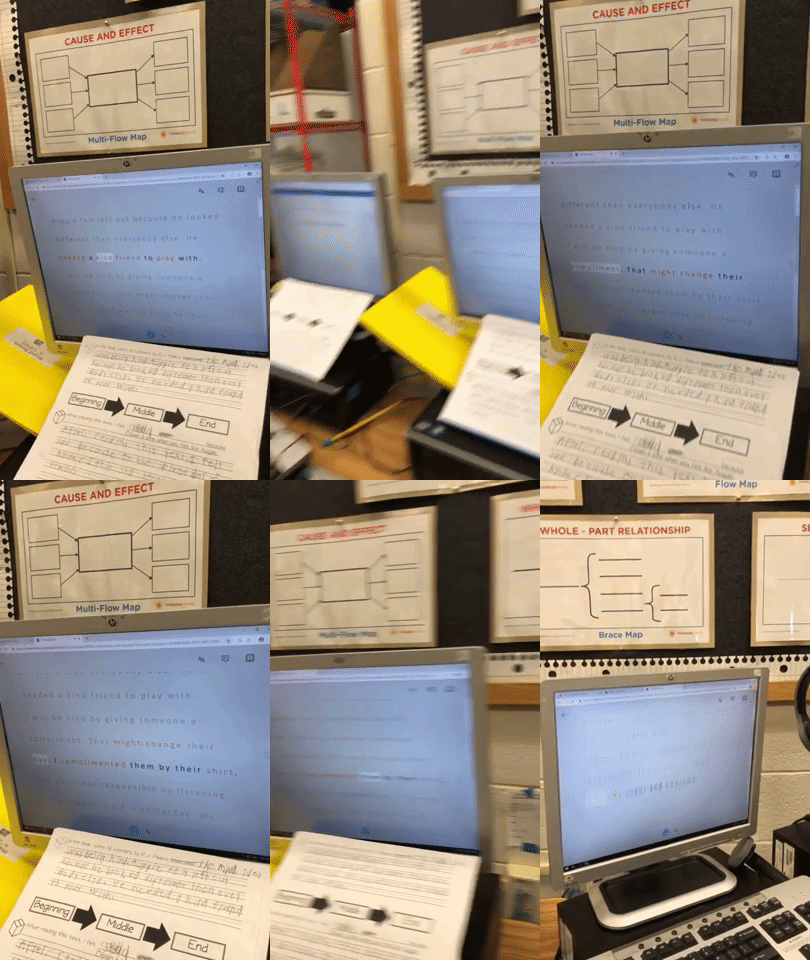
But wait...it gets better. Each student in my class has a copy of this desk sized guide. We use this with crayons, so the kids can see if they are working towards a “4” (or an A+) in writing. So now that they have fixed their mistakes, they can check to see if they have used things like adjectives to enhance their work. Click here, or the image below to download a copy for free!

The students change the colors to match the rubric, and then Immersive Reader will identify the various parts of speech. It’s amazing!

Now my students have a piece that has been edited, and it’s ready to be “published,” all done independently. But, if you know me, you know I LOVE app smashing. So, I taught my students to transform the Word file to a webpage, which “app smashes” the work into Microsoft Sway. What started out as a simple writing piece, turned into a published website, completely designed by first graders.
These projects were then shared out on Seesaw for my families to see. Now, my class engagement during writing is up, and the students are excited about being able to share their work with the world - all thanks to Microsoft. If you have any questions about Immersive Reader, or how we completed this process, please don’t hesitate to reach out!
👓 - J

Immersive Reader in a Primary Classroom (Pt. #1)
Every once in a while, an #EdTech tool comes around that really ups the ante. In most cases, these tools are easily identified with certain grade levels, and then it’s up to the teacher’s creativity to find ways to implement it.
Every once in a while, an #EdTech tool comes around that really ups the ante. In most cases, these tools are easily identified with certain grade levels, and then it’s up to the teacher’s creativity to find ways to implement it.
Microsoft’s newest addition to the Office 365 suite is a complete changer. You can find it throughout the suite, but for today’s purpose, I’ll be sharing how my first graders used it with Word Online.
Let’s face it…reading and understanding a first grade writing piece often involves the use of a decodable pen, turning the paper around all sides, and the use of a translator. How teachers are able to understand any of this is truly a work of art. But, what if we were able to provide an opportunity for our students to hear back what they wrote before they handed it to us? What if they could hear their own mistakes, and go back to edit their work until it was correct - and THEN submit it to us? If you’re like me, you are shaking your head, “YES!”
For our last writing assignment, I had my students take their rough drafts and type them directly into Word Online. I didn’t ask them to show me ahead of time - in fact, I wanted them them to make mistakes. The reason why, was because immediately after they finished typing, I had them open Immersive Reader which allows them to hear back what they wrote.
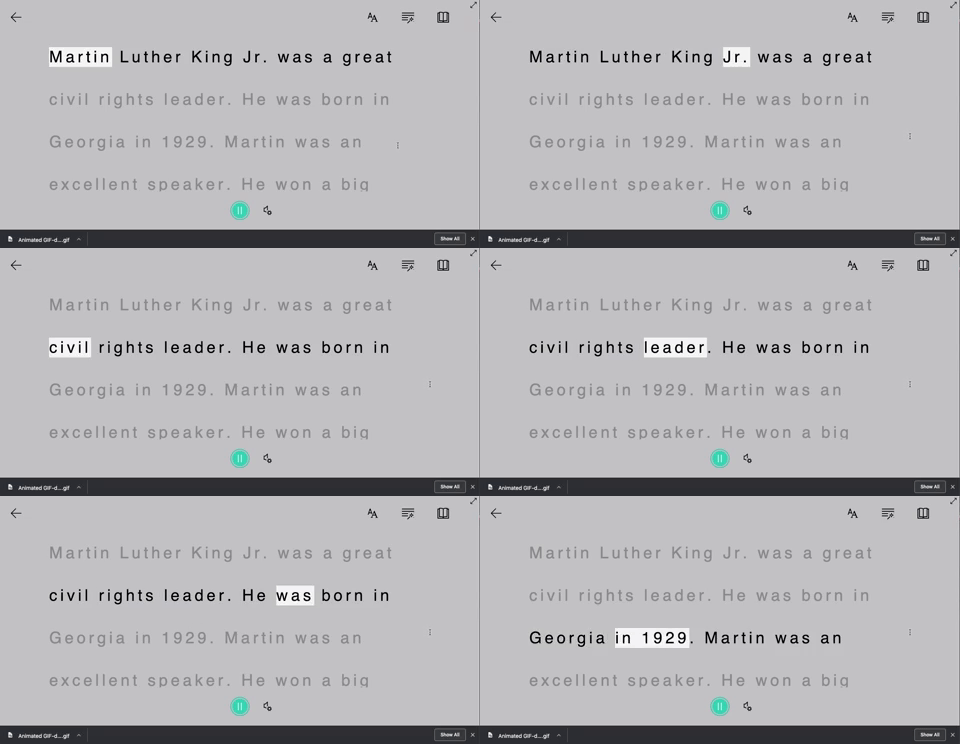
If they had mistakes, they were able to go back, edit them, and then correct them - all without my help! But wait…it get’s better…
At this point in our year, I am teaching the students the importance of checking their parts of speech. With a few simple clicks, they can have Immersive Reader check that, too.

But what if you have a student who just needs some help pronouncing some words? Immersive Reader can even break apart syllables!

Stay tuned to see how we transformed an ordinary rubric to make it more #interACTIVE! 👓 -J