Practicing and Assessing Sight Words in Canva!
Learn how to use Canva to practice and assess your students sight words! These ideas can be used to assess or as a center!

If you’re a primary teacher, you know the pain of assessing 20+ students. Chances are that this takes a great deal of time and can be frustrating for both teachers and students. We’ve used tools like Microsoft’s Reading Progress to assess sight words (click here to learn more), but sometimes you just need to sit down with a student to hear how they’re performing. That’s where this idea comes in! In this mini-blog post, you’ll learn how to use Canva to assess sight words. Click any subheading to jump to that section:


How to use Canva to Practice and Assess Sight Words

This idea can be used as a center for students, or as an assessment tool. The idea is to have your slides automatically advance so that they progress through the words relatively quickly. Here’s how it all works:
Start off by creating a presentation deck that has all of your sight words on it.

Once you’ve settled on a design, change the timing on your slides. To do this, click on the clock icon located at the top of the screen. Adjust the timing to your preference. We recommend around 5 seconds. Be sure toggle on “Apply to all pages,” which will place the same timing on all of your pages.
Now your deck is ready. When you want to start assessing a student, explain that a sight word will appear on the screen. If they know if, they can say the word. If they don’t know it, that’s okay. The word will change in a few seconds and they can try the next word. Here are the steps to launch the deck:
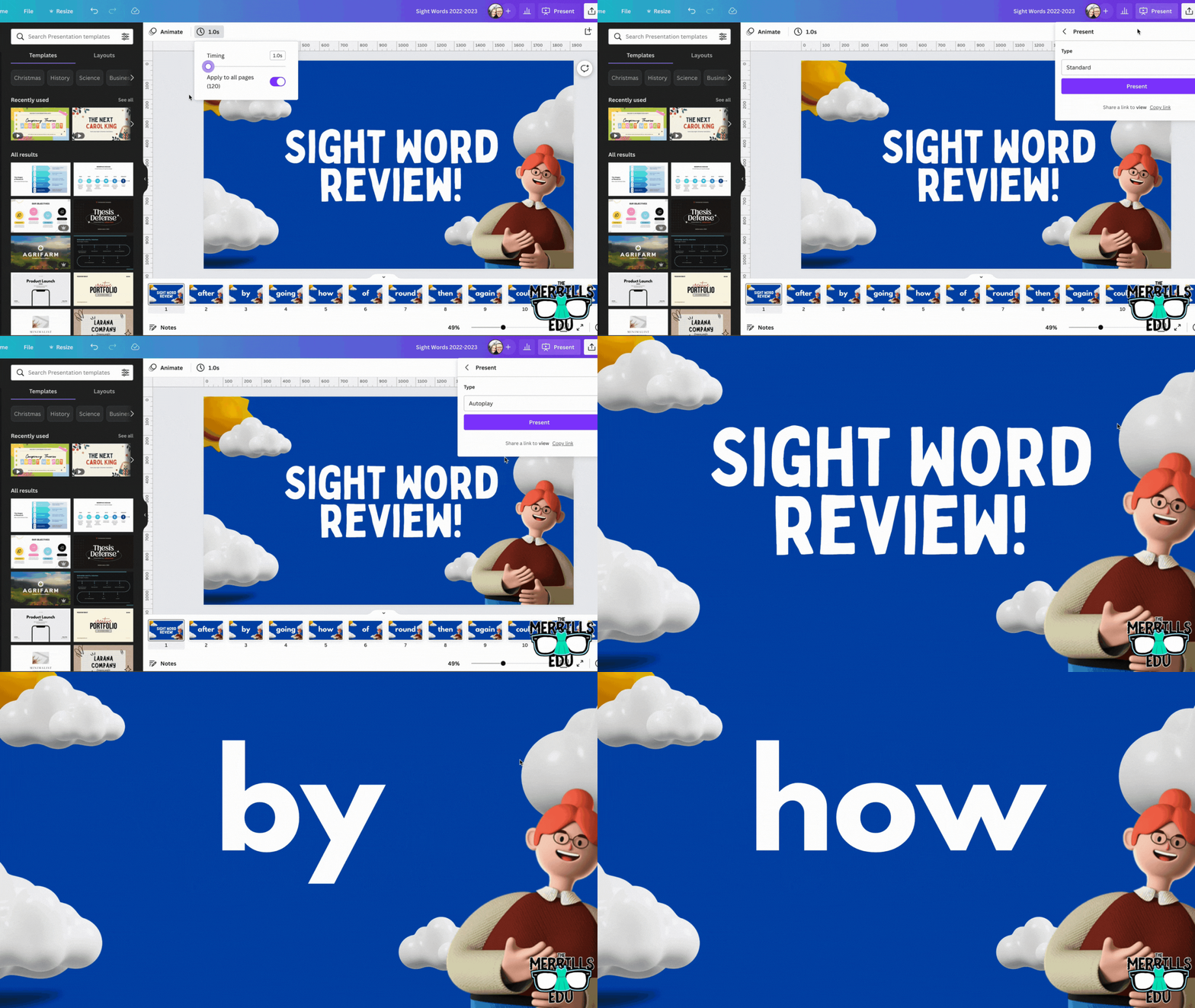
In the deck, click “present” to take the pages full screen. Now, change the type from “Standard,” to “Autoplay.” This will automatically transition the pages to the time you selected. Students read off the words as they appear on the screen.

Download our Excel template to
record student responses
If you prefer to manage your data digitally, we have you covered! We’ve designed a Microsoft Excel sheet that has all of our sight words on it. When a student gets a word correct, enter a “1” in the white box. Doing so will change the word from being highlighted to white - an indication that the student has mastered that particular word. This document will also automatically calculate the number of correct words. Record each assessment on the lower right side to keep accurate data. Note: this document is editable, but you may need to change the formulas if you edit it. Click here or the image below to download it now!


How to use Canva to Practice and Assess Sight Words (Video Tutorial)
Need to see it in action to understand all of this? We’ve got you! Check out the video tutorial below to understand each step.

Download our Free Canva Sight Word Deck
Does all of this sound awesome but you’re just not sure where to start? Teachers are busy, so we’ve got you covered here, too! You can download our Canva Sight Word deck by clicking here or the image below.

-- Please follow us on social media and tag us with how you’re using these Canva Sight Word ideas in your classroom! 👓👗
For more tips, tricks and lesson ideas for making learning more interACTIVE, check out our books The InterACTIVE Class and Flipgrid in the InterACTIVE Class on Amazon!



What is Microsoft's Reading Coach?
In late 2021, Microsoft released Reading Progress - a tool designed to help students become better readers and save educators time. Now, a new update and integration is here: Reading Coach!

In late 2021, Microsoft released Reading Progress - a tool designed to help students become better readers and save educators time. Now, a new update and integration is here: Reading Coach. In this blog post, you’ll learn what Reading Progress is and how it works, tips and tricks and how Reading Coach can help your students. Click any subheading below to jump to that section.




What is Microsoft’s
Reading Progress?
Reading Progress is a free tool built into Microsoft Teams designed to support and track reading fluency in your class. Students record their reading on camera and submit it to you. Imagine this, the same type of technology used in the Flipgrid Shorts Camera, combined with the power of Immersive Reader and the distribution power of Microsoft Teams. All of these ideas together form Microsoft’s Reading Progress. If you’re interested in learning more about all the nitty gritty details, click here or the image below. We’ll walk you through everything!


Tips and Tricks When Using Microsoft’s Reading Progress
One of the things we love most about Microsoft’s Reading Progress is that it is appropriate for all ages. We love how it can quickly and efficiently assess our students and how it saves time grading running records. We also appreciate how easy it is to use. Once your students are in the assignment, they’re recording themselves in (literally) just several clicks. But now that we have had almost a full year working with Reading Progress, here’s a few tips we can share:
If you teach younger students, we recommend lowering the sensitivity.

Younger students may have difficulty enunciating clearly, which sometimes leads to errors. This can be remedied by lowering the sensitivity to “Less sensitive.”
Take advantage of the option to limit time.
Toggling on the time limit might prevent frustration if a student is struggling with a passage. If a student is fluently reading, they will still feel successful when the timer stops. This feature can be turned on/off when creating the assignment - directly under the “Number of Attempts."
Assignments are now editable!

A little known secret is that Reading Progress assignments are now fully editable! When Reading Progress launched, if you made a mistake on the assignment, you would have to delete it and start all over again. Now, in an assignment, click the three dots and then click “Edit assignment.” No more deleting!
Reading Progress isn’t just for running records.
If you’re a primary teacher, you can use it to assess sight words, too! That’s right…automatically grade sight words! You can learn all about how this works in our blog post. Click here or the image to read all about it!


What is Microsoft’s Reading Coach and How Can it Help My Students?
Microsoft’s Reading Coach is another free add on to Reading Progress. Now, after your students have completed reading a passage, Reading Coach will intelligently (and immediately) identify words that the student struggled with. It will then provide the list of words to practice, prior to the student turning in the assignment. Here’s how it works:
Once a student has stopped the Reading Progress recording, Reading Coach will generate a list of words that the student struggled with. The student can then take time to practice the word(s).

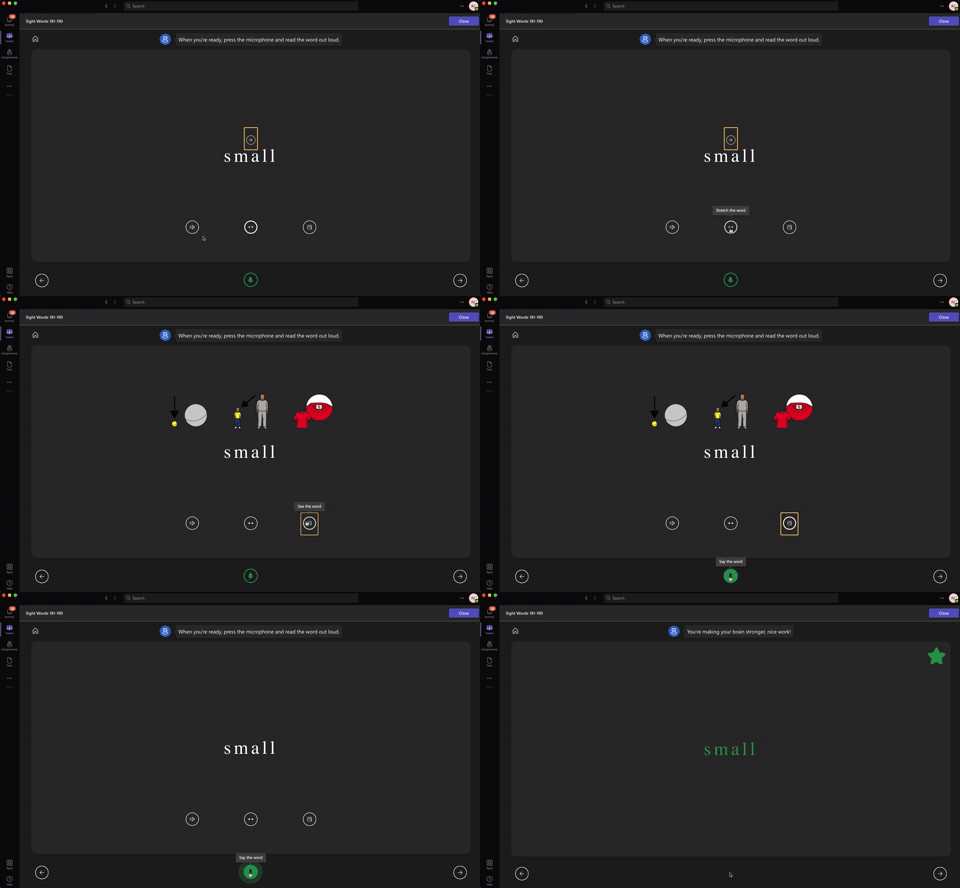
When students click on a word, they have the option to hear the word read allowed, stretch the syllables out, or (if available) “see the word,” which pops up an illustration describing the term. Students can earn a star on the word for correctly saying the word by clicking on the microphone (located on the bottom of the screen).
Students can easily go through the words using the arrows. Notice, all of this can be done prior to turning in the assignment. Reading Coach is optional, though, and students may bypass it by just turning the assignment in. We recommend training your students to take the time to use it, which will give them even more (independent) practice on terms they struggled with.

But, students aren’t the only ones in on the fun! Educators now have access to valuable insights (available through Microsoft Teams by clicking on a student’s assignment, then clicking “Insights.” This report will generate information like correct words per minute, accuracy rate, practiced words, and much more.
If you’re a primary teacher, you can also use Reading Coach to help your students practice their sight words! Check out our blog post for downloadable templates of the 220 Dolch (Sight) Words. Upload them one-by-one and then students can practice the words ten at a time. If a student misses a word, Reading Coach will automatically help tech it to them!
-- Stay tuned for more Microsoft Education ideas that you can use in your classroom! Be sure to follow us on social media (@TheMerrillsEDU everywhere) for more! 👓👗
For more tips, tricks and lesson ideas for making learning more interACTIVE, check out our books The InterACTIVE Class and Flipgrid in the InterACTIVE Class on Amazon!



How to Use Reading Progress to Automatically Grade Sight Words
Learn how you can use Microsoft’s Reading Progress to automatically grade Sight Words! If you’re a primary teacher, this is a must see and an absolute time saver!

This past summer, Microsoft released its Reading Progress app, that enables students to independently read aloud, record themselves, and grow their reading skills while allowing educators to better support students' progression. It has been a game-changer for running records, which now can be done independently through the app. For a full breakdown on Reading Progress and it’s potential, check out our blog post here.
Other than running records, another time consuming task is assessing sight words. Sitting down with students and going through the list of words is a daunting task and can take up a lot of time. But, can we use Reading Progress to automatically grade a list of sight words? The answer is: YES! In this blog post you’ll learn:
(click on any subheading to jump to that section)
How Can Reading Progress Automatically Assess Sight Words?
How Does it Look When Reading Progress Assesses Sight Words?
How Do I set Up Reading Progress to Automatically Grade Sight Words?
I get it! So…What do I need to know? Any troubleshooting steps?
Download Free Sight Word Templates (made for Reading Progress)
See it in action! Assessing Sight Words Using Reading Progress
How Can Reading Progress Automatically Assess Sight Words?
Reading Progress is a ⚡️FREE⚡️ tool that can be found within Microsoft Teams. Imagine if the developers of the Flipgrid Shorts Camera, Immersive Reader and Microsoft Teams all sat down at a table and collaborated on what to do next. Reading Progress uses the technology from the Flipgrid Shorts Camera to record a video of students as they read. The same type of technology that is used in Microsoft’s Immersive Reader then takes the video and intelligently looks for errors, mispronunciations, miscues and more - AUTOMATICALLY. You read that right. The technology does all the work. A full report is provided to the educator, who can go back and view the recorded video and listen back to how the student performed. If the technology marks a student as reading a word correct / incorrect, the educator has the ability to change it on their end.


But how does this look when it comes to sight words? Reading Progress takes the text and listens for errors when being read aloud. So, technically you don’t need to have a full paragraph or even sentence for it to start working. Whatever words appear in the document is what the program will look for. If you put the words: red, yellow, me, and see, it will expect to hear those words read in that order. You don’t even need to put commas in between the words!
How Does it Look When Reading Progress Assesses Sight Words?

Giving Sight Word assessments through Reading Progress is best performed when you assess 10-20 words at-a-time. This makes for a quick turnaround from your students, who can easily get in and read off the words efficiently. Once your students log onto Teams and click on “Assignments,” they are able to select the appropriate Sight Word list and then start reciting them. Here’s how it looks from the student’s perspective.
To the student, the focus is on the words. Once they read through them, they click the “I’m done” button, then “Turn in.” The recording is uploaded as a video and can be watched back by the teacher.
The uploaded video will also produce a full report, only available to the educator. This report will indicate any incorrect words. Educators have the ability to watch back the recording of the student reading off the words. If a word is marked incorrectly, it can easily be changed from the drop down menu. This is also a great place to “jump to a word,” or listen to a specific word that the student missed.
Since we give our students 10 words at-a-time, we can easily grade them with a /10 score. These short assessments are just-right for the students to get through confidently - and it makes listening back to them easier for me!
How Do I set Up Reading Progress to Automatically Grade Sight Words?
Setting up Sight Word Assessments using Reading Progress can be done in several clicks. Follow these steps to get your students started, or click here for a video tutorial:
Launch Microsoft Teams, then click on “Assignments.”
Click on “Create” and then select “Assignment.”
Select the Team that you wish to assign the assignment to, then click “Next.”
Enter an appropriate title for the assignment. For example: “Sight Words 1-10.”
Under “Instructions,” click on attach. Then, select Reading Progress from the drop down menu.
On the next screen, click “Upload Word or PDF” (for a free download of all 220 sight word templates, click here).
Upload your sight word assessment, then take a look at the information on the right. You won’t need to enter a reading level, but you may want to limit the number of attempts your students have per sight word list (see the troubleshooting section below). Change this to fit your preferences, then click “Next.”
The due date defaults to the same day, so adjust it to appropriately give your students time to complete the task. Once you do, select “Assign.”
Your students will receive a notification that the assignment is ready. Now, sit back and wait for them to start submitting it! Once they do, go in through the educators dashboard and view their work! Need to actually “see” how this is done? Check out the tutorial below!
I get it! So…What do I need to know? Any troubleshooting steps?
So this sounds great, but…what could go wrong? What should I look out for? Any tips?
Now that we’ve done this for a while, here are our two most important takeaways:
1. When creating your sight word lists, only use the words that you want the students to recognize. For example, do not add a title to the body of the document. Just list the words. Otherwise, the students will need to read and recognize them when recording. IF they say something wrong, it will mark them wrong.
Takeaway: Just keep it simple! Add only the words!

2. When creating the assignment, change the number of attempts to 1. You don’t want students submitting more than one attempt at the sight words, so be sure to change that setting from the defaulted “unlimited” to “1.”
Takeaway: Explain to the students that they will only have one attempt and that they will need to do their best. If they make a mistake, encourage them to restate the words in their original video. If they stop, they will NOT be able to upload another video (if you have the attempts set to 1).
Download Free Sight Word Templates
(made for Reading Progress)
We’ve made things even easier for you with these sight word templates! This is a direct link to download the entire folder of all the Word documents containing ten words per list (for a total of 22). Just download them, then upload them as your assignment(s) on Teams! 🙌🏻

See it in action!
Coming soon!
-- Stay tuned for more Sight Word ideas that you can use in your classroom! Be sure to follow us on social media (@TheMerrillsEDU everywhere) for more! 👓👗
For more tips, tricks and lesson ideas for making learning more interACTIVE, check out our books The InterACTIVE Class and Flipgrid in the InterACTIVE Class on Amazon!