


Practicing and Assessing Sight Words in Canva!
Learn how to use Canva to practice and assess your students sight words! These ideas can be used to assess or as a center!

If you’re a primary teacher, you know the pain of assessing 20+ students. Chances are that this takes a great deal of time and can be frustrating for both teachers and students. We’ve used tools like Microsoft’s Reading Progress to assess sight words (click here to learn more), but sometimes you just need to sit down with a student to hear how they’re performing. That’s where this idea comes in! In this mini-blog post, you’ll learn how to use Canva to assess sight words. Click any subheading to jump to that section:


How to use Canva to Practice and Assess Sight Words
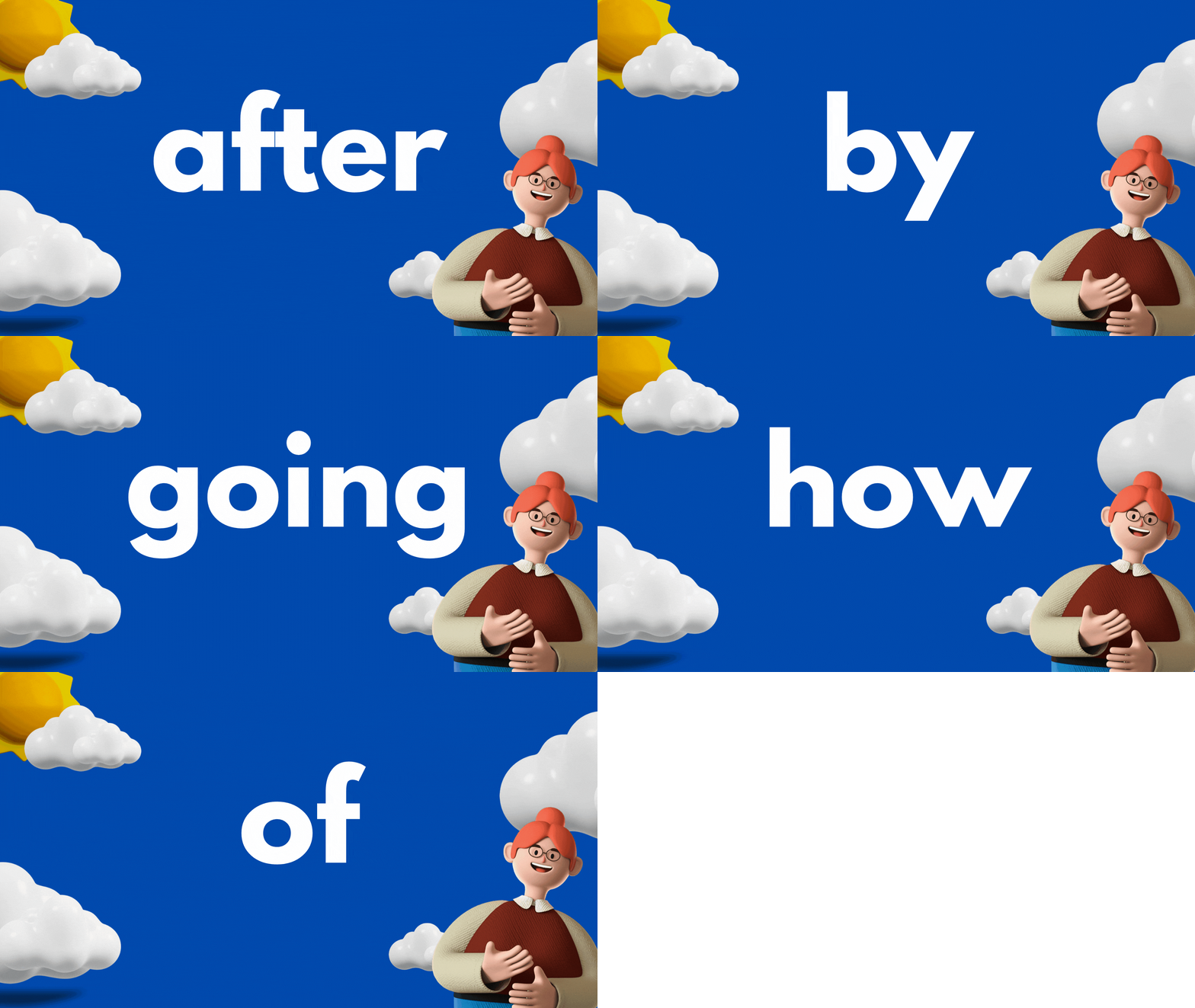
This idea can be used as a center for students, or as an assessment tool. The idea is to have your slides automatically advance so that they progress through the words relatively quickly. Here’s how it all works:
Start off by creating a presentation deck that has all of your sight words on it.

Once you’ve settled on a design, change the timing on your slides. To do this, click on the clock icon located at the top of the screen. Adjust the timing to your preference. We recommend around 5 seconds. Be sure toggle on “Apply to all pages,” which will place the same timing on all of your pages.
Now your deck is ready. When you want to start assessing a student, explain that a sight word will appear on the screen. If they know if, they can say the word. If they don’t know it, that’s okay. The word will change in a few seconds and they can try the next word. Here are the steps to launch the deck:
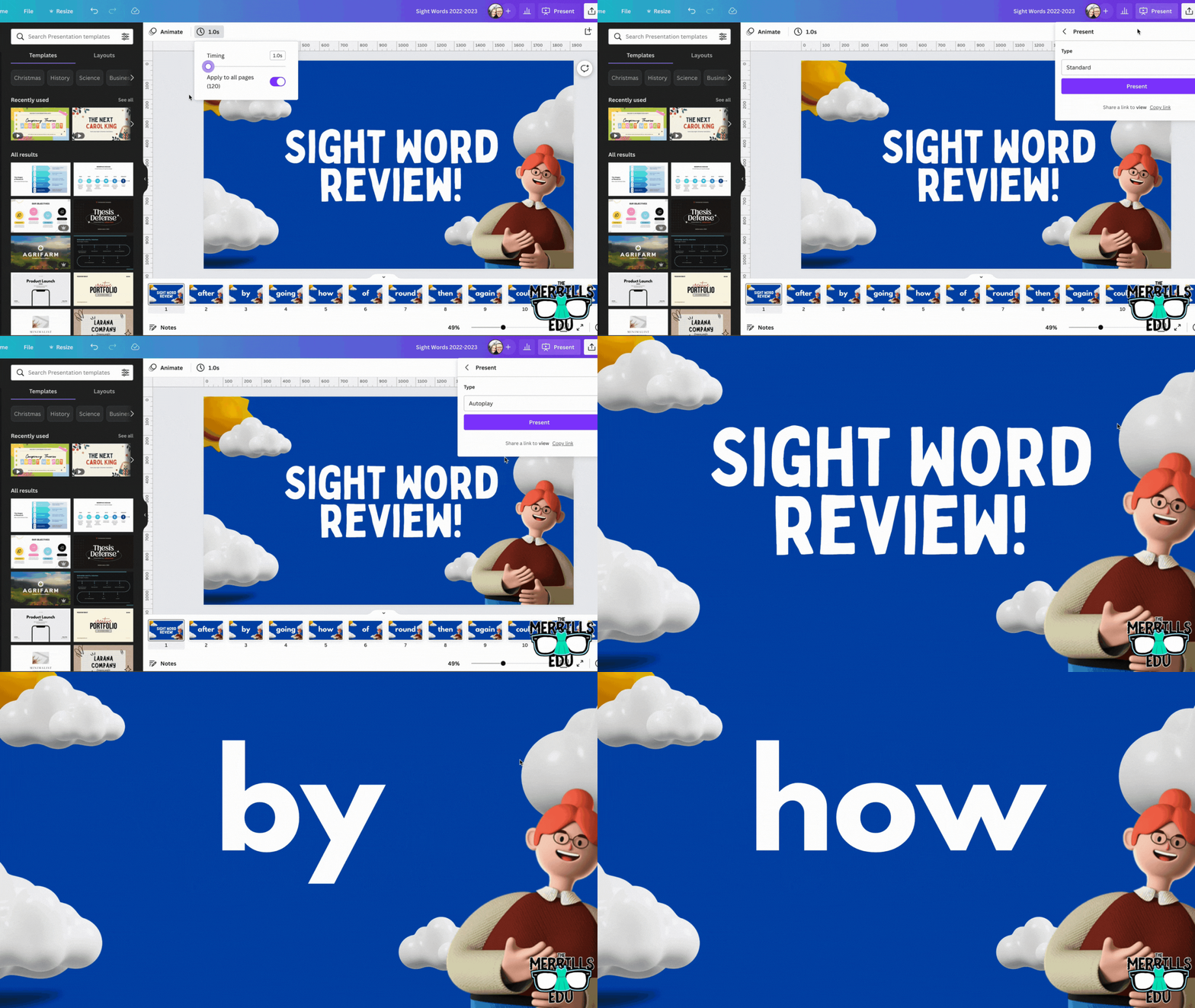
In the deck, click “present” to take the pages full screen. Now, change the type from “Standard,” to “Autoplay.” This will automatically transition the pages to the time you selected. Students read off the words as they appear on the screen.

Download our Excel template to
record student responses
If you prefer to manage your data digitally, we have you covered! We’ve designed a Microsoft Excel sheet that has all of our sight words on it. When a student gets a word correct, enter a “1” in the white box. Doing so will change the word from being highlighted to white - an indication that the student has mastered that particular word. This document will also automatically calculate the number of correct words. Record each assessment on the lower right side to keep accurate data. Note: this document is editable, but you may need to change the formulas if you edit it. Click here or the image below to download it now!


How to use Canva to Practice and Assess Sight Words (Video Tutorial)
Need to see it in action to understand all of this? We’ve got you! Check out the video tutorial below to understand each step.

Download our Free Canva Sight Word Deck
Does all of this sound awesome but you’re just not sure where to start? Teachers are busy, so we’ve got you covered here, too! You can download our Canva Sight Word deck by clicking here or the image below.

-- Please follow us on social media and tag us with how you’re using these Canva Sight Word ideas in your classroom! 👓👗
For more tips, tricks and lesson ideas for making learning more interACTIVE, check out our books The InterACTIVE Class and Flipgrid in the InterACTIVE Class on Amazon!


Social and Emotional Learning with Distance Learning
We’re busy. Things have been hectic for us all, and it seems almost impossible to just stop and think for a second. Our mental health is just as important as our physical health throughout a pandemic. It’s easy to keep our kids indoors, but let’s not forget the about their mental health.
Social Emotional Learning (SEL) App
Me (by Tinybop)
We’re busy. Things have been hectic for us all, and it seems almost impossible to just stop and think for a second. Our mental health is just as important as our physical health throughout a pandemic. It’s easy to keep our kids indoors, but let’s not forget the about their mental health. They probably have questions that they’re not asking. They may not want to talk about them, but we need to provide an outlet for them. Me, from Tinybop, is an app that does just that.


$2.99 (iOS only)
Click here or the image to download

What is the Me App?
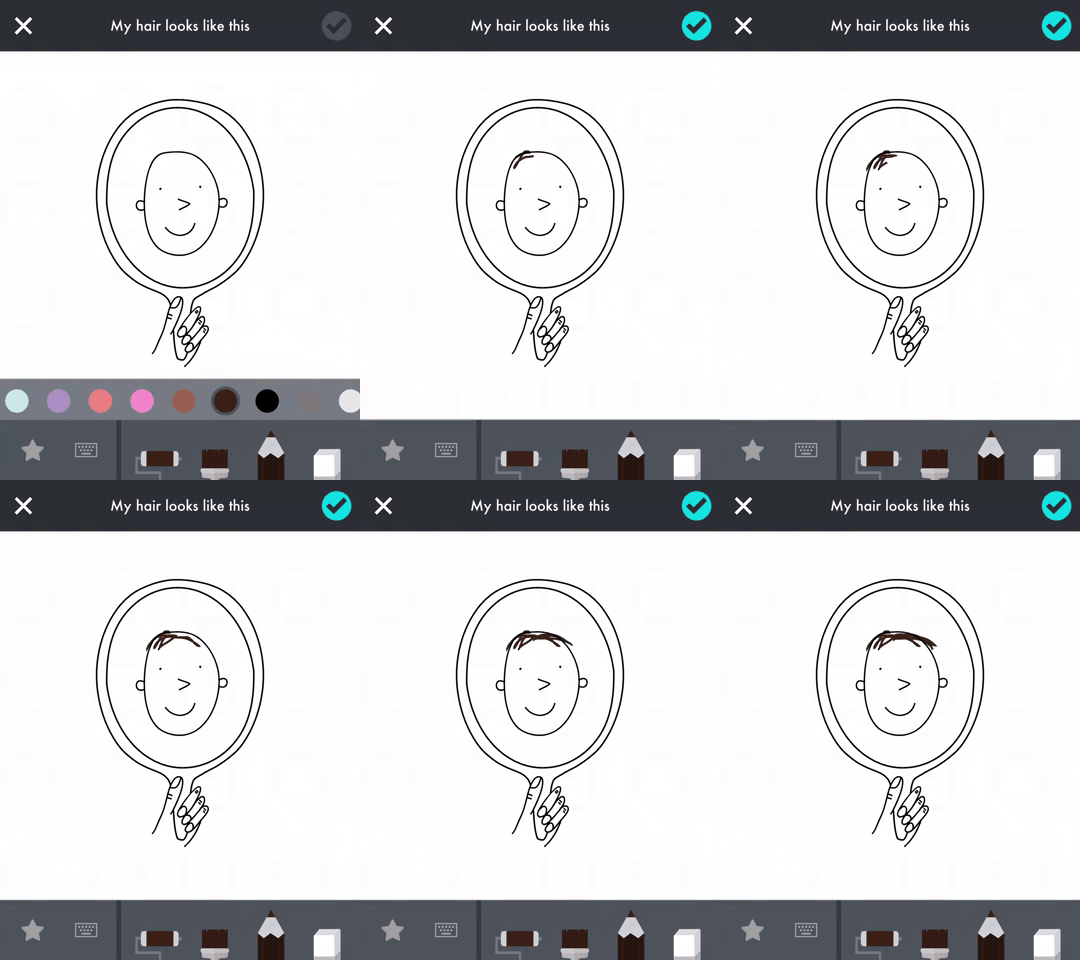
“Me” allows kids to tell their own story. Think of it like a digital diary - but with lots of fun features. It gives kids hundreds of fun, inspiring prompts to help them learn more about themselves and the people around them.
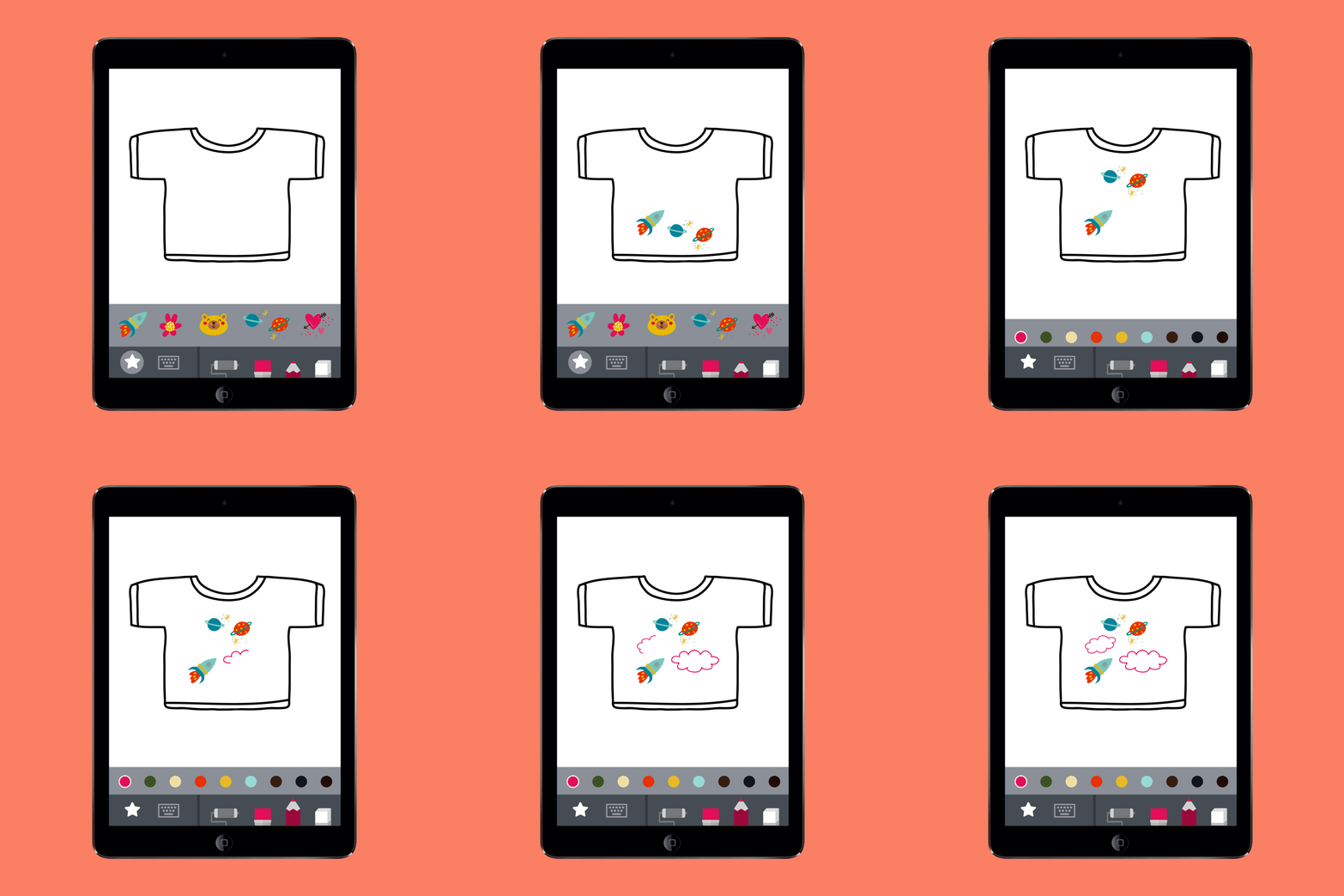
In drawings, words, animations, recordings, and photos, kids can document their worlds: their families, friends, pets, feelings, likes, dislikes, wishes, and dreams. As they play and create, kids build self-awareness, self-confidence, empathy, and kindness.
Check out some of the feedback from “Me.”
"An app that teaches my kids to empathize, include, and appreciate others, that’s screen time I can feel good about." — Cool Mom Tech
"We love not just the creativity the app inspires but also the memorable family discussions that can result. Very cool." — Parents Magazine


Can “littles” use it?
We introduced this app top our youngest son (6 years old), and he loves all of the different tasks. His favorite entry thus far was to take a picture of his family. So, rather than asking everyone to get together for a family portrait, he just decided to take a snap a shot of one of our framed pictures. 😂
He also enjoyed creating his own illustrations, recording different sounds, and making animated gifs from the prompts. The tools are easy enough for any age group to use. As an added bonus, he can save all of his “work” to the camera roll, and then share it back to us by airdropping it.
ARTWORK:
There’s a lot to love in “Me,” but the artwork is truly stunning and visually appealing for all ages. Ana Seixas, the artist behind the magic, and the developers at Tinybop have created a platform that is easy to use and understand.

FEATURES:
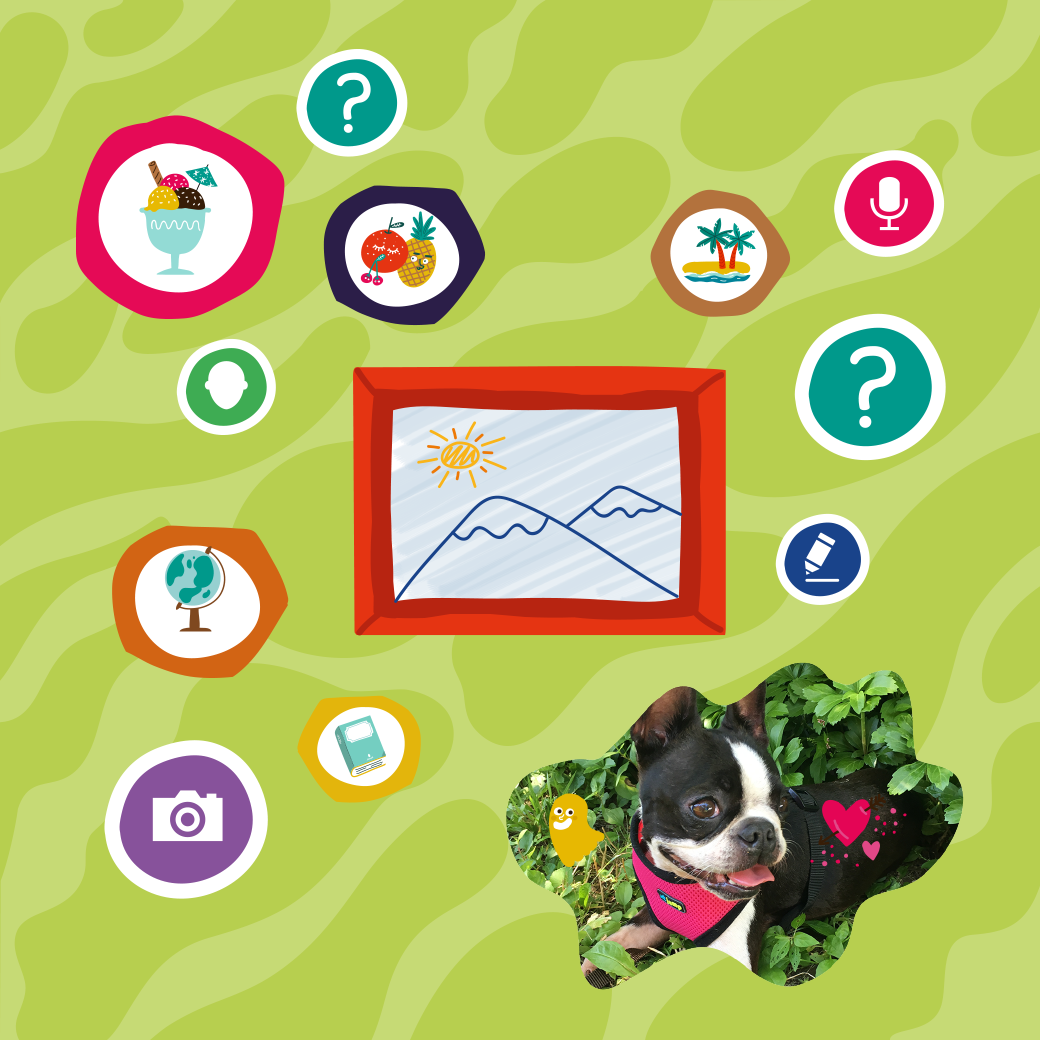
Create and accessorize avatars for yourself and all the people and pets in your life.
Your avatar responds to you, expressing emotions you can capture and share. Send an animated drawing to your friends or save it to your camera roll.
Ask and answer hundreds of questions about yourself and all the important people and places in your life.
Decorate your photos with fun stickers and words.
Create drawings with different pens, brushes, and colors.
Record stories and sounds.
Write on pictures and photos.
See your answers turn into animations and other surprises!
See everything you have created and recorded in one swipe.
Safe space for self-expression. Nothing is shared unless you choose to.
Original artwork by Ana Seixas.
Original sound design.
Open-ended activities with no rules. Curiosity and creativity are rewarded.
Multi-user system.
Fun for everyone: families can play and learn together!
To learn more about “Me,” check out the Tinybop website by clicking here.
To download “Me,” click on the image below!

For more information on how to make learning more engaging and relevant by using technology, check out our book The InterACTIVE Class.

