


New Flipgrid Features and Updates from Flipgrid LIVE!
Flipgrid recently announced a new set of updates during “Flipgrid LIVE.” Here’s what’s new, how it will all work, and what to expect!
Flipgrid recently announced a new set of updates. Here’s what’s new!
(Click on any subheading below to jump to that section)
Flipgrid Camera Updates
The Flipgrid Shorts Camera is getting a facelift, and there’s a lot to talk about!

New Features: More fonts, filters, boards, frames, stickers, and GIFs!
Now, while recording, the video’s timeline can be found at the top of the video. Options such as: emojis, white/black boards, text, filters, gradients, gifs, and frames to wrap your video (gallery walk, breaking news, MIE edu, Minecraft coming) will all roll out August 1st.
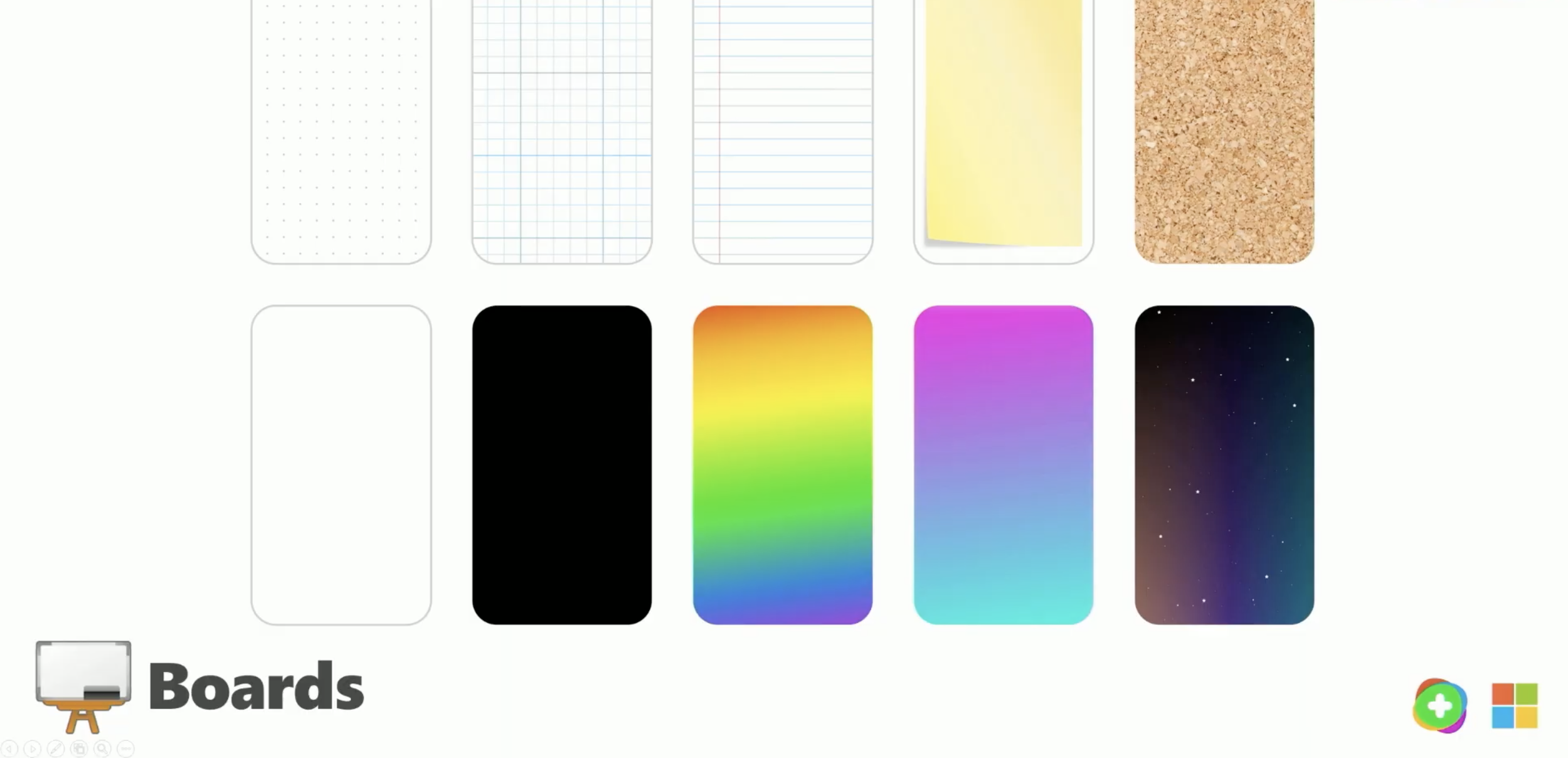
The Boards in Flipgrid will now feature graph, dotted line, and cork board backgrounds. In addition, now students will have the capability to use a video board, or a split screen with the student’s camera video and Board displayed at the same time.

Layering in Flipgrid’s Shorts Camera just got a whole lot easier, too. Now, users can add Gifs, Emojis, text, and Stickers by stacking and layering - adding even more creativity at the hands of students without ever having to leave the app. Sharing content is also becoming easier with a streamlined review process, which allows students to split clips, mirror, and rotate.
The Learner Experience in Flipgrid
The way your students view content in Flipgrid is changing, and is now more
powerful than ever.
When your students log onto Flipgrid, they will access a more modern and convenient look. Students have the ability to quickly view videos, but most impressively, see what videos are coming up next with an all new panel that displays your topic’s responses along the right side.
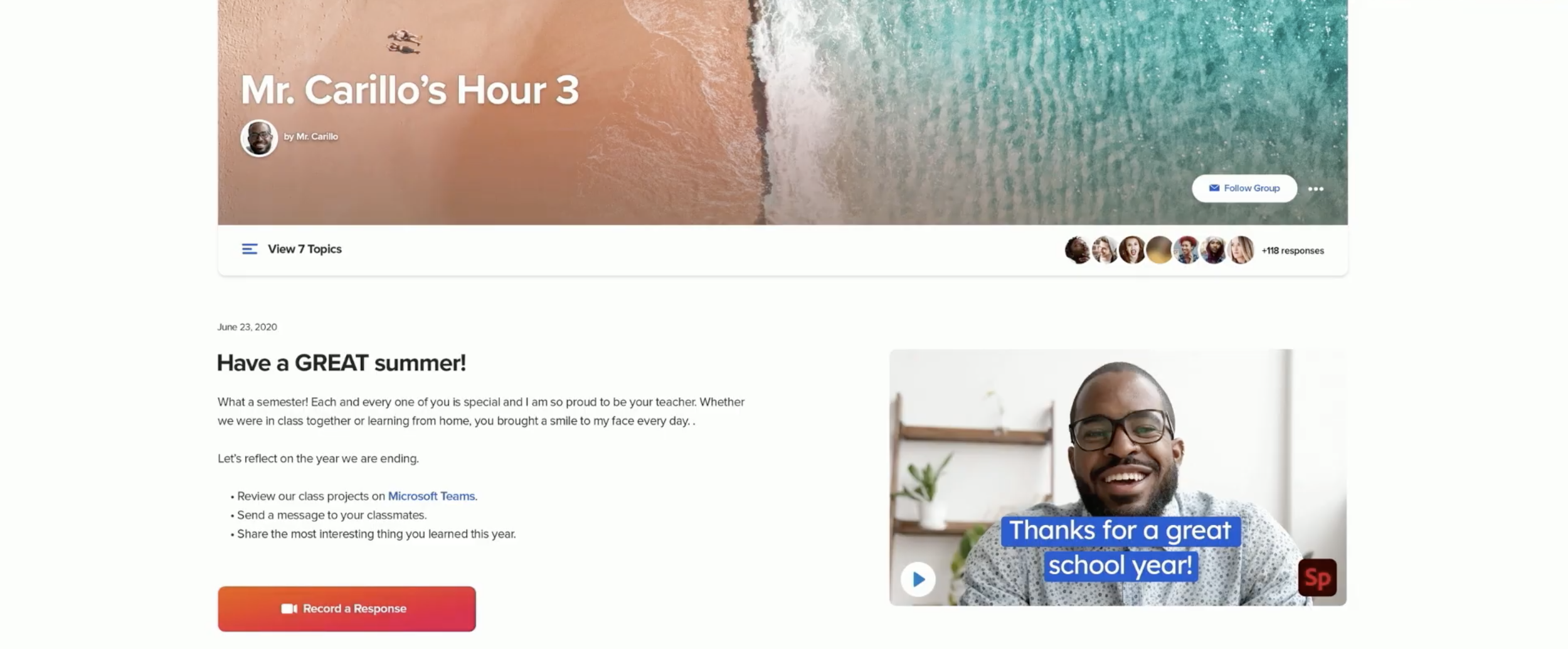
Text and video comments and also coming, allowing educators to provide private and public feedback to student responses. As always, the educator has complete control and can toggle comments on/off. Flipgrid has also added Microsoft’s AI Azure which will scan every comment, moderating for things like language or bullying.

Updates to the Discovery Library
Flipgrid’s Disco Library is more than just a hub for sharing and downloading content. The Disco Library is where you can find integrations from other partners like The National WWI Museum, Langston League, BBC, and more.

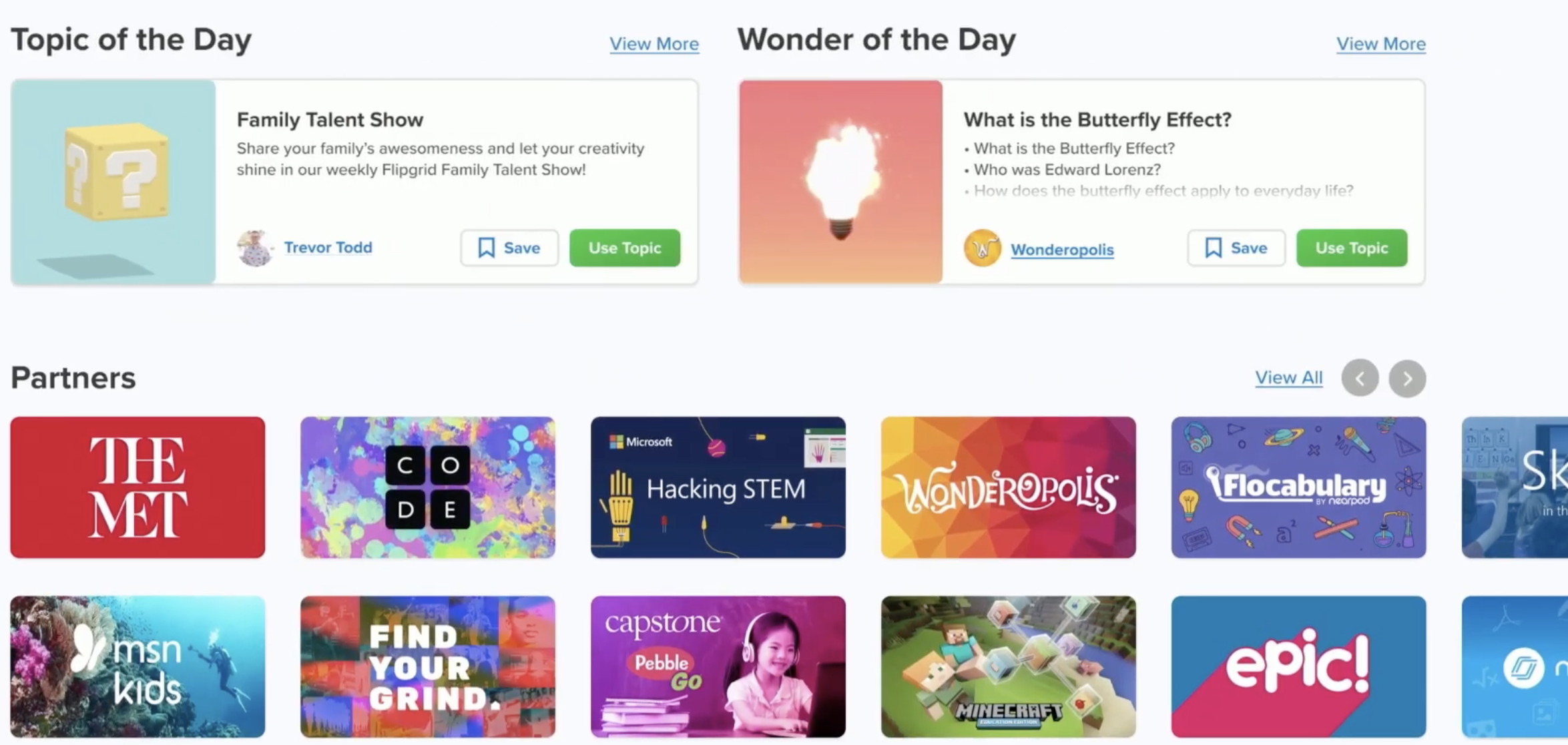
Discovery Library Partners are constantly being added, but expect new content from: Minecraft, Langston League, and Wonderopolis (including a “Wonder of the Day”). Expect partner profile pages to roll out providing an independent, shareable space that allows educators to connect with them easier.
Educators now have access to showcase trending topics, published collections-- including conversations about race, equity and justice. This is also where you’ll also be able to find learning from home topics, and content from inspiring creators.
Updates to the Educator Dashboard
Creating and sharing your topics is now easier than ever using Flipgrid’s topic launch technique. Grid’s now have a new name = Groups, and communicating with your students gets a new look!
Launching a discussion on Flipgrid just became a whole lot easier. The steps to launch a topic have been simplified: just add the topic and share! If you’d like to add your topic to a “Group” (formally referred to as “Grid”), you can always do that by clicking: Add → share → group. Interacting with your students’ videos has been revamped. Now, educators can reply with text and videos for comments. There is also the ability to edit close captions.

Previously in the Flipgrid Dashboard, Adobe Spark content could be added as static thumbnails, but users would have to leave the Flipgrid app to view the content. Now, you can play full videos right inside of the Flipgrid Focus area and students will never have to leave the app.
Safety is clearly a high expectation with Flipgrid, and now educators have even more control of who can gain access to their content. From the Educators Dashboard, you can now add specific email addresses, providing the necessary access to Topics for your guests to join.
Inclusion and Accessibility Updates
Closed captions, Microsoft’s Immersive Reader, Xbox’s Controller, and “Powered by Dyslexia” extend inclusion and accessibility in Flipgrid.
There is no doubt that the team at Flipgrid places inclusion and accessibility at the forefront of their updates. The Flipgrid Shorts Camera provides closed captions, and the team has leveraged immersive reader as much as possible throughout the entire platform. One of the “coolest” announcements gives students the ability to control the Flipgrid Shorts Camera with an Xbox controller (coming in August). New partnerships with “Powered by Dyslexia” are aimed at providing even more accessibility all within Flipgrid.

What to Expect from Flipgrid in the Upcoming Year
A new logo, more focus on student safety, leadership boards, and what to expect
with fall updates.
Flipgrid is getting a brand new logo! The new look is focused on diversity, inclusion, energy, engagement, and togetherness.
Safety is a top priority for team Flipgrid. A great deal of focus is being placed on: Access, Control, and Protect. For example, Groups, Topics, and videos can’t be searched. Videos and comments are scanned using Microsoft’s Azure to provide the upmost safety for students.


Flipgrid announced Leaderships Boards, designed to focus on diversity and inclusion, and accessibility and equity. More information will be rolling out within the next few weeks.

Flipgrid AR now delivers even more accessibility with fully transcribed videos. As users continue moving their device, they will be able to transition between AR codes while the thumbnail of the previous video is displayed.

There are lots of additions to the Shorts Camera, including effects such as: new filters, text options, frames, and gifs. Last year, the Shorts Camera was integrated into Wakelet. You can expect the same with the Shorts Camera coming into Yammer and other Microsoft applications. For example, along with live meetings in Microsoft Teams, Flipgrid discussions can now be created within your Teams conversations.
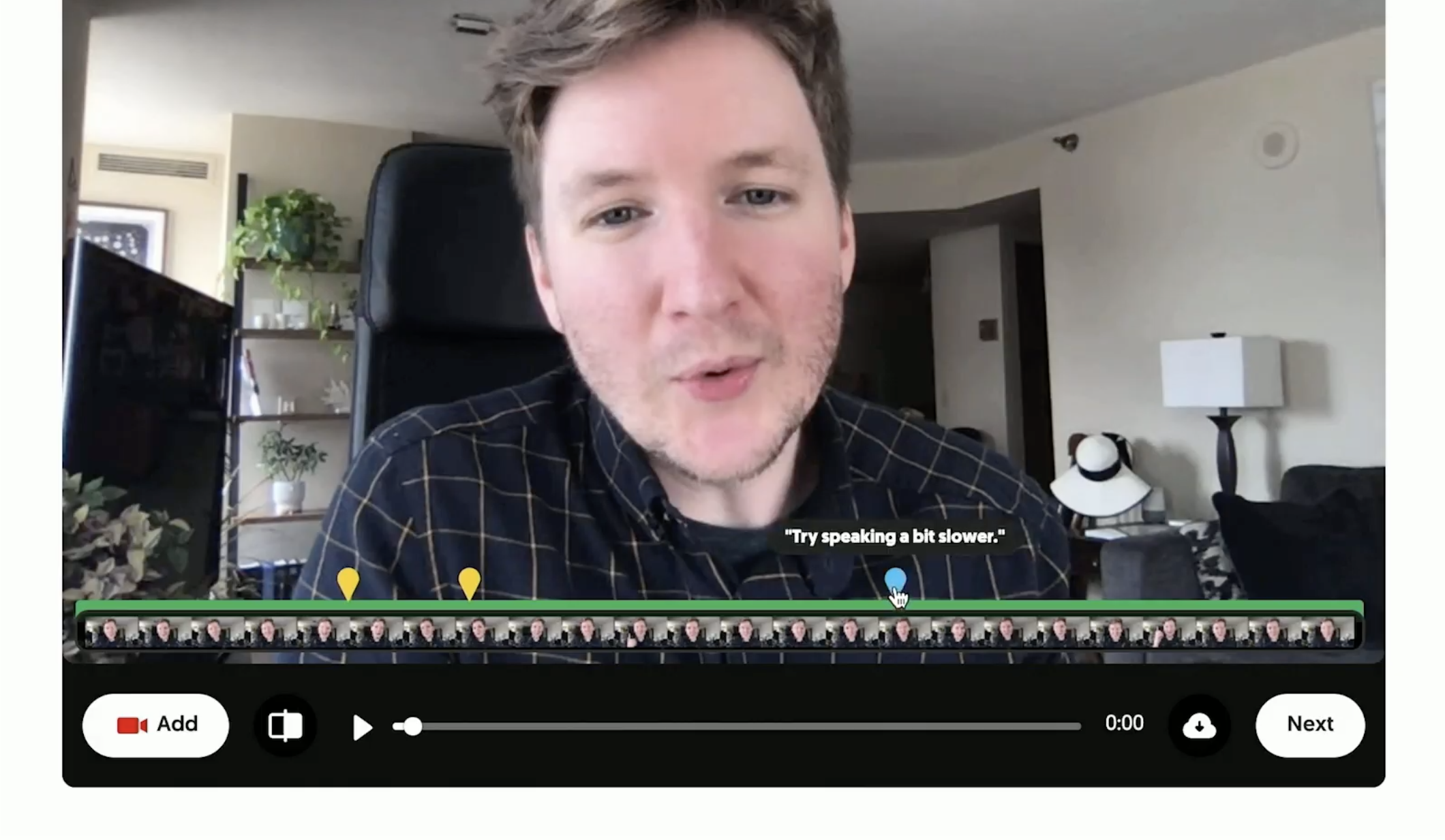
Flipgrid Coach, a new partnership with PowerPoint, provides real-time feedback to users. It will encourage users to talk slower and alert them about filler words (such as “uhm”). When going through the editing process, hints will appear on top of the video’s timeline, giving it a “report card.” This will show you where mistakes are, and allow you to go back and trim / fix as needed. This feature is easily toggled on and off from the educator’s dashboard.

Auto Selfies is a huge time saver. When enabled, this feature will automatically generate a bouncing selfie from the video being submitted. Not happy with the automatic capture? No worries, you can review and edit from the submission frame, or take a photo--just as in the past. The best part about Auto Selfies: it makes grids come alive, animating the view.
Screen recording was a huge addition to educators throughout #RemoteLearning. Now, this capability is coming to mobile users - right within the “Capture” option built into the Shorts Camera.
Last, but certainly not least, Mic Mode provides access to students experiencing lower bandwidth or if they have devices where the camera isn’t enabled. To launch Mic Mode, open the Flipgrid Shorts Camera app, tap “Options,” then tap “Mic Only.” This will record audio from the user.

Stay tuned for ways to use all of these new features in the classroom soon! 🙌🏻
Stay interACTIVE!
~👗➕👓
For more interACTIVE ideas to use when integrating technology into the classroom, check out our book, The InterACTIVE Class.


6 InterACTIVE Ways to Use Microsoft Forms
There are many hidden gems within Microsoft EDU, and Microsoft Forms is one of them! Microsoft Forms was released in 2016 and since then, there have been may updates and features released that take it beyond simple question and answering.

There are many hidden gems within Microsoft EDU, and Microsoft Forms is one of them! Microsoft Forms was released in 2016 and since then, there have been may updates and features released that take it beyond simple question and answering.
Assessment is an important part of any classroom, even an InterACTIVE classroom, but it is imperative that when we do assess students we are using it to bridge the gap between our teaching and learning. We should not simply give and grade an assessment, but rather use it to gather, evaluate, and remediate the gaps between knowledge rendered and knowledge retained.
6 Features of Microsoft Forms
1. Uploading Files to a Microsoft Form
The ability to upload a file created outside of Microsoft Forms is one of our favorite, interACTIVE features. Students need the chance to demonstrate their understanding of a concept through creation, and this powerful feature allows students to create in programs such as Adobe Spark, Flipgrid, Microsoft PowerPoint, iMovie, and then share with the teacher through Forms.
*This feature is only available to users within the same organization.
2. Types of Questions
When creating a Form, you have several types of questions you can use to build it. Choose from these options to customize your Forms in ways that specifically meet the needs of the students you have in your classroom.
Multiple choice: When using this feature, Forms will even suggest possible answers based on the words used in the question or answer choices already submitted.
Text: Giving students the ability to write and explain their thinking is always good and in Forms, you can specify whether it’s going to be a long answer or a brief one.
Rating: You can specify both levels (numeric) and symbols (stars) when using this option. This is great for a book review or character rating after the end of a unit.
Ranking: This type of question is great when asking students to debate or justify an answer. For example, have students rank details in order of importance in regards to the theme of a story. Then, pair with a text question and have them explain their rankings and justify the order they chose.
Branching: Although this isn’t technically one of the types” of questions you can use, it is a great, interACTIVE feature in Forms that allows you to connect, or branch, questions based on a students answer. This allows you to redirect students to different questions based on correct or incorrect answers.

Net Promoter Score: Great for more survey-like type questions or can be used when looking for students’ opinion in regards to a topic.
3. Custom Controls
There are many hidden features in Forms that you may not know about at first glance. Simply head to the Settings in the Three Dot Menu and take advantage of features like shuffling question order, adding a start and end date, creating custom Thank You messages and adding email notification.

4. Peer Collaboration
Creating interACTIVE Forms can often be a two-person job or more, and for that, Microsoft Forms has given creators the ability to collaborate. To share a form with your friend or colleague, simply tap on the Share button in the top right corner of the screen and select the Share option from the right menu.

5. Ability to Analyze Responses
As with any assessment in an InterACTIVE Class, giving the assessment is just the beginning. Once students have finished, you need to review and reflect on the data given. When using Microsoft Forms, you simply head to the Responses tab and you will find the answers to your assessment in both a visual group format and individually.

6. Immersive Reader
The integration of Microsoft’s Immersive reader makes Forms so accessible to all students. Immersive Reader is a free tool that utilizes techniques proven to help people read more effectively, such as read aloud and translation. This feature allows questions and answer choices to be read aloud to students while working to help accommodate and give independence.

Additional Features and Resources for Microsoft Forms
There are so many other features that make Microsoft Forms a great tool to use in the classroom. Sharing with colleagues, the ability to send a copy, sharing with links an QR codes, customizing the themes and colors—this tool is one you will want to get to know before the next school year.
Interested in Microsoft Forms? Here are a few examples you can look at for more ideas.


For more interACTIVE ideas to use when integrating technology into the classroom, check out our book, The InterACTIVE Class.



How to Make a Custom Microsoft Teams Background
Microsoft Teams is constantly providing updates to its platform, but the latest is one that users have been begging for: the ability to upload your own backgrounds. Now, you can create a personalized scene and Teams will virtually place you directly into your image.
Microsoft Teams is constantly providing updates to its platform, but the latest is one that users have been begging for: the ability to upload your own backgrounds. Now, you can create a personalized scene and Teams will virtually place you directly into your image. In this blog post, you’ll learn:
What are some suggested apps you can use to design a custom Microsoft Teams background
How to upload your custom background to Microsoft Teams
Find free backgrounds to download and then upload to Microsoft Teams
Something to keep in mind when designing is that the resolution of your canvas should be 1920 x 1080, and the best format to save as are PNG files.
IMPORTANT: If you have text in your background, it will appear mirrored (or flipped) after you click “apply” in the final step below. But, it will not appear this way to others joining your meeting. It will display properly.
What are some suggested apps you can use to design a custom Microsoft Teams background?
There are a few different options when creating your background. Let’s look over a few of the most popular!

Adobe Spark:
Click here to access the Adobe Spark website
Cost: Free for educators (your IT department will have to set it up, though!)
Why use Spark?
Adobe Spark is easy to use and provides simple options when branding content. You can easily search for royalty free stock images - all safe for EDU environments, and even “remix” ideas from other users.

Buncee:
Click here to access the Buncee website
Cost: Free for the “Lite” version, additional options available
Why use Buncee?
Buncee is a user-friendly platform that’s a one stop shop. You can find everything that you’ll need to create without ever having to leave the app, including safe search / royalty free images.


PowerPoint:
Click here to access the Office 365 website
Cost: Free for the “A1” version (includes Word, PowerPoint, Excel, and more), additional options available
Why use PowerPoint?
PowerPoint is familiar for most, making it easy and comfortable to design in. You can also easily duplicate slides to design several backgrounds at once.

How to upload your custom background to Microsoft Teams
Now that you have your custom background created, follow these steps to upload it to Teams:
From your channel or chat, click the camera icon to start a new meeting.
After the new window opens, click on “Meet Now” to launch the meeting.
Once the meeting has started, click on “Show Background Effects.”
A window will open on the right side of the screen. Click on “Add New” on the top right .
Upload your file, then scroll down to find the image. Select the image, then click “Apply.”


(Note: If you have text in your background, it will appear mirrored (or backwards) on your side of the screen - but, Teams displays the background correctly to others who have joined your meeting)

Free Backgrounds to Download
Looking to save some time? We hear you. Here’s a few neat backgrounds that we found that you are free to download / upload on your own. To do so, simply right click then select save (remember to watch where you are saving the file so that you can find it later on!).
Please note: We did not create any of these, just found them being shared online. All of these images have been labeled for reuse.
Animal Crossing:
Source: Nintendo

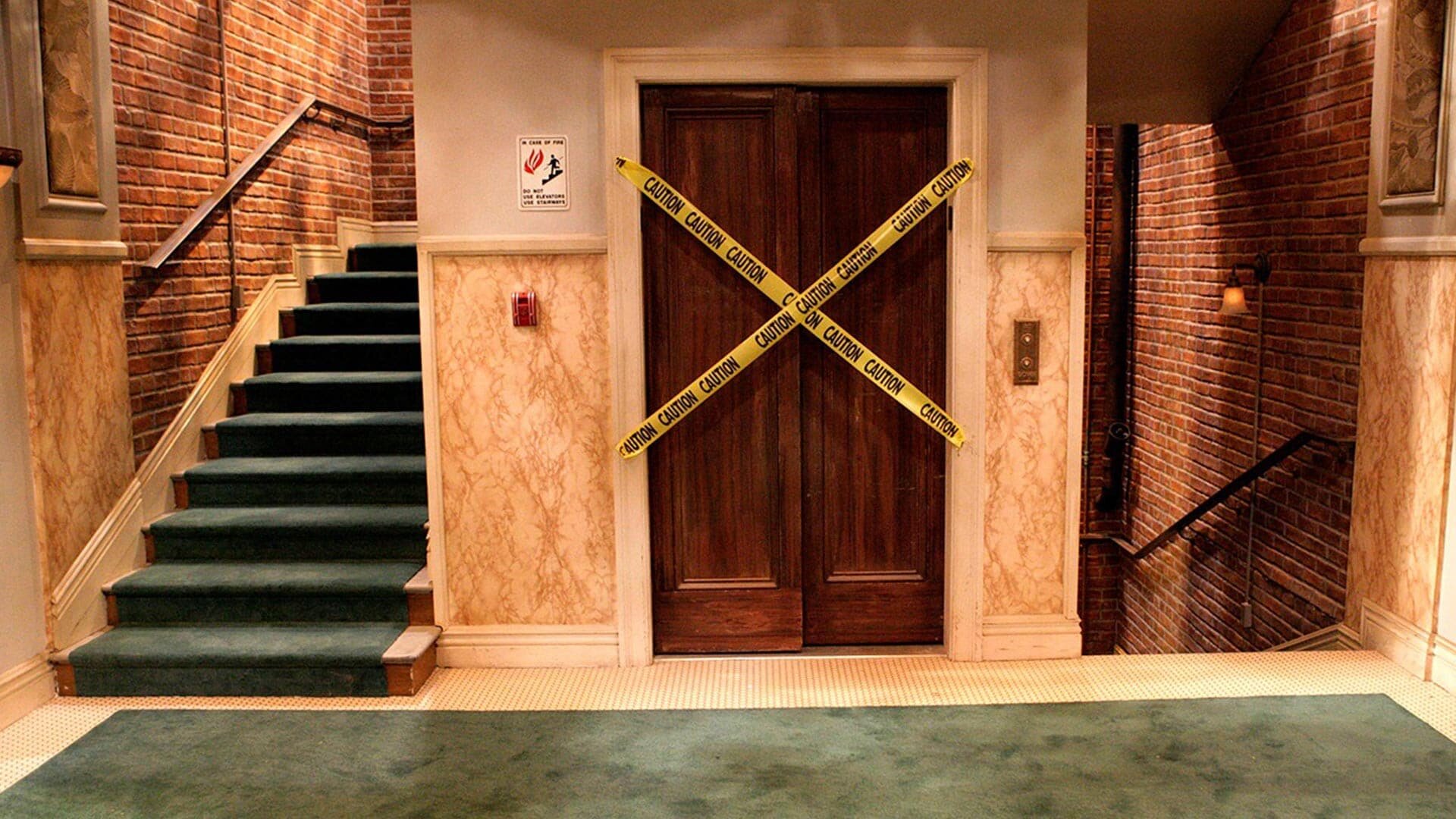
The Big Bang Theory:
Source: TBS

Blue’s Clues:
Source: Nickelodeon

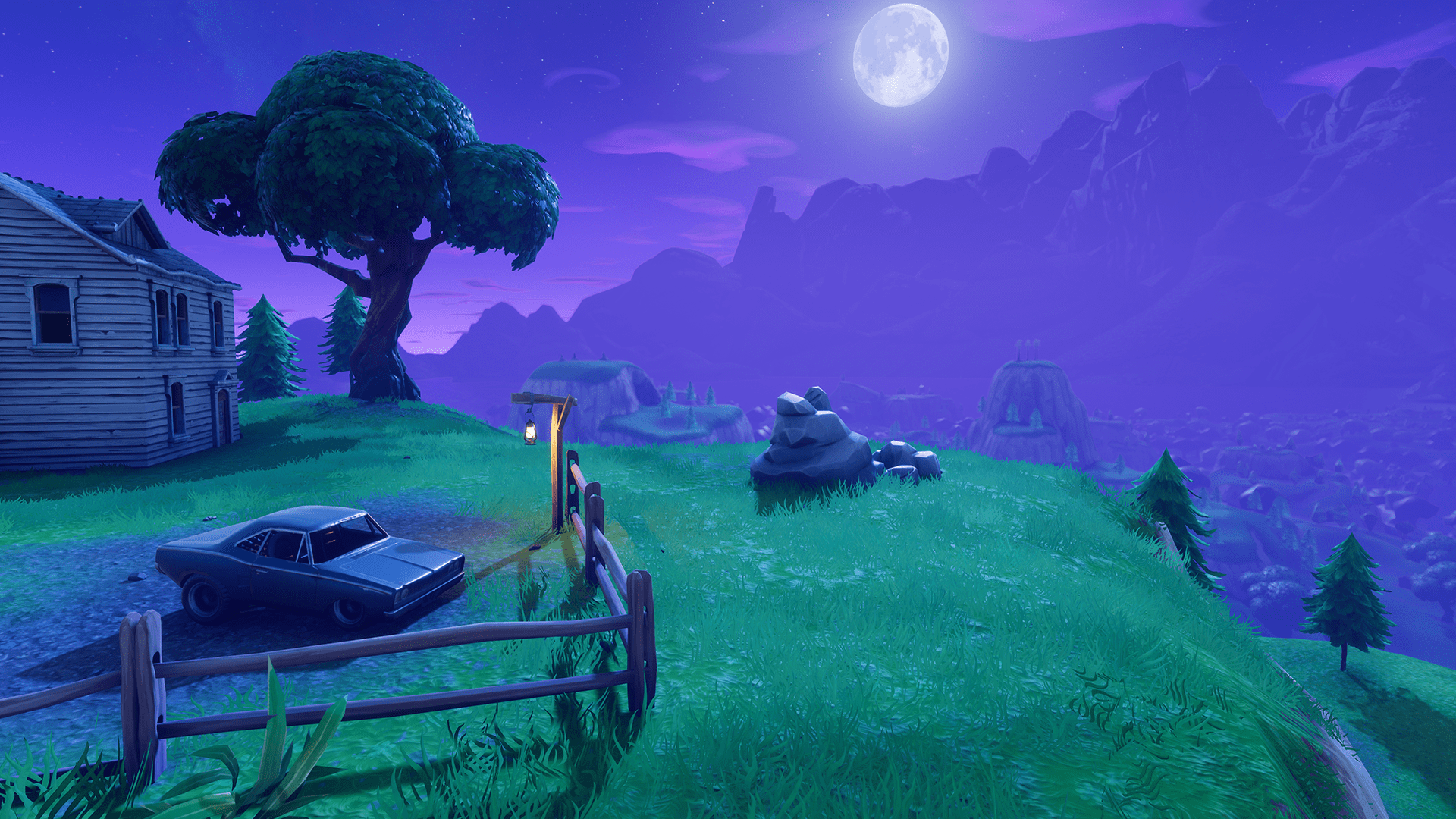
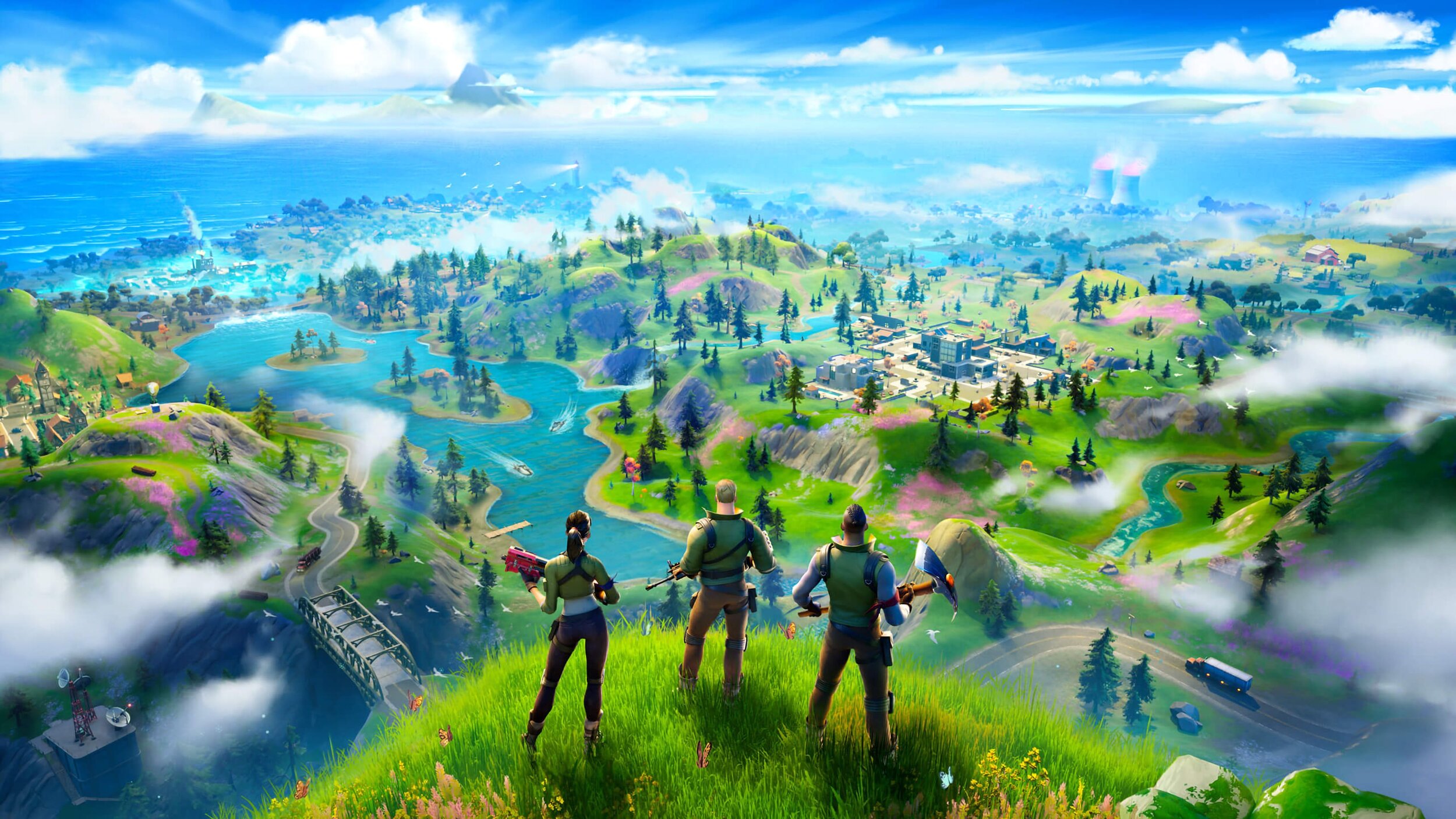
Fortnite:
Source: Epic Games

Friends:
Source: FOX


Game of Thrones:
Source: HBO

Jeopardy:
Source: NBC

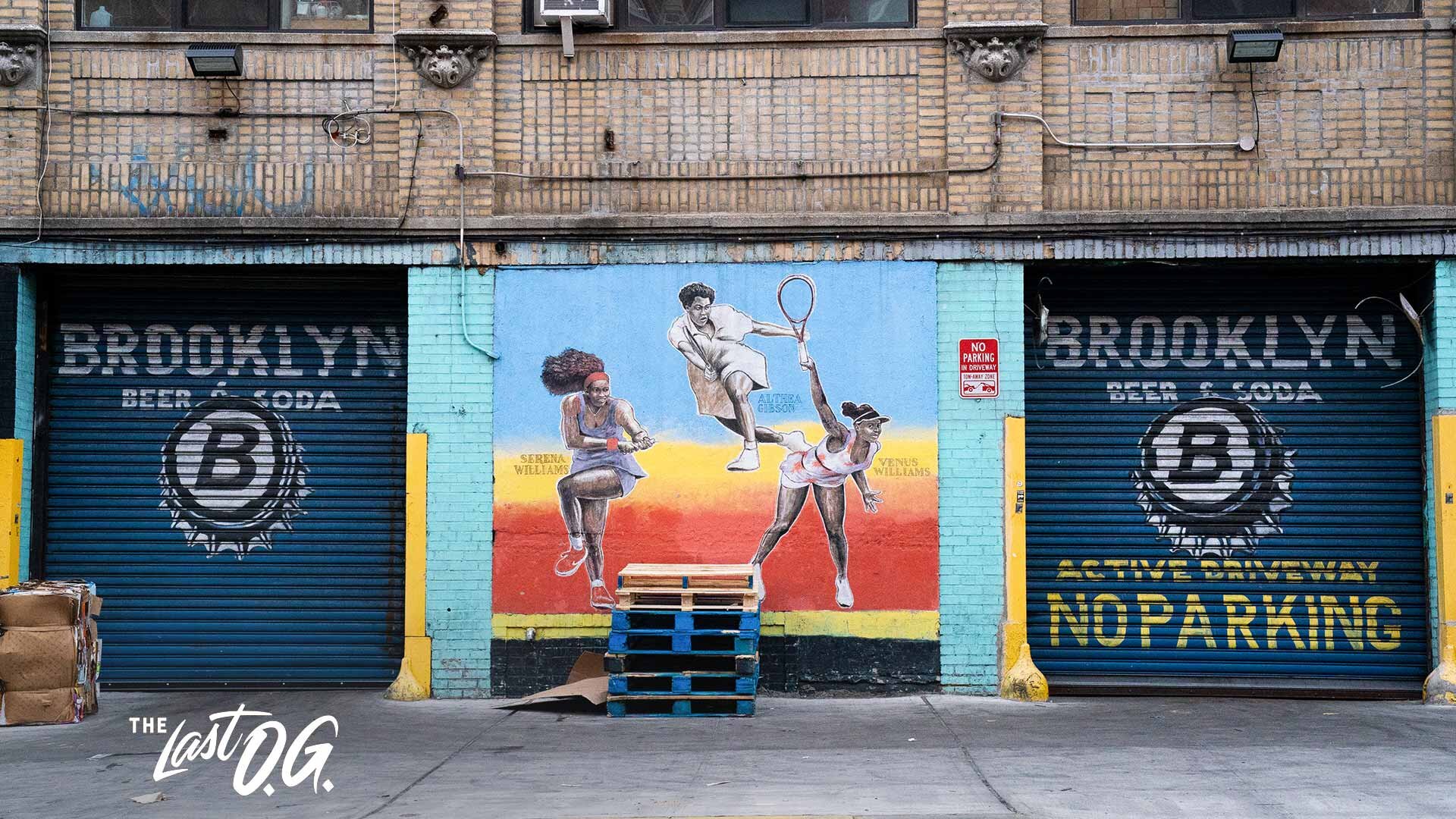
The Last O.G.:
Source: TBS
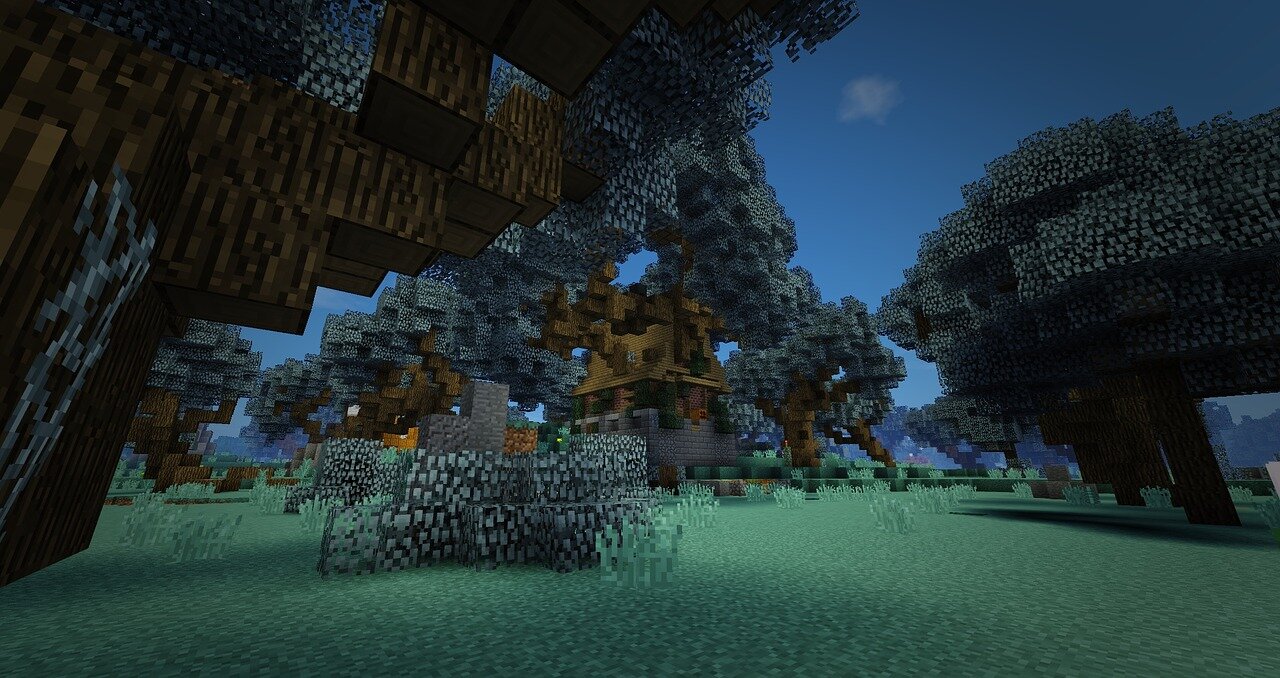
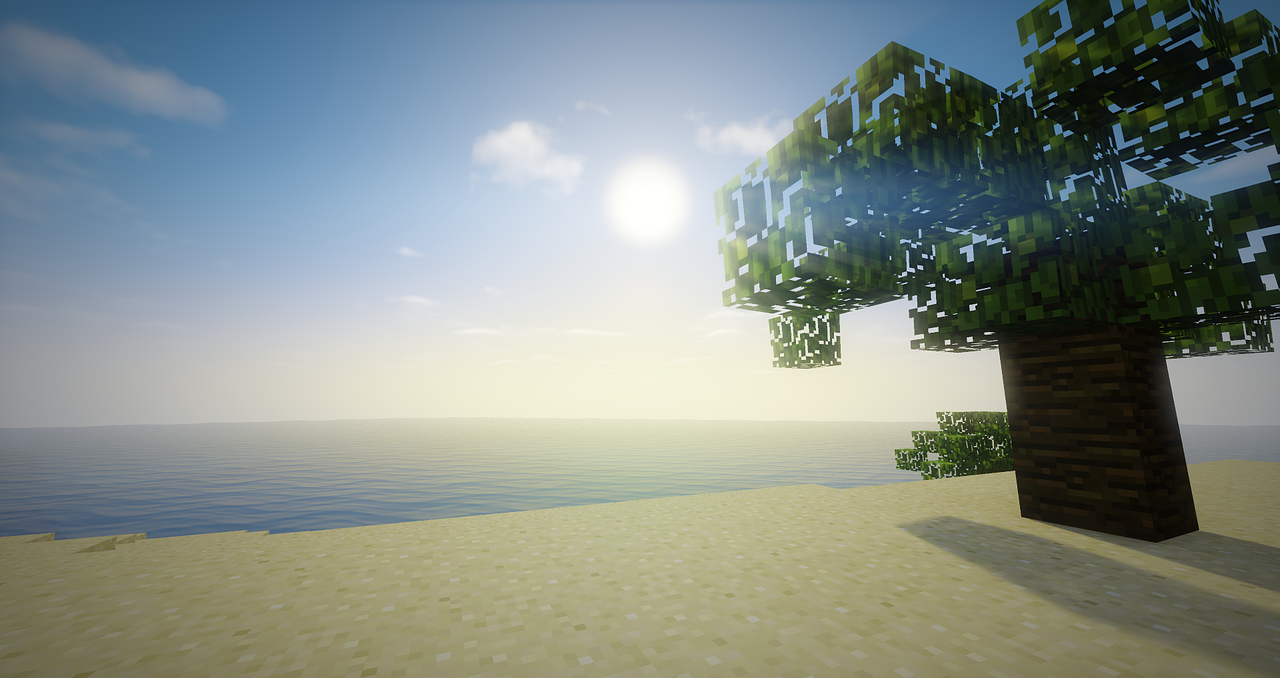
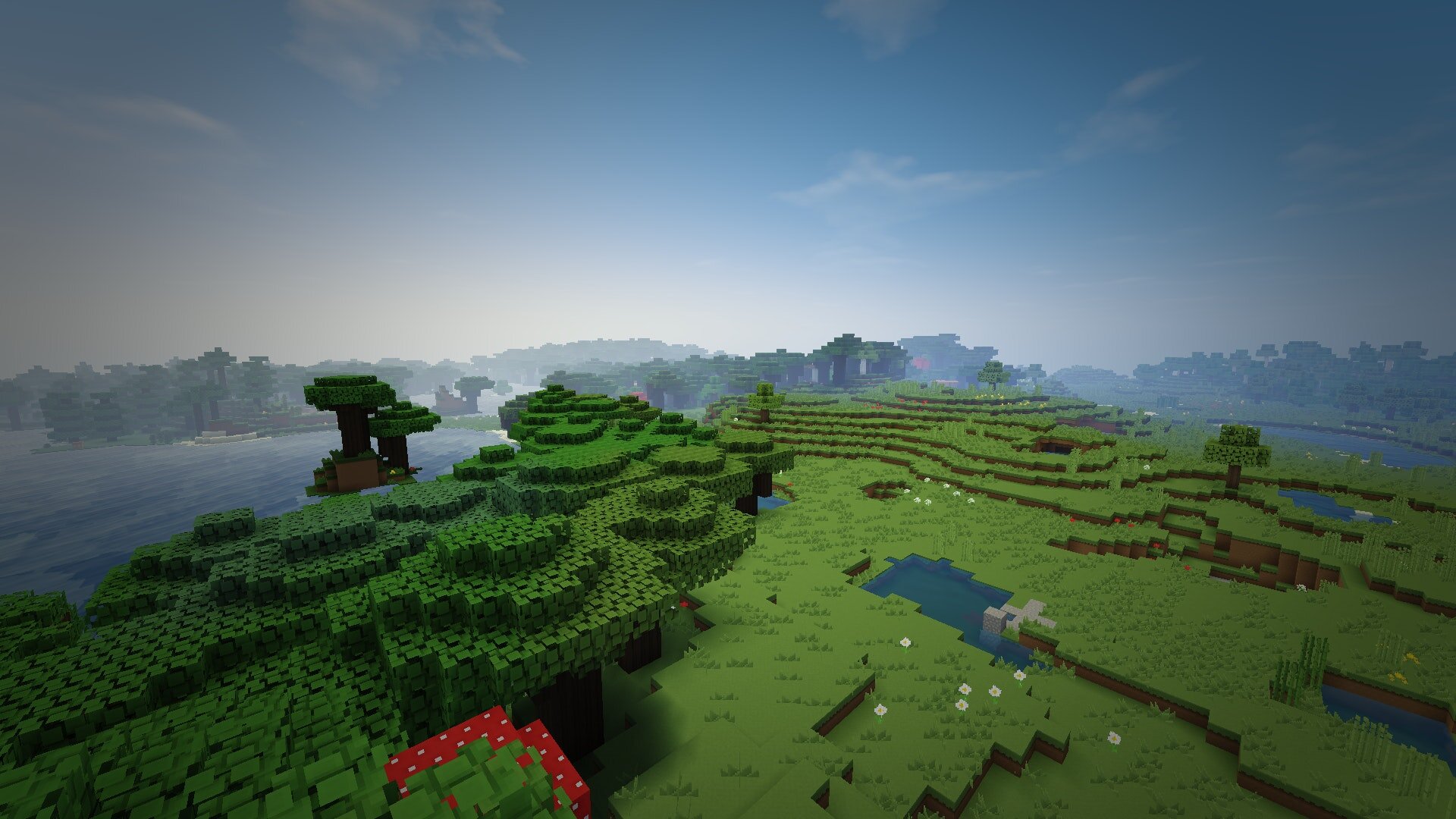
Minecraft:
Source: Microsoft
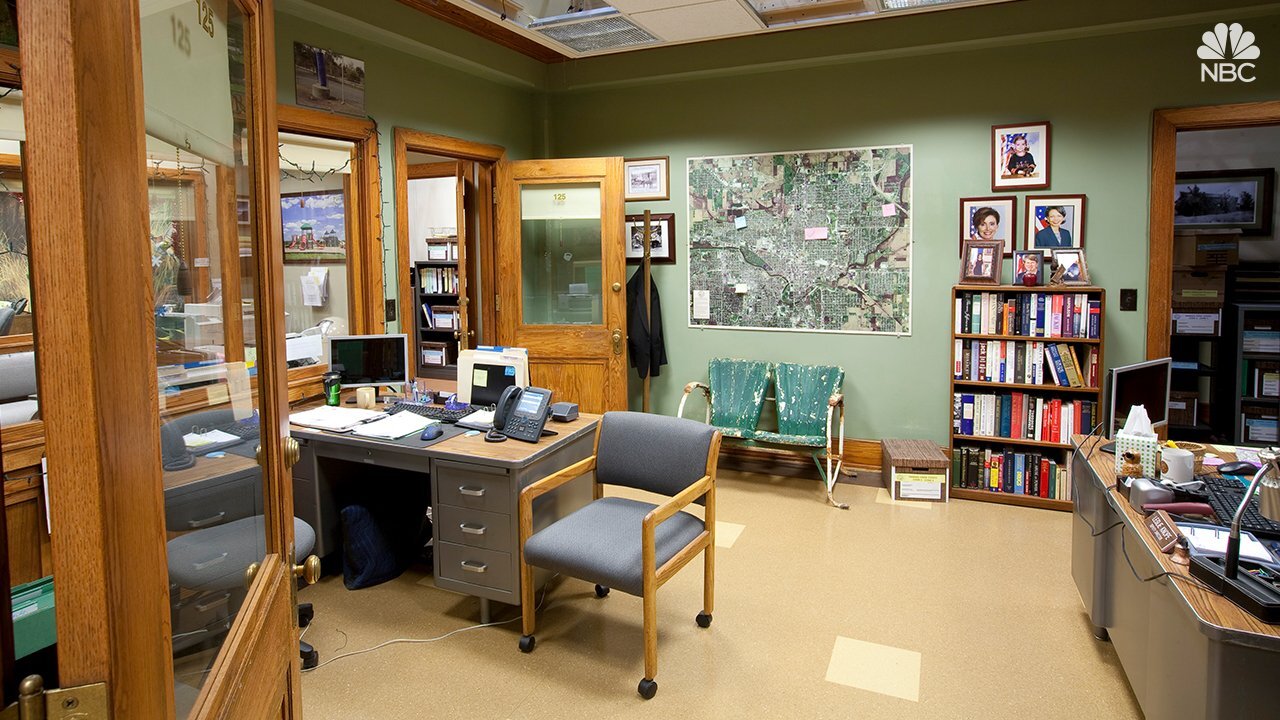
Parks and Recreation:
Source: NBC

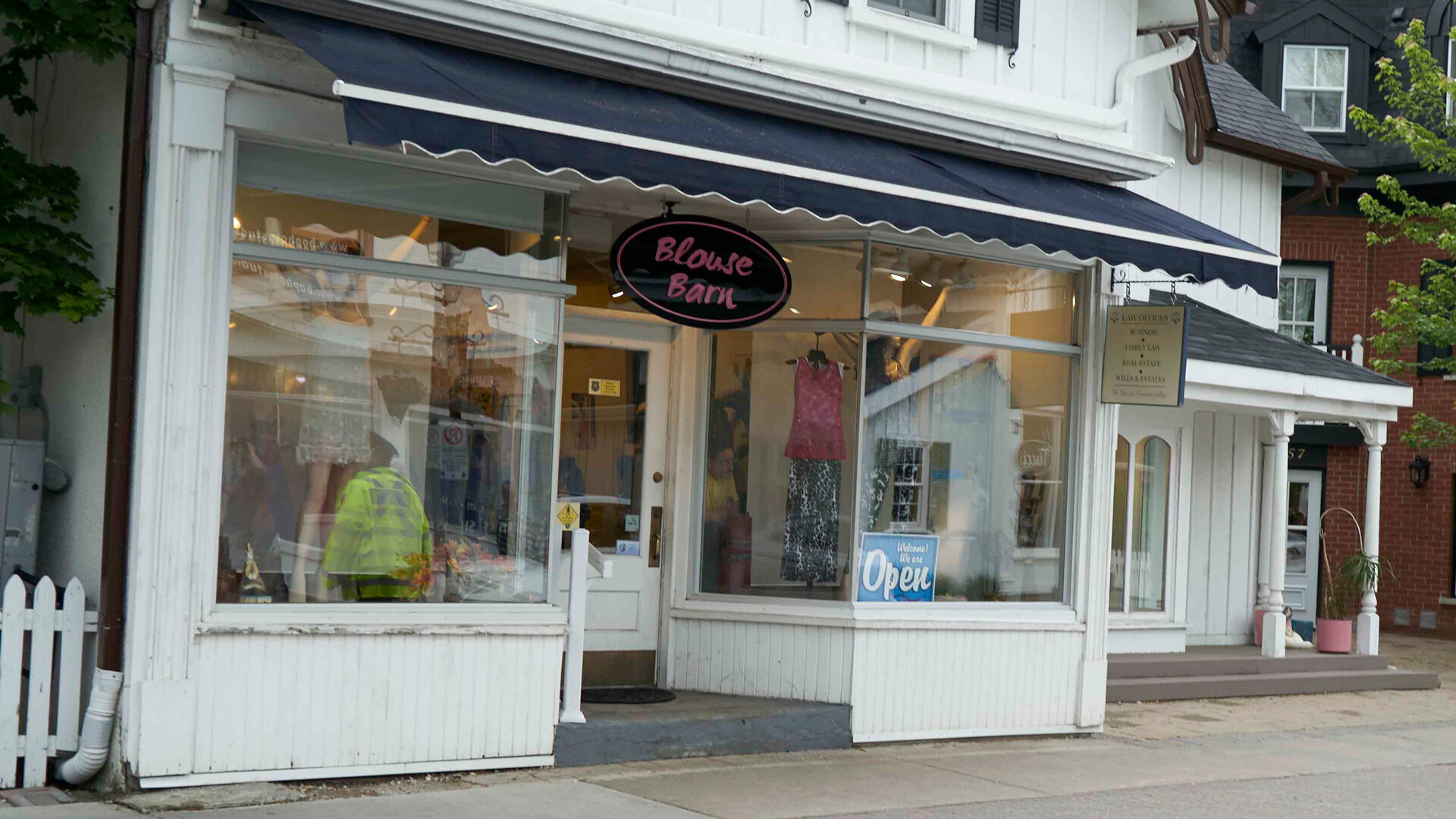
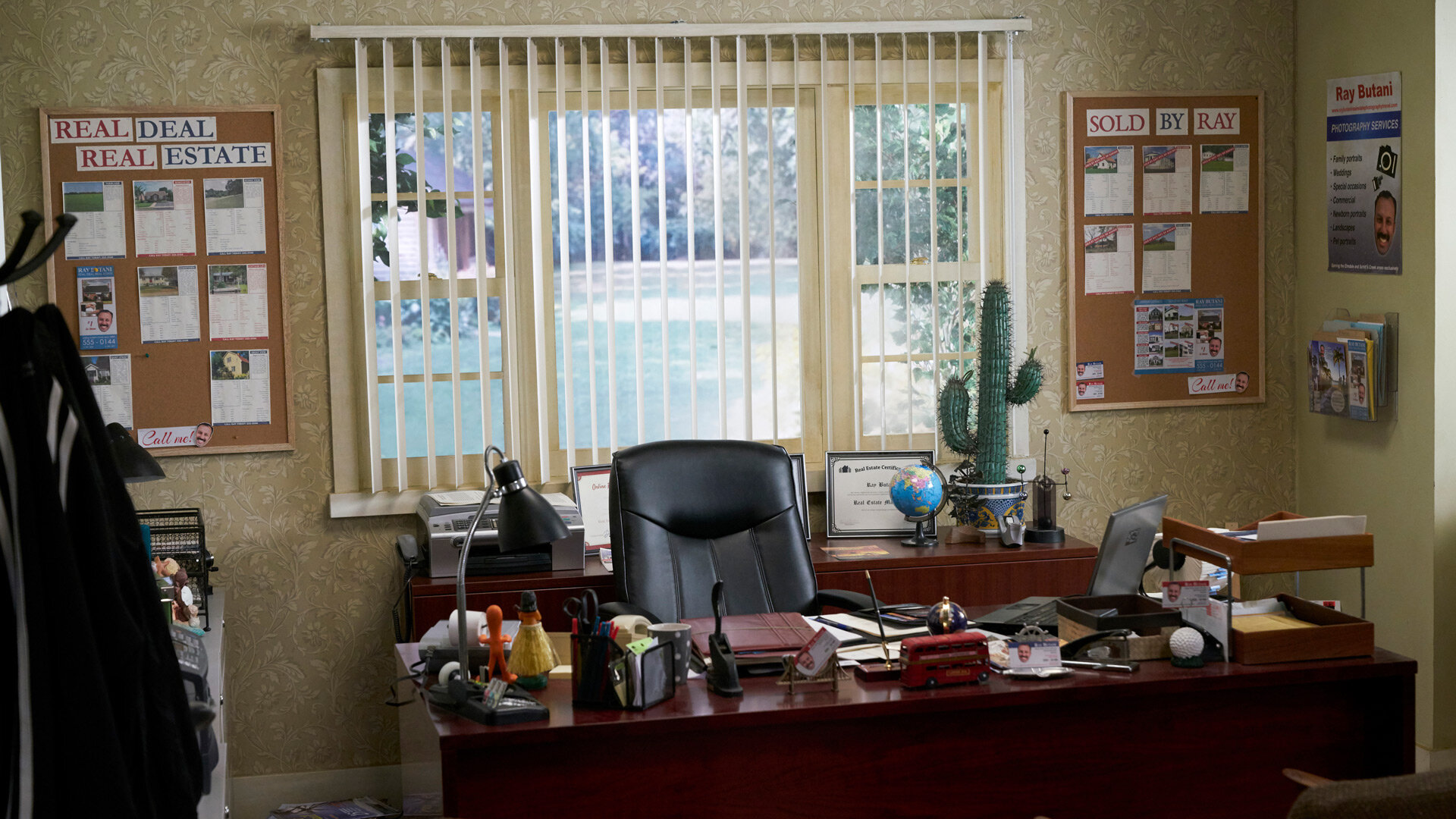
Schitt’s Creek:
Source: Netflix
The Simpsons:
Source: Fox

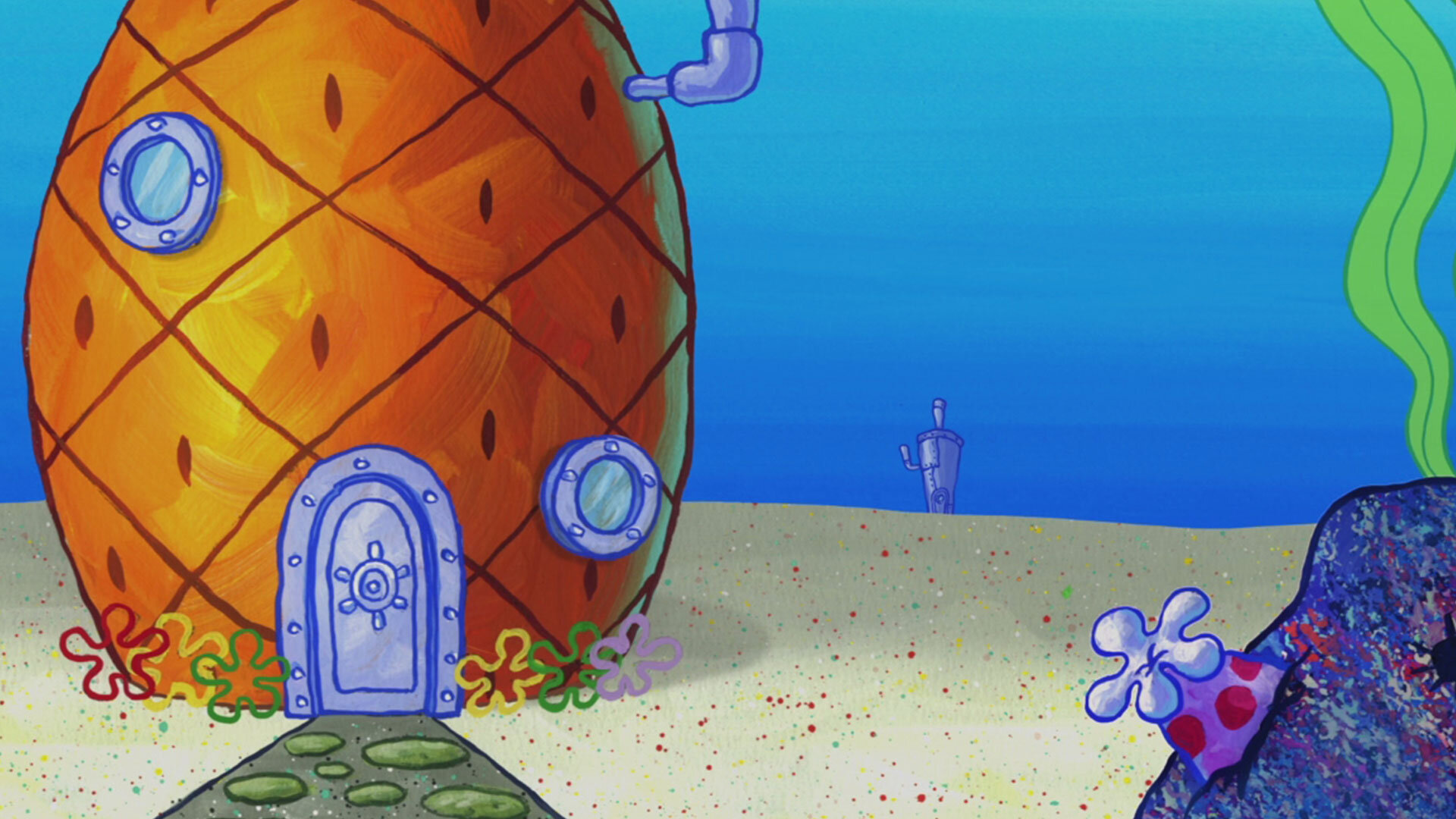
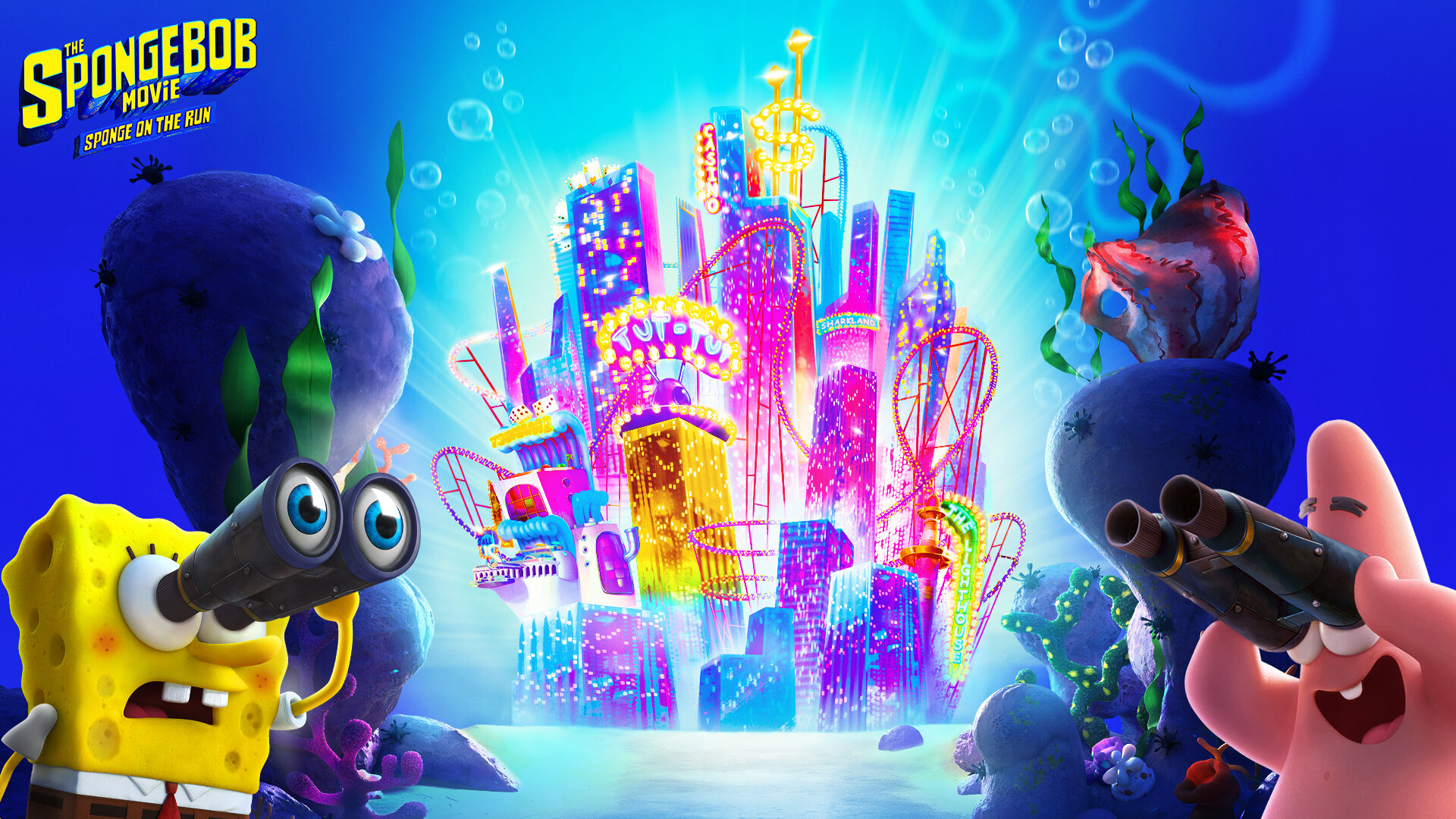
Spongebob Squarepants:
Source: Nickelodeon
Star Wars:
Source: Star Wars / Disney


The Office:
Source: NBC

Today Show:
Source: NBC

Top Gun:
Source: Paramount


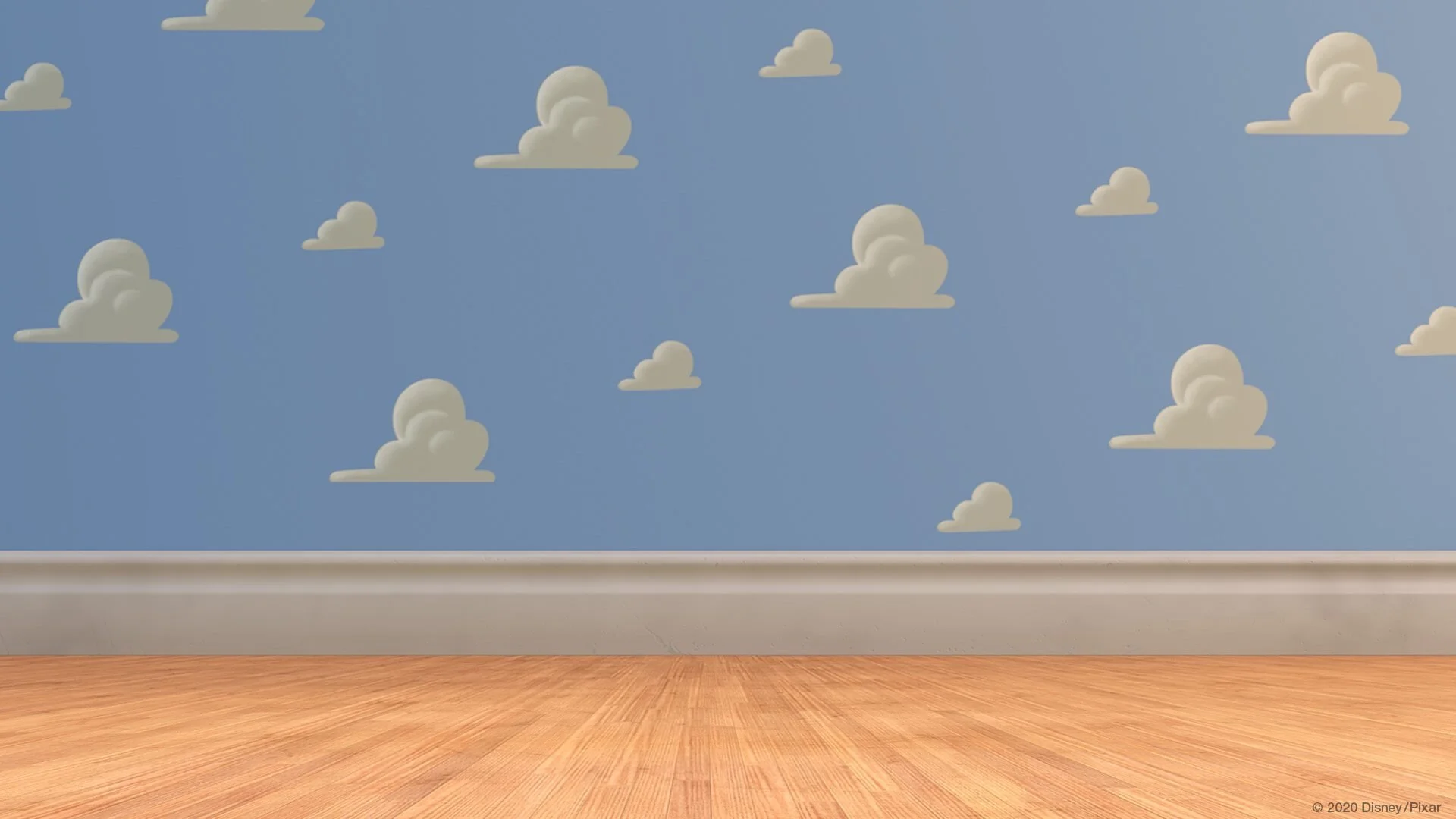
Toy Story:
Source: Pixar / Disney
Stay interACTIVE!
~👗➕👓
For more information on how you can make learning in the classroom more #interACTIVE, check out our books The InterACTIVE Class and Flipgrid in the InterACTIVE Class!


The All New Adobe Photoshop Camera!
The all new Adobe Photoshop Camera app places the magic of Adobe Photoshop right into your devices’ camera. You can take photos or upload them directly into the app, and then select from different “lenses” and filters for your photos. In this blog post, learn exactly what the Photoshop Camera app is and what can you do with it, how to use it, and how to save and share your photos!

The all new Adobe Photoshop Camera app places the magic of Adobe Photoshop right into your devices’ camera. You can take photos or upload them directly into the app, and then select from different “lenses” and filters for your photos.
In this blog post, you’ll learn:
What is the Photoshop Camera app and what can you do with it?
How to use the Adobe Photoshop Camera App
How to save and share your photos

What is the Photoshop Camera app and what can you do with it?
The Photoshop Camera is an app that uses AI (artificial intelligence) powered filters and creative effects that you can use in your photos. Don’t let the name fool you, the Photoshop Camera app actually has little to do with image editing. Instead, the app uses AI to identify scenes in a photo (like the sky), and then places filters to sprinkle in some creativity into your photos. Users can easily share to social media platforms, or download them directly to their devices. The app is available for iOS and Google users.


How to use the Adobe Photoshop Camera App
We’ll cover two different methods of how to use the Photoshop Camera app:
📸 How to take photos and edit the filters in the app
📸 How to use photos from your camera roll in the app
To get started, first download the app from your devices’ store. You can download the app from the Apple Store by clicking here, or from the Google Play Store by clicking here.
How to take photos and edit the filters in the app
Once you open the app, the camera is immediately launched.
Make sure your face(s) are clear in the image, then tap the icon circled below.
Flip through the lenses (the images that run across the bottom) until you find a one that you like. (Note: you can swipe through the lenses’ filters to find additional camera effects)
Once you have your lens / effect picked out, snap your picture!
To fine tune your photo, click on the image icon to the right of the camera button. This will open your photos. Tap the photo you wish to edit, then tap on the slider icon located on the top right.
Adjust the options as you see fit, then tap “Done.”
Click on the “Share” icon to upload your photo to social media, or the download icon (circled) to save the photo to your camera roll.

How to Edit Photos From Your Camera Roll
Once you open the app, the camera is immediately launched.
Locate the image icon (to the right of the camera icon). Tap the image icon.
Two tabs will open on the next window: “PsC Studio” and “Camera Roll.” Tap “Camera Roll.”
Select a photo from your camera roll to edit.
Tap “Lenses” to open the suggested scenery lenses.
Flip through the lenses until you have found one that you like. You can fine tune your photo by tapping on the slider icon (top right) and adjusting accordingly.
Once you’re happy with the way everything looks, tap the down arrow just above the lenses.
From here, you can tap “Share” to post your image on social media, or tap the download icon to save it to your camera roll.

How to Share / Save Photos To Your Camera Roll in the Photoshop Camera App
After you’ve edited your photo, sharing to social media is just a few taps away.
Once you’re happy with the way everything looks, tap the down arrow just above the lenses.
Then, tap the “sharrow",” or “Share” icon.
Select the size you wish to save your photo as, then tap the blue “Next” button.
Tap your preferred social media app, then follow the on-screen instructions.
If you prefer to save directly to your devices camera roll, follow these steps:
Once you’re happy with the way everything looks, tap the down arrow just above the lenses.
Next, tap the download icon (to the lower right), and then select the size you wish to save the image as.
Last, tap “Save to camera roll.” The image is now saved to your camera roll.

For more information on how you can make learning in the classroom more #interACTIVE, check out our book The InterACTIVE Class!


InterACTIVE Summer Learning
For those of you who have been following us for some time now, and if you’re new you’ll now find out, we are not only educators but parents of two young boys. We acknowledge that a few skills may have been lost or at least lessened during remote learning, so this summer we wanted to take an interACTIVE approach to keeping the learning alive.

For those of you who have been following us for some time now, and if you’re new you’ll now find out, we are not only educators but parents of two young boys. I don’t know about your students or personal children at home, but as for ours, the ending to this school year left them with a bitter taste in their mouths for this thing we call “learning.” As educators, this is so disheartening and frustrating, but at the same time can we really blame them? I would guess that many other children are feeling the same way as ours—burnt out, tired, apathetic, frustrated, bitter—the list could do on and on. We acknowledge that a few skills may have been lost or at least lessened during remote learning, so this summer we wanted to take an interACTIVE approach to keeping the learning alive.
What Does InterACTIVE Learning Look Like in the Summer?
As far as we are concerned, learning can be found in anything-from playing with friends in the puddles left by the afternoon rain, to hunting for tadpoles in the ditch, or by hiking hidden forest trails. We as parents believe though that there are times that if we don’t consciously make an effort to expose these moments are children will easily get lost in their choices of video games, TV shows and YouTube channels. Not that these things are bad, but we make an effort to keep our children the active participants in our day rather than passive participants.
When balancing our day, we often give the kids choice is our daily schedule and what types of things we are going to do. Regardless of the activity though, we try to keep a few principles in the forefront as we plan.
Inquiry: Many times in school students are just given information to process, memorize or curate with little time given for true investigation and inquiry. We like to find the things that interest our kids, just like we would our students, and then build in small ways they can investigate these things further.
Play: There is so much learning that comes through play. Just pure, unregulated, creative play. So much of our normal day is regulated and we work hard and encourage activities that revolve around play.
Collaboration: Collaborating with others is closely related to play, but really the idea here is finding activities and opportunities where our kids have to work together to be successful. It’s important to keep skills like listening, revising sharp, so when our kids do go back into the classroom they will be able to coexist with their classmates again.
Reflection: Being able to reflect and remember an experience is important to us. Sometimes there is learning to be found even after a fun activity or event though a simple, thoughtful conversation.
How to Create InterACTIVE Learning Activities
Choose your priorities: Do you want to be outside more? Maybe you want to try and reconnect with friend and family after this period of solitary. Perhaps you want to keep your kids actively reading or writing or working on other specific skills. Decide on what your priorities are and then create experiences that your children will inevitably get to do those things through.
Set aside time to be present: We can relate to this more than ever now that we have been working from home, but we try to be purposefully present with our kids during these learning moments and activities. It is true what they say about the quality of the time spent over the quantity of time given. We often find that at first our children may resist or be uninterested in a specific task or activity, but once they see us involved they quickly become committed to the task. This is the foundation of interACTIVE relationships—they are two way and reciprocal.
Tip: If you find it hard to separate your work time or are having trouble getting in a productive time for you, try building a time in to work when your kids are doing something less involved. For example, when our children get their time for video games or screens, we used this as a time to sit and read emails, work on presentations or take some quality time to read a book!
Keep it fresh: Our kids love going to the beach, but if we went every other day they would quickly lose the excitement of going and be less engaged with the adventures we had there. So we go often, sometimes changing the spot we visit, the time of day we go out, or who we go with. We try to rotate our favorite activities like swimming or bike riding and sprinkle in the newer and more unknown adventures in between.
InterACTIVE Summer Learning Ideas
Being teachers may help us a bit as we plan for our summer, but we also love learning from the unplanned, organic moments we spend with our kids. We did include though a few of the things we have done so far with our own kids that have been engaging and definitely educational. We also included some ideas that we hope to get to this summer as well.
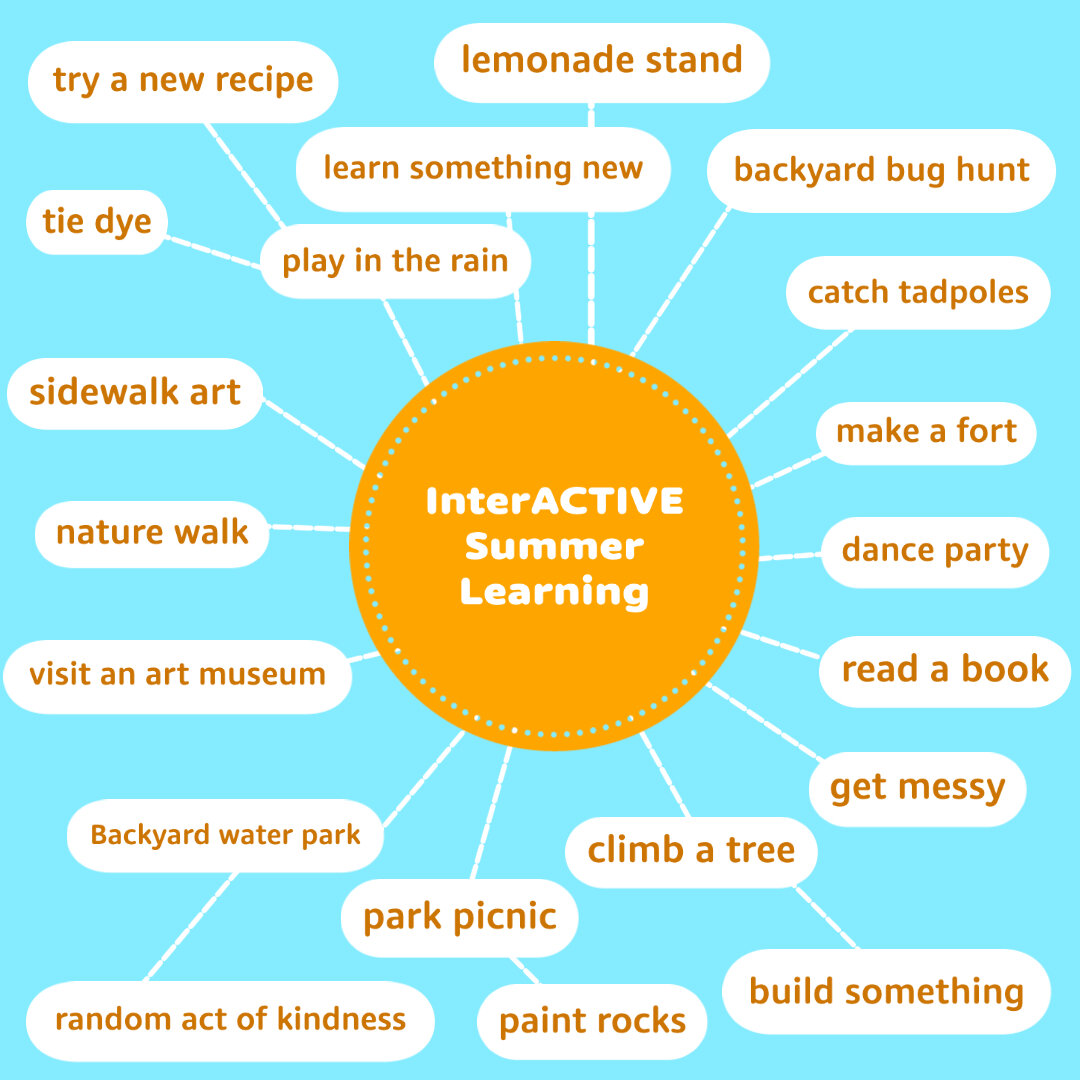
Another thing we have started this summer with our own kids are summer “adventure” journals. The original idea came from a local blogger named Kelli Hampton and essentially we keep track of all the small things we do and journal our memories. You could, as Kelli suggests, make the journal ahead of time as almost a bucket list of sorts, with challenges and things for you kids to do, but we keep ours more organic. Our pages stay blank and we just record whatever memories we wish to. Before summer started we purchased a pack of small, blank passports and are using one of Mrs. Merrill’s favorite classroom tools—her sprocket printer. A sprocket is a small, wireless, photo printer that allows you to print small, Polaroid-like photos straight from your phone. (And as of the day I wrote this blog, the printer linked here was $40 off which is the cheapest I’ve seen it!)


In today’s time we take the majority of photos on our phones and this printer allows the kids to print the photos we took documenting our activity or trip, peel off the sticky backing and plop the photos down in their adventure journals. They then write whatever they like to in regards to what we did, and this allows mom and dad to give a bit of writing review as we go. You could totally make these journals digitally too! We would recommend programs like Book Creator or Buncee for something like this.


What’s great is that the kids usually take the lead and will often ask us to take a photo so they will have it to write about in their adventure journals. They are taking the ownership of it which is always what you want when it comes to learning. The packet of books came with multiples, so if they fill up one book they can start another. Maybe even using one as a place for some narrative writing too! (A mom can hope, right?)
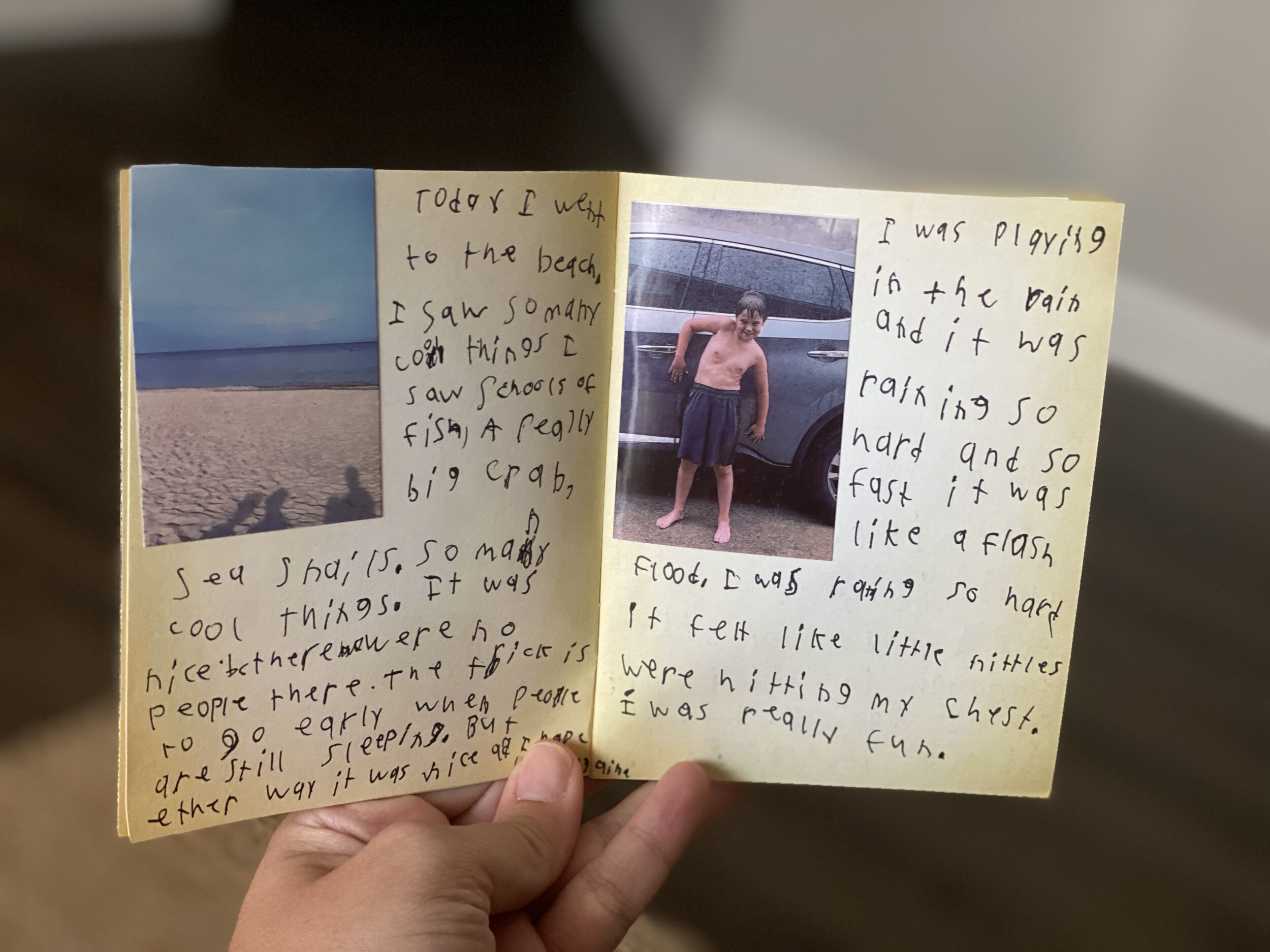
The beauty of interACTIVE learning is that it can happen anywhere! It doesn’t always have to use technology or be in a classroom full of students. Here’s to having a summer filled with memories and learning!
Stay interACTIVE!
~👗➕👓
For more information on how you can make learning in the classroom more #interACTIVE, check out our book The InterACTIVE Class!



Preventing Summer Slide with Buncee
Creating a Buncee doesn’t need to take all week, be part of a long research project or contain different sections etc. Rather, think of Buncee as a quick, one-stop tool where students can go in to keep skills fresh, stay engaged over summer while creating and designing. This is why we think it is a great app to use to prevent “summer slide”.
Buncee is an amazing creation tool, and one of our favorite Ed Tech tools. We highlight it in our book The InterACTIVE Class and it is often the subject of webinars and tutorials that we take part in. Besides being an amazing presentation tool, many educators miss that it is simply a creation tool. Creating a Buncee doesn’t need to take all week, be part of a long research project or contain different sections etc. Rather, think of Buncee as a quick, one-stop tool where students can go in to keep skills fresh, stay engaged over summer while creating and designing. This is why we think it is a great app to use to prevent “summer slide”.
Using Buncee to Prevent the “Summer Slide”
One of the top reasons that makes Buncee such a great platform is that it listens to the educators who use it and they are alway working on adding in new content or adjusting based on feedback. The Buncee team always works very hard to help create and prepare content for educators so getting started with an idea or project is simpler. They have already created a great Buncee to get ideas flowing for summer and it is easily sharable, which means you can push it out to students in a few short clicks.
One Slide Ideas and Activities
Many educators forget that students can create unlimited Buncees and that using Buncee doesn’t have to be for something long and intricate. We love the idea of creating small, bite sized, challenges for students and families to complete together, with the goal behind them being interaction and engagement. The activities could be educational and around subjects and standards specific to that age of student, as well as being fun, interactive activities that get students engaged with the people and places around them. We’ve curated a few ideas here in partnership with the Buncee team for you to copy, share and use right away!

Shopping list math challenge: Have your child keep those math skill alive with a simple “trip” to the grocery store. You could keep the problem as is or make it age appropriate for your own child or class.

Journal writing: Giving kids a place to journal or write is important, especially during a time time like this. Try with one slide and if students like it they can keep adding in slides or create a new Buncee journal each day designed to mirror their mood.

Monster read aloud: Enjoy a read aloud with your child and then have them creatively build based off of that story. Build a perfect monster, or maybe even write a creative story about them. You could even print out the monster for a Flat Stanley-like project!

Recipe Swap: Mix, blend, bake and then share! Whip together a favorite recipe, write it down and share with others! You can even print and save to create a collection of new things to try.

Daily moment of gratitude: Getting kids to stop and think about things they are thankful for is a great way to boost mood and help with positive thinking.

Summer postcard: Have student write to classmates, family members and friends. Send the postcard electronically or print out and mail!

Book Snaps: Have students share favorite quotes, lines, and illustrations in a book but taking a photo of the page and uploading it to Buncee. There they can mark it up, add animations and even include audio of why they connected with that particular part of the story or article.
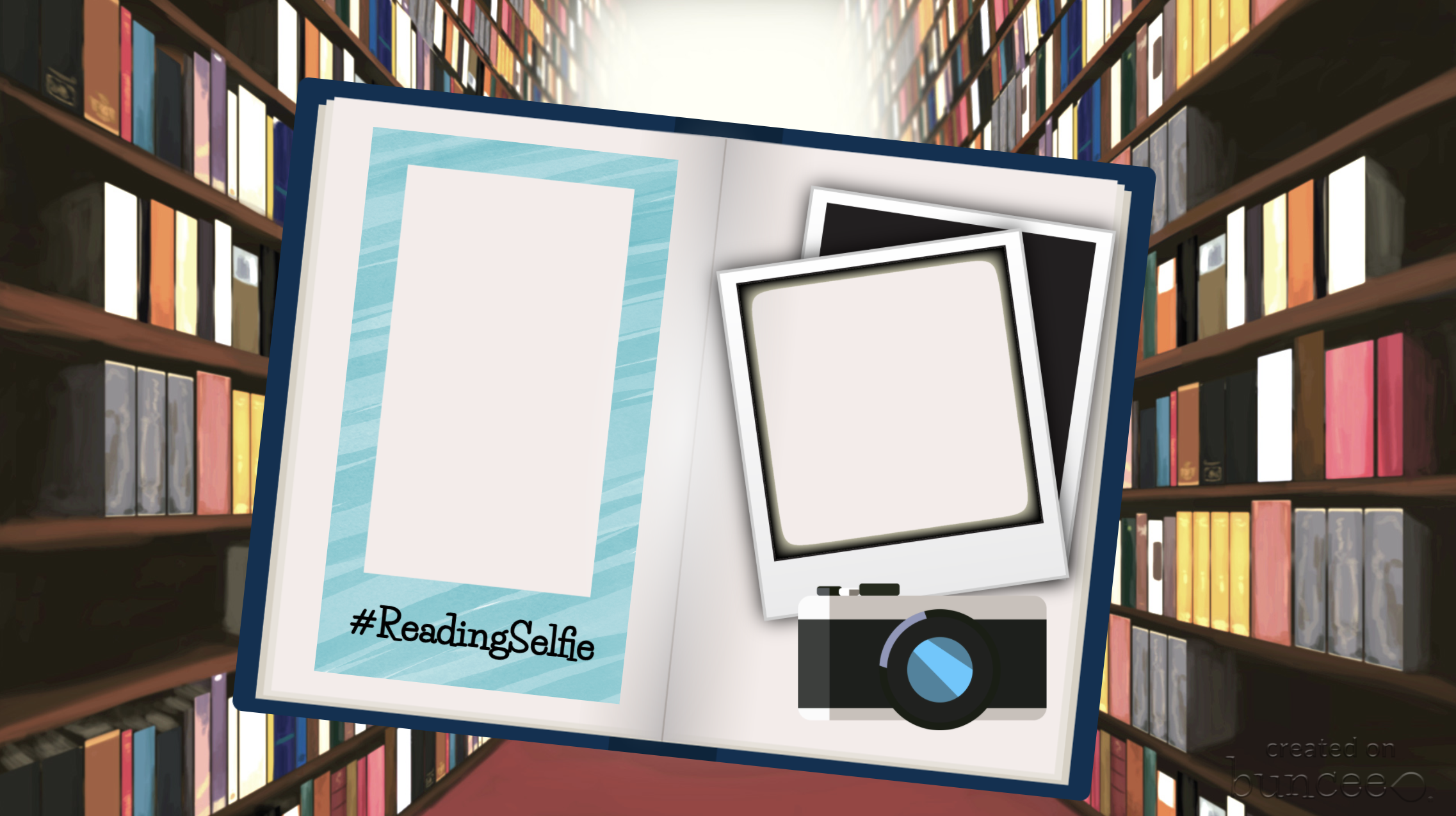
Backyard scavenger hunt: Get kids outside and searching for fun things they may find while exploring!

Virtual classroom or library: Give students a place to go where you can update reading lists, fun family challenges or school specific activities. This would work for an individual teacher or a media specialist.

Buncee Summer Sharing
When thinking of how to integrate Buncee into the summer, we feel like the possibilities are endless. Maybe you send out challenges to a groups of students sitting in a “virtual” summer school class. You could continue weekly check ins with your current class and send a short activity their way for something to do while away from the classroom. Try embedding a Buncee board into your schools webpage with summer resources or on your media center section. You could create challenges based on school theme, integrate summer reading programs or make a few grade level specific activities. Buncee challenges are also perfect for you own children at home or to share with grandchildren, nieces and nephews, etc. We’ve included a few ideas on how to easily integrate Buncee for simple sharing and communication.
Buncee Boards: Create a Buncee board full of challenges and share the link with parents, family members, friends—you name it! All the challenges could then be copied and used by each individual giving them the choice of which to do in what order. If you would like more information on what a Buncee board is, or how to create one, click here.
Wakelet: Buncee integrates beautifully within Wakelet. Send a link to parents at the end of the year, and just embed each challenge as you wish. Students and families can check the link on their time to find your list of curated challenges. Add them all at once or add them as you go.
Flipgrid: Many don’t realize that Buncee is one of the many things you can add as a Topic Focus on Flipgrid. We love this integration because not only will students get to complete the Buncee challenges, but they could then discuss and share on Flipgrid while also linking their Buncee for others to see.
Microsoft: Buncee is also fully integrated into Teams and OneNote which makes it easier to share with students and families over the summer if you can just embed or link it as a tab to a place students are already familiar with logging in to.
Preparing for the Fall
As educators we want our students to enjoy their summer and be refreshed coming back to school in the fall. But with all that has taken place over the past few months, we really do think there is an importance to keeping kids connected to one another, creating content and staying creative until the next school year.
For more information on Buncee, check out our post on how easy it is to create Bitmoji classrooms! They are a great way to keep all assignments, tasks, challenges in one place, and you can even link different Buncees together to create multiple “rooms” or learning spaces within the virtual space. Read more here!
For more ideas and lessons using Buncee, check out our book The InterACTIVE Class!


Stay #interACTIVE!
-👗➕👓

@TheMerrillsEDU Summer Tour!
We had big summer plans…then things changed…Now, you can catch us “virtually” this summer at any of the INCREDIBLE events below! This summer doesn’t have to be a bummer!
We had big summer plans…then things changed…Now, you can catch us “virtually” this summer at any of the INCREDIBLE events below!

Wakelet Live!
First up for us this summer is Wakelet Live! Please join us on Wednesday, June 3rd at 11am EST as we discuss “How to Use Wakelet in the Classroom.” The presentation is free, but requires registration. Seats are filling up fast, so don’t wait!
The InterACTIVE Class Book Study!
You asked, and we listened! We’re starting an InterACTIVE Class book study! The party starts June 11th and wraps up on July 16th. As a group, we’ll share tips, tricks, and different ways to use apps. Join in on the fun by purchasing your copy of the book, then joining our Book Study Facebook Group!
Purchase the book by ⚡clicking here⚡
Join the Book Study by ⚡clicking here⚡


Great Plains Summit
Join us on July 16th & 17th for the Great Plains Summit! You’ll learn from topics such as Google, AR, and a presentation on Flipgrid, followed by a workshop from us! Many more details to come soon, but for now you can find info by visiting the Great Plains Summit website.
Indiana Connected Educators Conference
Our next stop is from July 20th - July 24th for the Indiana Connected Educators (virtual) Conference. This MASSIVE event is FREE and features 80+ Ed Tech Leaders. More information regarding our session and time TBA soon!


Teach With Tech Conference
Our last stop for the summer is the Teach With Tech Conference which kicks off July 27th! This virtual conference features 70+ sessions, and early bird tickets are available for $19.99.
Purchase our book, “The InterACTIVE Class!”


Bitmoji Keychain Keepsakes
With the end of the year quickly approaching, the way we celebrate with our students will definitely look different this year. Sadly, we are not going to be able carry out our end of year celebrations, reflect together and create memory books, or compete as a class during field day or other school wide events. So doing what educators always do when faced with something new, we adapt and change!

With the end of the year quickly approaching, the way we celebrate with our students will definitely look different this year. Sadly, we are not going to be able carry out our end of year celebrations, reflect together and create memory books, or compete as a class during field day or other school wide events. So doing what educators always do when faced with something new, we adapt and change! This year I wanted to give my students something as an end of year gift, but just converting what we normally do didn’t really fit. Our end of year celebration usually consists of a painting party where students leave their mark in my classroom by painting ceiling tiles. And my usual gift of rainbow treats just doesn’t feel right this year with all that is going on.
Using Bitmojis to Celebrate
So like most interACTIVE ideas, this one came on my morning walk. Bitmojis are not only fun for adults, but kids love and relate to them as well. And as most good ideas, I started with “Hmmmm, I wonder if I can….” and that led me to experimenting with Bitmoji and my childhood favorite Shrinky Dinks to create a fun end of year gift that hopefully my students will keep with them.
Creating a Bitmoji Keychain
To make these key chains you will need a few supplies. I have linked as many as I could:
Shrinky DInk craft sheets (I prefer the Frosted White kind because they were solid white and the Bitmoji image was darker.)
Keyhook keychains
Single hole punch
White or colored card stock
Step #1: To get started, you need to find the Bitmoji that you would like to use. Try searching words like summer, love, and support for some fun image ideas. I knew I wanted to leave a message for students to go along with the keychain itself so I chose my Bitmoji based on my message/poem.

Step #2: If you are using the traditional clear Shrinky Dink sheets, the first thing you need to do is mirror that image so that it prints backwards. This will enable you to print on the rough side of the Shrinky Dink sheet, but students will read and look at the Bitmoji from the smooth, clear side.

If you are using the Frosted White Creative Pack Shrinky Dink sheets: You will just need to skip down to step #3.
Step #3: After your image is chosen (and mirrored if needed), go ahead and size the image on your slide. I arranged 4 Bitmojis per slide and they shrunk plenty small. I would not recommend putting more than 4 on a page or they will be too small to get your keychain pieces through.

Step #5: Once your slide is ready, you are set to print. If you are using the traditional sheets where one side is slippery and one side is frosted, you will want to put the rough or “frosted” side is the side the printer inks on. If you are using the Frosted White sheets, both sides are the same. You may want to do a test print to see which way your printer works—for my printer, I placed the frosted side up.
Set #6: One the sheets are printed, go ahead and cut out the Bitmoji images. Once they are cut out use the hold punch to create a hole in the sheet. This is important to do before baking because once shrunk you cannot put a hole into them for the keychain pieces.

(I didn’t have a single hole punch but it’s easy enough to line up your pieces with a 3 hole punch)
Once ready, follow the baking directions on the package. Preheat the oven to 325 degrees. For mine, I spaced apart the pieces on a baking sheet lined with a paper bag. You can also use tin foil or parchment paper. They curl when put into the oven, and then uncurl. I waited about 30 seconds after they uncurled and then brought out. It was around 3 minutes total. I then removed the charms from the pan and laid them out on the counter, flattened them and let cool.
** Tip **-When taking your shrunk charms out of the oven, make sure to press them down on a flat surface while still warm. I placed them on the kitchen counter and used a dishtowel. This will make the charm smooth and flat. Otherwise it will harden rather bumpy and uneven.
As you can see below there are noticeable differences between the two different types of Shrinky Dinks material. The traditional Frosted Rough and Ready has a clear, shiny side and a more frosty side and shrunk a little smaller when baked. The Frosted White sheets are clearly a solid white and are a tad larger. Either kind will do but if I had a choice I would definitely go with the Frosted White sheets.

Don’t mind my backwards Bitmoji on the left! This is when I started experimenting and was before I realized I should inverse the image.
Once cooled, you can begin the process of attaching the key chain pieces to the Bitmoji charms. You can use all sorts of different key chain pieces, but I chose to use key hooks because I was afraid the charms might break as I worked to put them on the traditional round keychain holders. I took the keychains and used a small piece of tape to attach them to my message cards. I found a sweet message online that I altered to fit my class and just created the card on slides. You could print on either white or colored card stock.

I get to see my students on Friday one last time as they drive through our carline to picked up all their bagged materials. I am excited to hand them this small gift as a way of letting them know I enjoyed being their teacher, that I will miss them this summer, and that I can’t wait to see them roaming campus again soon!
Until next time—stay #interACTIVE!
~👗➕👓
If you are looking for other Bitmoji related ideas, check out these posts:
Building a Bitmoji Classroom (Free resources!)
How to Animate Yourself in a Virtual Classroom
Creating a Virtual Classroom with Buncee (Free Resources!)
If you are looking for other fun, engaging and interACTIVE lesson ideas, check out our book, The InterACTIVE Class!


How to Create a Virtual Classroom with Your Bitmoji in Buncee!
Virtual Classrooms are a great way for educators to deliver content to students in a fun and engaging way. Buncee makes creating one easy! You’ll learn how to create and share your virtual classroom to your students!
Virtual Classrooms are a great way for educators to deliver content to students in a fun and engaging way. Educators can add a Bitmoji into a virtual classroom to create an animated experience for students. You can even organize the images in your “classroom” so that they hyperlink out to external sources! Our preferred tool to create virtual classrooms is Buncee. You can sign up for an account by clicking here!
In this tutorial, you learn:
💥 HOW TO ADD A VIRTUAL CLASSROOM BACKGROUND
💥 HOW TO ADD IMAGES TO YOUR VIRTUAL CLASSROOM
💥 HOW TO ADD TEXT IN YOUR VIRTUAL CLASSROOM
💥 HOW TO ADD HYPERLINKS IN YOUR VIRTUAL CLASSROOM
💥 HOW TO SHARE YOUR VIRTUAL CLASSROOM
💥 HOW TO ADD A VIRTUAL CLASSROOM BACKGROUND 💥
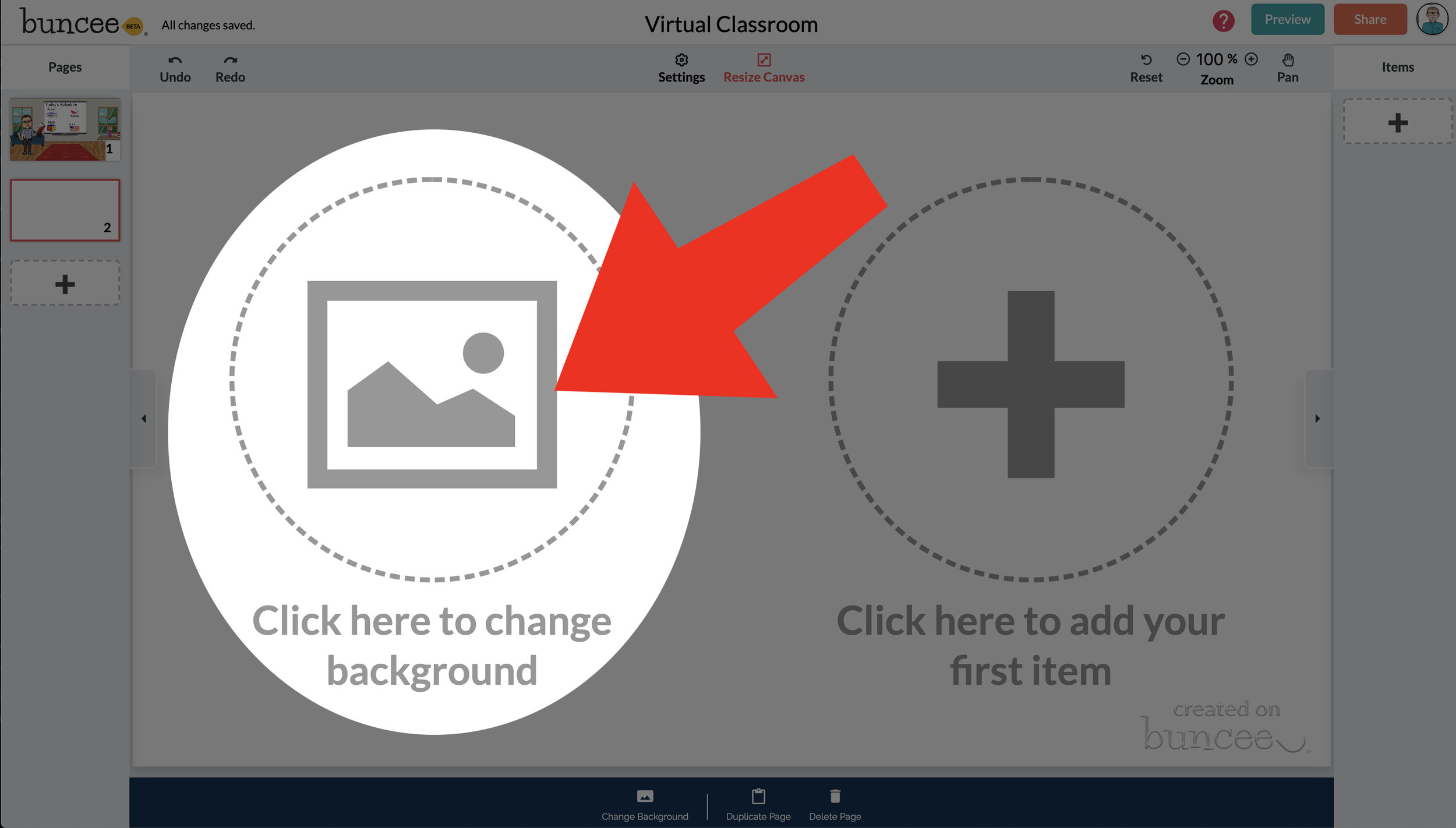

To get started, log into your Buncee account and create a new Buncee. Open the new Buncee and the first thing you’ll want to do is add a background. Follow these steps:
Tap the "click here to change background” option, then search for “class.”
Scroll through and find one that is right for you. There’s lots to choose from! You can find background images with smart boards, chalkboards, and more.
Once you find a background image that works for you, click it. Then, click the blue “add” button just to the right of the search bar. Now, your background is set and locked!
💥 HOW TO ADD IMAGES TO YOUR VIRTUAL CLASSROOM 💥
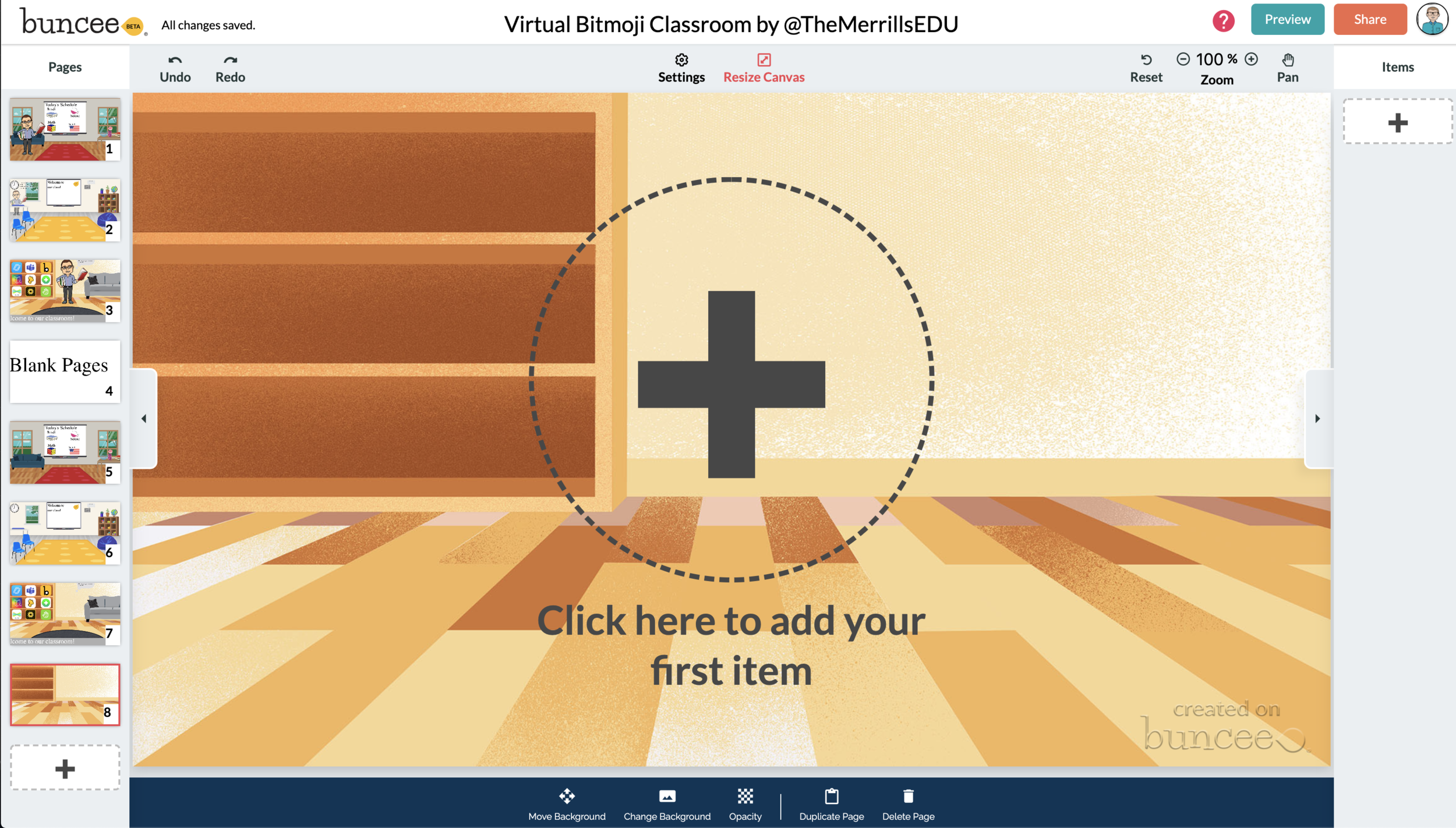

Now comes the fun part…Design your virtual classroom with some images! Click on the “+” sign to add an item. Use Buncee’s search tools to find items that you’d like to add to your classroom. Some fun things to search for include:
Smart Boards
Desks
Books
Clock
Computer
Bookshelf
Chair (you can even find a bean bag chair!)
Window
Couch
Speech (for a speech bubble)
If you’re having a hard time finding items to add, try typing “school” into the search bar. There are tons of item results that will pop up and you can use. You’ll find stickers, still images and moving gif images.
💥 HOW TO ADD TEXT TO YOUR VIRTUAL CLASSROOM 💥
After you’ve added all the items to you virtual classroom, you may want to add text. You can add text on top of items, like your smart board. This is a great way to deliver instructions for your students. To add text in Buncee:
Click on the “+” sign
After the Buncee features window will opens, click on the “text” icon (located to the left of the window)
Double click the new item to enter your text.
Once you have your text ready, you can change the font or font size by clicking the font options located on the bottom of the screen.
Move and place your text accordingly.

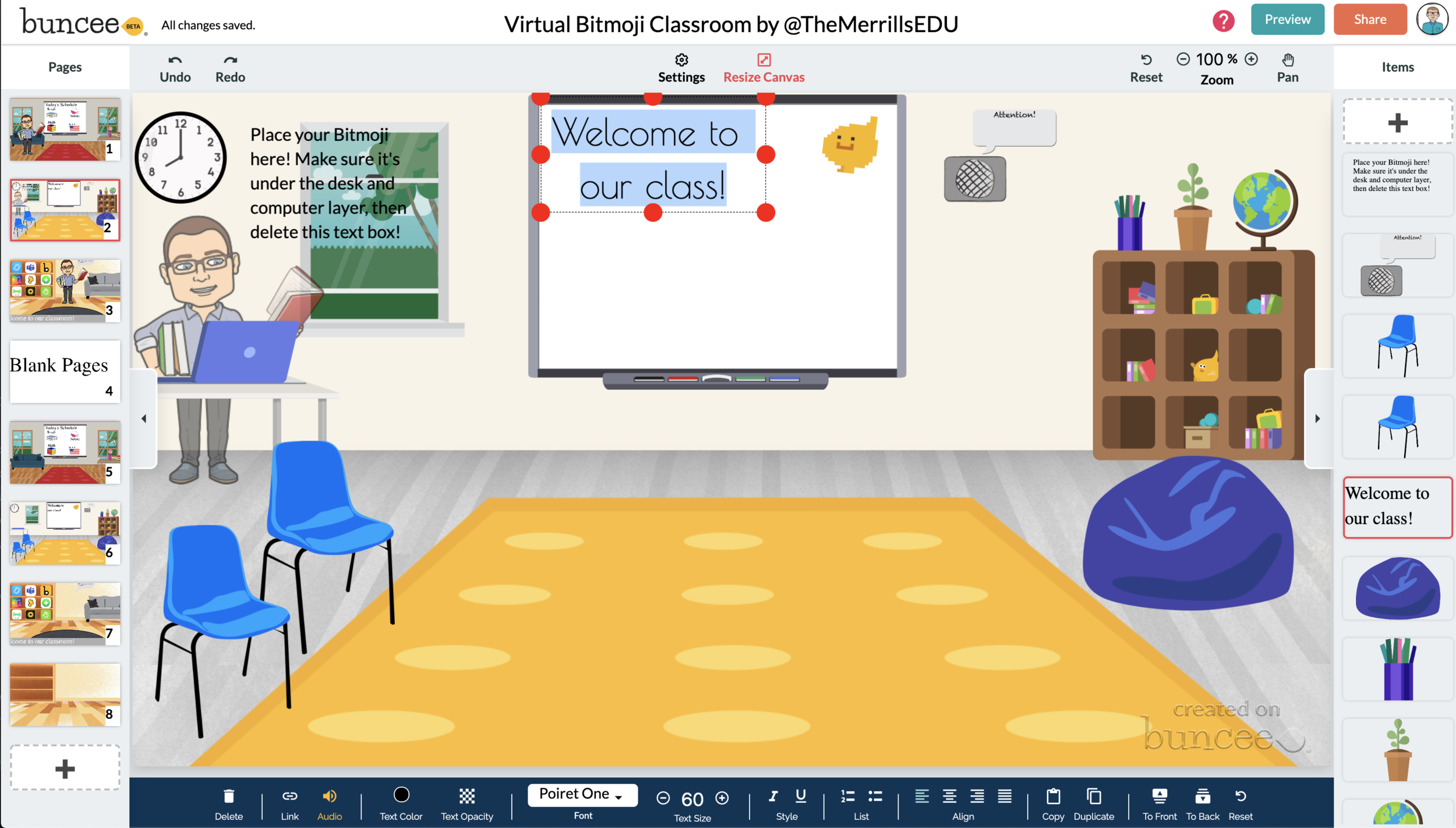
💥 HOW TO ADD HYPERLINKS IN YOUR VIRTUAL CLASSROOM 💥


After you have your items and text in place, now it’s time to start hyperlinking. When you hyperlink, your students will be able to click on the items (or text) that you have entered and it will take them to an external source. For example, if you use the Buncee logo, you can hyperlink it so that when it’s clicked, it will take you right to the Buncee login screen. Hyperlinks can be added to any item or text that you have added on Buncee. To add a hyperlink:
Click on the item or text that you want to hyperlink
Click on the “link” option on the bottom of the Buncee features toolbar
Enter the URL into the box
Press enter to “update” the item
💥 HOW TO SHARE YOUR VIRTUAL CLASSROOM 💥
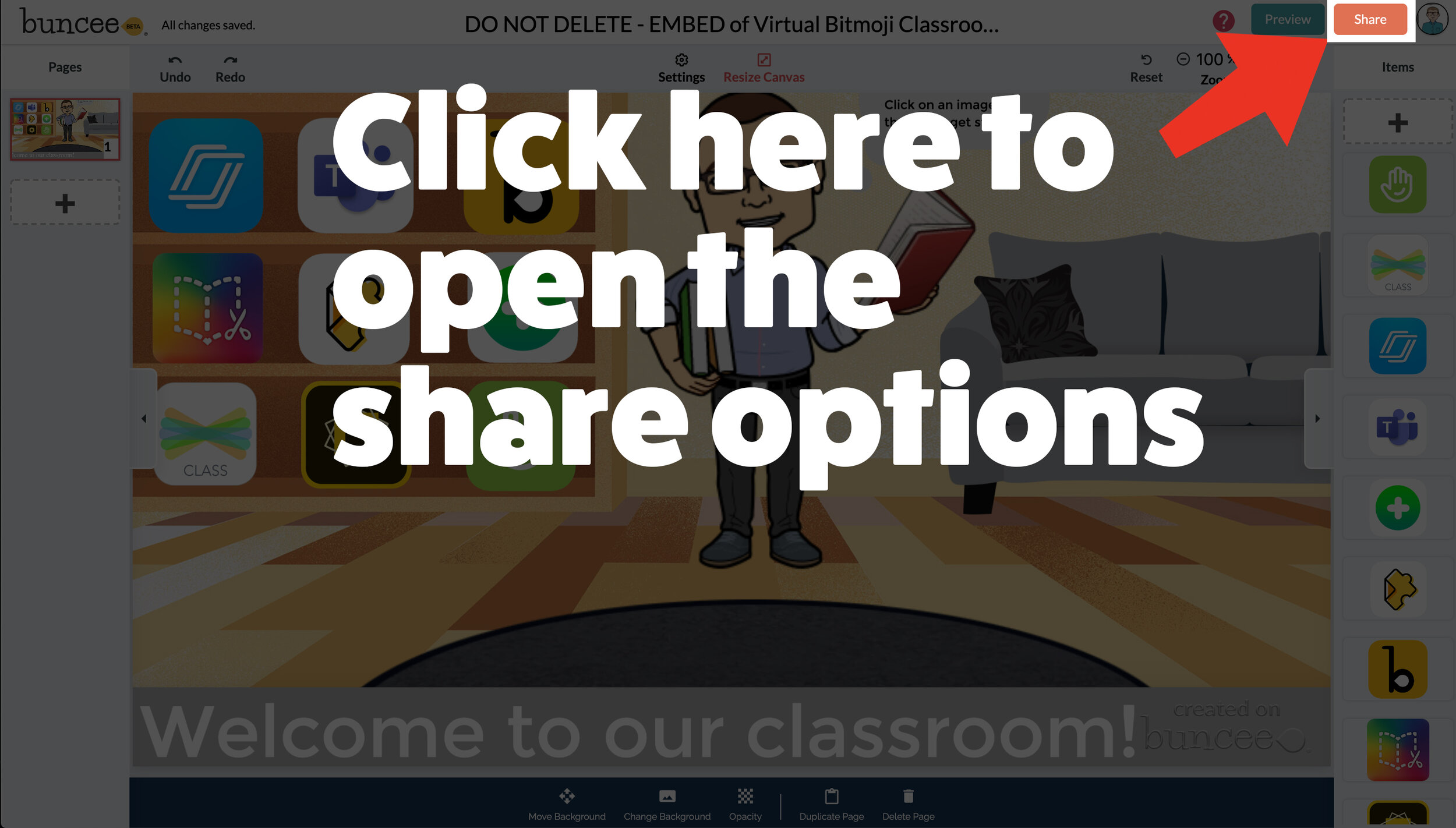

Now that your virtual classroom is ready, it’s time to share it with your students! There are several options to share in Buncee:
Share the Buncee slide deck link
Embed the Buncee slide deck into your LMS (Canvas, Schoology, Microsoft Teams, Google Classroom)
To share the Buncee slide deck link:
Click the red “Share” button
A new window will open. Click “Code” (second option from the top)
Next to the link box, click “Copy.” This will copy the URL to your Buncee.
Share the URL with your students
To embed the Buncee slide deck:
Click the red “Share” button
A new window will open. Click “Code” (second option from the top)
Next to the Embed Code box, click “Copy.” This will copy the embed code to your Buncee. (Tip: you can also click on “Show Options” to change the size of the embed)
Open your LMS (Canvas, Schoology, or anywhere you can embed) and click on the embed option. Paste the embed code from your Buncee, then hit save. Your Buncee will now be embedded into your page.
To share to Microsoft Teams, Google Classroom, or other social outlets:
Click the red “Share” button
A new window will open. Click “Social” (sixth option from the top)
Select the app that you are trying to share to, then follow the instructions

💥 FREE Templates! 💥
We’ve created several templates that you can download, copy, and edit. You can scroll through the different pages by clicking the arrow on the right. If you would like to download these, click here or the image below.

To view the templates, check out the embed of them below!
💥 YouTube Tutorial! 💥
Still not sure how it all works? We’ve got you covered! Check out this walkthrough!
For more #interACTIVE lesson ideas using Flipgrid, check out our book The InterACTIVE Class on Amazon!


Creating Digital Breakouts with Flipgrid
The thrill of escaping from a level and breaking out of a lesson is appealing to many students and teaching and learning through games is just one of the many ways you can create #interACTIVE learning environments and lessons—especially when teaching digitally through remote learning.

Being as versatile as it is, it should come as no surprise that Flipgrid can be used to “gamify” the classroom. One of our most asked about lessons from our book, The InterACTIVE Class, continues to be “My Teacher Stuck in a Video Game.” The thrill of escaping from a level and breaking out of a lesson is appealing to many students and teaching and learning through games is just one of the many ways you can create #interACTIVE learning environments and lessons—especially when teaching digitally through remote learning.
Creating a BreakOut Game with Flipgrid
Before creating your breakout grid, you need to plan ahead and create the problems your students will be working through. You will need the answers to input into your Flipgrid portion of the breakout as they will become the codes students enter as they try to unlock the Grid and Topic.
To begin, start by creating a new Grid. This can be done by clicking the Add New Grid button in the upper lefthand corner of your Educator Dashboard. When creating your new grid, you are going to choose the Student ID option. Normally this option is used for schools where students are without emails, but for the purpose of our breakout lesson this type of grid will allow you to “lock” your grid with an answer.

Make sure to give your grid a name familiar to the lesson so students can easily find it. At the bottom of the grid creation window you will be asked if you want to customize your Flipcode. This is the code that students use to access the grid. The Flipcode is the answer you would like to have for your breakout and this should be thought out before creating your grid. You need to know what you want the answer to be for students to use to unlock the grid and what problem you want them to work through in order to get that answer. Flipcodes can only be numbers or letters so your answer needs to be one or the other or a combination of both. You may have to play around until you find an unused Flipcode, so be patient and creative with your combinations.
Once your grid is created and “locked” with your custom Flipcode answer, the next thing to do is set up the student ID portion of the grid. Normally, this is where you would enter in all students from the class and assign them their own unique passcode to gain entry to the Grid. But when creating a Brekaout Grid, you don’t need to enter in all the students. You are only going to have one student entered—and this entry will be the answer or code to unlock the grid.

You cannot leave the field for student name blank, so you can put a period in both boxes, or create a fun entry like Awesome Student. (We like this second option because once students break into the Grid and go to record an answer to the topic(s) this is the identifier that will appear in the box for their name. Students can then change their name when recording, but it adds a personalized, fun touch. Regardless of how you fill in the name boxes, the student ID box is the important box because this is where your second answer is put to unlock the grid. Again, this ID can be number, or letters so your answer can be made up of either.
Preparing the Topic
Once students have solved and completed 2 problems they will now be logged into your Grid and ready to record a Topic. You can make this topic related to the subject and concept being taught or something fun and reflective. You can extend the game and add various topics with challenges for students to complete. Maybe incorporate a Fliphunt. You can even make it more advanced by linking another grid to the topic by embedding the link in the Topic Essentials. (ie directions window)

Flipgrid Disco Library
In addition to creating your own BreakOut activities in Flipgrid, BreakoutEDU (one of our favorites!) is a partner in the Flipgrid Disco Library. You can find dozens of digital breakout games straight from the BreakoutEDU platform free to use. You can just click and copy the activities right into your own personal Grid.
Read more about using Flipgrid to create #interACTIVE lessons for students:
For more #interACTIVE lesson plans and ideas using Flipgrid, check out our book The InterACTIVE Class on Amazon!


Using Teacher View in Student Paced Mode with Nearpod
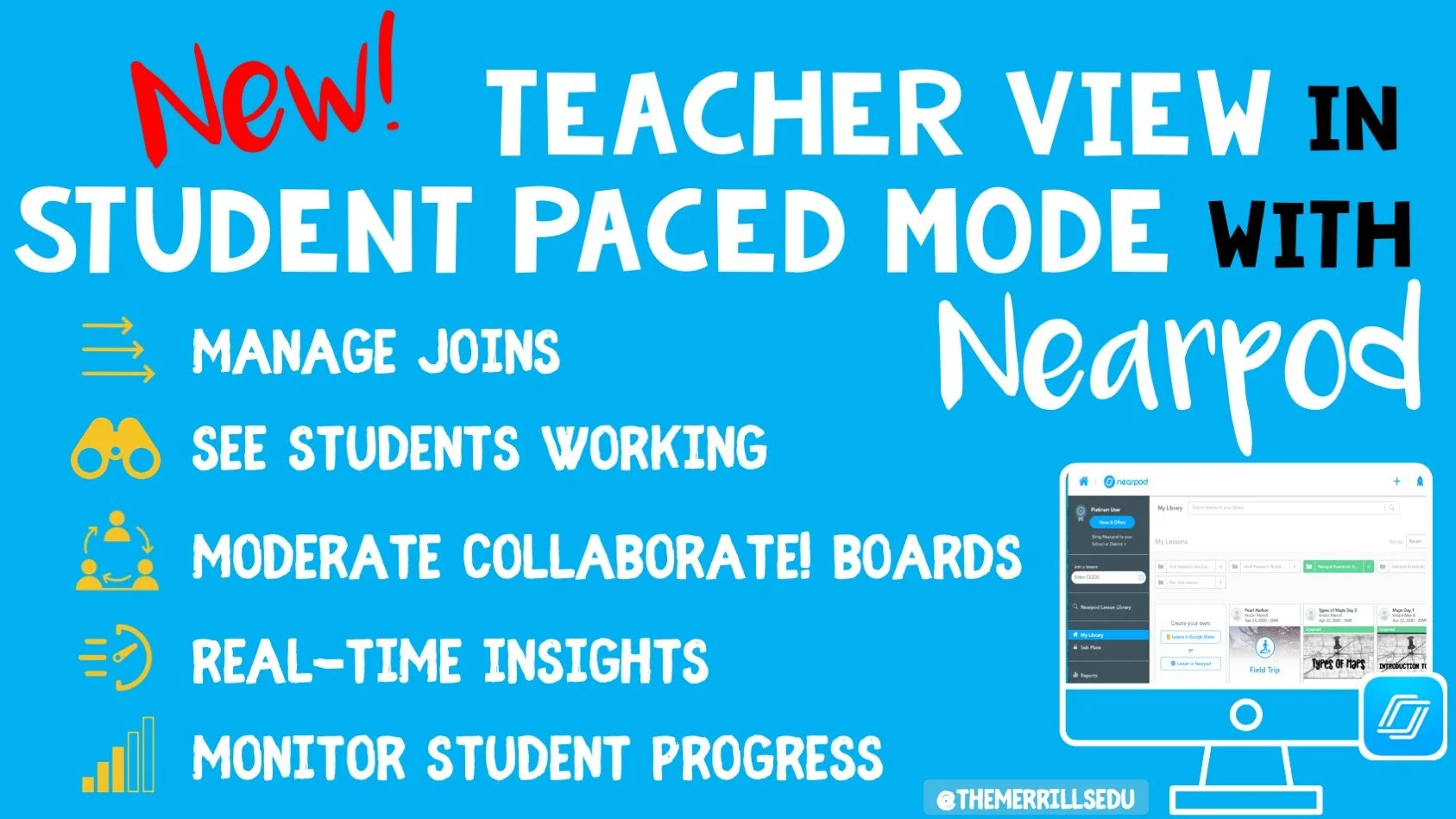
With teachers all over the world ending the school year with remote learning, Nearpod has come through with a helpful update to their already robust platform—teacher view during student pace mode!
With teachers all over the world ending the school year with remote learning, Nearpod has come through with a helpful update to their already robust platform—teacher view during student pace mode! Teachers were used to having specific control during teacher-led mode, and now many of these same features are available when lessons are set to student paced. This gives teachers the opportunity to create asynchronous lessons for students to complete when their schedule permits, while still giving teachers the ability to monitor and moderate over that extended time.
Using Teacher View to Monitor and Manage
Teachers are using Nearpod’s self-paced mode more than ever during remote learning, and these new features released will help teachers be even more efficient while monitoring and managing student work.
Manage Students as They Join
Teacher view allows you to quickly see who has joined your student-paced lesson. It can be helpful to know who is working on what lesson when, but this features also makes it easier when giving feedback to students. Now you can give feedback faster since you know they are are on and working.
Moderate Collaborate! Boards
Monitoring student work is a foundation of good teacher and it has become one of the hardest things to do during remote learning. Now teachers can moderate student responses when using the collaborate feature. They can delete posts from Student-Paced collaborate boards by viewing the board in their reports. Read more on how to enable collaborate boards in student paced mode here!
Monitor Student Progress
One of the great features of Nearpod is it’s ability for teaches to see in real time how their students are comprehending and taking in new information. Now this can be done in self-paced mode too. Teachers can go in and see a student’s collaborate response, their quiz report or other activities in real time for immediate feedback and updates just like when using live!
Stay #interACTIVE!
-👗➕🕶️
For more tips, tricks and lesson ideas for making learning more interACTIVE, check out our books The InterACTIVE Class and Flipgrid in the InterACTIVE Class on Amazon!


Creating Flipgrid Book Talks During Remote Learning
I was determined to find a way for us to share this time together even though we are apart and Flipgrid was the perfect platform to do this in. The multiple features and tools within the Flipgrid platform make read aloud possible and still give us a space for discussions during this time of asynchronous learning.
Reading aloud to my kids was something I enjoyed doing every day. We would sit together, read through a story together and talk. We would journey through the various stories together, each taking away different things, sharing as we went. When we moved to virtual teaching online, the path of remote learning looked like it would take away this time.
I was determined to find a way for us to share this time together even though we are apart and Flipgrid was the perfect platform to do this in. The multiple features and tools within the Flipgrid platform make read aloud possible and still give us a space for discussions during this time of asynchronous learning.
We continue our reading daily so after dividing the book up into daily sections, I recorded myself reading. Now there are two ways to do this. 1) Record directly into Flipgrid and then put the video as your Topic focus. This will house the read aloud portion in the thumbnail of the topic. You can record up to 10 minutes in one video which makes it much easier to read a nice portion of your story. 2) The other option is to record the reading video in another platform and then attach to the Topic. This is what I did. I chose not to use the Topic focus for my actual read aloud because I like to use my Topic focus as a place to start the actual discussion.
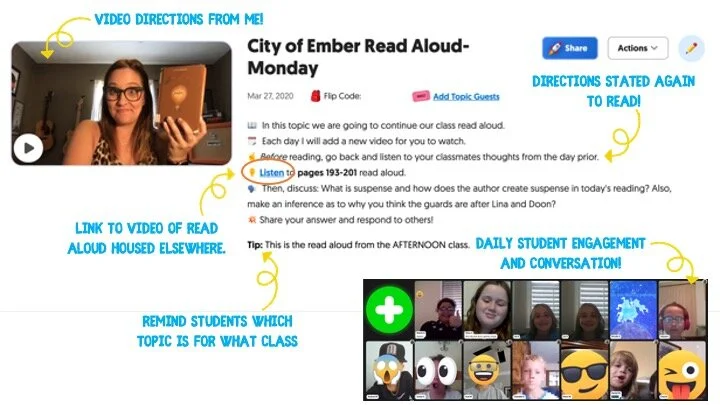
In addition to starting the discussion within my Topic video, I also wrote them out in the prompt portion of the Topic. I like to use emojis to make the different steps stand out. Emojicopy.com is a great place to find, copy and paste emojis for this. The Tip feature is also great to help my different classes know which read aloud was for them, but you can use this to give recording hints, a reminder for discussion and much more!
Finally, many miss the link feature within the Topic prompt. This is where I linked my read aloud. The students would click there, be taken to a safe search window where they would watch me read the book, and then they would participate in our discussion back on Flipgrid. You can also link the read aloud as one of the 9 Topic attachments you can have. For more information on how to attach links as Topic attachments check out this YouTube tutorial.
You can choose to moderate videos before they appear, but I chose to just participate with the students’ discussions rather than moderating beforehand. Finally, once I had the first day’s Topic created, I used the Duplicate Topic feature to duplicate the entire Topic.

I then went in and changed out the link for listening, rerecorded a new direction video and changed out the prompt in the directions. This was a HUGE time saver since I had 5 to do each week for both classes. I could keep the same emoji decorations, list of directions etc. and just change out the parts that were different each day. (read aloud video, discussion prompt)
Our read aloud ended last week and I thought the kids would be happy to have one less thing to do. Completely the opposite! They are asking when the next book will be started and what we will be reading! I can’t wait to continue this time of reading and discussion while we are #remotelearning and I am thankful to have a platform like Flipgrid to facilitate this time with my students.
-K 👗
For more #interACTIVE lesson ideas using Flipgrid, check out our book The InterACTIVE Class on Amazon!


Creating Digital Anchor Charts in Flipgrid
Flipgrid is by far one of our favorite educational apps to use both in the classroom and even more now during this period of remote learning. It has many useful features for teachers to use when creating lessons, one of these being the photo sticker tool.
Flipgrid is by far one of our favorite educational apps to use both in the classroom and even more now during this period of remote learning. It has many useful features for teachers to use when creating lessons, one of these being the photo sticker tool.

Using the Photo Sticker Tool to Create Anchor Charts
To create a virtual lesson on Flipgrid with an “anchor char” start by heading to the top bar in the educator dashboard and click on the Shorts tab.

You can use the Flipgrid features in any recording screen in Topics, when recording a response and a reply, but we suggest using the standalone Shorts camera option so all your teaching videos are saved and stored in the same place. To begin recording a video, simply click on the orange-pink button in the top, right hand corner labeled Record a Short.

Once in the Shorts recording window, begin by clicking on the photo sticker tool icon. This is the icon on the far right of the tool bar—the one that looks like a framed photo.

It will ask you to drop in or upload a photo from your device in either PNG or JPG format. Once your photo has been uploaded, it will become a free floating image on top of the recording screen. To create your anchor chart, simple size the image as large as you can so you still have enough room to be in the screen beside it. Now you are ready to record!
While recording your lesson with your anchor chart, try using some of the other Flipgrid tools simultaneously:
Pause feature: Once recording has begun, the record button turns into a pause button. Use this to switch between various anchor charts in the same lesson. You can also use the pause feature to add multiple images at once.


Draw tool: Use the draw tool to live ink on an anchor chart to highlight a specific part of the chart or you can draw attention by circling text evidence. You can even use it to match two things together on the “page” or to take notes off to the side.
Text tool: Try using the text tool to “write” directly on top of your anchor chart. This is a great way for teachers to model their thinking for students and to work through problems “together”.
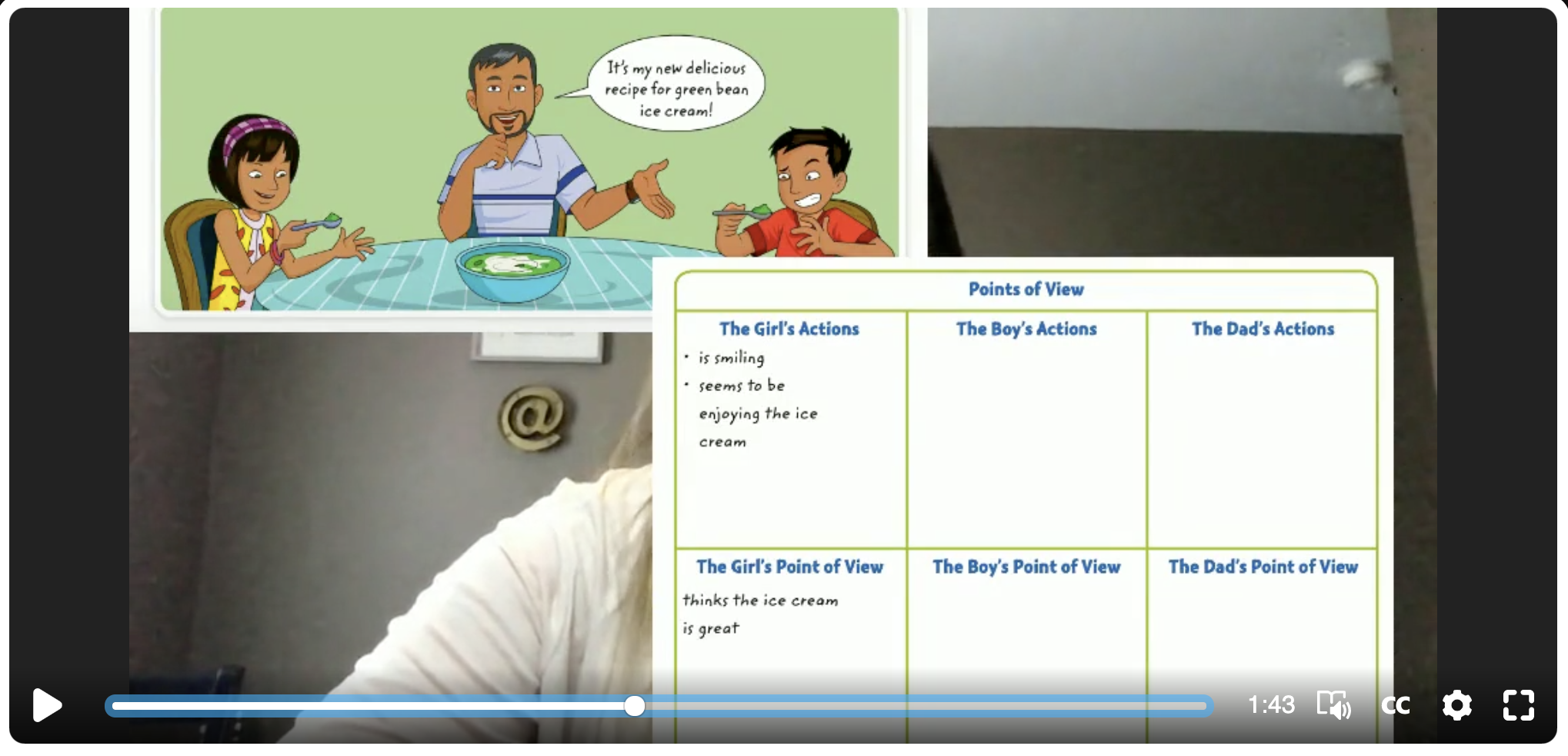
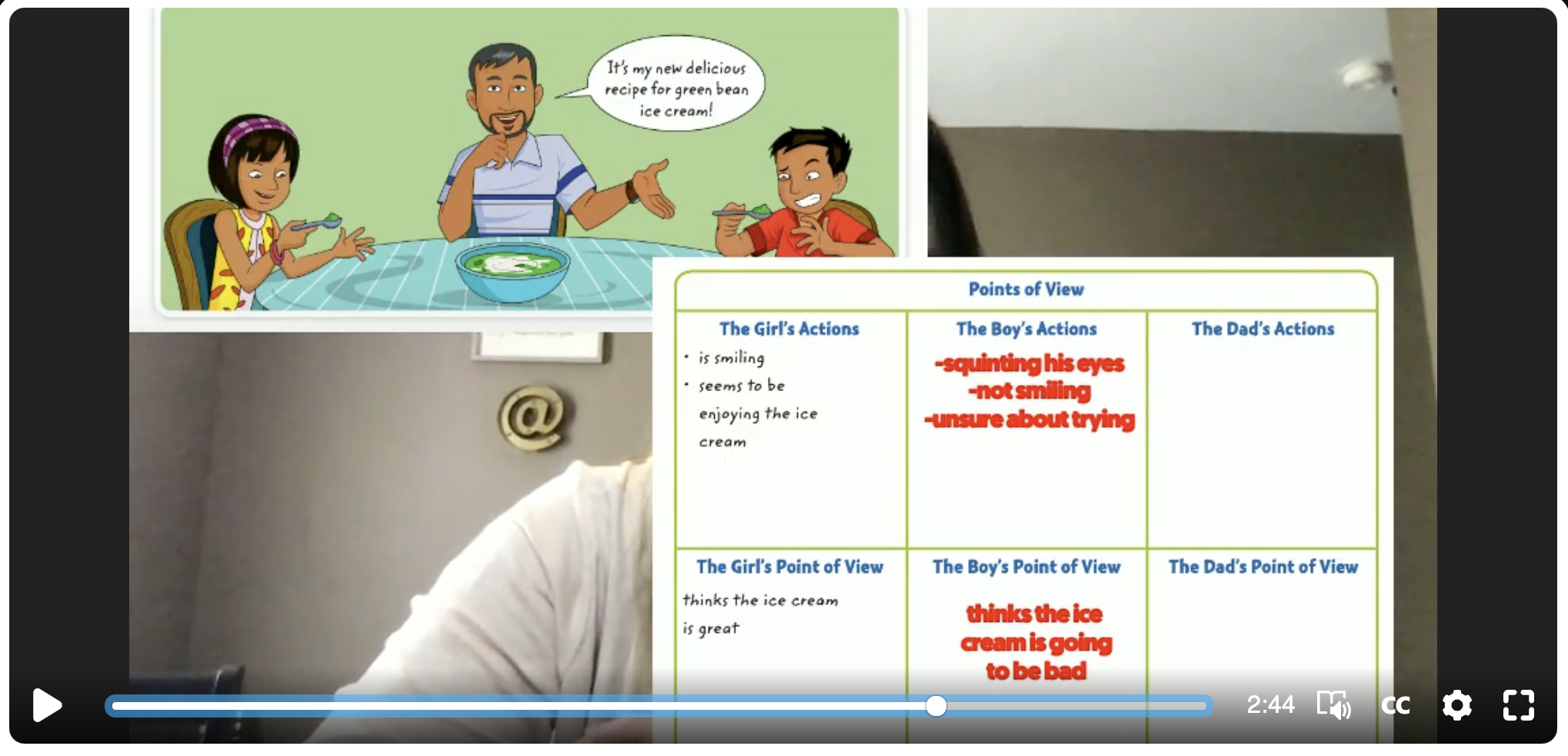
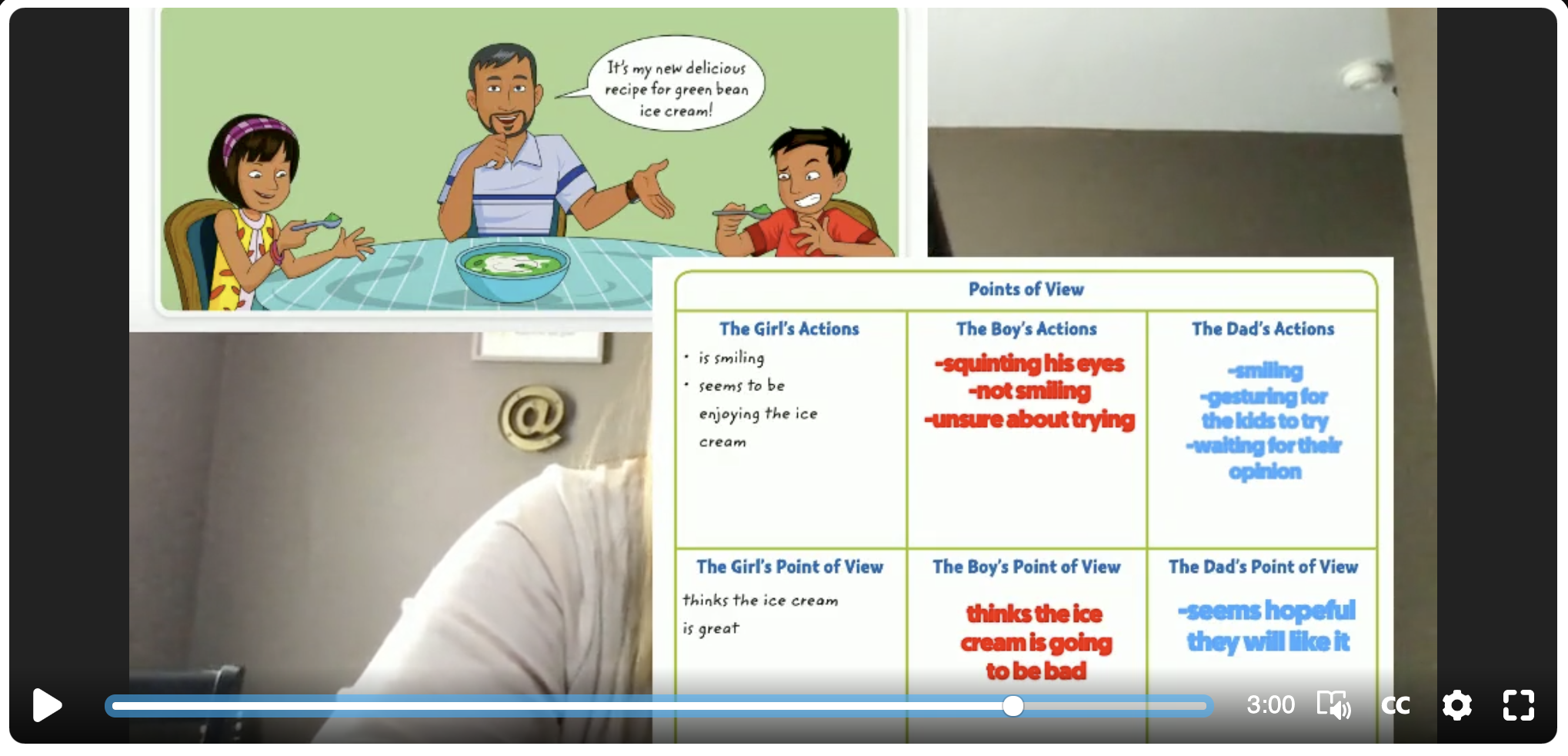
Looking for more resources on creating anchor charts? Watch our live tutorial here!

Flipgrid is such a versatile tool and one that we use daily during our own remote learning instruction. Interested in learning more about Flipgrid?
Click here to learn more about Using the Draw Tool in Flipgrid
Click here to learn more about Going Live on Flipgrid
Click here to learn more about Using Flipgrid for Inquiry
Click here to learn more about Creating Student Podcasts in Flipgrid
For more #interACTIVE lesson ideas using Flipgrid, check out our book The InterACTIVE Class on Amazon!


Lesson Resources for Remote Learning: Spy Transformations
Transforming the classroom has always been one of our favorite ways to engage students. They walk in intrigued, curious as to what the day of learning would hold for them. This heightened interest would help them persevere through difficult tasks they might otherwise give up on. Plan a week of spy themed activities or turn your students into learning detectives. Dress the part, play some music and infuse this theme into any content you are teaching.

Transforming the classroom has always been one of our favorite ways to engage students. They walk in intrigued, curious as to what the day of learning would hold for them. This heightened interest would help them persevere through difficult tasks they might otherwise give up on. It created an atmosphere of challenge balanced with fun and interaction. Well why not do this virtually?! Plan a week of spy themed activities or turn your students into learning detectives. Dress the part, play some music and infuse this theme into whatever content you plan on teaching.
Spy Themed Resources
To help you with your content creation, we have curate various resources available for you to take and use. We spread the resources across platforms in an attempt to find things that everyone can use regardless of how their distance learning lessons are structured and set up. Please feel free to share with colleagues and other teachers in your PLN who may benefit too!

Spy-themed Slides
Slides Mania is an awesome resource for teachers with slide decks for all occasions. Check out this set of slides perfectly suited for problem solving and detective work. Slide decks are available for both Google Slides and Powerpoint.
Seesaw Mystery Slides
This idea was shared with us awhile ago by an educator named Kris Szajner and we think it is a perfect #interACTIVE activity for a week of remote learning lessons themed around spies or detectives. Simply have students search for hidden text within the slide. This is done by changing the color of the text to black after formatting & “hiding” it in place. Then, using the “magnifying glass” (which is just an enlarged text box window), students hunt for the hidden text. It could be multiples of a number, the words matched with definitions, the main idea of paragraphs—easy to adapt to any content and standard. Grab the mystery template here!


Secret Spy-Themed Soundtrack
Add some flair and suspense throughout the week with some music! You can use this free soundtrack on YouTube as a background soundtrack for your live Zoom or Google Meet calls or for any recorded teaching material you make for your distance learners.
Spy and Detective Background Images
Use this slide deck for fun, detective themed images you can use while recording lessons for students or during live calls in the various platforms. Snag the slides here!


Digital Break Out
We love doing break out games with our kids in the classroom, so while out during remote learning why not bring it to your students. This STEM themed digital breakout is one of the many on the Breakout EDU website and does require platform access. But, check out free digital games in the Flipgrid Disco Library. A few of our favorites include, Around the World in 30 Days, Design Decisions, and GPS Mess.
Spy Themed Stories
During remote learning there are many platforms offering free resources for students to read while working from home. Epic! is one of these platforms worth checking out. When searching “spy” a combination of over 60 fiction and nonfiction titles came up ranging from Geronimo Stilton, to WWII Spies and much more. For more info on using Epic click here.
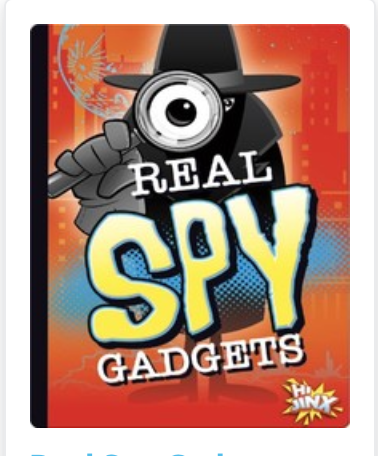
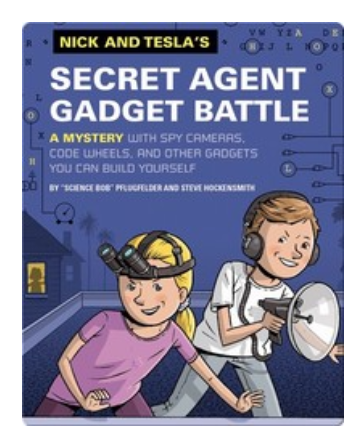
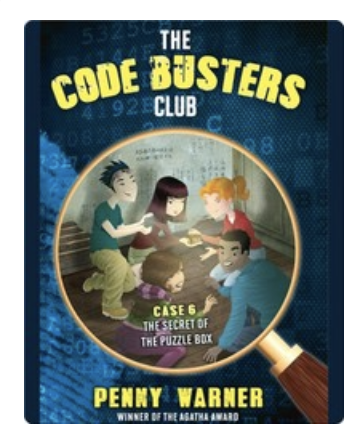

Spy Scavenger Hunt (Live!)
Have you tried playing a game live with your student while on a call. Whether you use Zoom, Microsoft Teams, Google Meet—the principal of the game is the same. Take the general “scavenger hunt” and turn it into a live “spy hunt.” Have students race through the house to find items various themed items like a flashlight, a magnifying glass, a hat and more. For the complete list click here!
Remote Learning Read Alouds
Storylineonline.com is a great reading resource during remote learin. The Case of the Missing Carrot Cake is just one of the many books available for free use. Narrated by Wanda Sykes, students read to learn about what happens to Miss Rabbit’s cake goes missing and what the detectives do to track down the thieves. Read it here! Another great title offered is Private I. Guana read by Esai Morales and The Coal Thief read by Christian Slater. All books come with activity guides for teachers and for parents.

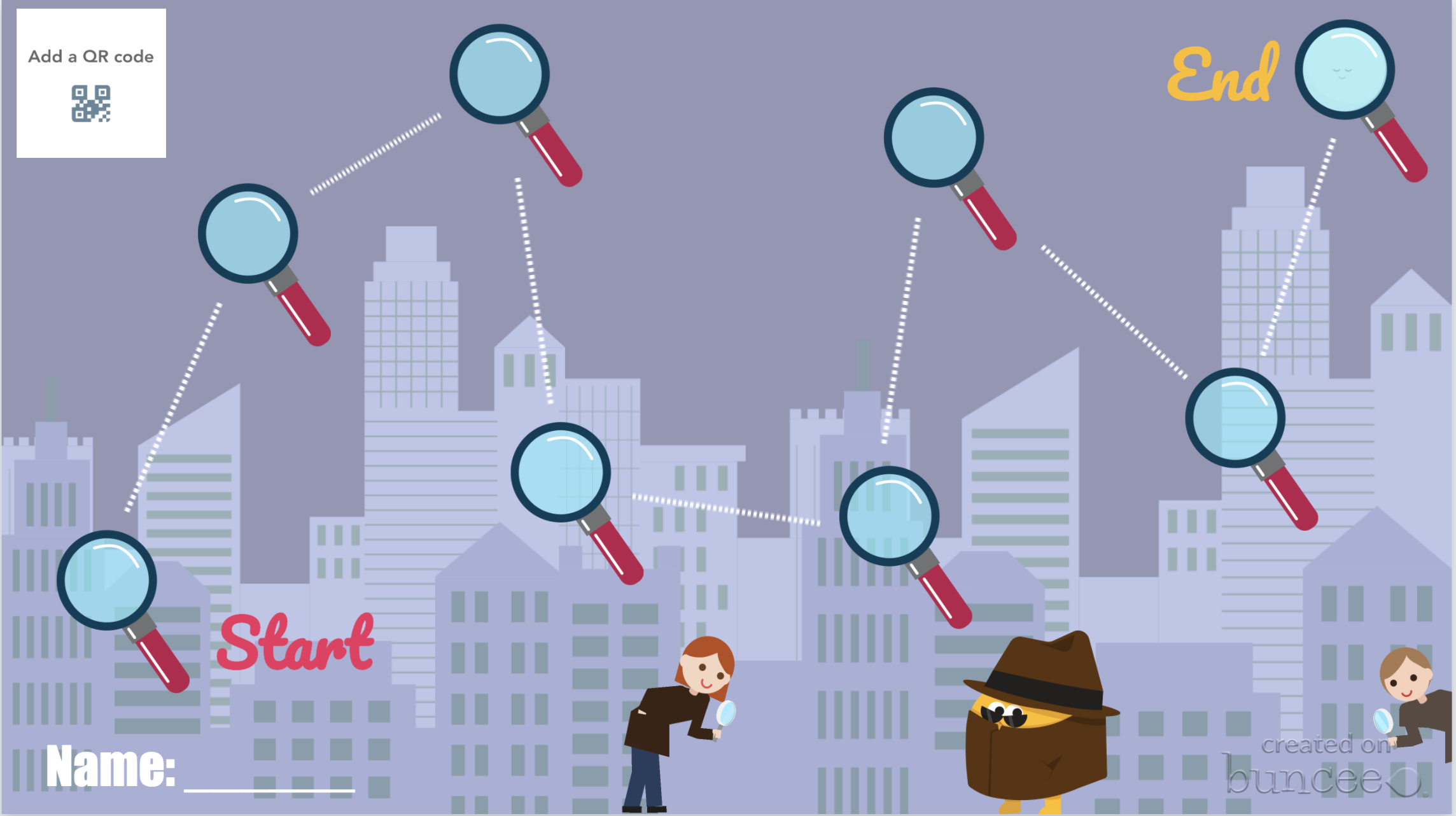


Buncee Backgrounds and Images
Student creation is always important so why not assign your tasks within a Spy Themed Buncee! Check out their newly designed backgrounds and animations or have students design from scratch on their own! Or, try using a playlist where students can work on tasks in a specific order!
Costume Changes
If you are looking for an additional way to add engagement, try dressing the part! Wear a fun hat or costume while delivering lessons or during live video calls. Send students a fun surprise “stach” in the mail ahead of time so they can get in on the fun too! Check out a few ideas here.
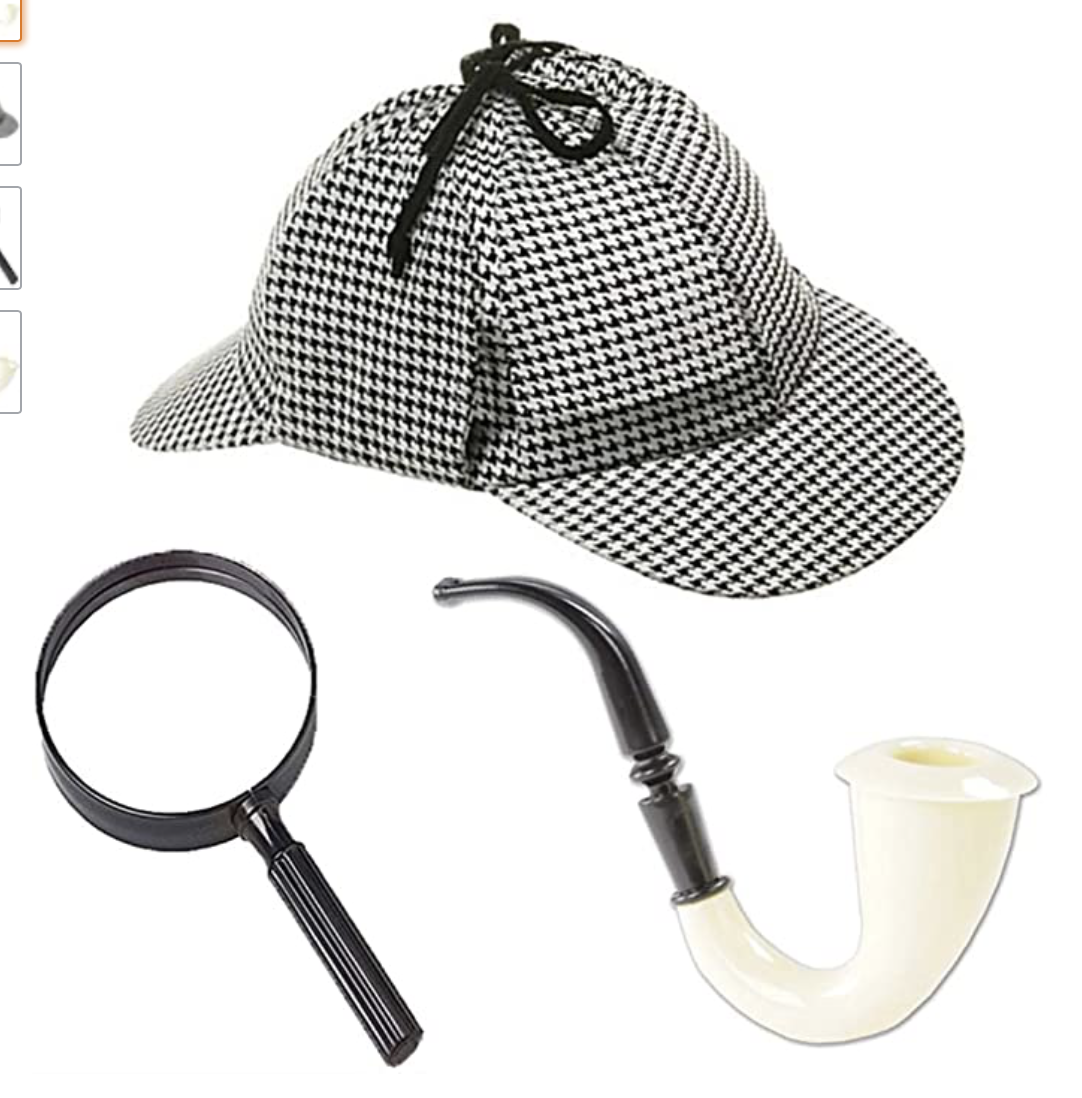
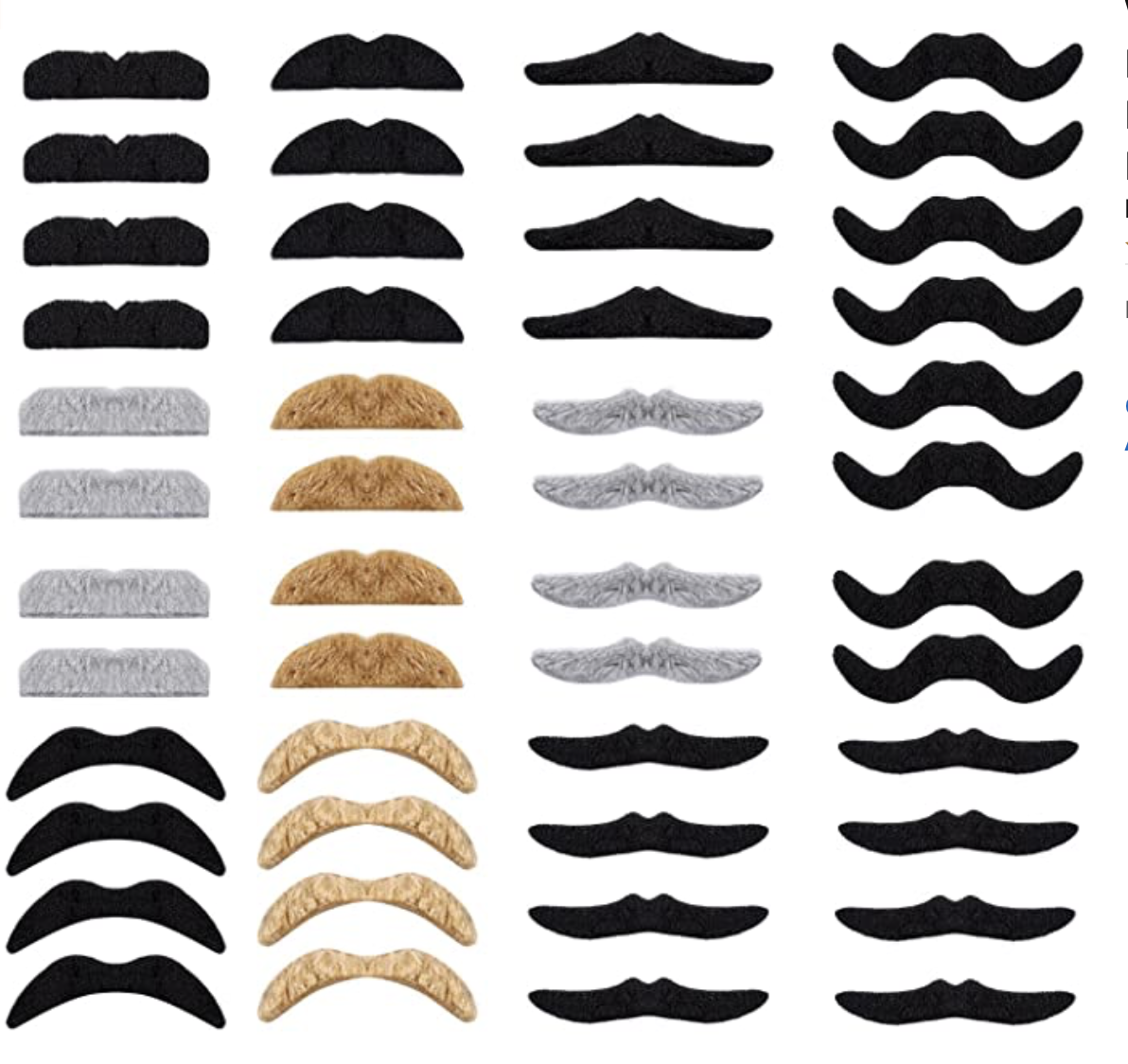
We hope you take these Spy themed resources and create #interACTIVE and engaging lessons for your students during this time of distance learning. Tag us on all social media platforms @TheMerrillsEDU and share will use the creative ways you make learning come alive with your spies and detectives!
Stay #interACTIVE!
-👗➕👓
For more #interACTIVE lesson ideas to use during remote learning, check out our book The InterACTIVE Class on Amazon!


How to Embed Nearpod Presentations Into Microsoft Teams
Nearpod and Microsoft Teams have partnered up to provide a complete game changer - especially when it comes to remote learning. Now, you can “go live” with your Nearpod Lessons in Microsoft Teams!
Nearpod and Microsoft Teams have partnered up to provide a complete game changer - especially when it comes to remote learning. Now, you can “go live” with your Nearpod Lessons in Microsoft Teams! You’ll learn:
💥 How to embed a Nearpod presentation into Teams
💥 How to start a meeting in Teams
💥 How to launch your Nearpod presentation while you’re LIVE in a TEAMS meeting!
💥 HOW TO EMBED A NEARPOD PRESENTATION INTO TEAMS 💥

You’ll need to make sure that you are logged into your Microsoft Teams account, and that you have already created an account on Nearpod. From your preferred Teams “General” channel, click the “+” sign on the top right of the tabs bar.
Once you click on the “+” sign, you’ll be asked what type of tab you would like to add. If Nearpod doesn’t show up in the first few images, you can do a quick search for it. Once it pops up, go ahead and click the Nearpod image.


Now you’ll be asked to log into your Nearpod educators account. Enter your username and password, then click the blue “Log In” button. Tip: At first glance, it looks like you won’t have any options to log in. Make sure you scroll down a bit (the window is small), and you should see the required fields.
Once you’re logged into your Nearpod account, you’ll have the option to select the (predesigned) presentation that you would like the class to complete. Pick out the presentation, then you’ll be asked which type of lesson you prefer: Live Lesson (where students complete the presentation together in real time), or Student Paced (where students complete the presentation on their own time). For our example today, we’ll pick “Live Lesson.”
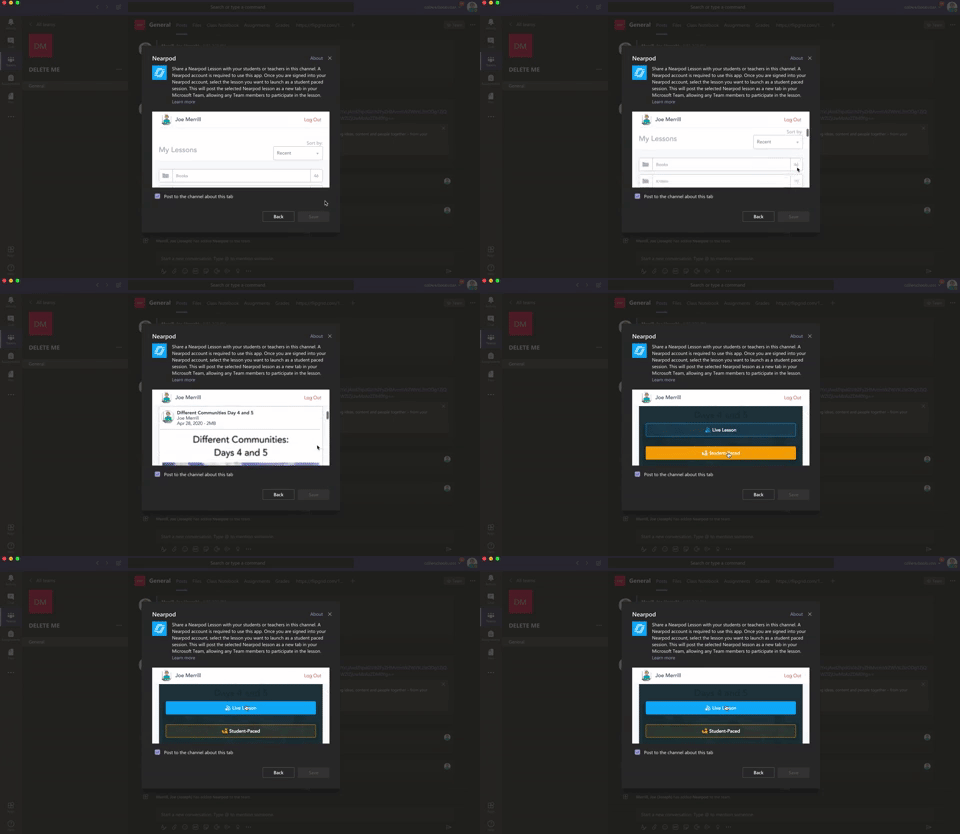

Once you’ve selected your preferred lesson type, the presentation will automatically embed directly into your Teams channel. It will appear in the conversation, and also at on the top tab bar. Congratulations! You’ve successfully embedded your Nearpod presentation into Teams!
💥 HOW TO START A LIVE CLASS MEET IN MICROSOFT TEAMS! 💥
To start a live class meet in Microsoft Teams, click on the “camera” icon located in the bottom of the tools bar. If you’re unsure if which icon to click, try hovering over them until you find the one that says “Meet Now.” Click it, then click the purple “Meet Now” button. Once you do, you’re LIVE!

💥 HOW TO LAUNCH YOUR NEARPOD PRESENTATION WHILE YOU’RE LIVE IN A TEAMS MEETING!💥


Now that you’re LIVE, you’ll need to wait for your students to log on to the meeting. You can check a meeting’s attendance by clicking on the “Participants” icon (that looks like two people). Once everyone has arrived, explain to your students that you will work on a Nearpod presentation together. Reveal that they will need to click the back button on their Teams Meet window to return to the conversation tab. Explain that they can access the Nearpod presentation from either the post in the chat, or from the tab located at the top. Once they select Nearpod, they will be asked to log in using their name. This is all they will need to enter the presentation. Once everyone has logged in, you may begin your live instruction!
Check out this video for a step-by-step explanation, and a side-by-side comparison of what educators see and what students see.


Flipgrid Integration in Nearpod
Flipgrid is at it once again, and during this time of remote learning the ability to integrate a Flipgrid Topic directly into a Nearpod presentation is so useful! Now in addition to creating Nearpod lessons filled with collaborative slides, 3D explorations and embedded activities, students can now share their voice on Flipgrid!
Flipgrid is at it once again, and during this time of remote learning the ability to integrate a Flipgrid Topic directly into a Nearpod presentation is so useful! Now in addition to creating Nearpod lessons filled with collaborative slides, 3D explorations and embedded activities, students can now share their voice on Flipgrid!
Getting Started
To get started you will need to have already created both a Flipgrid account and a Nearpod account. Assuming you have already started creating your Nearpod presentation, when you are ready to embed your Flipgrid Topic you will want to open up both applications in side-by-side tabs or windows.
Start by creating a new slide in Nearpod, and when choosing the type of slide go with an activity slide. You will then see the Flipgrid icon appear directly beneath it for you to click on.
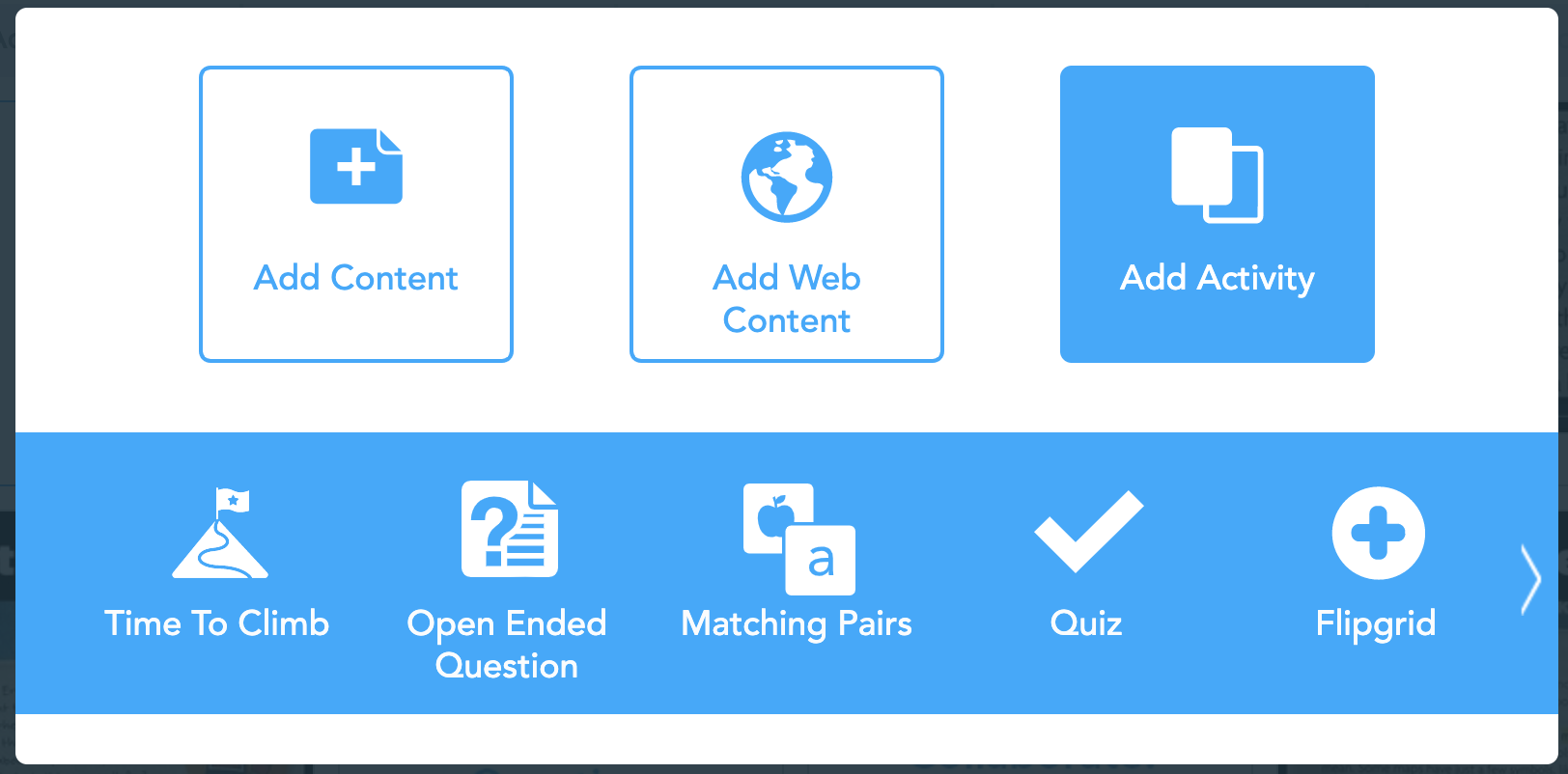
Once you click on the Flipgrid icon, you will be taken to a new screen. This is where you will embed the links to the Topic.

The first line is where you will paste the Flipgrid Teacher URL. This is the web address you see when you have your topic open on your desktop.

The second link is where you will paste the Flipgrid Student URL. From the Topic, click ‘Share’ and then click to copy the link into Nearpod.

Once the links are pasted and submitted, the slide will appear in the Nearpod deck ready for students to use.

For additional help with this integration, check out our tutorial video below, or on the Flipgrid YouTube channel.
- 👗➕👓
For more #interACTIVE lesson ideas using Flipgrid, check out our book The InterACTIVE Class on Amazon!


Creating a Virtual Classroom with Microsoft Teams
With so much unknown right now in education, one thing we can do as educators is focus on meeting the needs of our students the best we can while remote learning. We may have lost the sense of security and safety our physical classrooms gave us, but with the help of Microsoft Teams we can expand those four walls and bring our students into a different type of interACTIVE learning environment.
With so much unknown right now in education, one thing we can do as educators is focus on meeting the needs of our students the best we can while remote learning. We may have lost the sense of security and safety our physical classrooms gave us, but with the help of Microsoft Teams we can expand those four walls and bring our students into a different type of interACTIVE learning environment.
Microsoft Teams has worked hard and listened to the needs of educators to make the platform as versatile and streamlined as possible. With integrations and features such as announcements, OneNote class notebook, Tabs and Assignments, and chat—Teams provides teachers with options tailored for teaching and learning.

Conversations in Teams
Being able to connect and keep in touch with students while out of the classroom is so important and channel posts makes this so easy to do in Teams. Create classroom announcements and posts that can be edit to get your students' attention. You can also control who replies to a post, change the importance of a post to draw students’ attention to something specific, and post across multiple channels at the same time.
Once a post is sent in a channel, the conversation is organized by date and then threaded. Find the thread you want to reply to, then click Reply. Add your thoughts and click Send. When replying you can also @mention someone to get their attention and to have them see a post sooner. Students (and teachers!) can also have fun by posting and replying with emojis, memes and GIFS using the buttons under the reply bar.
Creating Assignments in Teams
When creating assignments, teachers have the ability to customize each and every assignment to meet the needs of their students. Add grading rubrics for students to reference while working and for you as the teacher to use laster when evaluating their work. Customize every assignment by adding or attaching resources. This can be content from OneDrive, your device, links, and more. Once an assignment is creating you can distributed it to multiple classes or personalize the assignment by assigning it to individual students. Finally, when creating, you can customize all the dates and times that are important to the assignment. you have the ability to edit due dates and close dates, in addition to scheduling assignments to appear on a later date.
Keeping student work in order and easy to find can be challenging during remote learning, making the organization of Teams so beneficial. Teams lets you as the teacher create learning activities for students with integrated Office applications while also giving you the ability to leave feedback for students. You can also grade and track student progress by using the Grades tab. View both upcoming and turned in assignments by class, or view them across all your classes. Selecting an assignment will allow you to turn it in or view feedback and scores.
Holding Online Meetings in Teams
Microsoft Teams is a great platform to connect with students virtually and gives you as the teacher control of the meeting. You can speak and share video, mute and remove participants, share content and your screen, and privately view a PowerPoint presentation all while participating in a live meeting. The organizer also has the option to start and stop recording of the meeting which allows for asynchronous learning by proving content to learners on their own time. Students can also share their screen and view PowerPoint presentations during a chat, but the other features are for presenters only.

Simply click Meet now under the message box to start a live meeting in a channel. If you click Reply to a message, then the meeting will be attached to that conversation. You can select Meet now to start the meeting right away or Schedule a meeting to schedule the meeting for the future. Members of the channel will see an invitation for the meeting in their calendar if you decide to schedule it for later.
Content and Collaboration in Teams
Content can be shared in multiple ways when using Microsoft Teams. Teachers can add Tabs within a channel to centralize where students are going and keeping the workflow in Teams. Click + by the tabs at the top of the channel, click the app you want, and then follow the prompts. Use Search if you don’t see the app you want. Apps like Flipgrid, Buncee, Peardeck and Wakelet are just a few of the many different options available!
You can also share content directly in channel posts. Click Attach under the box where you type messages, select the file location and then the file you want. Depending on the location of the file, you’ll get options for uploading a copy, sharing a link, or other ways to share.

Collaborating in Teams has never been easier with the integration of the OneNote class notebook. OneNote notebooks are a digital binder that can be used in your class or with your staff to take notes and collaborate. OneNote Class Notebooks have a personal workspace for every student, a Content Library for handouts, and a Collaboration Space for lessons and creative activities.

We way not be able to close out the year with our students, but let’s make distance learning as familiar and comforting to our students as we can! By working in Microsoft Teams we can continue to encourage and engage students from the walls of our “virtual classroom.”
Stay #interACTIVE!
-👗➕👓
For more on using Microsoft Teams in the classroom check out the following post:
For more ideas on how to create relevant and engaging digital lessons, check out our book The InterACTIVE Class out now on Amazon!


Using the Draw Tool in Flipgrid
Part of what makes the Shorts camera so powerful are the features available to students to use when sharing their voice and ideas. Digital inking can take ideas and explanations to a whole new level.
Creative Features in Flipgrid
Part of what makes the Shorts camera so powerful are the features available to students to use when sharing their voice and ideas. Digital inking can take ideas and explanations to a whole new level.
The digital inking tool is symbolized on the Shorts camera dock with a pencil. From the moment you click on it your entire screen becomes a live digital board ready to be written on. Students can write directly on the video screen both when the video is paused and while recording live. The digital inking tool can used in combination with the whiteboard/blackboard feature to create more focus on the writing, or used alongside the photo sticker tool for annotation directly on top of images.
Creative Ways to Use Digital Inking While Recording in Flipgrid
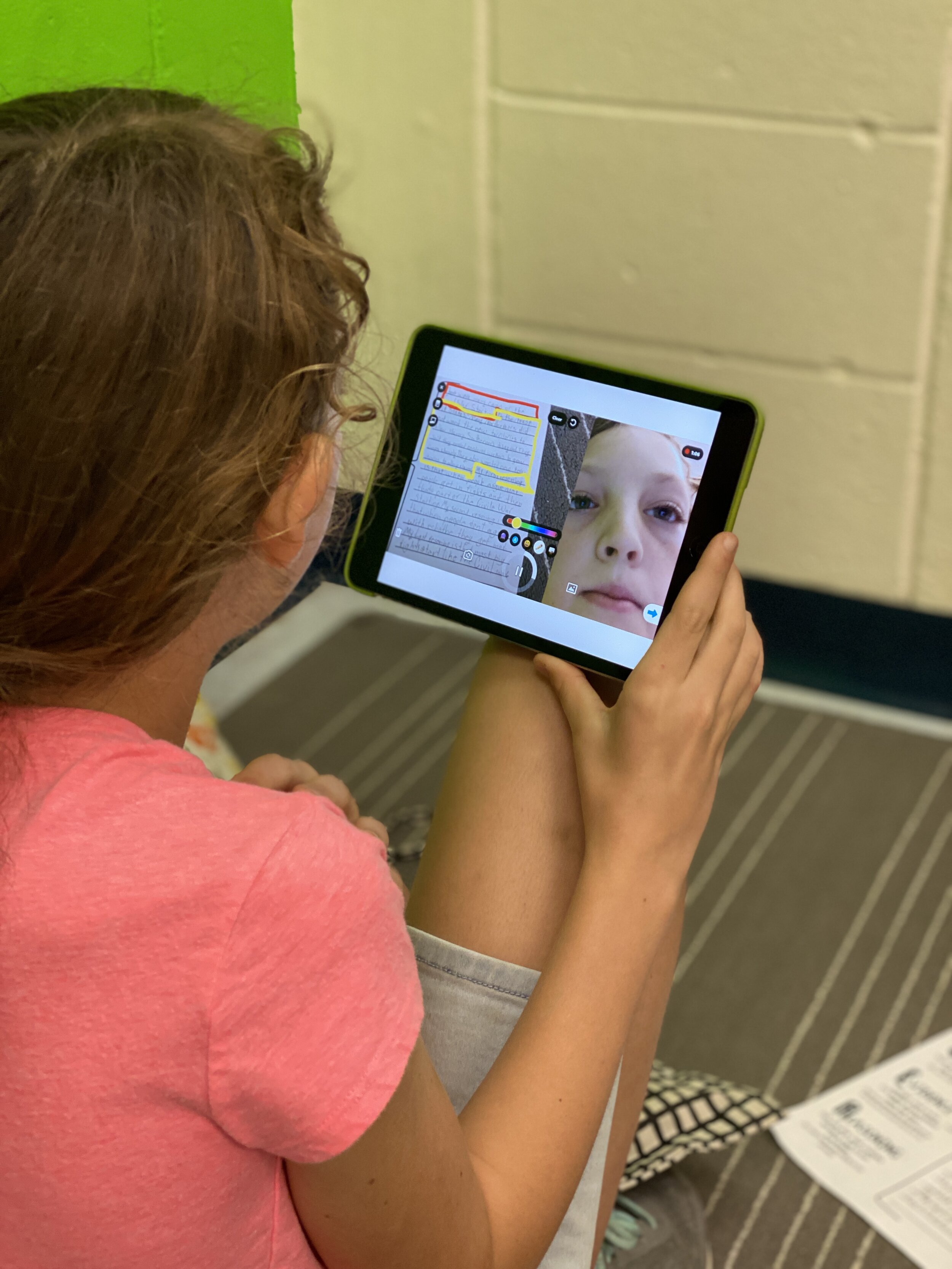
Book Snaps- Using the photo sticker tool along with the draw tool, students can live ink right on top of the pages of a book. They quickly take a photo of the paragraph or page, and then can ink, highlight, or draw, to identify parts of speech, find text evidence to support an inference or simply to draw attention to a character’s thoughts, dialogue or actions.
Math Hunt- Have students hunt for different shapes or identify angles in their video circling with the live inking draw tool as they record. They can pause as they go for a more edited video, or live record and draw as they go.

Science Scavenger Hunts- Demonstrating knowledge of subject matter doesn’t need to just be in math! Have students use the draw tool to identify living vs. non-living things in the backyard, constellations in the sky (real or student created!), or to show length and measurement.
Math Explanations/Number Talks- Students can have a unique place to share their math thinking and explanations. Using the whiteboard/blackboard feature along with the live inking (and even the sticker emojis!), students can explain their thinking and show their work for various types of math problems. Take it a step further and combine the live inking with the pause feature in Flipgrid, and students can share multiple ways to solve the same problem all in one video.

Creative Costumes- Flipgrid developers have spent so much time designing and developing a large set of of creative stickers and emojis, but sometimes the exact sticker just can’t be found. Use the draw tool to create the perfect Dr. Seuss hat, , or to transform yourself into the president you are researching in class.
For more information on how to use the draw tool, check out our tutorial on the Flipgrid YouTube channel.
To read more about Flipgrid check out these posts:
Using Flipgrid to Critical Thinking
- 👗➕👓
For more #interACTIVE lesson ideas using Flipgrid, check out our book The InterACTIVE Class on Amazon!


Learning about map features with Buncee!
You’ve heard of “Where in the World is Carmen Sandiego,” but have you heard of “Where on the map is Mr. Merrill?” Buncee is the perfect tool for such a game! Check out how we used it to create a unique #RemoteLearning experience!

You’ve heard of “Where in the World is Carmen Sandiego,” but have you heard of “Where on the map is Mr. Merrill?” Buncee is the perfect tool for such a game! Check out how we used it to create a unique #RemoteLearning (but it could also be done in a normal classroom setting!) experience!
💥 Design a map in Buncee
💥 Add street names
💥 Create aN “INcorrect” and “correct” Buncee (seperate presentation slides)
💥 Hyperlink the images in the original map to the “correct” and “incorrect” Buncees
💥 Record a video that guides students to the destination!
💥 Copyable buncee slide deck included at the bottom!

💥 DESIGN A MAP IN BUNCEE
The first step (and most time consuming - if you’re picky) is to design a map in Buncee. The good news is that Buncee’s embedded features make it a one stop shop. You can easily add animated graphics, images, videos, and much more - all without having to leave the app. Everything that you see in the image below was found within the Buncee search tool. Simply find what you want to use, then drag it to the proper place.
💥 ADD STREET NAMES
After you have the layout and design of your map created, start adding street names using the text tool. Give each street it’s own unique name - which you’ll later referred to in your video. This step is important, because it helps younger students to be sure they are on the right road. You can even add a school bus and an animated taxi cab, just for fun!


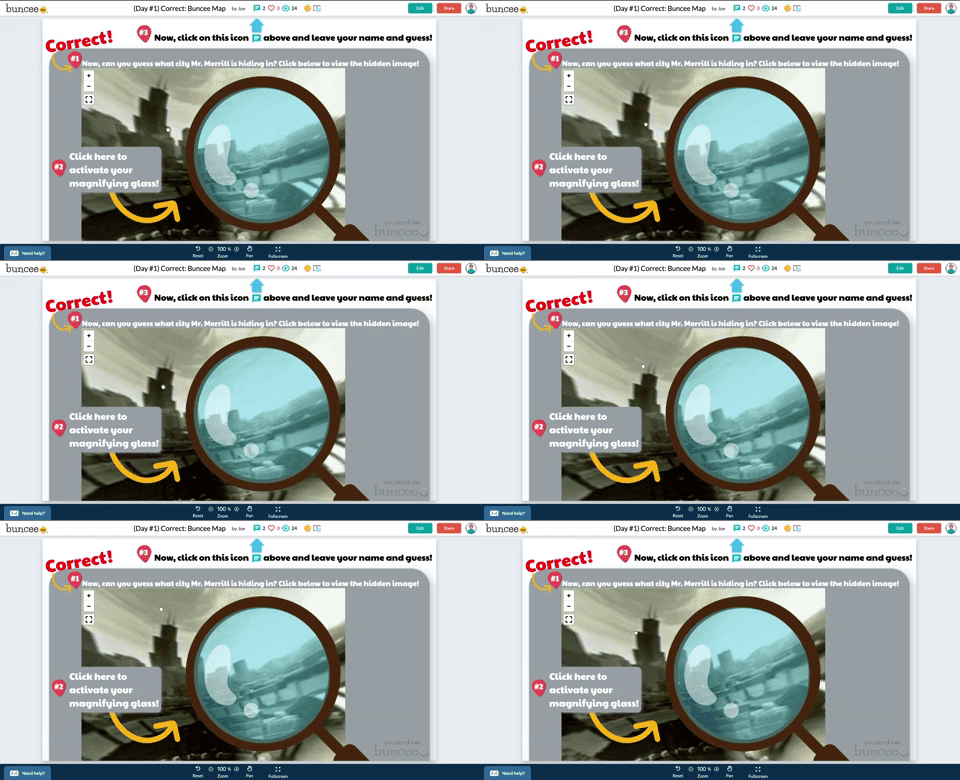
💥 CREATE “INCORRECT” AND “CORRECT” BUNCEE SLIDES
After you have saved what you have worked on, go back to the Buncee dashboard and created a seperate - new Buncee. Design the new Buncee slide to indicate that the selection my students made was incorrect (see image to the left). Now that this slide is complete, design a “correct” slide. When I did this with my class, I added a bit more fun here…I included a 360 image of the city of Chicago, then added a magnifying glass over the top to give it that “detective feel.”
With both slides now ready to go, start hyperlinking them back to my original Map. To do so, open your “incorrect” Buncee slide. Then, click on the orange “Share” button (located in the upper right). This opens a new window, with a few options. If you click on “Code,” you will be able to find the shareable URL to this particular Buncee slide. You’ll need this Link, so click the blue “copy” button to the right of the URL. You’ll take this link and use it on the Map you previously created.

💥 HYPERLINK THE IMAGES IN THE MAP
With the “incorrect” Buncee slide’s URL code copied, open up your original Map Buncee slide. Figure out where you would like to “hide” on the map. After you have picked out your hiding spot, now it’s time to start hyperlinking all of the incorrect places to the “incorrect” Buncee slide. To do, click on one of the images that you added on your map. A crop box will surround the image (this way you know that you have the right item selected). Next click on the “Link” located on the bottom tool bar. When you do, you’ll be given the option to type a URL. Simply paste the URL from the “incorrect” Buncee slide. This way, when a student clicks on that image - it will take them to the “incorrect” slide, indicating that their answer was wrong. Repeat this process for all incorrect images. You’ll notice that all images will have the little red link icon next to them. Be sure that you have added the “incorrect” Buncee slide to all of the images that need to be hyperlinked.
Now it’s time to hyperlink your “correct” spot on the map. This first step is optional, but I recommend it. Open the “Correct” Buncee slide, and click on “Share,” then “Settings.” Toggle on where it says, “Commentable.” This will allow your students to leave a comment once they arrive on the correct answer slide. In the same window, click on “Code” and then click “copy.” This will copy the URL to the “correct” Buncee slide, which you will hyperlink back to the original “map” Buncee slide. Once in the original “map” Buncee slide, click on the “correct” image (tip: you may need to click “edit” from the top right you get logged out), then click “Link” from the bottom menu bar. Paste the URL to the “correct” Buncee slide. This way, when your students click on the image, it will take them to the correct slide.

💥 RECORD VIDEO DIRECTIONS!
The last step is to record a video giving your students clues about where you are hiding. Go through each clue, and remind them to follow along the map from place to place. It also helps to remind the students that they can pause / rewatch the video if need be. When they think they know where you are, tell them to click on the link icon above where they believe you are hiding (if they click on the actual image, the picture will come up instead - they need to click on the link icon). Remind them that they should also leave a comment in the comment box at the end of the map to let you know that they found their way through!

Buncee + Immersive Reader! 💛
It’s also important to note that Microsoft’s Immersive Reader is embedded into Buncee. This means that all text on the Buncee slide can be read aloud to students. It also means that the text can be translated into different languages. All students need to do is click on the Immersive Reader icon!
Check out the real thing! Feel free to play along below!
To make this even easier, we’re happy to share our Buncee with you! Just click on the image to the right!


For more information on Buncee, check out their website and their Twitter account hyperlinked below:
💛 Buncee Website
💛 Buncee Twitter
- 👓
For more #interACTIVE lesson ideas using Buncee, check out our book The InterACTIVE Class on Amazon!


Sub-Collections in Wakelet!
Wakelet collections are quickly spreading throughout the world of #EdTech, and educators are sharing incredible ways to utilize this tool in the classroom.

Wakelet collections are quickly spreading throughout the world of #EdTech, and educators are sharing incredible ways to utilize this tool in the classroom. One of Wakelet’s most recent updates allows educators to create collections, and then share a code to the collection with their students. Using the code, students are able to access the collection and then add content in the form of a sub-collection. If you’re familiar with the login process behind apps like Nearpod or Classkick, this has the same type of feel. Students do not need accounts, they simply enter their name and start adding their information. Check it out below!
For a breakdown on how this feature works, check out Wakelet’s blog post by clicking here, or the gif above!
How to use Wakelet in the classroom?
The ability to generate sub-collections opens the door to many new options, especially when it comes to collaboration. For example, you could create a collection and then develop a prompt. Next, assign it to your class by sharing the collection code. The class can work together to share strategies.
Let’s break it down…Here’s a math example where I started a new collection. I’ve created a word problem that I want my students to collaborate on. The students log on using the code I’ve shared. As they work, they will edit the collection that I started (don’t worry, they can only add items - not delete them), by adding content of their choice.

So, each student has created a sub-collection where they have added their own content to help explain their strategy - all within the prompt I created in the original collection. Both the educator and the student can click on a sub-collection, which will open it in a new tab.

Jessica has shared the strategy above. This is now a sub-collection. But, there’s more good news! For classrooms utilizing Flipgrid’s school email grids, students can even add videos using the Shorts Camera integration! Check out what Adam did to share his strategy below.
He used the Flipgrid Shorts camera to record their thinking for each step. There are plenty of options for uploading content such as: paste URL, text, YouTube, images, pdf’s, Google Drive files, OneDrive files, and more. So, your students have many options when building their sub-collection.
After your students have submitted their work, your collection will look like the image below. You can toggle back and forth between the sub-collections - and even more importantly, SHARE! Here’s where you can connect a broader audience, especially with your students’ families.

Check out the list below with ways that educators are using sub collections. We’ll keep this updated as we find new ideas!
For more on this, and Wakelet tips, check out www.wakelet.com, and follow @Wakelet on Twitter.
For more #interACTIVE digital lesson ideas, check out our book The InterACTIVE Class on Amazon!

