

Creating "Virtual” Room Transformations Using Microsoft Teams
Even though we’re out of our classrooms, that doesn’t mean we can’t have a “Virtual Room Transformation!”
Transforming the classroom was one of my favorite ways to engage my learners. It was a way to get them excited about the learning that would be taking place that day and it created learning memories that lasted well beyond our calendar year. Now that we are entering this season of remote learning, personal touches like rooms transformations are something I miss dearly. But thanks to the newly released update on Microsoft Teams, I might not be able to change my physical classroom around but at least I can disguise and transform my virtual one through live meetings!
Getting Started
To transform the background of a video chat you need for first open up Microsoft Teams and start a new meeting. Once inside the Teams meeting, click on the three dots to reveal the menu of options. Click on “show background effects”.


Choose from a variety of background images or add in one of your own. You can preview backgrounds, and then click apply when ready to use in the meeting.


Creative Transformations
Once your background is chosen you can use throughout the call, take down or change as needed. Try using this feature in an #interACTIVE way during video calls! Play a version of “Where in the World Is…” by placing yourself in various places and having your kids ask yes or no questions to try and figure out where you are. Or may be you could use the background images as “virtual” room transformations. Use a mad scientists lab for your live science experiment or a library background for a class read aloud.

Another great feature of Microsoft Teams live meetings is that they can be recorded—so have fun recording yourself in your newly transformed learning environment. Try teaching your daily mini lesson in a new and unexpected place and download to share with students. InterACTIVE teaching and learning is all about engaging students and this is one of my new favorite #interACTIVE learning tools for distance learning.
Stay #interACTIVE!
-👗➕👓
For more information on how to make learning more engaging and relevant by using technology, check out our book The InterACTIVE Class.

Social and Emotional Learning with Distance Learning
We’re busy. Things have been hectic for us all, and it seems almost impossible to just stop and think for a second. Our mental health is just as important as our physical health throughout a pandemic. It’s easy to keep our kids indoors, but let’s not forget the about their mental health.
Social Emotional Learning (SEL) App
Me (by Tinybop)
We’re busy. Things have been hectic for us all, and it seems almost impossible to just stop and think for a second. Our mental health is just as important as our physical health throughout a pandemic. It’s easy to keep our kids indoors, but let’s not forget the about their mental health. They probably have questions that they’re not asking. They may not want to talk about them, but we need to provide an outlet for them. Me, from Tinybop, is an app that does just that.


$2.99 (iOS only)
Click here or the image to download

What is the Me App?
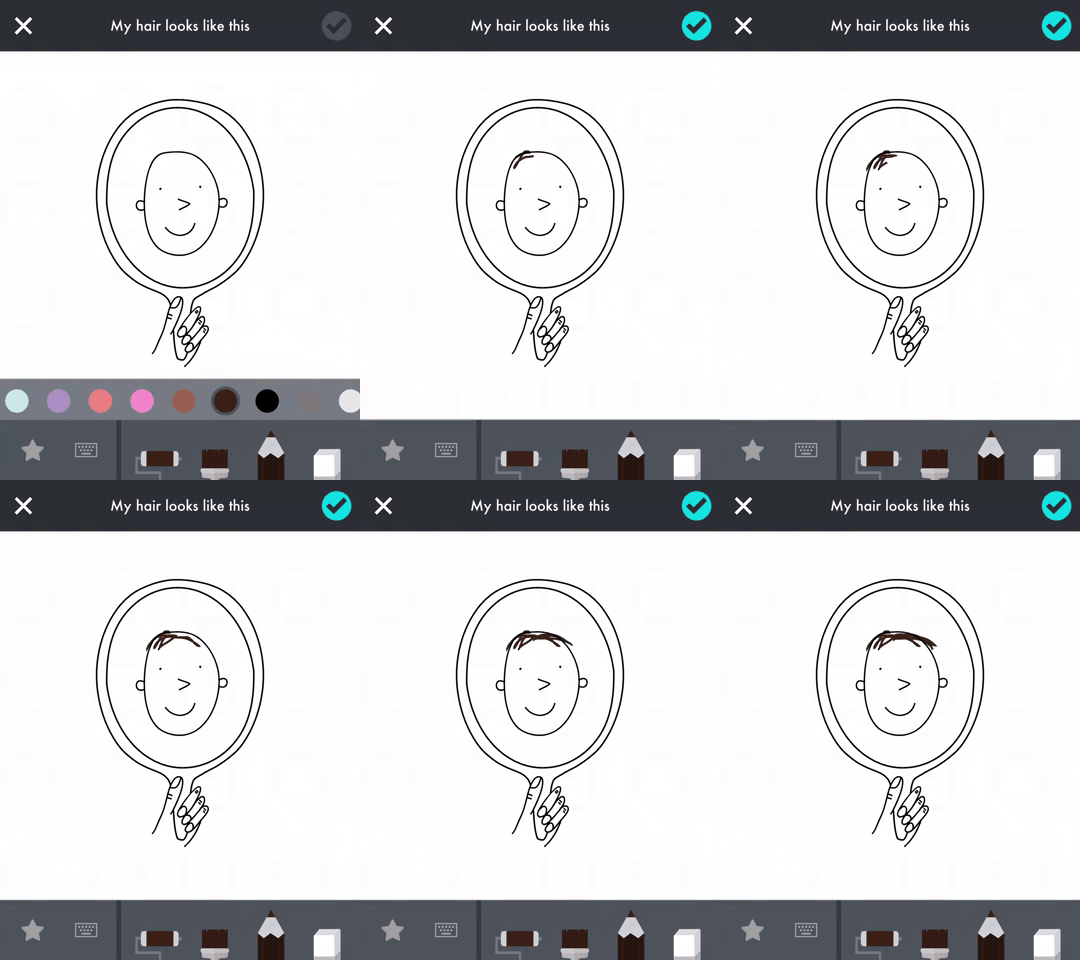
“Me” allows kids to tell their own story. Think of it like a digital diary - but with lots of fun features. It gives kids hundreds of fun, inspiring prompts to help them learn more about themselves and the people around them.
In drawings, words, animations, recordings, and photos, kids can document their worlds: their families, friends, pets, feelings, likes, dislikes, wishes, and dreams. As they play and create, kids build self-awareness, self-confidence, empathy, and kindness.
Check out some of the feedback from “Me.”
"An app that teaches my kids to empathize, include, and appreciate others, that’s screen time I can feel good about." — Cool Mom Tech
"We love not just the creativity the app inspires but also the memorable family discussions that can result. Very cool." — Parents Magazine


Can “littles” use it?
We introduced this app top our youngest son (6 years old), and he loves all of the different tasks. His favorite entry thus far was to take a picture of his family. So, rather than asking everyone to get together for a family portrait, he just decided to take a snap a shot of one of our framed pictures. 😂
He also enjoyed creating his own illustrations, recording different sounds, and making animated gifs from the prompts. The tools are easy enough for any age group to use. As an added bonus, he can save all of his “work” to the camera roll, and then share it back to us by airdropping it.
ARTWORK:
There’s a lot to love in “Me,” but the artwork is truly stunning and visually appealing for all ages. Ana Seixas, the artist behind the magic, and the developers at Tinybop have created a platform that is easy to use and understand.

FEATURES:
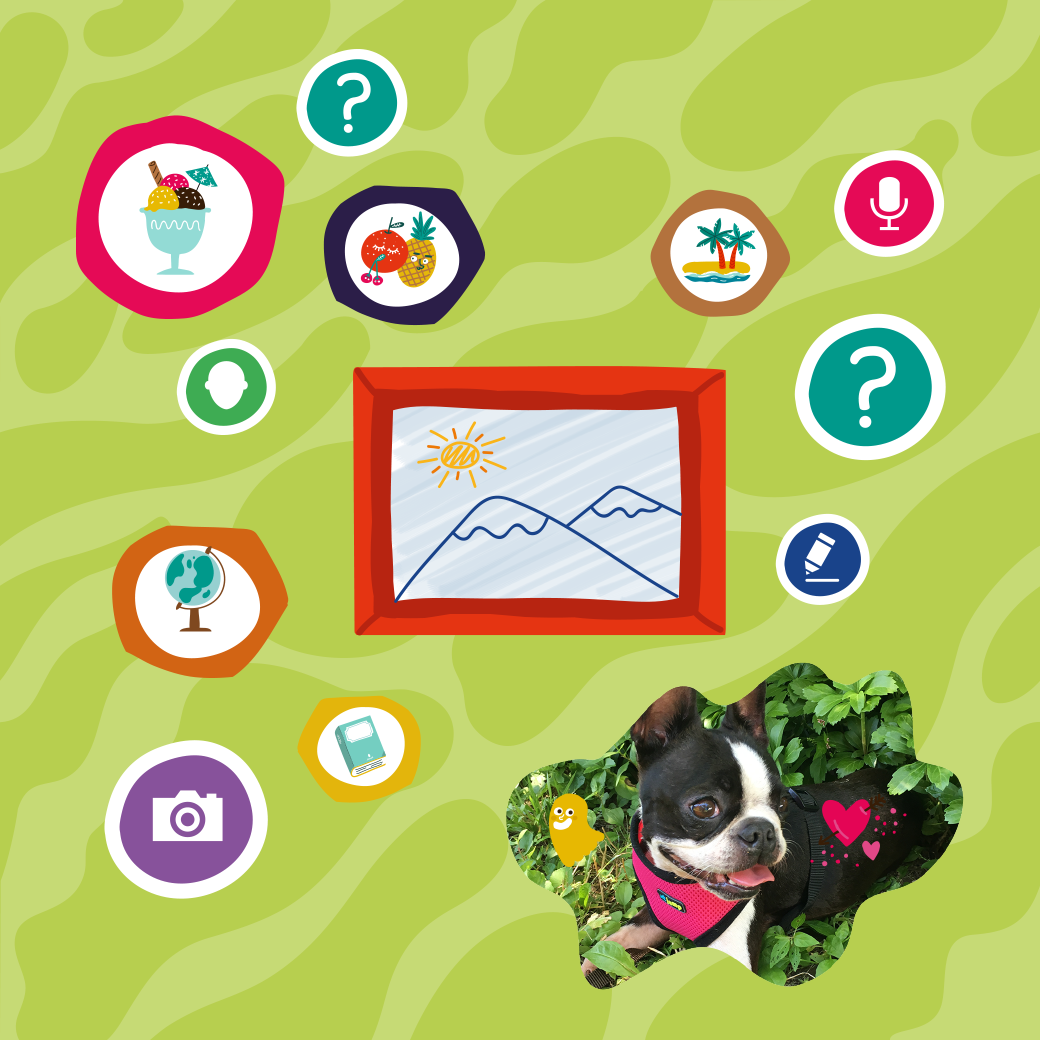
Create and accessorize avatars for yourself and all the people and pets in your life.
Your avatar responds to you, expressing emotions you can capture and share. Send an animated drawing to your friends or save it to your camera roll.
Ask and answer hundreds of questions about yourself and all the important people and places in your life.
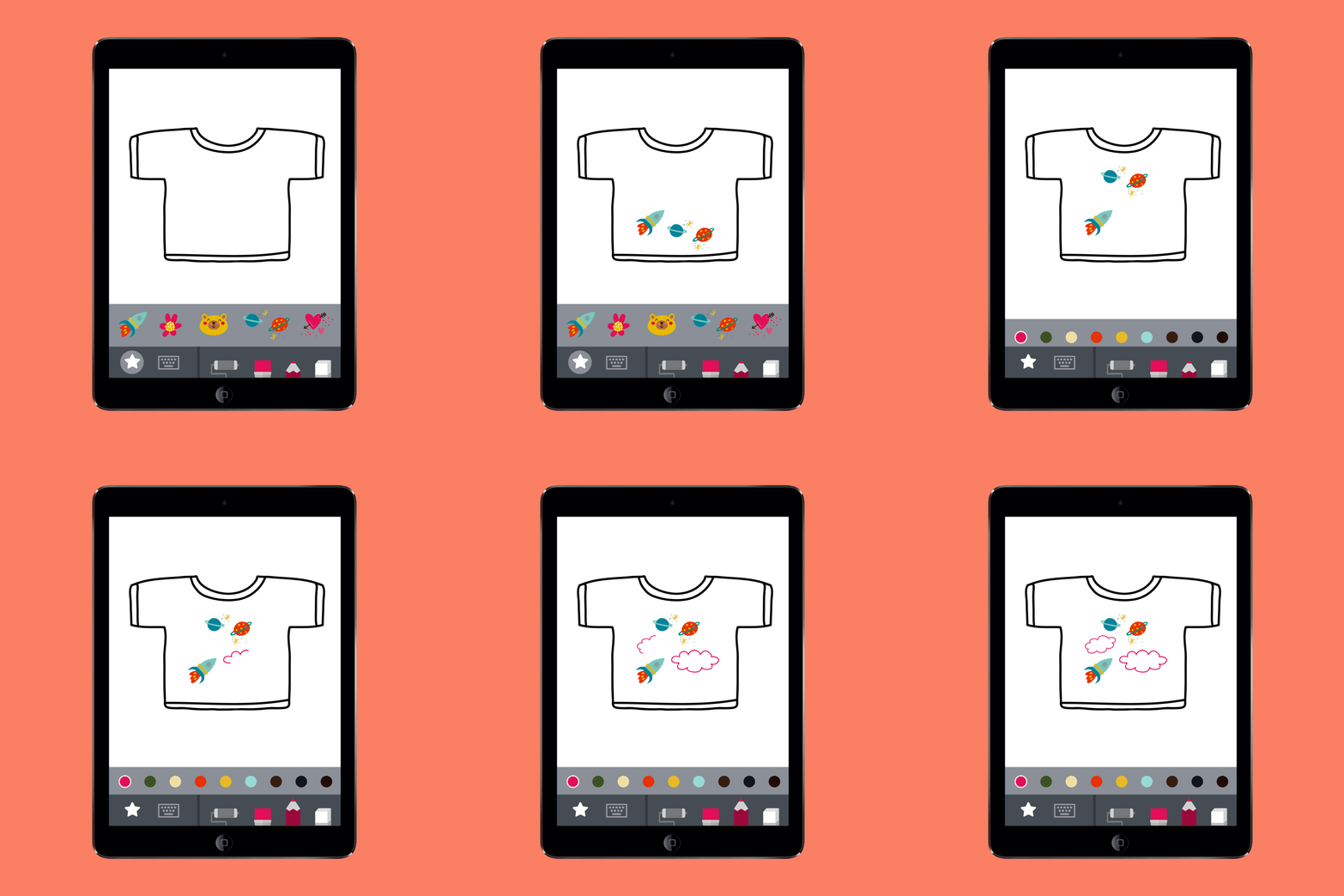
Decorate your photos with fun stickers and words.
Create drawings with different pens, brushes, and colors.
Record stories and sounds.
Write on pictures and photos.
See your answers turn into animations and other surprises!
See everything you have created and recorded in one swipe.
Safe space for self-expression. Nothing is shared unless you choose to.
Original artwork by Ana Seixas.
Original sound design.
Open-ended activities with no rules. Curiosity and creativity are rewarded.
Multi-user system.
Fun for everyone: families can play and learn together!
To learn more about “Me,” check out the Tinybop website by clicking here.
To download “Me,” click on the image below!

For more information on how to make learning more engaging and relevant by using technology, check out our book The InterACTIVE Class.


Going ⚡LIVE ⚡on Flipgrid with YouTube!
Did you know that you can use YouTube LIVE to launch a live stream discussion into Flipgrid? Check out this hack that’s perfect for #RemoteLearning!
#RemoteLearning just got a whole lot easier with this Flipgrid hack!
We’ve been embedding YouTube videos into some of our remote learning Flipgrid lessons. The easy integration is a simple cut and paste. So, that got us thinking…Could you embed a YouTube Live stream?
The short answer is yes! When you launch a YouTube Live stream, you are provided a URL that can be shared. By copying and pasting this code into the Flipgrid integration, you YouTube Live stream will allow you to deliver content in real time to you students while watching their replies. For example, let’s say that you are teaching a math strategy. The educator can model what that might look like, then in real-time ask the class to solve a problem on their own. As the class submits responses, the educator can view the responses and provide real-time feedback. Mr. Merrill finds this extremely beneficial with K-2 students.
“If you’re hosting a live video conferencing “event,” you have to teach the digital citizenship of what is appropriate and what is not. That means you have to teach your students how to do things like mute themselves. For a K-2 student, this could be challenging. This provides an opportunity to deliver the same content in an efficient manner.”
Interested in learning more? See the video above, or follow the steps below.
Requirements: You’ll need a Google and Flipgrid account
Steps:

Start on YouTube.com and make sure that you’re signed into your Google account. Locate the camera with the “+” sign (on the top right side of the window), located just to the left of your profile pic. Click it!

A drop down menu will show up once you click the camera. From here, click “Go live.” Don’t worry - you won’t be live on air just yet. 😜

On the following screen, change your video’s title to match your lesson. Then, click the down arrow to change your video from “Public” to “Unlisted.”
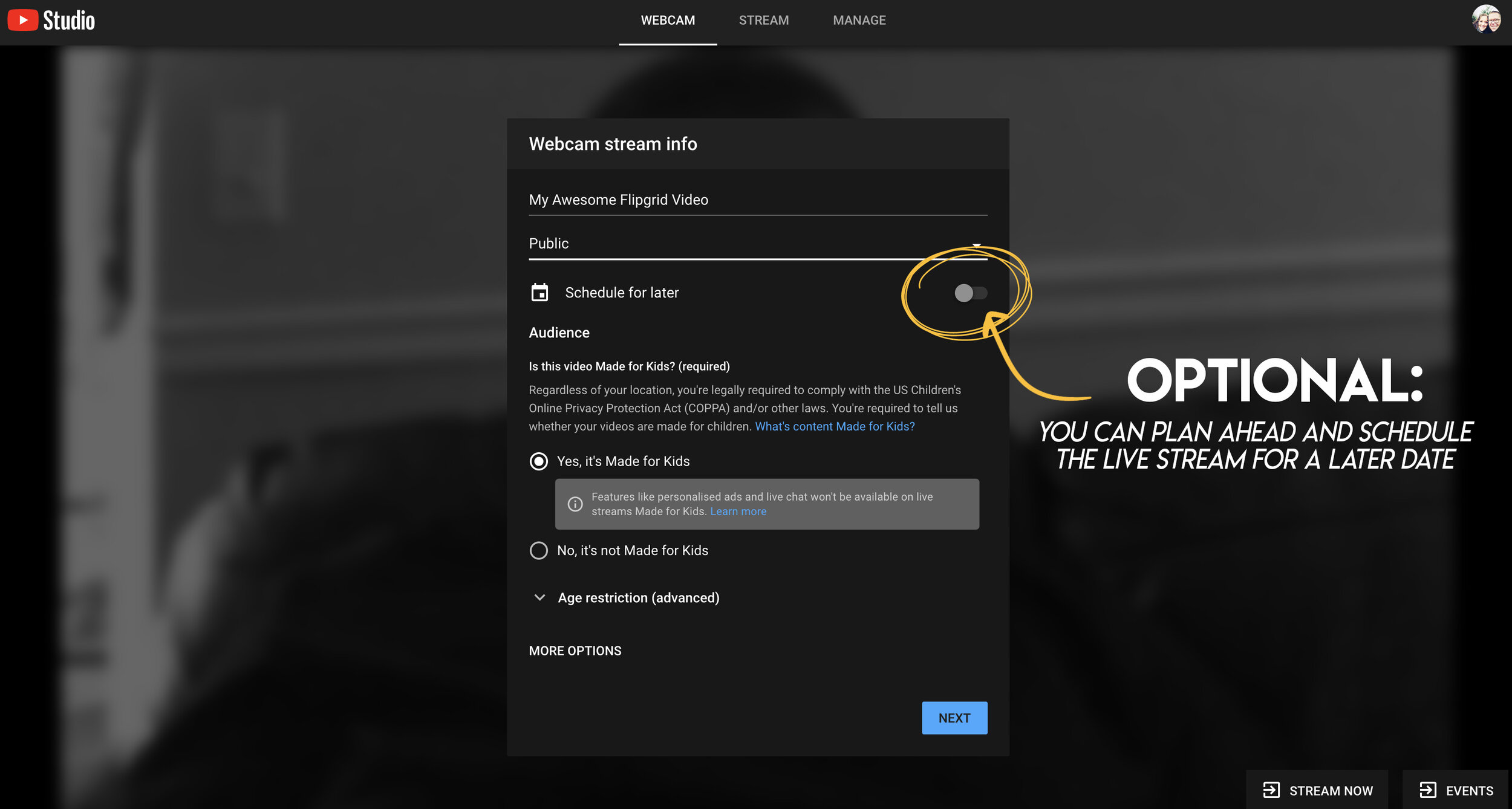
Optional step: You can schedule your live video ahead of time - that way it will be ready to go when you arrange a time to meet with your students.

We recommend saying “yes, it’s made for kids.” This will prohibit inappropriate ads from displaying.

Once you have all info filled out, click next. Note: You will be quickly prompted to take a selfie that will be used for the video’s thumbnail!

Take your selfie for the video’s thumbnail!
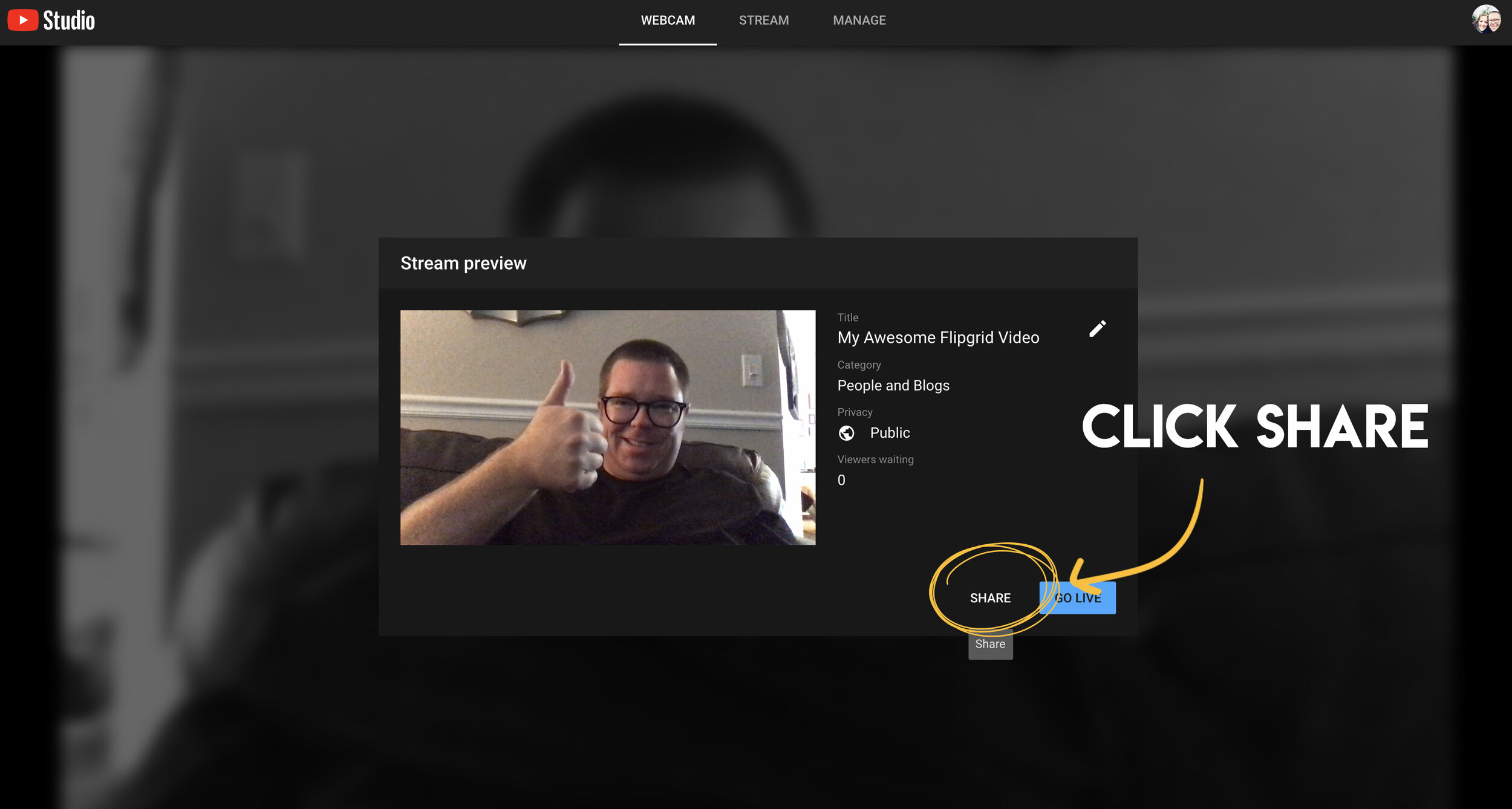
The next step is to click “share.” This will generate your live video stream’s URL.

Once the URL is generated, click “copy” to copy the URL to your computer’s clipboard.

Now you’re ready to head to Flipgrid. Open a new tab and log into your Flipgrid account. Then click on your preferred grid. From there, click on “Add New Topic.”

In your new topic, add a lesson title. You’ll also want to explain the task that you’ll be discussing with the students in the prompt. Lastly, click on the YouTube / Vimeo resource button.

This will open a pop up that asks you for your YouTube URL. Here’s where you will paste the URL code you copied from YouTube. Once you paste it, click “next.”

Your YouTube live stream will appear (although nothing is playing yet, because you haven’t started the live stream - that’s coming up). Just click “add” to embed the video into your Flipgrid topic.

Now you can see your YouTube video embedded on Flipgrid. Click “create topic” to launch the topic on Flipgrid.

This is your confirmation screen. If this pops up, you have done everything correctly! Click “all set” to move on!

When you’re in your newly created topic, your screen should look like this. Notice, the YouTube Live video says it’s “Waiting…”That’s because we haven’t started it yet. You’ll want to make sure your students are logged on and ready to go before your proceed to the next step.
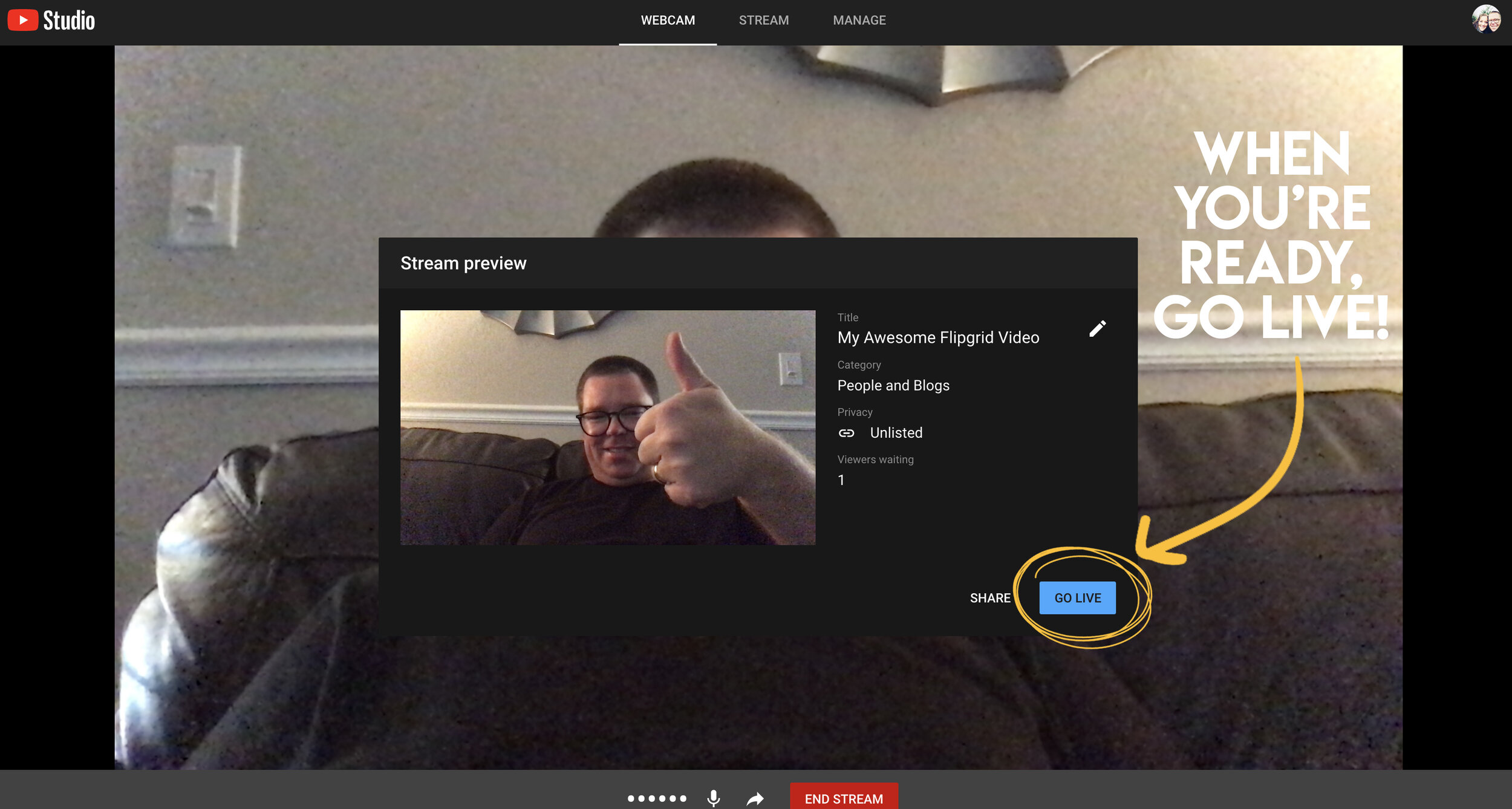
Click on the tab that you left open for YouTube. Click on the blue “Go Live” button to launch your live stream. Now, when your students are on Flipgrid, they can click the play button to watch you live - in real time. Note: if you have students leave responses during your live stream, they will need to click on the YouTube video again to restart the playback (it won’t automatically start again).

Once you are finished with your instruction, click “end stream” on YouTube. You’ll be asked if you are sure that you want to end it. Click “end.” Your live stream has now concluded - but if students were unable to log in during your presentation time, they can always go back and watch the replay of the video!
We hope this hack comes in handy and that you are able to remotely connect with your students! If you have any questions, please don’t hesitate to reach out!
👓 & 👗
💚💚💚
For more #interACTIVE lesson ideas using Flipgrid, check out our book The InterACTIVE Class on Amazon!
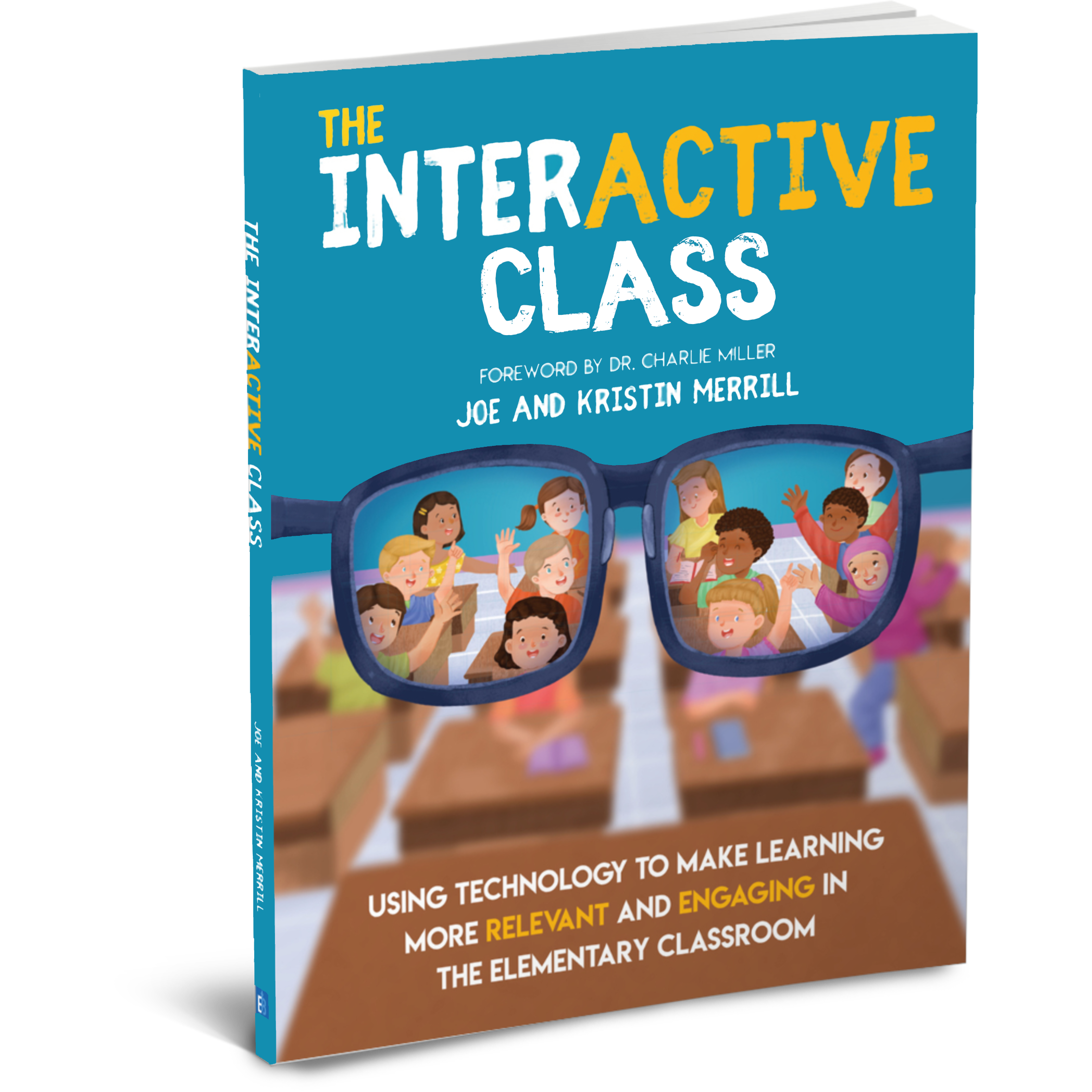


Remote Learning 101: Presented by The InterACTIVE Class
As more and more schools look towards the possibility of Remote Learning, we understand that you probably have lots of questions. We’re here for you.
As more and more schools look towards the possibility of Remote Learning, we understand that you probably have lots of questions. We’re here for you.
What is remote learning?
Remote Learning occurs when the learner and instructor, or source of information, are separated by time and distance and therefore cannot meet in a traditional classroom setting. This is also being referred to as “distant learning.”
I don’t know much about educational technology. How will I learn fast enough to teach remotely?
Remote learning will undoubtedly push many teachers into the realm of digital teaching and learning faster than they may have on their own. If you are one of those teachers who hasn’t used classroom specific applications, we would recommend starting with our book The InterACTIVE Class. It was not written specifically for remote learning, but it couldn’t be out at a more relevant time.

In it you you find two page explanations for applications like Flipgrid, Seesaw, Book Creator, Buncee and many more, followed by pages of lesson ideas that you can take and immediately implement into your remote learning environments. In addition to the book, you can join our InterACTIVE Class Community on Facebook where educators from around the world share and help each other in regards to integrating technology in meaningful and relevant ways.
Where do I start?
If you are tasked with teaching remotely, our advice is to keep it simple and routine. Do not use the event of remote learning to try something new or to introduce a new platform. That is stressful enough when in the classroom with your students. Deliver content through platforms or programs that your students have already used, and if you have not used much (or any) technology before, choose 1 platform and walk your parents and students through it as you go. This is where the importance of being routine comes in. If you have the opportunity or choice to decide how to deliver content and monitor learning while teaching remotely, do it using the same program(s) while out of the classroom. Also, if you can structure the format of how you deliver content it will help parents and students navigate the unknown world of remote learning. We suggest explaining content through teacher direct lessons or online material, giving the students time to explore and create baed on their new learning, and possible assess after if necessary. If you can do this in the same way through the same program(s) repeatedly it will help students and families efficiently get acclimated with remote learning.
Not all of my students have internet access. How can I reach them during this challenging time?
One way to help students with limited internet access is to think about how you are delivering content while out of the classroom. Is there a way you can front-load assignments—maybe give the week’s worth of assignments out at one time rather than going day by day. That way, students with limited access can see more at one time if their access is limited. Also, possibly reach out and look into how local community centers, libraries and other community outreach places could help families with limited access to resources. Finally, try to use applications that are smart phone friendly in addition to being web-based. This way, in the case that a student doesn’t have a computer at home or internet, they could still possibly access information through a parent’s smart phone.
Comcast has recently announced that new customers are able to receive 60 days of complimentary Internet Essentials service, which is normally available to all qualified low-income households for $9.95/month. They are also increasing Internet speeds for the Internet Essentials service from 15/2 Mbps to 25/3 Mbps for all new and existing customers, which will be the speed of the service going forward. For more information on this, please visit the website below and feel free to share with families and colleagues.

Comcast Internet Access
Click the button below to learn more about Comcast’s internet access.
Where do I get started as I prepare for remote learning?
When getting started, it is important to settle on the platform or programs you are going to utilize while out of the classroom. As mentioned before, we highly recommend choosing ones you have already used this year, but if you have not used much or are unsure if the programs you have used will work best, here are some tools we suggest considering for creating “learning hubs”, keeping students engage, allowing real-time collaboration and much more!
How can I create a safe and cohesive learning environment for students while away from the classroom?

Seesaw
Seesaw is a platform for empowering students to demonstrate and share their learning. Students use powerful tools in the Seesaw app to create, reflect and demonstrate learning. When students share their learning in their Seesaw portfolio, teachers and families gain valuable insights into what their students know and can better support their development. Think of it as a digital portfolio.
Pros: Available anywhere, on any device.

Microsoft Teams
Microsoft Teams is your hub for teamwork in Office 365. All your team conversations, files, meetings, and apps live together in a single shared workspace, and you can take it with you on your favorite mobile device.
Pros: Available anywhere on any device (with a free Office 365 account - sign up here).
I want my students to maintain the collaboration that they would normally have within the walls of the classroom. Which tool should we use?
Educators can pose questions / tasks and generate collaboration by using Flipgrid. Flipgrid is a social learning / web-based platform where educators ask a question (called “topics” in Flipgrid), and then students respond to the question in the form of a video. Students can get creative and add external links, drawings, music, and more to their responses. The video responses appear in a grid style display, where other students can then view and respond to. This generates a web of discussion, similar to that of a video message board. With Flipgrid, your students will still be able to support one another and share their thinking. They will also be able to critique and respectfully generate positive discussions based on your topic.

Flipgrid
Flipgrid is simple. Educators spark discussions by posting Topics to a classroom, school, professional learning community, or public Grid. Students record, upload, view, react, and respond to each other through short videos. Flipgrid is video the way students use video ... social, engaging and fun!
Where can I access high quality, digital materials for my students to use while learning online?
Taking print material and converting it to digital platforms can be time consuming and overwhelming. There are many companies stepping up to provide teachers with high quality, interest provoking content while you are out learning remotely.

Newsela
Newsela is committed to bringing authentic, engaging, diverse and accessible content to all learners. They believe the best lessons start with the best content. All teachers can now access Newsela ELA, Newsela Social Studies, Newsela Science, and the SEL Collection for free for the rest of the year.

Scholastic News
Scholastic known for publishing, selling, and distributing books and educational materials for schools, teachers, parents, and children. Their classroom magazines are found in many classrooms. Scholastic is creating 15 lessons for various age groups of students ranging from Pre-K to high school filled with quality nonfiction articles similar to the ones found in their magazines. Check out the curated articles for grades 3-5 here!
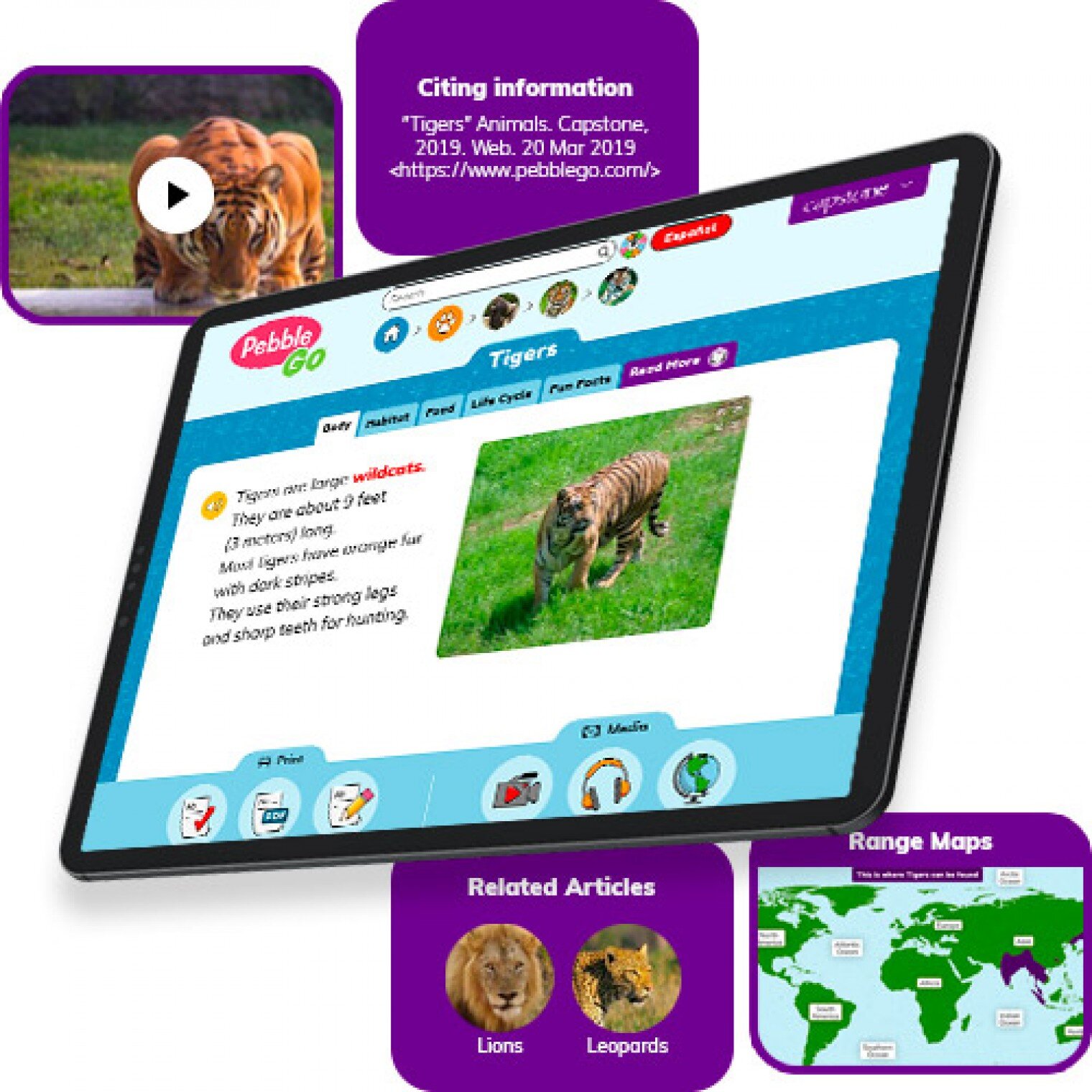
Pebble Go
PebbleGo is a curricular content hub specifically designed for K-3 students. Packed with informational articles, ready-made activities, and literacy supports for students of all abilities, it boosts engagement and fosters independent learning in core subject areas. To learn how you can gain free access during school closures, click on the learn more button below.
Compatibility: Web based only
What tools can my students use to keep the creativity going?
Just because your students are away from the classroom, doesn’t mean that they have to lose their creativity. The list of apps below are highly recommended platforms that will have your students creating rich and authentic content that you can tie directly to your standards. If you have any questions on how to implement these, please don’t hesitate to reach out to us.

Buncee
With Buncee’s assortment of media options, creating a virtual lesson is quick and easy. Teachers can include text, video, audio, or even links to additional resources. Record your lesson using the video feature, or create an activity template for your student to complete at home. The classroom dashboard can then be utilized to share and track assignments. Teachers could also create a Buncee Board, so students can access materials, share their work, interact with their classmates, and participate in class discussions no matter where they are. Students can also create and submit Buncees back to their teachers. For more information, click the learn more button below.
Compatibility: all devices

Adobe Creative Cloud
Adobe has announced that they are giving their higher education and K-12 institutional customers globally — who currently make Creative Cloud apps available to students who login through on-campus labs — the ability to request temporary “at-home” access for their students and educators. This will be granted through May 31, 2020 at no additional cost. To learn more, click the learn more button below.
Compatibility: all devices

Minecraft: Education Edition
To help teachers and students stay connected to the classroom, Minecraft: Education Edition is now available through June 2020 for all educators and learners who have a valid Office 365 Education account. Click on the learn more button below for more information.

Book Creator
Book Creator is a simple tool for creating awesome digital books. You can create your own teaching resources or have your students take the reins. Combine text, images, audio and video to create stories, portfolios, journals, comic adventures, science journals and much more! Book Creator is offering everyone the ability to collaborate together on books in real-time. This is a premium feature that is usually only available with a paid subscription, but they’re offering 90 days free use of this tool, to help keep students and teachers connected.
How can I make learning engaging and interACTIVE during remote learning?
Distance learning doesn’t need to equal dull learning. There are many apps that not only allow students to learn alongside one another in real time, but they also help the teacher facilitate information in unique and different ways.

GimKit
GimKit is a live gameshow for the classroom. Students answer questions on their own device at their own pace. Throughout a Kit, each student will get exposure to the questions multiple times to ensure mastery.
Compatibility: all devices

Nearpod
What if we told you that you could have your students log onto your presentations, and literally switch slides to all devices logged on at the same time. With Nearpod, you can do just that. Students log onto your presentation with a code. Educators can also add slides for collaboration, drawing, 360 images, and more. Check out the learn more button below fore more information.
Compatibility: all devices

Hyperdocs
HyperDocs are free digital lessons that are easy to edit for your eLearning students. They are all about hyperlinking your docs for amazing learning experiences for kids! With one shortened link, students can access a lesson that contains instructions, links, tasks, and many clever ways to get thinking. Hyperdocs focus on creating opportunities for choice, exploration, and ways for kids to apply their knowledge. Explore these docs plus more by clicking the learn more button below.
Compatibility: all devices

Brain Pop
From the very beginning, BrainPOP was built on the belief that curiosity through short animated movies can make complicated ideas simple and clear. Today, BrainPOP’s rigorous learning experiences go far beyond a movie and quiz, offering a rich array of resources and tools that meet each student’s interests and needs while developing their critical, computational, and creative thinking skills across the curriculum.
For more information on how to make learning more engaging and relevant by using technology, check out our book The InterACTIVE Class.


Here is a Wakelet of other platforms that we are updating daily as we come across new resources and offers.
We are happy to connect and discuss which tool would work best for your particular remote learning experience. This is an unprecedented situation, and leaning on one another is more important now than ever before. Please don’t hesitate to reach out.
👓👗💚
#BetterTogether #interACTIVEclass #remotelearning

AR Flipgrid Trading Cards
Describing the characters from a text has never been this fun! Check out how to create your own augmented reality character trading cards!
Describing characters has never been this much fun! Joe’s first graders spent some time going through a text, creating trading cards for each character, and then adding an AR (augmented reality) flare to it all.

Drew Daywalt and Oliver Jeffers’ “The Day the Crayons Quit” has become a loved book amongst teachers, parents, and students. In this highly entertaining book, the crayons write letters to a young boy named Duncan, as they are fed up with how they are being treated. To make the read aloud interACTIVE, you can download the Novel Effect app. This app uses the microphone built into your smart phone to listen as you read. When you read certain words along the way, sound effects and music is played.
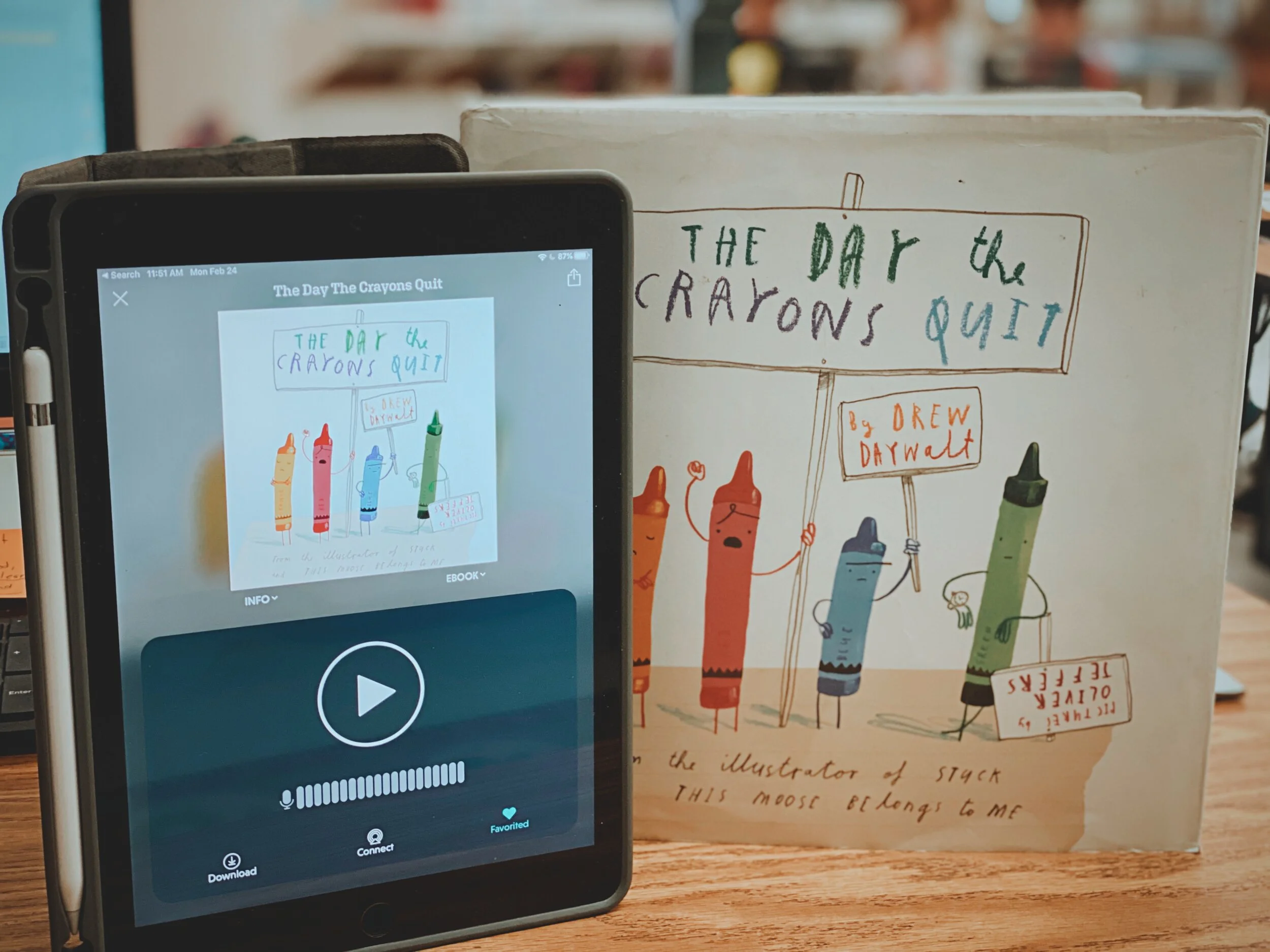
After reading, we moved on to describing the characters. We did this by using a Bubble Map, which includes only adjectives. We revisited each character, creating a trading card for each.
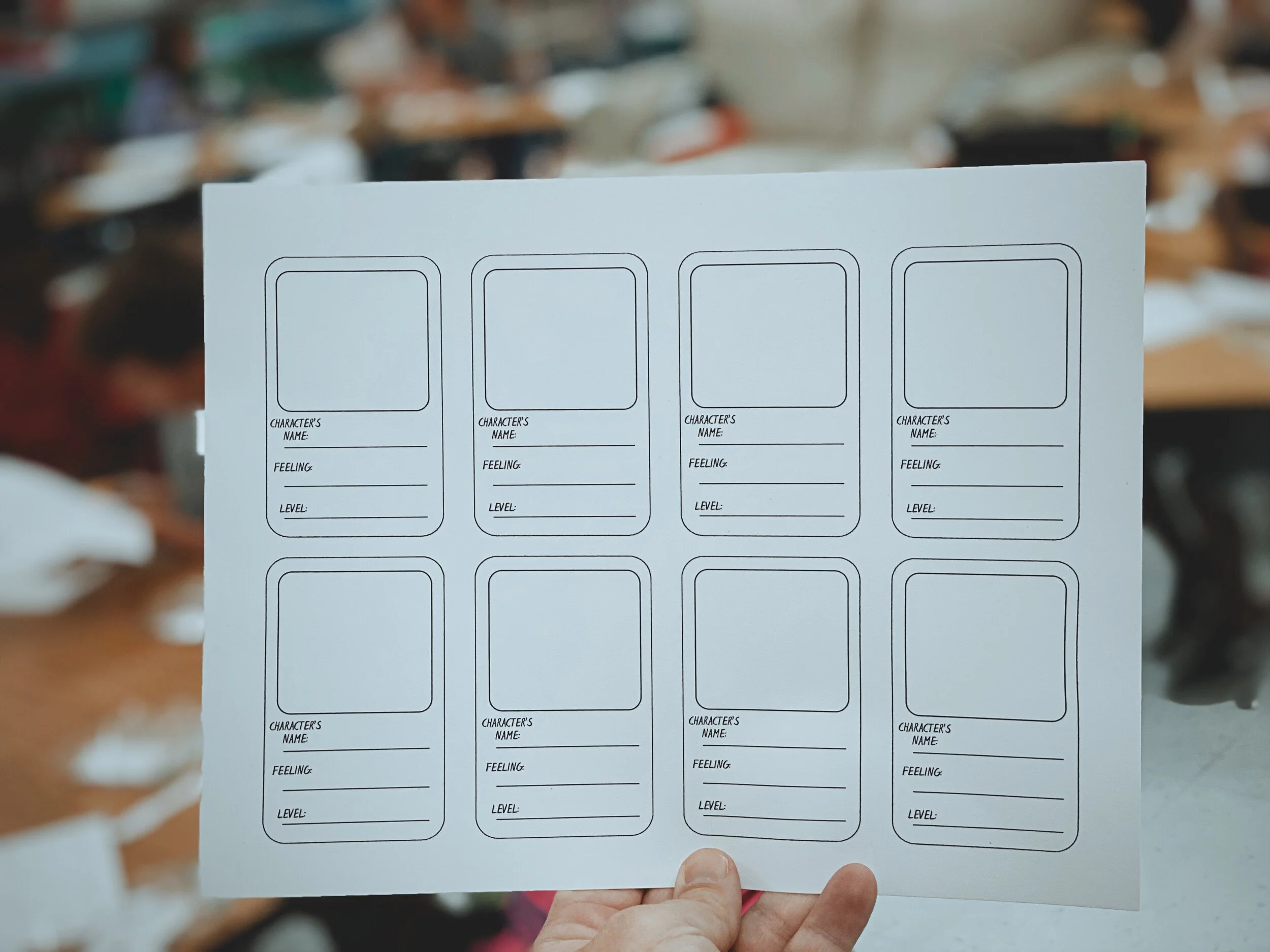

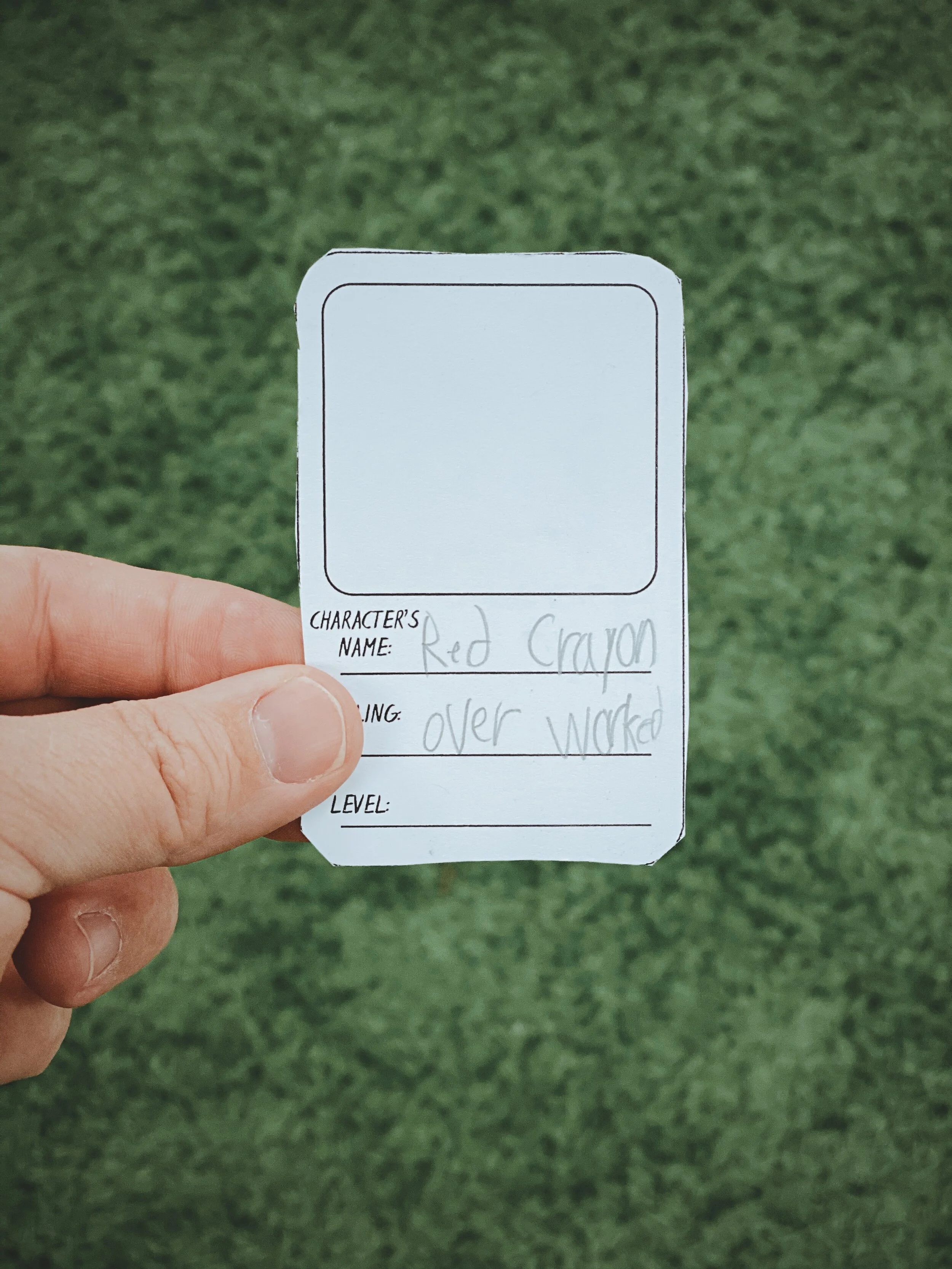
Next, we used the app Chatterpix Kids to “animate” the illustrations, which later became the AR videos. Chatterpix Kids is a primary friendly (but fun for all ages) app that allows you to draw a mouth over a still image, and give it the appearance that it is talking. We repeated this process for each of the characters.
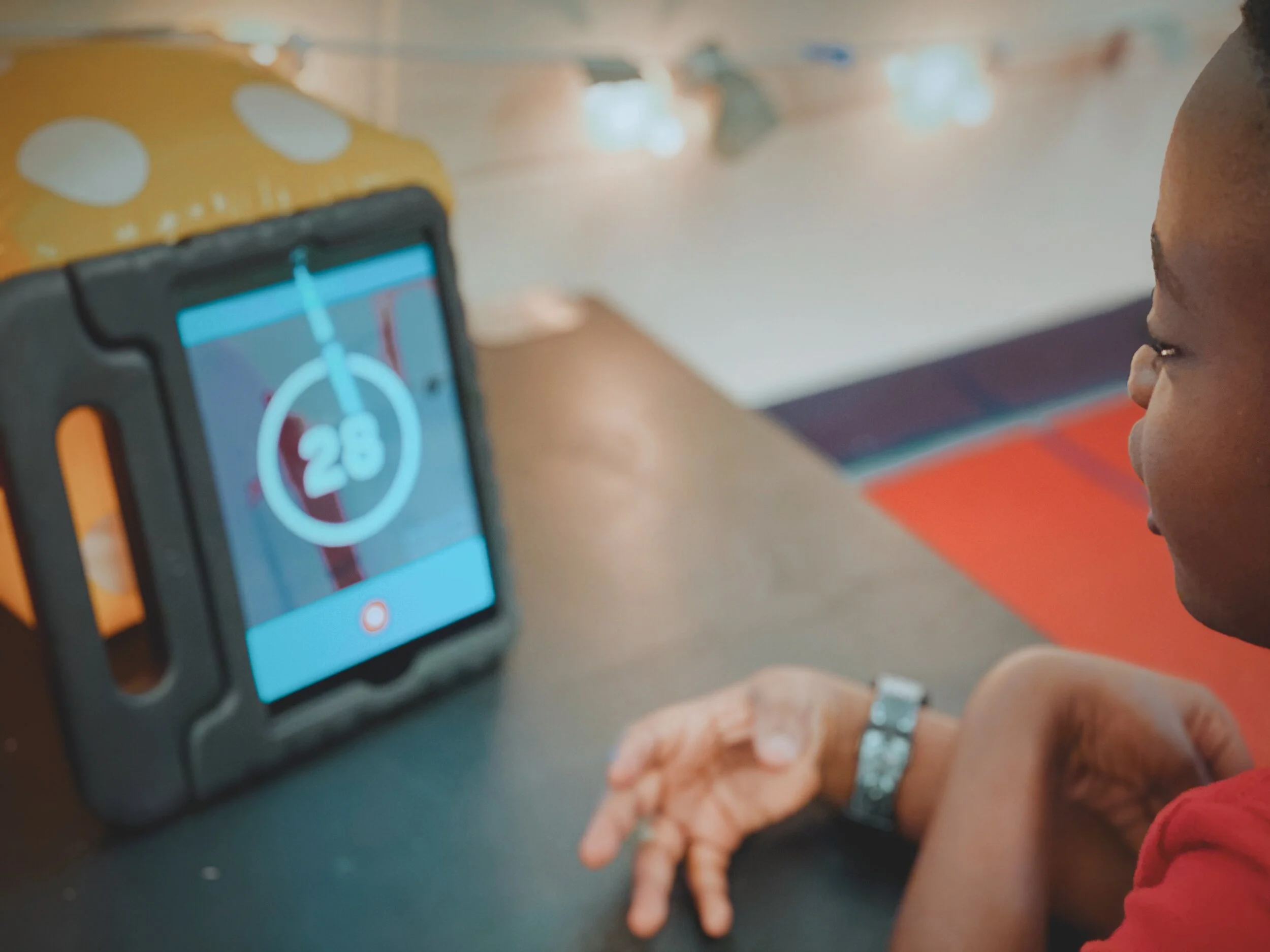
After we recorded on Chatterpix, we exported the files and saved them to the device’s camera roll. From there, we “app smashed,” or uploaded, the videos into Flipgrid. Each student submitted an initial response, but then they responded to themselves. Once completed, we printed out each video response’s QR code. This code was then glued to the trading cards. When scanned with the Flipgrid QR code reader, it will open in AR!
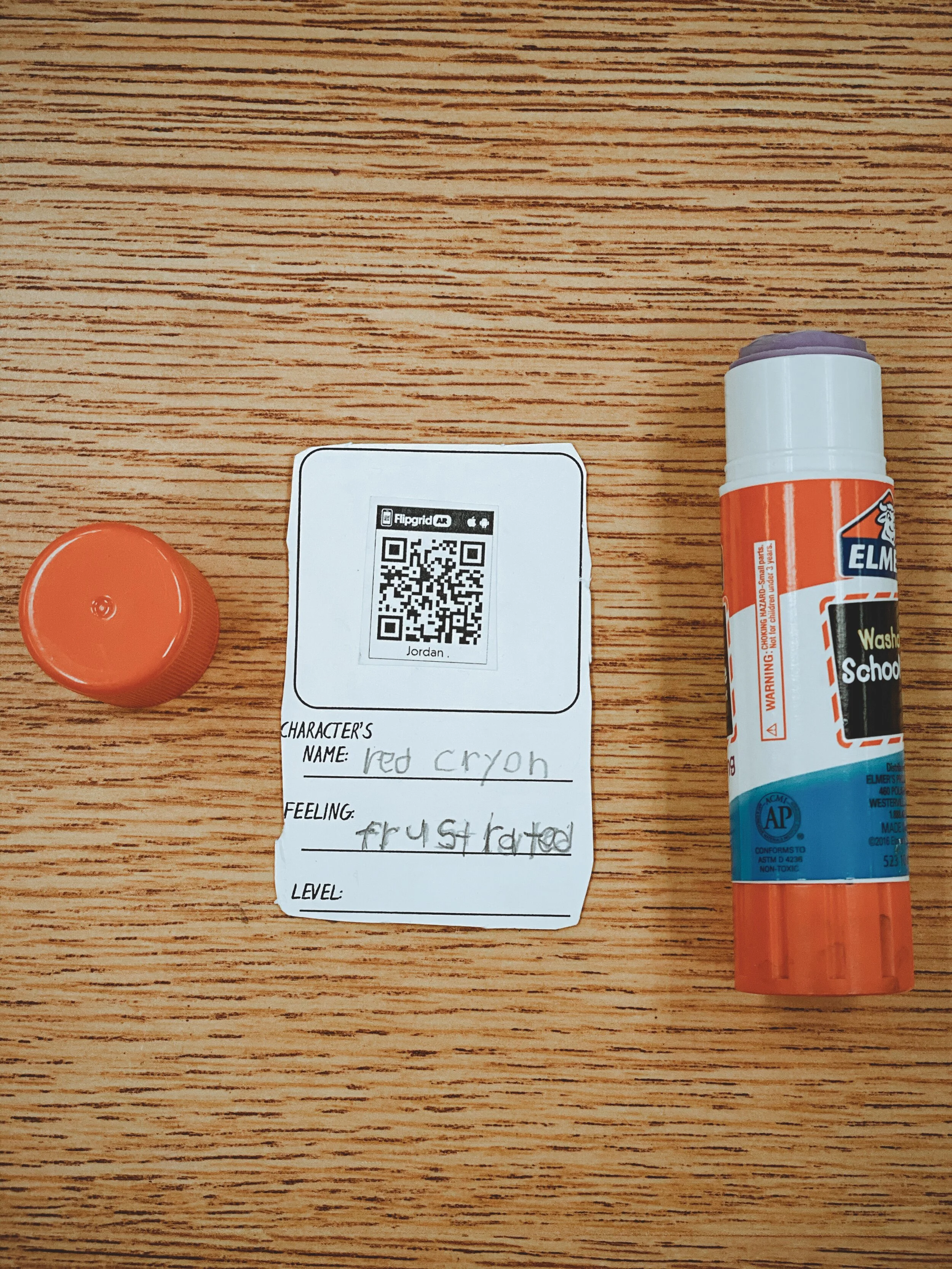
I also gave the students the opportunity to illustrate the back of the cards. As an added bonus, I had the students “level” the characters based on how much they thought the crayons effected Dunkin’s thinking. We’ve been working with tens and ones in math recently, so this fit right in! Each student “leveled” the characters on a scale from 10-100, with a 100 being the character that has the biggest impact. Once the activity was completed, we added up the total of the lvels for a grand total. Check out the entire video tutorial below!
Interested in trying this out in your classroom?
Here’s all the resources you need:
The Day the Crayons Quit book
Novel Effect app
Trading Card Template
Chatterpix Kids app
Flipgrid app
Be sure to tag us on social media! We’d love to see how you’re using this in your classroom!
For more #interACTIVE lesson ideas using Flipgrid, check out our book The InterACTIVE Class on Amazon!


Welcome to EdSpace
Learning happens when we go beyond ourselves and connect with those around us. The EdSpace platform is geared and designed to be a social learning network for those in the world of education.
One of the awesome parts of having such an #interACTIVE audience is the ability to learn and share from one another. We love learning from those around us and trying new things, and we also like reciprocating this with our PLN. This week we want to introduce you to a new and upcoming platform that just launched….EdSpace.


Learning happens when we go beyond ourselves and connect with those around us. The EdSpace platform is geared and designed to be a social learning network for those in the world of education. EdSpace is a place where educators, administrators, bloggers, authors, podcasters—really anyone interested or involved in education—can come together to exchange ideas and communicate with one another. They state their mission as such, “Since the beginning, our mission has been to help educators find and connect with their people — the ones who have the answers and inspiration they need, the ones next door and the ones across the country.”
EdSpace can be used in so many different ways. Maybe you are looking for feedback on a lesson idea or on a new learning tool. Perhaps you want to crowdsource new ideas out to others or create a buzz about something you’ve been working on. Ideas are shared in the form of videos which must be 3 minutes or less. You can reply and/or comment to posts your connect with thus creating discussions and connections with fellow educators. EdSpace will filter and display ideas based on a the amount of interaction they receive. The more interaction a video gets, the longer it stays up for people to watch. Videos will less interaction will disappear after 72 hours of inactivity. This unique formula creates a stream of videos where you are constantly interacting with content that is current and relevant.

When you log in to EdSpace you live in your LiveGuide. This is where your personalized feed lives. You can choose and order the channels that make up your LiveGuide as you see fit and you have the ability to add or take them away as you go. You can use the search feature to look for various people, channels, (#interACTIVEclass) or videos for faster finding. The Post feature is where you go to add or upload any video content yourself. When adding your vides you get the chance to give your post a title and caption explaining more about your post’s content. Video posts can be added to up to 5 different channels making it easier to spread your messages and ideas to more people in various groups.
If you are looking for more information on EdSpace head over to Twitter and follow @EdSpaceLive, @mjcraw and the hashtags #sharemore and #edspace.

Using Flipgrid For Inquiry
Many try to incorporate Genius Hour, 20% time, Passion Projects, or other named activities all dedicated to student inquiry. For those with limited time or resources, try using Flipgrid! Combine the tool designed for student voice with basic inquiry to create a simple step toward student inquiry.
Giving students time for inquiry can be challenging for many teachers. It can be tough to find time to give students to learn about things they are interested in when you already have a long list of required texts or expected standards to cover. Many try to incorporate Genius Hour, 20% time, Passion Projects, or other named activities all dedicated to student inquiry. For those with limited time or resources, try using Flipgrid! Combine the tool designed for student voice with basic inquiry to create a simple step toward student inquiry.
First you begin by giving students a chance to share something they are interested in. Give students a chance to speak and share what they want to learn more about simply by having them reply to the topic. You could organize topics by week or month or just keep one long topic running all year. When the student records, have them also put their topic of interest in the title line before uploading so that their inquiry will appear on their thumbnail along with their selfie picture.
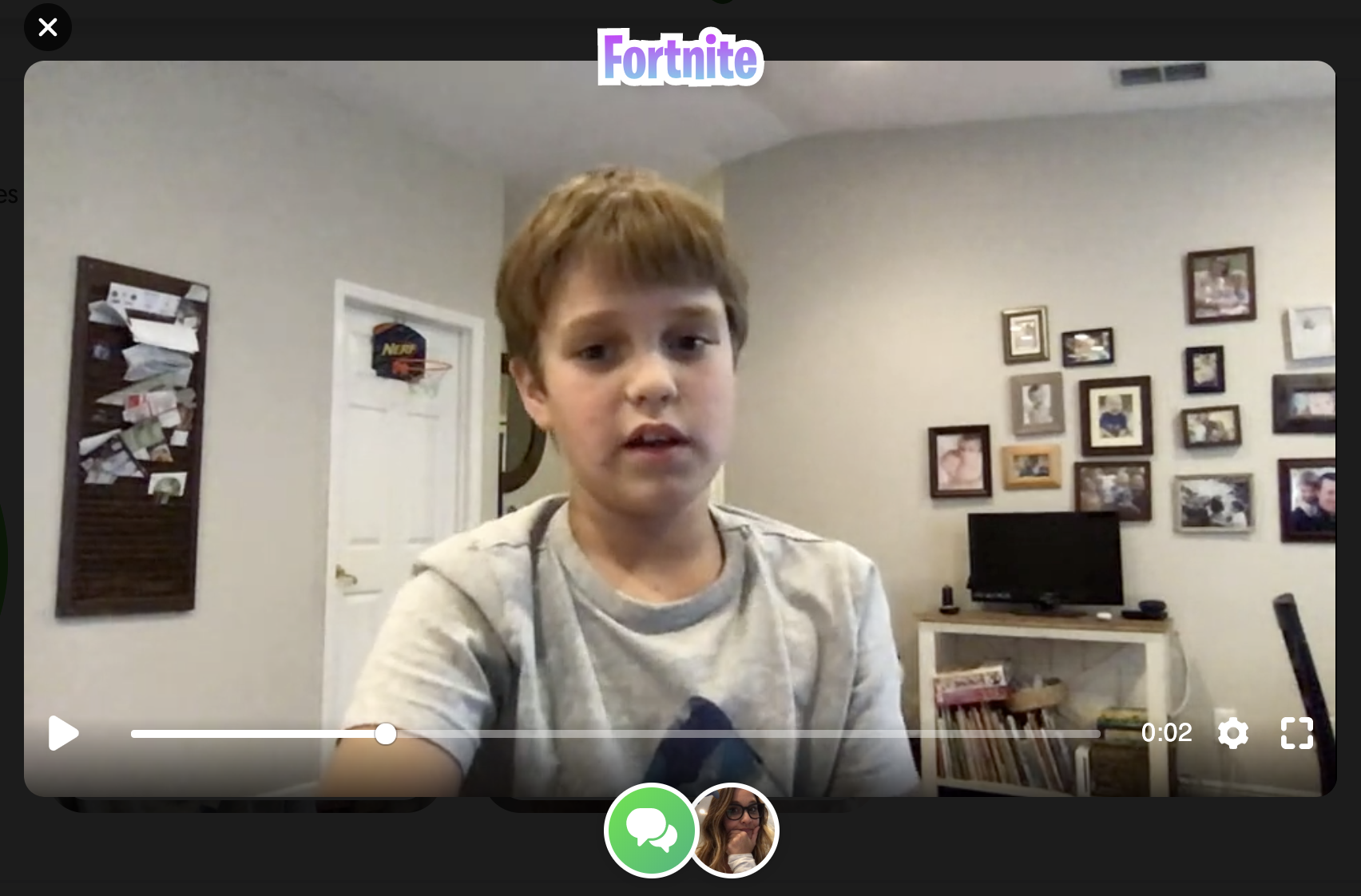
Then the teacher goes in and adds a vibe to student video showing what topic the student chose. This way other students interested in the same topics could view multiple.

Then the teacher responds and during the response adds an attachment to their reply. This attachment can be anything that can be share with a link. When the teacher responds, the attached link will appear in the top right corner and the student can easily click on it while watching the response video.

Students then can go and learn more using what the teacher provided. The teacher could leave more than one response with various links if they wished. The student can also “report back” with new information learned, or even a project they created attached. Some great programs that integrate with Flipgrid via links are Buncee, Adobe Spark, Microsoft PowerPoint, and Google Slides. Students could also create using something like PicCollage and share back what they have learned through images as stickers.
Are you familiar with adding links? Many are surprised to hear about this simple, yet powerful Flipgrid feature. Links can be attached to a topic video, in addition to being attached to a video response or video reply. When attaching a link to a topic, you would do it when you create the topic as seen below.

If you wish to add a link to a video response or reply, you do this on the LAST screen before submitting the video. As shown below, you can also add a title for the video and change the name of the user on this screen as well.

With all of the new updates being released the ways to use Flipgrid in the classroom really are limitless. The ability to add links and share attachments makes this a really powerful tool to continue the empowerment of student voice and promote student choice in the classroom.
For a visual tutorial on how to create enriching lessons by attaching links, check out our video tutorial here on the Flipgrid YouTube channel.
If you are looking for other lesson ideas using Flipgrid, make sure to check out our book The InterACTIVE Class! You can read more about it here!
Stay #interACTIVE!
-K 👗
Using Flipgrid to Promote Critical Thinking 💭
Part of developing an #interACTIVE lesson is finding a way to engage students in their own learning. Sometimes this comes by integrating new apps or programs, but it doesn’t always have to be through something new. Often, using a program students are already familiar with in a new way can be just as effective.
Part of developing an #interACTIVE lesson is finding a way to engage students in their own learning. Sometimes this comes by integrating new apps or programs, but it doesn’t always have to be through something new. Often, using a program students are already familiar with in a new way can be just as effective. It’s also great for being efficient because you don’t have to teach students a new platform before diving in to the learning.
Features That Promote Critical Thinking
All the new features make Flipgrid is a perfect platform for this. You can use it in one way for one type of activity and then change up the way it is used completely for another lesson. Pausing and clipping videos and using stickers are some of the features used on a daily basis in my classroom, so to switch it up I used the sticker and type tool feature for this lesson.
For this lesson, I as the teacher used these tools to create a lesson for students to work on independently throughout the week. For this lesson I wanted students to reflect on various images from our unit if study and I used Flipgrid as the platform. I could have easily given them the photos, had them reflect and write their ideas down in a packet to be turned in at the end of the week. Instead, I took the photos and put them up as individual responses.

Uploading Photos to a Topic
Each photo was uploaded using the custom sticker feature and enlarged to fit almost the entirety of the screen. Then, using the text tool I typed out the captions that accompanied the photo. Following the caption, using the text tool with the white background, I scaffolded the conversation by putting in questions or stems for the students to use when responding to the photos. Once the entire screen was prepared, I turned the audio off so when recording it would just appear that the screen was standing still.

Recording Responses in Flipgrid
Once all the photos were uploaded, the students were given the task of reviewing them and responding to the 3 of their choice. Thus the idea of the “think tank”. The goal of this lesson is not to memorize a specific amount of facts or to summarize an idea using a specific amount of words, but rather the goal of this assignment was to get students thinking, inquiring, talking and connecting to the people and events in the images.

If you are interested in replicating this lesson you can find these images, along with many more here from Buzzfeed’s 50 Powerful Pictures From Black History That Speak for Themselves.
Stay #interACTIVE!
-👗➕👓
For more creative ideas on how to use Flipgrid in the classroom, check out our book The InterACTIVE Class on Amazon!


Persisting and Pivoting in the Classroom
Troubleshooting. It’s something we get asked about quite often. How do we deal with that one student that doesn't want to learn or work?

Troubleshooting. It’s something we get asked about quite often. How do we deal with that one student that doesn't want to learn or work? What is your backup plan when the lesson doesn't go the way you intended? Do you ever have days where the technology isn't cooperating or the wifi is down?
Educators are always surprised when we reply with "we probably do the same things you do!" because believe it or not, all of these things happen to us too! Teaching and learning is full of speed bumps that slow us down temporarily but how we react to the problems is what determines the rest of the journey. Part of the interACTIVE framework is troubleshooting. It is important to remember that being responsive must incorporate a time to reflect--looking back on the lesson and the learning, often reflecting on what didn't go just right and troubleshooting how to go about fixing it.
There is definitely a frustration that accompanies a hiccup in a lesson but too often as educators we forget that there is even learning happening during a lesson or activity gone wrong. Even when a student misses the mark there is learning present. When a program doesn't work the way we expected or a lesson takes twice as long as planned--there is still learning present. We often avoid hard or unknown things because we are scared of the challenge they may pose forgetting that through the struggle there will be learning present.
Troubleshooting is the last of 5 steps of our interACTIVE framework which we outline in our book. We also explain the necessity of learning how to PIVOT when teaching students in your own interACTIVE environment.
If you haven't already, jump on board and start transforming your teaching and the learning in your classroom and join our interACTIVE family as we troubleshoot and help one another along the way! Grab your own copy of The InterACTIVE Class here and read through the five framework steps. Always remember- #bettertogether!
-K 👗
First Chapter Friday
InterACTIVE teaching is all about being reactive and responsive when it comes to what and how we teach. We also know that engagement comes through games and the act of “time running out.” So combine the two and you essentially get the idea behind “first chapter Friday.”
InterACTIVE teaching is all about being reactive and responsive when it comes to what and how we teach. We also know that engagement comes through games and the act of “time running out.” So combine the two and you essentially get the idea behind “first chapter Friday.”
This idea was pitched to me by my awesome, amazing, and ultra creative reading coach. (Find her on social media at @literacyunscripted on both Twitter and Insta) She knows my love of books—chapter, picture, fiction, nonfiction—you name it, we love to read and talk about it. We share books with each other constantly and we both have a strong belief that students should be able to read what they want and chose based on interests rather than by reading level, points earned, genre, etc.
In the perfect utopian classroom students would be reading often, choosing their own books and finding time to become active and avid readers, but we all know that this isn’t the reality. Our classrooms are filled with standard driven lessons, curriculum pacing and unfortunately for many yearly state assessments. Students are given very little time, maybe 20 minutes a week—if that—to spend inside their school library and are often unaware of the titles housed along the shelves. And don’t even get me started on the titles that are out there that just might not be available in the school library. So the idea of #firstchapterFriday was pitched to help introduce our students to more books.
In a nut shell, #firstchapterFriday is a 15 minute part of our day every Friday where a new book is introduced to the class and the first chapter is read aloud. It is a great way to expose students to new topics and titles and also provides a quick and easy way to review genres, writing styles, new authors and so much more. We have been doing it at the very end of the day after we pack up but it could easily be how you start the day, or squished in between other scheduled parts of the routine day.
The books can be from anywhere, but I would suggest choosing books you either have in your own classroom library or ones that are available in the school library so they are available for students to check out and read if they choose to do so after hearing the first chapter. Here are the titles we have read so far in my 4th grade classroom.
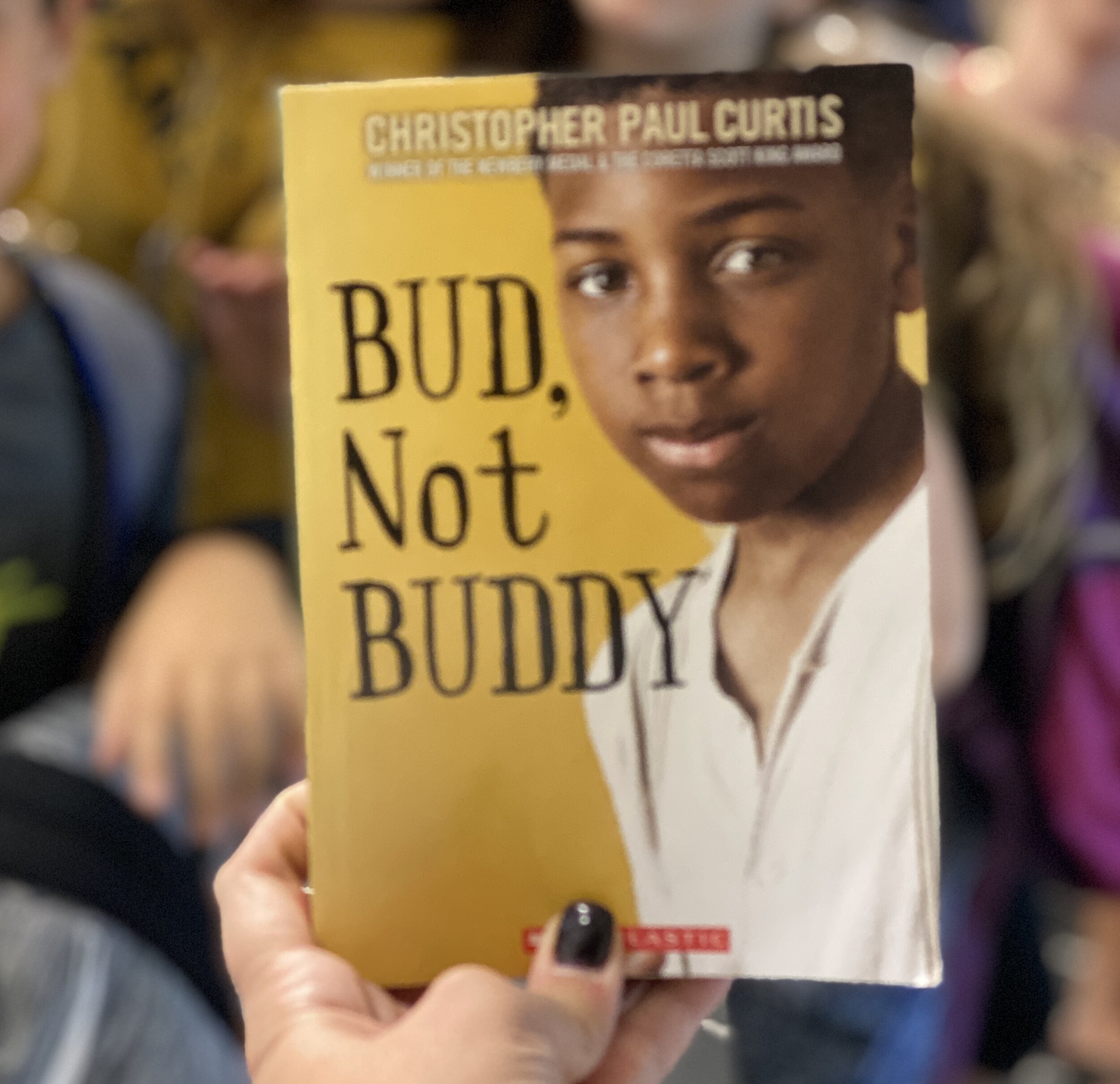
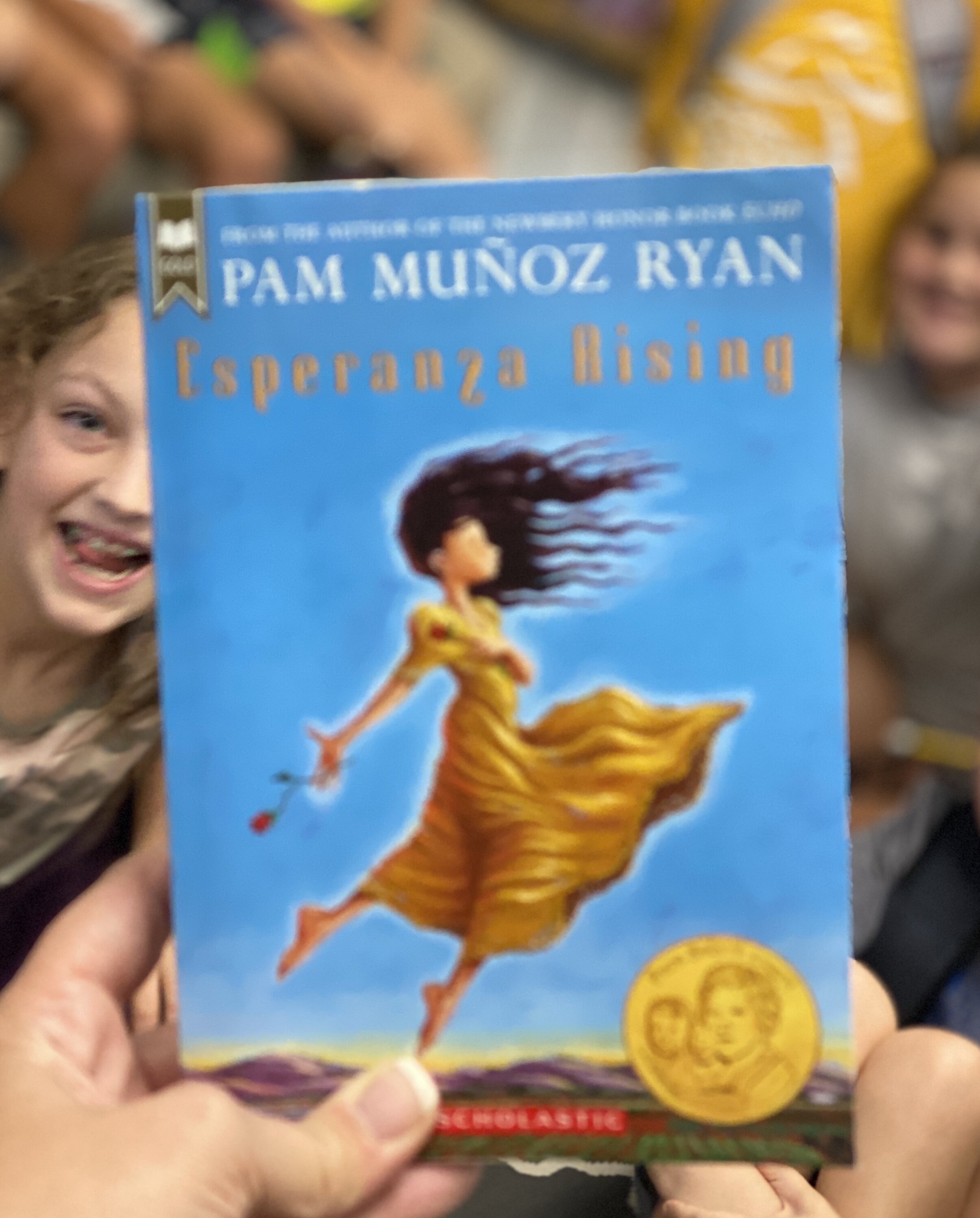
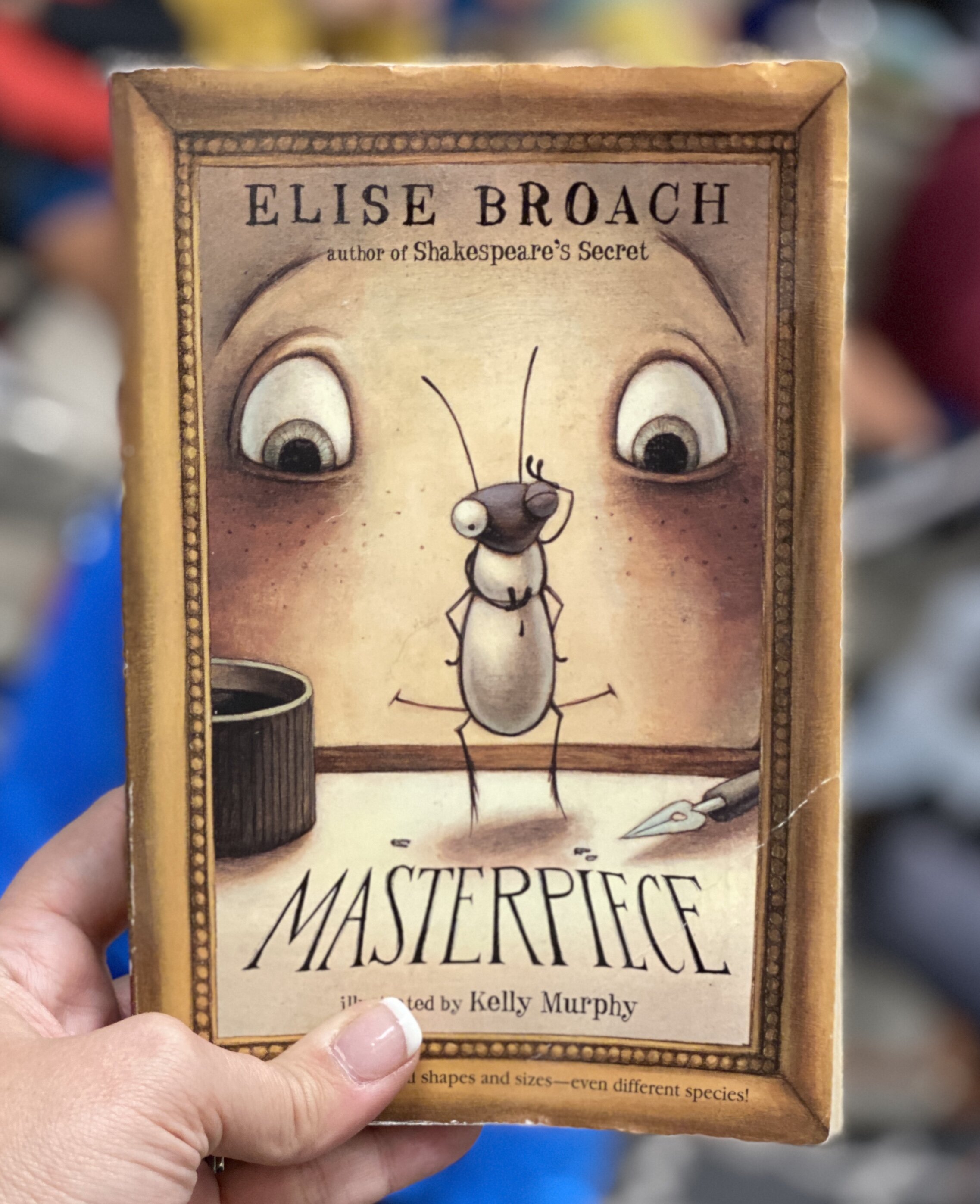
Giving students a choice when it comes to their reading is key to helping them become independent readers while also being an easy and simple way to share and expose them to more.
Stay interACTIVE!
-K 👗
Looking for more interACTIVE ideas for your classroom? Check out our book The InterACTIVE Class!

An Invisible Room Transformation!
What if we told you that you could transform your room without moving a single thing? You can and it’s even easier than you think!
Often times, educators think of room transformations as having to completely change the look of their classroom. Whether it’s draping the walls with tablecloths, using black lights, or rearranging furniture, room transformations can capture the engagement of your students and motivate them to complete tasks. But it doesn’t always have to be this complicated. After all, the whole purpose of a room transformation is to capture engagement. So what if we told you that you could transform your room without having to rearrange a thing? It’s possible with something that we like to call “An Invisible Room Transformation!”

To start, we read the book, “The Invisible Boy” by Patrice Barton (you can purchase it by clicking right here). This story is about a boy who feels invisible because no one is paying attention to him. As the story progresses, he meets a new friend that shows kindness and eventually changes the way that he feels. The main character goes from black and white to full of color. So…how does this tie into a room transformation?

Simple! After reading the story, explain to the students that you will pick one student to be the “invisible student.” It’ll be a secret, so only you and the student will know who it is. If another student shows kindness towards the “invisible student,” they will whisper, “I was the invisible student, now it’s your turn!” The student who showed kindness now becomes the new “invisible student.” The process repeats every time a new person shows kindness. At the end of the day, the student who is the “invisible student” earns a prize. This has transformed your classroom, without having to move a thing! Plus, it has promoted kindness with your students. Hence, the “Invisible Room Transformation!’
👓👗💚

Creating Podcasts Using Flipgrid
Podcasting in Flipgrid? YES! It’s possible! Check out our step-by-step tutorial to help you get started with your very own #interactivePODclass! ✌🏻😉
What a whirlwind of a day we have had here at FETC! We are so thankful to have such an amazing PLN and we have continued to grow it through all of the amazing connections we continue to make. We had one big hit during our presentation this afternoon and we thought we’d post it up here on the blog to share with everyone who is #notatFETC.
Flipgrid Podcasts
One idea shared this afternoon during out InterACTIVE Class presentation was the idea of having students share their voice through podcasts. Now, with the new Flipgrid sticker feature this is easier than ever. Let’s share how easy it is for students to create their own podcasts.
1.) Choose a topic. This is where students decide what their podcast is going to be on. Maybe you guide the subject a bit to match up with a unit of study you are currently working on, or possibly students can have more freedom with their podcast topic and choose something that they are personally interested in.
2.) Develop branding and create a graphic. This can be as simple or as detailed as you make it. You can simply give students time to design in one of many creations tools—Canva, Adobe Spark, Google Sides—and allow them to design their own unique podcast image. If you choose to take a bit more time on this step, you could do some smaller lessons on branding with students and dig deep into the thought process put behind a logos, colors, fonts, etc. Either way, students leave with a branded image that they can save as a .jpeg image on to their device.
3.) Set up your space in Flipgrid. This is yet another way to differentiate according to your specific class make up and personal preferences. You could have a weekly topic where each student posts their most current “Episode” for classmates to enjoy. Or, maybe you create a class Podcasting Grid where every student gets their own Topic. Each time they create a new “episode” they could add it as a response on their own personal Topic thread.
4.) Record an episode. When students log in to record their episode, they will open up the recording window and using the sticker feature, choose their saved podcast image from file.

Students will then stretch the image until it is enlarged enough to cover the entire screen.

When they begin recording viewers will only see the still image just like we do when we listen to our own real podcasts!

Benefits of Podcasting
Through Flipgrid, giving students a platform to write, create, record and share their voice with classmates and those around them is truly exciting. They are SO many additional ways to take this simple activity and spark even more creativity and collaboration. Possibly try:
-allowing students to “interview” each other and get a chance to not only produce but also guest on a classmate’s podcast
-Create AR or QR codes and share various episodes around campus, in class newsletters or through a school email.
-Merge a class grid pal or Skype class with podcasts and give students a chance to share their podcasts with others outside the room. Enable the ability to reply to responses so listeners can leave their thoughts on the topic or ideas for a new episode.
InterACTIVE learning doesn’t have to be time consuming or require a lot of planning prior, but with the help of Flipgrid, sharing every student's’ voice is just one click away! If you try this with your students we’d love to hear their “episodes!” Tag @themerrillsEDU or #interACTIVE class so we can see the creativity firsthand!
For a quick tutorial on how make podcasts using Flipgrid, check out on of our TECHnically Speaking tutorials here!
Stay interACTIVE!
👓 + 👗
For more #interACTIVE lesson ideas using Flipgrid, check out our book The InterACTIVE Class on Amazon!


Opening the Window to the Classroom
To better understand a parent's perspective of education, think of someone who wears glasses--maybe even yourself! Your glasses help you see, or maybe you're completely dependent on them to function effectively. What happens when you take your glasses off? You view the word entirely differently.
Excerpt from The InterACTIVE Class, Chapter 6

To better understand a parent's perspective of education, think of someone who wears glasses--maybe even yourself! Your glasses help you see, or maybe you're completely dependent on them to function effectively. What happens when you take your glasses off? You view the word entirely differently. You have a sense of where things are located but you can't see clearly. Everything is blurred. You might be able to tell where people are located in a room by their movement or the sound of their voices, but you can't recognize them.
This is how parents often view your classroom. They know the basics of the school--when to drop off or pick up, how to register to volunteer or chaperone a field trip, the way grading is done, and when report cards come out. Depending on how you communicate with them, they may even know what standards and content you will cover in class during the week. Even so, most parents feel out of place and uncomfortable at school and around the classroom. They haven't been students in a long time, and they may be unfamiliar with the acronyms and red tape of the current educational system. They want to help their children, but they don't know how and often just try to stay out of the way. As a result, they have limited knowledge of what you are teaching and how their children are learning despite your most valiant efforts to communicate with them.
Over the past few years, we have developed a solution for this. We call it "opening the window to the classroom." When our firstborn started kindergarten, we started to shift our teaching. For the first time, we realized what our classroom parents experienced. After we sent our son to school for an entire day, we anxiously awaited the bell at dismissal, excited to talk to him about all the learning he did. But each afternoon, he returned with an anticlimactic "fine" or "good." He loved the kids in his class, his teacher was nice, and his daily routine was pleasant, but we weren't able to experience any of this with him. We longed to talk to him about what he had learned and share in the joy he clearly felt while at school, but his ability to remember parts to share with us was--well...we'll just say it "need improvement."
We realized we were not the only parents who felt this way; many others also wished to support and encourage their children's learning. Teachers have an army of parents willing to work with their children at home to enrich and extend what is taught at school. But the army needs communication from you. How are you opening your classroom window to let parents see inside? In what ways do you communicate with parents so they can support you at home?
These questions are answered as we share some of our favorite ways to get parents interACTIVE and involved in The InterACTIVE Class!
Grab The InterACTIVE Class today!
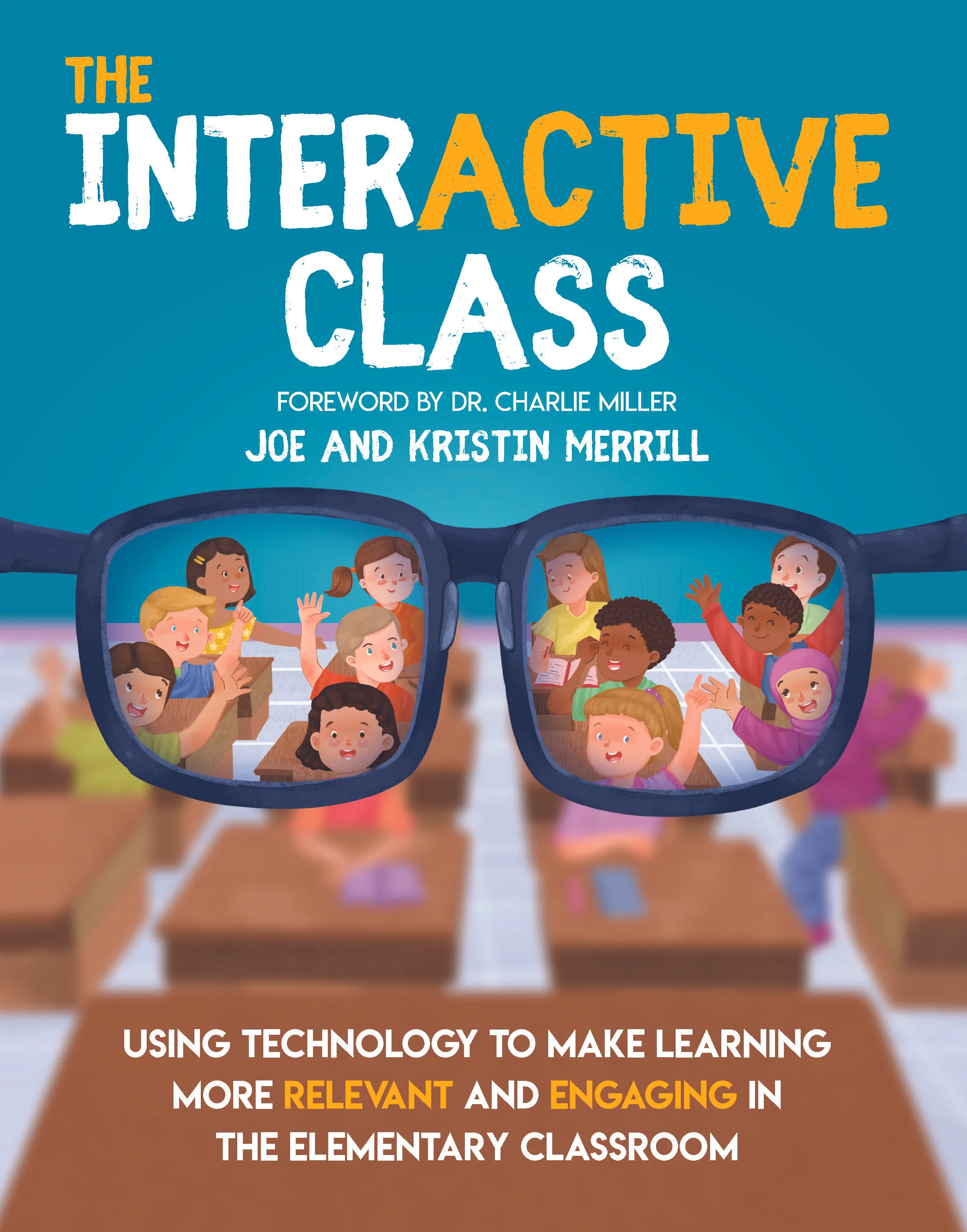
The InterACTIVE Class is now available for purchase and for a limited time we have some amazing gifts to give away with each and every purchase in the month of January! Send your receipt our way and we will send these limited resources to you!
Click here to share your purchase with us!
Order today and receive our special book bundle package!

Above was just a small excerpt from The InterACTIVE Class. We are so eager to share all that is written within these pages and we are excited to get the idea of #interACTIVE teaching and learning out into the world. Thank you for being part of our #interACTIVE family!

#interACTIVE Explanation
“The InterACTIVE Class” book is almost here! Learn more about what to expect!
After a year of hard work we are so excited to finally announce that The InterACTIVE Class will be out in January 2020! The book's release date is set for January 14th and preorders will be available soon.

What does it mean to be interACTIVE?
InterACTIVE teaching involves students by allowing them to become ACTIVE participants in their own learning while giving them both choice and voice with in the learning environment. InterACTIVE teachers shift their thinking from WHAT they teach to HOW they teach!

Why is interACTIVE teaching and learning important?
InterACTIVE learning excites and engages students thus giving them the drive to work through challenging tasks and assignments. Students today are growing up in an environment so much different than when we were growing up and thus need to learn in an environment adapted to their needs.

How can you become a more interACTIVE teacher?
Teachers can be interACTIVE not only in how they teach, but also in how they set up and run their classroom. Learn how to create an interACTIVE learning environment where students feel comfortable learning and taking chances. You will also read about how to create interACTIVE relationships with both students and parents.

We are so excited to share The InterACTIVE Class with you and we will be in touch VERY soon with news on pre orders. If you’d like to stay in the know with all things #interACTIVEclass simply head here! Thank you for being part of our #interACTIVE family!
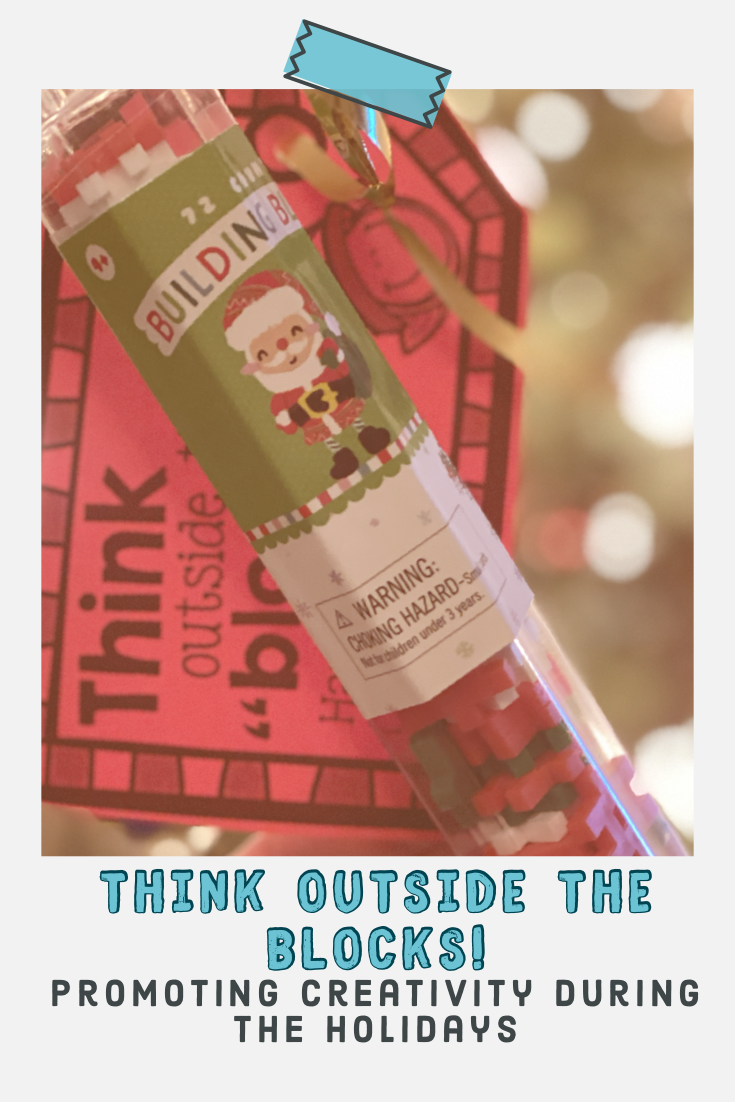
"Think Outside the Blocks!" (freebie gift template)
With the holiday season in full swing we always try to balance celebrating with our students and being ever so conscious of specific family traditions and holidays. With the help of the Target Dollar Spot, we have found a fun way to do both!
With the holiday season in full swing we always try to balance celebrating with our students and being ever so conscious of specific family traditions and holidays. With the help of the Target Dollar Spot, we have found a fun way to do both! Throw in one of our favorite educational apps, Flipgrid, and you’re set and ready to go!
Each and every time the Dollar Spot is changed out we keep our eyes peeled for these tubes of hashtag blocks. We first encountered these with our own boys and they have become a family favorite for throwing in our bag to take to a baseball game, out to dinner or really anywhere where there may be a wait. Realizing and seeing firsthand how fun these were, we knew they would be a big hit with our students too! This year we found them early and with them only being $1 they are a great alternative to gift bags full or trinkets or sweets.

In addition to tagging them and sending them home, we have fun staying in touch with our students over break through Flipgrid! Simply set up a topic ahead of time and you can encourage your students to show off what they build over break. Or maybe you can challenge them to build something to represent an activity they took part in while on break.
Click here or the image below to download this template for free!

We have grown to love this simple gift and we know there are many who have also picked up these tubes to give away in their own classrooms. Feel free to download these tags to use this year or in the years to come! They are holiday generic, so they can be used in any classroom and hopefully relate to all students without excluding anyone.
Happy Holidays from our classroom to yours!
👓+ 👗

Black Friday Deals for Educators: 2019!
@TheMerrillsEDU covers Black Friday 2019 - for educators! We’ve found the best deals for YOU!
Black Friday Deals for Educators: 2019!

Black Friday is almost here, and now, most stores offer their deals online. We’ve picked out a few of our favorites listed below!
Target (Deals start 11/28, some deals are live now for RedCard Holders):
Google Home Mini ($19)
Apple iPad 10.2-inch Wi-Fi Only (7th Generation) ($249.99)
HP Sprocket 200 Printer ($99.99)
Polaroid Originals OneStep+ Camera ($99.99)
Amazon Echo (3rd Generation) ($59.99)
HP 11.6" Chromebook ($99.99)
Tile Mate (2018) - Attach this to your keys and never lose them again! ($12.99)
Google Home - Smart Speaker with Google Assistant ($50)
Fujifilm Instax Mini 9 Camera ($49.99)
Walmart (online sale starts Wednesday,
Nov. 27 at 10 p.m. ET)
Rca 720p Roku Smart Home Theater Projector ($99)
SAMSUNG 11.6" Chromebook 3, 16GB eMMC, 4GB RAM, Metallic Black ($99)
Fujifilm Instax Mini 7s Instant Camera w/ Matching Case, Film, Photo Album & Photo Holders ($50)
GoPro HERO7 White Action Camera ($139)
Kodak Mini 2 Instant Photo Printer ($49)
Tzumi Wireless Charging Lamp ($15)
Amazon (Deals start as listed)
All-new Echo Dot (3rd Gen) - Smart speaker with clock and Alexa - Sandstone ($19 w/ free smart plug)

"What's in the Bag EDU?" (Episode 8: Jenna Mercury, @Science4UsSays)
We’re putting an EDU spin on the series originally by Amoeba Records! In “What’s in the Bag EDU,” educators share tools that they’re using in their classrooms. When possible, we’ll provide links to purchase the items discussed, just below the videos. Today, we welcome Jenna Mercury or @Science4UsSays, from Montgomery, TX!
Welcome to the eighth episode of
“What’s in the Bag EDU?”
We’re putting an EDU spin on the series originally by Amoeba Records! In “What’s in the Bag EDU,” educators share tools that they’re using in their classrooms. When possible, we’ll provide links to purchase the items discussed, just below the videos.
Today, we welcome Jenna Mercury, or @Science4UsSays, from Charlottesville, VA!

I’m Jenna! Currently I’m roaming around the world sharing the value of K-2 science education, but prior to this, I was teaching science and math in the classroom. I’ve always known that I would be working in the sciences. I just never knew the capacity! My role has certainly evolved, but my love for science just grows stronger!
(please note, below could be affiliate links)
Item #1:
My first item in my bag is less of a thing and more of a feeling: compassion and understanding. The one thing that I have realized over my time as an educator is that we all carry baggage. Sometimes our mind (as a student) is not prepared to learn because of outside influences. We need to be caring in our actions and learn to support these students. If our mind is not prepared, we need to get it there. Stop, Breathe & Think is an app that helps you find your inner peace in the craziness of our worlds: https://www.stopbreathethink.com/
Item #2:
I can’t leave home without my stereoscope. Yes, I said stereoscope! There is nothing more fantastic to a science teacher than whipping this out when a student wants to take a closer look at something. One of my favorite teachable science moments was when my students were studying soil, sand and rocks and a student was looking at the sand and said, “Ms. Mercury, this looks like mini rocks!” Boom! We’ve even checked out dust bunnies- EW! https://amzn.to/31X0Cv7
Item #3:
Although this may seem silly, I am still a gal that’s all about her health. In the classroom, I would always forget to drink water or I simply would never drink enough. Water not only helps a body regulate temperature and flush out waste, but it also helps with brain function-- we need awesome brains everyday! So my bag always has a reusable water bottle and a straw handy. Then I can keep drinking the chemical of life throughout the day! Science water bottles are the best! https://amzn.to/33dl4YI
Item #4:
Other item in my bag is far from the classroom walls, literally: The SkyView app. Going along with my first idea, I love nothing more than reflecting on the idea that I am one small speck in this huge space. I feel inspired to look up at the stars and planets at night and think about peace and serenity. I loved sharing this app with my students as so often they too did not think beyond the walls of the classroom! https://apps.apple.com/us/app/skyview-lite/id413936865
Item #5:
Twitter. Twitter is always in my bag. If I am ever struggling on anything: classroom ideas, parent communication, or even mental exhaustion, there are millions of ideas and dozens and dozens of support outlets available. We are all on the same team and our goals are so common. Having a PD team of this global size is thrilling AND essential!
Being in the classroom is just like practicing science-- we can evolve through trial and error. We don’t fail, we find another opportunity to try again and succeed. Yup, I said all that ;)

Do Ink Green Screen: "The Ghost of @MrMerrillsClass! 👻"
Learn how to turn yourself into a ghost! 👻🤭
A Spooky trick for using Do Ink!
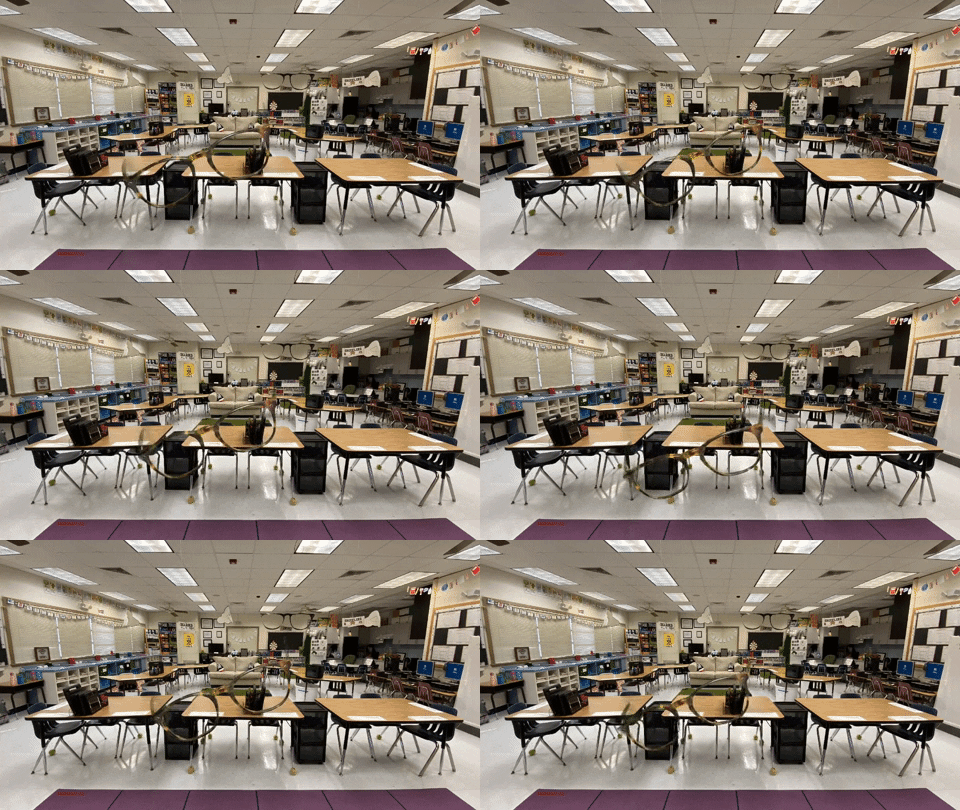
With Halloween right around the corner, educators everywhere are looking for engaging ways to keep their students focused. One of our favorite “spooky” lessons is a little Do Ink Green screen “trick.” So, here’s a how-to “treat!”
To do this, you’ll need an iOS device, and the Do Ink Green Screen app. You’ll also want to take a picture of your (empty) classroom ahead of time, a green table cloth, a green shirt, and something recognizable (glasses, sun glasses, ear rings, etc).
Watch this tutorial and follow these steps:

"What's in the Bag EDU?" (Episode 7: Amy Storer, @techamys)
We’re putting an EDU spin on the series originally by Amoeba Records! In “What’s in the Bag EDU,” educators share tools that they’re using in their classrooms. When possible, we’ll provide links to purchase the items discussed, just below the videos. Today, we welcome Amy Storer, or @techamys, from Montgomery, TX!
Welcome to the seventh episode of
“What’s in the Bag EDU?”
We’re putting an EDU spin on the series originally by Amoeba Records! In “What’s in the Bag EDU,” educators share tools that they’re using in their classrooms. When possible, we’ll provide links to purchase the items discussed, just below the videos.
Today, we welcome Amy Storer, or @techamys, from Montgomery, TX!

Amy Storer is an Instructional Coach and Technology Integration Mentor in Montgomery, Texas. She encourages and motivates others to reach far beyond the classroom walls to make the learning more meaningful and inspiring. Amy has a true passion for working with other educators and students to encourage them to make and foster global connections.
(please note, below could be affiliate links)
Item #1:
Buncee: Buncee is my absolute favorite creation tool as an instructional coach. I use it all the time to create graphics for presentations, school and district signage, newsletters, and more! What I love about this tool is that kids (and teachers) get it, because it gets them! I feel at my most creative when using it. Just love it!
Item #2:
Wakelet: Wakelet is a content creation platform where users can bookmark, organize content into collections, create digital stories, collaborate, design learning portfolios, you name it! Wakelet can do it! I love to use this tool as an instructional coach to create collections for frequently visited sites for our campus family, coaching menus, professional development, and for taking notes.
Item #3:
#CopierPD: I started this last year after being inspired by a conversation I had with some educators on Voxer. I was looking for ways to reach the adult learners on my campus, but to also honor their time. This is very similar to #PottyPD and #LearningintheLoo. You never know who you will impact with your words and the things that you share!
Item #4:
Four O’Clock Faculty by Rich Czyz: This book totally transformed the way that I think about professional learning. It continues to inspire me to design experiences for my teachers and others that “stick”. I even own 2 books, just in case I lose one! That is how much I love it!
Item #5:
My Space: As an instructional coach, I want my space to be inviting and a space for all. Each year, I work to add more to my room for the teachers that I work alongside. Some of my favorite things in my space? Candy jars, our professional learning library (bookshelf built by my pawpaw), and grade level tubs to stay organized.
Item #6:
Flocabulary: I love the way this tool amplifies student voice! One of my favorite features of this tool is the Lyric Lab. Students and teachers are able to design and create academic rhymes to go along with content and learning.
Item #7:
Podcasts! I love listening to podcasts while in the car or in the gym. It is a great way to explore and learn while on the go, and it’s FREE! Some of my favorite educational podcasts are Teach Like a Rockstar, Leading Equity (just started this one), and Cult of Pedagogy. I also love true crime podcasts and those that tell a story.
Item #8:
Frixion Pens! These are my favorite pens to use with my calendar! They are retractable gel pens that also erase! I have a hard time using anything else! LOL!

"What's in the Bag EDU?" (Episode 6: Kathrina Mendez, @kathrina_mendez)
We’re putting an EDU spin on the series originally by Amoeba Records! In “What’s in the Bag EDU,” educators share tools that they’re using in their classrooms. When possible, we’ll provide links to purchase the items discussed, just below the videos. Today, we welcome Kathrina Mendez, or @kathrina_mendez, from San Diego, CA!
Welcome to the sixth episode of
“What’s in the Bag EDU?”
We’re putting an EDU spin on the series originally by Amoeba Records! In “What’s in the Bag EDU,” educators share tools that they’re using in their classrooms. When possible, we’ll provide links to purchase the items discussed, just below the videos.
Today, we welcome Kathrina Mendez, or @kathrina_mendez, from San Diego, CA!

Hi! My name is Kathrina Mendez and I teach a 4th/5th grade combination class south of San Diego in California. I love learning and connecting with others. I am passionate about building relationships with my students and providing equitable opportunities for diverse learners.
(please note, below are affiliate links)
Item #1:
Presentation Remote -- My students always look forward to using this wireless remote for class presentations. It is ergonomically designed, durable, easy to use, and inexpensive. The remote uses one AAA battery and has an ultra-slim USB receiver that is stored inside the remote when not in use. The controls allow students to easily go forward, backward, full screen, and includes a laser pointer. To purchase, click here.
Item #2:
IMultipurpose Laser Leveler — I use this multipurpose laser leveler for decorating my classroom, especially when setting up my class before the school year starts. The leveler includes an 8 foot measuring tape, three bubble levels, and my favorite part--the laser leveler. The laser level helps me easily level and line up multiple bulletin boards or posters as desired. A must-have for my fellow Type A teachers! This item was found on Amazon here.
Item #3:
Ceiling Clips — If you have T bar ceilings in your classroom, these ceiling hooks are an awesome and easy way to decorate and transform your classroom. I keep these hooks close to the perimeter of my entire ceiling to hang decorations, backdrops, flags, and student work throughout the year. They are super easy to clip on and move or slide around as needed. I love using them for classroom transformations to surprise the students and physically change the look of our room. To purchase, click here.
Item #4:
Webcam Cover Slider — After having a class set of Chromebooks for 3 years, some of our webcams have gotten scratched and cloudy after so much student wear and tear. These cover sliders protect the webcam lens and have a strong adhesive and stay in place once they’re set. An added bonus is that it can help with managing the class. When students are working on video projects and I need their immediate attention, I simply ask for them to slide their cover to avoid distractions. To purchase, click here.
Item #5:
Flipgrid Tent or Pop-Up Pod — We LOVE using Flipgrid in our room and we use this tent to provide students a more private or safe space to record when needed. We also use the tent during independent reading as a comfy, distraction free reading nook. We have a few in our room and students love to use it so much that I have a rotation schedule for students during independent work. The tent can also double up as a green screen for other video projects! See my video for my pod-hack alternative! To purchase, click here.
Item #6:
Write & Wipe Magnetic Nameplates — I forgot to include these in my video but here are two photos of my last item! I use these magnets to stay organized in a visual way. I have used them as an attendance tracker as students enter the room and move their name from Absent to Present. I also use them to keep track of class jobs and flex groups in writing. I have multiple sets and sometimes print labels for the sets that get shifted around so much so that I don’t have to deal with rewriting names when they accidentally get wiped off! To purchase, click here.
Purchase Links:
Here’s where you can find direct links to purchase the items that Karie mentioned. Please note: these are affiliate links. If you have any questions, please reach out to Karie on Twitter at: @legitkfrauey!