


How to Use AI in Canva (for Teachers and Students)!
In this post, we’ll share where to find AI apps in Canva, how students can use the AI in Canva, and how Teachers can use the AI in Canva - all while maintaining an innovative level of creativity!
When we think of AI in Canva, we imagine a place where artistry meets innovation. In this blog post, we're diving headfirst into the magical realm of Canva's AI features, tailored to empower both educators and students alike. From spicing up lesson plans to adding flair to presentations, Canva's AI tools are here to sprinkle a touch of magic on your design endeavors.
(click on any subheading or button to jump to that section)













What are the Different Types of AI That Can
Be Found in Canva?
There are lots of different types of AI that can be found in Canva. These Apps can be found on the left side of the main screen in your dashboard by clicking Apps. To enable them, all you have to do is grant permission by opening the desired app and choosing to use it in an existing design or new design. Below are some of our favorite apps, along with descriptions for each. Check out our video to see how some of these work. To find a complete list of AI powered apps within Canva, click here or the image.

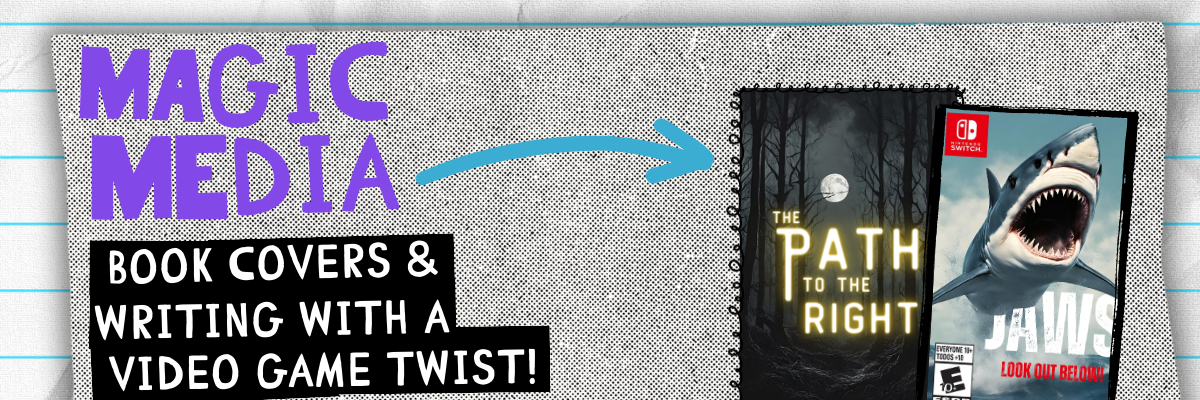
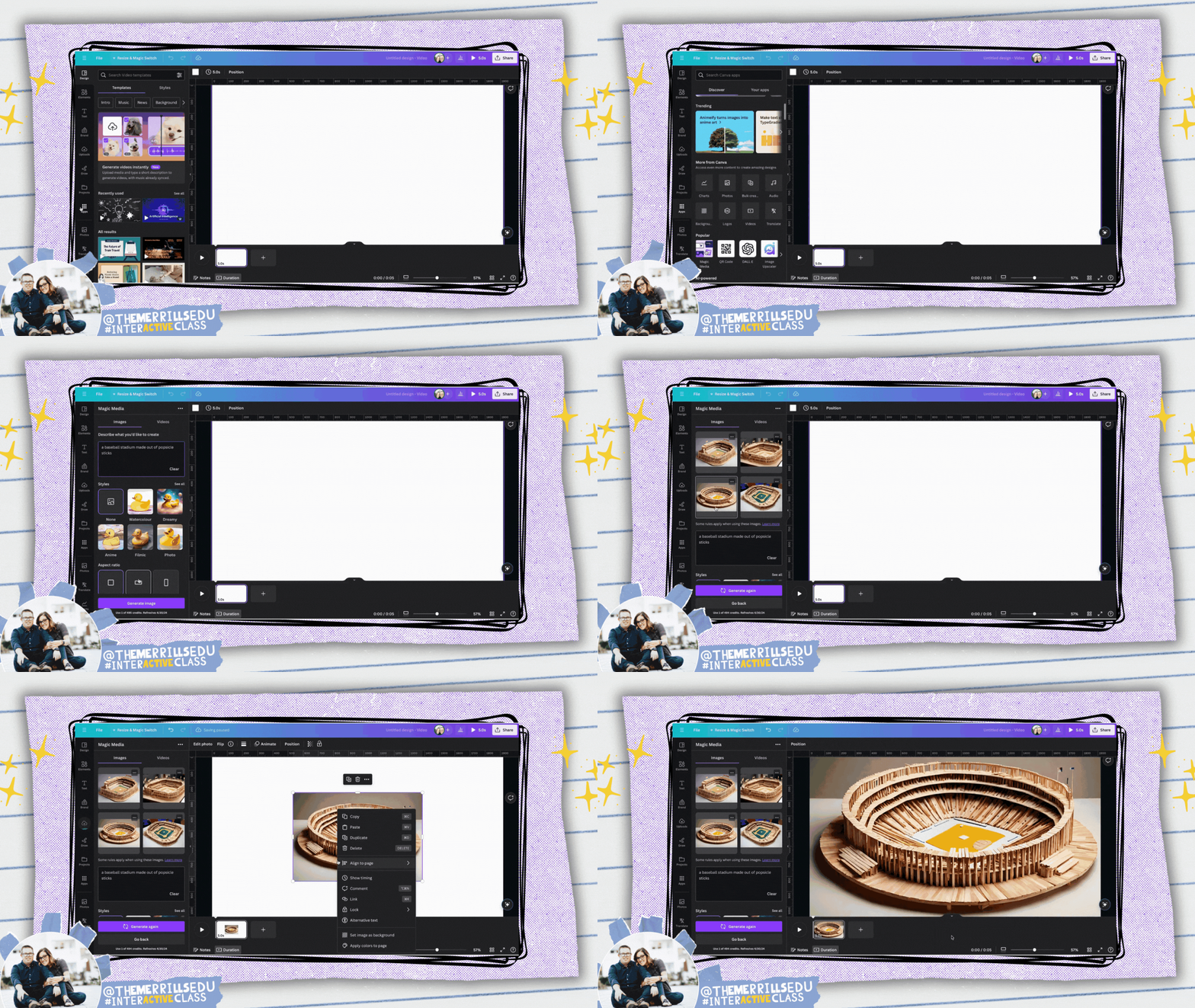
Magic Media: Generate
images & video
Canva’s Magic Media app turns creative ideas into images or video. Enter a few words or a sentence about what you would like to generate and then sit back and let the AI do the work! (This app is for ages 13+, unless supervised.)


Dall*E: Generate Realistic Images
Dall*E allows users to quickly generate realistic images or art using AI. Users enter in a few words to describe what they want to generate and then the AI creates it! (This app is for ages 13+, unless supervised.)

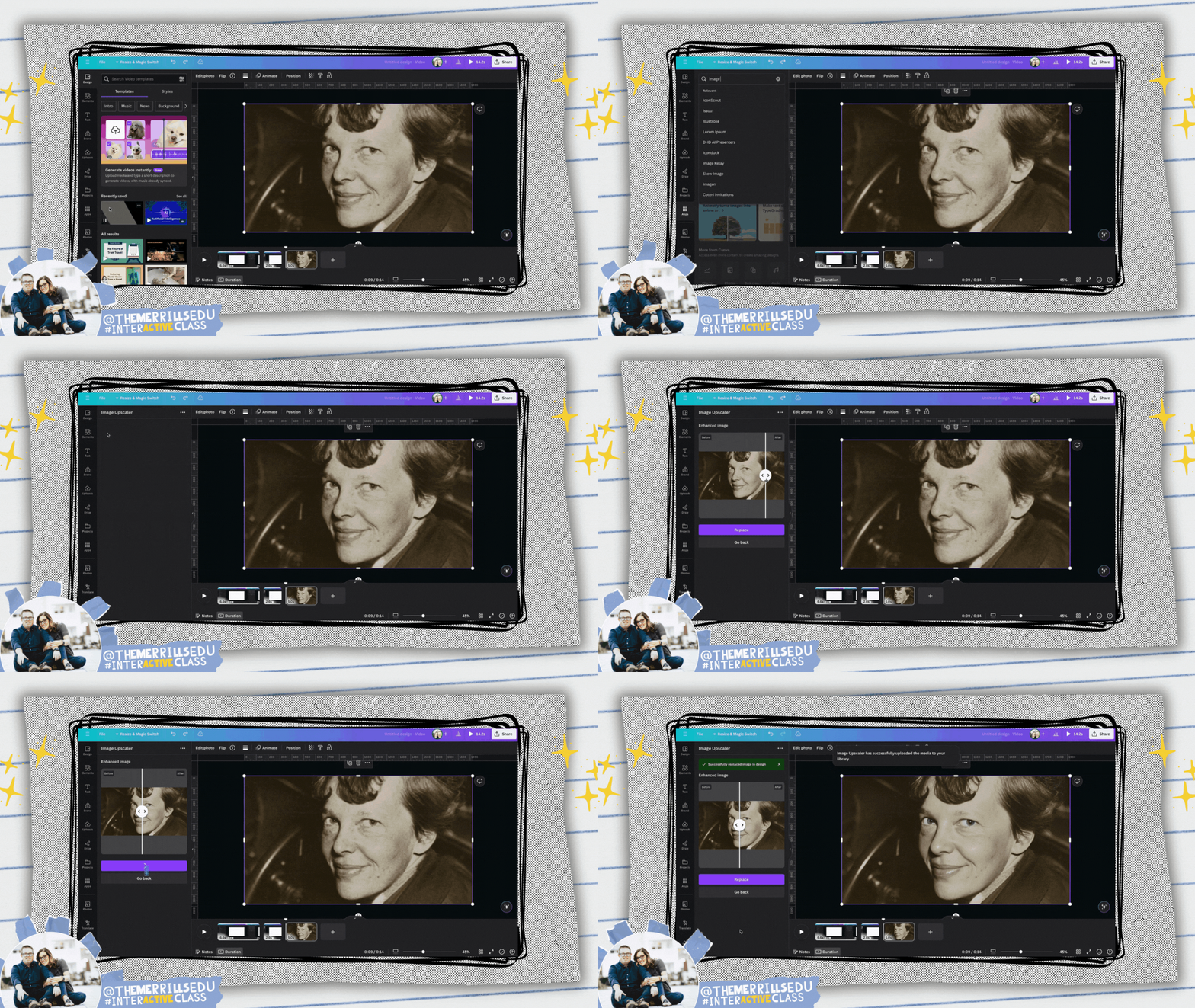
Image Upscaler: Elevate Picture Resolution
a1d.ai’s Image Upscaler takes blurry or old photos and applies AI to sharpen them. This allows users to refine their images, ensuring that they stand out in your Canva designs.


Magic Morph: Turn Elements Into Something Extraordinary
Canva’s Magic Morph allows users to transform words and shapes with a simple prompt. It can be used to enhance text or shapes, quickly create graphics or textures, and much more.

Murf AI: Add Audio
Voices to Designs
Murf.AI allows users to add natural sounding voices to designs. Just type out the script and Murf.AI will create the audio to embed into your design.


Soundraw: AI Music Generator
Soundraw takes the time out of searching for the perfect song. Now, with Soundraw, simply choose the mood, theme and length of song you want. The AI will generate the track for you to embed into your design! Note: This app requires a Soundraw account to use. There is a fee to use this app, but the first 14 days are a trial.

Translate Text: Translate Any Text to Another Language
Canva’s built in translator tool can translate text in your designs to 1,000’s of different languages. To access it, right click a text box and then scroll down to Translate Text. Complete the prompts to translate the text!


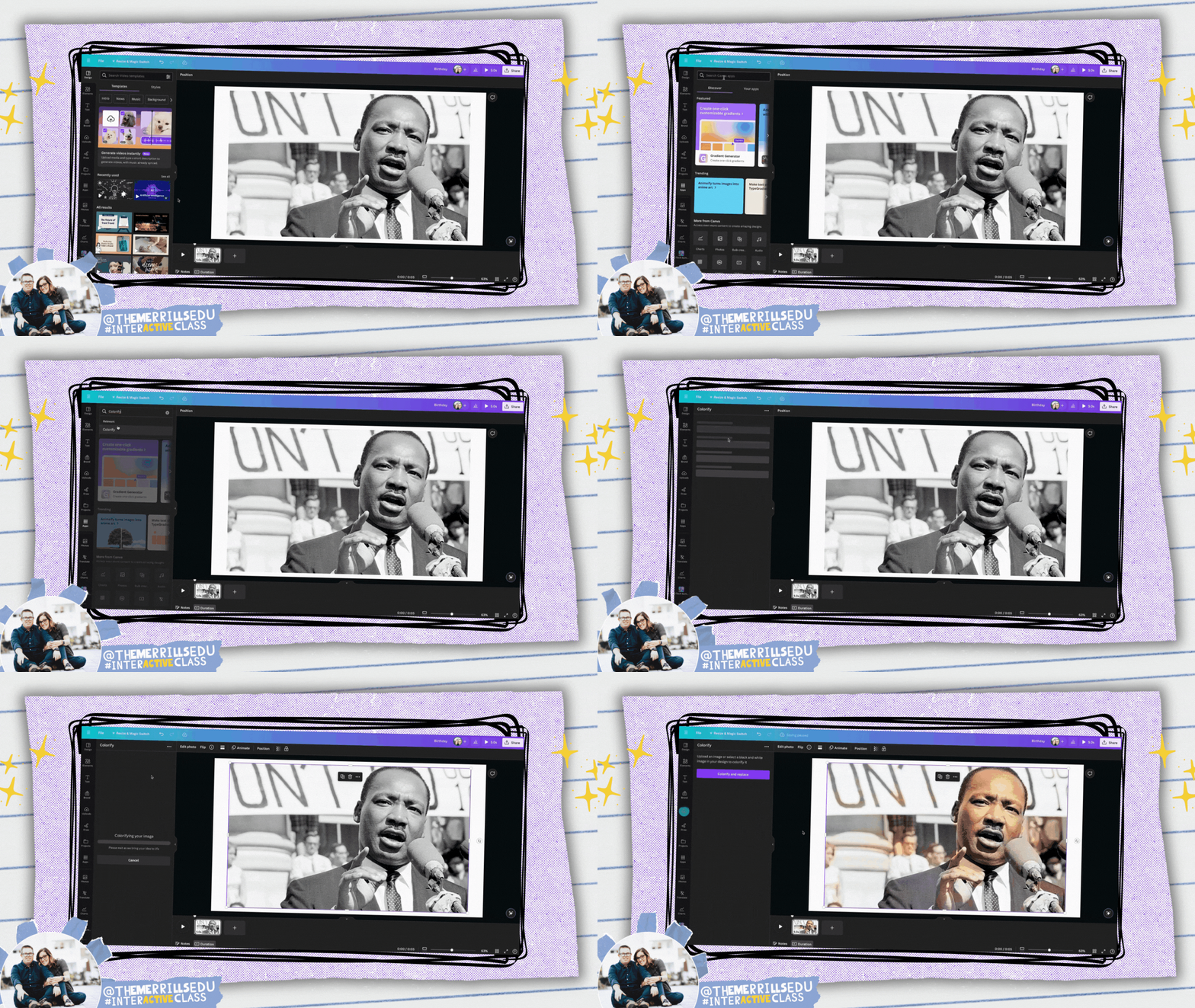
Colorify: Add Color to
Black & White Photos
Colorify is an app that restores color to black & white photos, making them look vibrant and lively again. This is great for researching historical figures from the past!

Transcribe Audio: Add
Captions to your Designs
SRB’s Transcribe Audio app allows users to generate a transcription text from an uploaded audio file. This is perfect for subtitles or captions! You can transcribe from these file types: mp3, wav, m4a, and ogg files.


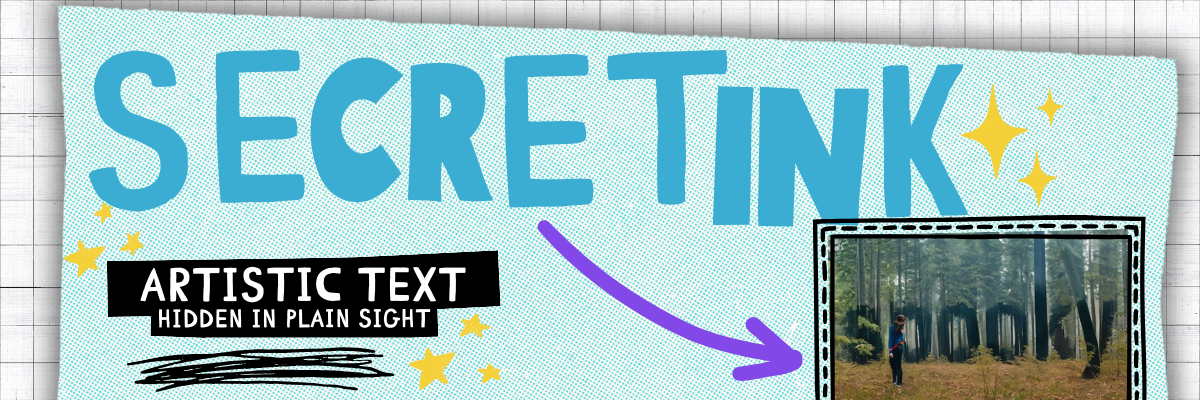
SecretInk: Artistic Text
Hidden in Plain Sight
SecretInk allows users to blend text into any image background, creating an artistic illusion. If it’s unclear, try zooming in or out to see the magic! But be on the lookout! You might see things in unexpected places!
How Can Students Use the AI in Canva?
As creatives, we believe that there is a fine line between using AI to generate ideas and generate inspiration. Teachers and students can use AI to generate content - and there is definitely a place for that. However, as innovative educators we believe that the AI should be used to inspire ideas. For example, students can get creative with the prompt they use to generate the content. So, let’s look over some ways that students from our own classrooms have used the AI in Canva.

Templates: Find Inspiration Quickly
Canva has tons of ready-to-use templates in it’s library. These are a great starting point for students to ignite their creativity. In the example below, students were breaking down the chapters of a book by creating a magazine cover for each chapter. What started off as a template was quickly edited and altered to include the specific details from the book. To view the magazine cover templates on Canva, click here.


Magic Media: Book Covers and Writing
with a Video Game Twist!
Canva’s Magic Media is one of our favorite apps simply because it can deliver images based on creative prompts. We encourage our students to stop and think about what they want the image to look like before generating any images. The more creative the prompt, the more creative the image generated will be.
This idea can be used with either Canva’s templates and Magic Media. We asked our students to recreate the cover of a book by changing the setting or characters. The students found a book cover template or generated their own using Magic Media. They added additional elements, text, and details to their covers before finishing up. See it in action below!


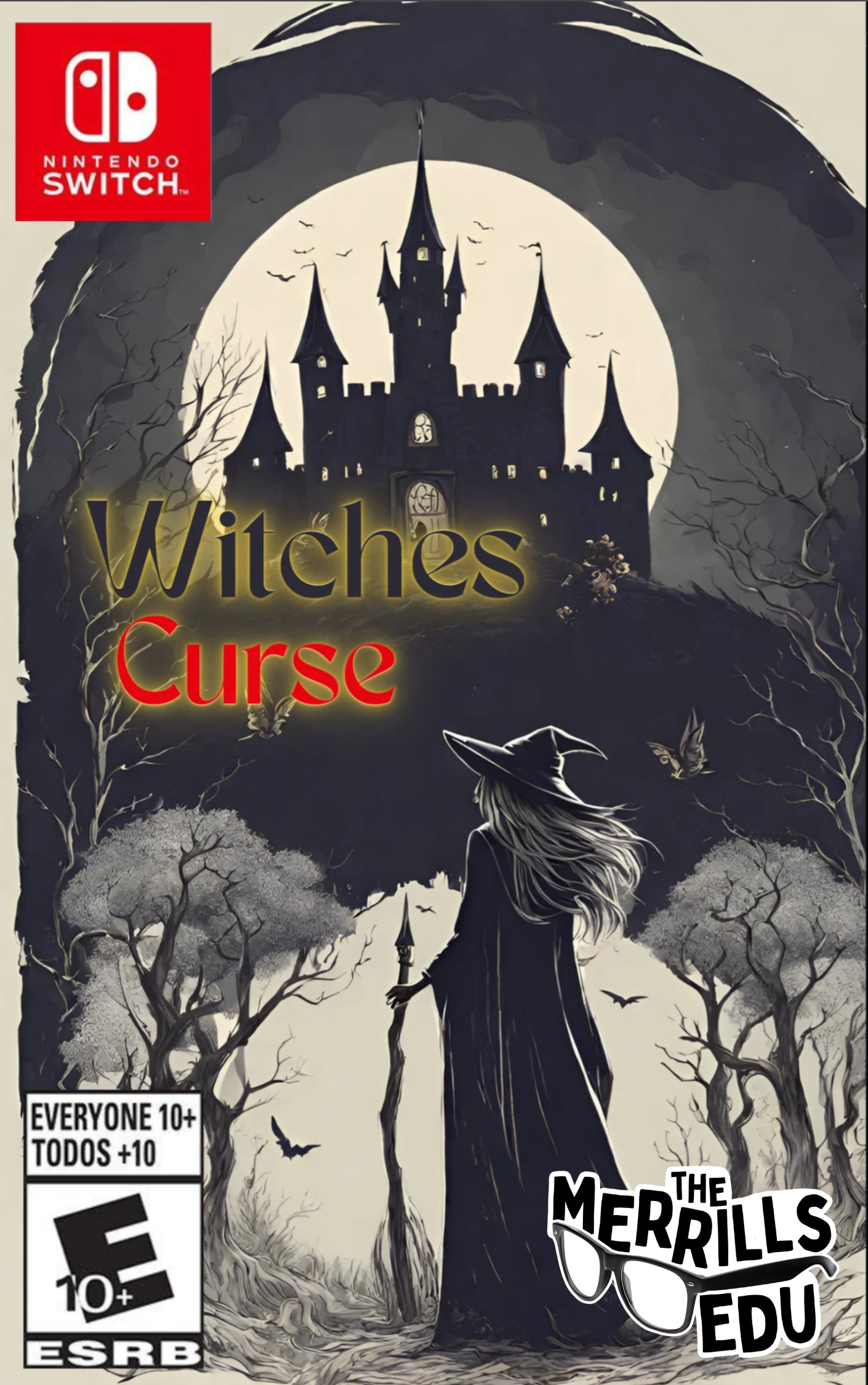
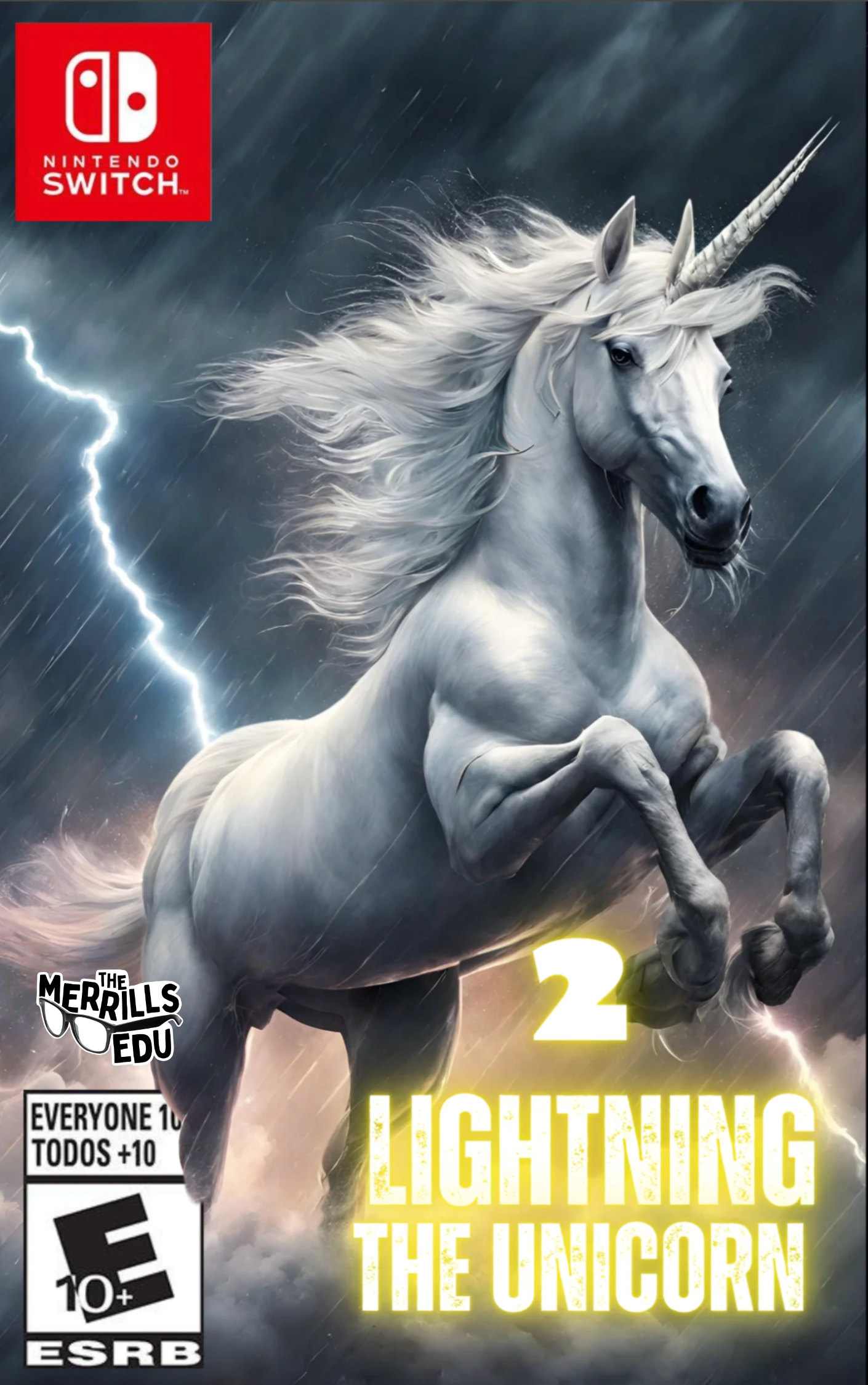
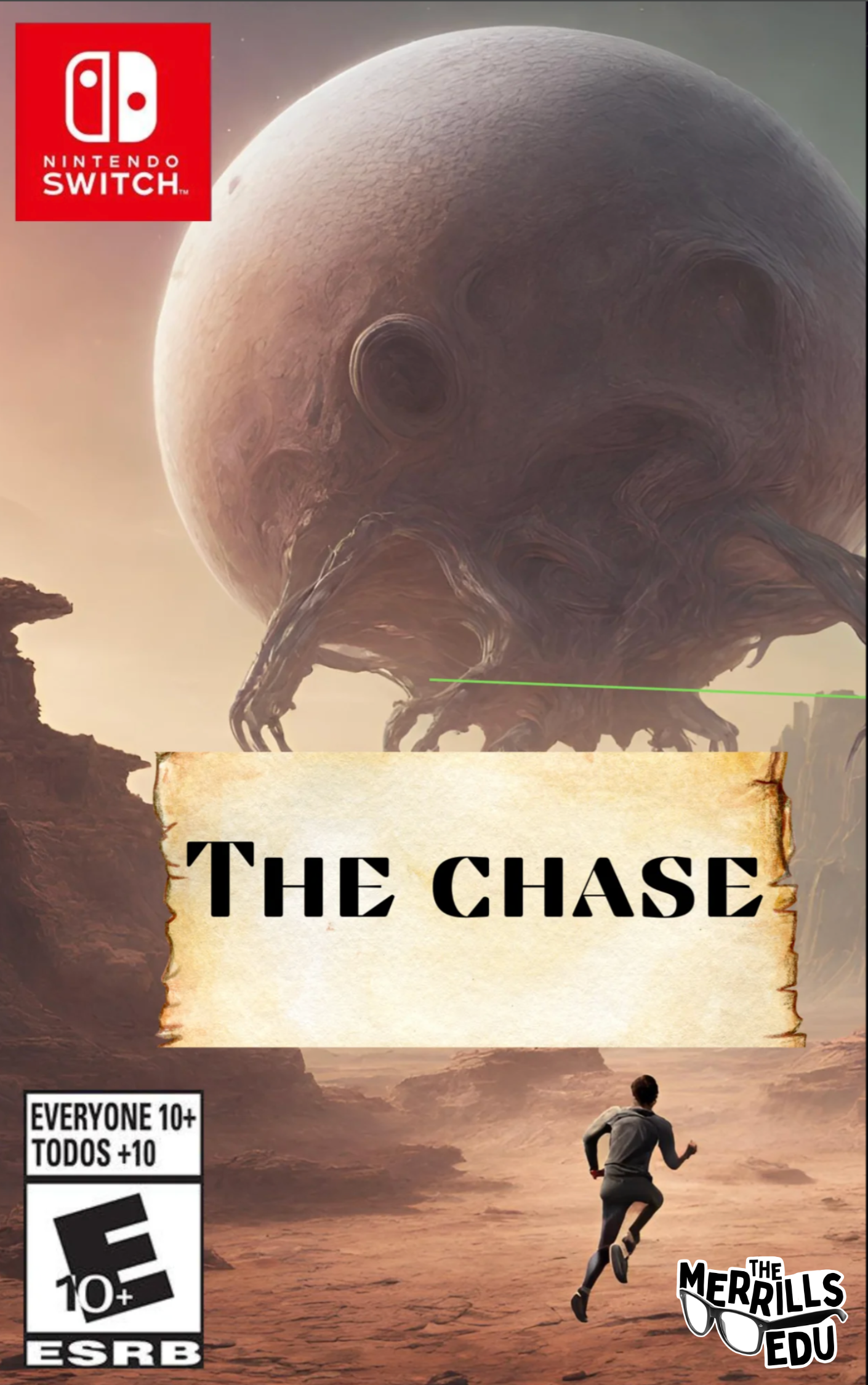
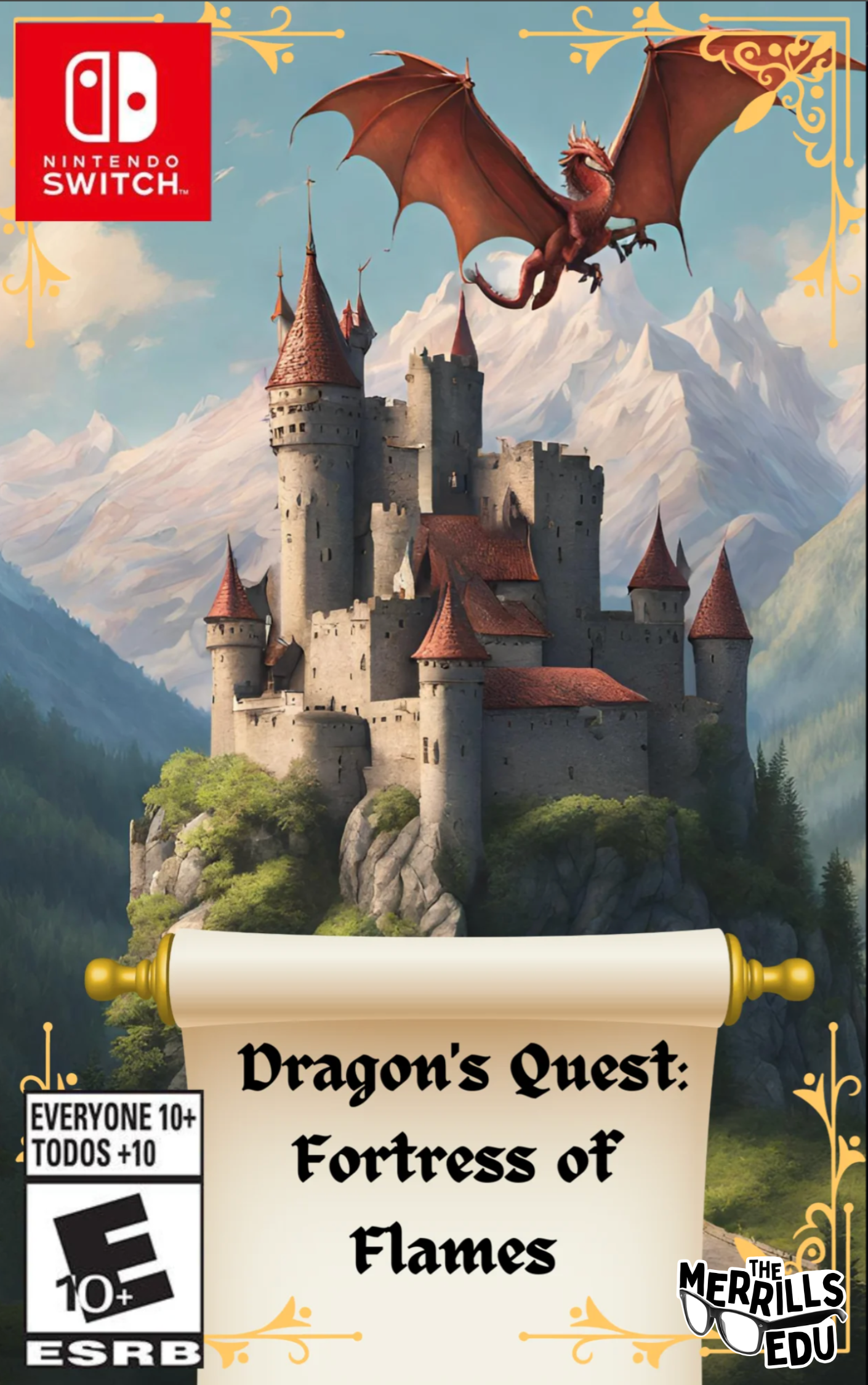
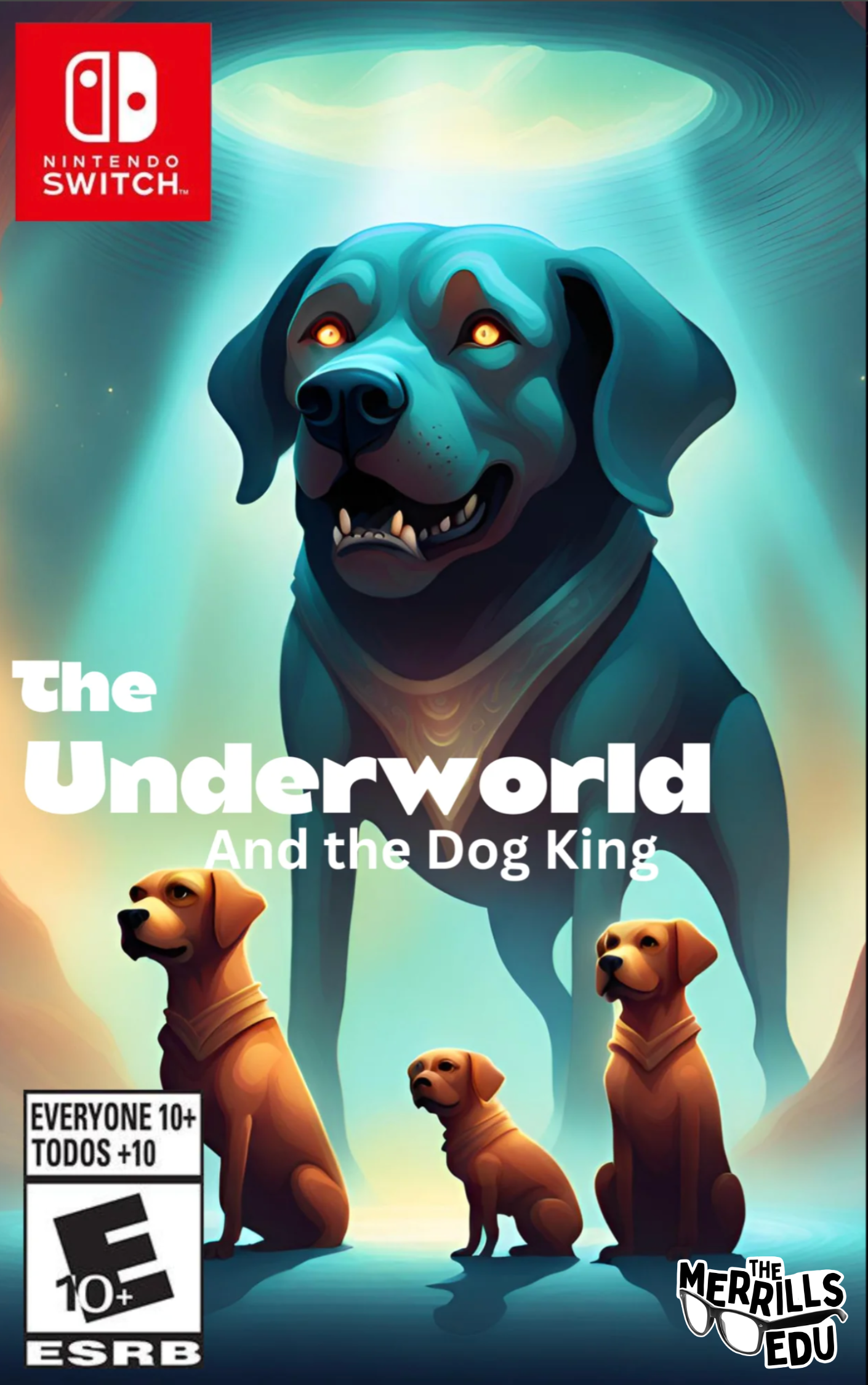
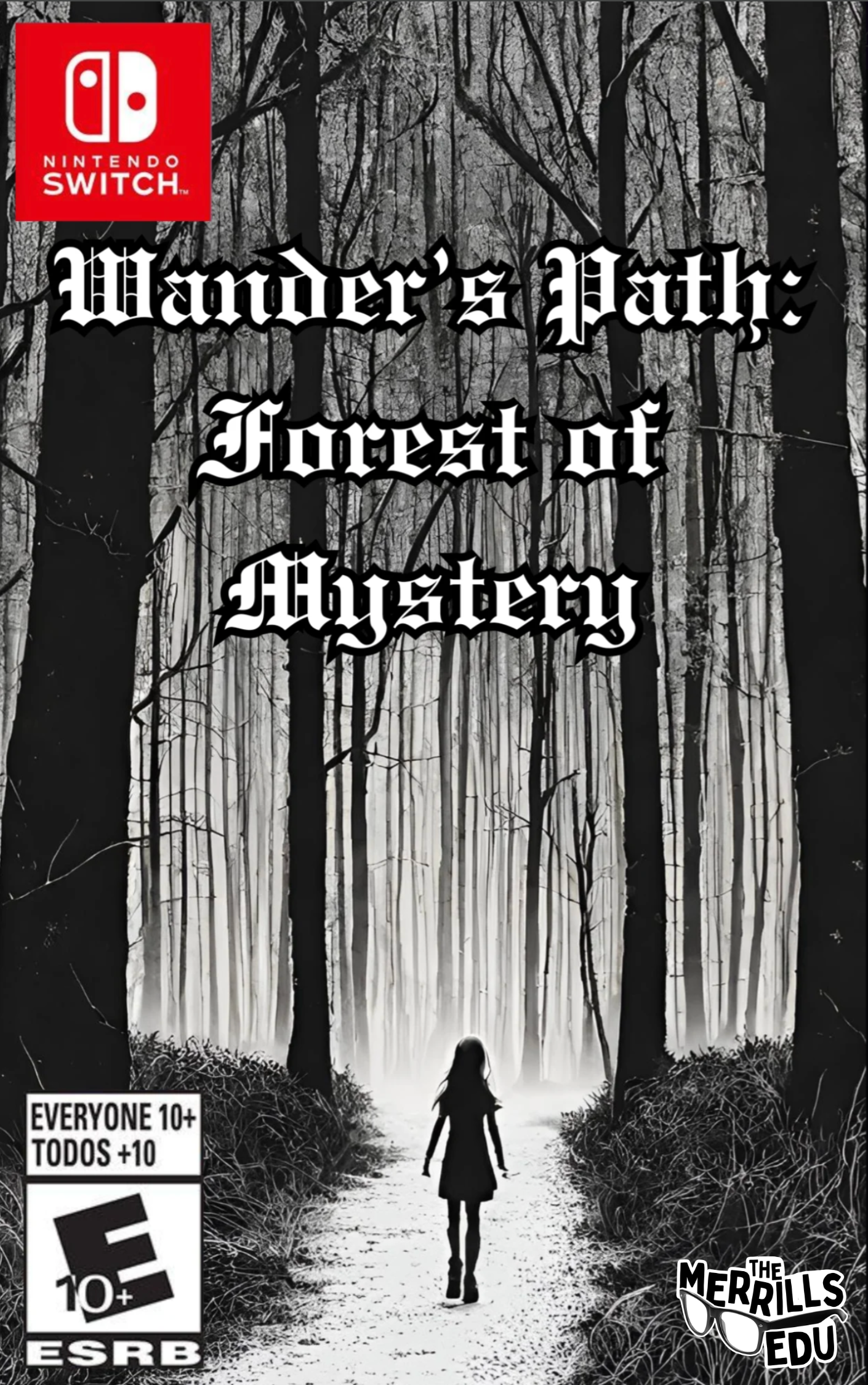
Who says writing has to be dreadful for kids? This project gave students an opportunity to take a narrative writing piece and turn it into a video game! Students still completed all of the traditional writing on paper and pencil, but when it came time for a final project, we had the kids design the video game covers on Canva using Magic Media to generate the backgrounds. We also gave the kids a change to create a video game video trailer, where they used Magic Media files to compile into a video. Check them out below!



BG Remover: Automatic Background Remover

Canva’s BG Remover, or background remover, makes automatic background removal effortless. Simply drag and drop your photo to instantly upload and open a new design project in the online editor. Select your photo, then click BG Remover to work the magic of removing whatever is behind the image. Students love this feature, and we are obsessed with these examples. Below, the students used the BG Remover to place characters from the story in a different setting, and then explain how that would change the entire story. Can you guess the story below?

Magic Eraser: Remove
Unwanted Objects
Canva’s Magic Eraser instantly cleans up pictures online. It's easy to remove unwanted objects or erase people from photos. This allows students to brush over distractions to instantly remove them with Canva Pro's Magic Eraser. In the example below, students


Magic Edit: Swap out Objects in a Photo

Similar to the Magic Eraser, Canva’s Magic Edit allows users to easily remove distractions or add new things to your photos with a few clicks. Simply brush over the areas you'd like to modify and then describing what you want to add. The students have used this tool to replace a face on Mount Rushmore. Who would you add to the mountain if there was an available spot? The kids have also used this to add historical figures from the past onto Martin Luther King Jr’s "I Have a Dream” speech. For example, how do you think Abraham Lincoln would have responded if he was there at the speech? Check out the examples below!

SecretInk: Artistic Text
Hidden in Plain Sight
SecretInk blends text into any image background to create an optical illusion. Sometimes you have to zoom in or out to see it, but we love how this app puts the text in unexpected places. Our students used this app to provide a one word summary of the theme of the books they were reading. Can you guess which book this was for?


How Can Teachers Use the AI in Canva?
Students can’t have all the fun! There’s plenty of ways that educators can use the AI tools located in Canva. These timesavers and tools will help even the most organized classroom teachers. Here are a few of our favorites!

Upload a PDF: PDF’s Transformed Into
A Different File Type
Have you ever found a great PDF resource that you wish was just slightly different? Maybe you wish you could have edited the PDF to better fit your learners? Well, with Canva’s PDF uploader, now you can! Just upload the PDF from the main dashboard, and then you can edit and save the file as whatever you would like. Here’s how it all works:
Log onto Canva
Locate and click the Upload button on the top right side
Select your file(s) to upload. Canva automatically uploads the file to your projects.
Open the project from your Recent Designs section on the main dashboard.


Magic Design: Education
Resources for Your Classroom
Fumbling through templates is SO 2022! Now, with Canva’s Magic Design, educators can use AI to produce a project design that directly aligns with their topics. There’s a couple of ways that you can find and produce these resources. Here’s how:

Templates
Log onto Canva
Search for your topic in the search bar and hit enter (tip: be sure your search is set to Templates and not Projects)
Select a template then click Customize this template to add it to your own projects.


Automatically Add Your Media to Templates
Canva now allows users to add uploaded media into template searches so that users can preview what the designs would look like with the uploaded media inserted. Here’s how it works:
Log onto Canva
Search for your topic in the search bar and hit enter (tip: be sure your search is set to Templates and not Projects)
Next to All Filters and Category, click on Media.
Select the files that you would like to include, and then click See results.
Canva will embed your imported media / images into the designs and you may select from the generated selections.


Magic Design: AI generated content
Canva’s Magic Design is an AI-powered design generation tool that lets you input any media or prompt, and transforms it into customizable designs that match the content and context you need. We appreciate how the platform automatically generates examples to view, giving you a choice to select from. To access Magic Media, follow these steps:
Log onto Canva
Click the Create a design button located on the top right side
Choose your desired file size. The project will open in a new tab.
Make sure that you are on the Design tab located on the left side panel.
Directly to the right Design tab (at the top), type what you would like the AI to generate in five or more words.
Magic Design will suggest different files for you. Select the one you like!


Magic Switch: Automatically Resize Your Content
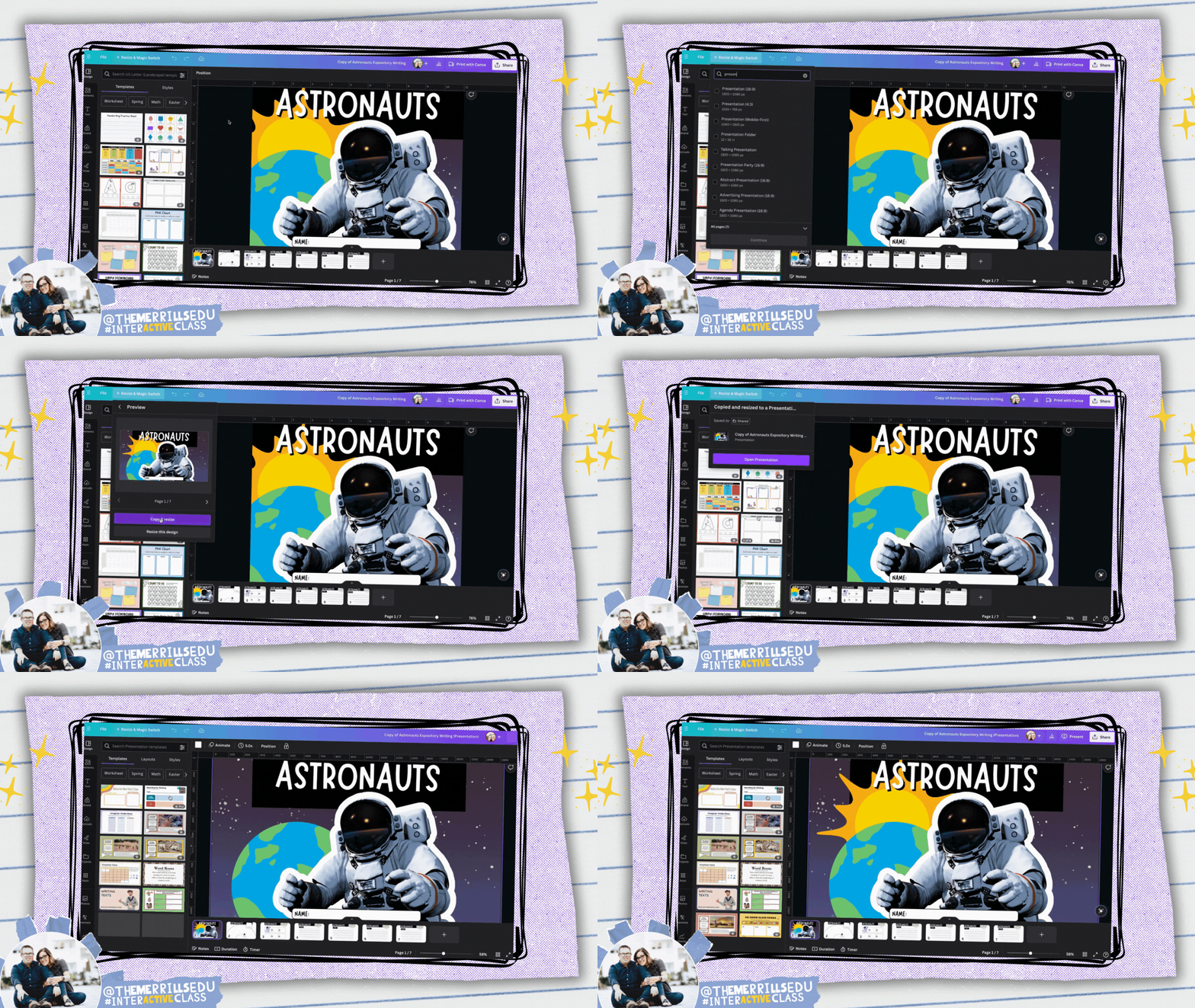
Canva’s Magic Switch uses AI change the format of your file or transform it into something entirely new. With Magic Switch you can: Transform your design into any type of Doc like a blog post, summary, email or even a poem. Resize one design into many for all channels, all with just a few clicks. Here’s how it all works:
Log onto Canva
Open a design that you wish to resize or transform.
Locate and click Resize & Magic Switch on the top left side of the screen.
Search for a resize option (for example: type worksheet). Tip: You can select more than one size.
Click Continue, then click either Copy & resize or resize this design.
Your new size(s) will be automatically generated. You may need to move elements around a bit, but it saves a lot of time!

Translate: Instantly Translate Your Content

Canva’s built in translator tool can translate text in your designs to 1,000’s of different languages. In just a few clicks, you can translate your content instantly. Finding it is a bit tricky, though. To access it, follow these steps:
Launch a Canva project
Right click a text box and then scroll down to Translate Text.
Complete the prompts to translate the text!
Canva also has a free document translator standalone website where anyone can upload a document and it will translate the content for you automatically. To check it out, click here or the image below!

Magic Write: Generate Text and Content Easily

Canva’s Magic Write is an AI-powered tool that helps users generate text and content ideas quickly and easily. It allows users to create a wide range of graphic design projects such as social media posts, presentations, flyers, and more. We appreciate the ability to quickly add clear directions to a resource, or narrow down a learning goal into a language that students can understand. Here’s how to access Magic Write:
Launch a Canva project
Click on any text box
Click Magic Write
Select your preference!
-- Please follow us on social media and tag us with how you’re using the AI in Canva in your classroom! 👓👗
For more tips, tricks and lesson ideas for making learning more interACTIVE, check out our books The InterACTIVE Class and Flipgrid in the InterACTIVE Class on Amazon!


How to Use AI Tools for Teachers to Save Time, Boost Engagement, and Personalize Learning
@TheMerrillsEDU share how teachers can use AI tools to save time, boost engagement, and personalize learning. You’ll learn about ten different tools to use in your classroom immediately and efficiently!
As a teacher, you know how challenging it can be to plan, prepare, and deliver effective and engaging lessons for your students. You also know how important it is to personalize learning for each student, according to their needs, interests, and goals. But how can you do all this without spending hours of your precious time and energy?
The answer is AI tools for teachers. AI, or artificial intelligence, is the technology that enables machines to perform tasks that normally require human intelligence, such as understanding language, recognizing images, and solving problems. AI tools for teachers are applications that use AI to help you with various aspects of teaching and learning, such as creating content, assessing students, providing feedback, and more.
In this blog post, we will show you how to use AI tools for teachers to save time, boost engagement, and personalize learning for your students. We will show how you can get started with them, and by the end of this post, you will have a better understanding of how AI tools for teachers can transform your classroom and enhance your teaching experience.
Please note: This blog post was hand-crafted and was not created using AI.
(click on any subheading to jump to that section)




How to Prompt AI as a Teacher
There doesn’t sound like there’s much to launching an AI tool, entering a prompt and seeing the results. But, prompting AI is a work of art that takes us beyond our world of immediate ask and receive. As we learn more about AI, we’ve come to realize that it’s important to be specific, thorough, and challenging.

A teacher using AI to generate content needs to be specific. Try entering in a grade level, targeted standards, learning goals, and even rubrics. If you’re looking to clarify directions, try adding, “make these directions clear for students age 10.” We find it helpful to use natural language that’s easy to understand and follow. Try to use keywords or phrases that match the topic and level of your students. Teachers can also use filters or modifiers to narrow down or expand search results.

Remember, AI responses can contain biases and out-dated information, so it’s important to think and challenge what is being generated. If a generated response doesn’t look right - challenge it. For example, if you use the prompt: “Generate a lesson plan on _______,” and the lesson plan doesn’t look grade-level appropriate, respond to your current prompt with, “now make it appropriate for ______ grade.” This can help the AI narrow down the content.
Diffit
Cost: Free and paid versions available
Compatibility: web based
Diffit is an AI-based platform that helps teachers customize their teaching methods to suit students’ reading levels and needs. Diffit can help teachers differentiate their content and instruction by:
Instantly creating leveled resources for any topic, lesson, or student
Providing vocabulary words, multiple choice questions, and other features to enhance comprehension and retention
Converting any content to all reading levels from 2nd to 11th grade (and higher), and in over 30 languages
Click here to sign up for a free account and watch and learn how it all works below!


Magic School AI
Cost: free and paid versions available
Compatibility: web based
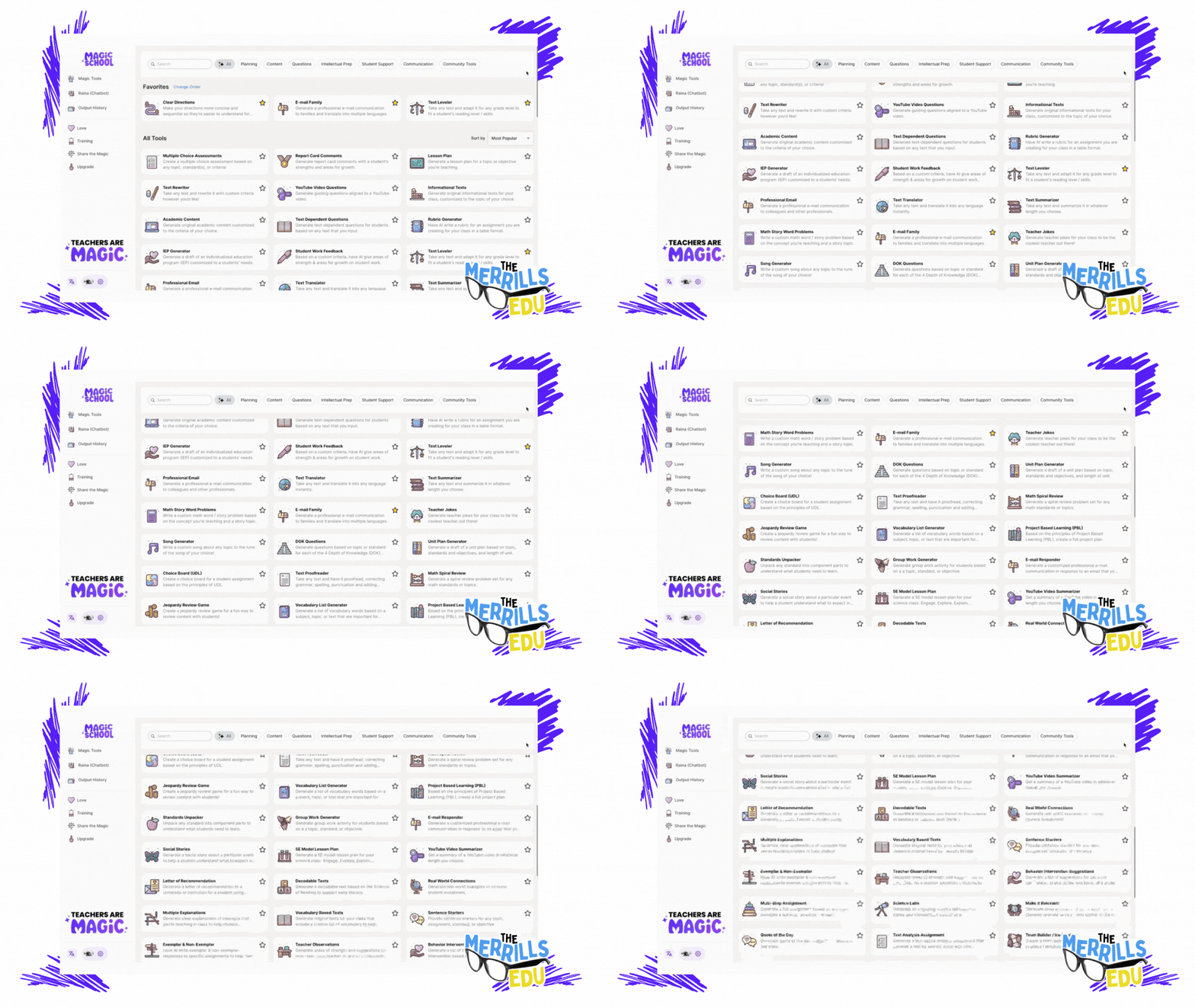
Magic School AI is an AI platform for educators that offers 60+ tools to help with translation, differentiation, assessment, communication, and more. It can help teachers save time, fight burnout, promote sustainability, and build AI competencies and skills. Some of our favorite features of Magic School include their Text Leveler, Clear Directions, Custom Chatbox, Math Story Problems, and more. There’s a lot to love about Magic School AI, but another feature that has us excited is MagicStudent. MagicStudent is an AI platform designed to build AI literacy for students. It not only teaches students to use AI responsibly, it also unlocks learning opportunities not possible without generative AI. This feature is coming, so be sure to stay tuned for updates. Sign up for a Magic School AI account by clicking here and check out what it has to offer below!

School AI
Cost: free
Compatibility: web based
School AI is an AI platform that helps teachers create, personalize, and engage their students with adaptive and interactive learning experiences. It also helps students learn at their own pace, level, and style, and get instant feedback and guidance from the AI. School AI is designed for K12 students and has built-in monitoring and controls for teachers.
School AI can help both teachers and students be successful by:
Saving teachers time and effort in planning, preparing, and delivering lessons
Providing teachers with data and insights on student performance and progress
Offering teachers various tools to customize and differentiate their instruction
Enhancing student motivation, engagement, and retention with gamified and immersive content
Supporting student autonomy, self-regulation, and metacognition with AI feedback and scaffolding
Catering to student diversity, inclusivity, and accessibility with multilingual and multimodal options
One of our favorite parts of SchoolAI is Spaces. With Spaces, users (both students and teachers) can use AI powered chatbots in creative ways. For example, you can set up a chatbot to act as a historical figure, taking questions from the student(s). It all feels very familiar to the kids - resembling a text message thread.
You can sign up for free and start using School AI today by clicking here, and check out what it has to offer below!


Class Companion
Cost: free
Compatibility: web based
We’re not going to lie….Class Companion is one of the tools that we’re most excited about. Class Companion is a website that uses AI to help teachers give instant, personalized feedback on written assignments. It can help teachers save time, monitor student progress, and differentiate instruction. It can also help students practice their writing skills, get immediate guidance, and improve their learning outcomes. Here’s how it works:
Teachers start by uploading an assignment and rubric. (TIP: When creating the assignment, we HIGHLY recommend setting the maximum number of attempts to more than 1. Doing so provides an opportunity to edit their work after the AI provides feedback.)
This gets shared to students (student accounts are required) via a shared link or an email.
Students complete their writing by typing out their essay in Class Companion, then submit for AI review / grade.
If you’ve chosen more than one attempt for your students, the AI will coach them through the teacher’s rubric, explaining whether or not the student has met the expectations. The student then has the opportunity to edit their work and try to improve.
When an assignment is submitted, the teacher has the ability to edit the AI’s score to provide a final grade.
To sign up for your FREE account, click here and check out our video below. You can also check out ouf full blog post on Class Companion by clicking here!

Curipod
Cost: free and paid versions available
Compatibility: web based
Curipod is a website that helps teachers create and deliver interactive lessons on any topic, with the help of artificial intelligence. Teachers can use Curipod to:
Generate lessons with AI: Curipod can suggest content, questions, and activities based on the topic and learning objectives that the teacher inputs. The teacher can then customize the lesson according to their preferences and needs.
Engage students with curiosity: Curipod’s lessons are designed to spark students’ curiosity and interest in learning, by using multimedia, gamification, and social learning features. Students can share their voices, opinions, and creations with their classmates and teachers.
Save time and resources: Curipod reduces the workload and stress of lesson planning and delivery, by providing ready-to-play lessons from verified educators and authors, as well as a user-friendly interface and seamless integration with other platforms.
To sign up for a free account, click here. Check out our video for more information below!

Eduaide.AI
Cost: free and paid versions available
Compatibility: web based
Eduaide.AI is a website that helps teachers create lesson plans, teaching resources, and assessments using artificial intelligence. Teachers can use Eduaide.AI in the classroom in the following ways:
Generate teaching resources: Teachers can choose from over 100 resource types and learning objects, such as worksheets, quizzes, slides, videos, etc. and use AI to generate content based on their topics and objectives.
Personalize instruction: Teachers can use the “transform” tool to modify the generated content to suit their students’ needs and preferences. They can also use the “feedback bot” to provide instant and customized feedback to students.
Collaborate with AI and other teachers: Teachers can use the “Eduaide chat” to ask questions and brainstorm ideas with the AI model. They can also share their resources with other teachers and access a community of practice.
To sign up for your account, click here and check out our video below!


CoPilot
Cost: free
Compatibility: web and mobile
Microsoft CoPilot is an AI companion that can help teachers and students with various tasks and projects, such as:
Writing and editing: CoPilot can assist with writing essays, reports, summaries, poems, stories, and more. It can also help with editing, proofreading, and improving the quality and clarity of the text.
Researching and learning: CoPilot can provide information, facts, definitions, examples, and explanations on any topic. It can also help with finding and citing sources, creating bibliographies, and checking plagiarism.
Coding and creating: CoPilot can help with coding in different languages, such as Python, Java, C#, etc. It can also help with creating apps, games, websites, graphics, and more.
Teaching and assessing: CoPilot can help teachers with creating lesson plans, teaching resources, and assessments. It can also help with providing feedback, grading, and tracking student progress.
Generating images: CoPilot paired with Microsoft Designer is able to produce images that may be used for presentations, lessons, etc.
To use CoPilot in the classroom, teachers and students need to sign in to their Microsoft account or Entra ID account and access CoPilot through the Microsoft Edge or Chrome browser, on Windows or Mac OS. They can also use CoPilot in select Microsoft 365 apps, such as Word, Excel, PowerPoint, Outlook, OneNote, and Teams. They can chat with CoPilot by typing or speaking their requests, and CoPilot will respond with relevant and useful information, suggestions, or content. They can also ask CoPilot to show examples, explain how it works, or give feedback. Check out our video below for more info!


Gemini (formely Bard)
Cost: free
Compatibility: web and mobile
Google's Gemini (formerly Bard) is a tool designed that can assist teachers in various ways, primarily by providing them with access to educational resources, streamlining administrative tasks, and facilitating communication and collaboration among teachers, students, and parents. Here are several ways Gemini can help teachers:
Resource Access: Gemini provides teachers with access to a wide range of educational resources, including lesson plans, teaching materials, videos, and interactive activities. These resources can help teachers enhance their lessons and engage students more effectively.
Curriculum Planning: Gemini offers tools for curriculum planning, allowing teachers to create, organize, and share lesson plans, unit outlines, and assessments. This helps teachers align their curriculum with educational standards and goals.
Assessment and Feedback: Gemini enables teachers to create and administer assessments, quizzes, and assignments digitally. Teachers can track student progress, provide timely feedback, and analyze assessment data to inform instruction and support student learning.
Teachers are able to access Gemini by clicking right here and accepting the terms. Educators can find Gemini in Google apps such as: Google Classroom, Google Docs, Google Sheets, Google Drive, and more.


Canva Magic Suite
Cost: free
Compatibility: web and mobile
Canva's Magic suite tools are a set of features designed to enhance the design process and make it easier for users to create visually appealing graphics and designs. These tools leverage artificial intelligence (AI) and automation to assist users in various aspects of design, including layout, color selection, and image editing. Here are some of the key features included in Canva's Magic suite:
Background Remover: This tool automatically removes the background from images, allowing users to create transparent or custom backgrounds for their designs. It simplifies the process of isolating subjects from their backgrounds, which is useful for creating product images, profile pictures, and design elements.
Color Palette Generator: Canva's Color Palette Generator analyzes an image and generates a complementary color palette based on the colors present in the image. This tool helps users create cohesive and visually appealing designs by providing color inspiration and ensuring color harmony.
Font Pairing: Font Pairing suggests font combinations that work well together, helping users choose complementary fonts for their designs. It takes into account factors such as font style, weight, and contrast to ensure readability and aesthetic appeal.
Layout Suggestions: Canva's Layout Suggestions feature analyzes the content of a design and provides suggestions for layout options. It helps users quickly explore different layout possibilities and find the best arrangement for their content, saving time and effort in the design process.
Smart Resize: Smart Resize automatically adjusts the dimensions of a design to fit different aspect ratios and sizes, making it easy to create variations of the same design for different platforms and devices. This feature saves time by eliminating the need to manually resize and reformat designs for different purposes.
Image Cropping: Canva's Image Cropping tool provides intelligent cropping suggestions based on the composition of the image and the aspect ratio of the design. It helps users crop images to fit specific dimensions or aspect ratios while preserving the most important parts of the image.
Overall, Canva's Magic suite tools leverage AI and automation to simplify the design process, provide creative inspiration, and assist users in creating professional-looking designs with ease. These features are valuable for students and teachers looking to create high-quality graphics and visual content for academic purposes. To learn more about how Canva can be used in the classroom, check out our blog posts and video tutorials below:
-- Please follow us on social media and tag us with how you’re using AI tools in your classroom! 👓👗
For more tips, tricks and lesson ideas for making learning more interACTIVE, check out our books The InterACTIVE Class and Flipgrid in the InterACTIVE Class on Amazon!



How to Use AI to Automatically Grade Writing Assignments with Class Companion
Learn how AI can automatically grade your student’s writing assignments using the FREE app, Class Companion! We’ll walk you through how to sign up, how it works, and what it looks like for students!

What if we told you that you could use AI to automatically grade your student’s writing assignments? What seemed like a dream is now reality thanks to Class Companion! Class Companion is a website that uses AI to help teachers give instant, personalized feedback on written assignments. It also provides engaged practice for students, time savings and insights for teachers. Teachers can use built-in assignments or add their own. In this blog post, we’ll show you where to sign up for your account, how to create a rubric and assignment, how to get students on (and what that looks like), and how educators have the final say in the grading process.
Please note: This blog post was hand-crafted and was not created using AI.
(click on any subheading to jump to that section)


What is Class Companion and how does it work?
With Class Companion, teachers can cheer on their students with immediate feedback and tailor their learning to their individual needs. Teachers can also use the AI platform to design fun and challenging assignments, spark students' curiosity, share helpful tips, and track their growth over time. Check out our brief overview of the platform in the video!

Where to Sign Up for a Class Companion Account
You heard, “automatically graded writing assignments,” and you were sold! Now what? Class Companion is free for educators and students. However, both teachers and students will need accounts to use the platform. Educator accounts can be created by clicking on the link here. Heads up, students are required to use an email address. Students are able to create accounts by being invited by their teacher(s) via shared link. To create student accounts and invite them to your class, follow these steps:
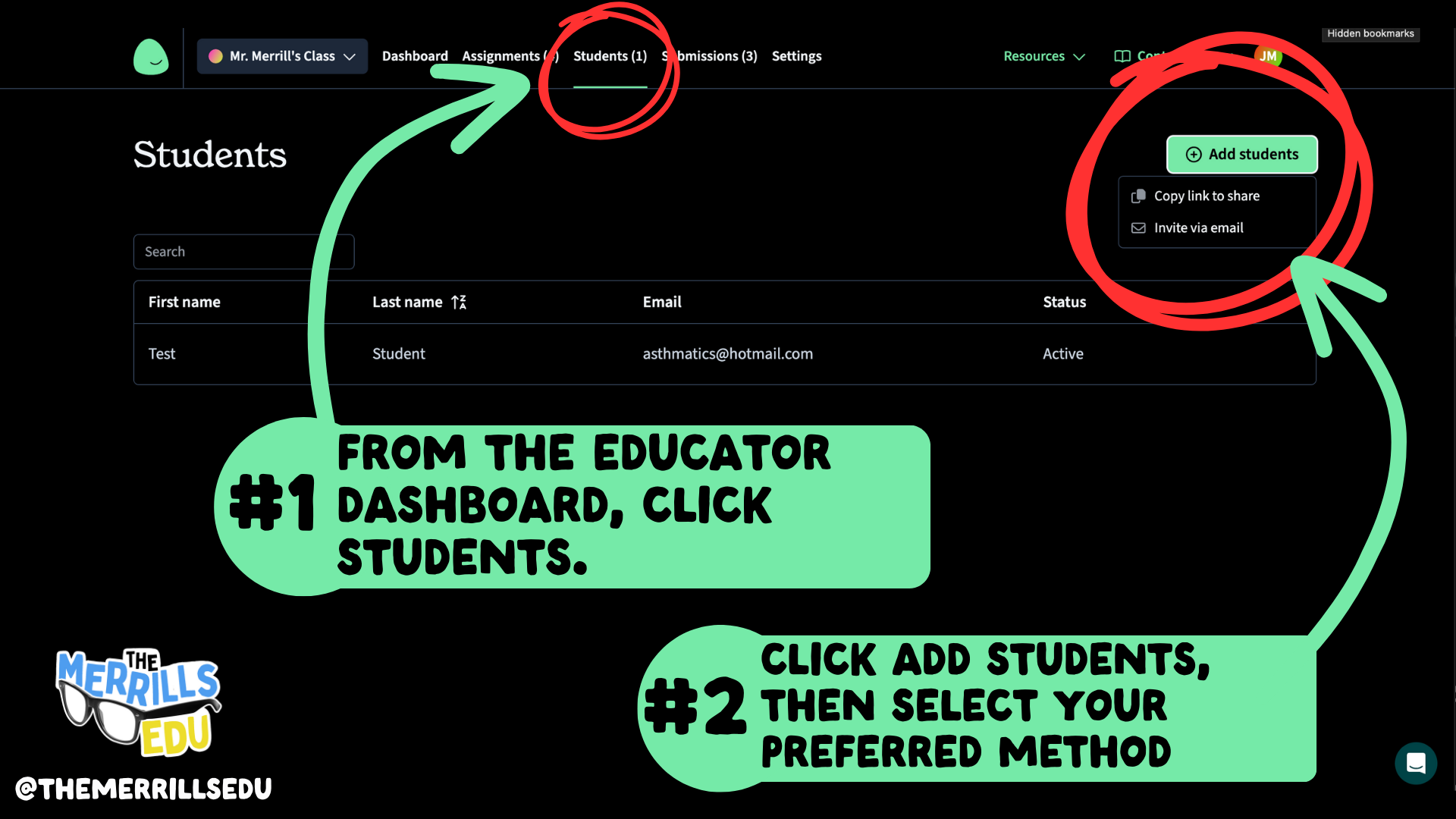
Log into Class Companion as a teacher. Locate the Students tab on the top, then click it.
Click the +Add students button located on the top right.
Now, select your preferred method: Copy link to share or Invite via email. The Copy link to share option will generate a private link that may be shared to students. Students will use this link to enter their email address and a password to create their accounts. The Invite via email works similarly, only the link is shared via email.
After using either method, your students will automatically appear in your class.

How to Create a Rubric and Assignment
in Class Companion
Now that you have your accounts ready, it’s time to create your first rubric and assignment. Here’s how to create an assignment in Class Companion:
On the top toolbar, click on Assignments.
Now click on “+Add Assignment,” then select either: Duplicate from Content Library, Generate with AI, Import, or Create From Scratch.
Then, complete the steps filling out the information. (TIP: When creating the assignment, we HIGHLY recommend setting the maximum number of attempts to more than 1. Doing so provides an opportunity to edit their work after the AI provides feedback.)
Now, let’s add a rubric to our assignment.
Under Rubric, click Add rubric.
When creating a rubric, you have a choice of the type of format you’d like to use: Paragraph or list, and Table. Select your preferred format, then enter your information in the text boxes. When you’ve finished, click the Create rubric button on the top right.
Your rubric will now be added to the writing assignment. Once everything looks good, click on Save located on the top right. Your assignment will now appear on the student’s dashboard when they log in.
This gets shared to students (student accounts are required) via a shared link or an email.
Students complete their writing by typing out their essay in Class Companion, then submit for AI review / grade.
If you’ve chosen more than one attempt for your students, the AI will coach them through the teacher’s rubric, explaining whether or not the student has met the expectations. The student then has the opportunity to edit their work and try to improve.
When an assignment is submitted, the teacher has the ability to edit the AI’s score to provide a final grade.

How to Get Students Logged Onto Class Companion (and What That Looks Like)
Now that you’ve created a class, rubric, and assignment, it’s time to get your students logged on and working. Have your students follow these steps to find their assignments (note: students must have their accounts created prior to these steps):

Direct students to this link, and have them log in using their credentials.
Once students log in, they will see their assignment(s). They may click on the assignment to get started.
Now that the student has logged in and opened the assignment, they will be prompted according to the directions that you gave when creating the assignment. The students will complete the assignment and turn it in for AI feedback / grading by clicking the Submit assignment button located at the bottom of the screen. Once they submit their work, the AI will produce feedback / grade their work. If you have selected multiple attempts when creating the assignment, the students will have the opportunity to read over the feedback from the AI and make changes to their work. They may repeat this as many times as you have allowed (when selecting multiple attempts). So, if you gave them 8 multiple attempts, they can submit it up to 8 times for feedback.

How to Override the AI’s Grade in Class Companion
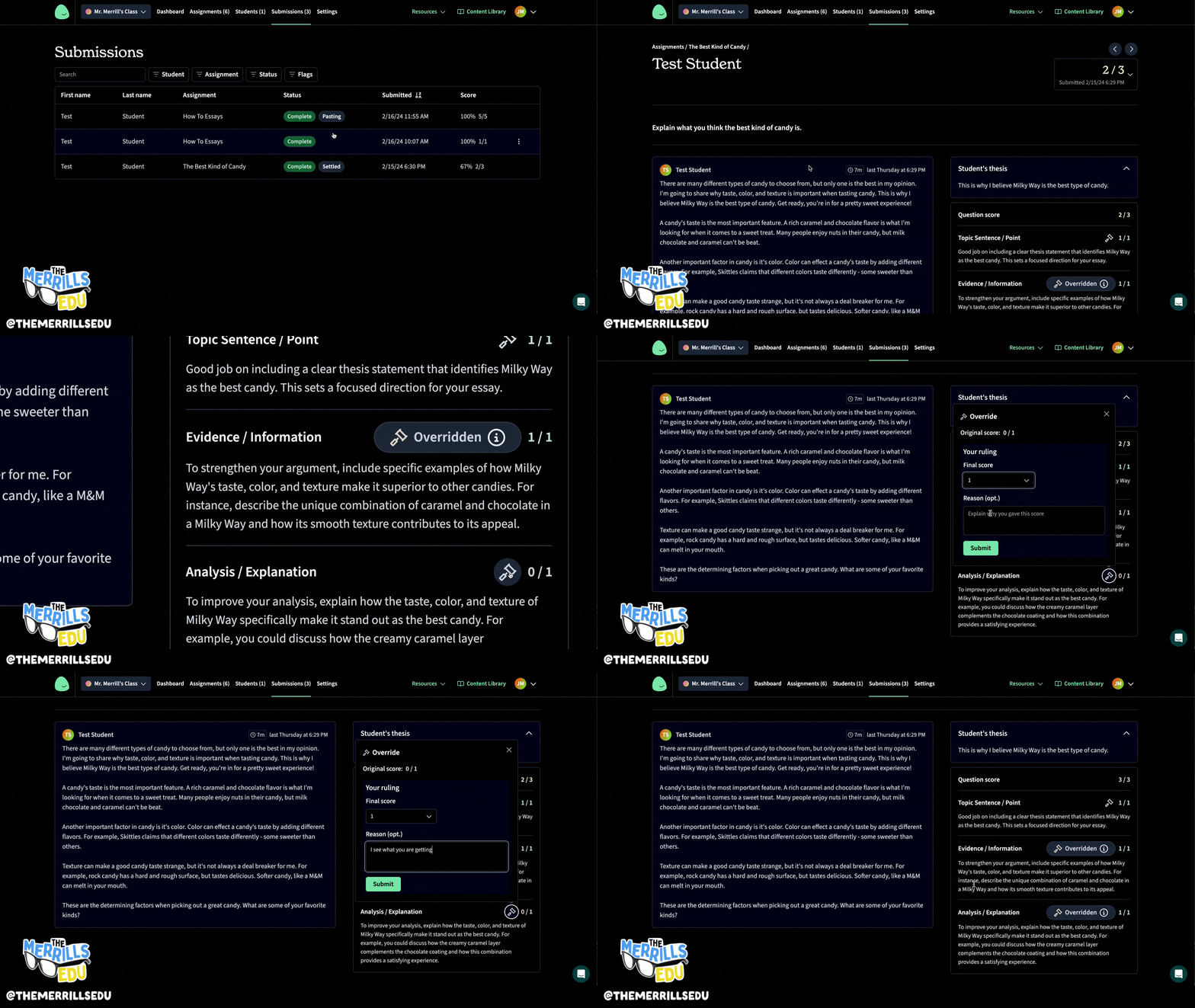
Once they’ve turned the essay in, they will be able to see how they performed according to your rubric / the AI. Something worth noting, is that when a student submits their work, you also have the ability to see if they copied & pasted their work. You will see, “pasting” listed next to the student’s assignment status. As the educator, you have full control and are able to edit any scores as you see fit. Here’s how to edit student scores:
Log onto the Class Companion dashboard, then click on Submissions located at the top of the page.
Click on the student / assignment and review how the AI graded the student’s work.
If you disagree with how the work was graded, you can easily edit the score(s). To do so, click on the Override icon (that looks like a hammer or paint roller).
Then, edit the final score. You also have the option to leave feedback or a comment. Once you have entered the information, click on the save button.
The new score will now be reflected!
-- Please follow us on social media and tag us with how you’re using Class Companion activities in your classroom! 👓👗
For more tips, tricks and lesson ideas for making learning more interACTIVE, check out our books The InterACTIVE Class and Flipgrid in the InterACTIVE Class on Amazon!



How to Use AI in the Classroom
Artificial Intelligence (AI) has become a hot topic in education in recent years. It has the potential to transform the way teachers teach and students learn in the classroom. Here are six AI tools that you can use in your classroom immediately!
Artificial Intelligence (AI) has become a hot topic in education in recent years. It has the potential to transform the way teachers teach and students learn in the classroom. By using AI, teachers can create a more personalized learning experience for each student, and help them to achieve their full potential. Here are five AI tools that can be easily integrated into our classrooms.
(Click on any subheading to jump to that section)




CoPilot:
Generate Lesson Plans & Other Educational Materials in Seconds
Education CoPilot streamlines your planning and prep with AI generated templates for lesson plans, writing prompts, educational handouts, student reports, project outlines and lots more.
This is an incredibly efficient way to gather content for those pesky units where you’re scrambling to find resources for. In our example, we were working on a unit covering this standard: SC.1.E.6.2 Describe the need for water and how to be safe around water. After entering some information (including the standard), we were provided five lessons all covering the content!
There are also workshop tools that can help generate educational handouts, writing prompts, parent emails, and quiz builder. All are easy to use and require just a few clicks to generate! Check out how it all works below!

Curipod:
Make interactive lessons filled with creativity, reflection and critical thinking.
Curipod is an interactive presentations software for education, meetings and workshops, sparking curiosity and engaging everyone. Create your own presentations, or find premade templates and inspiration.
Enter the topic of your lesson, followed by learning objectives and standards. Give it a few seconds and Curipod will generate an interactive presentation that is fully editable! In our example, we were looking to create content on this standard: ELA.1.R.1.1: Identify and describe the main story elements in a story.
Curipod also features a Discovery library where users can access content created by other educators. The content can be narrowed down by subject, or by searching for what you’re looking for! Check out the video below to see how it all works!
Canva: Text to Image:
Automatically Create the Images You’re Looking For
Now, whenever you can't find the perfect images, you only need to find the right words instead – then watch them magically come to life. Once you’ve entered your words, rather than combining existing images, Text to Image creates entirely new ones from scratch. From practical descriptions to whimsical concepts, Text to Image can create one-of-a-kind images, with the click of a button.
Canva is free for all educators, and “Text to Speech” is available in all Canva accounts now! Here’s a quick overview / tutorial!

Deep Nostalgia:
Video reenactment technology to animate
the faces in still photos
Deep Nostalgia is a video reenactment tool that will animate the faces in still photos. This feature uses deep learning technology to create animated, lifelike movements in static images, bringing old family photos to life.
Deep Nostalgia uses an artificial neural network to apply pre-recorded facial movements to a still photo. When a user uploads a photo, the AI analyzes the face in the photo and applies movements based on a library of pre-recorded facial expressions. These expressions are created by actors and used to simulate realistic movements such as blinking, smiling, and head tilting.
The result is a short video of a still image, where the subject's face appears to be moving and reacting to the environment around them. The effect can be striking, as it creates the impression of bringing a historical figure back to life. Check out the video below to see it in action!

Murf.ai:
Turn Text into Speech
Murf is a tool that allows users to turn typed text into speech. It offers a selection of 100% natural sounding AI voices in 20 languages to make professional voice over for your videos and presentations. Users can easily toggle the different voices to select a voice that is appropriate for the content.
Check out the video below to see how it all works!

Synthesia:
AI video creation platform
Synthesia AI is a video production software that uses artificial intelligence (AI) to create lifelike videos of people speaking in different languages or using different gestures, facial expressions, and body language. This technology allows users to create videos that appear to feature real people speaking and moving, even if those people never actually appeared on camera.
Synthesia AI works by analyzing a script, recording a voiceover, and then mapping the speech to a 3D model of a person's face and body. The AI algorithms then use this information to generate a video of the person speaking, complete with realistic facial expressions and body movements. The resulting videos can be customized in a variety of ways, including adding different backgrounds, changing the clothing or hairstyles of the virtual person, and altering the tone and speed of the voiceover. See it in action below!
-- Please follow us on social media and tag us with how you’re using these ideas in your classroom! 👓👗
For more tips, tricks and lesson ideas for making learning more interACTIVE, check out our books The InterACTIVE Class and Flipgrid in the InterACTIVE Class on Amazon!


