

Building a Bitmoji Classroom
The Bitmoji craze is taking over the remote learning world as a fun, interactive way for teachers to engage their students when teaching remotely. Now obviously, it is important to note that once your Bitmoji classroom is built, you need to make sure that it is easy for students to navigate, not overwhelming and that the lessons linked to it are structured in solid pedagogy. But for the sake of this post, we are going to just have fun decorating and building a Bitmoji classroom.
The Bitmoji craze is taking over the remote learning world as a fun, interactive way for teachers to engage their students when teaching remotely. Now obviously, it is important to note that once your Bitmoji classroom is built, you need to make sure that it is easy for students to navigate, not overwhelming and that the lessons linked to it are structured in solid pedagogy. But for the sake of this post, we are going to just have fun decorating and building a Bitmoji classroom. Here’s what you’ll learn about:
(Click on any subheading to jump to that section)
Beginning a Bitmoji Classroom
Bitmoji classrooms can be built in PowerPoint or Google Slides and the process is the same for both. To begin building a Bitmoji Classroom, you need to start with a nice, calm background. You want the background to have as few objects in it as possible so that you can add in the personalized items you wish to have in your own room. Once you have found the background image you like, you want to save the image to your desktop and then add it to the background of your slide. That way it cannot be moved or layered among other smaller items.
Tip: When looking for backgrounds you can make your own with a few images and icons, or you can try searching for classroom/office images on google. Using the word screen savers or background helps!
Once you have chosen your background you can begin by finding the items you wish to add into it. The key is that the items need to be transparent—this means they have a clear background instead of the normal solid white of a jpeg image. You can do this in Google by typing the item you wish to look for into the search bar, and then clicking IMAGES under the bar.

Once you have clicked images, then hit TOOLS —> COLOUR —> TRANSPARENT. Once you find the image you’d like you simply copy it, and then paste it into your Bitmoji classroom.

Tip: Try adding your Bitmoji in first to get an idea of how large you would like the other items sized.
Bitmoji Classroom Resources
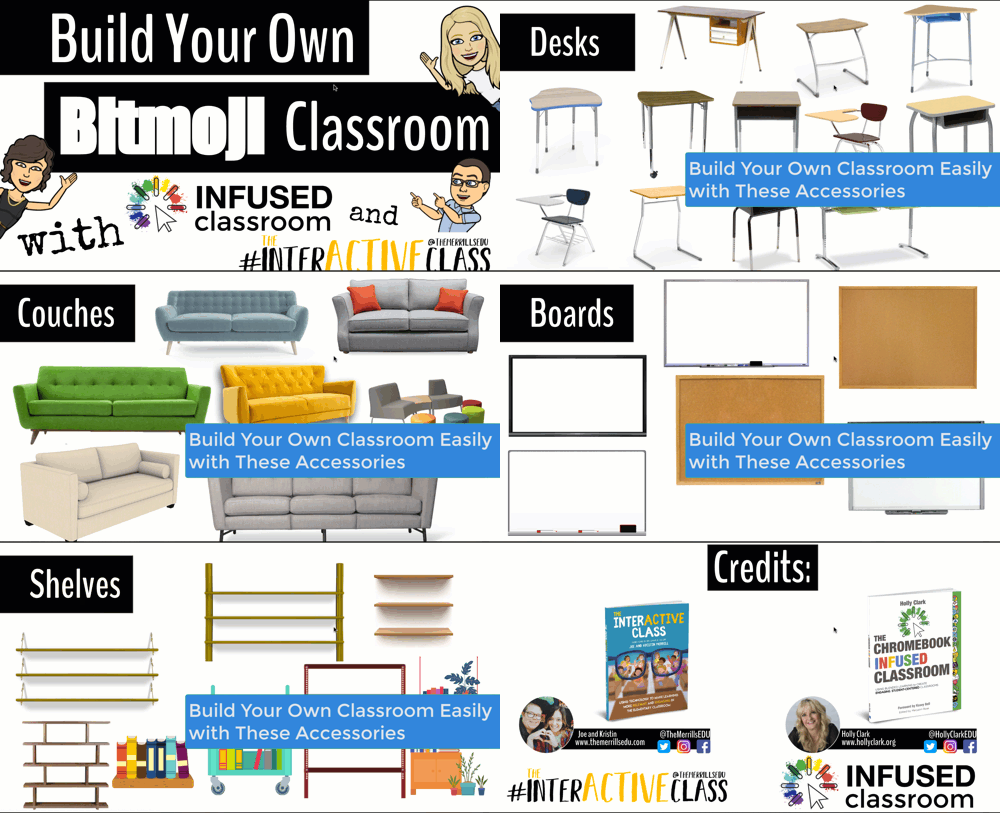
We know how hard it can be to build a Bitmoji classroom from scratch, so we partnered with our dear educational guru Holly Clark from the Infused Classroom, to give your somewhere to start. Simply click here and grab the entire deck of backgrounds and images to use as you get started. Please remember that this resource is to be used in the classroom, and not as something that will later be sold to other educators.
There are a lot of great websites to use when working on a Bitmoji Classroom and creating lessons for students working in a remote environment. We have so many applications we could recommend, but below are some of our favorite FREE applications that would fit into a Bitmoji classroom and accompany a virtual teaching environment nicely.
Flipgrid: A social learning platform where students engage with the teacher and peers through videos and demonstrate their knowledge by pressing record!
Wonderopolis: This online informational site that asks and answers interesting questions about the world. Every day, a new "Wonders of the Day" question is posted, and each is designed to get kids and families to think, talk, and find learning moments together in everyday life. With the integration of Immersive Reader, students can have articles read aloud to them making this a great remote learning website!
Wakelet: allows users to curate customizable content. It is also a great tool for keeping research projects interactive and social. Use it much like a virtual pin-board for class discussions, or group students and have them collaborate on an activity together.
Branching Bitmoji Classrooms
Once you get the hang of building a classroom setting, have fun leveling it up and linking one room to another. Try creating a sort of “homeroom” class where maybe students start off the day, but have it linked to a science lab, a math room and maybe a reading corner. This would allow you to have more resources available for students without cluttering one single slide up.
You can do this in two ways. You can create the slides in one deck and just link them together, or you can create a new deck for each “classroom”, where when students click it takes them out to that new room where all they can see is the new classroom slide.
If you are looking for more ideas about Bitmoji classrooms, check out our other related posts:
Creating a Virtual Classroom with Buncee (Free resource!)
How to Animate Yourself in a Bitmoji Classroom
Bitmoji Keychain Keepsakes
If you are looking for other ideas on how to make teaching and learning relevant and engaging through the use of technology, check out our book The InterACTIVE Class!


Bitmoji Keychain Keepsakes
With the end of the year quickly approaching, the way we celebrate with our students will definitely look different this year. Sadly, we are not going to be able carry out our end of year celebrations, reflect together and create memory books, or compete as a class during field day or other school wide events. So doing what educators always do when faced with something new, we adapt and change!

With the end of the year quickly approaching, the way we celebrate with our students will definitely look different this year. Sadly, we are not going to be able carry out our end of year celebrations, reflect together and create memory books, or compete as a class during field day or other school wide events. So doing what educators always do when faced with something new, we adapt and change! This year I wanted to give my students something as an end of year gift, but just converting what we normally do didn’t really fit. Our end of year celebration usually consists of a painting party where students leave their mark in my classroom by painting ceiling tiles. And my usual gift of rainbow treats just doesn’t feel right this year with all that is going on.
Using Bitmojis to Celebrate
So like most interACTIVE ideas, this one came on my morning walk. Bitmojis are not only fun for adults, but kids love and relate to them as well. And as most good ideas, I started with “Hmmmm, I wonder if I can….” and that led me to experimenting with Bitmoji and my childhood favorite Shrinky Dinks to create a fun end of year gift that hopefully my students will keep with them.
Creating a Bitmoji Keychain
To make these key chains you will need a few supplies. I have linked as many as I could:
Shrinky DInk craft sheets (I prefer the Frosted White kind because they were solid white and the Bitmoji image was darker.)
Keyhook keychains
Single hole punch
White or colored card stock
Step #1: To get started, you need to find the Bitmoji that you would like to use. Try searching words like summer, love, and support for some fun image ideas. I knew I wanted to leave a message for students to go along with the keychain itself so I chose my Bitmoji based on my message/poem.

Step #2: If you are using the traditional clear Shrinky Dink sheets, the first thing you need to do is mirror that image so that it prints backwards. This will enable you to print on the rough side of the Shrinky Dink sheet, but students will read and look at the Bitmoji from the smooth, clear side.

If you are using the Frosted White Creative Pack Shrinky Dink sheets: You will just need to skip down to step #3.
Step #3: After your image is chosen (and mirrored if needed), go ahead and size the image on your slide. I arranged 4 Bitmojis per slide and they shrunk plenty small. I would not recommend putting more than 4 on a page or they will be too small to get your keychain pieces through.

Step #5: Once your slide is ready, you are set to print. If you are using the traditional sheets where one side is slippery and one side is frosted, you will want to put the rough or “frosted” side is the side the printer inks on. If you are using the Frosted White sheets, both sides are the same. You may want to do a test print to see which way your printer works—for my printer, I placed the frosted side up.
Set #6: One the sheets are printed, go ahead and cut out the Bitmoji images. Once they are cut out use the hold punch to create a hole in the sheet. This is important to do before baking because once shrunk you cannot put a hole into them for the keychain pieces.

(I didn’t have a single hole punch but it’s easy enough to line up your pieces with a 3 hole punch)
Once ready, follow the baking directions on the package. Preheat the oven to 325 degrees. For mine, I spaced apart the pieces on a baking sheet lined with a paper bag. You can also use tin foil or parchment paper. They curl when put into the oven, and then uncurl. I waited about 30 seconds after they uncurled and then brought out. It was around 3 minutes total. I then removed the charms from the pan and laid them out on the counter, flattened them and let cool.
** Tip **-When taking your shrunk charms out of the oven, make sure to press them down on a flat surface while still warm. I placed them on the kitchen counter and used a dishtowel. This will make the charm smooth and flat. Otherwise it will harden rather bumpy and uneven.
As you can see below there are noticeable differences between the two different types of Shrinky Dinks material. The traditional Frosted Rough and Ready has a clear, shiny side and a more frosty side and shrunk a little smaller when baked. The Frosted White sheets are clearly a solid white and are a tad larger. Either kind will do but if I had a choice I would definitely go with the Frosted White sheets.

Don’t mind my backwards Bitmoji on the left! This is when I started experimenting and was before I realized I should inverse the image.
Once cooled, you can begin the process of attaching the key chain pieces to the Bitmoji charms. You can use all sorts of different key chain pieces, but I chose to use key hooks because I was afraid the charms might break as I worked to put them on the traditional round keychain holders. I took the keychains and used a small piece of tape to attach them to my message cards. I found a sweet message online that I altered to fit my class and just created the card on slides. You could print on either white or colored card stock.

I get to see my students on Friday one last time as they drive through our carline to picked up all their bagged materials. I am excited to hand them this small gift as a way of letting them know I enjoyed being their teacher, that I will miss them this summer, and that I can’t wait to see them roaming campus again soon!
Until next time—stay #interACTIVE!
~👗➕👓
If you are looking for other Bitmoji related ideas, check out these posts:
Building a Bitmoji Classroom (Free resources!)
How to Animate Yourself in a Virtual Classroom
Creating a Virtual Classroom with Buncee (Free Resources!)
If you are looking for other fun, engaging and interACTIVE lesson ideas, check out our book, The InterACTIVE Class!

