




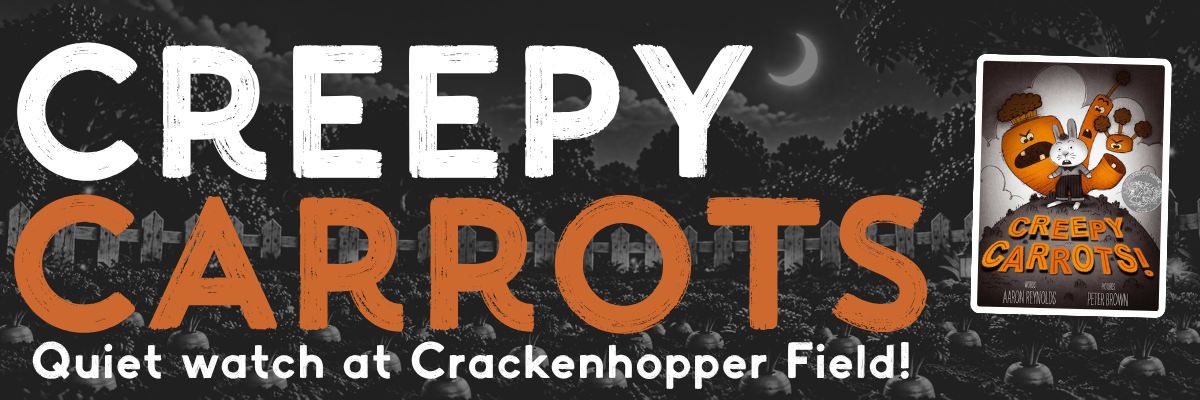
Directions: This tool works best on a laptop / computer. If you’re using a phone, turn the phone so that it is horizontal. Then, adjust the noise level, then click “Full Screen” to launch in a full screen. Click “Hide controls” to hide the bottom menu bar.


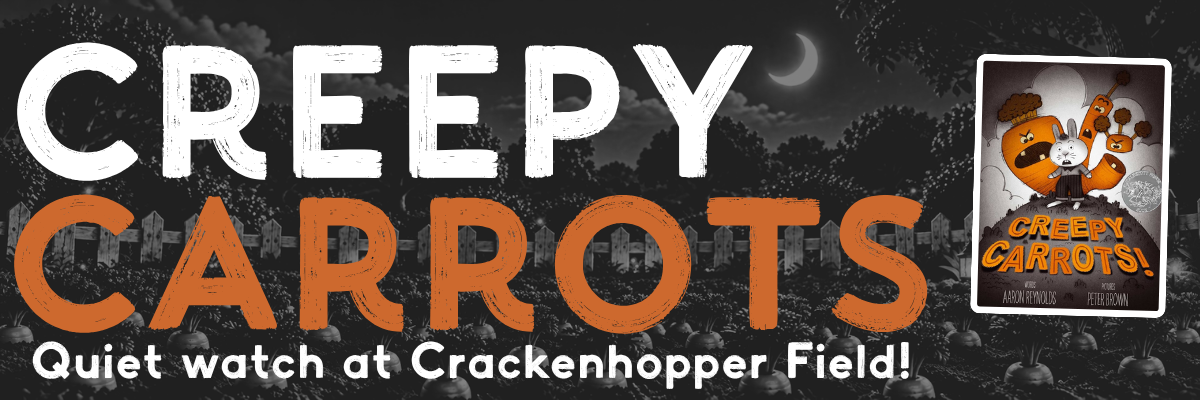
You found all the Creepy Carrots!
You were so quiet, they all came out to peek.
Time’s up!
Great listening, everyone!

Directions: Adjust the noise level, then click “Full Screen” to launch in a full screen. Click “Hide controls” to hide the bottom menu bar.
GOTTA HUSH 'EM ALL
Stay quiet. Earn packs. Fill your Dex.Version: 3.0Card packs earned

Directions: This tool works best on a laptop / computer. If you’re using a phone, turn the phone so that it is horizontal.

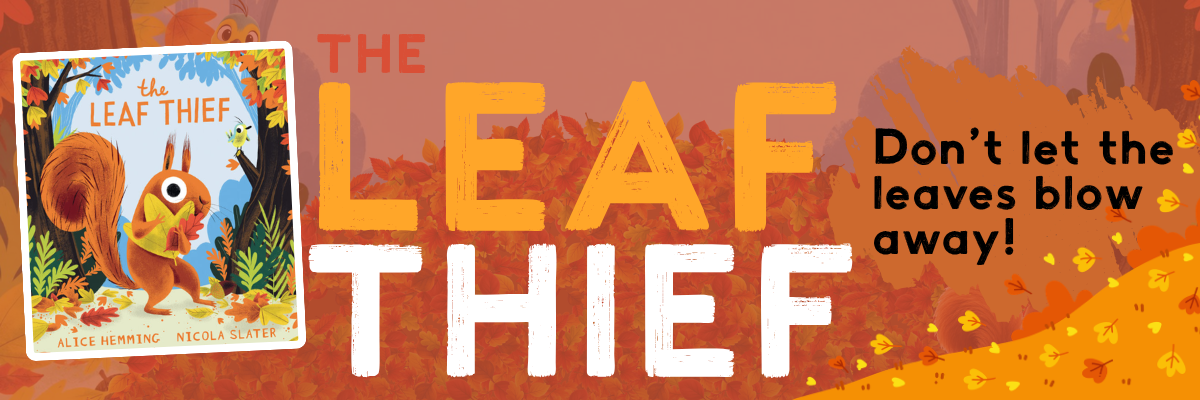
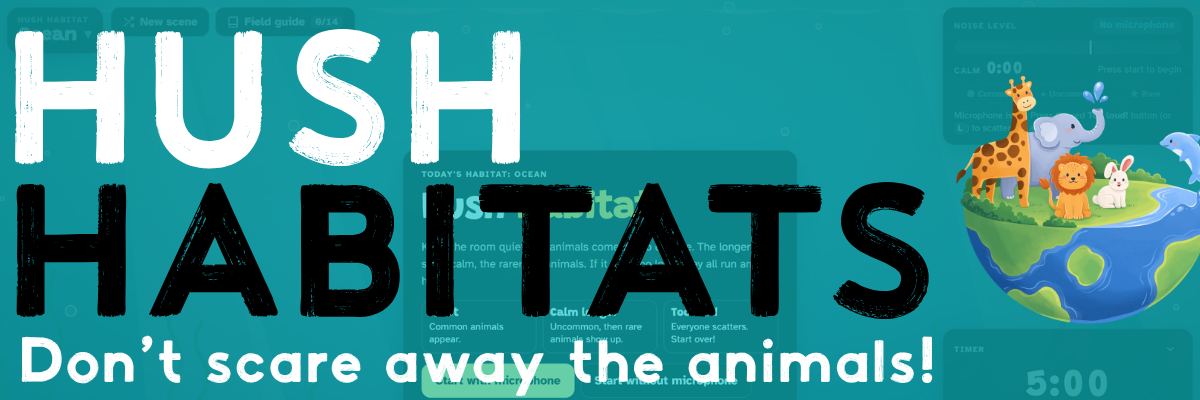
Directions: This tool works best on a laptop / computer. If you’re using a phone, turn the phone so that it is horizontal. Then, select the length of your timer, adjust the microphone sensitivity, and click “Full Screen” to launch in a full screen.
You kept the pile safe!
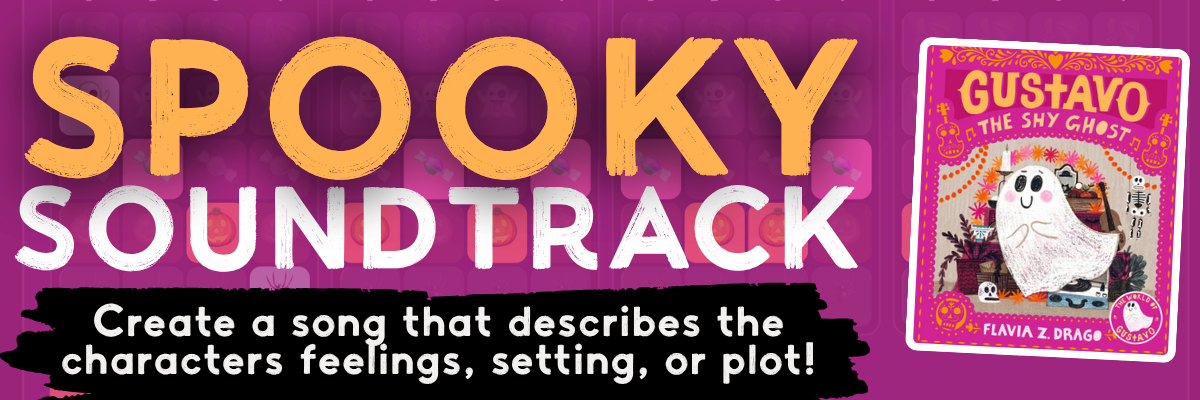
Use the tool below to create a song that describes the character’s feeling, setting, or plot! We paired this with “Gustavo: The Shy Ghost,” but any halloween story will work. You can even download the song and add it to a video on Canva or Adobe Express. Or, add it as an audio file in Padlet! Download the Canva template below, then use the “Spooky Song Maker” to make your track.
Teachers: get this app for your students
Some school districts block websites like this one for students. You can download the whole app as one file and share it where your students already go. It works without internet on Chromebooks, Windows, and Mac computers.
How to share it with students
- Click Download this app. A file named Spooky-Song-Maker.html saves to your Downloads folder.
- Upload the file where your students already go:
- Canvas (works best): Upload it to your course Files and publish it. Give students the file link with /download added to the end, like …/files/12345/download. The app opens right in their browser.
- Schoology: Add it to your course as a file. If students see a preview instead of the app, they can download the file and open it from their Downloads folder.
- Google Drive or OneDrive: These only show a preview of the file, so the app won't run inside them. Students need to download the file first, then open it from their Downloads folder in Chrome or Edge.
- Students type their name, make a song, and click Save my song to get an MP3 they can turn in or share.
Tip: Test it once as a student before class. iPads usually can't run a downloaded app file. For iPads, use a Canvas link opened in Safari or the Canvas app.
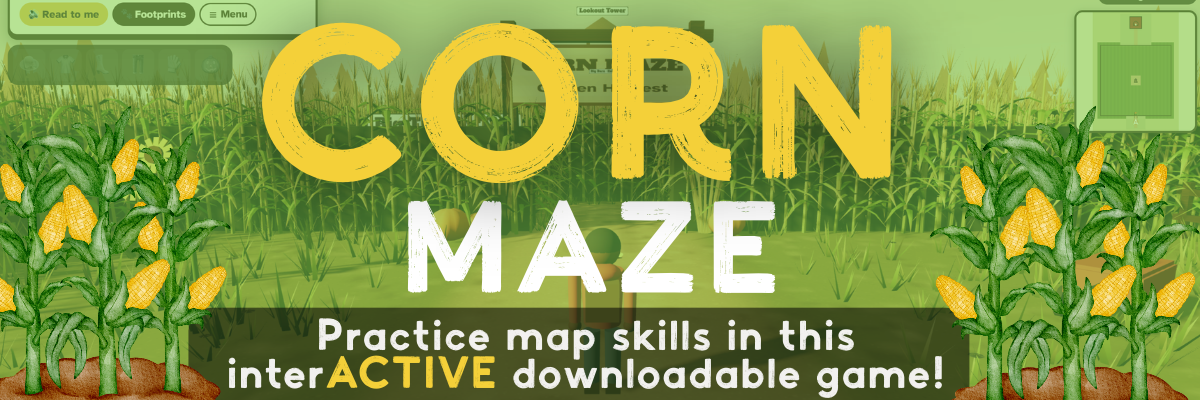
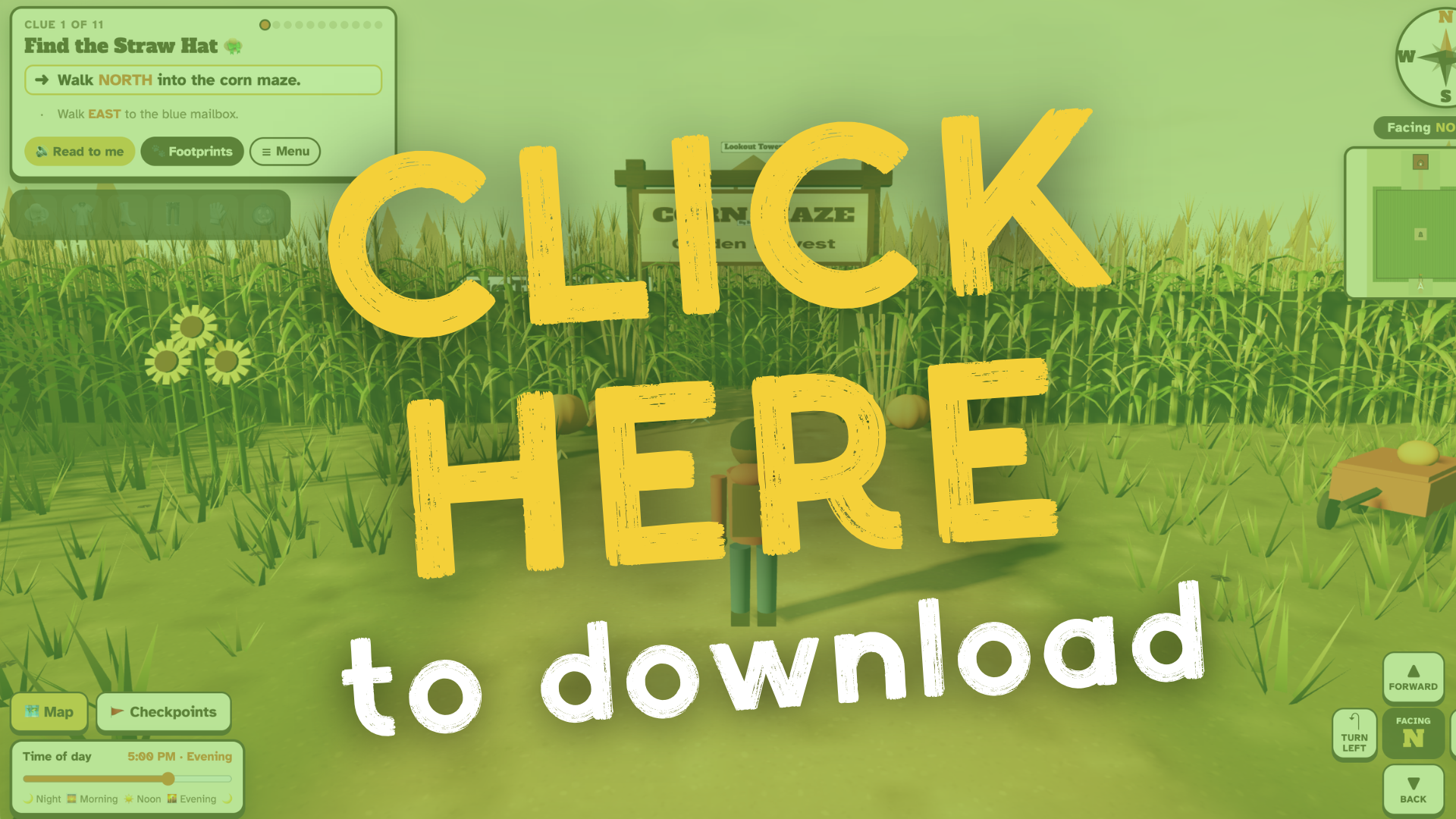
UClick the button below to download the game. You may share this link with your students. We recommend adding this link to your Canvas, Schoology, or Google Classroom pages.

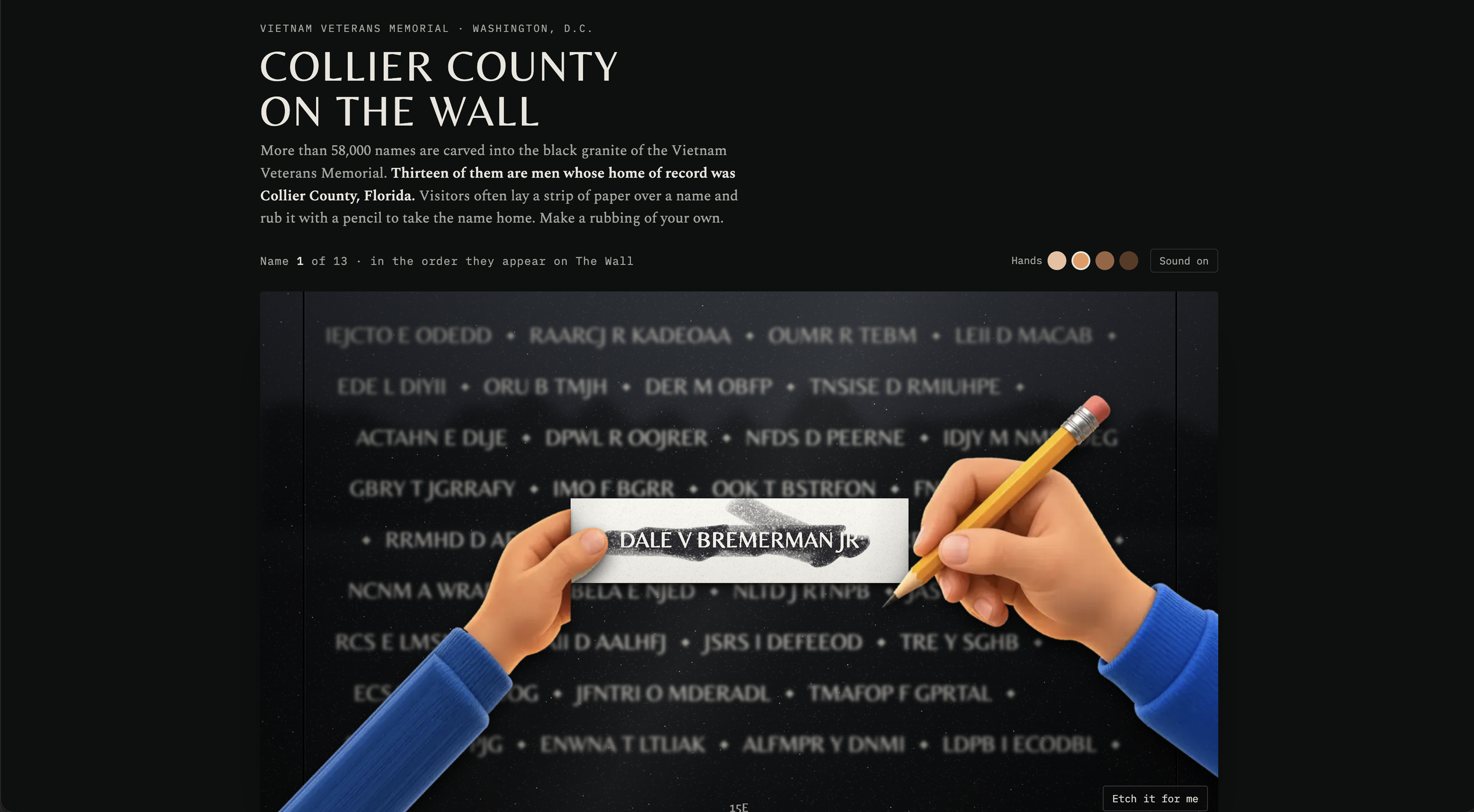
This Veteran’s Day, find the names from your hometown on the Vietnam War Memorial and help students remember the ones who never came home. Click below to download the app for yourself.
We recommend opening this on a laptop or PC. Select your desired time, start the microphone, and then enter full screen mode to start the parade. You can quickly edit the noise volume level by adjusting it at the bottom.
🎈 The parade is lining up…
Please be patient. This app takes a few seconds to load.