


20 Ways for Students to Use Padlet in the Classroom
Unlock endless creativity and collaboration in your classroom with these 20 exciting ways to use Padlet! From sharing and collaborating on engaging videos and interactive maps to creating drawings and using Padlet's collaborative whiteboard, watch your students connect and get excited about their learning!

Padlet has recently put a lot of effort and focus into education. The tool that we all loved many years ago has stepped up after apps like Microsoft Flip and Google’s Jamboard have closed their doors. Now, Padlet has similar features within the platform to help fill the loss of these apps. But, the fun just starts there. In this blog post, we’ll share 20 ways for students to use Padlet in the classroom.
Please note: This blog post was hand-crafted and was not created using AI.
(click on any subheading to jump to that section)




Video Recording and Commenting in Padlet
When Microsoft Flip announced that it was closing down, it left educators looking for a substitute to help fill the gap. While nothing can replace our beloved Microsoft Flip, Padlet has stepped up providing familiar features that students have grown to love. To enable video recording and comments, follow these steps:
Log onto Padlet as a teacher and create the board.
In the settings, under Engagement, be sure to toggle on comments (you can also turn on reactions, such as “likes” here).
Click the share icon to copy the link to your clipboard, or click Embed in your blog or website to copy / paste the board into your LMS (like Canvas or Schoology).
From here, students click + sign on the Padlet board to start a new post.
Below the Subject, students will need to click on More attachment types (all the way to the right).
A new menu will open up. In the new menu, students click Video Recorder.
After allowing the camera and microphone, the camera will launch and students can begin to record. They have 2 minutes of recording time (with the free plan), or 15 minutes of recording time (with a paid plan).
After recording, it’s important to remind students to use the Subject area to enter their name. Now, students click Publish to post their video onto the Padlet board.
Students can watch their friends’ videos back and comment on their responses. Similar to Flip, they can reply with (but are not limited to) a video, text, or audio recording. To add a comment, we recommend teaching the students to click on the original video, which will open it in a new window.
After watching the original video, students can click on the Comments icon located at the top right. This will open a sidebar to the right.
Next to Add Comment, students click the plus sign. Then they select Video Recorder (or they can just enter a text comment).
Students can follow the prompts to record their video. One important note here: just like in Flip, when a student adds to reply to the original post, they will need to also click on the pink “Comment” button. Failure to do so will lose the reply.
Now that the reply has been posted, Padlet will provide an organized and threaded conversation, making it easy for students to communicate with one another.


Audio Recording in Padlet
Student voice is important in an interACTIVE class, so we seek to provide as many creative outlets for our students as we can. However, sometimes students are shy or reluctant to be on camera. Don’t mistake their uncomfortableness with the desire to be noncompliant. These types of students still want to be heard, and this Padlet feature can help. Here’s how students can add an Audio Recording onto a Padlet board.

In a Padlet board, students click the + sign to add a response.
Below the Subject, students will need to click on More attachment types (all the way to the right).
A new menu will open up. In the new menu, students click Audio Recorder.
The Audio Recorder will launch. Student have 5 minutes of recording time on a free plan, or 30 minutes on a paid plan.
After recording, it’s important to remind students to use the Subject area to enter their name. Now, students click Publish to post their audio recordings onto the Padlet board.
Audio recordings can be added as a new post or as a comment to other posts.


The Draw Tool in Padlet
Padlet’s Draw Tool can be used to create a new post or as a comment to other posts. In the beginning of the year, we like to assign this activity to get the students familiar with using the trackpad. If they have a mouse or touchscreen, it will be even easier for them to create better illustrations. However, the focus here is not on creating a perfect drawing, but rather the soft skills of how to appropriately use the mouse. Here’s how to launch the Draw Tool.
In a Padlet board, students click the + sign to add a response.
Below the Subject, students will need to click on More attachment types (all the way to the right).
A new menu will open up. In the new menu, students click Draw. This will launch a canvas where the students can illustrate. They can enable the eraser by clicking on it in the lower right, or click Undo to correct mistakes. (Note: if students click on the eraser, they will need to click on the pen tool to draw again).
After drawing, it’s important to remind students to use the Subject area to enter their name. Now, students click Publish to post their drawings onto the Padlet board.
Drawings can be added as a new post or as a comment to other posts.


I Can’t Draw
Sometimes, an idea hits you and you know exactly what it should look like. But, some of us are artistically-challenged 😂. Maybe your students are shy about their artwork, or too picky and spend too long creating it. Padlet’s I Can’t Draw tool can help! This is an AI feature built into the platform, and uses written prompts to generate an image. Here’s how it works:

In a Padlet board, students click the + sign to add a response.
Below the Subject, students will need to click on More attachment types (all the way to the right).
A new menu will open up. In the new menu, students click I Can’t Draw. This will launch new window where students can enter what they would like the AI to draw.
After the image has generated, it’s important to remind students to use the Subject area to enter their name. Now, students click Publish to post their image onto the Padlet board.
I Can’t Draw images can be added as a new post or as a comment to other posts.


The Padlet Camera
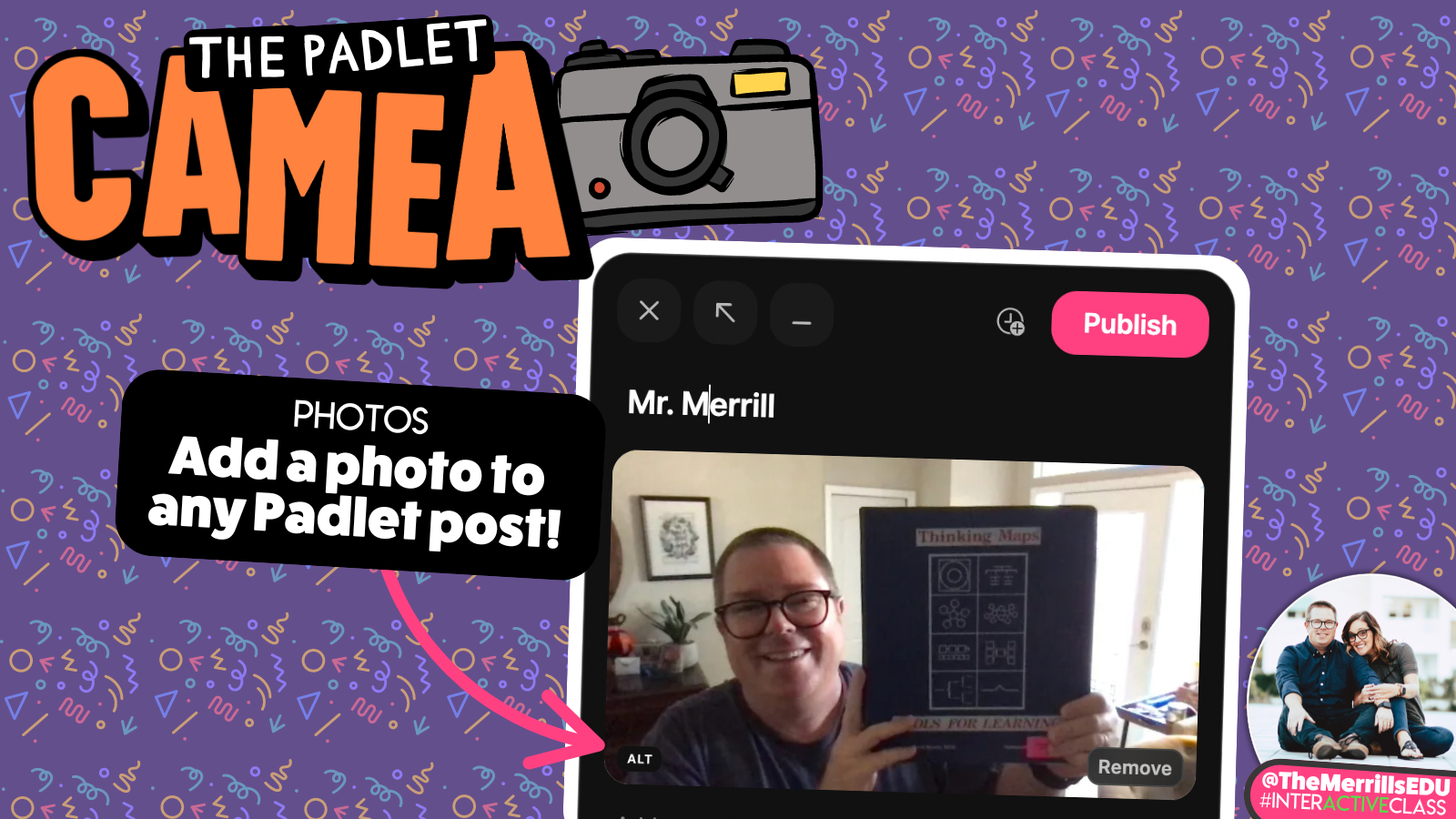
Padlet’s camera is a quick and efficient way to share student work. With a few clicks, students can capture a photo of their whiteboard, writing, and more. Sharing it with the class helps elevate the critical thinking level, especially when the educator has enabled comments. Here’s how students can launch Padlet’s camera:
In a Padlet board, students click the + sign to add a response.
Below the Subject, students will need to click on the Camera icon.
The Camera will ask the students for permission, then launch and will be ready for use.
After snapping their photo, the students can add a black & white or sepia filter., or just keep it normal. Click Save to add the photo to the Padlet post.
Remind students to enter their name in the Subject, then click Publish to share the photo.

Uploading Files to Padlet
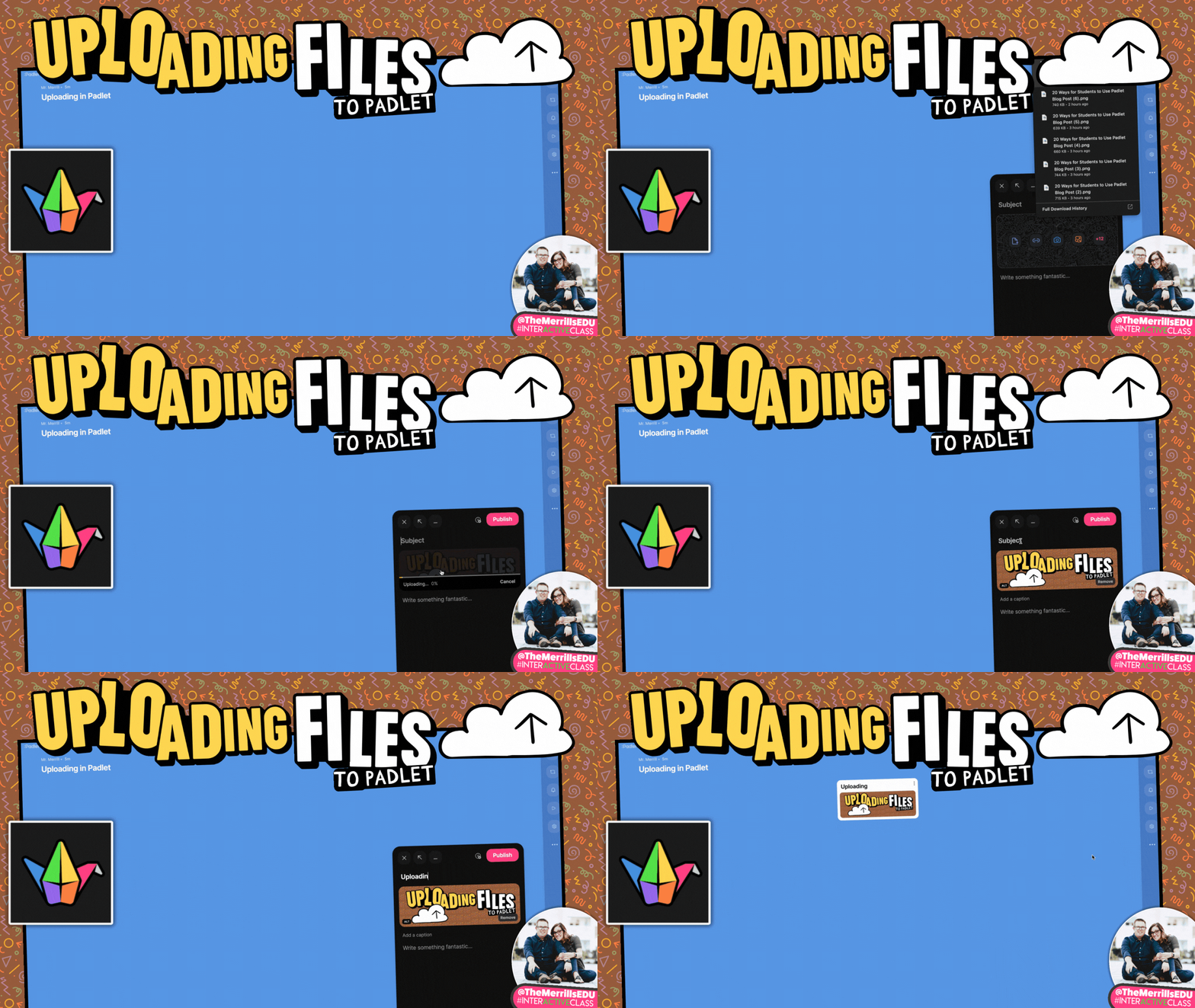
There’s a lot users can do right within Padlet, but there are also times that it’s useful to havee the ability to upload files from external platforms. Our favorite way to use this feature is with Adobe Express or Canva. Students can download their creations, then upload them to Padlet for the rest of the class to see. Here’s how users can upload onto Padlet:
Students will need to download the file or files that they would like to add to the Padlet board.
Once they’re in the Padlet board, students click the + sign to add a response.
There are two ways to upload files: Method #1 - Below the Subject, students will need to click on the Upload icon, or Method #2 - they can click on Downloads in their web browser and drag the file(s) in.
This will add the file(s) to the post. Remind students to enter their name in the Subject, then click Publish to share the file(s).

Screen Recording in Padlet
The Screen Recording feature in Padlet requires users to install the Padlet Chrome Browser. Once installed, it allows users to capture what their doing on their screen, producing a video recording of what is viewed and said. This can come in handy when explaining a strategy, explaining what they learned, or focusing on a particular topic. Here’s how to launch the Padlet Screen Recorder:
Students will need to install the Padlet Chrome browser extension to use Screen Recording in Padlet.
Once they’re in the Padlet board, students click the + sign to add a response.
Click on More attachment types, then click Screen Recorder.
Students can click on the red record button to start recording.
This will add the file to the post. Remind students to enter their name in the Subject, then click Publish to share the file(s).


Talk for Me
If students are nervous about recording video or audio, Padlet’s Talk for Me is their solution. With this feature, students enter text that they would like Padlet to dictate. Using AI, padlet will take the text and create a spoken version. There’s a lot of opportunity for level ups, here. For example, try using this feature as a narrator in a story, and then attach audio recordings of other characters (or students) playing different roles. Here’s how to launch the Talk for Me feature:
In a Padlet board, students click the + sign to add a response.
Below the Subject, students will need to click on More attachment types (all the way to the right).
A new menu will open up. In the new menu, students click Talk for Me. This will launch new window where students can enter what they would like the AI to say. Now click Next.
After the audio has generated, it’s important to remind students to use the Subject area to enter their name. Now, students click Publish to post their image onto the Padlet board.
The audio file is now added as a new post. Students can also use this feature when adding a comment to other posts.


Hyperlinking in Padlet
Hyperlinking in Padlet is an easy-to-use feature, but a powerful one. Students can use this feature when sharing a website, or even a link to a Canva project. You can level up this feature by having students create their own website on Adobe Express, or they can share a template for their classmates to edit. We also love this feature for sharing books created in Book Creator. Here’s how to use Padlet’s hyperlinking feature:
Students will need to copy the URL of the hyperlink they are looking to share.
Once they’re in the Padlet board, students click the + sign to add a response.
In the pop up window, students click on the Link icon.
In the next window, students can paste the copied URL into the top bar, then press enter.
This will add the hjyperlink to the post. Remind students to enter their name in the Subject, then click Publish to share the link.


Reactions & Commenting in Padlet
Commenting in Padlet provides ways for students to interact with each others content. Most times, students learn best from each other’s feedback. So, it’s important to provide outlets where students can use these skills. Reactions in Padlet include (but are not limited to) likes and ratings. One thing to note here, students can only “like” or “rate” a response once. So, they can’t spam the likes to try and get a higher number. Clicking the “like” will add a like, but when the same user clicks it again, it takes the like away. To enable commenting and reactions, follow these steps:
Educators log onto Padlet and click on the board that they want to enable for comments and / or reactions.
On the right hand side, click on the Settings, or gear, icon.
In the pop-up window, click on Engagement at the top.
Then toggle on comments, and / or enable reactions.
Now, students will be able to add a comment or reaction to a Padlet post.


Padlet’s Sandbox
Padlet’s Sandbox is a collaborative digital canvas / whiteboard with tools for drawing, writing and adding media. Unlike most digital whiteboards, a Sandbox is NOT an infinite canvas. Instead, users have the area of the rectangle to work in, but they CAN add additional pages to the Sandbox project. This is the perfect option for Google’s Jamboard users who are looking for a new tool to use.
Within a Sandbox project, students can work collaboratively to drag-and-drop content onto the canvas. Students can include hyperlinks, sticky notes, text, images, videos, links, documents, and more. These elements can be easily resized and turned to fit onto the canvas. When all the content has been added, the Sandbox can be shared by clicking on “Play” located on the top of the screen. One thing to note here is that other Padlet boards can be added in and out of the Sandbox. So, with a little bit of clever hyperlinking, you could have differentiated groups working together and then bring the Sandbox content back into another Padlet board. Here’s how to launch a Sandbox project in Padlet:
Log onto Padlet, then click on +Make.
Locate Sandbox, then click on it.
This will launch the Sandbox for your students to access. Share the URL with them to begin!
Check out a math example of how students can use Sandbox below!


Padlet’s Blog Board
Padlet's "Blog" activity is an interACTIVE tool designed to facilitate collaborative blogging within a shared online space. This activity allows users to create and share posts that appear in a blog-style format, making it ideal for creating a character blog, historical figure blog, or group projects. This activity has already been set up as a template within Padlet, but you can find it by clicking here. To find it on your own, follow this path:
Log onto Padlet, then click on Gallery.
Scroll down until you find Blog, then click on it.
In the new window, click Create. This will launch the template for your students to access. Share the URL with them to begin!
Check out an example of a Padlet blog below!


Collaborative Storytelling in Padlet
Padlet’s Collaborative Storytelling template can be used to help groups (or the entire class) create stories. Students can build upon each part of the story to reflect what happens first, next and last. The key is to encourage the students to read the previous post to maintain coherence in the story line. You can also level this activity up by allowing students to add audio recordings, posts with higher ratings (click here to revisit how to enable reactions), or by using I Can’t Draw to generate visuals for the story. Here’s how to launch a Collaborative Storytelling project on Padlet:
Log onto Padlet, then click on Gallery.
Scroll down until you find Collaborative Storytelling, then click on it.
In the new window, click Create. This will launch the template for your students to access. Share the URL with them to begin!


Cause and Effect Chains on Padlet
Padlet’s Cause and Effect Chains template allows students to visualize the relationship between events by connecting posts with arrows. Students can post the cause, then link the posts by clicking the three-dots icon on the post and then selecting "Connect to a post". This will form an arrow from the original post to the second one. This can be leveled up by using this template for collaborative storytelling (as opposed to the one above). For example, students post parts of the story and then rate each post. The post with the highest rating can be selected to become the next part of the story by connecting the posts. Repeat these steps as necessary! Here’s how to launch the Padlet Cause and Effect Chain template:
Log onto Padlet, then click on Gallery.
Scroll down until you find Cause and Effect Chains, then click on it.
In the new window, click Create. This will launch the template for your students to access. Share the URL with them to begin!


Concept Maps on Padlet
Similar to the Cause and Effect Chain template, the Concept Map template allows students to imagine and then connect ideas in a structured diagram. Teachers can use the Concept Map template to help students understand complex subjects by breaking them down into smaller, interconnected ideas. Collaborative groups can use the concept map to brainstorm ideas for projects or problem-solving solutions. Or, students can use this template as the foundation for building a story. Here’s how to launch Padlet’s Concept Map template:
Log onto Padlet, then click on Gallery.
Scroll down until you find Concept Map, then click on it.
In the new window, click Create. This will launch the template for your students to access. Share the URL with them to begin!


Four Corners on Padlet
This template falls under Padlet’s Sandbox (or digital whiteboard) category. In Four Corners, students are posed with a question. After thinking about the question, the students respond by placing content onto the area of the four corners that their opinion aligns with. Students can respond using (but not limited to) a sticky note, text box, shapes and more. This is great activity provoke higher levels of thinking where there could be multiple correct answers. Think of the old “In or Out” game frequently used to launch math lessons! Here’s how to launch Padlet’s Four Corners template:
Log onto Padlet, then click on Gallery.
Scroll down until you find Four Corners, then click on it.
In the new window, click Create. This will launch the template for your students to access. Share the URL with them to begin!


Maps on Padlet
Padlet's Map template is a specialized tool designed to help students visually organize and share information with geographical context. It allows students to pin content to specific locations on an interactive map, making it ideal for activities related to geography, travel, history, and more. These highlighted points of interest can include images, video, text and more. We love using this activity when teaching social studies and reviewing where events occurred. Here’s how to launch a map on Padlet:
Log onto Padlet, then click on Gallery.
Scroll down until you find Map, then click on it.
In the new window, click Create. This will launch the template for your students to access. Share the URL with them to begin!


Storyboards on Padlet
Padlet’s Storyboard template allows students to post individual moments from a storyline with image, video, or text attachments. The students can drag and drop the content to rearrange it and fit the perfect the narrative. We like using this activity after reading chapters from a book and then have the students use Padlet’s I Can’t Draw (AI image generator) as a way to describe what has either happened in the text or the tone of the story. Here’s how to launch the Storyboard template:
Log onto Padlet, then click on Gallery.
Scroll down until you find Storyboard, then click on it.
In the new window, click Create. This will launch the template for your students to access. Share the URL with them to begin!


Read and Respond in Padlet
In this activity, the educator assigns a reading assignment and then gives the students a space to discuss their thoughts. The question remains pinned at the top of the board, while the responses curate below the question. Students can add (but are not limited to) text-based content, making it ideal for a class discussion, analysis, or a comprehension check. Here’s how to launch the Read and Respond template in Padlet:
Log onto Padlet, then click on Gallery.
Scroll down until you find Read and Respond, then click on it.
In the new window, click Create. This will launch the template for your students to access. Share the URL with them to begin!


Photo Gallery in Padlet
Padlet’s Photo Gallery template allows students to share images or photos in a collaborative gallery. We love using this activity to predict what the setting of the story might be before reading it. You can also level up this template by having students share images or photos relevant to certain geographical locations, or by using Padlet’s I Can’t Draw (AI image generator) to add images of what places might look like in the future. Here’s how to launch Padlet’s Photo Gallery:
Log onto Padlet, then click on Gallery.
Scroll down until you find Photo Gallery, then click on it.
In the new window, click Create. This will launch the template for your students to access. Share the URL with them to begin!

-- Please follow us on social media and tag us with how you’re using these Padlet ideas in your classroom! 👓👗
For more tips, tricks and lesson ideas for making learning more interACTIVE, check out our books The InterACTIVE Class on Amazon!


Top Tools to Use Now That Flip is Gone
Discover top alternatives to Microsoft Flip for creating engaging video content in education. Explore tools like Adobe Express, Canva, and other innovative platforms that enhance student learning, creativity, collaboration and critical thinking. Find the perfect tool for your classroom today!

Over the summer of 2024, Microsoft announced that it would be shutting down beloved ed tech app, Flip (aka Flipgrid). The absence of such an innovative app leaves a hole in many of our classrooms. So, now that Flip is no more, where do we go from here? We want to be very clear, these apps and suggestions are NOT a replacement for Flip. These platforms contain similar features or integrations that may be used as a way to replicate what you were doing with Microsoft Flip.
THIS BLOG POST IS HAND CRAFTED AND WAS NOT GENERATED USING AI.
IT HAS BEEN UPDATED ON: November 2025
(click on any subheading to jump to that section)


Video Creation Platforms


Adobe Express
Price: Free for both students and educators
Compatibility: Web based, iOS, Android
Similarities to Flip: Students can create and download videos
Differences from Flip: Students do not have a collected space to share their videos, but they can collaborate on the creation of a video.
Sign up: https://www.adobeforeducation.com/k-12/express-for-education/
Adobe Express, formerly known as Adobe Spark, is an excellent tool that can help students create and edit videos easily. Although Adobe Express is more focused on graphic design, it does have features that can be utilized for video creation and editing. Check out what it offers for students in terms of recording and editing videos in the image below.


Canva
Price: Free for both students and educators
Compatibility: Web based, iOS, Android
Similarities to Flip: Students can create and download videos
Differences from Flip: Students do not have a collected space to share their videos, but they can collaborate on the creation of a video.
Sign up: https://www.canva.com/education/
Canva offers a range of features that can help students with recording and editing videos, making it a valuable tool for various educational purposes. Canva also places an emphasis on graphic design, and many of it’s features can be utilized while creating videos. Check out the image below for a breakdown of some of our favorites!


Seesaw
Price: Free and paid options
Compatibility: Web based, iOS, Android
Similarities to Flip: Students can create and download videos and use the screen as a white board.
Differences from Flip: Educators are able to enable the ability for students to view each other’s work, but students do not have a way to comment (with a video) back-and-forth.
Sign up: https://seesaw.com/
Seesaw is an educational platform designed to engage students in learning by allowing them to create, reflect, share, and collaborate on various types of content. When it comes to recording videos, Seesaw offers several features that can be beneficial for students. The image below shares a few of our favorites!

Any of these apps can be used to create videos, and all of them do it exceptionally well. However, if you’ve ever seen us speak, or read our books, you know that we have a passion for providing students with an outlet to share their creativity to broader audiences. While the apps above will permit students to create content, they do not provide a space for students to be able to view and provide feedback to their classmates (as we mentioned above - Seesaw does have a feature where students can view each other’s work, but it doesn’t have the same feel as Flip did). So, let’s take a look at some other apps that might provide a way for students to both record, share, and comment back and forth.

Platforms That Allow for Video Creation, Sharing, Reflection and Commenting


Snorkl
Price: Free and paid options
Compatibility: Web based
Similarities to Flip: Students can record whiteboard-styled annotated videos and submit them for other student’s to view and comment on.
Differences from Flip: Videos are whiteboard-style only. AI is integrated within the platform, which will assess the student work and provide feedback.
Sign up: https://snorkl.app/
Snorkl is an educational app designed to help students record and explain their thinking visually and verbally. It provides tools for students to record their voice while using a digital whiteboard to represent their ideas. The app’s AI offers instant feedback on these recordings, helping students deepen their understanding and improve their explanations. This is a step above where Flip left off - providing a way for students to receive instant coaching on their submissions. On the educator side, teachers can use AI-powered analytics to monitor student progress and gain insights into their thinking. Check out some of our favorite features below!

Let’s take a look at Snorkl’s platform. On the educator side, teachers create a class. Then, you can add assignments to the class (or classes). When assigning an activity, you can choose from Snorkl’s library (Grades 3 and up), or create your own. If you’re starting your own activity, you can use the Snorkl whiteboard to provide a template for your students to work on top of. Setting up the AI feedback is optional, but can be easily generated with Snorkl’s autofill. Educator’s have full control, and can choose to auto-approve or teacher-approve the AI feedback. Check out our walkthrough below!


On the student side, students log on with an email address. Assigned activities will appear when they log in. The whiteboard is the same as the one on the educator side (where you can add your own template for students to work on top of). Check out our deep dive of the tools the students have access to within the app below.


MirrorTalk
Price: Free and paid options
Compatibility: Web based, iOS and Google Play
Similarities to Flip: Students reflect on the assignment, sharing their thinking.
Differences from Flip: Videos are not seen by classmates, but are visible to the educator.
Sign up: https://mirrortalk.ai/
MirrorTalk is an educational app designed to help students and teachers build reflective thinking skills. Educators create a class, then set up a topic that they would like the students to reflect on. MirrorTalk provides several options for how students log in. If the educator selects “Login,” the students will need to enter an email address which will create an account for them. The benefit here is that with a student account, students have access to the entire dashboard: start a new reflection, view past reflections, and access AI-driven insights. If the educator selects “Session” under the Access menu, this will provide a unique link where students will only need to enter their name to add a reflection. They will not see the dashboard, and only be able to respond to the prompted question. This method is highly recommended if you are a K-2 educator, as the reflections can be hyperlinked on your LMS for quick and easy access. In “Open” access, students do not need to enter a name. After clicking on the reflection link, they are immediately prompted with the question.


When a student launches a reflection, they are prompted to answer questions. Their responses are recorded and then analyzed using AI. The AI then prompts the students to explain in more detail, analyzing the response. The app then provides educators with AI-driven insights to identify learning gaps, develop understanding, and manage mindsets. Here’s what we love about MirrorTalk!


Book Creator
Price: Free and paid options (collaboration requires a paid version)
Compatibility: Web based, iOS and Google Play
Similarities to Flip: Students can record videos and comment on classmates work with either text or video.
Differences from Flip: The camera does not contain additional add-ons and is strictly meant to capture raw video (no filters, effects, etc.) and comments appear off to the right side of the book.
Sign up: https://bookcreator.com/
Don’t let the name fool you! Book Creator is an amazing tool to create books, but it’s capabilities go far beyond what the name suggests. With a paid version of Book Creator, a teacher can turn collaboration on, providing ways for students to work together on the same assignment. As cool as this is, one of our favorite features in Book Creator is the commenting feature (and it comes with the free version). Clicking on the comment icon in the lower right panel opens up an area for students to record a video, audio message, or leave a GIF / emoji. We like to encourage the student who’s project is being viewed to record a video explaining their thinking alongside their book. Then, their classmates can read the book and add comments below the original message. We love how the comments stay in a thread, making it easy and accessible.


This feature can be used similarly to Flip by allowing students to comment on each other’s work. This builds constructive and critical thinking, all while providing a creative outlet for your students. The best part of all: books can be shared with families in just several clicks! Check out what we love about Book Creator below!


Padlet
Price: Free and paid options
Compatibility: Web based, iOS and Google Play
Similarities to Flip: Students can record videos and comment on classmates work with either text or video.
Differences from Flip: The camera does not contain additional add-ons and is strictly meant to capture raw video (no filters, effects, etc.).
Sign up: https://padlet.com/
For those who have been around ed tech for some time, you most likely have used Padlet at some point in your career. While nothing can fully replace Flip, Padlet’s work into video integration within their platform definitely feels familiar for Flip users. Educators create a Padlet board and share the link with the students. The students click on the + symbol, followed by “More attachment types.” In the pop up menu, students click “Video Recorder” to launch the camera. Unlike Flip’s camera, there are no flashy add-ons, filters, or effects. We actually prefer this to the last version of Flip’s camera. This keeps the attention on the objective, but Padlet also offers the option to upload video (so you can always use a different app to create the video and then smash it with Padlet). Students have up to 2 minutes of recording time, and the recording can be paused at any time during the process. Also like Flip, students have the ability to watch their videos back before submitting their response.

After submitting a video response, the video thumbnail will appear on the Padlet board. Clicking on a video’s thumbnail will open a familiar view to Flip users. Here, the students can view the original video and all other comments made to the video. Just like on Flip, the content is threaded and organized, making it easy for students to interact with.

Padlet also stepped up and created a Flip importer tool to bring all previous content in Flip into Padlet. Click this link to learn more and transfer your videos. The attention to detail is impressive, and as we have mentioned before - nothing will replace the Flip(grid) that we all knew and loved. But, Padlet’s efforts are definitely recognized and appreciated. This gives it our highly recommended rating, and if you are desperately looking for a replacement option, start with Padlet.

-- Please follow us on social media and tag us with how you’re using these apps in your classroom! 👓👗
For more tips, tricks and lesson ideas for making learning more interACTIVE, check out our books The InterACTIVE Class and Flipgrid in the InterACTIVE Class on Amazon!

