


How to Import Jamboard Files into Lucidspark (So They're Editable)
Are you nervous that you might lose all of your Jamboard files? We’ve got you covered! Check out this blog post to learn how to import Google’s Jamboard files into Lucidspark. Users who import these files will maintain the ability to edit their files!

Google’s Jamboard is sunsetting as of Dec. 31st, 2024. But, Lucidspark has stepped in to save teachers time and resources. As of February 1st, 2024, teachers will now have the ability to import their Jamboard files directly into Lucidspark, preserving the ability to edit them. In this blog post, we’ll walk you through the steps and share how you can keep jamming in Lucidspark!
(click any subheading below to jump to that section)


How to Sign Up For Lucidspark
Lucidspark is free for both teachers and students. Signing up for an account is easy and can be done so by clicking here, or the image below. Once you click on the link, you will see a pop-up that appears asking how you plan to use Lucid. Select Educator (or Student if you’re a student). NOTE: You must use the email address assigned to you by your educational institution to qualify for a free Lucid educational account.

How to Save Jamboard Files for Lucidspark
You won’t need to prepare anything to move your Jamboard files into Lucidspark. The Jamboard file types will be recognized as .json files, or Jamboard files. When the .json files are uploaded into Lucidspark, it will recognize them and you will maintain editing abilities. HUGE shoutout to Lucidspark for making this as easy as possible!

How to Import Jamboard Files for Lucidspark
Now that you’ve saved your Jamboard files, let’s walk through how you can import them into Lucidspark. Follow these steps:
From the Lucid dashboard, click on the +New button on the top left.
Hover over Lucidspark, then hover over Board Import, then click on Jamboard.
You may be prompted to authenticate your Google account and it’s permissions.
Select the board (or boards) that you wish to import. To select multiple boards, hold down the shift key when selecting.
Click Select followed by Import
Your Jamboard files will now be available to edit and use in Lucidspark!


How to Share Lucidspark Files with Students
Now that you have your Jamboard files imported into Lucidspark, it’s time to share them with your students to get them logged on. In order to do so, you will need to set up your class on Lucidspark. Click here for assistance on setting up your class and adding students.
To share your new Lucidspark files with students, you have several options. You may do so by sending a email message, creating a sharable link, or having students use a join ID.
Sharing with a link provides easy access to your Lucidspark documents, especially if you’re using an LMS (Learning Management System) such as Canvas, Schoology, Google Classroom, or Microsoft Teams. Here’s how to share using a link:


If your students have email addresses, you can email them the Lucidspark file(s) directly to them. To do so, follow these steps:
Click on the Share button located on the top right of your Lucidspark document / file.
Click Email in the pop up window.
Enter the email addresses of the students you wish to share with. (Tip: You can share the document with the entire class by typing your class name.)
Click Invite. Your Lucidspark document will now be shared with your students!

Sharing with a link provides easy access to your Lucidspark documents, especially if you’re using an LMS (Learning Management System) such as Canvas, Schoology, Google Classroom, or Microsoft Teams. Here’s how to share using a link:
Click on the Share button located on the top right of your Lucidspark document / file.
Click Link in the pop up window.
Toggle on the sharable link option. This will generate a hyperlink.
Choose your preferred settings.
Click Copy link to copy your Lucidspark document’s hyperlink, then paste it wherever you share with your students. The students will be able to click this link and then gain access.


Enabling a Join ID will allow students to log onto the Lucid app and then enter a six character code for easy access. Here’s how to enable a Join ID:
Click on the Share button located on the top right of your Lucidspark document / file.
Click Join ID in the pop up window.
Toggle on the Share a Join ID for easy access button.
Share this link with your students: https://lucid.app/join
When students head to the link, they will need to enter the six character code that Lucidspark generated.
Students will be able to gain access to the Lucidspark document after entering the six character code.

-- Please follow us on social media and tag us with how you’re using Lucidspark activities in your classroom! 👓👗
For more tips, tricks and lesson ideas for making learning more interACTIVE, check out our books The InterACTIVE Class and Flipgrid in the InterACTIVE Class on Amazon!


What is Lucidspark?
@TheMerrillsEDU explain the all-new Jamboard alternative, Lucidspark. Learn how this free for educators tool can enhance collaboration, promote creativity, and provide outlets for multimedia.

Recently, Google announced that it’s sunsetting Jamboard as of December 2024. Google has partnered with third-party providers to offer alternative solutions for digital whiteboarding, and one of them is Lucidspark. Lucidspark is a virtual whiteboard that fosters collaboration in the classroom, while empowering students to bring their best ideas to life. It has many features never offered in Jamboard, such as integrations with other apps, live voting, timers, templates, and collaborative AI. In this blog post, we’ll explain what Lucidspark is, compare it to Jamboard, how to get students logged on and show you where to create your own free acount.
(click on any subheading to jump to that section)


What is Lucidspark for Education?

Jamboard users loved the platform for it’s digital whiteboard features, but Lucidspark takes learning to the next level, giving students and teachers a smarter way to diagram. Lucid brings your ideas to life with easy-to-use features, unmatched intelligence, and end-to-end visual collaboration for everyone. The Lucid for Education Learning Suite is the perfect next step for anyone using Jamboard in education—from kindergarten to college. It has hundreds of customizable templates and gives educators controls for managing student interactions. The best part of all, it’s completely free!

One of our favorite features of Lucidspark is it’s ability to bring collaboration easily into the classroom. Educators can seamlessly guide, moderate, and evaluate collaborative discussions while maintaining students' focus on the board and locking elements of the template that shouldn't change. But the power of Lucidspark gets even better: Educators can easily increase the equality of student participation by selecting from a bank of ready-to-use activities. Your students complete them independently, eliminating peer bias. Then, Lucid instantly synthesizes the responses and generates a visual report of the combined results, along with each student's individual work. Lucid does the calculating for you so you can assess student comprehension immediately.
Lucidspark is compatible with multiple platforms, including Google and Microsoft. Educators and students can gain access to Lucidspark from the tools like Google Classroom or Canvas, streamlining your experience and eliminating the need for multiple sign-ins. Lucidspark is COPPA, FERPA, and GDPR compliant. It can be used by students of all ages, in all countries. Students under 13 use Lucid as directed by their schools.

How Does Lucidspark Compare to Jamboard?
Lucidspark has all of the features you’ve come to know and love in Jamboard, and so much more. Just like in Jamboard, you can place sticky notes, add text, add drawing, insert shapes and images, and add GIFs with your document. Lucidspark also has many additional tools that educators have been asking for like facilitator controls for the teacher, student names on sticky notes, voting, timers, emojis, and more. Check out our breakdown below for more details!


Embedding in Lucidspark is as easy as copying and pasting! Users can copy a hyperlink, then paste it anywhere on a board. These can be moved anywhere that you’d like. Users can also add media such as playable videos, images, GiFs, emojis, icons, or search the web right within the platform.


Collaborative AI is built directly into the Lucidspark toolbar. Users can launch this feature by clicking on the diamond icon, and then type out a prompt. This will allow users to generate ideas, extend brainstorming sessions, uncover key themes, and rapidly summarize the latest working session.

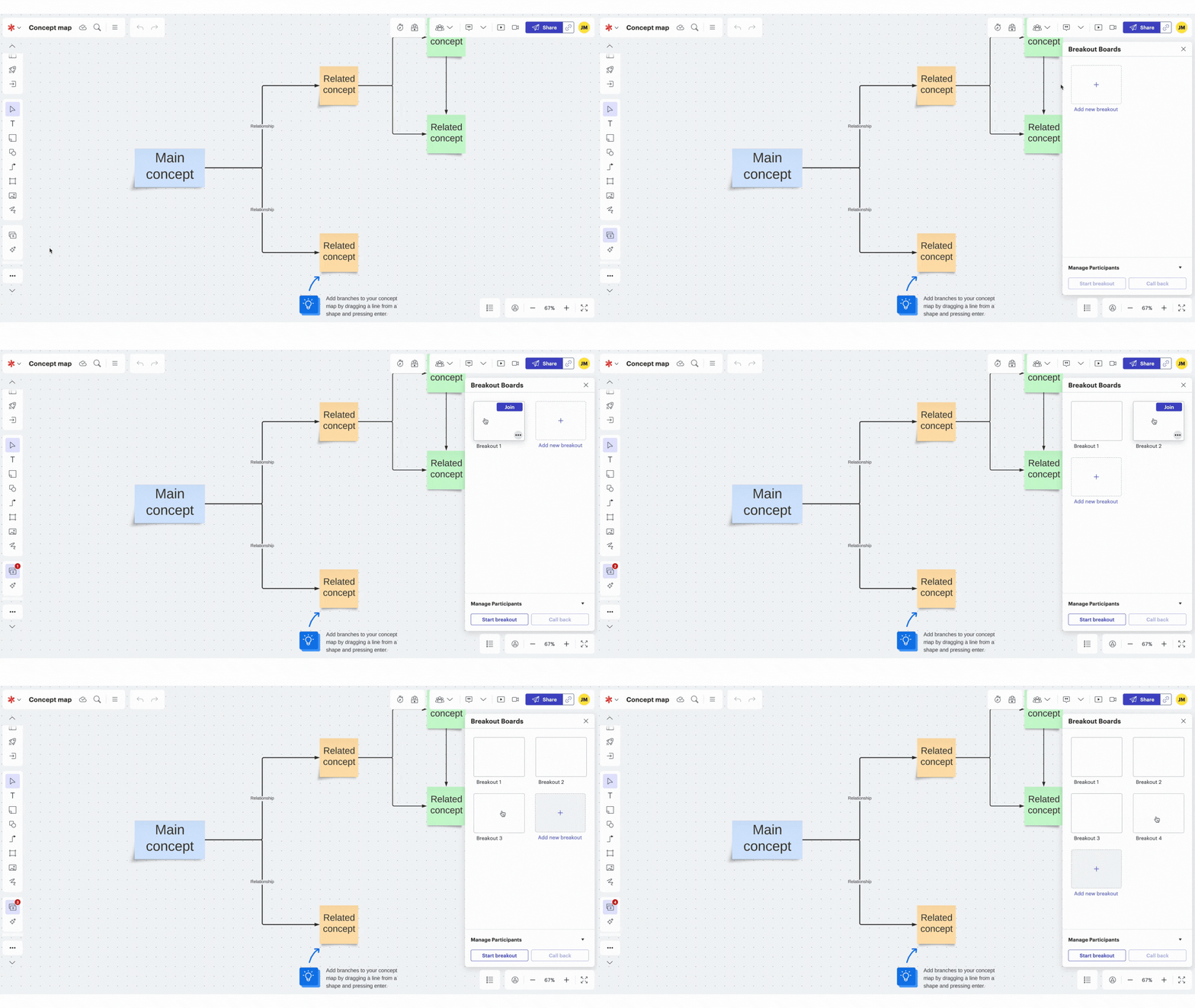
One of our favorite features of Lucidspark is it’s ability to generate Breakout Boards. Similar to breakout rooms, Breakout Boards are initiated when a collaboration session begins. To start the breakout session, select Start Breakout from the bottom of the Breakout Board panel. The Breakout Boards panel will become visible to all participants and they'll be able to select a board to join, which will send them to a separate Lucidspark board.
You can also share a direct link to a Breakout Board. You can do this by selecting Copy direct link from the three-dot menu in the Breakout Board panel and from within a Breakout Board by selecting Copy link in the upper-right corner. When the session is over, select Call Back to bring everyone back to the Main Board. Participants can also navigate back to the main board themselves at any time by clicking Main Board in the upper-left corner.


Timers will help keep your students on track and focused during activities. The built-in timer shows the countdown on everyone’s screens so educators can keep things moving. Launch a timer at the top of a Lucidspark document, then click on the clock icon.
Immediately next to the Timer is the Voting feature. In the voting feature, educators can create a voting session, set a timer for voting, provide instructions and much more. Launch the voting session by clicking on the blue start voting button.

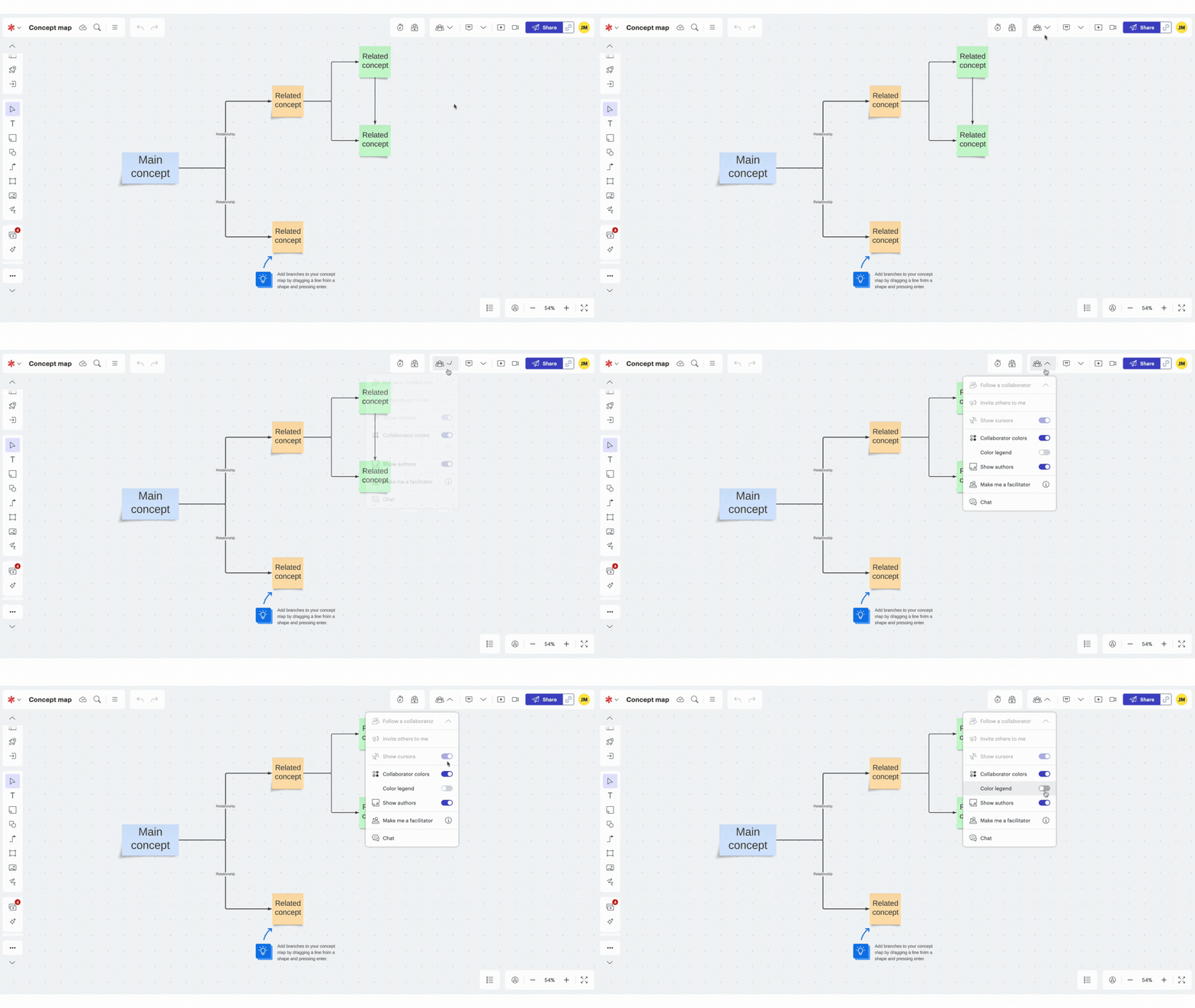
Let’s face it…digital whiteboards can be a classroom management challenge. But, with Lucidspark’s collaboration features, students can see authors, have different colored cursors, launch a chat and follow a collaborator. These features can be found at the top of a Lucidspark document, by clicking on the collaboration icon.

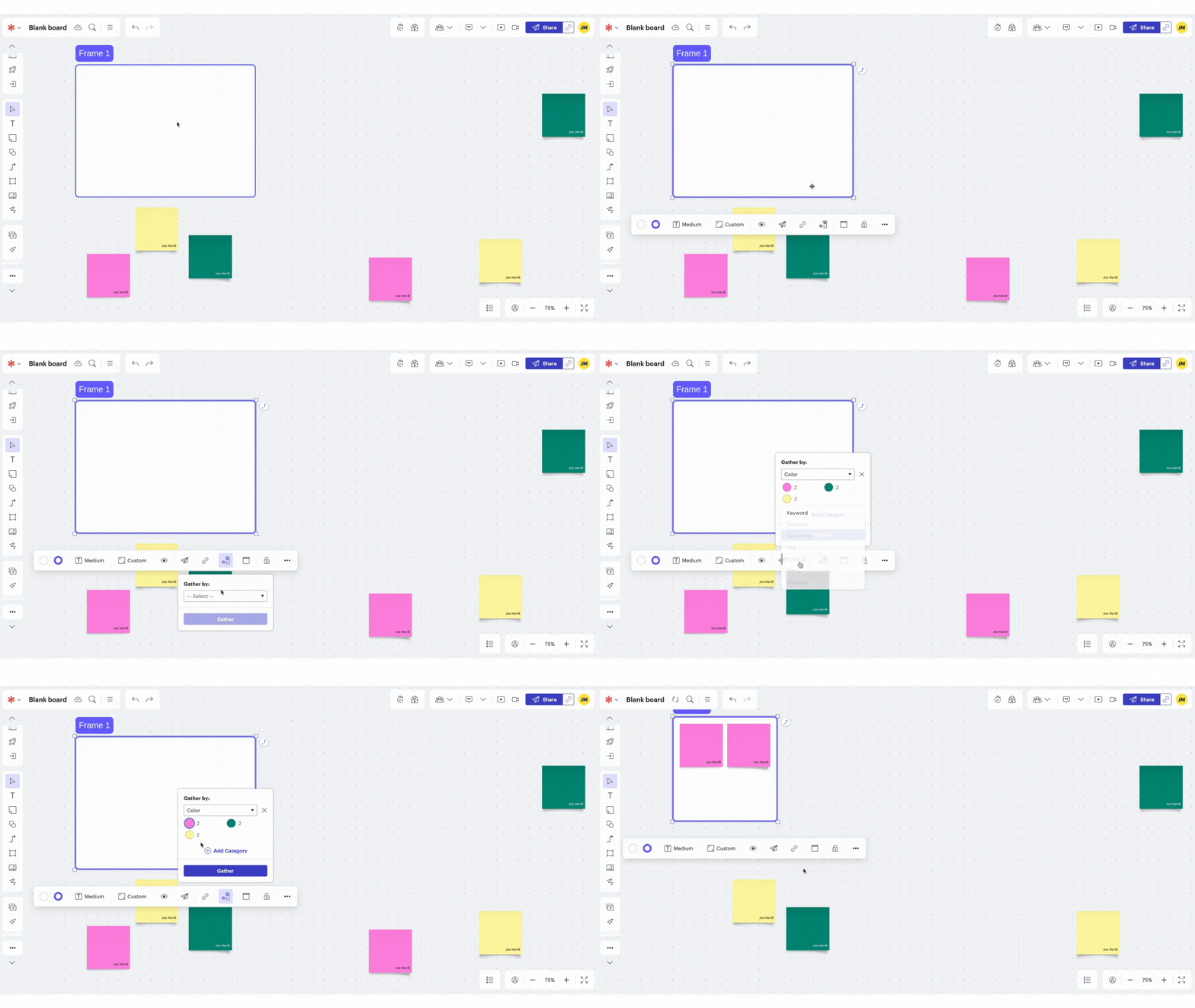
Another powerful feature is Lucidspark’s Gather and Sort. With this feature, educators and students can quickly organize the board’s content. For example, if each student or group uses a different color of sticky note, the educator can use the Gather and Sort feature to place similar colors together on the board.

How to sign up for a Lucidspark Educator Account

Lucidspark is available at no cost for individual educators and students. Click here or the image to the right to create an account and get started! K-12 schools and districts are eligible to receive a complimentary, centrally-managed account. Complete this interest form and a member of the Lucid for Education team will email you to complete the account set up process. Higher Education professors, instructors, and students can also receive a free Lucid for Education upgrade. To sign up, create a free Lucid account using your school email address. When asked to select the role that best fits you, just select Student or Educator.
How to Get Students to log Onto Lucidspark
Now that you’ve created your EDU account, let’s talk about how you can get your students logged onto your board. There are several integrations that are available directly through Lucidspark, including: Canvas and Google Classroom. You can learn more about how to use these integrations by clicking here for Canvas and here for Google Classroom.
However, there are simple and efficient ways to get your students on-board without using the aforementioned integrations. One way is to just simply share the link to the board. To do so, follow these steps:

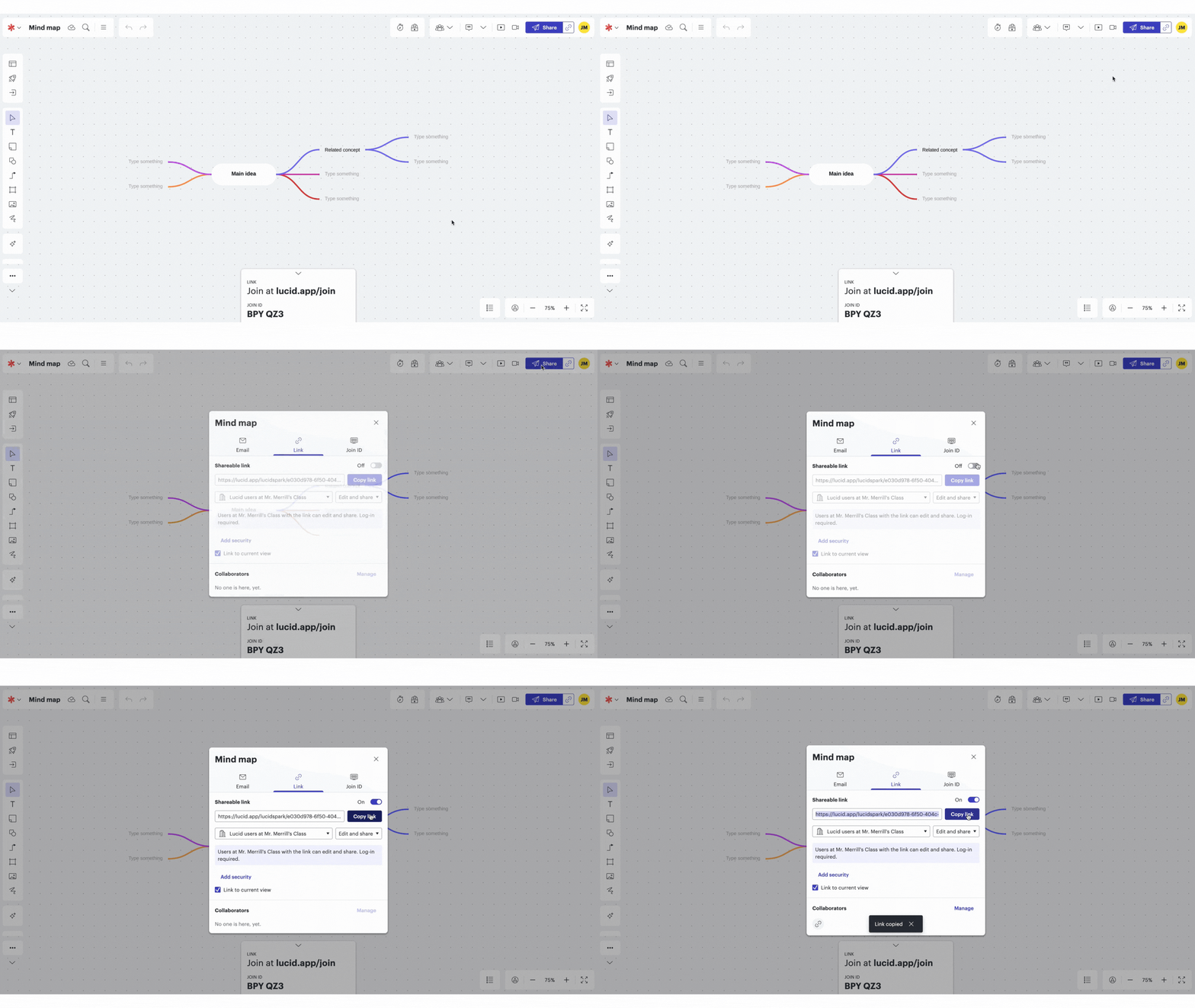
Open the Lucidspark board that you’re attempting to share.
Click on the “Share” button located on the top right.
A pop up will open. Select Link in the pop up window.
Toggle on the Shareable link.
Select your preferences, then click Copy link.
Paste this link onto wherever your students have access.

Another method is to use Lucidspark’s Join ID. This option uses a six digit code that can be entered to gain access. When students log onto https://lucid.app/join, they can enter the ID to the Lucidspark board. Follow these steps to use this method:

Open the Lucidspark board that you’re attempting to share.
Click on the “Share” button located on the top right.
A pop up will open. Select Join ID in the pop up window.
Toggle on the Share a join ID for easy access.
Click Copy invitation
Direct students to https://lucid.app/join and when prompted, have them enter the six digit ID generated for your board.
-- Please follow us on social media and tag us with how you’re using Lucidspark activities in your classroom! 👓👗
For more tips, tricks and lesson ideas for making learning more interACTIVE, check out our books The InterACTIVE Class and Flipgrid in the InterACTIVE Class on Amazon!


